Access
®
2013
D
o
w
nl
oa
d
fr
om
W
ow
!
eB
oo
k
<
w
w
w
.w
ow
eb
oo
k.
co
m
by Laurie Ulrich Fuller
and Ken Cook
Access® 2013 For Dummies®
Published by
John Wiley & Sons, Inc.
111 River Street Hoboken, NJ 07030-5774
www.wiley.com
Copyright © 2013 by John Wiley & Sons, Inc., Hoboken, New Jersey Published by John Wiley & Sons, Inc., Hoboken, New Jersey Published simultaneously in Canada
No part of this publication may be reproduced, stored in a retrieval system or transmitted in any form or by any means, electronic, mechanical, photocopying, recording, scanning or otherwise, except as permit-ted under Sections 107 or 108 of the 1976 Unipermit-ted States Copyright Act, without either the prior written permission of the Publisher, or authorization through payment of the appropriate per-copy fee to the Copyright Clearance Center, 222 Rosewood Drive, Danvers, MA 01923, (978) 750-8400, fax (978) 646-8600. Requests to the Publisher for permission should be addressed to the Permissions Department, John Wiley & Sons, Inc., 111 River Street, Hoboken, NJ 07030, (201) 748-6011, fax (201) 748-6008, or online at http:// www.wiley.com/go/permissions.
Trademarks: Wiley, the Wiley logo, For Dummies, the Dummies Man logo, A Reference for the Rest of Us!, The Dummies Way, Dummies Daily, The Fun and Easy Way, Dummies.com, Making Everything Easier, and related trade dress are trademarks or registered trademarks of John Wiley & Sons, Inc. and/or its affiliates in the United States and other countries, and may not be used without written permission. All other trade-marks are the property of their respective owners. John Wiley & Sons, Inc., is not associated with any product or vendor mentioned in this book.
LIMIT OF LIABILITY/DISCLAIMER OF WARRANTY: THE PUBLISHER AND THE AUTHOR MAKE NO REPRESENTATIONS OR WARRANTIES WITH RESPECT TO THE ACCURACY OR COMPLETENESS OF THE CONTENTS OF THIS WORK AND SPECIFICALLY DISCLAIM ALL WARRANTIES, INCLUDING WITH-OUT LIMITATION WARRANTIES OF FITNESS FOR A PARTICULAR PURPOSE. NO WARRANTY MAY BE CREATED OR EXTENDED BY SALES OR PROMOTIONAL MATERIALS. THE ADVICE AND STRATEGIES CONTAINED HEREIN MAY NOT BE SUITABLE FOR EVERY SITUATION. THIS WORK IS SOLD WITH THE UNDERSTANDING THAT THE PUBLISHER IS NOT ENGAGED IN RENDERING LEGAL, ACCOUNTING, OR OTHER PROFESSIONAL SERVICES. IF PROFESSIONAL ASSISTANCE IS REQUIRED, THE SERVICES OF A COMPETENT PROFESSIONAL PERSON SHOULD BE SOUGHT. NEITHER THE PUBLISHER NOR THE AUTHOR SHALL BE LIABLE FOR DAMAGES ARISING HEREFROM. THE FACT THAT AN ORGANIZA-TION OR WEBSITE IS REFERRED TO IN THIS WORK AS A CITAORGANIZA-TION AND/OR A POTENTIAL SOURCE OF FURTHER INFORMATION DOES NOT MEAN THAT THE AUTHOR OR THE PUBLISHER ENDORSES THE INFORMATION THE ORGANIZATION OR WEBSITE MAY PROVIDE OR RECOMMENDATIONS IT MAY MAKE. FURTHER, READERS SHOULD BE AWARE THAT INTERNET WEBSITES LISTED IN THIS WORK MAY HAVE CHANGED OR DISAPPEARED BETWEEN WHEN THIS WORK WAS WRITTEN AND WHEN IT IS READ.
For general information on our other products and services, please contact our Customer Care Department within the U.S. at 877-762-2974, outside the U.S. at 317-572-3993, or fax 317-572-4002. For technical support, please visit www.wiley.com/techsupport.
Wiley also publishes its books in a variety of electronic formats and by print-on-demand. Not all content that is available in standard print versions of this book may appear or be packaged in all book formats. If you have purchased a version of this book that did not include media that is referenced by or accom-panies a standard print version, you may request this media by visiting http://booksupport.wiley. com. For more information about Wiley products, visit us www.wiley.com.
Library of Congress Control Number: 2013932118
ISBN 978-1-118-51638-6 (pbk); ISBN 978-1-118-56850-7 (ebk); ISBN 978-1-118-56864-4 (ebk); ISBN 978-1-118-56851-4 (ebk)
About the Authors
Laurie Ulrich Fuller has been writing about and teaching people to use Microsoft Office for more than 20 years. She’s been there through every new version of Access as Office has evolved to meet the needs of users from all walks of life — from individuals to huge corporations, from growing businesses to non-profit organizations.
In the meantime, Laurie has personally trained more than 20,000 people to make better, more creative use of their computers, has written and co-written 30+ nationally published books on computers and software — including several titles on Microsoft Office. In the last few years, she’s also created several online training courses, teaching online students to use Microsoft Office and Adobe Photoshop.
Laurie’s own firm, Limehat & Company, offers training and educational materials as well as graphic design, marketing, promotions, and web- development services. She invites you to contact her with your Office- related questions at [email protected] and to visit her website at www. limehat.com.
Ken Cook has built and managed a successful computer consulting business (now called Cook Software Solutions, LLC) since 1990. He began as a trainer — training numerous users (too many to count!) on a variety of software packages — specializing in Microsoft Office. Currently he “dabbles in training” (specializing in online synchronous training), but his main focus is creating expert Microsoft Office solutions and Microsoft Access database solutions for Fortune 500 and small business clients.
Ken is also a published author on Microsoft Excel, having contributed chapters on macros and VBA to Special Edition: Using Excel 2000 and Special
Edition: Using Excel 2002 published by Que. Ken also contributed Microsoft
Access chapters to the book How to Do Everything with Office XP published by Osborne and coauthored the previous edition of this book: Access 2010
For Dummies published by Wiley.
Prior to his career in computers, Ken was a Product Manager for Prince Manufacturing, Inc. He is a graduate of Syracuse University with a bachelor’s degree in Marketing. He can be contacted through his web site (www.kcook pcbiz.com) or by e-mail (mailto:[email protected]).
Publisher’s Acknowledgments
We’re proud of this book; please send us your comments at http://dummies.custhelp.com. For other comments, please contact our Customer Care Department within the U.S. at 877-762-2974, outside the U.S. at 317-572-3993, or fax 317-572-4002.
Some of the people who helped bring this book to market include the following:
Acquisitions and Editorial Sr. Project Editor: Mark Enochs
Executive Editor: Steve Hayes
Copy Editor: Melba Hopper
Technical Editor: Brian Underdahl
Editorial Manager: Leah Michael
Editorial Assistant: Annie Sullivan
Sr. Editorial Assistant: Cherie Case
Cover Photo: © pagadesign / iStockphoto.com
Composition Services
Project Coordinator: Sheree Montgomery
Layout and Graphics: Jennifer Creasey, Christin Swinford
Proofreader: Evelyn Wellborn
Indexer: BIM Indexing & Proofreading Services
Publishing and Editorial for Technology Dummies
Richard Swadley, Vice President and Executive Group Publisher
Andy Cummings, Vice President and Publisher
Mary Bednarek, Executive Acquisitions Director
Mary C. Corder, Editorial Director
Publishing for Consumer Dummies
Kathy Nebenhaus, Vice President and Executive Publisher
Composition Services
Contents at a Glance
Introduction ... 1
Part I: Getting Started with Access 2013 ... 9
Chapter 1: Access 2013 Basic Training ... 11
Chapter 2: Navigating the Access Workspace... 33
Chapter 3: Database Basics ... 55
Part II: Setting the Table ... 73
Chapter 4: Table Tune Ups ... 75
Chapter 5: Remodeling Your Data ... 91
Chapter 6: Types, Masks, and Triggers ... 109
Part III: Data Management Mania ... 131
Chapter 7: A Form for All Reasons... 133
Chapter 8: Importing and Exporting Data ... 147
Chapter 9: Automatic Data Editing ... 159
Chapter 10: Access and the Web ... 171
Part IV: Ask Your Data, and
Ye Shall Receive Answers ... 193
Chapter 11: Finding, Filtering, and Sorting Your Data — Fast ... 195
Chapter 12: I Was Just Asking . . . for Answers ... 211
Chapter 13: I Want These AND Those OR Them ... 237
Chapter 14: Number Crunching with the Total Row ... 245
Chapter 15: Express Yourself with Formulas ... 257
Chapter 16: Take Charge with Action Queries ... 271
Part V: Simple and Snazzy Reporting ... 281
Chapter 17: Fast and Furious Automatic Reporting ... 283
Chapter 18: Professionally Designed Reports Made Easy ... 305
Chapter 19: Headers and Footers and Groups, Oh My! ... 331
Part VI: More Power to You ... 361
Chapter 21: Analyze This! ... 363
Chapter 22: Steer Users in the Right Direction with Navigation Forms ... 375
Part VII: The Part of Tens ... 383
Chapter 23: Ten Common Problems ... 385
Chapter 24: Ten Uncommon Tips ... 397
Appendix: Getting Help ... 405
Table of Contents
Introduction ... 1
About This Book ... 1
Conventions Used in This Book ... 2
What You Don’t Have to Read ... 2
Foolish Assumptions ... 3
How This Book Is Organized ... 3
Part I: Getting Started with Access 2013 ... 4
Part II: Setting the Table ... 4
Part III: Data Management Mania ... 4
Part IV: Ask Your Data, and Ye Shall Receive Answers ... 5
Part V: Simple and Snazzy Reporting ... 5
Part VI: More Power to You ... 5
Part VII: The Part of Tens ... 6
Appendix: Getting Help ... 6
Icons Used in This Book ... 6
Where to Go from Here ... 7
Part I: Getting Started with Access 2013 ... 9
Chapter 1: Access 2013 Basic Training . . . .11
What Is Access Good For, Anyway? ... 12
Building big databases ... 12
Building apps ... 13
Creating databases with multiple tables ... 13
Databases with user forms ... 16
Databases that require special reporting ... 18
What’s New in Access 2013? ... 21
New features ... 22
Reach out with SharePoint ... 23
How Access Works and How You Work with It ... 24
Opening Access ... 25
Selecting a starting point ... 26
Access 2013 For Dummies
x
Chapter 2: Navigating the Access Workspace . . . .33
Diving Right In ... 35
Working with Onscreen Tools in Access ... 38
Clicking tabs ... 40
Using buttons ... 41
The File tab and Quick Access tools ... 42
Accessing panes, panels, and context-sensitive tools ... 43
Customizing the Access Workspace ... 44
Repositioning the Quick Access toolbar ... 45
Adding buttons to the Quick Access toolbar ... 46
Removing buttons from the Quick Access toolbar ... 48
Minimizing the Ribbon ... 48
Working with ScreenTips ... 50
Mousing Around ... 53
Navigating Access with the Alt Key ... 53
Chapter 3: Database Basics . . . .55
Database Lingo ... 55
Data, no matter how you pronounce it ... 56
Fields of dreams (or data) ... 56
Records ... 57
Tables ... 57
The database ... 57
Field Types and Uses ... 58
Choosing Between Flat and Relational Databases ... 62
Isolationist tables ... 63
Tables that mix and mingle ... 63
Building a Database ... 65
Adding and Removing Tables ... 68
One more, please ... 69
Oops, I didn’t mean to do that ... 70
Part II: Setting the Table ... 73
Chapter 4: Table Tune Ups . . . .75
The Primary Key to Success ... 75
The lowdown on primary keys ... 76
Creating a primary key ... 77
Making Tables Get Along ... 79
Rules of relationships ... 79
Relationship types ... 79
Building Table Relationships ... 81
The Relationships window ... 82
Table relationships ... 83
Indexing for Faster Queries ... 86
Create your own index ... 87
Adding and removing indexes ... 90
xi
Table of Contents
Chapter 5: Remodeling Your Data . . . .91
Opening a Table for Editing ... 92
Inserting Records and Fields ... 95
Adding a record ... 95
Inserting a field ... 96
Deleting a field ... 100
Modifying Field Content ... 101
Name-Calling ... 102
Renaming fields ... 103
Renaming a table ... 105
Turn Uh-Oh! into Yee-Hah! ... 106
Chapter 6: Types, Masks, and Triggers . . . .109
Access Table Settings ... 109
Field Data Formats ... 112
Text fields ... 112
Number and currency fields ... 115
Date/time fields ... 117
Yes/No fields ... 118
Gaining Control of Data Entry ... 120
You really need to put a mask on those fields ... 120
To require or not to require ... 126
Making your data toe the line with validation ... 127
Give Your Fingers a Mini Vacation by Default ... 129
Part III: Data Management Mania ... 131
Chapter 7: A Form for All Reasons . . . .133
Generating Forms ... 133
Keeping it simple: Form tools... 135
Granting most wishes: the Form Wizard... 136
Customizing Form Parts ... 140
Taking the Layout view ... 141
The theme’s the thing ... 142
Managing form controls ... 143
Chapter 8: Importing and Exporting Data . . . .147
Retrieving Data from Other Sources ... 148
Translating file formats ... 148
Importing and linking ... 151
Hit the Road, Data ... 156
Export formats ... 156
Access 2013 For Dummies
xii
Chapter 9: Automatic Data Editing . . . .159
Please Read This First! ... 159
Creating Consistent Corrections ... 161
Using Queries to Automate the Editing Process ... 164
Looking for duplicate records ... 165
Running the Find Duplicates Query Wizard ... 165
Chapter 10: Access and the Web . . . .171
How Access Works with the Web ... 171
Understanding Office 365 ... 172
Meet the Custom Web App ... 173
Click! Using Hyperlinks in Your Access Database ... 175
Adding a Hyperlink field to your table ... 176
Typing your hyperlinks ... 177
Fine-tuning your hyperlinks... 179
Testing links ... 180
Embedding Web Content into Your Access Forms ... 181
Adding hyperlinks to your form ... 182
Publishing Your Data to the Web ... 187
Publishing your Access tables ... 188
Part IV: Ask Your Data, and
Ye Shall Receive Answers ... 193
Chapter 11: Finding, Filtering, and Sorting Your Data — Fast . . . .195
Using the Find Command ... 196
Finding anything fast ... 196
Shifting Find into high gear ... 198
Sorting from A to Z or Z to A ... 200
Sorting by a single field ... 201
Sorting on more than one field ... 201
Fast and Furious Filtering ... 202
Filtering by a field’s content ... 202
Filter by selection ... 204
Filter by Form ... 205
Unfiltering in a form ... 208
xiii
Table of Contents
Chapter 12: I Was Just Asking . . . for Answers . . . .211
Simple (Yet Potent) Filter and Sort Tools ... 212
Filter things first ... 213
Fact-finding with fun, fast filtering ... 215
Here’s the “advanced” part ... 216
Select Queries ... 222
Solid relationships are the key to getting it all (from your tables) ... 223
Running the Query Wizard ... 223
Getting Your Feet Wet with Ad Hoc Queries ... 229
Adding the finishing touches ... 232
Saving the query ... 234
Running your query ... 236
Chapter 13: I Want These AND Those OR Them . . . .237
Working with AND and/or OR ... 237
Data from here to there... 239
Using multiple levels of AND ... 241
Establishing criteria with OR... 241
Combining AND with OR and OR with AND ... 243
Chapter 14: Number Crunching with the Total Row . . . .245
Kissing That Calculator Goodbye via the Total Row ... 245
Adding the Total Row to Your Queries ... 247
Giving the Total Row a Workout ... 248
Putting It Together with Group By ... 248
Well, that certainly sums it up ... 250
Counting, the easy way ... 252
Narrowing the results with Where ... 253
Creating Your Own Top-Ten List ... 254
Choosing the Right Field for the Summary Instruction ... 255
Chapter 15: Express Yourself with Formulas . . . .257
A Simple Calculation ... 258
Complex Calculations ... 260
Calculate ’til you drop! ... 260
Using one calculation in another ... 261
Using parameter queries to ask for help ... 263
“Adding” words with text formulas ... 264
Access 2013 For Dummies
xiv
Chapter 16: Take Charge with Action Queries . . . .271
Easy Update ... 272
Add Records in a Flash ... 276
Quick Cleanup ... 279
Part V: Simple and Snazzy Reporting ... 281
Chapter 17: Fast and Furious Automatic Reporting . . . .283
Quick and Not-So-Dirty Automatic Reporting ... 284
Creating a quick, one-table report ... 284
Starting the Report Wizard ... 290
Previewing Your Report ... 295
Zooming in and out and all around ... 296
Pop goes the menu ... 297
Beauty Is Only Skin (Report) Deep ... 299
The Print Options tab ... 299
The Page tab ... 301
The Columns tab ... 302
Chapter 18: Professionally Designed Reports Made Easy . . . .305
Report Repairs ... 306
Report Organization ... 308
Structural devices ... 308
Page breaks ... 310
Formatting Stuff ... 312
Adding color ... 313
Relocation, relocation, relocation ... 315
One size does not fit all ... 317
Spaced-out controls ... 318
Borderline beauty ... 319
Tweaking your text ... 323
Sneaking a Peek ... 325
Getting a Themes Makeover ... 326
Adding More Design Elements ... 327
Drawing lines ... 328
Pretty as a picture ... 328
Chapter 19: Headers and Footers and Groups, Oh My! . . . .331
A Place for Everything and Everything in Its Place ... 332
Layout basics... 332
Sections ... 334
Grouping your records ... 337
xv
Table of Contents
Customizing Properties ... 340
Controlling report and page headings ... 343
Adjusting individual sections ... 345
Itemized adjustments ... 346
Chapter 20: Magical Mass Mailings . . . .353
Massive Mailings with the Label Wizard ... 353
Part VI: More Power to You ... 361
Chapter 21: Analyze This! . . . .363
From Flat File to Relational Tables with Table Analyzer ... 364
Record Database Object Information with the Database Documenter ... 368
Improve Database Performance Without Steroids ... 372
Chapter 22: Steer Users in the Right Direction
with Navigation Forms . . . .375
The Comings and Goings of a Navigation Form ... 375
Am I in the Right Place? Testing Navigation Forms ... 378
Maintaining the Navigation Form ... 379
Edit a Navigation form item ... 380
Delete a Navigation Form tab item ... 380
Move a Navigation form item ... 380
Displaying the Navigation Form at Startup ... 381
Part VII: The Part of Tens ... 383
Chapter 23: Ten Common Problems . . . .385
That’s Just Not Normal ... 385
You Type 73.725, but It Changes to 74 ... 386
The Words They Are A-Changing ... 387
Was There and Now It’s Gone ... 388
Undo ... 388
Search for the missing record ... 388
Backup recovery ... 389
You Run a Query, but the Results Aren’t What You Expect ... 389
The Dreaded Parameter Dialog Box ... 391
The Slowest Database in Town ... 391
Your Database File Is as Big as a Whale ... 393
You Get a Mess When Importing Your Spreadsheet ... 394
Access 2013 For Dummies
xvi
Chapter 24: Ten Uncommon Tips . . . .397
Document Everything as Though One Day You’ll be Questioned by the FBI... 398
Keep Your Fields as Small as Possible ... 399
Use Number Fields for Real Numbers ... 400
Validate Your Data ... 400
Use Understandable Names to Keep Things Simple ... 400
Delete with Great Caution ... 401
Backup, Backup, Backup ... 401
Think, Think, and Think Again ... 402
Get Organized and Stay Organized ... 402
There’s No Shame in Asking for Help ... 402
Appendix: Getting Help ... 405
Asking Access for Help ... 406
Installed Help files... 406
Asking the right questions ... 406
Online Help ... 408
Office.com ... 409
Search engines and other sites ... 410
Who’s Our Next Caller? ... 410
Voice calls ... 411
TDD/TT calls ... 412
Introduction
W
elcome! Thank you for picking up this book. We assume you’ve done so because you’re hoping it will explain how to use Microsoft Access 2013. And of course, as the authors, we believe this was a wise decision. We’re quite certain that this is the best book for you to use to understand Access 2013 — but not just because we wrote it. Rather, we base this belief on the fact that both of us have been teaching and using Access for a very long time, and we know how to share what we know with our students. That’s right, you’re now one of our students — at least that’s how we feel about you as our reader. Doesn’t that make you feel all warm and fuzzy? We hope so. Of course, being a normal human being, you probably have work to do, and you’re probably juggling a whole lot of information. This means you need to use Access. You need it to organize your data. You need it to store all the information that’s currently spilling out of notebooks, file drawers, your pockets, your glove compartment, your smart phone, your brain, every-where. You need it so you can produce reports that make you look like the genius you are. You need it so you can create cool forms that will help your staff enter all the data you’ve got stacked on their desks — and in a way that lets you know the data was entered properly so that it’s accurate and useful. You need Access so you can find little bits of data out of the huge pool of information you need to store. So that’s it. You just need it.About This Book
2
Access 2013 For Dummies
Conventions Used in This Book
As you work with Access 2013, you’re going to need to tell it to do things. You’ll also find that, at times, Access has questions for you, usually in response to you asking it to do something. This book will show you how to talk to Access, and how Access will talk to you. To show the difference between the two sides of that conversation, we format the commands as follows:
This is something you type into the computer.
This is how the computer responds to your command.
Because Access is a Windows program, you don’t just type, type, type — you also mouse around quite a bit. Here are the mouse movements necessary to make Access (and any other Windows program) work:
✓ Click: Position the tip of the mouse pointer (the end of the arrow) on the menu item, button, check box, or whatever else you happen to be aiming at, and then quickly press and release the left mouse button.
✓ Double-click: Position the mouse pointer as though you’re going to
click, but fool it at the last minute by clicking twice in rapid succession.
✓ Click and drag (highlight): Put the tip of the mouse pointer at the place you want to start highlighting, and then press and hold the left mouse button. While holding down the mouse button, drag the pointer across whatever you want to highlight. When you reach the end of what you’re highlighting, release the mouse button.
✓ Right-click: Right-clicking works just like clicking, except you’re
exercis-ing the right instead of the left mouse button.
What You Don’t Have to Read
3
Introduction
If you only use Access at work, and you’re using an Access database that some über-geek in your IT department created, chances are you can’t tinker with it. Therefore, if you only need to know about using an existing Access database (or unless you have designs on that IT geek’s job), you can skip the chapters on designing databases.
Of course, it’s pretty useful to know what’s happening “behind the scenes,” but you don’t have to read those chapters if you don’t want to. We think you’ll find them interesting, and they’ll help you understand why certain things work the way they do in the database you use, but it’s entirely up to you.
Foolish Assumptions
You need to know only a few things about your computer and Windows to get the most out of Access 2013 For Dummies. In the following pages, we presume that you . . .
✓ Know the basics of Windows 7 and Windows 8 — how to open programs, save your files, create folders, find your files once you’ve saved them, print, and do basic stuff like that.
✓ Have some goals that Access will help you reach. You • want to build your own databases
and/or
• want to work with databases that other people have created.
✓ Want to use and create queries, reports, and an occasional form.
✓ Have Windows 7 or 8.
If your computer uses Windows 98, 2000, or Vista, you can’t run Access 2013.
How This Book Is Organized
4
Access 2013 For Dummies
Part I: Getting Started with Access 2013
In this first part of the book, you’ll find out what Access is, what it isn’t, how it works, and how you open it up and start using it. You’ll find out how to navigate and master the Access workspace — and people who’ve used previ-ous versions of Access find out about all the new features and tools that are part of Access 2013.
Part I also takes you through the process of planning your database — deciding what to store, how to structure your database, and how to use some of Access 2013’s very helpful tools for starting a database with templates — cookie-cutters, to use a fun and accurate metaphor — for a variety of common database designs. Be prepared to pick up some helpful jargon, as you discover a bit about a few specialized terms that you really need to know.
Part II: Setting the Table
Part II takes you a bit deeper, starting out with a chapter on setting up more than one table to store related data — and moving on with chapters on set-ting up relationships between those tables, customizing the way data is stored in your tables, and ways to control how data is entered into the tables in your database. You’ll also find out about tools that create new data in your tables — based on existing data — automatically.
Part III: Data Management Mania
Here you find out all about forms — the customized interfaces you create to make it easier to enter, edit, and look at your database. You’ll also discover cool ways to share your Access data with other programs and how to bring content from Word documents and Excel worksheets into Access to save time, reduce the likelihood of data-entry errors, and build consistency within all the work you do in Microsoft Office.
5
Introduction
Part IV: Ask Your Data, and
Ye Shall Receive Answers
In Part IV, you discover how to ask questions such as “How many customers do we have in Springfield?” and “How long has that weird guy in Accounting worked here?” Of course, you already know how to form and speak sentences that go up at the end (so people know you’re asking a question), but when you ask a question in Access, the pitch of your voice rarely makes any differ-ence. You’ll need, therefore, to know how to sort, filter, and query your data to get at the information you’re storing in your Access database. You’ll also want to know more about Action Queries — and these, too, can be found in Part IV.
Part V: Simple and Snazzy Reporting
Reports are compilations of data from one or more tables in your database. That statement might sound a bit scary, because “compilations” has four syllables and you might not be sure what a table is yet. Have no fear, however, because Access provides some cool automatic tools that let you pick and choose what you want in your report, and then it goes and makes the report
for you. How neat is that?
And if automatic reports aren’t good enough for you — if your job relies upon reports not only being informative but also attractive and attention-grabbing, Part V will be like opening a birthday present. Well, not really, but you’ll find out about how to set up reports that organize your information logically, how to make sure your reports include page numbers, headings and other information to help people make quick use of the report, and how to include graphics to produce a professional-looking publication, whether viewed onscreen or in print.
Part VI: More Power to You
Part VI gives more power in the form of the Access Analyzer, a tool that tunes up your database for better performance. It also gives you more power by showing you how to create a user interface that controls what people see, which tables they can edit, and how they work with your database overall.
6
Access 2013 For Dummies
Part VII: The Part of Tens
The format of these chapters is designed to give you a lot of information in a simple, digestible fashion so you can absorb it without realizing you’re actu-ally learning something. Sneaky, huh?
Appendix: Getting Help
This isn’t really a whole part, but it’s darn useful. Remember how your mom told you the only foolish question is the one you don’t ask? In this appen-dix, you find out where to go to ask — namely, the online and built-in help resources that Access offers.
Note: We went to the trouble of typing up a ton of records in a few sample databases that are designed to show you the tricks of the Access trade. You can find all the samples at www.dummies.com/go/access2013fd.
Icons Used in This Book
When something in this book is particularly valuable, we go out of our way to make sure that it stands out. We use these cool icons to mark text that (for one reason or another) really needs your attention. Here’s a quick preview of the ones waiting for you in this book and what they mean.
Tips are incredibly helpful words of wisdom that promise to save you time, energy, and the embarrassment of being caught swearing out loud while you think you’re alone. Whenever you see a tip, take a second to check it out.
Some things are too important to forget, so the Remember icon points them out. These items are critical steps in a process — points that you don’t want to miss.
Sometimes we give in to the techno-geek lurking inside us and slip some technical babble into the book. The Technical Stuff icon protects you from obscure details by making them easy to avoid. On the other hand, you may find them interesting. (Your inner techno-geek will rejoice.)
The Warning icon says it all: Skipping this information may be hazardous to
your data’s health. Pay attention to these icons and follow their instructions to
7
Introduction
Where to Go from Here
Now nothing’s left to hold you back from the thrills, chills, and power of Access. Hold on tight to your copy of Access 2013 For Dummies and leap into Access. Not sure where to start? See if you spot yourself in these options:
✓ If you’re brand new to the program and don’t know which way to turn, start with the general overview in Chapter 1.
✓ If you’re about to design a database, we salute you — and recommend
flipping through Chapter 4 for some helpful design and development tips.
✓ Looking for something specific? Try the Table of Contents or the index. Occasionally, there are updates to technology books. If this book has techni-cal updates, they will be posted at:
www.dummies.com/go/access2013fd
Part I
In this part . . .
✓ Discover what Access is and does and what’s new in
Access 2013.
✓ Learn about the objects that make up an effective database,
and get started building your first table.
✓ Master database lingo so you can speak the language and
understand the terminology.
✓ Visit www.dummies.com for great Dummies content
Chapter 1
Access 2013 Basic Training
In This Chapter
▶ Deciding when to use Access
▶ Discovering what’s new in Access 2013 ▶ Unlocking the basics of working with Access ▶ Figuring out how to get started
A
ccess 2013, the most recent version of the Microsoft Office database application, continues to be a very powerful program. You probably already know that, and perhaps that power — or your perceptions of all that Access can do — is what made you reach for this book. We congratulate you on your wise choice!For all of its power, Access is also very — pardon the expression — accessible. It’s pretty easy to use at the edges, where a new user will be; you don’t have to venture all the way in to its core to get quite a lot out of the software. In fact, with just the basic functionality that you’ll discover in this book, you’ll be able to put Access through many of its most important paces, yet you’ll be working with wizards and other onscreen tools that keep you at a com-fortable arm’s distance from the software’s inner workings, the things that programmers and serious developers play with. There. Don’t you feel better now?
12
Part I: Getting Started with Access 2013
Now, don’t panic; nobody’s expecting you to memorize tons of complex vocabulary or anything scary like that. The goal here (and in the next two chapters) with regard to terms is to introduce you to some basic words and general concepts intended to help you make better use of Access — as well as better understand later chapters in this book, if you choose to follow us all the way to its stunning, life-altering conclusion.
What Is Access Good For, Anyway?
What is Access good for? That’s a good question. Well, the list of what you can do with it is a lot longer than the list of what you can’t do with it — of course, especially if you leave things like “wash your car” and “put away the dishes” off the “can’t do” list. When it comes to data organization, storage, and retrieval, Access is at the head of the class.
Building big databases
Okay, what do I mean by big database? Any database with a lot of records — and by a lot, I mean hundreds. At least. And certainly if you have thousands
of records, you need a tool like Access to manage them. Although you can use Microsoft Excel to store lists of records, it limits how many you can store (no more than the number of rows in a single worksheet). In addition, you can’t use Excel to set up anything beyond a simple list that can be sorted and filtered. So anything with a lot of records and complex data is best done in Access.
Some reasons why Access handles big databases well:
✓ Typically, a big database has big data-entry needs. Access offers not only forms but also features that can create a quick form through which someone can enter all those records. This can make data entry easier and faster and can reduce the margin of error significantly. (Check out Chapter 7 for more about building forms.)
✓ When you have lots and lots of records, you also have lots of opportuni-ties for errors to creep — duplicate records, records with misspellings, records with missing information — and that’s just for openers. So you need an application such as Access to ferret out those errors and fix them. (Chapter 9 lays out how you can use Access to find and replace errors and search for duplicate entries.)
13
Chapter 1: Access 2013 Basic Training
your reports to your audience, from what’s shown on the reports pages to the colors and fonts used.
✓ Big databases are hard to wade through when you want to find some-thing. Access provides several tools for sorting, searching, and creating your own specialized tools (known as queries) for finding the elusive single record or group of records you need.
✓ Access saves time by giving you new uses for existing tools you may
have used to import data from other sources — such as Excel work-sheets (if you started in Excel and maxed out its usefulness as a data-storage device) and Word tables. This saves you from reentering all your data and allows you to keep multiple data sources consistent.
Building apps
There are several ways to build apps — a term that’s come to mean an appli-cation that runs on a smartphone or other hand-held device — but that also applies to SharePoint, with Access 2013.
You can build an app using the Access 2013 Web App template or build a custom web app, starting from scratch. You can also download an app from the Office Store and then customize it. You can also build a standard data-base, just like you always have in Access, and publish that via the web. Now, that said, this is not a book about apps or building them. The goal of this book is to show you how to use Access to build databases for use on a computer (a desktop or laptop/notebook). If you need to create a database app for use on a smartphone or tablet, you can check out any of the following publications or explore instructions available online by Googling How do I
create a database app with Access 2013?.
You can also take a look at Dummies.com or check out iOS 6 Application
Development For Dummies.
Creating databases with multiple tables
14
Part I: Getting Started with Access 2013
The Big Organization database
A large company has data on their customers and their orders, the products the company sells, its suppliers, and its employees. For a complex database like this one, you need multiple tables, as follows:
✓ One table houses the customer data — names, addresses, phone numbers, and e-mail addresses.
✓ A second table contains the customers’ orders, including the name of the customer who placed the order, the salesperson who handled the sale, shipping information, and the date of the order.
✓ A third table contains information on the products the company sells, including product numbers, supplier names, prices, and the number of items in stock.
✓ A fourth table contains supplier data — about the companies from which the main organization obtains its inventory of products to resell to cus-tomers. The table contains the company names, their contact person, and the address, e-mail, and phone number information to reach them.
✓ A fifth table contains employee data — from the date they were hired to their contact information to their job title — and also contains notes about them, sort of a summary of their resumes for reference.
Other tables exist, too — to keep a list of shipping companies and their con-tact information (for shipping customer orders), an expense table (for the expenses incurred in running the business), and other tables that are used with the main four tables. The need for and ways to use the main tables and these additional tables are covered later in this book, as you find out how to set up tools for data entry, look up records, and create reports that provide varying levels of detail on all the data you’ve stored.
Because you don’t have to fill in every field for each record — in any table in the database — if you don’t have a phone number or don’t know an e-mail address, for example, it’s okay to leave those fields blank until you’ve obtained that information.
Fail to plan? Plan to fail
If you think carefully about your database, how you use your data, and what you need to know about your employees, customers, volunteers, donors, products, or projects — whatever you’re storing information about — you can plan
✓ How many tables you’ll need
✓ Which data will go into which table
15
Chapter 1: Access 2013 Basic Training
Of course, everyone forgets something, and plans change after a system has already been implemented. But don’t worry — Access isn’t so rigid that chaos will ensue if you begin building your tables and forget something (a field or two, an entire table). You can always add a field that you forgot (or that some bright spark just told you is needed) or add a new table after the fact. But planning ahead as thoroughly as possible is still essential.
As part of thorough planning, sketch your planned database on paper, drawing a kind of flow chart with boxes for each table and lists of fields that you’ll have in each one. Draw arrows to show how they might be related — it’s sort of like drawing a simple family tree — and you’re well on your way to a well-planned, useful database.
Here’s a handy procedure to follow if you’re new to the process of planning a database:
1. On paper or in a word-processing document, whichever is more comfortable, type the following:
• A tentative name for your database
• A list of the pieces of information you plan on getting from that database on a daily or regular basis
2. Now, based on that information, create a new list of the actual details you could store:
List every piece of information you can possibly think of about your customers, products, ideas, cases, books, works of art, students — whatever your database pertains to. Don’t be afraid to go overboard — you can always skip some of the items in the list if they don’t turn out to be things you really need to know (or can possibly find out) about each item in your database.
3. Take the list of fields — that’s what all those pieces of information
are — and start breaking them up into logical groups.
How? Think about the fields and how they work together:
• For example, if the database keeps track of a library of books, perhaps the title, publication date, publisher, ISBN (International Standard
Book Number, which is unique for each book), price, and page count can be stored in one group, whereas author information, reviews, and lists of other titles by the same author or books on the same topic can be stored in another group. These groups become individual tables, creating your relational database of books. • Figure out what’s unique about each record. As stated in the previ-ous point, you need a field that’s unique for each record. Although Access can create a unique value for you if no unique data exists for each record in your database, it’s often best to have such a field already in place, or to create such a field yourself. Customer numbers, student numbers, Social Security numbers, book ISBNs,
16
Part I: Getting Started with Access 2013
catalog numbers, serial numbers — anything that isn’t the same for any two records will do.
With a big list of fields and some tentative groupings of those fields at the ready, and with an idea of which field is unique for each record, you can begin figuring out how to use the data.
4. Make a list of ways you might use the data, including
• Reports you’d like to create, including a list of which fields should be included for each report
• Other ways you can use the data — labels for mailings, product labels, catalogue data, price lists, contact lists, and so on
5. List all the places your data currently resides — on slips of paper in your pocket, on cards in a box, in another program (such as Excel), or maybe through a company that sells data for marketing purposes.
With this planning done, you’re ready to start building your database. The particulars of that process come later in this chapter and in subsequent chapters, so don’t jump in yet. Do pat yourself on the back, though, because if you’ve read this procedure and applied even some of it to your potential database, you’re way ahead of the game, and we’re confident you’ll make good use of all that Access has to offer.
Databases with user forms
When you’re planning your database, consider how the data will be entered:
✓ If you’ll be doing the data entry yourself, perhaps you’re comfort-able working in a spreadsheet-like environment (known in Access as
Datasheet view), where the table is a big grid. You fill it in row by row,
and each row is a record.
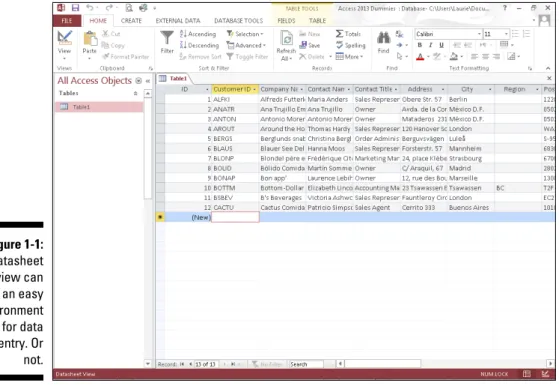
Figure 1-1 shows a table of customers in progress in Datasheet view. You decide: Is it easy to use, or can you picture yourself forgetting to move down a row and entering the wrong stuff in the wrong columns as you enter each record? As you can see, there are more fields than show in the window, so you’d be doing a lot of scrolling to the left and right to use this view.
✓ You may want to use a form (shown in Figure 1-2) instead. A form is a
specialized interface for data entry, editing, and for viewing your data-base one record at a time, if
• Someone else will be handling data entry
17
Chapter 1: Access 2013 Basic Training
Figure 1-1:
Datasheet view can be an easy environment for data entry. Or not.
The mind-numbing effect (and inherent increased margin for error) is espe-cially likely when you have lots of fields in a database, and the user, if work-ing in Datasheet view, has to move horizontally through the fields. A form like the one in Figure 1-2 puts the fields in a more pleasing format, making it easier to enter data into the fields and to see all the fields at once (or only those you want data entered into).
18
Part I: Getting Started with Access 2013
Figure 1-2:
Here’s a simple form for entering new records or review-ing existreview-ing
ones.
Databases that require special reporting
Yet another reason to use Access is the ability it gives you to create custom-ized reports quickly and easily. Some database programs, especially those designed for single-table databases (known as flat-file databases), have some canned reports built in, and that’s all you can do — just select a report from the list and run the same report that every other user of that software runs. If you’re an Excel user, your reporting capabilities are far from easy or simple, and they’re not designed for use with large databases — they’re meant for spreadsheets and small, one-table lists. Furthermore, you have to dig much deeper into Excel’s tools to get at these reports. Access, on the other hand, is a database application, so reporting is a major, up-front feature.
19
Chapter 1: Access 2013 Basic Training
printing, and you have to tinker with your spreadsheet pagination (through a specialized view of the spreadsheet) to control how the report prints out. In Access? Just fire up the Report Wizard, and you can sort your data, choose how to group it, decide which pieces of data to include in the report, and pick a visual layout and color scheme, all in one simple, streamlined process. Without you doing anything, the report is ready for printing. Access is built for reporting — after all, it is a database application — and reports are one of the most (if not the most) important ways you’ll use and share your data. Because reports are such an important part of Access, you can not only create them with minimum fuss but also customize them to create powerful documentation of your most important data:
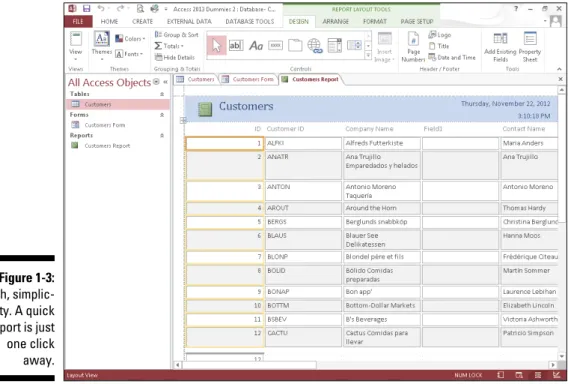
✓ Build a quick, simple report that just spits out whatever is in your table in a tidy, easy-to-read format. (See Figure 1-3 for an example.)
✓ Create a customized report that you design step-by-step with the help of the Report Wizard. (See Figure 1-4.) The report shown in the figure has the customers sorted by their company name. These options were easily put to work with just a few clicks.
Figure 1-3:
20
Part I: Getting Started with Access 2013
Figure 1-4:
The Report Wizard
cre-ates more elaborate (but simple) reports, like this one.
✓ You can really roll up your sleeves and design a new report, or play with an existing one, adding all sorts of bells and whistles. Figure 1-5 shows this happening in Design view. Note that the report’s title (Customer Contact Report) is selected: It has a box around it and tiny handles on the corners and sides of the box, which means you can reformat the title, change the font, size, or color of the text, or even edit the words if a new title is needed.
So, you can create any kind of custom report in Access, using any or all of your database tables and any of the fields from those tables, and you can group fields and place them in any order you want:
✓ With the Report Wizard, you can choose from several preset layouts for your report, and you can customize all of it row by row, column by column.
✓ You can easily add and remove fields after creating the report, should you change your mind about what’s included in the report. If you want to place your personal stamp on every aspect of your report, you can use Design view to do the following:
✓ Add titles, instructional or descriptive text boxes, and graphics.
21
Chapter 1: Access 2013 Basic Training
Figure 1-5:
Design view might look a little intimidating, but to really customize things, you’ll need it — and you might even enjoy it!
If all this sounds exciting, or at least interesting, then you’re really on the right track with Access. The need to create custom reports is a major reason to use Access; you can find out about all these reporting options in Chapters 17 through 19. That’s right: This chapter plus three more — that’s four whole chapters — are devoted to reporting. It must be a big feature in Access!
What’s New in Access 2013?
For users of Access 2010, the upgrade to 2013 won’t seem like a big deal, other than the changes to the fonts used on the ribbons, the change to a white back-ground for the ribbons, database tabs, and the All Access Objects panel on the left side of the workspace — but these are purely cosmetic changes.
22
Part I: Getting Started with Access 2013
If you’re coming from 2003, the biggest changes are found in the interface. Gone are the familiar menus and toolbars of 2003 and prior versions, now replaced by a ribbon bar divided into tabs that take you to different versions of those old standbys. It’s a big change, and it takes some getting used to. In this book, however, we’re going to assume you already got your feet wet with 2007 or 2010 and aren’t thrown by the interface anymore. We’re figur-ing you upgraded to 2007 or 2010 or have played with one or both of them enough to feel comfortable diving into 2013.
New features
So what’s new in Access 2013? In the order you’re most likely to encounter them, here goes:
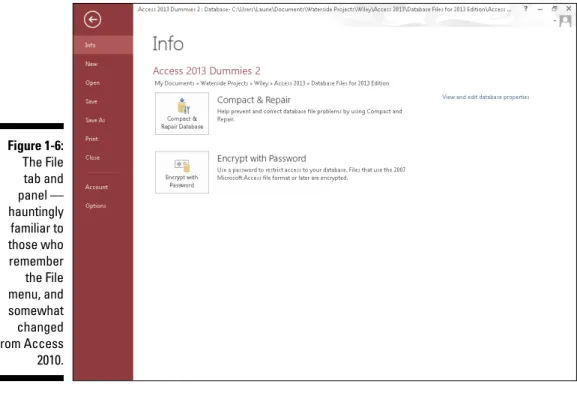
✓ The File tab and its dark red panel look very different; they replace the Office button and resulting menu in Access 2007, and the panel looks dif-ferent than the one you may be used to from Access 2010.
Using the panel on the left (shown in Figure 1-6), you make your choices for opening new files, accessing recently used files, saving files, printing, and exiting the application (among other momentous decisions). It’s a lot like the File menu from Access 2003 in terms of what’s available; the File panel makes the commands and features that used to live on the File menu easily accessible. To get to it, just click the File tab.
To go back to the Home tab (or whichever tab you were on before clicking the File tab), use the big left-pointing arrow at the top of the File panel.
23
Chapter 1: Access 2013 Basic Training
Figure 1-6:
The File tab and panel — hauntingly familiar to those who remember the File menu, and somewhat changed from Access 2010.
Reach out with SharePoint
24
Part I: Getting Started with Access 2013
Figure 1-7:
The Save As com-mand offers
choices for . . . you guessed it . . . saving your database.
As shown in Figure 1-7, the Save As options include regular old Save Database As, to save your existing database with a new name or in some format other than as an Access database; and Save Object As, to save a table, form, query, or report with a new name. You can also choose from several Advanced options to save the database as a package (to distribute your Access applica-tions) or as an executable file (a single file that when run by the recipient, opens a database application), to back up the database, and to use the afore-mentioned SharePoint.
How Access Works and
How You Work with It
25
Chapter 1: Access 2013 Basic Training
Access has several features in common with the rest of the applications in the Microsoft Office suite. You’ll find the same buttons on several of the tabs, and the Quick Access toolbar (demonstrated in Chapter 2) appears in all the applications.
If you already know how to open, save, and print in, say, Word, you’re probably ready to do the same things in Access without any difficulty.
To make sure you’re totally Access-ready, here’s a look at the basic procedures that can give you a solid foundation on which to build.
Opening Access
Access opens in any one of several ways. So, like a restaurant with a very comprehensive menu, some people will love all the choices, and others will say, “I can’t decide! There are just too many options to choose from!” Now, you’ll run into situations in which one of the ways is the glaringly best choice — hands down, and that one will be the way to go. But what if you’ve never heard of it? You’ll be trying to find my phone number (I’m unlisted — ha!) so you can give me a piece of your mind. So to acquaint you with all your choices (so you’ll be ready for any situation), here are all the ways you can open Access:
✓ Windows 7 users can click the Start menu button (in the lower-left corner of the screen) and choose All Programs➪Microsoft Office 2013➪Microsoft Access 2013.
✓ Windows 8 users can utilize any of several methods to start an applica-tion — click the lower-left corner of the screen to display the Start icon, press the Windows key on the keyboard, or if you have a touchscreen, tap the Start button. Once the Start screen appears, tap the Access application tile.
If you’ve recently used Access, you’ll see it in the list on the left side of the Start menu. Just choose Start➪Microsoft Access 2013, and Access opens.
✓ Double-click any existing Access database file on your Desktop or in a folder (as shown in Figure 1-8). Access opens automatically.
Good news: Access 2013 will open database files you created with previous versions of Access, and should support whatever features are employed within those database files. All your tables should open properly, and reports, forms, and queries should all work fine, too.
✓ If some helpful person has added Access to the Quick Launch toolbar
26
Part I: Getting Started with Access 2013
Figure 1-8:
Double-click an Access database file, and Access opens right up.
Selecting a starting point
So Access is open, and (assuming you opened it from the Start menu or from the Quick Launch portion of the Taskbar) you’re staring at the Access inter-face. You may see features whose purposes elude you or that you don’t yet know how to use. Hey, don’t worry; that’s why you’re reading this book! You can find out more about all the tabs and buttons, panels and menus, and all that fun stuff in Chapter 2. For now, just look at the ways Access offers you to get started with your database, be it an existing one that needs work or a new one you have all planned out and ready to go.
Opening an existing database
Well, this is the easy one. If a database already exists, you can open it by clicking the File tab (at the upper-left of the workspace) and choosing Open from the list of commands that appears. As shown in Figure 1-9, a panel opens, displaying the types of files you can open (just to the right of the long red File panel) and the databases you’ve most recently used. Click the word Recent in the list to the near left and then click the database in the Recent list, and it opens listing its current tables, queries, reports, and forms on the far-left side of the window.
27
Chapter 1: Access 2013 Basic Training
Figure 1-9:
Pick your recently used
data-base from the Recent list on the right.
Figure 1-10:
An existing table, ready for more records.
After you open a table, you can begin entering or editing records. You can read more about how that’s done in Chapter 6, which demonstrates the dif-ferent ways to edit your data and tweak your tables’ setups. If you want to tinker with any existing queries, you can open these, too, just by clicking them in the list on the left side of the workspace. (For more information on queries, check out Chapters 11 and 12. You can do simple sorting and look for particular records with the skills you pick up in Chapters 9 and 11.)
Starting a new database from scratch
28
Part I: Getting Started with Access 2013
A database file holds all your database components. Everything associated with the data is part of the database, including
✓ All the tables that house your data
✓ Queries that help you search and use the data
✓ Reports that show what your data is and what it means
✓ Forms that allow people to view, enter, and edit data
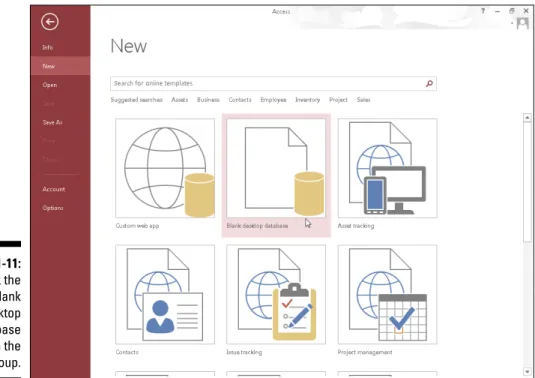
After Access is open, click the New command in the File tab (if that’s not already the active command). From the resulting display, you can click the Blank Desktop Database button (shown in Figure 1-11) to get started.
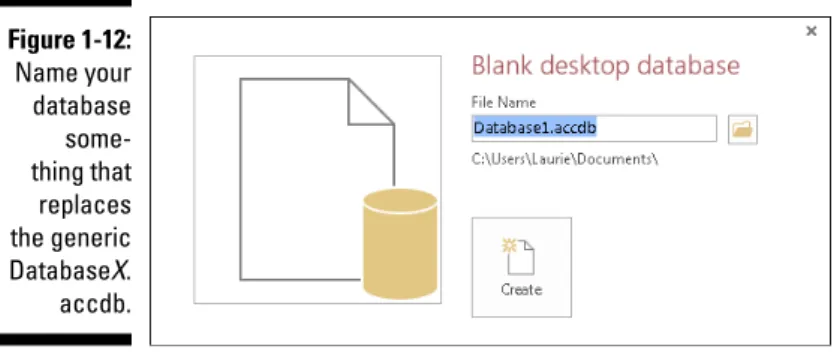
Next, give your database a name (see the dialog box that appears in Figure 1-12), and click the Create button.
The X in Figure 1-12’s caption represents a number — Access assigns consecu-tive numbers to the default names, counting from any previously created databases. Figure 1-12 shows a 1 added to the filename.
If this is your absolute first database in a fresh installation of Access, the filename offered in this panel will be Database1. Note that you don’t need to type a file extension here; Access will add the correct one for you.
29
Chapter 1: Access 2013 Basic Training
Figure 1-12:
Name your database some-thing that
replaces the generic DatabaseX.
accdb.
What is that little yellow folder in the dialog box where you named your new database? It allows you to choose a folder (other than the default My Documents folder if you’re a Windows 7 user, or the Documents folder in Windows 8) into which you can save your database. Click the folder icon after typing a name for your database, and then use the resulting File New Database dialog box to choose a location — an existing subfolder within My Documents, the Desktop, a network drive (if you’re on a network, say at your office), or your Office 365 Skydrive. The dialog box looks very familiar to anyone who’s used any Windows application, so this won’t be new territory for you. At this point, with your new database open, you can begin entering records into your first table or begin naming your fields and setting them up. The field names go in the topmost row (the ID field is already created, by default in the new table), and the label Click to Add is atop the column with the active cell. If you choose to save your table now (right-click the Table1 tab and choose Save), you can name your table something more useful than
Table1.
Starting with a template
Access provides templates (prepared files that work sort of like database cookie cutters) for your new database needs. You’ll find a set of template icons in the same New panel where we just chose a Blank Desktop Database. As shown in Figure 1-13, you can choose a template category by clicking any of the words under the Search for Online Templates search box, and search online for templates in that category.
30
Part I: Getting Started with Access 2013
Figure 1-13: Click a template search word to search online for templates in that category.As demonstrated in Figure 1-14, Employee category database templates are shown.
When you click any of the templates, the resulting display (shown in Figure 1-15) describes the template so you can decide if you really want to use it.
Now What?
So you’ve got a new database started. What do you do now? You can leaf on over to Chapter 2, where you can find out more about all the tools that Access offers — which tools are onscreen almost all the time and which ones are specific to the way you chose to dig in and start that database.
In Chapter 3, you actually begin building a database, setting up tables and the fields that give them structure. And you figure out which tables you need to set up, putting that great plan you built in this chapter to work!
31
Chapter 1: Access 2013 Basic Training
Figure 1-14:
View the results of your search for online database templates.
Chapter 2
Navigating the Access Workspace
In This Chapter
▶ Getting started
▶ Checking out the tabs, buttons, and menus ▶ Using your mouse to get from here to there ▶ Letting your fingers do the walking
I
f you skipped Access 2007 and 2010 and are coming to Access 2013 from the 2003 version, you’re probably surprised by the new interface, which was introduced with Microsoft Office 2007. If you did upgrade to Access (or Office) 2010 when it first came out, then the 2013 interface looks very familiar — and you’ll find much of it to be the same as what you’re accustomed to. For those to whom the Office 2013 is a big change, take note of the following changes to the interface, which is strikingly different from what you may have used in previous versions:✓ Menus have given way to tabs and buttons arranged in a strip across the
top of the screen — known as the Ribbon.
✓ Toolbars are no longer made up of distinct 3-D buttons. Instead, there are buttons and graphic examples of formatting, pictures of what the buttons create, and drop-down lists.
34
Part I: Getting Started with Access 2013
Figure 2-1:
The File tab displays a list of com-mands plus information about the open database.
Note that to return to the Home tab, you must click the left-pointing arrow at the top of the File panel. It works like a Back button in a browser window and returns you to the Home tab, or whichever tab you were on when you clicked the File tab.
You also see features in the center and on the sides of the workspace, which change depending on what you’re doing or which button you’ve clicked:
✓ If you’re starting a new database, options for doing so appear in the
center pane (click New in the red panel on the left).
✓ If you’re working with an existing database, clicking Info (as shown in the previous figure) displays a link to “View and edit database properties”, which shows you information about the open database, or to Compact & Repair your database, or to Encrypt the database with a password.
35
Chapter 2: Navigating the Access Workspace
I won’t go into every possible combination of onscreen features in this chapter — you get to know a lot of them in the subsequent chapters. For now, I’ll show you the basic workspace in three states:
✓ When Access first opens up
✓ When a new database is being built, either from scratch or when you’ve started with one of Access’s database templates
✓ When you’re working on an existing database
As you read through the following sections, you can refer solely to the accompanying figures or, if you want, try to work along with the procedures — you’ll find doing what you see described here boosts your confidence when you’re using Access later, on your own.
Diving Right In
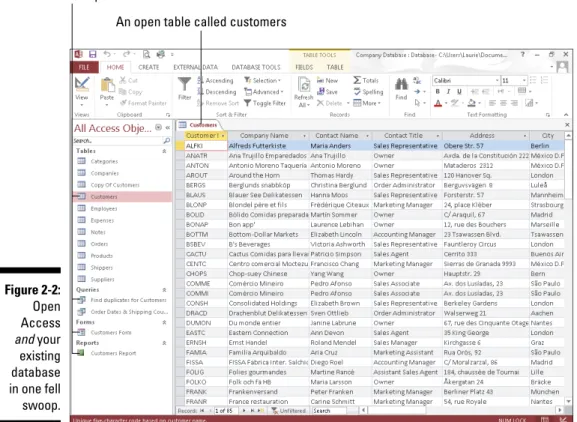
So you’re ready to dive in. Well done, you! It’s easy to start Access. You can start the application in multiple ways, accommodating nearly any situation you’re in. (Chapter 1 discusses most of them.) Whether you’re starting Access to view and edit an existing Access database (which gives you what you see in Figure 2-2) or are about to create your own (which opens the application and displays the list of Recent databases and template icons, shown in Figure 2-3), you can get to the tools you need right away. Figure 2-2 shows an existing data-base open to one of its tables; its other components are listed on the left side of the workspace.
36
Part I: Getting Started with Access 2013
Figure 2-2: Open Access
and your existing database in one fell swoop.
Figure 2-3 shows the various template icons displayed when you choose New from the left-hand panel.
If you opened Access by using the Start menu or Start screen or a Desktop/ Taskbar icon and now you want to open an existing database, you can use the Recent list in the panel on the left (see Figure 2-4), or if you haven’t used the database in question for a while, you can use the Open Other Files com-mand.
37
Chapter 2: Navigating the Access Workspace
Figure 2-3:
You can build a data-base from nothing or from some-thing — in the form of an Access template.
So that’s it, really — any way you want to get started is available either by opening the Access application from the Start menu (Windows 7) or Start screen (Windows 8) or an application icon, or by clicking the File tab once you’ve got a database open.
38
Part I: Getting Started with Access 2013
Figure 2-4:
Open an existing or recently used database.
Working with Onscreen Tools in Access
39
Chapter 2: Navigating the Access Workspace
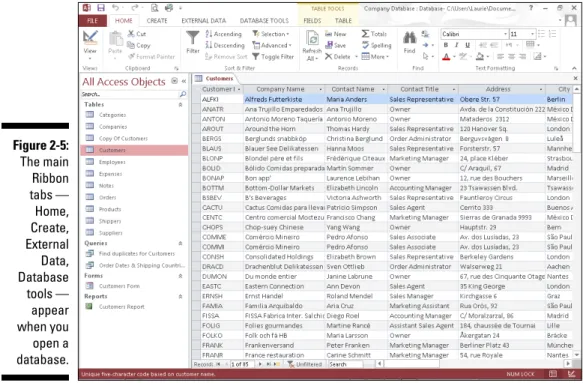
Figure 2-5: The main Ribbon tabs — Home, Create, External Data, Database tools — appear when you open a database.
When the Ribbon tabs first appear, many of their buttons are dimmed — because they don’t become available until you’re doing something that war-rants their use. For example, if you haven’t opened any tables, forms, reports, or queries in your open database, the tools for editing or formatting your database will appear on the tabs, but they’ll be dimmed, which indicates that they’re unavailable. Tools for creating new components are available on the Create tab, but anything that works with existing data will be dimmed. After you open a table, report, query, or form, the tools for that table, report, query, or form become available. Displaying a form, for example, adds the Form Layout Tools group to the main set of five tabs, as shown in Figure 2-6.
40
Part I: Getting Started with Access 2013
Figure 2-6:
The buttons relevant to what’s open and active in your
data-base are available when you need them.
Clicking tabs
To move from one tab on the Ribbon to another, simply click the tab’s name. It’s easy to see which tab is currently open — as shown in Figure 2-7, the Create tab is bright, and you can see all its buttons. When you mouse over another tab, its name turns dark red (notice I’ve pointed to the Database Tools tab in the figure); the active tab remains bright, though, until you click a new one, making that the active tab.
41
Chapter 2: Navigating the Access Workspace
Figure 2-7:
You can easily tell the active tab (Create) from the inactive ones.
Using buttons
Access buttons come in two varieties:
✓ Buttons that do something when they’re clicked: Either opening a dialog box or wizard or performing some change or task in your open table, report, query, or form.
✓ Buttons that represent lists or menus of choices: This latter variety comes in two flavors of its own:
• Drop-down list buttons are accompanied by a small, down-pointing triangle, appearing to the button’s right. When you click the triangle, a list of options appears, as shown in Figure 2-8.
42
Part I: Getting Started with Access 2013
Figure 2-8:
Click the triangle to the right of the button and make a choice.
Figure 2-9: Menu buttons display a — surprise! — menu