585-313-206 108647306 January 2000 Issue 2
INTUITY™ CONVERSANT® System
Version 7.0
Application Development with Script Builder
Copyright and Legal Notices
Copyright Copyright © 2000 by Lucent Technologies.
All rights reserved.
Printed in the USA.
This material is protected by the copyright laws of the United States and other countries. It may not be reproduced, distributed, or altered in any fashion by any entity (either internal or external to Lucent Technologies), except in accordance with applicable agreements, contracts or licensing, without the express written consent of the Business Communications Systems (BCS) Global Learning Solutions(GLS) organization and the business management owner of the material.
Acknowledgment This document was prepared by the GLS organization of the BCS division of Lucent Technologies. Offices are located in Denver CO, Columbus OH, Middletown NJ, and Basking Ridge NJ, USA.
Trademarks Lucent Technologies has made every effort to supply the following trademark information about company names, products, and services mentioned in the Intuity CONVERSANT documentation library:
• Adobe Systems, Inc. — Trademarks: Adobe, Acrobat.
• AT&T — Registered trademarks: Truevoice.
Copyright and Legal Notices
• CLEO Communications — Trademarks: LINKix.
• Hayes Microcomputer Products, Inc. — Trademarks: Hayes, Smartmodem.
• Intel Corporation — Registered trademarks: Pentium.
• Interface Systems, Inc. — Trademarks: CLEO.
• International Business Machines Corporation — Registered trademarks:
IBM, VTAM.
• Lucent Technologies — Registered trademarks: 5ESS, AUDIX,
CONVERSANT, DEFINITY, Voice Power. Trademarks: FlexWord, Intuity, Lucent.
• Microsoft Corporation — Registered trademarks: Excel, Internet Explorer, Microsoft, MS, MS-DOS, Windows, Windows NT.
• Minnesota Mining and Manufacturing — Trademarks: 3M.
• Netscape Communications — Trademarks: Netscape Navigator.
• Novell, Inc. — Registered trademarks: Novell.
• Oracle Corporation — Trademarks: OBJECT*SQL, ORACLE, ORACLE*Terminal, PRO*C, SQL*FORMS, SQL*Menu, SQL*Net, SQL*Plus, SQL*ReportWriter.
• Phillips Screw Co. — Registered trademarks: Phillips.
Copyright and Legal Notices
• Santa Cruz Operation, Inc. — Registered trademarks: UnixWare.
• UNIX System Laboratories, Inc. — Registered trademarks: UNIX.
• Veritas Software Corporation — Trademarks: VERITAS.
• Xerox Corporation — Trademarks: Ethernet.
Limited Warranty Lucent Technologies provides a limited warranty on this product. Refer to the
“Limited Use Software License Agreement” card provided with your package.
Lucent Technologies has determined that use of this electronic data delivery system cannot cause harm to an end user's computing system and will not assume any responsibility for problems that may arise with a user's computer system while accessing the data in these document.
Every effort has been made to make sure that this document is complete and accurate at the time of release, but information is subject to change.
United States FCC Compliance Information
Part 15: Class A statement. This equipment has been tested and found to comply with the limits for a Class A digital device, pursuant to Part 15 of the FCC Rules. These limits are designed to provide reasonable protection against harmful interference when the equipment is operated in a commercial environment. This equipment generates, uses, and can radiate radio-
frequency energy and, if not installed and used in accordance with the instructions, may cause harmful interference to radio communications.
Copyright and Legal Notices
Operation of this equipment in a residential area is likely to cause harmful interference, in which case the user will be required to correct the
interference at his own expense.
Canadian Department of Communications (DOC) Interference Information
This digital apparatus does not exceed the Class A limits for radio noise emissions set out in the radio interference regulations of the Canadian Department of Communications.
Le Présent Appareil Nomérique n’émet pas de bruits radioélectriques dépassant les limites applicables aux appareils numériques de la class A préscrites dans le reglement sur le brouillage radioélectrique édicté par le ministére des Communications du Canada.
European Union Declaration of Conformity
Lucent Technologies Business Communications Systems declares that the Intuity™ CONVERSANT® System equipment specified in this document conforms to the referenced European Union (EU) Directives and Harmonized Standards listed below: EMC Directive 89/336/EEC Low-Voltage Directive 73/23/EEC. The “CE” mark affixed to the equipment means that it conforms to the above directives.
Telecom New Zealand Ltd Warning Notices
GENERAL WARNING: The grant of a Telepermit for any item of terminal equipment indicates that only Telecom has accepted that the item complies with minimum conditions for connection to its network. It indicates no endorsement of the product by Telecom, nor does it provide any sort of warranty. Above all, it provides no assurance that any item will work correctly
Copyright and Legal Notices
in all respects with other items of Telepermitted equipment of a different make or model, nor does it imply that any product is compatible with all of Telecom’s network services.
IMPORTANT NOTICE: Under power failure conditions, this device may not operate. Please ensure that a separate telephone, not dependent on local power, is available for emergency use.
AUTOMATIC RE-ATTEMPTS TO THE SAME NUMBER: Some parameters required for compliance with Telecom’s Telepermit requirements are dependent on the equipment (PC) associated with this device. The associated equipment shall be set to operate within the following limits for compliance with Telecom specifications:
• There shall be no more than 10 call attempts to the same number within any 30 minute period for any single manual call initiation, and,
• The equipment shall go on-hook for a period of not less than 30 seconds between the end of one attempts and the beginning of the next attempt.
AUTOMATIC CALLS TO DIFFERENT NUMBERS: Some parameters required for compliance with Telecom’s Telepermit requirements are dependent on the equipment (PC) associated with this device. In order to operate within the limits for compliance with Telecom specifications, the associated equipment shall be set to ensure that automatic calls to different numbers are spaced such that there is not less than 5 seconds between the end of one call attempt and the beginning of the next attempt.
Copyright and Legal Notices
USER INSTRUCTIONS (AUTOMATIC CALL SETUP): This equipment shall not be set up to make automatic calls to the Telecom "111" emergency service.
CALL ANSWERING (AUTOMATIC ANSWERING EQUIPMENT): Some parameters required for compliance with Telecom’s Telepermit requirements are dependent on the equipment (PC) associated with this device. In order to operate within the limits for compliance with Telecom specifications, the associated equipment shall be set to ensure that calls are answered between 3 and 30 seconds of receipt of ringing.
Toll Fraud Toll fraud is the unauthorized use of your telecommunications system by an unauthorized party, for example, persons other than your company’s employees, agents, subcontractors, or persons working on your company’s behalf. Note that there may be a risk of toll fraud associated with your telecommunications system and, if toll fraud occurs, it can result in substantial additional charges for your telecommunications services.
Your Responsibility for Your System’s Security
You and your system manager are responsible for the security of your system and for preventing unauthorized use. You are also responsible for reading all installation, instruction, and system administration documents provided with this product in order to fully understand the features that can introduce risk of toll fraud and the steps that can be taken to reduce that risk. Lucent
Technologies does not warrant that this product is immune from or will
Copyright and Legal Notices
prevent unauthorized use of common-carrier telecommunication services or facilities accessed through or connected to it. Lucent Technologies will not be responsible for any charges that result from such unauthorized use.
Lucent Technologies Fraud Intervention and Corporate Security
If you suspect that you are being victimized by toll fraud and you need technical support or assistance, call the Lucent Technologies National Customer Care Center Toll Fraud Intervention Hotline at 1 800 643-2353.
Aside from whether immediate support is required, all toll fraud incidents involving Lucent products or services should be reported to Lucent Corporate Security at 1 800 821-8235. In addition to recording the incident, Lucent Corporate Security is available for consultation on security issues,
investigation support, referral to law enforcement agencies, and educational programs.
Documentation Ordering Information
To order a document, contact the Lucent Technologies Publications Center and specify the 9-digit document number, the issue number, and the issue date.
Copyright and Legal Notices
Write, Call, or Fax
Lucent Technologies Publications Center 2855 N. Franklin Road
Indianapolis, IN 46219
Voice 1 800 457-1235 International Voice 317 322-6791 FAX 1 800 457-1764 International FAX 317 322-6699
World Wide Web
Use a web browser to reach one of the following sites. Click Documents and follow the instructions at the site.
• Organizations within Lucent Technologies http://www.cic.lucent.com
• Lucent Technologies customers and others http://www.lucentdocs.com
Standing Orders
You can be placed on a standing order list for this and other documents you may need. Standing order will enable you to automatically receive updated versions of individual documents or document sets, billed to account information that you provide. For more information on standing orders, or to be put on a list to receive future issues of this document, call or write the Lucent Technologies Publications Center (see Write, Call, or Fax (page ix)).
Contents
Copyright and Legal Notices ii
Copyright. . . .ii
Acknowledgment . . . .ii
Trademarks . . . .ii
Limited Warranty . . . iv
United States FCC Compliance Information . . . iv
Canadian Department of Communications (DOC) Interference Information . . v
European Union Declaration of Conformity . . . v
Telecom New Zealand Ltd Warning Notices . . . v
Toll Fraud. . . .vii
Documentation Ordering Information . . . viii
About This Book xxxviii Overview . . . . xxxviii
Intended Audience . . . xxxix
How to Use This Book . . . xxxix Conventions Used in This Book . . . . xli Terminology. . . .xli Keyboard and Telephone Keypad Representations . . . xliv
Contents
Cross References and Hypertext . . . xlv Screen Displays . . . xlv Other Typography . . . xlvi Safety and Security Alert Labels. . . xlvii Getting Help . . . . xlviii Technical Assistance. . . xlix Web Site . . . xlix Contact Numbers . . . xlix Related Resources. . . . l Training . . . l Documentation . . . .li ELMO . . . lii Using the CD-ROM Documentation . . . lii Setting the Default Magnification . . . liii Adjusting the Window Size . . . liii Hiding and Displaying Bookmarks . . . liii Using the Button Bar . . . liii Using Hypertext Links . . . liii Navigating with Double Arrow Keys . . . .liv Searching for Topics . . . .liv Displaying Figures. . . .liv Printing the Documentation. . . .liv How To Comment on This Book . . . lv Comment Form . . . .lvi
Contents
Contact Us Directly . . . .lvi
1 Overview 1
Overview . . . 1
What Is Script Builder? . . . 2
What Is an Application? . . . 3
Transaction for a Sample Application . . . 4
The River Bank Agent Example . . . 4
Caller and Agent Interactions . . . 5
Automating the Transaction. . . 6
Developing an Application . . . 7
Understanding the Application Requirements . . . 7
Defining the Application . . . 8
The Host Interface. . . 8
Database Tables . . . 9
Parameters . . . 10
The Transaction. . . 11
Speech . . . 13
Verifying and Installing the Application. . . . 15
Verifying . . . 15
Installing . . . 16
Testing the Application . . . . 16
Assigning. . . 16
Contents
Testing. . . 16
Script Builder Transaction for a Sample Application . . . . 17
For More Information. . . . 20
2 User Interface 22 Overview . . . . 22
What is the User Interface? . . . . 23
Using the Screens, Windows, and Menus . . . . 23
Screen Layout . . . 26
Function Keys . . . 27
Selecting a Menu Option. . . 30
Choices Menu . . . 32
Fields. . . . 32
Filling in Fields . . . 32
Moving through Fields. . . 33
Accessing Script Builder . . . . 34
Selecting or Adding an Application . . . . 36
Adding an Application . . . 37
Naming an Application . . . 38
Defining an Application . . . 39
3 Data Management 41 Overview . . . . 41
Contents
Data Fields . . . . 42
Field Name . . . 43
System Fields . . . 45
Field Type . . . 47
Field Value . . . 49
Field Format . . . 51
Formats for Input from Host Computer . . . 58
Formats for Output to a Host Computer . . . 66
Data Manipulations . . . . 71
Data Computations . . . 71
Numeric Computations . . . 71
Character Computations . . . 72
Data Comparisons . . . 72
Comparisons of num Values . . . 73
Comparisons of char Values . . . 74
Comparisons of char and num Values . . . 75
Data Conversions . . . 77
4 Defining the Host Interface 81 Overview . . . . 81
Defining the Host Interface. . . . 82
Defining the Host Screen Definition . . . . 84
Starting the Host Screen Definition . . . 85
Contents
Using the Terminal Emulator to Capture
Snapshots of Screens. . . 87
Displaying Keyboard Mappings . . . 89
Taking Snapshots . . . 91
Naming the Snaphots . . . 93
Removing Unwanted Snapshots . . . 99
Defining Screen Identifiers . . . 100
Screen Identifier Overview . . . 103
Defining Screen Identifiers . . . 104
Adding a Screen Identifier. . . 108
Removing a Screen Identifier . . . 110
Renaming a Screen or Changing Screen Type . . . 110
Removing a Screen . . . 111
Defining Screen Fields. . . 112
Size Limit of Host Screen Field Data . . . 112
Defining a Screen Field. . . 114
Displaying a Screen Field . . . 122
Renaming a Screen Field . . . 124
Changing a Screen Field Definition. . . 124
Removing a Screen Field . . . 125
Defining Host Session Maintenance . . . 125
Starting the Host Session Maintenance Definition . . . 127
Labels . . . 129
login. . . 129
logout . . . 129
Contents
recover . . . 130
Action Steps . . . 131
Host Session Maintenance Sequence Flow . . . 131
Host Session Maintenance Script Rules. . . 134
Defining Get Host Screen . . . 136
Defining Send Host Screen . . . 136
Defining the Login Sequence. . . 137
Defining the Logout Sequence . . . 137
Defining the Recovery Sequence . . . 137
Host Session Maintenance: Tips . . . 138
Screen Identification . . . 138
Recover Logic . . . 138
Prevent Multiple Requests . . . 138
Delay Before Getting Blank Screen . . . 139
Using Goto Label Commands . . . 139
5 Creating Database Tables 143 Overview . . . 143
Creating a Database Table. . . 144
Databases . . . 144
ORACLE Errors. . . 146
Accessing a Database Table . . . 147
Adding a New Database Table . . . 148
Adding a Local Database Table . . . 149
Contents
Adding a Remote Database Table . . . 151
Defining the Database Table Structure . . . 152
Editing Database Table Contents. . . 157
Accessing the Edit Table Window . . . 159
Adding Database Table Records. . . 159
Searching for a Database Table Record . . . 160
Changing a Database Table Record . . . 162
Removing a Database Table Record . . . 162
Removing a Database Table . . . 163
Sharing Database Tables . . . 165
Restoring Local Database Tables . . . 166
Tips for Database Tables . . . 168
Creating Larger Initial Extend for Tables/Indexes . . . 168
Creating a Work Around for a Table with More Than 15 Fields. . . 169
Working Around the Limit of 10 Tables per Application. . . 170
Connecting to a Remote Database . . . 170
Changing the Definition of a Large Database Table . . . 171
Informing the Database DIP of Changed Definitions . . . 172
Creating Indexes for Large Database Tables . . . 172
6 Defining Parameters 176 Overview . . . 176
Accessing the Parameters Menu . . . 177
Defining Business Hours. . . 178
Contents
Hours In and Hours Out . . . 178
Specifying Business Hours . . . 180
Defining Call Data Events . . . 182
Application-Specific Data . . . 182
Specifying Fields . . . 183
Specifying Call Data Event Information. . . 184
Call Event Limits . . . 186
Defining Holidays . . . 188
Specifying Holidays . . . 188
Defining the Host Interface. . . 191
Host Timeout Values . . . 191
Initial Timeout . . . 192
Unrecognized Screen Timeout . . . 194
Logical Unit Availability Timeout . . . 195
Reserve a Logical Unit . . . 196
Logical Unit Login IDs / Passwords . . . 196
Specifying Host Interface Parameters. . . 197
Defining Seasonal Greetings . . . 200
Specifying Seasonal Greetings . . . 200
Defining Shared Host Applications. . . 204
Specifying Shared Host Applications . . . 205
Defining Shared Speech . . . 207
Enhanced Basic Speech and Custom Speech . . . 207
Contents
Primary and Secondary Speech Pools . . . 207
Specifying Shared Speech Pools . . . 209
Using Parameter Settings in the Transaction . . . 210
7 Defining the Transaction 213 Overview . . . 213
Defining the Transaction . . . 216
Accessing the Define Transaction Screen . . . 217
Action Steps. . . 217
Selecting and Arranging Action Steps. . . 218
Grouping Action Steps . . . 218
Using Comments. . . 219
Adding Action Steps . . . 220
Copying Action Steps . . . 222
Moving Action Steps . . . 224
Removing Action Steps. . . 224
Displaying the Transaction . . . 225
Searching in the Transaction. . . 226
Defining Action Steps . . . 229
Help for Action Steps . . . 233
Defining Announce. . . 233
Speak with Interrupt?. . . 233
Type . . . 235
Field Name/Phrase Tag/Text String . . . 235
Contents
Field Format. . . 236
Using the NX Field Format . . . 236
Using Announce versus Prompt & Collect . . . 237
Defining the Announce Action Step . . . 238
Defining Answer Phone . . . 240
Defining Comment . . . 242
Defining Disconnect . . . 244
Defining Evaluate . . . 245
What the Evaluate Action Step Does. . . 245
Defining the Evaluate Action Step . . . 249
Nesting Evaluate Statements . . . 253
Defining External Function. . . 255
Defining Get Host Screen . . . 258
Get Host Screen Error Messages . . . 262
Defining Goto Label . . . 265
Defining Label . . . 267
Defining Modify Table . . . 269
Defining Prompt & Collect . . . 273
Prompting the Caller for Input (Page 1, PROMPT) . . . 274
Specifying Caller Input (Page 2, INPUT) . . . 275
Caller Input Field . . . 276
Number of Tries Used . . . 277
Number of Digits Input . . . 277
Contents
Minimum Number of Digits . . . 277
Maximum Number of Digits. . . 277
Touch-Tone Terminator Code Activity Status . . . 278
Touch-Tone Terminator Code Value . . . 278
Touch-Tone Repeat Code Activity Status . . . 278
Touch-Tone Repeat Code Value . . . 279
Touch-Tone Erase Code Activity Status . . . 279
Touch-Tone Erase Code Value . . . 279
Touch-Tone Cancel Code Activity Status . . . 279
Number of Tries to Get Input . . . 280
Initial Timeout . . . 280
Interdigit Timeout . . . 280
Recognizer . . . 280
Recognition Type. . . 281
Analyzing Input from the Caller (Page 3, CHECKLIST) . . . 281
Standard Checklist . . . 282
Custom Checklist . . . 285
Specifying the Confirm Action . . . 290
Defining the Prompt & Collect Action Step . . . 291
Prompt & Collect: Tips . . . 301
Transfer To and Quit . . . 301
Interrupt and Touch Tones. . . 304
Defining Quit . . . 305
Defining Read Table . . . 306
Contents
Table Name . . . 306 Search from Beginning . . . 306 Field Name . . . 307 First / Second Operand and Operator . . . 308
$MATCH_FOUND . . . 308 Example. . . 309 Defining the Read Table Action Step . . . 310 Defining Send Host Screen . . . 312 Defining Set Field Value . . . 316 Defining Transfer Call . . . 318 Transfer Call To . . . 319 Type . . . 319 Blind Transfer . . . 320 Intelligent Transfer. . . 321 Full CCA Transfer . . . 323 Non-Blind Transfer Call Data . . . 324 Maximum Number of Rings. . . 324 Answer Phrase . . . 324 New Caller State . . . 324 Goto Labels. . . 325 Defining the Transfer Call Action Step . . . 325 Transfer Call: Tips . . . 328 Transfer Call Performance Issues . . . 328 Defining Background. . . 330
Contents
Defining Call Bridge . . . 334 Phone Number. . . 338 Equipment Group Number. . . 338 Outcome of Call (Call Disposition). . . 339 Type . . . 339 Blind Call Bridge . . . 339 Intelligent Call Bridge . . . 340 Full CCA Call Bridge . . . 343 Maximum Number of Rings . . . 343 Return Value . . . 346 Defining the Call Bridge Action Step . . . 346 Call Bridge: Tips . . . 348 Call Bridge Performance Considerations. . . 349 Defining Execute . . . 351 Application Name. . . 351 Write Call Data Record Now? . . . 352 Argument 1 to Argument 10. . . 353 Return Field . . . 353 Defining the Execute Action Step . . . 354 Execute: Tips . . . 356 Defining Make Call . . . 357 Phone Number. . . 358 Outcome of Call (Call Disposition). . . 358 Type . . . 358
Contents
Blind Make Call . . . 358 Intelligent Make Call . . . 359 Full CCA Make Call. . . 363 Maximum Number of Rings . . . 363 Defining the Make Call Action Step . . . 364 Make Call Performance Considerations . . . 366 Defining Message Coding . . . 367 Code Rate and Type . . . 368 Maximum Phrase Length . . . 370 Phrase Number or Tag. . . 371 Phrase Identification . . . 371 Talkfile Number . . . 372 Initial Timeout . . . 375 Completion Timeout. . . 375 Start Coding At Tone . . . 376 Hangup Action . . . 376 Actual Phrase Length Field . . . 377 NX Field (Talkfile & Phrase) . . . 377 Return Field . . . 378 Defining the Message Coding Action Step . . . 378 Message Coding: Tips . . . 381 Defining Message Deleting . . . 383 Phrase Number or Tag. . . 384 Phrase Identification . . . 384 Talkfile Number . . . 385
Contents
Return Field . . . 385 Defining the Message Deleting Action Step . . . 386 Defining Type Ahead . . . 387
8 Using Optional Features 390
Overview . . . 390 Using Text-to-Speech . . . 391 Using TTS in an Announce or Prompt & Collect Action Step . . . 392 Specifying Text or Field . . . 392 Entering Text . . . 392 Field Format . . . 394 Using TTS in the External Function tts_file . . . 397 Text-to-Speech: Tips . . . 399 Using Dial Pulse Recognition or Speech Recognition . . . 401 Defining the SP_Allocate External Action . . . 402 Prompt & Collect Action Step . . . 405 Specifying Input Mode. . . 405 Specifying the Confirm Action . . . 407
$CI_MODE Return Value . . . 408
$CI_RECOG Return Value . . . 408
$FINDBEST . . . 409 Using Dial Pulse Recognition . . . 409 Specifying Input Mode . . . 410 Recognition Type. . . 410
Contents
$CI_VALUE . . . 412 Training . . . 412 Verifying DPR Input. . . 412 Defining the DPR_Disable External Action . . . 413 Using WholeWord Speech Recognition . . . 414 Languages Available . . . 415 Specifying Input Mode . . . 416 Recognition Type. . . 416
$CI_VALUE Return Value . . . 418 Verifying WholeWord Speech Recognition Input . . . 419 Defining the SR_Prompt External Action . . . 419 Using FlexWord Speech Recognition . . . 422 Languages Supported . . . 422 Specifying Input Mode . . . 423
$CI_VALUE Return Value . . . 425 Verifying FlexWord Input . . . 425 Intuity Script Builder FAX Actions Package . . . 425 Requirements to Use the Intuity Script Builder FAX Actions Package. . . 426 Fax File Formats . . . 427 How Intuity Script Builder FAX Actions Works . . . 427 Some Uses for Intuity Script Builder FAX Actions in Your Applications . . . 431 Accessing the FAX Actions on the Script Builder Action Choices Menu . . . 435 FAX_Send . . . 437 FAX_Send: How to Use It . . . 437
Contents
FAX_Send: Arguments . . . 438 FAX_Send: Tips . . . 442 FAX_Send: Example . . . 443 FAX_Get . . . 444 FAX_Get: How to Use It . . . 444 FAX_Get: Arguments . . . 446 FAX_Get: Tips. . . 446 FAX_Get: Example . . . 447 FAX_CovrPage . . . 447 FAX_CovrPage: Arguments . . . 447 FAX_CovrPage: Tips. . . 449 FAX_CovrPage: Example . . . 449 FAX_Queue . . . 451 FAX_Queue: Arguments . . . 451 Exec_UNIX . . . 452 Exec_UNIX: How to Use It . . . 452 Exec_UNIX: Arguments . . . 453 Exec_UNIX: Tips. . . 454 Exec_UNIX: Example . . . 456 Concat5 . . . 456 Concat5: How to Use It . . . 457 Concat5: Arguments . . . 458 Concat5: Tips . . . 459 Concat5: Example. . . 459 FAX_CNG . . . 460
Contents
FAX_CNG: What It Does. . . 460 FAX_CNG: How to Use It . . . 461 FAX_CNG: Arguments . . . 462 FAX_CNG: Tips. . . 462 FAX_CNG: Example . . . 463 Loading and Printing FAXes . . . 464 Sending Graphic Files and Text Files . . . 464 Accessing the FAX Loading and Printing Screen . . . 465 Loading the Fax . . . 468 Printing the Fax . . . 470 Searching for Available Faxes . . . 471 FAX_Zapper. . . 472 Installing and Using the FAX_Zapper . . . 476 Modifying FAX_Zapper . . . 479 Application Performance Considerations. . . 481 Fax Broadcasting . . . 482 Loading More Than 999 Faxes into the System . . . 484 How to Use the faxlog Command . . . 485 Using Script Builder FAX Actions in Non-Script-Builder (TAS) Applications . . . 486 Troubleshooting . . . 486 HELP Screens. . . 487 Script Builder Action Step Return Values . . . 487 Application Tracing . . . 487 FAX Transmission Control . . . 488 faxit . . . 488
Contents
Error Log Reports . . . 489 Using ASAI. . . 489 Defining A_Callinfo . . . 491 Defining the A_Callinfo Fields . . . 493 Defining A_Tran . . . 497 Defining the A_Tran Fields . . . 499 Defining A_Event . . . 505 Defining the A_Event Fields . . . 508 Defining A_RouteSel . . . 519 Defining the A_RouteSel Fields . . . 521 Defining conv_data . . . 525 Defining Data-Passing Parameters . . . 528 Defining Data-Return Parameters . . . 530 conv_data: Tips . . . 534 Using Call Classification Analysis . . . 535 Full CCA Call Dispositions. . . 535 Using PRI . . . 538 Defining ISDN_billing. . . 540 Requesting ANI for Inbound Calls . . . 542 Defining Service Type for Outbound Calls . . . 543 Defining UCID Functions . . . 546 Using Form Filler Plus . . . 547 Customizing a Form Filler Plus Application . . . 547 Error-Handling Capabilities . . . 548
Contents
Form Filler Plus Reports . . . 548 Form Filler Plus Action Steps . . . 549 Using FF_Code . . . 549 FF_Code: Tips . . . 555 Using FF_Store . . . 558 Using the Form Retriever. . . 560 Mode . . . 562 Password. . . 562 Script ID . . . 563 Form Filler Plus Transcribe Commands . . . 563 Form Filler Plus Review Commands . . . 567 Using the Form Filler Plus Template . . . 569 Copying the FFTemplate . . . 574 Defining Parameters for your Application . . . 575 Defining the Transaction for your Application . . . 576 Customizing the FFtemplate for Your Application . . . 592 Producing Speech for your Application . . . 595 Installing your Application . . . 597 Assigning your Application to Channels or Called Numbers. . . 597 Sample Marketing Application . . . 598 Initialization . . . 599 First Form Prompt: Name . . . 600 Second Form Prompt: Telephone Number . . . 600 Third Form Prompt: Street Address . . . 600 Fourth Form Prompt: City . . . 601
Contents
Fifth Form Prompt: State. . . 601 Sixth Form Prompt: Zip Code . . . 601 Seventh Form Prompt: Message. . . 602 Speech Used in the Sample Marketing Application . . . 602
9 Speech Administration 629
Overview . . . 629 Speech Terminology . . . 630 Phrases . . . 630 Phrase Tags . . . 630 Predefined Phrase Tags . . . 631 Inflections . . . 632 Enhanced Basic Speech . . . 635 Custom Speech. . . 636 The Speech Administration Window . . . 637 Accessing Speech Administration . . . 638 Displaying Phrase Tags . . . 640 Adding Phrase Tags. . . 643 Recording, Editing, and Playing Speech . . . 645 Hardware Requirements . . . 646 Establishing a Telephone Connection . . . 647 Recording Speech. . . 648 Encoding Speech Through the Audio Jack . . . 652 Encoding Recorded Speech . . . 654
Contents
Editing Speech . . . 656 Playing Speech . . . 659 Copying Speech. . . 660 Importing Speech . . . 661 Removing Speech . . . 664 Unrecorded Phrases . . . 664 Recorded Phrases . . . 664 Procedure . . . 665 Sharing Speech . . . 666 Restoring Speech . . . 668 Enhanced Basic Speech Library. . . 670 Professionally Recorded Speech . . . 671
10 Application Administration 672
Overview . . . 672 Verifying and Installing an Application . . . 673 Verifying an Application . . . 674 Installing an Application . . . 676 Host Applications . . . 677 hnewscript . . . 678 sb_trace . . . 679 Removing an Application . . . 681 Backing Up an Application . . . 685
Contents
Backup Media . . . 686 Backup Procedure . . . 687 Restoring an Application . . . 691 Copying an Application . . . 695 Executing Multiple Applications . . . 697 Error and Warning Messages . . . 697 Formats . . . 698 Lists of Related Messages. . . 699 Host Maintenance Definition . . . 699 Transaction Definition . . . 701 Host Screen Definition . . . 706 Database Definition. . . 706 Parameters Standards Definition . . . 706 External Functions . . . 707 Trace Diagnostics . . . 707
11 Using Advanced Features 709
Overview . . . 709 Using External Functions . . . 710 Defining External Functions. . . 710 Help For External Functions . . . 716 Extracting Arguments from the Execute Action . . . 717 getarg . . . 717 Execute Action Arguments . . . 720
Contents
Char Field Manipulation Functions . . . 722 length . . . 723 concat . . . 723 substring . . . 724 parse . . . 725 Intelligent Transfer Call Functions . . . 725 Complete. . . 725 Reconnect . . . 726 ixfer . . . 726 Transfer Call Functions . . . 727 transfera . . . 727 transferb . . . 727 Time and Date Functions. . . 728 u_datetime . . . 728 datetime_u . . . 729 Supported Dates . . . 729 Talkfile and Phrase Manipulation Functions . . . 730 pack_phrNX . . . 730 unpack_phrNX . . . 730 Talkfile and Phrase Manipulation: Tips . . . 731 UCID Functions . . . 732 get_ucid. . . 732 get_uui . . . 733 set_uui. . . 733 Fax Functions . . . 734
Contents
text2fax . . . 734 Writing External Functions . . . 736 Naming Conventions . . . 736 Macros . . . 738 DEFARG(fldname, datatype,direction) . . . 738 DEFARG_COUNT(n) . . . 739 Arguments . . . 739 Return Code . . . 741 Allocating Space . . . 742 Providing Function-Specific Help . . . 743 Interfacing with Hosts . . . 746 Identifying Similar Host Screens . . . 746 Interchangeable Host Screens . . . 747 Noninterchangeable Host Screens . . . 751 Locating External Host Fields . . . 751 new_screen and extract Routines . . . 753 fancy_print Routine . . . 756 Helper DIP . . . 757 Using ORACLE Tools . . . 759 Mapping Datatypes . . . 760 ASCII Character Set Mapping . . . 761 Creating Multilingual Applications . . . 762 Language-Specific Structure . . . 764
Contents
A Sample Application 766
Overview . . . 766 Transaction Outline . . . 767 Host Session Maintenance Outline . . . 778 Standard Phrases . . . 781 Custom Phrases . . . 794 Parameters. . . 796 Host Interface Screen Names and Fields . . . 797 Database Tables and Fields . . . 798 Transaction and System Fields . . . 799
B Developing Language Implementations 800
Overview . . . 800 Overview of Developing Language Implementations . . . 801 Defining the Language File and Directory . . . 802 Defining the Speech Tables . . . 802 format_tag . . . 802 tag_groups . . . 804 format_code . . . 804 proto.pl . . . 807 Defining the TTS Tables. . . 807 TTSformat_tfile and TTSformat_cfile . . . 808
Contents
Phrase List File for EBS . . . 808 Conventions for Language Implementations. . . 809 Phrase Tags . . . 809 Format Names . . . 810 Phrase Numbers . . . 811 Rules for Creating Script Subroutine Source Files . . . 812 Verifying Format and Consistency of Language Definition Files. . . 813
Glossary 814
Index 898
About This Book
Overview
This book provides descriptions and procedures for the development, installation, and modification of applications with the Intuity CONVERSANT Script Builder application development tool.
About This Book Intended Audience
Intended Audience
The intended audience for this book includes:
• End customer application developers who create and maintain Intuity CONVERSANT applications for their own environment
• Custom application developers who create Intuity CONVERSANT applications for end-user customers, including:
~ Custom application development organizations within Lucent
~ Application distributors, often called independent software vendors (ISVs), who distribute and implement applications for end-users We assume that the primary users of the this book have completed the Script Builder application development training course (see Training on page l).
How to Use This Book
This book is organized as follows:
• Background information is included in Chapter 1, Overview, Chapter 2, User Interface, and Chapter 3, Data Management.
Read these chapters to find out what Script Builder is, how the user interface (display screens on your video monitor) is organized, and how to describe information (data) so that Script Builder can process it.
About This Book How to Use This Book
• Procedural information is included in the remainder of the chapters. Read these chapters, and then refer to them while you are developing your Script Builder application.
Chapter 5, Creating Database Tables, Chapter 6, Defining Parameters, Chapter 7, Defining the Transaction, and Chapter 9, Speech
Administration, are presented in the preferred sequence for defining a Script Builder application.
Chapter 8, Using Optional Features, applies only to optional features.
Your system will probably include some of these features.
Chapter 10, Application Administration,describes procedures for administration of an application after it is written.
Chapter 11, Using Advanced Features, describes the use of advanced features, which may be helpful or required for your application.
• Appendix A, Sample Application, shows the Script Builder transaction and supporting files for the fictitious River Bank application, which is used as an example to demonstrate several commonly used processes.
• Appendix B, Developing Language Implementations, provides information to build the language files required to support a Script Builder application when making changes to a language package.
Use this book not only for necessary procedures, but also for ideas about what Script Builder can do for your business, or how to improve an application after it has been used for a while.
About This Book Conventions Used in This Book
Conventions Used in This Book
Understanding the typographical and other conventions used in this book is necessary to interpret the information.
Terminology • The word “type” means to press the key or sequence of keys specified.
The word “type” means to press the key or sequence of keys specified.
For example, an instruction to type the letter “y” is shown as Type y to continue.
• The word “enter” means to type a value and then press the E N T E R key on the keyboard. For example, an instruction to type the letter “y” and press E N T E R is shown as
Enter y to continue.
• The word “select” means to move the cursor to the desired item and then press E NT E R. For example, an instruction to move the cursor to the start test option on the Network Loop-Around Test screen and then press E N T E R is shown as
Select Start Test.
• The system displays menus, screens, and windows. Menus allow you to select options or to choose to view another menu, screen, or window (Figure 1 on page xlii). Screens and windows both show and request system information (Figure 2 on page xlii through Figure 5 on page xliv).
About This Book Conventions Used in This Book Figure 1. Example of a CONVERSANT Menu
Figure 2. Example of a CONVERSANT Window Showing Information
About This Book Conventions Used in This Book Figure 3. Example of a CONVERSANT Screen Requesting Information
Figure 4. Example of a CONVERSANT Window Requesting Information
About This Book Conventions Used in This Book Figure 5. Example of a CONVERSANT Screen Showing Information
Note: Screens shown in this book are examples only. The screens you see on your machine will be similar, but not exactly the same.
Keyboard and Telephone Keypad Representations
• Keys that you press on your terminal or PC are represented as small capitalized B OL D text. For example, an instruction to press the enter key is shown as
Press E N T E R.
• Two or three keys that you press at the same time on your terminal or PC (that is, you hold down the first key while pressing the second and/or third key) are represented in small capitalized B O L D text. For example, an instruction to press and hold the Alt key while typing the letter “d” is shown as
Press A LT + D.
About This Book Conventions Used in This Book
• Function keys on your terminal, PC, or system screens, also known as soft keys, are represented as small capitalized B O L D text followed by the function or value of that key enclosed in parentheses. For example, an instruction to press function key 3 is shown as
Press F 3 (Choices).
• Keys that you press on your telephone keypad appear in small capitalized B O L D text. For example, an instruction to press the first key on your telephone keypad is shown as
Press 1 to record a message.
Cross References
and Hypertext Blue underlined type indicates a cross reference or hypertext link that takes you to another location in the document when you click on it with your mouse.
Screen Displays • Values, system messages, field names, prompts that appear on the screen, and simulated screen displays are shown in typewriter-style constant width type, as in the following examples:
Enter the number of ports to be dedicated to outbound traffic in the Maximum Simultaneous Ports field.
Alarm Form Update was successful.
Press <Enter> to continue.
About This Book Conventions Used in This Book
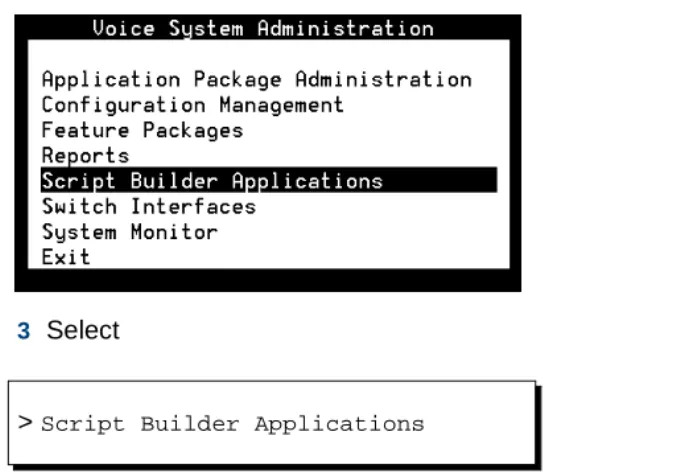
• The sequence of menu options that you must select to display a specific screen or submenu is shown as follows:
Start at the CONVERSANT Main Menu and select:
In this example, you would access the CONVERSANT Main Menu and select the Voice System Administration menu. From the Voice System Administration menu, you would then select the Script Builder
Applications screen.
• Screens shown in this book are examples only. The screens you see on your machine will be similar, but not exactly the same.
Other Typography • Commands and text you type in or enter appear in bold type, as in the following examples:
Enter change-switch-time-zone at the Enter command: prompt.
Type high or low in the Speed: field.
> Script Builder Applications
> Voice System Administration
About This Book Safety and Security Alert Labels
• Command variables are shown in bold italic type when they are part of what you must type in, and in blue italic type when they are referred to, for example:
Enter ch ma machine_name, where machine_name is the name of the call delivery machine you just created.
• Command options are shown inside square brackets, for example:
Enter connect switchname [-d] [-b | -w]
Safety and Security Alert Labels
This book uses the following symbols to call your attention to potential problems that could cause personal injury, damage to equipment, loss of data, service interruptions, or breaches of toll fraud security:
! CAUTION:
Indicates the presence of a hazard that if not avoided can or will cause minor personal injury or property damage, including loss of data.
WARNING:
!
Indicates the presence of a hazard that if not avoided can cause death or severe personal injury.
About This Book Getting Help
! DANGER:
Indicates the presence of a hazard that if not avoided will cause death or severe personal injury.
! SECURITY ALERT:
Indicates the presence of a toll fraud security hazard. Toll fraud is the unauthorized use of a telecommunications system by an unauthorized party.
Getting Help
The Intuity CONVERSANT system provides online help to assist you during installation, administration, and application development tasks.
To use the online help:
• Press F 1 (Help) when you are in a menu or window.
The first time you press F 1, the system displays information about the currently active window or menu.
~ When you are in a window, the help explains the purpose of the window window and describes its fields.
~ When you are in a menu, the help explains how to use menus.
About This Book Technical Assistance
If you press F 1 again, the system displays a General Help screen that explains how to use the online help.
• Press F 2 (Choices) when you are in a field.
The system displays valid field choices either in a pop-up window or on the status line directly above the function keys.
• Press F 6 (Cancel) to exit the online help.
Technical Assistance
Web Site The following customer support web site contains resources where you can find solutions for technical problems:
http://support.lucent.com
Contact Numbers Technical assistance on the Intuity CONVERSANT product is available through the following telephone contacts:
• In the United States, call 1-800-242-2121.
• In Canada, call one of the following numbers, depending on your location:
~ 1-800-363-1882 for assistance in Quebec and eastern Canada
~ 1-800-387-4268 for assistance in Ontario and western Canada
About This Book Related Resources
• In any other country, call your local distributor or check with your project manager or systems consultant.
Related Resources
Additional documentation and training material is available for you to learn more about the Intuity CONVERSANT product.
Training To obtain training on the Intuity CONVERSANT product, contact the BCS Education and Training Center at one of the following numbers:
• Organizations within Lucent Technologies (904) 636-3261
• Lucent Technologies customers and all others (800) 255-8988 You can also view information on Intuity CONVERSANT training at the Global Learning Solutions (GLS) web site at one of the following web links:
• Organizations within Lucent Technologies http://training.gls.lucent.com
• Lucent Technologies customers and all others http://www.lucenttraining.com
About This Book Related Resources
The courses listed below are recommended. Other courses are available.
• For technicians doing repairs on Intuity CONVERSANT V7.0 systems
~ BTT509H, CONVERSANT Installation and Maintenance Voice Information System
• For technicians and administrators
~ BTC344M, Intuity CONVERSANT V7 Administration Overview (CD- ROM)
• For application developers
~ BTC128H, Introduction to Script Builder
~ BTC166H, Introduction to Voice@Work
~ BTC204H, Intermediate Voice@Work
~ BTC301H, Advanced CONVERSANT Programming
Documentation Appendix A, "Documentation Guide," in Intuity CONVERSANT System Version 7.0 System Description, 585-313-204, describes in detail all books included in Intuity CONVERSANT documentation library and referenced in this book.
Note: Always refer to the appropriate book for specific information on planning, installing, administering, or maintaining an Intuity CONVERSANT system.
About This Book Using the CD-ROM Documentation
Additional Suggested Documentation
It is suggested that you also obtain and use the following book for information on security and toll fraud issues:
• GBCS Products Security Handbook, 555-025-600
Obtaining Printed Versions of the Documentation
See Documentation Ordering Information on page viii of Copyright and Legal Noticesfor information on how to purchase Intuity CONVERSANT
documentation in printed form. You can also print documentation locally from the CD-ROM (see Printing the Documentation on page liv).
ELMO For customers with service agreements, the ELMO (Electronic Library Material Online) system is accessible to search and view over one thousand documents including system and feature descriptions, administration guides, and maintenance manuals for a vast array of systems and adjuncts at:
http//www.lucent.com/enterprise/selfservice/information_resources/elmo
Using the CD-ROM Documentation
Lucent Technologies ships the documentation in electronic form. Using the AdobeAcrobat Reader application, you can read these documents on a Windows PC, on a Sun Solaris workstation, or on an HP-UX workstation.
Acrobat Reader displays high-quality, print-like graphics on both UNIX and
About This Book Using the CD-ROM Documentation
Windows platforms. It provides scrolling, zoom, and extensive search capabilities, along with online help. A copy of Acrobat Reader is included with the documents.
Note: When viewing documents online, it is recommended that you use a separate platform and not the Intuity CONVERSANT system.
Setting the Default
Magnification You can set your default magnification by selecting File | Preferences | General. We recommend the Fit Page option.
Adjusting the Window Size
On HP and Sun workstations, you can control the size of the reader window by using the -geometry argument. For example, the command string acroread -geometry 900x900 mainmenu.pdf opens the main menu with a window size of 900 pixels square.
Hiding and Displaying Bookmarks
By default, the document appears with bookmarks displayed on the left side of the screen. The bookmarks serve as a hypertext table of contents for the chapter you are viewing. You can control the appearance of bookmarks by selecting View | Page Only or View | Bookmarks and Page.
Using the Button Bar
The button bar can take you to the book’s Index, table of contents, main menu, and glossary. It also lets you update your documents. Click the corresponding button to jump to the section you want to read.
Using Hypertext
Links Hypertext links appear in blue underlined text. These links are shortcuts to other sections or books.