6XEV\VWHP
Copyright
Copyright 1991 by EXABYTE Corporation. All rights reserved. This item and the information contained herein are the property of EXABYTE Corporation. No part of this document may be reproduced, transmitted, transcribed, stored in a retrieval system, or translated into any language or computer language in any form or by any means, electronic, mechanical, magnetic, optical, chemical, manual, or otherwise, without the express written permission of EXABYTE Corporation, 1685 38th Street, Boulder, Colorado 80301.
Disclaimer
EXABYTE Corporation makes no representation or warranties with respect to the contents of this document and specifically disclaims any implied warranties of merchantability or fitness for any particular purpose. Further, EXABYTE Corporation reserves the right to revise this publication without obligation to notify any person or organization of such revision or changes.
Trademark Notices
EXABYTE is a registered trademark and EXATAPE is a trademark of EXABYTE Corporation. Pull-A-PLCC is a trademark of Emulation Technology, Inc. TORX is a registered trademark of Camcar Division of Textron, Inc.
Revision History for 510204
Previous revisions of this manual include the following:
Revision Date
000 August 1991 (initial release)
in materials, parts, and workmanship and will conform to the current product specification upon delivery. For the specific details of your warranty, refer to your sales contract or contact
the company from which the EXB-8500 was purchased.
The warranty for the EXB-8500 shall not apply to failures of any unit when:
■ The EXB-8500 is repaired by anyone other than the Manufacturer’s personnel or approved agent.
■ The EXB-8500 is physically abused or is used in a manner that is inconsistent with the operating instructions or product specification defined by the Manufacturer.
■ The EXB-8500 fails because of accident, misuse, abuse, neglect, mishandling, misapplication, alteration, faulty installation, modification, or service by anyone other than the factory service center or its approved agent.
■ The EXB-8500 is repaired by anyone, including an approved agent, in a manner that is contrary to the maintenance or installation instructions supplied by the Manufacturer.
■ The Manufacturer’s serial number tag is removed.
■ The EXB-8500 is damaged because of improper packaging on return.
CAUTION
Returning the EXB-8500 in unauthorized packaging may damage the unit and void the warranty.
If you are returning the EXB-8500 for repair, package it in its original packaging (or in replacement packaging obtained from your vendor). Refer to the packing
instructions in the EXB 8500 8mm Cartridge Tape Subsystem User’s Manual.
Changes and Enhancements to This Manual
This revision of EXB-8500 8mm Cartridge Tape Subsystem Maintenance includes the following changes and enhancements:
■ Updated Chapters 4 and 9 to describe different versions of the KRW card and top cover.
■ Added Chapter 18 to describe how to adjust the servo read amplitude for the newer version of the KRW card.
■ Updated regulatory and safety agency standards.
1 General Information . . . 1-3
1.1 About This Manual . . . 1-3 Intended Audience . . . 1-4 Related Publications . . . 1-5 1.2 Regulatory and Safety Agency Standards . . . 1-5 1.3 Other Test Standards . . . 1-6
2 Approaches to Maintaining the EXB-8500 . . . 2-1
2.1 Required Tools and Equipment . . . 2-1 2.2 Required Test Equipment . . . 2-3 Test Software . . . 2-3 Test Tapes . . . 2-3 2.3 Static Protection Requirements . . . 2-4 2.4 Recommended Approaches to Maintenance . . . 2-4 Test the EXB-8500 before Replacing Parts . . . 2-4 Replace Parts . . . 2-5 Test the EXB-8500 After Replacing Parts . . . 2-6
3 R-Pack Replacement . . . 3-3
3.1 Required Tools . . . 3-3 3.2 Removing an R-Pack . . . 3-4 3.3 Installing an R-Pack . . . 3-5 3.4 Testing the Replacement . . . 3-6
4 Top Cover Replacement . . . 4-1
4.1 Required Tools . . . 4-2 4.2 Removing the Top Cover . . . 4-3 4.3 Replacing the Top Cover . . . 4-4 4.4 Testing the Replacement . . . 4-5
5 Door Replacement . . . 5-1
6 Faceplate Replacement . . . 6-1
6.1 Required Tools . . . 6-1 6.2 Removing the Faceplate . . . 6-2 6.3 Replacing the Faceplate . . . 6-4
7 Card Retainer Replacement . . . 7-1
7.1 Required Tools . . . 7-1 7.2 Preparing the EXB-8500 . . . 7-1 7.3 Removing the Card Retainers . . . 7-2 7.4 Replacing the Card Retainers . . . 7-3 7.5 Reassembling the EXB-8500 . . . 7-3 7.6 Testing the Replacement . . . 7-3
8 Deck Hanger Replacement . . . 8-1
8.1 Required Tools . . . 8-2 8.2 Preparing the EXB-8500 . . . 8-2 8.3 Removing the Deck Hanger . . . 8-3 8.4 Replacing the Deck Hanger . . . 8-4 8.5 Reassembling the EXB-8500 . . . 8-5 8.6 Testing the Replacement . . . 8-5
9 Edge Mounted Card Replacement . . . 9-1
9.1 Required Tools . . . 9-2 9.2 Preparing the EXB-8500 . . . 9-2 9.3 Removing an Edge Mounted Card . . . 9-3 9.4 Replacing the KRW Card . . . 9-4 Detaching the KRW Card’s Ribbon Cable . . . 9-4 Compatibility of the KRW Card with the Top Cover . . . 9-5 9.5 Replacing an Edge Mounted Card . . . 9-6 9.6 Reassembling the EXB-8500 . . . 9-7 9.7 Adjusting the Servo Read Amplitude . . . 9-7 9.8 Testing the Replacement . . . 9-7
11.2 Preparing the EXB-8500 . . . 11-2 11.3 Removing the Mounting Screws . . . 11-3 11.4 Disconnecting the SYS Card Connectors . . . 11-4 11.5 Reconnecting the SYS Card Connectors . . . 11-7 11.6 Reattaching the SYS Card to the Main Housing . . . 11-7 11.7 Reassembling the EXB-8500 . . . 11-8 11.8 Loading Microcode onto a New SYS Card . . . 11-8 11.9 Adjusting the Head Sync Timing . . . 11-8 11.10 Testing the Replacement . . . 11-9
12 Deck Assembly Replacement . . . 12-1
12.1 Required Tools . . . 12-1 12.2 Preparing the EXB-8500 . . . 12-2 12.3 Removing the Deck . . . 12-2 12.4 Replacing the Deck . . . 12-3 12.5 Reassembling the EXB-8500 . . . 12-3 12.6 Adjusting the Head Sync Timing . . . 12-3 12.7 Testing the Replacement . . . 12-4
13 Main Housing Replacement . . . 13-1
13.1 Required Tools . . . 13-1 13.2 Preparing the EXB-8500 . . . 13-2 13.3 Removing the Main Housing . . . 13-2 13.4 Replacing the Main Housing . . . 13-3 13.5 Reassembling the EXB-8500 . . . 13-3 13.6 Adjusting the Head Sync Timing . . . 13-3 13.7 Testing the Replacement . . . 13-3
14 Cleaning the EXB-8500 . . . 14-3
15 Loading New Microcode to the EXB-8500 . . . 15-1
15.1 Deciding Which Loading Method to Use . . . 15-1 15.2 Where to Find Code Loading Information . . . 15-1
16 Removing Tape from the Tape Path . . . 16-1
16.3 Preparing the Data Cartridge . . . 16-3 16.4 Removing the Erase Head Bracket and Tape Guide . . . 16-4 16.5 Removing the Tape from the Tape Path . . . 16-6 16.6 Removing the Door and Faceplate . . . 16-8 16.7 Winding the Loose Tape and Ejecting the Data Cartridge . . . 16-9 16.8 Reassembling the EXB-8500 . . . 16-10
17 Adjusting the Head Sync Timing . . . 17-1
17.1 Required Equipment . . . 17-1 17.2 Using the Head Sync Tape . . . 17-2
18 Adjusting the Servo Read Amplitude . . . 18-1
18.1 Required Tools and Equipment . . . 18-1 18.2 Preparing the EXB-8500 . . . 18-2 18.3 Adjusting the Servo Read Amplitude for EXB-8200 Format . . . 18-4 18.4 Adjusting the Servo Read Amplitude for EXB-8500 Format . . . 18-5
19 Replacing the Boot PROM . . . 19-1
Figure 3-1 Location of R-Packs (Back View of EXB-8500) . . . 3-4 Figure 4-1 Location of Top Cover Screws . . . 4-3
Figure 5-1 Location of Door Release Lever (Side View of EXB-8500) . . . 5-2 Figure 5-2 Separating the Door Parts (Front View of EXB-8500) . . . 5-2
Figure 5-3 Position of Door, Door Retainer, and Door Bracket . . . 5-3 Figure 6-1 Location of Door Release Lever (Side View of EXB-8500) . . . 6-2 Figure 6-2 Location of Faceplate Screws . . . 6-3 Figure 8-1 Deck Hanger . . . 8-3
Figure 8-2 Correct Position of Deck Hanger’s Copper Shield . . . 8-4
Figure 9-1 Edge Connector Mounted Cards . . . 9-3 Figure 9-2 KRW Card with Bus Bar . . . 9-5 Figure 9-3 KRW Card with Springs . . . 9-5 Figure 9-3 Compatibility of the KRW Card with the Top Cover . . . 9-6 Figure 10-1 SYS Card Cover Screws (EXB-8500 Shown Upside Down) . . . . 10-2
Figure 11-1 SYS Card Screws . . . . 11-3
Figure 11-2 SYS Card Connectors . . . . 11-5
Figure 11-3 SYS Card Connectors . . . . 11-6
Figure 12-1 Location of Deck Screws . . . 12-2
Figure 13-1 Removing the Main Housing . . . . 13-2
Figure 16-1 Taping Open the Data Cartridge Door . . . . 16-3
Figure 16-2 Location of Screw for Erase Head Bracket . . . 16-4
Figure 16-3 EXB-8500 with Tape Loaded (Tape Guide and Erase Head Bracket
Removed) . . . 16-7
Figure 18-1 Location of Test Points on KRW Card . . . . 18-2
Figure 18-2 Location of Ground Points on the KRW Card . . . . 18-3
Figure 18-3 Oscilloscope Reading for EXB-8200 Format Servo Read Amplitude . . 18-5
Figure 18-4 Oscilloscope Reading with No Delay . . . 18-6
Figure 18-5 Oscilloscope Reading for EXB-8500 Format Servo Read Amplitude . . 18-7
Figure 19-1 Location of Boot PROM on the SYS Card . . . . 19-3
Tables
Table 2-1 Tools Needed for EXB-8500 Maintenance Procedures . . . 2-2 Table 2-2 Tests and Procedures to Perform after Replacing FRUs . . . 2-7
1 General Information
This manual provides instructions for performing maintenance procedures on the EXABYTE®EXB 8500 Cartridge Tape Subsystem (EXB 8500). It lists
the diagnostic tools available for the EXB 8500 and recommends approaches to analyzing failures and verifying fixes. It explains how to load upgrades to firmware, clean the tape path, and remove, replace, and adjust field
replaceable units (FRUs).
1.1 About This Manual
This manual contains the information described below.
Part 1 - Preparing for Maintenance
To prepare for EXB-8500 maintenance, read Chapters 1 and 2. These chapters contain the following:
■ Chapter 1 provides general information about the EXB-8500, including information about using this manual, related publications, and the EXB 8500’s compliance with regulatory and safety agency standards.
■ Chapter 2 contains information about the tools and materials you need to test and maintain the EXB-8500 and describes recommended approaches to testing and maintaining the EXB-8500.
Part 2 - Replacing Field Replaceable Units
Chapters 3 through 13 provide step-by-step instructions for removing and replacing EXB-8500 field replaceable units (FRUs). These chapters also recommend tests to perform after a part has been replaced to ensure that it was replaced correctly. Instructions for replacing the following FRUs are included:
■ R-packs (terminators) ■ Top cover
■ Door ■ Faceplate ■ Card retainer ■ Deck hanger
■ Edge mounted cards (DIF/SIF, KCD, and KRW cards) ■ SYS card cover (bottom cover)
Part 3 - Performing Other Maintenance Procedures
Chapters 14 through 17 contain additional maintenance procedures that should be performed as needed. The following information is included:
■ Chapter 14 contains instructions for cleaning the EXB 8500.
■ Chapter 15 provides a brief discussion on loading new firmware to the EXB-8500.
■ Chapter 16 contains instructions for removing tape from the tape path of a nonfunctioning EXB 8500.
■ Chapter 17 contains instructions for using the automatic head sync tape to adjust the head sync timing for the EXB 8500.
■ Chapter 18 contains instructions for adjusting the servo read amplitude for the EXB-8500 for both 8200 and 8500 read modes.
■ Chapter 19 contains instructions for replacing the boot PROM located on the EXB-8500’s SYS card.
■ A glossary, index, and reader’s comment form are included at the back of this manual.
Intended Audience
This manual is provided to assist EXABYTE self-maintenance contract customers in the testing and maintenance of the EXB-8500.
IMPORTANT
The procedures in this manual must be performed by a qualified service technician whose organization has a self-maintenance
Related Publications
The following manuals and user’s guides will help you understand some of the tasks referred to in this manual.
■ EXB-8500 8mm Cartridge Tape Subsystem User’s Manual, 510201
■ EXB-8500 8mm Cartridge Tape Subsystem Product Specification, 510200
■ EXPERT User’s Guide, 510010
■ Monitor User’s Guide for the EXB-8500 8mm Cartridge Tape Subsystem, 510206
1.2 Regulatory and Safety Agency Standards
When purchased from EXABYTE Corporation, the EXB-8500 is certified as a component by the following domestic and international product safety standards. Certification of the final product is the responsibility of the system integrator.
■ UL Standard 1950, 1st Edition, Information Technology Equipment
■ UL Standard 478, 4th Edition, Electronic Data Processing Units and Systems
■ CSA Standard certified C22.2 No. 220-M1986, Information Processing and Business Equipment
■ CAN/CSA Standard C22.2 No. 950-M89, Safety of Information Technology Equipment (pending)
■ IEC 950/EN60950, Safety of Information Technology Equipment including Electrical Business Equipment (TUV)
When integrated into a final product, the EXB-8500 is designed to meet the requirements of the following agencies:
■ FCC Rules, Part 15, Class B, Computing Devices
■ Canadian Department of Communications, Radio Interference Regulation, Digital Apparatus, Class B
■ VDE Vfg 1046/1984, Class B
1.3 Other Test Standards
2 Approaches to Maintaining the EXB-8500
This chapter lists the tools and equipment required for testing and maintaining the EXB 8500 and describes the recommended approaches to maintaining the EXB 8500.
2.1 Required Tools and Equipment
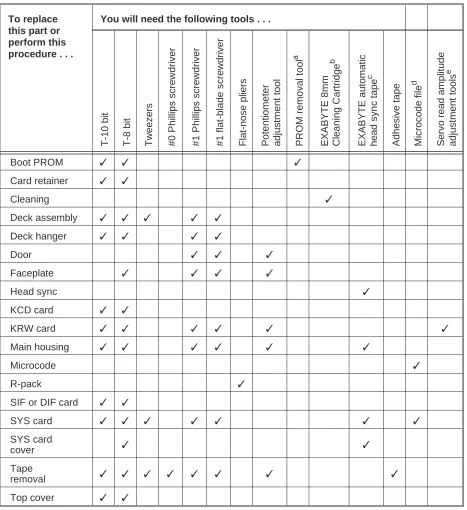
Refer to Table 2-1 on page 2-2 to determine the tools you need to perform the procedures described in this manual. Also, a list of the tools needed for a procedure is provided in the chapter for the procedure.
Note: In Table 2-1, the term “T-# bit” indicates a specific size of TORX®
To replace this part or perform this procedure . . .
You will need the following tools . . .
T-10 bit T-8 bit Tweezers #0 P hillips screw d river #1 P hillips screw d river #1 flat -b la de s crew d rive r Flat -no s e p liers Po te nt iome te r ad ju stme nt to o l PROM removal tool a EX AB YTE 8 mm C lea n ing C a rtrid g e b EX AB YTE a utomatic h ead sync tape c Adhesive tape Microcode file d Se rvo rea d a m plit ud e ad ju stme nt to o ls e
Boot PROM ✓ ✓ ✓
Card retainer ✓ ✓
Cleaning ✓
Deck assembly ✓ ✓ ✓ ✓ ✓
Deck hanger ✓ ✓ ✓ ✓
Door ✓ ✓ ✓
Faceplate ✓ ✓ ✓ ✓
Head sync ✓
KCD card ✓ ✓
KRW card ✓ ✓ ✓ ✓ ✓ ✓
Main housing ✓ ✓ ✓ ✓ ✓ ✓
Microcode ✓
R-pack ✓
SIF or DIF card ✓ ✓
SYS card ✓ ✓ ✓ ✓ ✓ ✓ ✓
SYS card
cover ✓ ✓
Tape
removal ✓ ✓ ✓ ✓ ✓ ✓ ✓ ✓
[image:18.612.73.540.92.602.2]Top cover ✓ ✓
2.2 Required Test Equipment
To perform tests on the EXB-8500 before and after replacing FRUs, you need the test software and tapes described in this section.
Test Software
EXABYTE recommends the following software and accompanying user’s guides for testing the EXB-8500:
■ EXABYTE EXPERT software (version 6.53 or later) and equipment required to run EXPERT. EXPERT tests are designed to evaluate the performance of the EXB-8500 during specific types of operations. For more information about EXPERT and the equipment required to run EXPERT, refer to the EXPERT User’s Guide.
■ EXABYTE Monitor software for the EXB 8500 (version 10.01 or later) and equipment required to run Monitor. For more information on Monitor and the equipment required to run Monitor, refer to the Monitor User’s Guide for the EXB 8500 8mm Cartridge Tape Subsystem.
Test Tapes
This section describes the tapes that are required to test the EXB 8500 and the methods you should follow when creating these tapes. Label the tapes
appropriately for easy identification.
Write/Read Test Tape This is an EXATAPE 112m tape. To make this tape, run the EXPERT Inter_chg test in 8200 mode on the EXB-8500 being tested. Then, read the tape on a known good EXB-8500 to verify interchangeability.
8200 Mode Interchange Test Tape This is an EXATAPE 112m tape. To make this tape, run the EXPERT Chg_WrtRd test with the density code option set for 8200 mode (14h) on the EXB-8500 being tested. Then, read the tape on a known good EXB-8500 (or EXB-8200 if available).
2.3 Static Protection Requirements
The testing and maintenance environments for the EXB-8500 must be free of conditions that could cause electrostatic discharge (ESD). To ensure that these environments are as free from ESD as possible, follow these procedures when testing and maintaining the EXB-8500:
■ Static protection for the testing environment
❏ Ensure that the power supply connected to the EXB-8500 is properly grounded.
❏ Ensure that the personal computer used for EXPERT and Monitor software and for the SCSI bus is properly grounded.
■ Static protection for the maintenance environment
❏ Place a static protection mat on the work surface. Use a 1-megohm resistor to ground the static protection mat.
❏ Wear a static protection wrist band whenever you handle the EXB-8500 or EXB-8500 cards that have been removed from their antistatic bags. Connect this wrist band to the static protection mat or to other suitable ESD grounding.
❏ Keep all cards in antistatic bags when not in use.
2.4 Recommended Approaches to Maintenance
For best results when maintaining the EXB 8500, EXABYTE recommends the following approaches.
Test the EXB-8500 before Replacing Parts
When a problem arises with the EXB 8500, test the EXB 8500 before performing any maintenance procedures to determine the problem and possible solutions. Follow these testing guidelines:
■ Use a known good power supply for each EXB-8500 under test to verify operation and to eliminate any outside influences on the test. Verify that all power to the test area is clean and free of feedback or inductive spikes. Power problems will typically cause a high percentage of rewrites or error correction code (ECC)—or extreme difficulty getting known good
EXB-8500s to pass the tests consistently.
■ To ensure accuracy and consistency when testing a string of EXB-8500s, start all EXB-8500s at the same time and run them without interruption to completion. Doing this reduces the likelihood of operator error and computer software hangs.
Replace Parts
Once you have determined which part or parts (FRUs) need to be replaced, follow the appropriate instructions in Chapters 3 through 13 to replace the part. Before you start, perform the following preliminary maintenance procedures:
1. Make sure the current operation has completed and that tape motion has stopped.
2. If necessary, unload the tape by pressing the unload button or issuing a LOAD/UNLOAD (1Bh) command to the EXB 8500.
Note: If a data cartridge is loaded in a nonfunctioning EXB 8500, refer to Chapter 16 for instructions on removing the data cartridge.
3. If necessary, remove the EXB 8500 from its enclosure or mounting brackets.
4. Disconnect the power cord from the EXB 8500.
5. Disconnect the SCSI cable from the EXB 8500.
Test the EXB-8500 After Replacing Parts
For each part (FRU) you replace, follow the instructions for testing the replacement. These tests involve running EXPERT tests and using the test tapes listed on page 2-3.
Notes:
■ When you replace the SYS card, you must also update the microcode on the new SYS card. Chapter 15 provides a brief description of the steps involved in updating the code on the SYS card. For more detailed instructions on updating code, refer to the Monitor User’s Guide for the EXB 8500 8mm Cartridge Tape Subsystem.
■ When you replace the SYS card, SYS card cover, deck, or main housing, you must also use the automatic head sync tape from EXABYTE to adjust the head sync timing (see Chapter 17).
■ When you replace the KRW card, you must also adjust the servo read amplitude (see Chapter 18).
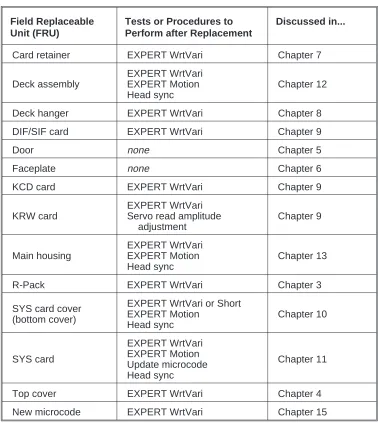
Table 2-2 on page 2 7 lists the tests and procedures that you should perform after replacing the indicated part. For more details about the tests or
procedures and the results you should expect, refer to the chapter for the part you are replacing.
Field Replaceable Unit (FRU)
Tests or Procedures to Perform after Replacement
Discussed in...
Card retainer EXPERT WrtVari Chapter 7
Deck assembly
EXPERT WrtVari EXPERT Motion Head sync
Chapter 12
Deck hanger EXPERT WrtVari Chapter 8
DIF/SIF card EXPERT WrtVari Chapter 9
Door none Chapter 5
Faceplate none Chapter 6
KCD card EXPERT WrtVari Chapter 9
KRW card
EXPERT WrtVari Servo read amplitude
adjustment Chapter 9 Main housing EXPERT WrtVari EXPERT Motion Head sync Chapter 13
R-Pack EXPERT WrtVari Chapter 3
SYS card cover (bottom cover)
EXPERT WrtVari or Short EXPERT Motion Head sync Chapter 10 SYS card EXPERT WrtVari EXPERT Motion Update microcode Head sync Chapter 11
Top cover EXPERT WrtVari Chapter 4
[image:23.612.161.539.93.516.2]Notes:
3 R-Pack Replacement
This chapter describes how to remove and replace the resistor terminators (R-packs) on the back of the EXB 8500.
The single-ended version of the EXB-8500 (SIF card) uses two internal R-packs with the following characteristics:
■ 10-pin ■ 9-resistor
■ Single in-line package (SIP) ■ Socket-mounted
■ 110 ohms
The differential version of the EXB-8500 (DIF card) does not use internal R-packs.
3.1 Required Tools
To replace an R-pack, you need the following tool:
✓ Flat-nose pliers
WARNING
Before starting any replacement procedures, make sure that the EXB-8500 is not in use, as follows:
1. Make sure that any current operation has completed and that tape motion has stopped.
2. Unload the data cartridge by pressing the unload button or issuing a LOAD/UNLOAD (1Bh) command to the EXB-8500.
3. Disconnect the power cord from the EXB-8500.
4. Disconnect the SCSI cable from the EXB-8500.
3.2 Removing an R-Pack
To remove an R-pack, follow these steps:
1. Locate the two R-packs on the back of the EXB-8500. Figure 3-1 shows the locations of these R-packs, labeled RP1 and RP2.
2. Using a pair of flat-nose pliers, grasp either one of the R-packs in the center. Be careful not to squeeze the pliers too tightly or you may break the R-pack.
[image:28.612.145.499.256.591.2]3.3 Installing an R-Pack
CAUTION
If you replace the R-packs, be sure to use the correct size and type of terminators. Otherwise, damage to the EXB-8500 can occur. The EXB-8500 uses two 10-pin, 9-resistor SIP terminators of 110 ohms. Replacement R-packs are available from EXABYTE (part number 002228).
In addition, when replacing an R-pack, make sure that pin 1 of the terminator is aligned with pin 1 of the socket and that no pins are bent.
To install an R-pack, follow these steps:
1. Orient the R-pack so that pin 1 is toward the SCSI connector on the SIF card. Pin 1 has the wide line over the pin.
2. Carefully position the R-pack on the socket. Check to ensure that each pin on the R-pack is aligned with a hole in the socket.
3. Press the R-pack into the socket. Be careful to provide even pressure on the outer edge of the R-pack so that all pins are inserted at the same time. Uneven pressure can result in the R-pack being only partially inserted or in bent pins on the R-pack.
4. Inspect the R-pack to ensure that all of the pins have been correctly inserted. If the R-pack is not fully seated in the socket, apply additional pressure to make sure that all pins have been fully inserted.
5. If any of the pins are bent, remove the R-pack. Then, straighten the pins and reinsert the R-pack. Follow the previous steps to remove, insert, and inspect the R-pack.
3.4 Testing the Replacement
To test the replacement of an R-pack, run the EXPERT WrtVari test. If the test fails, check the EXPERT trace log for causes and to help determine the appropriate action to take.
Note: Refer to the EXPERT User’s Guide for more information on running EXPERT tests.
4 Top Cover Replacement
This chapter describes how to remove and replace the top cover.
Compatibility of the Top Cover with the KRW Card
There are two versions of the top cover:
■ One version has a conductive gasket on its underside.
■ The other version does not have a conductive gasket on its underside.
There are also two versions of the KRW card:
■ One version has a bus bar at the top.
■ The other version has two springs at the top.
Only certain combinations of these two parts are compatible. Table 4-1 shows the compatiblity of the top cover with the KRW card.
This top cover... Is compatible with this KRW card... With bus bar With springs
With gasket Yes Yes—if gasket is
removed
Without gasket No Yes
[image:31.612.163.443.347.459.2]Before you replace the top cover, ensure that the new top cover is compatible with your KRW card. For more information about the compatibility of the top cover and the KRW card, see Chapter 9.
4.1 Required Tools
To replace the top cover, you need the following tools:
✓ Torque limiting screwdriver, 3.4 to 5.0 inch-pounds (3.9 to 5.8 kg-cm)
✓ T-10 TORX driver bit
✓ T-8 TORX driver bit
WARNING
Before starting any replacement procedures, make sure that the EXB-8500 is not in use, as follows:
1. Make sure that any current operation has completed and that tape motion has stopped.
2. Unload the data cartridge by pressing the unload button or issuing a LOAD/UNLOAD (1Bh) command to the EXB-8500.
3. Disconnect the power cord from the EXB-8500.
4. Disconnect the SCSI cable from the EXB-8500.
5. Move the EXB-8500 to the maintenance area.
4.2 Removing the Top Cover
To remove the top cover, follow these steps:
1. Remove the five top cover screws as follows (see Figure 4-1):
a. Use a T-8 TORX bit to remove the two screws located on the top of the EXB-8500 near the edges.
b. Use a T-10 TORX bit for the remaining three screws.
2. Gently lift the cover at the rear of the EXB-8500 so that the tabs located at the rear and on each side of the top cover are clear of the main
housing.
[image:33.612.97.519.322.658.2]3. Move the cover toward the rear of the EXB-8500 to disengage the tabs on the front of the top cover from the faceplate and set the cover aside.
4.3 Replacing the Top Cover
Note: Before replacing the top cover, make sure it is compatible with your KRW card. If your KRW card has two springs at the top, remove the gasket on your top cover before reassembling the EXB-8500. See Chapter 9 for more information.
To replace the top cover, follow these steps:
1. Holding the rear of the cover up slightly, position the cover with the flat tabs toward the front of the EXB-8500 and the two downward bent tabs toward the rear of the EXB-8500.
2. Slide the cover toward the front of the EXB-8500 so that the flat tabs are inserted into the corresponding slots on the faceplate.
3. Lower the rear of the cover so that the tabs line up with the screw holes in the card retainers. You may need to apply slight pressure to seat the top cover properly.
CAUTION
Do not overtighten the screws. Overtightening these screws can strip the holes in the main housing, the card retainers, or the deck hanger. If any of the screw holes in the main housing become stripped, replace the main housing.
4. Secure the rear of the cover through the card retainers and through the center of the top cover to the deck hanger using the three larger screws (use the T-10 bit). Refer to Figure 4-1 for the locations of these screws. Tighten the screws to 5.0 inch-pounds (5.8 kg-cm) of torque.
4.4 Testing the Replacement
To test the replacement of the top cover, run the EXPERT WrtVari test. If the test fails, check the EXPERT trace log for causes and to help determine the appropriate action to take.
Notes:
5 Door Replacement
This chapter describes how to remove and replace the door.
5.1 Required Tools
To replace the door, you need the following tools:
✓ #1 flat-blade screwdriver
✓ Pointed, non-conductive tool, such as a potentiometer adjustment tool
5.2 Removing the Door
To remove the door, follow these steps:
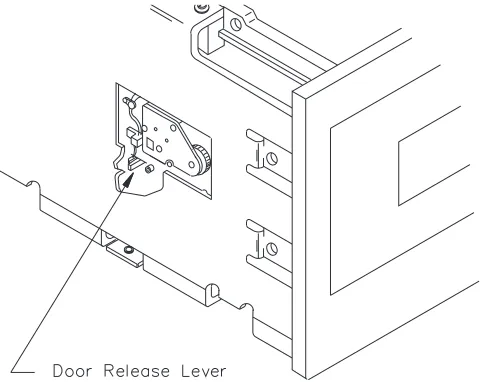
1. Open the door by using a small nonconductive tool, such as a
potentiometer adjustment tool, to move the door release lever toward the front of the EXB-8500. Figure 5-1 shows the location of the door
release lever.
The amount of force required to activate the door release lever is slight, and the lever should move no more than one-eighth of an inch. Be careful not to damage the small switch contacts next to the lever.
WARNING
Before starting any replacement procedures, make sure that the EXB-8500 is not in use, as follows:
1. Make sure that any current operation has completed and that tape motion has stopped.
2. Unload the data cartridge by pressing the unload button or issuing a LOAD/UNLOAD (1Bh) command to the EXB-8500.
3. Disconnect the power cord from the EXB-8500.
4. Disconnect the SCSI cable from the EXB-8500.
2. Using a flat-blade screwdriver, separate the door from the door retainer. The locking tabs that hold the two together are near the top edge of the door. Figure 5-2 shows where to position the screwdriver to separate the door and the door retainer.
Start with either side of the door and position the screwdriver so that the prying force will separate the two components. Apply the force so that it pushes the door retainer tab toward the outside edge of the door as well as away from the door.
3. Unlatch the remaining locking tab using the same method described in step 2.
4. Separate the two components so that the bottom locking tabs are also released and both parts can be removed and set aside.
5.3 Replacing the Door
[image:39.612.95.533.231.629.2]Before attempting to put the door and door retainer on the EXB-8500, practice assembling the two pieces independently of the EXB 8500. Be sure to observe the final relationship of all of the locking tabs so that it is clear how they should look when they are placed on the door mechanism. View A in Figure 5-3 shows how the door, the door retainer, and the door bracket are positioned on the EXB-8500. View B shows a side view of the door, the door bracket, and the door retainer.
To replace the door, follow these steps:
1. To avoid damaging tape, ensure that there is no data cartridge in the EXB 8500.
2. Position the door on the arms of the door bracket so that the bottom locking tabs on the door are in the notches on the bottom of the door bracket.
3. Hold the door in position on the door bracket with your thumb and first finger of one hand and position the door retainer so that the locking tab notches on the bottom of the door retainer are by the locking tabs on the door.
4. Squeeze the door and door retainer together using your thumb and first finger of each hand so that the bottom notches snap together with the locking tabs. Apply the pressure so that the door retainer moves in and up under the locking tabs. It might be easier to secure one notch at a time.
5. Squeeze the door and door retainer together at the top edge to engage the top locking tabs.
6. Inspect the door to make sure all tabs are in the correct position. If one of the bottom tabs is not in its correct position, separate the door and the door retainer and restart the replacement procedure.
6 Faceplate Replacement
This chapter describes how to remove and replace the faceplate.
6.1 Required Tools
To replace the faceplate, you need the following tools:
✓ Torque limiting screwdriver, 3.4 to 5.0 inch-pounds (3.9 to 5.8 kg-cm)
✓ T-8 TORX bit
✓ #1 flat-blade screwdriver
✓ Pointed, non-conductive tool, such as a potentiometer adjustment tool WARNING
Before starting any replacement procedures, make sure that the EXB-8500 is not in use, as follows:
1. Make sure that any current operation has completed and that tape motion has stopped.
2. Unload the data cartridge by pressing the unload button or issuing a LOAD/UNLOAD (1Bh) command to the EXB-8500.
3. Disconnect the power cord from the EXB-8500.
4. Disconnect the SCSI cable from the EXB-8500.
6.2 Removing the Faceplate
To remove the faceplate, follow these steps:
1. To avoid damaging tape, ensure that there is no data cartridge in the EXB-8500.
2. Open the door by using a small nonconductive tool, such as a
potentiometer adjustment tool, to move the door release lever toward the front of the EXB-8500. Figure 6-1 shows the location of the door
release lever.
Note: The amount of force required to activate the door release lever is slight, and the lever should move no more than one-eighth of an inch. Be careful not to damage the small switch contacts next to the lever.
3. Remove the EXB 8500’s door, as described in Chapter 5.
[image:42.612.153.393.299.490.2]4. Close the door bracket.
6. Position the EXB-8500 so that it is resting on the rear of the main housing with the door facing up.
[image:43.612.99.507.75.411.2]6.3 Replacing the Faceplate
To replace the faceplate, follow these steps:
1. Position the EXB-8500 so that it is resting on the rear of the main housing with the door facing up.
2. With the door bracket closed, slide the faceplate around the door frame and align it with the four mounting screws (see Figure 6-2).
3. Position the faceplate so that the mounting tabs are under the four mounting screws and the faceplate is flush with the door when the door is closed.
CAUTION
Do not overtighten the screws. Overtightening the mounting screws can damage the faceplate mounting tabs or strip the screw holes in the main housing. If any of the screw holes in the main housing become stripped, replace the main housing.
4. Using the T-8 TORX bit, tighten the mounting screws to 3.4 inch-pounds (3.9 kg-cm) of torque.
7 Card Retainer Replacement
This chapter describes how to remove and replace the card retainers.
7.1 Required Tools
To replace a card retainer, you need the following tools:
✓ Torque limiting screwdriver, 3.4 to 5.0 inch-pounds (3.9 to 5.8 kg-cm)
✓ T-10 TORX bit
✓ T-8 TORX bit
7.2 Preparing the EXB-8500
To access the card retainers, first remove this part:
Top cover Chapter 4
WARNING
Before starting any replacement procedures, make sure that the EXB-8500 is not in use, as follows:
1. Make sure that any current operation has completed and that tape motion has stopped.
2. Unload the data cartridge by pressing the unload button or issuing a LOAD/UNLOAD (1Bh) command to the EXB-8500.
3. Disconnect the power cord from the EXB-8500.
4. Disconnect the SCSI cable from the EXB-8500.
7.3 Removing the Card Retainers
To remove a card retainer, follow this step:
1. Grasp the ends of the card retainer between your thumb and first finger and lift straight up. You should feel no resistance when removing a card retainer.
[image:46.612.137.494.259.521.2]2. Repeat step 1 for the other card retainer.
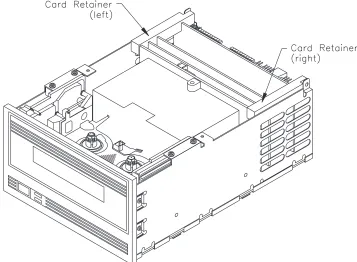
Figure 7-1 shows the locations of the card retainers. Note that there is a left and a right card retainer.
7.4 Replacing the Card Retainers
The card retainers are designed as left and right components and will fit correctly only one way. To replace the card retainers, follow these steps:
1. Place each card retainer so that only one card is in a slot, the deck hanger fits in the slot farthest away from the screw hole, and the screw hole is lined up with the hole on the tab at the rear of the EXB-8500. If the cards are aligned squarely in the EXB-8500, the card retainers will slide on with little or no force.
2. Adjust the card and deck hanger positions to get them into their slots in the retainer.
3. After both card retainers are in place, exert downward pressure on the top of both card retainers simultaneously. This will ensure that all cards are properly seated in the EXB-8500.
7.5 Reassembling the EXB-8500
To reassemble the EXB-8500, replace the top cover as described in Chapter 4.
7.6 Testing the Replacement
To test the replacement of the card retainer, run the EXPERT WrtVari test. If the test fails, check the EXPERT trace log for causes and to help determine the appropriate action to take.
Notes:
8 Deck Hanger Replacement
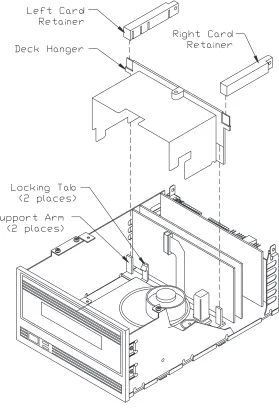
This chapter describes how to remove and replace the deck hanger, which separates the card section of the EXB-8500 from the deck section. The deck hanger has two functions:
■ The plastic portion of the deck hanger prevents the KRW ribbon cable from interfering with the moving parts of the deck.
■ The copper portion (copper shield) of the deck hanger reduces electrostatic noise in the tape path.
The plastic portion of the deck hanger clips onto the deck hanger bracket along the rear edge of the deck base. The copper shield is attached to the plastic portion of the deck hanger and covers the tape drum and tape path.
WARNING
Before starting any replacement procedures, make sure that the EXB-8500 is not in use, as follows:
1. Make sure that any current operation has completed and that tape motion has stopped.
2. Unload the data cartridge by pressing the unload button or issuing a LOAD/UNLOAD (1Bh) command to the EXB-8500.
3. Disconnect the power cord from the EXB-8500.
4. Disconnect the SCSI cable from the EXB-8500.
8.1 Required Tools
To replace the deck hanger, you need the following tools:
✓ Torque limiting screwdriver, 3.4 to 5.0 inch-pounds (3.9 to 5.8 kg-cm)
✓ T-10 TORX bit
✓ T-8 TORX bit
✓ #1 flat-blade screwdriver
8.2 Preparing the EXB-8500
To access the deck hanger, first remove these parts in the following order:
Top cover Chapter 4
8.3 Removing the Deck Hanger
To remove the deck hanger, follow these steps:
[image:51.612.158.437.264.676.2]1. Locate the locking tabs that hold the deck hanger in place, as shown in Figure 8-1. The locking tabs protrude through the deck hanger from the rear of the EXB-8500.
2. Using a #1 flat-blade screwdriver, press one of the tabs toward the rear of the EXB-8500 while pulling up on the same end of the deck hanger. Hold that end of the deck hanger in the unlocked position until you release the other tab. Then remove the deck hanger from the EXB-8500.
8.4 Replacing the Deck Hanger
To replace the deck hanger, follow these steps:
[image:52.612.145.515.220.527.2]1. From the front of the EXB 8500, position the copper shield so that the left side of it is to the left of the black tab that protrudes from the tape load mechanism. Make sure that the right side of the copper shield does not interfere with the tape path mechanism or wires in the deck. See Figure 8-2.
2. Line up the plastic portion of the deck hanger with the locking tabs Figure 8-2 Correct Position of Deck Hanger’s Copper Shield
8.5 Reassembling the EXB-8500
To reassemble the EXB-8500, replace these parts in the following order:
Card retainers Chapter 7
Top cover Chapter 4
8.6 Testing the Replacement
To test the replacement of a deck hanger, perform the following steps:
1. Apply power to the EXB-8500. Make sure the power-on self-test completes normally.
2. Load a data cartridge into the EXB-8500. Perform another power-on cycle and make sure it completes normally.
3. Run the EXPERT WrtVari test. If the test fails, check the EXPERT trace log for causes and to help determine the appropriate action to take.
Notes:
9 Edge Mounted Card Replacement
This chapter describes how to remove and replace the edge mounted cards. These cards consist of the following:
■ KCD (clocking and detection card) ■ KRW (read/write card)
■ SIF or DIF (single-ended or differential interface card)
Notes:
■ If you are replacing the KRW card, you must also adjust the servo read amplitude, as described in Chapter 18.
■ There are two versions of the KRW card and two versions of the top cover. Only certain combinations of these two parts are compatible. See Section 9.4 for details.
WARNING
Before starting any replacement procedures, make sure that the EXB-8500 is not in use, as follows:
1. Make sure that any current operation has completed and that tape motion has stopped.
2. Unload the data cartridge by pressing the unload button or issuing a LOAD/UNLOAD (1Bh) command to the EXB-8500.
3. Disconnect the power cord from the EXB-8500.
4. Disconnect the SCSI cable from the EXB-8500.
9.1 Required Tools
To replace edge mounted cards, you need the following tools:
✓ Torque limiting screwdriver, 3.4 to 5.0 inch-pounds (3.9 to 5.8 kg-cm)
✓ T-10 TORX bit
✓ T-8 TORX bit
✓ #1 flat-blade screwdriver
To replace the KRW card, you need the following tools in addition to those listed above:
✓ Known good EXB-8500
✓ EXPERT software
✓ Blank EXATAPE
✓ Oscilloscope
✓ Potentiometer adjustment tool
9.2 Preparing the EXB-8500
The edge connector socket-mounted cards plug into the SYS card. To access these cards, first remove these parts in the following order:
Top cover Chapter 4
Card retainers Chapter 7
Deck hanger Chapter 8
Note: The deck hanger needs to be removed only to replace the KRW card. The deck hanger does not need to be removed to access any other card.
9.3 Removing an Edge Mounted Card
Figure 9-1 shows the position of each edge mounted card. To remove any of these cards, follow these steps:
Note: Before removing the KRW card, remove the KRW card’s ribbon cable as explained in Section 9.4 on page 9-4.
1. Grasp the card between your thumb and first finger on both ends of the card.
2. Rock the card from left to right to release it from the edge connector socket. This will require a reasonable amount of force since the card fits securely into the socket.
[image:57.612.167.507.317.595.2]3. Lift the card straight up and out of the EXB-8500.
9.4 Replacing the KRW Card
When removing the KRW card, be aware of the following:
■ Unlike the other edge connector mounted cards, the KRW card has a ribbon cable connected to it that you must detach before removing the card.
■ There are two versions of the KRW card, one of which is incompatible with the version of the top cover that does not have a conductive gasket on its underside.
■ When you replace the KRW card, you must also adjust the servo read amplitude. See Chapter 18 for instructions.
This section describes how to detach the KRW card’s ribbon cable and the compatibility of the KRW card with the top cover. Adjusting the servo read amplitude is described in Chapter 18.
Detaching the KRW Card’s Ribbon Cable
The KRW card, shown in Figure 9-1 on page 9-3, has a ribbon cable connected to it and is the only card with the major components facing the front of the EXB-8500.
To remove the KRW card’s ribbon cable, follow these steps:
1. Remove the deck hanger to allow access to the ribbon cable connector on the KRW card (see Chapter 8).
2. Use a flat tool (such as the blade of a flat-blade screwdriver) to slide the ribbon cable connector open to the right. Once the connector is open, carefully pull out the cable.
Compatibility of the KRW Card with the Top Cover
There are two versions of the KRW card:
■ One version, shown in Figure 9-2, has a bus bar at the top.
[image:59.612.164.359.192.396.2]■ The other version, shown in Figure 9-3, has two springs at the top.
Figure 9-2 KRW Card with Bus Bar
[image:59.612.166.359.466.680.2]There are also two versions of the top cover:
■ One version has a conductive gasket on its underside.
■ The other version does not have a conductive gasket on its underside.
Table 9-1 shows the compatibility of the KRW card with the top cover.
This top cover... Is compatible with this KRW card... With bus bar With springs
With gasket Yes Yes—if gasket is
removed
Without gasket No Yes
Before you replace the KRW card, ensure that the new KRW card is compatible with your top cover. If you have a KRW card with springs, remove the gasket from your top cover before reassembling the EXB-8500.
9.5 Replacing an Edge Mounted Card
To replace an edge mounted card, follow these steps:
1. Align the edge connector with the edge connector socket. The positions of the edge connectors on the SYS card are keyed; only one type of card fits into a particular socket. Ensure that the component side of the card is facing the rear of the EXB-8500.
Note: Make sure that the components of the KRW card face the front of the EXB-8500.
2. Press on both ends of the card at the same time until the card is properly seated in the card edge connector on the SYS card.
3. Insert the ribbon cable into its connector on the KRW card. Once the Table 9-1 Compatibility of the KRW Card with the Top Cover
9.6 Reassembling the EXB-8500
To reassemble the EXB-8500, replace these parts in the following order:
Deck hanger Chapter 8
Card retainers Chapter 7
Top cover Chapter 4
9.7 Adjusting the Servo Read Amplitude
If you have replaced the KRW card, you must also adjust the servo read amplitude. See Chapter 18 for instructions.
9.8 Testing the Replacement
To test the replacement of an edge mounted card, run the EXPERT WrtVari test. If the test fails, check the EXPERT trace log for causes and to help determine the appropriate action to take.
Notes:
10 SYS Card Cover Replacement
This chapter describes how to remove and replace the SYS card cover. This cover also serves as the bottom cover of the EXB-8500.
10.1 Required Tools
To replace the SYS card cover, you need the following tools:
✓ Torque limiting screwdriver, 3.4 to 5.0 inch-pounds (3.9 to 5.8 kg-cm)
✓ T-8 TORX bit
✓ EXABYTE automatic head sync tape for the EXB-8500, part number 180025
WARNING
Before starting any replacement procedures, make sure that the EXB-8500 is not in use, as follows:
1. Make sure that any current operation has completed and that tape motion has stopped.
2. Unload the data cartridge by pressing the unload button or issuing a LOAD/UNLOAD (1Bh) command to the EXB-8500.
3. Disconnect the power cord from the EXB-8500.
4. Disconnect the SCSI cable from the EXB-8500.
10.2 Removing the SYS Card Cover
To remove the SYS card cover, follow these steps:
1. Turn the EXB-8500 upside down so that the SYS card cover is facing up.
2. Use a T-8 TORX bit to remove the six screws that hold the SYS card cover to the main housing. Figure 10-1 shows the locations of these screws.
[image:64.612.144.478.257.580.2]10.3 Replacing the SYS Card Cover
To replace the SYS card cover, follow these steps:
1. Position the SYS card cover so that the tabs are down and the stamped part number is on the end closest to the faceplate. Make sure that all six of the mounting pads are in contact with the SYS card, and that the holes are lined up with the corresponding holes in the SYS card.
2. Set the SYS card cover in place on the main housing and start the six screws that were removed previously. Do not tighten the screws yet.
3. As needed, move the cover slightly to align all of the mounting holes.
CAUTION
Do not overtighten the screws. Overtightening these screws can damage the SYS card or strip the holes in the main housing. If any of the screw holes in the main housing become stripped, replace the main housing.
4. When all of the mounting holes are aligned, use a T-8 TORX bit to tighten the mounting screws to 3.4 inch-pounds (3.9 kg-cm) of torque.
10.4 Adjusting the Head Sync Timing
After you replace the SYS card cover, you must adjust the head sync timing using the EXABYTE automatic head sync tape for the EXB-8500. For instructions on using this tape, see Chapter 17.
10.5 Testing the Replacement
To test the replacement of the SYS card cover, perform these steps:
1. Run the EXPERT WrtVari or Short test.
2. Run the EXPERT Motion test.
If either EXPERT test fails, check the EXPERT trace log for causes and to help determine the appropriate action to take.
Notes:
11 SYS Card Replacement
This chapter describes how to remove and replace the SYS card.
11.1 Required Tools
To replace the SYS card, you need the following tools:
✓ Torque limiting screwdriver, 3.4 to 5.0 inch-pounds (3.9 to 5.8 kg-cm)
✓ T-10 TORX bit
✓ T-8 TORX bit
✓ Tweezers
✓ #1 flat-blade screwdriver
✓ Floppy diskette containing microcode files
✓ EXABYTE automatic head sync tape for the EXB-8500, part number 180025
WARNING
Before starting any replacement procedures, make sure that the EXB-8500 is not in use, as follows:
1. Make sure that any current operation has completed and that tape motion has stopped.
2. Unload the data cartridge by pressing the unload button or issuing a LOAD/UNLOAD (1Bh) command to the EXB-8500.
3. Disconnect the power cord from the EXB-8500.
4. Disconnect the SCSI cable from the EXB-8500.
11.2 Preparing the EXB-8500
The SYS card is mounted on the bottom of the EXB 8500 and is the card into which the other cards (KRW, KCD, and SIF or DIF) are inserted. The SYS card performs the functions of a mother board and contains all of the control circuitry. Before removing the SYS card, remove these parts in the following order:
Top cover Chapter 4
Card retainers Chapter 7
Deck hanger Chapter 8
SIF/DIF card Chapter 9
KCD card Chapter 9
KRW card Chapter 9
SYS card cover Chapter 10
IMPORTANT
When removing or inserting a card, hold the card on the edges. To avoid damaging the card, do not hold the components or connectors mounted on the card. After removing the card, hold and place it on its edges whenever possible.
11.3 Removing the Mounting Screws
Using a T-8 TORX bit, remove the two screws that mount the SYS card to the main housing. Figure 11-1 shows the locations of the screws.
Once these screws are removed, the SYS card will be loose and the
[image:69.612.97.507.206.616.2]connectors can be removed. To remove the connectors, follow the instructions in Section 11.4.
11.4 Disconnecting the SYS Card Connectors
CAUTION
Do not pull on the wires to remove the connectors or you may damage the wires.
To disconnect the SYS card connectors, follow these steps:
1. Turn the EXB-8500 so that it is resting on its side with the bottom facing toward you and the front facing to your left.
3. Starting with the connector closest to the rear of the EXB-8500, remove all of the connectors along the edge facing you.
Note: Use a pair of tweezers (or similar tool) to push down on the bottom of the key portion of the connector plug, then push the plug away from the SYS card connector socket. Each
[image:71.612.92.526.69.427.2]connector socket has either one or two key slots (see Figure 11-3). On those connector plugs with two keys, push alternately on each key so that the connector is removed evenly from the socket.
4. Turn the EXB-8500 so that it is resting on its back with the front facing up.
5. Pull the SYS card away from the main housing and remove all of the connectors along the front edge of the card.
6. Turn the EXB-8500 again so that the bottom of the EXB-8500 is still facing you and the front faces to your right.
7. Remove all of the connectors along this edge of the card.
[image:72.612.140.490.68.365.2]8. Once you have disconnected all the electrical connections, pull the SYS card away from the main housing.
11.5 Reconnecting the SYS Card Connectors
To reconnect the SYS card connections, follow the instructions for removing the SYS card connections in reverse order, as follows:
1. Start at the rear of the EXB-8500 and work around to the front.
2. Then, work across the front and back toward the rear.
3. End with the rear connector on the right side of the EXB 8500.
4. Ensure that all connectors are fully seated.
CAUTION
Be sure to plug the connectors into the correct sockets. The connectors and the sockets are color coded or sized differently to help you
determine which connector goes with which socket.
11.6 Reattaching the SYS Card to the Main Housing
To reattach the SYS card to the main housing, follow these steps:
1. Turn the EXB-8500 upside down with the front of the EXB-8500 facing you.
2. Set the SYS card in place and start the two screws that attach the SYS card to the main housing. Do not tighten these screws yet.
3. Carefully inspect the edges of the SYS card to ensure that no wires are caught between the SYS card and the main housing.
CAUTION
Do not overtighten the screws. Overtightening these screws can damage the SYS card or strip the holes in the main housing. If any of the screw holes in the main housing become stripped, replace the main housing.
11.7 Reassembling the EXB-8500
To reassemble the EXB-8500, replace these parts in the following order:
SYS card cover Chapter 10
KRW card Chapter 9
KCD card Chapter 9
SIF/DIF card Chapter 9
Deck hanger Chapter 8
Card retainers Chapter 7
Top cover Chapter 4
11.8 Loading Microcode onto a New SYS Card
After replacing the SYS card with a new SYS card, you must load the required microcode onto the new SYS card EPROMs. With the replacement SYS card, you should have received a 51⁄4-inch floppy diskette. This diskette
contains two binary files with the following types of names:
85C-xxxx.BIN Control and servo code, wherexxxxis the code level 85E-xxxx.BIN Customer-specific code, wherexxxxis the code level Use the EXB-8500 Monitor program to load the new code from these files onto your SYS card. For more information about using the Monitor program, refer to the Monitor User’s Guide for the EXB 8500 8mm Cartridge Tape Subsystem.
11.9 Adjusting the Head Sync Timing
11.10 Testing the Replacement
To test the replacement of the SYS card, do the following:
1. Run the EXPERT Inter_chg test.
2. Run the EXPERT WrtVari test.
3. Run the EXPERT Motion test.
If any EXPERT test fails, check the EXPERT trace log for causes and to help determine the appropriate action to take.
Notes:
12 Deck Assembly Replacement
This chapter describes how to remove and replace the deck assembly. The deck assembly contains the data cartridge loader, the tape path mechanism, and the head assembly.
12.1 Required Tools
To replace the deck assembly, you need the following tools:
✓ T-10 TORX bit
✓ T-8 TORX bit
✓ #1 flat-blade screwdriver
✓ #1 Phillips screwdriver
✓ Pointed, non-conductive tool, such as a potentiometer adjustment tool
✓ EXABYTE automatic head sync tape for the EXB-8500, part number 180025
WARNING
Before starting any replacement procedures, make sure that the EXB-8500 is not in use, as follows:
1. Make sure that any current operation has completed and that tape motion has stopped.
2. Unload the data cartridge by pressing the unload button or issuing a LOAD/UNLOAD (1Bh) command to the EXB-8500.
3. Disconnect the power cord from the EXB-8500.
4. Disconnect the SCSI cable from the EXB-8500.
12.2 Preparing the EXB-8500
To replace the deck, first remove these parts in the following order:
Top cover Chapter 4
Card retainers Chapter 7
Deck hanger Chapter 8
Door Chapter 5
Faceplate Chapter 6
KRW card Chapter 9
SIF/DIF card Chapter 9 SYS card cover Chapter 10
SYS card Chapter 11
12.3 Removing the Deck
To remove the deck, follow these steps:
1. Using a #1 Phillips screwdriver, remove the four Phillips screws that mount the deck to the main housing, as shown in Figure 12-1.
2. Carefully push the deck out the front of the EXB-8500 and away from the main housing.
[image:78.612.141.475.421.681.2]12.4 Replacing the Deck
To replace the deck, follow these steps:
1. Carefully slide the new deck in place and start the four mounting screws to hold the deck in place while you are reassembling the EXB-8500. Do not tighten these screws yet.
2. Install the faceplate from the old deck on the new deck (see Chapter 6).
3. Mount the door assembly from the old deck on the new deck (see Chapter 5).
CAUTION
Do not overtighten the screws. Overtightening the deck screws can strip the holes in the deck. If any of the screw holes in the deck become stripped, replace the deck.
4. Tighten the deck mounting screws until they are snug.
12.5 Reassembling the EXB-8500
To reassemble the EXB-8500, replace these parts in the following order:
SYS card Chapter 11
SYS card cover Chapter 10 SIF/DIF card Chapter 9
KCD card Chapter 9
KRW card Chapter 9
Deck hanger Chapter 8
Card retainers Chapter 7
Top cover Chapter 4
12.6 Adjusting the Head Sync Timing
12.7 Testing the Replacement
To test the replacement of the deck, do the following:
1. Run the EXPERT Inter_chg test.
2. Run the EXPERT WrtVari test.
3. Run the EXPERT Motion test.
If any EXPERT test fails, check the EXPERT trace log for causes and to help determine the appropriate action to take.
Note: Refer to the EXPERT User’s Guide for more information on running EXPERT tests.
13 Main Housing Replacement
This chapter describes how to remove and replace the main housing.
13.1 Required Tools
To replace the main housing, you need the following tools:
✓ Torque limiting screwdriver, 3.4 to 5.0 inch-pounds (3.9 to 5.8 kg-cm)
✓ T-10 TORX bit
✓ T-8 TORX bit
✓ #1 flat-blade screwdriver
✓ Pointed, non-conductive tool, such as a potentiometer adjustment tool
✓ EXABYTE automatic head sync tape for the EXB-8500, part number 180025
WARNING
Before starting any replacement procedures, make sure that the EXB-8500 is not in use, as follows:
1. Make sure that any current operation has completed and that tape motion has stopped.
2. Unload the data cartridge by pressing the unload button or issuing a LOAD/UNLOAD (1Bh) command to the EXB-8500.
3. Disconnect the power cord from the EXB-8500.
4. Disconnect the SCSI cable from the EXB-8500.
13.2 Preparing the EXB-8500
To replace the main housing, first remove these parts in the following order:
Top cover Chapter 4
Card retainers Chapter 7
Door Chapter 5
Faceplate Chapter 6
SYS card cover Chapter 10 (See Note below.)
Note: You must remove the SYS card mounting screws (see Section 11.3), but the SYS card can remain in place. You should also remove the deck mounting screws (see Section 12.3), but you do not need to remove the deck.
13.3 Removing the Main Housing
After separating the main housing from all other assemblies and components, you can remove it. To remove the main housing, follow these steps:
1. Grasp the main housing by the sides toward the front.
2. Spread the sides of the main housing apart.
[image:82.612.140.456.464.670.2]13.4 Replacing the Main Housing
To replace the main housing, follow these steps:
1. Grasp the main housing by the sides at the front.
2. Spread the sides of the main housing apart.
3. Pull the main housing around the deck and cards until it is in place.
4. Inspect the mounting tabs for the SYS card cover to ensure that they are positioned so that the SYS card and SYS card cover can be properly mounted to the main housing. The screws for the SYS card cover should go through the SYS card cover and SYS card before they go into the main housing.
13.5 Reassembling the EXB-8500
To reassemble the EXB-8500, replace these parts in the following order:
SYS card cover Chapter 10 Card retainers Chapter 7
Faceplate Chapter 6
Door Chapter 5
Top cover Chapter 4
13.6 Adjusting the Head Sync Timing
After you replace the main housing, you must adjust the head sync timing using the EXABYTE automatic head sync tape for the EXB-8500. For instructions on using this tape, see Chapter 17.
13.7 Testing the Replacement
To test the replacement of the main housing, do the following:
1. Run the EXPERT WrtVari test.
2. Run the EXPERT Motion test.
If either EXPERT test fails, check the EXPERT trace log for causes and to help determine the appropriate action to take.
Notes:
14 Cleaning the EXB-8500
The EXB-8500’s heads and tape path should be cleaned on a regular basis. The only cleaning material authorized for use with the EXB-8500 is an EXABYTE-manufactured 8mm cleaning cartridge.
IMPORTANT
Using cloth swabs, cotton swabs, cleaning agents, or non-EXABYTE cleaning cartridges will void the warranty on the EXB-8500.
Use the following guidelines to determine how often to clean the EXB-8500:
■ When using the EXB-8500 to read and write data in EXB-8500 format, clean the tape heads and tape path once a month or after 60 GBytes of data transfer, whichever occurs first. For planning purposes,
approximately 2 GBytes of data are transferred per hour of operation in EXB-8500 mode.
■ When using the EXB-8500 to read and write data in EXB-8200 format, clean the tape heads and tape path once a month or after 30 GBytes of data transfer, whichever occurs first. For planning purposes,
To use the cleaning cartridge, follow these steps:
1. Apply power to the EXB-8500. When the power-on self-test is
complete, press the unload button and remove any data cartridge in the EXB-8500. Leave the door open.
2. Place the cleaning cartridge in the EXB-8500 and close the door.
The EXB-8500 automatically performs the remainder of the cleaning cycle. When the cleaning cycle is complete, the cleaning cartridge is unloaded and ejected from the EXB-8500. The average cleaning cycle is 15 seconds.
3. On the cleaning cartridge label, record the date you performed the cleaning.
4. Store the cleaning cartridge for future use.
Note: If the cleaning cartridge is ejected from the EXB-8500 without performing a cleaning cycle (that is, before 15 seconds), the cleaning cartridge has reached the end of its useful life and should be discarded.
CAUTION
To prevent contamination of the EXB-8500, do not use the cleaning cartridge for more than the number of cleaning cycles specified on the cartridge label.
15 Loading New Microcode to the EXB-8500
When a new firmware release becomes available, you can download the microcode to the EXB-8500 in one of three ways:
■ Using a microcode update tape (part number 180026) ■ Using the EXB-8500 Monitor program
■ Using the WRITE BUFFER (3Bh) SCSI command
This chapter contains guidelines to help you decide which is the most appropriate method for updating your code.
15.1 Deciding Which Loading Method to Use
The loading method that you use to update your code depends on the state of the EXB 8500’s existing code. Follow these guidelines to determine which method is most appropriate for you:
■ If you replace a SYS card, you must use the EXB 8500 Monitor program.
■ If you are updating code on an existing SYS card, use either the microcode update tape or the WRITE BUFFER command.
Note: If you want to use the microcode update tape to update your code, the existing code must be at level 85C-0040 or above. To determine the level of the existing code, see the label on the top of the
EXB 8500. Or, if the code has been updated previously, issue an INQUIRY (12h) command to the EXB 8500 (refer to the EXB 8500 8mm Cartridge Tape Subsystem User’s Manual).
15.2 Where to Find Code Loading Information
For information about the different methods for loading code, refer to the manuals listed in the following table.
For information about the... Refer to this manual
Microcode update tape EXB-8500 8mm Cartridge Tape
Subsystem User’s Manual
WRITE BUFFER command
EXB-8500 Monitor program