_ _ _
~_CQ)_~~~c=o
m.CROSYS I ems
Software
Reference Library
he MacAdvantage™:
Thank you for your purchase
<of
The MaeAdvantage: UCSD Pascal. You have selected a precision engineered product that will allow you to write sophisticated applications on your Macintosh. But before you start, please read the following:• REGISTRATION CARD. Please complete and return the enclosed registration card immediately. Not only will it serve as your "key" to our Customer Support Department, but it will also allow us to keep you informed of new releases and other information that may mterest you ..
• UPGRADES. We are contill'.llal1y making our software better by adding new features and by correcting problems. Customers who return their registration card will be eligible to upgrade their software for a nominal charge to cover our costs. You will be notified by mail when new releases are available.
• INSIDE MACINTOSH.
Although we have documented our software in detail, we highly recommend that you obtain a copy of Inside Macintosh for more information on developing Macintosh applications. Inside Macintosh is available through:Apple Computer, Inc.
467 Saratoga Avenue; Suite 621 San Jose, CA 95129
.. APPLICATIONS. If you plan to distribute applications that you write using this produd, you will be pleased to know that we offer several economical licensing plans. Please contact our Customer Sales Department at {619} 451-1230 for more information. Additionally, we may be interested in publishing your application through our distribution channels.
If you are interested in having SofTech Microsystems market your application,please contact oq:r ApplicatioBsProduct Marketing Manager.
The MacAdvantage:
UCSD Pascal
SoITech Microsystems, Inc. San Diego, California
Copyright
©
1984 by SoITech Microsystems, Inc.All rights reserved. No part of this work may be reproduced in any form or by any means or used to make a derivative work (such as a translation, transformation, or adaptation) without the written permission of SoITech Microsystems, Inc.
Finder, System, Ituagewriter, RMaker and Editor are copyrighted programs of Apple. Computer, Inc. that are licensed to SoITech Microsystems, Inc. to distribute for use only in combination with The MacAdvantage: UCSD Pascal. Apple software shall not be copied onto another diskette (except for archive purposes) or into memory unless as part of the execution of The MacAdvantage: UCSD Pascal. When The MacAdvantage: UCSD Pascal has completed execution, Apple software shall not be used by any other program.
Portions of this manual relating to Editor and RMaker have been reproduced with permission of Apple Computer, Inc.
Apple is a registered trademark of Apple Computer, Inc. Macintosh is a trademark licensed to Apple Computer, Inc. Lisa is a registered trademark of Apple Computer, Inc.
UCSD and UCSD Pascal are registered trademarks of The Regents of the University of California. Use thereof in conjunction with any goods or services is authorized by specific license only, and any unauthorized use is contrary to the laws of the State of California.
The MacAdvantage is a trademark of SoITech Microsystems, Inc.
Disclaimer
This document and the software it describes are subject to change without notice. No warranty expressed or implied covers their use. Neither the manufacturer nor the seller is responsible or liable for any consequences of their use.
PREFACE
Congratulations on your purchase of UCSD Pascal for your Apple Macintosh computer!
The discussions in this manual assume that you are already familiar with your Macintosh. If you are not, we suggest that you first read the introductory chapters of Macintosh, your owner's guide.
The product you have purchased contains a UCSD Pascal compiler and a group of program development tools. The tools include a program and text file editor, a resource compiler, a symbolic debugger, a librarian utility, a runtime option configuration utility, and a set of interface units to the Macintosh ROM.
With these tools, you can build sophisticated application programs directly on a Macintosh with 128K or 512K of memory. The Macintosh interface units give you access to virtually all of the Macintosh ROM routines. Thus, you can write programs that make use of overlapping windows, a menu bar and desk accessories. We have included an example program that shows you how to access some of these features.
The Pascal language supported by the compiler is an extended version of UCSD Pascal designed for access to the Macintosh ROM. The new language features include:
• Support for 32-bit integers (type integer2).
PREFACE
• New bit manipulation intrinsics: band, bor, bxor, shiftleft, and shiftrighL .
• An enhanced sizeof intrinsic that allows you to specify the
units that sizeof counts in.
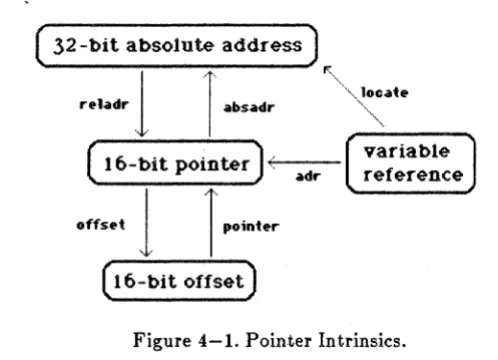
• . Pointer intrinsics that help you to make use of 32-bit absolute addresses used by the Macintosh ROM: adr, pointer, offset, ptrinc, absadr, reladr, absmove, derefhnd, and locate.
• A new type of external procedure that generates an in-line call to a Macintosh ROM routine.
UCSD Pascal programs are supported by a sophisticated runtime package that eliminates many of the worries associated with writing large programs. Theruntime package
• provides simplified I/O through the Pascal I/O intrinsics.
• supports dynamic memory management through the Pascal intrinsics ~ and dispose.
• handles dynamic segment overlays automatically.
TABLE OF CONTENTS
GETTING STARTED ... o • • • • • • • • • • • • • 1-1 HARDWARE REQUIREMENTS ... 1-1 DISK CONTENTS . 0 • • • • • • 0 • • • •
o.
0 • • • • • • • • : • • • • 0 • • • 1-2BACKING UP DISKS 0 • • • • • 0 • • • • • • 0 • • • • • 0 • • • • • • • • • • 1-4
RUNNING A PROGRAM ... 0 . . . 1-4
ORGANIZATION OF THE MANUAL ... 0 • • • • • 0 1-7
GENERAL OPERATIONS ... 0 • • • • 0 . . . 2-1 CREATING PROGRAMS ... 2-2 RUNNING PROGRAMS ... 2-9 USING EXECUTIVE ... 2-25 ACCESSING FILES ... 0 0 • • 0 • 0 • • • • • • • • • • • • • • 2-28
BUILDING AN APPLICATION .. 0 • • 0 . . . 2-38
EDITOR. 0 • • • • • • • • • • • • • • • • • • • • • • • • • • • • • • • • • • • • • • • • • 3-1
USING THE EDITOR. 0 • 0 • • • • • • • • • • • • • • • • • • • • • • • • • 3-2
SELECTING TEXT ... 3-6 SCROLLING AND MOVING THE DISPLAY ... 3-8 THE FILE MENU .. 0 • • 0 . . . 3-10
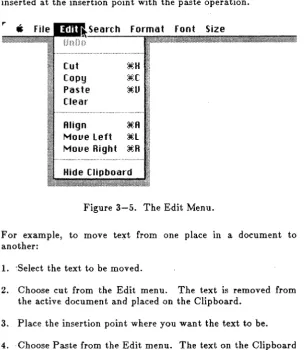
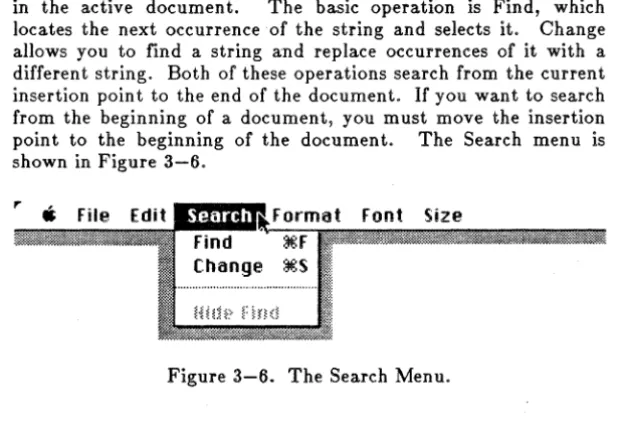
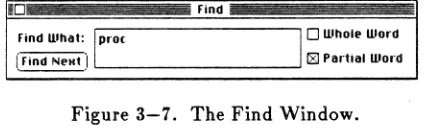
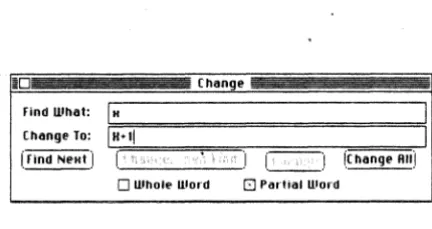
THE EDIT MENU .... 0 . . . 3-11 THE SEARCH MENU ... 0 . . . 3-14
THE FORMAT MENU ... 0 . ' .3:....16
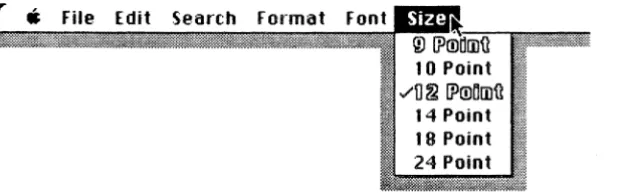
THE FONT MENU .... 0 o • • • • • o • • • • • 0 • • • • • • o • • • • • • 3-17 THE SIZE MENU ... 0 • • • • • • • • 3-18
PASCAL LANGUAGE ... .4-1 OVERVIEW ...•... 4-1 USING THE HANDBOOK ... .4-4 INTEGER2 DATA TypE ... 0 . . . "'4-8
PASCAL INTRINSICS ... 0 • 0 .4-14
TABLE OF CONTENTS
CONFORMANT ARRAyS ... 4-30 COMPILER OPTIONS ... 4-36 CONDITIONAL COMPILATION ... : ... 4-43
MACINTOSH INTERFACE ... 5-1 HOW TO USE THE INTERFACE UNITS ... 5-3 DATA CONVENTIONS ... 5-7 DIFFERENCES FROM INSIDE MACINTOSH . ... 5-20 SPECIFIC TECHNIQUES ... 5-25 EXAMPLE APPL1CATION ... " ... 5-31
RMAKER ... 6-1 ABOUT RMAKER ... 6-2 RMAKER INPUT FILES ... 6-2 DEFINED RESOURCE TypES ... 6-5 CREATING YOUR OWN TYPES ... 6-10 USING RMAKER ... 6-12
LIBRARIAN ... 7-1 USING THE LIDRARIAN ... 7-2 LIDRARIAN COMMANDS ... 7-4
DEBUGGER ... 8-1 GENERAL INFORMATION ... 8-2 DEBUGGER COMMANDS ... 8-7 EXAMPLES OF DEBUGGER USAGE ... 8-24 PERFORMANCE MONITOR ... 8-26
MEMORY MANAGE"MENT ... 9-1 OVERVIEW ... 9-1 MEMORY ORGANIZATION ... 9-2 FAULT HANDLING ... 9-9 RUNTIME SUPPORT LIBRARy ... 9-13
T ABLE OF CONTENTS
FAULTS AND EXECUTION ERRORS ... 10-24 P-MACHINE REGISTERS ... 10-31 P-CODE DESCRIPTIONS ... 10-33 Constant Loads ... 10-38 Local Loads and Stores ... 10-39 Global Loads and Stores ... 10-41 Intermediate Loads and Stores ... 10-42 Extended Loads and Stores ... 10-44 Indirect Loads and Stores ... 10-45 Multiple Word Loads and Stores ... 10-46 Parameter Copying ... 10-48 Byte Load and Store ... 10-49 Packed Field Loads and Stores ... 10-49 Structure Indexing and Assignment ... 10-50 Logical Operators ... 10-53 Shift Operators ... 10-55 Integer Arithmetic ... 10-57 Unsigned Arithmetic ...•... 10-63 Real Arithmetic. . . • . . . .. 10-64 Set Operations ... 10-66 Byte Array Comparisons ... 10-69 Jumps ... 10-70 Routine Calls and Returns ... 10-72 Concurrency Support ... 10-76 String Operations ...•... 10-77 Operand Type Conversion Operators ... 10-79 Miscellaneous Instructions ... 10-83 STANDARD PROCEDURES ... 10-87 LONG INTEGERS ...•... 10-95 The DECOPS Routine ...•.. 10-99
APPENDICES ... A-I A: MACINTOSH INTERFACE ... A-I A.I Table of Compile Time Dependencies ... A-I A.2 Identifier Cross-Reference List ... A-3 A.3. Control Manager (ControIMgr) ...•... A-17
TABLE OF CONTENTS
A.n. Error Codes (MacErrors) ...•... A-33 A.12. Memory Manager (MemoryMgr) ... A-36 A.13. Menu Manager (MenuMgr) ...•...•.. A-38 A.14. Operating System Types (OsTypes) ...•..••.• A-41 A.15. Operating System Utilities (OsUtilities) ... A-44 A.16. Package Manager (Packages) ...•... A-47 A.17. Parameter Block I/O Manager (PBIOMgr) .... A-51 A.18. Print Manager (PrintMgr) ... A-54 A.19. Printer Driver (printDriver) ... A-57 A.20. Quickdraw Types (QdTypes) ...•... A-58 A.21. Quickdraw (QuickDraw) ...•... A-60 A.22. Resource Manager (ResMgr) ...•... A-67 A.23. Scrap Manager (ScrapMgr) ..•... A-70 A.24. Serial Driver (Serial) ... A-71 A.25. Sound Driver (Sound) ... A-73 A.26. ToolBox Utilities (TBoxUtils) .•...•.... A-75 A.27. ToolBox Types (TBTypes) .•... A-77 A.28. Text Edit (TextEdit) ... A-79 A.29. Window Manager (WindowMgr) •...•.•...• A-81 B: ERROR MESSAGES ..•...•.•... B-l B.l. Program Startup Errors ....•...•.•....•. B-1 B.2. Execution Errors ...•....•...•...•• B-2 B.3. I/O Errors ..•....•..•...•.•..•.. ~ ..•• B-3 B.4. Syntax Errors ....•.•.•...•....••...•.••. B-5· C:P-CODE TABLES ...••...••.•... C-l C.l. Numerical Listing ...••...•••...•••... C-l C.2. Alphabetical Listing ...••..•...•.•.••... C-6 C.3. p-Code Index ..•...•.•.•.•...••...••. C-ll
1
GETTING STARTED
This chapter gets you started writing UCSD Pascal programs for your Macintosh. The chapter is organized into the following sections:
HARDWARE REQUIREMENTS discusses the hardware components that are required or recommended for effective use of this product.
DISK CONTENTS details the composition of the disks you received with this product.
BACKING UP DISKS tells you how to make back up copies of your master disks.
RUNNING A PROGRAM guides you through the steps of creating and running a simple UCSD Pascal program.
ORGANIZATION OF THE MANUAL introduces you to the organization of the remainder of this user manual.
HARDWARE REQUIREMENTS
GETTING STARTED Chapter 1
Although this product will run on a one drive Macintosh, if you plan on developing programs that use the Macintosh interface we strongly suggest that you use two disk drives.
One option of the Debugger allows you to interact with it using an external terminal attached to the Printer port on the back of your Macintosh. An external terminal is not necessary for using the Debugger, but if you have one, it can make debugging easier, particularly when writing programs which put up windows on the screen.
DISK CONTENTS
You received two disks when you purchased this product. One of the disks, labeled UCSD Pascal 1, is a bootable Macintosh disk. The other disk, labeled UCSD Pascal 2, is not bootable.
The following files are located on UCSD Pascal 1:
" Set Options. Set Options is a utility program that allows you to set the runtime options of a code file.
-Mae Library. Mac Library is a collection of interface units that are used by programs that access the Macintosh ROM routines.
" Compiler, Compiler is the UCSD Pascal compiler.
" Editor. Editor is a program and text file editor.
" Executive. Executive provides menu style access to your program development tools.
" Pascal Runtime. Pascal Runtime is the runtime support package for Pascal programs.
fI p-Maehine. p-Machine is the virtual machine emulator that supports running the p-code generated by the UCSD Pascal compiler.
DISK CONTENTS
• Empty Program, Empty Program contains the standard
program resources.
Three of the files, Pascal Runtime, p-Machine and Empty Program, are located within a folder called Pascal Folder.
The following files are located on UCSD Pascal 2:
• RMaker. RMaker is a resource compiler program that allows
you to add your own resource definitions to a program.
• Librarian. Librarian is a utility program that allows you to
combine UCSD Pascal units into a single library file.
• Debug Runtime. Debug Runtime is a version of Pascal
Runtime that contains the Debugger and performance monitor.
• Errorhandl.CODE. Errorhandl.CODE is a utility unit that
provides various program control functions to the user.
• Mac Interface. Mac Interface is a library of code files that
contain the interface to the Macintosh ROM routines.
• Grow. Grow is the source to an example UCSD Pascal
program that accesses the Macintosh ROM to handle a menu bar, windows and desk accessories.
• Grow.R. Grow.R is the resource definition file for the Grow
program.
GETTING STARTED Chapter 1
BACKING UP DISKS
You should immediately make a backup copy of the disks that you received with this product. This will insure that you don't accidentally loose any information contained on the disks.
Macintosh, your user's guide, describes in detail how you make backup copies of disks on the Macintosh. Here is a summary of the steps:
1. Insert the disk you want to copy.
2. Insert t?-e disk you want to copy to.
3. Drag the icon of the disk you want to copy to the icon of the other disk.
If you have a one drive Macintosh it is faster for you to use the Disk Copy program to make backup copies of your disks.
Once you have made the backup copies, put the copies in a safe place.
WARNING:
You cannot arbitrarily move UCSD Pascal programs to different volumes and expect them to run. The names of the two runtime support files are embedded in each code file. If you move a code file to a different volume, you may need to update the runtime support file names with the Set Options utility. See the GENERAL OPERATIONS chapter for details.RUNNING A PROGRAM
This section guides you through the steps of compiling and running a simple Pascal program. Even if you don't know the Pascal la.nguage, you should be able to follow the steps outlined here.
RUNNING A PROGRAM
Boot up your Macintosh with the UCSD PascalI disk. All of the operations described below will be done on this disk.
Editing the Program
First you must create a text file to compile. You create a text file by using the Editor. Start the Editor by double-clicking its icon.
You can probably figure out by yourself how to run the Editor, based on your knowlege of MacWrite. If you are not familiar with MacWrite, or if you have trouble using the Editor, refer to the EDITOR chapter.
Enter the program listed below, or a program of your own design:
p"09 ... m fi ... t.; b.g,n
w .. it.eln{'hi t.h .... '); .... dln;
.nd.
Now exit the editor, saving what you have typed in a file called FIRST.
Compiling the Program
The compiler translates the program you have edited into an executable code file. You start the compiler by double-clicking its icon. The compiler will ask you four questions:
1. Compile what text? Type FIRST, then press <Return>.
GETTING STARTED Chapter 1
3. Use" what resource file? Press <Return>. The compiler will use the standard resources from the Empty Program file.
4. File for listing? Press <Return>. This disables listing generation.
If all goes well, the compiler will write something like the following to your screen:
<
0) ..TEST
<
2) ••TEST
SliM • • compi led in 0:00:20, 16 -liMe. per minu~
If the compiler finds a problem in your program, it will generate a syntax error message. At this point, you should press <Enter> to exit the compiler, then fix the problem using the Editor. Check that you typed in the example program exactly like it appears above, then recompile the program.
Running the Program
If the compiler has run to completion, you will find a file called FIRST. CODE on your disk. This file contains the Pascal code generated from your text file by the compiler. Running the program is ea.sy-just double-dick its icon. If you used the example program listed above, you should see the words
I'll t.here
printed to the screen when you run the program. < Return> to terminate the program.
Press
This section showed you how to run a very simple Pascal program. For more information about compiling and running programs, refer to the GENERAL OPERATIONS chapter.
RUNNING A PROGRAM
ORGANIZATION OF THE MANUAL
This section describes the content of each chapter in the manual and gives some hints on how to use the manual.
Chapter 2, GENERAL OPERATIONS, discusses how to compile and run a program and how to develop an application.
Chapter 3, EDITOR, covers how to run the program and text file editor.
Chapter 4, PASCAL LANGUAGE, is a supplement to The UCSD Pascal Handbook. It describes the new language features found in this version of UCSD Pascal.
Chapter 5, MACINTOSH INTERFACE, discusses how to use the Macintosh interface units to call the Macintosh ROM.
Chapter 6, RMAKER, describes the resource compiler program, which allows you to add resources to a code file.
Chapter 7, LIBRARIAN, describes the Librarian utility, which allows you to combine Pascal units into a single library file.
Chapter 8, DEBUGGER, describes the operation of the Pascal debugger, which allows you to set break points, single step p-code, and examine and patch memory.
Chapter 9, MEMORY MANAGEMENT, describes the memory management of this implementation of UCSD Pascal. This chapter will be useful if you need to understand Pascal's memory management in order to write an application program.
GETTING STARTED Chapter 1
Appendix A, :MACINTOSH INTERFACE, contains listings of the Macintosh interface units, and index of interface identifiers and a table of unit dependencies.
Appendix B, ERROR MESSAGES, lists the error messages that may be generated by programs and the runtime support package.
Appendix C, P-CODE TABLES, contains numerical and alphabetical p-code tables. An index is also provided which you can use to locate the description for a p-code within the P-MACIDNE ARCIDTECTURE chapter.
If you are not a Pascal programmer, we suggest that you read the tutorial section (Part II) of The UCSD Pascal Handbook first. This will give you a quick introduction the the Pascal language. You can use some of the example programs to practice editing and compiling programs on the Macintosh.
WARNING:
a few of the programs are not appropriate for this version of UCSD PascaLIf you are already a Pascal programmer, start by reading the first two sections of the GENERAL OPERATIONS chapter. This will give you the details of compiling and running Pascal programs. Next, you should read the EDITOR and PASCAL LANGUAGE chapters. The UCSD Pascal Handbook will be useful if you are not familiar with the UCSD dialect of Pascal, You may want to read the DEBUGGER chapter to learn how to use the Debugger. Some further sedons of the GENERAL OPERATIONS chapter may be useful.
If you want to write programs that call the Macintosh ROM routines to do graphics or to display windows and menu bars, you.must first acquire a copy of the Inside Macintosh manual. As of this printing, Inside Macintosh is only available in draft form from Apple. Inside Macintosh gives you the definitions of the Macintosh ROM routines. You must use Inside Macintosh in conjunction with the MACINTOSH INTERFACE chapter of this manual. Also, you will need to be very familiar with the UCSD Pascal extensions described in the PASCAL LANGUAGE chapter.
ORGANIZATION OF THE MANUAL
GETTING STARTED
Chapter 12
GENERAL OPERATIONS
This chapter contains information and instructions on using The MacAdvantage: UCSD Pascal. It explains how to use this product to create UCSD Pascal programs for your Macintosh. Your programs can take full advantage of the power of UCSD Pascal and the Macintosh ROM to provide meaningful solutions to the kind of applications the Macintosh was designed to solve.
This chapter consists of five sections as follows:
CREATING PROGRAMS instructs you on use of the compiler.
RUNNING PROGRAMS contains the information you need to take full advantage of the UCSD Pascal runtime environment.
USING EXECUTIVE explains the operation of the Executive utility which you can use to make your program development process easier and faster.
ACCESSING FILES describes how your programs can interact with Macintosh files and serial devices.
GENERAL OPERATIONS Chapter 2
CREATING PROGRAMS
This section discusses how to run the UCSD Pascal compiler to create programs for your Macintosh. For information on the UCSD Pascal language, refer to The UCSD Pascal Handbook and the PASCAL LANGUAGE chapter.
Using the Compiler
The Compiler takes a text file as input and generates a code file as output. The code file generated consists of two parts: the data fork and the resource fork. The data fork contains p-code, which is executed by a p-Machine emulator. The resource fork contains information about the runtime environment required by your program. More information on the resource fork of an application can be found later in this chapter and in the chapter RMAKER.
The Compiler will accept for input any standard Macintosh text file. This file will usually be generated by the Editor supplied with this compiler, but it could be generated by MacWrite or by another Pascal program. If you use MacWrite files as input to the compiler, you must specify that the output file from MacWrite be stored in "text only" mode.
You start the Compiler by opening its icon:
Figure 2-1. Compiler Icon.
Responding To Startup Questions
The Compiler begins by asking four questions to obtain file names. Either the Macintosh or Pascal I/O conventions for file names may be used. These conventions are defined in File
CREATING PROGRAMS
Naming Conventions later in this chapter.' The Compiler accepts only 40 characters of input to each question, so be sure to enter no more than 40 characters. Entering more than 40 characters will cause a string overflow runtime error to occur.
The first question asked is:
Compi Ie wh.~ ~eK~?
The possible responses to this question are:
• Entering the name of the text file you wish to compile. The Compiler uses the name exactly as you specify it, including leading, embedded, and trailing blanks. It does not append any kind of suffix to the name you specify in order to locate the file.
• Pressing <Return> or <Enter> <Return> to terminate the compilation without generating an output code file.
The second question asked is:
To wh.~ code f i I.?
You should respond to this question in one of the following ways:
• Entering the name of the code file you wish the compiler to . create. The Compiler will add a .CODE suffix to the name you specify. (The suffix is added by the Compiler only as a safeguard to prevent the accidental destruction of text files.
It is not necessary to maintain the suffix for execution of the resulting code file.)
GENERAL OPERATIONS Chapter 2
• Pressing <Enter> <Return> to immediately terminate the compilation.
The third question asked is:
U.e what re.ource f j Ie?
This question is asking you to specify a source for the resources that the Compiler should copy to "the output code file. You should respond to this question in one of the following ways:
• Entering the name of a file that contains the resources you want copied.
• Pressing
<
Return>. This directs the Compiler to attempt to copy the resources from the file Empty Program. (The file Empty Program must be on the same disk as the Compiler.) As supplied to you, Empty Program contains the standard set of resources required by a UCSD Pascal program.• Pressing
<
Enter><
Return> to terminate the compilation.The resource file name you specify should either be Empty Program or another file known to have valid UCSD Pascal resources. Such files can be created either with the Compiler or RMaker. The Compiler will use the resources of the file you specify, regardless of whether they are valid UCSD Pascal resources. Should the file you specify not have valid UCSD Pascal resources, the resultant object code file will be unuseable. For more information on creating resource files, see the RMAKER chapter.
If the text file you are compiling is not a program (i.e. you are compiling one or more units), the standard set of resources in Empty Program will always be sufficient.
You cannot specify the same name for your resource file source as you specified for the code file. This means that if you want to preserve a unique set of resources for your program to be used each time it is compiled, these resources will have to be stored in
CREATING PROGRAMS
a file which has a different name than that which you are giving to your program.
The fourth question aske.d by the Compiler is:
Fl Ie for liating?
You should respond to this question in one of the following ways:
.• Pressing <Return> if you do not want the Compiler to generate a listing.
• Entering the name of the file or Macintosh serial device to which you want the compiled listing written. Unless the first character of the file name is a period, the sufrlx .LIST will be added.
• Pressing <Enter> <Return> to terminate the compilation.
After the Compiler is finished, you may examine or print the listing file using the Editor. Note, however, that listing files consume large amounts of disk space. Should the disk containing the listing file become full during compilation, the Compiler will abort and both the code and listing files will be lost. A common listing output file is .BOUT, which directs the listing to the printer. Other permissable listing output files include the other serial devices: .AOUT, .CONSOLE, and .DBGTERM; the characteristics of these files are discussed in Serial Devices later in this chapter.
GENERAL OPERATIONS Chapter 2
The $L compiler option can also be used to specify a name for the listing file.
Evaluating Compiler Progress
While the Compiler is running, it displays a report of its progress on the screen:
<- .0.) • • • • • • • • • • • • • • • • • • • INITIALI
<
19) . . . • . . . • .<
60) . . • . . . ARQUTINE<
61) . . • . . . • . . . • . . • • • • • . • • . . . • . • . . • ", ••..•<
100) . . . . • . . . • • • • • • . •MVPROQ
< 119) . . . • • . • • • • • . • • • • • • . . • • . . . • . • .
< 160) . . . • . • . . • • • .
INITIALI . lAVPROQ
166 line. compi led in 0:00:26, 396 line. peF minu~e
During the first pass, the Compiler displays the name of each routine (INITIALI, AROUTINE and MYPROG in this example). The numbers enclosed by angle brackets,
< >,
are current line numbers. Each dot represents one source line compiled.During the second pass, the names of the segments are displayed (INITIALI and MYPROG in the example). Here, each dot represents the compilation of one procedure or function.
You can suppress this output by using the $Q compiler option in your input textfile.
Syntax Errors
If the Compiler detects an error while compiling a program, it
generates a syntax error. When this happens, the text where the error occurred is displayed along with an error number and message. Here is an example:
<- 0) . • • • • .
CREATING PROGRAMS
C1,f'",.: at-ring; w,x,y: reel
(---Syn~ax Error l04:Undeelared iden~ifier
Line 7
Type (apace) ~o eon~inue, (En~er) ~o ~.rmina~e
For each syntax error, a message like the one above is displayed. The Compiler gives you the option of pressing either < Space> to continue the compilation or <Enter> to terminate the compilation. Error numbers greater than 400 are always considered fatal and the Compiler will abort regardless of your· input.
The Compiler issues three additional fatal error messages. Their occurrance is rare, as they usually mean that some kind of internal error condition has been detected. All three messages wait for you to respond to them by pressing any key on the keyboard. The actual response is immaterial; it is just an acknowledgement that you have seen the message. This is done because the screen contents will be erased by the Finder after the Compiler terminates.
Compl la~ion abor~ed due ~o I/O error XXX Pre.a any key ~o .xi~.
The Compiler was unable to perform an I/O operation on one of the files it has open.
:xxx
is the ioresult code passed back from the Macintosh Operating System. A list of these result codes appears in Appendix B. You should check that your Macintosh and its peripherals are all working correctly and then retry the compilation.Error wri~ing fi Ie, no~ enough room. Preaa any key ~o exi~.
The Compiler was unable to write a block of information to disk because the disk it was trying to write to was full. This error usually occurs when you are trying to write a listing file to disk.
GENERAL OPERATIONS Chapter 2
sending it to the file .BOUT. Then retry the compilation.
Compi I.tion .bo~ted due to back-end e~~o~ XXX
P~e • • • ny key to exit.
The Compiler has detected an abnormal condition within the files it creates while compiling your program. XXX is an internal code signifying the error. Retry the compilation. Please contact your technical support representative if the error appears again.
Compiled Listings
The Compiler optionally produces a compiled listing of the program. This listing contains source text, along with information about the compilation. Compiled listings are useful when you're using the Debugger.
You can produce a compiled listing in two ways. You can give a file name to the compiler's listing file question, or you can use the $L compiler option.
Here is the entire compiled listing for a small program:
UCSO P •• c.1 Comp i Ie,. (lRQ.O] 10/ 8/84 1 :2 l:d 1 p~ogl".m F.ct; 2 2 l:d 1
...
3 2 l:d 1 j , i nt.g",~; 4 2 l:d :2 prod, .... 1; 5 :2 1 :0 0 b.g;n
e
2 1:1 0 w .. lteln('n i'.cto~ i.1 01 n') ;7 :2 1,1 18 pl"od:. 1.0;
8 :2 1:1 23 fOF j:e 1 to 20 do 9 2 1:2 41 b.gin
10 2 1:3 41 prod:. p~od
..
i j 11 2 1,3 60 writeln(i, ••
,p~od);12 2 1:2 89 end; 13 2 :0 0 end.
End of Comp i I.t ion.
The numbers that precede each source line are:
CREATING PROGRA.\,fS
• The first column is the line number. Line numbers start with 1 and are incremented for each line encountered by the Compiler during compilation. Lines found in files which are included by the $1 compiler directive and the uses statement are also counted.
• The second column is the Pascal segment number. This entire example is segment 2.
• In the third column is the procedure number followed by a colon and the statement nesting level. All of the example is procedure 1. Procedure numbers are important in determining program locations either in the Debugger or when a runtime error occurs. The statement nesting level is an indication of how deeply the text is nested within Pascal structured statements. The statement nesting level field of data lines contains the letter "d".
• The fourth column contains the word offset of data or the byte offset of code. Data word offsets are relative to either the start of a segment for global data, or to the beginning of a procedure's activation record for a procedure's local data. Data offsets are useful for finding data using the Debugger. Code offsets are useful for setting break points with the Debugger.
RUNNING PROGRAMS
To run a program, either one that you have compiled or one someone else compiled, you just double-click its icon. Executing a program in this manner causes the disk it is on to become the default disk.
GENERAL OPERATIONS Chapter 2
Pressing the interrupt button on the programmer's switch will cause the currently executing UCSD Pascal program to be interrupted. The button to the rear of the programmer's switch is the interrupt button. The button to the front of the programmer's switch is the reset button. Pressing the reset button will cause the Macintosh to be restarted. Obviously, if you are in the middle of a hard to reproduce situation, you don't want to accidently press the wrong button.
When a program is interrupted, a standard Runtime Error dialog box will appear on the screen as described later on in the Runtime Errors section. Refer to that section for instructions on the . options available when a Program interrupted by user
runtime error occurs.
NOTE: The Runtime Support Library disables the interrupt button while it is starting up a program. Also, if you have one of Apple Computer's MacsBug debuggers installed, pressing the interrupt button while running a UCSD Pascal program will cause you to enter MacsBug. If you are running UCSD Pascal programs under the Mac Works software on a Lisa, there is no way to interrupt a program and receive the standard Runtime Error dialog box.
You may need to do some more steps before a program you just compiled is ready to run. You may need to run the Set Options utility to change the default runtime environment for your program; you may also need to run RMaker to install some additional resources.
The p-code produced by the UCSD Pascal compiler resides within the data fork of the output file. The resource fork of the file usually contains a standard set of resources that are used to start up (bootstrap) the p-code file. The standard resources are explained in detail in the section Standard Resources.
The important thing you need to know about the standard resources is that some of them define the runtime environment a program starts up in. The effects of the settings of these standard resources are explained in the next three sections.
RUNNING PROGRAMS
Required Files
In order to run a program that was compiled with the UCSD Pascal compiler, two Pascal Runtime Files must be available to the program .. One of the files is named Pascal Runtime and the other is named p-Machine. The p-Machine file is the p-Machine emulator program, which allows p-code to run on the Macintosh. The Pascal Runtime file is a group of Pascal and assembly language routines that support running UCSD Pascal on the Macintosh. The Pascal Runtime file is also called the Runtime Support Library. Usually, these files are found in the folder called Pascal Folder. As it is supplied to you, the Pascal Folder is located on the UCSD Pascali disk.
a
... 5 [ ... 1Pascal Runtime-
a
a 5c a l
p-t'1ac:hioe-Figure 2-2. Pascal Runtime and p-Machine Icons.
The resource fork of every UCSD Pascal program contains references which define the location and names of these files. These references consist of file names which adhere to the Macintosh file naming conventions. These conventions are described in File Naming Conventions later in this chapter. Should the Pascal Runtime Files be on the default disk, you can omit the volume name. Note that the two files do not need to be on the same disk. The p-Machine file is read only when your program is started and not used thereafter. This means that you can keep it on a separate disk which can be removed from the Macintosh after the program starts.
Two versions of the Runtime Support Library were shipped to you. The first, named Pascal Runtime, is on the UCSD Pascal
GENERAL OPERATIONS Chapter 2
Empty Program, in its original form, as supplied to you on the UCSD PascalI disk, specifies no volume name in the references to the Pascal Runtime Files. Hence, the resources in Empty Program assume that the required files are located on the default disk. Furthermore, the names of these files are assumed to be Pascal Runtime and p-Machine.
Any program you compile that uses Empty Program as its source for resources will inherit these references to the required Pascal Runtime Files. Should this configuration (Le. the names of the files or their locations) not suit your requirements, you can use Set Options to change the file· names and locations in each program you compile. Alternatively, Set Options can be used to change the names and locations specified in Empty Program.
If one or the other of these Pascal Runtime Files is not available to your program, an error message describing the problem will be displayed when you attempt to start the program.
Startup Options
The settings of five Startup options are contained within a program's standard resources that specify the the runtime environment in which your program executes. These option settings are obtained by the Compiler from the resource file you specify when a program is compiled. Each option is described below, along with the default setting specified in Empty Program.
• Create Default Window. The default value of this option is enabled. If this option is enabled, a standard program window is opened by the bootstrap. The title of the window is the value of the version number string, if it is nonempty. Otherwise, the title is the file name of the program. (The version number string is another type of resource. See Standard Resources for instructions on defining a non-empty version number string.) If this option is disabled, no default window is opened. To see how this affects which ROM initialization routines are done by the bootstrap, see Initialization in the MACINTOSH INTERFACE chapter.
RUNNING PROGRAMS
• Create .DBGTERM Device. The default value of this option is disabled. If this option is enabled, the .DBGTERM device is available to the program. See Special Devices for details about the .DBGTERM device.
• Startup in Debugger. The default value of this option is disabled. If this option is enabled, the bootstrap calls the Debugger before the program starts.. See the DEBUGGER chapter for instructions on using the Debugger. The Debugger interacts either by using the Macintosh screen and keyboard through the .DBGTERM device, or by using an external terminal, based on the setting of the Debug to Modem Port option. The Startup in Debugger option must be enabled if you intend to use the Debugger at all.
• Enable Performance Monitor. The default value of this option is disabled. If this option is enabled, the Performance Monitor is enabled for the duration of your program. See the DEBUGGER chapter for information on using the Performance Monitor. The Performance Monitor writes information about the faults that occur during the execution of a UCSD Pascal program. This information is written either to the .DBGTERM device or to an external terminal based on the setting of the Debug to Modem Port option. See the MEMORY MANAGEMENT chapter for an explanation of the various kinds of faults.
• Debug to Modem Port. The default value of this option is disabled. This option has no meaning unless either the Startup in Debugger option or the Enable Performance Monitor option is enabled. If this option is enabled, the Debugger interacts using an external terminal connected to the modem port of the Macintosh. The modem port is the one with the telephone icon, and corresponds to the channel used for the serial devices .AIN and .AOUT.
GENERAL OPERATIONS Chapter 2
As with the required files, the default settings are obtained by the Compiler from Empty Program. Should modifying your program with Set Options after compilation become cumbersome, you can use Set Options on Empty Program to change the default settings. This way, every time you compile, the compiler will automatically give you the file locations and option settings that you prefer.
Library Files
All of the units that a program references with the uses statement must be available to the program when it is executed. This can be accomplished three ways:
• Each unit can be moved into the same code file as the program. The Librarian utility, described in the LIBRARIAN chapter, does this.
• The units may be combined into a single library code file using the Librarian. If this is done, you can then use Set Options to add the name of your library code file to your program's Library Files list. The file Mac Library on
UCSD
Pascal 1 is an example of such a library of units that can be referenced by your program.
• Yau can use Set Options to add the names of all your code files containing individual units to your program's Library Files list. This works provided that you don't have more than five code files that you want your program to reference in this manner.
As outlined above, a program's Library Files list is usually speCified using Set Options. Set Options allows you to specify up to ·,five code files. It is also possible to augment a program's Library Files list by adding the appropriate resources using RMaker, but using Set Options is easier and less error prone.
The Library Files list is used by the Runtime Support Library when it needs to locate a referenced unit that it cannot find inside your program's code file. When it searches for a unit, the Runtime Support Library examines the code files in the order in
· RUNNING PROGRAMS
which you have listed them. If a library code file listed in your program's Library Files list cannot be found, the Runtime Support Library simply ignores that entry in the list and continues its search.
The limit of five code files in the Library Files list imposed by Set Options is a practical limit rather than an absolute limit. The Macintosh Operating System limits the number of files that a program can have open simultaneously, and every code file that must be opened and examined by the Runtime Support Library increases the time required to start a program.
U sing Set Options
Set Options is the utility program that you use to modify a UCSD Pascal program's Runtime Options. A program's Runtime Options specify the location of the Pascal Runtime Files, the Library Files list, and the settings of the Startup options.
Set Options is executed just like any other application: just double-click its icon.
GENERAL OPERATIONS Chapter 2
Compiler
~
Editor
(
Open)
UCSD Pascal 1l!IiTIlI.!"I.iu' I LI.'
...
EJ.cecutiue
(
Eject)
Mac library
)
(
)
Set Options
(
Camel Dril'e [image:39.399.32.310.80.204.2]~
Figure 2-3. Set Options File Selection.
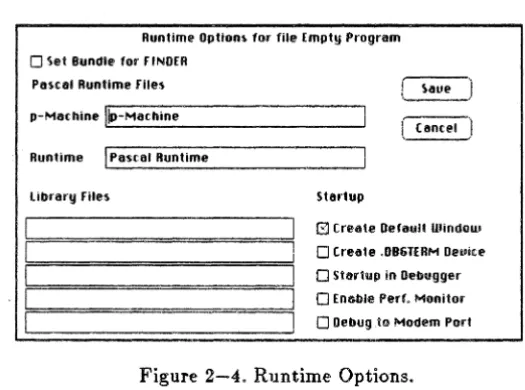
Once you have selected a file, a Macintosh dialog box is displayed that presents you with the settings of the current Runtime Options. See Figure 2-4.
Runtiml' Options tor file Empty Program
o
Set Bunelle for FINDERPosclIl Runtime files Saul'
p-Mllthine !c..iP_-M_a_t_h_in_e _ _ _ _ _ _ _ _ - '
Cantel
Runtime
!
PiI$cill Runtimelibrary Files Startup
[3) Create Default l1IindouI
o
(reale .OB6TERM DellitPo
Startup in Debuggero
Enable Perf. Monitoro
Debug .10 Modem PoriFigure 2-4. Runtime Options.
Four option groups are available:
e Pascal Runtime Files. These entries are the program's specification of the names and locations of the required files. Use the Mouse to move the cursor into the box for the name you wish to change. Normal Macintosh editing rules and file
[image:39.399.36.299.275.470.2]RUNNING PROGRAMS
naming conventions apply.
• Startup. These check boxes are used to specify the settings of the Startup options. An empty box indicates that the option is disabled; an X through the box indicates that it is enabled. To change the setting, move the cursor into the box and click the mouse button.
• Library Files. These entries make up the program's Library Files list. As explained previously, the Library Files list can identify the name and location of up to five library files. Enter or change these boxes using the methods described for changing the Pascal Runtime Files entries.
• Set Bundle for Finder. This check box is used to specify the setting of the program's Finder "bundle bit." The usage of the bundle bit is explained in the Application Interface to the Finder section later in this chapter. You should not change this option unless you understand why you are doing so. Indiscriminate setting of the bundle bit can cause the Desktop to become "polluted" with conflicting icon and other resource definitions. This is a condition which is often evidenced by the Finder using the wrong icons to decorate files.
To save the changes you have made, click the Save button, and Set Options will update the program with the Runtime Options shown on the screen and return you to the file selection box it presented to you earlier. Clicking the the Cancel button causes Set Options to return to the file selection box without updating the program, effectively discarding any changes you have made.
Once you have been returned to the file selection box, you can select another program and change its options, or click the Cancel button to exit Set Options.
NOTE: Set Options will not allow you to change the Runtime
GENERAL OPERATIONS Chapter 2
Finally, exit back to the Finder and drag the copy of Set Options to the trash.
Program Startup Errors
If the Runtime Support Library has trouble starting your program, you will get a. program startup error displayed within a dialog box on your screen. Actually, there are two catagories of program startup' errors. The first catagory contains those startup errors which are detected and reported by the initial "bootstrap" program which is located in your program's standard resources. The second catagory contains the startup errors that can be generated by the Runtime Support Library during its construction of your program's execution environment.
The startup errors generated by the bootstrap are:
• Could not open p-Machine file. This error occurs if the file p-Machine could not be opened. The runtime environment description for the program's p-Machine file is wrong. Execute Set Options to correct the reference and then try the program again.
• ;Could not allocate memory for p-Machine. This error occurs if the bootstrap cannot allocate memory to read in the p-Machine file. This error should not occur; if it does, contact your technical support representative.
• Error reading p-Machine fileo This error occurs if the bootstrap has trouble reading the p-Machine file. It is likely that your p-Machine file is damaged. Replace it, and try again.
• <Could not locate MSTR resource. This error occurs if 'your program is missing the standard MSTR resource. You must use RMaker in such a way that all the standard program resources are in the resource fork of an application in addition to any new resources you define.
RUNNING PROGRA.,\1S
• Could not open program data fork. This error occurs if
the bootstrap has trouble opening the p-code portion of your application program. Make sure you have not done any operation in building the application that might delete the p-code generated by the Compiler.
• Could not open Runtime Support Library file. This
error occurs if the bootstrap could not open the Pascal Runtime file. Make sure that a Runtime Support Library file is installed where the program's runtime environment description says it should be. The two runtime libraries are Pascal Runtime and Debug Runtime.
• Could not allocate stack/heap. This error occurs if the
bootstrap could not allocate a 64K byte area of memory for the Pascal Data Area. This error also should not occur and indicates a serious hardware or software failure.
The program startup errors generated by the Runtime Support Library are:
• Error reading segment dictionary. This error indicates
that an I/0 error occurred reading the segment dictionary within the program code file or a code file listed in the Library File list.
• Error reading library. This error indicates that an I/O
error occurred reading a library code file.
• Required unit not found ( ). The unit whose name
appears in the error message enclosed in parentheses is referenced by your program, but it cannot be found in the program code file or in any of the library code files listed in the Library File list.
• Duplicate unit ( ). This error indicates that there is more
GENERAL OPERATIONS Chapter 2
• Too many library code files referenced. This error indicates that the units used by your program are distributed into too many separate library code files. Use the Librarian utility to combine library code files.
• Too many system units referenced. This error should not occur. If it does, contact your technical support representative.
.. No program in code file to execute. This error indicates that you have attempted to run a library code file that doesn't contain a progt;am.
• Program or unit must be linked first. This error indicates that your program or one of the units that you are using needs to have one or more assembly language routines linked into it before it can be used. If this error occurs, it may be due to an improperly constructed Macintosh Interface unit, so you should contact your technical support representative.
• Obsolete code segment ( ). The indicated code segment was either not created properly or it was created by an incompatible version of the UCSD Pascal compiler.
• Insufficient memory to construct environment. There isn't enough memory for the Runtime Support Library to construct your program's environment. The best work around for this error is to combine separate library code files together into a fewer library code files. Another possible remedy is to eliminate any unneccesary entries in your program's Library File list.
• Program environment too complicated: run QUICKSTART first. This error indicates that the number of units used by your program and the complexity of their relationships is greater than can be handled directly by the Runtime Support Library. The QUICKS TART remedy suggested by the error message refers to a preprocessor program that you can use to prepare your program for execution. A version of this preprocessor utility is not currently available for the Macintosh environment. If you get this startup error, try using the Librarian utility to package
RUNNING PROGRAMS
all of the units required by your program together with the program's code segments. If this doesn't eliminate the error, you may have to resort to merging the services provided by several small units into a single unit.
• Error reading program code file. This error indicates an
I/O error reading your program code file.
• Error reading library code file. This error indicates an
I/O error reading one of your library files.
• Insufficient memory to allocate data segment. Your
program or one of the units it references has a large amount of global variables, and the Runtime Support Library is unable to allocate the storage for them in the Pascal Data Area. The most likely cause of the trouble is a declaration of one or more large array variables.
• Insufficient memory to load fixed position segment. A
code segment containing one or more nonrelocatable assembly language routines cannot be loaded into the Pascal heap due to a lack of space in the Pascal Data Area.
• Unknown environment construction error. This error
indicates an internal error in the Runtime Support Library's environment construction process. If you get this error, contact your technical support representative.
Runtime Errors
GENERAL OPERATIONS Chapter 2
l1IJ
lIalue range error~eg LONGT£ST P#3 0#44
(I: OK :1) ( Continue) Debug
Figure 2-5. Execution Error.
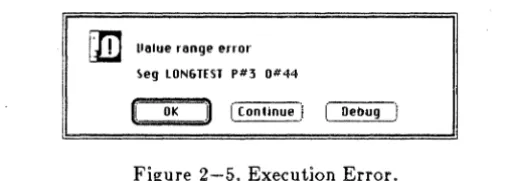
The first line is the error message. The second line gives the p-code coordinates of where the error happened. In this example, LONGTEST is the segment. The procedure number is 3 and the offset within the procedure is 444. The coordinates can be checked against a compiled listing of the program to determine where in the program the error occurred.
Depending on the error, there is either one or three continuation buttons. If it is a fatal error, only the OK button is shown.
• OK button. Clicking this button will cause the program to terminate.
• Continue button. Clicking this button will cause the "program to continue execution. Only some execution errors may be continued from, so you cannot depend on continuing from arbitrary errors.
• Debug button. Clicking this button will cause the Debugger to be invoked if it is enabled in the Runtime Options. The Debugger is enabled when the Start in Debugger runtime option is true. If the Debugger is not enabled, this button does nothing.
Here is a short explanation of each of the execution error messages:
" Fata.l runtime support error. This error indicates a corrupted Runtime Support Library file.
[image:45.399.41.295.77.167.2]RUNNING PROGRAMS
• Value range error. This error occurs if (1) an array subscript is out of range, or (2) an assignment to a subrange variable is out of range. You can disable detection of this error by using the $R compiler option.
• No proc in segment table. This error should not occur on the Macintosh .
• ' Exit from uncalled proc. This error occurs when exit(A) is executed and A is not in the dynamic call chain.
• Stack overflow. This error occurs "when there is no room in memory to expand the runtime stack by the desired amount.
• Integer overflow. This error occurs if
(1)
an integer2 operation overflows, or (2) a conversion to integer or integer2 is too large to fit in the destination type.• Division by zero. This error occurs whenever a divide or mod operation is performed with a zero denominator.
• Invalid memory reference. This error indicates an attempt to access memory through a bad pointer or handle value.
• Program interrupted by user. This error occurs if the user presses the interrupt button on the programmer's switch and the Debugger is not enabled.
• Runtime support I/O error. This message indicates an
I/O
error was detected either during startup of the Runtime Support Library, or later attempting to read in a program segment. This is a fatal error.• I/O Error. This error occurs if an
I/O
operation detects an error. You can disableI/O
checking by using the $1 compiler option.GENERAL OPERATIONS Chapter 2
• Floating point error. This error occurs when a floating PQint operation overflows the size of floating point numbers.
• String overflQw. This error occurs if (1) the source string is too large in string assignment, or (2) conversion of a number to a string overflows the size of the string.
• Programmed halt. This error occurs upon execution of the halt intrinsic.
• Illegal heap Qperation. This error indicates improperly paired mark and release operations, or an illegal dispose operation.
• Break point. This error occurs if a BPT p-code is executed and the debugger is not enabled. The BPT p-code is used by the debugger to implement break PQints.
• IncQmpatible real number size. This error cannot occur on the Macintosh unless you use the $R2 compiler directive, which is something you should not dO'.
• Set toe large. This error occurs if an attempt is made to' create a set larger than the maximum allowed size of a set. A $et is allowed to have 4080 members.
• Segment too large. This error occurs if an attempt is made to' load a segment that is over 32K bytes in size.
• Heap expansion error. This error Dccurs if there is nO' room fDr the heap to expand. This is most likely to occur due to the presence Df a nonrelocatable Macintosh heap block immediately above the Pascal heap in memory. The CQmpiler will likely terminate with this message if you try to cQmpile a prQgram having toO' many symbols.
• Insufficient memory to load code segment. This error Dccurs if there is nO' more rDom in memDry to load a required code segment. Again, the presence of locked or nonrelocatable Macintosh heap blocks can interfere with the acquisition of memory for code segments.
RUNNING PROGRAMS
Refer to the P-MACHINE ARCHITECTURE chapter for additional information on execution errors.
USING EXECUTIVE
The Executive utility provides you with menu access to all of the programs that comprise The MacAdvantage: UCSD Pascal. That is, you can run the Editor, Compiler, RMaker, Set Options, and Librarian programs by selecting the appropriate entry in a pull-down menu. Other options on the Executive menu allows you to run any other program, or return to the Macintosh Finder program.
The advantage of using the Executive to start programs instead of the Finder is that a transition from one program to another is considerably faster. Moving between programs using the Executive is faster, because the time consuming activities related to the saving and recreation of the desktop display (done by the Finder) are avoided.
F.or example, the time it takes to go from the Compiler to the Editor should be reduced by approximately 50% if you use the Executive instead of the Finder to accomplish the transiti.on. Of course, you may n.otice more or less time reduction depending on the number .of disks you have inserted, the number .of files on those disks, and the c.omplexity of your current desktop arrangement.
When a program started by the Executive terminates, the Executive is restarted. This means that .once you have started the Executive, y.ou effectively remain inside it until you use its Quit option to reactivate the Finder.
GENERAL OPERATIONS Chapter 2
Note that it is possible to have your Macintosh start up in the Executive utility instead of the Finder if you wish. (See how to use the Finder "Set Startup" command in Macintosh, your user guide.)
The operation of the Executive utility is described in the following sections.
Starting The Exeeutive
As it is supplied to you, the Executive is located on the UCSD Pascal 1 disk. To start the Executive, double click its icon. Since the Executive is not a UCSD Pascal program, it can be run off of any disk without configuring it with Set Options.
The Exeeutive Menu Bar
The Executive utility's menu bar consists of the following menus:
Set. The Set menu allows you to set the locations of the programs that comprise The MacAdvantage: UCSD Pascal.
Edit. The Edit menu will start the Editor program.
Compile. The Compile menu will start either the Compiler or RMaker (the resource compiler).
Utilities. The Utilities menu will start either Librarian or Set Options.
Run. The run menu puts up a standard file selection box. To run a program, select the program file name and select the Open button. (Or simply double-click the file name.)
Quit.The Quit menu allows you to exit back to the Macintosh FINDER.
USING EXECUTIVE
The Editor, Compiler, RMaker, Librarian, and Set Options can also be started by entering a command key sequence from the keyboard. This is done by holding down the command key and typing the appropriate letter. The command key sequences supported by the Executive are shown in its pull down menus.
Setting Program Locations
The Executive is preconfigured to know about the locations of the Compiler, RMaker, Set Options, Editor and Librarian programs as they are shipped on the UCSD PascalI and UCSD Pascal 2 disks. If you wish to execute these programs from other volumes (such as a hard disk) you must use the Set menu to change the location of these programs.
In the Set menu, there is one menu item for each program. Select the item that corresponds to the program whose location you wish to change. After you select the item, a dialog box will appear that contains the current location setting for the program. Type in the new location of the program, or click the Cancel button to retain the previous location setting. When specifying the location of a program, you must specify both a volume name and a file name using the standard Macintosh file name conventions. After typing in the new location, select the Save button to make the change permanent.
NOTE: If you are moving the Compiler, Librarian or Set Options programs to another volume don't forget to move the files in the Pascal Folder. You will also need to run the Set Options utility on these programs to change the location of the p-Machine and Pascal Runtime files.
If you receive the error message
Program
xxx
i . no~ on-lineGENERAL OPERATIONS Chapter 2
ACCESSING FILES
Your UCSD Pascal program can access Macintosh files two ways. First, it can use the UCSD Pascal intrinsics described in The UCSD Pascal Handbook. Second, Inside Macintosh describes the interfaces to the Macintosh Operating System File Manager. By using the UCSD Pascal interfaces to these ROM routines, your program can have full access to all the file handling capability of your Macintosh.
Programs which use UCSD Pascal intrinsics to access files generally need to be aware of disk volume names or disk drive assignments. Their user interface has to be tailored accordingly. Two examples of programs like this are the Compiler and Librarian. Programs which use the Macintosh Standard File Package and File Management units generally don't need to worry about these details. Examples of this type of program are Editor, Set Options, and RMaker.
Regardless of which method you choose to use, this section provides you with information to help interface your program to Macintosh files.
File Naming Conventions
File names can be specified using the conventions of the Macintosh Operating System. These file naming conventions are as follows. A file name consists of up to 255 characters. Any character except a colon (:) may be used in a fi