Update to
Integrated Solution III
System Manager’s Guide
for MERLIN LEGEND®
Communications System
AT&T 555-601-010ADD
March 1995
Copyright © 1995, AT&T AT&T 555-601-010ADD All Rights Reserved
Printed in U.S.A. March 1995
Notice
Every effort was made to ensure that the information in this update was complete and accurate at the time of printing. However, information is subject to change.
Trademarks
AUDIX and MERLIN LEGEND are registered trademarks of AT&T in the U.S. and other countries. Voice Power is a trademark of AT&T in the U.S. and other countries.
Ordering Information
Update to
Integrated Solution III
System Manager’s Guide
for MERLIN LEGEND®
Communications System
To diminish the risk of toll fraud occurrences, the Transfer to Subscribers Only? parameter on the System Parameter Administration screen is now permanently set to yes. This setting restricts transfers to registered subscribers only. During a transfer from within Automated Attendant, Voice Mail, or Call Answer services, when a caller enters an extension number, it is validated against the subscriber database of the AUDIX® Voice Power™ system. If the extension entered is not in the subscriber database, the caller will hear “That is not a valid extension,” and the transfer will be denied. This will prevent the caller from having an opportunity to gain access to the outgoing facilities of the telephone communications system.
In some cases, it is necessary to allow transfers to extension numbers that do not have corresponding voice mailboxes. For example, there may be a need to transfer to a fax or data extension, or there may be a subset of users who do not need to receive voice mail, but who should be able to receive transferred calls. In these instances, such extensions can be administered as AUDIX Voice Power subscribers with restricted mailboxes to ensure transfers to these extensions. Restricted mailboxes can be set up by allocating minimal mailbox space (for example, 1 minute). Additionally, the Subscriber Switch Call Coverage option in AUDIX Voice Power should be set to Yes to avoid tieing up voice channels. If voice mail is addressed to any of these restricted mailboxes, the limited mailbox size will prevent most messages from being delivered.
NOTE:
Do not assign special-purpose subscribers (users with a mailbox but no telephone on the switch) to extension numbers that start with the same digit(s) as switch trunk access codes (for example, 9).
AT&T 555-601-010
Issue 2
September, 1993
AT&T
Integrated Solution III
For MERLIN LEGEND
®Copyright © 1993 AT&T All Rights Reserved Printed in the USA
555-601-010 Issue 2 September, 1993
NOTICE:
While reasonable effort was made to ensure that the information in this document was complete and accurate at the time of printing, AT&T cannot assume responsibility for any errors. Changes and/or corrections to the information contained in this document may be incorporated into future issues.
FEDERAL COMMUNICATIONS COMMISSION (FCC) STATEMENT
This equipment has been tested and found to comply with the limits for a Class A digital device, pursuant to Part 15 of the FCC rules. These limits are designed to provide reasonable protection against such interference when operated in a commercial environment. Operation of this equipment in a residential area is likely to cause interference in which case the user at his own expense will be required to take whatever measures may be required to correct the interference.
TRADEMARK NOTICE
UNIX is a registered trademark of UNIX System Laboratories.
Voice Power, and AT&T FAX Attendant System are trademarks of AT&T. AUDIX and MERLIN LEGEND are registered trademarks of AT&T.
HP and LaserJet are registered trademarks of Hewlett-Packard Company. Microsoft and MS-DOS are registered trademarks of Microsoft Corporation.
SECURITY
As a customer of new telecommunications equipment, you should be aware of the significant and growing problem of theft of long distance services by third parties, known commonly as “toll fraud.” It is particularly important that you understand and take appropriate steps to deal with this crime because under applicable tariffs, you will be responsible for payment of associated toll charges. AT&T can not be responsible for such charges and will not make any allowance or give any credit resulting from toll fraud.
ORDERING INFORMATION To order copies of this manual:
Contact: Your AT&T Account Team or your AT&T Authorized Dealer. or
Call: AT&T at 1-800-432-6600 or
Write: AT&T Customer Information Center P.O. Box 19901
Indianapolis, IN 46219
Contents
1
Introduction
■
■
■
Overview of Integrated Solution III
System Manager’s Responsibilities
Security
Passwords
Subscriber Passwords
Administrative Passwords
Login Attempts
Master Controller Access
Backup
Toll Fraud
Detecting Toll Fraud
Using this Guide
Conventions Used in this Guide
Getting Assistance 1-1 1-1 1-3 1-5 1-5 1-6 1-6 1-7 1-7 1-8 1-8 1-9 1-10 1-12 1-12 ■ ■ ■
2
Accessing IS-III
2-1■ Overview 2-1
■ Logging Into IS-III 2-1
■ Using On-Line Help 2-6
■ Viewing the Access Log 2-7
Contents
3
Accessing IS-III Applications
3-1■ ■ ■ ■ ■ ■ Overview 3-1
Accessing AUDIX Voice Power 3-2
Accessing FAX Attendant 3-7
Accessing Call Accounting System 3-10
CAS Alarms 3-10
Accessing Integrated Administration 3-13
Accessing System Programming
& Maintenance Utility 3-15
4
Maintaining IS-III
4-1■ ■ ■ ■ ■ ■ Overview
Backing Up the System
Backing Up Administrative Files to Diskettes
Backing Up the Entire System to Tape
Backing Up the Integrated Administration Files to Diskette
Displaying the Disk Usage Report
Formatting MS-DOS Floppy Diskettes
Formatting a 1.44 MB Floppy Diskette
Formatting a 720 KB Floppy Diskette
Adding or Changing Passwords
4-1 4-3 4-7 4-10 4-13 4-15 4-19 4-19 4-25 4-31
Contents
■
■
Shutting Down the System 4-58
Accessing Voice System Administration 4-61
A
Appendix A: Master Controller Features
■ ■ ■ ■ ■ Overview
Master Controller Processor
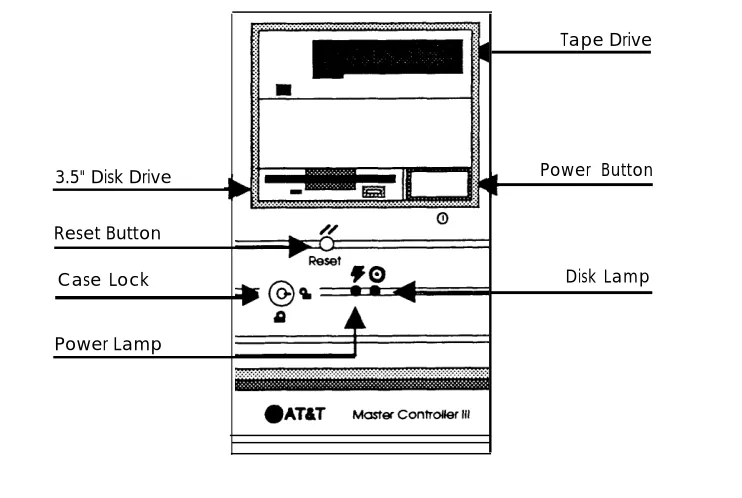
Reset Button
Power Button
Drive Indicators
Disk Drive Requirements and Capacities
Diskettes
Tape Drive Requirements and Capacities Tape Cartridge Video Monitor Keyboard Escape Key Enter Key Tab Key Ctrl Key Alt Key
Cursor Control Key Group (Arrow Keys)
Function Key Group
Function Keys
■ Screen Navigation
Contents
B
Appendix B: Ordering Information
■ Manuals
B-1
B-1
C
Appendix C: CAS Alarm Notification
C-1■ CAS and HackerTracker Alarms C-1
Alarm Strategy C-2
Suggested Defaults C-2
Voice Mail Messages C-3
Figures
3
Accessing IS-III Applications
3-13-1. SPM Main Menu 3-17
A
Appendix A: Master Controller Features
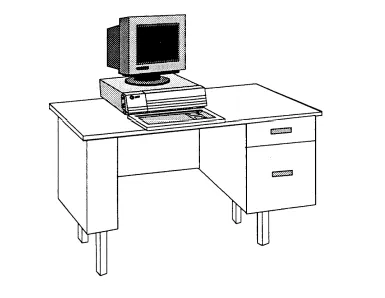
A-1A-1. The Master Controller II+ A-2
A-2. Master Controller II+ Front Panel A-3
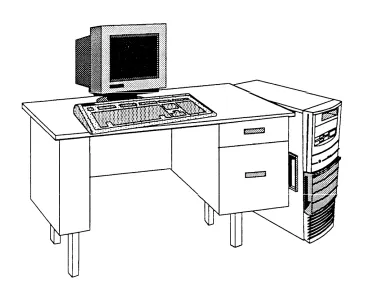
A-3. Master Controller III A-3
Screens
2
Accessing IS-III
2-12-1. Status Screen 2-2
2-2. Integrated Solution III Main Menu 2-5 2-3. Page 1 of the Help Screen for the
Integrated Solution III Main Menu 2-6 2-4. Page 2 of the Help Screen for the
Integrated Solution III Main Menu 2-7 2-5. Example Integrated Solution III Access Log 2-8 2-6. Integrated Solution III Main Menu 2-9
2-7. Confirm Exit Screen 2-10
3
Accessing IS-III Applications
3-13-1. 3-2. 3-3. 3-4. 3-5. 3-6. 3-7. 3-8. 3-9. 3-10.
Integrated Solution III Main Menu
AUDIX Voice Power/FAX Attendant Menu AUDIX Voice Power Menu
Integrated Solution III Main Menu
AUDIX Voice Power/FAX Attendant Menu Integrated Solution III Main Menu
Call Accounting System Menu Integrated Solution III Main Menu Extension Directory Screen Integrated Solution III Main Menu
3-4 3-5 3-6 3-8 3-9 3-11 3-12 3-13 3-14 3-16
4
Maintaining IS-III
4-14-1. 4-2.
Integrated Solution III Main Menu User Maintenance Menu
Screens
4-12. 4-13. 4-14. 4-15. 4-16. 4-17. 4-18. 4-19. 4-20. 4-21. 4-22. 4-23. 4-24. 4-25. 4-26. 4-27. 4-28. 4-29. 4-30. 4-31. 4-32. 4-33. 4-34. 4-35. 4-36. 4-37. 4-38. 4-39. 4-40. 4-41. 4-42. 4-43. 4-44. 4-45. 4-46.Format 1.44 MB MS-DOS Floppy Diskette Screen Remove Formatted Floppy Screen
Integrated Solution III Main Menu User Maintenance Menu
Maintenance Log
Format MS-DOS Floppy Diskette Menu
Format 720 KB MS-DOS Floppy Diskette Screen Remove Formatted Floppy Screen
Integrated Solution III Main Menu User Maintenance Menu
Password Protection Change/Add
Integrated Solution III Main Menu User Maintenance Menu
Maintenance Log Menu CAS Alarm Configuration CAS Alarm Levels
Sample CAS Alarm Configuration Integrated Solution III Main Menu User Maintenance Menu
Confirm Printer Restart Screen Integrated Solution III Main Menu User Maintenance Menu
Reconcile Dial Plan Screen Integrated Solution III Main Menu User Maintenance Menu
Set Time and Date Screen Choices Menu
Confirm Time and Date Screen Integrated Solution III Main Menu
User Maintenance Menu Shutdown Screen
Integrated Solution III Main Menu User Maintenance Menu
Voice System Administration Menu
4-23 4-24 4-25 4-26 4-27 4-28 4-29 4-30 4-31 4-32 4-33 4-34 4-40 4-41 4-42 4-43 4-44 4-45 4-46 4-47 4-48 4-50 4-51 4-52 4-53 4-54 4-55 4-56 4-57 4-58 4-59 4-60 4-61 4-62 4-63
Introduction
1
Overview of Integrated Solution III
Integrated Solution III (IS-III) is a menu-driven software application that allows you to administer and maintain your AT&T MERLIN LEGEND™ Communications System and various applications that your system supports. Your IS-III system consists of a processor called the Master Controller (II+ or III), a color video monitor, a keyboard, a tape drive, IS-III Platform Software, and one or more of the following software application packages:
■
■
■
System Programming & Maintenance Utility (SPM)
System Programming & Maintenance Utility (SPM) allows you to add, move, and change your telephone features and assignments, and back up and restore the telephone switch system programming information.
AUDlX®
Voice Power™ (optional)
AUDIX Voice Power (AVP) uses voice prompts and announcements to guide callers in sending and retrieving voice messages through the use of touch-tone buttons on the callers’ telephones. AUDIX Voice Power can be used as a personal answering service, a messenger to individuals or groups, an office receptionist, an information service, and a message drop service.
AT&T FAX Attendant System™ (optional)
FAX Attendant (FA) enhances the capabilities of all fax machines attached to your company’s MERLIN LEGEND Communications System. FAX Attendant uses voice prompts and announcements to guide callers in sending and receiving fax messages through the use of touch-tone buttons on the callers’ telephone. FAX Attendant can be used as a personal fax receiving service, a fax messenger to individuals or groups, or as an information service allowing callers to request different fax messages through an interactive voice
Introduction
■ Integrated Solution Call Accounting System (optional)
With the Call Accounting System (CAS), you can track incoming and outgoing calls so that you can make informed decisions about your telephone needs. You can monitor the cost of calls, print reports of incoming and/or outgoing calls, track calls made on behalf of clients, and identify cases of
telephone abuse. HackerTracker™ software is an optional add-on package that monitors call activity and provides real-time alarms and alerts for any
abnormal or undesirable call activity, such as toll fraud.
IS-III also provides Integrated Administration, which allows you to perform both telephone switch system programming and application administration simultaneously by selecting choices from application-oriented menus and by filling in blanks on application-oriented forms. Integrated Administration allows information to be entered only once. All necessary switch system programming is propagated by AUDIX Voice Power and FAX Attendant to the MERLIN LEGEND Communications System.
NOTE:
Introduction
System Manager’s Responsibilities
As the IS-III System Manager, you are responsible for performing the following tasks:
■ adding passwords initially and changing them periodically
Maintaining passwords for both logging in and accessing each application from within IS III helps protect the system from unauthorized access. See Chapter 4 for the procedures to add and change passwords.
NOTE:
■
■
In addition to adding and changing passwords, the System Manager is responsible for all aspects of system security. See “Security” later in this chapter.
backing up the system regularly (daily, weekly, or monthly)
The frequency of your backups depends on how up-to-date you want your call accounting records, administrative files, voice files, and fax files to be when you recover from catastrophic failure or any restore. For example, if these files and records change daily, you should back up the system daily. Conversely, if these files and records change no more than once a month, monthly backup is appropriate.
checking and maintaining disk usage space regularly (daily, weekly, or monthly)
Access the Disk Usage Report and check if there are too many Call
Accounting records, voice messages, and fax messages. You must monitor
these records and messages regularly and maintain disk space for optimal system performance.
shutting down and rebooting the system properly once a month, when the system is idle
By using the procedures in Chapter 4 to shut down and reboot the system at regular intervals, you are able to check the status of the entire system and possibly prevent major problems.
Introduction
■
■
■
■
■
During a reboot, the system performs the following tasks:
— repairs any minor corruptions automatically, which, if left uncorrected, could eventually lead to catastrophic failure
— checks the “sanity” of its configuration
— reloads drivers
— re-initializes voice boards and fax boards, ensuring that they are working properly
creating and changing voice mail group lists for CAS alarm notification
AUDIX Voice Power group lists must be created, configured, and maintained for CAS alarm notification. Additional information is provided in Chapters 3 and 4 and Appendix C.
monitoring error messages
Each application has error logs; be sure to check the error logs periodically and follow the suggested instructions when problems or potential problems occur.
setting the time and date
The time and date for IS III must be synchronized with the time and date for the MERLIN LEGEND system.
checking printer status
If an optional printer is installed, you are responsible for ensuring that paper is loaded, and that the printer is turned on and functioning.
reconciling the dial plan
Introduction
Security
Your Integrated Solution III system has been carefully designed to be secure. As the System Manager, it is your responsibility to protect voice and fax mail subscribers from unauthorized access to their mailboxes. Careful attention to security-related administrative features, procedures, and maintenance are required to ensure the integrity of user information. It is your responsibility to read this section and implement its recommendations as part of your Integrated Solution III environment.
Passwords
A password is one of the most effective ways of securing voice and fax mailboxes and the Master Controller. In general, all passwords should adhere to the following guidelines:
■
■
■
■
■
■
■
■
■
Do not use ascending digits (1234) for passwords.
Do not use the same digit repetitively (1111) for passwords.
Do not use the current year (1993) for passwords.
Do not use your extension number as a password (extension 3455 with password 3455).
Do not use your extension number in reverse order as a password (extension 3455 with password 5543).
Do not use your name or initials as a password.
Passwords should not be posted, shared, or printed in an obvious place.
Passwords should not be coded in programmable function keys or speed-dialing keys.
Passwords should be periodically changed based on the sensitivity of the messages or accessible information.
Introduction
■
■
■
Subscriber Passwords
Make sure that subscribers understand the importance of password security to their mailboxes and implement the following guidelines:
Subscribers should change their passwords the first time they log into the system and periodically thereafter. Consider sending a broadcast message on the first of each month to remind them.
Subscribers can have passwords of up to nine digits to access the AUDIX Voice Power and FAX Attendant systems. There is no minimum password length; however, you should encourage subscribers to make their passwords at least five digits.
Subscriber passwords are specified in their profiles on the Subscriber
Administration screen. A pound sign (#) in the Password field denies access to anyone trying to log into the mailbox. The system responds with login incorrect regardless of what the caller enters. Use this feature whenever it becomes necessary to restrict mailbox access. Once a subscriber profile is saved, the password value will not be displayed on the screen. This is for security purposes. If subscribers forget their passwords, the System Manager must enter new passwords in their profiles and resave them. The old
passwords are unrecoverable.
Administrative Passwords
Administrative passwords are phone-based and computer-based passwords for the System Managers and Service Administrators. The following are guidelines for administrative passwords:
■
■
■
■
Make sure that the passwords set during installation are changed.
Establish and enforce procedures among administrators for changing passwords. These procedures should include how often passwords are changed and how notification of new passwords is made.
Because subscribers are required to choose passwords, inevitably some will forget their passwords. To prevent unauthorized access to a subscriber’s
mailbox, establish a procedure for reissuing passwords in these situations.
Introduction
■
■
Create a system administration policy concerning employee turnover to ensure that subscriber mailboxes are removed promptly from the system when they no longer require AUDIX Voice Power or FAX Attendant.
Registered Service Administrators have privileges beyond regular subscribers and should, therefore, change their passwords often and keep them secure.
Login Attempts
Subscribers are allowed four attempts at logging into AUDIX Voice Power or FAX Attendant. If the caller has not successfully entered the extension and password in four attempts, the system recommends that the subscriber contact the system administrator. The call is, then, disconnected. The number of Iogin attempts is not an administrative option.
Master Controller Access
Limit access to the Master Controller and supporting documentation by keeping them in an office that is protected with a changeable combination lock. Keep telephone logs and printed reports in a location that only authorized personnel can enter.
Introduction
Backup
Back up all system data regularly to ensure a timely recovery, should it be required. Implement a regular offsite backup policy so that you will always have a current backup, even if a disaster strikes your company’s office location. See the backup procedures in Chapter 4 for instructions.
Toll Fraud
Toll fraud attempts through voice messaging systems and automated attendant systems have grown dramatically. Toll fraud “hackers” access a voice mail or automated attendant system, transfer through the system, and gain access to a corporation’s interface to a Iong-distance network. This is a security risk that can affect every telecommunications system with a voice mail or automated attendant system. While AT&T is not responsible for the billing resulting from this toll fraud, we wish to assist you in dealing with this problem.
To diminish the risk of toll fraud occurrences, we recommend limiting transfers. The
Transfer to Subscribers Only? parameter on the AUDIX Voice Power System Parameter Administration screen allows you to impose a limitation while still allowing callers and subscribers to use AUDIX Voice Power transfer capabilities.
By leaving the default setting to yes for this parameter, you can restrict transfers to registered subscribers only. When a caller is instructed to enter an extension number from the Automated Attendant, or when a caller enters an extension number from the Voice Mail or Call Answer services, the extension entered is validated against the subscriber database of AUDIX Voice Power. If the extension entered is not in the subscriber database, the caller will hear “That is not a valid extension,” the transfer is denied, and the caller will not have an opportunity to gain access to the outgoing facilities of the telephone communications system. For more information on this parameter, see the AT&T AUDIX Voice Power™/AT&T FAX Attendant System™
Planning and Implementation document (Document No. 555-601-202).
Introduction
To enhance security for the outcalling feature, you can turn off outcalling on a per-subscriber basis via the Subscriber Administration screen. You can also restrict the number of digits that may be used for outcalling on a system-wide basis via the Outcalling Administration screen. For more information, see the AT&T AUDIX Voice
Power™/AT&T FAX Attendant System™ Planning and Implementation document
(Document No. 555-601-202).
If your AUDIX Voice Power system is intended to serve only a subset of the
telephone system users, the remaining users may be administered as AUDIX Voice Power subscribers with restricted mailboxes, so that the possibility of making transfers to these users is ensured. Restricted mailboxes can be set up by allocating minimal mailbox space (for example, 1 minute) to each of these subscribers. Other subscribers may address messages to these users, but the limited mailbox size will prevent most messages from being delivered.
Protecting your AUDIX Voice Power and FAX Attendant systems is a vital and important part of your responsibility as a System Manager. You should take every precaution to protect your company’s assets from both internal and external security breaches. AT&T does not warrant that these products will prevent (and AT&T will not be responsible for) unauthorized use (or charges for such use) of common carrier telecommunication services or facilities accessed through (or connected to) AUDIX Voice Power or FAX Attendant. The customer is responsible for
administering AUDIX Voice Power and FAX Attendant to prevent such unauthorized use. Therefore, it is necessary that the person to whom the customer assigns this responsibility read all documents associated with AUDIX Voice Power and FAX Attendant and understand all features that enable the administrator to reduce exposure to unauthorized use.
Detecting Toll Fraud
Once you have instituted the appropriate security measures, monitor call traffic for the following signals of possible hacker activity:
■ ■ ■ ■ ■ ■
Employees cannot get outside lines.
Customers have difficulty getting through to your 800 number.
Usage is higher than normal.
Heavy call volume on nights and weekends.
Operators report frequent hangups.
Introduction
Using this Guide
At the time you are ready to use this guide, your IS-III system will already have been installed and initialized by AT&T personnel or your AT&T Authorized Dealer.
Each application supported by IS-III has its own documentation detailing
administration and daily operation. This System Manager’s Guide is not intended to replace those documents, but is designed to show you how to access those
applications via IS-III. See Appendix B for information about ordering additional documents related to IS-III applications.
This guide consists of the following chapters:
Chapter 1 - Introduction
This chapter offers an overview of Integrated Solution III and the software applications it supports.
Chapter 2 - Accessing IS-III
This chapter describes how to log in and log out of IS-III.
Chapter 3 - Accessing IS-III Applications
This chapter shows you how to access each application package.
Chapter 4 - Maintaining IS-III
This chapter describes how to maintain IS-III.
Appendix A - Master Controller Features
This appendix provides an overview of the Master Controller.
Appendix B - Ordering Information
Introduction
Refer to the following table for a list of the tasks contained in this guide and the chapter number where you will find these tasks.
TOPIC TASKS CHAPTER
NUMBER
Accessing IS-III Log into IS-III Chapter 2 Log out of IS-III
Use On-Line Help View the Access Log
Accessing IS-III Access: Chapter 3
Applications AUDIX Voice Power (AVP) FAX Attendant
Call Accounting System (CAS) Integrated Administration System Programming and
Maintenance (SPM)
Maintaining IS-III Back Up the System Chapter 4 Display the Disk Usage Report
Format MS-DOS floppy diskettes Add or Change Passwords Restart the Printer
Scheduler/Spooler Reconcile the Dial Plan Set the Time and Date Shut Down the System Access Voice System
Introduction
Conventions Used in this Guide
The following conventions are used in this guide:
■
■
■
■
■
Commands and text you should type appear in this style of type.
Values, instructions, and prompts that appear on the screen are in this style of type.
Key names that are always Iocated on the keyboard in the same place appear in key-shaped boxes, as in [ ENTER ↵ ].
A dash (–) connecting two or more keys is used to indicate an operation in which one key is held down while another is pressed. For example,
[ CTRL ]–[ ALT ]–[ DEL ] indicates that the [ CTRL ] and [ ALT ] keys should be held down
while the [ DEL ] key is pressed.
Function keys (keys that start with an F, followed by a number) appear in boxes with the current meaning following in parentheses, such as [ F3 ]
(SAVE).
The current meanings of the function keys are shown by labels at the bottom of the screen. On the actual screen, one of two sets of labels will appear. The first label is the meaning of the function key when the screen first appears. These meanings have been selected to be the most useful for that screen.
The second set of labels appears after the [
F8] (CHG-KEYS) key has been
pressed. Pressing [
F8] (CHG-KEYS) again restores the first set of labels.
NOTE:
The menu items shown in this book depend on the applications present.
Getting Assistance
Accessing IS-III
2
Overview
This chapter provides the procedures that you will use to access IS-III. To administer an IS-III application or perform any on-going system maintenance, you must access the Integrated Solution III Main Menu. However, before you can access this menu, you must first log into IS-III.
Logging Into IS-III
The Iogin procedure allows you to access the Integrated Solution III Main Menu. During this procedure, you identify yourself to the system by entering your Login ID. The system then prompts you to enter your password (if a password has been administered). The system uses the Login ID and passwords to prevent unauthorized individuals from accessing the system.
To log into IS-III, perform the following steps:
1. At the Console Login: prompt, type is and press [ ENTER ↵ ].
—
—
If a password has been administered, the system prompts you to enter your password. At the Password: prompt, type your password and press [ ENTER ↵ ]. (For security reasons, your password does not appear
on the screen as you type it.) The Status Screen appears.
Accessing IS-III
Status Screen
Available Disk Space: 94 Megabyte Disk, 58 Available Connection to Switch: LINK UP
Database Reconciliation last run on: 06/02/92 14:59 Extensions added: 0 Extensions deleted: 0 Extensions changed: 0
Name:
Enter Name. Press SAVE to continue.
HELP HELP
SAVE SAVE
DISPLAY CANCEL CANCEL
CHG-KEYS CHG-KEYS CHOICES
Screen 2-1. Status Screen
The Status Screen appears every time you successfully log into IS-III and provides the following information on the status of your system:
■
■
■
■
the amount of space (in megabytes) available on the hard disk of your Master Controller
the status of the connection between the Master Controller and the telephone communications system (switch) (that is, LINK UP, LINK DOWN, or LINK BUSY)
the date and time the reconciliation program was last run
the number of extensions that were either added, deleted, or changed. (An extension is considered “changed” when its status goes from either “regular to special” or “special to regular.”)
Accessing IS-III
approximately 2 KB of memory on the hard disk of the Master
Controller. For example, if your system stores approximately 90 minutes (that is, 5,400 seconds) of voice messages daily, your hard disk must have at least 11 MB of available space. The amount of available space required is determined by the following calculations:
1 second of a voice message is approximately 2 KB of hard disk memory
Available Space Required = amount of voice messages (sec) * 2 KB
For this example:
— Your system stores an average of 90 minutes of voice messages daily.
— 90 minutes of voice messages = 5,400 seconds
— 5,400 seconds * 2 KB = 10,800 KB
— 1,000 KB = 1 MB
— 10,800 KB = 10.8 MB
— Your system requires approximately 11 MB of available space on the hard disk of the Master Controller for AUDIX Voice Power.
Every page of a stored fax message translates to approximately 50 KB of memory on the hard disk of the Master Controller. For example, if your system stores approximately 150 pages of fax messages daily, your hard disk must have at least 8 MB of available space. The amount of available space required is determined by the following calculations:
1 page of a fax message is approximately 50 KB of hard disk memory
Available space required = # of fax pages stored (sec) * 50 KB
For this example:
— Your system stores an average of 150 pages of fax messages daily.
— 150 pages * 50 KB = 7,500 KB
— 1,000 KB = 1 MB
— 7,500 KB = 7.5 MB
Accessing IS-III
If you do not have enough disk space available, perform the following steps:
— instruct users to delete old voice messages and fax messages (if applicable) from their mailboxes.
— display the Disk Usage Report (Chapter 4) to determine which users are using too much space. Once you identify these users, contact them and instruct them to delete their messages.
— back up and delete old Call Accounting System call records to free up disk space.
■ the status of the connection between the Master Controller and the switch
If the status of the connection to the switch is “LINK DOWN,” the system is working, but you are unable to perform any administration via IS-III. Check that the cable that connects the Master Controller to the MERLIN LEGEND Communications System is plugged in at both ends. If the cable is connected properly at both ends, call the AT&T National Services Assistance Center (NSAC) at 1-800-628-2888 for further assistance or your AT&T Authorized Dealer.
If the status of the connection to the switch is “LINK BUSY,” the system is working, but you are unable to perform any administration via IS-III. A “LINK BUSY” condition signifies that another user has accessed your system via the Pass-Thru feature of the System Programming & Maintenance Utility (SPM). Wait a while before attempting to log in again.
To exit the Status Screen and access the Integrated Solution III Main Menu, you must enter your name. If you do not enter your name and press [ F6 ]
(CANCEL) at the Status Screen, the system automatically logs you out.
2. At the Status Screen, type your name and press [ F3 ] (SAVE).
Accessing IS-III
Integrated Solution III >AUDIX Voice Power/FAX Attendant (AVP/FA)
Call Accounting System (CAS) Extension Directory
System Programming & Maintenance Utility (SPM) User Maintenance
Exit
Move to an item using arrow keys and hit Enter to select HELP
Screen 2-2. Integrated Solution III Main Menu
NOTE:
If you have AUDIX Voice Power and FAX Attendant installed, they will appear as one option in the Integrated Solution III Main Menu. AUDIX Voice Power can be present without FAX Attendant, but FAX Attendant cannot be present without AUDIX Voice Power.
Accessing IS-III
Using On-Line Help
For most of the IS-III menus and screens, the system provides an on-line help screen. Whenever the system provides [ F1 ] (HELP), a help screen is available.
Typically, the help screen provides a brief description of the active menu or screen (that is, the menu or screen in which you are currently working). To access the help screen, press [ F1 ] (HELP). If there is more than one “page” of a help screen for a
particular menu or screen, [ F2 ] (PREVPAGE) and [ F3 ] (NEXTPAGE) appear. The system beeps when you reach the end of a help screen. To exit the help screen and return to the menu or screen, press [ F6 ] (CANCEL).
For example, if you press [ F1 ] (HELP) when you are viewing the Integrated Solution
III Main Menu, the following help screen appears:
Help on IS
The Integrated Solution III (IS III) menu provides access to all installed IS III application packages and maintenance items useful to a user
The items on the Integrated Solution III Menu are: An entry for each installed IS III application: You can access the application by hitting <Enter> when the cursor is next to the application entry.
PREVPAGE NEXTPAGE CANCEL
Accessing IS-III
Help on IS
access the application by hitting <Enter> when the cursor is next to the application entry.
User Maintenance: Another menu will be drawn that will allow you to access programs for backing up files, restarting the printer, setting the date and time, shutting down the system, password protect the installed IS III applications and the IS III user login (is), display a disk usage report, or access the Voice System Administration package (if installed).
PREVPAGE NEXTPAGE CANCEL
Screen 2-4. Page 2 of the Help Screen for the Integrated Solution III Main Menu
If you press [ F3 ] (NEXTPAGE), the system “beeps,” indicating that you are at the
end of the help screen. To view the first page of the help screen, press [ F2 ]
(PREVPAGE). If you press [ F2 ] (PREVPAGE) again, the system “beeps,” indicating that you are at the beginning of the help screen. When you are finished viewing the help screen, press [ F6 ] (CANCEL) to exit the help screen and return to the
Integrated Solution III Main Menu.
Viewing the Access Log
Accessing IS-III
Access Log 06/02/92 10:34 fred 06/02/92 10:45 bill 06/02/92 11:21 steve 06/02/92 11:53 bill 06/02/92 13:02 sue 06/02/92 13:25 sue 06/02/92 14:37 fred 06/02/92 15:04 fred 06/02/92 15:51 fred 06/02/92 16:42 pat 06/03/92 08:04 joel 06/03/92 08:32 bill 06/03/92 10:01 prima 06/03/92 13:19 bill 06/04/92 07:56 fred
HELP CHOICES SAVE CANCEL CHG-KEYS CHG-KEYS
Screen 2-5. Example Integrated Solution III Access Log
The Access Log displays the date, time, and name of the last 15 users who accessed the system. The most recent user to access the system is listed at the bottom of the Access Log. As soon as 15 users have accessed the system, the system will overwrite the oldest access record every time someone accesses the system.
Accessing IS-III
Logging Out of IS-III
When you have completed your tasks on IS-III, you must log out of the system. Logging out prevents unauthorized users from accessing the system via your Iogin.
To log out of IS-III, perform the following steps:
1. Return to the Integrated Solution III Main Menu.
The Integrated Solution III Main Menu appears.
Integrated Solution III >AUDIX Voice Power/FAX Attendant (AVP/FA)
Call Accounting System (CAS) Extension Directory
System Programming & Maintenance Utility (SPM) User Maintenance
Exit
Move to an item using the arrow keys and hit Enter to select HELP
Screen 2-6. Integrated Solution III Main Menu
2. Move the cursor to Exit and press [ ENTER ↵ ].
Accessing IS-III
Confirm Exit
You are about to exit MERLIN LEGEND Integrated Solution III. Strike CONT to exit or CANCEL to cancel the exit.
Strike CONT to exit or CANCEL to cancel the exit.
CONT CANCEL
Screen 2-7. Confirm Exit Screen
3. Press [ F3 ] (CONT) to exit IS-III.
Accessing IS-III Applications
3
Overview
This chapter provides the procedures you will use to access the IS-III applications installed on your system. Using IS-III, you can access and administer the following applications:
■
■
■
■
AUDIX Voice Power (AVP)
FAX Attendant (FA)
Call Accounting System (CAS)
System Programming & Maintenance Utility (SPM)
NOTE:
AUDIX Voice Power may be present standalone or co-resident with FAX Attendant. However, FAX Attendant is only present with AUDIX Voice Power; it is not a stand-alone product. As a result, if you have AUDIX Voice Power and FAX Attendant, they will appear as one option in the Integrated Solution III Main Menu.
IS-III also provides the Integrated Administration feature, which allows you to perform both switch system programming and application administration simultaneously by selecting choices from application-oriented menus and by filling in blanks on
Accessing IS-III Applications
Accessing AUDIX Voice Power
AUDIX Voice Power (AVP) is a software application that provides business-oriented, computerized voice services for the MERLIN LEGEND Communications System. AUDIX Voice Power uses voice prompts and announcements to guide callers in sending and retrieving voice messages through the use of touch-tone buttons on the callers’ telephones. AUDIX Voice Power can be used as a personal answering service, a messenger to individuals or groups, an office receptionist, an information service, and a message drop service.
AUDIX Voice Power includes the following services:
■
■
Call Answer Service
When the extension originally called is busy, or there is no answer, the Call Answer Service allows the caller to leave a message, transfer to another extension, or transfer to an attendant. The person called (subscriber) may provide a personal greeting to callers or select a standard system greeting. The subscriber may set up a password to help protect against unauthorized access to messages. Messages can be picked up from the office or from an outside telephone.
The Outcalling feature allows AUDIX Voice Power to call a subscriber when a new message arrives. The subscriber can specify the telephone or pager number to be called.
Voice Mail Service
The Voice Mail Service allows subscribers to send messages to other subscribers, listen to received messages, forward messages received with comments attached, reply to messages, and return calls to other subscribers who left messages. Subscribers can create and edit group lists and send messages to one or more groups.
Accessing IS-III Applications
■
■
■
Automated Attendant Service
The Automated Attendant directs callers through a series of menu selections to reach a desired department, extension, or attendant. Callers are greeted with spoken prompts that guide them in pressing touch-tone buttons to connect to their desired destination. If there is no answer, or the desired extension is busy, the caller may leave a message or transfer to an attendant.
The Automated Attendant Service has separate menus for day and night service, and may have multilevel submenus. A custom list of holidays may be defined. The night service can be provided on holidays, regardless of the day of week.
Information Service
Information Service is a call-in information facility. The caller hears a prerecorded, informational message and is then disconnected.
Message Drop Service
Accessing IS-III Applications
To access AUDIX Voice Power, perform the following steps:
1. Log into the system and access the Integrated Solution III Main Menu.
The Integrated Solution III Main Menu appears.
Integrated Solution III >AUDIX Voice Power/FAX Attendant (AVP/FA)
Call Accounting System (CAS) Extension Directory
System Programming & Maintenance Utility (SPM) User Maintenance
Exit
Move to an item using arrow keys and hit Enter to select HELP
Screen 3-1. Integrated Solution III Main Menu
NOTE:
Accessing IS-III Applications
2. At the Integrated Solution III Main Menu, move the cursor to AUDIX Voice Power/FAX Attendant (AVP/FA) and press [ ENTER ↵ ].
The AUDIX Voice Power/FAX Attendant Menu appears.
NOTE:
If a password has been administered for AUDIX Voice Power, the
Password: prompt appears. Type your password and press [ ENTER ↵ ].
(For security reasons, your password does not appear on the screen as you type it.) The AUDIX Voice Power/FAX Attendant Menu appears.
AUDIX Voice Power/FAX Attendant >Automated Attendant Administration
Fax Equipment Operations Fax Response Administration
Fax System Parameter Administration Outcalling Administration
Service Administrator Registration Subscriber Administration
Voice System Parameter Administration System Programming/Switch Administration
Highlight menu choice using arrow keys, then press Enter key
HELP PREV-FRM NEXT-FRM CANCEL CHG-KEYS CHG-KEYS FRM-MGMT
Accessing IS-III Applications
NOTE:
If FAX Attendant is not present, the AUDIX Voice Power Menu appears.
AUDIX Voice Power >Automated Attendant Administration
Outcalling Administration
Service Administrator Registration Subscriber Administration
System Parameter Administration
System Programming/Switch Administration
Highligh menu choice using arrow keys, then press Enter key HELP PREV-FRM NEXT-FRM CANCEL
FRM-MGMT CHG-KEYSCHG-KEYS
Screen 3-3. AUDIX Voice Power Menu
To administer AUDIX Voice Power, consult your AT&T AUDIX Voice Power™
Release 2.1.1 System Manager’s Guide (Document No. 555-601-200).
NOTE:
Be sure to update the hardcopy forms from the AT&T AUDIX Voice
Power™/AT&T Fax Attendant System™ Planning and Implementation
Accessing IS-III Applications
Accessing FAX Attendant
AT&T FAX Attendant is a software application that enhances the capabilities of all fax machines attached to your company’s MERLIN LEGEND Communications System. FAX Attendant resides with AUDIX Voice Power, providing a single mailbox and integrated notification of both fax and voice messages.
FAX Attendant uses voice prompts and announcements to guide callers in sending and receiving fax messages through the use of touch-tone buttons on the callers’ telephones. FAX Attendant can be used as a personal fax receiving service, a fax
messenger to individuals or groups, or as an information service allowing callers to request different fax messages through an interactive voice prompt/touch-tone interface.
FAX Attendant includes the following services:
■
■
■
Fax Call Answer
The Fax Call Answer Service allows FAX Attendant to receive fax messages for subscribers whose fax machines are busy or out of paper. This service also enables subscribers to use personal fax mailboxes for confidential receipt and remote access to fax messages.
The Outcalling feature allows FAX Attendant to call a subscriber when a new fax message arrives. The subscriber can specify the telephone or pager number to be called.
Fax Mail
The Fax Mail Service allows subscribers to send fax messages to one or more fax numbers or use a distribution list; retrieve fax messages from their mailbox; record personal greetings; change their account passwords, delivery report setting, and autoprint setting; administer outcalling; and create fax distribution lists.
Fax Response
Accessing IS-III Applications
To access FAX Attendant, perform the following steps:
1 . Log into the system and access the Integrated Solution III Main Menu.
The Integrated Solution III Main Menu appears.
Integrated Solution III >AUDIX Voice Power/FAX Attendant (AVP/FA)
Call Accounting System (CAS) Extension Directory
System Programming & Maintenance Utility (SPM) User Maintenance
Exit
Move to an item using arrow keys and hit Enter to select HELP
Accessing IS-III Applications
2. At the Integrated Solution III Main Menu, move the cursor to AUDIX Voice Power/FAX Attendant (AVP/FA) and press [ ENTER ↵ ].
The AUDIX Voice Power/FAX Attendant Menu appears.
NOTE:
If a password has been administered for AUDIX Voice Power/FAX Attendant, the Password: prompt appears. Type your password and press [ ENTER ↵ ]. (For security reasons, your password does not appear
on the screen as you type it.) The AUDIX Voice Power/FAX Attendant Menu appears.
AUDIX Voice Power/FAX Attendant >Automated Attendant Administration
Fax Equipment Operations Fax Response Administration
Fax System Parameter Administration Outcalling Administration
Service Administrator Registration Subscriber Administration
Voice System Parameter Administration System Programming/Switch Administration
Highlight menu choice using arrow keys, then press Enter key
HELP PREV-FRM NEXT-FRM CANCEL CHG-KEYS CHG-KEYS FRM-MGMT
Screen 3-5. AUDIX Voice Power/FAX Attendant Menu
To administer FAX Attendant, consult your AT&T FAX Attendant System™ Release
2.1.1 System Manager's Guide (Document No. 555-601-100).
NOTE:
Be sure to update the hardcopy forms from the AT&T AUDIX Voice
Power™/AT&T FAX Attendant System™ Planning and Implementation
Accessing IS-III Applications
Accessing Call Accounting System
Call Accounting System (CAS) is a software application that allows you to administer telephone expenses and track facility usage in a business, university, or government installation using up to 200 telephone extensions (or up to 500 extensions with the upgrade package). With CAS, you can track incoming and outgoing calls to provide costing reports and accurate records of phone usage.
NOTE:
To further decrease the chances for undetected, unauthorized access, CAS can be installed with HackerTracker, an optional add-on package, which monitors call activity and provides real-time alarms and alerts for any abnormal or undesirable call activity such as toll fraud.
CAS Alarms
Call Accounting System can be configured to send alarms to AUDIX Voice Power subscribers who are included in voice mail group lists. When the system is installed, you will need to complete the CAS Alarm Notification Form, which will be used to configure these group lists per your specifications. Appendix C provides additional information, including the CAS Alarm Notification Form.
When you are ready to create or change a voice mail group list for CAS alarm notification, see Chapter 4 for detailed instructions.
NOTE:
Accessing IS-III Applications
NOTE:
Before you administer any changes to CAS, be sure you have synchronized the time and date settings for IS-III and the MERLIN LEGEND
Communications System. Refer to “Setting the Time and Date” in Chapter 4 for details. If the clocks are not synchronized, CAS cannot determine the cost of calls correctly.
To access CAS, perform the following steps:
1. Log into the system and access the Integrated Solution III Main Menu.
The Integrated Solution III Main Menu appears.
Integrated Solution III >AUDIX Voice Power/FAX Attendant (AVP/FA)
Call Accounting System (CAS) Extension Directory
System Programming & Maintenance Utility (SPM) User Maintenance
Exit
Move to an item using arrow keys and hit Enter to select HELP
Accessing IS-III Applications
2. At the Integrated Solution III Main Menu, move the cursor to Call Accounting System (CAS) and press [ ENTER ↵ ].
A Call Accounting System welcome screen appears briefly, and then the Call Accounting System Menu appears.
NOTE:
If a password has been administered for Call Accounting System, the
Password: prompt appears. Type your password and press [ ENTER ↵ ].
(For security reasons, your password does not appear on the screen as you type it.) The Call Accounting System Menu appears.
Integrated Solution Call Accounting System >Reports Menu
Site Configuration Menu
Organization Configuration Menu CDR Collection Configuration Menu Costing Configuration Menu
System Configuration Menu HackerTracker
Exit
HELP
Screen 3-7. Call Accounting System Menu
Accessing IS-III Applications
Accessing Integrated Administration
Integrated Administration provides an easy-to-use interface that allows both switch system programming and application administration to be done simultaneously by selecting choices from application-oriented menus and by filling in blanks on
application-oriented forms. Integrated administration allows information to be entered only once. All necessary switch system programming is propagated by AUDIX Voice Power and FAX Attendant to the MERLIN LEGEND Communications System. Integrated Administration is performed via the Extension Directory option in the Integrated Solution III Main Menu.
To access the Extension Directory, perform the following steps:
1. Log into the system and access the Integrated Solution III Main Menu.
The Integrated Solution III Main Menu appears.
Integrated Solution III >AUDIX Voice Power/FAX Attendant (AVP/FA)
Call Accounting System (CAS) Extension Directory
System Programming & Maintenance Utility (SPM) User Maintenance
Exit
Move to an item using arrow keys and hit Enter to select HELP
Accessing IS-III Applications
2. At the Integrated Solution III Main Menu, move the cursor to Extension Directory and press [ ENTER ↵ ].
The Extension Directory screen appears.
Extension Directory Extension:
Name (first) : Name (last) : Extension Label : Location : Comments : Comments : Application 1 : Application 2 : Application 3 : Application 4 : Application 5 :
Enter extension number DISPLAY
HELP
DELETE CHOICES
SAVE SAVE
PREV-REC NEXT-REC CANCEL CANCEL
CHG-KEYS CHG-KEYS
Screen 3-9. Extension Directory Screen
To use the Extension Directory to administer subscribers and extensions for AUDIX Voice Power/FAX Attendant, consult your AT&T AUDIX Voice Power™ Release 2.1.1
System Manager's Guide (Document No. 555-601-200) and AT&T FAX Attendant System™ Release 2.1.1 System Manager’s Guide (Document No. 555-601-100).
NOTE:
Be sure to update the hardcopy forms from the AT&T AUDIX Voice
Accessing IS-III Applications
Accessing System Programming
& Maintenance Utility
System Programming & Maintenance Utility (SPM) emulates a system programming console, enabling you to program and administer your MERLIN LEGEND from the IS-III Master Controller. Using SPM, you can perform the following tasks:
■
■
■
■
add, move, and change your telephone features and assignments
create and save a backup copy of the telephone switch system programming information
restore the telephone switch system programming from the backup copy if the programming is lost because of a system failure
Accessing IS-III Applications
To access System Programming & Maintenance Utility (SPM), perform the following steps:
1. Log into the system and access the Integrated Solution III Main Menu.
The Integrated Solution III Main Menu appears.
Integrated Solution III >AUDIX Voice Power/FAX Attendant (AVP/FA)
Call Accounting System (CAS) Extension Directory
System Programming & Maintenance Utility (SPM) User Maintenance
Exit
Move to an item using arrow keys and hit Enter to select HELP
2. At the Integrated Solution III Main Menu, move the cursor to System Programming & Maintenance Utility (SPM) and press [ ENTER ↵ ].
The System Programming & Maintenance Utility (SPM) Menu appears.
NOTE:
If a password has been administered for System Programming & Maintenance Utility (SPM), the Password: prompt appears. Type your password and press [ ENTER ↵ ]. (For security reasons, your password
does not appear on the screen as you type it.) The System Programming & Maintenance Utility (SPM) Menu appears-Accessing IS-III Applications
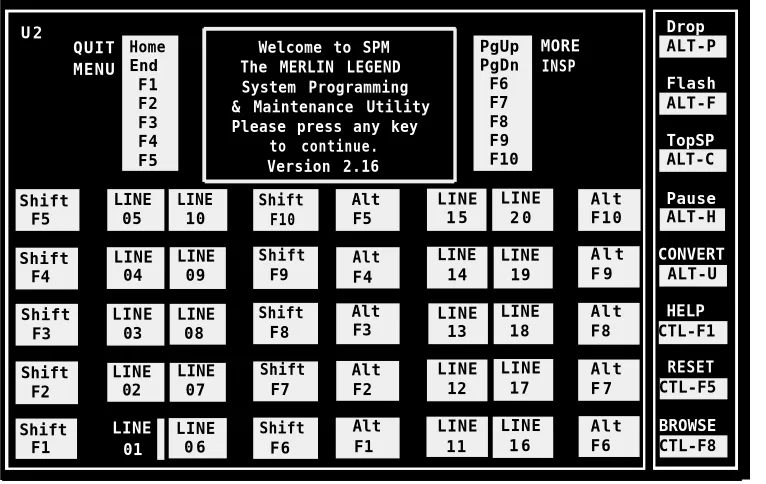
U 2 Drop
ALT-P QUIT MENU Home End F1 F2 F3 F4 F5
Welcome to SPM The MERLIN LEGEND System Programming & Maintenance Utility Please press any key
to continue. Version 2.16 PgUp PgDn F6 F7 F8 F9 F10 MORE INSP Flash ALT-F TopSP ALT-C Shift F5 LINE 05 LINE 10 Shift F10 Alt F5 LINE 1 5 LINE 2 0 Alt F10 Pause ALT-H Shift F4 LINE 04 LINE 09 Shift F9 Alt F4 LINE 14 LINE 19
A l t F 9 CONVERT ALT-U Shift F3 LINE 03 LINE 08 Shift F8 Alt F3 LINE 13 LINE 18 Alt F8 HELP CTL-F1 Shift F2 LINE 02 LINE 07 Shift F7 Alt F2 LINE 12 LINE 17 Alt F 7 RESET CTL-F5 Shift F1 LINE 01 LINE 0 6 Shift F6 Alt F1 LINE 11 LINE 1 6 Alt F6 BROWSE CTL-F8
Figure 3-1. SPM Main Menu
NOTE:
If you make changes in the System Numbering Plan, you must run the reconcile program to propagate those changes to the Extension Directory database.
To administer your system via the System Programming & Maintenance Utility (SPM), consult your AT&T MERLIN LEGEND™ Communications System Release 2.0
Maintaining IS-III
4
Overview
This section provides the procedures that you will use to maintain IS-III on a regular basis. These procedures include:
■
■
■
■
Backing up files
You should back up the files on a regular basis, so that you have current information in case of a system failure.
Displaying the Disk Usage Report
The Disk Usage Report shows the current disk usage statistics for the Master Controller.
Formatting MS-DOS®
floppy diskettes
You can format 1.44 MB (high density) and 720 KB (double density) MS-DOS floppy diskettes for use with the System Programming & Maintenance Utility (SPM).
Adding or changing passwords for the IS-III applications
Maintaining IS-III
■
■
■
■
Reconciling the dial plan
You can run an immediate reconciliation program between the MERLIN LEGEND Communications System’s dial plan (System Numbering Plan) and the Extension Directory whenever it is necessary to desynchronize the databases.
Setting the time and date
You must synchronize the time and date for IS-III with the time and date for your MERLIN LEGEND Communications System.
Shutting down the system
There are specific steps you should follow when shutting down the UNIX system to avoid damaging the files.
Accessing Voice System Administration (if AUDIX Voice Power is installed)
Maintaining IS-III
Backing Up the System
The information saved during a backup can be used to restore IS-III in the unlikely event of a catastrophic failure. You should back up your files when subscriber information or prompt messages are changed. It is best to perform backups in the evening or when the telephone system is not busy. Backups performed during busy hours may cause reduced system performance warning messages.
IS-III supports the following backup procedures:
■ complete system backup to tape, which saves all of the IS-III files. This includes the following items:
— UNIX files
— integrated administration (Extension Directory) files
— administrative files for each application
— all voice system files (if AUDIX Voice Power is installed). These files include all voice mailbox messages, system greetings, and personal greetings.
— all fax messages (if FAX Attendant is installed). These files include Fax Response files.
NOTE:
Prior to performing a complete system backup to tape of IS-III, back up switch programming to the hard disk (via SPM). Backing up the switch programming to hard disk before performing a complete system backup to tape ensures that you have a backup of the switch programming on tape. Your backup tape will contain all the IS-III information and the switch programming. See the AT&T
MERLIN LEGEND™ Communications System Release 2.0 System Programming document (Document No. 555-620-111) for SPM backup
procedures.
back up administrative files to diskette, which saves the following items:
— UNIX files
Maintaining IS-III
To back up the system, perform the following steps:
1. Log in and access the Integrated Solution III Main Menu.
The Integrated Solution III Main Menu appears.
Integrated Solution III >AUDIX Voice Power/FAX Attendant (AVP/FA)
Call Accounting System (CAS) Extension Directory
System Programming & Maintenance Utility (SPM) User Maintenance
Exit
Move to an item using arrow keys and hit Enter to select HELP
Maintaining IS-III
2. At the Integrated Solution III Main Menu, move the cursor to User Maintenance and press [ ENTER ↵ ].
The User Maintenance Menu appears.
User Maintenance >Backup Files
Maintenance Log Password Protection Printer Restart Reconcile Dial Plan Set Time and Date System Shutdown
Voice System Administration
Move to an item using arrow keys and hit Enter to select
HELP CANCEL
Screen 4-2. User Maintenance Menu
NOTE:
Maintaining IS-III
3. At the User Maintenance Menu, move the cursor to Backup Files and press [ ENTER ↵ ].
The Backup Files Menu appears.
Backup Files
>Administrative Files Backup to Diskette Complete System Backup to Tape
Integrated Administration Backup to Diskette
Move to an item using arrow keys and hit Enter to select
HELP CANCEL
Screen 4-3. Backup Files
At this point, you may perform one of the following backup procedures:
■ Back up the administrative files for all of the IS-III applications supported to
diskettes (Administrative Files Backup to Diskette).
■
■
Back up the entire system to tape cartridge (Complete System Backup to Tape).
Maintaining IS-III
■
Backing Up Administrative Files to Diskettes
When you back up administrative files to diskette, the system stores the following files on diskette(s):
■
■
UNIX files
administrative files for each application
voice system files (if AUDIX Voice Power is installed). These voice system files do not include voice mailbox messages, system greetings, and personal greetings.
If you have FAX Attendant, fax messages (including Fax Response files) are not saved.
NOTE:
The number of diskettes required to perform the backup may vary.
To back up the administrative files to diskette, perform the following steps:
1. At the Backup Files Menu, move the cursor to Administrative Files Backup to Diskette and press [ ENTER ↵ ].
The following message appears:
Confirm
IS III Application Administrative Files Backup will save to diskette the administrative files associated with all installed applications.
Strike ENTER when ready or ESC to stop.
2. Press [ ENTER ↵ ].
Maintaining IS-III
3.
4.
5.
Insert a diskette and then press [ ENTER ↵ ].
The system displays the following message:
Formatting diskette - do not remove
After formatting the diskette, the system displays the following message:
IS III Application Administrative Files backup in progress
After backing up the administrative files, the system displays the following message:
IS III Application Administrative Files backup to diskette was successful. Remove the diskette from the drive. Please label diskette(s) “System Files Backup #n” where “n” is the diskette number.
It is advisable to do a Voice System Backup now, this will be done automatically.
Strike ENTER when ready.
Remove the diskette, write protect it, and then label it “System Files Backup.”
Press [ ENTER ↵ ].
— If you do not have AUDIX Voice Power, you are returned to the Backup Files Menu.
Proceed to Step 10.
— lf you have AUDIX Voice Power, the following message appears:
Confirm
The Voice System Backup to diskette will save the custom voice prompts for AUDIX Voice Power services. Personal greetings and messages will not be saved.
Strike ENTER when ready or ESC to stop.
Maintaining IS-III
6.
7.
8.
9.
10.
11.
Press [ ENTER ↵ ]. The system calculates the number of diskettes needed to do
the Voice System backup.
The system lists the number of 1.44 MB, 3.5-inch diskettes you will need and the approximate length of time it will take you to perform the backup, and informs you that the diskette(s) will be automatically formatted prior to the backup. When the system is ready, the following message appears:
Confirm
Insert diskette #1 to be formatted Strike ENTER when ready
or ESC to stop.
Insert a diskette and press [ ENTER ↵ ].
The system responds:
Formatting diskette - do not remove
After formatting the diskette, the system responds:
The voice files will now be backed up.
After backing up the voice files, the system responds:
The voice files have been successfully backed up. Remove the diskette and label it "Voice System Backup"
Strike ENTER when ready.
Remove the diskette, write protect it, and then label it “Voice System Backup.”
Press [ ENTER ↵ ] to return to the Backup Files Menu.
Press [ F6 ] (CANCEL) to return to the User Maintenance Menu.
Maintaining IS-III
Backing Up the Entire System to Tape
When you back up the entire system to tape, the system stores the following files on tape cartridges: ■ ■ ■ ■ UNIX files
administrative files for each application
all voice system files (if AUDIX Voice Power is installed). These files include all voice mailbox messages, system greetings, and personal greetings.
all fax messages (if FAX Attendant is installed). These files include Fax Response files.
NOTE:
Prior to performing a complete system backup to tape of IS-III, back up switch programming to the hard disk (via SPM). Backing up the switch programming to hard disk before performing a complete system backup to tape insures that you have a backup of the switch programming on tape. Your backup tape will contain all the IS-III information and the switch programming. See the AT&T
MERLIN LEGEND™ Communications System Release 2.0 System Programming document (Document No. 555-620-111) for SPM backup
procedures.
You should perform this procedure only when there is little or no traffic on the switch. Have two to four blank tapes to perform this backup.
To back up your entire system to tape, perform the following steps:
1. At the Backup Files Menu, move the cursor to Complete System Backup to Tape and press [ ENTER ↵ ].
The system displays the following message:
Confirm
A Complete System Backup will back up all application files, system files and all voice files. This will usually take two cartridge tapes. Each tape will take less than a half hour to complete.
Strike ENTER when ready or ESC to stop.
2. Press [ ENTER ↵ ].
The system responds:
Maintaining IS-III
3. Insert the tape you will use to back up the application and system files, and press [ ENTER ↵ ].
The light on the tape drive goes on and the system responds:
WORKING...
The application files and system files backup will need approximately 1 cartridge tape(s). Please wait
while the files are saved.
After the application and system files are saved, the system responds:
The application files and system files have been
successfully backed up. After the light on the tape drive goes out, remove the tape and label it “System Files”. Strike ENTER when ready.
4. When you see the light on the tape drive go out, remove the tape, write protect it, and label it “System Files.”
5. Press [ ENTER ↵ ].
— lf you do not have AUDIX Voice Power, you are returned to the Backup Files menu.
Proceed to Step 10.
lf you have AUDIX Voice Power, the following message appears: —
Confirm
A Complete Voice System Backup to Tape will backup all system voice files. This will usually take one cartridge tape. This tape will take less than one half hour to complete.
Strike ENTER when ready or ESC to stop.
6. Press [ ENTER ↵ ].
The system responds:
Maintaining IS-III
8. After the light on the tape drive goes out, remove the tape, write protect it, and then label it “Voice Files.”
9. Press [ ENTER ↵ ] to return to the Backup Files Menu.
10. Press [ F6 ] (CANCEL) to return to the User Maintenance Menu.
Maintaining IS-III
Backing Up the Integrated Administration
Files to Diskette
When you back up the Integrated Administration files to diskette, the system stores the files associated with the Extension Directory.
You should perform this procedure only when there is little or no traffic on the switch. Have one to two diskettes to perform this backup.
To back up your integrated administration files to diskette, perform the following steps:
1. At the Backup Files Menu, move the cursor to Integrated Administration Backup to Diskette and press [ ENTER ↵ ].
The system displays the following message.
Confirm
IS III Integrated Administration Files Backup will save to diskette the administrative files associated with the Extension Directory.
Strike ENTER when ready or ESC to stop.
2. Press [ ENTER ↵ ].
The system responds:
The backup will need one High Density