Lucent Technologies
Bell Labs Innovations
PARTNER
®
II
Communications System
Release 4.1
Installation
518-455-333
Comcode 107879223
Issue 2
Copyright © 1996 Lucent Technologies All Rights Reserved
Printed in U.S.A.
Lucent Technologies 518-455-333 Issue 2
August 1996
Notice
Every effort was made to ensure that the information in this book was complete and accurate at the time of printing. However, information is subject to change.
Federal Communications Commission (FCC) Interference Notice
This equipment has been tested and found to comply with the limits of a Class A digital device, pursuant to Part 15 of FCC rules. For additional FCC information, see Appendix C of the PARTNER II Communications System Programming and Use guide.
Canadian Emmissions Requirements
This digital apparatus does not exceed the Class A limits for radio noise emissions from digital apparatus set out in the Radio Interference Regulations of the Industry Canada (lC). For additional IC information, see Appendix C of the PARTNER II Communications System Programming and Use
guide.
Le present appareil numerique n’emet pas de bruits radioelectriques depassant Ies Iimites
applicables aux appareils numeriques de la classe A prescrites dans Ie Reglement sur Ie brouillage radioelectrique edicte par Ie ministere des Industrie Canada. Vous trouverez des renseignements complémitaires à la annexe C de PARTNER II Communications System Programming and Use
manuel.
Security
Toll fraud, the unauthorized use of your telecommunications system by an unauthorized party (for example, persons other than your company’s employees, agents, subcontractors, or persons working on your company’s behalf) can result in substantial additional charges for your
telecommunications services. You are responsible for the security of your system. There may be a risk of toll fraud associated with your telecommunications system. You are responsible for
programming and configuring your equipment to prevent unauthorized use. Your system manager should read all documents provided with this product to fully understand the features that can introduce the risk of toll fraud and the steps that can be taken to reduce that risk. Lucent
Technologies does not warrant that this product is immune from or will prevent unauthorized use of common-carrier telecommunication services or facilities accessed through or connected to it. Lucent Technologies will not be responsible for any charges that result from such unauthorized use.
Trademarks
PARTNER MAIL, PARTNER MAIL VS, Magic on Hold, MLS-34D, MLS-18D, MLS-12D, MLS-12, MLS-6, PARTNER, and SYSTIMAX are registered trademarks of Lucent Technologies.
Warranty
Lucent Technologies provides a limited warranty to this product. See Appendix B of the PARTNER II Communications System Programming and Use guide.
Ordering Information
The order number for this book is 518-455-333. To order additional books, call 1 800 457-1235 in the continental U.S. or 1 317 361-5353 outside the continental U.S. For information about ordering other system reference materials, replacement parts, accessories, and other compatible equipment, see “Product Ordering Information” in Appendix B of the PARTNER II Communications System Programming and Use guide.
Support Telephone Number
In the continental U.S., Lucent Technologies provides a toll-free hotline 24 hours a day. Call the hotline at 1 800 628-2888 if you need assistance when installing your system.
Installing the Hardware
Contents
Important Safety Instructions
iiOverview
An Example System Setup
Required Parts
Installation Guidelines
Telephones and Devices Combination Extensions
Using a Direct Connection Using a Bridging Adapter
Installation Procedures
Installing the Control Unit and Modules Connecting Lines and Extensions Connecting Caller ID Display Devices Assembling System Phones
Desk Mounting Wall Mounting
Connecting and Testing Telephones
Connecting Paging, Call Reporting (SMDR), and Music-On-Hold Devices
Paging System
Call Reporting (SMDR) Printer Music-on-Hold Audio Source
Connecting a PARTNER-CA48 Intercom Autodialer
■ ■
■ ■ ■ ■ ■ ■
■ ■ ■
Equipment Upgrades
Adding New Modules Replacing System Modules
1
2
4
5
5 6 7 7
8 8 10 12 13 13 14 15
16 16 16 17 18
19
19 20
Specifications
22Important Safety Instructions
The following list provides basic safety precautions that should always be followed when using your telephone equipment:
1. 2. 3.
4.
5. 6. 7.
8.
9.
Read and understand all instructions.
Follow all warnings and instructions marked on the product.
Unplug all telephone connections before cleaning. DO NOT use liquid cleaners or aerosol cleaners. Use a damp cloth for cleaning.
This product should be serviced by (or taken to) a qualified repair center when service or repair work is required.
DO NOT use this product near water, for example, in a wet basement location. DO NOT place this product on an unstable cart, stand, or table.
Never push objects of any kind into slots or openings as they may touch dangerous voltage points or short out parts that could result in a risk of fire or electric shock. Never spill liquid of any kind on the product.
Avoid using the telephone during an electrical storm. There may be a remote risk of electric shock from lightning.
DO NOT use the telephone to report a gas leak in the vicinity of the leak. 10. The product is provided with a three-wire grounding type plug. This is a safety feature. DO NOT defeat the safety purpose of the grounding type plug. DO NOT staple or otherwise attach the power supply cord to building surfaces.
CAUTION:
DO NOT block or cover the ventilation slots and openings. They prevent the product from overheating. DO NOT place the product in a separate enclosure unless proper ventilation is provided.
Additional Safety Instructions for
Installation Personnel
1. DO NOT install telephone wiring during a lightning storm.
2. DO NOT install telephone jacks in a wet location unless the jack is specifically designed for wet locations.
3. Never touch uninsulated telephone wires or terminals, unless the telephone line has been disconnected at the network interface.
4. Use caution when installing or modifying telephone lines. 5. The control unit must be securely wall mounted.
CAUTION:
If any wiring from the extension jacks leaves the building premises, you must install Lucent Technologies IROB protectors (see “Requirements for
Out-of-Building Extensions” on page 24).
CAUTION:
Use only Lucent Technologies-manufactured PARTNER modules in the PARTNER II Communications System.
CAUTION:
Environmental and electrical conditions must meet the specifications as listed on pages 23 and 24.
SAVE THESE INSTRUCTIONS
Installing the Hardware
Overview
This guide explains how to install the PARTNER® II Communications System.
It begins with an example system setup, then shows the components you need to install the system and gives general guidelines to consider before installation. Next, it provides step-by-step instructions for connecting and testing the
components for initial installation and upgrades. Finally, it lists important system specifications. Make sure that your installation meets all electrical and
environmental requirements.
If your company already has modular jacks for all outside lines and extensions, you may be able to use the existing wiring to install the system hardware and connect telephones to the system yourself. To have a Lucent Technologies service technician install and customize your system or change existing wiring, call 1 800 247-7000 (in the continental U.S.) or call your Lucent Technologies Representative or local Authorized Dealer.
After installation, refer to the PARTNER II Communications System
Programming and Use guide for programming instructions.
An Example System Setup
The next page shows a control unit with two 206 modules and three 400 modules, giving the system a capacity of 16 out-side lines and 12 extensions. Although your system may differ, this example will give you an idea of the types of equipment you can connect to it. System phones and standard devices are connected to ten extensions. The circled numbers in the figure refer to the following list, which gives a brief description of the system’s components.
Control Unit
The control unit shows both the primary and the expansion carriers, including these components:
Backplanes. The backplanes channel power to the
system and connect the system modules.
206 Modules. Each 206 module has jacks for two lines
and six extensions.
400 Modules. Each 400 module provides four line jacks
but no extensions. Notice that the 400 modules are
installed to the right of the 206 modules.
Grounding Screw. Attaches #12 AWG or #14 AWG
solid copper wire to an approved earth ground.
Primary Processor Module. The primary processor
module contains the software that provides the system’s features. It also has PAGE, SMDR, and MUSIC ON HOLD jacks. (See 5 below.)
Expansion Processor Module. The expansion
processor module extends the primary processor module’s software intelligence to the modules in the expansion carrier.
PAGE Jack. A loudspeaker paging system plugs
directly into this modular jack. The system is compatible with any Lucent Technologies paging system, including the Lucent Technologies PagePac6® shown here.
SMDR Jack. A call reporting (or SMDR—Station
Message Detail Recording) device connects directly to this jack. Lucent Technologies’ Call Accounting Terminal is shown here.
MUSIC ON HOLD Jack. Lucent Technologies’ Magic on
Hold® is connected to this jack to provide customized music and messages for callers on hold. Other types of audio equipment* (including a CD player, cassette player, or stereo receiver) can be connected using an audio cord with an RCA phono plug (not supplied).
Line Jacks. The top two jacks on each 206 module, and
all four jacks on each 400 module, connect to outside telephone lines.
Extension Jacks. The bottom six jacks on each 206
module connect inside wiring for telephones and other telecommunications equipment.
Network Interface Jacks. These jacks provide access
to telephone lines from the local telephone company. Each outside line is connected to the system by
plugging one end of the line cord into one of these jacks, and the other end into a line jack on a 206 or 400 module.
Expansion Cable. The expansion cable connects the
primary processor module to the expansion processor module.
* If you use equipment that rebroadcasts music or other copy-righted materials, you may be required to obtain a license from a third party such as ASCAP or BMI. The Magic on Hold system does not require such a license. For more information, see "Music-on-Hold Audio Source" later in this guide.
Extensions
Various devices—including system phones and industry-standard devices—can be connected to the modular wall jacks. The modular wall jacks connect to the extension jacks
in the control unit by way of the building’s inside wiring.
Extension 10: These devices are connected:
■
■
■
PARTNER-34D Display Phone. Typically, the
receptionist at extension 10 has a PARTNER-34D display phone like the one shown here. The display shows the time, dialed numbers, the duration of calls, and programming messages.
A display phone is required for system programming at extension 10 or 11, or both. You can use an 18-button display phone only if there are no 34-button display phones in the system.
PARTNER-CA48 Call Assistant™ Intercom Autodialer. An Intercom Autodialer is connected to
the phone to dial extensions and transfer calls to them with one touch and to see which extensions are busy.
Standard Touch-Tone Phone. During a power
failure, the PARTNER-34D phone on extension 10 will not work, but the receptionist can use the standard phone to place and receive calls on line 1.
Extension 11: PARTNER-34D Display Phone. Another
PARTNER-34D is connected to programming extension 11. You can program the system from this extension while the receptionist at extension 10 is free to handle calls.
Extension 12: PARTNER-18D Display Phone. This
display phone can handle 16 outside lines.
Extension 13: Bell. A loud bell is connected directly to
this extension jack. Any line programmed to ring on extension 13 activates the loud bell—to alert users of an incoming call in a large area, such as a warehouse.
Extension 14: PARTNER-18 Phone. This phone is
similar to the PARTNER-18D phone (see Extension 12), but it has no display.
Extension 15: Doorphone. A doorphone is installed at
the building entrance. When someone at the entrance presses the button on the doorphone, the designated extensions in the office signal automatically. (Any number of extensions can be designated as doorphone alert extensions.)
Extension 16: Standard Phone. A standard touch-tone
phone (such as you might have in your home) is connected directly to the extension jack.
Extension 17: MDC 9000 Cordless Phone. This
cordless phone works like the corded PARTNER-6 phone.
Extension 18: Fax Machine and Standard Phone. A
fax machine and standard phone share this extension. This lets you have the use of another phone when the fax machine is idle. (You can use a system phone at another extension to monitor fax machine activity—see “Fax Management Feature” under “Using Fax Machines” in Chapter 4 of the PARTNER II Communications System Programming and Use guide.)
Extension 19: PARTNER-6 Phone and Answering Machine. A PARTNER-6 phone and an answering
machine are connected to this extension.
CONTROL
UNIT Primary Carrier Expansion Carrier
Extension 10 Extension 17
EXTENSIONS
Extension 14 Extension 18
Extension 11
Extension 15
Extension 12
Extension 19
Extension 16 Extension 13
Required Parts
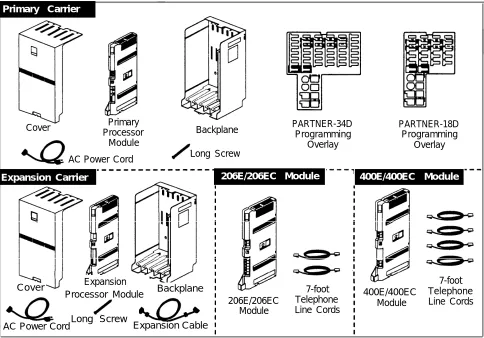
You will have up to four types of system component packages; Figure 1 shows the contents of each package in the area marked by a dashed line. Check your packages to be sure you have the parts shown here (if not, call for support as instructed on the inside front cover of this guide).
Primary Carrier
Cover ProcessorPrimary
Module
AC Power Cord
PARTNER-34D Programming
Overlay
PARTNER-18D Programming
Overlay Backplane
Long Screw
Expansion Carrier 206E/206EC Module 400E/400EC Module
Cover Expansion
Processor Module Backplane 400E/400EC
Module
7-foot Telephone Line Cords 7-foot
Telephone Line Cords 206E/206EC
Module Long Screw
AC Power Cord Expansion Cable
Figure 1. Required Parts
You will need to obtain four #12 screws of the appropriate type for the wall and weight of each carrier (a carrier with four 206 modules and a processor module weighs approximately 27.5 pounds or 12.3 kilograms.) You also need two lengths of #12 AWG or #14 AWG solid copper wire (not to exceed 25 feet or 7.6 meters each) for grounding.
In addition, if you need modular telephone cords to connect the extension jacks on the control unit to the modular connecting blocks for extensions in the equipment room, short telephone cords or wall plates to wall mount
PARTNER-model phones, or a 355A/355AF adapter and D8W telephone cord to connect a call reporting device, order them before installation. Refer to
“Product Ordering Information” in Appendix B of the PARTNER II
Communications System Programming and Use guide for ordering instructions.
The 206EC and 400EC modules support the Caller ID feature. These modules are required to provide Caller ID information on system display phones. You must subscribe to Caller ID service from your local telephone company (if it is available), and connect any lines associated with this service to the line jacks on the 206EC and/or 400EC modules. Hereafter, references to 206 modules include 206E, 206EC, and all 206 modules used with previous releases of the product. Similarly, references to 400 modules include 400E, 400EC, and all 400 modules used with previous releases of the product.
NOTE:
A system display phone is required for programming at extension 10 and/or 11. If you have any 34-button phones in the system, you must use a 34-button display phone to program since an 18-button phone cannot be used to program a 34-button phone. Also, if your system has both PARTNER-model and
MLS-model phones, it is recommended that you use a PARTNER-model display phone at the programming extension.
Installation Guidelines
Telephones and Devices
You can connect the following telephones and devices to the system:
■ ■
■
PARTNER-model, MLS-modeI, MDC 9000, and MDW 9000 System Phones. System phones require at least two-pair wiring and are
compatible with Lucent Technologies 4-pair SYSTIMAX® wiring.
Call Assistant Intercom Autodialers with Busy Indication (PARTNER-CA48 for PARTNER-model phones or MLS-CA24 for MLS-model phones). You can connect an Intercom Autodialer to the
system phone at extension 10 and 11. The Intercom Autodialer connects to the system phone using an adapter that is shipped with the autodialer.
Industry-Standard Devices. Industry-standard devices (including
standard phones) require one-pair mounting cords; Lucent Technologies D2R mounting cords are recommended.
– Standard Phones. Connect standard touch-tone or rotary dial phones to the system for:
– Power Failure Operation. During a power failure, system phones
will not work because they require power to operate. However, if you connect standard phones to extensions 10, 16, 22, 28, 34, 40, 46, and 52, users can place and answer outside calls on lines
1, 3, 5, 7, 9, 11, 13, and 15, respectively. You can connect a standard phone either alone or combined with a system phone. For more information, see “Combination Extensions” on the next page.
– Hotlines. A hotline extension should have a standard phone,
rather than a system phone, but can ring any type of phone. An internal hotline phone can also be set up to ring the paging system, so announcements can be made over the loudspeaker. Do not connect a hotline phone to extension 10, 16, 22, 28, 34, 40, 46, or 52, to keep them available for power failure use.
NOTE:
For message waiting capability, you must connect standard phones with message waiting lights to Release 3.1 (R3.1) or later 206 modules, and equip the system with an R3.1 or later processor module. This message waiting capability does not apply to standard phones with neon-type message waiting lights.
– Auxiliary Equipment. There are a variety of ways to set up fax machines, modems, and answering machines to work with the system. To connect a telephone and a standard device on the same
extension, see “Combination Extensions” below.
■ ■
■ ■
Doorphones. You can connect up to two doorphones to the system. Do
not connect doorphones to extension 10, 11, 16, 17, 22, 23, 28, 29, 34, 35, 40, 41, 46, 47, 52, or 53.
Voice Messaging Systems. The system supports either of the following
voice messaging systems:
– The PARTNER MAIL® System. This device connects to the system through extension jacks. Do not connect PARTNER MAIL to extension
10, 16, 22, 28, 34, 40, 46, or 52, to keep them available for power failure use.
– The PARTNER MAIL VS® System. This device, which physically resembles a 206 module, resides in the control unit.
Call Reporting Devices. You can connect either a serial printer or a call
accounting device, such as Lucent Technologies Call Accounting Terminal, to the SMDR jack on the primary processor module to record and/or analyze call activity.
In-Range Out-of-Building Protectors. Installing phones or other
standard devices (such as a doorphone) in a location other than the building where the control unit is installed requires Lucent Technologies In-Range Out-of-Building (IROB) protectors, to prevent damage due to lightning. (IROBS must be installed by a qualified technician.)
Combination Extensions
You can connect a standard device (such as a standard phone or an answering machine) on an extension by itself, or so that it shares an extension with another piece of equipment (either another standard device or a system phone). An extension with two devices connected to it is called a combination extension. (If you combine a standard phone and a system phone on one extension, you may want to turn off the standard phone’s ringer during normal use.)
You cannot install two system phones on the same extension, and the combined REN (Ringer Equivalence Number) of two devices on one extension cannot exceed 2.0. (The REN for a system phone is 0.0.)
NOTE:
The Call Assistant Intercom Autodialer is not regarded as a standard device. This means you can connect a standard device to a system phone that also has an Intercom Autodialer installed.
PARTNER-model system phones have a built-in auxiliary jack so you can connect a standard device directly to the phone without using a bridging adapter—see “Using a Direct Connection” below. If your system phone does not have a built-in auxiliary jack or if you want to connect two standard devices together, you must use a Lucent Technologies 267F2 Bridging Adapter—see “Using a Bridging Adapter” below.
Using a Direct Connection
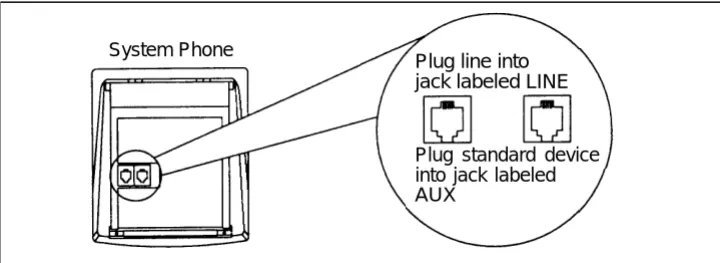
Figure 2 shows how to connect a standard device directly to a system phone, using the phone’s built-in auxiliary jack. (Figure 2 is for illustration purposes only; the placement of the jacks on your phone may differ.)
System Phone
Plug line into jack labeled LINE
Plug standard device into jack labeled AUX
Figure 2. Combination Extension Using Direct Connection
Using a Bridging Adapter
Figure 3 shows how to connect a system phone and a standard device or two standard devices using a Lucent Technologies 267F2 Bridging Adapter.
Lucent Technolologies 267F2 Adapter Standard Device Only
System Phone or Standard Device
Wall Jack
Figure 3. Combination Extension Using Bridging Adapter
Installation Procedures
Before installing the system, be sure you read the safety instructions on page ii.
WARNING:
There are no customer-serviceable components inside the system modules or backplane. There are hazardous voltages within that can cause severe or fatal personal injury. DO NOT OPEN THE MODULES.
Installing the Control Unit and Modules
Install the control unit’s backplane within five feet (1.5 meters) of a properly grounded electrical outlet (not controlled by a switch) and the network interface jacks. In addition, when you mount the backplane on the wall, leave at least six inches (15.2 cm) of clearance at the top and sides, and two feet (0.6 meters) at the front and bottom to ensure proper ventilation.
1
A)B)
C)
D)
E)
2
A)B)
Hold the backplane against the wall. (If you are also installing the expansion carrier, plan to install it to the right of the primary carrier, leaving 6" to 24" (15.2 to 61 cm) between the carriers.)
Using the four screw keyholes in the backplane as a template, mark screw locations on the wall.
Start four #12 screws, leaving the screw heads approximately 1/4" (.64 cm) away from the wall.
Slip the backplane onto the screws, then tighten them.
If you are mounting the expansion carrier, repeat this step.
Slide the primary processor module into the center slot of the primary carrier. Push slowly but firmly in the center of the module until the module locks into place, and is attached to the rear of the backplane. Do not force the module. If it does not insert easily, remove the module, clear any obstruction, and reinsert it.
If you have an expansion carrier, slide the expansion processor module into its center slot until the module locks into place.
Backplane
3
4
5
6
Before installing any modules, check to make sure the clear, plastic cover has been removed from the connector area on the rear of each module.
A)
B)
A)
B)
A)
B)
C)
D)
E)
Slide the first 206 module into the leftmost slot of the primary carrier. (The system will not work if a 206 module is not installed in this slot.)
From left to right, install 206 modules, then any 400 (or 200) modules. The 400 modules
should always be to the right of all 206
modules, so the extensions will be numbered consecutively. Also, you must install 206EC and/or 400EC modules for any lines with Caller ID service.
Do not force the modules. If a module does not insert easily, remove it, clear any obstruction, then reinsert it by pushing slowly, but firmly in the center of the module.
Primary
If you installed both carriers, plug the ends of the expansion cable into the two processor modules and tighten the screws.
Route both ends of the cable through the hooks on the fronts of the modules. The colored plastic filters on the expansion cable should rest just below the bottom edge of the carriers.
Module
Pull out the main circuit breakers on both carriers or move the on/off switch to the “off” position (“O”), depending upon which hardware configuration you have.
Attach one end of a #12 AWG or #14 AWG solid copper wire to the grounding screw on the primary processor module. Note that the length of the wire must not exceed 25 feet (7.6 meters).
Route the wire through the hook on the front of the module.
Attach the other end of the wire to an approved earth ground, such as building steel or a cold water pipe.
Power Jack Grounding
Screw
If you installed both carriers, repeat Steps 6B–6D for the expansion processor module.
Processor Module Expansion Processor
Main Circuit Breaker or On/Off Switch
Press the power cord firmly into the power jack on the top right side of the primary carrier’s backplane until it locks into place.
Plug the other end of the power cord into a properly grounded three-prong wall outlet not controlled by a switch.
Repeat Steps 7A and 7B for the expansion carrier, plugging its cord into the same wall outlet as the primary carrier’s cord.
To power up the control unit, push in the main circuit breaker on the expansion carrier first, then push in the main circuit breaker on the primary carrier, or move the on/off switch to the “on” position (“l”).
7
A)B)
C)
D)
8
Check all green lights on the fronts of the modules.If all lights are lit, you can go to the next section; otherwise:
Lights
A) If a single light is out, power down the control
unit, reseat the module, then power up the control unit.
If multiple lights are out, power down the
control unit, reseat the leftmost module that has a light out, then power up the control unit.
B) If the lights are still out, call for support as
instructed on the inside front cover of this guide.
Connecting Lines and Extensions
If extensions are not wired to any modular jacks, call a qualified service technician.
1
Network Interface
2
A)
B)
C)
A)
B)
Test for dial tone at the network interface jacks before connecting outside lines to the control unit. For the test, connect a standard phone to the first network interface jack.
Lift the handset and listen for dial tone. (If there is no dial tone, contact your local telephone company before continuing.)
Repeat for each network interface jack.
Connect line cords to the line jacks on 206 and 400 modules, starting with the top line jack on the leftmost 206 module.
Route each cord through the hook on the front of the module.
555-1343 555-1344 555-1345 555-1346 Jacks
3
Connect the free end of each line cord to the appropriate network interface jack.4
A)B)
5
A)B)
C)
D)
6
A)B)
C)
D)
Test the lines—plug a system phone into extension jack 10. Press the line buttons for each outside line and listen for dial tone.
Repeat for extensions 16, 22, 28, 34, 40, 46 and 52 (if available).
Connect modular telephone cords to 206 module extension jacks, starting at the top extension jack on the leftmost module.
Route each cord through the hook on the front of the module.
Connect the free end of each modular telephone cord to the modular connecting blocks for system extensions.
Dress the wires. Gather the line and extension cords hanging below the hooks of the first two modules and twist tie or wire wrap them. Repeat for the remaining cords. Place each bundle of wires in the indentations cut out of the bottom edge of the backplanes.
Before installing the cover, make sure all modules are seated properly in the carrier. The cover will not fit if the modules are not seated properly.
To cover the modules, grasp the upper edges of the cover and hold it squarely over the control unit. It is important to install the cover to keep the modules dust-free and the system working efficiently.
Place the cover over the modules and make sure it fits firmly in place.
Insert the screw into the tab on the lower front of the cover. Tighten the screw.
Screw
Connecting Caller ID Display Devices
The system provides multi-line Caller ID on system display phones without having to install additional devices. (See “Caller ID” in Chapter 5 of the PARTNER
II Communications System Programming and Use guide
for more information.) However, if you want to display or process Caller ID information for other applications—for example, on a PC that displays call records—you must connect the devices as described here. First, you must subscribe to Caller ID service from your local phone company, then connect the Caller ID display device directly to the line that supports Caller ID at the network interface jack. Additionally, you must provide a separate wiring run for the device to the appropriate location. To process Caller ID information for multiple lines, you must provide a separate device and a separate wiring run for each line. To have additional wiring runs installed, call a qualified technician.
1
2
3
Insert a Lucent Technologies 267F2 Bridging Adapter into the network interface jack associated with the line that has Caller ID service.
A)
B)
C)
A)
B)
C)
D)
E)
Plug one end of a line cord into a jack in the bridging adapter.
Plug the free end of the line cord into the appropriate line jack in the control unit.
Route the cord as you did for other line and extension cords.
Plug one end of a second line cord into the other jack in the bridging adapter.
Plug the free end of the cord into the appropriate modular connecting block in the equipment room.
Plug the Caller ID display device into the additional modular jack provided at the appropriate location.
Place the Caller ID display device next to a phone.
Make sure the Caller ID line is assigned to the extension where the Caller ID display device is located. Refer to “Line Assignment (#301)”
in Chapter 5 of the PARTNER II
Communications System Programming and Use guide for programming instructions.
Network Interface Jacks
Phone PC
Assembling System Phones
All PARTNER-model system phones are shipped with a stand for either desk mounting or wall mounting the phone.
Desk Mounting
1
2
3
4
Gently place the phone upside down.
Route the telephone cord through the hole in the top center of the stand.
Insert the tabs on the narrow end of the stand into the slots on the inside bottom edge of the phone. A)
B)
A)
B)
C)
A)
B)
C)
D)
While pressing in the tabs that protrude from the wide end of the stand, lower the stand to the phone.
Release the tabs to lock the stand into one of the three positions provided by the openings in the back of the phone.
The height of the stand is adjustable to three positions: low, medium, and high. The phone height can be adjusted by moving the locking tabs to a different position.
Turn the phone over.
Remove the plastic cover from the phone. Label the button sheet to show any. programmed lines or button features, then place the button sheet on the phone so the holes fit over the buttons. Carefully replace the plastic cover.
Adjust the swivel display to the desired angle (low, medium, or high).
To access the User Instruction Cards, pull out the tray located under the front of the phone.
Wall Mounting
Wall mounting instructions apply only to PARTNER-model phones. To wall mount an MDC 9000 cordless phone, follow the instructions in the booklet provided with the phone.
1
2
3
4
A) Reverse the plastic hook that sits in the
earpiece part of the handset cradle.
B) Turn the phone upside down and remove the
tray that holds the User Instruction cards: press the tabs on both sides of the tray near the pull out tab while you slide the tray straight out.
Holding the stand with the wide edge down, mount the stand on the wall plate using the keyholes on the base of the stand. For proper mounting, the wall plate must be a Lucent Technologies 630B connecting block.
A) Plug one end of the telephone cord into
the jack in the center of the wall plate.
B) Plug the other end of the telephone cord into
the LINE jack on the bottom of the telephone.
C) Wrap any excess cord around the cord wrap
posts on the bottom inside of the stand.
To LINE
A) To mount the phone on the stand, insert the
tabs on the top of the stand into the first set of notches on the top edge of the phone.
B) Make sure the telephone cord is neatly wrapped
inside the phone, then rotate the phone down until the bottom edge snaps into position.
Jack
5
A) Remove the plastic cover from the phone. Label the button sheet to show any programmed lines or button features, then place the button sheet on the phone so the holes fit over the buttons. Carefully replace the plastic cover.B Make sure the swivel display is set to the lowest
position.
Connecting and Testing Telephones
1
To connect a phone, plug the modular telephonemounting cord into a modular wall jack or directly into a 206 module extension jack. (If you are connecting a standard phone and its mounting cord is loose, use a Lucent Technologies D2R mounting cord instead.)
To install two phones (or other devices) on a single extension jack, see “Combination Extensions” earlier in this guide.
2
A)B)
C)
Test the telephone for proper operation. To test the power and lights on a system phone: while the phone is idle, press and hold the [ # ] button for five seconds.
Before releasing the [ # ] button, lift the handset.
All lights should light, the ringer should sound, and (on system display phones only) a test pattern should appear on the display. (If not, call for support as instructed on the inside front cover of this guide.)
Replace the handset; the phone is now in normal operating mode.
Connecting Paging, Call Reporting (SMDR),
and Music-On-Hold Devices
Only steps for connection to the processor module are provided here. See the manufacturer’s instructions for more information on installing and using these devices.
Paging System
PAGE JackIf you connect a paging system from a manufacturer other than Lucent Technologies, a paging interface may be required.
1
Insert the modular plug into the PAGE jack on theprimary processor module.
2
Route the cord as you did for line and extensioncords, then connect it to the paging system. Paging System
(optional)
Call Reporting (SMDR) Printer
1
Insert one end of a D8W modular cord into the SMDRjack on the primary processor module.
2
Plug the other end into a 355A adapter, then plug theadapter into the printer’s RS-232C serial port.
SMDR Jack
Call Accounting Terminal Printer
(optional)
Music-on-Hold Audio Source
If you use equipment to broadcast certain copyrighted music or material, including songs or other material from radio broadcasts, you may be required to obtain the permission of the copyright owner. One way to obtain permission is to contact ASCAP, BMI, and/or similar performing rights organizations, to obtain a license. Lucent Technologies disclaims any liability arising out of the failure to obtain such a license, if required.
For alternative (usually pre-licensed) sources of music to use with this feature, you may wish to contact
Telephonetics International, Inc. at 1 800 446-5366. Or, you can purchase a Magic On Hold system from Lucent Technologies, which does not require you to obtain a license.
1
2
3
4
First set the unit’s volume to the lowest setting. Use a flathead screwdriver to turn the volume control on the processor module counterclockwise until it stops.
Insert an RCA phono plug into the MUSIC ON HOLD jack on the primary processor module.
Route the cord as you did for line and extension cords, then connect it to the audio source.
Place a call on hold and listen while adjusting the volume, clockwise. If you do not hear music at any setting, check “Music On Hold (#602)” in Chapter 5
of the PARTNER II Communications System
Programming and Use guide.
Volume Control MUSIC ON HOLD
Jack
Audio Source (optional)
Connecting a PARTNER-CA48
Intercom Autodialer
The PARTNER-CA48 Intercom Autodialer is shipped with an adapter, a D8W line cord, a power cord, a power unit, and a button labeling sheet.
NOTE:
The PARTNER-CA48 Intercom Autodialer can be wall mounted to work next to a wall-mounted system phone.
1
2
3
4
5
Power Outlet
IN
Plug the adapter into the wall jack.
Plug one end of the D8W line cord into the J1 jack on the adapter.
Plug the other end of the D8w line cord into the IN jack on the bottom of the autodialer.
Plug the blue-tinted connector (labeled D8AC) of the power cord into the jack on the power unit.
CAUTION:
Use only the power unit supplied with the PARTNER-CA48 Intercom Autodialer.
Plug the other end (clear tinted) of the power cord into the J2 jack on the adapter.
Plug the power unit into an electrical outlet.
Plug the phone’s modular telephone cord into the OUT jack on the bottom of the autodialer.
Arrange the autodialer on the desk next to the phone.
Remove the plastic cover from the autodialer and label the button sheet with employee names. Place the button sheet on the autodialer, then carefully replace the plastic cover.
Adjust the height of the autodialer to match the system phone.
A)
B)
A)
B)
C)
A)
B)
C)
IMPORTANT:
If you unplug the system phone that is connected to an autodialer, you must reset the autodialer. To do so, unplug the D8W line cord (connected to the IN jack on the bottom of the autodialer) from the J1 jack on the adapter, then plug it back in.
Wall Jack
O U T
Equipment Upgrades
Adding New Modules
WARNING:
Before starting, disconnect the power cord from the power jack on the backplane.
1
2
3
A)
B)
C)
A)
B)
A)
B)
C)
Pull out the main circuit breakers on both carriers or move the on/off switch to the “off” position (“O”), depending upon which hardware configuration you have.
To remove the cover, loosen the screw on the lower front of the cover. Then place one hand on the handle on the bottom front of the cover and place your other hand on the top of the cover.
Gently pull the cover up and away from the backplane—be careful not to break the tabs that attach the cover to the backplane.
Before you insert the new module, make sure that all 400 (or 200) modules are installed to the right of all 206 modules.
Push slowly but firmly in the center of the module until the module locks into place, and is
attached to the rear of the backplane. Do not force the module. If the module does not insert easily, remove it, clear any obstruction, and reinsert it.
See “Connecting Lines and Extensions” for instructions on connecting line and/or extension jack cords to the new module.
Reconnect the power cord.
To power up the control unit, push in the main circuit breakers, or move the on/off switch to the “on” position (“l”).
Main Circuit Breaker or On/Off Switch
Power Jack
Handle Screw
Check all green lights on the fronts of the modules. If all the lights are lit, installation is complete; otherwise:
If a single light is out, power down the control
unit, reseat the module, then power up the control unit.
If multiple lights are out, power down the
control unit, reseat the leftmost module that has a light out, then power up the control unit.
If the lights are still out, call for support as
instructed on the inside front cover of this guide.
Before replacing the cover, make sure all modules are seated properly. The cover will not fit if the modules are not seated properly.
To replace the cover, grasp it by its upper edges and hold it squarely over the control unit.
Place the cover over the modules and make sure it fits firmly in place.
Tighten the screw on the lower front of the cover.
Replacing System Modules
WARNING:
Before starting, disconnect the power cord from the power jack on the backplane.
4
A)
B)
5
A)B)
C)
D)
1
A)B)
C)
To power down the control unit, pull out the the main circuit breakers on both carriers or move the on/off switch to the “off” position (“O”), depending upon which hardware configuration you have.
To remove the cover, loosen the screw on the lower front of the cover. Then place one hand on the handle on the bottom front of the cover and place your other hand on the top of the cover.
Gently pull the cover up and away from the backplane—be careful not to break the tabs that attach the cover to the backplane.
Lights
S c r e w
Main Circuit Breaker or On/Off Switch
Power Jack
Handle Screw
2
3
4
5
A)
B)
C)
A)
B)
C)
Check the slack in the wires. If there is not enough slack to remove the module without pulling the line and extension cords free, label and disconnect the wires before continuing with Step 2B.
Place one hand on top of the module. With your other hand, grip the plastic bracket on the bottom front of the module, and pull out the old module.
To insert the replacement, push slowly but firmly in the center of the module until the module locks into place, and is attached to the rear of the backplane. Do not force the module. If the module does not insert easily, remove it, clear any obstruction, and reinsert it.
Connect the line and extension cords one at a time, making sure to place the correct cords into their corresponding jacks on the new module.
Reconnect the power cord.
To power up the control unit, push in the main circuit breakers, or move the on/off switch to the “on” position (“l”).
Check all green lights on the fronts of the modules. If all the lights are lit, installation is complete; otherwise:
A)
B)
A)
B)
C)
D)
If a single light is out, power down the control
unit, reseat the module, then power up the control unit.
If multiple lights are out, power down the
control unit, reseat the leftmost module that has a light out, then power up the control unit.
If the lights are still out, call for support as
instructed on the inside front cover of this guide.
Before replacing the cover, make sure all modules are seated properly. The cover will not fit if the modules are not seated properly.
To replace the cover, grasp it by its upper edges and hold it squarely over the control unit.
Place the cover over the modules and make sure it fits firmly in place.
Tighten the screw on the lower front of the cover.
Lights
S c r e w
Specifications
Capacities System 206 Module Extension Jack
12 outside lines via line jacks on ■ 2 outside lines ■ Maximum 2 devices per extension
two 206 plus two 400 modules ■ 6 extensions jack, total REN on jack not to
24 extensions via extension jacks exceed 2.0* (System phone on four 206 modules 400 Module REN is 0.0 (zero))
1 loudspeaker paging system 4 outside lines
■ No more than one system phone
via PAGE jack on processor
module per jack
1 audio source via MUSIC ON For programming, a system display
HOLD jack on processor module phone must be connected to
(RCA phono plug required) extension 10 or 11. 1 call reporting device via SMDR
jack on processor module (355A/F adapter required)
2 doorphones, using 2 extension jacks
1 voice messaging system— PARTNER MAIL VS, which
occupies a slot in the control unit or PARTNER MAIL, which connects to either 3 or 5 extension jacks.
Dimensions Processor Module 11"(D) x 17"(H) x 1.5"(W) or 27.9 x 43.2 x 3.8 cm 4.0 Ibs or 1.8 kgs
and Weights 206 module 11"(D) x 17"(H) x 1.5"(W) or 27.9 x 43.2 x 3.8 cm 4.5 Ibs or 2.0 kgs
(approx.) 400 module 11"(D) x 17"(H) x 1.5"(W) or 27.9 x 43.2 x 3.8 cm 4.0 Ibs or 1.8 kgs Backplane & cover 12"(D) x 19"(H) x 11"(W) or 30.5 x 48.3 x 27.9 cm 5.5 Ibs or 2.5 kgs PARTNER-34D phone 9.8"(D) x 3.75"(H) x 9.3"(W) or 24.9 x 9.5 x 23.6 cm 2.7 lbs or 1.2 kgs PARTNER-18D phone 9.8"(D) x 3.75"(H) x 7.9"(W) or 24.9 x 9.5 x 20.1 cm 2.4 Ibs or 1.1 kgs PARTNER-18 phone 9.8"(D) x 3.75"(H) x 7.9"(W) or 24.9 x 9.5 x 20.1 cm 2.3 Ibs or 1.0 kgs PARTNER-6 phone 9.8"(D) x 3.75"(H) x 6.1"(W) or 24.9 x 9.5 x 15.5 cm 1.9 Ibs or 0.9 kgs MDC 9000 phone 9.4"(D) x 3.4"(H) x 7"(W) or 23.9 x 8.6 x 17.8 cm 2.8 Ibs or 1.3 kgs MDW 9000 phone 9.75"(D) x 6"(H) x 4"(W) or 24.8 x 15.2 x 10.1 cm 2.25 Ibs or 1.0 kgs PARTNER-CA48 9.8"(D) x 3.75"(H) x 6.1"(W) or 24.9 x 9.5 x 15.5 cm 1.5 Ibs or 0.7 kgs Autodialer
Switch Fabric Full digital, nonblocking
■
■
■
■
■
■
■
■
■
■
■
■
■
■
■
■
■
■
■
* The two devices combined on an extension jack can be a system phone with a standard device, or two standard devices; DO NOT
connect two system phones to the same extension jack. If a device lists two RENs, use the higher number when adding up RENs.
Electrica1 10 Watts (35 BTUs/hour) per 400 module, normal and maximum power consumption
Specifications 65 Watts (225 BTUs/hour) per 206 module during normal operation
100 Watts (350 BTUs/hour) per 206 module during maximum power consumption
U.S., Canada, and other 110V countries: 4 Amps maximum current at full system capacity (processor module and four 206 modules)
Countries using 220V: 2.2 Amps maximum current (processor module and four 206 modules) 4-day memory backup (96 hours)
Processor Module 68000 microprocessor, 128Kbytes RAM, 512Kbytes ROM
Specifications
Extension Jack Ringing voltage: +5VDC, -140 VDC peak to peak; trapezoidal wave shaping
Specifications 35- to 38-Volt talk battery Ringing frequency: 20 Hz
PAGE Jack Draws current on inner wire pair
Specifications Provides contact closure on outer wire pair 600 Ohm impedance
SMDR Output 1200 baud
Format No parity
8 data bits 2 stop bits
XON/XOFF protocol Carriage return Line feeds
Environmental Mount on a wall at least 2 feet (0.6 meters) from the floor (wall mounting required)
Requirements— Locate within 5 feet (1.5 meters) of the network interface jacks and a properly grounded Control Unit electrical outlet not controlled by a switch, using supplied 7-foot (2.1-meter) cords
For proper ventilation and easy replacement of modules, provide at least 6" (15.2cm) clearance at the top and sides and 2 feet (0.6 meters) at the front and bottom of the control unit.
Operating temperature 32° to + 104°F (0° to +40°C), not in direct sunlight Humidity 15%–90%, noncondensing
Locate in an area free of excess moisture, corrosive gases, dust, and chemicals
Electrical U.S. and Canada: 90–130 VAC, 50–60 Hz, 3-prong outlet separate ground, separately fused at
Requirements 15 Amps
Other countries: 90–264 VAC, fused at 10 Amps Outlet must not be controlled by an on/off switch
Grounding to comply with Underwriters Laboratories (UL) 1459:
An insulated grounding conductor that is not smaller in size and equivalent in insulation material and thickness to the grounded and ungrounded branch circuit supply conductors, except that it is green with or without one or more yellow stripes, is to be installed as part of the circuit that supplies the product or system.
The grounding conductor mentioned in item A is to be connected to ground at the service equipment.
The attachment-plug receptacles in the vicinity of the product or system are all to be of a grounding type, and the grounding conductors serving these receptacles are to be connected to earth ground at the service equipment.
■ ■ ■ ■ ■ ■ ■ ■ ■ ■ ■ ■ ■ ■ ■ ■ ■ ■ ■ ■ ■ ■ ■ ■ ■ ■ ■ ■ A . B . C.
Requirements for Installation of a telephone or other standard (tip/ring) device in another building requires the
Out-of-Building following In-Range Out-of-Building (IROB) protectors to protect the control unit and device from
Extensions electrical surges:
System phone: two Lucent Technologies IROB protectors
Standard device: one Lucent Technologies IROB protector plus one carbon block protector
Wiring System phones: Lucent Technologies SYSTIMAX® Bulk Nonplenum (DIW) cable, Lucent Technologies SYSTIMAX Bulk Plenum (HALAR/HALAR) cable, or at least 2-pair (4-wire) star (“home run” not “loop”)
Other standard telecommunications equipment (single-line phones, fax machines, answering machines, etc.): 1-pair (2-wire) mounting cords (Lucent Technologies D2R mounting cords recommended)
Bridging adapter: Lucent Technologies 267F2
Range: 1,000 feet (305 meters) for system phones; 3,000 feet (915 meters) for standard devices
Safety U.S.: Meets UL 1459 Issue 2
Requirements Canada: Meets CSA C22.2, 225
All other countries: Meets IEC950 Second Edition and EN60950 Second Edition
Government U.S.: FCC Part 68
Approvals and FCC registration number (U.S.): AS5 USA-61630-KF-E
Local Phone FCC Part 15 Class A
Company REN (outside line jack): 0.9A per line jack
Information Jack type: RJ11 C Loop start lines
Canada: IC CP01, Issue 7
IC registration number (Canada): 230 3756A IC CS03, Issues 6 & 7
Load Number = 7 Loop start lines
■
■
■
■
■
■
■
■
■
■
■
■
Lucent Technologies 518-455-333
Comcode 107879223