T
T
e
e
l
l
e
e
C
C
L
L
I
I
E
E
N
N
T
T
T
T
C
C
7
7
0
0
2
2
0
0
S
S
e
e
r
r
i
i
e
e
s
s
1. Preface... 4
1.1. Purpose ... 4
1.2. Audience ... 4
1.3. How To Use This Manual... 4
1.4. Statments... 5
1.4.1. European Telecom Statement ... 5
1.4.2. ENERGY STAR® ... 5
1.4.3. TeleVideo, Inc. Software License Agreement ... 5
1.4.4. Grant... 5
1.4.5. Limit of Liability ... 6
1.4.6. U.S. Government Restricted Rights... 6
1.4.7. Declaration of Conformity ... 6
1.4.8. Statement of Limited Warranty ... 7
2. Introduction ... 8
2.1. Safety Instructions ... 8
2.1.1. Safety Notices... 8
2.1.2. Other Product Safety Considerations ... 9
2.2. Welcome ... 10
2.2.1. Features... 11
2.3. Equipment Overview... 11
3. Hardware Installation ... 13
3.1. Installing the TeleCLIENT TC7020 ... 13
3.1.1. Back Panel Connectors ... 15
3.1.2. Peripheral Port Pinouts ... 16
3.2. Connecting the Network, Keyboard, Mouse and Monitor... 18
3.3. Connecting the TeleCLIENT TC7020 and Monitor to AC Outlets ... 18
3.4. TeleCLIENT TC7020 Front Panel Control and LEDs... 19
4.1. TeleCLIENT Setup Wizard... 20
4.1.1. Network Settings... 20
4.1.2. Display Setting... 33
4.1.3. Control Panel ... 34
4.2. Setting TeleCLIENT TC7020 Properties ... 48
4.2.1. General Tab... 48
4.2.2. Local Resources Tab... 50
4.2.3. Display Tab... 50
4.2.4. Experience Tab... 51
4.2.5. Control Panel Tab... 52
4.2.6. Security Tab... 52
4.2.7. Management Tab... 54
4.2.8. Net-Info Tab... 56
5. Operation ... 58
5.1. Powering On ... 58
5.2. Using the TeleCLIENT Connection Manager ... 58
5.3. Configuring Network Connections... 59
5.3.1. Creating a New Connection ... 60
5.3.2. Editing Connections... 71
5.3.3. Deleting a Connection... 73
5.3.4. Setting Start-up Connections ... 74
5.4. Connecting to a Network Server ... 75
5.5. Using the TeleCLIENT TC7020 Hot Keys... 75
5.5.1. Starting Multiple Connections ... 76
5.6. Logging Off ... 77
5.6.1. Ending Auto-Start Connections... 77
6. Appendix A... 78
6.1. Specifications... 78
6.2. TeleCLIENT TC7020 Hardware Specifications ... 78
6.3. Networking, Communications And Input/Output Specifications ... 79
6.4. TeleCLIENT TC7020 Software Specifications ... 79
6.5. Environmental Specifications ... 80
1. Preface
1.1. Purpose
The purpose of this manual is to provide installation and operation information for the TeleCLIENT™ Windows®-Based Terminal.
1.2. Audience
This manual is intended for both authorized system administrators and users who have experience with networking products and Windows-based terminals. It is assumed that the personnel using this document have the appropriate background and knowledge to use the TeleCLIENT.
1.3. How To Use This Manual
This manual is designed to help you locate information quickly and easily. Each chapter contains the following information:
♦
♦
♦
♦
♦
Chapter 1: Preface
Provides equipment compliance, warranty and license agreement information.
Chapter 2: Introduction
Describes the TeleCLIENT and provides basic safety information.
Chapter 3: Hardware Installation
Describes how to install the TeleCLIENT hardware.
Chapter 4: Software Configuration
Describes how to configure the TeleCLIENT software.
Chapter 5: Operation
♦ Chapter 6: Appendix
System specifications and warranty information.
WARNING: THE PROCEDURES DESCRIBED IN THIS DOCUMENT ARE INTENDED
FOR AUTHORIZED USERS ONLY. UNAUTHORIZED PERSONNEL PERFORMING THESE PROCEDURES CAN AFFECT THE PRODUCT'S WARRANTY STATUS.
1.4. Statments
1.4.1. European Telecom Statement
The TeleCLIENT is intended for connection to a Network Centric System. DO NOT
connect the TeleCLIENT to the Telecom System.
1.4.2. ENERGY STAR®
As an ENERGY STAR Partner, TeleVideo, Inc. has determined that this product meets the ENERGY STAR guidelines for energy efficiency. ENERGY STAR is a U.S.
registered mark.
1.4.3. TeleVideo, Inc. Software License Agreement
PLEASE CAREFULLY READ THE FOLLOWING TERMS AND CONDITIONS BEFORE USING THIS SOFTWARE. USING THIS SOFTWARE INDICATES YOUR
ACCEPTANCE OF THE FOLLOWING TERMS AND CONDITIONS.
1.4.4. Grant
You may use the TeleCLIENT Connection Manager in conjunction with the TeleCLIENT as provided. You may transfer ownership of the Equipment, including the right to
transfer the Software to another party so long as that party agrees to accept these terms and conditions.
1.4.5. Limit of Liability
UNDER NO CIRCUMSTANCES SHALL TELEVIDEO, INC. BE LIABLE FOR LOSS OF DATA, COSTS, OR ANY INCIDENTAL OR CONSEQUENTIAL DAMAGES, HOWEVER CAUSED AND ON ANY THEORY OF LIABILITY. THESE LIMITATIONS SHALL
APPLY EVEN IF TELEVIDEO, INC. OR ITS RESELLER HAS BEEN ADVISED OF THE POSSIBILITY OF SUCH DAMAGES, AND NOTWITHSTANDING ANY FAILURE OF ESSENTIAL PURPOSE OF ANY LIMITED REMEDY PROVIDED HEREIN.
WHEN USING THIS PRODUCT, YOU AGREE THAT THESE ARE THE ONLY APPLICABLE TERMS OF AGREEMENT BETWEEN US COVERING THE SOFTWARE.
1.4.6. U.S. Government Restricted Rights
This software is provided with RESTRICTED RIGHTS. Use, duplication or disclosure by the Government is subject to restrictions as set forth in subparagraph (c)(1)(ii) of the Rights in Technological Data and computer software clause at DFARS 252.227-7013 or in subparagraphs (c)(1) and (2) of the Commercial Computer Software-Restricted Rights at 8 C.F.R. 52-227-19 as applicable. Contractor/Licensor is TeleVideo, Inc.
1.4.7. Declaration of Conformity
Application of Council Directive: 89/33 6/EEC, 73/23/EEC
Standard to which Conformity is Declared: EN55022, EN60950
Manufacturer's Name: TeleVideo, Inc
Manufacturer's Address: 2345 Harris Way
San Jose, CA 95131 USA 408.954.8333
www.televideo.com
Type of Equipment: Information Technology
1.4.8. Statement of Limited Warranty
♦
♦
Scope of Limited Warranty
TeleVideo, Inc. (TeleVideo) warrants to Buyer that its products, except software, will be free from defects in materials and workmanship for 365 days from the date of purchase. TeleVideo's obligation under this warranty will be limited to repairing or replacing, at TeleVideo's option, the parts of the products which prove defective in material or workmanship, provided that Buyer gives TeleVideo prompt notice of any defect and satisfactory proof thereof.
Exclusions
This limited warranty does not cover losses or damages which occur in shipment to or from Buyer, nor due to (1) improper installation or maintenance, misuse, neglect or any cause other than ordinary commercial or industrial application, or (2) adjustment, repair, or modification by anyone other than TeleVideo's authorized agent, or (3) improper environment, excessive or inadequate heating or air-conditioning and electrical power failures, surges, or other irregularities, or (4) any statements made about TeleVideo's products by sales representatives, dealers, distributors or agents, unless confirmed in writing by a TeleVideo officer. Equipment purchased must be in a new, sealed
condition upon delivery to the end user in order to qualify for TeleVideo’s limited warranty.
The foregoing TeleVideo limited warranty is in lieu of all other warranties, whether oral, written, expressed, implied, or statutory. Implied warranties of merchantability and fitness for a particular purpose will not apply.
2. Introduction
This chapter provides an overview of the TeleCLIENT Windows-Based Terminal. It includes the following sections:
• Safety Instructions
• Introduction
• Equipment Overview
2.1. Safety Instructions
Please read this important safety information BEFORE using your TeleCLIENT and save for later use.
2.1.1. Safety
Notices
♦ Danger Notices
A danger notice indicates a hazard that could possibly cause death or serious personal injury. Please note the following danger notices before using this product.
DANGER: THIS PRODUCT USES ELECTRICAL POWER AND CONTAINS
SENSITIVE COMPONENTS. IT IS NOT DESIGNED FOR CONSUMER SERVICING. IF YOUR TELECLIENT REQUIRES REPAIR, OR YOU WISH TO ADD
COMPONENTS THAT REQUIRE OPENING THE CASE, PLEASE CONTACT YOUR NEAREST SERVICE PROVIDER FOR ASSISTANCE. DO NOT ATTEMPT TO
SERVICE THE TELECLIENT YOURSELF. REFER ALL SERVICING TO QUALIFIED SERVICE PERSONNEL. UNAUTHORIZED INDIVIDUALS WHO ATTEMPT TO
REPAIR THIS PRODUCT, OR TO INSTALL OR REPLACE COMPONENTS MAY RISK ELECTRICAL SHOCK AND CAUSE THE PRODUCT WARRANTY TO BE VOID.
DANGER: TO AVOID A SHOCK HAZARD:
• Make sure that any equipment attached to this product is also properly connected to wired receptacles.
DANGER: THE TELECLIENT POWER SWITCH IS NOT THE MAIN DISCONNECT. THE MAIN POWER DISCONNECT IS THE DETACHABLE LINE CORD.
♦ Warning Notices
A warning notice indicates the possibility of damage to a program, device, system or data.
2.1.2.
Other Product Safety Considerations
Please note the following:
1. Do not expose the power supply, TeleCLIENT, line cord or monitor to moisture, dust or corrosive gases.
2. Position the TeleCLIENT in a well-ventilated area; do not allow debris near the ventilation holes.
3. Keep the TeleCLIENT away from heat sources, including direct sunshine and heating appliances. The maximum operating temperature is 35ºC (95ºF).
4. Always unplug the TeleCLIENT before cleaning. Do not use liquid cleaners or aerosol cleaners. Use only a damp cloth for cleaning.
5. Make sure the TeleCLIENT is placed on a stable surface.
6. Do not block slots and openings anywhere on the TeleCLIENT.
7. Use only the type of power indicated on the marking label to operate this product. Consult your dealer or local power company if you are unsure of the type of power available.
8. Use only the proper type of power supply cord set (provided in your accessory box) for this unit. Use a detachable type: UL listed/CSA certified, type SVT/SJT, rated as 10A 125V minimum, VDE approved or its equivalent.
9. Do not allow anything to rest on the power cord.
11. Do not insert objects of any kind through the TeleCLIENT slots.
12. Unplug this product from the wall outlet immediately and contact qualified service personnel under the following conditions:
• When the power cord or plug is damaged or frayed.
• If liquid has been spilled into the TeleCLIENT or it has been exposed to rain or water.
• If the TeleCLIENT has been dropped or damaged.
13. Install the socket-outlet near the equipment and make sure it is easily accessible.
2.2. Welcome
Thank you for choosing the TeleCLIENT Windows-Based Terminal. The TeleCLIENT is a “Powered by Microsoft Windows CE” Windows®-based terminal that empowers users to access and manage business-critical applications such as:
• Point-of-sale
• Help and reservation desk
• Electronic Commerce
• Word-processing
• Spreadsheets
All can be accessed through host Windows, or Unix servers and all within the familiar Windows environment.
The TeleCLIENT provides the freedom to choose any of the following:
• Microsoft’s Remote Desktop Protocol (RDP®) protocol to communicate directly to a server loaded with Microsoft Windows NT Server® 4.0, Terminal Server Edition, Windows 2000 Terminal Services, or Windows .Net Server.
• Citrix’s Independent Computing Architecture (ICA®) protocol to communicate directly to a server loaded with Citrix WinFrame®, Citrix MetaFrame™, or Citrix MetaFrame XP™.
• Each TeleCLIENT can be configured for communication directly via TCP/IP (Transmission Control Protocol/Internet Protocol) or PPP (Point-to-Point Protocol).
2.2.1. Features
The TeleCLIENT offers the following features:
• Ease of Installation and Administration
The Microsoft Windows CE Operating System is embedded on a 8MB local flash disk. The software can be upgraded and re-programmed locally or remotely via Ethernet download.
• More Secure than PCs
Since there is no local storage system, administrators may keep all confidential and business-critical files and data on the server to preserve data security and integrity.
• Multiple Protocols Support
System administrators may choose the Remote Desktop Protocol (RDP) that executes on Microsoft Windows NT Server 4.0, Terminal Server Edition, Windows 2000 Terminal Services, Windows .Net Server, or the Independent Computing Architecture (ICA) protocol through Citrix MetaFrame, MetaFrame XP, or WinFrame server systems to best fit their needs.
• Touch Screen Support
TeleCLIENT supports the 3M Touch Systems® and Elo TouchSystems® Screens to provide POS and kiosks solutions.
• Innovative, Functional and Modular Design
The all-in-one LCD TeleCLIENT’s compact design is the ideal solution for limited workspaces.
2.3. Equipment Overview
Your TeleCLIENT comes with everything needed to access your network server running under Microsoft Windows NT Server 4.0, Terminal Server Edition, Windows 2000
Terminal Services, Citrix WinFrame or MetaFrame or other legacy server operating systems.
You will find the following items in your package:
• Keyboard: Windows compatible
• Inline power supply: Universal power supply standard
• Power Line cord
3. Hardware Installation
This chapter explains how to install, connect and set-up the TeleCLIENT TC7020 hardware. It includes the following sections:
• Installing the TeleCLIENT TC7020
• Connecting the Monitor, Network, Keyboard and Mouse
• Connecting the Monitor and TeleCLIENT TC7020 to AC Outlets
• TeleCLIENT TC7020 Front Panel Control and LEDs
3.1. Installing the TeleCLIENT TC7020
3.1.1.
Back Panel Connectors
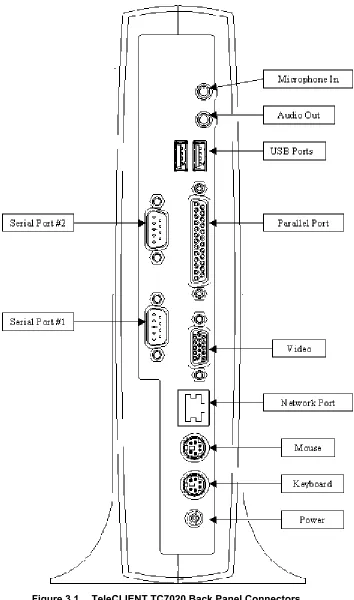
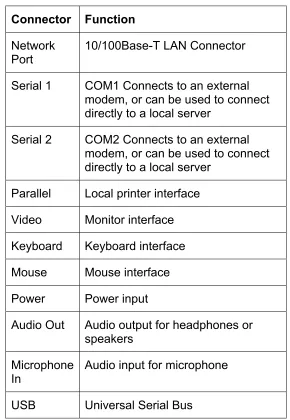
Table 3.1 summarizes the back panel connector functions.
Connector Function
Network Port
10/100Base-T LAN Connector
Serial 1 COM1 Connects to an external modem, or can be used to connect directly to a local server
Serial 2 COM2 Connects to an external modem, or can be used to connect directly to a local server
Parallel Local printer interface
Video Monitor interface
Keyboard Keyboard interface
Mouse Mouse interface
Power Power input
Audio Out Audio output for headphones or speakers
Microphone In
Audio input for microphone
USB Universal Serial Bus
Table 3.1 TeleCLIENT TC7020 Back Panel Connectors
To connect the TeleCLIENT TC7020 complete the following steps:
1. Remove the TeleCLIENT TC7020, line cord, and accessories from the carton, and set the unit on a flat work-surface.
2. Connect a VGA, SVGA or XGA monitor to the video connector.
4. Connect the mouse to the mouse connector.
5. Depending on your configuration needs, connect a printer to the parallel port.
6. Depending on your hardware, connect to the host:
• If using a network connection, connect a 10/100Base-T, twisted-pair, Category 5 RJ45 cable to the Network port.
• If using a direct serial connection, connect an RS232 cable to the serial port. Note that a "null modem" connection may be required, depending on your host's serial port configuration. Refer to the Peripheral Port Pinouts, if necessary.
• If using a modem, connect the modem to a serial port.
7. Plug the AC cord into the AC adapter, then into an AC outlet.
CAUTION: DO NOT FORCE THE CONNECTORS INTO THE SOCKETS. IF THERE IS
UNDUE RESISTANCE, MAKE SURE THE CONNECTOR IS PLACED CORRECTLY IN THE SOCKET.
3.1.2.
Peripheral Port Pinouts
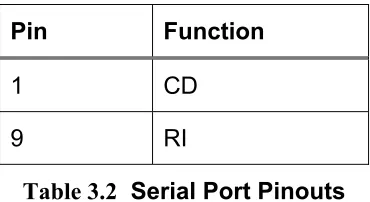
Both serial ports (COM1 and COM2) use a DB9 male connector and the DTE configuration Table 3.2 summarizes the peripheral port pin-outs.
Pin Function
1 CD
9 RI
Table 3.2 Serial Port Pinouts
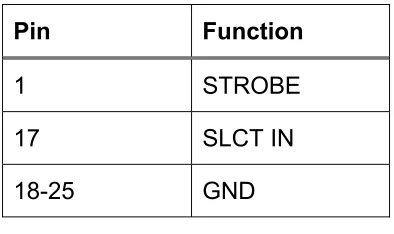
The optional parallel port uses a DB25 female connector configured as Table 3-3 shows:
Pin Function
1 STROBE
2 D0
3 DI
4 D2
5 D3
6 D4
7 D5
8 D6
9 D7
10 ACK
11 BUSY
12 PE
13 SLCT
14 AUTOFD
15 ERR
Pin Function
1 STROBE
17 SLCT IN
18-25 GND
Table 3.3 Parallel Port Pinouts
3.2. Connecting the Network, Keyboard, Mouse and Monitor
WARNING! TO PREVENT RISK OF FIRE OR ELECTRIC SHOCK, PLEASE FOLLOW
THESE INSTRUCTIONS CAREFULLY.
Before connecting these cables, please note the following:
1. Make sure the TeleCLIENT TC7020 power cord is disconnected.
2. Do not connect the power cord to the TeleCLIENT TC7020 unless the mouse,
monitor and network cables are properly connected.
3. Connect the monitor to the video port. Install RJ45 connection to the network, or external modem connection to the serial port, or direct host connection to the serial port. Install keyboard and mouse to the keyboard and mouse interface.
3.3.
Connecting the TeleCLIENT TC7020 and Monitor to AC
Outlets
When connecting the monitor and TeleCLIENT TC7020 to AC outlets, please note the following:
1. Do not connect the power cord to the TeleCLIENT TC7020 unless the monitor
video, keyboard, mouse and network cables are also properly connected.
3.4.
TeleCLIENT TC7020 Front Panel Control and LEDs
Table 3-4 describes the TeleCLIENT TC7020 front panel control and LEDs:
Control/LED Function
On/Off Switch • Turns the power on/off
Power LED • Indicates that power is ON.
Network Activity LED •
A blinking LED indicates network activity.
• A constantly lit LED indicates that the TeleCLIENT TC7020 is connected to an active network but data is not currently being transferred.
4. Software Configuration
The TeleCLIENT TC7020 software includes the TeleCLIENT Setup Wizard to assist with the basic setup and software configuration. It includes the following sections:
• Using the TeleCLIENT Setup Wizard
• Resetting TeleCLIENT TC7020 properties to the factory default
• TeleCLIENT Software Update Procedure
4.1. TeleCLIENT Setup Wizard
NOTE: TELECLIENT WILL DETECT FOR DHCP SERVER ON THE NETWORK AT POWER-ON. IF DHCP SERVICE IS NOT ACTIVATED THE CLIENT WILL ISSUE A DEFAULT IP ADDRESS WHICH WILL HAVE TO BE CHANGED BY AN
ADMINISTRATOR.
The first time power-up, the TeleCLIENT Setup Wizard welcome window will appear, and guide through the TeleCLIENT setup (Figure 4.1).
Figure 4.1 TeleCLIENT Setup Wizard Welcome Window
4.1.1. Network
Settings
2. The Terminal Name window appears (Figure 4.2).
Figure 4.2 TeleCLIENT Setup Wizard Terminal Name Window
3. Type in the terminal name or leave the default name.
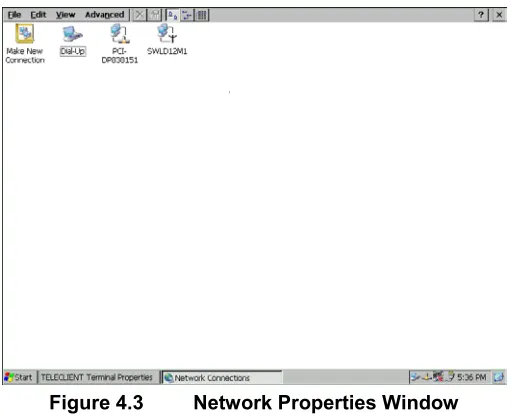
4. Click the Network Properties button and the network setup window will appear (Figure 4.3).
Figure 4.3 Network Properties Window
Ethernet LAN Setup
♦
Figure 4.4 PCI-DP838151 Network Interface Setting
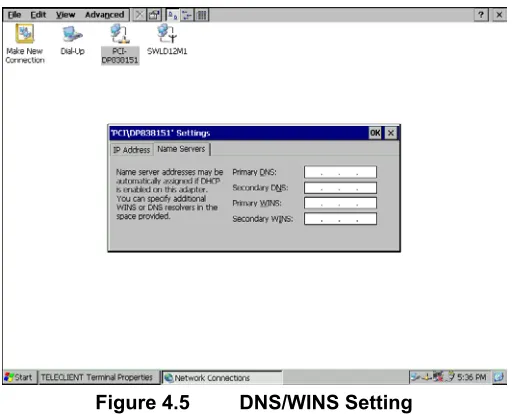
6. If DHCP service is available choose the DHCP option and proceed to the next tab,
Name Servers. Otherwise, choose “Specify an IP address” and enter the static IP
address for the terminal, then click the Name Servers tab.
7. Enter the DNS server and WINS information then click OK (Figure 4.5)
Figure 4.5 DNS/WINS Setting
8. Figure 4.3 should appear again. Close the window by clicking X then proceed to the next step.
► Default Connection Setup is complete here. If there are no other connections to create skip to
Wireless LAN Setup
♦
9. Double click SWLD12M1 icon and wireless LAN setting window will appear (Figure 4.6).
Figure 4.6 SWLD12M1 Wireless LAN Setting
NOTE: IN ORDER TO ENSURE THAT PCI-DP838151 DOES NOT OVERRIDE
SWLD12M1 WIRELESS CONNECTION, BE SURE TO DISABLE PCI-DP838151. TO DO THAT, RIGHT-CLICK PCI-DP838151 ICON AND SELECT DISABLE.
10. If DHCP service is available choose the DHCP option and proceed to the next tab,
Name Servers. Otherwise, choose “Specify an IP address” and enter the static IP
address for the terminal, then click the Name Servers tab.
Figure 4.7 DNS/WINS Setting
Figure 4.8 Wireless Networks Setting
12. Check the ‘Use Windows to configure my wireless setting (recommended), then click
Refresh to detect available access points.
Figure 4.9 Access Point Setting
14. Assign a network name, SSID; the given network name should already be typed in.
15. Check if the wireless mode is used as Ad Hoc mode. The 802.11 standard supports two network topologies: Ad Hoc and Infrastructure mode. A standalone Ad Hoc network topology consists of at least two wireless stations without using access points. This type of network is often referred to as Peer-to-Peer network because it can be constructed quickly without much planning overhead. Ad Hoc mode LANs are normally less expensive because they do not require a dedicated computer to store applications and data. However, they do not perform well for large networks.
16. Check the ‘Data Encryption’ box if the network requires WEP service enabled.
Wired Equivalent Privacy is a security mechanism defined within the 802.11
standard designed to make the link integrity of the wireless medium equal to wired cable. Data privacy mechanism based on a 40 bits (128 bit optional) shared key algorithm, as described in the IEEE 802.11 standard.
17. Check the ‘Network Authentication’ box if the network requires it to be in Shared Mode. In Open System, the default authentication service that simply announces the desire to associate with another station or access point. A station can
authenticate with any other station or access point using open system authentication if the receiving station designates open system authentication. In Share Key, The optional authentication that involves a more rigorous exchange of frames, ensuring that the requesting station is authentic. For a station to use shared key
authentication, it must implement WEP.
19. Back on the Access Point Setting screen (Figure 4.9), check the box on the bottom if the network uses IEEE 802.1x Authentication then choose the type. Click OK to confirm.
20. Back on the Wireless Networks Setting screen (Figure 4.8), to select a preferred network, highlight the desired access point from the ‘Available Networks’ box and click Add. Configure the access point as steps from 14 thru 19. When this is done the ‘Preferred Networks’ box should display the added access point.
21. If there are multiple access points displayed on the ‘Preferred Networks box’ then highlight the chosen access point and use Move Up and Move Down buttons to prioritize the list. Top of the list has the highest priority.
22. Click on the Advanced button (Figure 4.10).
Figure 4.10 Advanced Wireless Setting
23. Choose Networks to access.
24. Check the ‘Automatically connect to non-preferred networks’ box ONLY IF the terminal is allowed to make connection to all the available access points.
25. Click Close to confirm, then click OK to finish wireless network settings.
►Wireless Connection Setup is complete here. If there are no other connections to create skip to
step 52.
Dial-up Network Setup
♦
27. Type in the connection name, select a type of connection, and click Next (Figure 4.11): For a direct connection setup, skip to step 42. For a VPN connection, setup skip to step 47.
Figure 4.11 Making New Connection
28. On the next screen (Figure 4.12), click on the drop-down box, and select the COM port the modem is connected to.
Figure 4.12 Making New Dial-up Connection
Figure 4.13 Modem Settings
30. Under the Port Settings tab, set Manual dialing option and the terminal screen options (Figure 4.13).
31. Set the modem connection by filling in the Connection Preferences boxes. Click on
Call Options tab (Figure 4.14).
Figure 4.14 Dialing Options
32. Set up calling options then click OK.
Figure 4.15 Network Properties for Dial-up Connection
34. If a server issues the IP address then leave the box checked and proceed. Otherwise, uncheck the box and assign the IP address.
35. Select SLIP if the network uses SLIP (Serial Line Internet Protocol) technology: An Internet protocol used to run IP over serial lines such as telephone circuits or RS-232 cables interconnecting two systems. SLIP is now being replaced by PPP, Point-to-Point Protocol, (Communication)
36. Check the compression options and click the Name Servers tab.
37. If a server issues the DNS information then leave the box checked and proceed. Otherwise, uncheck the box and assign the DNS information, then click OK to confirm (Figure 4.16).
38. Back on New Dial-Up screen (Figure 4.12), click the Security Settings button (Figure 4.17).
Figure 4.17 Dial-up Connection Security Settings
39. Setup the security options and click OK to confirm.
40. Back on New Dial-Up screen (Figure 4.12), click Next to proceed.
►Direct Connection Setup: skip to step 46.
►VPN Connection Setup: skip to step 51.
41. Set dialing properties and click Finish (Figure 4.18). A new connection icon should appear on the Network Properties screen (Figure 4.3).
►Dial-up Connection Setup is complete here. If there are no other connections to create skip to step 52.
Direct Connection Setup
♦
42. Back on the Network Properties screen (Figure 4.3), to create a Direct
Connection, double click on Make New Connection icon.
43. Type in the connection name, select Direct Connection, and click Next (Figure 4.19).
Figure 4.19 Direct Connection Settings
44. On the next screen (Figure 4.20), click on the drop-down box, and select the COM port the serial cable is connected to.
45. Follow instructions from step 28 to step 40.
46. Click Finish (Figure 4.20). A new connection icon should appear on the Network
Properties screen (Figure 4.3).
Figure 4.20 Direct Connection Properties
VPN Connection Setup
♦
47. Back on the Network Properties screen (Figure 4.3), to create a VPN Connection, double click on Make New Connection icon.
48. Type in the connection name, select VPN Connection, and click Next (Figure 4.21).
Figure 4.21 VPN Settings
49. Type in the host name or IP address in the box.
50. Click the TCP/IP Settings button and follow step 34 to step 40.
51. Click Finish (Figure 4.21). A new connection icon should appear on the Network
52. Click X to close the window and the screen should return to WBT Setup Wizard
screen (Figure 4.2).
53. Click Next to continue setting up the terminal.
4.1.2. Display
Setting
54. Display setting screen appears (Figure 4.22).
Figure 4.22 Display Settings
55. Select a Resolution and Refresh Frequency setting. Click Test to see if the setting works.
56. When prompt for 5 seconds delay click OK to proceed.
57. If the chosen setting is accepted click Yes to confirm the setting. It will take effect after the unit reboots.
58. Choose color settings.
Figure 4.23 Desktop Appearance Settings
60. Click Next to continue setting up the terminal.
4.1.3. Control
Panel
Control Panel should appear (Figure 4.24). Depends on the configuration and model, the icons may appear differently.
Figure 4.24 Control Panel
♦ LPD (Line Print Daemon) Printer Setup
Figure 4.25 LPD Printing Setup
62. Check ‘LPD Server Enabled’ to enable LPD service.
NOTE: LPD CAN BE USED ONLY WITH THE LPT PORT OF A TELECLIENT.
63. Assign the printer name. The name of the printer is a virtual port. Virtual port is a logical device assigned when you set up LPD services on your server. The default for this field is PASSTHRU. The Printer Name is case sensitive field.
NOTE: THIS SERVICE WILL NOT WORK IF THINPRINT IS BEING USED.
64. Click OK to confirm.
Elo Touchscreen Setup
♦
Figure 4.26 Elo Touchscreen Setup
66. Select the COM port the touchscreen is attached to.
67. Click Calibrate.
68. Follow the on-screen instruction then click OK.
Global ICA Client Setup
♦
69. Double click the Global ICA Client Settings icon
Figure 4.27 Global ICA Client Setup
70. Setup the Hotkeys as desired (Figure 4.27).
Figure 4.28 Global ICA Client Settings-Preference Tab
72. On the server location tab (Figure 4.29),
Figure 4.29 Global ICA Client Settings-Server Location Tab
73. First choose the browser type. This will decide what type of servers should be detected.
74. Click Default List button to list available servers. This will display a warning message that the current list will be erased. Click Yes to proceed.
75. If no server was detected click Add button to add a server to the list.
76. Select the type of the server group, and rename the group if desired. To rename, click on the Rename Group button and click OK.
77. A server name may be deleted from the list: Highlight the server to be deleted and click Delete button. When prompt click Yes to confirm.
Figure 4.30 Global ICA Client Settings-Firewall Settings Tab
79. Click on PNLite tab (Figure 4.31). PNLite is a feature that allows the client to connect via Citrix NFuse without a local web browser. It can obtain connection information for a particular user from an NFuse server and add those connections to the normal WBT list of connections, as if they’d been added by hand using the local UI.
Figure 4.31 Global ICA Client Settings-PNLite Settings Tab
80. To use PNLite feature, check the ‘Enable PNLite’ box, type in the server information, and fill in the User Credential information.
81. Click OK.
Printer Setup
♦
82. Double click on Printers icon.
Figure 4.32 Printer Setup – Port Selection
84. Select a port the printer is connected to(Figure 4.32).
85. Select Manufacture of the printer and the Model Name (Figure 4.33).
Figure 4.33 Printer Setup – Manufacturer and Model
86. If the desired manufacturer and model is not listed check the User Defined box. Click Next, and type in the manufacturer and the model name, and then click Next.
Figure 4.34 Printer Setup – Printer Name
88. If there are more printers to be added check Yes and click Next. Otherwise, check
No and click Next.
89. Click Finish (Figure 4.35). The new printer icon should appear on the Printers
screen. Click OK.
Figure 4.35 Printer Setup – Finish
90. To delete a printer, simply highlight the printer and click Delete button.
Internet Options (Only on TC7020W Series)
♦
Figure 4.36 Internet Options
92. Type in the Start Page and Search Page, or leave the default URL (Figure 4.36).
93. Set the Cache size or leave the default value (recommended).
94. Click on Connection tab (Figure 4.37).
Figure 4.37 Internet Options - Connection
95. Check ‘Use LAN (no autodial)’ box if using LAN. Otherwise, uncheck the box and type in the Autodial name.
96. If the terminal is connected through a proxy server check ‘Access the Internet
using a proxy server’ and type in the necessary information. Then click OK.
Figure 4.38 Internet Options - Security
98. On Advanced tab (Figure 4.38).
99. Select desired options then click OK.
Volume and Sounds Setup
♦
100. Double click on Volume & Sounds icon (Figure 4.39)
Figure 4.39 Volume and Sounds
101. Choose options as shown on the window, set the system volume at a desired level, and then click on Sounds tab.
Figure 4.40 Sound Scheme
Date and Time Setup
♦
103. Double click on the Date/Time icon.
104. Set the date and time then click OK (Figure 4.41).
Figure 4.41 Date and Time
Regional Settings
♦
Figure 4.42 Regional Settings - Locale
106. Select locale and click on the next tab, Number (Figure 4.43).
Figure 4.43 Regional Settings - Number
107. Select number systems then click the next tab, Currency (Figure 4.44).
108. Select currency settings then click the next tab, Time (Figure 4.45).
Figure 4.45 Regional Settings - Time
109. Select the time format then click the next tab, Date (Figure 4.46).
Figure 4.46 Regional Settings - Date
110. Select the date format then click OK.
Network and Dial-up Connections
♦
Refer to section 1.1.1 Network Settings.
SNTP Settings
♦
Figure 4.47 SNTP Settings
112. Select any of the displayed time-server then click Synchronize.
113. Unlisted time-server can be added as well. Click Add then type in the server IP address or the host name.
114. Click OK.
Keyboard and Mouse Setup
♦
115. Double click on Keyboard and Mouse (Figure 4.48).
Figure 4.48 Keyboard
116. This section changes the following keyboard characteristics to match the user’s own keyboard and typing habits:
• Character Repeat - The repeat delay of a keyboard character (i.e., length of time elapsed before a character is repeated when a key is pressed).
• Repeat Rate - The rate at which the keyboard repeats characters.
• Num Lock On/Off at Boot-up option
• Cap Lock On/Off at Boot-up option
• Scroll Lock On/Off at Boot-up option
117. Select Left-handed or Right-handed mouse, select the pointer speed then click OK.
♦ Power Button Control
118. Double click on Button Control icon.
119. Select Instant Power Off or 4 Seconds Delay power button option.
120. To disable the power button, simply check the option box and click OK.
Click Next to proceed with the WBT Setup Wizard.
4.2. Setting TeleCLIENT TC7020 Properties
All terminal properties can be modified in TeleCLIENT Terminal Properties window.
NOTE: WHEN MAKING CHANGES IN THE TELECLIENT TERMINAL PROPERTIES
WINDOW, CLICK OK TO SET THE NEW VALUES, AND CLICK X AT ANY TIME TO CANCEL AND RETURN TO THE TELECLIENT CONNECTION MANAGER WINDOW.
The TeleCLIENT Terminal Properties window includes the following tabs:
• General
Displays product, copyright information, terminal name, and resets the terminal to factory defaults.
• Local Resource
Configure sound control and peripheral devices.
• Display
Configure display settings, screen saver, and desktop appearance.
• Experience
Configure network connection speed, start up delay setting (searching for networks), and miscellaneous settings.
• Control Panel
Configure the Internet options, touchscreen, printers, Global ICA settings, system information, volume and sounds, date/time, regional settings, network and dial-up settings, SNTP, keyboard and mouse, add-on devices, and power button control.
• Security
Configure various security settings.
• Management
Configure SNMP agent, and update software and firmware.
• NetInfo
Display the network status, and provides Ping function.
4.2.1. General
Tab
To start the TeleCLIENT Terminal Properties, while the TeleCLIENT Connection
Manager is displayed, Press <F2> on the TeleCLIENT TC7020 keyboard. The
Figure 4.49 TeleCLIENT Terminal Properties – General Tab
To restore the factory default settings, complete the following steps:
♦
1. Check the box, ‘Reset the terminal to factory-default property settings.’
2. Click Yes when prompt.
NOTE: WHEN YOU RESTART THE TELECLIENT TC7020 AFTER RESETTING THE FACTORY DEFAULTS, YOU MUST USE THE SETUP WIZARD AGAIN. REFER TO SECTION 1.1 -TELECLIENT SETUP WIZARD.
♦ Terminal Name
4.2.2.
Local Resources Tab
Figure 4.50 Local Resources
Sound Option
♦
Select the sound option (Figure 4.50).
Local Devices
♦
Check all the devices attached to the terminal to enable them.
4.2.3. Display
Tab
Display Area and Refresh Frequency
♦
For standard TeleCLIENT TC7020, there is only one resolution setting, 1024 x 768 @ 60Hz, but for the models with analog-digital converters have more resolutions to choose from. Select a resolution and color settings (Figure 4.51).
Screen Saver
♦
♦
1. To enable Screen Saver, check the box, and set the duration of No-Activity in minutes before the Screen Saver starts.
2. Check the box, ‘Enable Video Power Down’ if desired in addition to Screen Saver.
3. Check the box, ‘Password Protected’, to set a password protection upon recovery form the Screen Saver mode.
Colors and Appearance
Click Appearance button (Figure 4.51), and select either Windows Classic Style or the new Windows XP style, then click OK.
4.2.4. Experience
Tab
Figure 4.52 Experience
Network Connection Speed
♦
Desktop Properties
♦
♦
Select the options to be enabled on the desktop during RDP sessions.
Start Up Delay for Preparing Network
Set this delay time according to the tendency of the network status. In a normally
congested network will require more time to establish network communications, and in a network with less traffic will require less time to establish network communications. Setting this too low may cause some difficulty establishing network communications.
4.2.5.
Control Panel Tab
Refer to section 1.1.3, Control Panel.
4.2.6. Security
Tab
This section sets up security on the terminal access (Figure 4.53).
Figure 4.53 Security
Adding User
♦
Figure 4.54 Security-Add User
2. Type in the User Name and Password (Figure 4.54).
3. Select the Permission level.
4. Check the box, ‘Auto logon’, if the user should be logon to a session highlighted in the box below.
5. To bypass the connection manager screen on startup, click on StartUp button, and check the box, ‘Hide Connection Manger’.
6. Use Modify User button to edit these settings after this initial setup, and Delete User button to delete a user.
7. Click OK.
Terminal Properties Window Protection
♦
♦
♦
Check the box, ‘Enable HotKey (F2) Password’, to stop users from going into the properties window.
Enable Local Login
Check this box to limit the terminal usage to the permitted users.
Disable Configure Tab
Enable Auto Fail Recovery
♦
♦
In an unexpected power down situation, this feature allows the users to automatically log back on to the session.
Hide Web Connection
Check this box to stop users from making changes to the Internet Configuration.
4.2.7. Management
Tab
Figure 4.55 Management
Figure 4.55 illustrates the Management tab, which displays the support for TeleCLIENT software update functionality. The property page components are as follows:
• Edit Box: Contains the Uniform Resource Locator (URL) for the update package
used by TeleCLIENT for software updates. Supported protocols are http:// and ftp://.
• Update Now… button: Used to immediately perform a manual software update,
using the indicated URL.
• SNMP Configuration.
Software/Firmware Update
♦
To update the software/firmware of the terminal, type in the URL of the web server containing the new image then click Update Now button.
NOTE: TO ENSURE CORRECT IMAGE UPDATE, PLEASE VISIT
WWW.TELEVIDEO.COM OR CONTACT TELEVIDEO TECH SUPPORT.
♦ SNMP Configuration
Figure 4.56 Management - SNMP
1. To configure SNMP settings, click SNMP Configuration button (Figure 4.56).
2. Enter the contact for the terminal (usually the user of the terminal) and the location.
3. Community section refers to the SNMP group definition. Enter the group name.
4. Enter all the necessary and appropriate server names in each category.
4.2.8. Net-Info
Tab
Figure 4.57 NetInfo
This tab displays the hardware address (MAC Address) and other Network information (Figure 4.57).
Ping
♦
Figure 4.58 NetInfo – Ping
This command allows the administrator to check the network connections (Figure 4.58).
♦ Auto IP Configuration
This option will assign a temporary IP address to shorten the pause when the unit cannot get an IP address immediately.
NOTE: THIS IP ADDRESS WILL MOSTLY NOT WORK WITHIN THE CURRENT NETWORK. PROPER IP ADDRESS MUST BE ASSIGN TO THE UNIT BY THE NETWORK ADMINISTRATOR OR BY DHCP SERVER.
The drop-down box is to select the network speed.
♦ IP Release/Renew
IP Release button will release the current IP address, and IP Renew button will acquire a new IP address.
5. Operation
Operating the TeleCLIENT TC7020 includes using the TeleCLIENT Connection
Manager to set up network connections, and the hot key combinations to switch
between active sessions. This chapter explains how to use the TeleCLIENT
Connection Manager and operation hot keys.
It includes the following sections:
• Powering On
• Using the TeleCLIENT Connection Manager
• Connecting to a Network Server
• Using the TeleCLIENT TC7020 Hot keys
• Logging Off
5.1. Powering On
The TeleCLIENT TC7020 Windows-based terminal is powered by an AC to DC adapter, which connects to the rear panel DC-in jack. Notice the ON/OFF switch located on the front panel (refer to Hardware Installation). Use this switch to power the TeleCLIENT TC7020 on and off.
To power-off the TeleCLIENT TC7020, press the ON/OFF switch. To re-start, press the ON/OFF switch briefly.
WARNING: FOLLOW THE INSTRUCTIONS ABOVE CAREFULLY TO AVOID ACCIDENTAL POWER SHUT-OFF TO THE TELECLIENT TC7020.
5.2. Using the TeleCLIENT Connection Manager
The TeleCLIENT Connection Manager allows a user to create and manage
Figure 5.1 TeleCLIENT Connection Manager Window
Notice that the TeleCLIENT Connection Manager window contains two tabs:
• Connections - Used to connect TeleCLIENT TC7020 to a network and also end
a network connection
• Configure - Used to add, edit and delete network connections. User can also
set the default or auto-start network connection.
5.3. Configuring Network Connections
Each connection uniquely identifies a host (server) and the client (terminal) used to make the connection, based on the type of connection used. User can create, edit and delete network connections in the TeleCLIENT Connection Manager window. To begin:
Figure 5.2 Configure Tab Window
5.3.1.
Creating a New Connection
To create a new connection, complete the following steps:
7. Click Add in the Configure window. The New Connection window appears (Figure 5.3).
Figure 5.3 New Connection Window
8. Choose one of the following connection protocols for the new connection:
• Citrix Independent Computing Architecture protocol (ICA)
• Terminal Emulation Client
9. To return to the previous window, click Cancel, and Click OK to proceed.
Once a connection is created, it will also be listed in the Connection Name list. In Figure 5.4, the active connection is an RDP type.
Figure 5.4 Connection Type Defined in TeleCLIENT Connection Manager
NOTE: THE REMAINDER OF THIS PROCEDURE DEPENDS UPON THE TYPE OF CONNECTION USED AS EXPLAINED BELOW.
♦ Adding an ICA Client Connection
To add an ICA client connection, complete the following steps:
Figure 5.5 Specify Connection Type Window
2. Specify the type of connection (Figure 5.5):
• ‘Network Connection’ - Requires an Ethernet connection.
• ‘Dial-in Connection’ - Requires a modem.
3. Click Next.
►For “Network Connection’ part, skip to Step 12.
4. In Dial-In Connection box, enter the area code, phone number, country, and check the box if it needs to dial the area code for the connection (Figure 5.6).
Figure 5.6 Dial-In Device Setting
6. Click Configure.
7. Under the Port Settings tab, set Manual dialing option and the terminal screen options (Figure 5.7).
Figure 5.7 Port Settings
8. Set the modem connection by filling in the Connection Preferences boxes.
9. Click on Call Options tab (Figure 5.8).
Figure 5.8 Calling Options
10. Set the calling options then click OK.
11. Click Next.
Figure 5.9 Select a Citrix Server or Published Application
13. For an additional search for Servers or Application hosts, click Server Location
button (Figure 5.10). This narrows the server search criteria. Follow the prompts to setup the parameter.
Figure 5.10 Server Location
14. Click OK then click Refresh to start the search. If no server is listed try typing in the
IP address of the known server.
15. Click Next.
16. The default server name will appear in the Select a Title for the ICA Connection
Figure 5.11 Select a Title for the ICA Connection Window
17. Click Next.
18. TC7020 can be configured to run the same application from the selected server. Type in the ‘Command Line’ and ‘Working Directory’, or leave blank to run the Windows Terminal Server desktop (Figure 5.12).
Figure 5.12 Specify an Application Window
19. Click Next.
20. To utilize Specific Logon procedure, type in username, password and domain to log on to the server. This saves users from logging on each and every time to the server or application (Figure 5.13).
Figure 5.13 Specify Logon Information Window
21. If Smart Card logon is available on the network, check the box.
22. Click Next.
NOTE: THIS SCREEN MAYBE LEFT BLANK.
23. The Select Window Options window allows users to specify 16, 256, or Thousands colors for the ICA session (Figure 5.14).
Figure 5.14 Select Window Options Window
24. Click Next.
25. The Compression, Cache and Sound window allows users to configure your ICA session depending on the speed of the connection (Figure 5.15).
Figure 5.15 Compression, Cache and Sound Window
• ‘Compress Data Stream’ – Choose this setting if user is connected via a modem dial-up or a Wide Area Network (WAN).
• ‘Cache’ – Under all ICA sessions, caching is enabled. Therefore, this setting cannot be changed.
26. Click Next (or click Finish if firewall configuration is not necessary. Skip the following procedure; it is ready to start a terminal session!).
27. Type in the Proxy settings then click Done.
Adding an RDP Client Connection
♦
28. Select ‘Microsoft Remote Desktop Client’ in the New Connection window. The Windows Terminal Server (WTS) Connection Wizard window appears (Figure 5.16).
Figure 5.16 WTS Connection Wizard Window
29. Enter a name for the new connection in the ‘Name’ field.
30. Enter the server name or IP address of the computer you wish to connect to in the ‘Server’ field.
31. If the connection to the Server is through a low bandwidth line (WAN or serial line), check Low Speed Connection.
32. Click Next.
Figure 5.17 WTS Connection Wizard Window
34. Click Next.
NOTE: THIS SCREEN MAYBE LEFT BLANK.
35. User can configure TC7020 to run a selected application, instead of the desktop. Choose the ‘Application File Name’. Type in the ‘Command Line’ and ‘Working Directory’, or leave blank to run the Windows NT desktop (Figure 5.18).
Figure 5.18 WTS Connection Wizard Window
36. Click Next.
37. Click Finish (Figure 5.19).
Figure 5.19 WTS Connection Wizard Window
Adding a Terminal Emulation Client Connection
♦
NOTE: FOR MORE INFORMATION, PLEASE REFER TO - TERMINAL EMULATION USER’S GUIDE
38. Select ‘Terminal Emulation Client’ in the New Connection window. The
TeleCLIENT Terminal Emulation Connection Properties window appears (Figure
5.20).
Figure 5.20 Terminal Emulation Connection Properties Window
40. Select the desired connection type, either TCP/IP or Serial.
• If TCP/IP is selected, enter IP address of the host computer (server) in the Host Name field.
• If Serial is selected, choose either of COM1 or COM, whichever is being connected.
41. Click Finish.
Once finished the TeleCLIENT Terminal Emulation setup, the terminal is now ready to connect to the server.
5.3.2. Editing
Connections
The procedure for editing a connection varies, depending on the kind of network connection.
Editing an ICA Connection
♦
To edit an ICA connection, complete the following steps:
42. Select the Configure tab in the TeleCLIENT Connection Manager window (Figure 5.21).
Figure 5.21 Configure Tab
44. Click Edit.
45. Follow the prompts to select a Citrix Server or Published Application.
Editing an RDP Connection
♦
46. Select the Configure tab in the TeleCLIENT Connection Manager window.
47. Select the RDP connection to be edited from the ‘Connection Name’ list.
48. Click Edit. The Properties window appears (Figure 5.22).
Figure 5.22 Properties Window
Notice that the Properties window contains two tabs:
• Application – Used to specify and automatically go to the filename and working directory path whenever starting a session (Figure 5.23).
Figure 5.23 Properties Window - Application Tab
49. Make the necessary changes in the ‘Net Connections’ or ‘Application’.
50. Click Apply.
51. When finished, click OK.
Editing a Terminal Emulation Connection
♦
Please refer to Adding a Terminal Emulation Client section or the Terminal Emulation User’s Guide.
5.3.3.
Deleting a Connection
53. Select the connection to be deleted by clicking on connection name.
54. Click Delete.
55. Click Yes to confirm the deletion.
5.3.4.
Setting Start-up Connections
The TeleCLIENT TC7020 can be set to automatically connect to a server whenever a session begins instead of using the default server.
To set automatic start-up connections, complete the following steps:
56. Select the Configure tab in the TeleCLIENT Connection Manager window.
57. Click Startup. The Connection Startup window appears (Figure 5.24).
Figure 5.24 Connection Startup Window
58. Select one of the following Startup Options:
• Make the selected connection the default connection – Enables the default connection selected in the TeleCLIENT Connection Manager. The default connection is the one highlighted when TeleCLIENT TC7020 powers on and TeleCLIENT Connection Manager window appears.
• Automatically start the selected connection at startup – Enables the TeleCLIENT TC7020 to automatically connect to the selected in the TeleCLIENT Connection
Manager each time a user starts up TeleCLIENT TC7020.
5.4. Connecting to a Network Server
The TeleCLIENT Connection Manager lists all of your system’s available network
connections.
To connect to a server, complete the following steps:
Click the Connections tab in the TeleCLIENT Connection Manager window (Figure 5.25).
Figure 5.25 TeleCLIENT Connection Manager Window
60. Select a Connection Name in the connection list.
61. Click Connect (or double-click on the Connection Name). If the connection was defined for automatic logon and the server it connects to is enabled, the TeleCLIENT TC7020 makes the connection and the user is automatically logged on.
62. If the logon is not automatic, the Windows Logon Information window displays. Follow the Windows prompts to complete the logon.
5.5. Using the TeleCLIENT TC7020 Hot Keys
The TeleCLIENT TC7020 hot keys simplify the process of switching between active sessions. Instead of using the TeleCLIENT Connection Manager, users can use the hot keys on the TeleCLIENT TC7020 keyboard to automatically switch between
sessions in a single step.
Table 5.1 TeleCLIENT TC7020 Hot Keys
Hot Key Function
CTRL+ALT+up arrow Toggles up between active sessions.
CTRL+ALT+down arrow Toggles down between active
sessions.
CTRL+ALT+HOME Automatically toggles to the default
session.
CTRL+ALT+END Toggles directly to the TeleCLIENT
Connection Manager.
<F2> When the TeleCLIENT Connection
Manager is active, toggles directly to the TeleCLIENT Terminal Properties window.
If hot keys are not enabled, follow the instructions in Section 4.5.1, Starting Multiple
Connections to switch between active connections.
5.5.1.
Starting Multiple Connections
The TeleCLIENT TC7020 allows multiple simultaneous connections. The number of connections started is limited by the amount of RAM available in the TeleCLIENT TC7020.
♦
♦
To start a second connection, complete the following steps:
63. Press CTRL+ALT+END on the keyboard to access the TeleCLIENT Connection Manager.
64. Select the Connection Name. Click Connect.
To switch between running connections, complete the following steps:
65. Press CTRL+ALT+END on the keyboard to access the TeleCLIENT Connection Manager.
66. Select a Connection Name. Click Connect.
67. OR, on the keyboard, press CTRL+ALT+UP (with the up arrow) or
connections. The Connection list reflects the order in which the connections were started, with the most recent at the top of the list.
5.6. Logging Off
To log off and end a session:
When connected to an application, close the application to terminate the connection. When connected to a server’s desktop, complete the following steps:
68. Close all applications.
69. Click Start on the taskbar at the bottom of the Windows Terminal Server (WTS) desktop.
70. Select Logoff.
71. Click OK in the panel that displays. WTS closes any programs that are still running.
A new session will now start, or the TeleCLIENT Connection Manager window will appear. The TeleCLIENT TC7020 may now be powered off.
5.6.1.
Ending Auto-Start Connections
To end an auto-start connection, complete the following steps:
72. Press CTRL+ALT+END on the keyboard to access the TeleCLIENT Connection Manager.
73. Select the Configure tab.
74. Select the auto-start Connection Name and click Startup. The TeleCLIENT
Connection Startup window appears.
75. Click on the ‘Make the selected’ connection your Default connection. Click OK.
6. Appendix A
6.1. Specifications
This chapter contains the following TeleCLIENT TC7020 specifications:
• Hardware Specifications
• Networking and Communications
• Software Specifications
• Environmental
• Regulatory Compliance
• Physical Characteristics
• Warranty Information
6.2. TeleCLIENT TC7020 Hardware Specifications
Hardware Description
CPU National Semiconductor Geode GX1™
300MHz processor
RAM Memory 64MB RAM standard
Expandable to 128MB
Flash Memory 8MB DOC or 32MB CompactFlash
Flash upgrade utility via Ethernet
Graphics Subsystem National Semiconductor
XpressGRAPHICS™, Cx5530A
Audio Support National Semiconductor XpressAUDIO™
Full 16-bit stereo FM synthesis Built-in speaker system
Audio Out–Microphone in
Resolution Resolution of 1024x768
16 to 65K colors
Supports all VESA monitors
6.3. Networking, Communications And Input/Output
Specifications
Item Description
Networking Protocols 10/100BaseT Ethernet, RJ45,
IEEE 802.11B Wireless LAN TCP/IP with DNS, DHCP and PPP
Load balancing supported by Citrix ICA
Remote modem dial up with Citrix ICA
Communication Protocols Microsoft RDP
Citrix ICA
Parallel Port One parallel port
Serial Port Two serial port
USB Ports Two USB ports
Audio Ports Audio out
Microphone in
Keyboard and Mouse Ports Keyboard and mouse ports
(PS/2 keyboard and mouse included)
Table A-2 Networking, Communications and Input/Output Specifications
6.4. TeleCLIENT TC7020 Software Specifications
Feature Description
Operating System Microsoft Windows CE
TeleManager Remote
Management Software compatible
Set-up and Configuration TeleCLIENT Setup Wizard for
fast, simple connection to the network
Login configured for server access
Local power-on
Remote Management Software TeleManager Management
Software
Server Operating System Support* Microsoft Windows NT Server 4.0, Terminal Server Edition
Microsoft Windows 2000 Terminal Services
Windows XP
Windows Server 2003 Citrix WinFrame Citrix MetaFrame
Terminal Emulation Support* TVI 925, 950, 955VT100..VT520. Ansi BBS. SCO
Console. AixTerm, Wyse 50, 50+, 60, Hazeltine 1500, ADDS A2
IBM 3270: TN3270E, TN3287 Printing IBM5250: TN5250, TN3812 Printing IBM 3151
HP Suite: HP 2392A, 2622A, 700/92
Table A-3 Software Specifications
* Terminal emulation support optional. Additional emulations available by request only. Please contact TeleVideo directly for further information.
6.5. Environmental Specifications
Feature Description
Environmental Specifications Operating temperature 30º to 104ºF (0º to 40ºC)
Storage temperature -4º to 140ºF (-20º to 60ºC)
State-of-the art, fanless convection cooling design
Humidity 20% to 85%, non-condensing
Operating altitude of 0 to 10,000 feet (3050 meters)
Power Specifications External power supply
100-240 VAC at 50-60Hz 20W nominal
6.6. Regulatory Compliance Specifications
Feature Description
Regulations EPA ENERGY STAR®
FCC Class B CE Mark
Table A-5 Regulatory Compliance Specifications
6.7. Physical Specifications
Feature Description
Shipping Weight 9.0 lbs
Height 10.2 inches
Depth 9.3 inches
Width 4.5 inches
Table A-6 Physical Specifications