RSA SecurID Ready Implementation Guide
Last Modified: May 6, 2003
1. Partner Information
Partner Name Citrix Systems, Inc.
Web Site www.citrix.com
Product Name Citrix Web Interface for MetaFrame XP Presentation Server Version & Platform FR3 for Windows® 2000 Server
Product Description Citrix Web Interface is an application deployment system that provides users with access to MetaFrame applications through a standard Web browser. The Web Interface employs Java technology executed on a Web server to dynamically create an HTML depiction of MetaFrame server farms for your users. Each user is presented with all the applications published in the MetaFrame server farms for that user.
With the Web Interface, you have centralized application management capabilities and complete control over the application deployment process. You can create standalone Web sites for application access or Web sites that can be integrated into your corporate portal.
Web Interface now includes native support for RSA SecurID as one of its authentication methods.
Product Category Remote Access
2. Contact Information
Sales Contact Support Contact
3. Solution Summary
Feature
Details
Authentication Methods Supported
Native SecurID
ACE/Agent Library Version
Version 5.3
ACE 5 Locking
Yes
Replica ACE/Server Support
Full Replica Support
Secondary RADIUS/TACACS+ Server Support No
Location of Node Secret on Client System
Registry
ACE/Server Agent Host Type
Net OS
SecurID User Specification
All users
SecurID Protection of Administrators
No
Solution Architecture
Web Brow ser
4 5
6
7
3
1
2
8
RSA ACE/Server
Web Interface server
MetaFrame XP Server Fram
ICA Client device
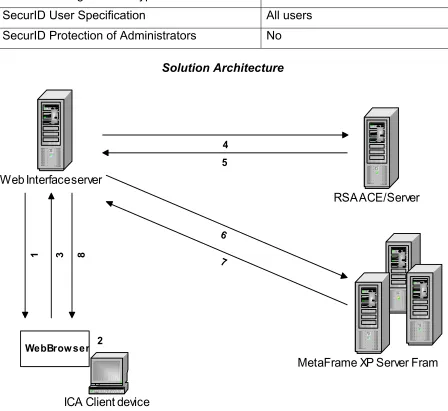
As illustrated in Figure 1, the following communications take place between the client Web Interface server and RSA ACE/server components before application are made available:
1. An ICA Client device user utilizes a Web browser to view the Web Interface Login page
2. The user enters their Domain credentials and SecurID PASSCODE.
3. The credentials are passed to the Web Interface server via HTTP/HTTPS
4. The Web Interface server passes the SecurID PASSCODE to the RSA ACE/Server for authentication.
5. If SecurID PASSCODE authentication is successful the RSA ACE/Server sends success response to the Web Interface server.
6. The Web Interface server then passes the user’s domain credentials to the MetaFrame server.
7. If the domain credentials are valid the MetaFrame server sends a success response to the Web Interface server
8. The user’s application details are retrieved; an html page is generated and sent to the user’s browser.
4. Product Requirements
Hardware requirements
Component Name: Citrix MetaFrame XP Presentation Server for Windows
CPU make/speed required Memory
HD space
Refer to Citrix MetaFrame XP for Windows (FR3) Administrator’s Guide
OR
Component Name: Citrix MetaFrame XP Presentation Server for Unix
CPU make/speed required Memory
HD space
Refer to Citrix MetaFrame XP for Unix Administrator’s Guide
AND
Component Name: Citrix Web Interface for MetaFrame XP
CPU make/speed required Memory
HD space
Refer to Citrix Web Interface for MetaFrame XP (FR3) Administrator’s Guide
Component Name: Citrix Secure Gateway (Optional)
CPU make/speed required Memory
HD space
Refer to the appropriate Citrix Secure Gateway (v 2.0) Administrator’s Guide for your hardware platform
Component Name: Citrix Secure Ticket Authority (Optional)
CPU make/speed required Memory
HD space
Software requirements
Component Name: Citrix MetaFrame XP Presentation Server for Windows
Operating System Version (Patch-level)
Windows 2000 Server Family
Refer to Citrix MetaFrame XP for Windows (FR3) Administrator’s Guide
Windows 2003 Server
Family Refer to Citrix MetaFrame XP for Windows (FR3) Administrator’s Guide
Component Name: Citrix MetaFrame XP Presentation Server for Unix
Operating System Version (Patch-level)
UNIX Refer to Citrix MetaFrame XP for Unix Administrator’s Guide
Component Name: Citrix MetaFrame Web Interface, RSA ACE/Agent
Operating System Version (Patch-level)
Windows 2000 Server Family
Windows 2003 Server Family
Refer to Citrix Web Interface for MetaFrame XP (FR3) Administrator’s Guide
Component Name: Citrix Secure Gateway (Optional)
Operating System Version (Patch-level)
Windows 2000 Server Family
UNIX
Refer to the appropriate Citrix Secure Gateway (v 2.0) Administrator’s Guide for your hardware platform
Component Name: Citrix Secure Ticket Authority (Optional)
Operating System Version (Patch-level)
Windows 2000 Server Family
5. Partner ACE/Agent configuration
Installation Prerequisites
• A functional RSA ACE/Server
• A functional MetaFrame XP Presentation Server • A functional Web Interface Server
• A functional Secure Gateway Server (Optional) • A functional Secure Ticket Authority Server (Optional)
• RSA ACE/Agent 5.5 for Windows – downloadable from the RSA SecurCare Online website • Citrix MetaFrame XP Installation software
• Secure Gateway for MetaFrame XP software
Product Configuration
The following steps are required to implement RSA SecurID with Citrix Web Interface for MetaFrame XP:
• RSA ACE/Agent Installation
• RSA SecurID Agent Host and User Definition
• Enable RSA SecurID authentication using the Citrix Web Interface Admin Tool
RSA ACE/Agent Installation
RSA ACE/Agent 5.5 for Windows is available for download from the RSA SecurCare Online website:
https://knowledge.rsasecurity.com
The following steps outline how to install and configure the RSA ACE/Agent for Windows v5.5 on the Citrix Web Interface server:
1. Obtain a copy of the sdconf.rec file from the Primary RSA ACE/Server, or make sure that this file is accessible during installation through network share.
2. Launch the RSA ACE/Agent installation (Agent.exe)
3. Select the Common Shared Files, Control Panel Applet and Administration Guide and Documentation components, see Figure 2 below:
Figure 2.
RSA SecurID Agent Host and User Definition
In order for the RSA ACE/Server to recognize and accept authentication requests from the Web Interface server, an Agent Host record must be created for it within the RSA ACE/Server database, see Figure 3 below:
Figure 3.
Ensure that the Agent type selected is Net OS Agent, and if this will be the device’s first RSA ACE/Server authentication attempt, that the Node Secret Created checkbox is unchecked. Checking Requires Name Lock is a supported but optional function.
The next step is to define all users who will authenticate via the Web Interface server.
To enable single-sign-on using RSA SecurID / Citrix Web Interface authentication, all RSA ACE/Server username values (Default login:) must match their corresponding Citrix MetaFrame XP username value (Default login) in the RSA ACE/Server database, see Figure 4 below:
Figure 4.
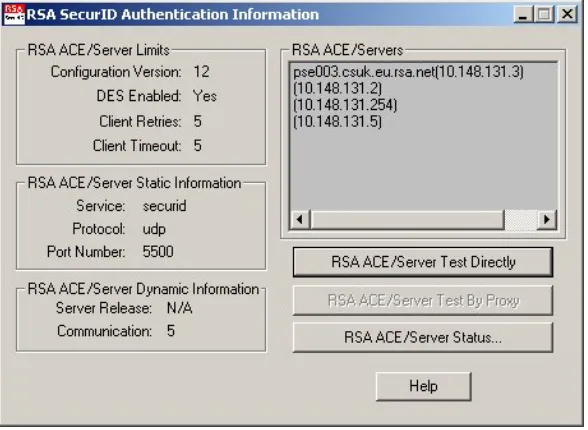
Prior to continuing with the configuration, the RSA ACE/Agent Test Authentication application can be used to check the communication between the RSA ACE/Agent on the Web Interface server and the RSA ACE/Server: Start>Programs>RSA ACE Agent>Test Authentication. See Figure 5.
Enable RSA SecurID authentication using the Citrix Web Interface Admin Tool
Important: You must install the RSA ACE/Agent for Windows before installing the Web Interface. You must configure the Web Interface to enable RSA SecurID authentication to the Web Interface (so that users can access and display their applications) and to the MetaFrame server (so that users can launch applications in an ICA session using the Web Interface).
To allow users to authenticate using RSA SecurID:
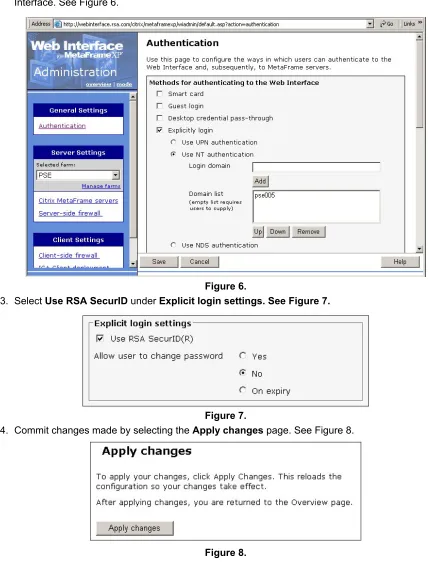
1. Via the Web Interface Admin Tool, display the Authentication page.
2. Select Explicitly login to force users to supply a username and password to log on to the Web Interface. See Figure 6.
Figure 6.
3. Select Use RSA SecurID under Explicit login settings. See Figure 7.
Figure 7.
Example Citrix Web Interface / RSA SecurID logon pages
MetaFrame XP connection via Citrix Web Interface
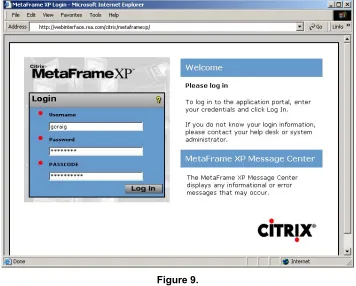
When the installation is complete, use a client Web browser to navigate to the Citrix Web Interface Server logon page. See Figure 9. below.
Figure 9.
Figure 10. below displays the message received by a user who’s Token is in New PIN mode.
MetaFrame XP connection via Citrix Secure Gateway
RSA SecurID authentication can also be implemented in a Citrix Web Interface environment, which employs the Citrix Secure Gateway.
From a users perspective, they will still initiate communicate with the Citrix Web Interface. Once authenticated, by the RSA ACE/Server and the MetaFrame XML service, all future communication with MetaFrame applications will be via a designated Secure Gateway server over an SSL/TLS connection. Once again, the Configuration of the Citrix Secure Gateway can be done via the Citrix Web Interface Admin Tool.
To enable secure communication via the Secure Gateway:
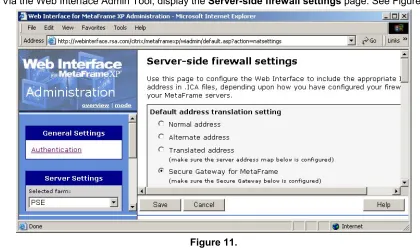
1. Via the Web Interface Admin Tool, display the Server-side firewall settings page. See Figure 11.
Figure 11.
2. Select Secure Gateway for MetaFrame as the Default address translation setting. 3. Then scroll to the bottom of the configuration page and define the details for your Secure
6. Certification Checklist
Date Tested: March 17, 2003
Product Tested Version
ACE/Server 5.0, 5.1
ACE/Agent 5.5 Web Interface for Windows FR3
Secure Gateway for MetaFrame 2.0
Test ACE RADIUS
1st time auth. (node secret creation) Pass N/A
New PIN mode: System-generated
Non-PINPAD token Pass N/A
PINPAD token Pass N/A
User-defined (4-8 alphanumeric)
Non-PINPAD token Pass N/A
Password Pass N/A
User-defined (5-7 numeric)
Non-PINPAD token Pass N/A
PINPAD token Pass N/A
SoftID token Pass N/A
Deny 4 digit PIN Pass N/A
Deny Alphanumeric Pass N/A
User-selectable
Non-PINPAD token Pass N/A
PINPAD token Pass N/A
PASSCODE
16 Digit PASSCODE Pass N/A
4 Digit Password Pass N/A
Next Tokencode mode
Non-PINPAD token Pass N/A
PINPAD token Pass N/A
Replica Servers Pass N/A
User Lock Test (ACE Lock Function) Pass N/A
No ACE/Server Pass N/A
GJC Pass, Fail or N/A (N/A=Non-available function)
7. Known Issues
• You must install the RSA ACE/Agent for Windows before installing the Web Interface. During the installation of Web Interface, changes are made to RSA ACE/Agent registry values, which will enable Web Interface to store and subsequently read the Node Secret Value. If the Web Interface is not granted sufficient rights to the RSA ACE/Agent registry values, a Node verification failed