wireless Wide Area Networks
R E C O M M E N D E D B E S T P R A C T I C E S
Introduction
1 Introduction
2 Overview
2 • The challenge of using MetaFrame Presentation Server over wWANs 3 • Goals of Citrix optimizations for wWAN
4 Optimizing the MetaFrame Presentation Server for wWAN Connections
4 • Introduction 4 • Recommendations
5 • Optimize the Windows®user interface
8 • Using Citrix®web interface to optimize ICA®Clients for wWAN
8 • Recommended modifications for Template.ica
12 Citrix ICA Client notes
12 • Win32 Citrix ICA Client 13 • Win CE Citrix ICA Client
13 wWAN compression utilities
13 Optimizing MetaFrame Secure Access Manager
13 • Using MetaFrame®Secure Access Manager as a launch mechanism for MetaFrame
Presentation Server applications
13 •Optimizing performance of the MetaFrame Secure Access Manager Access Center
14 Optimizing Internet information services for wWAN
14 •Caching Citrix web interface images 14 • Using the “Cache-Control” HTTP header in IIS 16 • Controlling web page expiry in Apache
17 Conclusion
18 Appendix 1: Sample Template.ica File for Citrix web interface 21 Appendix 2: Server configuration changes for MetaFrame XP FR1
Citrix technology allows organizations to smoothly and easily extend their existing computing environment to the wireless world. However, the use of wireless wide area networks (wWANs) presents some configuration considerations that Citrix®MetaFrame®customers may need to take into account. Citrix has developed special
technologies that address these considerations so that the end user enjoys a consistent and satisfactory experience when accessing server-based applications over a wWAN.
Overview
TH E C H A L L E N G E O F U S I N G ME TAFR A M E PR E S E N TAT I O N SE R V E R O V E R WWA NS
Millions of MetaFrame Presentation Server users today access their applications over a Local Area Network (LAN). Thanks to the low latency and high bandwidth afforded by the LAN, the users experience is normally
indistinguishable from having the applications running locally on the client device. Both wired and wireless WANs, however, present the challenge of lower bandwidth and higher latency. These issues are even more pronounced on wireless WANs, where the user experience may be degraded to the point of being unacceptable.
Throughput and latency are the two elements that define the speed of a network. Throughput is the quantity of data that can pass from source to destination in a specific time. Round-trip latency is the time it takes for a single data transaction to occur (i.e., the time between requesting data and receiving it).
Latency has a critical impact on the MetaFrame user experience since every user action must travel across the network from the client to the server, and the server response must return to the client before the user sees an update. On a LAN, latency is typically very low at less than 10ms. Latencies on wired WANs, however, are typically in the 100 - 500ms range, while wireless WANs are usually in the 300ms – 3000ms range. Not only is ICA traffic affected by latency, but also other traffic that is traversing the link is likewise impacted.
Wireless WANs typically connect the user to the Internet and from there the user can access the desired MetaFrame server. The Internet is based on the Transmission Control Protocol (TCP). TCP requires the recipient node of a packet to acknowledge its receipt. If the sender does not receive a receipt in a specific time, then TCP assumes that the connection is congested and slows down the rate at which it sends packets and/or retransmits packets. TCP is very effective in dealing with congestion on the wired Internet.
Wireless WANs have greater latency than wired WANs and also demonstrate jitter (variable latency). The underlying wireless networks are based on circuit-switched voice architectures, which do not contain efficient mechanisms for sending acknowledgements. To improve data efficiency, the networks typically wait for multiple frames to arrive before replying with an acknowledgement. This delay is directly reflected in the packet latency.
In this document, Citrix presents several configuration options that can mitigate many of the effects of latency and provide the user with an acceptable experience using MetaFrame across wWANs. The purpose of this paper is to provide guidance in setting up these options correctly for the user’s environment.
Note that these recommendations should also apply to tuning MetaFrame Presentation Server connections over Satellite networks.
GO A L S O F CI T R I X O P T I M I Z AT I O N S F O R WWA N
The aim in optimizing Citrix technology for wWAN connections is to improve the user experience when connecting to a MetaFrame server. This can be further broken down into the following goals:
• Reducing the perceived user latency • Reducing the login time
• Ensuring the most efficient bandwidth utilization
These aims are achieved in part through the following mechanisms:
Reducing the maximum packet size used by Citrix
Increases in wWAN connection latency correspond to increases in packet size. The maximum packet size used by Citrix over TCP/IP networks is typically 1460 bytes. Citrix has tested a variety of maximum packet sizes on wireless WANs from several carriers. The results of those tests show that to maintain latency at a manageable level, a packet size of 512 bytes is recommended. Reducing the packet size further than this will impact throughput. In normal operation the lower packet size should not significantly increase the overall packet count since ICA packets are generally no more than a few hundred bytes in size.
Reducing the number of very small packets transmitted
The latency perceived by the user over wWAN networks is greatly influenced by the packet size. Since the speed of the wWAN link is a given and cannot be altered, optimizing the packet occupancy is recommended. An unoptimized ICA session can generate very small packets (in the region of 60 bytes) from client to server. Certain applications can also cause very small packets to be generated from server to client. Each packet transmission has a fixed overhead, and sending a large number of small packets increases overall bandwidth usage. The recommendations provided by this paper aim to reduce the number of very small packets by aiding packet coalescence.
Using SpeedScreen3 to reduce perceived latency
SpeedScreen™3 is a very important component in the Citrix wWAN solution. The features in SpeedScreen3 help
remove the perceived latency felt by the user, since all typing is echoed locally.
Using caching and compression to optimize bandwidth usage
Optimizing the MetaFrame Presentation Server for wWAN connections
IN T R O D U C T I O N
This section of the document covers MetaFrame XP server-side optimizations, and deals with the following settings:
• Using SpeedScreen3 Latency Reduction features • Reducing the number of small packets sent to the client • Optimizing the Windows user interface for wWAN connections
The following section describes additional settings that must be made using Citrix web interface. The two sections together detail all of the settings required for optimal wWAN connections.
RE C O M M E N D AT I O N S
Feature Release 2
MetaFrame XP FR2 contains several improvements designed to improve the usage of wireless WANs.
• Several setting that previously needed manual configuration for wireless WAN were automated to simplify the setup process
• Improved compression reduced the data transferred over the network
• Given available data, packets are filled as near to the maximum chosen packet size as possible
• Improved performance of bulk transfer data channels (e.g. client drive mapping), with improved interactive response when both bulk and screen traffic occur concurrently
Citrix strongly recommends using the FR2 or later releases for wWAN connections, as well as the corresponding ICA Client versions. Implementing a more recent version on the server without upgrading the client or vice versa will result in a system that cannot take advantage of improved features.
If wWAN access is required for servers running the FR1 release then manual configuration changes are required. These are described in Appendix 2.
Additional advantages of Feature Release 3
Feature release 3 introduces a feature called SpeedScreen Browser Acceleration. This optimizes the use of the Internet Explorer web browser, and the Outlook®and Outlook Express mail clients. JPEG & GIF images displayed
within these applications are delivered to the client in a manner that uses less bandwidth. The images are also delivered independently from the rest of the graphics making up the application display. This means that the user does not have to wait for the image to be displayed before moving onto another screen.
This feature is enabled by default when FR3 is installed and is controllable at a Farm or individual server level via the Citrix management console. In addition, control is made available over whether Macromedia®Flash™images
should display in the browser or whether display of such images is suppressed for optimal performance.
Future Feature Releases
Future feature releases will likely include further enhancements and configuration options to support wWAN access.
Enable SpeedScreen3 Latency Reduction
There are two components to SpeedScreen3 Latency Reduction:
1. Local Text Echo 2. Mouse Click Feedback.
The Local Text Echo feature echoes keystrokes locally on the client device as they are typed. The characters appear immediately, and are later over-written seamlessly by the server image as it becomes available. This instant visual feedback removes the latency perceived when typing.
Mouse click feedback changes the mouse cursor on the client to the “busy working” state when the user clicks a mouse button. When the server has acknowledged the mouse click, the mouse cursor on the client device reverts to the default pointer. Thus, the user is presented with instant feedback to the mouse click.
On the server, the SpeedScreen3 Latency Reduction Manager is used to set the options for both components. By default, Mouse Click Feedback is enabled for the server, while Local Text Echo is disabled.
For applications published to wWAN users, Local Text Echo should be enabled. Alternatively, the administrator may wish to enable Local Text Echo for the server as a whole. It is important to note that it may be necessary to tune the Latency Reduction thresholds for your particular wWAN network configurations. Use information from either a low level ping if it can be routed to your server or consult the ICA Session Latency performance counters on the MetaFrame Presentation Server. Once the latency has been determined this can be used to tune the High Latency Threshold within the SpeedScreen Latency Reduction Manager utility. When the measured latency within an ICA session exceeds this value, Local Text Echo is used. Set the threshold value to be under the measured value to allow for variations in measured latency. The default value for this setting is 500 ms.
While most applications are supported as standard, some applications or fields within applications may require configuration in order to make Local Text Echo work. Please refer to the application help for the SpeedScreen Latency Reduction Manager utility for more information.
OP T I M I Z E T H EWI N D O W S U S E R I N T E R FA C E
Change the default Desktop display settings
The following optimizations apply to the Microsoft®Windows®user interface. Although these optimizations do
provide positive benefits to users connecting over wWAN, they will also take effect when those same users connect on a high-speed link, and hence this change may not be suitable for all users. Consider how appropriate each of the optimizations are for your local environment and whether they would be appropriate for users
connecting over non wWAN connections. If you wish to deploy different settings for different connection types then refer to the section below ‘Creating a new ICA listener for wWAN connections.’
All the following interface tuning is done by altering registry values under the key
HKLM\\SYSTEM\CurrentControlSet\Control\Terminal Server\WinStations\
Note that the ICA-tcpcomponent of that path is valid for the default setup but should be replaced by the relevant name for any new listener.
Caution must always be exercised when making manual changes to the registry. Backup of the registry prior to the change is recommended.
Increase the Menu Show Delay
The Menu Show Delay is the length of time that the mouse pointer needs to be held above a parent menu entry before the sub menu below that entry is displayed. By increasing this timeout, navigating both the Start menu and application menus becomes easier over wWAN. This is because the user will be able to move the mouse to the required shortcut, and then launch that shortcut without having to wait for each submenu that the mouse passes over to be displayed. The submenu can still be opened quickly by clicking on the parent menu entry.
The menu show delay is controlled by the registry value MenuShowDelay created under the key above.
It is recommended to set this value to 1500 although you may alter this to get best results for your environment. The unit of measurement is milliseconds.
Specify the Wallpaper
The Wallpapervalue controls the desktop background. If you only use published applications then this setting will
probably not be relevant for tuning. Otherwise, specifying no wallpaper (blank value) or a very simple wallpaper can reduce the bandwidth requirements. Complex wallpaper images can generate significant redraws as windows are moved. It is recommended that this REG_SZ value be created under the Desktop key with blank value data.
Smooth Scroll
The SmoothScrollvalue controls the manner in which application scrolling is displayed. Smooth scrolling is
designed to be slightly more pleasing to view but requires more bandwidth for remote display. It is recommended this value is created under the Desktop key and set to 0 to disable smooth scrolling
CursorBlinkSpeed
The CursorBlinkSpeedvalue controls how often, in milliseconds, the cursor used to indicate the current typing
point flashes. As this happens within applications even when the user is otherwise idle, it is a consistent bandwidth overhead. This is particularly of interest where the wireless charging plan is on a data volume basis. It is recommended to that this REG_SZ value is created under the Desktop key and set to 1200. You may wish to alter this value for your local environment
DragFullWindows
The DragFullWindowsvalue controls whether when a window is moved the contents of the window be
MinAnimate
This setting eliminates the animation effects used by the Windows shell to improve performance in a terminal services environment. See Microsoft Knowledgebase article 226931 for further details. Under the Desktop key, create a new key called WindowMetrics.Under that key, create a REG_SZ value named MinAnimatewith value data 0.
Control the ScreenSaver
There are two main values that control the screen saver application that will be launched when a session is deemed idle.ScreenSaverActivecontrols whether a screen saver will activate on an idle connection and
SCRNSAVE.EXEcontrols which screen saver application is deployed. It is not usually desirable to deploy
graphically intensive screensavers in a wWAN environment, especially where the wireless charging plan is on a data volume basis. Depending upon your corporate security policy however. you may wish to deploy a simple screen saver to ensure idle sessions are password protected. To disable any screen saver create the
ScreenSaverActive REG_SZ value under the Desktop key with the value data 0. To override the users choice of screen saver application to a more wireless friendly application, create the SCRNSAVE.EXEREG_SZ value under the Desktop key with the value data of the screen saver filename path. In addition to these main control variables: the REG_SZ value ScreenSaverTimeOut specifies the number of seconds without activity before the screen saver is activated, the REG_SZ value ScreenSaverIsSecurecontrols whether the screen saver will enforce password protection. (value 1).
Creating a new ICA listener entry for wWAN connections
Reminder: you only need create this additional listener if you wish to deploy different Windows User Interface settings for wWAN users.
As the optimizations above are applied to a particular ICA listener, it is possible to selectively apply them just to wWAN connections by creating a new dedicated listener. This listener is distinguished from the default listener by specifying an alternative TCP port to the default value of 1494. When more than one listener is active on a MetaFrame Presentation Server, it is important to direct sessions to the appropriate port. To achieve this, modify the WI template.ica in the following manner:
Change the line in the [[NFuse_AppName]] section from: Address=[NFuse_AppServerAddress]
to
Address=[NFuse_IPv4Address]:portnumber
Where portnumber is the specific port for the new listener. e.g. Address=[NFuse_IPv4Address]:1495
It is also important that the template.ica file in the default (non wWAN) WI site specifies that connections should be routed to the default ICA port (1494) viz:
Address=[NFuse_IPv4Address]:1494
To create a new ICA listener:
1. Use Regedit.exe to open the following registry key:
HKLM\System\CurrentControlSet\Terminal Server\WinStations 2. Expand and select the ICA-tcp key.
3. Export the ICA-tcp key to a registry file. 4. Rename the ICA-tcp key to ICA-tcp-wWAN.
5. Import the previously exported registry file back into the WinStations key. This recreates the ICA-tcp key. 6. Set the PortNumber value in the ICA-tcp-wWAN key. This registry setting defines the port number for the
listener.
To start the new ICA listener:
1. Start the Citrix Connection Configuration applet. 2. Disable the ICA-tcp-wWAN listener.
3. Enable the ICA-tcp-wWAN listener.
US I N G CI T R I X W E B I N T E R FA C E TO O P T I M I Z E I C A C L I E N T S F O R WWA N
Citrix web interface (WI) is the preferred configuration method for ICA clients connecting to MetaFrame servers over a wWAN. Users visit the WI logon page and follow the link for a published application. WI generates an ICA file that contains all of the settings needed to optimize the client for wWAN, and the client makes use of these settings.
The Citrix Program Neighborhood®Agent ICA Client also uses WI technology, but some of the configuration for the
PN Agent is separate from the general WI settings. For more details of the setup, please refer to the Citrix Web Interface Administrator’s Guide.
The settings described in this section can be applied to a generic client-side ICA file. Settings for specific client platforms are discussed in the Citrix ICA Client Notes section.
Citrix recommends that you create two separate WI web sites to front-end your MetaFrame servers: one to serve wireless users and the other to serve LAN users. Each site should have settings appropriate to the connection technique. If you are hosting WI in Microsoft IIS then these web sites will have to be on separate servers. If you are hosting WI on Apache with Tomcat then it is possible to create an additional website by copying the NfuseClassic.war file to a new name. See the Web Interface Administrators guidefor more details.
The user experience when connecting to WI servers can be further enhanced by tuning the Web server that hosts WI. Optimizations for Internet Information Services (IIS) and Apache are discussed below.
RE C O M M E N D E D M O D I F I C AT I O N S F O R TE M P L AT E.I C A
This section contains recommended changes to the Template.ica file for the web interface wireless access site. These changes optimize the ICA session for wWAN connections. A sample Template.ica file listing is included in Appendix 1.
Disable Client Device Mapping
which typically occurs when a URL is entered into Internet Explorer, when a Save Asor File Opendialog box is displayed by a Windows application, or when you press the Startbutton.
Note that if the facilities offered by one of the bulk data transfer channels (e.g. Client Drive mapping) is required, then significant performance improvements over wWAN were offered by the MetaFrame XP Presentation Server FR2 release over previous releases. Thus, it is recommended that the feature release level installed is FR2 or later.
The following ICA file settings need to be made to disable client device mapping.
ICA File Entry Value Description
COMAllowed Off Controls the use of the COM port mapping virtual channel
CPMAllowed Off Controls the use of the Client Printer Mapping virtual channel
VSLAllowed Off Controls the use of the print spooler virtual channel
CDMAllowed Off Controls the use of the Client Drive mapping virtual channel
ClientAudio Off Controls the use of the audio virtual channel
Disable client update
Disabling client update also reduces the logon time. Also note that the same capabilities can be achieved using the client deployment tools in Citrix web interface for many ICA client devices. The following file setting disables client update from the MetaFrame XP servers.
ICA File Entry Value
UpdatesAllowed Off
Restrict the maximum packet size used by ICA
As previously explained, the default maximum packet size used by ICA over TCP/IP networks is 1460 bytes. This packet size leads to an increase in latency on wWAN networks. By reducing the maximum packet size, latency is decreased.
ICA File Entry Value Notes
OutBufCountHost 118 This setting affects the max amount of server to client data that the connection will try and keep active at any point. Raising it above this value is not recommended.
OutBufCountClient 118 This setting affects the max amount of client to server data that the connection will try and keep active at any point. Raising it above this value is not recommended.
OutBufLength 512 This setting aligns with the underlying packet size for wireless networks. Citrix testing has found this value to be the optimum value for most networks, but in some circumstances adjustments to this parameter could be tested.
Turn on SpeedScreen3 Latency Reduction
The parameters that control the two SpeedScreen3 Latency Reduction components are ZLMouseMode and ZLKeyboardMode, which need to be set to the following values. For information the valid values are: 0 – disabled, 1 – Enabled and 2 – auto.
ICA File Entry Value
ZLMouseMode 1
ZLKeyboardMode 1
Enable maximum data compression
Data compression increases the bandwidth efficiency of the ICA client. Furthermore, using maximum data compression maximizes this efficiency, though at a cost of slightly more memory resource used on the MetaFrame server. Maximum data compression is enabled through the following ICA file entry.
ICA File Entry Value
Compress On
MaximumCompression On
Enable mouse movement and keystroke queuing
Enabling these parameters reduces the number of small mouse and keyboard packets sent to the server. Intermediate mouse packets are discarded and a number of keystroke packets are coalesced into a single larger packet.
The following ICA file settings enable mouse movement and keystroke queuing for the period defined below in milliseconds:
ICAFile Entry Value Notes
MouseTimer 200 Setting can be varied but increasing this value too much could degrade interactive response regardless of Speedscreen 3 being enabled.
KeyboardTimer 50 Setting can be varied but increasing this value too much could degrade interactive response regardless of Speedscreen 3 being enabled.
Enable the persistent cache
Enabling the persistent cache decreases logon time and improves the performance of graphics operations during an ICA session. Persistent cache is not supported in all ICA clients. For example, the ICA Client for Windows CE version does not support this due to typical resource constraints on the devices limiting memory allocation available for caching.
To enable use of the persistent cache, set PersistentCacheEnabled=On.
ICA File Entry Value
PersistentCacheEnabled On
Increase the size of the Thinwire Cache to 8192KB
This change improves the bandwidth efficiency of the ICA client. The size of the Thinwire Cache is controlled by the WindowsCache ICA file entry. The maximum size of the Thinwire Cache is 8192KB, which is set with the file entry below. Users of MetaFrame XP FR1 or above with the 6.20 or higher version of the ICA clients should not need to alter this setting.
ICA File Entry Value
Citrix ICA Client notes
The easiest way to ensure all connections are optimized for wireless WAN use is to add the parameters discussed in the previous section into the template.ica file and make all connections through Citrix web interface or the Program Neighborhood Agent.
If, however, you wish to use custom ICA connections or static .ica files, you will need to add the parameters to the appropriate files as noted in the sections below for each client type.
WI N3 2 CI T R I X I C A C L I E N T
Add the following parameters to the [Wfclient] section of appsrv.ini. On Windows NT and XP systems this file is found in the user’s ICA Client Application Data directory. (Eg: C:\Documents and Settings\[username]\Application Data\ICAClient). The gray text below is existing text in the file.
[WFClient} Version=2
COMAllowed=Off CPMAllowed=Off VSLAllowed=Off CDMAllowed=Off ClientAudio=Off UpdatesAllowed=Off
OutBufCountHost=118 OutBufCountClient=118 OutBufLength=512
PersistentCacheEnabled=On MouseTimer=200
KeyboardTimer=50
Additionally, add the following parameters to the “Connection” section of appsrv.ini (Eg [Microsoft Outlook]):
[Microsoft Outlook]
ZLKeyboardMode=1 ZLMouseMode=1
WI N C E CI T R I X I C A C L I E N T
Settings for the WinCE client should be placed in a file called appsrv.ini. This file does not exist by default when the ICA client is installed. It should be created in the same folder as the ICA client.
Also, note that the ICA client for Windows CE does not recognize the MaximumCompression setting.
wWAN compression utilities
Many wWANs offer compression utilities in their software package to improve network performance. An example is the Venturi software provided by Verizon Wireless. Since Citrix already intelligently compresses the data stream, these utilities are unlikely to be able to further compress the stream. In some instances, they have caused problems when using ICA. So while these utilities may perform well for general Web browsing, Citrix does not recommend their use for ICA traffic.
Optimizing MetaFrame Secure Access Manager
US I N G ME TAFR A M E SE C U R E AC C E S S MA N A G E R A S A L A U N C H M E C H A N I S M F O R ME TAFR A M EPR E S E N TAT I O N SE R V E R A P P L I C AT I O N S
The Program Neighborhood CDA in the Access Center does not use a template.ica file like web interface. Instead it uses a file in XSLT format (Program Files\Citrix\MetaFrame Secure Access Manager\Bin\Binders\ICAFile.xslt). You can edit this file to apply the above tuning parameters. See Appendix 3 below for a sample ICAFile.xslt file with the wWAN tuning optimizations applied. However, the current MetaFrame Secure Access Manager versions support only a single ICAFile.xslt per MetaFrame Secure Access Manager server farm installation. Any changes made will apply to all users of all Access Centers within the MetaFrame Secure Access Manager farm. This may lead to non optimal settings for non-wWAN users. If local site conditions permit then it may be possible to apply some of the settings conditionally. XSLT includes conditional statements so it may be possible to only apply the wWAN settings if some appropriate condition from the ICA connection can be recognized. Potential settings to test could be client IP address ranges or Client Name patterns if these could be appropriately restricted.
An alternative to adding a separate MetaFrame Secure Access Manager farm for wWAN connections is to deploy within the existing Access Centers a Website Viewer CDA that is configured to view a web interface site that is configured with a wWAN tuned template for ICA connections (as above). When using wWAN connections, users can launch their ICA applications via that interface to get optimally tuned sessions.
OP T I M I Z I N G P E R F O R M A N C E O F T H E ME TAFR A M E SE C U R E AC C E S S MA N A G E RAC C E S SCE N T E R
The lower bandwidth and higher latency of a wWAN can impact the usability of the MetaFrame Secure Access Manager Access center.
If it is preferred to use a native browser to access MetaFrame Secure Access Manager there are some policies to follow in access center design that will reduce bandwidth requirements.
• Reduce the amount of page data. This can be achieved by limiting the size and complexity of header and decoration graphics. Limiting the number of CDAs per page also reduces the page data requirements. • Limit the number of pages and folders deployed. Pages and folders are supported using scripting. Therefore
there is a trade off between limiting CDAs per page and spreading those CDAs onto several pages. Reducing pages and folders reduces server side and client side processing requirements.
• Limit the number of published applications in menus. This will reduce the amount of script support required for download and processing.
Optimizing Internet information services for wWAN
Internet Information Services can be configured to improve the browsing experience of wWAN users. These configurations are based on client-side caching of web interface images. By using technology introduced with IIS 5.0, administrators can decrease the time required to display the web interface logon page and the list of available published applications.
CA C H I N G CI T R I X W E B I N T E R FA C E I M A G E S
You can reduce the display time for Citrix web interface pages by caching images that are typically not cached. These images include both the icons for published applications and generic logo and branding images.
The following folders need to be marked as cacheable.
• The NFuseIcons folder.This is usually located in the root of the Web site. This folder contains the images for the applications published on the farm.
• The Media subfolder. This is a subfolder in the Citrix\MetaFrame folder. It contains all the bitmaps associated with web interface.
• The Default.htmfile.
To mark a folder or file as cacheable in IIS, use the following procedure:
1. Start the Internet Information Servicesapplet located under Administrative Tools.
2. Expand the default Web site entry and navigate to each of the above folders and files. 3. Right-click the entity and select Properties from the Context menu.
4. Select the HTTP Headerstab in the dialog box that is displayed. 5. Check the Enable Content Expirationcheck box.
6. Select the Expire afterradio button. The recommended expiration time is 5 days but this may vary depending upon local usage conditions.
US I N G T H E“ CA C H E- CO N T R O L” H T T P HE A D E R I N I I S
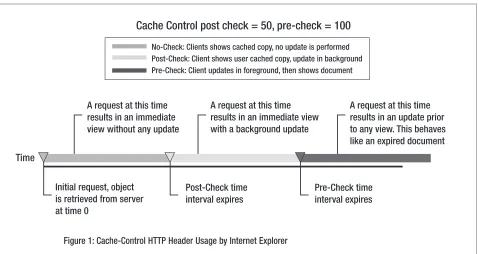
The post-check time is an interval in seconds after which an entity must be checked for freshness. The check can occur after the user is shown the entity; this ensures that on the next round trip, the user will be shown the most up-to-date copy. (Note that you can check the cached object “post” display.)
The pre-check time defines a time interval in seconds after which an entity must be checked for freshness before being displayed to the user. (Note that the cached object is checked “pre” display.)
Figure 5 below, (reproduced from http://msdn.microsoft.com/workshop/Author/perf/perftips.asp),
illustrates how Internet Explorer uses these values.
By choosing appropriate post-check and pre-check times, the user will typically be shown cached copies of images for published applications and web interface. This occurs quickly. If the post-check timeout expires, the browser performs a check, in the background, to determine if the image is updated. It is only when the pre-check timeout expires that the browser checks the cached object for updates (and then only if no update to the cached object was made during the post-check timeout phase).
Because changes to published applications are relatively infrequent, sensible values for these parameters are:
• Post-check = 1200 • Pre-check = 360000
These values correspond to 20 minutes and 4.2 days respectively. This means that:
• In the first 20 minutes, the user will see cached images displayed; no check is done
• After 20 minutes, the user will see cached images displayed; a background check is made for an up-to-date image
• After 4.2 days, if a new image has not been downloaded from the server, a check is made for an up-to-date image before that image is displayed
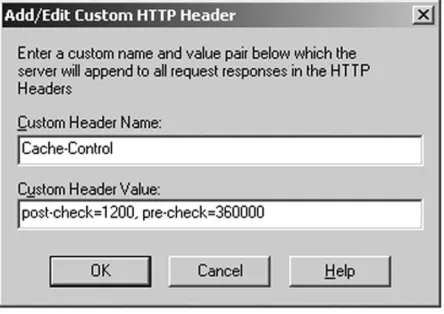
To set these headers, click Add…on the HTTP Headers tab of the dialog box described previously. This displays a dialog box where you can add the HTTP headers. The entries required are shown in Figure 2 below.
Figure 2: Adding the Cache-Control HTTP Header using IIS
Click OK to enforce the headers for the selected entity.
CO N T R O L L I N G W E B PA G E E X P I R Y I N APA C H E
Equivalent functionality to the above is available in Apache (1.2 or above) via the mod_expires module. Check for mod_expires in the Apache httpd.conf file or by running the httpd –l command.
Expiry of web page content can be set for different document realms. Virtual Host and Directory containers are controlled by settings placed within the httpd.conf file. Alternatively, Expires directives can be placed within a .htaccess file in the relevant directory. In the latter case, the AllowOverride Indexes header must be set within httpd.conf for the relevant directory.
Deploying appropriate Expiry settings for web interface image can reduce display time for the users. See the
Caching Citrix Web Interface Imagessection above for folder locations.
The syntax for Expiry control is divided into 3 parts.
ExpiresActive controls whether expiry headers are generated. Set it to ON.
ExpiresDefaultcontrols the default expiry time for every object in this realm. It takes a single time parameter.
ExpiresByTypecontrols expiry for a given object type. It takes two arguments: the MIME type to control and a
time parameter.
The following example gives an idea of the syntax used to set up page expiry. For more details see:
http://httpd.apache.org/docs/mod/mod_expires.html
<Directory /directory/path/required>
# Everything else you want to add to this section ExpiresActive on
ExpiresDefault "access plus 2 months" ExpiresByType image/gif "access plus 1 year" ExpiresByType text/html "modification plus 5 days" </Directory>
Apache also supports Cache-Control meta files deployed to mirror web page directory layout. For more details see:
http://httpd.apache.org/docs/mod/mod_headers.html.
Conclusion
The Citrix access infrastructure model offers an excellent approach for providing wireless access to applications. End users benefit from the flexibility to choose their device and connection, while administrators gain the efficiency of centralized application management and deployment, making it far easier to support mobile workers who may not have local technical resources.
Appendix 1: Sample Template.ica file for Citrix web interface
This section includes a sample listing of the Template.ica file to be used for wireless connections. This file implements all of the recommendations made in the web interface section.
; Wireless wWAN ICA file template for the Citrix ICA Client ;Copyright 2000-2003 Citrix Systems, Inc. All rights reserved.
<[NFuse_IFSESSIONFIELD sessionfield="NFUSE_LANGUAGECODE" value="ja"]> [Encoding]
InputEncoding=SJIS
<[/NFuse_IFSESSIONFIELD]>
<[NFuse_IFSESSIONFIELD sessionfield="NFUSE_LANGUAGECODE" value="de"]> [Encoding]
InputEncoding=ISO8859_1 <[/NFuse_IFSESSIONFIELD]>
<[NFuse_IFSESSIONFIELD sessionfield="NFUSE_LANGUAGECODE" value="en"]> [Encoding]
InputEncoding=ISO8859_1 <[/NFuse_IFSESSIONFIELD]>
<[NFuse_IFSESSIONFIELD sessionfield="NFUSE_LANGUAGECODE" value="fr"]> [Encoding]
InputEncoding=ISO8859_1 <[/NFuse_IFSESSIONFIELD]>
<[NFuse_IFSESSIONFIELD sessionfield="NFUSE_LANGUAGECODE" value="es"]> [Encoding]
InputEncoding=ISO8859_1 <[/NFuse_IFSESSIONFIELD]>
<[NFuse_setSessionField NFuse_ContentType=application/x-ica]>
[WFClient] Version=2
ClientName=[NFuse_ClientName]
;---COMAllowed=Off CPMAllowed=Off VSLAllowed=Off CDMAllowed=Off ClientAudio=Off UpdatesAllowed=Off OutBufCountHost=118 OutBufCountClient=118 OutBufLength=512
PersistentCacheEnabled=On MouseTimer=200
KeyboardTimer=50
;---<[NFuse_IfSessionField sessionfield="NFuse_CSG_Enable" value="On"]> TransportReconnectEnabled=Off
<[/NFuse_IfSessionField]> RemoveICAFile=yes [NFuse_SOCKSSettings]
[ApplicationServers] [NFuse_AppName]=
[[NFuse_AppName]]
Address=[NFuse_AppServerAddress] InitialProgram=#[NFuse_AppName]
LongCommandLine="[NFuse_AppCommandLine]" DesiredColor=[NFuse_WindowColors]
TransportDriver=TCP/IP WinStationDriver=ICA 3.0
;---;The following are recommended settings for wWAN connections
;---MaximumCompression=On Compress=On
AutologonAllowed=ON [NFuse_Ticket]
[NFuse_IcaWindow]
;---;The following are recommended settings for wWAN connections ;---ZLKeyboardMode=1
ZLMouseMode=1
[NFuse_IcaEncryption]
SessionsharingKey=[NFuse_SessionSharingKey]
[EncRC5-0]
DriverNameWin16=pdc0w.dll DriverNameWin32=pdc0n.dll[
EncRC5-40]
DriverNameWin16=pdc40w.dll DriverNameWin32=pdc40n.dll
[EncRC5-56]
DriverNameWin16=pdc56w.dll DriverNameWin32=pdc56n.dll
[EncRC5-128]
DriverNameWin16=pdc128w.dll DriverNameWin32=pdc128n.dll
[Compress]
Appendix 2: Server configuration changes for MetaFrame XP FR1
Note that none of the following changes are required for MetaFrame XP™FR2 or above releases; these
modifications are only required if FR1 is deployed.
Create a new ICA listener entry for wWAN connections
By creating a second ICA listener dedicated to serve users connecting through wWAN, customizations specific to wWAN users are made without affecting LAN users. By creating a new ICA listener and routing all wWAN connections to that listener, a Citrix server(s) can serve applications to users connecting on high-latency wWAN links as well as on low-latency LAN links.
This second listener is used in combination with NFuse. A second NFuse Web site is created for wireless access and NFuse routes users to the correct ICA listener by selection of the new port number.
The following discussion assumes a single-homed server.
To create a new ICA listener:
1. Use Regedit.exe to open the following registry key:
HKLM\System\CurrentControlSet\Terminal Server\WinStations 2. Expand and select the ICA-tcp key.
3. Export the ICA-tcp key to a registry file. 4. Rename the ICA-tcp key to ICA-tcp-wWAN.
5. Import the previously exported registry file back into the WinStations key. This recreates the ICA-tcp key. 6. Set the PortNumber value in the ICA-tcp-wWAN key. This registry setting defines the port number for the
listener.
To start the new ICA listener:
1. Start the Citrix Connection Configuration applet. 2. Disable the ICA-tcp-wWAN listener.
Enable the ICA-tcp-wWAN listener.
Increase the interactive timer delay on the wWAN ICA listener
The interactive timer is used on the server to ensure session interactivity. The timer flushes any pending buffers when interactive (mouse or keyboard) input is detected when the timer fires.
By increasing the interactive timer delay, buffers that are sent to the client will contain more data when they are flushed. This will reduce the number of small packets that are sent to the client. This reduces the perceived latency due to the lower radio overhead.
Citrix testing shows a recommended value for the interactive timeout on the server of 100ms. The default value for MetaFrame XP is 10ms. The interactive timeout is controlled through the InteractiveDelay registryvalue in the ICA wWAN listener key. See the recommendation about creating a new ICA listener to serve wWAN users.
Enable SpeedScreen3 Latency Reduction Channel buffering
Channel buffering connotes that server data is buffered prior to being transmitted to the client. This has the effect of coalescing many small packets into a larger packet, which on wWAN connections reduces the number of radio transactions required for the same amount of data. This benefits the session latency.
The server/client communication on the SpeedScreen Latency Reduction Channel typically consists of a large number of small packets and is an ideal candidate for buffering. The small packets are typically ack
(acknowledge) packets for previously typed keystrokes.
Virtual Channel Buffering is controlled through the Buffering registry value located in the registry key
HKLM\System\CurrentControlSet\Control\Terminal Server\WDs\icawd
Appendix 3: Sample ICAFile.xslt file for MetaFrame Secure Access Manager
This section includes a sample listing of the ICAFile.xslt file to be used for wireless connections. This file implements all of the recommendations made above for wWAN connection tuning. Caution: changes made to the ICAFile.xslt are applied to all users of all Access Centers within an MetaFrame Secure Access Manager farm.
<?xml version="1.0" encoding="UTF-8" ?> <xsl:stylesheet version="1.0"
xmlns:xsl="http://www.w3.org/1999/XSL/Transform" xmlns:ica="urn:schemas-citrix-com:ica-types-2002-03">
<!--Example transform to render an <ICABindings> document to ICA file format -->
<xsl:output method="text" media-type="application/x-ica"/>
<xsl:template match="*|text()" /> <xsl:template match="/">
<xsl:apply-templates /> </xsl:template>
<xsl:template match="ica:ICABinding"> [WFClient]
Version=2
ClientName=<xsl:value-of select="ica:ClientName" /> BrowserRetry=1
BrowserTimeout=20000 HttpBrowserAddress=!
<xsl:apply-templates select="ica:CSGEnabled"/>
<!--The following are recommended settings for wWAN connections
If site conditions allow these could be conditional on any of the available ICA settings, for example "ica:ClientAddress" or "ica:ClientName"
PersistentCacheEnabled=On MouseTimer=200
KeyboardTimer=50 <!---->
[ApplicationServers]
<xsl:value-of select="ica:ApplicationName" />=
[<xsl:value-of select="ica:ApplicationName" />]
Address=<xsl:value-of select="ica:ServerAddress" /> InitialProgram=#<xsl:value-of select="ica:ApplicationName" />
<xsl:apply-templates select="ica:CommandLine" /><xsl:apply-templates select="ica:ApplicationSettings/ica:ColorDepth"/>
TransportDriver=TCP/IP WinStationDriver=ICA 3.0 RemoveICAFile=yes
SessionsharingKey=<xsl:value-of select="ica:FarmId" />-<xsl:value-of select="ica:ClientName" />-<xsl:value-of select="ica:ApplicationSettings/ica:ColorDepth" />-<xsl:value-of select="ica:ApplicationSettings/ica:SoundType" />-<xsl:value-of select="ica:ApplicationSettings/ica:EncryptionLevel"/>
AutologonAllowed=On
<xsl:apply-templates select="ica:SSLProxyHost"/> SSLNoCACerts=0
SSLCiphers=ALL
BrowserProtocol=HTTPonTCP
UserName=<xsl:value-of select="ica:UserName" /> <xsl:apply-templates select="ica:NFuseTicket" />
<xsl:apply-templates select="ica:ApplicationSettings/ica:SoundType"/> <xsl:apply-templates select="ica:ApplicationSettings/ica:WindowType"/> <xsl:apply-templates select="ica:ApplicationSettings/ica:EncryptionLevel"/>
<!--The following are recommended settings for wWAN connections -->
MaximumCompression=On Compress=On
<!---->
DriverNameWin16=pdc0w.dll DriverNameWin32=pdc0n.dll
[EncRC5-40]
DriverNameWin16=pdc40w.dll DriverNameWin32=pdc40n.dll
[EncRC5-56]
DriverNameWin16=pdc56w.dll DriverNameWin32=pdc56n.dll
[EncRC5-128]
DriverNameWin16=pdc128w.dll DriverNameWin32=pdc128n.dll
[Compress}
DriverNameWin16=pdcompw.dll DriverNameWin32=pdcompn.dll
</xsl:template>
<xsl:template match="ica:CSGEnabled"> <xsl:choose>
<xsl:when test=".='False'">
TransportReconnectEnabled=On </xsl:when>
<xsl:when test=".='True'"> TransportReconnectEnabled=Off
</xsl:when> </xsl:choose> </xsl:template>\
<xsl:template match="ica:CommandLine"> LongCommandLine=<xsl:value-of select="."/>
</xsl:template>
<xsl:template match="ica:SSLProxyHost">
<xsl:value-of select="local-name()"/>=<xsl:value-of select="."/> SSLEnable=On
</xsl:template>
<xsl:template match="ica:NFuseTicket"> Domain=\<xsl:value-of select="substring (., 15, 16)"/> ClearPassword=<xsl:value-of select="substring (., 1, 14)" />
<xsl:template match="ica:ApplicationSettings/ica:SoundType"> <xsl:choose>
<xsl:when test = ".='basic'"> ClientAudio=On
</xsl:when> <xsl:otherwise> ClientAudio=Off
</xsl:otherwise> </xsl:choose>
</xsl:template>
<!--The recommended setting for wWAN connections is to have ClientAudio Off. Always override the choice above.
--> ClientAudio=Off
<!---->
<xsl:template match="ica:ApplicationSettings/ica:ColorDepth"> DesiredColor=<xsl:value-of select="." />
</xsl:template>\
<xsl:template match="ica:ApplicationSettings/ica:EncryptionLevel">\ <xsl:choose>
<xsl:when test=".='RC5_40Bit'"> EncryptionLevelSession=EncRC5-40
</xsl:when> <xsl:when test=".='RC5_56Bit'"> EncryptionLevelSession=EncRC5-56
</xsl:when>
<xsl:when test=".='RC5_128Bit'"> EncryptionLevelSession=EncRC5-128
</xsl:when>
<xsl:when test=".='RC5_128Bit_LoginOnly'"> EncryptionLevelSession=EncRC5-0
</xsl:when> </xsl:choose> </xsl:template>
<xsl:template match="ica:ApplicationSettings/ica:WindowType"> TWIMode=<xsl:choose>
<xsl:otherwise>Off</xsl:otherwise> </xsl:choose>
<!--The following are recommended settings for wWAN connections -->
ZLKeyboardMode=1 ZLMouseMode=1
<!---->
<xsl:choose>
<xsl:when test = "ica:Percent"> ScreenPercent=<xsl:value-of select="." />
</xsl:when>
<xsl:when test = "ica:Pixels"> DesiredHRES=<xsl:value-of select=".//ica:Width" /> DesiredVRES=<xsl:value-of select=".//ica:Height" />
</xsl:when> </xsl:choose> </xsl:template>
2. History Repeating Itself? Mike Hibberd and Ian Channing, MCI.
Notice
The information in this publication is subject to change without notice.THIS PUBLICATION IS PROVIDED “AS IS” WITHOUT WARRANTIES OF ANY KIND, EXPRESS OR IMPLIED, INCLUDING ANY WARRANTIES OF MERCHANTABILITY, FITNESS FOR A PARTICULAR PURPOSE OR
NON-INFRINGEMENT. CITRIX SYSTEMS, INC. (“CITRIX”), SHALL NOT BE LIABLE FOR TECHNICAL OR EDITORIAL ERRORS OR OMISSIONS CONTAINED HEREIN, NOR FOR DIRECT, INCIDENTAL, CONSEQUENTIAL OR ANY OTHER DAMAGES RESULTING FROM THE FURNISHING, PERFORMANCE, OR USE OF THIS PUBLICATION, EVEN IF CITRIX HAS BEEN ADVISED OF THE POSSIBILITY OF SUCH DAMAGES IN ADVANCE.
This publication contains information protected by copyright. Except for internal distribution, no part of this publication may be photocopied or reproduced in any form without prior written consent from Citrix.The exclusive warranty for any Citrix products discussed in this publication, if any, is stated in the product documentation accompanying such products. Citrix does not warrant products other than its own.Product names mentioned herein may be trademarks and/or registered trademarks of their respective companies.© 2000-2003 Citrix Systems, Inc.
All rights reserved.
About Citrix:Citrix Systems, Inc. (Nasdaq:CTXS) is the global leader in access infrastructure solutions and the most trusted name in enterprise access. Citrix software enables people in businesses, government agencies, and educational institutions to securely, easily and instantly access the on-demand enterprise, from anywhere, anytime, using any device, over any connection. Nearly 50 million people in more than 120,000 organizations rely on the Citrix MetaFrame Access Suite to do their jobs. Citrix customers include 100% of the Fortune100 companies, 99% of the Fortune500, and 92% of the FortuneGlobal 500. Based in Fort Lauderdale, Florida, Citrix has offices in 26 countries, and more than 7,000 channel and alliance partners in more than 100 countries. For more information visit www.citrix.com.
©2003 Citrix Systems, Inc. All rights reserved. Citrix®, ICA®, MetaFrame®, MetaFrame XP™, NFuse®, Program Neighborhood®and SpeedScreen™
W O R L D W I D E H E A D Q U A RT E R S
C i t r i x S y s t e m s , I n c .
851 West Cypress Creek Road Fort Lauderdale, FL 33309 USA Tel: +1 (800) 393 1888 Tel: +1 (954) 267 3000
E U R O P E A N H E A D Q U A RT E R S
C i t r i x S y s t e m s I n t e r n a t i o n a l G m b H
Rheinweg 9 8200 Schaffhausen Switzerland
Tel: +41 (52) 635 7700
A S I A PA C I F I C H E A D Q U A RT E R S
C i t r i x S y s t e m s A s i a Pa c i f i c P t y L t d .
Level 3, 1 Julius Avenue Riverside Corporate Park North Ryde NSW 2113 Sydney, Australia Tel: +61 (0) 2 8870 0800
w w w. c i t r i x . c o m