Center
User Guide
For NCS Ware Release 4.0
N-TeliView, N-TeliAgent and NCS Supervisor
Part No. 77000CEN02 April 2001
WARNING!
Toll fraud is committed when individuals unlawfully gain access to customer telecommunication systems. This is a criminal offense. Currently, we do not know of any telecommunications system that is immune to this type of criminal activity. NEC America will not accept liability for any damages, including long distance charges, which result from unauthorized and/or unlawful use. Although NEC America has designed security features into its products, it is your sole responsibility to use the security features and to establish security practices within your company, including training, security awareness, and call auditing.
NOTICE
While every effort has been made to ensure accuracy, NEC America will not be liable for technical or editorial errors or omissions contained within the documentation. The information contained in this documentation is subject to change without notice. This documentation may be used only in accordance with the terms of the NEC America License Agreement.
NEC America, Inc., Corporate Networks Group 4 Forest Parkway
Shelton, CT. 06484 Telephone: 203-926-5400 Fax: 203-929-0535 Web site: cng.nec.com
TRADEMARKS
NEC, NCS Serv, NCS Ware, Extended Caller ID, N-TeliTouch, NCS Link, NCS Console, NCS Admin and N-TeliCall are trademarks or registered trademarks of NEC.
All other brand names mentioned are trademarks or registered trademarks of their respective manufacturers.
Table of Contents
Contents
WARRANTY. . . VII
CHAPTER 1
Installation . . . 1
Introduction . . . 1
Client / Server Application and Session Licensing . . . 1
Package Content . . . 2
Installation and Setup . . . 3
Pre-Installation Checklist . . . 3
Installing N-TeliView Voice Mail Service on the NCS Serv Sys-tem . . . 4
Client System Requirements. . . 4
Installing Center on a Client System . . . 5
Session Licensing and License Upgrade Procedures . . . 5
Upgrading Licenses . . . 5
Removing Center Software . . . 6
Uninstalling Center . . . 6
Uninstalling N-TeliView Voice Mail Service at NCS Serv . . . 6
Microsoft Outlook Support . . . 6
ACT/GoldMine Support . . . 7
CHAPTER 2 Getting Started . . . 9
Logging In . . . 9
Logging in from a Remote Location (IP Extension) . . . 11
Hiding or Exiting Center . . . 12
Using the Windows Tray Telephone Icon . . . 13
Resizing the Display . . . 13
Call States . . . 14
Error Messages . . . 15
CHAPTER 3 Using Center as a Desktop User . . . 17
Table of Contents
Handling Calls . . . .19
Dialing . . . 19
Dialing By Number . . . 20
Dialing By Name or Extension . . . 20
Dialing Speed Dial Numbers . . . 21
Placing Calls on Hold. . . 21
Using Call Waiting. . . 22
Transferring Calls. . . 22
Sending Calls to Voice Mail . . . 23
Conferencing Calls . . . 23
Using Voice Mail . . . .25
About the Voice Mail Window . . . 25
Listening to Your Voice Mail. . . 26
Saving Remotely or Locally. . . 26
Deleting the Message . . . 27
Returning the Call . . . 27
Attaching a Memo . . . 27
Forwarding Voice Mail . . . 28
Working with Voice Mail Groups (Distribution Lists) . . . 29
Creating a VM Group. . . 31
Changing a Voice Mail Group . . . 31
Deleting a Voice Mail Group . . . 32
Monitoring Extension Activity . . . .33
Choosing Extensions to Monitor . . . 33
Reading the Monitor List . . . 34
Viewing the Call History . . . 35
Table of Contents
Reading the Monitor List . . . 43
Viewing a Call History . . . 44
Viewing Workgroup Statistics . . . 45
Viewing Queues . . . 46
CHAPTER 5 Using Center as a Supervisor . . . 47
Logging In . . . 47
Viewing Group Statistics . . . 48
Viewing Agent Statistics . . . 50
Viewing a History of Agent Activity . . . 51
Viewing Agent Current Status . . . 52
Monitoring—Listening in and Barging In . . . 53
Viewing the Queues . . . 54
CHAPTER 6 Configuring Your Station Features . . . 55
Apply Button and OK Button . . . 55
General Information . . . 56
Default Trunk Access . . . 56
Voice Mail Play Options . . . 57
Screen Pop and Auto Close . . . 57
Accessing Databases. . . 57
Call Handling . . . 59
N-TeliFind, One Number Access . . . 61
Message Notifications . . . 64
Station Speed Dialing Setup . . . 65
Adding or Editing Station Speed Entries . . . 66
System Speed Dialing. . . 66
Warranty
C o v e r a g e
NEC America warrants its hardware products to be free from defects in material and workmanship during the warranty period. If a product proves to be defective in material or workmanship during the warranty period, NEC America will at its sole option repair, refund, or replace the product with a like product.
How Long is the Warranty Effective
All NEC Americas’ NCS products are warranted for one (1) year for all parts from the date of the first consumer purchase.
Who the Warranty Protects
This warranty is valid only for the first consumer purchaser.
What the Warranty Does Not Cover
1. Any product on which the serial number has been defaced, modified or removed.
2. Damage, deterioration or malfunction resulting from:
a) Accident, misuse, neglect, fire, water, lightning, or other acts of nature, unauthorized product modification, or failure to follow instructions supplied with the product.
b) Repair or attempted repair by anyone not authorized by NEC.
c) Any damage of the product due to shipment.
d) Removal or installation of the product.
e) Causes external to the product, such as electric power fluctuations or failure.
f) Use of supplies or parts not meeting NEC Americas’ specifications.
g) Normal wear and tear.
h) Any other cause which does not relate to a product defect.
Warranty
Limitation of Liability
Except for personal injury, direct damages to tangible personal property proximately caused by NEC America products and liability otherwise expressly assumed in a written agreement signed by NEC, the liability of NEC, its affiliates, suppliers, and authorized resellers for any claims, losses, damages, or expenses from any cause whatsoever (including acts of omission of third parties), regardless of the form of action, whether in contract, tort or otherwise, shall not exceed an amount equal to the lesser of the direct damages proven or the purchase price of the product. In no event shall NEC America or its affiliates, suppliers, or authorized resellers be liable for incidental, consequential or any other indirect loss or damage (including lost profits or revenues) incurred in connection with the product. This limitation of liability shall survive failure of the exclusive remedy set forth in the limited warranty above.
Effect of State Law
Introduction
Installation
C
H A P T E R1
Installation
Introduction
Center 4.0 is an optional software package for NCS Ware 4.0 server. It is a call control application for PC users, workgroup agents and workgroup supervisors. Like N-TeliView, it is a graphical interface for call and voice mail management which also provides user configuration of station features and operation. Center goes beyond N-TeliView by adding features for workgroup agents and supervisors such as log in/log out, calls waiting status and more.
Center 4.0 Client, has 3 different faces it shows, depending on how the user logs in, It is possible to log in as an N-TeliView (desktop) user, an N-TeliAgent (workgroup agent) or as a workgroup Supervisor.
Client / Server Application and Session
Licensing
The Center software comes in 2 parts. Center Server is installed on the server (NCS Serv) and the other part, NCS Client is installed on the PC user desktops.
The part installed on the NCS Serv system is called Center 4.0 Server. This provides a communication link (called NCS Link) between the server and Center Clients. Another functions of this software is to register licenses and monitor the number of active Center Client sessions. To enable the features in this package, the Center 4.0 Session License must be installed in NCS Ware server.
Installation
P a c k a g e C o n t e n t
NCS Center software can be purchased in two different packages. There is the starter package which contains the client/server software along with a set number of client session licenses and there is an upgrade which has only a client session license. See tables below for package part numbers.
The following items are included in the Center 4.0 starter package:
• Center 4.0 CD ROM
• Center 4.0 User Guide (for each session license purchased)
• Center 4.0 End User License Agreement (for the number of session licenses purchased)
If you ordered a Center 4.0 starter package and any of these items are missing or damaged, please contact your Authorized NEC dealer.
Table 1: Center 4.0 Starter Packages (software and license bundle)
Center client sessions can be added to the NCS Ware server at any time and in discrete numbers: e.g. 4, 8, 16 and/or 32 simultaneous sessions. For example, to provide 24 desktops with 24 simultaneous connections, the installer will enter two purchased license numbers; one for 8 licenses and
Software Part Number # of (Simultaneous)
Sessions License
Installation and Setup
Installation
Further, if the customer later wants an additional 6 more simultaneous connections, he would purchase another 8-session license (the closest number to 6). The installer would enter the license number and NCS Ware will add this number to the system’s total, providing this customer with a total of 33 (8+25) simultaneous connections.
Table 2: Center 4.0 Upgrade Packages (session license only)
The following are included in a Center 4.0 license upgrade package.
• Center 4.0 User Guide (for each license purchased)
• Center 4.0 End User License Agreement (for the number of session licenses purchased)
Installation and Setup
To install the Center client software on each user machine, you can load Center client on a network server and then using your company’s
distribution software, deliver the Center client software to each desktop PC.
Most frequently, this means loading the software onto a shared network file server and copying the software to each desktop PC. Alternatively, you can use Center 4.0 CD ROM to install the program on each desktop.
Pre-Installation Checklist
Before installation Center, please review the following checklist:
• Make sure that NCS Ware 4.0 has been installed on the NCS Serv system.
• Make sure that N-TeliView VM Service has been installed on the
Software Part Number
# of (Simultaneous) Software License
Installation
• Make sure that TCP/IP is enabled on both machines.
• Make sure the client is able to connect to the server on the network.
Installing N-TeliView Voice Mail Service on the
N C S S e r v S y s t e m
First, NCS Ware Telephone Switching Service must be installed and running on the server. Telephone Switching Service is loaded and run when the server is started and anytime you run the NCS Ware Administrator.
1. Insert the Center 4.0 CD disk in the network server with NCS Ware installed.
2. Run SETUP.EXE under \Center Server directory. Enter the license number when prompted. For a new installation, you will have to enter 2 numbers, one for Center option pack and one for the session license.
3. If prompted to reboot the system, select NO and click on FINISH.
4. Start the VM Services from the Windows Start menu, select Programs N-TeliView VM Service Start N-TeliView VM Service.
Client System Requirements
Each client system must meet the following minimum requirements. For server system requirements, see the NCS Ware Getting Started Manual.
• IBM/PC AT compatible system
• Intel 133 MHz Pentium
Session Licensing and License Upgrade Procedures
Installation
Installing
Center
on a Client System
After completing the pre-installation checklist, proceed as follows on the client machine:
1. Exit any/all Windows applications.
2. Insert the Center 4.0 CD into the CD ROM drive.
3. Run the Setup program under \Center Client and follow the step by step installation instructions as they appear on the screen.
You are now ready to log onto Center as a Desktop User, N-TeliAgent or an NCS Supervisor. For more detailed information on each version, refer to subsequent chapters in this manual.
Session Licensing and License Upgrade
P r o c e d u r e s
Customers purchase one or more of these packages for the desired capacity of simultaneous Center users. For example, if purchasing the 16 sessions license for a group of 20 people, all 20 workstations can have Center installed, but only 16 workstations can use Center at the same time.
Upgrading Licenses
To increase the number of simultaneous Center sessions, follow these steps:
1. Insert either the NCS Ware 4.0 CD or the Center 4.0 CD into the CD drive.
2. Run the SETUP.EXE in the NCS Ware or Center folder to run the setup program.
3. Select the Upgrade N-TeliView License option and click OK.
4. Enter the 20-digit software license key located on the End User License Agreement shipped with your upgrade package and click Next.
Installation
6. You can verify the new license and number of sessions installed when you run NCS Admin by selecting AboutNCS Ware… on the Help menu, then clicking the License Information button to view a window that displays licenses and session information.
The NCS Ware server does not need to be rebooted to activate these new sessions installed with this upgrade procedure.
Removing Center Software
Uninstalling
Center
1. At the client machine, close the Center application. Right click on the telephone icon on the system tray and click Exit.
1. From the Windows Start menu, select Programs Center Uninstall Center.
2. Click OK when the dialog box asks if you want to uninstall the program, and respond to any additional prompts.
Uninstalling N-TeliView Voice Mail Service at
N C S S e r v
1. From the Windows Start menu, select Programs NTeliView VM Service Stop NTeliView VM Service.
2. In the Control Panel, select Add/Remove Programs.
3. Choose N-TeliView VM Service and click the Add/Remove or Change/Remove button, depending on which version of Windows you’re running.
ACT/GoldMine Support
Installation
Center requires that you to set up the Microsoft Contacts list prior to using this feature in Center.
A C T / G o l d M i n e S u p p o r t
Logging In
Getting Started
C
H A P T E R2
Getting Started
Center 4.0 is a suite of desktop applications for managing personal calls, workgroup calls and performing phone and supervisory functions from a PC. Center contains three applications:
• N-TeliView is the primary software application designed for general PC desktop users in an NCS Serv environment. With N-TeliView you can access, configure and perform several of NCS Serv’s PBX functions directly from the desktop. These functions include call handling, call forwarding, voice messaging, extension monitoring, and N-TeliFind, One Number Access. In addition, N-TeliView integrates with contact management software including Microsoft Outlook, ACT and GoldMine.
• N-TeliAgent is a version of Center designed for workgroup agents. Through an N-TeliAgent windows, you can monitor workgroup related statistics, workgroup call pick up and member login/logout directly from the desktop.
• NCS Supervisor is a version of Center designed for supervisors of workgroup agents. Through NCS Supervisor you can monitor the status and performance of a workgroup, including N-TeliAgent calls, real time workgroup statistics and trunk state. This information can be stored to an internal or external CDR database for future review and analysis.
Logging In
Before you log in
When you log in for the first time, you need to know either the server name or the IP address of the server you’ll be linking to. If you use the server name and not the IP address, Center replaces the name with the IP address, eliminating the need of a DNS (Domain Naming System) search each time you log on.
If you are connecting to the Internet through a modem connection, before you log in, establish a session connection from your PC to your local Internet Service Provider. If you’re using a low-speed connection, the login may take some time as a large amount of data is transferred to your desktop.
To Log In
1. Run the Center application and, if this is the first login to this NCS Serv system, enter the servers IP address or name of the system you will be using. If this is not your first login, go on to the next step.
Figure 1. Logging In
2. Enter your Extension number and Password assigned to your phone.
Optionally, you can check the Always save password check box to store your login password the next time you access Center.
Logging in from a Remote Location (IP Extension)
Getting Started
5. Click OK to open the next login window.
Figure 2. Choosing the type of login
6. Select the usage—Desktop User (N-TeliView), Workgroup Agent (N-TeliAgent), or Workgroup Supervisor (NCS Supervisor)—and click OK to complete the login.
Logging in from a Remote Location (IP
Extension)
For desktop use, but not for workgroup agent or supervisor use, you can access Center from a remote location using an IP extension. All the call handling functions are the same as logging in locally, with the exception of the ability to configure N-TeliFind, One Number Access. You can pick up voice mail, forward local business office phone calls to another site such as a home desktop PC, and even receive the phone calls as you would at the office.
In order to run Center remotely, if you connect to the Internet through a modem connection, first you need to establish a session connection to your Internet Service Provider.
To use Center remotely through an IP Extension, follow the steps below.
1. Check with your administrator to make sure the extension you’re using has been set up as an IP extension in NCS Admin.
2. If you are not already running NetMeeting 3.01 or higher, download and install it from Microsoft’s web or FTP sites.
3. Leave the IP Extension Integrated with NetMeeting check box unchecked unless you specifically want to use that option. (See Figure 1 on page 10.)
Note for those using the IP Extension Integrated with NetMeeting option. Center uses conferencing features that require the same data channels as NetMeeting. If NetMeeting is running, you will see a prompt reminding you to close the program.
Troubleshooting IP Connectivity
If problems occur, they may be due to a failure to connect to your ISP provider or due to firewalls at your work preventing direct access to the NCS Serv server. For firewall installation, see the NCS Ware Getting
Started Manual chapter on Software Installation.
As a test, you can choose Run from the Windows Start menu, then enter
Ping <IP address> [ENTER]
where <IP address> is the NCS Serv system you want to connect to. An example of the IP address form is 123.234.231.143
If you do not get a response, contact your LAN administrator for support.
Hiding or Exiting
Center
Using Center as a desktop user or workgroup agent, when you minimize the Center desktop by clicking the Minimize symbol (the dash), it is hidden—it doesn’t appear anywhere in the Windows desktop except as a telephone icon in the tray in the lower right corner, as discussed in a following subsection.
To exit Center entirely, right click the telephone icon and select Exit.
P o p U p Center when You Get a Call
Hiding or Exiting Center
Getting Started
Using the Windows Tray Telephone Icon
After you log in, the Center icon (a telephone) is displayed on the Windows tray, normally at the bottom right of your screen. When you have new voice mail, the telephone grows a little yellow envelope, as shown in the lower icon.
Figure 3. Telephone Icon in the Windows Tray
If the Center interface is not on your Windows desktop, but this icon appears in the Windows tray, you double-click it to open the Center main window, or you can right click it to pop up a menu, then select the Center window you want to open.
Resizing the Display
You can re-size many N-TeliView and Center windows in the normal Windows method: place the cursor at a window edge or corner, then drag the window to the size you want.
C all States
Center applications all report the status of calls. A list of the states includes the following:
• AA - the call is being transferred to an Auto Attendant.
• Busy - callee is busy or not available
• Call Pending - the call is placed into a workgroup queue
• Conference - the call is in conference
• Connect - the call is connected
• Dial Tone - a dial tone is present, N-TeliView is ready to dial out.
• Error - receipt of an error tone
• Hold - the call is on hold.
• Hold Pending - the call is being transferred or conferenced.
• Idle - the extension is not in use.
• Music on Hold - an extension user placed the call on hold to take another call
• Park - the call is parked
• Play - Playing voice mail
• Proceeding - the outgoing call is in progress
• Record - Recording an introductory message
• Ringback - Caller receives this state while callee is ringing
• Ringing - there is an incoming call
Error Messages
Getting Started
Error Messages
The following errors may be displayed as login or connectivity errors.
Error Message Description Solution
NCS Serv connection limit has been exceeded
More than the allowed number of N-TeliView users have attempted to log on.
Maintain the number of N-TeliView users or add additional licensing.
Before using this program, please set up area code and external number
Area code and external number have not be established for Center.
Set area code and external number in the configuration channel BEFORE using Center.
Cannot connect to NCSLink. Please check server name or network connection.
You are not connected to NCS Serv.
Check the server field (IP address or DNS name) by: 1. Pinging the network server address OR
2. Try using the IP address of NCX Serv (if using the DNS name in the server field)
Cannot get voice mail list right now because mail box is already being accessed.
Mail box is in use by NCSMail and is temporarily unavailable.
Wait a while, then try again.
Mail service is unavailable. Please check with your administrator.
Voice mail service is not enabled on NCS Serv
Make sure voice mail service is started.
NetMeeting is already used by another application, so you cannot enable IP Extension Integrated with NetMeeting.
Please register CmdInterface.dll (regsver32 CmdInterface.dll)
NCSLink uses this dll to communicate with NCS Serv. It should be registered in user system.
Re-register this file. Go to “Center 4.0" and type in command window, regsver32
CmdInterface.dll
Required Option Pack License. Please contact your local dealer.
A Center 4.0 license is required but not installed.
Install option pack license in NCS Serv system.
You have entered an invalid password. Please try again.
The password and confirmation box entries do not match.
Make sure you are entering the password correctly in both boxes.
You need to install NetMeeting to use “IP Extension integrated with NetMeeting.”
You tried to log in with the IP extension option without an installed version of NetMeeting.
Install NetMeeting 3.01 or higher from Microsoft’s web or FTP sites.
Using Center
C
H A P T E R3
Using Center as a Desktop User
Once you log in as a Desktop User described on page 9, the N-TeliView main window appears. This window provides tools to manage and monitor calls, to facilitate management of your personal contacts, and to configure your NCS Serv telephone and voice mail options. Configuration is described in Chapter 6.
Figure 4. N-TeliView main window
About the Main Window
The window consists of the following displays and buttons:
• The Call Status panel displays the status of the currently active call, a list of any calls on hold, and the current time.
• The Directory panel has two tabs: one showing the current calls list and the other showing a log of current and past voice mails.
• The Dial functions provide buttons to place, hold or redial calls
• The Call Control buttons provide call functions such as transferring Dial Buttons
Lists of Calls / Voice Messages Call Status
• The Configuration button allows you to customize your call handling and voice message settings. See “Configuring Your Station Features” on page 55.
• The Monitor button provides a view into extension or workgroup activity and provides access to past call logs.
About the Calls List
Figure 5. Calls List
The calls list displays the call status for each call as described on page 14. The list also displays the name of the caller if available from extension information or from an external database, the number, workgroup pilot extension number, DNIS digits if available, and call duration.
Dialing
Using Center
Handling Calls
Dialing
You can dial out in a number of ways: using the numeric keyboard or using the mouse, and by name or extension, number, or speed dial number.
Initiate dialing by clicking the dial button in the main window.
Figure 6. Dial Button, Main window
Clicking the Dial button opens the dialing window. The scroll list box in the upper left is actually a combination text- and list- box. As a text box, it displays numbers that you enter from the dialing pad or from the keyboard number keys. You can also use it to search for names.
As a list, it displays extensions and the names associated with extensions as well as names and numbers imported from MS Outlook, Goldmine, or ACT. You can select extensions or names using this scroll list.
The list can display up to 2000 entries. If you are working with more than 2000 entries, you can find the entry by name search even if the entry is not one of the first 2000 that are displayed.t
Dialing By Number
Using the keyboard number keys
1. In the dialing window, enter the numbers you wish to dial using the standard numeric keys or the numeric keypad.
The numbers appear in the box above the dialing pad.
2. Press Enter or click the Dial button to place the call.
Using the M o u s e
1. Using the dialing pad in the Dialing window, click the digits for the phone number.
As you enter the numbers, they appear in the list box above the dialing pad.
2. Click the Dial button to place the call.
Dialing
Using Center
S e a r c h i n g b y N a m e
1. Click anywhere in the text box above the dialing pad, then begin to type the name of the person you want to call.
The dialing pad transforms into a list that displays matching names.
2. Click the name you want.
The extension or number appears in the list box, selected for dialing,
3. Click the Dial button to place the call.
4. Click the arrow button at the right of the box to abandon the search if the name cannot be found.
Dialing Speed Dial Numbers
You can use either your own Station Speed Dial numbers or the System
Speed Dial numbers.
See “Adding or Editing Station Speed Entries” on page 66 for details on setting up speed dial numbers.
1. Depending on which type of speed dial number you want to call, click the Station Dial tab or the System Dial tab.
2. Choose the speed dial entry from the list. The number will appear in the box above the dial pad.
3. Click the Dial button to place the call.
Redialing
To redial the last number called, click the Redial button.
Placing Calls on Hold
During a phone conversation, click the Hold button in the N-TeliView main OR press the FLASH button on your telephone, if available. The state of the call is changed from connected to a hold state and you will hear the dial tone.
In the row displaying the call, the State column shows the call on hold. Click the Hold state cell to release the hold and re-connect the call.
Using Call Waiting
During a call, you may hear a beep indicating that you have another incoming call. To answer the call:
1. Click the Calls tab on the N-TeliView main window to view the directory of current calls.
2. Find and click the row displaying the incoming call.
This places the current call on hold and connects the incoming call.
3. When you are finished, click Hold state cell for the call on hold to reconnect.
Transferring Calls
N-TeliView supports both supervised transfer, in which you confirm the transfer, and blind transfer.
1. While connected to a call, click the Transfer button. This pops up the dial window.
2. On the dial pad, enter the extension or phone number to which to transfer the call to, then click Dial.
3. While N-TeliView dials the new number, you’re asked to confirm your decision by clicking the OK button in a confirmation dialog box:
Dialing
Using Center
button, by closing the dialog box, or by pressing your telephone’s FLASH button.
If the transfer is cancelled, N-TeliView reconnects the call to your extension. The call is also reconnected if the third party doesn’t answer.
Sending Calls to Voice Mail
While connected to call, click To Voice Mail on the main window. When the dial pad appears, choose the extension number to which you want to send the call, then click OK.
You can also transfer a call to voice mail before you answer it.
Transfer to Attendant
While connected to a call, click To Attendant button on the main window. Select the operator or an Auto Attendants to transfer to using the drop-down list.
You can also transfer a call to an Attendant before you answer it.
Figure 11. Transfer to Auto Attendant
Conferencing Calls
Any internal user is able to add parties to a conference call. While connected to the first party:
1. Click the Conference button.
2. When the dial pad pops up, enter the extension or phone number you want to conference with, then click Dial.
Pending state, and you see a confirmation dialog box.
Figure 12. Confirming Conference Calls
You can cancel the conference at any time by clicking the Cancel button, closing the dialog box, or by pressing your telephone’s FLASH button. Normally, after cancelling you will be reconnected automatically to the initial call. If you are not automatically reconnected and want to reconnect to the first call, click the Hold
Pending status representing the call.
Dialing
Using Center
Using Voice Mail
About the Voice Mail Window
Figure 14. Voice Mail window
When you click the Voice Mail tab in the main window, you see the voice mail list.
• New voice mail messages are indicated by a white, closed envelope icon in the status window of N-TeliView.
• If the new message is urgent, a red envelope icon is displayed.
• Heard voice mail messages are indicated by a white, open envelope icon.
• If the message is saved, a blue, open envelope icon is displayed.
Listening to Your Voice Mail
In the Voice Mail list, select the message and use the voice mail controls at the bottom right of the window to play it, rewind, or fast forward.
You have several listening options which you configure as described in “General Information” on page 56. You can listen using the sound card on your PC or your telephone. You can play the message while its
downloading or wait until it’s completely downloaded to play it.
If this is a new message, the envelope icon changes from closed to open, indicating that the message has been heard. As the message is played, the status window displays Play.
Use the tape player type buttons to play the message.
Figure 15. Tape player buttons
If you click another message in the list, the current message stops playing.
Saving Remotely or Locally
You can click the Save As button to save the message as a .wav file that you can play back later. Save As opens a dialog box that lets you choose how you want to save the file.
Listening to Your Voice Mail
Using Center
Deleting the Message
To delete the message, select it and click the Delete key.
Returning the Call
Click the Return Call button to call back the sender.
A t t a c h i n g a M e m o
To add a note to accompany a voice mail, click the Memo button to invoke the Memo window.
Figure 17. Attaching a memo to a voice message
Forwarding Voice Mail
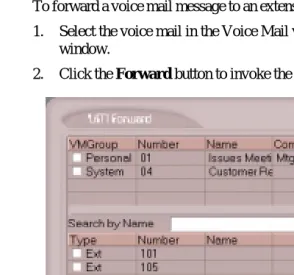
To forward a voice mail message to an extension or to a Voice Mail Group:
1. Select the voice mail in the Voice Mail view of the N-TeliView main window.
2. Click the Forward button to invoke the VM Forward pop up window.
Figure 18. Voice Mail Forward window
3. Select the check boxes next to the extensions and/or voice mail groups to which you want to forward the message.
If you need to search for a person by name, type the first letters of the name into the Search by Name box. The the matching names display in the list as you type. To select a name, select the check box next to it.
Listening to Your Voice Mail
Using Center
Working with Voice Mail Groups (Distribution Lists)
You can set up voice mail (VM) groups to forward messages to multiple recipients at the same time. You can set up to 100 personal voice mail groups, each with 64 members. Group members can be any extension or another voice mail group.
Voice Mail Groups are also known as Distribution Lists in other
NCS Ware interfaces.
There are two types of voice mail groups you can use:
• System-based groups are set up in the NCS Ware Administrator. You can use but not edit these lists in N-TeliView.
Accessing Voice Mail Group Lists
To work on your personal voice mail groups:
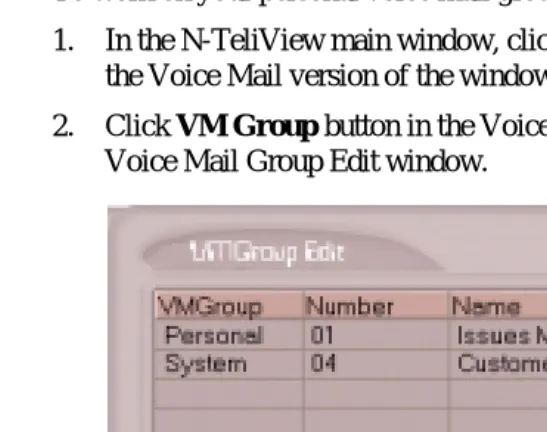
1. In the N-TeliView main window, click the Voice Mail tab to display the Voice Mail version of the window.
2. Click VM Group button in the Voice Mail list window to invoke the Voice Mail Group Edit window.
Listening to Your Voice Mail
Using Center
Creating a VM Group
To create a Voice Mail group after opening the Voice Mail Group Edit window, click the New button, which invokes the Create Group window.
Figure 20. Create a Voice Mail Group window
1. Use the scroll bar to select a desired Group ID.
2. Enter the Voice Mail Group Name and any Comments. These are optional but may help you identify the group.
3. Select the member extensions by selecting the check box next to each extension.
4. When finished, click OK. Click the Clear button to deselect all extensions or click Cancel to exit without saving your edits.
Changing a Voice Mail Group
To add or removing extensions, or change name or comments associated with a group:
1. Access the VM Group window as described on page 30.
3. Make any changes you need to make for the group name, comments, or members. To add or remove a member, select or deselect the check box next to the extension.
Deleting a Voice Mail Group
To delete a Voice Mail Group:
1. Access the Voice Mail Group window as described on page 30.
2. Click the Change button in the Voice Mail Group Edit window to open the Change Group window.
3. Click the Clear button to deselect all extensions.
4. Click OK to save and exit.
Choosing Extensions to Monitor
Using Center
Monitoring Extension Activity
If your extension’s configuration in the NCS Ware Administrator provides for it, you can monitor the activity on other extensions.
If you’re a manager, for example, you might monitor to determine whether you need more resources in a busy environment. Or, for another example, you might use monitoring capability to cover calls for a co-worker, since you can click the ringing telephone icon in the monitor list and take the co-worker’s call.
Figure 21. Monitor window
Choosing Extensions to Monitor
Open the Monitor window by clicking the Monitor button in the N-TeliView main window. This allows you to view the status of any extensions or workgroup that your extension configuration allows you to monitor.
Also, if you want to monitor extensions recently added to your extension’s monitoring list in the NCS Ware Administrator, click the Change button and select the extensions.
Selecting a group entry displays all the workgroup members in the monitoring window. Deselecting a group entry takes all workgroup member extensions out of the display.
Reading the Monitor List
In the monitor list, each selected extension is listed along with its State, Number, Name, and Group (workgroup), which shows only if the call is coming into to a workgroup.
The state can be one of the following:
• Idle—the extension is not in use. You can click the State field of an idle extension to have N-TeliView connect you to that extension.
• Connected—the extension is in use.
• Ringing—the telephone on the extension is ringing. You can click the status box of that extension to answer a call from your own extension.
• Conference—the extension in on a conference call
• Voice Mail—the extension is in voice mail.
• Auto Attendant—the extension is connected to an Auto Attendant
• Holding - the extension is on hold
Calling or Picking Up Calls
If a monitored extension is in an idle state, click the extension’s State field to ring that extension.
Viewing the Call History
Using Center
Viewing the Call History
Click the History tab in the Monitor window to view an informational history of handled calls.
Figure 22. History window
The list in the History window displays the following fields:
• Number—the extension or phone number. Upward arrow icons indicate outgoing calls; downward arrows indicate incoming calls Clicking the Number field dials that number.
• Name—Caller ID information, if available; or, Caller Unknown.
• Time—the call’s date and time.
This history data is sorted by last disconnected and not in the order the call was received. It is therefore possible to have a record with an earlier timestamp followed by a record with a later timestamp.
Also, the timestamp for call data is based on the client system, while the timestamp for voice mail messages is from NCS Serv. Thus, the times displayed here may not match those in the voice mail view in the main window.
• Duration—the length of time of each call.
• DNIS—displays DNIS digits collected, if available.
• Group— the extension’s workgroup number, if available.
Deleting Logs
To delete a specific call log entry, click the entry to select it, then click Delete. Or, right click the entry and select Delete.
To clear the entire call log, click Delete All, or right click any entry and select Delete All.
Placing Calls from the History List
To call a number or extension in the list, click the number.
Attaching a Memo to an Entry
To attach a memo to a history list entry, click the entry to select it, then click the Memo button to open a Memo dialog box. Create the memo in the Memo text box, then click OK.
Printing a History Log
Logging In
N-TeliAgent
C
H A P T E R4
Using Center as a Workgroup Agent
N-TeliAgent is a desktop call control application for workgroup agents to manage their workgroup calls from the PC. N-TeliAgent allows direct access to call handling as well as configuration functions including the following.
• View caller data (e.g., IP address, account number, credit card number, name, etc.) sent with an incoming call.
• Pushing or sending a URL or web page to a web-based call.
• Logging off one or more workgroups using selecting a two-digit reason code that corresponds to a particular course of action, if logoff reason codes are used in your workgroup.
• Viewing and printing workgroup call data.
The basic call handling and voice mail features and functions available in N-TeliAgent are described in the chapter, “Using Center as a Desktop User,” which begins on page 17. Please refer to that chapter for basic call handling procedures. This chapter covers workgroup-specific activities.
Logging In
You cannot log in as a workgroup agent using the IP Extension integrated with NetMeeting option.
Select the workgroup or workgroups you want to log in to, then click OK. Center supports login on up to eight workgroups simultaneously.
L o g g i n g O u t o r C h a n g i n g W o r k g r o u p s
After you’ve logged in, you can log out or change the workgroups you’re logged in as follows:
Click the Login/Logout button in the main window to open the Group Login window, an example of which is shown on the previous page.
To log out or change workgroups, deselect the check box(es) next to the workgroup(s) you’re logging out from. If Logout Reason Codes are required in your system, select one in the drop down list. If you want to log in to other workgroups, select their check boxes. Then click OK.
A b o u t t h e M a i n W i n d o w
The N-TeliAgent main window is your window into your workgroup environment and facilitates the management of workgroup calls.
Call Status
Workgroup Status
Call Handling
N-TeliAgent
The window consists of the following displays and buttons:
• The Workgroup Status panel displays statistical information about the current workgroup. Above the panel are tabs that allow you to switch the view between the workgroups you’re logged in to.
The statistics are self-explanatory, except perhaps it needs to be noted that the Service Level represents the percentage of workgroup calls taken out of queue before the Threshold time has expired.
• The Call Status panel displays the status of the currently active call, a list of any calls on hold, and the current time. The call states are described on page 14.
• The Directory panel has two tabs: one showing a log of current calls, the other showing a log of current and past voice mails.
• The Dial functions provide buttons to place, hold or redial calls
• The Call Handling buttons provide call functions such as transferring the call or sending it to voice mail.
• The Configuration button allows you to customize N-TeliAgent settings. See “Configuring Your Station Features” on page 55.
• The Monitor button provides a view into extension or workgroup activity and provides access to past call logs.
• The Data button allows you to display data associated with the calls, to send web pages or URLs to the user, or to share web pages.
• The Ready button tells the system you are ready to receive workgroup calls.
• The Wait button tells the system not to send workgroup calls to your extension.
• The Login/Logout button allows you to login in to different workgroups and/or log out of current workgroups.
Call Handling
The basic call handling features and functions are the same for workgroup agent as they are for the desktop user. See “Handling Calls” on page 19 for further information.
Setting Status to Ready or Not Ready
Click the Wait button to tell the system not to send workgroup calls to your extension.
Click the Ready button to tell the system you are ready to receive workgroup calls.
V iewing, Sharing, or Pushing Data
Pushing a web page or URL is sending the page or URL as a link that the
other person view in their web browser.
Sharing the URL is pushing the link to the other user and simultaneously
opening the page in your own browser in such a way that when you scroll or otherwise act on the page, the other user sees the results in their own browser. Sharing allows you to guide the web-based caller through a site.
Call Handling
N-TeliAgent
• From Supplemental Caller Data, including user data tagged to the call, and data included by using the N-TeliAgent Memo button, DDR, ActiveX I/F or Agent ActiveX I/F.
• From caller data collected from the web page form
• From web URL paths—a URL history.
• from or input by the caller, such as IP address, name, account numbers, etc. including data from your external database such as Outlook, if available.
Sharing or Sending a URL or Page
The URL Sharing panel in the Caller Data window displays the addresses of pages or sites you’ve added to the list. Pushing a web site or a web page is a two step process: first you add it to your share list to make it available, then you send it.
1. In the Caller Data window, click Add to open an Add URL dialog box.
Figure 26. Add URL window
The URL now appears in your URL Sharing list.
Figure 27. The Caller Data window
3. To share or push the URL, select the URL you want to share by clicking it, then click Push to send it or Share to share it.
4. Click the Share button and it becomes a Release button. When you’re done sharing, click the Release button to disconnect the web call.
Using Voice Mail
The Voice Mail features and functions are the same as those for the desktop user. Please see “Using Voice Mail” on page 25.
M onitoring
Monitoring
N-TeliAgent
Click the Monitor button in the main window to open the Monitor window.
Figure 28. Monitor window
Selecting the Workgroups to Monitor
1. Click the Change button in the Monitor window to open the Change Monitor window.
2. Select the check boxes next to the workgroups you want to monitor, and click OK.
The extensions in the selected work groups are now listed in the Monitor window.
Reading the Monitor List
In the monitor list, each selected extension is listed along with its State, Number, Name, and Group—workgroup, if applicable.
The state can be one of the following:
• Idle—the extension is not in use. You can click the State field of an idle extension to have Center connect you to that extension.
• Connected—the extension is in use.
• Ringing—the telephone on the extension is ringing. You can click the status box of that extension to answer a call from your own extension.
• Auto Attendant—the extension is connected to an Auto Attendant
• Holding - the extension is on hold
Calling or Picking Up Calls
If a monitored extension is in an idle state, clicking the State field of an extension rings that extension.
If the monitored extension is in a ringing state, clicking the State field picks up that call.
Viewing a Call History
Monitoring
N-TeliAgent
Viewing Workgroup Statistics
Click the Workgroup tab to open the Workgroup window and view statistics on workgroup activity for the monitored workgroups.
Most of the data is self-explanatory, but you might note that the Service
Level represents the percentage of workgroup calls that have been taken out
of queue before the Threshold time has expired.
Also, note that the Login Time is the time you logged in to the workgroup.
Much of the data reported here is also reported in the Supervisor’s view of group statistics and is further discussed on page 48.
These statistics clear if the system is reset.
Click the Print button to print the statistics.
V i e w i n g Q u e u e s
Click the Queue tab to open the Queue window to view the calls in queue for the monitored workgroups. The call data includes the Caller ID and caller name, if available, as well as the workgroup and amount of time the call has been in queue.
Logging In
Supervisor
C
H A P T E R5
Using Center as a Supervisor
Logging in to Center as a Supervisor allows you to view workgroup and agent performance statistics and a history of calls. You can print this statistical data or export it to a CSF (Call Summary Format) file.
Further, you can view call data for calls in queue. You can listen to and, if your system is set up for it, barge in to agent telephone calls.
You cannot use NCS Supervisor logging in with the IP Extension Integrated with NetMeeting option.
Logging In
After initial login as a Supervisor described as described on “Logging In” on page 9, you are asked to specify which workgroups you want to monitor.
Figure 31. Password window for workgroup supervisor login
Viewing Group Statistics
Figure 32. Group Statistics window
The Group Statistics window displays—for each workgroup—real time workgroup activity and performance, workgroup performance since midnight, and a summary of agent data. The statistics displayed are for workgroup calls only.
These statistics are reset every night at midnight.
Most of the statistics are self-explanatory, but you may wish to note the following:
Viewing Group Statistics
Supervisor
• Service level—the percentage of workgroup calls that have been taken out of queue before the Threshold time has expired.
• Average wait time for answered calls—the average amount of time a caller is in queue before being answered.
• Average wait time for abandoned calls—the average amount of time calls were in queue before they were abandoned. Abandoned means that the caller has hung up before the call was answered.
• Calls abandoned—the number of calls abandoned since midnight.
• Average talk time—the average amount of time workgroup agents are actually talking to callers. The average time per agent is shown in the Agent Statistics window.
• Busy—the number of agents whose telephones are off hook, or the extension is in the Forward All Calls or Do Not Disturb state.
S w i t c h i n g W o r k g r o u p V i e w s
Click the workgroup extension tab at the bottom of the panel to view statistics for another workgroup.
Exporting or Printing Statistics
Use the Export button and then specify a directory and file name to save records to a CSF (Call Summary Format) file, or use the Print button to print the records.
Viewing Agent Statistics
Figure 33. Agent Statistics window
The Agent Statistics window displays statistics for each agent, including the number of calls answered, the average talk time (average amount of time spent on the telephone per call), and the average time spent in wrap up.
The table also displays the login and logout times.
Viewing Agent Statistics
Supervisor
Viewing a History of Agent Activity
Click the History button in the Agent Statistics window to view a history of agent activity for the currently selected workgroup’s agents.
Figure 34. Agent Call History window
The Call History displays a data panel, showing you the number of calls for each agent in the work group. The default view is for the current two hour period.
The data covered is from midnight to the current time, and the data is cleared and refreshed at midnight.
You can change the display as follows:
Click the Zoom In and Zoom Out buttons to change the length of time displayed. Zoom In takes the display down to 1/2 hour increments. Zoom Out takes the display up to as much as 4 hour increments.
Click the Prev button to view previous time periods and click the Next button to return toward the current time period.
Click the Refresh button to update the window data.
Viewing Agent Current Status
Click the Agent State button to view the current status of the agents for the selected workgroup.
Figure 35. Agent State window
This window displays information about the agent’s logon status and the extension state, described on page 14. If the agent is connected to a caller, Caller ID and call data is displayed.
The green light will turn red if:
• the extension is off hook.
• the extension is in the Forward All Calls (FWD) state.
• the extension is in the Do Not Disturb (DND) state.
Viewing Agent Current Status
Supervisor
Monitoring—Listening in and Barging In
If your system and extension are configured to provide these functions, you can listen to (silent monitor) agent’s calls and, if necessary, intervene and enter the conversation in progress, sometimes called barging into the call. Essentially, barging in is to create a conference call with the agent, the caller, and yourself.
These features not only require the appropriate extension permissions, a Triton Resource Board must also be installed in the NCS Serv system. If you attempt to make use of these features when there is no board present, you’ll get a fast busy signal. You can monitor only calls coming in to the workgroup extension. Outgoing calls or incoming personal calls (to the agent’s extension, not through the workgroup pilot extension) cannot be monitored.
Also, you cannot use listen or barge in on parked calls, calls on hold or in conference.
Listening In
When you listen in to a call, you cannot be heard. To listen in to a call: 1. In the Agent State window, click to select an agent connected to an
incoming workgroup call.
2. Click the Listen button to ring your extension, then listen in by telephone handset or headset.
Alternatively, using the handset, press # 5 9 + <workgroup exten-sion> + <workgroup password> + <agent extenexten-sion> + 1. 3. When you are finished monitoring, click the Hang Up button.
The Hang Up button appears in the window after you click Listen or Barge In.
Barging In
To barge into a workgroup agent call and enter the conversation in progress:
1. In the Agent State window, click to select an agent connected to an incoming workgroup call.
2. Click the Barge In button to ring your extension, then speak to the agent and caller through the handset.
Viewing the Q u e u e s
Click the Queue button to view the queue for the selected workgroup.
Figure 36. Queue window
For each call in queue, the Queue window displays the ID, the wait time, Caller ID, and Caller Name if available.
The maximum number of calls in queue, at any one time, is 34.
Exporting or Printing Statistics
Configuration
C
H A P T E R6
Configuring Your Station Features
Desktop users and workgroup agents can configure the following settings and options by clicking the Config button in the main window to open the Config window.
• General Info—password, default trunk access, and other settings. • N-TeliFind, One Number Access—forwarding of specific incoming
calls. This is available only when you’re logged in as a desktop user and your extension configuration is set up to allow N-TeliFind. • Call Handling—forwarding, busy call, and no-answer call handling. • Message Notify—how and when to notify yourself about incoming
voice messages.
• Station Speed—your personal speed dial numbers
• System Speed—you can view and edit the name and comments, but the not the number itself, of system speed dial numbers.
Options are disabled if they are not available. For example, N-TeliFind, One Number Access must be enabled in the NCS Ware Administrator. Further, if you don’t enable N-TeliFind as a Call Handling option, you can’t set up and use this feature.
Apply Button and OK Button
In the Configuration windows, you’ll see two buttons that save your changes: the Apply button and the OK button.
• The Apply button saves your changes and lets you continue in the current window.
General Information
Figure 37. General Info configuration
The General Info tab is the window you see when you first click the Config button in the Center main window to open the Config window.
In this window, you can edit your password, the default trunk access code, voice mail settings, Center audio and video behavior, and external database access options.
General Information
Configuration
Voice Mail Play Options
You can choose to play your messages on your telephone set, or play them on your sound card and speakers. If you choose to play them on your sound card, you have another choices: you can choose to play the message as it downloads, or to download it completely and play it on an external media player.
Screen Pop and Auto Close
Select the Screen Pop check box if you want a Center window to pop up on your screen when you have a call. You can then click a call to take it or perform other Center actions. For Center to pop up, you cannot have closed the application entirely, but it can be minimized.
Select the Auto Close check box to have Center close the popup window once you have finished with the call.
A c c e s s i n g D a t a b a s e s
Center can access phone numbers from your Microsoft Outlook, ACT or Goldmine database. During installation, the install program read which applications you have installed on your PC.
In the drop down list under Use Database, select the database you want to use. You have these additional options:
• Select the Screen Pop check box to have a database contact window pop up when you receive a call from someone for whom you have a record in the database contact directory.
• Select the Dial-by-Name check box enable access to the names in the database directory when you dial. With this option enabled, the names and their associated numbers in your Outlook, ACT or GoldMine directory are added to the contact list in the dial pad window.
Advanced Database Options for Web-based Calls
This option is available if you are logged in as a workgroup agent but not as a desktop user. Click the Advanced button to select advanced database options.
Figure 38. Advanced database options
• The first three radio buttons provide choices for when to open a text chat session during web-based calls—that is, whether to open NetMeeting in coordination with the calls. You can choose always, never, or to have Center query you on each webcall as to whether to open a chat session.
Call Handling
Configuration
Call Handling
Click the Call Handling tab in the Config window to configure incoming call handling for your extension.
Figure 39. Call Handling configuration
Forwarding All Calls
If you want to forward calls to an external number, select a trunk access code in the drop-down list, then begin with the outside trunk or route access digit and any long distance prefix digits such as 1 and area code.
If you want to use N-Telifind, One Number Access, see page 61.
There is a “1-hop” limit to call forwarding. For example, ext. 101 forwards
F o r w a r d i n g t o a P a g e r N o t R e c o m m e n d e d
Forwarding calls to a pager is possible but not recommended since callers will only hear what is heard when calling a pager and will not know to enter a return phone number unless instructed.
Do Not Disturb
If you select Enable Do Not Disturb, all incoming calls are forwarded to voice mail.
Busy Call Handling and No Answer Handling
You can use these options to specify how you want to handle incoming calls when you’re already on the telephone or when you can’t answer the telephone, for example, when you’ve enabled the Do Not Disturb state.
If want to use the Auto Attendant and you don’t know the number of the phrase or menu you want to use, check with your system administrator.
One busy-call handling option, Place call in queue is available only if queueing is enabled for you or for your workgroup.
Number of Rings Before Forwarding
N-TeliFind, One Number Access
Configuration
N-TeliFind, One Number Access
If you are expecting calls that you want to receive regardless of where you are, you can have the system send the call to you by dialing pre-determined numbers based on a pre-determined schedule.
When N-TeliFind, One Number Access is active and a call comes in to your extension, the system checks to see if the number represents a call you want to receive. If it finds a match, it calls you at the number you specified.
N-TeliFind depends on the ability to identify the incoming call by the Caller ID. If the system can’t identify the call, it can’t make a match.
If the system is unable to connect the call, the caller is sent into the user’s voice mail.
Before You Set Up N-TeliFind, One Number Access
Before you use N-TeliFind, One Number Access, you need to make sure your call handling settings are appropriate (see page 64). You also need to be logged in as a Desktop user.
Also, N-TeliFind, One Number Access must be enabled in the NCS Ware Administrator. Also, to use N-TeliFind to forward to outside lines, that feature must also be enabled as an Extension Configuration restriction in the Administrator. Check with your system administrator if you have questions about these settings.
Accessing N-TeliFind, One Number Access Setup
After you set the call handling options, click the One Number Access tab in the Config window to open the N-TeliFind, One Number Access window in which you set N-TeliFind options:
Figure 40. One Number Access window
N-TeliFind, One Number Access
Configuration
:
Figure 41. Schedule dialog box
Using this dialog box, you can set up to four different schedules. You can enable or disable each schedule by selecting or deselecting its check box.
• Enable the Verify Caller ID check box and then specify the incoming phone numbers for N-TeliFind, One Number Access. If N-TeliFind finds one of these numbers on an incoming call, it will send the call on to you.
Caution: If no numbers are entered in the Caller ID verification fields
and N-TeliFind is enabled, it is made available to every caller.
You can enter up to ten phone numbers in the Caller ID verification fields. For local numbers, use 7 digits. For long distance numbers, use 10 digits—area code + local number.
Using a Password
You can also enter a password number such as “5555” so that a caller
who knows this password can use N-TeliFind to find you, regardless of where they are calling from. Tell the caller the caller to dial 1
dur-ing your personal greetdur-ing and then enter the password.
• Select the Forwarding Numbers to be used by the system to find you when N-TeliFind is active. You can set up to four different numbers— extensions or outside numbers. For outside numbers, use the drop-down list to select the trunk access code you want to use.
Message Notifications
Click the Message Notify tab in the Config window to establish how and when you want to be notified about incoming voice messages.
Figure 42. Message Notification options
Use this window to set the notification options: