TECHNICAL REPORT
Using Windows Active Directory for Account
Authentication to PS Series Groups
ABSTRACT
This document details how administrators can control login authentication to a Dell EqualLogic™ PS Series Group using
Windows domain user accounts and RADIUS clients.
Copyright © 2010 Dell Inc. All Rights Reserved. Dell EqualLogic is a trademark of Dell Inc.
All trademarks and registered trademarks mentioned herein are the property of their respective owners. Possession, use, or copying of the documentation or the software described in this publication is
authorized only under the license agreement specified herein.
Dell, Inc. will not be held liable for technical or editorial errors or omissions contained herein. The information in this document is subject to change.
May 2010
PREFACE
Thank you for your interest in Dell EqualLogic™ PS Series storage products. We hope you will find the PS Series products intuitive and simple to configure and manage.
PS Series arrays optimize resources by automating volume and network load balancing. Additionally, PS Series arrays offer all-inclusive array management software, host software, and free firmware updates. The following value-add features and products integrate with PS Series arrays and are available at no additional cost:
Note: The highlighted text denotes the focus of this document. • PS Series Array Software
o Firmware – Installed on each array, this software allows you to manage your storage environment and
provides capabilities such as volume snapshots, clones, and replicas to ensure data hosted on the arrays can be protected in the event of an error or disaster.
Group Manager GUI: Provides a graphical user interface for managing your array
Group Manager CLI: Provides a command line interface for managing your array.
o Manual Transfer Utility (MTU): Runson Windows and Linux host systems and enables secure transfer of
large amounts of data to a replication partner site when configuring disaster tolerance. You use portable media to eliminate network congestion, minimize downtime, and quick-start replication.
• Host Software for Windows
o Host Integration Tools
Remote Setup Wizard (RSW): Initializes new PS Series arrays, configures host connections to PS Series SANs, and configures and manages multipathing.
Multipath I/O Device Specific Module (MPIO DSM): Includes a connection awareness-module that understands PS Series network load balancing and facilitates host connections to PS Series volumes.
VSS and VDS Provider Services: Allows 3rd party backup software vendors to perform off-host backups.
Auto-Snapshot Manager/Microsoft Edition (ASM/ME): Provides point-in-time SAN protection of critical application data using PS Series snapshots, clones, and replicas of supported applications such as SQL Server, Exchange Server, Hyper-V, and NTFS file shares.
o SAN HeadQuarters (SANHQ): Provides centralized monitoring, historical performance trending, and
event reporting for multiple PS Series groups. • Host Software for VMware
o Storage Adapter for Site Recovery Manager (SRM): Allows SRM to understand and recognize PS Series
replication for full SRM integration.
o Auto-Snapshot Manager/VMware Edition (ASM/VE): Integrates with VMware Virtual Center and PS
Series snapshots to allow administrators to enable Smart Copy protection of Virtual Center folders, datastores, and virtual machines.
o MPIO Plug-In for VMware ESX: Provides enhancements to existing VMware multipathing functionality.
Current Customers Please Note: You may not be running the latest versions of the tools and software listed above. If you are under valid warranty or support agreements for your PS Series array, you are entitled to obtain the latest updates and new releases as they become available.
To learn more about any of these products, contact your local sales representative or visit the Dell EqualLogic™ site at http://www.equallogic.com. To set up a Dell EqualLogic support account to download the latest available PS Series firmware and software kits visit: https://www.equallogic.com/secure/login.aspx?ReturnUrl=%2fsupport%2fDefault.aspx
TABLE OF CONTENTS
Revision Information
... iii
Introduction
... 1
Prerequisites
... 1
Overview of Steps
... 1
Installing and Configuring Network Policy Services
... 1
Configuring a PS Series Group as a RADIUS Client on the NPS Server
... 2
Managing SAN Administration With Active Directory Groups
... 3
Creating a New Active Directory Group for PS SAN Administrators
... 4
Creating Network Policies on the NPS Server
... 5
Adding the PS Series Vendor-Specific Attributes
... 10
Configuring the PS Series Group
... 13
Using the Group Manager GUI
... 13
Using the CLI
... 14
Creating Additional Network Policies using Optional VSA’s
... 15
Table 2: PS Series Optional Vendor Specific Attribute Values
... 19
Appendix A – Configuration Steps on Windows Server 2003
... 21
Configuring a PS Series Group as a RADIUS Client on the IAS Server
... 21
Creating Remote Access Policies on the IAS Server
... 22
Adding the EqualLogic Vendor-Specific Attributes
... 29
REVISION INFORMATION
The following table describes the release history of this Technical Report. Report Date Document Revision
1.0 January 2008 Initial Release
2.0 May 2010 Added steps for Windows 2008 NPS and PS Series array firmware enhancements in version 5.0.0
The following table shows the software and firmware used for the preparation of this Technical Report.
Vendor Model Software Revision
Dell EqualLogic PS Series Array Firmware V5.0.0 Dell EqualLogic Host Integration Tools for Windows V3.4
Microsoft Windows Server 2008 2008, 2008 SP2, 2008 R2 The following table lists the documents referred to in this Technical Report. All PS Series Technical Reports are available on the Customer Support site at: support.dell.com
Vendor Document Title
INTRODUCTION
Enterprises of all sizes consolidate user management and authentication into services such as Active Directory. It is common in these environments to want to control administrator accounts in the PS Series SAN from Active Directory. PS Series arrays allow the authentication of administrator (and iSCSI) accounts with AD, by using Windows Server 2003 Internet Authentication Service (IAS) or Windows Server 2008 Network Policy Service (NPS) as a connector between the PS Series SAN and Active Directory.
This paper describes the setup and configuration of RADIUS clients to authenticate to PS Series groups. Using RADIUS allows Active Directory and the PS Series group to administer accounts for SAN management. This configuration can improve security and centralize administrator privileges throughout the PS Series SAN.
This Technical Report describes the steps to configure NPS on Windows Server 2008 (and IAS on Windows 2003 – Appendix A) by creating Network Policies that grant full, partial, and read-only administrative privilege to the PS Series group. In Active
Directory, you assign users to a new User Group to grant SAN management privileges to individual users.
Prerequisites
In order to setup and configure remote authentication to a PS Series group using RADUIS clients the following are required:
• A domain controller with network access to the PS Series group.
• Familiarity with Active Directory user and group account management. • Understanding of PS Series group management.
Overview of Steps
The major tasks involved are as follows:
1. Install and configure NPS on Windows Server 2008. 2. Configure the PS Series group as a RADIUS client.
3. Create a new group in Active Directory and add select users to that group. The members of this group are those users who will administer the PS Series group and to whom the Network Policy will be applied.
4. Create a Network Policy on the NPS server that specifies conditions to grant administrator privilege to a PS Series group.
5. Add Vendor Specific Attributes to the policy to grant specific access privileges to the PS Series Group.
6. Configure the PS Series group to recognize and accept login attempts from the RADIUS server.
The following sections describe each of these tasks in detail.
INSTALLING AND CONFIGURING NETWORK POLICY SERVICES
This section covers installing NPS. We recommend running these services on the same server hosting the Active Directory. If you cannot or choose not to, you must make
sure that both servers are members of the same Windows Server domain, or that the service can proxy to another server with domain access to Active Directory.
This procedure assumes you will install and configure these services on the same server hosting Active Directory.
Perform the following steps to install and configure the NPS on Windows Server 2008: • Open Server Manager and add a new role.
• Select Network Policy and Access Services to install.
• After installing the NPS role open Start > Administrative Tools > Network Policy Server
• Register the NPS server in Active Directory by right clicking NPS (Local) > Register server in Active Directory. This setting allows the NPS Server to authenticate users in the Active Directory domain.
• Choose OK to the dialogue boxes to authorize the computer to read users’ dial-in properties from the domadial-in.
Configuring a PS Series Group as a RADIUS Client on the NPS Server
To set up the PS Series group as a RADIUS client on NPS (in Windows Server 2003 and IAS this will be a two step process):
• Open the Network Policy Server console and right-click RADIUS Clients. • Click NewRADIUS Client to open the New RADIUS Client wizard, Figure 1.
Enter the following information:
• In the Friendly name field, enter a name for the client. We suggest using the PS Series group name.
• In the Client address field, enter the PS Series group IP address. (Verifying the address is optional.)In the Vendor name drop-down list, select RADIUS Standard, if not already selected.
• Check the Manual option if not checked already and enter and confirm a
Shared secret (password). Remember or make a note of the secret, as you will need to specify the same secret (password) in a later step on the PS Series group.
• Select or deselect the checkbox next to Request must contain the Message Authenticator attribute, as you prefer. PS Series arrays support this attribute, but whether you require it depends on your security policies.
• Click Finish.
MANAGING SAN ADMINISTRATION WITH ACTIVE DIRECTORY GROUPS
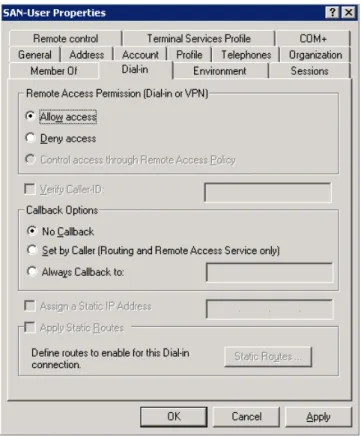
It is recommended to create new Active Directory groups to manage the users that will have SAN privileges. This will help manage SAN administrators and prevent other users from accessing the PS Series SAN.Note: If you are currently running in mixed mode you will have to allow each user Remote Access Permission (Figure 2).
Creating a New Active Directory Group for PS SAN Administrators
To add a new group to manage the PS Series group administrators and add users to that group:
• Open the Using Active Directory Users and Computers panel and create a new group to manage SAN Administrators (Figure 3).
Figure 3: New Group
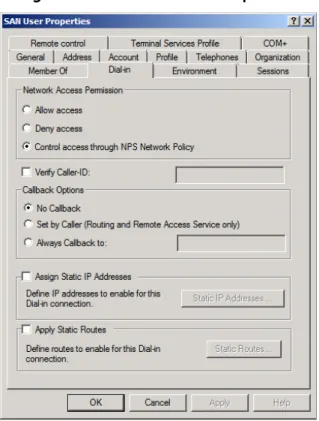
• Now you can add users to the new group that will manage the PS Series SAN. Make sure the Remote Dial-in properties for each user is set to Control access through NPS Network Policy (Figure 4).
Multiple groups can be created based on the access privialages to the PS Series group. For example a group can be created for full SAN access accounts or pool
administrators or read-only accounts, etc.
CREATING NETWORK POLICIES ON THE NPS SERVER
A network policy applies to a user profile (in Active Directory) and tells the RADIUS server what type of privilege to grant a user who attempts to log in to a PS Series group. You must create a network policy for each type of account configured on the PS Series group. All PS Series Firmware versions support group administrator full access and read-only accounts.
When the user is authenticated, the policy also specifies the authentication information to return from the RADIUS server to the PS Series group. For example, it indicates whether the user is a group administrator or a pool administrator, and which pools they are allowed to manage.
Pool administrators can manage the objects in their designated pools, and optionally can have read-only permission on all other objects in the group (members, pools, and volumes). Volume administrators can manage a specific amount of storage or quota value in a designated pool. For more information on pool administrators, see the Group Administration guide.
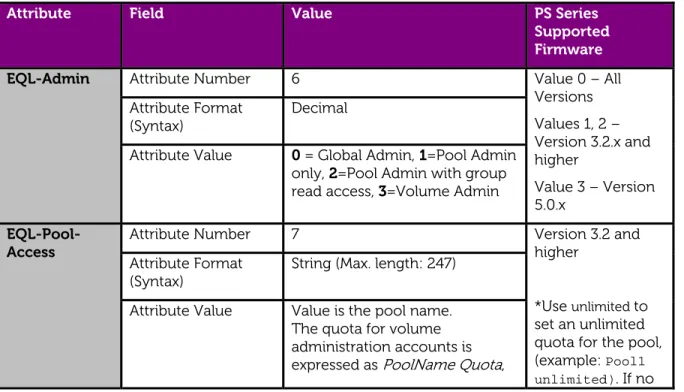
Table 1 list some of the most common used attribute values for network policies as well as new values introduced in PS Series firmware v5.0.x. For a complete list of all supported attribute values and PS Series firmware requirements see Table 2 in Creating Additional Network Policies Using Optional VSAs.
Table 1: Common PS Series Supported Vendor Specific Attributes and Firmware Versions
Attribute Field Value PS Series
Supported Firmware
EQL-Admin Attribute Number 6 Value 0 – All
Versions Values 1, 2 – Version 3.2.x and higher Value 3 – Version 5.0.x Attribute Format (Syntax) Decimal
Attribute Value 0 = Global Admin, 1=Pool Admin only, 2=Pool Admin with group read access, 3=Volume Admin
EQL-Pool-Access Attribute Number 7 Version 3.2 and higher
*Use unlimited to set an unlimited quota for the pool, (example: Pool1 unlimited). If no
Attribute Format
(Syntax) String (Max. length: 247) Attribute Value Value is the pool name.
The quota for volume administration accounts is expressed as PoolName Quota,
with G and M appended to the quota representing GB and MB, respectively. For example: Pool1 25Gsets the quota for Pool1 to
25GB and Pool1 500Msets a
quota of 500MB. unit is specified, the default capacity unit is MB. EQL- Replication-Site-Access
Attribute Number 8 Version 5.0 and
higher Attribute Format
(Syntax) String (Max. length: 249) Attribute Value Indicating a comma-separated
list of replication site names
EQL-Admin-Account-Type Attribute Number 9 Version 5.0 and higher *To create a read-only account, set the EQL-Admin
value to 0 and the EQL_Admin-Account-Type to RO.
Attribute Format
(Syntax) String (Max. length: 249) Attribute Value RO or RW - Indicating whether
the account is read-only or read-write
This section describes creating a Network Policy for group administrators (those with full, group-wide privileges).
To create a Network Policy for PS Series group administrators on the NPS Server: • Click Start > Administrative Tools > Network Policy Server.
• Expand the Policies section, right-click Network Policies, and click New.
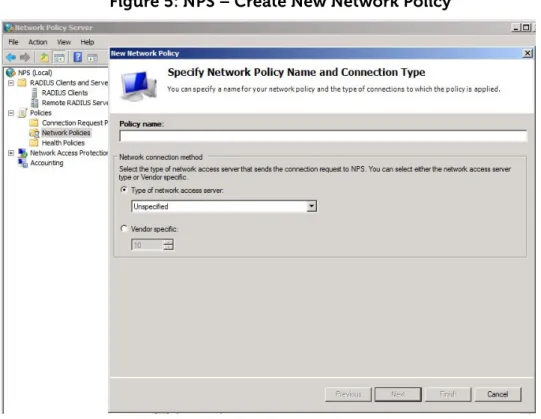
• The New Network Policy Wizard starts (Figure 5).
• Give the policy a name and leave the Type of network access server button checked with Unspecified in the box and click Next.
Figure 5: NPS – Create New Network Policy
• The Specify Conditions screen starts.
• Click Add to add the conditions that need to be met in order to access the PS Series Group.
• In the Select Condition view, scroll down to Client Friendly Name and click
Add (Figure 6).
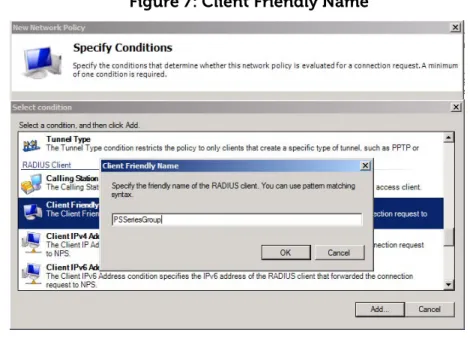
• In the Client Friendly Name window add the name of the RADIUS Client created for the PS Series group admins in the previous section (Figure 7).
Figure 7: Client Friendly Name
• Verify the information is correct in the Specify Conditions list and click Add to add the next condition. The next condition needed will be the user group account with logon permissions.
• In the Select Condition view, choose Windows Groups and click Add (Figure 8).
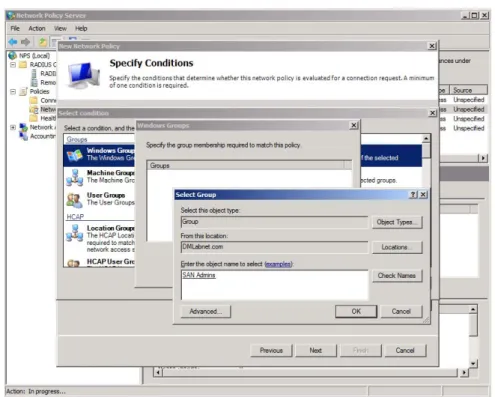
• Specify the Windows Groups by adding the “SAN Admins” group created in the previous section (Figure 9).
Figure 9: Specify Windows Groups
• Click OK to confirm the selection and complete the conditions entry. Verify the new network policy conditions are correct and choose Next to continue.
• Grant network access by checking the Access granted button in the Specify Access Permission window and click Next.
• In the Configure Authentication Methods window only check the Unencrypted authentication (PAP, SPAP) box and uncheck all others (Figure 10).
Note: By default, all passwords are encrypted by the RADIUS protocol.
Choosing the unencrypted authentication here is simply for tunneling into the NPS server.
• A Connection Request Policy pop up may appear. Choose No to disregard the help topic.
• Optionally configure constraints in the next window and click Next.
• In the Configure Settings window click on Standard in the RADIUS Attributes section.
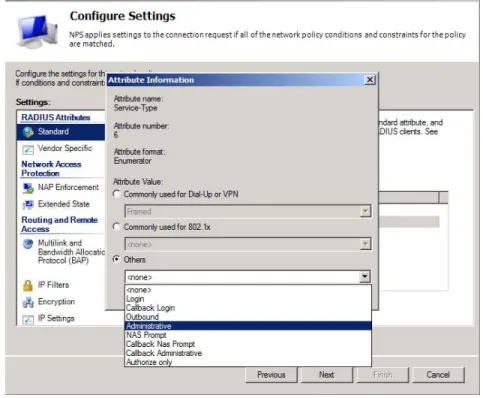
• Remove the Framed-Protocol attribute and change the Service-Type to Administrative (Check Others and choose Administrative in the drop down box, Figure 11). Click OK when done.
Figure 11: Service Type Attribute
Adding the PS Series Vendor-Specific Attributes
Vendor-specific attributes tailor the remote access policy to the vendor. For PS Series arrays, there are two required attributes, and several optional ones. The required
attributes control what objects on the PS Series group users can manage once they log in. Group administrators can manage all objects on the group, including adding and removing members, and creating storage pools.
If you configure the optional attributes, the values will be supplied automatically to the PS Series group and will appear in the Contact Information fields (except for EQL-Admin-Poll-Interval) in the Group Manager GUI for each contact. Every time a user logs in, their information will be updated if it has changed since the last login.
The following procedure continues from Creating Network Policies on the NPS Server, and assumes the Configure Settings screen is still displayed.
• On the same screen click Vendor Specific in the RADIUS Attributes area and
Add a new Vendor Specific attribute.
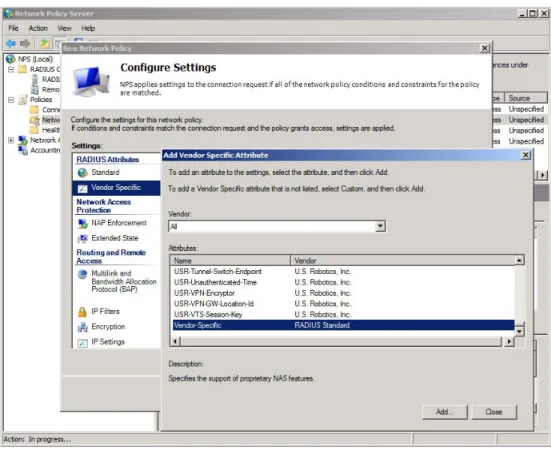
• In the Add Vendor Specific Attribute window leave the Vendor at All and scroll down in the Attributes to Vendor-Specific – RADIUS Standard (Figure 12) and click Add.
Figure 12: Vendor Specific Attribute
• In the Attribute Information window click Add.
• In the next window check Enter Vendor Code and enter 12740 in the field.
This is the vendor code for PS Series arrays. Select Yes, It conforms button and click Configure Attribute (Figure13).
Figure 13: Vendor-Specific Attribute Information
• The Configure VSA dialog box is displayed (Figure 14).
Figure 14: Configure VSA
• Enter the following information for the PS Series group administrator attribute:
o In the Vendor-assigned attribute number field, enter 6 o In the Attribute format drop-down list, select Decimal.
o In the Attribute value field, enter 0 (for a group administrator).
• When finished click OK twice and Close the Add Vendor Specific Attribute window and verify the information is correct in the Configure Settings screen. • Refer to Table 1 for optional Vendor Specific Attributes for PS Series arrays. • To finish the Configure Settings section click on Encryption at the bottom of
the Settings section.
• Uncheck all the boxes except No encryption and click Next. This will allow the Network Policy to rout through to the RADIUS server.
CONFIGURING THE PS SERIES GROUP
After you finish creating the Remote Access Policy to allow your administrators to connect to the PS Series SAN (or SANs), you must configure the PS Series groups to recognize and allow login attempts from the RADIUS authentication server. You can use either the Group Manager GUI or the CLI to configure the group. Both procedures are provided.
Using the Group Manager GUI
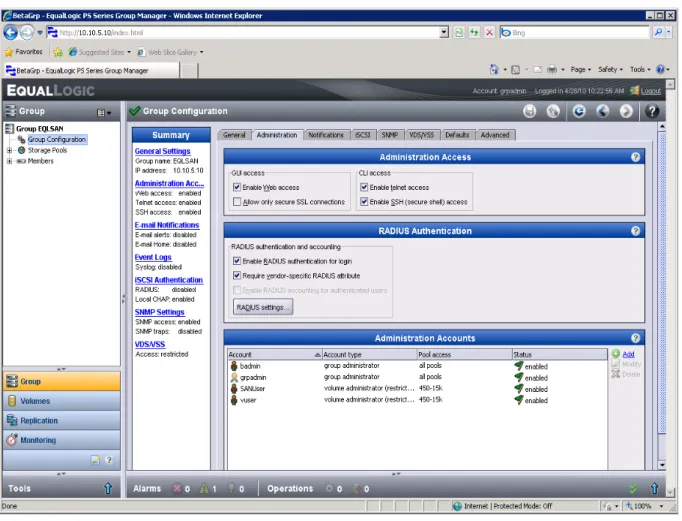
To configure the group using the Group Manager GUI: • Log in to the Group Manager GUI.
• Click Group Configuration > Administration tab (Figure 15).
Figure 15: PS Series Group Manager – Administration
• In the RADIUS Authentication panel, select the checkbox: Enable RADIUS authentication for login and Require vendor-specific RADIUS attribute. • Optionally (not recommended), deselect the checkbox: Enable RADIUS
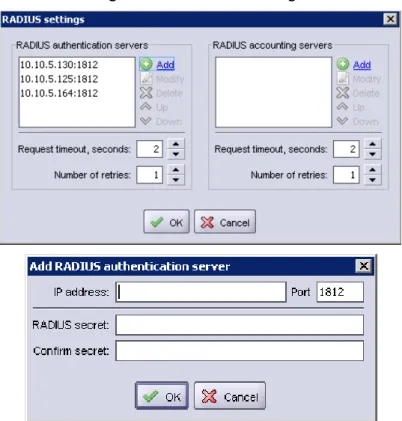
accounting for authenticated users. • Click RADIUS Settings, (Figure 16).
Figure 16: RADIUS Settings
• Enter the IP address for the RADIUS authentication server, and enter and confirm a secret. Click OK.
• Adjust the Request timeout value and Number of retries value in the RADIUS settings dialog window as desired. Click OK.
• Finally, confirm and save all settings by clicking the floppy disk icon in the upper right of the group manager interface.
Using the CLI
To configure the PS Series group using the command-line interface:
• Log in to the Command Line Interface for the group using the group IP address and a group administrator account, such as grpadmin.
• Enter the following command to enable RADIUS logins:
grpparams login-radius-auth enable
• Enter the following command to add the IP address of the RADIUS server (or servers), separated by commas and no spaces. The servers will be consulted in the order they are listed.
grpparams radius-auth-list 123.45.6.789,234.5.67.89
• Enter the following command to add the password (secret) you configured in Overview of Steps
• Optionally, enter the following command to disable the requirement for the EQL-Admin RADIUS return attribute. Disabling this requirement treats every user who attempts to log in as though they have group administration permission; effectively, this allows unrestricted logins from all users in the RADIUS database to the PS Series group (and is not recommended).
grpparams login-radius-attr disable
• Optionally, enter the following command to increase the timeout interval for login attempts through the RADIUS server. The default is 2 seconds. Increase the timeout interval if you are having performance issues with login requests.
grpparams radius-auth-timeout 5
• Optionally, enter the following command to increase the allowed number of login retries before blocking the user from logging in again interval for login attempts through the RADIUS server. The default is 2 seconds. Increase the timeout interval if you are having performance issues with login requests.
grpparams radius-auth-retries 3
• Optionally, verify your RADIUS settings by running the following command and checking the output:
grpparams show .
. .
__________________ Radius Information _______________________
radius-auth-list: login-radius-auth: enabled
radius-auth-retries: 3 radius-auth-timeout: 5secs
login-radius-acct: disabled radius-acct-retries: 1
radius-acct-timeout: 2secs iscsi-radius-auth: disabled
iscsi-local-auth: enabled radius-acct-list:
login-radius-attr: enabled radius-auth-secrets:
radius-acct-secrets:
CREATING ADDITIONAL NETWORK POLICIES USING OPTIONAL VSA’S
This section will discuss optional vendor specific attributes that can be used to add more granular access to a PS Series group. An example of an administration account with more granular access would be a pool administrator. Pool administrators have management privileges only for specific pools on a PS Series group. To allow those users to log in yet restrict their privileges to only the pools appropriate to them, you must create a unique Active Directory group and a Remote Access Policy on the NPS server specific to each type of pool administration account you need.Another example might be a volume administrator. Volume administrators have access to a specific pool and a quota value that they can use for volume creation. These are some of the examples that will be discussed in this section.
Follow the steps laid out in the previous sections to add new user groups for the new administration roles and refer to Creating Network Policies on the NPS Server to add the new policy attributes for administrators.
Note: Attribute values are supported at specific PS Series firmware levels. Refer to Table 2 in this section for a complete list of supported attribute values and firmware levels.
Example 1: Configuring Attributes Values for Pool Administrators:
For example, you might have pool administrators for Pools A and B on a PS Series group, and others for Pools C and D. Additionally, you might have pool administrators who also have group-wide read-only privilege. These users can see, but not change, all the other objects in the group.
When adding the Vendor Specific Attributes for the new Network Policy, follow the steps below. Add a vendor-specific attribute with the following fields:
• Vendor-specific attribute number: enter 6
• Attribute format drop-down: select Decimal
• Attribute value field: enter 1
• Click OK twice to get back to the Attribute Information window.
• Add another Attribute Value to specify the PS Series pool attributes. Use the same Vendor Code for network access server (12740) and choose “Yes. It conforms.” Configure the attribute values as follows:
o Vendor-assigned attribute number: enter 7 o Attribute format drop-down: select String
o Attribute value field: enter the pool name for the account. Repeat this
The Attribute Information window should look as follows:
Example 2: Configuring Attribute Values for Volume Administrators
Similar to Pool Administrators the attributes for Volume Administrators use the same arguments with the exception of the administrative access level and a quota value after the pool name.
Configure the administrative level for the volume admin: • Vendor-specific attribute number: enter 6
• Attribute format drop-down: select Decimal
• Click OK twice to get back to the Attribute Information window.
• Add another Attribute Value to specify the PS Series pool and quota attributes. Use the same Vendor Code for network access server (12740) and choose “Yes. It conforms.” Configure the attribute values as follows:
o Vendor-assigned attribute number: enter 7 o Attribute format drop-down: select String
o Attribute value field: enter the pool name and quota value for the
account. For this example the pool name is 450-15k and the quota is 100GB.Note: The quota value is case insensitive.
To add any additional or other optional vendor-specific attributes such as making this pool admin account read only, refer to Table 2 for their values.
Table 2: PS Series Optional Vendor Specific Attribute Values
Attribute Field Value PS Series
Supported Firmware
EQL-Admin-Full-Name Attribute Number 1 All Versions
Attribute
Format (Syntax) String (Max. length: 247)
Attribute Value Name of person assigned to the account
EQL-Admin-Email Attribute Number 2 All Versions
Attribute
Format (Syntax) String (Max. length: 247)
Attribute Value Email address of person assigned to the account
EQL-Admin-Phone Attribute Number 3 All Versions
Attribute
Format (Syntax) String (Max. length: 247)
Attribute Value Phone number of person assigned to the account
EQL-Admin-Mobile Attribute Number 4 All Versions
Attribute
Format (Syntax) String (Max. length: 247)
Attribute Value Mobile number of person assigned to the account
EQL-Admin-Poll-Interval Attribute Number 5 All Versions
Attribute
Format (Syntax) Integer (Max length: 6 numerals) Attribute Value Number of seconds until the group
configuration data must be re-polled by the GUI. Default is 30 seconds. EQL-Admin Attribute
Number 6 Value 0 – All Versions
Values 1, 2 – Attribute Decimal
Format (Syntax) Version 3.2.x and higher
Value 3 – Version 5.0.x
Attribute Value 0 = Global Admin, 1=Pool Admin only, 2=Pool Admin with group read access, 3=Volume Admin
EQL-Pool-Access Attribute Number 7 Version 3.2 and higher
*Use unlimited to set an unlimited quota for the pool, (example: Pool1 unlimited). If no unit is specified, the default capacity unit is MB. Attribute
Format (Syntax) String (Max. length: 247) Attribute Value Value is the pool name.
The quota for volume administration accounts is expressed as PoolName Quota, with G and M appended to the quota representing GB and MB, respectively. For example: Pool1 25Gsets the quota for Pool1 to 25GB
and Pool1 500Msets a quota of
500MB.
EQL- Replication-Site-Access
Attribute
Number 8 Version 5.0 and higher
Attribute
Format (Syntax) String (Max. length: 249)
Attribute Value Indicating a comma-separated list of replication site names
EQL-Admin-Account-Type Attribute Number 9 Version 5.0 and higher *To create a read-only account, set the EQL-Admin
value to 0 and the EQL_Admin-Account-Type to RO.
Attribute
Format (Syntax) String (Max. length: 249)
Attribute Value RO or RW - Indicating whether the account is read-only or read-write
APPENDIX A – CONFIGURATION STEPS ON WINDOWS SERVER 2003
This procedure assumes you will install and configure IAS on the same server hosting Active Directory.
Perform the following steps to install and configure the IAS Server: • Click Start > Control Panel > Add or Remove Programs. • Click Add/Remove Windows Components.
• In the Windows Components dialog box, select Networking Services, then click
Details.
• In the Networking Services dialog box, check the box for Internet Authentication Service, then click OK.
• You return to the Windows Components dialog box. Click Next.
• On the Completing the Windows Components Wizard screen, click Finish. After installing IAS, you must make some modifications to the configuration, as follows:
• Click Start > Administrative Tools > Internet Authentication Services. • In the Internet Authentication Services console, right-click Internet
Authentication Service (Local), then click Register Server in Active Directory. This setting allows the IAS Server to authenticate users in the Active Directory domain.
• Click OK.
Configuring a PS Series Group as a RADIUS Client on the IAS Server
To set up the PS Series group as a RADIUS client on IAS:
• Click Start > Administrative Tools > Internet Authentication Service. • Right-click the RADIUS Clients folder.
• Click New > RADIUS Client.
Enter the following information:
• In the Friendly name field, enter a name for the client. We suggest using the PS Series group name.
• In the Client address field, enter the PS Series group IP address. (Verifying the address is optional.)
• Click Next. The Additional Information dialog box is displayed.
Figure 2: New RADIUS Client – Additional Information
In the Additional Information dialog box, do the following:
• In the Client-Vendor drop-down list, select RADIUS Standard, if not already selected.
• Enter and confirm a shared secret (password). Remember or make a note of the secret, as you will need to specify the same secret (password) in a later step on the PS Series group.
• Select or deselect the checkbox next to Request must contain the Message Authenticator attribute, as you prefer. EqualLogic supports this attribute, but whether you require it depends on your security policies.
• Click Finish.
Creating Remote Access Policies on the IAS Server
Similar to a Network Policy, a remote access policy applies to a user profile (in Active Directory) and tells the RADIUS server what type of privilege to grant a user who attempts to log in to a PS Series group.
To create a Remote Access Policy for PS Series group administrators on the IAS Server: • Click Start > Administrative Tools > Internet Authentication Service.
• Right-click Remote Access Policy, and click New Remote Access Policy (Figure 3).
Figure 3: IAS – Create New Remote Access Policy
• The New Remote Access Policy Wizard starts (Figure 4).
• Click Next. The Policy Configuration Method screen appears (Figure 5).
Figure 5: Policy Configuration Method
• Select Set up a custom policy, and enter a name for the policy; for example, EQL Group Administrators. Then, click Next.
• The Policy Conditions screen appears (Figure 6).
Figure 6: Policy Conditions
• Under the Policy Conditions field, click Add. • The Select Attribute screen appears (Figure 7).
Figure 7: Select Attribute
• Select Client-Friendly-Name and click Add.
• The Client-Friendly Name screen appears (Figure 8).
Figure 8: Client-Friendly Name
• Enter the PS Series group name you specified in Overview of Steps
• Optionally repeat this process and enter the Windows Group that the policy will be created for here.
• Verify the information is correct in the Policy conditions list (Figure 9), then click
Figure 9: Policy Conditions (Completed)
• The Permissions screen appears (Figure 10).
Figure 10: Permissions
• Select Grant remote access permission, and click Next. • The Profile screen appears (Figure 11).
Figure 11: Profile
• Click Edit Profile, and do the following:
• On the Authentication tab (Figure 12), select Unencrypted authentication and deselect everything else.
• Note: By default all passwords are encrypted by the RADIUS protocol. Choosing the unencrypted authentication here is simply for tunneling into the IAS server.
Figure 12: Edit Profile: Authentication
• On the Encryption tab (Figure 13), select No encryption and deselect everything else.
Figure 13: Edit Profile: Encryption
• On the Advanced tab (Figure 14), select Framed-Protocol and click Remove. • Then select Service-Type and click Edit (Figure 14).
Figure 14: Edit Profile: Advanced
Figure 15: Enumerable Attribute Information
• In the Attribute value list, select Administrative and click OK. The
Administrative attribute grants full read-write access to the PS Series group. • You return to the Edit Profile: Advanced screen, which should now look like
Figure 16.
Figure 16: Edit Profile: Advanced (Modified)
Leaving this screen visible, continue with Adding the EqualLogic Vendor-Specific Attributes.
Adding the EqualLogic Vendor-Specific Attributes
The following procedure continues from Creating Network Policies on the NPS Server, and assumes the Edit Dial-In Profile screen is still displayed.
To add vendor-specific attributes for EqualLogic:
• In the Add Attribute dialog box (Figure 17), select Vendor-Specific and click
Add.
Figure 17: Add Attribute
• In the Multivalued Attribute Information dialog box (Figure 18), click Add.
Figure 18: Multivalued Attribute Information
• In the Vendor-Specific Attribute Information dialog box (Figure 19), do the following:
• Select Enter Vendor Code, and enter 12740 in the field. This is the vendor code for EqualLogic, Inc.
• Select Yes, It conforms, then click Configure Attribute.
Figure 19: Vendor-Specific Attribute Information
• The Configure VSA dialog box is displayed (Figure 20).
Figure 20: Configure VSA
• Enter the following information for the EQL-Admin attribute:
o In the Vendor-assigned attribute number field, enter 6. o In the Attribute format drop-down list, select Decimal.
o In the Attribute value field, enter 0 (for a group administrator).
• Click OK.
• Continue to close windows until you reach the Edit Dial-in Profile screen. • On the Advanced tab (Figure 21), verify the information is correct, then click OK.
Figure 21: Edit Dial-In Profile: Advanced (with new VSA)
• The Dial-in Settings confirmation box is displayed (Figure 22), asking if you want to view online help about protocol configuration. Click No.
Figure 22: Dial-In Settings
Figure 23: Profile
• On the Completing the New Remote Access Policy Wizard screen (Figure 24), click Finish.
TECHNICAL SUPPORT AND CUSTOMER SERVICE
Dell's support service is available to answer your questions about PS Series SAN arrays. If you have an Express Service Code, have it ready when you call. The code helps Dell's automated-support telephone system direct your call more efficiently.
Contacting Dell
Dell provides several online and telephone-based support and service options.
Availability varies by country and product, and some services might not be available in your area.
For customers in the United States, call 800-945-3355.
Note: If you do not have access to an Internet connection, contact information is
printed on your invoice, packing slip, bill, or Dell product catalog.
Use the following procedure to contact Dell for sales, technical support, or customer service issues:
1. Visit support.dell.com or the Dell support URL specified in information provided with the Dell product.
2. Select your locale. Use the locale menu or click on the link that specifies your
country or region.
3. Select the required service. Click the "Contact Us" link, or select the Dell support
service from the list of services provided.
4. Choose your preferred method of contacting Dell support, such as e-mail or
telephone.
Online Services
You can learn about Dell products and services using the following procedure:
1. Visit www.dell.com (or the URL specified in any Dell product information).