Installing and Configuring Horizon
Workspace
Horizon Workspace 1.8
This document supports the version of each product listed and
supports all subsequent versions until the document is
replaced by a new edition. To check for more recent editions
of this document, see
http://www.vmware.com/support/pubs
.
You can find the most up-to-date technical documentation on the VMware Web site at: http://www.vmware.com/support/
The VMware Web site also provides the latest product updates.
If you have comments about this documentation, submit your feedback to: [email protected]
Copyright © 2014 VMware, Inc. All rights reserved. Copyright and trademark information.
VMware, Inc.
3401 Hillview Ave. Palo Alto, CA 94304 www.vmware.com
1
About Installing and Configuring VMware Horizon Workspace 5
2
Installing Horizon Workspace 7
Horizon Workspace User Authentication 9
System and Network Configuration Requirements 9 Preparing to Deploy Horizon Workspace 14
Download Horizon Workspace 14
Creating DNS Records and IP Addresses with Reverse Lookup 14 Deployment Checklists 15
Configure Basic Horizon Workspace Settings 18
Configure an SMTP Server to Work with Horizon Workspace 19 Setting for vCenter Server Quiesce Timeout Is Too Low 20 Delete Unused Extensions from vCenter 20
Deploying Horizon Workspace 20
Install the OVA File in the vSphere Client 21 Set Up Horizon Workspace 22
Adding Workspace Desktop Clients 31
Change the Password to the Generated Keystore File 32
3
Configuration for Horizon Workspace Virtual Machines 35
Create a datava-template Virtual Machine Manually 36 Adding Storage to the Horizon Files Virtual Appliance 37
Add VMDKs for Storage 37
Add Network Attached Storage for Storage 38 Managing Storage Volumes 39
Configuring Horizon Files Preview 39 Install LibreOffice Preview 39
Install Microsoft Windows Preview 40
Configuring Horizon Workspace in an Active Directory Forest 42
Configuring Horizon Workspace in a Multi-forest Active Directory Environment 42 Configuring a Multidomain Active Directory Single Forest 44
Customizing the Demo User Store 45 Add a User to the Demo User Store 46
Add Groups and Assign Users to Groups in the Demo User Store 48 Integrating VMware ThinApp Packages 49
Horizon Workspace Requirements for ThinApp Packages and the Network Share Repository 50 Create a Network Share for ThinApp Packages That Horizon Workspace Manages 54
Configuring Horizon Workspace Access to ThinApp Packages 54 Change the ThinApp Packages Share Folder 57
Integrating Horizon Workspace with Citrix-based Applications 57 Preparing and Installing Integration Broker 60
Deploying Integration Broker 62
Enabling Citrix PowerShell Remoting on Citrix Server Farm 65
Synchronizing Horizon Workspace Connector with Integration Broker 66 Integrating VMware View 68
Join an Active Directory Domain 68 Sync View Pools 70
Configure SAML Authentication 70 Set Proxy Server Settings for Manager 73
4
Advanced Configuration for Horizon Workspace Virtual Machines 75
Enabling External Access to Horizon Workspace 76
Establish SSL Trust between Horizon Workspace vApp and Load Balancer 78 Enable AUDIT Events via Proxy Server 78
Configuring an External Database 79
Configuring Redundancy/Failover for Horizon Workspace Virtual Machines 84 Create Multiple gateway-va Virtual Machines 84
Create Multiple service-va Virtual Machines 85 Create Multiple connector-va Virtual Machines 87 Create Multiple data-va Virtual Machines 91
Update Horizon Workspace Settings with Configurator 97 Configuring SecurID for Horizon Workspace 98
Prepare the RSA SecurID Server for the Connector 98 Configure SecurID with the Connector Web Interface 99 Configuring Kerberos for Horizon Workspace 100
Configure Internet Explorer to Access the Web Interface 101 Configure Firefox to Access the Web Interface 102
Configure the Chrome Browser to Access the Web Interface 103 Using SSL Certificates in Horizon Workspace 104
Apply an SSL Certificate from a Major or Private Certificate Authority 104 Adjusting Java Heap Size for Improved Performance 105
Update Java Heap Size on the data-va Virtual Machine 105 Update Java Heap Size on the connector-va Virtual Machine 106
About Installing and Configuring
VMware Horizon Workspace
1
The VMware Horizon Workspace Installation and Configuration Guide leads you through the installation and configuration process for the Horizon Workspace server. When the installation is finished, you can use VMware® Horizon Workspace® to entitle users for managed, multi-device access to your organization's data and applications, including Windows applications, software as a service (SaaS) applications, files, View desktops, and mobile applications.
Horizon Workspace includes a multiple virtual machine vApp, distributed as an Open Virtualization Archive (OVA) file. You deploy the vApp to vCenter. Horizon Workspace includes the following virtual appliances.
Table 1‑1. Horizon Workspace Server Components
Horizon Workspace Server Component Description
VMware Horizon Workspace Configurator Virtual
Appliance (configurator-va) You start configuring Horizon Workspace with this virtualappliance, using both its console interface and the Configurator Web interface. The configurations you make with the Configurator are distributed to the other virtual appliances in the vApp.
VMware Horizon Workspace Manager Virtual Appliance
(service-va) This virtual appliance handles ThinApp packagesynchronization and gives you access to the Administrator Web interface, from which you can manage users, groups, and resources.
VMware Horizon Workspace Connector Virtual Appliance
(connector-va) The Horizon Workspace Connector provides the followingservices: user authentication (identity provider), directory synchronization, ThinApp-catalog loading, and View pool synchronization.
VMware Horizon Workspace Files Virtual Appliance
(data-va) This virtual appliance controls the file storage and sharingservice, stores users' files and folders, and synchronizes them across multiple devices.
VMware Horizon Workspace Gateway Virtual Appliance
(gateway-va) The Horizon Workspace Gateway is the single endpoint forall end user communication. User requests come to the gateway-va virtual machine, which then routes the request to the appropriate virtual appliance.
VMware Horizon Workspace Data Template Virtual
Appliance (datatemplate-va) This virtual appliance is generated by the Configurator thefirst time the Horizon Workspace vApp is installed and powered on. It is used for clustering when you create a new data-va virtual machine using the hznAdminTool addvm command.
Intended Audience
This information is intended for system and functional administrators of VMware® Horizon Workspace™. The information is written for experienced Windows and Linux system administrators who are familiar with VMware technologies, particularly vCenter™, ESX™, vSphere®, and View™, networking concepts, Active Directory servers, Simple Mail Transfer Protocol (SMTP), and NTP servers. SUSE Linux 11 is the underlying operating system for the virtual appliances in the vApp. Knowledge of other technologies, such as VMware® ThinApp®, RSA SecurID, Active Directory, and iOS application distribution is helpful if you plan to implement those features.
Installing Horizon Workspace
2
Each deployment of Horizon Workspace has different requirements. You can select the appropriate installation tasks for your deployment.
Figure 2‑1. VMware Horizon Workspace Architecture Diagram for Typical Deployments iOS/Android Laptop Mac Client PC iOS/Android Laptop Mac Client PC HTTPS (443) View Conn. Server HTTPS (443) vCenter Server ThinApp repository RSA SecurID DNS/NTP services HTTPS PCoIP AD/direct services Internet DMZ HTTPS (443) Corporate LAN users Note: Load-balanced
connectors use corporate network load balancers.
Internal Gateway VIP: hzapps.customer.com
Load-balanced external connector Gateway
-va Data-va Service-va
Configurator -va Data-va storage External database Horizon Workspace FQDN VIP:
hzapps.customer.com (Horizon Workspace Portal) Load Balancer HA Pair Corporate Zone Load-balanced internal connector VDI (HTML) VDI (PCoIP/RDP)
n Horizon Workspace User Authentication on page 9
Horizon Workspace user authentication requires the use of one or more identity provider instances, which can be Connector instances, third-party identity provider instances, or a combination of both. The identity provider instances authenticate users with Active Directory within the enterprise network.
n System and Network Configuration Requirements on page 9
When you install and configure Horizon Workspace in its basic configuration, you install the Configurator (configurator-va), Manager (service-va), Connector (connector-va), Horizon Files (data-va), and Gateway (gateway-va) virtual appliances and use the interface of the Configurator virtual appliance and the Web interface for configuration purposes.
n Preparing to Deploy Horizon Workspace on page 14
Before you deploy Horizon Workspace, you must prepare your environment. This preparation includes downloading Horizon Workspace and creating DNS records and IP addresses with reverse lookup.
n Configure Basic Horizon Workspace Settings on page 18
Before you deploy Horizon Workspace, you configure the network, SSL, and vCenter extension. n Deploying Horizon Workspace on page 20
To install Horizon Workspace, you must install the OVA file and run the Configurator's virtual appliance interface on vCenter Server. Otherwise, the installation fails. After Horizon Workspace is installed, you can configure the virtual machines in your environment.
n Change the Password to the Generated Keystore File on page 32
After you deploy the vApp and before you run the addvm command, you can change the generated
keystore (horizon.uber) file password. It is also important to update the password in the encrypted runtime-config.properties file.
Horizon Workspace User Authentication
Horizon Workspace user authentication requires the use of one or more identity provider instances, which can be Connector instances, third-party identity provider instances, or a combination of both. The identity provider instances authenticate users with Active Directory within the enterprise network.
Horizon Workspace authenticates users based on how you configure authentication methods, default access policy set, network ranges, and identity provider instances.
The identity provider instances that you use with Horizon Workspace create an in-network federation authority that communicates with Horizon Workspace using SAML 2.0 assertions. The identity provider instances authenticate the user with Active Directory within the enterprise network (using existing network security).
By default, Horizon Workspace supports the following authentication methods with the Connector: n Active Directory password
n Kerberos n RSA SecurID
System and Network Configuration Requirements
When you install and configure Horizon Workspace in its basic configuration, you install the Configurator (configurator-va), Manager (service-va), Connector (connector-va), Horizon Files (data-va), and Gateway (gateway-va) virtual appliances and use the interface of the Configurator virtual appliance and the Web interface for configuration purposes.
Prerequisites
n VMware vCenter and one or more ESX servers to deploy Horizon Workspace vApp.
NOTE For information about supported vSphere and ESX server versions, see the VMware Product Interoperability Matrixes at http://www.vmware.com/resources/compatibility/sim/interop_matrix.php. n The VMware vSphere client provides access to the virtual appliance interface. The vSphere client is
required to deploy the Open Virtual Appliance (OVA) file to vSphere and to access the deployed virtual appliance remotely to configure networking.
n The appropriate VMware licenses.
Consider your entire Horizon Workspace deployment, including how you integrate Horizon Workspace when you make decisions about hardware, resources, and network requirements. For example, you need more hardware for larger deployments. Review Chapter 4, “Advanced Configuration for Horizon Workspace Virtual Machines,” on page 75.
Virtual Appliance Requirements
Ensure that the resources allocated to the virtual appliances meet the minimum requirements.
IMPORTANT For storage, you can use the internal database for the proof-of-concept phase. Do not use the internal database server in production. For production, install and configure an external database server.
Table 2‑1. Gateway Virtual Appliance (gateway-va) Requirements
Component Minimum Requirement
CPU 2
Random-access memory 2GB
Disk space 9GB
NOTE The gateway-va virtual machine buffers client requests before sending them to the data-va virtual machine. Large files that are waiting to upload are temporarily stored on this disk. Depending on the upload size limit set for your environment, the space on the buffer can easily exceed the maximum limit. An additional disk is automatically added during installation. During an upgrade, the configuration that points to an additional disk for buffering is created, but this additional disk can only be created after the upgrade is complete.
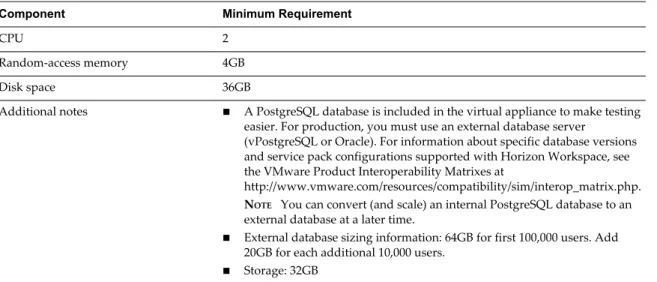
Table 2‑2. Manager Virtual Appliance (service-va) Requirements
Component Minimum Requirement
CPU 2
Random-access memory 4GB
Disk space 36GB
Additional notes n A PostgreSQL database is included in the virtual appliance to make testing easier. For production, you must use an external database server
(vPostgreSQL or Oracle). For information about specific database versions and service pack configurations supported with Horizon Workspace, see the VMware Product Interoperability Matrixes at
http://www.vmware.com/resources/compatibility/sim/interop_matrix.php.
NOTE You can convert (and scale) an internal PostgreSQL database to an
external database at a later time.
n External database sizing information: 64GB for first 100,000 users. Add 20GB for each additional 10,000 users.
n Storage: 32GB
Table 2‑3. Configurator Virtual Appliance (configurator-va) Requirements
Component Minimum Requirement
CPU 1
Random-access memory 1GB
Table 2‑4. Connector Virtual Appliance (connector-va) Requirements
Component Minimum Requirement
CPU 2
Random-access memory 4GB
Disk space 12GB
NOTE The service-va virtual machine automatically adjusts the Java heap size when you add memory. You must adjust the Java heap size manually for the gateway-va, connector-va, and configurator-va virtual machines. See “Adjusting Java Heap Size for Improved Performance,” on page 105.
Table 2‑5. Horizon Files Virtual Appliance (data-va) Requirements
Component Minimum Requirement
CPU 2
Random-access memory 4GB
Disk space 175GB
Additional notes The data-va virtual machine performs the following tasks:
n Stores all the files uploaded by users. See “Adding Storage to the Horizon Files Virtual Appliance,” on page 37 for information on storage best practices.
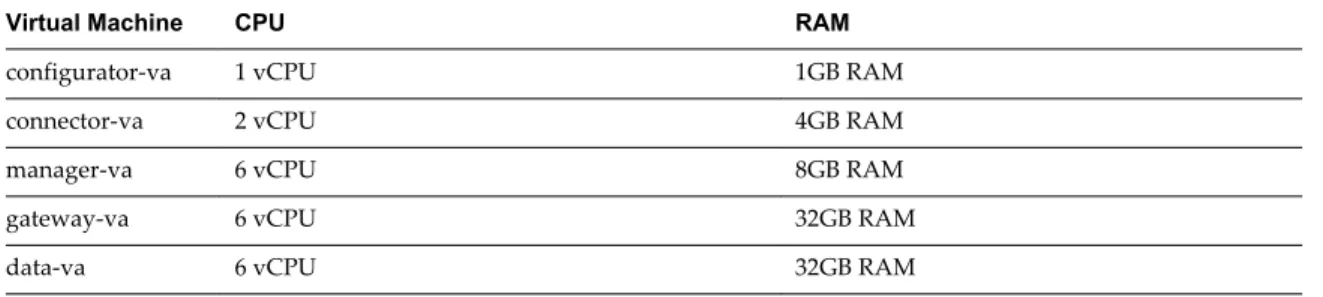
n It is recommended that each data-va virtual machine serve no more than 1,000 users. If your deployment includes multiple data-va virtual machines with 1,000 users each, you must configure all the other virtual machines using the requirements shown in the Recommended Virtual Machine Requirements table below.
Table 2‑6. Recommended Virtual Machine Requirements
Virtual Machine CPU RAM
configurator-va 1 vCPU 1GB RAM
connector-va 2 vCPU 4GB RAM
manager-va 6 vCPU 8GB RAM
gateway-va 6 vCPU 32GB RAM
data-va 6 vCPU 32GB RAM
Network Configuration Requirements
All the virtual appliances refer to each other by their hostnames. As a result, each IP address must map to a hostname that you can search for from each machine. Ensure that each machine can search for the Horizon Workspace FQDN.
The Connector virtual appliance might need to join the Windows domain if Kerberos, View, or ThinApp functions are enabled. In that case, the Connector hostname must be in the same domain as the Active Directory.
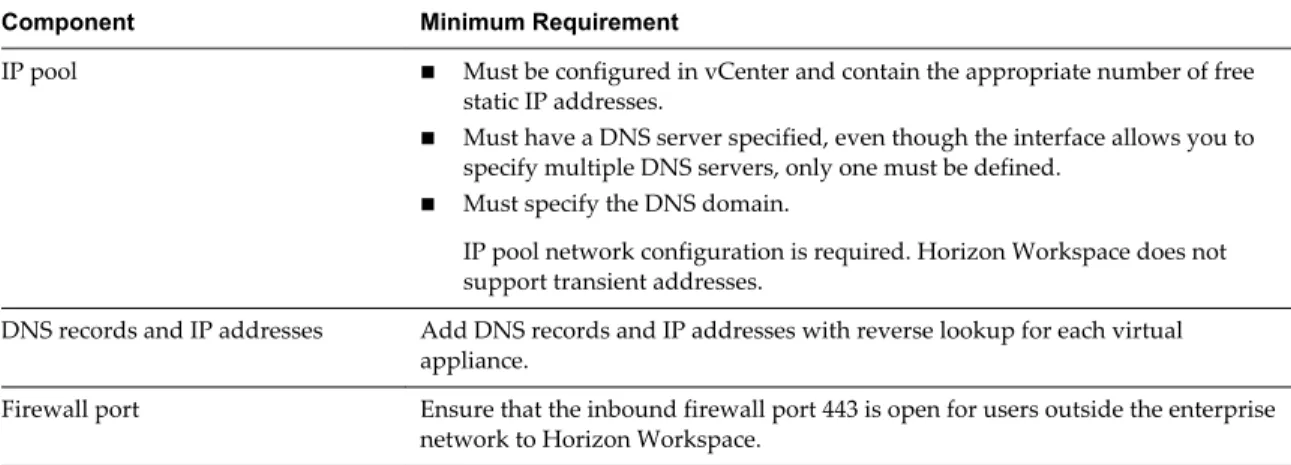
Table 2‑7. Network Configuration Requirements
Component Minimum Requirement
IP pool n Must be configured in vCenter and contain the appropriate number of free static IP addresses.
n Must have a DNS server specified, even though the interface allows you to specify multiple DNS servers, only one must be defined.
n Must specify the DNS domain.
IP pool network configuration is required. Horizon Workspace does not support transient addresses.
DNS records and IP addresses Add DNS records and IP addresses with reverse lookup for each virtual appliance.
Firewall port Ensure that the inbound firewall port 443 is open for users outside the enterprise network to Horizon Workspace.
Port Requirements
The following diagram depicts Horizon Workspace port requirements and represents the possible scenarios for connecting with the connector-va virtual machine. Your deployment will include only a subset of these. Here are two potential scenarios:
n To sync users and groups, the responsible connector-va virtual machine must connect to Active Directory.
n To sync with ThinApp, the responsible connector-va virtual machine must join the Active Directory domain and connect to the ThinApp Repository share.
Figure 2‑2. Horizon Workspace Ports Load Balancer DMZ Firewall 443 Virtual Appliance 443
Virtual Appliance Audit needs TCP: 9300-9400 UDP: 54328 Virtual Appliance Active Directory Database SMTP server VMware View Server
Virtual Appliance Virtual Appliance
data-va-1** data-va-2** 25* 25* service-va-1** service-va-2** gateway-va-1** vCenter 80, 443, 7071, 7072 443 443 443 80, 443, 7071, 7072 Virtual Appliance Virtual Appliance Configurator uses ssh to connect to all VMs in the
vApp on port 22
* Default values are shown. These ports are configurable. 5432*
389*, 636*, 3268*, 3269*
389, 443
DNS server RSA SecurID Domain
controller 445 53 (TCP/UDP) 5500* connector-va-1** 88, 464,135 (TCP/UDP) 5432* ThinApp Repository (Windows CIFS Share)
22 389 configurator-va**
25
** Every virtual appliance must have access to the DNS server on port 53 and allow incoming SSH traffic on port 22.
Hardware Requirements for ESX Server
Ensure that the environment for the host and the vSphere instance that runs Horizon Workspace virtual appliance meets the minimum hardware requirements. Storage requirements vary per deployment based on the number of users. See “Adding Storage to the Horizon Files Virtual Appliance,” on page 37.
NOTE You must turn on time sync at the ESX host level using an NTP server. Otherwise, a time drift will occur between the virtual machines.
Table 2‑8. Minimum Horizon Workspace Hardware Requirements
Component Minimum Requirement
Processor 2 Intel Quad Cores, 3.0GHz, 4MB Cache RAM 16GB DDR2 1066 MHz, ECC and registered On-board LAN One 10/100/1000Base-TX port
Storage 500GB
Preparing to Deploy Horizon Workspace
Before you deploy Horizon Workspace, you must prepare your environment. This preparation includes downloading Horizon Workspace and creating DNS records and IP addresses with reverse lookup.
Prerequisites
n Before you proceed with your deployment, review Chapter 4, “Advanced Configuration for Horizon Workspace Virtual Machines,” on page 75. If you configure any of these options, the way you deploy might change.
n SMTP server is required.
n Download Horizon Workspace on page 14
Download the Horizon Workspace OVA package file from the VMware Web site. n Creating DNS Records and IP Addresses with Reverse Lookup on page 14
A DNS entry and a static IP address that uses reverse lookup must be available for each virtual appliance in the vApp. Because each company administers their IP addresses and DNS records differently, before you begin your installation, consult your network administrator and request five DNS records and five IP addresses that use reverse lookup. You must have one IP address for each virtual appliance: Configurator (configurator-va), Manager (service-va), Connector (connector-va), Horizon Files (data-va), and Gateway (gateway-va).
n Deployment Checklists on page 15
You can use Horizon Workspace deployment checklists to gather the necessary information to install Horizon Workspace. Depending on your deployment, you might only need a portion of the network information for your virtual machines when you create the static IP addresses in the DNS before the installation and during a Horizon Workspace installation.
Download Horizon Workspace
Download the Horizon Workspace OVA package file from the VMware Web site.
Creating DNS Records and IP Addresses with Reverse Lookup
A DNS entry and a static IP address that uses reverse lookup must be available for each virtual appliance in the vApp. Because each company administers their IP addresses and DNS records differently, before you begin your installation, consult your network administrator and request five DNS records and five IP addresses that use reverse lookup. You must have one IP address for each virtual appliance: Configurator (configurator-va), Manager (service-va), Connector (connector-va), Horizon Files (data-va), and Gateway (gateway-va).
Reverse Lookup and IP Addresses
Horizon Workspace requires reverse lookup. You must define a PTR record on the DNS server so each virtual appliance uses the correct network configuration. If reverse lookup is not properly configured, Horizon Workspace installation fails.
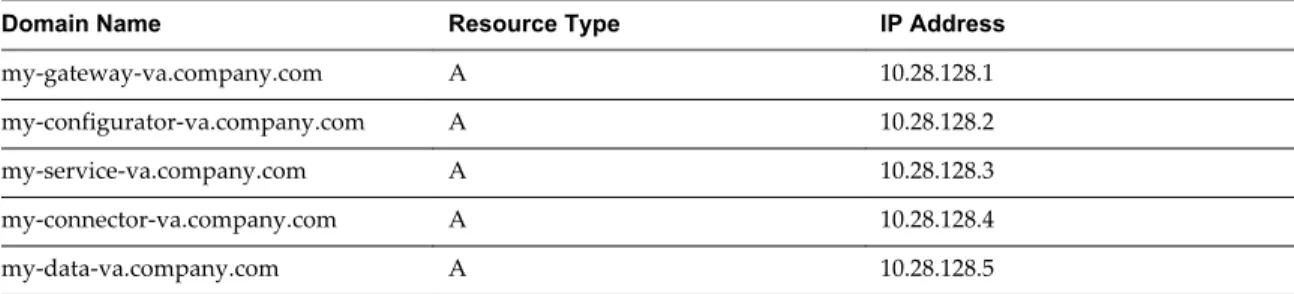
You can use the following sample list of DNS records when you talk to your network administrator. Replace the sample information with information from your environment. This example shows forward DNS records and IP addresses.
Table 2‑9. Examples of Forward DNS Records and IP Addresses
Domain Name Resource Type IP Address
my-gateway-va.company.com A 10.28.128.1 my-configurator-va.company.com A 10.28.128.2 my-service-va.company.com A 10.28.128.3 my-connector-va.company.com A 10.28.128.4 my-data-va.company.com A 10.28.128.5 This example shows reverse DNS records and IP addresses.
Table 2‑10. Examples of Reverse DNS Records and IP Addresses
IP Address Resource Type Domain Name
1.128.28.10.in-addr.arpa. IN PTR my-gateway-va.company.com 2.128.28.10.in-addr.arpa. IN PTR my-configurator-va.company.com 3.128.28.10.in-addr.arpa. IN PTR my-service-va.company.com 4.128.28.10.in-addr.arpa. IN PTR my-connector-va.company.com 5.128.28.10.in-addr.arpa. IN PTR my-data-va.company.com NOTE After you complete the DNS configuration, verify that the reverse DNS lookup is properly configured. For example, the virtual appliance command host IP_address must resolve to the DNS name lookup.
Using a Unix/Linux-based DNS Server
If you are using a Unix/Linux-based DNS server and plan to join Horizon Workspace to the Active Directory domain, make sure that the appropriate service (SRV) resource records are created for each Active Directory domain controller.
Deployment Checklists
You can use Horizon Workspace deployment checklists to gather the necessary information to install Horizon Workspace. Depending on your deployment, you might only need a portion of the network information for your virtual machines when you create the static IP addresses in the DNS before the installation and during a Horizon Workspace installation.
Information for Horizon Workspace Fully Qualified Domain Name
See “Enabling External Access to Horizon Workspace,” on page 76 for information.Table 2‑11. Horizon Workspace Fully Qualified Domain Name (FQDN) Information Checklist Information to Gather List the Information
Network Information for Configurator (configurator-va)
Table 2‑12. Configurator Network Information Checklist
Information to Gather List the Information
IP address DNS name
Network Information for Manager (service-va)
Table 2‑13. Manager (service-va) Network Information Checklist
Information to Gather List the Information
IP address DNS name
Network Information for Connector (connector-va)
If the Connector must join the Active Directory domain, verify that its hostname is valid in that domain.
Table 2‑14. Connector Network Information Checklist
Information to Gather List the Information
IP address DNS name
Network Information for Horizon Files (data-va)
Table 2‑15. Horizon Files Network Information Checklist
Information to Gather List the Information
IP address DNS name
Network Information for Gateway (gateway-va)
Table 2‑16. Gateway Network Information Checklist
Information to Gather List the Information
IP address DNS name
Network Information for IP Pools
Table 2‑17. IP Pools Network Information Checklist
Information to Gather List the Information
Subnet mask Gateway
DNS server (Only one DNS server is supported.) DNS domain name
Active Directory Domain Controller
Table 2‑18. Active Directory Domain Controller Information Checklist Information to Gather List the Information
Active Directory server name Active Directory domain name Bind DN username and password Base DN
Active Directory username and password (Must have privileges to join computers to the domain.)
SMTP Server
Table 2‑19. SMTP Server Information Checklist
Information to Gather List the Information
SMTP server hostname SMTP server port number
vCenter Credentials
Table 2‑20. vCenter Credentials Information Checklist
Information to Gather List the Information
vCenter hostname vCenter port number
vCenter administrator username vCenter administrator password
SSL Certificate (Optional)
Table 2‑21. SSL Certificate Information Checklist
Information to Gather List the Information
SSL certificate Private key
NOTE The SSL certificate is optional. You can add an SSL certificate after you deploy Horizon Workspace.
Horizon Workspace License Key
Table 2‑22. Horizon Workspace License Key Information Checklist Information to Gather List the Information
Microsoft Windows Preview
Table 2‑23. Microsoft Windows Preview Information Checklist
Information to Gather List the Information
Windows server IP address
External Database
Table 2‑24. External Database Information Checklist
Information to Gather List the Information
Database hostname Port
Username Password
Configure Basic Horizon Workspace Settings
Before you deploy Horizon Workspace, you configure the network, SSL, and vCenter extension. The Configurator virtual appliance interface guides you through the basic configuration. After the basic configuration is finished, you must perform more advanced configurations. You can return to the Configurator's virtual appliance interface at any time to update these settings or to perform other configurations. For information about setting the advanced configurations, see Chapter 4, “Advanced Configuration for Horizon Workspace Virtual Machines,” on page 75.
IMPORTANT During deployment, leave the virtual appliances powered off. After deployment, the deployment process powers on the virtual appliances . If the virtual appliances are already on, an error occurs.
Prerequisites
n Log in to vSphere Client.
n Verify that the vCenter administrator has privileges to the Horizon Workspace vApp or the resource pool that contains the Horizon Workspace vApp. See the vCenter Server 5.1 Documentation Center. n Verify that you know the SMTP server name. To change your SMTP settings after you install
Horizon Workspace, see the Horizon Workspace Files Command Line Interface Guide.
Procedure
1 Select the vApp you deployed and expand it.
2 Select the configurator-va virtual machine and click the Console tab. 3 Press Enter to start the configuration.
If an error occurs, you might have a problem with your IP Pools. 4 If an error occurs, when prompted, select no.
This option shuts down the virtual machine. After you resolve the IP pool errors, you can return to the Configurator's virtual appliance interface. When you select yes on the Summary page, the configuration resumes from the point where you stopped.
5 Respond to the prompts with information specific to your deployment.
Option Action
Global root password Type and confirm the global root password to use for all five virtual appliances in Horizon Workspace.
SMTP server name Type the SMTP server name. SMTP port number Type the SMTP port number.
vCenter IP address Type the vCenter IP address.
NOTE The Configurator virtual appliance registers a vCenter extension
and queries the vCenter server periodically to check the status of the other virtual machines in the vApp.
vCenter port number Type the vCenter port number.
vCenter admin username Type the vCenter administrator's username. The vCenter administrator needs privileges only to the Horizon Workspace vApp or the resource pool that contains the Horizon Workspace vApp.
vCenter admin password Type and confirm the vCenter administrator's password. Is this correct? Type y if all of the information is correct.
The Configurator virtual appliance processes your information. Depending on your network speed, this process can take 30 minutes or more.
If a networking error occurs and the hostname cannot be uniquely resolved using reverse DNS, the Configurator process stops. You must fix the networking problems and reboot the configurator-va virtual machine. Then, you can continue with the deployment process. The new network settings are not available to the Configurator until after you reboot the configurator-va virtual machine.
What to do next
Configure the Horizon Workspace setup.
Configure an SMTP Server to Work with Horizon Workspace
You must configure the SMTP server to allow the data-va virtual machine to send emails and alerts. If the data-va node is not on the same subnet as the SMTP server, your mail transfer agent (MTA) cannot relay email. When you configure your SMTP server to use the IP address or the subnet of the data-va node, your MTA can relay mail.
If you use a Microsoft Exchange Server as your SMTP server, go to the Microsoft Technet Library for information about how to configure the Exchange Management Console to allow anonymous relay on a Receive Connector.
Prerequisites
In your DNS server, verify that the SMTP server hostname has a reverse DNS lookup.
Procedure
1 If you use a Zimbra server as your SMTP server, configure the Zimbra server using the Zimbra Admin Console.
Depending on the version of Zimbra you are using, the names for buttons, fields, and so on might be different.
2 Click Configure Servers > MTA > MTA Trusted Networks. 3 Type the IP address or subnet address of the data-va node.
What to do next
Your SMTP server is configured to allow the data-va virtual machine to send emails and alerts.
Setting for vCenter Server Quiesce Timeout Is Too Low
In an environment with heavy traffic, a vCenter Server quiesce timeout problem can occur that might cause your deployment to fail.
Problem
When an error message appears, vCenter Server records the error message, Failed to quiesce the virtual machine, to the vCenter Server log.
Cause
This problem occurs when the virtual machines stop responding during heavy traffic.
Solution
1 Search for an entry of the following error message in the vCenter Server log to verify the cause of the problem.
Failed to quiesce virtual machine
2 Increase the timeout values.
The default values range from 30 to 120 seconds. See the KB article Increasing vCenter Server Timeout Settings at http://kb.vmware.com/selfservice/microsites/search.do?
language=en_US&cmd=displayKC&externalId=1002721. 3 Redeploy Horizon Workspace.
Delete Unused Extensions from vCenter
If you deploy Horizon Workspace multiple times after failures or upgrades, Horizon Workspace creates multiple extensions in vCenter. If you do not remove the unused extensions, errors can occur.
Procedure
1 Log in as a vCenter administrator at https://vcenterFQDN/mob/?moid=ExtensionManager. 2 Use the UnregisterExtension command to remove the unused extension.
3 Look at the most recent heartbeat to determine the extension in use.
What to do next
Remove unused extensions to minimize potential errors and improve performance.
Deploying Horizon Workspace
To install Horizon Workspace, you must install the OVA file and run the Configurator's virtual appliance interface on vCenter Server. Otherwise, the installation fails. After Horizon Workspace is installed, you can configure the virtual machines in your environment.
You can use the information in the deployment checklists that you completed to complete the installation. See “Deployment Checklists,” on page 15.
Install the OVA File in the vSphere Client
To start the Horizon Workspace installation, you must deploy the OVA file using vSphere Client.
Prerequisites
n Log in to the vSphere Client.
n If the ESX host is part of a cluster, enable DRS in the cluster. If an ESX host belongs to a non-DRS cluster, all resource pool functionality is disabled. Deploying a vApp composed of multiple virtual machines automatically creates a resource pool. Because no reservation settings are added to the resource pool, it does not affect the other hosts and virtual machines in the cluster.
n Use Firefox or Chrome instead of Internet Explorer, or deploy the OVF file by using the VMware vSphere Client.
IMPORTANT Do not use the vSphere Web Client (also known as the vSphere Next Generation Client) with Internet Explorer to deploy the Horizon Workspace OVF file. If you use the vSphere Web Client with Internet Explorer to deploy the OVF file, the wizard displays junk characters.
Procedure
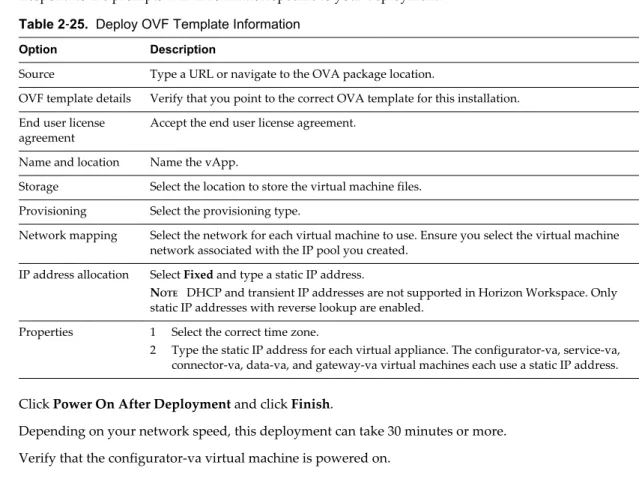
1 Select File > Deploy OVF Template.
Respond to the prompts with information specific to your deployment.
Table 2‑25. Deploy OVF Template Information
Option Description
Source Type a URL or navigate to the OVA package location.
OVF template details Verify that you point to the correct OVA template for this installation. End user license
agreement Accept the end user license agreement. Name and location Name the vApp.
Storage Select the location to store the virtual machine files. Provisioning Select the provisioning type.
Network mapping Select the network for each virtual machine to use. Ensure you select the virtual machine network associated with the IP pool you created.
IP address allocation Select Fixed and type a static IP address.
NOTE DHCP and transient IP addresses are not supported in Horizon Workspace. Only
static IP addresses with reverse lookup are enabled. Properties 1 Select the correct time zone.
2 Type the static IP address for each virtual appliance. The configurator-va, service-va, connector-va, data-va, and gateway-va virtual machines each use a static IP address. 2 Click Power On After Deployment and click Finish.
Depending on your network speed, this deployment can take 30 minutes or more. 3 Verify that the configurator-va virtual machine is powered on.
What to do next
Run the Configurator's virtual appliance interface to start the initial Horizon Workspace configurations, such as the network, SSL, and vCenter extension configuration.
Set Up Horizon Workspace
You start installing Horizon Workspace by configuring certain basic settings.
Prerequisites
n Deploy the OVA File.
n Configure the basic Horizon Workspace settings. “Configure Basic Horizon Workspace Settings,” on page 18.
Additional information is available about connecting to Active Directory, filtering users, and Horizon Workspace modules.
n Establishing a Connection to Active Directory on page 24
Horizon Workspace includes the directory types, Active Directory and Demo User Store (for
evaluation only). This configuration information establishes a connection between Horizon Workspace and Active Directory.
n Filter Types on page 25
You create queries to select the users to synchronize with Horizon Workspace. Depending on the type of query, you filter users by attribute and either include or exclude their attributes from the query to limit the users in the results. Processing time varies based on the type of query you run.
n Horizon Workspace Modules on page 26
You use different modules to perform different types of tasks in Horizon Workspace, such as entitlement, adding, or importing SAML-based Web applications. You enable the modules during set up or afterward in the Configurator.
n Horizon Workspace FQDN and SSL Certificates on page 26
Horizon Workspace includes a self-signed certificate. You can upload a trusted certificate later. n Log File Information on page 27
During testing or troubleshooting, you will need feedback about the activity and performance of the virtual appliances as well as information about any problems that occur. Horizon Workspace includes these log files.
n Update Horizon Workspace Settings with Configurator on page 28
After you configure Horizon Workspace, you can use the Configurator to update the current
configuration and monitor system information for each virtual appliance. For some settings, you must use the Connector to perform specialized Connector configurations.
n Horizon Workspace URLs on page 30
You use different URLs to access different Horizon Workspace Web interfaces.
Procedure
1 Go to https://ConfiguratorHostname/cfg to start the Horizon Workspace Setup wizard. You must set a security exception when you see the message, This Connection is Untrusted. See the instructions for
your browser on setting security exceptions.
2 Type the license key that VMware provides and create an administrator password.
This administrator account is a special account outside of your enterprise directory. If your connection to Active Directory is unavailable, you can use this account. You also use this username and password to access the Horizon Workspace Administrator, Configurator, and Connector Web interfaces directly.
3 Select an internal or external database.
You can use the internal database for the proof-of-concept phase. Do not use the internal database server in production. For production, install and configure an external database server.
4 Select the directory type and enter the directory information used in your environment.
5 Map the user attributes for Horizon Workspace to push from your directory to Horizon Workspace. IMPORTANT If you plan to integrate with Horizon View, select the Required check box for UPN. 6 Start with the Base DNs to filter the users to synchronize with Horizon Workspace.
You can also include or exclude users to narrow the results.
7 Add group information from your directory type to import to Horizon Workspace during the synchronization.
You can assign a new name to your Directory group in Horizon Workspace. When you select a group, all members of the group are synced to Horizon Workspace. You can sync users from multiple DNs. Only users identified in the Base DN can be authenticated.
8 Schedule a sync.
You can schedule a sync to run as frequently as every hour or as infrequently as once a week. If you select Manually as the frequency, your directory and Horizon Workspace only sync when you trigger a push.
9 Verify the number of directory users and groups to add to Horizon Workspace.
10 Click Enable this module to enable modules, such as Horizon Files, Web Applications, and Mobile Management.
11 Paste an SSL certificate and a private key to the Horizon Workspace FQDN and SSL Certificate page. You must create the complete certificate chain and private key to gain external access service.
12 Add the IP addresses for any load balancers or gateways between the Horizon Workspace gateway and the end user.
These are the IP addresses that the gateway uses for client identification on the X-Forwarded-For page. The Horizon Workspace gateway uses the X-Forwarded-For header to identify source IP addresses from the browser client and determines which Connector to log in to based on this IP address. The IP addresses you add here are populated to all of the gateways in your environment.
13 When the setup is finished, click the Go to Horizon Workspace button and log in to the Horizon Workspace Web interface.
The log in requires the Bind DN username and password that you entered when you set up a connection between Active Directory and Horizon Workspace. If you can log in to the Horizon Workspace Administrator Web interface, your Horizon Workspace deployment was successful.
What to do next
Install the executable files for the client installers on each data-va virtual machine. If you do not perform this initial installation of the Windows and Mac client installers into your data-va virtual machines, the client download links in the Web client interface point to the www.vmare.com home page by default.
Establishing a Connection to Active Directory
Horizon Workspace includes the directory types, Active Directory and Demo User Store (for evaluation only). This configuration information establishes a connection between Horizon Workspace and Active Directory.
Directory Information
During the initial set up of Horizon Workspace 1.8, you establish a connection between Horizon Workspace and an Active Directory instance that is a single or multiple domain environment in a single forest. If your environment uses multiple forests and you plan to connect to Active Directory in a multi-forest
environment, you must create a new connector-va virtual machine to connect with each forest. You
configure your multi-forest environment after the initial set up, or later, after testing is complete. See the list below for more information:
n To establish a connection between a multi-forest Active Directory and Horizon Workspace, see “Configuring Horizon Workspace in a Multi-forest Active Directory Environment,” on page 42. n For information about the global catalog and multiple domains in a single Active Directory forest, see
“Configuring a Multidomain Active Directory Single Forest,” on page 44.
n To create multiple connector-va virtual machines, of the same type, in your single or multiple domain environment in a single forest for load balancing or failover, see “Create Multiple connector-va Virtual Machines,” on page 87.
Horizon Workspace uses this information to verify your end user's credentials when they log in. See the table for details about the directory information you need to provide for your deployment.
Server host The text box for the Active Directory host address. Do not use non-ASCII characters when you enter your hostname.
Use SSL You can select the Use SSL check box if you use SSL for your directory connection. Server port The text box for the port number for the Active Directory host.
For a single domain Active Directory Domain Service, the default port for LDAP is 389 while the default port for LDAP over SSL is 636.
For a multidomain Active Directory Domain Service (AD DS) forest, the default ports for the global catalog are 3268 without SSL and 3269 with SSL.
Search attribute The drop-down menu for the Active Directory attribute that contains the username. For a single domain Active Directory Domain Service, the appropriate selection is sAMAccountName.
For a multidomain AD DS forest, the appropriate selection is userPrincipalName. Base
distinguished name (DN)
The text box for the Base DN, which is the starting point for directory server searches.
You can use either Active Directory or Demo User Store (for evaluation only) directory types. The following example queries are best practices when selecting the Base DN and Bind DN:
For a single domain Active Directory Domain Service, this is the text box for the DN of the starting point for directory server searches. For example: DC=mycompany, DC=com. The Connector starts from this DN to create master lists from which you can later filter out individual users and groups. For a multidomain AD DS forest, the appropriate action is to leave this text box blank.
Bind DN The text box for the Bind DN, including common name (CN), of an Active Directory user account that has privileges to search for users.
You can use either Active Directory or Demo User Store (for evaluation only) directory types. The Bind DN account becomes the first administrative account for Horizon Workspace that supports Active Directory. The Bind DN account user record in Active Directory must include a username, first name, last name, email address, any required extended attributes, and a DN attribute defined in Active Directory. The following examples are best practices when selecting the Base DN and Bind DN:
n Base DN: dc=example, dc=com. Use the topmost level for Base DN so you include all users and groups.
n Bind DN: cn=admin user, ou=users, dc=example, dc=com. Ensure that Bind DN is included in the Base DN you select.
You can promote other Active Directory users to the administrator role using the Horizon Workspace Administrator Web interface.
For a single domain Active Directory Domain Service, the Bind DN entry must be located in the same branch and below the Base DN.
For a multidomain AD DS forest, because you leave the Base DN text box empty, the restrictions that apply for a single domain do not apply for a multidomain forest.
Bind password The text box for the Active Directory password for the Bind DN account.
Filter Types
You create queries to select the users to synchronize with Horizon Workspace. Depending on the type of query, you filter users by attribute and either include or exclude their attributes from the query to limit the users in the results. Processing time varies based on the type of query you run.
Include and Exclude Filters
If you include additional user attributes to the basic query you create when you enter your base DN, you can restrict users without having to create multiple exclusion filters. For example, by using the include method, you can include 100 users and exclude 900 users without having to determine the correct filter to create to exclude the 900 users. When you add user attributes to your query, processing occurs at the LDAP level rather than in Horizon Workspace. Processing an inclusion query optimizes the memory and resources of Horizon Workspace.
You can synchronize users from multiple DNs. However, you can authenticate only users under the Base DN that you defined in your directory.
Using an exclude filter is best when you want to exclude a small number of users. This method extracts all the users defined by DN first, and based on the filters you create, excludes the users you do not want to synchronize with Horizon Workspace. If you want to exclude hundreds of users, it is best to add additional user attributes to your query to include them rather than trying to exclude large numbers individually. In some case, you might need to use include and exclude filters together.
Create Queries to Filter Users
You create queries to filter users from a large group. The results of the query make it easier to select only the users to synchronize to Horizon Workspace.
Procedure
1 Create an exclude filter with the base DN.
a Type the DN where the users are located. For example, to include all the users in the base DN for Company A's Active Directory, use the following query.
ou=Users,DC=testDC,DC=acme,DC=com
b Create filters to exclude users you do not want to sync to Horizon Workspace using this syntax.
2 Create an include filter with base DN user attributes.
a Enter the DN that contains the users and append a semicolon (;) after the user base DN.
b After the semicolon, add attribute information to narrow your query and include only the users to sync with Horizon Workspace. For example, to include only the sales team in Company A, use the following query.
ou=Users,DC=testDC,DC=acme,DC=com;(&(objectClass=user)(objectCategory=person) (department=Sales))
If you do not want to include additional user attributes in your query, do not use the default filter,
(&(objectClass=user)(objectCategory=person)).
What to do next
After you create and run your query, you synchronize the users you selected with Horizon Workspace.
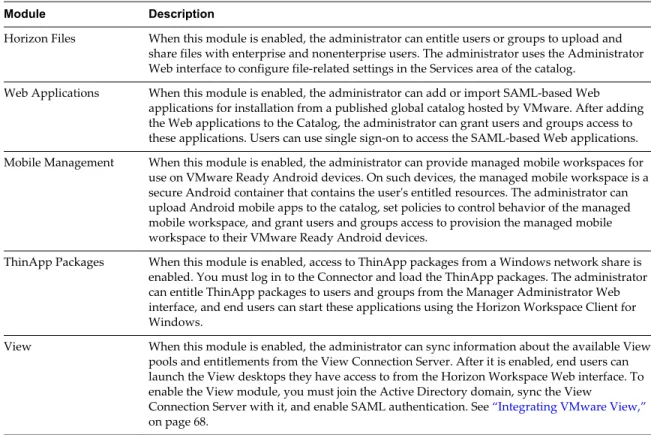
Horizon Workspace Modules
You use different modules to perform different types of tasks in Horizon Workspace, such as entitlement, adding, or importing SAML-based Web applications. You enable the modules during set up or afterward in the Configurator.
Table 2‑26. Horizon Workspace Modules
Module Description
Horizon Files When this module is enabled, the administrator can entitle users or groups to upload and share files with enterprise and nonenterprise users. The administrator uses the Administrator Web interface to configure file-related settings in the Services area of the catalog.
Web Applications When this module is enabled, the administrator can add or import SAML-based Web applications for installation from a published global catalog hosted by VMware. After adding the Web applications to the Catalog, the administrator can grant users and groups access to these applications. Users can use single sign-on to access the SAML-based Web applications. Mobile Management When this module is enabled, the administrator can provide managed mobile workspaces for
use on VMware Ready Android devices. On such devices, the managed mobile workspace is a secure Android container that contains the user's entitled resources. The administrator can upload Android mobile apps to the catalog, set policies to control behavior of the managed mobile workspace, and grant users and groups access to provision the managed mobile workspace to their VMware Ready Android devices.
ThinApp Packages When this module is enabled, access to ThinApp packages from a Windows network share is enabled. You must log in to the Connector and load the ThinApp packages. The administrator can entitle ThinApp packages to users and groups from the Manager Administrator Web interface, and end users can start these applications using the Horizon Workspace Client for Windows.
View When this module is enabled, the administrator can sync information about the available View pools and entitlements from the View Connection Server. After it is enabled, end users can launch the View desktops they have access to from the Horizon Workspace Web interface. To enable the View module, you must join the Active Directory domain, sync the View
Connection Server with it, and enable SAML authentication. See “Integrating VMware View,” on page 68.
Horizon Workspace FQDN and SSL Certificates
Horizon Workspace includes a self-signed certificate. You can upload a trusted certificate later.
The SSL certificate works with Horizon Workspace only if you include the entire certificate chain when you configure the SSL certificate setting. You must copy the certificate chain order exactly.
You use the option to generate certificates only when you install Horizon Workspace for evaluation. You must use the appropriate third-party signed certificates in your production environment. The architecture used in a production environment often includes a load balancer in front of Horizon Workspace.
Certificate Chain Example
---BEGIN CERTIFICATE---SSL Cert - Workspace CERTIFICATE---SSL Cert ---END ---BEGIN CERTIFICATE---Intermediate/Issuing CA Cert ---END ---BEGIN CERTIFICATE---Root CA Cert ---END
CERTIFICATE---Log File Information
During testing or troubleshooting, you will need feedback about the activity and performance of the virtual appliances as well as information about any problems that occur. Horizon Workspace includes these log files.
Table 2‑27. Log File Information
Component Log File Name Location of Log File Description
Service horizon.log /opt/vmware/horizon/horiz
oninstance/logs/horizon.l
og
Information about activity on the Horizon Workspace manager appliance, such as entitlements, users, groups, and so on.
Configurator configurator-console.log
/opt/vmware/var/log/confi gurator-console.log
Configuration details from the vApp deployment and installation.
configurator.log /opt/vmware/horizon/confi
guratorinstance/logs/conf
igurator.log
Requests that the Configurator receives from the REST client and the Web interface.
catalina.log /opt/vmware/horizon/confi
guratorinstance/logs/cata
lina.out
Apache Tomcat records messages that are not recorded by the configurator.log files. Upgrade update.log /opt/vmware/var/log/updat
e.log
A record of output messages related to update requests during an upgrade from Horizon Workspace 1.5 to
Horizon Workspace 1.8. Connector connector.log /opt/vmware/c2/c2instance
/logs/connector.log
A record of each request received from the Web client. Each log entry also includes the request URL, timestamp, and exceptions. No sync actions are recorded. Horizon Files mailbox.log /opt/zimbra/log/mailbox.l
og
A record of output messages related to requests received by the mail server.
audit.log /opt/zimbra/log/audit.log A record of output messages related to security events.
access_log.yyyy-mm-dd
/opt/zimbra/log/access_lo g.yyyy-mm-dd
A record of output messages related to requests received by the data-va virtual machine.
Table 2‑27. Log File Information (Continued)
Component Log File Name Location of Log File Description
Gateway access.log /opt/vmware/nginx/logs/ac cess.log
URLs that were requested and the status of each request.
error.log /opt/vmware/nginx/logs/er ror.log
Errors reported from the Web server running on the gateway.
CAUTION Upgrading from Horizon Workspace 1.0 to Horizon Workspace 1.8 is not supported. You must
upgrade from Horizon Workspace 1.0 to Horizon Workspace 1.5 to Horizon Workspace 1.8.
Update Horizon Workspace Settings with Configurator
After you configure Horizon Workspace, you can use the Configurator to update the current configuration and monitor system information for each virtual appliance. For some settings, you must use the Connector to perform specialized Connector configurations.
You can switch the configurator-va, service-va, connector-va, data-va, gateway-va, and datatemplate-va virtual machine to maintenance mode to monitor information about each virtual machine, and view the IP address, status, or relative drift of a virtual appliance. You can also update or change settings for your database, modules, FQDN and SSL certificates, and more on the following pages.
n System Information n System Diagnostics n Database Connection Setup n Module Configuration
n Horizon Workspace FQDN and SSL Certificates n X-Forwarded-For Header
n License Key n Password n Log File Locations
Additional information is available about connecting to Active Directory, filtering users, and Horizon Workspace modules.
n Change vCenter Administrator Password on page 29
When you change your vCenter password, you must update your password on the configurator-va virtual machine. Otherwise, when you log in to the Horizon Workspace Configurator Web interface, you can only see the System Information page.
n Enable the Syslog Server on page 29
Horizon Workspace exports application-level events to the external syslog server. Operating system events are not exported.
n Use System Diagnostics Tool on page 30
You can use the System Diagnostics tool to identify application-specific issues and connectivity with integrated components. The information the tool provides includes the results of different diagnoses performed on each virtual machine in your deployment, as well as basic data points that enable you to troubleshoot your Horizon Workspace environment.
Procedure
2 Log in to the Configurator with the administrator password. 3 Use the left navigation pane to select the page to view.
What to do next
Verify that the settings or updates you made are in effect.
Change vCenter Administrator Password
When you change your vCenter password, you must update your password on the configurator-va virtual machine. Otherwise, when you log in to the Horizon Workspace Configurator Web interface, you can only see the System Information page.
If you change your vCenter administrator password, you must use the hznAdminTool utility to change it on
the configurator-va virtual machine as well.
Procedure
1 Log in to the configurator-va virtual machine. 2 Run the hznAdminTool command.
hznAdminTool editproperty --set=vim_password:yournewpassword
3 Run the configurator-tc restart command to restart the configurator-va virtual machine.
What to do next
Log in to the Horizon Workspace Configurator Web interface and verify that you can access all the pages.
Enable the Syslog Server
Horizon Workspace exports application-level events to the external syslog server. Operating system events are not exported.
Since most companies do not have unlimited disk space, Horizon Workspace does not save the complete logging history for each virtual machine. If you want to save more history, or create a centralized location for your logging history, you can set up an external syslog server.
If you do not configure a syslog server during the initial configuration, you can configure it later from the Syslog Configuration page in the Configurator Web interface.
Prerequisites
Set up an external syslog server. You can use any of the standard syslog servers available. Several syslog servers include advanced search capabilities.
Procedure
1 Log in to the configurator-va virtual machine. 2 Click Syslog in the left navigation.
This opens the Syslog Configuration page. 3 Click the Enable radio button.
4 Type in the IP or the FQDN of the server where you want to store the logs. 5 Click Save.
Use System Diagnostics Tool
You can use the System Diagnostics tool to identify application-specific issues and connectivity with integrated components. The information the tool provides includes the results of different diagnoses performed on each virtual machine in your deployment, as well as basic data points that enable you to troubleshoot your Horizon Workspace environment.
This tool can be used during initial Horizon Workspace configuration. When you run the wizard, if you see an error, you can navigate to the diagnostic page, identify and fix problematic issues, and return to the wizard. The tool is also useful after initial configuration and during regular use of Horizon Workspace. The System Diagnostics page is on-demand. The information it displays represents the status at the time when the page was loaded. The page should be refreshed to view more recent information. Error notifications are not provided.
The diagnostic page provides a drill down approach. The top element shows the overall health of the system. You can drill down further to review specific information about a problematic component. Review the status information for each virtual machine in the vApp and troubleshoot problems by locating the appliance where the error occurred. The System Diagnostics page displays status icons for critical, informational, and cautionary states for each virtual appliance. You can drill down and read a detailed description of a message by clicking the link of the appliance with a status icon.
You can identify problems in your environment. For example, when a user cannot log in to
Horizon Workspace, you can drill down to see that the connector-va virtual machine is not connected to the Active Directory server. Or you can review the information and find out why your service-va virtual machine cannot connect to the database.
If you need to forward this report, you can use the Printer Friendly View link to print or save the report to a PDF file.
Procedure
1 Log in to the configurator-va virtual machine. 2 Open the System Diagnostics page.
n From the Horizon Workspace setup wizard, click Horizon Workspace. n From the Configurator, click Horizon Workspace in the left navigation. 3 Use the links to view the status information, message details, or raw output.
What to do next
You can use the System Diagnostics page during the Horizon Workspace installation, and afterward, to view status information.
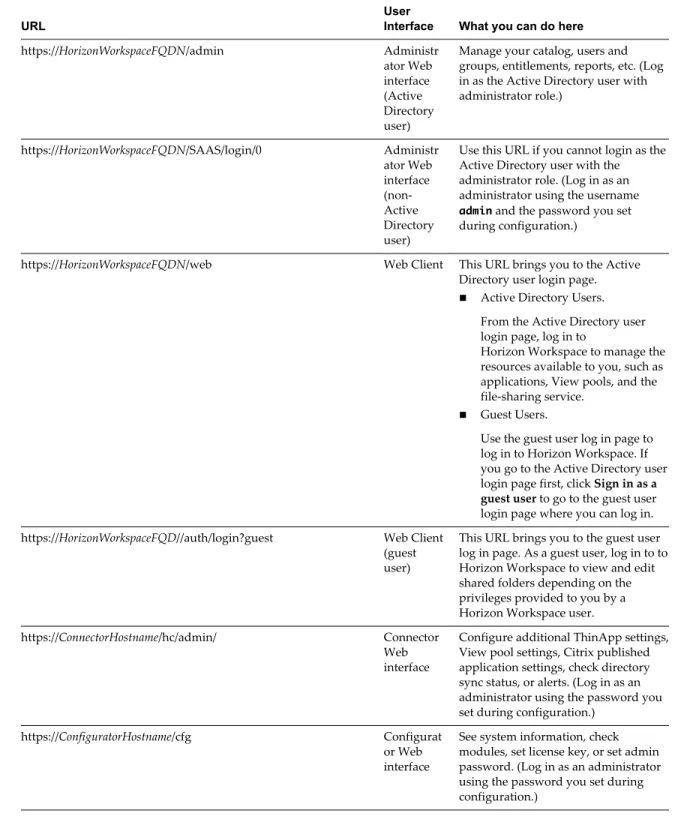
Horizon Workspace URLs
You use different URLs to access different Horizon Workspace Web interfaces.
Each interface gives you access to different functions. Each Web interface URL listed uses a placeholder, such as HorizonWorkspaceFQDN, ConnectorHostname, and ConfiguratorHostname for the hostname. Replace the placeholder names with the actual values.
Table 2‑28. Horizon Workspace URLs URL
User
Interface What you can do here
https://HorizonWorkspaceFQDN/admin Administr ator Web interface (Active Directory user)
Manage your catalog, users and groups, entitlements, reports, etc. (Log in as the Active Directory user with administrator role.) https://HorizonWorkspaceFQDN/SAAS/login/0 Administr ator Web interface (non-Active Directory user)
Use this URL if you cannot login as the Active Directory user with the administrator role. (Log in as an administrator using the username admin and the password you set during configuration.)
https://HorizonWorkspaceFQDN/web Web Client This URL brings you to the Active Directory user login page. n Active Directory Users.
From the Active Directory user login page, log in to
Horizon Workspace to manage the resources available to you, such as applications, View pools, and the file-sharing service.
n Guest Users.
Use the guest user log in page to log in to Horizon Workspace. If you go to the Active Directory user login page first, click Sign in as a
guest user to go to the guest user
login page where you can log in. https://HorizonWorkspaceFQD//auth/login?guest Web Client
(guest user)
This URL brings you to the guest user log in page. As a guest user, log in to to Horizon Workspace to view and edit shared folders depending on the privileges provided to you by a Horizon Workspace user. https://ConnectorHostname/hc/admin/ Connector
Web interface
Configure additional ThinApp settings, View pool settings, Citrix published application settings, check directory sync status, or alerts. (Log in as an administrator using the password you set during configuration.)
https://ConfiguratorHostname/cfg Configurat or Web interface
See system information, check modules, set license key, or set admin password. (Log in as an administrator using the password you set during configuration.)
Adding Workspace Desktop Clients
Users can access their Horizon Workspace accounts from the Workspace user portal on the Web. To enable users to download the Desktop clients and to automatically update the Desktop clients with a new version, you must add the Desktop clients installer files to the downloads directory and to the auto-update directory on the data-va virtual machines.
Users download the Horizon Workspace for Windows or Horizon Workspace for Mac Desktop clients from their Workspace user portal and install it on their computers.
The Horizon Workspace Desktop clients poll the Workspace server every two hours for a new version. When a new version is found, the Desktop client is automatically updated.
Users can get the latest Horizon Workspace clients for their Android and iOS devices from the app stores, GooglePlay, and iTunes respectively.
Add Desktop Client Installer Files to data-va Virtual Machines
When new versions of the Desktop clients are released, you copy and install a zip file that includes the Desktop client files for Windows and Mac computers from the VMware Downloads page to each data-va virtual machine that is configured. You run the check-client-updates command on each data-va virtual
machine to deploy the installer files and restart the data-va virtual machines.
Prerequisites
n Users must have administrator privileges on their computers to install and automatically update the Desktop client. If users do not have administrator privileges, you can use software distribution tools to distribute and update the Horizon Workspace desktop applications to your users. See Command-Line Installer Options for the Windows Desktop client in the Horizon Workspace Administrator's Guide. n Schedule adding these installer files to the data-va servers to run during a maintenance window since
the data-va virtual machine is restarted and this might interrupt user access.
Procedure
1 Download the Horizon Workspace Desktop client zip file from the VMware Web site
https://my.vmware.com/web/vmware/downloads to a computer that can access the data-va virtual machines. 2 Copy the zip file to a temporary location on the data-va virtual machine.
scp clients-n.n.n-nnnnnnn.zip [email protected]:/tmp/
3 Log in to the data-va machine as the root user.
4 Unzip and install the new clients to the Downloads directory.
/opt/vmware-hdva-installer/bin/check-client-updates.pl --install --clientfile
/tmp/clients.X.X.X-XXXXX.zip
This script automatically unzips the file and copies the Desktop clients installer files for Windows and for Mac computers to the /opt/zimbra/jetty/webapps/zimbra/downloads directory, automatic updates
to the /opt/zimbra/jetty/webapps/zimbra//public/cds directory, updates the URL parameter value for
the downloads link, and restarts the data-va virtual machine.
5 Repeat these steps on each data-va virtual machine in your environment.
Users can download the Desktop clients from their Horizon Workspace accounts. Each user's Desktop clients are automatically updated.
Change the Password to the Generated Keystore File
After you deploy the vApp and before you run the addvm command, you can change the generated keystore
(horizon.uber) file password. It is also important to update the password in the encrypted runtime-config.properties file.
To change the keystore password, you must change the keystore password and all keystore entry passwords.
Procedure
1 Run this command to list all keys in the keystore.
/usr/java/jrevmware/bin/keytool list keystore /usr/local/horizon/bin/masterkeys.uber -provider org.bouncycastle.jce.-provider.BouncyCastleProvider -storetype uber -storepass H0rizon!
2 Run this command to change the keystore password from the default password to a new password.
/usr/java/jrevmware/bin/keytool storepasswd
-keystore /usr/local/horizon/bin/masterkeys.uber -provider
org.bouncycastle.jce.provider.BouncyCastleProvider storetype uber storepass H0rizon!
-NewPassword
3 Run this command to change the individual entry keys.
/usr/java/jrevmware/bin/keytool keypasswd
-keystore /usr/local/horizon/bin/masterkeys.uber -provider
org.bouncycastle.jce.provider.BouncyCastleProvider storetype uber storepass Ssn123456 -alias "horizon,1" -keypass H0rizon! -NewPassword
4 Repeat these steps for each keystore file, such as hznToken,HS256 and hznToken,RS256.
5 Encrypt and update the new password.
a Run the hznEncrypt command on the service-va virtual machine to encrypt the new password. /usr/local/horizon/bin/hznEncrypt
b Update the password in the encrypted runtime-config.properties file.
What to do next