Copyright © 2013, Oracle and/or its affiliates. All rights reserved.
Trademark Notice
Oracle and Java are registered trademarks of Oracle and/or its affiliates. Other names may be trademarks of their respective owners.
Intel and Intel Xeon are trademarks or registered trademarks of Intel Corporation. All SPARC trademarks are used under license and are trademarks or registered trademarks of SPARC International, Inc. AMD, Opteron, the AMD logo, and the AMD Opteron logo are trademarks or registered trademarks of Advanced Micro Devices. UNIX is a registered trademark of The Open Group.
License Restrictions Warranty/Consequential Damages Disclaimer
This software and related documentation are provided under a license agreement containing restrictions on use and disclosure and are protected by intellectual property laws. Except as expressly permitted in your license agreement or allowed by law, you may not use, copy, reproduce, translate, broadcast, modify, license, transmit, distribute, exhibit, perform, publish, or display any part, in any form, or by any means. Reverse engineering, disassembly, or decompilation of this software, unless required by law for interoperability, is prohibited.
Warranty Disclaimer
The information contained herein is subject to change without notice and is not warranted to be error-free. If you find any errors, please report them to us in writing.
Restricted Rights Notice
If this is software or related documentation that is delivered to the U.S. Government or anyone licensing it on behalf of the U.S. Government, the following notice is applicable:
U.S. GOVERNMENT RIGHTS
Programs, software, databases, and related documentation and technical data delivered to U.S. Government customers are "commercial computer software" or "commercial technical data" pursuant to the applicable Federal Acquisition Regulation and agency-specific supplemental regulations. As such, the use, duplication, disclosure, modification, and adaptation shall be subject to the restrictions and license terms set forth in the applicable Government contract, and, to the extent applicable by the terms of the Government contract, the additional rights set forth in FAR 52.227-19, Commercial Computer Software License (December 2007). Oracle America, Inc., 500 Oracle Parkway, Redwood City, CA 94065.
Hazardous Applications Notice
This software or hardware is developed for general use in a variety of information management applications. It is not developed or intended for use in any inherently dangerous applications, including applications that may create a risk of personal injury. If you use this software or hardware in dangerous applications, then you shall be responsible to take all appropriate fail-safe, backup, redundancy, and other measures to ensure its safe use. Oracle Corporation and its affiliates disclaim any liability for any damages caused by use of this software or hardware in dangerous applications.
Third Party Content, Products, and Services Disclaimer
This software or hardware and documentation may provide access to or information on content, products, and services from third parties. Oracle Corporation and its affiliates are not responsible for and expressly disclaim all warranties of any kind with respect to third-party content, products, and services. Oracle Corporation and its affiliates will not be responsible for any loss, costs, or damages incurred due to your access to or use of third-party
CONTENTS
Contents ... 2
Browser Compatibility Guide Preface ... 4
Understanding Browser Compatibility ... 4
Understanding Browser-Related Documentation ... 4
Identifying Certified Browsers ... 5
Finding Browser-Related Support Documentation ... 6
Browser Technology Differences ... 7
Browser Technology Comparison ... 7
Apple Safari and Mobile Safari ... 11
Understanding Application Differences in Apple Mobile Safari ... 11
Natural User Interfaces ... 11
Gestures Used to Interface with Applications in iOS ... 12
Identified Application Interface and Process Differences ... 13
Troubleshooting Issues Associated With Mobile Safari For iOS 6.x ... 15
Troubleshooting Issues Associated With Mobile Safari For iOS 5.x ... 15
Troubleshooting Issues Associated With Mobile Safari For iOS 4.x ... 16
Troubleshooting Issues Associated With Apple Safari 5.x ... 19
Troubleshooting Issues Associated With Apple Safari 4.x ... 21
Troubleshooting Issues Associated With Apple Safari 3.2x ... 21
Troubleshooting Issues Associated With Apple Safari 3.0 ... 23
Google Chrome ... 25
Troubleshooting Issues Associated With Google Chrome 23.x ... 25
Troubleshooting Issues Associated With Google Chrome 13.x ... 26
Troubleshooting Issues Associated With Google Chrome ... 26
Mozilla Firefox ... 27
Troubleshooting Issues Common to All Releases of Mozilla Firefox ... 27
Troubleshooting Issues Associated With Mozilla Firefox 3.6.x ... 28
Microsoft Internet Explorer ... 32
Troubleshooting Issues Common to All Releases of Microsoft Internet Explorer ... 32
Troubleshooting Issues Associated With Microsoft Internet Explorer 10.x ... 34
Troubleshooting Issues Associated With Microsoft Internet Explorer 9.x ... 36
Troubleshooting Issues Associated With Microsoft Internet Explorer 8.x ... 38
Troubleshooting Issues Associated With Microsoft Internet Explorer 7.x ... 43
Increasing the Number of HTTP Connections for IE 7 ... 47
Troubleshooting Issues Associated With Microsoft Internet Explorer 6.x ... 47
Viewing Attachments and Downloading Files ... 50
General Issues Affecting Multiple Browsers ... 51
Availability of Copy URL (http) Icon on PIA ... 51
Closing Superfluous Attachment Windows ... 51
Clearing Browser Cache After Changing Navigation Personalizations ... 52
Clearing Browser Cache After Upgrading PeopleSoft Applications ... 52
Downloading Excel Files in Browsers Running Windows XP ... 53
Older Browsers Might Display Non-US-ASCII Characters in a Non-Encoded Format ... 53
BROWSER COMPATIBILITY GUIDE PREFACE
This section presents overview of the following topics:
• Browser compatibility
• Browser-related documentation
U
NDERSTANDING
B
ROWSER
C
OMPATIBILITY
As you work in PeopleSoft applications, you might notice that slight variations exist on the same transaction page depending on the browser that you use. On occasion, some browsers cause your PeopleSoft application to exhibit behaviors that vary from the expected behavior. Some of these differences are very subtle and have no impact on the performance of the application, while others might alter the look and function of PeopleSoft pages. Anomalies in appearance and behavior can occur because the technologies that browsers use to process and present web pages vary among browsers and browser releases. PeopleSoft applications are designed to be compatible with multiple browsers, despite their technological differences. To ensure compatibility, Oracle thoroughly tests PeopleSoft applications on various browser versions and platform combinations. Developers make every effort to resolve all issues where possible, and document issues that cannot be resolved.
This document discusses the identified differences and issues that you might encounter as you use your PeopleSoft application in specific browser versions. Often, specific PeopleTools releases address these issues and sometimes more recent browser versions address these issues; this document notes these situations. In addition to noting situations where PeopleSoft application and browser updates correct these issues, this document also provides workarounds—where possible.
U
NDERSTANDING
B
ROWSER
-R
ELATED
D
OCUMENTATION
• Identify certified browsers.
IDENTIFYING CERTIFIED BROWSERS
The format of browser certification information depends on the PeopleTools release. This table describes the methods used to find browser certification documentation by PeopleTools release:
PEOPLETOOLS RELEASE
METHOD USED TO FIND DOCUMENTATION
8.49 and later Access the Certification Search pagelet on MyOracleSupport.com.
See PeopleSoft Enterprise PeopleTools Certifications Document ID
8.48 and earlier Access the spreadsheets from the release-specific certification notes on MyOracleSupport.com.
See PeopleSoft Enterprise PeopleTools Certifications Notes • PeopleTools 8.48 -
• PeopleTools 8.47 -
• PeopleTools 8.46 -
• PeopleTools 8.45 -
• PeopleTools 8.44 -
• PeopleTools 8.22 -
Note. While browser support documentation for PeopleTools versions prior to release 8.49 is accessible
through MyOracleSupport, you cannot use the Certification Search pagelet to locate pre-8.49 information.
To identify certified browsers:
1. Sign in to My Oracle Support at
2. Select the Certifications tab at the top of the page. (If the Certifications tab is not visible, click the More tab, and then click Certifications.)
3. In the Certification Search pagelet that appears, select PeopleSoft PeopleTools in the Product drop-down list box.
4. Click the Search button.
The Certification Search Results page appears. Certification information is available under the Desktop Applications, Browsers and Clients section.
Important! Oracle tests and certifies browsers using the vendor-specified default configuration on all supported platforms. Oracle recommends that you use the default vendor-specified browser settings with PeopleSoft applications. You should thoroughly test any deviation from the default settings because changes can cause unintended results.
FINDING BROWSER-RELATED SUPPORT DOCUMENTATION
To find other browser-related support documentation::1. Sign in to My Oracle Support at
2. Enter the search text in the Search Knowledge Base field.
If you know the Article ID, enter it in this field.
3. (Optional) Click the Source drop-down list box to narrow or broaden the source category. 4. (Optional) Click the Advanced link to refine the search parameters.
5. Click the Search button.
The results appear in a list.
6. (Optional) Use the Refine Search pagelet on the right side of the page to constrain the results list.
Note. Select PeopleSoft Enterprise in the product category to retrieve items that are relevant to
PeopleSoft applications.
7. Browse the list and click the item title to view the document.
The result list cascades to the left so that the article appears in the viewing area.
BROWSER TECHNOLOGY DIFFERENCES
While Oracle certifies multiple browsers and browser versions for use with PeopleSoft applications, differences in technology do exist among browsers and browser releases. As web-based technologies evolve, modern browsers quickly incorporate support for the latest technological advances. This evolutionary process also applies to modern web-based applications, such as the PeopleSoft product suite. Oracle maintains its commitment to the successful and intelligent incorporation of proven advanced internet technologies into each successive release of PeopleTools, the foundation of all PeopleSoft applications.
B
ROWSER
T
ECHNOLOGY
C
OMPARISON
This table presents web-based technologies and describes browser-specific improvements as they relate to these technologies and the effect of the improvement as it relates to your PeopleSoft application.
B
ROWSERT
ECHNOLOGYD
ESCRIPTION OFI
MPROVEMENT ANDR
ESULTIE10 CSS3 features IE10 supports the following CSS3 features: Multi-column layout, 3D Transforms, Gradient effects, Transitions, Animations, Text-shadow.
RESULT
PeopleTools 8.53 incorporates rounded corners, gradient effects, and box shadows in its user interface only in Standards mode. Improves the user experience when interacting with PeopleSoft pages. FF17 Network performance Mozilla reports that FF17 delivers improvement in startup times and improved graphic rendering speed and page loading speed in
comparison to FF7.
RESULT
Significant improvement in loading pages when compared to FF7. FF17 Type Inference Mozilla reports that the Type Inference feature boosts JavaScript performance by up to 30%.
FF17 SVG support FF17 supports SVG format that enables searching, indexing, scripting, and compressing of images. SVG format images are scalable and can be printed with high quality at any resolution.
BROWSER
TECHNOLOGY
DESCRIPTION OF IMPROVEMENT AND RESULT
FF17 CSS3 and HTML5 FF17 supports CSS3 and HTML5. It supports rounded corners, box-shadow, and gradient effects.
RESULT
PeopleTools 8.53 incorporates rounded corners, gradient effects, and box-shadows in its user interface. Improves the user experience when interacting with PeopleSoft pages.
Safari 6 CSS features Safari supports CSS filters that enable advanced filter and pixel effects such as blurs and gradients.
RESULT
Fast and smooth rendering of PeopleSoft pages.
Chrome 19 Network performance Google reports that Chrome 19 delivers improvement in startup time, graphics rendering, and page loading. Chrome 19 is comparable to IE10 and FF17 in the areas of support for CSS3 and HTML5, and JavaScript performance.
IE 9 Network performance Microsoft reports that IE 9 delivers significant increase in network performance when compared to IE 8 and IE 7.
RESULT
Significantly faster page load time across a wide variety of pages. On standard web performance websites, IE 9 performs comparably to FF 7 and to Chrome 13.
IE 8 Parallel and
simultaneous requests of JavaScript and Cascading Style Sheet
IE 8 supports up to 10 simultaneous, parallel JavaScript requests compared to 3 in IE7.
RESULT
IE 8 will render the same page faster than IE 7 because IE 8 has approximately 3 times the capacity to:
• Request JavaScript
• Request CSS images
Pages that request uncached JS and CSS objects take less time to process and load in IE 8 than the same page does in IE 7.
BROWSER
TECHNOLOGY
DESCRIPTION OF IMPROVEMENT AND RESULT
IE 8 JavaScript engine
DOM engine When the browser loads an HTML page, the browser must process the JavaScript events and the CSS DOM manipulation before the page appears in the browser. The JavaScript and DOM engines in IE 8 are faster than the engines in IE 7.
RESULT
IE 8 takes less time to process the page, therefore the page appears and is ready to use more quickly in IE 8 than in IE 7.
IE 8 JSON arrays IE 8 delivers improvements in speed and efficiency when processing JSON arrays when compared to IE 7.
RESULT
Autocomplete uses JSON arrays to display the matching results in a drop-down list. Autocomplete results appear more quickly in IE 8 than in IE 7.
IE 8 FF 7
JAWS Accessibility APIs provide more comprehensive support for ARIA markup than other browsers. This increases the quality of JAWS support for these two browsers.
RESULT
IE 8 and FF 7 provide better experience for users of assistive or adaptive devices.
IE 8 FF 7
Browser caching of
complex objects Complex objects are objects that are comprised of other objects. Both IE 8 and FF 7 support complex object caching at the browser level; browsers such as IE 7 and FF 3.6 that do not support complex object caching at the browser level must access and retrieve these objects from web server memory.
RESULT
Faster access to complex JavaScript objects, such as those used by interwindow communication and persistent search. PeopleSoft pages that use these PeopleTools technologies perform faster in IE 8 and FF 7 because these browsers support complex object caching at the browser level.
BROWSER
TECHNOLOGY
DESCRIPTION OF IMPROVEMENT AND RESULT
FF 7 JavaScript engine When the browser loads an HTML page, the browser must process the JavaScript events and the CSS DOM manipulation before the page appears in the browser. The JavaScript and DOM engines in FF 7 are faster than those in FF 3.6.9
RESULT
The most recent Firefox 4 builds are almost two times as fast as Firefox 3.6.9 in the SunSpider benchmark.
Safari 5 JavaScript and HTML5 Safari 5 provides almost 30% JavaScript performance improvement over Safari 4. Safari 5 includes improved developer tools and supports more than a dozen new HTML5 technologies.
See Also
APPLE SAFARI AND MOBILE SAFARI
This section presents an overview of the application differences in Apple Mobile Safari, and describes how to troubleshoot issues associated with these releases:
• Mobile Safari for iOS 5.x
• Mobile Safari for iOS 4.x
• Safari 5.x
• Safari 4.x
• Safari 3.x
U
NDERSTANDING
A
PPLICATION
D
IFFERENCES IN
A
PPLE
M
OBILE
S
AFARI
When you use Mobile Safari for iOS to access your PeopleSoft applications, your interaction with your PeopleSoft application will differ from your interaction with other browsers because Apple’s iOS applies the principals of the natural user interface in its OS and applications.
This section discusses:
• Natural user interfaces.
• Gestures used to interact with applications in iOS.
• Identified application interface and process differences.
NATURAL USER INTERFACES
Natural user interfaces (NUIs) represent the evolution of graphical user interfaces (GUIs). NUIs—sometimes called human user interfaces—are human-digital interfaces that are engineered with the foundational tenet that the best way to interact with a device or its visible content is by making natural motions, movements or gestures with the device or its visible content. NUIs start from traditional human abilities such as touch, vision, speech, handwriting, and motion; then combine these physical human elements with thought, creativity, and curiosity to enable a simple, elegant human-digital interaction that is authentic, spontaneous, and intuitive. Examples of natural movements include:
• Flipping the page of an ibook with a flick motion.
• Resizing an image or page with a pinch motion or a stretch motion.
Note.
See Also
In Apple documentation, the term Human Interface supplants the term Natural User Interface.
Apple Developer: iOS Developer Library,
GESTURES USED TO INTERFACE WITH APPLICATIONS IN IOS
The iPad display is a multi-touch interface that enables you to use finger gestures to interact with the iPad and its applications. This table describes the common gestures that you use to interact with your PeopleSoft applications with Mobile Safari for iOS on the Apple iPad.
GESTURE
DESCRIPTION
PURPOSE
Tap Quickly touch your finger to the display and release. Use to select a page control or item. Drag Touch, hold, and then slide your finger on the page. Use to scroll the page vertically, or
pan the page horizontally. Two-finger drag Touch and hold two fingers to the display, and then
slide both fingers. Use to scroll through scrollable grid rows or to pan through scrollable grid columns.
Double-tap Quickly tap and release your finger two times. Use to zoom quickly in on a section of the page and to zoom out if you are zoomed in currently.
Pinch close Touch two fingers to the page then, bring the fingers
together. Use to zoom out. Pinch open Touch two fingers to the page then, spread the
fingers apart. Use to zoom in.
Touch and hold Place and hold a finger in a text field. Use to activate the magnifying glass and move the cursor within a text field.
IDENTIFIED APPLICATION INTERFACE AND PROCESS DIFFERENCES
Many differences that you encounter when you access your PeopleSoft applications using Apple Mobile Safari for iOS stem from the basic iOS tenet that the user should interact directly with the touch screen, rather than through an intermediary device, such as a mouse. Consequently, while the tap in iOS devices compares to the mouse click non-iOS devices, iOS neither recognizes nor supports any type of mouse-driven event, such as hover.
This table lists the interface differences and explains the process differences that you encounter when you access your PeopleSoft applications using an Apple iPad and Mobile Safari for iOS:
INTERFACE DIFFERENCE
PROCESS EXPLANATION
Autocomplete results list contains a Close
button. Autocomplete results do not disappear automatically if no user action occurs. Autocomplete results do not disappear when you click the Clear button on a search page.
To dismiss an autocomplete drop-down list:
• Tap the Close box.
• Dismiss the iPad keyboard.
• Tap another control on the page to remove focus from the field.
Drop-down menus and submenus contain a
Close button. Drop down menus and submenus do not disappear automatically without valid user actions. To dismiss the drop-down menus and submenus:
• Tap the Close box.
• Tap a navigation header link, such as Home.
• Tap a menu item.
Pop-up pages contain a Close button. Pop-up pages do not disappear automatically without valid user action. To dismiss the pop-up page, you must tap the Close button.
Mouse over pop-up pages (referred to as pop-up pages in this section) appear when you tap the triggering field.
iOS does not recognize mouse over or hover events. To access pop-up pages, tap the dash-underlined field.
I
NTERFACED
IFFERENCEP
ROCESSE
XPLANATIONRelated content contextual page field
pop-up menus contain a Close button. Related content contextual page field menus do not disappear automatically without valid user actions. To dismiss the pop-up menu:
• Tap the Close box.
• Tap a navigation header link, such as Home.
• Tap a menu item. Related Content services do not appear in a
frame that is separate from the transaction area. Visible related content is appended to the end of the transaction page.
iOS uses a touch-based paradigm for scrolling and multiple separate scroll bars are per page are not currently supported.
The Personalize Column and Sort Order page that you use to personalize grids is not the same page that you see in desktop-based browsers.
The Personalize Column and Sort Order page is the same page that users in Accessibility mode see; it provides a less complex interface and retains all functionality.
The Personalize Layout page that you use to personalize the homepage is not the same page that you see in desktop-based browsers.
The Personalize Layout page is iOS-specific; it provides a less complex interface and retains all functionality.
Scroll bars are absent from the sides of pages, including:
• Transaction pages
• Prompt pages
• Look up pages
• Recent search results pages
• Secondary pages
• Pop-up pages
iOS uses a touch-based paradigm for scrolling. If the data extends beyond the visible area, you drag the page to scroll or to pan.
Note. To scroll within a grid or long edit field, use a two-finger
drag inside the grid or long edit field.
Scroll bars do not appear in scrollable grids
and long edit boxes. iOS uses a touch-based paradigm for scrolling. If you need to scroll or pan through the information in the grid or long edit field use a two-finger drag.
Scroll bars do not appear on oversized
pagelets. iOS uses a touch-based paradigm for scrolling. If you need to scroll or pan to see the information in the pagelet, use a two-finger drag within the pagelet borders to scroll or to pan.
I
NTERFACED
IFFERENCEP
ROCESSE
XPLANATIONTAB The Tab key does not appear on the iOS keyboard. To tab
through fields, tap the Next button, which appears in the keyboard header. You can also use the Previous button to tab in reverse.
key is absent from keyboard.
Alternate text (sometimes called mouse over text or tool tip text), such as the text that describes images, does not appear.
No support for the hover event exists in the iOS platform. Consequently, Mobile Safari does not support any action that requires hovering.
T
ROUBLESHOOTING
I
SSUES
A
SSOCIATED
W
ITH
M
OBILE
S
AFARI
F
OR I
OS
6.
X
Apple attempts to fix browser issues with each forthcoming release. Identified issues and possible workarounds include:
E
RROR ORC
ONDITIONE
XPLANATION ANDW
ORKA
ROUNDBug 16613980
When you click the Sort Menu icon, the items listed under Main Menu are not sorted correctly.
Seen in PeopleTools 8.52. WORKAROUND
This issue has no work around.
PeopleTools release 8.53 resolves this issue.
T
ROUBLESHOOTING
I
SSUES
A
SSOCIATED
W
ITH
M
OBILE
S
AFARI
F
OR I
OS
5.
X
Apple attempts to fix browser issues with each forthcoming release. Identified issues and possible workarounds include:
ERROR OR CONDITION
EXPLANATION AND WORK AROUND
When you view a pivot grid chart as a line chart, the chart does not display the blue line that represents the chart values.
WORKAROUND
This issue has no work around. Bug 14597140
Rich-text-enabled fields do not display rich text or editor toolbars.
iOS supports rich text editor only from version 5.x; rich text editor is not supported in iOS 4.x.
The Cut and the Copy functions of rich text editor do not work in iOS 5.x.
T
ROUBLESHOOTING
I
SSUES
A
SSOCIATED
W
ITH
M
OBILE
S
AFARI
F
OR I
OS
4.
X
Apple attempts to fix browser issues with each forthcoming release. Identified issues and possible workarounds include:
E
RROR ORC
ONDITIONE
XPLANATION ANDW
ORKA
ROUNDPaglets on uncached homepages and dashboard pages take much longer than expected (> 1 minute) to load if connected over wireless networks or VPNs.
The PeopleSoft application client footprint is optimized for desktop, not tablet-specific clients.
WORK AROUND
Limit the number of pagelets on uncached homepages and dashboards to a minimum.
Interactions with remote content takes much longer than expected (> 1 minute) if
connected over wireless networks or VPNs.
The PeopleSoft application client footprint is optimized for desktop, not tablet-specific clients.
WORK AROUND
No work around exists. Limit access to remote content. Processing icon appears in a non-standard
location when users tap the GO key on the
keyboard to initiate a page action instead of tapping a page button, such as Search or Run.
WORK AROUND
Do not press the GO key on the keyboard. Instead, tap the button
E
RROR ORC
ONDITIONE
XPLANATION ANDW
ORKA
ROUNDRich text-enabled fields do not display rich
text or editor toolbars. Mobile Safari does not support browser-based rich text editors.
WORK AROUND
Use plain text in the field. Include HTML tags in the plain text to create rich text.
You cannot drag and drop pagelets to rearrange the layout of homepages or dashboard pages.
Pagelet drag and drop is not supported.
WORK AROUND
Click the Personalize Layout link to rearrange the layout of pagelets on homepages and dashboard pages.
The list of minimized pagelets that appear when you click the More link sometimes appears beneath the lower boundary of the transaction page.
This intermittent issue occurs in the pagelet area of WorkCenter pages when more than four pagelets are minimized.
WORK AROUND
Use these workarounds to resolve the issue:
• Do not minimize more than four pagelets at any given time.
• Do not check the Initially Minimized check box on more than four pagelets in a pagelet group.
• Refresh the page.
You cannot drag to resize modal windows. Modal window drag is not supported.
WORK AROUND
To resize the modal window, pinch out to enlarge the entire display.
You cannot drag and drop scrollable grid
columns to rearrange them. Column drag and drop is not supported.
WORK AROUND
Use the grid Personalize link to access the Personalize Column and Sort Order page and rearrange the column order.
E
RROR ORC
ONDITIONE
XPLANATION ANDW
ORKA
ROUNDWhen you enter text in the Portal Search field, the autosuggest drop-down results do not automatically disappear.
iOS does not support self-dismissing fields.
WORK AROUND
To dismiss the autosuggest results:
• Dismiss the iPad keyboard.
• Tap any page control to remove focus from the search field. Pagelets on WorkCenter pages do not
resize when you drag the pagelet border. Pagelet resize is not supported.
WORK AROUND
Although resize is supported, all functionality is retained by using these actions:
• Pinch out to enlarge a pagelet.
• Use a two-finger drag inside the pagelet to scroll and pan through the pagelet data.
Download to Excel is not supported. File system access is not supported by iOS.
WORK AROUND
No work around exists at this time.
File attachment is not supported. File system access is not supported by iOS.
WORK AROUND
No work around exists at this time. When scrolling through long drop-down
menus and submenus, the scrolling does not stop and scrolls past the intended menu item.
WORK AROUND
To scroll through drop-down menus:
• Tap and release the up/down scroll icon to start the scroll and move one or a few items.
• Tap and hold the up/down scroll icon to scroll the menu items continually.
• Release the tap to stop the menu from scrolling.
E
RROR ORC
ONDITIONE
XPLANATION ANDW
ORKA
ROUNDAs you enter text in a field, iOS replaces
your text with other text. iOS settings include Auto-Correction and Check Spelling.
WORK AROUND
Select from these options to prevent text values from being replaced by auto-corrected values:
• In the iPad settings, disable Auto-Correction.
• When the suggested correction appears, tap the x to dismiss the suggested spelling.
Note. The Autocomplete setting in the PeopleSoft application
takes precedence over the Auto-Correct setting in the iPad. Mouse over pop-up windows do not appear. The mouse over event (or hover event) is the event that triggers
the appearance of mouse over pop-up windows. iOS does not support any mouse-based or mouse driven event.
WORK AROUND
Tap the dash-underlined field to open the pop-up window. Page header intermittently appears shorter
than the page and creates an area of white space.
Functionality is unaffected.
WORK AROUND
No work around exists at this time.
T
ROUBLESHOOTING
I
SSUES
A
SSOCIATED
W
ITH
A
PPLE
S
AFARI
5.
X
Identified issues and possible workarounds include:
ERROR OR CONDITION
EXPLANATION OR WORK AROUND
Bug 13736392
On the PIA pages, you cannot scroll using the mouse-wheel navigation. Additionally, in the autosuggest box of Portal search, you cannot scroll using the mouse-wheel
Seen in PeopleTools 8.53.
Occurs in the LION (Mac 10.7) operating system. WORKAROUND
navigation. to scroll through the page or the box. Bug 14296410
When you view a pivot grid chart as a line chart, the chart does not display the blue line that represents the chart values.
Seen in PeopleTools 8.53. WORKAROUND
This issue has no work around. Embedded Help pop-up window does not
appear on first click of embedded help icon.
The onclick event is not triggered by the first click. Multiple clicks are required.
WORK AROUND
T
ROUBLESHOOTING
I
SSUES
A
SSOCIATED
W
ITH
A
PPLE
S
AFARI
4.
X
Identified issues and possible workarounds include:
ERROR OR CONDITION
EXPLANATION OR WORK AROUND
Page remains in “Processing” mode. In PeopleTools 8.47, 8.48 and 8.49, “Processing” will blink continuously without resolving or saving when using these OS/Browser combinations.
• Mac OS X 10.5.x Leopard / Safari 4.0.x
• Mac OS X 10.4.x Tiger / Safari 4.0.x PeopleTools release 8.50 resolves this issue. Embedded Help pop-up window does
not appear on first click of embedded help icon.
The onclick event is not triggered by the first click. Multiple clicks are required.
WORK AROUND No work around exists.
T
ROUBLESHOOTING
I
SSUES
A
SSOCIATED
W
ITH
A
PPLE
S
AFARI
3.2
X
Identified issues and possible workarounds include:
ERROR OR CONDITION
EXPLANATION OR WORK AROUND
A gap appears at top of home page in
browser view. This problem occurs when using Safari 3.2.1 on PeopleTools 8.48 and 8.49. A space or gap is visible at the top of the browser when you log in to the PeopleSoft application home page. This gap disappears after you use the left pane or main menu to navigate. This gap reappears when you navigate using the page tabs at the top of the home page, then again disappears when you use the left pane or main menu to navigate.
E
RROR ORC
ONDITIONE
XPLANATION ORW
ORKA
ROUNDColumns overlap hyperlinks in some
layout views. This problem occurs when using Safari 3.2.1 on PeopleTools 8.48 and 8.49. In some layout views when additional columns are selected, the columns drop on the page and overlap the
hyperlinks below them.
This issue is also observed in the following browser combinations:
• Mac OS X Leopard 10.5.5/Safari 3.2.1
• Mac OS X Tiger 10.4.11/Safari 3.1.1
• Mac OS X Leopard 10.5.2/Safari 3.1.1
• Mac OS X 10.4.10/Safari 3.0.3 The View All button/link and view by
customize count selection (for example, View 4 button/link) do not work properly.
The View All/View4 button/link displays and is enabled even when the number of rows in the grid is less than the actual row count set to display. When you select the View All, the View 4
button/link displays is enabled even when the number of rows in the grid is less than 4.
Observed when navigating:
1. PeopleTools, Web Profile, Web Profile Configuration. 2. Click the Search button and select any value. 3. Click the Virtual Addressing or Cookie Rules tab. 4. Click View All or specify the number you want to view. This issue is observed with all supported browser/OS combinations running on PeopleTools 8.47, 8.48 and 8.49. When accessing the default view of My
Calendar, the initial cursor position is the Go To Date field instead of the Weekly field.
When accessing My Calendar in Safari, the initial cursor position is the Go To Date field.
All other browsers default to the Weekly field, as designed. Observed in PeopleTools 8.49 and PeopleTools 8.50. On the My System Profile page,
selecting a value from the Currency Code field causes the browser vertical scroll bar to disappear.
Observed in Safari 3.2.2.
You can scroll down by using the scroll wheel of the mouse or using tab key from the keyboard. Scroll bar reappears in the browser in this case.
E
RROR ORC
ONDITIONE
XPLANATION ORW
ORKA
ROUNDThe "-" key in a grid does not receive
focus when tabbing. Anchor tag with Onclick event does not receive the focus when pressing tab key. To work around this issue, click the “-“ key or press the keyboard shortcut for delete row.
T
ROUBLESHOOTING
I
SSUES
A
SSOCIATED
W
ITH
A
PPLE
S
AFARI
3.0
Identified issues and possible workarounds include:
ERROR OR CONDITION
EXPLANATION OR WORK AROUND
XML file tags do not display Safari displays xml files in a friendly format, which does not include the tags.
CTI console title bar always says, "Loading." The CTI console title bar for Safari 2.0 always says "Loading" even when the page is fully loaded. Enter Key doesn’t send chat in MultiChannel
Framework Chat. PeopleSoft MultiChannel Framework’s Universal Queue Server and Chat functionality, the Enter key produces an error. The customer must click the Send button to communicate with an agent.
Browser gets hung in “Processing” mode. In PeopleTools 8.48 and 8.49, “Processing” will blink continuously without resolving or saving when using these OS/Browser combinations.
• Mac OS X 10.4.11 / Safari 3.1.1
• Mac OS X 10.5 / Safari 3.0.4
• Mac OS X 10.5.2 / Safari 3.1.1
E
RROR ORC
ONDITIONE
XPLANATION ORW
ORKA
ROUNDImages and columns overlap buttons. In PeopleTools 8.48 and 8.49, images and columns overlap buttons when using these OS/Browser combinations. This issue appears in all the supported Safari browsers on all releases of Mac OS.
PeopleTools release 8.50 resolves this issue. Sign on page is missing the Set Trace link,
or Set Trace link is displayed as HTML tags. In PeopleTools 8.47, 8.48 and 8.49, under certain conditions the Set Trace message and link on the sign on page is missing or appears as HTML tags and is inoperative. This occurs when using OS X 10.5 / Safari 3.0.4
PeopleTools release 8.50 resolves this issue. Some page elements are skipped when you
tab through the page By default, Safari skips certain page elements when you tab through the page. You can set your preferences to stop at each element.
1. Select Safari, Preferences to access the Preferences dialog box.
2. Click the Advanced icon.
3. Check the "Press Tab to highlight each item on a webpage" check box.
4. Close the dialog box.
GOOGLE CHROME
Google attempts to fix browser issues with each forthcoming release. This section describes how to troubleshoot issues associated with the Google Chrome browser.
T
ROUBLESHOOTING
I
SSUES
A
SSOCIATED
W
ITH
G
OOGLE
C
HROME
23.
X
Identified issues and possible workarounds include:
ERROR OR CONDITION
EXPLANATION OR WORK AROUND
Bug 14369141
Clicking the Approval in Process link may cause the Chrome browser to crash.
Seen in PeopleTools 8.53.
This issue occurs in HCM when you view a timesheet and you click the Approval in Process link. The Chrome browser crashes only if the Approval Monitor returns a large number of rows and if the rows have several images.
IE and Firefox browsers display the contents of Approval Monitor even if the number of rows is large. WORKAROUND
T
ROUBLESHOOTING
I
SSUES
A
SSOCIATED
W
ITH
G
OOGLE
C
HROME
13.
X
Identified issues and possible workarounds include:
ERROR OR CONDITION
EXPLANATION OR WORK AROUND
Pressing
C
TRL+J
Google uses the Ctrl+J keyboard command to open the Downloadspage. does not show the
System Information page.
Press
C
TRL+
S
HIFT+
J
two times to access the System Information page.The Copy URL to Clipboard button is
disabled. Google disables access to the clipboard from JavaScript for security reasons. Oracle recommends that you not disable this security feature and that you highlight the URL in the address bar and press
C
TRL+
C
to copy the URL.T
ROUBLESHOOTING
I
SSUES
A
SSOCIATED
W
ITH
G
OOGLE
C
HROME
Identified issues and possible workarounds include:
E
RROR ORC
ONDITIONE
XPLANATION ORW
ORKA
ROUNDScrolling down in a scrollable grid is not possible
when the zoom factor is set to 90%. Occurs in PeopleTools 8.52. In a scrollable grid, a user is automatically taken to the top of the grid even when the user attempts to scroll down in the grid.
MOZILLA FIREFOX
Mozilla attempts to fix browser issues with each forthcoming release. This section describes how to troubleshoot issues associated with the Mozilla Firefox browsers.
T
ROUBLESHOOTING
I
SSUES
C
OMMON TO
A
LL
R
ELEASES OF
M
OZILLA
F
IREFOX
Identified issues and possible workarounds include:
ERROR OR CONDITION
EXPLANATION AND WORK AROUND
Bug 13697465
When accessing external URLs such as Yahoo, the Firefox browser displays a security error window.
This occurs because of the way Firefox handles the X-Frame-Options header. Some web sites to prevent clickjacking set the X-Frame-Options to Deny that does not allow the web site to be opened within an iFrame.
This is a browser issue and not an issue related with PIA.
WORKAROUND
T
ROUBLESHOOTING
I
SSUES
A
SSOCIATED
W
ITH
M
OZILLA
F
IREFOX
3.6.
X
Identified issues and possible workarounds include:
ERROR OR CONDITION
EXPLANATION OR WORK AROUND
The Copy URL to Clipboard functionality is
disabled. Mozilla disables access to the clipboard from JavaScript for security reasons. Oracle recommends that you not disable this security feature and that you highlight the URL in the address bar and press
C
TRL+
C
to copy the URL.
T
ROUBLESHOOTING
I
SSUES
A
SSOCIATED
W
ITH
M
OZILLA
F
IREFOX
3.
X
Identified issues and possible workarounds include:
E
RROR ORC
ONDITIONE
XPLANATION ORW
ORKA
ROUNDBi-directional character display. For bi-directional characters such as Arabic or Hebrew, characters such as ampersand (&) or underscore, when used for hotkeys, are rendered as an isolated shape instead of the initial shape. CopyURL link. The CopyURL link requires UniversalXPConnect privilege in
Firefox and Mozilla browsers.
To enable the CopyURL link in Firefox and Mozilla, the preference "signed.applets.codebase_principal_support" needs to be set to true.
Either the following line needs to be added to pref.js in the user profile directory:
user_pref("signed.applets.codebase_pri ncipal_support", true);
Or, the you can type about:config in the browser's address bar and set the property to true.
E
RROR ORC
ONDITIONE
XPLANATION ORW
ORKA
ROUNDMultiple browsers producing errors. If you open two browser session (both Firefox), and log into PeopleSoft with both of them, you might receive an error. You need to create profiles for each session. Download the attached
PSBAT.ZIP file. In this zip file are two .bat files: ps1.bat and ps2.bat. This can be used as an example for creating profiles and can be added as shortcuts to the desktop to run quickly.
Multiple tabs not supported. Multiple tabs are not supported. You should use New Window link in PeopleSoft Internet Architecture to open new window.
PeopleSoft’s Ctrl+J functionality does not
work as intended with the Firefox browser. Firefox uses the Ctrl+J keyboard command to open the Downloads pop-up window. PeopleSoft’s work around for this problem is to press Ctrl+J twice. Executing the command a second time causes the Downloads window to close and the system information page to display. Browser gets hung in “Processing” mode. In PeopleTools 8.48 and 8.49, “Processing” blinks continuously
without resolving or saving with Mac OS X Leopard 10.5 / Firefox 2.0.0.11.
PeopleTools release 8.50 resolves this issue. Firefox 2.x/3.x is limited to 50 cookies per
domain. There is no fix for this issue. Sign on page is missing the Set Trace link,
or Set Trace link is displayed as HTML tags.
In PeopleTools 8.47, 8.48, 8.49, under certain conditions the Set Trace message and link on the sign on page is missing or appears as HTML tags and is inoperative. This occurs when using these OS/Browser combination:
• Mac OS X 10.5 / Firefox 2.0.0.11
• Mac OS X 10.5.2/Firefox 3.0
• Win Vista / Firefox 3.0
• Win 2008 / Firefox 3.0
PeopleTools release 8.50 resolves this issue. Page title underline does not extend across
the width of the page. In Firefox, the span tag extends only the length of the text inside the span tag. The underline does not extend the length of the page, as in other browsers.
E
RROR ORC
ONDITIONE
XPLANATION ORW
ORKA
ROUNDMenu label appears in left hand navigation
and overwrites tabs in header. In PeopleTools 8.48 and 8.49, under certain conditions when accessing navigation, the left hand navigation header label “Menu” will appear unexpectedly and the target content area will not display appropriate target.
To correct this issue, use this work around: 1. Stop the web and application servers. 2. Open Application Designer.
3. Open the HTML definition:
PR_EMPLOYEE_PTNAVFRAMETPLA 4. Find the line of code that reads
<frameset border=0 framespacing=0 frameborder=no rows="65,*">
5. Change the line to:
<frameset border=0 framespacing=0 frameborder=no rows="80,*">
6. Save the HTML definition.
7. Restart the web and application servers. PeopleTools 8.50 resolves this issue. The "-" key in a grid does not show focus
when tabbing. Anchor tag with Onclick Event does not receive the focus when pressing tab key. To work around this issue, click the “-“ key or press the keyboard shortcut for delete row.
Hyperlinks underline are invisible. When the cursor is placed on the text, then the hyperlink underline appears. Functionally, the hyperlinks work as designed.
This is observed in OS X 10.4.11/ Firefox 3.5.1. When performing a file upload, the file
upload dialog box exhibits unexpected behaviors in the browser.
Clicking inside the file path field causes a Browse for File dialog box to appear. (As if you had clicked the Browse button). This is a change in browser behavior. There is currently no work around.
E
RROR ORC
ONDITIONE
XPLANATION ORW
ORKA
ROUNDYou might observe these irregularities in the appearance of some page elements:
• In header, the hyperlink's underlines are not visible.
• In left navigation (classic) menu, the alignment of hyphen (-) and the menu name text is irregular.
• In drop-down menu, the down arrow and the menu text are merged.
• For bi-directional languages such as Arabic or Hebrew, characters such as ampersand (&) or underscore, when used for hotkeys, are rendered as an isolated shape instead of the initial shape.
There is no work around at this time. Observed in:
• Suse 9 Linux / Firefox 2.0.x
• Oracle Enterprise Linux 5.0/Firefox 3.0.x
• Oracle Enterprise Linux 5.0/Firefox 3.5.x
• Oracle Enterprise Linux 5.0/Firefox 3.6
Elements of items in scrollable grids are
misaligned. Firefox runs the scripts differently than other browsers when the scripts are inline or uncached. Configure your web profile to cache javascripts on the browser.
To configure this setting:
1. Select PeopleTools, Web Profile, Web Profile Configuration. 2. Select the correct web profile.
3. Select the Debugging tab.
4. Clear the Show Style Sheet Inline HTML and Show JavaScript Inline check boxes.
5. Save the web profile. For disabled fields, the contextual popup
menu is available only by clicking precisely on the red glyph; the menu is unavailable elsewhere in the field.
This is a known bug in FireFox; there is no work around at this time.
See
Vertical scroll bars do not appear on some long edit boxes when the amount of information in the field exceeds the visible area.
Place the cursor in the field and then scroll the mouse wheel to move the data. You can also use the directional arrow keys to move about inside the long edit field.
Embedded Help Popup changes position in
Arabic language version. Accessing the same embedded Help repeatedly on a page sometimes causes the popup to shift position rather than appear in the default position.
Observed in PeopleTools 8.51 in all platforms. There is no work around at this time.
MICROSOFT INTERNET EXPLORER
Users will encounter fewer anomalies when viewing PeopleSoft applications using IE as the default browser. However, incongruities and exceptions in certain environments still exist and might require workarounds. Microsoft attempts to fix browser issues with each forthcoming release.
This section describes how to troubleshoot issues that are associated with:
• All releases of Microsoft Internet Explorer.
• Internet Explorer 10.x
• Internet Explorer 9.x
• Internet Explorer 8.x
• Internet Explorer 7.x
• Internet Explorer 6.x
Note. Certification of Windows XP has been retired, and Oracle recommends upgrading to a current operating
system.
T
ROUBLESHOOTING
I
SSUES
C
OMMON TO
A
LL
R
ELEASES OF
M
ICROSOFT
I
NTERNET
E
XPLORER
Identified issues and possible workarounds include:ERROR OR CONDITION
EXPLANATION OR WORK AROUND
Loss of update, display of search page
while clicking quickly on a PeopleSoft page. In some situations when users are clicking quickly on a page, Internet Explorer will close the socket for the previous request when the next request comes in, but before the previous request's response is returned to the browser. This can cause the loss of update or the search page to be displayed. Users should wait for the page to finish loading after every action.
Animated Gifs. When the browser is asked to show an animated gif such as the PeopleSoft processing flashing logo on the top right of the screen, and then posts a form, the gif animation freezes while the browser is waiting for the webserver's response.
E
RROR ORC
ONDITIONE
XPLANATION ORW
ORKA
ROUNDRedirect error. The “Permission denied” error occurs on Windows XP SP2 running IE when a frameset request is submitted. This issue is resolved in the PeopleTools 8.45 and 8.46 releases.
A side effect of this work around is that you must click the Back button twice to view previous pages after a redirect.
CSV file types. When saving .csv files using the “Save Target As” feature, the file extension defaults to .xls instead of .csv. This seems to occur if you are using Windows XP SP2 in conjunction with Weblogic 8.
The work around for this issue is to change the file extension type to “.csv” before saving.
An additional work around is for the system administrator to modify the following entry in web.xml from:
<mime-mapping> <extension> csv </extension> <mime-type>
application/vnd.ms-excel </mime-type> </mime-mapping>
to
<mime-mapping> <extension> csv </extension> <mime-type> text/plain </mime-type> </mime-mapping>.
Redirect.html Redirect.html was introduced to address an IE XP SP2 bug (1149351000 - "Permission denied error when trying to access "Update Support Case") in regards to redirect. Microsoft has provided a hot fix 889386 for this issue, which is in "Cumulative Security Update For Internet Explorer (905915)". This update does include hotfixes that have been released since the release of MS04-004 and MS04-025, which includes the hotfix 889386 for 1149351000. As the result, the redirect.html file is optional for IE XP and it is removed it from PeopleTools 8.48. If the file does not exit, it will no longer perform browser site redirect to work around the previous issue since the fix is officially available from Microsoft.
Truncated drop-down list box values. IE does not dynamically resize drop-down list boxes to display the longest value in the list. Use Application Designer to open the affected page and manually adjust the width of the drop-down list box to accommodate the longest value.
T
ROUBLESHOOTING
I
SSUES
A
SSOCIATED
W
ITH
M
ICROSOFT
I
NTERNET
E
XPLORER
10.
X
Important!PeopleSoft applications support the following versions or modes of IE10 on the Windows 8 operating system: You should use Compatibility or Quirks mode, the default configuration, when you view your PeopleSoft applications. Standards mode is not supported. If you disable the Compatibility or Quirks mode, your PeopleSoft applications will run in Standards mode, which drastically affects how the Ajax partial page refresh operates and may make the pages un-useable.
• Tablet version
• Metro mode
• Using the touch interface
• Using the keyboard mouse
• Desktop mode
• Using the touch interface
• Using the keyboard mouse
• Desktop version
• Metro mode
• Standard mode
ERROR OR CONDITION
EXPLANATION OR WORK AROUND
Bug 15834894
The autosuggest box, which appears when you enter text in the Portal Search field, does not close when you tap or click the Close (x) button on the search field.
Seen in PeopleTools 8.51, 8.52, and 8.53. Occurs in Desktop and Metro modes on touch and non-touch devices.
WORKAROUND
To dismiss the autosuggest box, tap or click any page control to remove focus from the search field.
Bug 15853979
When attempting to access PIA in the Windows 8 operating system, you see the following message: “We’ve detected that your operating system is not supported by this website.”
Seen in PeopleTools 8.51 and 8.52.
Occurs in Desktop and Metro modes on touch and non-touch devices.
WORKAROUND
This issue will be resolved in a future patch of PeopleTools 8.52.
Bug 15835578
Clicking or tapping the Save button on the Personalize Content page freezes PIA.
Seen in PeopleTools 8.52.
Occurs on Windows tablet in both Metro and Desktop modes.
WORKAROUND
PeopleTools 8.52.14-A patch resolves this issue. Bug 15835760
Type-ahead feature does not work well if you paste values in a prompt field.
Seen in PeopleTools 8.51 and 8.53.
Occurs in Desktop and Metro modes on touch and non-touch devices.
Oracle does not recommend pasting values in a prompt field in Windows 8 or in any other operating system. If you paste values in a prompt field, the type-ahead feature may not work.
Bug 15877254
The sign out button on the home page does not appear in its correct position when sign in language is right-to-left (rtl) based.
Seen in PeopleTools 8.51, 8.52, and 8.53.
Occurs on Windows tablet in both Metro and Desktop modes.
WORKAROUND
This is a layout issue and currently there is no fix. Bug 15877514
Vertical lines are showing up in the header and the drop-down menu arrows are not aligned.
Seen in PeopleTools 8.51, 8.52, and 8.53.
Occurs on Windows tablet in both Metro and Desktop modes.
WORKAROUND
This is a layout issue and currently there is no fix. Bug 15881697
When you drill down to links or content on the Chart pages, the breadcrumb trail is not updated.
Seen in PeopleTools 8.51, 8.52, and 8.53. Occurs in Desktop and Metro modes on touch and non-touch devices.
WORKAROUND
This issue will be addressed in a future release. Bug 14303123
On the PIA home page, white space appears above the header.
Seen in PeopleTools 8.51, 8.52, and 8.53.
Occurs on Windows tablet in both Metro and Desktop modes.
This issue occurs when you set the IE 10.x browser to Standards mode.
WORKAROUND
You should set the browser to Compatibility or Quirks mode when you view your PeopleSoft applications. Standards mode is not supported.
Pressing
C
TRL+J
does not show the System Press SInformation page. Information page. HIFT+CTRL+J to display the System Bug 15870494
When viewing a pivot grid in a modal window, the Month down list is separated from the drop-down list box, which appears outside the grid.
Seen in PeopleTools 8.53.
Occurs on touch device in Metro mode. WORKAROUND
This is a layout issue and currently there is no fix. Bug 15870306
The Minimize drop down does not appear in its correct position after accessing a non PeopleSoft page.
Seen in PeopleTools 8.53.
Occurs on Windows tablet in both Metro and Desktop modes.
WORKAROUND
This is a layout issue and currently there is no fix.
T
ROUBLESHOOTING
I
SSUES
A
SSOCIATED
W
ITH
M
ICROSOFT
I
NTERNET
E
XPLORER
9.
X
Important!Identified issues and possible workarounds include:
You should use Standards mode, the default configuration, when you view your PeopleSoft applications. Compatibility View is not supported.
E
RROR ORC
ONDITIONE
XPLANATION ORW
ORKA
ROUNDBug 16860587
In Accessibility layout mode, focus on controls is not shown clearly.
Focus on a page control is displayed by a purple box around the control. In PeopleTools 8.53, when the Accessibility layout mode is turned on, focus on page controls is not clearly displayed.
WORKAROUND
You should set your browser to Standards mode, the default configuration.
IE 9 does not support focus on input controls in the Compatibility or Quirks mode.
Bug 13990295
Closing the browser does not delete the browser cache.
This issue occurs in PeopleTools 8.53 when the browser setting “Days to keep pages in history” is set to greater than zero. For security reasons, you must set “Days to keep pages in history” to zero.
To change this setting:
1. In the browser menu, select Tools, Internet Options. 2. In the Browsing history section,
• Select the “Delete browsing history on exit” option.
• Click the Delete button and ensure that the following options are selected: Temporary Internet files, Cookies, History, Form data, Passwords, and InPrivate Filtering data.
• Click the Settings button and in the History section, set the “Days to keep pages in history” option to zero.
3. Click OK. Bug 13404347
The Menu Pagelet (left navigation) disappears when you press either the (CTRL+)or (CTRL –) key combinations to
zoom in and out of the page.
Seen in PeopleTools 8.51.
To work around this issue, use Main Menu (drop-down navigation).
E
RROR ORC
ONDITIONE
XPLANATION ORW
ORKA
ROUNDBug 12754241
When accessing nonPeopleSoft URL-based related content services, IE 9 inaccurately displays a secure content warning.
This occurs because of the way that IE9 handles HTTP requests within iframes.
Click the Show All Content button to dismiss the dialog box. Seen in PeopleTools 8.52 on multiple OS.
Bug 12975246
Pressing CTRL +J does not show the
System Information page.
IE 9 dedicated the
C
TRL+
J
Press
shortcut to display the Downloads page.
S
HIFT+
C
TRL+
J
to display the System Informationpage. Bug 13682436
IE 9 does not display the last rows of a grid on a page.
Seen in PeopleTools 8.51.
PeopleSoft applications support only the Standards mode in IE8 or 9.
T
ROUBLESHOOTING
I
SSUES
A
SSOCIATED
W
ITH
M
ICROSOFT
I
NTERNET
E
XPLORER
8.
X
Important!Identified issues and possible workarounds include:
You should use Standards mode, the default configuration, when you view your PeopleSoft
applications. Compatibility View is not supported.
E
RROR ORC
ONDITIONE
XPLANATION ORW
ORKA
ROUNDBug 16860587
In Accessibility layout mode, focus on radio buttons is not shown clearly.
Focus on a page control is displayed by a purple box around the control. In PeopleTools 8.53, when the Accessibility layout mode is turned on, focus on radio buttons is not clearly displayed.
WORKAROUND
You should set your browser to Standards mode, the default configuration.
IE 8 does not support focus on input controls in the Compatibility or Quirks mode.
E
RROR ORC
ONDITIONE
XPLANATION ORW
ORKA
ROUNDBug 14674198
Messages have inconsistent line spacing between the last two lines.
When messages extend across multiple lines, the spacing between the last two lines is larger than the spacing between the other lines in the message.
WORKAROUND
Change the "PSLONGEDITBOX" style in your style sheet. Open the default style sheet. Find the PSLONGEDITBOX style and change the Display property to Block.
Bug 13990295
Closing the browser does not delete the browser cache.
This issue occurs in PeopleTools 8.53 when the browser setting “Days to keep pages in history” is set to greater than zero. For security reasons, you must set “Days to keep pages in history” to zero.
To change this setting:
1. In the browser menu, select Tools, Internet Options. 2. In the Browsing history section,
• Select the “Delete browsing history on exit” option.
• Click the Delete button and ensure that the following options are selected: Temporary Internet files, Cookies, History, Form data, Passwords, and InPrivate Filtering data.
• Click the Settings button and in the History section, set the “Days to keep pages in history” option to zero.
E
RROR ORC
ONDITIONE
XPLANATION ORW
ORKA
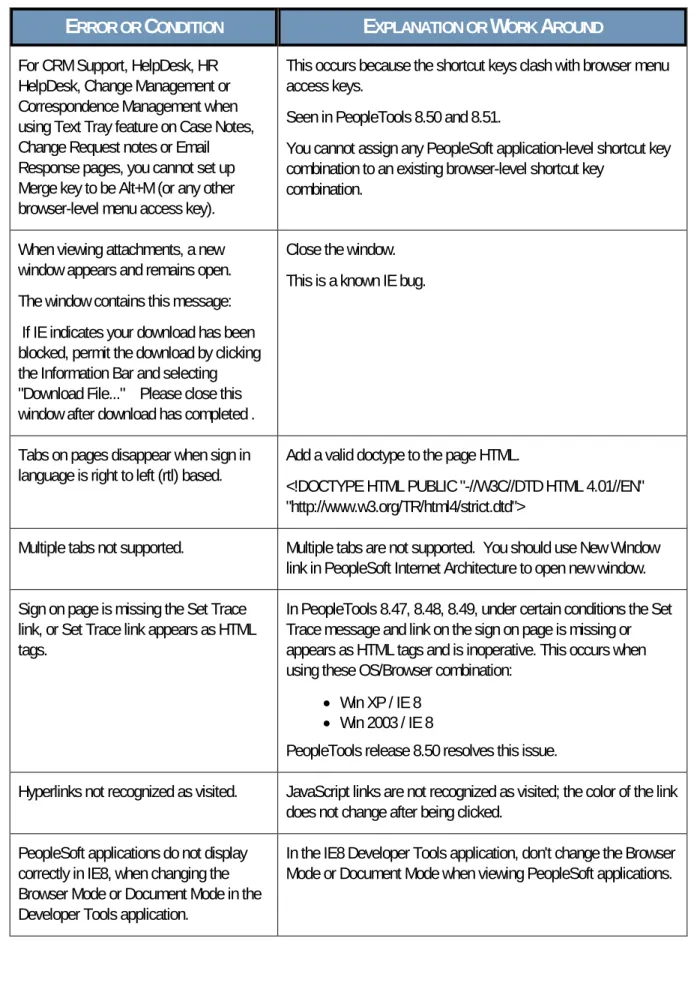
ROUNDFor CRM Support, HelpDesk, HR HelpDesk, Change Management or Correspondence Management when using Text Tray feature on Case Notes, Change Request notes or Email Response pages, you cannot set up Merge key to be Alt+M (or any other browser-level menu access key).
This occurs because the shortcut keys clash with browser menu access keys.
Seen in PeopleTools 8.50 and 8.51.
You cannot assign any PeopleSoft application-level shortcut key combination to an existing browser-level shortcut key
combination. When viewing attachments, a new
window appears and remains open. The window contains this message: If IE indicates your download has been blocked, permit the download by clicking the Information Bar and selecting "Download File..." Please close this window after download has completed .
Close the window. This is a known IE bug.
Tabs on pages disappear when sign in
language is right to left (rtl) based. Add a valid doctype to the page HTML. <!DOCTYPE HTML PUBLIC "-//W3C//DTD HTML 4.01//EN" "http://www.w3.org/TR/html4/strict.dtd">
Multiple tabs not supported. Multiple tabs are not supported. You should use New Window link in PeopleSoft Internet Architecture to open new window. Sign on page is missing the Set Trace
link, or Set Trace link appears as HTML tags.
In PeopleTools 8.47, 8.48, 8.49, under certain conditions the Set Trace message and link on the sign on page is missing or appears as HTML tags and is inoperative. This occurs when using these OS/Browser combination:
• Win XP / IE 8
• Win 2003 / IE 8
PeopleTools release 8.50 resolves this issue.
Hyperlinks not recognized as visited. JavaScript links are not recognized as visited; the color of the link does not change after being clicked.
PeopleSoft applications do not display correctly in IE8, when changing the Browser Mode or Document Mode in the Developer Tools application.
In the IE8 Developer Tools application, don't change the Browser Mode or Document Mode when viewing PeopleSoft applications.