ComNav
Installation
Manual
ICP J12 USB-NA V AUDIO TAP POSCOM DATA V1+ V1- V2+ V2- E1C E1A E1+ E2C E2A E2+Z1 COM Z2 AO COM AI NC1 C1 N01 NC2 C2 N02 J11 ER1 J10 ER21
Getting started
1. Getting
Started
...2
Overview ... 2
Features ... 2
What’s in the box ... 3
What you need ... 3
Confi guration tools ... 4
2. Installing the Hills ComNav ...5
Installing the ComNav into the Reliance enclosure ... 5
Wiring the ComNav to the Reliance bus ... 6
Wiring optional modules ... 7
Powering up the ComNav ... 7
3. Configuring the Hills ComNav ...8
Defaulting the ComNav ... 9
Enabling web browser access ... 10
1. Test direct web access ... 10
2. Finding the IP Address ... 11
3. Setting the IP address, IP gateway, subnet mask and DNS servers ... 13
4. Setting the web connection method ... 17
5. Allowing advanced confi guration via web browser ... 19
6. Accessing the ComNav via a web browser ... 21
7. Confi guring alarm users ... 23
Confi guring smartphone and/or tablet access ... 25
1. Finding the ComNav serial number ... 26
2. Allowing remote access ... 27
3. Installing and confi guring xConnect for Android or Apple ... 28
Confi guring Output options ... 30
Additional Zones ... 33
1. For more than two zones, enable Zone Doubling ... 33
2. Set the starting Zone number ... 37
4. Configuring reporting ...41
1. Setting the system time ... 41
2. Voice reporting via phone ... 45
3. Email reporting ... 53
4. SMS reporting ... 55
5. More Information
... 64
Frequently Asked Questions (FAQ) ... 64
Technical Support ... 67
References ... 70
Table of Diagrams ... 83
Getting started
What’s in the box
Your Hills ComNav package comes with the following:
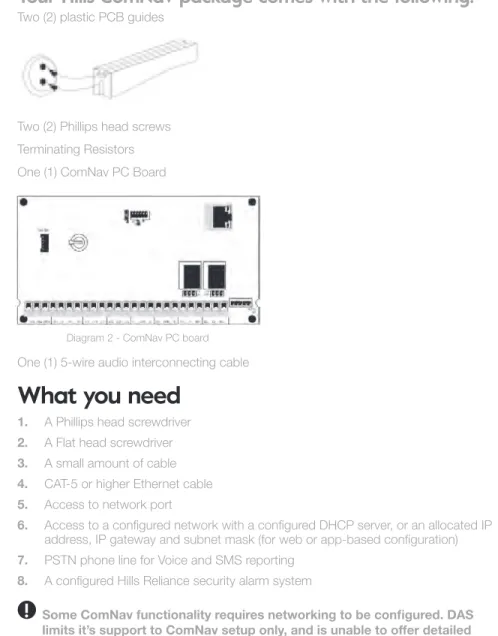
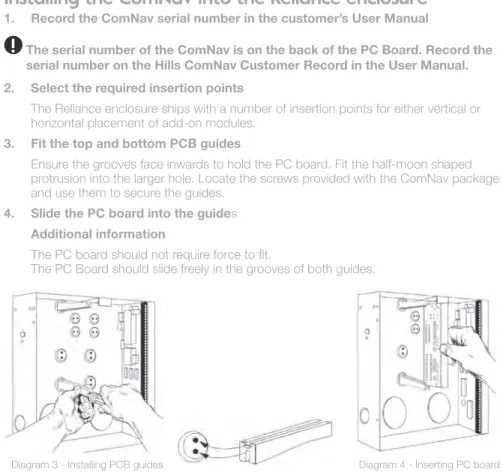
Two (2) plastic PCB guidesTwo (2) Phillips head screws Terminating Resistors One (1) ComNav PC Board
Diagram 2 - ComNav PC board
One (1) 5-wire audio interconnecting cable
What you need
1. A Phillips head screwdriver
2. A Flat head screwdriver
3. A small amount of cable
4. CAT-5 or higher Ethernet cable
5. Access to network port
6. Access to a confi gured network with a confi gured DHCP server, or an allocated IP address, IP gateway and subnet mask (for web or app-based confi guration)
7. PSTN phone line for Voice and SMS reporting
8. A confi gured Hills Reliance security alarm system
Getting started
Overview
Hills ComNav is a remote access integration module for the Hills Reliance security alarm system. It allows the security alarm system to be easily controlled via Internet or smartphone from anywhere in the world.
Remote control is offered via any DTMF telephone using the Personal Voice Guide (PVG) and Remote Control and confi guration via the built-in web server using a standard web page, or a smartphone app.
Advanced Reporting Features allow you to receive event notifi cation via voice, SMS or email.
Features
Depending on how the ComNav module is connected to your Hills Reliance Security System, a wide variety of features are available to you for interacting with your Security System.
A standard phone line connection offers remote control via any DTMF telephone using the Personal Voice Guide (PVG). This also allows remote reporting through voice and SMS.
5
Getting started
4
Installing the Hills ComNav
Installing the ComNav involves fi rstly inserting the ComNav board into the Reliance enclosure, then wiring the ComNav to the Reliance’s NX-bus.
Installing the ComNav into the Reliance enclosure
1. Record the ComNav serial number in the customer’s User Manual
!
The serial number of the ComNav is on the back of the PC Board. Record the serial number on the Hills ComNav Customer Record in the User Manual. 2. Select the required insertion pointsThe Reliance enclosure ships with a number of insertion points for either vertical or horizontal placement of add-on modules.
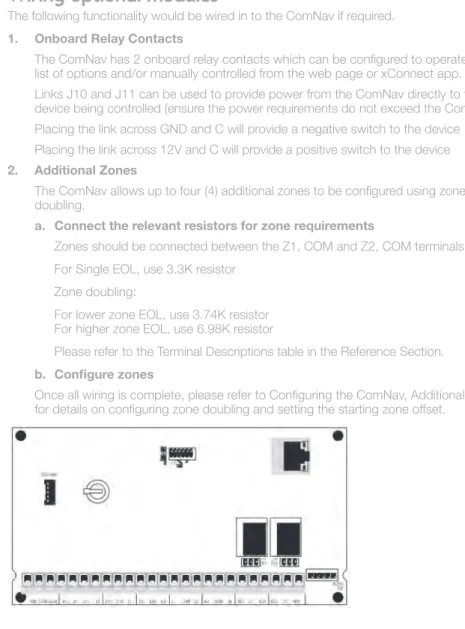
3. Fit the top and bottom PCB guides
Ensure the grooves face inwards to hold the PC board. Fit the half-moon shaped protrusion into the larger hole. Locate the screws provided with the ComNav package and use them to secure the guides.
4. Slide the PC board into the guides
Additional information
The PC board should not require force to fi t.
The PC Board should slide freely in the grooves of both guides.
Diagram 3 - Installing PCB guides Diagram 4 - Inserting PC board
Configuration tools
Once installed, confi guration of the Hills ComNav requires a number of steps, which can be performed via multiple devices:
1. Web page 2. Smartphone app 3. VoiceNav code pad:
The VoiceNav uses a spoken menu system to announce your location within the ComNav confi guration. You will need to listen to the announcements during confi guration in order to enter information correctly.
If you miss a voice prompt from the VoiceNav at any stage during confi guration, pressing the Status button will cause the prompt to be repeated.
For more information, please see the Hills VoiceNav User Manual.
4. Standard code pad (Vertex, Icon or LCD)
Standard code pads use a combination of buttons, LEDs/LCD and a display to show information and your location within the ComNav confi guration. You will need to watch the screen and LEDs during confi guration in order to enter information correctly. For more information, please see your code pad User Manual.
5. TouchNav code pad
The TouchNav uses a graphical touch-screen system to show your location within the ComNav confi guration. You will need to read the screen options during confi guration in order to enter information correctly.
For more information, please see the Hills TouchNav User Manual.
Not all confi guration can be performed on every device (eg: Email addresses cannot be programmed via code pad). Where a particular device is unable to perform the listed confi guration, the manual notes this case.
For each task, this manual documents the steps for each possible device. You should follow the steps specifi c to your available device when performing confi guration.
Installing the Hills ComNav
Installing the Hills ComNav
Wiring optional modules
The following functionality would be wired in to the ComNav if required.
1. Onboard Relay Contacts
The ComNav has 2 onboard relay contacts which can be confi gured to operate from a list of options and/or manually controlled from the web page or xConnect app. Links J10 and J11 can be used to provide power from the ComNav directly to the device being controlled (ensure the power requirements do not exceed the ComNav): Placing the link across GND and C will provide a negative switch to the device Placing the link across 12V and C will provide a positive switch to the device
2. Additional Zones
The ComNav allows up to four (4) additional zones to be confi gured using zone doubling.
a. Connect the relevant resistors for zone requirements
Zones should be connected between the Z1, COM and Z2, COM terminals. For Single EOL, use 3.3K resistor
Zone doubling:
For lower zone EOL, use 3.74K resistor For higher zone EOL, use 6.98K resistor
Please refer to the Terminal Descriptions table in the Reference Section.
b. Confi gure zones
Once all wiring is complete, please refer to Confi guring the ComNav, Additional Zones for details on confi guring zone doubling and setting the starting zone offset.
Wiring the ComNav to the Reliance bus
1. Remove all power to the Hills Reliance security system 2. Connect the ComNav to the Hills Reliance bus
Using your cable, connect the ComNav POS,
COMM & DATA terminals to the corresponding terminals on the Hills Reliance board.
3. Connect network communication
If using network communication, connect the CAT-5 (RJ-45) cable from the ComNav to the client’s network.
4. Connect telephone communication
If using PSTN communication, locate the supplied 5-wire cable and connect between J1 (Audio Tap) on the ComNav and J4 (Audio Tap) on the Hills Reliance board.
diagram 5 - ComNav PC board layout
diagram 6 - Audio Taps
9 8
Using a standard code pad (Vertex, Icon or LCD)
To default the ComNav via a standard code pad.
1. * 8 selects advanced system confi guration
2. Your 4 or 6 digit installer code the Service LED will fl ash
3. 1 9 1 #
connect to device 191 (ComNav) The Armed LED will be solid and the Service LED will fl ash
4. 9 1 0 #
selects factory defaults. This is only required once
5. exit exit exits from advanced system confi guration
Using a TouchNav code pad
To default the ComNav via a TouchNav code pad.
1. menu selects advanced system confi guration
2. settings selects advanced system confi guration
3. Your 4 or 6 digit installer code
4. program
5. 1 9 1 enter connect to device 191 (ComNav)
6. 9 1 0 enter
selects factory defaults. This is only required once
7. exit exits from advanced system confi guration
Configuring the Hills ComNav
Configuring the Hills ComNav
Defaulting the ComNav
On power up, Hills Reliance control panels can automatically fi nd and confi gure any modules that are connected to the communications bus. This includes modules such as ComNav, keypads, zone expanders, wireless receivers and output boards.
Once stored, these modules are supervised via regular polls. If the Hills Reliance panel does not detect a previously enrolled module, a service condition will be generated.
To default the ComNav module, you will need to use a code pad connected to the system. The default process on the ComNav takes approximately 12 seconds.
To force both module and keypad enrolment, follow the instructions in your Hills Reliance Installation manual section ‘Enrolling Modules and Code pads’.
Using a VoiceNav code pad
To default the ComNav via a VoiceNav code pad.
1. menu 0 selects advanced system confi guration
2. Your 4 or 6 digit installer code
3. 2 selects panel and device confi guration
4. 1 9 1 enter connect to device 191 (ComNav)
5. 9 1 0 enter
selects factory defaults. This is only required once
6. menu menu
menu
2. Finding the IP Address
!
Record the ComNav IP Address in the Hills ComNav Customer Record in the User Manual.
Using a VoiceNav code pad
When listening to network specifi c information, the VoiceNav will announce information for each of the four (4) segments separately and then wait for permission before continuing to the next segment. You will need to touch “Menu” to navigate through each segment. For example: IP Address = 192.168.0.10. ComNav will announce “192”, after you touch “Menu” it will announce “168”, after “Menu” it will announce “0”, after “Menu” it will announce “10”. You will then need to touch “Menu” again to exit this section. To fi nd the DHCP allocated IP address of the ComNav using a VoiceNav code pad
1. menu 0 selects advanced system confi guration
2. Your 4 or 6 digit installer code selects advanced system confi guration
3. 2 selects panel and device confi guration
4. 1 9 1 enter connect to device 191 (ComNav)
5. 2 1 enter
scroll through each segment to hear the whole IP address
6. menu menu menu
menu menu
scroll through each segment to hear the whole IP address
7. menu menu exits from advanced system confi guration
Configuring the Hills ComNav
Configuring the Hills ComNav
Enabling web browser access
The Hills ComNav offers the ability to arm/disarm individual areas, check system status, enable/disable user codes, modify email accounts and modify SMS/Voice phone numbers from any standard web browser using the ComNav Confi guration Server. For security reasons, access is offered via https by default.
To setup the ComNav for initial web connection, you will need to test whether it can be accessed directly by name. As a guide, if the customer uses a Windows PC they may be able to access the ComNav Confi guration Server simply by using the https://comnav URL. If the customer uses Chrome, Firefox, Safari or another browser on a Windows PC or Mac you may need to provide more information in the form of the IP address of the ComNav. Use a code pad connected to the alarm system to either fi nd the ComNav’s DHCP-allocated IP address or manually confi gure an IP address and associated network information.
If the IP address is empty (or 0.0.0.0), and there is no DHCP server in the customer’s network, DHCP must be disabled and an IP address, IP gateway, subnet mask and DNS servers confi gured into the ComNav.
IP addresses, gateways, subnet masks and DNS servers are made up of four (4) numeric segments, for example 192.168.0.1. When viewing, listening to or entering this information via code pad, each segment must be handled separately.
1. Test direct web access
Using a web browser
To test direct access to the ComNav via a web browser
1. Open https://comnav
In your preferred web browser, open the https://comnav URL
If you see a certifi cate error, you may skip straight to Section 4 - Setting the web connection method.
If you see a search page or an “unable to connect” error you should continue to the next Section, Finding the IP Address.
13 12
Configuring the Hills ComNav
5. 1 9 1 enter connect to device 191 (ComNav)
6. 2 1 enter
displays the fi rst segment of the current IP address
7. > > >
scroll through each segment to view the whole IP address
8. exit exits from advanced system confi guration
3. Setting the IP address, IP gateway, subnet mask and DNS servers
!
This confi guration is only required if no IP address was discovered in the previous section.
Using a VoiceNav Code pad
To manually confi gure networking information into the ComNav using a VoiceNav code pad
1. menu 0 selects advanced system confi guration
2. Your 4 or 6 digit installer code the Service LED will fl ash
3. 2 selects panel and device confi guration
4. 1 9 1 enter connects to device 191 (ComNav
5. 1 9 enter IP Feature Settings
6. 1 menu disable DHCP
7. enter return to select Feature Settings
8. 2 0 enter set the IP gateway
9. XXX menu ...
enter your IP gateway address. Note each segment must be entered separately followed by the “Menu” button.
Configuring the Hills ComNav
Using a standard code pad (Vertex, Icon or LCD)
When viewing network specifi c information, Standard code pads will show information for each of the four (4) segments separately. Each segment of the IP address will be shown in binary and the installer is expected to convert between binary and decimal notation. For example: IP Address = 192.168.0.10. On a Vertex code pad the LEDs 7 and 8 will display for the 1st segment (192). Touch “*” and LEDs 4, 6 and 8 will display for the 2nd
segment (168). Touch “*” and no LEDs will display for the 3rd number (0). Touch “*” and
LEDs 2 and 4 will display for the 4th number (10). Touch “*” again to exit this section.
To fi nd the DHCP allocated IP address of the ComNav using a standard code pad
1. * 8 selects advanced system confi guration
2. Your 4 or 6 digit installer code the Service LED will fl ash
3. 1 9 1 #
connects to device 191 (ComNav) The Armed LED will be solid and the Service LED will fl ash
4. 2 1 #
displays the fi rst segment of the current IP address The Armed LED will go out and the Ready LED will be solid.
5. * * *
view the IP address and use “*” to scroll through each segment
6. exit exit exits from advanced system confi guration
Using a TouchNav code pad
When viewing network specifi c information, the TouchNav will show information for each of four (4) segments separately. To navigate between segments, press the “<” and “>” (back and forward) icons next to “Segment” on the touch screen.
For example: IP Address = 192.168.0.10. ComNav will show “192”, after you touch “>” it will show “168”, after “>” it will show “0”, after “>” it will show “10”.
To fi nd the DHCP allocated IP address of the ComNav using a TouchNav code pad
1. menu
2. settings selects advanced system confi guration
3. Your 4 or 6 digit installer code the Service LED will fl ash
5. 1 * * disable DHCP
6. 2 0 # set IP gateway
7. XXX * ...
enter your IP gateway using “*” to advance through each segment
8. 2 0 # set IP address
9. XXX * ...
enter your IP address using “*” to advance through each segment
10. 2 3 * primary DNS server
11. XXX * ...
enter your subnet mask use “*” to advance through each segment
12. 2 2 # secondary DNS server
13. XXX * ...
enter the secondary DNS server address using “*” to advance through each segment
14. exit exit exits from advanced system confi guration
Using a TouchNav code pad
To manually confi gure networking information into the ComNav using a TouchNav code pad
1. menu
2. settings
selects advanced system confi guration
3. Your 4 or 6 digit installer code
4. program
1 9 1 enter connects to device 191 (ComNav)
10. 2 1 enter set the IP address
11. XXX menu ...
enter your IP address. Note each segment must be entered separately followed by the “Menu” button.
12. 2 2 enter set the subnet mask
13. XXX menu ...
enter your subnet mask. Note each segment must be entered separately followed by the “Menu” button.
14. 2 3 enter set primary DNS server
15. XXX menu ...
enter the primary DNS server address. Note each segment must be entered separately followed by the “Menu” button
16. 2 4 enter set secondary DNS server
17. XXX menu ...
enter the secondary DNS server address. Note each segment must be entered separately followed by the “Menu” button
18. menu menu
menu menu
exits from advanced system confi guration
Using a standard code pad (Vertex, Icon or LCD)
To manually confi gure networking information into the ComNav using a standard code pad
1. * 8 selects advanced system confi guration
2. Your 4 or 6 digit installer code the Service LED will fl ash
3. 1 9 1 #
connects to device 191 (ComNav) the armed LED will be solid and the Service LED will fl ash
Configuring the Hills ComNav
17 16
4. Setting the web connection method
The Hills ComNav comes confi gured to offer network access via https by default. This is a security feature designed to increase the safety of your alarm system. The ComNav uses a method of identity assurance called “self-signed certifi cates” to vouch for authenticity over a web connection. The following browsers are supported:
1. Google Chrome
2. Mozilla Firefox
3. Apple Safari
4. Internet Explorer 7
Internet Explorer 8 does not accept self-signed certifi cates. If you require Internet Explorer 8, you will need to confi gure the ComNav to communicate without secure encryption. Alternatively you can follow the steps detailed in Trusting Self-signed Certifi cates in Internet Explorer 8 in the reference section of this manual.
Using a VoiceNav code pad
To disable SSL connections to the ComNav using a VoiceNav code pad
1. menu 0
selects advanced system confi guration
2. Your 4 or 6 digit installer code
3. 2 selects panel and device confi guration
4. 1 9 1 menu connects to device 191 (ComNav)
5. 1 9 1 enter IP Feature Options
6. 2 menu disable SSL (https) connections
7. menu menu
menu menu
exits from advanced system confi guration
Configuring the Hills ComNav
Configuring the Hills ComNav
7. 1 disable DHCP
8. feature 2 0 enter set IP gateway
9. XXX > ...
enter your IP gateway using “>” after each segment
10. feature 2 1 enter set IP address
11. XXX > ...
enter your IP gateway using “>” after each segment
12. feature 2 1 enter set IP address
13. XXX > ...
enter your IP address using “>” after each segment
14. feature 2 2 enter set the subnet mask
15. XXX > ...
enter your subnet mask using “>” after each segment
16. feature 2 3 enter set primary DNS server
17. XXX > ...
enter the primary DNS server address using “>” after each segment
18. feature 2 2
enter
set secondary DNS server
19. XXX > ...
enter the secondary DNS server address using “>” after each segment
20. exit
exits from advanced system confi guration
5. Allowing advanced configuration via web browser
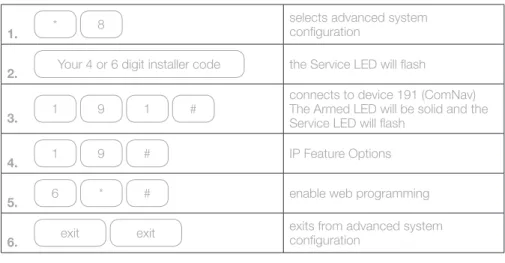
By default, the ComNav only allows advanced confi guration via a web browser whilst the Reliance security system is in program mode. If you will be using the web browser to confi gure your ComNav, it is recommended you enable web programming on the ComNav. Once web programming is enabled, advanced confi guration options can be accessed by the installer, via the web page, without putting the Reliance in program mode.
!
You must use a code pad to allow web programming/Advanced confi guration.Using a VoiceNav code pad
To enable web programming on the ComNav via a VoiceNav code pad.
1. menu 0
selects advanced system confi guration
2. Your 4 or 6 digit installer code
3. 2
selects Panel and Device confi guration
4. 1 9 1 enter connects to device 191 (ComNav)
5. 1 9 enter IP Feature Options
6. 2 disable SSL (https) connections
7. menu menu
menu menu
exits from advanced system confi guration
Using a standard code pad (Vertex, Icon or LCD)
To disable SSL connections to the ComNav using a standard code pad
1. * 8
selects advanced system confi guration
2. Your 4 or 6 digit installer code the Service LED will fl ash
3. 1 9 1 #
connects to device 191 (ComNav) the armed LED will be solid and the Service LED will fl ash
4. 1 9 # disable SSL (https) connections
5. exit exit
exits from advanced system confi guration
Using a TouchNav code pad
To disable SSL connections to the ComNav using a TouchNav code pad
1. menu
2. settings
selects advanced system confi guration
3. Your 4 or 6 digit installer code the Service LED will fl ash
4. program
5. 1 9 1 enter connects to device 191 (ComNav)
6. 1 9 enter IP Feature Options
7. 2 disable SSL (https) connections
8. exit
exits from advanced system confi guration
Configuring the Hills ComNav
21 20
6. Accessing the ComNav via a web browser
Once the network settings and connection method are confi gured, you should connect to the ComNav Confi guration Server.
1. Open the ComNav URL
In the web browser address bar, type in https://[comnav] where [comnav] is the IP address of the ComNav.
If you have disabled SSL, you should type http://[comnav]
Diagram 7 - ComNav Confi guration Server
2. Accept the self-signed certifi cate
Click the “Proceed anyway” button to accept the certifi cate
Additional Information
If you have set the connection method to http you will not see this certifi cate information.
These instructions are specifi c to the Google Chrome browser. Other browsers use different methods to accept the certifi cate. You should refer to the specifi c browser’s help section for more information on accepting self-signed certifi cates.
Diagram 8: ComNav certifi cate warning
Using a standard code pad (Vertex, Icon or LCD)
To enable web programming on the ComNav via a standard code pad.
1. * 8
selects advanced system confi guration
2. Your 4 or 6 digit installer code the Service LED will fl ash
3. 1 9 1 #
connects to device 191 (ComNav) The Armed LED will be solid and the Service LED will fl ash
4. 1 9 # IP Feature Options
5. 6 * # enable web programming
6. exit exit
exits from advanced system confi guration
Using a TouchNav code pad
To enable web programming on the ComNav via a TouchNav code pad.
1. menu
2. settings
selects advanced system confi guration
3. Your 4 or 6 digit installer code the Service LED will fl ash
4. program
5. 1 9 1 enter connects to device 191 (ComNav)
6. 1 9 enter IP Feature Options
7. 6 enable web programming
8. exit
exits from advanced system confi guration
Configuring the Hills ComNav
7. Configuring alarm users
Alarm users can operate the Hills Security System using their PIN. If the user wishes to arm/ disarm and control the system using either the web page or the smartphone app, they must have their own username and PIN confi gured into the web server.
The security system can have different users who can control different aspects of the system. Each user has an authorization level of either:
Standard code user – a user who may Arm/Disarm the system, view Zones and control Outputs.
Master code user – a user who may Arm/Disarm the system, view Zones, control Outputs, view History and perform confi guration tasks such as entering Voice, SMS and email information.
Assigning areas to users, determines which sections (areas) of the security system a user may access.
Installers may confi gure the system via the web page using the installer login. By default the username is “installer” and the password is “9713”.
The user’s username and PIN/password should be recorded in the Hills ComNav Customer Record in the User Manual.
!
Ensure you set up a user with Master code authorisation so the customer can create/modify other usernames in the system.
Once confi guration is complete, it is recommended that the Installer number, and Name be changed from the default so as not to allow unauthorised access. For more information on how to change the installer name please see the Hills Reliance Installer Manual.
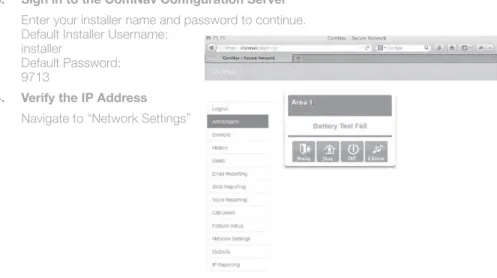
3. Sign in to the ComNav Confi guration Server
Enter your installer name and password to continue. Default Installer Username:
installer
Default Password: 9713
4. Verify the IP Address
Navigate to “Network Settings”
Diagram 9: ComNav Confi guration Server main menu
!
Record the ComNav IP address in the Hills ComNav Customer Record in the
User Manual.
Configuring the Hills ComNav
25 24
Configuring the Hills ComNav
Configuring the Hills ComNav
User confi guration may also be performed via xConnect once it is installed and confi gured. Please see the ComNav User Manual for instructions.
Confi guring smartphone and/or tablet access
Configuring smartphone and/or tablet access
The ComNav Confi guration Server can also be accessed via smartphone app. The xConnect app is available for both Android and Apple devices. The user will need to know their username, PIN, ComNav serial number and ComNav web access passcode. You can fi nd the serial number of the ComNav either on the back of the PC card, or by using the web page.
The serial number of the ComNav should be recorded on the Hills ComNav Customer Record in the User Manual for the client.
Using a web browser
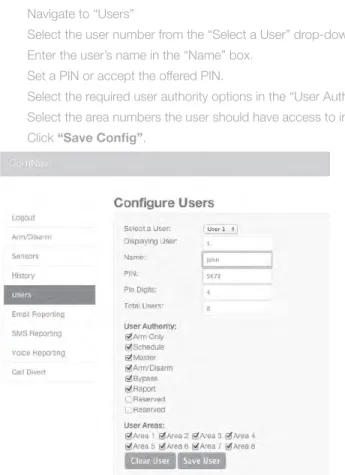
To confi gure a user on the Reliance system via a web browser
1. Sign in to the ComNav confi guration server
Login with your installer name and password
2. Set username, PIN and authority
Navigate to “Users”
Select the user number from the “Select a User” drop-down box. Enter the user’s name in the “Name” box.
Set a PIN or accept the offered PIN.
Select the required user authority options in the “User Authority” section.
Select the area numbers the user should have access to in the “User Areas” section. Click “Save Confi g”.
Diagram 10: ComNav Confi guration Server add/edit users
!
Write the user’s Name and PIN in the Hills ComNav Customer Record in the User Manual.
2. Allowing remote access
By default, the ComNav does not allow remote access via smartphone or tablet. This is a security measure. To allow these connections you must create a valid passcode for use with the xConnect app.
Using a web browser
To locate the serial number of the ComNav via a web browser
1. Sign in to the ComNav confi guration server
Login with your installer name and password.
2. Set the web access passcode
Navigate to “Network Settings”
Enter your chosen passcode in the “Web Access Passcode” box. Click “Save Confi g”.
Diagram 12 - ComNav Confi guration Server network settings
!
Setting the passcode to 00000000 will disable all remote access to the ComNav.
Configuring the Hills ComNav
Configuring the Hills ComNav
1. Finding the ComNav serial number
Using a web browser
To locate the serial number of the ComNav via a web browser
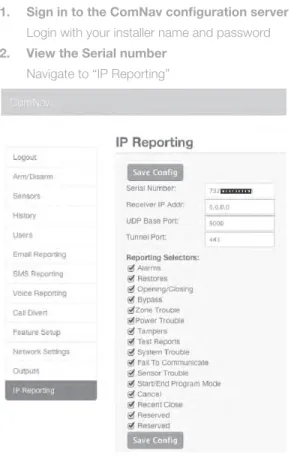
1. Sign in to the ComNav confi guration server
Login with your installer name and password
2. View the Serial number
Navigate to “IP Reporting”
Diagram 11: ComNav Confi guration Server serial number
!
Record the ComNav serial number in the Hills ComNav Customer Record in the User Manual.
29 28
Configuring the Hills ComNav
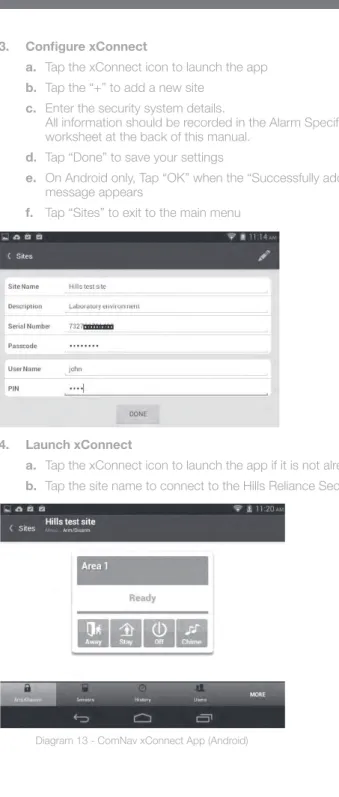
3. Confi gure xConnect
a. Tap the xConnect icon to launch the app
b. Tap the “+” to add a new site
c. Enter the security system details.
All information should be recorded in the Alarm Specifi c Details worksheet at the back of this manual.
d. Tap “Done” to save your settings
e. On Android only, Tap “OK” when the “Successfully added new site” message appears
f. Tap “Sites” to exit to the main menu
4. Launch xConnect
a. Tap the xConnect icon to launch the app if it is not already running
b. Tap the site name to connect to the Hills Reliance Security System
Diagram 13 - ComNav xConnect App (Android)
Configuring the Hills ComNav
3. Installing and configuring xConnect for Android or Apple
The xConnect app is available for download from the Google PlayTM store for Android and
the Apple® App StoreTM for iPhone/iPad. A Google or iTunes account is required. Carrier
charges may apply when downloading or using xConnect.
1. Install xConnect for Apple
Use your Apple device to open the Apple® App StoreTM and Search for xConnect.
Install xConnect.
OR
2. Install xConnect for Android
Use your Android device to open Google PlayTM and Search for xConnect.
Configuring the Hills ComNav
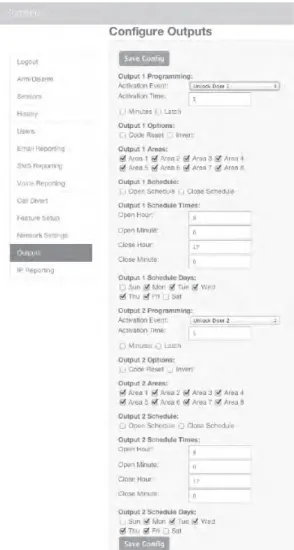
Diagram 17 - ComNav Confi guration Server - outputs
Configuring the Hills ComNav
Configuring output options
The ComNav is supplied with two onboard relays which are confi gured by default as Manual control. These relays can only be controlled via the web page or xConnect. For instructions on how to control relays, please see the ComNav User Manual – Controlling other household devices.
If you wish to change the default activation events, you must use the ComNav web interface.
Ensure you have the jumpers confi gured correctly for relay operation. See Wiring Optional Modules for more information.
Using a web browser
To modify output options via a web browser.
1. Sign in to the ComNav confi guration server
Sign in with your installer name and password.
2. Confi gure the Output options
Navigate to “Outputs” and confi gure the required information.
Relay trigger events are selectable and can be chosen from the drop down “Activation events” list.
33 32
Configuring the Hills ComNav
Additional Zones
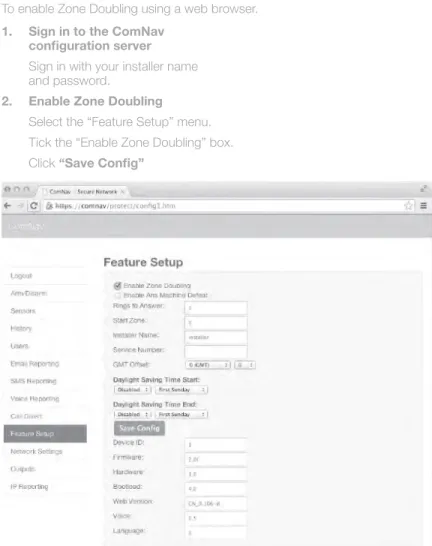
The ComNav allows up to four (4) additional zones to be confi gured using zone doubling. If you wish to use the extra four zones you must enable both zone doubling and set the starting offset of the new zones. Ensure you have wired the zones correctly with the appropriate resistors. See Wiring Optional Modules, Additional Zones.
By default, the ComNav additional zones are set to “Single zone”.
1. For more than two zones, enable Zone Doubling
Using a web browser
To enable Zone Doubling using a web browser.
1. Sign in to the ComNav confi guration server
Sign in with your installer name and password.
2. Enable Zone Doubling
Select the “Feature Setup” menu. Tick the “Enable Zone Doubling” box. Click “Save Confi g”
Diagram 19 - ComNav Confi guration Server zone doubling
Using xConnect
To modify output options via xConnect.
1. Launch xConnect
2. Confi gure the Output settings
Tap the “Output Settings” button at the bottom of the xConnect app. If you do not see the “Output Settings” button, tap the “More” button to show further options.
Relay trigger events are selectable and can be chosen from the drop down “Activation Event” list.
Tap “Save Confi g”.
Diagram 18 - xConnect Confi gure Output Settings
Using a VoiceNav code pad, Standard code pad or TouchNav code pad
You cannot modify relay options via a VoiceNav code pad, standard code pad or TouchNav code pad.
Using a VoiceNav code pad
To enable Zone Doubling using a VoiceNav code pad.
1. menu 0
selects advanced system confi guration
2. Your 4 or 6 digit installer code the Service LED will fl ash
3. 2
selects Panel and Device confi guration
4. 1 9 1 enter connects to device 191 (ComNav)
5. 1 menu
enable Zone Doubling OFF=Single zone ON=Zone Doubled
6. enter return to feature selection
7. menu menu menu
exits from advanced system confi guration
Using a standard code pad (Vertex, Icon or LCD)
To enable Zone Doubling using a standard code pad.
1. * 8
selects advanced system confi guration
2. Your 4 or 6 digit installer code the Service LED will fl ash
3. 1 9 1 #
connects to device 191 (ComNav) The Armed LED will be solid and the Service LED will fl ash
4. 1 # ComNav features
5. 1 * * *
enable Zone Doubling OFF=Single zone ON=Zone Doubled
6. exit exit
exits from advanced system confi guration
Using xConnect
To enable Zone Doubling using xConnect.
1. Launch xConnect 2. Enable Zone Doubling
Tap the “Network” button at the bottom of the xConnect app. If you do not see the “Network” button, tap the “More” button to show further options.
Tick the “Enable Zone Doubling” box.
Tap “Save Confi g”.
Diagram 20: xConnect - Zone doubling
Configuring the Hills ComNav
37 36
2. Set the starting Zone number
The ComNav’s additional zones add to the Reliance panel’s zones. The ComNav’s zones must be confi gured to start from an unused zone on the Reliance security system so they do not confl ict with any other zone on the Reliance security system.
Refer to the ComNav Starting Zone Offset table in the reference section.
Using a web browser
To enter your starting zone offset using a web browser.
1. Sign in to the ComNav confi guration server
2. Sign in with your installer name and password. Enter the starting zone offset
Select the “Feature Setup” menu
Enter the starting zone offset into the “Start Zone” box Click “Save Confi g”
Diagram 21 - ComNav Confi guration Server zone offset
Configuring the Hills ComNav
Configuring the Hills ComNav
Using a TouchNav code pad
To enable Zone Doubling using a TouchNav code pad.
1. menu
2. settings
selects advanced system confi guration
3. Your 4 or 6 digit installer code
4. program selects ad
5. 1 9 1 enter connects to device 191 (ComNav)
6. 1 enter ComNav Features
7. 1 enter ComNav Features
8. 1
enable zone doubling OFF=Single zone ON=Zone Doubled
9. exit
exits from advanced system confi guration
Using a VoiceNav code pad
To enter your starting zone offset via a VoiceNav code pad.
3. menu 0
selects advanced system confi guration
4. Your 4 or 6 digit installer code
5. 2
selects Panel and Device confi guration
6. 1 9 1 enter connects to device 191 (ComNav)
7. 1 8 enter zone starting number
8. starting zone offset menu
refer to Reference, ComNav Confi gurable Features, Feature 18 to calculate.
9. menu
menu menu menu
exits from advanced system confi guration
Using a standard code pad (Vertex, Icon or LCD)
To enter your starting zone offset via a standard code pad.
1. * 8
selects advanced system confi guration
2. Your 4 or 6 digit installer code the Service LED will fl ash
3. Your 4 or 6 digit code
4. 1 9 1 # connects to device 191 (ComNav)
5. 1 8 # zone starting number
See Reference, ComNav Confi gurable
Using xConnect
To enter your starting zone offset using xConnect.
1. Launch xConnect 2. Enter the Start Zone
Tap the “Network” button at the bottom of the xConnect app. If you do not see the “Network” button, tap the “More” button to show further options.
Enter your Start Zone value in the “Start Zone” box. See Reference, ComNav Starting Zone Offset for more information.
Tap “Save Confi g”.
Diagram 22 - xConnect - Zone doubling
Configuring the Hills ComNav
41 40
The ComNav can be confi gured to report via voice, SMS or email when selected events occur in the system. In order for accurate times to be recorded for each event you must ensure the ComNav maintains the correct time.
The ComNav contains a Real Time Clock (RTC) which maintains system time in the event of a power outage. The RTC is synchronized with timeservers over the internet to ensure the current time is always accurate. To ensure the local time reported by the ComNav is correct, GMT Offset (timezone) and daylight saving settings must be confi gured.
1. Setting the system time
Using a web browser.
To confi gure local system time via a web browser.
1. Sign in to the ComNav confi guration server
Sign in with your installer name and password
2. Enter GMT offset and daylight savings
Navigate to “Feature Setup”.
Use the drop down box to set the GMT offset.
Use the drop down boxes to enter daylight savings time start and end. Click “Save Confi g”.
Using a TouchNav code pad
To enter your starting zone offset via a TouchNav code pad.
1. menu
2. settings
selects advanced system confi guration
3. Your 4 or 6 digit installer code
4. program
5. 1 9 1 enter connects to device 191 (ComNav)
6. 1 8 enter
selects factory defaults this is only required once
7. starting zone offset enter
8. exit
exits from advanced system confi guration
Configuring reporting
Using xConnect.
To confi gure local system time via xConnect.
1. Launch xConnect
Ensure you sign in with your installer code
2. Enter GMT Offset and daylight savings.
Navigate to “Features”. If you do not see the “Features” button, tap the “More” button to show further options.
Use the drop down box to set the GMT offset.
Use the drop down boxes to enter daylight savings time start and end. Tap “Save Confi g”.
Configuring reporting
Configuring reporting
3. Enable Web Time Updates
Navigate to “Network Settings”.
Tick the box to enable Web Time Updates. Click “Save Confi g”.
45 44
2. Voice reporting via phone
Up to three (3) confi gured phone numbers can receive a voice message upon the activation of certain events from within the security system. Selected events are global, and all three of the phone numbers receive the message.
Where multiple phone numbers are entered, the ComNav will call each number in turn until it is answered or the designated number of dial attempts has been reached. The number of dial attempts can be confi gured through the ComNav web page or via xConnect.
The ComNav will fi rst call phone number 1, wait 25 seconds for a PIN to be entered, if not entered it will hang up for 6 seconds, then call phone number 2 and repeat the same process for both number 2 and number 3. At any point in the dial attempts, if a call is answered and an authorised code entered, the ComNav will not call any further numbers. Users with Master code authorisation may also confi gure voice reporting phone numbers. Please see the ComNav User Manual for more information.
Using a web browser
Confi guring voice reporting phone numbers via a web browser.
1. Sign in to the ComNav confi guration server
Sign in with your installer name and password
2. Enter phone numbers
Navigate to “Voice Reporting”.
Enter fi rst, second and third phone numbers in the allocated boxes. Enter the number of times to attempt dialling in the “Dial Attempts” box.
Configuring reporting
Configuring reporting
3. Enable Web Time Updates
Navigate to “Network”. If you do not see the ‘Network” button, tap the “More” button to show further options.
Tick the box to enable Web Time Updates. Tap “Save Confi g”.
Configuring reporting
Configuring reporting
Using xConnect
1. Launch xConnect
2. Add the voice phone numbers
Tap the “Voice” button at the bottom of the xConnect app. If you do not see the “Voice” button, tap the “More” button to show further options.
Enter up to three (3) phone numbers to accept voice reporting calls. Enter the number of times to attempt dialling in the “Dial Attempts” box.
3. Select the required events
Choose which event reports to send. (Tick the corresponding boxes) Click “Save Confi g”
3. Select the required events
Choose which event reports to send. (Tick the corresponding boxes) Click “Save Confi g”
49 48
12. enter
return to Alarm Phone Number to add another phone number if required or continue to next step
13. 4 enter confi gure Voice Reporting Features
14. 1-8 ...
segment 2: Choose event codes. See ComNav Confi gurable Features, Feature 4
15. menu
complete segment 1 selection and move to segment 2
16. 1-8 ...
segment 2: Choose event codes. See ComNav Confi gurable Features, Feature 4
17. menu menu
menu menu
exits confi guration
Using a standard code pad (Vertex, Icon or LCD)
When programming phone numbers via a standard code pad, each digit of the phone number has it’s own location. You will need to enter each digit followed by the “*” key to step to the next digit. For example, 92165510 would be entered as “9” “*” “2” “*” “1” “*” “6” “*” “5” “*” “5” “*” “1” “*” “0” “*”. You must have the number “14” in the location straight after your last phone digit to signify the end of the phone number.
When selecting events to report on, events are divided into two (2) segments for programming. Each segment has events labelled from 1-8 which can be confi gured. Please refer to ComNav Confi gurable Features, Feature 4 – Voice Reporting Features in the Reference section to view the available events and their codes.
To confi gure voice reporting phone numbers via a standard code pad.
1. * 8
selects advanced system confi guration
2. Your 4 or 6 digit installer code the Service LED will fl ash
3. 1 9 1 *
connects to device 191 (ComNav) The Armed LED will be solid and the Service LED will fl ash
5 * alarm Phone Number.
Use: 5 for 1st phone number
Using a VoiceNav code pad
When programming phone numbers via a VoiceNav code pad, each digit of the phone number has it’s own location. You will need to enter each digit followed by the “Menu” key to step to the next digit. For example, 92165510 would be entered as “9” “MENU” “2” “MENU” “1” “MENU” “6” “MENU” “5” “MENU” “5” “MENU” “1” “MENU” “0” “MENU”. You must have the number “14” in the location straight after your last phone digit to signify the end of the phone number.
When selecting events to report on, events are divided into two (2) segments for programming. Each segment has events labelled from 1-8 which may be confi gured. Please refer to ComNav Confi gurable Features, Feature 4 – Voice Reporting Features in the Reference section to view the available events and their codes.
To confi gure voice reporting phone numbers via a VoiceNav code pad:
1. menu 0
selects advanced system confi guration
2. Your 4 or 6 digit installer code
3. 2 selects panel and device confi guration
4. 1 9 1 enter connects to device 191 (ComNav)
5. 5 enter alarm Phone Number.
6. OR 6 enter 6 for 2
nd phone number
7. OR 7 enter 7 for 3
rd phone number
8. XXX menu ...
corresponding phone number pressing “MENU” after each digit
9. 14 menu end of number notifi cation
10. XXX menu ...
corresponding phone number pressing “MENU” after each digit
11. 14 menu end of number notifi cation
Configuring reporting
Using a TouchNav code pad
When programming phone numbers via a TouchNav code pad, each digit of the phone number has it’s own location. You will need to enter each digit followed by the “>” key next to “Segment” to step to the next digit. For example, 92165510 would be entered as “9” “>” “2” “>” “1” “>” “6” “>” “5” “>” “5” “>” “1” “>” “0” “>”.
When selecting events to report on, events are divided into two (2) segments for programming. Each segment has events labelled from 1-8 which can be confi gured. Please refer to ComNav Confi gurable Features, Feature 4 – Voice Reporting Features in the Reference section to view the available events and their codes.
To confi gure voice reporting phone numbers via a TouchNav code pad.
1. menu
2. settings
selects advanced system confi guration
3. Your 4 or 6 digit installer code the Service LED will fl ash
4. program
5. 1 9 1 enter connects to device 191 (ComNav)
5 enter alarm Phone Number.
Use: 5 for 1st phone number
6. OR 6 enter 6 for 2
nd phone number
OR 7 enter 7 for 3
rd phone number
7. 0-9 > ...
corresponding phone number pressing “>” after each digit.
4. OR 6 * 6 for 2
nd phone number
OR 7 * 7 for 3
rd phone number
5. 0-9 * ...
corresponding phone number pressing “*” after each digit.
6. 14 * end of number notifi cation
7. #
return to Alarm Phone Number to add another number if required or continue to next step. Armed LED solid, Ready LED out, Service LED will fl ash
8. 4 * invoice reporting features
9. 1-8 ...
segment 1: Choose event codes. See ComNav Confi gurable Features, Feature 4
10. *
complete segment 1 selection and move to segment 2
11. 1-8 ...
segment 2: Choose event codes. See ComNav Confi gurable Features, Feature 4
12. *
complete segment 2 selection. Armed LED solid, Ready LED out, Service LED will fl ash.
13. exit exit
exits from Advanced system confi guration
Configuring reporting
53 52
3. Email reporting
Up to three (3) confi gured email accounts can receive an email when selected events occur. By default the email will be sent via the Hills cloud servers. If you wish the emails to show a specifi c “From” address, you will need to enter details of the required email address and server information. These details should be entered in the “SMTP Server Settings” area. Selected events are specifi c to each of the three (3) email addresses. (eg: a Manager may want to know when the security system is being Armed/Disarmed and any alarms, whereas a staff member may only receive alarm messages)
Using a web browser
Confi guring email reporting via a web browser.
1. Sign in to the ComNav confi guration server
Sign in with your installer name and password
2. Enter email addresses
Navigate to “Email Reporting”.
Enter up to three (3) email addresses in the allocated boxes.
3. Select the required events
Choose which event reports to send to each confi gured email address. (Tick the corresponding boxes)
Click “Save Confi g”.
Diagram 15 - ComNav Confi guration - email reporting
Configuring reporting
Configuring reporting
8. feature
return to Alarm Phone Number to add another number if required or continue to next step.
9. 4 enter Voice Reporting Features
10. 1-8 ...
segment 1: Choose event codes. See ComNav Confi gurable Features, Feature 4
11. segment > move to next segment
12. 1-8 ...
segment 2: Choose event codes. See ComNav Confi gurable Features, Feature 4
13. exit
exits from Advanced system confi guration
4. SMS reporting
Up to three (3) confi gured SMS recipients can receive an SMS when selected events occur. Where a user’s name has been entered in the system, this name will be reported instead of their user number.
Selected events are specifi c to each of the three (3) phone numbers receiving the SMS messages (eg: a Manager may want to know when the security system is being Armed/ Disarmed and any alarms, whereas a staff member may only receive alarm messages). Access to an SMS server is required to send these messages. Telstra offers an SMS Service for sending SMS to mobile phones via phone line Modem. This option is charged to your originating line as a timed mobile call. The Telstra SMS server number is 125107.
Other telephone companies provide similar services, please consult the relevant company for details of their charges and to confi rm connection details if you do not wish to use Telstra.
Using a web browser
Confi guring SMS reporting via a web browser.
1. Sign in to the ComNav confi guration server
Sign in with your installer name and password
2. Confi gure the SMS server
Navigate to “SMS Reporting”.
Enter the phone number for your SMS server in the “SMS Server” box.
Additional Information
The Telstra SMS Server number is 125107.
3. Enter SMS numbers
Enter fi rst, second and third SMS phone numbers in the allocated boxes.
Using xConnect
Confi gure email reporting via xConnect.
1. Launch xConnect 2. Enter email addresses
Tap the “Email” button at the bottom of the xConnect app. If you do not see the “Email” button, tap the “More” button to show further options.
Enter up to three (3) email addresses in the allocated boxes.
3. Select the required events
Choose which event reports to send to each confi gured email address. (Tick the corresponding boxes)
Tap “Save Confi g”.
Configuring reporting
57 56
Configuring reporting
Configuring reporting
4. Select the required events
Choose which event reports to send to each confi gured SMS number. (Tick the corresponding boxes)
Tap “Save Confi g”.
4. Select the required events
Choose which event reports to send to each confi gured SMS number. (Tick the corresponding boxes)
Click “Save Confi g”.
Diagram 16 - ComNav Confi guration Server SMS reporting
Using xConnect
To confi gure SMS reporting via xConnect.
1. Launch xConnect 2. Confi gure the SMS server
Tap the “SMS” button at the bottom of the xConnect app. If you do not see the “SMS” button, tap the “More” button to show further options.
Enter the number for your SMS server in the “SMS Server” box.
Additional Information
The Telstra SMS Server number is 125107.
3. Enter SMS numbers
12. 0-9 menu ...
corresponding phone number pressing “MENU” after each digit
13. 14 menu end of number notifi cation
14. enter
return to SMS Phone Number to add another phone number if required or continue to next step
15. menu move back to feature selection
16. 10 enter
choose SMS Reporting Features. Use: 10 for 1st phone number
17. OR 12 enter 12 for 2
nd phone number
18. OR 14 enter 14 for 3
rd phone number
19. 1-8 ...
segment 1: Choose event codes. See ComNav Confi gurable Features, Feature 10, 12, 14.
20. menu
complete segment 1 selection and move to segment 2
21. 1-8 ...
segment 2: Choose event codes. See ComNav Confi gurable Features, Feature 10, 12, 14
22. menu menu menu exits confi guration
Configuring reporting
Configuring reporting
Using a VoiceNav code pad
When programming phone numbers via a VoiceNav code pad, each digit of the phone number has it’s own location. You will need to enter each digit followed by the “Menu” key to step to the next digit. For example, 92165510 would be entered as “9” “MENU” “2” “MENU” “1” “MENU” “6” “MENU” “5” “MENU” “5” “MENU” “1” “MENU” “0” “MENU”. You must have the number “14” in the location straight after your last phone digit to signify the end of the phone number.
When selecting events to report on, events are divided into two (2) segments for programming. Each segment has events labelled from 1-8 which can be confi gured. Please refer to ComNav Confi gurable Features, Feature 10 – SMS Event Select for SMS in the Reference section to view the available events and their codes.
To confi gure SMS reporting via a VoiceNav code pad
1. menu 0
selects advanced system confi guration
2. Your 4 or 6 digit installer code
3. 2
selects Panel and Device confi guration
4. 1 9 1 enter connects to device 191 (ComNav)
5. 8 enter SMS server number
6. 0-9 menu ...
corresponding phone number with “MENU” button after each digit.
7. 14 menu end of number notifi cation
8. enter move back
9. 9 enter
SMS Phone Number. Use: 9 for 1st phone number
10. OR 11 enter 11 for 2
nd phone number
11. OR 13 enter 13 for 3
61 60
12. #
Return to SMS Phone Number to add another number if required or continue to next step.
Armed LED solid, Ready LED out, Service LED will fl ash.
13. OR 10 #
choose SMS Reporting Features. Use: 10 for 1st phone number
14. OR 12 # 12 for 2
nd phone number
15. OR 14 #
14 for 3rd phone number
armed LED out, Ready LED solid, service LED will fl ash
16. 1-8 ...
segment 1: Choose event codes. See ComNav Confi gurable Features, Feature 10, 12, 14
17. *
complete segment 1 selection and move to segment 2
18. 1-8 ...
Segment 2: Choose event codes. See ComNav Confi gurable Features, Feature 10, 12, 14
19. *
Complete segment 2 selection. Armed LED solid, Ready LED out, service LED will fl ash.
20. #
Return to SMS Reporting Features to confi gure another number if required or continue to next step.
Armed LED solid, Ready LED out, service LED will fl ash
21. exit exit
exits from advanced system confi guration
Configuring reporting
Configuring reporting
Using a standard code pad (Vertex, Icon or LCD)
When programming phone numbers via a standard code pad, each digit of the phone number has it’s own location. You will need to enter each digit followed by the “*” key to step to the next digit. For example, 92165510 would be entered as “9” “*” “2” “*” “1” “*” “6” “*” “5” “*” “5” “*” “1” “*” “0” “*”. You must have the number “14” in the location straight after your last phone digit to signify the end of the phone number.
When selecting events to report on, events are divided into two (2) segments for programming. Each segment has events labelled from 1-8 which can be confi gured. Please refer to ComNav Confi gurable Features, Feature 10 – SMS Event Select for SMS in the Reference section to view the available events and their codes.
To confi gure SMS reporting via a standard code pad.
1. * 8
selects advanced system confi guration
2. Your 4 or 6 digit installer code the Service LED will fl ash
3. 1 9 1 #
connects to device 191 (ComNav) The Armed LED will be solid and the Service LED will fl ash
4. 8 # SMS server number
5. 0-9 * ...
corresponding phone number pressing “*” after each digit.
6. 14 * end of number notifi cation
7. 9 #
SMS Phone Number. Use: 9 for 1st phone number
8. OR 11 # 11 for 2
nd phone number
9. OR 13 # 13 for 3
rd phone number
10. 0-9 * ...
corresponding phone number pressing “*” after each digit.
14. feature
Return to add another SMS number if required or continue to next step.
15. OR 10 enter
Choose SMS Reporting Features. Use: 10 for 1st phone number
16. OR 12 enter 12 for 2
nd phone number
17. OR 14 enter 14 for 3
rd phone number
18. 1-8 ...
Segment 1: Choose event codes. See ComNav Confi gurable Features, Feature 10, 12, 14
19. segment> Move to next segment
20. 1-8 ...
Segment 2: Choose event codes. See ComNav Confi gurable Features, Feature 10, 12, 14
21. exit
Exits from advanced system confi guration
Using a TouchNav code pad
When programming phone numbers via a TouchNav code pad, each digit of the phone number has it’s own location. You will need to enter each digit followed by the “>” key to step to the next digit. For example, 92165510 would be entered as “9” “>” “2” “>” “1” “>” “6” “>” “5” “>” “5” “>” “1” “>” “0” “>”. You must have the number “14” in the location straight after your last phone digit to signify the end of the phone number.
When selecting events to report on, events are divided into two (2) segments for programming. Each segment has events labelled from 1-8 which can be confi gured. Please refer to ComNav Confi gurable Features, Feature 10 – SMS Event Select for SMS in the Reference section to view the available events and their codes.
To confi gure SMS reporting via a TouchNav code pad.
1. menu
2. settings
Selects advanced system confi guration
3. Your 4 or 6 digit installer code
4. program
5. 1 9 1 enter Connects to device 191 (ComNav)
6. 8 enter SMS server number
7. 0-9 > ...
Corresponding phone number with “>” button after each digit.
8. feature Return to feature select
9. OR 9 enter
SMS Phone Number. Use: 9 for 1st phone number
10. OR 11 enter 11 for 2 nd phone number 11. OR 13 enter 14 for 3 rd phone number Configuring reporting Configuring reporting
65 64
A. Ask a qualifi ed IT professional to troubleshoot access to the DHCP server.
Q. What if I cannot connect to ComNav with my computer?
A. Check that your router has DHCP enabled; refer to your router manual for details.
a. Default the ComNav. This will ensure DHCP is enabled.
b. Check that an IP address has been allocated in Feature 21 of the ComNav. If it is 0.0.0.0 then DHCP is not working correctly. You should assign the ComNav a static IP address in Feature 21. Make sure that it is on the same subnet as your computer and that the IP address is not used by another device.
c. Put the ComNav into program mode by using a code pad and enter device 191. By default this is an extra layer of security to prevent unauthorised remote access. Then try again from a web browser. You can also enable web access permanently on the ComNav in Feature 19, Segment 1, Option 6 = On
d. While the ComNav is in program mode: On a windows computer, click Run, type cmd, press enter, then ping [ip address]. If there is an error it will show “timed out” and you should check your network. If you see a time then computer can talk to the ComNav. You can also enable ping permanently on the ComNav in Feature 19, Segment 1, Option 4 = On.
Q. Where do I fi nd the ComNav serial number?
A. The serial number should be written on the Worksheet in the back of the User Manual.
A. The serial number can be found printed on the back of the ComNav card inside the Reliance enclosure. Opening the enclosure may cause a tamper alarm to sound.
A. The serial number can also be viewed via web browser/xConnect in the “IP Reporting” section.
Q. Where do I fi nd the ComNav passcode or web access passcode?
A. The passcode should be written on the Worksheet in the back of the User Manual.
A. The passcode can be viewed via web browser/xConnect in the “Network Settings” section.
Q. Where do I fi nd my Username and password?
A. The username and password should be written on the Worksheet in the back of the User Manual.
A. The username and password can be viewed via web browser/xConnect in the “Users” section.
Frequently Asked Questions (FAQ)
Q. If I am upgrading from a previous version of ComNav what do I need to do? A. The new ComNav will automatically confi gure itself in the cloud and provide email and
remote access services without further confi guration.
A. Older ComNavs (version 1) required port forwarding to allow remote access. Port forwarding is no longer required so any port forwarding settings should be removed from the customer’s router. Routers confi gured with ComNav port forwarding settings may interfere with the new Hills Cloud service.
Q. Do I need port forwarding?
A. No, the ComNav no longer requires port forwarding. Built-in cloud services automatically confi gure remote connections to simplify remote communication.
Q. Do I need an email server?
A. You do not need an email account to send emails as the ComNav will send emails using a secure cloud service. This is automatically confi gured and you only need to specify the destination email address(es).
A. If you require emails from the ComNav to come from a specifi c email address, you may provide an email account and SMTP server settings for the ComNav to use. You should ask your email provider for this information.
Q. How do I connect/program the ComNav? A. Connect the ComNav following the instructions below.
a. Ensure your router supports DHCP (most do out of the box).
b. Connect the ComNav to it using an Ethernet cable. The router should automatically assign the ComNav module an IP address.
c. On a code pad connected to the Reliance security system, enter *8 [Master PIN] 0# 191# 21# which will tell you the IP address of the ComNav. Press * to scroll through each segment of the IP address.
d. On a computer enter the IP address into a web browser to bring up the login page. Your ComNav must remain in program mode to allow access.
e. Login to the ComNav. The default username/password is installer 9713
f. You can now program any additional settings you require via the web interface
Q. The ComNav has no IP address set, but I know there is a working DHCP server in my network.
A. Ensure the RJ-45 cable is plugged in to a working network port with access to the customer’s network.
A. Make sure the ComNav has DHCP enabled. See Feature 19, Segment 1, Option 1 in the Reference Section.
More inf
ormation
More inf
Technical Support
End-User support
End users call their security provider for assistance with their existing system. The phone number of the security provider can be programmed into the VoiceNav and TouchNav code pads (See VoiceNav or TouchNav Installation Manual) and announced/displayed at each arm or disarm cycle whilst a system fault is present.
Using a web browser
To enter the service provider phone number using a web browser.
1. Open the ComNav URL
In the web browser address bar, type in https://[comnav] where [comnav] is the IP address of the Comnav.
If you have disabled SSL, you should type http://[comnav] Sign in with your installer name and password.
More inf
ormation
More inf
ormation
Q. I’m not receiving any emails!
A. Perform testing using a standard user PIN, the installer account by default does not send all reports.
a. Check that the emails are not being captured in your SPAM folder or blocked by a fi rewall.
b. Check the email address is correct.
c. Check that the event is ticked in the ComNav settings.
d. Check that you are receiving other emails.
e. Check that the relevant reporting options are enabled in the panel programming.
f. Try using xConnect app to verify your system is connecting to the servers
Q. The time is wrong
A. Check the daylight savings settings are setup correctly on the ComNav
A. Login to the ComNav Confi guration server, Feature Settings, and check the following:
a. Feature Settings -> GMT Offset
b. Feature Settings -> Daylight Saving Time Start
c. Feature Settings -> Daylight Saving Time End