Maintenance & Service Guide
HP Compaq Elite 8300 Touch All-in-One
Business PC
HP Compaq Elite 8300 All-in-One Business PC
HP Compaq Pro 6300 All-in-One Business PC
© Copyright 2012 Hewlett-Packard Development Company, L.P. The information contained herein is subject to change without notice.
Microsoft and Windows are trademarks of Microsoft Corporation in the U.S. and other countries.
The only warranties for HP products and services are set forth in the express warranty statements accompanying such products and services. Nothing herein should be construed as constituting an additional warranty. HP shall not be liable for technical or editorial errors or omissions contained herein.
This document contains proprietary information that is protected by copyright. No part of this document may be photocopied, reproduced, or translated to another language without the prior written consent of Hewlett-Packard Company.
Maintenance & Service Guide
Second Edition (September 2012) First Edition (August 2012)
About This Book
WARNING! Text set off in this manner indicates that failure to follow directions could result in bodily harm or loss of life.
CAUTION: Text set off in this manner indicates that failure to follow directions could result in damage to equipment or loss of information.
NOTE: Text set off in this manner provides important supplemental information.
Table of contents
1 Product Features ... 1 Overview ... 1 Front components ... 3 Side components ... 4 Rear components ... 5Adjusting the tilt/swivel base ... 6
Height adjustable/recline stand (optional) ... 7
2 Installing and customizing the software ... 9
Installing the operating system ... 9
Downloading Microsoft Windows updates ... 9
Installing or upgrading device drivers (Windows systems) ... 10
Accessing disk image (ISO) files ... 10
Protecting the software ... 10
3 Computer Setup (F10) Utility ... 11
Computer Setup (F10) utilities ... 11
Using Computer Setup (F10) utilities ... 12
Computer Setup—File ... 13 Computer Setup—Storage ... 14 Computer Setup—Security ... 15 Computer Setup—Power ... 18 Computer Setup—Advanced ... 19 4 HP PC Hardware Diagnostics ... 21
Why run HP PC Hardware Diagnostics ... 21
How to access and run HP PC Hardware Diagnostics ... 21
Downloading HP PC Hardware Diagnostics to a USB device ... 22
5 Serial ATA (SATA) Drive Guidelines and Features ... 23
SATA Hard Drives ... 23
SATA Hard Drive Cables ... 23
SATA Data Cable ... 23
SMART ATA Drives ... 24
Hard Drive Capacities ... 24
6 Routine Care and Disassembly Preparation ... 25
Electrostatic discharge information ... 26
Generating static ... 26
Preventing electrostatic damage to equipment ... 26
Personal grounding methods and equipment ... 27
Grounding the work area ... 27
Recommended materials and equipment ... 27
Operating Guidelines ... 28
Routine Care ... 29
General cleaning safety precautions ... 29
Cleaning the computer case ... 29
Cleaning the keyboard ... 29
Cleaning the display ... 30
Cleaning the mouse ... 30
Service Considerations ... 30
Tools and software requirements ... 30
Screws ... 30
Cables and connectors ... 31
Hard drives ... 31
Lithium coin cell battery ... 31
7 Removal and Replacement Procedures All-in One (AIO) Chassis ... 32
Preparing to disassemble the computer ... 32
Removing the rear port cover ... 33
Cable management cover ... 33
Serial port ... 55
Webcam module ... 57
Converter board ... 60
Touch sensor board ... 63
Heat sinks – Graphics board and processor ... 65
Graphics heat sink ... 65
Processor heat sink – model 6300 ... 66
Processor heat sink – model 8300 ... 67
Processor ... 69
mSATA Solid-State Drive ... 70
WLAN module ... 71 Graphics board ... 74 Speakers ... 76 Fan ... 77 Side panels ... 78 Power supply ... 80 System board ... 83
Card reader board ... 89
Power button board ... 91
Front bezel ... 94
Antenna ... 97
Display panel ... 99
Hood sensor ... 105
Hard drive and optical drive cables and connectors ... 107
8 Troubleshooting Without Diagnostics ... 109
Safety and comfort ... 109
Solving general problems ... 110
Solving power problems ... 114
Solving hard drive problems ... 114
Solving media card reader problems ... 117
Solving display problems ... 118
Solving audio problems ... 120
Solving printer problems ... 122
Solving keyboard and mouse problems ... 123
Solving hardware installation problems ... 125
Solving network problems ... 127
Solving memory problems ... 129
Solving processor problems ... 131
Solving CD-ROM and DVD problems ... 131
Solving USB flash drive problems ... 133
Solving internet access problems ... 134
Solving software problems ... 136
9 POST Error Messages ... 137
POST Numeric Codes and Text Messages ... 138
Interpreting POST diagnostic front panel LEDs ... 146
10 Password Security and Resetting CMOS ... 149
Establishing a Setup or Power-on password ... 150
Resetting the Setup and Power-on password ... 151
Clearing and resetting the CMOS ... 152
Appendix A Power Cord Set Requirements ... 154
General requirements ... 154
Japanese Power Cord Requirements ... 154
Country-specific requirements ... 155
Appendix B Specifications ... 156
8300 models ... 156
6300 models ... 157
1
Product Features
Overview
Figure 1-1 HP Compaq All-in-One Business PC (model 8300 shown)
The HP Compaq All-in-One Business PC offers the following features: ● Integrated All-in-One form factor
● Full HD, LCD display (1920 x 1080) with LED backlighting ◦ 23-inch diagonal with optical touch
◦ 23-inch diagonal ◦ 21.5-inch diagonal
● Swivel pad under base of stand ● Adjustable tilt
● Optional height adjustable and reclining stand
● Removable panel on the back of the computer allows users or technicians to easily and efficiently service the PC
● VESA mounting holes (100 mm x 100 mm) ● 2nd and 3rd generation Intel® Core™ processors
● Up to 2 TB hard disc drive, or up to 300 GB Solid State Drive
● Optional Tray-load HP SuperMulti DVD+/-RW SATA Optical Disc Drive or DVD-ROM disc drive ● Optional mSATA module that can be used as a cache or SSD for the Elite 8300 or as a second
drive for the Pro 6300
● Intel Q77 Express chipset – Intel vPro (HP Compaq Elite 8300 All-in-One Business PC) ● Intel Q75 Express chipset (HP Compaq Pro 6300 All-in-One Business PC)
● Two SODIMM slots with up to 16 GB of DDR3 SDRAM memory and dual channel memory support
● Intel integrated graphics
● DisplayPort video out (with audio) for second display support ● Optional MXM graphics card
● DP audio, DP to VGA/DVI/HDMI dongle support
● Integrated Gigabit Ethernet (Intel 82579 LM Gigabit Network Connection) ● Wireless connectivity (optional):
◦ Integrated 802.11 a/b/g/n or b/g/n wireless LAN module ◦ Bluetooth® 4.0
● Optional integrated full HD webcam and dual microphone array ● Premium stereo speakers
● Optional 6-in-1 media card reader ● 6 USB ports: 4 USB 3.0, 2 USB 2.0
● Choice of wired or wireless keyboard and mouse ◦ Wired USB keyboard and mouse
◦ Wired PS/2 keyboard and mouse ◦ Wireless keyboard and mouse
● Face Recognition for HP ProtectTools software with facial recognition auto-login capabilities (with optional webcam)
Front components
NOTE: Front components are the same for 6300 and 8300 models.
Figure 1-2 Front components
Table 1-1 Front components
Component Component
1 Webcam with privacy shutter (optional) 7 Mute speaker 2 Dual microphone array (with optional webcam) 8 Reduce volume 3 Webcam activity LED (with optional webcam) 9 Increase volume 4 16:9 widescreen LED-backlit LCD display 10 Mute microphone
5 Power LED 11 Decrease brightness
6 High-performance stereo speakers
NOTE: No speaker option available.
12 Increase brightness
NOTE: To wake touch panel equipped systems from Stand by, swipe the screen or touch the screen and hold for at least one second.
To wake the systems from Hibernate, press the power button and release.
Touch the icon area (7–12 above) to cause the icons to illuminate, then touch an icon to activate it. To change the volume or brightness, touch and hold the appropriate icon or touch it and repeat until the volume or brightness has reached the desired level.
To mute the speaker or microphone, just touch the appropriate icon. The icon remains illuminated until you touch it again to reactivate the speaker or microphone.
NOTE: If you mute or reactivate the speaker in a software application, the icon illuminates or darkens accordingly.
You cannot mute or reactivate the microphone from a software application.
Side components
NOTE: Side components are the same for 6300 and 8300 models.
Figure 1-3 Side components
Table 1-2 Side components
Component Component
1 Hard disc drive activity LED 6 Tray-load optical disc drive 2 HP 6-in-1 media card reader (optional) 7 Optical disc drive eject button
3 (2) USB 3.0 ports 8 Optical disc drive activity LED
4 Microphone/line in jack 9 Power button
Rear components
NOTE: Rear components are the same for 6300 and 8300 models.
Figure 1-4 Rear components
Table 1-3 Rear components
Component Component
1 Access panel 8 DisplayPort connector
2 Access panel latches 9 RJ-45 Gigabit Ethernet port
3 Security lock slot 10 Stereo audio line out
4 Power connector 11 Rear port cover
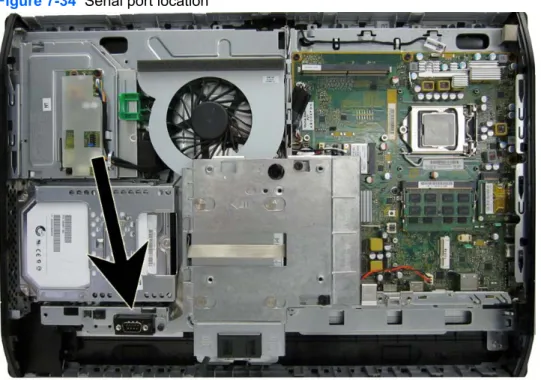
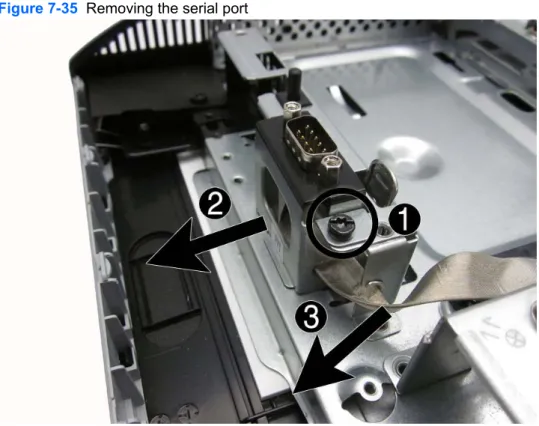
5 (2) PS/2 mouse and keyboard connectors 12 Serial port (optional)
6 (2) USB 2.0 ports 13 Access panel security screw
7 (2) USB 3.0 ports
Adjusting the tilt/swivel base
Tilt the computer forward up to -5 degrees or backward up to +30 degrees to set it to a comfortable eye level.
Figure 1-5 Adjusting tilt
The tilt/swivel base has a swivel pad on the underside that allows you to swivel the computer up to 360 degrees left or right for the best viewing angle.
Height adjustable/recline stand (optional)
An optional stand may be purchased to allow ● height adjustment of 110 mm (4.3 inches) ● rotation from landscape to portrait position ● tilt backward up to +60 degrees
● recline to 30 degrees from the desktop
WARNING! If the height adjustable/recline stand is installed, before laying the computer down for service, position the computer vertically by grasping the sides of the display, and then raise the display to the highest position.
Do not lay the computer down with the sliding stand in the low position. The stand may suddenly release which could cause damage to equipment or injury.
Figure 1-7 Height adjustable stand position options
To install the height adjustable stand:
1. Insert the stand into the slots in the rear of the computer.
Figure 1-8 Installing the height adjustable stand
2. Install the screws that secure the stand to the computer.
2
Installing and customizing the software
If your computer was not shipped with a Microsoft operating system, some portions of this documentation do not apply. Additional information is available in online help after you install the operating system.
NOTE: If the computer was shipped with Windows 7 loaded, you will be prompted to register the computer with HP Total Care before installing the operating system. You will see a brief movie followed by an online registration form. Fill out the form, click the Begin button, and follow the instructions on the screen.
CAUTION: Do not add optional hardware or third-party devices to the computer until the operating system is successfully installed. Doing so may cause errors and prevent the operating system from installing properly.
NOTE: Be sure there is a 10.2-cm (4-inch) clearance at the back of the unit and above the monitor to permit the required airflow.
Installing the operating system
The first time you turn on the computer, the operating system is installed automatically. This process takes about 5 to 10 minutes, depending on which operating system is being installed. Carefully read and follow the instructions on the screen to complete the installation.
CAUTION: Once the automatic installation has begun, DO NOT TURN OFF THE COMPUTER UNTIL THE PROCESS IS COMPLETE. Turning off the computer during the installation process may damage the software that runs the computer or prevent its proper installation.
NOTE: If the computer shipped with more than one operating system language on the hard drive, the installation process could take up to 60 minutes.
If your computer was not shipped with a Microsoft operating system, some portions of this documentation do not apply. Additional information is available in online help after you install the operating system.
Downloading Microsoft Windows updates
1. To set up your Internet connection, click Start > Internet Explorer and follow the instructions on the screen.
2. Once an Internet connection has been established, click the Start button.
3. Select the All Programs menu.
4. Click on the Windows Update link.
In Windows 7, the Windows Update screen appears. Click view available updates and make sure all critical updates are selected. Click the Install button and follow the instructions on the screen.
It is recommended that you install all of the critical updates and service packs.
5. After the updates have been installed, Windows will prompt you to reboot the machine. Be sure to save any files or documents that you may have open before rebooting. Then select Yes to reboot the machine.
Installing or upgrading device drivers (Windows systems)
When installing optional hardware devices after the operating system installation is complete, you must also install the drivers for each of the devices.
If prompted for the i386 directory, replace the path specification with C:\i386, or use the Browse
button in the dialog box to locate the i386 folder. This action points the operating system to the appropriate drivers.
Obtain the latest support software, including support software for the operating system from http://www.hp.com/support. Select your country and language, select Download drivers and software (and firmware), enter the model number of the computer, and press Enter.
Accessing disk image (ISO) files
There are disk image files (ISO files) included on your PC that contain the installation software for additional software. These CD image files are located in the folder C:\SWSetup\ISOs. Each .iso file can be burned to CD media to create an installation CD. It is recommended that these disks be created and the software installed in order to get the most from your PC. The software and image file names are:
● Corel WinDVD SD and BD – installation software for WinDVD – used to play DVD movies ● HP Insight Diagnostics OR Vision Diagnostics – software to perform diagnostic activities on your
PC
Protecting the software
3
Computer Setup (F10) Utility
Computer Setup (F10) utilities
Use Computer Setup (F10) Utility to do the following: ● Change factory default settings.
● Set the system date and time.
● Set, view, change, or verify the system configuration, including settings for processor, memory, audio, storage, communications, and input devices.
● Modify the boot order of bootable devices such as hard drives, optical drives, or USB flash media devices.
● Select Post Messages Enabled or Disabled to change the display status of Power-On Self-Test (POST) messages. Post Messages Disabled suppresses most POST messages, such as memory count, product name, and other non-error text messages. If a POST error occurs, the error is displayed regardless of the mode selected. To manually switch to Post Messages Enabled during POST, press any key (except F1 through F12).
● Establish an Ownership Tag, the text of which is displayed each time the system is turned on or restarted.
● Enter the Asset Tag or property identification number assigned by the company to this computer. ● Enable the power-on password prompt during system restarts (warm boots) as well as during
power-on.
● Establish a setup password that controls access to the Computer Setup (F10) Utility and the settings described in this section.
● Secure integrated I/O functionality, including USB, audio, or embedded NIC, so that they cannot be used until they are unsecured.
● Solve system configuration errors detected but not automatically fixed during the Power-On Self-Test (POST).
● Execute self-tests on a specified ATA hard drive (when supported by drive).
Using Computer Setup (F10) utilities
Computer Setup can be accessed only by turning the computer on or restarting the system. To access the Computer Setup Utilities menu, complete the following steps:
1. Turn on or restart the computer.
2. Press Esc while the “Press the ESC key for Startup Menu” message is displayed at the bottom of the screen.
NOTE: If you do not press Esc at the appropriate time, you must restart the computer and again press Esc when the monitor light turns green to access the utility.
3. Press F10 to enter Computer Setup.
4. A choice of five headings appears in the Computer Setup Utilities menu: File, Storage, Security, Power, and Advanced.
5. Use the arrow (left and right) keys to select the appropriate heading. Use the arrow (up and down) keys to select the option you want, then press Enter. To return to the Computer Setup Utilities menu, press Esc.
6. To apply and save changes, select File > Save Changes and Exit.
● If you have made changes that you do not want applied, select Ignore Changes and Exit. ● To reset to factory settings, select Apply Defaults and Exit. This option will restore the
original factory system defaults.
CAUTION: Do NOT turn the computer power OFF while the BIOS is saving the Computer Setup (F10) changes because the CMOS could become corrupted. It is safe to turn off the computer only after exiting the F10 Setup screen.
Computer Setup—File
NOTE: Support for specific Computer Setup options may vary depending on the hardware configuration.
Table 3-1 Computer Setup—File
Option Description
System Information Lists:
● Product name
● SKU number (some models)
● Processor type/speed/stepping
● Cache size (L1/L2/L3)
● Installed memory size/speed, number of channels (single or dual) (if applicable)
● Integrated MAC address for embedded, enabled NIC (if applicable)
● System BIOS (includes family name and version)
● Chassis serial number
● Asset tag
● ME firmware version
● ME Management mode
About Displays copyright notice.
Set Time and Date Allows you to set system time and date.
Flash System ROM Allows you to update the system ROM with a BIOS image file located on removable media.
Replicated Setup Save to Removable Media
Saves system configuration, including CMOS, to a formatted USB flash media device.
Restore from Removable Media
Restores system configuration from a USB flash media device.
Default Setup Save Current Settings as Default
Saves the current system configuration settings as the default.
Restore Factory Settings as Default
Restores the factory system configuration settings as the default.
Apply Defaults and Exit
Applies the currently selected default settings and clears any established passwords.
Ignore Changes and Exit
Exits Computer Setup without applying or saving any changes.
Save Changes and Exit
Saves changes to system configuration or default settings and exits Computer Setup.
Computer Setup—Storage
NOTE: Support for specific Computer Setup options may vary depending on the hardware configuration.
Table 3-2 Computer Setup—Storage
Option Description
Device Configuration Lists all installed BIOS-controlled storage devices.
When a device is selected, detailed information and options are displayed. The following options may be presented:
Hard Disk: Size, model, firmware version, serial number, SMART.
Storage Options SATA Emulation
Allows you to choose how the SATA controller and devices are accessed by the operating system. There are two supported options: AHCI and IDE.
AHCI (default option) - Allows operating systems with AHCI device drivers loaded to take advantage of more advanced features of the SATA controller.
IDE - This is the most backwards-compatible setting of the two options. Operating systems usually do not require additional driver support in IDE mode.
NOTE: The AHCI device driver must be installed prior to attempting to boot from an AHCI volume. If you attempt to boot from an AHCI volume without the required device driver installed, the system will crash (blue screen).
DPS Self-Test Allows you to execute self-tests on ATA hard drives capable of performing the Drive Protection System (DPS) self-tests.
NOTE: This selection will only appear when at least one drive capable of performing the DPS self-tests is attached to the system.
Boot Order Allows you to:
● Specify the order in which UEFI boot sources and legacy boot sources (such as a USB flash media device, hard drive, optical drive, or network interface card) are checked for a bootable operating system image. Each device on the list may be individually excluded from or included for consideration as a bootable operating system source.
● Specify the order of attached hard drives. The first hard drive in the order will have priority in the boot sequence and will be recognized as drive C (if any devices are attached).
Press F5 to disable a device. Press Enter to select a device. Press the arrow keys to drag a selected device.
Computer Setup—Security
NOTE: Support for specific Computer Setup options may vary depending on the hardware configuration.
Table 3-3 Computer Setup—Security
Option Description
Setup Password Allows you to set and enable a setup (administrator) password.
NOTE: If the setup password is set, it is required to change Computer Setup options, flash the ROM, and make changes to certain plug and play settings under Windows.
Power-On Password Allows you to set and enable a power-on password. The power-on password prompt appears after a power cycle or reboot. If the user does not enter the correct power-on password, the unit will not boot.
Device Security Allows you to set Device Available/Device Hidden for:
● Embedded security device (some models)
● System audio ● Network controller ● SATA0 ● SATA1 ● SATA2 ● SATA3
USB Security Allows you to enable or disable groups of USB ports or individual USB ports. Default is device available.
● Front USB Ports ◦ USB Port 1 ◦ USB Port 2
● Rear USB Ports ◦ USB Port 1 ◦ USB Port 2 ◦ USB Port 3 ◦ USB Port 4
● Accessory USB Ports ◦ USB Port 1 ◦ USB Port 2 ◦ USB Port 3 ◦ USB Port 4 ◦ USB Port 5 ◦ USB Port 6
Table 3-3 Computer Setup—Security (continued)
Slot Security Allows you to disable or enable the PCI Express x1 slot. Default is enabled.
Network Boot Enables/disables the computer’s ability to boot from an operating system installed on a network server. (Feature available on NIC models only). Default is enable.
System IDs Allows you to set:
● Asset tag (18-byte identifier), a property identification number assigned by the company to the computer.
● Ownership tag (80-byte identifier) displayed during POST.
● Universal Unique Identifier (UUID) number. The UUID can only be updated if the current chassis serial number is invalid. (These ID numbers are normally set in the factory and are used to uniquely identify the system.)
● Keyboard locale setting for System ID entry.
Master Boot Record Security
Enables/disables Master Boot Record (MBR) security.
The MBR contains information needed to successfully boot from a disk and to access the data stored on the disk. Master Boot Record Security may prevent unintentional or malicious changes to the MBR, such as those caused by some viruses or by the incorrect use of certain disk utilities. It also allows you to recover the "last known good" MBR, should changes to the MBR be detected when the system is restarted.
When MBR Security is enabled, the BIOS prevents any changes being made to the MBR of the current bootable disk while in MS-DOS or Windows Safe Mode.
NOTE: Most operating systems control access to the MBR of the current bootable disk; the BIOS cannot prevent changes that may occur while the operating system is running.
Table 3-3 Computer Setup—Security (continued) System Security
(some models: these options are hardware dependent)
Data Execution Prevention (some models) (enable/disable) - Helps prevent operating system security breaches. Default is enabled.
Virtualization Technology (VTx/VTd) (some models) (enable/disable) - Controls the virtualization features of the processor and virtualization DMA remapping features of the chipset. Changing this setting requires turning the computer off and then back on. Default is disabled.
Intel TXT (LT) Support (some models) (enable/disable) - Controls the underlying processor and chipset features needed to support a virtual appliance. Changing this setting requires turning the computer off and then back on. Default is disabled. To enable this feature you must enable the following features:
● Embedded Security Device Support
● Virtualization Technology
Embedded Security Device (some models) (enable/disable) - Permits activation and deactivation of the Embedded Security Device. Changing this setting requires turning the computer off and then back on.
NOTE: To configure the Embedded Security Device, a Setup password must be set.
● Reset to Factory Settings (some models) (Do not reset/Reset) - Resetting to factory defaults will erase all security keys. Changing this setting requires turning the computer off and then back on. Default is Do not reset.
CAUTION: The embedded security device is a critical component of many security schemes. Erasing the security keys will prevent access to data protected by the Embedded Security Device. Choosing Reset to Factory Settings may result in significant data loss. OS management of Embedded Security Device (some models) (enable/disable) - This option allows the user to limit operating system control of the Embedded Security Device. Changing this setting requires turning the computer off and then back on. This option allows the user to limit OS control of the Embedded Security Device. Default is enabled. This option is automatically disabled if Trusted Execution Technology is enabled.
Reset of Embedded Security Device through OS (some models) (enable/disable) - This option allows the user to limit the operating system ability to request a Reset to Factory Settings of the Embedded Security Device. Changing this setting requires turning the computer off and then back on. Default is disabled.
NOTE: To enable this option, a Setup password must be set.
DriveLock Security Allows you to assign or modify a master or user password for hard drives. When this feature is enabled, the user is prompted to provide one of the DriveLock passwords during POST. If neither is successfully entered, the hard drive will remain inaccessible until one of the passwords is successfully provided during a subsequent cold-boot sequence.
NOTE: This selection will only appear when at least one drive that supports the DriveLock feature is attached to the system.
Computer Setup—Power
NOTE: Support for specific Computer Setup options may vary depending on the hardware configuration.
Table 3-4 Computer Setup—Power
Option Description
OS Power Management
● Runtime Power Management— Enable/Disable. Allows certain operating systems to reduce processor voltage and frequency when the current software load does not require the full capabilities of the processor. Default is enabled.
● Idle Power Savings—Extended/Normal. Allows certain operating systems to decrease the processors power consumption when the processor is idle. Default is extended.
● ACPI S3 Hard Disk Reset — Enable/disable. Enabling this causes the BIOS to ensure hard disks are ready to accept commands after resuming from S3 before returning control to the operating system.
● Unique Sleep State Blink Rates—Enable/Disable. This feature is designed to provide a visual indication of what sleep state the system is in. Each sleep state has a unique blink pattern. Default is disabled.
◦ S0 (On) = Solid green LED.
◦ S3 (Stand By)= 3 blinks at 1Hz (50% duty cycle) followed by a pause of 2 seconds (green LED) — repeated cycles of 3 blinks and a pause.
◦ S4 (Hibernation)= 4 blinks at 1Hz (50% duty cycle) followed by a pause of 2 seconds (green LED) — repeated cycles of 4 blinks and a pause.
◦ S5 (Soft Off) = LED is off.
NOTE: If this feature is disabled, S4 and S5 both have the LED off. S1 (no longer supported) and S3 use 1 blink per second.
Hardware Power Management
SATA Power Management – Enables or disables SATA bus and/or device power management. Default is enabled.
S5 Maximum Power Savings—Turns off power to all nonessential hardware when system is off to meet EUP Lot 6 requirement of less than 1 Watt power usage. Default is disabled.
Thermal Fan idle mode—This bar graph controls the minimum permitted fan speed.
NOTE: This setting only changes the minimum fan speed. The fans are still automatically controlled.
Computer Setup—Advanced
NOTE: Support for specific Computer Setup options may vary depending on the hardware configuration.
Table 3-5 Computer Setup—Advanced
Option Heading
Power-On Options Allows you to set:
● POST mode (QuickBoot, Clear Memory, FullBoot, or FullBoot Every x Days). ◦ QuickBoot (default) = Do not clear memory or perform a memory test. ◦ FullBoot = Memory test (count) on cold boot. Clears memory on all boots. ◦ Clear Memory = No memory count on cold boot. Clears memory on all boots. ◦ FullBoot Every x Days = Memory count on 1st cold boot on or after the xth day. No
more memory counts until 1st cold boot on or after x days. Clears memory on all boots.
● POST messages (enable/disable). Default is disabled.
● Press the ESC key for Startup Menu (Enable/Disable). Default is enabled.
● Option ROM Prompt (enable/disable). Enabling this feature will cause the system to display a message before loading option ROMs. Default is enabled.
● After Power Loss (off/on/previous state). Default is Power off. Setting this option to: ◦ Off—causes the computer to remain powered off when power is restored. ◦ On—causes the computer to power on automatically as soon as power is restored. ◦ Previous state—causes the computer to power on automatically as soon as power is
restored, if it was on when power was lost.
NOTE: If you turn off power to the computer using the switch on a power strip, you will not be able to use the suspend/sleep feature or the Remote Management features.
● POST Delay (in seconds). Enabling this feature will add a user-specified delay to the POST process. This delay is sometimes needed for hard disks on some PCI cards that spin up very slowly, so slowly that they are not ready to boot by the time POST is finished. The POST delay also gives you more time to select F10 to enter Computer (F10) Setup. Default is None.
● Remote Wakeup Boot Source (remote server/local hard drive). Default is Local hard drive.
● Factory Recovery Boot Support (Enable/Disable). Provides the ability for the BIOS to redirect the boot to the recovery partition on the user hard drive, if present. Some versions of the recovery software honor the F11 key press even when this feature is disabled by the BIOS. Default is disabled.
● Bypass F1 Prompt on Configuration Changes (Enable/Disable). Allows you to set the computer not to confirm when changes were made. Default is disabled.
BIOS Power-On Allows you to set the computer to turn on automatically at a time you specify.
Onboard Devices Allows you to set resources for or disable Legacy devices.
Select the Legacy device's IRQ, DMA, and I/O Range. The settings may not take effect for all operating systems. To hide a device from the operating system, see Security > Device Security.
Table 3-5 Computer Setup—Advanced (continued)
Bus Options On some models, allows you to enable or disable:
● PCI SERR# Generation. Default is enable.
● PCI VGA Palette Snooping, which sets the VGA palette snooping bit in PCI configuration space; only needed when more than one graphics controller is installed. Default is disable.
Device Options Allows you to set:
● Turbo Mode (enable/disable). Allows you to enable and disable the Intel Turbo Mode feature, which allows one core of the system to run at a higher than standard frequency and power if other cores are idle. Default is enabled.
● Printer mode (Bi-directional, EPP+ECP, Output Only). Default is EPP+ECP.
● Num Lock State at Power-On (off/on). Default is on.
● Integrated Video (enable/disable). Use this option to disable the integrated video controller when another video controller is present in the system. Default is enabled.
● LVDS Panel Select (Auto-Select, LG, CMI, Samsung, AUO). Options differ based on model. Allows you to specify the display panel manufacturer. Default is Auto-Select.
● Internal Speaker (some models) (does not affect external speakers). Default is enabled.
● NIC Option ROM Download (enable/disable). The BIOS contains an embedded NIC option ROM to allow the unit to boot through the network to a PXE server. This is typically used to download a corporate image to a hard drive. The NIC option ROM takes up memory space below 1 MB commonly referred to as DOS Compatibility Hole (DCH) space. This space is limited. This F10 option will allow users to disable the downloading of this embedded NIC option ROM thus giving more DCH space for additional PCI cards which may need option ROM space. Default is-enable.
● Multi-Processor (enable/disable). Use this option to disable multi-processor support under the OS. Default is enabled.
VGA Configuration Displayed only if there is an add-in video card in the system. Allows you to specify which VGA controller will be the “boot” or primary VGA controller.
Management Operations
Allows you to set:
● AMT (enable/disable). Allows you to enable or disable functions of the embedded
Management Engine (ME) such as Active Management Technology (AMT). If set to disable, the Management Engine is set to a temporarily disabled state and will not provide functions beyond necessary system configuration. Default is enabled.
● Unconfigure AMT/ME (enable/disable). Allows you to unconfigure any provisioned management settings for AMT. The AMT settings are restored to factory defaults. This feature should be used with caution as AMT will not be able to provide any set AMT
4
HP PC Hardware Diagnostics
If HP Support Assistant is unable to detect a problem, try the UEFI-based hardware diagnostic solution that HP includes on all products.
Why run HP PC Hardware Diagnostics
The HP PC Hardware Diagnostic tools simplify the process of diagnosing hardware issues and expedite the support process when issues are found. The tools save time by pinpointing the component that needs to be replaced.
● Isolate true hardware failures: The diagnostics run outside of the operating system so they effectively isolate hardware failures from issues that may be caused by the operating system or other software components.
● Failure ID: When a failure is detected that requires hardware replacement, a 24-digit Failure ID is generated. This ID can then be provided to the call agent, who will either schedule support or provide replacement parts.
How to access and run HP PC Hardware Diagnostics
You can run the diagnostics from one of three places, depending on your preference and the health of the computer.
1. Turn on the computer and press Esc repeatedly until the BIOS Boot Menu appears.
2. Press F2 or select Diagnostics (F2).
Pressing F2 signals the system to search for the diagnostics in the following locations:
a. A connected USB drive (to download the diagnostics tools to a USB drive or optical disc, see the instructions in Downloading HP PC Hardware Diagnostics to a USB device on page 22)
b. The hard disk drive
c. A core set of diagnostics in the BIOS (for memory and hard disk drive) that are accessible only if the USB or hard disk drive versions are not detected
Downloading HP PC Hardware Diagnostics to a USB
device
1. Go to http://www.hp.com.
2. Click the Support & Drivers link.
3. Select the Drivers & Software tab.
4. Enter the product name in the text box and click Search.
5. Select your specific computer model.
6. Select your operating system.
7. In the Diagnostic section, click the HP UEFI Support Environment link. This link provides additional information.
or
-Click the Download button and select Run. The download includes instructions (in English) on how to create the CD or install the tools on the USB device.
NOTE: HP diagnostic solutions are developed to test components typically included on HP products. They may not diagnose all third-party accessories that can be added to the system.
5
Serial ATA (SATA) Drive Guidelines
and Features
NOTE: HP only supports the use of SATA hard drives on these models of computer. No Parallel ATA (PATA) drives are supported.
SATA Hard Drives
Serial ATA Hard Drive Characteristics
Number of pins/conductors in data cable 7/7
Number of pins in power cable 15
Maximum data cable length 39.37 in (100 cm)
Data interface voltage differential 400-700 mV
Drive voltages 3.3 V, 5 V, 12 V
Jumpers for configuring drive N/A
Data transfer rate 3.0 Gb/s
SATA Hard Drive Cables
SATA Data Cable
Always use an HP approved SATA 3.0 Gb/s cable as it is fully backwards compatible with the SATA 1.5 Gb/s drives.
Current HP desktop products ship with SATA 3.0 Gb/s hard drives.
SATA data cables are susceptible to damage if overflexed. Never crease a SATA data cable and never bend it tighter than a 30 mm (1.18 in) radius.
The SATA data cable is a thin, 7-pin cable designed to transmit data for only a single drive.
SMART ATA Drives
The Self Monitoring Analysis and Recording Technology (SMART) ATA drives for the HP Personal Computers have built-in drive failure prediction that warns the user or network administrator of an impending failure or crash of the hard drive. The SMART drive tracks fault prediction and failure indication parameters such as reallocated sector count, spin retry count, and calibration retry count. If the drive determines that a failure is imminent, it generates a fault alert.
Hard Drive Capacities
The combination of the file system and the operating system used in the computer determines the maximum usable size of a drive partition. A drive partition is the largest segment of a drive that may be properly accessed by the operating system. A single hard drive may therefore be subdivided into a number of unique drive partitions in order to make use of all of its space.
Because of the differences in the way that drive sizes are calculated, the size reported by the
operating system may differ from that marked on the hard drive or listed in the computer specification. Drive size calculations by drive manufacturers are bytes to the base 10 while calculations by
Microsoft are bytes to the base 2.
Drive/Partition Capacity Limits
Maximum Size File System Controller Type Operating System Partition Drive
FAT 32 ATA Windows 7 32 GB 2 TB
6
Routine Care and Disassembly
Preparation
This chapter provides general service information for the computer. Adherence to the procedures and precautions described in this chapter is essential for proper service.
CAUTION: When the computer is plugged into an AC power source, voltage is always applied to the system board. You must disconnect the power cord from the power source before opening the computer to prevent system board or component damage.
Electrostatic discharge information
A sudden discharge of static electricity from your finger or other conductor can destroy static-sensitive devices or microcircuitry. Often the spark is neither felt nor heard, but damage occurs. An electronic device exposed to electrostatic discharge (ESD) may not appear to be affected at all and can work perfectly throughout a normal cycle. The device may function normally for a while, but it has been degraded in the internal layers, reducing its life expectancy.
Networks built into many integrated circuits provide some protection, but in many cases, the discharge contains enough power to alter device parameters or melt silicon junctions.
Generating static
The following table shows that:
● Different activities generate different amounts of static electricity. ● Static electricity increases as humidity decreases.
Relative Humidity
Event 55% 40% 10%
Walking across carpet Walking across vinyl floor Motions of bench worker Removing DIPs* from plastic tube
7,500 V 3,000 V 400 V 400 V 15,000 V 5,000 V 800 V 700 V 35,000 V 12,000 V 6,000 V 2,000 V Removing DIPs* from vinyl tray
Removing DIPs* from Styrofoam Removing bubble pack from PCB Packing PCBs in foam-lined box
2,000 V 3,500 V 7,000 V 5,000 V 4,000 V 5,000 V 20,000 V 11,000 V 11,500 V 14,500 V 26,500 V 21,000 V *These are then multi-packaged inside plastic tubes, trays, or Styrofoam.
NOTE: 700 volts can degrade a product.
● Always be properly grounded when touching a sensitive component or assembly. ● Avoid contact with pins, leads, or circuitry.
● Place reusable electrostatic-sensitive parts from assemblies in protective packaging or conductive foam.
Personal grounding methods and equipment
Use the following equipment to prevent static electricity damage to equipment:
● Wrist straps are flexible straps with a maximum of one-megohm ± 10% resistance in the ground cords. To provide proper ground, a strap must be worn snug against bare skin. The ground cord must be connected and fit snugly into the banana plug connector on the grounding mat or workstation.
● Heel straps/Toe straps/Boot straps can be used at standing workstations and are compatible with most types of shoes or boots. On conductive floors or dissipative floor mats, use them on both feet with a maximum of one-megohm ± 10% resistance between the operator and ground.
Static Shielding Protection Levels
Method Voltage Antistatic plastic Carbon-loaded plastic Metallized laminate 1,500 7,500 15,000
Grounding the work area
To prevent static damage at the work area, use the following precautions:
● Cover the work surface with approved static-dissipative material. Provide a wrist strap connected to the work surface and properly grounded tools and equipment.
● Use static-dissipative mats, foot straps, or air ionizers to give added protection.
● Handle electrostatic sensitive components, parts, and assemblies by the case or PCB laminate. Handle them only at static-free work areas.
● Turn off power and input signals before inserting and removing connectors or test equipment. ● Use fixtures made of static-safe materials when fixtures must directly contact dissipative
surfaces.
● Keep work area free of nonconductive materials such as ordinary plastic assembly aids and Styrofoam.
● Use field service tools, such as cutters, screwdrivers, and vacuums, that are conductive.
Recommended materials and equipment
Materials and equipment that are recommended for use in preventing static electricity include: ● Antistatic tape
● Antistatic smocks, aprons, or sleeve protectors
● Conductive bins and other assembly or soldering aids ● Conductive foam
● Conductive tabletop workstations with ground cord of one-megohm +/- 10% resistance ● Static-dissipative table or floor mats with hard tie to ground
● Field service kits ● Static awareness labels
● Wrist straps and footwear straps providing one-megohm +/- 10% resistance ● Material handling packages
● Conductive plastic bags ● Conductive plastic tubes ● Conductive tote boxes ● Opaque shielding bags
● Transparent metallized shielding bags ● Transparent shielding tubes
Operating Guidelines
To prevent overheating and to help prolong the life of the computer:
● Keep the computer away from excessive moisture, direct sunlight, and extremes of heat and cold.
● Operate the computer on a sturdy, level surface. Leave a 10.2-cm (4-inch) clearance on all vented sides of the computer and above the monitor to permit the required airflow.
● Never restrict the airflow into the computer by blocking any vents or air intakes. Do not place the keyboard, with the keyboard feet down, directly against the front of the desktop unit as this also restricts airflow.
● Occasionally clean the air vents on all vented sides of the computer. Lint, dust, and other foreign matter can block the vents and limit the airflow. Be sure to unplug the computer before cleaning the air vents.
Routine Care
General cleaning safety precautions
1. Never use solvents or flammable solutions to clean the computer.
2. Never immerse any parts in water or cleaning solutions; apply any liquids to a clean cloth and then use the cloth on the component.
3. Always unplug the computer when cleaning with liquids or damp cloths.
4. Always unplug the computer before cleaning the keyboard, mouse, or air vents.
5. Disconnect the keyboard before cleaning it.
6. Wear safety glasses equipped with side shields when cleaning the keyboard.
Cleaning the computer case
Follow all safety precautions in General cleaning safety precautions on page 29 before cleaning the computer.
To clean the computer case, follow the procedures described below:
● To remove light stains or dirt, use plain water with a clean, lint-free cloth or swab.
● For stronger stains, use a mild dishwashing liquid diluted with water. Rinse well by wiping it with a cloth or swab dampened with clear water.
● For stubborn stains, use isopropyl (rubbing) alcohol. No rinsing is needed as the alcohol will evaporate quickly and not leave a residue.
● After cleaning, always wipe the unit with a clean, lint-free cloth.
● Occasionally clean the air vents on the computer. Lint and other foreign matter can block the vents and limit the airflow.
Cleaning the keyboard
Follow all safety precautions in General cleaning safety precautions on page 29 before cleaning the keyboard.
To clean the tops of the keys or the keyboard body, follow the procedures described in Cleaning the computer case on page 29.
When cleaning debris from under the keys, review all rules in General cleaning safety precautions on page 29 before following these procedures:
CAUTION: Use safety glasses equipped with side shields before attempting to clean debris from under the keys.
● Visible debris underneath or between the keys may be removed by vacuuming or shaking. ● Canned, pressurized air may be used to clean debris from under the keys. Caution should be
used as too much air pressure can dislodge lubricants applied under the wide keys.
● If you remove a key, use a specially designed key puller to prevent damage to the keys. This tool is available through many electronic supply outlets.
CAUTION: Never remove a wide leveled key (like the space bar) from the keyboard. If these keys are improperly removed or installed, the keyboard may not function properly.
● Cleaning under a key may be done with a swab moistened with isopropyl alcohol and squeezed out. Be careful not to wipe away lubricants necessary for proper key functions. Use tweezers to remove any fibers or dirt in confined areas. Allow the parts to air dry before reassembly.
Cleaning the display
● Wipe the display screen with a clean cloth moistened with water or with a towelette designed for cleaning monitors. Do not use sprays or aerosols directly on the screen; the liquid may seep into the housing and damage a component. Never use solvents or flammable liquids on the monitor. ● To clean the monitor body follow the procedures in Cleaning the computer case on page 29.
Cleaning the mouse
Before cleaning the mouse, ensure that the power to the computer is turned off.
● Clean the mouse ball by first removing the retaining plate and the ball from the housing. Pull out any debris from the ball socket and wipe the ball with a clean, dry cloth before reassembly. ● To clean the mouse body, follow the procedures in Cleaning the computer case on page 29.
Service Considerations
Listed below are some of the considerations that you should keep in mind during the disassembly and assembly of the computer.
Tools and software requirements
To service the computer, you need the following:
● Torx T-15 screwdriver (HP screwdriver with bits, PN 161946-001)
● Flat-bladed screwdriver (may sometimes be used in place of the Torx screwdriver) ● Phillips #2 screwdriver
Cables and connectors
Most cables used throughout the unit are flat, flexible cables. These cables must be handled with care to avoid damage. Apply only the tension required to seat or unseat the cables during insertion or removal from the connector. Handle cables by the connector whenever possible. In all cases, avoid bending or twisting the cables, and ensure that the cables are routed in such a way that they cannot be caught or snagged by parts being removed or replaced.
CAUTION: When servicing this computer, ensure that cables are placed in their proper location during the reassembly process. Improper cable placement can damage the computer.
Hard drives
Handle hard drives as delicate, precision components, avoiding all physical shock and vibration. This applies to failed drives as well as replacement spares.
● If a drive must be mailed, place the drive in a bubble-pack mailer or other suitable protective packaging and label the package “Fragile: Handle With Care.”
● Do not remove hard drives from the shipping package for storage. Keep hard drives in their protective packaging until they are actually mounted in the CPU.
● Avoid dropping drives from any height onto any surface.
● If you are inserting or removing a hard drive, turn off the computer. Do not remove a hard drive while the computer is on or in standby mode.
● Before handling a drive, ensure that you are discharged of static electricity. While handling a drive, avoid touching the connector. For more information about preventing electrostatic damage, refer to Electrostatic discharge information on page 26
● Do not use excessive force when inserting a drive.
● Avoid exposing a hard drive to liquids, temperature extremes, or products that have magnetic fields such as monitors or speakers.
Lithium coin cell battery
The battery that comes with the computer provides power to the real-time clock and has a minimum lifetime of about three years.
See the appropriate removal and replacement chapter for the chassis you are working on in this guide for instructions on the replacement procedures.
WARNING! This computer contains a lithium battery. There is a risk of fire and chemical burn if the battery is handled improperly. Do not disassemble, crush, puncture, short external contacts, dispose in water or fire, or expose it to temperatures higher than 140ºF (60ºC). Do not attempt to recharge the battery.
NOTE: Batteries, battery packs, and accumulators should not be disposed of together with the general household waste. In order to forward them to recycling or proper disposal, please use the public collection system or return them to HP, their authorized partners, or their agents.
7
Removal and Replacement Procedures
All-in One (AIO) Chassis
The following sections provide information about disassembling various components of the computer. Procedures for disassembling both 6300 and 8300 models are the same unless noted.
Preparing to disassemble the computer
To avoid injury and equipment damage, always complete the following steps in order, when opening the HP Pro All-in-One.
1. Remove all media from the computer.
2. Shut down the computer.
3. After the system has completely shut down, disconnect the power adapter from the back of the computer.
4. Disconnect all other attached cables from the back of the computer.
5. If the height adjustable/recline stand is installed, before laying the computer down for service, position the computer vertically by grasping the sides of the display, and then raise the display to the highest position.
Place the computer face down on a soft flat surface. HP recommends that you set down a blanket, towel, or other soft cloth to protect the screen surface from scratches or other damage.
WARNING! If the height adjustable/recline stand is installed, do not lay the computer down with the sliding stand in the low position. The stand may suddenly release which could cause damage to equipment or injury.
Removing the rear port cover
1. If a cable lock is installed on the rear of the unit, remove the lock.
2. Grasp the rear port cover, then pull it down and off the computer.
NOTE: Removing the rear port cover may require that you use a significant amount of force.
NOTE: If using forceful pressure on the ribs does not remove security cover, grip the exposed edge of the security cover by the AC plug and pull it straight out.
Figure 7-1 Removing the rear port cover
Cable management cover
1. If the rear port cover is installed, remove the cover.
2. Route all peripheral cables through the stand opening and plug them into the appropriate ports as needed.
3. Hold the cable management cover under the cables, align the cover hooks with the slots in the stand, and then insert the cover and slide it down.
Figure 7-2 Installing the cable management cover
Installing an access panel security screw
You may prevent access to internal components by securing the access panel. Screw a T15 tamper-resistant Torx screw through the left latch of the access panel to prevent removal of the panel.
NOTE: Spare parts for the security screw or associated hardware are not provided.
Figure 7-3 Securing the access panel
Synchronizing the optional wireless keyboard or mouse
The optional wireless keyboard and mouse are easy to set up. Just remove the battery tabs on both the keyboard and the mouse to activate the preinstalled batteries. Also, make sure the Power switch on the bottom of the mouse is in the On position (the keyboard does not have a Power switch). Then, turn on the computer and synchronize them as described below.
NOTE: For better mouse battery life and performance, avoid using your mouse on a dark or high-gloss surface, and turn mouse power off when not in use.
To synchronize the wireless keyboard and mouse:
1. Make sure the keyboard and mouse are next to the computer, within 30 cm (1 foot) and away from interference from other devices.
3. Insert the wireless receiver into a USB 2.0 port on the computer.
NOTE: Insert the wireless receiver into a USB 2.0 port that is separated from USB 3.0 devices.
Figure 7-4 Installing the wireless receiver
4. Make sure the Power switch on the bottom of the mouse is in the On position.
5. Press and release the Connect button on the bottom of the mouse. The blue activity LED from the wireless receiver illuminates when the synchronization command has been received and turns off when synchronization is complete.
6. Press and release the Connect button on the bottom of the keyboard. The blue activity LED from the wireless receiver illuminates when the synchronization command has been received and turns off when synchronization is complete.
Figure 7-5 Synchronizing the wireless keyboard and mouse
NOTE: If the procedure does not work, remove and then reinsert the wireless keyboard and mouse receiver from the back of the computer and then synchronize the keyboard and mouse again. If synchronization still does not work, remove and replace the batteries.
Access panel
The computer has one main rear access panel that allows access to internal components. To remove the access panel:
1. Prepare the computer for disassembly (see Preparing to disassemble the computer on page 32).
2. Slide the access panel latches toward the edges of the unit, then slide the access panel toward the top of the computer until it slides off the unit.
3. To replace the access panel, hold the panel at a 90-degree angle, place the top into the guides in the chassis, and then press down to align it with the guides.
Figure 7-7 Replacing the access panel
NOTE: Align the bottom of the access panel with the notches on the outside edge of the computer (1) when installing.
If an access panel sensor is installed, make sure the tab (2) on the bottom of the access panel slides over the sensor (3) when replacing the access panel.
Figure 7-8 Access Panel Replacement
4. Push the access panel firmly into place until correctly seated. To replace the access panel, reverse the removal procedures.
Stand
The stand is secured with two captive Torx screws. You must remove a plastic cover to gain access to the screws. You must remove the access panel to remove the stand.
To remove the stand:
1. Prepare the computer for disassembly (see Preparing to disassemble the computer on page 32).
2. Remove the access panel (see Access panel on page 36).
3. Push the release button (1) on the bottom of the stand and pull the back of the stand off (2).
Figure 7-9 Removing the back of the stand
4. Push the base of the stand down (1), and loosen the two captive Torx screws securing the stand to the chassis (2).
5. Lift the stand up and off the computer.
Figure 7-11 Removing the stand
To replace the stand, reverse the removal procedures.
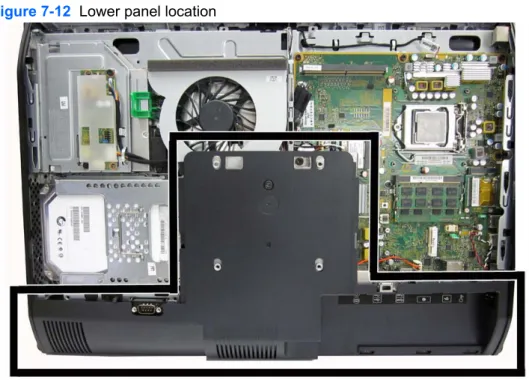
Lower panel
The lower panel is located under the stand and on the bottom part of the computer.
Figure 7-12 Lower panel location
To remove the access panel:
1. Prepare the computer for disassembly (see Preparing to disassemble the computer on page 32).
2. Remove the access panel (see Access panel on page 36).
3. Remove the stand (see Stand on page 38).
4. Remove the screw (1) in the middle of the lower panel, and detach the lower panel from the chassis (2).
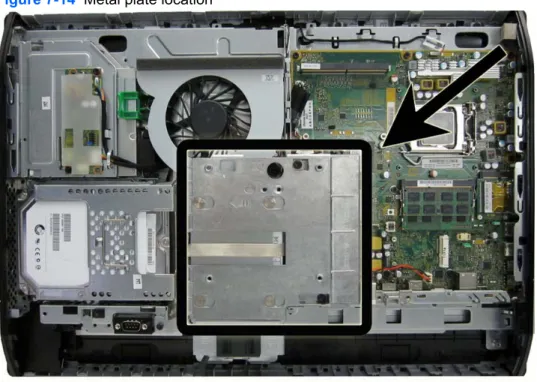
Metal plate
The metal plate is located under the stand.
Figure 7-14 Metal plate location
To remove the metal plate:
1. Prepare the computer for disassembly (see Preparing to disassemble the computer on page 32).
2. Remove the access panel (see Access panel on page 36).
3. Remove the stand (see Stand on page 38).
4. Remove the lower panel (see Lower panel on page 40).
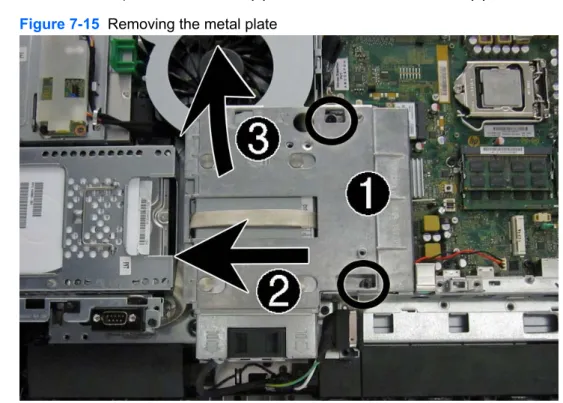
5. Remove the two Torx screws (1) securing the metal plate to the chassis.
6. Slide the metal plate left to the left (2), and then lift it off the chassis (3).
Figure 7-15 Removing the metal plate
Replacing drives
Replacing the hard disc drive with a 3.5-inch hard disc drive or a single
2.5-inch drive
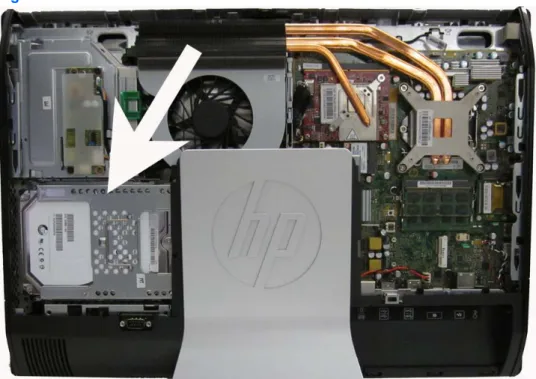
The hard disc drive is located behind the access panel on the left side of the computer (when viewed from behind). The drive is housed in a removable cage.
Figure 7-16 Hard drive location
If you choose to install an optional 2.5-inch solid state drive (SSD) or self-encrypting drive (SED), you will need a drive adapter. The drive adapter is not included in the 2.5-inch SSD spare parts kits. The first hard drive data cable connects to the SATA0 and SATA PWR0 system board connectors. The second hard drive data cable connects to the SATA1 and SATA PWR1 system board
connectors.
1. Prepare the computer for disassembly (see Preparing to disassemble the computer on page 32).
2. Remove the access panel (see Access panel on page 36).
3. Pull the latch next to the lower side of the hard disc drive cage away from the cage to release it, then slide the cage toward the edge of the chassis and lift it out.
Figure 7-17 Removing the hard disc drive cage
4. Lift the latch on one side of the hard disc drive cage and pull the hard disc drive out of the cage.
5. Remove the four mounting screws from the hard disc drive. Be sure to keep the blue rubber grommets with each screw.
Figure 7-19 Removing the mounting screws
6. Screw the four mounting screws into the new hard disc drive. Be sure to keep the blue rubber grommets behind each screw.
Figure 7-20 Inserting the mounting screws
NOTE: If you choose to install an optional 2.5-inch solid state drive (SSD) or self-encrypting drive (SED), you must
1. mount the drive in a drive adapter
2. screw the four mounting screws into the drive adapter
7. Slide the new hard disc drive, or drive adapter bracket holding an optional 2.5-inch drive, into the cage until it snaps in place. Be sure that the connector on the hard disc drive is at the opening of the cage.
Figure 7-21 Inserting the hard disc drive into the cage
8. With the hard disc drive connector facing toward the center of the chassis, place the hard disc drive cage into the chassis and slide it toward the center until it snaps firmly into place.
NOTE: Make sure the hard drive is firmly seated in the connector. Failure to completely seat the hard drive may result in the inability to install the access panel, as well as disk errors when booting the computer.
Replacing the optical disc drive
The optical disc drive is located above the hard disc drive on the left side of the computer (when viewed from behind).
The optical drive data cable connects to the SATA2 and SATA PWR2 system board connectors.
NOTE: The drive bracket is not spared. When replacing an optical drive, remove the bracket from the old drive and install it on the new drive.
Figure 7-23 Optical drive location
1. Prepare the computer for disassembly (see Preparing to disassemble the computer on page 32).
2. Remove the access panel (see Access panel on page 36).
3. Lift the tab at the back of the optical disc drive enclosure to release the drive.
Figure 7-24 Removing the optical disc drive
NOTE: When replacing an optical drive, remove the bracket from the old drive and install it on the new drive. The bracket is not spared.
4. Remove the two screws securing the optical disc drive bracket to the drive.
5. Secure the optical disc drive bracket to the new drive with the two screws.
Figure 7-26 Attaching the optical disc drive bracket
6. Align the new optical disc drive with the opening in the side of the computer. Push the drive in firmly until it snaps into place.
NOTE: The optical disc drive can be installed in only one way.
Figure 7-27 Installing the optical disc drive
7. To replace the access panel, set the panel on the back of the computer, slightly above the stand, and slide it down into place.
8. Reconnect the power cord and external devices.
9. Lock any security devices that were disengaged when the access panel was removed.
10. Turn on the computer.
Memory
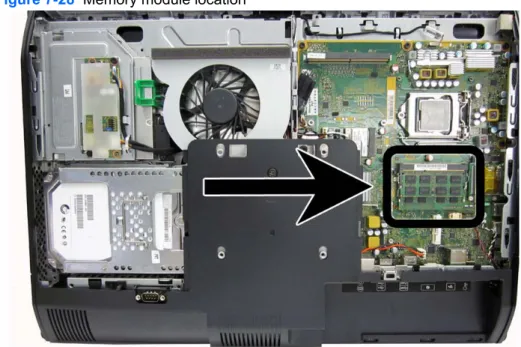
Memory modules are located on the right side of the computer (viewed from behind). The computer has two memory slots.
Figure 7-28 Memory module location
For proper system operation, the SODIMMs must be: ● industry-standard 204-pin
● unbuffered non-ECC PC3-10600 DDR3-1600 MHz-compliant ● 1.5 volt DDR3-SDRAM SODIMMs
The DDR3-SDRAM SODIMMs must also:
● support CAS latency 11 DDR3 1600 MHz (11-11-11 timing)
● contain the mandatory Joint Electronic Device Engineering Council (JEDEC) specification In addition, the computer supports:
Table 7-1 Identifying SODIMM locations
Location System Board Label Channel
Lower Socket SODIMM1 Channel A
Upper Socket SODIMM3 Channel B
● The system will operate in single channel mode if the SODIMM sockets are populated in one channel only.
● The system will operate in flex mode if the memory capacity of the SODIMM in Channel A is not equal to the memory capacity of the SODIMM in Channel B. In flex mode, the channel populated with the least amount of memory describes the total amount of memory assigned to dual
channel and the remainder is assigned to single channel. If one channel will have more memory than the other, the larger amount should be assigned to channel A.
● The system will operate in a higher-performing dual channel mode if the memory capacity of the SODIMM in Channel A is equal to the memory capacity of the SODIMM in Channel B.
● In any mode, the maximum operational speed is determined by the slowest SODIMM in the system.
There are two memory sockets on the system board located behind the memory access panel. To remove or install memory modules:
To remove a memory module:
1. Prepare the computer for disassembly (see Preparing to disassemble the computer on page 32).
2. Place the computer face down on a soft flat surface. HP recommends that you set down a blanket, towel, or other soft cloth to protect the screen surface from scratches or other damage.
3. Remove the access panel (see Access panel on page 36).
4. To remove a memory module, press outward on the two latches on each side of the SODIMM
(1), then pull the SODIMM out of the socket (2).
Figure 7-29 Removing a memory module
5. To install a memory module, slide the SODIMM into the socket at approximately a 30° angle (1), then press the SODIMM down (2) so that the latches lock it in place.
Figure 7-30 Installing a memory module
NOTE: A memory module can be installed in only one way. Match the notch on the module with the tab on the memory socket.