1U Series DVR Quick Start Guide
Table of Contents
1
Hardware Installation and Connection
...5
1.1
Check Unpacked DVR
...5
1.2
About Front Panel and Real Panel
...5
1.3
After Remove the Chassis
...5
1.4
HDD Installation
...5
1.5
Front Panel
...6
1.6
Rear Panel
...8
1.7
Connection Sample
...9
1.8
Alarm Input and Output Connection
...9
1.8.1
Alarm Input and Output Details
...9
1.8.2
Alarm Input Port...10
1.8.3
Alarm Output Port...10
2
Overview of Navigation and Controls
...11
2.1
Login, Logout & Main Menu
...11
2.1.1
Login...11
2.1.2
Main Menu...11
2.1.3
Logout
...12
2.1.4
Auto Resume after Power Failure
...12
2.2
Recording Operation
...12
2.2.1
Live Viewing
...12
2.3
Record Setup (Schedule)
...12
2.3.1
Schedule Menu...12
2.3.2
Manual Record
...13
2.3.3
Encode
...14
2.3.4
Snapshot...14
2.3.5
Image FTP...15
2.3.6
Search and Playback...16
2.3.7
Basic Operation
...16
2.5
Pan/Tilt/Zoom
...18
2.5.1
PTZ Setup
...18
2.5.2
PTZ Operation
...19
2.5.3
3D Intelligent Positioning Key
...20
3
Web Client Operation
...21
3.1
Network Connection
...21
3.2
Login
...21
Welcome
Thank you for purchasing our DVR!
This quick start guide will help you become familiar with our DVR in a very short time.
Here you can find hardware installation,cable connection information and general operations such as system setup, record, search, backup, alarm setup, PTZ operation, also here you can find web operation instruction.
Before installation and operation, please read the following safeguards and warnings carefully!
Important Safeguard and Warning
1
.
Electrical safety
All installation and operation here should conform to your local electrical safety codes. We assume no liability or responsibility for all the fires or electrical shock caused by improper handling or installation.
2
.
Transportation security
Heavy stress, violent vibration or water splash are not allowed during transportation, storage and installation.
3
.
Installation
Keep upwards. Handle with care.
Do not apply power to the DVR before completing installation. Do not place objects on the DVR
4
.
Qualified engineers needed
All the examination and repair work should be done by the qualified service engineers. We are not liable for any problems caused by unauthorized modifications or attempted repair.
5
.
Environment
The DVR should be installed in a cool, dry place away from direct sunlight, inflammable, explosive substances and etc.
6. Accessories
Be sure to use all the accessories recommended by manufacturer.
Before installation, please open the package and check all the components are included: Contact your local retailer ASAP if something is missing in your package.
1
Hardware Installation and Connection
Note: All the installation and operations here should conform to your local
electric safety rules.
1.1
Check Unpacked DVR
When you receive the DVR from the forwarding agent, please check whether there is any visible damage. The protective materials used for the package of the DVR can protect most accidental clashes during transportation. Then you can open the box to check the accessories.
Please check the items in accordance with the list on the warranty card (Remote control is optional). Finally you can remove the protective film of the DVR.
Note
Remote control is not a standard accessory and it is not included in the accessory bag.
1.2
About Front Panel and Real Panel
For detail information of the function keys in the front panel and the ports in the rear panel, please refer to the User’s Manual included in the resource CD.
The model in the front panel is very important; please check according to your purchase order. The label in the rear panel is very important too. Usually we need you to represent the serial number when we provide the service after sales.
1.3
After Remove the Chassis
Please check the data cable, power cable, COM cable and main boar cable connection is firm or not.
1.4
HDD Installation
This series DVR has only one SATA HDD. Please use HDD of 7200rpm or higher. You can refer to the User’s Manual for recommended HDD brand.
Please follow the instructions below to install hard disk.
3. Turn four screws for three rounds to fix HDD bracket.
2. Remove upper cover.
1. Loosen the screws of the upper cover.
After completing HDD installation, please check connection of data ribbon and power cord.
1.5
Front Panel
The front panel is shown as in Figure 1-1.
Figure 1-1
Please refer to the following sheet for front panel button information.
Name Icon Function
Power button Power button, press this button for three seconds to boot up or shut down DVR.
Shift Shift In textbox, click this button to switch between numeral, English(Small/Capitalized),donation and etc. Activate current control, modify setup, and then move up and down.
Increase/decrease numeral.
Assistant function such as PTZ menu. Up/1
Down/4 S、T
In text mode, input number 1/4. Shift current activated control, Left/2
Right/3 W X When playback, click these buttons to control playback bar. In text mode, input number 2/3.
Go to previous menu, or cancel current operation. ESC ESC
When playback, click it to restore real-time monitor mode. Enter ENTER Confirm current operation
8. Place the upper cover back and screw firmly. 7. Connect the HDD cable and
power cable.
6. Fix the HDD firmly.
5. Turn the device upside down
and then turn the screw in firmly. 4. Place the HDD in
accordance with the four holes. i th h i
Go to default button Go to menu
Record REC Manually stop/start recording, working with direction keys or numeral keys to select the recording channel. Slow play/8 Multiple slow play speeds or normal playback. In text mode, input number 8.
One-window monitor mode, click this button to display assistant function: PTZ control and image color.
In PTZ menu, shift PTZ control menu.
Backspace function: in numeral control or text control, it can delete the previous character before the cursor.
In motion detection setup, working with Fn and direction keys to realize setup.
In preview mode, click it for three seconds to switch between TV.VGA. For HD1 series DVR, there are three modes: TV, VGA, VGA_LCD (60Hz LED output).
In text mode, click it to switch between numeral, English character(small/capitalized) and etc.
Assistant Fn
Realize other special functions.
Fast play/7 Various fast speeds and normal playback. In text mode, input number 7. Play
previous/0
_
In playback mode, playback the previous video In text mode, input number 0.
Reverse/Pau
se/6 W
In normal playback or pause mode, click this button to reverse
playback
In reverse playback, click this button to pause playback. In text mode, input number 6.
Play Next/9
f In playback mode, playback the next video
In menu setup, go to down ward of the dropdown list. In text mode, input number 9.
Play/Pause /5 f In normal playback click this button to pause playback In pause mode, click this button to resume playback. In text mode, input number 5.
USB port To connect USB storage device, USB mouse. Network
abnormal indication light
Net Network error occurs or there is no network connection, the light becomes red to alert you. HDD
abnormal indication light
Record light Alarm System is recording or not. It becomes on when system is recording. IR Receiver IR It is to receive the signal from the remote control.
1.6
Rear Panel
The 4-ch rear panel is shown as below. See Figure 1-2.
Figure 1-2
The 8-ch rear panel is shown as below. See Figure 1-3.Figure 1-3
The 16-ch real panel is shown as below. See Figure 1-4.Figure 1-4
Please refer to the following sheet for detail information.1 Video input 2 Audio input 3 Video CVBS output 4 Audio output 5 Network port 6 USB port 7 HDMI port 8 RS232 port 9 Video VGA output
10 Alarm input/alarm output/RS485 port 11 Power input port
When connect the Ethernet port, please use straight cable to connect the PC and use the crossover cable to connect to the switcher or router.
1.7
Connection Sample
Please refer to Figure 1-5 for connection sample.
Figure 1-5
1.8
Alarm Input and Output Connection
There are two alarm input types for you to select: normal open (NO) and normal close (NC).
1.8.1 Alarm Input and Output Details
AB Connection
port
Figure 1-6
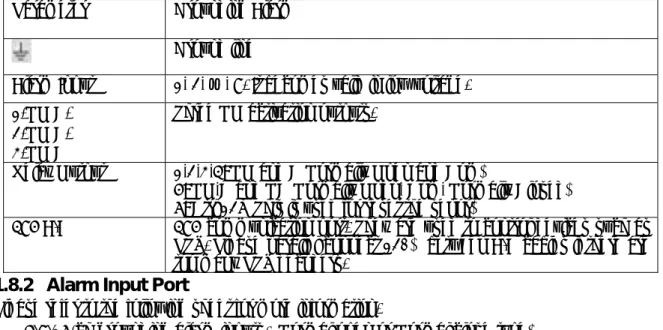
Parameter Grounding Alarm Ground line
Alarm Input 1, 2, …, 8. It becomes valid in low voltage. 1-NO C,
2-NO C, 3-NO C
Three NO activation outputs.
Relay Output 1,2,3,4: NO and C(Normally Open and Com)
5: NO,C and NC(Normally Open, Com, Normally Closed) 6: Ctrl 12V(This is used for reset the senor)
485 A/B 485 communication port. They are used to control devices such as PTZ. Please parallel connect 120Ω between A/B cables if there are too many PTZ decoders.
1.8.2 Alarm Input Port
Please refer to the following sheet for more information.
z 4/8/16-ch grounding alarm inputs. (Normal open or Normal close type)
z Please parallel connect COM end and GND end of the alarm detector (Provide external power to the alarm detector).
z Please parallel connect the Ground of the DVR and the ground of the alarm detector. z Please connect the NC port of the alarm sensor to the DVR alarm input(ALARM) z Use the same ground with that of DVR if you use external power to the alarm device.
Figure 1-7
1.8.3 Alarm Output Port
z 3 ways relay alarm output (NO contact). Provide external power to external alarm device. z To avoid overloading, please read relay parameters sheet in the User’s Manual carefully. z RS485 A/B cable is for the A/B cable of the PTZ decoder.
2
Overview of Navigation and Controls
Before operation, please make sure you have properly installed HDDs and all the cable connections.
2.1
Login, Logout & Main Menu
2.1.1 Login
After system booted up, default video display is in multiple-window mode. Click Enter or left click mouse, you can see the login interface. See Figure 2-1. System consists of four accounts:
z Username: admin. Password: admin. (administrator, local and network)
z Username: 888888. Password: 888888. (administrator, local only)
z Username: 666666. Passwords: 666666(Lower authority user who can only monitor, playback,
backup and etc.)
z Username: default. Password: default(hidden user)
You can use USB mouse, front panel, remote control (not included in the accessory bag) or keyboard to input. About input method: Click to switch between numeral, English character (small/capitalized) and denotation.
Note:
For security reason, please modify password after you first login.
Within 30 minutes, three times login failure will result in system alarm and five times login failure will result in account lock!
Figure 2-1
2.1.2 Main Menu
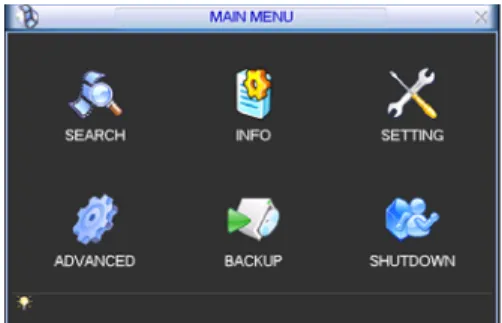
After you logged in, the system main menu is shown as below. See Figure 2-2.
There are total six icons: search, information, setting, backup, advanced and shutdown. You can move the cursor to highlight the icon, and then double click mouse to enter the sub-menu.
2.1.3 Logout
There are two ways for you to log out. The first one is from menu option:
In the main menu, click shutdown button, you can see an interface is shown as below. See Figure 2-3.
Figure 2-3
There are several options for you. See Figure 2-4.Figure 2-4
The other ways is to press power button on the front panel for at least 3 seconds, system will stop all operations. Then you can click the power button in the front panel to turn off the DVR. Please note, before you replace the HDD, do remember shutting down the device and unplug the power cable.
2.1.4
Auto Resume after Power Failure
The system can automatically backup video and resume previous working status after power failure.
2.2
Recording Operation
2.2.1 Live Viewing
After you logged in, the system is in live viewing mode by default. You can see system date, time and channel name. If you want to change system date and time, you can refer to general settings (Main Menu->Setting->General). If you want to modify the channel name, please refer to the display settings (Main Menu->Setting->Display)
1
Recording status
3
Video loss
2
Motion detection
4
Camera lock
2.3
Record Setup (Schedule)
Note:
You need to have proper rights to implement the following operations. Please make sure the HDDs have been properly installed.
After the system booted up, it is in default 24-hour regular mode. You can set record type and time in schedule interface.
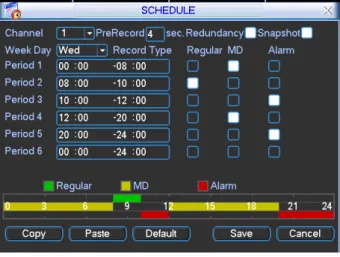
In the main menu, from Setting to Schedule, you can go to schedule menu. See Figure 2-5. There are total six periods.
z Channel: Please select the channel number first. You can select “all” if you want to set for the whole channels.
z Week day: There are eight options: ranges from Saturday to Sunday and all.
z Pre-record: System can pre-record the video before the event occurs into the file. The value ranges from 1 to 30 seconds depending on the bit stream.
z Redundancy: System supports redundancy backup function. You can highlight Redundancy button to activate this function. Please note, before enable this function, please set at least one HDD as redundant. (Main menu->Advanced->HDD Management). Please note
redundancy function does not applies to 1U series since there is only one HDD,
z Snapshoot: You can enable this function to snapshoot image when alarm occurs. z Record types: There are three types: regular, motion detection (MD) and Alarm.
Please highlight icon to select the corresponding function. After completing all the setups please click save button, system goes back to the previous menu.
At the bottom of the menu, there are color bars for your reference. Green color stands for regular recording, yellow color stands for motion detection and red color stands for alarm recording.
Figure 2-5
2.3.2 Manual Record
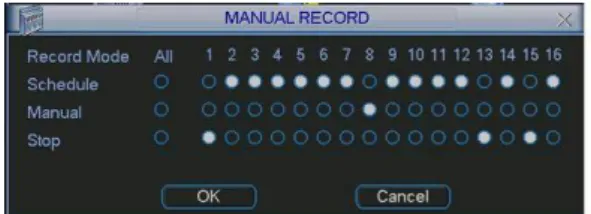
You can right click mouse or in the main menu, from Advanced->Manual Record to go to record interface.
There are three statuses: schedule/manual/stop. Highlight icon“○” to select corresponding channel. See Figure 2-6.
z Manual: The highest priority. After manual setup, all selected channels will begin ordinary recording.
z Schedule: Channel records as you have set in recording setup (Main Menu->Setting->Schedule)
Figure 2-6
2.3.3 Encode
Encode interface is shown as in Figure 2-7. z Channel: Select the channel you want. z Compression: System supports H.264.
z Resolution: System supports various resolutions, you can select from the dropdown list. For this model, we support D1/CIF/QCIF. Please note the resolution may vary due to different channels.
z Bit rate: system supports two types: CBR and VBR. In VBR mode, you can set video quality. z Quality: There are six levels ranging from 1 to 6. The sixth level has the highest image
quality.
z Frame rate: It ranges from 1f/s to 25f/s in NTSC mode and 1f/s to 30f/s in PAL mode. z Video/audio: you can enable or disable the video/audio. Please note the video is enabled for
main stream by default. For extra stream, please enable video first and then enable audio. z Snapshot: Click snapshot button, you can see it contains the four items: mode/image
size/image quality/snapshot frequency. Please refer to chapter 2.3.3 for detail information. Please highlight icon to select the corresponding function.
Figure 2-7
2.3.4 Snapshot
2.3.4.1 Schedule Snapshot
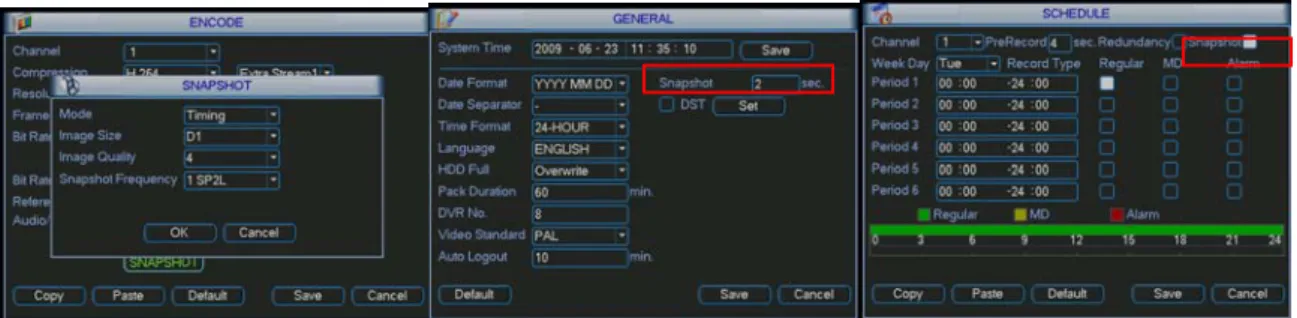
In Encode interface, click snapshot button to input snapshot mode, size, quality and frequency.
In General interface please input upload interval. In Schedule interface, please enable snapshot function.
Figure 2-8
2.3.4.2 Activation Snapshot
In Encode interface, click snapshot button to input snapshot mode, size, quality and frequency.
In General interface please input upload interval.
In Detect interface please enable snapshot function for specified channels. In Alarm interface please enable snapshot function for specified channels. Please refer to the following figure for detail information. See Figure 2-9.
Figure 2-9
2.3.4.3 Priority
Please note the activation snapshot has the higher priority than schedule snapshot. If you have enabled these two types at the same time, system can activate the activation snapshot when alarm occurs, and otherwise system just operates the schedule snapshot.
2.3.5 Image FTP
In Network interface, you can set FTP server information. Please enable FTP function and then click save button. See Figure 2-10.Please refer to the User’s Manual included in the resource CD for detailed information.
Please boot up corresponding FTP server.
Please enable schedule snapshot or activation snapshot (Chapter 2.3.3) and then system can upload the image file to the FTP server.
Please input the corresponding information here, if you just upload the image FTP.
Figure 2-10
2.3.6 Search and Playback
Click search button in the main menu, search interface is shown as below. See Figure 2-11. Usually there are three file types:
z R: Regular recording file.- z A: External alarm recording file. z M: Motion detection recording file
There are several playback windows. Usually system supports 1/2/3/4-ch playback.
Figure 2-11
Please refer to the following sheet for more information.Serial Number Function
1 Play 2 Backward 3 Stop 4 Slow play 5 Fast play 6 Previous frame 7 Next frame 8 Volume 9 Previous file 10 Next channel 11 Next file 12 Previous channel 13 Search 14 Backup
2.3.7 Basic Operation
2.3.7.1 Playback
There are various search modes: video type, channel number or time. The system can max display 128 files in one screen. You can use page up/down button to view if there are more
Select the file name and double click mouse (or click enter button), you can view file content. 2.3.7.2 Accurate playback
Input time (h/m/s) in the time column and then click playback button, system can operate accurate playback.
2.3.7.3 Synchronized playback function when playback
During playback process, click numeral key, system can switch to the corresponding channel video of the same time.
2.3.7.4 Digital zoom
When the system is in full-screen playback mode, drag your mouse in the screen to select a section and then left click mouse to realize digital zoom. You can right click mouse to exit. 2.3.7.5 File backup
System supports backup operation during search. You can draw a √ before file name (multiple choices). Then click backup button (Button 14 in Figure 2-11).
2.3.7.6 Slow playback and fast playback
Please refer to the following sheet for slow play and fast playback function.
Button Illustration Remarks
Fast play button In playback mode, click this button to switch between various fast play modes such as fast play 1,fast play 2 and more. Slow play button ► In playback mode, click this button to
switch between various slow play modes such as slow play 1 or slow play 2.
Frame rate may vary due to different versions.
Play/Pause► In slow playback mode, click this button to switch between play/pause modes. Previous/next In playback mode, you can click │_ and
` to view previous or next video in current channel.
2.3.7.7 Backward playback and frame by frame playback
Button Illustration Remarks
Backward play: _ in playback interface.
In normal playback mode, left click backward play button
_
, system begins backward playback.Double click backward play button again, system goes to pause mode.
Manual playback
frame by frame. Click pause button in normal playback mode, you can use W│ and │X to view frame by frame.
When system is in backward play or frame by frame playback mode, you can click play button►/ to go to normal playback. Note:
All the operations here (such as playback speed, channel, time and progress) have relationship with hardware version. Some series DVRs do not support some functions or playback speeds.
2.4
Network Setup
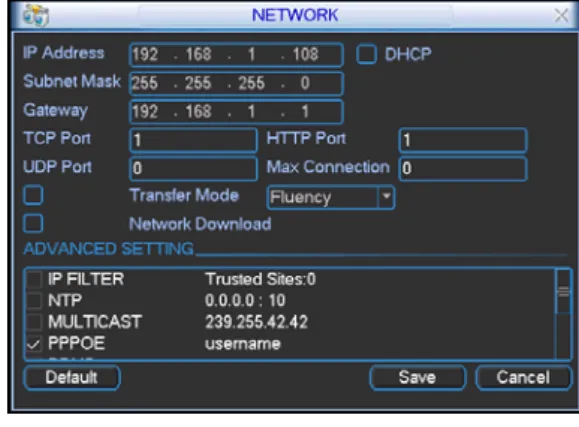
Here is for you to input network information. See Figure 2-12. z IP address: Here you can input IP address.
z DHCP: It is auto search IP function. When enable DHCP function, you can not modify IP/Subnet mask /Gateway. These values are from DHCP function. If you have not enabled DHCP function, IP/Subnet mask/Gateway display as o. You need to disable DHCP function
to view current IP information. Besides, when PPPoE is operating, you can not modify IP/Subnet mask /Gateway.
z TCP port: Default value is 37777. z UDP port: Default value is 37778. z HTTP port: Default value is 80.
z Max connection: system support maximal 10 users. 0 means there is no connection limit. z Transfer mode: Here you can select the priority between fluency/video qualities.
z Network download: System can process the downloaded data first if you enable this function. z Advanced setting: Please refer to the user’s manual included in the resource CD for detail
information.
After completing all the setups please click save button, system goes back to the previous menu.
Figure 2-12
2.5
Pan/Tilt/Zoom
Please note:
z Slight difference may be found in the user’s interface, due to various protocols.
z Please make sure the speed domes A/B cables are properly connected to the A/B ports of DVR.
z You have properly set PTZ information.
z Please switch camera monitor channel to current window.
2.5.1 PTZ
Setup
The pan/tilt/zoom setup includes the following items. Please select channel first. See Figure 2-13. z Protocol: Select corresponding PTZ protocol such as PELCOD.
z Address: Input corresponding PTZ address. z Baud rate: Select baud rate.
z Data bit: Select data bit. Default value is 8. z Stop bit: Select stop bit. Default value is 1.
Figure 2-13
After completing all the setups please click save button, system goes back to the previous menu.
2.5.2 PTZ Operation
In one window display mode, right click mouse (click “Fn” Button in the front panel or click “Fn” key in the remote control). The interface is shown as in Figure 2-14.
Figure 2-14
Click Pan/Tilt/Zoom, the interface is shown as below. See Figure 2-15. Here you can set the following items:
z Step: value ranges from 1 to 8. z Zoom
z Focus z Iris
Click icon and to adjust zoom, focus and iris.
Figure 2-15
In Figure 2-15, please click direction arrows (See Figure 2-16) to adjust PTZ position. There are total 8 direction arrows. Please note if you use remote control, you can use just four directions (Up/down/left/right).
Figure 2-16
2.5.3 3D Intelligent Positioning Key
In the middle of the eight direction arrows, there is a 3D intelligent positioning key. See Figure 2-17. Please note, this function needs protocol supported and can only be operated by mouse. Click this key, system goes back to the single screen mode. Drag the mouse in the screen to adjust section size. It can realize PTZ automatically.
Figure 2-17
Here is a sheet for you reference.Name Function
key function Shortcut key Function key function Shortcut Key
Zoom Near ► Far
Focus Near _ Far ►
Iris close W Open f
You can click set button in Figure 2-15 (or click REC button in the front panel) to set preset, tour, and pattern.
You can click page switch button in Figure 2-15(or click Fn button in the front panel) to call main function.
3
Web Client Operation
Slightly difference may be found in the interface due to different series.
3.1
Network Connection
Before web client operation, please check the following items: z Network connection is right
z DVR and PC network setup is right. Please refer to network setup(main menu->setting->network)
z Use order ping ***.***.***.***(* DVR IP address) to check connection is OK or not. Usually the return TTL value should be less than 255.
z System can automatically download latest web control and the new version can overwrite the previous one.
z If you want to un-install the web controls, please run uninstall webrec2.0.bat to auto delete the control or you can go to C:\Program Files\webrec to delete Single folder.
3.2
Login
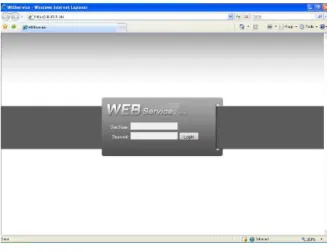
Open IE and input DVR address in the address column. For example, if your DVR IP is 10.10.3.16, then please input http:// 10.10.3.16 in IE address column.
System pops up warning information to ask you whether install webrec.cab control or not. Please click yes button.
If you can’t download the ActiveX file, please modify your IE security setup. After installation, the interface is shown as below. See Figure 3-1.
Please input your user name and password.
Default factory name is admin and password is admin.
Note: For security reasons, please modify your password after you first login.
Figure 3-1
3.3
Main Window
After you logged in, you can see the main window. See Figure 3-2. Click the channel name on the left side; you can view the real-time video.
For detailed operation information, please refer to the User’s Manual included in the resources CD.
Figure 3-2
Note
z For detailed operation introduction, please refer to our resource CD included in your package for electronic version of the User’s Manual.
z Slight difference may be found in user interface.
z All the designs and software here are subject to change without prior written notice.