Symantec Enterprise Vault™
Setting up SMTP Archiving
8.0
Symantec Enterprise Vault: Setting up SMTP Archiving
The software described in this book is furnished under a license agreement and may be used only in accordance with the terms of the agreement.Last updated: May 11, 2010.
Legal Notice
Copyright © 2010 Symantec Corporation. All rights reserved.
Symantec, the Symantec Logo, Veritas, Enterprise Vault, Compliance Accelerator, and Discovery Accelerator are trademarks or registered trademarks of Symantec Corporation or its affiliates in the U.S. and other countries. Other names may be trademarks of their respective owners.
This Symantec product may contain third party software for which Symantec is required to provide attribution to the third party (“Third Party Programs”). Some of the Third Party Programs are available under open source or free software licenses. The License Agreement accompanying the Software does not alter any rights or obligations you may have under those open source or free software licenses. Please see the Third Party Software file accompanying this Symantec product for more information on the Third Party Programs. The product described in this document is distributed under licenses restricting its use, copying, distribution, and decompilation/reverse engineering. No part of this document may be reproduced in any form by any means without prior written authorization of Symantec Corporation and its licensors, if any.
THE DOCUMENTATION IS PROVIDED "AS IS" AND ALL EXPRESS OR IMPLIED CONDITIONS, REPRESENTATIONS AND WARRANTIES, INCLUDING ANY IMPLIED WARRANTY OF MERCHANTABILITY, FITNESS FOR A PARTICULAR PURPOSE OR NON-INFRINGEMENT, ARE DISCLAIMED, EXCEPT TO THE EXTENT THAT SUCH DISCLAIMERS ARE HELD TO BE LEGALLY INVALID. SYMANTEC CORPORATION SHALL NOT BE LIABLE FOR INCIDENTAL OR CONSEQUENTIAL DAMAGES IN CONNECTION WITH THE FURNISHING,
PERFORMANCE, OR USE OF THIS DOCUMENTATION. THE INFORMATION CONTAINED IN THIS DOCUMENTATION IS SUBJECT TO CHANGE WITHOUT NOTICE.
The Licensed Software and Documentation are deemed to be commercial computer software as defined in FAR 12.212 and subject to restricted rights as defined in FAR Section 52.227-19 "Commercial Computer Software - Restricted Rights" and DFARS 227.7202, "Rights in Commercial Computer Software or Commercial Computer Software Documentation", as applicable, and any successor regulations. Any use, modification, reproduction release, performance, display or disclosure of the Licensed Software and Documentation by the U.S. Government shall be solely in accordance with the terms of this Agreement.
Symantec Corporation
350 Ellis Street, Mountain View, CA 94043 http://www.symantec.com
Technical Support
Symantec Technical Support maintains support centers globally. Technical Support’s primary role is to respond to specific queries about product features and functionality. The Technical Support group also creates content for our online Knowledge Base. The Technical Support group works collaboratively with the other functional areas within Symantec to answer your questions in a timely fashion. For example, the Technical Support group works with Product Engineering and Symantec Security Response to provide alerting services and virus definition updates.
Symantec’s support offerings include the following:
■ A range of support options that give you the flexibility to select the right amount of service for any size organization
■ Telephone and/or Web-based support that provides rapid response and up-to-the-minute information
■ Upgrade assurance that delivers software upgrades
■ Global support purchased on a regional business hours or 24 hours a day, 7 days a week basis
■ Premium service offerings that include Account Management Services For information about Symantec’s support offerings, you can visit our Web site at the following URL:
www.symantec.com/business/support/
All support services will be delivered in accordance with your support agreement and the then-current enterprise technical support policy.
Contacting Technical Support
Customers with a current support agreement may access Technical Support information at the following URL:
www.symantec.com/business/support/
Before contacting Technical Support, make sure you have satisfied the system requirements that are listed in your product documentation. Also, you should be at the computer on which the problem occurred, in case it is necessary to replicate the problem.
When you contact Technical Support, please have the following information available:
■ Hardware information
■ Available memory, disk space, and NIC information ■ Operating system
■ Version and patch level ■ Network topology
■ Router, gateway, and IP address information ■ Problem description:
■ Error messages and log files
■ Troubleshooting that was performed before contacting Symantec ■ Recent software configuration changes and network changes
Licensing and registration
If your Symantec product requires registration or a license key, access our technical support Web page at the following URL:
www.symantec.com/business/support/
Customer service
Customer service information is available at the following URL: www.symantec.com/business/support/
Customer Service is available to assist with non-technical questions, such as the following types of issues:
■ Questions regarding product licensing or serialization
■ Product registration updates, such as address or name changes
■ General product information (features, language availability, local dealers) ■ Latest information about product updates and upgrades
■ Information about upgrade assurance and support contracts ■ Information about the Symantec Buying Programs
■ Advice about Symantec's technical support options ■ Nontechnical presales questions
Support agreement resources
If you want to contact Symantec regarding an existing support agreement, please contact the support agreement administration team for your region as follows:
[email protected] Asia-Pacific and Japan
[email protected] Europe, Middle-East, and Africa
[email protected] North America and Latin America
Technical Support
... 3Chapter 1
About this guide
... 9Introducing this guide ... 9
Where to get more information about Enterprise Vault ... 9
Comment on the documentation ... 11
Chapter 2
Setting up SMTP archiving
... 13About SMTP archiving ... 13
How SMTP archiving works ... 14
Overview of setting up SMTP archiving ... 15
Setting up the Microsoft SMTP Server ... 16
Installing the SMTP archiving components ... 17
Setting up the holding area ... 17
Choosing a location for the holding area ... 17
How SMTP archiving selects the holding area folder to use ... 18
Creating the folder structure in the holding area ... 20
Setting up the SMTP archiving configuration file ... 22
Example configuration file ... 25
Running SMTP archiving ... 26
Setting up File System Archiving to archive the SMTP messages ... 28
Index
... 31Contents 8
About this guide
This chapter includes the following topics: ■ Introducing this guide
■ Where to get more information about Enterprise Vault ■ Comment on the documentation
Introducing this guide
This guide describes how to set up Enterprise Vault so that you can archive SMTP messages from other messaging servers.
The guide assumes that you know how to administer the following Microsoft products:
■ Microsoft Windows Server 2003 or Windows Server 2008 ■ Internet Information Services (IIS)
Where to get more information about Enterprise Vault
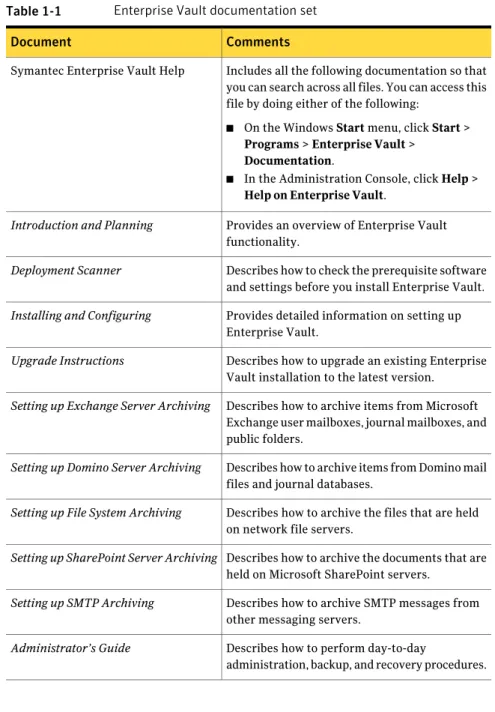
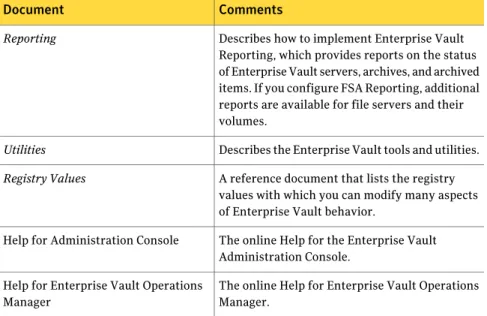
Table 1-1lists the documentation that accompanies Enterprise Vault.
1
Table 1-1 Enterprise Vault documentation set
Comments Document
Includes all the following documentation so that you can search across all files. You can access this file by doing either of the following:
■ On the Windows Start menu, click Start >
Programs > Enterprise Vault > Documentation.
■ In the Administration Console, click Help >
Help on Enterprise Vault.
Symantec Enterprise Vault Help
Provides an overview of Enterprise Vault functionality.
Introduction and Planning
Describes how to check the prerequisite software and settings before you install Enterprise Vault.
Deployment Scanner
Provides detailed information on setting up Enterprise Vault.
Installing and Configuring
Describes how to upgrade an existing Enterprise Vault installation to the latest version.
Upgrade Instructions
Describes how to archive items from Microsoft Exchange user mailboxes, journal mailboxes, and public folders.
Setting up Exchange Server Archiving
Describes how to archive items from Domino mail files and journal databases.
Setting up Domino Server Archiving
Describes how to archive the files that are held on network file servers.
Setting up File System Archiving
Describes how to archive the documents that are held on Microsoft SharePoint servers.
Setting up SharePoint Server Archiving
Describes how to archive SMTP messages from other messaging servers.
Setting up SMTP Archiving
Describes how to perform day-to-day
administration, backup, and recovery procedures.
Administrator’s Guide
About this guide
Where to get more information about Enterprise Vault
Table 1-1 Enterprise Vault documentation set (continued)
Comments Document
Describes how to implement Enterprise Vault Reporting, which provides reports on the status of Enterprise Vault servers, archives, and archived items. If you configure FSA Reporting, additional reports are available for file servers and their volumes.
Reporting
Describes the Enterprise Vault tools and utilities.
Utilities
A reference document that lists the registry values with which you can modify many aspects of Enterprise Vault behavior.
Registry Values
The online Help for the Enterprise Vault Administration Console.
Help for Administration Console
The online Help for Enterprise Vault Operations Manager.
Help for Enterprise Vault Operations Manager
For the latest information on supported devices and versions of software, see the
Enterprise Vault Compatibility Charts book, which is available from this address:
http://entsupport.symantec.com/docs/276547
Comment on the documentation
Let us know what you like and dislike about the documentation. Were you able to find the information you needed quickly? Was the information clearly presented? Report errors and omissions, or tell us what you would find useful in future versions of our guides and online help.
Please include the following information with your comment:
■ The title and product version of the guide on which you want to comment. ■ The topic (if relevant) on which you want to comment.
■ Your name.
Email your comment [email protected]. Please only use this address to comment on product documentation.
We appreciate your feedback.
11 About this guide
About this guide
Comment on the documentation
Setting up SMTP archiving
This chapter includes the following topics:■ About SMTP archiving ■ How SMTP archiving works
■ Overview of setting up SMTP archiving ■ Setting up the Microsoft SMTP Server ■ Installing the SMTP archiving components ■ Setting up the holding area
■ Setting up the SMTP archiving configuration file ■ Running SMTP archiving
■ Setting up File System Archiving to archive the SMTP messages
About SMTP archiving
The Enterprise Vault SMTP archiving feature enables Enterprise Vault to capture and archive SMTP messages at the point of delivery to a Microsoft SMTP Server (the SMTP service that is included in Windows Server 2000 and later). The SMTP archiving feature operates independently of the messaging solution that you employ.
You may have messaging or workflow applications in your organization that use SMTP to communicate with users or other applications. Increased compliance legislation may require you to archive this communication and make it available for auditing. By using SMTP archiving, you can capture and store the messages centrally. Then you can search, view and, if necessary, restore the messages using Enterprise Vault Search or Archive Explorer clients.
2
You cannot use SMTP archiving to archive MAPI messages.
How SMTP archiving works
Figure 2-1illustrates the components of Enterprise Vault SMTP archiving. Figure 2-1 SMTP architecture
SMTP message archiving involves three basic steps:
■ You must set up a mechanism to send the SMTP messages for archiving to a Microsoft SMTP Server. The Microsoft SMTP Server must not be configured as a relay, so if necessary you should send copies to it. For example, in Figure 2-1a third-party SMTP messaging server receives SMTP messages and relays them on to their destinations. For specific message recipient domains, the SMTP server also sends a blind copy (BCC) to the Microsoft SMTP Server for Enterprise Vault SMTP archiving to process.
Setting up SMTP archiving
How SMTP archiving works
■ SMTP archiving processes the messages that the Microsoft SMTP Server receives, and stores them as EML files in a holding area.
You must set up the holding area with a domain root folder for each recipient address domain. You can configure SMTP archiving to create a mailbox folder with an archive point automatically for each recipient address; otherwise you must create the mailbox folders and archive points manually.
SMTP archiving stores the messages in the holding area in a subfolder structure as follows:
DomainRoot\MailboxName\Year\Month\Day\Hour
For example:
symantecdomain\j.doe\2009\08\30\09
■ Enterprise Vault's File System Archiving (FSA) takes the EML files from the holding area and stores them in archives. FSA creates the archives based on the location of the archive points in the holding area folder structure. If SMTP archiving created the archive points automatically, FSA creates a separate archive for each mailbox.
Overview of setting up SMTP archiving
You need to perform the following steps to configure SMTP archiving:
■ Ensure that the prerequisites are satisfied for the Enterprise Vault server and SMTP archiving.
See the "Enterprise Vault prerequisites" section of the Installing and
Configuring manual for more information, including "Additional prerequisites
for SMTP archiving".
■ Set up the Microsoft SMTP virtual server.
See“Setting up the Microsoft SMTP Server”on page 16.
■ Install and configure the Enterprise Vault SMTP archiving components on the Microsoft SMTP Server computer.
See“Installing the SMTP archiving components”on page 17. ■ Create the holding area and its folder structure.
See“Setting up the holding area”on page 17.
■ On the Microsoft SMTP Server computer, create a suitable SMTP archiving configuration file.
See“Setting up the SMTP archiving configuration file”on page 22.
■ Run SMTP archiving to populate the holding area with the files to be archived.
15 Setting up SMTP archiving
See“Running SMTP archiving”on page 26.
■ On the Enterprise Vault server, configure File System Archiving to archive from the domain root folders of the holding area.
See“Setting up File System Archiving to archive the SMTP messages” on page 28.
Setting up the Microsoft SMTP Server
Set up a Microsoft SMTP Server as the destination messaging server for any SMTP messages to be archived by Enterprise Vault. Do not configure this server to relay messages on to other messaging servers: it should only receive SMTP messages for archiving. Enterprise Vault captures the SMTP mail before it reaches the Microsoft SMTP Server's delivery area, and saves the mail to the SMTP archiving holding area.
Although you can install the Microsoft SMTP Server on the same computer as Enterprise Vault, it is more common to install it on a separate computer. For information on the requirements for the Microsoft SMTP Server computer, see the section "Additional prerequisites for SMTP archiving" in the Installing
and Configuring manual.
To set up the Microsoft SMTP Server, configure a Microsoft SMTP virtual server in IIS. Configure the Microsoft SMTP virtual server with a remote domain for each recipient address domain that is used in the messages.
For instructions on how to configure a Microsoft SMTP Server, see the Microsoft documentation.
As the Microsoft SMTP Server is the destination messaging server for any SMTP messages to be archived by Enterprise Vault, configure the required domain addresses in DNS.
You must configure a mechanism to send the messages to the Microsoft SMTP Server for archiving. For example, you can configure a gateway mail server to do as follows:
■ Receive the SMTP traffic.
■ Relay the messages on to their destinations.
■ For the messages with the recipient address domains that you want to archive, send a blind copy (BCC) to the Microsoft SMTP Server.
Setting up SMTP archiving
Setting up the Microsoft SMTP Server
Installing the SMTP archiving components
This section describes how to install the Enterprise Vault SMTP archiving components on the Microsoft SMTP Server computer.
To install the SMTP archiving components
1
Save your Enterprise Vault ELS license key file in a temporary location on the Microsoft SMTP Server computer. The Enterprise Vault installation wizard prompts you for the license file during the component installation.See "Licenses and license keys" in the Installing and Configuring manual.
2
On the Microsoft SMTP Server computer, log on as a user with local administrator privileges.Close all applications and MMC consoles before you continue.
3
Put the Enterprise Vault media in the drive.4
Open theSymantec Enterprise Vault 8.0 SPnfolder, and then open theServerfolder.
5
Double-clickSetup.exeto start the installation.6
In the component selection window, select the SMTP Archiving Components check box.7
Follow the on-screen instructions to complete the installation.This procedure installs the following in the Enterprise Vault installation folder, which is typicallyC:\Program Files\Enterprise Vault: ■ The SMTP archiving process,EvSmtpArchiveConfig.exe. ■ A skeleton configuration file,EvSmtpArchiveConfig.ini.
Setting up the holding area
You must create a holding area for the SMTP messages that FSA is to archive, and then set up a suitable folder structure within it to hold the SMTP files.
Choosing a location for the holding area
You must choose a location for the holding area that holds the SMTP files until FSA archives them.
When choosing a location for the holding area, note the following:
■ For information on the requirements for the holding area computer, see "Additional prerequisites for SMTP archiving" in Installing and Configuring.
17 Setting up SMTP archiving
■ We recommend that the holding area is on a drive that is local to the computer on which the SMTP archiving components are installed. Using a network location for the holding area may affect performance.
■ The format of the target location can be FAT or NTFS.
■ The holding area must be a share or must be located on a volume that is a share, so that it can be a target for File System Archiving. The Vault Service account must have access to the share.
■ The disk space that is required for the holding area depends on the size of the messages, and the speed at which Enterprise Vault archives the files. ■ The following accounts must have Read and Change permissions on the folders
in the holding area:
■ The Vault Service account (the account under which File System Archiving runs).
■ The account that SMTP archiving uses to write to the holding area. You determine this account when you run the SMTP archiving process. The account must be a standard user account. Do not use the Vault Service account or a local administrator account. You can use the account that IIS uses, which is LocalSystem, by default.
See“Running SMTP archiving”on page 26.
How SMTP archiving selects the holding area folder to use
SMTP archiving examines the recipient email address on each message to decide in which folder to hold the message.
SMTP archiving selects the target folder for each message as follows: ■ It checks to see if a root folder exists for the recipient domain.
■ If a recipient domain root folder does not exist, the message is sent to the server non-delivery folder. If the non-delivery folder does not exist, SMTP archiving writes an error to the event log and discards the message. ■ Under the appropriate domain root folder, it checks for a mailbox folder for
the recipient name.
■ If it finds the mailbox folder, the message is stored within that folder. ■ If the mailbox folder does not exist and auto-enabling of mailbox folders is on,
SMTP archiving creates a new mailbox folder for the recipient name. SMTP archiving then stores the message within that folder.
■ If the mailbox folder does not exist and auto-enabling of mailbox folders is off, SMTP archiving sends the message to the non-delivery folder for that
Setting up SMTP archiving
Setting up the holding area
mailbox. If the non-delivery folder does not exist, SMTP archiving writes an error to the event log and discards the message.
The SMTP archiving configuration file defines the path to each root domain folder and non-delivery folder.
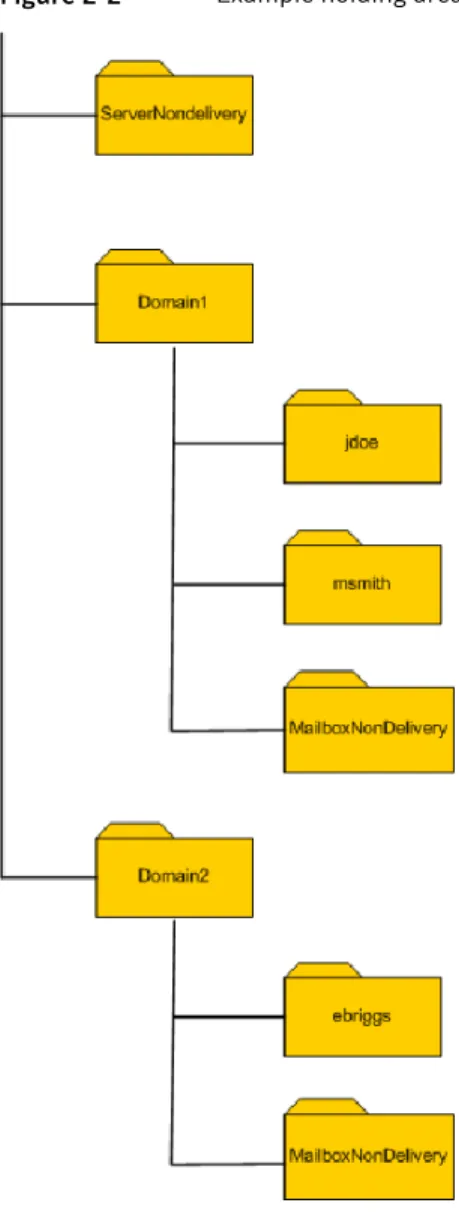
Figure 2-2shows an example holding area folder structure. See“Setting up the SMTP archiving configuration file”on page 22. Figure 2-2 Example holding area folder structure
19 Setting up SMTP archiving
Under each mailbox folder, SMTP archiving holds the messages within a
\Year\Month\Day\Hour subfolder structure, not shown in the figure.
If SMTP archiving encounters a Disk Full error for at least one of the folders, it waits for 60 seconds and then tries to store the message again. You can set a limit on the number of times that SMTP archiving retries by specifying the
DiskFullRetryLimit value in the SMTP archiving configuration file.
If SMTP archiving encounters an error, messages are sent to the Enterprise Vault event log. Critical messages are also sent to the following:
■ The Windows Application log.
■ Microsoft Operations Manager (MOM), if configured.
■ Microsoft System Center Operations Manager 2007 (SCOM), if configured.
Creating the folder structure in the holding area
You may want to perform this task in tandem with setting up the SMTP archiving configuration file.
See“Setting up the SMTP archiving configuration file”on page 22.
Before you create the folder structure you must decide whether you want to auto-enable mailbox folder creation for each message recipient domain: ■ If you auto-enable mailbox folder creation, SMTP archiving automatically
creates a mailbox folder for each recipient name under the domain root folder in the holding area. SMTP archiving also creates an archive point for each mailbox folder.
■ If you do not auto-enable mailbox creation for a domain, you must manually create all the mailbox subfolders when you set up the holding area folder structure. You must also define the archive points manually when you set up File System Archiving to archive the SMTP messages .
Setting up SMTP archiving
Setting up the holding area
To create the folder structure in the holding area
1
Within the holding area, create a domain root folder for each message recipient domain.For example, if the Microsoft SMTP Server receives messages that are addressed to thesymantecdomain.comdomain you can create a domain root
folder with a name such as symantecdomain.
You must associate the message recipient domain with the path to the domain root folder in the SMTP archiving configuration file.
2
If you do not intend to auto-enable mailbox creation for one or more domains, you must create a mailbox subfolder for each message recipient under the domain's root folder.Note:The name of the mailbox subfolder must correspond to the recipient name in the message address.
For example, if you expect to receive messages that are addressed
[email protected], create a mailbox folder that is named j.doe
under your symantecdomain domain root folder.
If you choose to create the mailbox folders manually, you must only use the characters that are acceptable in Windows folder names. In particular, the following characters are not permitted:
■ \ / : * ? " < > | @
■ ASCII codes 0 through 31 and 127
In general, SMTP archiving cannot handle messages with a recipient address that contains any of these characters.
3
Optionally, create a server non-delivery folder for any messages with unrecognized recipient address domains (domains that are not listed in the SMTP archiving configuration file).If you do not create this folder and specify its path in the SMTP archiving configuration file, SMTP archiving loses any associated non-delivered items.
4
Optionally, create a mailbox non-delivery folder for each recipient address domain.If you do not create these folders and specify their paths in the SMTP archiving configuration file, SMTP archiving loses any associated non-delivered items.
21 Setting up SMTP archiving
Setting up the SMTP archiving configuration file
You must set up an SMTP archiving configuration file to provide information to the SMTP archiving process.The SMTP archiving configuration file includes the following information: ■ The Microsoft SMTP virtual server to which SMTP archiving binds. ■ The priority of the holding process in relation to other processes.
■ The location of the folder in which to save messages without a recipient address domain root folder.
■ For each recipient address domain:
■ The path to the domain root folder in the holding area.
■ Whether SMTP archiving is to create mailbox folders and archive points automatically under the domain root folder.
■ The level of indexing to be applied.
The configuration file must be located in the Enterprise Vault installation folder, typicallyC:\Program Files\Enterprise Vault. A skeleton configuration file, EvSmtpArchiveConfig.ini, is installed when you install the SMTP archiving components.
The file is in INI format, with several sections that contain key=value entries:
[SectionName] key=value key=value ...
[SectionName] key=value key=value ...
Edit the skeleton configuration file, or create a new one. Use a plain text editor such as Notepad, and save the file as a Unicode file. You specify the name of the configuration file when you run SMTP archiving.
Note the following:
■ Section and attribute names are not case sensitive. ■ White space and blank lines are ignored.
■ Comment lines must have a semi-colon in the first non-white space.
Setting up SMTP archiving
Setting up the SMTP archiving configuration file
■ You can specify local drives or UNC hidden or regular shares in the configuration file. However, for security and performance reasons we recommend that you use local paths where possible.
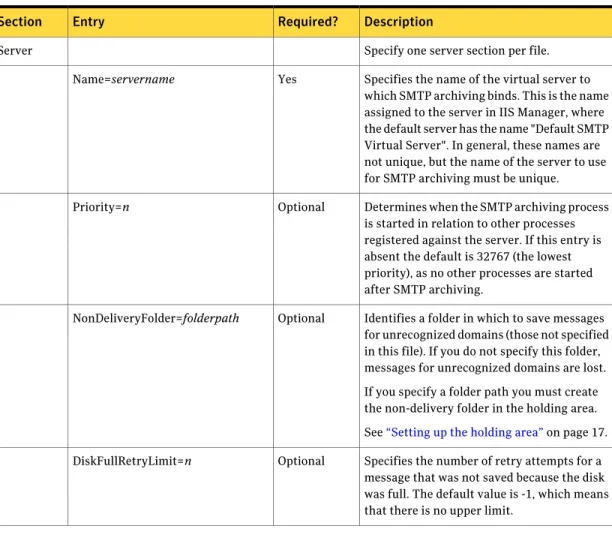
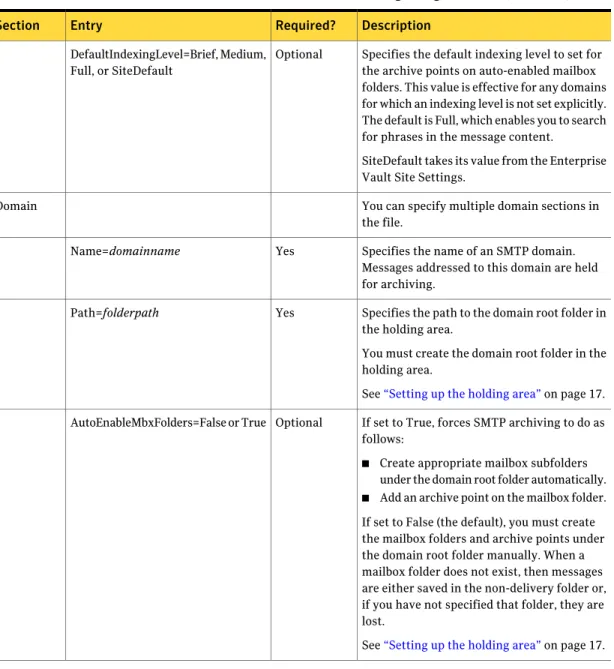
Table 2-1lists the possible entries in the SMTP archiving configuration file. Table 2-1 Entries in the SMTP archiving configuration file
Description Required?
Entry Section
Specify one server section per file. Server
Specifies the name of the virtual server to which SMTP archiving binds. This is the name assigned to the server in IIS Manager, where the default server has the name "Default SMTP Virtual Server". In general, these names are not unique, but the name of the server to use for SMTP archiving must be unique. Yes
Name=servername
Determines when the SMTP archiving process is started in relation to other processes registered against the server. If this entry is absent the default is 32767 (the lowest priority), as no other processes are started after SMTP archiving.
Optional Priority=n
Identifies a folder in which to save messages for unrecognized domains (those not specified in this file). If you do not specify this folder, messages for unrecognized domains are lost. If you specify a folder path you must create the non-delivery folder in the holding area. See“Setting up the holding area”on page 17. Optional
NonDeliveryFolder=folderpath
Specifies the number of retry attempts for a message that was not saved because the disk was full. The default value is -1, which means that there is no upper limit.
Optional DiskFullRetryLimit=n
23 Setting up SMTP archiving
Table 2-1 Entries in the SMTP archiving configuration file (continued)
Description Required?
Entry Section
Specifies the default indexing level to set for the archive points on auto-enabled mailbox folders. This value is effective for any domains for which an indexing level is not set explicitly. The default is Full, which enables you to search for phrases in the message content.
SiteDefault takes its value from the Enterprise Vault Site Settings.
Optional DefaultIndexingLevel=Brief, Medium,
Full, or SiteDefault
You can specify multiple domain sections in the file.
Domain
Specifies the name of an SMTP domain. Messages addressed to this domain are held for archiving.
Yes Name=domainname
Specifies the path to the domain root folder in the holding area.
You must create the domain root folder in the holding area.
See“Setting up the holding area”on page 17. Yes
Path=folderpath
If set to True, forces SMTP archiving to do as follows:
■ Create appropriate mailbox subfolders under the domain root folder automatically. ■ Add an archive point on the mailbox folder. If set to False (the default), you must create the mailbox folders and archive points under the domain root folder manually. When a mailbox folder does not exist, then messages are either saved in the non-delivery folder or, if you have not specified that folder, they are lost.
See“Setting up the holding area”on page 17. Optional
AutoEnableMbxFolders=False or True
Setting up SMTP archiving
Setting up the SMTP archiving configuration file
Table 2-1 Entries in the SMTP archiving configuration file (continued)
Description Required?
Entry Section
Specifies a path for a folder in which to save messages in the following situations: ■ Message cannot be saved in the mailbox
subfolder, because of a folder access error (such as disk full or access denied). ■ The mailbox subfolder does not exist and
AutoEnableMbxFolders is not set to True. If you specify a folder path you must create the non-delivery folder in the holding area. See“Setting up the holding area”on page 17. Optional
NonDeliveryFolder=folderpath
Specifies the indexing level to set for archive points on auto-enabled mailbox folders for the domain. The default is Full, which enables you to search for phrases in the message content. SiteDefault takes its value from the Enterprise Vault Site Settings.
Optional IndexingLevel=Brief, Medium, Full,
or SiteDefault
Note:Enterprise Vault does not index custom SMTP headers (X-headers) with the exception of "x-KVS-MessageType", which Compliance Accelerator uses to enable searches on Instant, Bloomberg, and Exchange messages.
Example configuration file
Here is an example configuration file that archives messages for two domains,
Domain1.Vault.LocalandDomain2.Vault.Local:
[Server]
Name=Default SMTP Virtual Server
NonDeliveryFolder=d:\EvMailRoot\ServerNonDelivery DiskFullRetryLimit=15 DefaultIndexingLevel=SiteDefault [Domain] Name=Domain1.Vault.Local Path=D:\EvMailRoot\Domain1 NonDeliveryFolder=d:\EvMailRoot\Domain1\MailboxNonDelivery [Domain] 25 Setting up SMTP archiving
Name=Domain2.Vault.Local Path=D:\EvMailRoot\Domain2 AutoEnableMbxFolders=True
NonDeliveryFolder=d:\EvMailRoot\Domain2\MailboxNonDelivery IndexingLevel=Brief
The holding area folders are on a local drive (D) on the SMTP archiving computer. The indexing level set in the Enterprise Vault Site Properties will be used for Domain1, but Brief indexing will be used for Domain2.
For Domain2 auto-enabling is set to True, which means that SMTP archiving will create the mailbox folders for this domain in the holding area, and create an archive point for each mailbox folder.
For Domain1 mailbox folder creation is not auto-enabled, which means that the administrator must create the mailbox folders and suitable archive points.
Running SMTP archiving
This section describes how to start and stop the SMTP archiving process
EvSmtpArchiveConfig.exe. This process populates the SMTP archiving holding
area with the EML message files.
You can start and stop the SMTP archiving process from the Start menu or from a command prompt.
To start the SMTP archiving process and assign the required configuration file
1
Log on to the SMTP archiving computer.2
Do one of the following:■ Click Start > Programs > Enterprise Vault > SMTP Archiving
Configuration
When you are prompted, enter the name of the SMTP archiving configuration file, for exampleEvSmtpArchiveConfig.ini.
When you are asked if you want to disable SMTP archiving, enter N. ■ Or open a command prompt window and change to the Enterprise Vault
installation folder.
Then enter the following command:
EvSmtpArchiveConfig config_file
Whereconfig_fileis the name of the required configuration file. The
default file isEvSmtpArchiveConfig.ini.
Setting up SMTP archiving
Running SMTP archiving
You can register one SMTP archiving process per Microsoft SMTP virtual server instance. If you run this command multiple times against the same virtual server, the previous settings are overwritten.
3
You are prompted to specify the domain name and user name of an account under which to run the process. This account must be a standard user account with Read and Change permissions to the holding area if it is on a network share. Do not use the Vault Service account or a local administrator account. ■ To use the IIS account (LocalSystem by default), press return withoutentering an account.
■ To specify an account, enter the domain name and user name in the form
domain_name\user_name. Enterprise Vault grants this account the right "log on as a batch process" on the holding area computer.
Enterprise Vault uses the chosen account until you stop the SMTP archiving process, or until you run the process again.
SMTP archiving parses the configuration file and reports any problems. SMTP archiving sends a message to the Enterprise Vault event log when the SMTP archiving process starts.
To stop the SMTP archiving process
1
Log on to the SMTP archiving computer.2
Do one of the following:■ Click Start > Programs > Enterprise Vault > SMTP Archiving
Configuration
When you are prompted, enter the full path to the SMTP archiving configuration file, for exampleC:\Program Files\Enterprise Vault\EvSmtpArchiveConfig.ini
You are then asked if you want to disable SMTP archiving. Enter Y. ■ Or open a command prompt window and change to the Enterprise Vault
installation folder.
Then unregister the SMTP archiving process by entering the following command:
EvSmtpArchiveConfig config_file /U
Whereconfig_fileis the name of the configuration file. The default file
isEvSmtpArchiveConfig.ini.
SMTP archiving parses the configuration file and reports any problems. If the parsing is successful, SMTP archiving indicates that SMTP archiving is disabled.
27 Setting up SMTP archiving
SMTP archiving sends a message to the Enterprise Vault event log when the SMTP archiving process stops.
Setting up File System Archiving to archive the SMTP
messages
You must configure File System Archiving on an Enterprise Vault server to archive the SMTP messages from the SMTP archiving holding area.
For information on the requirements for the Enterprise Vault server, see "Additional prerequisites for SMTP archiving" in Installing and Configuring. The required steps for setting up File System Archiving for the SMTP messages are given here. Each step refers you to the appropriate section in the Setting up
File System Archiving manual for detailed instructions.
You need to do as follows:
■ Add a File System Archiving task for the Enterprise Vault server.
See "Adding a File System Archiving task" in Setting up File System Archiving. ■ Add the computer that contains the holding area as a target file server for File System Archiving. We recommend that you do not use placeholder shortcuts, so you do not need to install the FSA Agent.
See "Adding file servers" in Setting up File System Archiving. ■ Create a suitable volume policy for archiving the EML files.
We recommend that you configure the volume policy as follows: ■ Disable quotas for the policy.
■ Do not replace the archived items with placeholder shortcuts. ■ Create an archiving rule to archive *.eml files. On the rule's Shortcut
Creation tab, select None. Archive and delete file.
See "Creating FSA archiving policies" in Setting up File System Archiving. ■ Add as a FSA target volume the holding area or the volume that includes the
holding area: apply the volume policy you created and select the option to archive the volume.
■ If you auto-enabled mailbox folder creation for a domain, SMTP archiving creates an archive point for each mailbox folder automatically. You can manage these archive points in the same way as regular archive points.
■ If you did not auto-enable mailbox folder creation for a domain, note the following:
Setting up SMTP archiving
Setting up File System Archiving to archive the SMTP messages
■ You must create the required archive points for the domain's mailbox folders manually. We recommend that you create one archive point and thus one archive for each mailbox folder. This configuration is the default if SMTP archiving creates the archive points automatically.
■ You may want to set the indexing level manually for the domain's archives. When setting the indexing level, choose "Full" if you want to be able to search for phrases in the message content. SMTP archiving sets the indexing level to "Full" for the archives of auto-enabled mailbox folders, by default.
Note:Custom SMTP headers (X-headers) are not indexed with the exception of "x-KVS-MessageType", which Compliance Accelerator uses to enable searches on Instant, Bloomberg, and Exchange messages.
■ Schedule the File System Archiving task so that it archives from the holding area at the required times.
See "Scheduling" in Setting up File System Archiving.
29 Setting up SMTP archiving
Setting up SMTP archiving
Setting up File System Archiving to archive the SMTP messages
E
EvSmtpArchiveConfig.exe 26 EvSmtpArchiveConfig.ini 22, 26
F
File System Archiving
archiving SMTP messages 28
H
Holding area for SMTP archiving 17 creating 20
S
SMTP archiving about 13 architecture 14 command line 26 configuration file 22 configuration utility 26 error messages 20 holding area 17
holding folder permissions 17 indexing levels 22, 29 indexing of X-headers 25 MAPI messages 14 relaying messages 16 running 26
setting up 15 setting up FSA for 28
setting up the Microsoft SMTP Server 16 software component installation 17