V8.4
800-782-3762
www.edgewave.com
Microsoft and Windows are either registered trademarks or trademarks of Microsoft Corporation in the United States and/or other countries.
Other product and company names mentioned herein may be the trademarks of their respective owners.
The Email Security software and its documentation are copyrighted materials. Law prohibits making unauthorized copies. No part of this software or documentation may be reproduced, transmitted, transcribed, stored in a retrieval system, or translated into another language without prior permission of EdgeWave.
Introduction
1
Accessing Your Personal Dashboard
1
Accessing Your Personal Dashboard through a Link 1
Accessing Your Personal Dashboard through the Spam Digest 2
Creating a Password
2
Creating a Password at Log In 2
Creating a Password in the Personal Dashboard 2
Changing Your Password
3
Viewing the Online FAQ
3
Messages Tab
4
Changing the Messages List Display 4
Sorting and Filtering the Message List 5
Viewing Inbound and Outbound Messages 5
Searching for Messages 6
Clearing the Filtered Message Display 6
Displaying Message Attributes 7
Viewing a Message 7
Releasing Messages 7
Deleting Messages 8
Selecting All Messages 9
Downloading a Message 9
Email Continuity 9
Settings Tab
11
Configuring Digest Settings 11
Policies Tab
12
Configuring Message Filtering 13
Configuring Subject Tags 14
Selecting Foreign Language Options 14
Selecting Attachment Options 16
Filtering by Sender 17
Viewing the Administrative Friends and Enemies List 19
Status Tab
19
Introduction
The Personal Dashboard is a Web portal for managing your email filtering account. It allows you to create and change your password, select your Spam Digest options, configure your mail filtering preference settings, manage your whitelist and blacklist, and run reports on quarantined messages. The Personal Dashboard has four tabs:
• Messages Tab: View, delete, and release filtered messages.
• Settings Tab: Manage your Spam Digest settings, such as frequency, format, content, and sort
order.
• Policies Tab: Manage your filter settings.
• Status Tab: Reports of your mailbox name, aliases, and digest status.
Note: Depending on the settings applied by your email administrator, some of the features described in this guide may not be available to all users.
Accessing Your Personal Dashboard
There are two ways to log into the Personal Dashboard:• with a link
• through your Spam Digest
Note: Depending on the settings applied by your email administrator, you may or may not need to log in with a password. For systems that do not require a password, you can optionally create a password for your account for added security.
Accessing Your Personal Dashboard through a Link
When you started your email account, or when the mail system began using the filtering system, your email administrator sent you a link to your Personal Dashboard.
To access your Personal Dashboard through a link:
• Click the link or copy and paste it into your Web browser address field. The Personal Dashboard screen opens in your browser.
Accessing Your Personal Dashboard through the Spam Digest
If you receive the Spam Digest, you can access the Personal Dashboard directly from a link in the digest.
To access your Personal Dashboard through the Spam Digest:
• Click the My Account link in the Spam Digest. The Personal Dashboard screen opens in your browser.
Creating a Password
Depending on the settings applied by your email administrator, you may need to create a password to enter the Personal Dashboard. There are two ways to create a password:
• at the Personal Dashboard Login screen
• from inside the Personal Dashboard
Creating a Password at Log In
To create a password at log in:1. With your Web browser, follow the link provided by your email administrator to the Personal Dashboard login page. If you need to create a password, the Personal Dashboard Login screen opens.
2. Click Signup. The Personal Dashboard Signup screen opens.
3. Enter your email address.
4. Enter and reenter your password. Your password must contain at least six characters. 5. Click Signup.
Note: Contact your email administrator if you receive an error message after trying to sign in.
Creating a Password in the Personal Dashboard
For systems that do not require a password, you can optionally create a password for your account for added security.
To create a password in the Personal Dashboard:
1. Open your Personal Dashboard. SeeAccessing Your Personal Dashboardfor more
information.
2. From the top of any screen, click Change Password.
3. Leave the Old Password text box blank, and enter and reenter your password. Your password must contain at least six characters.
4. Click Save.
Changing Your Password
You can modify your password as needed. To modify a password:1. Open your Personal Dashboard. SeeAccessing Your Personal Dashboardfor more information.
2. From the top of any screen, click Change Password.
3. Enter your old password.
4. Enter and reenter your new password. Your password must contain at least six characters.
5. Click Save.
Note: Contact your email administrator if you receive an error message after trying to change your password.
Viewing the Online FAQ
The Personal Dashboard has an online FAQ that answers the most commonly asked questions. It also explains how the email filtering system works. Enter the following link into your browser to open the online FAQ:
Messages Tab
Quarantined messages are the messages that the system has filtered out based on your filtering options. Quarantined messages are archived for 35 days online. After 35 days, quarantined messages are automatically deleted.
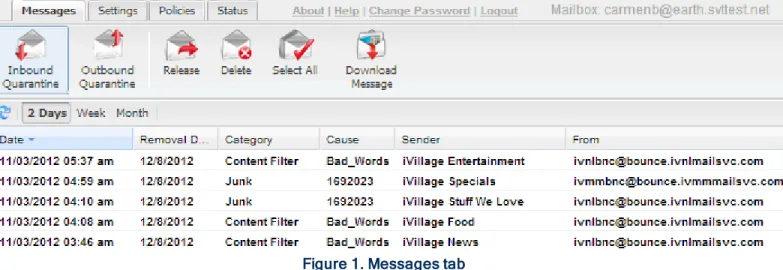
From the Messages tab you can review, release, or delete messages that were caught and put in your quarantine. If enabled by your administrator, you can toggle between viewing inbound or outbound quarantined messages.
Figure 1. Messages tab
If email continuity is licensed by your organization and enabled, you can also manage your email inbox from the Messages tab. SeeEmail Continuityfor details.
Note: On the rare occasion when a significant network issue occurs, a link to a system status alert displays in the status bar.
Changing the Messages List Display
On the Messages tab there are several ways to sort and filter the list. You can also change the attributes that are shown.
Sorting and Filtering the Message List
While viewing the list of quarantined messages on the Messages tab, you can limit the messages in the display by received date. You can also sort the list by any of the columns, either in ascending or descending order.
To limit the display:
• Select the timeframe for messages to view. You can show messages received in the last 2 days, week, or month (all messages).
Figure 2. Time selection for messages list
To sort the list of quarantined messages:
• Click a column heading to sort by that column in ascending order.
• Click a second time to sort by that column in descending order.
Figure 3. Order of messages in the list
Viewing Inbound and Outbound Messages
Some administrators configure the system to filter outbound email messages. You can perform the same actions on outbound filtered messages as on inbound messages in the Personal Dashboard.
Note: Depending on the settings applied by your email administrator, the outbound filtering option may or may not be available to all users.
To view outbound filtered messages:
1. Click the Messages tab.
2. Click the Outbound Quarantine icon. Outbound filtered messages display.
Searching for Messages
You can search the quarantine to locate individual messages. Use the search tool to locate email addresses, names, or any other text string.
The search tool searches on all the attribute fields listed in the Messages tab. You can use search to look for mail you think may have been mistakenly filtered. Note that the search does not include attribute fields that are not shown in the quarantine list.
For instance, you can check to see if a message from your Aunt Agnes is in the quarantine. Or you can search for a specific term that may commonly trigger messages to be filtered.
To search the quarantine for messages:
1. Click the Messages tab.
2. In the search box (at the top right of the screen), enter the term to be searched.
Figure 4. Search box
3. Press Enter. All messages that contain the search term display in the quarantine. All messages that do NOT contain that term are temporarily hidden from view.
Clearing the Filtered Message Display
When you filter the quarantine display using the Search function, only messages that contain that search term display. To show all filtered messages, clear the search box.
To clear the filtered message display:
2. In the search box, delete all text.
3. Press Enter. All quarantined messages now display.
Displaying Message Attributes
All email messages have a number of attributes. By default, quarantined messages in the Personal Dashboard display the message date, removal date, category,type of message (category), the reason it was caught (cause), the sender, the From field of the message, and the message subject. You can remove any of the default attributes from the quarantine message display. You can also add other attributes to the display.
To change display of quarantined message attributes:
1. Click the Messages tab.
2. Click the downward shaped triangle on the right of a column heading. 3. Click Columns.
4. Select or clear the attribute check boxes as needed. The selected attribute columns display.
Viewing a Message
You can view the contents of a quarantined message from the Personal Dashboard. To view a quarantined message:
1. Click the Messages tab.
2. Select the message to view. The message contents display on the bottom of the screen.
Releasing Messages
You can release one or more messages from the quarantine to be delivered to your email inbox. To release a quarantined message:
2. Select one or more messages to release. To release more
than one message:
• Use Shift+Click to select adjacent messages.
• Use Ctrl+Shift to select non-adjacent messages.
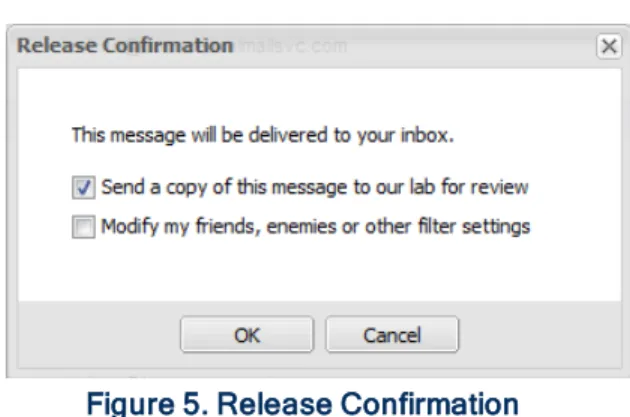
3. Click the Release icon. You are asked to confirm.
Figure 5. Release Confirmation
4. Check the boxes as applicable and click OK.
• If you want to send a copy of the message to EdgeWave to improve filter quality, check the box.
• If you want to update your friends/enemies list or policies, check the box. A wizard guides you through additional selections to update the lists. Follow the instructions, clicking Next/Finish on each screen.
Note: When the MIME from: header differs from the SMTP envelope sender both are included in the list of senders that can be added to the whitelist.
The messages are sent to your email inbox.
Deleting Messages
You do not need to delete messages from your quarantine. All messages are automatically deleted after 35 days. You can, however, manually delete messages from your quarantine if you like. To delete a quarantined message:
1. Click the Messages tab.
2. Select one or more messages to delete. To delete more than one message:
• Use Shift+Click to select adjacent messages.
• Use Ctrl+Shift to select non-adjacent messages.
3. Click the Delete icon. The messages are deleted.
Selecting All Messages
You can select all messages displayed in the Messages screen in one step. To select all quarantined messages:
1. Click the Messages tab.
2. Click the Select All icon. All messages are selected.
Downloading a Message
Messages can be downloaded to your computer in .eml format. Many email clients use this format to import files. For more information on the .eml format, seehttp://www.fileinfo.com/extension/eml. To download a quarantined message:
1. Click the Messages tab.
2. Select the message to download.
3. Click the Download icon. The message is downloaded.
Email Continuity
Note: Depending on the settings applied by your email administrator, the Email Continuity inbox may not be available to all users.
To access your inbox:
1. Click the Messages tab.
2. Click the Inbox icon. The messages in your inbox display.
Note: The Email Continuity inbox does not include messages that have been released from quarantine.
From the inbox you can create new messages, reply to messages, and forward messages. Use the buttons at the top of the screen to manage your messages:
Compose a new message.
Select a message in the list and click this button to reply to the selected message.
Select a message in the list and click this button to reply to the selected message, including all recipients on the reply.
Select a message in the list and click this button to forward the selected message.
Select a message in the list and click this button to download the selected message.
Settings Tab
The Spam Digest is an emailed version of a quarantine report. Within the Spam Digest you can review and release any spam that is blocked from your email inbox. The Settings tab is where you configure the Spam Digest properties.
Configuring Digest Settings
Depending on the settings applied by your email administrator, you may or may not be able to adjust your spam digest settings.
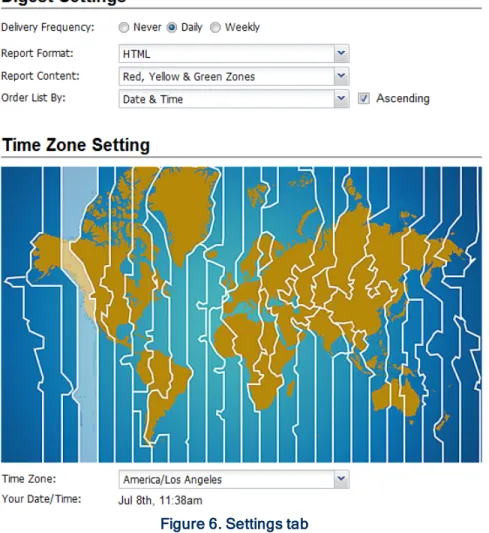
To configure digest settings:
1. Click the Settings tab.
2. Click a radio button to select a delivery frequency. Options are Never, Daily, Weekly, or Monthly.
3. From the drop-down list, select a report format. Options are HTML, Plain Text, or Multipart.
4. From the drop-down list, select the report contents. Options are:
• Summary: Displays the counts of each type of message.
• Green Zone: Displays only mail from the green zone (junk).
• Yellow and Green Zones: Displays mail from the yellow zone (blank, forged, foreign, attachments) plus mail from the Green Zone (junk).
• Red, Yellow & Green Zones: Displays all mail from the quarantine.
5. From the drop-down list, select the message sort order. Options are Date & Time, Size, Sender, or Subject.
6. Optional: Select the Ascending check box to sort the messages in ascending order.
7. In the Time Zone Setting area, click on the section of the map that contains your location. Then select your time zone from the list.
Figure 6. Settings tab
Policies Tab
The Policies tab is where you configure how different types of messages are processed.
Note: The filter settings configured by your email administrator are tagged with the Administrator Settings icon. These settings cannot be removed but they can be modified if permitted.
Configuring Message Filtering
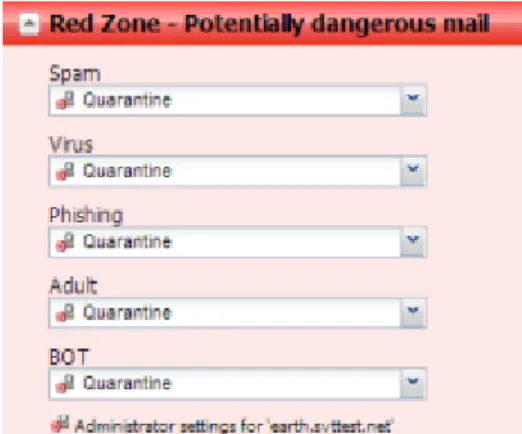
Depending on the settings applied by your email administrator, you may or may not be able to configure your email filtering options. Valid filtering options are:
• Allow: Allows the message to pass through the filter and delivers the message to your email inbox.
• Markup: Adds a subject tag to the Subject line of the email message. Subject tags are short bits of text (up to twenty characters) prepended to the subject line of an email message to alert you that a message has been flagged as suspicious. SeeConfiguring Subject Tagsfor more information.
• Quarantine: Quarantines the message.
• Block: Deletes the message. Blocked messages are not recoverable from the quarantine list.
Note: The filter settings configured by your email administrator are tagged with the Administrator Settings icon. These settings cannot be removed but they can be modified if permitted.
To modify your filtering options:
1. Click the Policies tab.
2. From the drop-down list below each message type, select the filtering option.
Configuring Subject Tags
Subject tags are short bits of text (up to twenty characters) prepended to the subject line of an email message to alert you that a message has been flagged as suspicious. For example, you can
configure the mail from invalid senders (the Forged: field) to say "Fake:" to alert you that the message is not from the sender it claims to be from. In this example, the tagged message in your mailbox might read "Fake: Your New Store Gift Card!"
Note: EdgeWave recommends ending the subject tag with a colon. When most mail programs sort on the subject line they ignore the text before a colon and sort on the content of the subject line.
To configure a subject tag:
1. Click the Policies tab.
2. Depending on the message type, do one of the following:
• For all message types other than Foreign and Attachments, from the drop-down list next to the message type to mark up, select Markup.
• For Foreign and Attachments, right-click the type to mark up and select Markup.
A new text entry box appears on the right of the drop-down list. This text box may have a default subject tag.
3. Optional: Clear the default subject tag and type your text entry into the box.
Selecting Foreign Language Options
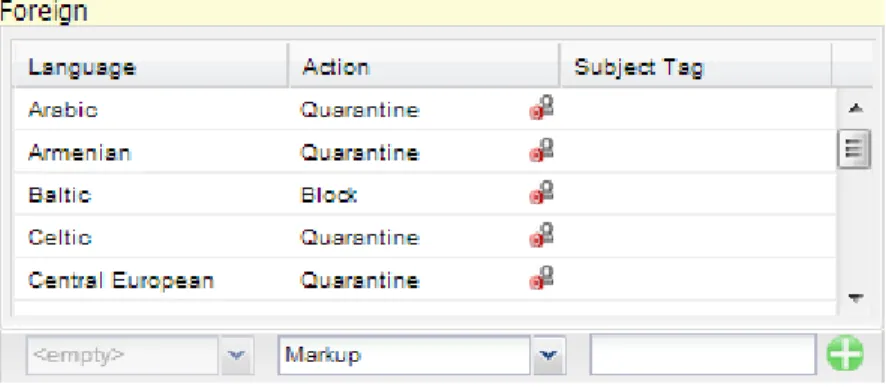
Depending on the settings applied by your email administrator, you may have the option to block email that contains foreign characters. A large volume of spam is transmitted using Russian, Cyrillic, Chinese, Korean, and Japanese non-English character sets. If you normally receive email in these languages, configure your settings so that these messages pass through the filters.
By default, the system allows mail with non-English language character sets but adds a subject tag of FOREIGN: before the mail subject line. Foreign language filtering options can be applied
You can filter messages with foreign language content with the same options described in
Configuring Message Filtering. Additionally, you can remove a language from special treatment by
deleting the language. Deleting the language means that EdgeWave processes the message as it would with any other message, without any special rules.
Note: You will not be able to delete a language if your email administrator has blocked that option. If so, a pop-up window alerts you that the filtering option has been reset to the administrator default.
You can later add a language that has previously been deleted. To modify foreign language filtering options:
1. Click the Policies tab.
2. In the Foreign section (Yellow Zone), click a language to select it.
3. Right-click the language and select a filtering option.
Figure 8. Foreign Language options
To delete a foreign language:
1. Click the Policies tab.
2. In the Foreign section (Yellow Zone), right-click a language to delete.
3. Click Delete. A confirmation message opens. 4. Click OK.
2. In bottom left of the Foreign section, select a deleted language.
3. Select the filtering option from the drop-down list. Options are Allow, Markup, Quarantine, and
Block.
4. For a marked up attachment, enter a subject tag to prepend to the subject line. SeeConfiguring
Subject Tagsfor information about subject tags.
5. Click + (the plus sign) button to add the language.
Selecting Attachment Options
You can filter messages with attachments with the same options described inConfiguring Message
Filtering. Additionally, you can add a new attachment type to filter.
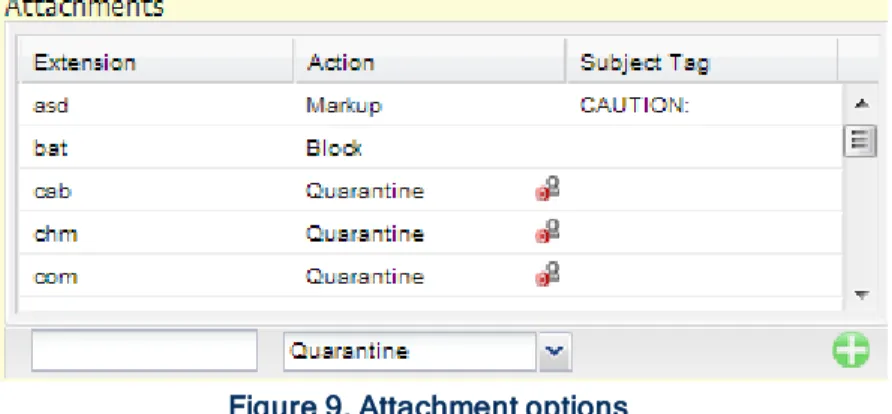
To add an attachment type
1. Click on the Policies tab.
2. In the Attachments (Yellow Zone) section, enter the file extension of the attachment to filter.
Figure 9. Attachment options
3. Select the filtering option from the drop-down list. Options are Allow, Markup, Quarantine, or
Block.
4. For a marked up attachment, enter a subject tag to prepend to the subject line. SeeConfiguring
Subject Tagsfor information about subject tags.
Filtering by Sender
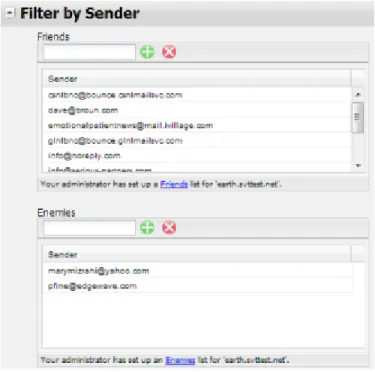
The filtering system has Friends (whitelist) and Enemies (blacklist) options to filter by email address, domain name, or IP address.
• Friends: Mail from these addresses and domains will not be filtered for spam.
• Enemies: Mail from these addresses and domains will be quarantined.
Whitelist and blacklist entries are not required to ensure that you do not receive spam. If there is a conflict between your whitelist entry and an identical blacklist entry for the entire domain set by your email administrator, the whitelist setting takes precedence.
We do not recommend using whitelists and blacklists to manage email accounts because spammers have adopted techniques to send email from addresses within your own domain (including your own email address). Whitelists, in this case, would override the spam filter rule and result in the spam and viruses being delivered to you even though the system had identified them as spam. Similar
unintended consequences can result from the use of blacklists. To add to the Friends list (whitelist):
1. Click the Policies tab.
2. In the text box in the Friends area, enter the email address, domain name, or IP address to add to the Friends list.
3. Click + (the plus sign) button to add it to the Friends list. To add to the Enemies list (blacklist):
1. Click the Policies tab.
2. In the text box in the Enemies area, enter the email address, domain name, or IP address to add to the Enemies list.
Figure 10. Friends and Enemies lists
To remove an entry from the Friends list (whitelist):
1. Click the Policies tab.
2. In the Friends area, select the email address, domain name, or IP address to remove from the Friends list.
3. Click - (the minus sign) button to add it to the Friends list. To remove an entry from the Enemies list (blacklist):
1. Click the Policies tab.
2. In the Friends area, select the email address, domain name, or IP address to remove from the
Enemies list.
Viewing the Administrative Friends and Enemies List
Your email administrator may or may not have set up a Friends (whitelist) or Enemies (blacklist) list for all users. You can view this list, but cannot make any changes to it. If you feel that something is whitelisted or blacklisted by mistake, contact your email administrator.
To view an administrative Friends list (whitelist):
1. Click the Policies tab.
2. In the Filter by Sender section, beneath the Friends list, click the Friends link. The list appears in
a pop-up window.
To view an administrative Enemies list (blacklist):
1. Click the Policies tab.
2. In the Filter by Sender section, beneath the Enemies list, click the Enemies link. The list appears in a pop-up window.
Status Tab
The Status tab is a read-only page that shows:
• Your primary email address and aliases
• The last time your digest was sent
• The number of messages quarantined since the start of email filtering, in text and graphical format
Viewing the Account Status
To view account status• Click the Status tab.
The screenshot below shows an example Status tab. It shows the mailbox name and the aliases. The most recent digest was sent on November 4 and it contained 5 quarantined messages.