Group Policy Infrastructure
Microsoft CorporationPublished: April 2003 Updated: November 2004
Abstract
Administrators use Group Policy to specify managed configurations for groups of computers and users. Group Policy includes options for registry-based policy settings, security settings, software installation, scripts, folder redirection, Remote Installation Services, and Internet Explorer maintenance. Intended for system administrators, architects, and others who need to create and manage Group Policy settings, this paper explains Group Policy infrastructure and shows how Group Policy Management Console (GPMC), a new MMC snap-in with scripting interfaces, fits into this infrastructure. The paper includes detailed information about Group Policy processing as well as many best practices useful to the Group Policy administrator.
The information contained in this document represents the current view of Microsoft Corporation on the issues discussed as of the date of
publication. Because Microsoft must respond to changing market conditions, it should not be interpreted to be a commitment on the part of Microsoft, and Microsoft cannot guarantee the accuracy of any information presented after the date of publication.
This document is for informational purposes only. MICROSOFT MAKES NO WARRANTIES, EXPRESS OR IMPLIED, AS TO THE
INFORMATION IN THIS DOCUMENT.
Complying with all applicable copyright laws is the responsibility of the user. Without limiting the rights under copyright, no part of this document may be reproduced, stored in or introduced into a retrieval system, or transmitted in any form or by any means (electronic, mechanical, photocopying, recording, or otherwise), or for any purpose, without the express written permission of Microsoft Corporation.
Microsoft may have patents, patent applications, trademarks, copyrights, or other intellectual property rights covering subject matter in this document. Except as expressly provided in any written license agreement from Microsoft, the furnishing of this document does not give you any license to these patents, trademarks, copyrights, or other intellectual property.
© 2003 Microsoft Corporation. All rights reserved.
Microsoft, Active Directory, IntelliMirror, Jscript, MS-DOS, Visual Basic, Visual C++, Visual Studio, Windows, Windows Media, and Windows NT are either registered trademarks or trademarks of Microsoft Corporation in the United States and/or other countries.
The names of actual companies and products mentioned herein may be the trademarks of their respective owners.
Contents
Introduction ... 1
Administrative Requirements for Using Group Policy... 1
GPMC System Requirements ... 1
Feedback on this Paper ... 1
What’s New About Group Policy in Windows Server 2003 ... 2
Group Policy Management Console ... 2
New policy settings ... 2
Administrative Templates Changes ... 3
Command Line Refresh of Policy ... 3
WMI Filtering ... 3
Tools for Best Practice Organizational Unit Design... 3
Forest Trust... 4
Domain Rename ... 4
Restore GPOs tool ... 4
Wireless Support... 4
Software Restriction Policy Settings ... 4
Internet Explorer Enhanced Security Configuration... 5
Overview of Group Policy Infrastructure and Mechanics ... 6
Linking Group Policy Objects to Active Directory Containers... 6
Group Policy Hierarchy ... 6
Managing Inheritance of Group Policy... 7
Filtering the Scope of the Group Policy Object... 8
Security Filtering... 9
WMI Filtering ... 10
MMC Snap-in Extension Model ... 11
Group Policy Object Editor Namespace ... 12
Computer Configuration and User Configuration ... 12
Extensions to the Group Policy Object Editor ... 12
Migrating GPOs Across Domains... 15
Migration Tables ... 15
GPMC as the Solution for Migrating GPOs... 15
Scripting Group Policy Tasks ... 17
Delegating Group Policy... 18
Using Security Groups to Delegate Group Policy... 18
Managing Group Policy Links for a Site, Domain, or Organizational Unit ... 19
Creating GPOs ... 19
Editing Group Policy Objects... 20
Delegating an individual GPO... 20
Specifying Group Policy to Control the Behavior of MMC extensions... 21
Restricting Access to a List of Permitted Snap-ins ... 21
Controlling Access to a Snap-in ... 21
Creating Custom Group Policy Object Editor Consoles... 22
Group Policy Extension Snap-ins ... 23
Administrative Templates... 23
Handling .adm files in Group Policy Object Editor ... 24
Handling .adm files in GPMC ... 25
Using Administrative Templates ... 25
New policy settings... 25
True Policy Settings Compared with Group Policy Preferences... 25
Creating Custom .adm Files... 26
Viewing Group Policy Preferences... 27
Impact of GPO Replication... 27
Security Settings ... 27
Default Security Templates ... 29
Incremental Security Templates... 30
Using Software Installation and Maintenance ... 31
Assigning Applications ... 31
Publishing Applications ... 32
Scripts ... 32
Specifying Policy Settings for Script Behavior ... 33
Folder Redirection... 34
Folder Redirection Improvements for Windows XP and Windows Server 2003 ... 34
User Interface changes ... 34
My Pictures no longer shown in the Folder Redirection Node ... 36
Redirected Folders automatically made available offline... 36
Internet Explorer Maintenance... 36
Exporting Internet Explorer Settings for Earlier Clients... 36
Managing Internet Explorer Maintenance Advanced Settings ... 37
Using Internet Explorer Customization Wizard and Internet Explorer Profile Manager ... 37
Remote Installation Services ... 37
Group Policy Modeling and Results ... 38
Introduction ... 38
Group Policy Results... 38
Group Policy Modeling ... 38
Using GPMC Reports... 38
RSoP Architecture ... 39
Security and RSoP ... 39
Group Policy Results and Modeling Examples... 40
Group Policy Results... 40
What is the current state of Folder Redirection for the current user? ... 40
What is the current state of Folder Redirection for a sampling of users? ... 40
Why did this happen?... 40
Group Policy Modeling... 40
Precedence Details ... 40
Change of Site... 40
Change of Folder Redirection Mode ... 41
RSoP Schema... 41
Group Policy Processing ... 42
Initial Processing of Group Policy ... 42
Folder Redirection and Software Installation Policies ... 43
Time Limit for Processing of Group Policy ... 43
Background Refresh of Group Policy ... 43
Periodic Refresh Processing ... 44
On-Demand Processing ... 44
Messages and Events ... 44
Refreshing Policy from the Command Line ... 45
Syntax... 45
Parameters ... 45
Slow Links and Remote Access Issues ... 45
Group Policy and Slow Links... 46
Setting Policy for Slow-Link Definition... 46
Application of Group Policy During a Remote Access Connection... 47
Client-side Processing of Group Policy ... 48
Computer Policy for Client-Side Extensions ... 48
Policy Settings for Group Policy... 49
Group Policy Replication and Domain Controller Selection ... 50
Options governing selection of a domain controller for GPMC... 51
Specifying a Domain Controller by Using Group Policy ... 52
Local Group Policy ... 53
Local Group Policy Object ... 53
Local Group Policy Object and DACLs ... 53
Viewing Policy settings When the Group Policy Object Editor is Focused on the Local Computer ... 53
Local Group Policy Object Processing ... 54
Modifying the Local GPO on a Domain-based Computer ... 54
Group Policy Loopback Support... 55
Using Loopback for Terminal Services ... 56
Loopback Processing and Security Filtering ... 56
Design Considerations for Organizational Unit Structure and Use of Group Policy Objects ... 57
Organizational Unit Structure... 57
Design Principles ... 58
Separate Users and Computers into Different organizational units ... 58
Redirecting the Users and Computers Containers in Windows Server 2003 Domains ... 59
Best Practice Organizational Unit Structure... 59
Functional Compared with Geographical Organizational Unit Structure ... 60
Minimize the Number of Group Policy Objects Associated with Users or Computers... 60
Minimize the Use of the Block Policy Inheritance Feature... 60
Minimize the Use of the Enforce Feature... 61
Use Loopback Processing Only When Necessary... 61
Avoid Using Cross-Domain GPO Assignments ... 61
Avoid Editing the Default Domain GPO ... 61
Design Examples ... 61
Layered GPO Design Model ... 62
Monolithic GPO Design Model ... 63
Single Policy Type GPO Design Model... 64
Multiple Policy Types GPO Design Model ... 65
Teams or Matrix Organizations GPO Model ... 66
Public Computing Environment GPO Model ... 67
Delegation with Central Control... 67
Delegation with Distributed Control... 68
Deployment Considerations ... 69
Administering a Mix of Windows 2000 and Windows Server 2003 Domains ... 69
Delegation of Group Policy Results and Group Policy Modeling ... 69
Group Policy Modeling ... 69
WMI Filtering ... 69
Upgrading Windows 2000 Domains to Windows Server 2003 Domains and Interaction with Group Policy Modeling ... 70
Using Group Policy Features Across Forests... 70
Group Policy and Active Directory Sites ... 71
Using Group Policy and Internet Explorer Enhanced Security Configuration ... 71
IntelliMirror Features without Active Directory... 73
Applying Administrative Templates (Registry-Based Policy)... 73
Setting Registry-based Policy in a Windows NT 4.0 Domain ... 74
Migrating Policy-Enabled Clients from Windows NT 4.0 to Windows 2000 or Windows Server 2003 ... 75
Windows NT 4.0 and Windows 2000 Policy Setting Comparison ... 75
Migrating to Windows 2000 or Windows Server 2003 ... 76
Client Computers... 76
Upgrading Computer or User Accounts from Windows NT 4.0 to Windows Server 2003 ... 76
Using Group Policy in a Mixed Environment of Windows 2000 and Windows XP Clients ... 76
Active Directory with Windows 2000 and Windows XP Clients ... 76
Comparing IntelliMirror Features on Windows 2000 and Windows XP ... 76
Comparing Clients under Windows Server 2003 Active Directory... 77
Comparing clients under Windows 2000 Active Directory ... 77
Comparing Clients Under Windows NT Server 4.0... 78
Folder Redirection and Software Installation ... 78
Internet Explorer Maintenance ... 79
Roaming Profiles ... 79
Security Settings ... 79
64 bit Integration Issues ... 79
Appendix A: Security Settings and User Rights ... 80
Security Settings in the Default Domain Controllers Policy ... 80
Help for Windows NT 4.0 Administrators... 83
Changing Password Policy for the Domain... 83
Changing Auditing Policy or User Rights for Domain Controllers ... 84
Changing local Password Policy on member Workstations or Servers (Non-Domain Controllers) ... 84
Frequently Asked Questions about Security Settings ... 84
Appendix B: Group Policy Storage ... 86
Group Policy Container... 86
Group Policy Template ... 86
Gpt.ini File ... 86
Gpt.ini for Active Directory GPOs... 87
Group Policy Template Subfolders ... 87
Registry.pol Files ... 88
How Registry.pol Files Are Created ... 90
Appendix C: WMI Filtering... 91
How WMI Works... 91
Active Directory Schema additions ... 91
Using WMI in Mixed Environments ... 91
Examples of WMI Filters ... 91
Software inventory-based targeting (Ored set) ... 91
Software inventory-based targeting( Anded set)... 92
Operating system-based targeting ... 92
Hardware inventory-based targeting ... 92
Resource-based targeting ... 92
Computer-based targeting... 93
Asset tag-based targeting ... 93
Hardware configuration-based targeting ... 93
Configuration-based targeting ... 93
File attribute-based targeting... 93
Time zone-based targeting... 93
Hot fix-based targeting ... 93
Further Information... 94
Appendix D: Frequently Asked questions ... 95
Infrastructure - Server side ... 95
Infrastructure - Client side... 96
Tools ... 98
Group Policy Management Console ... 98
Group Policy Object Editor ... 99
General Issues ... 99
Glossary... 101
Related Links ... 109
Introduction
Intended for system administrators, architects, and others who need to create and manage Group Policy settings, this paper explains Group Policy infrastructure and shows how the new Group Policy Management Console (GPMC) fits into this infrastructure. The paper includes detailed information about Group Policy processing as well as many best practices useful to the Group Policy administrator. Introduced in Windows® 2000 Server, Group Policy provides directory-based desktop configuration management. With Group Policy, you can specify settings for registry-based policies, security, software installation, scripts, folder redirection, Remote Installation Services, and Internet Explorer maintenance. The Windows Server 2003 family of operating systems, extends Group Policy in a number of ways— through GPMC, which includes scripting interfaces, Group Policy Results, Group Policy Modeling, and more.
The Group Policy settings that you create are contained in a Group Policy object (GPO). By linking a GPO with selected Active Directory® service system containers—sites, domains, and organizational units—you can apply these settings to the users and computers in those Active Directory containers. To create GPOs, you use GPMC in conjunction with the Group Policy Object Editor, an MMC snap-in, also known previously as the Group Policy snap-in, Group Policy Object Editor, or GPedit.
Administrative Requirements for Using Group Policy
In order to use of all of its features, Group Policy requires Active Directory and client computers running Windows 2000 or later. To set Group Policy for a selected Active Directory container, you must have a Windows 2000 or Windows Server 2003 domain controller installed, and you must have read and write permission to access the system volume of domain controllers (Sysvol folder) and modify rights to the currently selected directory container. The system volume folder is automatically created when you install a domain controller (or promote a server to domain controller).
Note Group Policy depends on Active Directory; therefore, it is crucial to understand Active Directory and its structure. It is highly recommended that you familiarize yourself with Active Directory concepts before implementing Group Policy.
To learn about Active Directory, see the Active Directory white papers at http://www.microsoft.com/ad. Information on planning and implementing Active Directory is available from the Windows Deployment and Resource Kits page at http://www.microsoft.com/reskit.
GPMC System Requirements
GPMC can manage both Windows 2000 and Windows Server 2003 domains with Active Directory. In either case, the computer on which the tool itself runs must be running Windows Server 2003 or
Windows XP Professional (with Windows XP Service Pack 1 and the Microsoft .NET Framework). Note: When installing GPMC on Windows XP Professional with SP1, a post SP1 hotfix is required. This hotfix (Q326469) is included with GPMC. GPMC Setup prompts you to install Windows XP QFE Q326469 if it is not already present.
Feedback on this Paper
What’s New About Group Policy in Windows Server 2003
This section summarizes new features in Windows Server 2003 Group Policy. The biggest change for Group Policy in Windows Server 2003 is the introduction of GPMC, the new solution for Group Policy management that helps you manage an enterprise more cost-effectively. It consists of a new Microsoft Management Console (MMC) snap-in and a set of scriptable interfaces for managing Group Policy. GPMC is available for download from the Microsoft GPMC Web site at
http://www.microsoft.com/windowsserver2003/gpmc. This paper assumes you are using GPMC.
Group Policy Management Console
GPMC simplifies the management of Group Policy by providing a single place for managing core aspects of Group Policy. It addresses the top Group Policy deployment requirements by providing the following functionality:
• A user interface that makes Group Policy much easier to use.
• Backup/restore of GPOs.
• Import/export and copy/paste of GPOs and Windows Management Instrumentation (WMI) filters.
• Simplified management of Group Policy–related security.
• HTML reporting for GPO settings and Resultant Set of Policy (RSoP) data.
• Scripting of policy-related tasks that are exposed within this tool (not scripting of settings within a GPO).
GPMC is used to create, view, and manage GPOs while the Group Policy Object Editor is used to edit GPOs.
More information about GPMC is contained throughout this paper. For additional information about GPMC including step-by-step instructions for completing tasks, see the following resources:
• Group Policy Administration using the Group Policy Management Console. This white paper provides additional technical details of functionality in GPMC.
• GPMC Help. Available when you install GPMC, this provides step-by-instructions for GPMC tasks and addresses key concepts in GPMC.
• Microsoft GPMC Web site at http://www.microsoft.com/windowsserver2003/gpmc/. This site provides links to the latest GPMC resources including downloading information.
New policy settings
Windows Server 2003 includes more than 200 new policy settings. The new Windows Server 2003 policy settings allow administrators to control the behavior of:
• System restore, error reporting, PC Health.
• Terminal server.
• Networking such as SNMP, Quality of Service (QoS), personal firewall, and dialup connections.
• Windows Media® Player.
• Wireless configuration.
• Software restriction policy.
Administrative Templates Changes
For Administrative Templates policy settings, Group Policy Object Editor provides explain text directly in the Web view of the console. You also can find this explain text by double-clicking the policy setting and then clicking the Explain text tab. In either case, this text shows operating system requirements, defines the policy setting, and includes any specific details about the effect of enabling or disabling the policy setting.
Because new Administrative Template policy settings have been added that only work on specific versions of the operating system such as Windows XP Professional or Windows Server 2003, you can view only the Administrative Template policy settings that might be applied in your users' work
environment, based on the “supported” keyword in each Administrative Template (.adm) file. For example, you may want to edit only policy settings that could be applied on client computers running Windows 2000 Service Pack 3. In Group Policy Object Editor, you can specify these options in the
Filtering dialog box, available by clicking a node in the Administrative Templates section, clicking the View menu, and then clicking Filtering. For more information, see the section Using Administrative Templates in this paper.
Command Line Refresh of Policy
Administrators can now refresh policy settings from the command line using Gpupdate, which replaces
secedit /refreshpolicy in Windows 2000. Gpupdate gives administrators better control and flexibility in
refreshing policy. For more information, see the section Refreshing Policy from the Command Line in this paper.
WMI Filtering
WMI makes a large amount of data, such as hardware and software inventory, settings, and
configuration information, available for a target computer. WMI retrieves data from the registry, drivers, file system, Active Directory, SNMP, MSI, SQL, networking, and Exchange. WMI Filtering in Windows Server 2003 allows you to create queries based on this data. These queries (also called WMI filters) determine which users and computers receive all of the policy configured in the GPO where you create the filter. This functionality lets you target Group Policy based on a significant number of different properties of the target. In most organizations only senior administrators would actually create WMI filters; other administrators would simply access the WMI filters that have been created for their domain. For more information, see the section WMI Filtering in this paper.
Tools for Best Practice Organizational Unit Design
Redirusr.exe (for user accounts) and Redircomp.exe (for computer accounts) are two new tools
included with Windows Server 2003 that enable you to change the default location where new user and computer accounts are created so you can more easily scope GPOs directly to newly created user and computer objects. By running Redirusr.exe and Redircomp.exe once for each domain, the domain administrator can specify the organizational units into which all new user and computer accounts are
placed at the time of creation. For more information, see the section Redirecting the Users and Computers Containers in Windows Server 2003 Domains in this paper.
Forest Trust
The Windows Server 2003 family introduces a new feature called Forest Trust that enables you to authenticate and authorize access to resources from separate, networked forests. With trusts
established between forests, you can manage Group Policy throughout your enterprise, which provides greater flexibility especially in large organizations. For more information, see the section Using Group Policy Features Across Forests in this paper.
Domain Rename
The ability to rename a domain provides you with the flexibility to make important changes to your forest structure and namespace as the needs of your organization change. Renaming domains can accommodate acquisitions, mergers, name changes, or reorganizations. Domain rename allows you to: 1. Change the DNS and NetBIOS names of any domain in the forest (including the forest root domain). 2. Restructure the position of any domain in the forest (except the forest root domain).
You can only rename domains in a forest where all of the domain controllers are running Windows Server 2003 and the forest functional level has been raised to Windows Server 2003. For more information, see Windows Server 2003 Domain Rename Tools at
http://www.microsoft.com/windowsserver2003/downloads/domainrename.mspx.
Restore GPOs tool
This is a new command-line tool intended for failure recovery. The tool, dcgpofix.exe, restores the default GPOs to their original state (that is, the default state after initial installation). For more information, see “Troubleshooting Windows Server 2003 Group Policy” available from the Microsoft GPMC Web site at http://www.microsoft.com/windowsserver2003/gpmc/.
Wireless Support
A new Wireless Network (IEEE 802.11) Policies Group Policy extension allows you to configure wireless network settings that are part of Group Policy for Computer Configuration. Wireless network settings include the list of preferred networks, Wired Equivalent Privacy (WEP) settings, and IEEE 802.1X settings. These settings are downloaded to targeted domain members, making it much easier to deploy a specific configuration for secure wireless connections to wireless client computers.
Software Restriction Policy Settings
Software restriction policy settings address the need to regulate unknown or untrusted software. With the rise in the use of networks, the Internet, and email for business computing, users find themselves exposed to new software in a variety of ways. Users must constantly make decisions about running unknown software. Viruses and Trojan horses often intentionally misrepresent themselves to trick users into running them. It is difficult for users to make safe choices about which software they should run. With software restriction policy settings, you can protect your computing environment from untrusted software by identifying and specifying which software is allowed to run. You can define a default
software. For example, if your default security level is set to disallowed, you can create rules that allow specific software to run. For more information, see the section Software Restriction Policy Settings in this paper.
Internet Explorer Enhanced Security Configuration
Internet Explorer Enhanced Security Configuration, also known as Internet Explorer hardening, is enabled by default on computers running Windows Server 2003. It can be managed using Group Policy in an enterprise environment to ensure consistent trusted sites and security settings on targeted server computers or to disable the feature on specific servers. For example, you may wish to ensure that Internet Explorer Enhanced Security Configuration is reapplied on a specific computer if the local administrator on that computer turns it off using the Optional Component Manager in the Windows Components Wizard (available from Add or Remove Programs.) In addition, it’s likely that you will want to manage computers or groups of computers in your organization by defining a set of trusted sites and/or a specific security level for sites in the Internet or Trusted sites zones. For more information, see Using Group Policy and Internet Explorer Enhanced Security Configuration later in this document and Managing Internet Explorer Enhanced Security Configuration, available from the Microsoft Group Policy Web site at http://www.microsoft.com/grouppolicy.
Overview of Group Policy Infrastructure and Mechanics
Group Policy uses a document-centric approach to creating, storing, and associating policy settings. Similar to the way in which Microsoft Word stores information in .doc files, Group Policy settings are contained in GPOs. GPOs are linked to the following Active Directory containers: sites, domains, or organizational units. The settings within the GPOs are then evaluated by the affected clients, using the hierarchical nature of Active Directory.
Linking Group Policy Objects to Active Directory Containers
GPOs cannot be linked directly to users, computers, or security groups. They can only be linked to sites, domains and organizational units.
A given GPO can be linked to more than one site, domain, or organizational unit. Conversely, a given site, domain, or organizational unit can have multiple GPOs linked to it. In the case where multiple GPOs are linked to a particular site, domain, or organizational unit, you can prioritize the order of precedence in which these GPOs are applied.
By linking GPOs to sites, domains, and organizational units, you can implement Group Policy settings for as broad or as narrow a portion of the organization as you want:
• A GPO linked to a site applies to all users and computers in the site.
• A GPO applied to a domain applies directly to all users and computers in the domain and by inheritance to all users and computers in child organizational units. Note that policy is not inherited across domains.
• A GPO applied to an organizational unit applies directly to all users and computers in the organizational unit and by inheritance to all users and computers in child organizational units.
To link a GPO to a site, domain, or organizational unit, use GPMC. In the console tree, locate the site, domain or organizational unit and then choose Link an Existing GPO or Create and Link a GPO Here. Note that GPOs are stored in domains not in organizational units. For example, if you create and link a new GPO for an organizational unit, GPMC is actually completing two steps at once: creating a GPO in the domain and then linking that GPO to that organizational unit. The link is not a component of the GPO; it is a component of the container to which it is linked. Therefore, if you want to delegate the ability to manage links for a given container, it must be delegated on that container, not the GPO. In the GPMC tree view, GPO links on a given container are shown as child nodes of that container.
Although you can link a site, domain, or organizational unit to a GPO in another trusted domain, this is not generally recommended for performance reasons because of the potential delay of processing GPOs at logon.
Group Policy Hierarchy
By default, Group Policy is inherited and cumulative, and it affects all computers and users in an Active Directory container. GPOs are processed according to the following order:
1.Local GPO. Each computer has exactly one GPO that is stored locally, shared by all users of that computer. This processes for both computer and user Group Policy processing.
tab for the site in GPMC. The GPO with the lowest link order is processed last, and therefore has the highest precedence.
3.Domain. Processing of multiple domain-linked GPOs is in the order specified by the administrator, on the Linked Group Policy Objects tab for the domain in GPMC. The GPO with the lowest link order is processed last, and therefore has the highest precedence.
4.Organizational units. GPOs that are linked to the organizational unit that is highest in the Active Directory hierarchy are processed first, then GPOs that are linked to its child organizational unit, and so on. Finally, the GPOs that are linked to the organizational unit that contains the user or computer are processed.
At the level of each organizational unit in the Active Directory hierarchy, one, many, or no GPOs can be linked. If several GPOs are linked to an organizational unit, their processing is in the order in which GPOs are linked to the organizational unit. For example, if you link three GPOs to an organizational unit the first GPO you added has the highest precedence and overwrites the settings of all other GPOs. Alternatively, you can specify the order on the Linked Group Policy Objects tab for the organizational unit in GPMC.
This order means that the local GPO is processed first, and GPOs that are linked to the organizational unit of which the computer or user is a direct member are processed last, which overwrites settings in the earlier GPOs if there are conflicts. (If there are no conflicts, then the earlier and later settings are merely aggregated.)
In GPMC, you can view the precedence order of inherited GPOs for a given site, domain or organizational unit by navigating to the Group Policy Inheritance tab for any site, domain, or organizational unit.
Managing Inheritance of Group Policy
You can further control precedence and how GPO links are applied to specific domains, sites, or organizational units by:
• Changing the link order. Within each domain, site, and organizational unit, the link order controls when links are applied. To change the precedence of a link, you can change the link order, moving each link up or down in the list to the appropriate location. The link with the higher order (with 1 being the highest order) has the higher precedence for a given site, domain, or organizational unit. For example, if you add six GPO links and later decide that you want the last one that you added to have highest precedence, you can move the GPO link to the top of the list. However, the link order of an inherited GPO cannot be altered.
• Blocking Group Policy inheritance. You can block policy inheritance for a domain or organizational unit. Using block inheritance prevents GPOs linked to higher sites, domains, or organizational units from being automatically inherited by the child-level. By default, children inherit all GPOs from the parent, but it is sometimes useful to block inheritance. For example, if you want to apply a single set of policies to an entire domain except for one organizational unit, you can link the required GPOs at the domain level (from which all organizational units inherit policies by default), and then block inheritance only on the organizational unit to which the policies should not be applied. Blocking does not affect Local GPOs.
• Enforcing a GPO link. You can specify that the settings in a GPO link should take precedence over the settings of any child object by setting that link to Enforced (formerly known as “no override”). GPO-links
that are enforced cannot be blocked from the parent container. Without enforcement from above, the settings of the GPO links at the higher level (parent) are overwritten by settings in GPOs linked to child organizational units, if the GPOs contain conflicting settings. With enforcement, the parent GPO link always has precedence. Note that Enforce policy options always take precedence over Block Inheritance.
• Disabling a GPO link. By default, processing is enabled for all GPO links. You can completely block the application of a GPO for a given site, domain, or organizational unit by disabling the GPO link for that domain, site, or organizational unit. Note that this does not disable the GPO itself, and if the GPO is linked to other sites, domains or organizational units, they will continue to process the GPO, if their links are enabled.
• Disabling user and/or computer settings. A GPO may have its user settings disabled, its computer settings disabled, or all settings disabled. By default, neither user settings nor computer settings are disabled on a GPO.
Note A GPO link may be enforced, or disabled, or both. By default, a GPO link is neither enforced nor disabled. If the link is enforced and disabled, the disabled link has precedence.
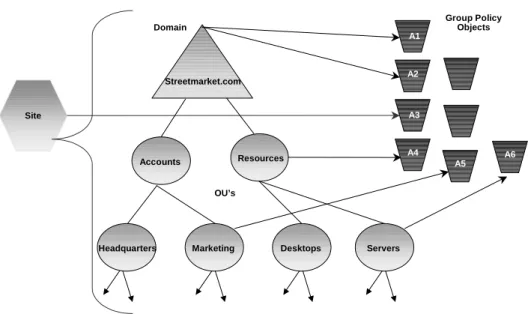
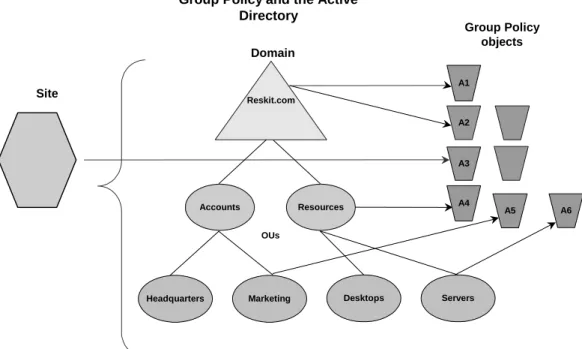
Figure 1 below shows a sample domain structure to illustrate how GPOs can be applied to containers in Active Directory.
Figure 1. Group Policy and Active Directory
Filtering the Scope of the Group Policy Object
Group Policy and the Active Directory
Site
OU’s Resources
Group Policy Objects A1
A2
A3
A5 A4 Streetmarket.com
Domain
Accounts
Desktops
Headquarters Marketing Servers
A6
Server OU GPOs applied = A3, A1, A2, A4, A6 Marketing OU GPOs applied = A3, A1, A2, A5
Security Filtering
Security filtering is a way of refining which users and computers will receive and apply the settings in a GPO. Using security filtering, you can narrow the scope of a GPO so that it applies only to a single group, user, or computer by specifying that only certain security principals within a container where the GPO is linked apply the GPO. Security filtering determines whether the GPO as a whole applies to groups, users, or computers; it cannot be used selectively on different settings within a GPO.
In order for the GPO to apply to a given user or computer, that user or computer must have both Read and Apply Group Policy (AGP) permissions on the GPO, either explicitly, or effectively though group membership.
By default, all GPOs have Read and AGP both Allowed for the Authenticated Users group. The Authenticated Users group includes both users and computers. This is how all authenticated users receive the settings of a new GPO when it is applied to an organizational unit, domain or site. Therefore, the default behavior is for every GPO to apply to every Authenticated User. By default, Domain Admins, Enterprise Admins, and the local system have full control permissions, without the
Apply Group Policy ACE. However, administrators are members of Authenticated Users, which
means that they will receive the settings in the GPO by default.
You can change these permissions to limit the scope to a specific set of users, groups, or computers within the organizational unit, domain, or site. Group Policy Management manages these permissions as a single unit, and displays the security filtering for the GPO on the GPO Scope tab. Using GPMC, you can add and remove groups, users, and computers to be used as security filters for each GPO. In addition, security principals used for security filtering also appear on the Delegation tab for a GPO as having Read (from Security Filtering), since they have read access to the GPO.
To modify security filtering, you add or remove groups in the Security Filtering section on the Scope tab of a GPO. In practice, you don't have to set the two access control entries (ACEs), because GPMC sets both for you when you set security filtering. In addition, The Read and AGP permissions are visible separately, and able to be set independently of one another, through the access control list (ACL) editor. In GPMC, the Security Filtering section of the Scope tab of a GPO shows only whether the GPO will apply. If you want to see the permissions separately, you can open the ACL editor by clicking the Advanced button on the Delegation tab for the GPO.
To prevent a GPO from applying to a specified group requires removal of the AGP ACE from that
group. In the ACL editor, if you remove the AGP ACE (clear the Allow check box) for Authenticated
Users, you can then explicitly grant this permission to individual security groups that should receive the policy settings. Alternatively, you could set AGP to Deny for certain classes of users, such as
administrators, that will never need that policy.
Note Use the Deny ACE with caution. A Deny ACE setting for any group has precedence over any Allow ACE given to a user or computer because of membership in another group.
Best Practice: If you disallow Apply Group Policy for a GPO for some users, consider also disallowing
Read access to those users. When the Read ACE is allowed and the Apply Group Policy is not, the GPO is still processed by the user even though it is not applied to the user. Therefore, to improve performance, you should remove the Read Access Control Entry to prevent the user from processing the GPO. In addition, removing Read access increases security. With Read access allowed, it is possible for an inquisitive user with considerable knowledge of Active Directory to read the contents of
that GPO, even if it’s not applied to them. This may not be desirable in some cases, such as a GPO for a human resources group. It might be advisable to limit Read access on GPOs that affect the HR users to only those users.
Security groups and DACLs are also used to delegate control of GPOs, as explained in the section Delegating Group Policy.
Notes
Granting Read and AGP is not sufficient to ensure that the GPO is processed for a user or computer. The GPO also has to be linked to a site, domain or organizational unit containing the user or computer, directly or through inheritance.
A GPO with security filtering set to Read and AGP doesn't necessarily apply to all security principals that have security filtering. It only applies to them if those user or computer objects are in the container or child container that is linked to the GPO.
The location of a security group in Active Directory is irrelevant to security filtering and, more generally, irrelevant to Group Policy processing.
WMI Filtering
WMI filters allow you to dynamically determine the scope of GPOs based on attributes of the target computer.
When a GPO that is linked to a WMI filter is applied on the target computer, the filter is evaluated on the target computer. If the WMI filter evaluates to false, the GPO is not applied (except if the client
computer is running Windows 2000, in which case the filter is ignored and the GPO is always applied). If the WMI filter evaluates to true, the GPO is applied.
WMI makes data about a target computer available for administrative use. Such data can include hardware and software inventory, settings, and configuration information. For example, WMI exposes hardware configuration data such as CPU, memory, disk space, and manufacturer, as well as software configuration data from the registry, drivers, file system, Active Directory, the Windows Installer service, networking configuration, and application data.
A WMI filter consists of one or more queries based on this data. If all queries are true, the GPO linked to the filter will be applied. The queries are written using the WMI Query Language (WQL), a SQL-like language. Queries can be combined with AND and OR logical operators to achieve whatever effect the administrator wants. Each query is executed against a particular WMI namespace. When you create a query, you must specify the namespace. The default is root\CIMv2, which is appropriate for most WMI queries. For more information, see Windows Management Instrumentation in the Microsoft Platform SDK at
http://msdn.microsoft.com/library/default.asp?url=/library/en-us/wmisdk/wmi/wmi_start_page.asp.
The WMI filter is a separate object from the GPO in the directory. To apply a WMI filter to a GPO, you link the filter to the GPO. This is shown in the WMI filtering section on the Scope tab of a GPO. Each GPO can have only one WMI filter, however the same WMI filter can be linked to multiple GPOs. WMI filters, like GPOs, are stored on a per-domain basis. A WMI filter and the GPO it is linked to must
Notes
Client support for WMI filters exists only on Windows XP, Windows Server 2003, and later operating systems. Windows 2000 clients will ignore any WMI filter and the GPO is always applied, regardless of the WMI filter.
WMI filters are only available in domains that have at least one Windows Server 2003 domain controller. In an environment consisting only of Windows 2000 domains, the WMI filter node in GPMC is not shown. Here are some sample uses of WMI Filters.
• Services – computers where DHCP is turned on.
• Registry – computers that have this registry key populated.
• Hardware inventory – computers with a Pentium III processor.
• Software inventory – computers with Visual Studio® .NET installed.
• Hardware configuration – computers with NICs on interrupt level 3.
• Software configuration – computers with multi-casting turned on.
• Associations – computers that have any service dependent on SNA service.
• Ping – computers that can ping Server1 in less than 100 milliseconds.
WMI filtering allows administrators to filter the application of a GPO by attaching one set of Windows Query Language query to a GPO. The queries can be written to query WMI for multiple items. If the query returns true for all queried items, then the GPO will be applied to the target user or computer. The WMI filter applies to every setting in the GPO, so you will want to create separate GPOs specifically for WMI filtering.
There are two distinct parts to WMI filtering in Windows Server 2003:
• Server administration of WMI filters. This includes GPMC, changes to the Group Policy Object Editor, and filter specifications.
• Client side processing. (WMI supports batch processing of WMI filters.)
• For more information about WMI filtering including sample filters for specific scenarios, see Appendix C in this paper.
MMC Snap-in Extension Model
The nodes of the Group Policy Object Editor are also MMC snap-in extensions. These extensions include Administrative Templates, Scripts, Security Settings, Software Installation, Folder Redirection, Remote Installation Services, and Internet Explorer Maintenance. Extension snap-ins may in turn be extended. For example, the Security Settings snap-in includes several extension snap-ins. Developers can also create their own MMC extensions to the Group Policy Object Editor to provide additional policy settings.
For more information on creating MMC extensions, see the Microsoft Management Console section of the Microsoft Platform SDK documentation at:
By default, all the available Group Policy Object Editor extensions are loaded when you start the Group Policy Object Editor. You can modify this default behavior by creating a custom MMC console, or by using policy settings to control the behavior of MMC itself. MMC options are accessed under the User Configuration\Administrative Templates\Windows Components\Microsoft Management Console node. For more information, see:
Specifying Group Policy to Control the Behavior of MMC and Snap-ins, later in this document.
Group Policy Object Editor Namespace
The root node of the Group Policy Object Editor is displayed as the name of the GPO and the domain to which it belongs, in the following format:
GPO Name [DomainName.com] Policy For example:
Default Domain Policy [HQ-RES-DC-01.Contoso.com] Policy
Computer Configuration and User Configuration
Below the root node, the namespace is divided into two parent nodes: Computer Configuration and User Configuration. These are the parent nodes that you use to configure Group Policy settings. Computer-related Group Policy is applied when the operating system boots and during the periodic refresh cycle, explained later in this document. User-related Group Policy is applied when users log on to the computer and during the periodic refresh cycle.
Extensions to the Group Policy Object Editor
Three nodes exist under the Computer Configuration and User Configuration parent nodes: Software Settings, Windows Settings, and Administrative Templates. The Software Settings and Windows Settings nodes contain extension snap-ins that extend either or both of the Computer Configuration or User Configuration nodes. Most of the extension snap-ins extend both of these nodes, but frequently with different options. The Administrative Templates node namespace contains all policy settings pertaining to the registry; it can be extended by using .adm files.
The Group Policy extension snap-ins include:
• Administrative Templates. This extension contains all registry-based policy settings, including those for the Windows 2000 and Windows Server 2003 operating systems and their components as well as any registry-based policy settings provided by applications. You use these policy settings to mandate registry settings that control the behavior and appearance of the desktop, the operating system components, and applications that provide registry-based policy. This node uses .adm files to specify the registry settings that can be modified through the Group Policy Object Editor user interface. For more information on .adm files, see Administrative Templates later in this paper.
• Security Settings. The Security Settings extension is used to set security options for computers and users within the scope of a GPO. You can define local computer, domain, IP security settings, wireless configuration, and software restriction policy settings. For more information on security settings, see Security Settings and Appendix A: Security Settings and User Rights, later in this paper.
• Software Installation. You can use the Software Installation snap-in to centrally manage software in your organization. You can assign and publish software to users and assign software to computers. For more information on software installation, see Software Installation, later in this document.
• Scripts. Scripts are used to automate tasks at computer startup and shutdown, and at user logon and logoff. You can use any language supported by Windows Script Host. These include the Microsoft Visual Basic® development system, Scripting Edition (VBScript), JavaScript, PERL, and MS-DOS®-style batch files (.bat and .cmd). See Scripts, later in this document and Microsoft Windows Script Web site at http://www.microsoft.com/scripting for more information.
• Remote Installation Services. Remote Installation Services (RIS) is used to control the behavior of the Remote Operating System Installation feature as displayed to client computers. See Remote
Installation Services, later in this document.
• Internet Explorer Maintenance. Internet Explorer Maintenance is used to manage and customize Internet Explorer on computers running Windows 2000 or later. You can also export settings for Windows 95, Windows 98, and Windows NT® 4.0-based client computers (the settings are exported into an .ins and .cab file format for those platforms). Administrators can set options for Browser UI, connections, URLs, proxy settings, security zones, Favorites, and other options. See Internet Explorer Maintenance, later in this document.
• Folder Redirection. You can use folder redirection to redirect special directories on Windows 2000 or Windows Server 2003 from their default user profile location to an alternate location on the network. These special folders include My Documents, Application Data, Desktop, and the Start menu. See Folder Redirection, later in this document.
For more information about extending the functionality of the Group Policy Object Editor see “Implementing Registry-Based Group Policy” at
http://www.microsoft.com/windows2000/techinfo/howitworks/management/rbppaper.asp.
Client-side Extensions to Group Policy
Some of the Group Policy Object Editor extensions also include client-side extensions. These extensions are DLLs that are responsible for implementing Group Policy at the client computers. For more information on the client-side extensions, see the Client-side Processing of Group Policy section later in this paper.
Group Policy Storage
A GPO is a virtual object. The policy setting information of a GPO is actually stored in two locations: the Group Policy container (GPC) and the Group Policy template (GPT). The Group Policy container is an Active Directory container that stores GPO properties, including information on version, GPO status, and a list of components that have settings in the GPO. The Group Policy template is a directory structure within the file system that stores Administrative Template-based policy settings, security settings, script files, and information regarding applications that are available for Software Installation. The Group Policy template is located in Sysvol in the \Policies sub-directory for its domain. GPOs are identified by their globally unique identifiers (GUIDs) and stored at the domain level. Replication of a GPO to other domain controllers happens through two different mechanisms. The Group Policy container is replicated by using Active Directory replication, whereas the Group Policy template is replicated using File Replication Service (FRS). The settings from a GPO are only applied when the
Group Policy container and Group Policy template are synchronized. For additional information on storage of Group Policy information, see Appendix B: Group Policy Storage, later in this paper.
Migrating GPOs Across Domains
Taking a GPO in a given domain and creating a new GPO that contains the same set of policies in a different domain is a central function of GPMC.
Although the collection of settings in a GPO is logically a single entity, the data for a single GPO is stored in multiple locations and in a variety of formats; some data is contained in Active Directory and other data (of various types) is stored on the Sysvol file share on the domain controllers. This means that copying GPOs is not as simple as taking a directory and copying it from one computer to another. In addition to the complex way in which GPO data is stored, certain policy data may be valid in one domain but be invalid in the domain that the GPO is being copied to. For example, Security Identifiers (SIDs) stored in security policy settings are often domain specific. In addition, Universal Naming Convention (UNC) paths for folder redirection or software installation policies may not work properly if the data in the GPO is copied without modification to a different domain.
Migration Tables
The solution is to modify these references in the GPO that are domain-specific, during the import or copy operation, so that the settings in the destination GPO are written with the appropriate information for the destination domain. GPMC supports this capability using migration tables.
A migration table is a file that maps references to users, groups, computers, and UNC paths in the source GPO to new values in the destination GPO. A migration table consists of one or more mapping entries. Each mapping entry consists of a type, source reference, and destination reference. If you specify a migration table when performing an import or copy, each reference to the source entry will be replaced with the destination entry when writing the settings into the destination GPO.
The migration table will apply to any references in the settings within a GPO, whether you are
performing an import or copy operation. In addition, during a copy operation, if you choose the option to preserve the discretionary access control list (DACL) on the GPO, the migration table will also apply to both the DACL on the GPO and the DACLs on any software installation settings in the GPO.
Migration tables store the mapping information as XML, and have their own file name extension, .migtable. You can create migration tables using the Migration Table Editor (MTE). The MTE is a convenient tool for viewing and editing migration tables without having to work in, or be familiar with, XML. The MTE is associated with the .migtable extension so that when you double click a migration table, it opens in the MTE. The MTE is installed with GPMC. You can also create and edit migration tables using any XML editor or using the GPMC scripting interfaces.
GPMC as the Solution for Migrating GPOs
There are four operations that GPMC provides to allow for archival and recovery of GPOs, and for migrating GPOs from one environment to another:
• Copy. A copy operation allows you to transfer settings from an existing GPO in Active Directory directly into a new GPO. The new GPO created during the copy operation is given a new GUID and is unlinked. You can use a copy operation to transfer settings to a new GPO in the same domain, another domain in the same forest, or a domain in another forest. Because a copy operation uses an existing GPO in Active Directory as its source, trust is required between the source and destination domains. Copy
operations are suited for moving Group Policy between production environments, and for migrating Group Policy that has been tested in a test domain or forest to a production environment, as long as there is trust between the source and destination domains.
• Backup. Backing up a GPO copies the data in the GPO to the file system. The backup function also serves as the export capability for GPOs. A GPO backup can be used to restore the GPO to the backed-up state, or to import the settings in the backup to another GPO.
• Import. The Import operation transfers settings into an existing GPO in Active Directory using a backed-up GPO in the file system location as its source. Import operations can be used to transfer settings from one GPO to another GPO within the same domain, to a GPO in another domain in the same forest, or to a GPO in a domain in a different forest. The import operation always places the backed-up settings into an existing GPO. It erases any pre-existing settings in the destination GPO. Import does not require trust between the source domain and destination domain. Therefore it is useful for transferring settings across forests and domains that don't have trust. Importing settings into a GPO does not affect its DACL, links on sites domains or organizational units to that GPO, or a link to a WMI filter.
• Restore. Restoring a GPO re-creates the GPO from the data in the backup. A restore operation can be used in both of the following cases: the GPO was backed up but has since been deleted, or the GPO is live and you want to roll back to a known previous state.
Each of these operations can be performed through the GPMC user interface, or through the GPMC scripting model.
For more information, see the following resources:
• Group Policy Administration using the Group Policy Management Console White paper. Provides technical details of functionality in GPMC.
• Migrating GPOs Across Domains with GPMC. Explains how to migrate GPOs from one domain to another using GPMC.
• GPMC Help. Available when you install GPMC, this provides step-by-instructions for GPMC tasks and addresses key concepts in GPMC.
Scripting Group Policy Tasks
GPMC provides a comprehensive set of COM interfaces for scripting many Group Policy-related operations. The interfaces are documented in the Group Policy Management Console SDK, which is located at %programfiles%\gpmc\scripts\gpmc.chm on any computer where you installed GPMC. (The Group Policy Management Console SDK is only available in English.)
When you install GPMC, a set of sample scripts illustrating the use of these interfaces are installed to the %programfiles%\gpmc\scripts directory.
The sample scripts address real-world administrative problems and scenarios. You can perform various tasks such as finding all GPOs in a domain that have duplicate names or generating a list of all GPOs in a domain whose settings are disabled or partially disabled.
Delegating Group Policy
One of the features of Active Directory is its ability to delegate control of portions of the directory service. This section explains how Group Policy fits in with the delegation of sites, domains, and organizational units.
With GPMC, the following tasks can be delegated:
• Create GPOs in a domain.
• Set permissions on a GPO.
• Set policy-related permissions on site, domain or organizational unit.
• Link GPOs to a given site, domain or organizational unit.
• Perform Group Policy Modeling analyses on a given domain or organizational unit (but not on a site).
• Read Group Policy Results data for objects in a given domain or organizational unit (but not on a site).
• Create WMI filters in a domain.
• Set permissions on a WMI filter.
GPMC simplifies delegation by managing the various ACEs required for a task as a single bundle of permissions for the task. If you want to see the ACL in detail, you can click the Advanced button on the
Delegation tab.
The underlying mechanism for achieving delegation is the application of the appropriate DACLs to GPOs and other objects in Active Directory. This mechanism is identical to using security groups to filter the application of GPOs to various users, as described earlier in this paper.
You can also specify Group Policy to control the behavior of MMC and MMC snap-ins. For example, you can use Group Policy to manage the rights to create, configure, and use MMC consoles, and to control access to individual snap-ins.
Using Security Groups to Delegate Group Policy
The following table lists the default security-permission settings for a GPO:
Groups or Users Security permission
Authenticated User Read with Apply Group Policy ACE Domain Admins
Enterprise Admins Creator Owner Local System
Full control without Apply Group Policy ACE.
Note By default, administrators are also authenticated users, which means that they have the Apply Group Policy attribute set. If this is not desired, administrators have two choices:
• Remove Authenticated Users from the list on the security tab of the GPO, and add a new security group with the Apply Group Policy and Read attributes set to Allow. This new group should contain all the users that this Group Policy is intended to affect.
• Set the Apply Group Policy attribute to Deny for the Domain and Enterprise Admins, and possibly the Creator Owner groups. This will prevent the GPO from being applied to members of those groups. Remember that an ACE set to Deny always takes precedence over Allow. Therefore, if a given user is a member of another group that is set to explicitly Allow the Apply Group Policy attribute for this GPO, it will still be denied.
Managing Group Policy Links for a Site, Domain, or Organizational Unit
The Group Policy tab in the Properties page for a site, domain, or organizational unit allows the
administrator to specify which GPOs are linked to this site, domain, or organizational unit. This property page stores the user’s choices in two Active Directory properties called gPLink and gPOptions. The gPLink property contains the prioritized list of GPOs and the gPOptions property contains the Block Policy
Inheritance setting.
To manage GPO links to a site, domain, or organizational unit, you must have read and write access to the
gPLink and gPOptions properties. By default, Domain Admins have this permission for domains and
organizational unit, and only Enterprise Admins and Domain Admins of the forest root domain can manage links to sites.
Active Directory supports security settings on a per-property basis. This means that a non-administrator can be given read and write access to specific properties. In this case, if non-administrators have read and write access to the gPLink and gPOptions properties, they can manage the list of GPOs linked to that site, domain, or organizational unit.
Creating GPOs
By default, only Domain Admins, Enterprise Admins, and Group Policy Creator Owners can create new GPOs. Creating GPOs is a user right of the Group Policy Creator Owners (GPCO) group by default but can be delegated to any group or user. There are two methods to grant a group or user this right:
• Add the user or group to membership of the Group Policy Creator Owners group. This was the only method available prior to GPMC.
• Explicitly grant the group or user permission to create GPOs. This method is newly available with GPMC.
You can manage this permission using the Delegation tab on the Group Policy Objects container for a given domain in GPMC. This tab shows the groups that have permission to create GPOs in the domain, including the GPCO group. From this tab, you can modify the membership of existing groups with this permission, or add new groups.
The ability to grant users permissions to create GPOs without using GPCO was added to facilitate the delegation of GPO creation to users outside the domain. Because the Group Policy Creator Owners group is a domain global group, it cannot contain members from outside the domain. Thus, prior to GPMC, this task could not be delegated to members outside the domain.
It is recommended that for users and groups within the domain, you continue to use the GPCO group to grant them GPO creation rights. If you require that users outside the domain have the ability to create GPOs, then create a new domain local group in the domain ("GPCO - External"), grant that group GPO creation rights in the domain, and then add external domain users to that group.
Adding a user to the membership of GPCO, or granting the user GPO creation permissions directly using the new method available in GPMC, is identical in terms of permissions. Users have the ability to create GPOs in the domain, but do not have permissions on GPOs created by other users. For
example, granting a user the ability to create GPOs in the domain does not give the user the ability to edit or delete existing GPOs, or the ability to link the GPO to a site, domain or organizational unit. Note that when an administrator creates a GPO, the Domain Admins group becomes the Creator Owner of the GPO. The ability to link GPOs to a site, domain or organizational unit is a permission that is specific to that site, domain or organizational unit. When delegating to non-administrators, you should also consider delegating the ability to manage the links for a specific organizational unit. The reason is that by default, non-administrators cannot manage links.
In GPMC, this permission can be managed using the Delegation tab on the site, domain or
organizational unit when you click the Link GPOs option in the permission drop-down list box. At the individual permission level in Active Directory, this allows Read and Write access to the gPLink and gPOptions attributes on the site, domain, or organizational unit. By default, only Domain Admins and Enterprise Admins have this permission.
Editing Group Policy Objects
To edit a GPO, the user must have both read and write access to the GPO. (However, read-only support for opening a GPO is provided in GPMC). To edit a GPO, the user must be one of the following:
• An administrator.
• A Creator Owner.
• A user with delegated access to the GPO. That is, an administrator, or the Creator Owner, must have provided to this user both read and write access to the GPO.
By default, Domain Admins, Enterprise Admins, the operating system, and the GPO Creator Owner can edit GPOs because they have full control of GPOs without the Apply Group Policy attribute.
Delegating an individual GPO
There are five permission options on GPOs in GPMC user interface. Each corresponds to a set of individual NT permissions. The correspondence is summarized in the following table.
Option in GPMC user interface
Corresponding NT permission in ACL Editor
Read Allow Read Access on the GPO
Edit settings Allow Read, Write, Create Child Objects, and Delete Child Objects.
Edit, delete, and modify securityAllow Read, Write, Create Child Objects, Delete Child Objects, Delete, Modify Permissions, and Modify Owner. This essentially grants full control on the GPO, except that the Apply Group Policy permission is not set.
Read (from Security Filtering) This setting cannot be set directly, but appears on the delegation tab if the user has Read and Apply Group Policy permissions to the GPO.
Custom Any other combination of permissions, including the use of Deny will show up as Custom in the display. GPMC can only set custom permission sets by clicking the Advanced button and opening the ACL editor.
Permissions on a GPO are managed from the Delegation tab of that GPO.
Specifying Group Policy to Control the Behavior of MMC extensions
Windows Server 2003 Group Policy includes several policy settings designed to control the behavior of MMC snap-ins. For example, you can use Group Policy to manage the rights to use MMC snap-ins.
Restricting Access to a List of Permitted Snap-ins
Administrators can specify which MMC snap-ins may be run by the affected user and which may not. This may be specified to be inclusive, which only allows a set of snap-ins to run, or it may be set as exclusive, which does not allow a set of snap-ins to run.
To create a list of permitted snap-ins for users, enable the Restrict users to the explicitly permitted list of snap-ins policy. When this policy is enabled, only permitted snap-ins can be run. If this policy is
disabled or not configured, all snap-ins are permitted, except those you explicitly prohibit. This policy is available in the Group Policy console under the User Configuration\Administrative Templates\Windows Components\Microsoft Management Console node.
Controlling Access to a Snap-in
To restrict or explicitly permit access to a particular snap-in, navigate to User
Configuration\Administrative Templates\Windows Components\Microsoft Management
Console\Restricted\Permitted snap-ins\Group Policy in the console tree. In the details pane, double-click the snap-in that you want to permit or restrict, and then select an option. For more information on these policy settings, select a policy setting, and view the description in the Web view or click the explain tab in the Properties dialog box for the policy setting.
Administrators can enable the Restrict the user from entering author mode policy in order to prevent users from using MMC in author mode. This policy is available in the Group Policy console under the User Configuration\Administrative Templates\Windows Components\Microsoft Management Console node.
Creating Custom Group Policy Object Editor Consoles
You can create custom Group Policy MMC consoles (.msc files), which include only a subset of the Group Policy Object Editor extensions. You can combine this with the use of the policy settings above to provide a customized tool. For example, you could create a custom Group Policy console that includes only the Security Settings extension. This allows you to define Group Policy settings in a modular fashion.
To set access permissions, use the Security tab on the Properties page of the selected GPO. These permissions allow or deny specified groups access to the GPO.
Group Policy Extension Snap-ins
The Group Policy extension snap-ins constitutes the main nodes in the Group Policy Object Editor namespace; they are all loaded by default when the Group Policy Object Editor is started. You can modify which extensions are loaded by creating custom consoles for Group Policy, and by specifying policy settings for MMC. For more information, see Creating Custom Group Policy Snap-in Consoles and Specifying Group Policy to Control the Behavior of MMC and Snap-ins in this document.
This section presents additional information on the following topics: • Administrative Templates
• Security Settings
• Software Installation
• Scripts (Startup/Shutdown and Logon/Logoff)
• Folder Redirection
• Internet Explorer Maintenance
• Remote Installation Services
Administrative Templates
Administrative templates, (or .adm files), enable administrators to control registry settings using Group Policy. Windows comes with a predefined set of Administrative template files, which are implemented as text files (with an .adm extension), that define the registry settings that can be configured in a GPO. These .adm files are stored in two locations by default: inside GPOs in the Sysvol folder and in the %windir%\inf directory on the local computer.
As new versions of Windows are released, new policy settings are added. In addition to supporting these new settings, each successive version of Windows supports all registry policy settings that were available in earlier versions of Windows. For example, the Windows Server 2003 family supports all registry policy settings available in Windows 2000 and Windows XP.
Note that .adm files are Unicode files which consist of a hierarchy of categories and subcategories that define how the options are displayed through the Group Policy Object Editor and GPMC. They also indicate the registry locations where changes should be made if a particular selection is made, specify any options or restrictions (in values) that are associated with the selection, and in some cases, indicate a default value to use if a selection is activated.
It is important to understand that .adm files are not the actual settings that are deployed to client operating systems. The adm file is simply a template file that provides the friendly name for the setting and an explanation. This template file is used to populate the user interface. The settings that are deployed to clients are contained in the registry.pol file inside the GPO. On Windows XP and Windows Server 2003, each registry setting contains a "Supported on" tag that indicates which operating system versions support that policy setting. If a setting is specified and deployed to a client operating system that does not support that setting, the settings are ignored.
Because all successive iterations of .adm files include settings from earlier versions, and because there is no harm if a new setting is applied inadvertently to a computer running an earlier operating system