Symantec NetBackup™
Troubleshooting Guide
UNIX, Windows, and Linux
Release 7.6
Symantec NetBackup™ Troubleshooting Guide
The software described in this book is furnished under a license agreement and may be used only in accordance with the terms of the agreement.
Documentation version: 7.6 PN: 21317380
Legal Notice
Copyright © 2013 Symantec Corporation. All rights reserved.
Symantec, the Symantec Logo, and the Checkmark Logo are trademarks or registered trademarks of Symantec Corporation or its affiliates in the U.S. and other countries. Other names may be trademarks of their respective owners.
This Symantec product may contain third party software for which Symantec is required to provide attribution to the third party (“Third Party Programs”). Some of the Third Party Programs are available under open source or free software licenses. The License Agreement accompanying the Software does not alter any rights or obligations you may have under those open source or free software licenses. Please see the Third Party Legal Notice Appendix to this Documentation or TPIP ReadMe File accompanying this Symantec product for more information on the Third Party Programs.
The product described in this document is distributed under licenses restricting its use, copying, distribution, and decompilation/reverse engineering. No part of this document may be reproduced in any form by any means without prior written authorization of Symantec Corporation and its licensors, if any.
THE DOCUMENTATION IS PROVIDED "AS IS" AND ALL EXPRESS OR IMPLIED CONDITIONS, REPRESENTATIONS AND WARRANTIES, INCLUDING ANY IMPLIED WARRANTY OF MERCHANTABILITY, FITNESS FOR A PARTICULAR PURPOSE OR NON-INFRINGEMENT, ARE DISCLAIMED, EXCEPT TO THE EXTENT THAT SUCH DISCLAIMERS ARE HELD TO BE LEGALLY INVALID. SYMANTEC CORPORATION SHALL NOT BE LIABLE FOR INCIDENTAL OR CONSEQUENTIAL DAMAGES IN CONNECTION WITH THE FURNISHING, PERFORMANCE, OR USE OF THIS DOCUMENTATION. THE INFORMATION CONTAINED IN THIS DOCUMENTATION IS SUBJECT TO CHANGE WITHOUT NOTICE.
The Licensed Software and Documentation are deemed to be commercial computer software as defined in FAR 12.212 and subject to restricted rights as defined in FAR Section 52.227-19 "Commercial Computer Software - Restricted Rights" and DFARS 227.7202, "Rights in Commercial Computer Software or Commercial Computer Software Documentation", as applicable, and any successor regulations. Any use, modification, reproduction release, performance, display or disclosure of the Licensed Software and Documentation by the U.S. Government shall be solely in accordance with the terms of this Agreement.
Symantec Corporation 350 Ellis Street
Mountain View, CA 94043 http://www.symantec.com
Printed in the United States of America. 10 9 8 7 6 5 4 3 2 1
Technical Support
Symantec Technical Support maintains support centers globally. Technical Support’s primary role is to respond to specific queries about product features and functionality. The Technical Support group also creates content for our online Knowledge Base. The Technical Support group works collaboratively with the other functional areas within Symantec to answer your questions in a timely fashion. For example, the Technical Support group works with Product Engineering and Symantec Security Response to provide alerting services and virus definition updates.
Symantec’s support offerings include the following:
■ A range of support options that give you the flexibility to select the right amount of service for any size organization
■ Telephone and/or Web-based support that provides rapid response and up-to-the-minute information
■ Upgrade assurance that delivers software upgrades
■ Global support purchased on a regional business hours or 24 hours a day, 7 days a week basis
■ Premium service offerings that include Account Management Services For information about Symantec’s support offerings, you can visit our website at the following URL:
www.symantec.com/business/support/
All support services will be delivered in accordance with your support agreement and the then-current enterprise technical support policy.
Contacting Technical Support
Customers with a current support agreement may access Technical Support information at the following URL:
www.symantec.com/business/support/
Before contacting Technical Support, make sure you have satisfied the system requirements that are listed in your product documentation. Also, you should be at the computer on which the problem occurred, in case it is necessary to replicate the problem.
When you contact Technical Support, please have the following information available:
■ Product release level ■ Hardware information
■ Available memory, disk space, and NIC information ■ Operating system
■ Version and patch level ■ Network topology
■ Router, gateway, and IP address information ■ Problem description:
■ Error messages and log files
■ Troubleshooting that was performed before contacting Symantec ■ Recent software configuration changes and network changes
Licensing and registration
If your Symantec product requires registration or a license key, access our technical support Web page at the following URL:
www.symantec.com/business/support/
Customer service
Customer service information is available at the following URL: www.symantec.com/business/support/
Customer Service is available to assist with non-technical questions, such as the following types of issues:
■ Questions regarding product licensing or serialization
■ Product registration updates, such as address or name changes
■ General product information (features, language availability, local dealers) ■ Latest information about product updates and upgrades
■ Information about upgrade assurance and support contracts ■ Information about the Symantec Buying Programs
■ Advice about Symantec's technical support options ■ Nontechnical presales questions
Support agreement resources
If you want to contact Symantec regarding an existing support agreement, please contact the support agreement administration team for your region as follows:
[email protected] Asia-Pacific and Japan
[email protected] Europe, Middle-East, and Africa
[email protected] North America and Latin America
Technical Support
... 4Chapter 1
Introduction
... 13Troubleshooting a problem ... 13
Problem report for Technical Support ... 15
About gathering information for NetBackup-Java applications ... 17
Chapter 2
Troubleshooting procedures
... 19About troubleshooting procedures ... 20
Troubleshooting NetBackup problems ... 22
Verifying that all processes are running on UNIX servers ... 24
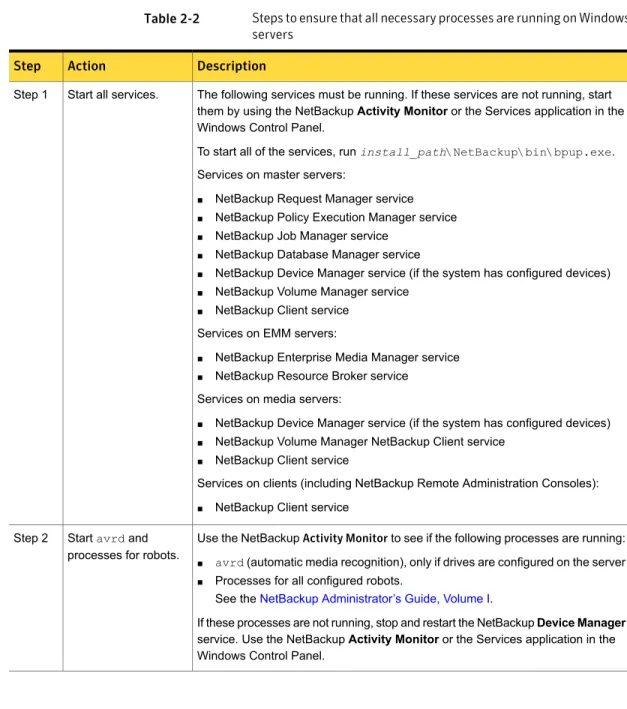
Verifying that all processes are running on Windows servers ... 26
Troubleshooting installation problems ... 28
Troubleshooting configuration problems ... 29
Device configuration problem resolution ... 31
Testing the master server and clients ... 34
Testing the media server and clients ... 38
Resolving network communication problems with UNIX clients ... 41
Resolving network communication problems with PC clients ... 46
About troubleshooting networks and host names ... 49
Verifying host name and service entries in NetBackup ... 53
Example of host name and service entries on UNIX master server and client ... 57
Example of host name and service entries on UNIX master server and media server ... 59
Example of host name and service entries on UNIX PC clients ... 60
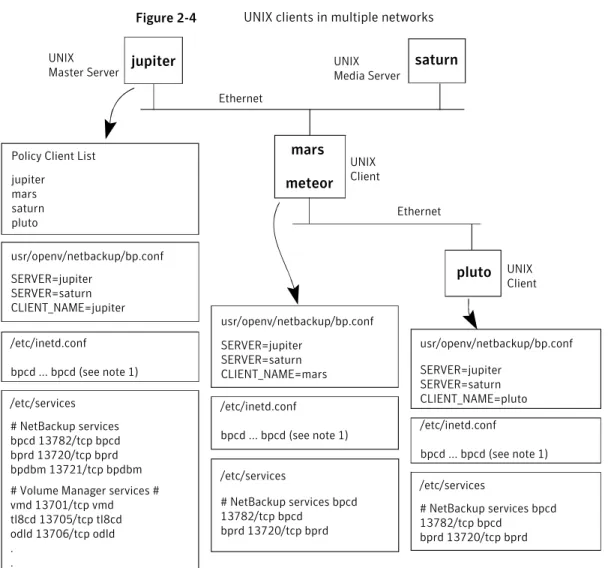
Example of host name and service entries on UNIX clients in multiple networks ... 61
Example of host name and service entries on UNIX server that connects to multiple networks ... 64
About the bpclntcmd utility ... 65
Using the Host Properties window to access configuration settings ... 67
Resolving full disk problems ... 68
Contents
Frozen media troubleshooting considerations ... 69
Logs for troubleshooting frozen media ... 70
About conditions that cause media to freeze ... 70
Resolving PBX problems ... 73
Checking PBX installation ... 74
Checking that PBX is running ... 74
Checking that PBX is set correctly ... 75
Accessing the PBX logs ... 76
Troubleshooting PBX security ... 77
Determining if the PBX daemon or service is available ... 78
Resolving no jobs displayed on Activity Monitor ... 79
About troubleshooting Auto Image Replication ... 79
Troubleshooting Auto Image Replication ... 80
About troubleshooting automatic import jobs ... 86
Troubleshooting network interface card performance ... 90
About SERVER entries in the bp.conf file ... 91
About unavailable storage unit problems ... 91
Resolving a NetBackup Administration operations failure on Windows ... 92
About troubleshooting NetBackup in a SAN environment ... 92
NetBackup enterprise lifecycle best practices ... 93
Using CommandCentral Storage to troubleshoot NetBackup in a SAN environment ... 94
Chapter 3
Using NetBackup utilities
... 99About NetBackup troubleshooting utilities ... 99
About the analysis utilities for NetBackup debug logs ... 100
About network troubleshooting utilities ... 104
About the NetBackup support utility (nbsu) ... 105
Output from the NetBackup support utility (nbsu) ... 107
Status code information gathered by the NetBackup support utility (nbsu) ... 110
Example of a progress display for the NetBackup support utility (nbsu) ... 110
About the NetBackup consistency check utility (NBCC) ... 111
Output from the NetBackup consistency check utility (NBCC) ... 113
Example of an NBCC progress display ... 114
About the NetBackup consistency check repair (NBCCR) utility ... 120
About the nbcplogs utility ... 122
About the robotic test utilities ... 123
Robotic tests on UNIX ... 124
8 Contents
Robotic tests on Windows ... 125
Chapter 4
Using logs
... 127About logs ... 127
About UNIX system logs ... 129
About unified logging ... 129
Gathering unified logs for NetBackup ... 130
Types of unified logging messages ... 132
File name format for unified logging ... 133
Originator IDs for the entities that use unified logging ... 134
About changing the location of unified log files ... 140
About rolling over unified log files ... 141
About recycling unified log files ... 142
About using the vxlogview command to view unified logs ... 143
About query strings used with the vxlogview command ... 144
Examples of using vxlogview to view unified logs ... 147
Examples of using vxlogmgr to manage unified logs ... 148
Examples of using vxlogcfg to configure unified logs ... 151
About legacy logging ... 153
UNIX client processes that use legacy logging ... 154
PC client processes that use legacy logging ... 155
File name formats for legacy logging ... 158
Directory names for legacy debug logs for servers ... 159
Directory names for legacy debug logs for media and device management ... 161
How to control the amount of information written to legacy logging files ... 162
About limiting the size and the retention of legacy logs ... 163
Configuring legacy log rotation ... 165
Creating legacy log directories to accompany problem reports for synthetic backup ... 166
About global logging levels ... 166
Changing the logging level ... 168
Changing the logging level on Windows clients ... 169
Setting debug logging to a higher level ... 169
Logs to accompany problem reports for synthetic backups ... 170
Setting retention limits for logs on clients ... 171
Logging options with the Windows Event Viewer ... 171
Troubleshooting error messages in the NetBackup Administration Console for UNIX ... 174
About extra disk space required for logs and temporary files ... 175
Enabling detailed debug logging ... 176
9 Contents
Chapter 5
Backup logging
... 178About backup logging ... 178
Sending backup logs to Symantec Technical Support ... 181
Chapter 6
Restore logging
... 184About restore logging ... 184
Sending restore logs to Symantec Technical Support ... 189
Chapter 7
Locating logs
... 191acsssi logging ... 192
bpbackup logging ... 192
bpbkar logging ... 193
bpbrm logging ... 193
bpcd logging ... 194
bpcompatd logging ... 194
bpdbm logging ... 194
bpjobd logging ... 195
bprd logging ... 195
bprestore logging ... 196
bptm logging ... 196
daemon logging ... 197
ltid logging ... 197
nbemm logging ... 198
nbjm logging ... 198
nbpem logging ... 198
nbproxy logging ... 199
nbrb logging ... 199
PBX logging ... 200
reqlib logging ... 200
robots logging ... 201
tar logging ... 201
txxd and txxcd logging ... 202
vnetd logging ... 202
Chapter 8
Disaster recovery
... 204About disaster recovery ... 204
Recommended backup practices ... 205
About disk recovery procedures for UNIX and Linux ... 207
Recovering the master server disk for UNIX and Linux ... 208
About recovering the NetBackup media server disk for UNIX ... 213
Recovering the system disk on a UNIX client workstation ... 213
10 Contents
About clustered NBU server recovery for UNIX and Linux ... 213
Replacing a failed node on a UNIX or Linux cluster ... 214
Recovering the entire UNIX or Linux cluster ... 215
About disk recovery procedures for Windows ... 216
About recovering the master server disk for Windows ... 217
About recovering the NetBackup media server disk for Windows ... 223
Recovering a Windows client disk ... 223
About clustered NBU server recovery for Windows ... 225
Replacing a failed node on a Windows VCS cluster ... 226
Recovering the shared disk on a Windows VCS cluster ... 226
Recovering the entire Windows VCS cluster ... 227
About recovering the NetBackup catalog ... 228
About NetBackup catalog recovery on Windows computers ... 230
About NetBackup catalog recovery from disk devices ... 230
About NetBackup catalog recovery and symbolic links ... 231
About NetBackup catalog recovery and OpsCenter ... 231
About recovering the entire NetBackup catalog ... 232
About recovering the NetBackup catalog image files ... 243
About recovering the NetBackup relational database ... 257
Recovering the NetBackup catalog when NetBackup Access Control is configured ... 264
Recovering the NetBackup catalog from a nonprimary copy of a catalog backup ... 266
Recovering the NetBackup catalog without the disaster recovery file ... 266
Recovering a NetBackup user-directed online catalog from the command line ... 270
Restoring files from a NetBackup online catalog backup ... 273
Unfreezing the NetBackup online catalog recovery media ... 274
Importing backup images, Phase I ... 274
Importing backup images, Phase II ... 276
Appendix A
Backup and restore functional overview
... 278About backup and restore functional overview ... 278
Backup and restore startup process ... 279
Backup and archive processes ... 279
Backups and archives - UNIX clients ... 280
Backup process ... 281
Snapshot backup and Windows open file backups ... 285
SAN client ... 288
Backups and archives - Windows ... 291
11 Contents
Synthetic backups ... 292
NetBackup hot catalog backup ... 295
About UNIX client restoration ... 296
About SAN client restoration ... 300
About Windows client restoration ... 303
About catalog backup restoration ... 304
NetBackup directories and files ... 306
NetBackup directory structure - UNIX ... 306
Contents of /usr/openv/netbackup ... 308
NetBackup programs and daemons ... 310
NetBackup catalogs ... 322
Appendix B
Media and device management functional
description
... 324Media and device management startup process ... 324
Media and device management process ... 326
Shared Storage Option management process ... 328
Barcode operations ... 330
Media and device management components ... 332
Index
... 34112 Contents
Introduction
This chapter includes the following topics: ■ Troubleshooting a problem
■ Problem report for Technical Support
■ About gathering information for NetBackup-Java applications
Troubleshooting a problem
The following steps offer general guidelines to help you resolve any problems you may encounter while you use NetBackup. The steps provide links to more specific troubleshooting information.
Table 1-1 Steps for troubleshooting NetBackup problems Description
Action Step
Error messages are usually the vehicle for telling you something went wrong. If you don’t see an error message in an interface, but still suspect a problem, check the reports and logs. NetBackup provides extensive reporting and logging facilities. These can provide an error message that points you directly to a solution.
The logs also show you what went right and the NetBackup operation that was ongoing when the problem occurred. For example, a restore operation needs media to be mounted, but the required media is currently in use for another backup. Logs and reports are essential troubleshooting tools. See“About logs”on page 127.
Remember the error message Step 1
1
Chapter
Table 1-1 Steps for troubleshooting NetBackup problems (continued) Description
Action Step
Ask the following questions: ■ What operation was tried? ■ What method did you use?
For example, more than one way exists to install software on a client. Also more than one possible interface exists to use for many operations. Some operations can be performed with a script.
■ What type of server platform and operating system was involved? ■ If your site uses both the master server and the media server, was it a
master server or a media server?
■ If a client was involved, what type of client was it?
■ Have you performed the operation successfully in the past? If so, what is different now?
■ What is the service pack level?
■ Do you use operating system software with the latest fixes supplied, especially those required for use with NetBackup?
■ Is your device firmware at a level, or higher than the level, at which it has been tested according to the posted device compatibility lists? Identify what you were doing
when the problem occurred Step 2
Capture potentially valuable information: ■ NetBackup progress logs
■ NetBackup Reports ■ NetBackup Utility Reports ■ NetBackup debug logs
■ Media and Device Management debug logs
■ On UNIX NetBackup servers, check for error or status messages in the system log or standard output.
■ Error or status messages in dialog boxes
■ On Windows, NetBackup servers, check for error or status information in the Event Viewer Application and System log.
Record this information for each try. Compare the results of multiple tries. A record of tries is also useful for others at your site and for Technical Support in the event that you cannot solve the problem. You can get more information about logs and reports.
See“About logs”on page 127. Record all information
Step 3
14 Introduction
Table 1-1 Steps for troubleshooting NetBackup problems (continued) Description
Action Step
After you define the problem, use the following information to correct it: ■ Take the corrective action that the status code or message recommends.
See theStatus Codes Reference Guide.
■ If no status code or message exists, or the actions for the status code do not solve the problem, use additional troubleshooting procedures to isolate common problems.
See“Troubleshooting NetBackup problems”on page 22. Correct the problem
Step 4
If your troubleshooting is unsuccessful, prepare to contact Technical Support by filling out a problem report.
See“Problem report for Technical Support”on page 15.
See“About gathering information for NetBackup-Java applications” on page 17.
On UNIX systems, the/usr/openv/netbackup/bin/goodies/support
script creates a file containing data necessary for Technical Support to debug any problems you encounter. For more details, consult the usage information of the script by usingsupport -h.
Complete a problem report for Technical Support Step 5
The Symantec Technical Support website has a wealth of information that can help you solve NetBackup problems.
Access Technical Support at the following URL: www.symantec.com/business/support/ Contact Technical Support
Step 6
Note:The term media server may not apply to the NetBackup server product. It depends on the context. When you troubleshoot a server installation, be aware that only one host exists: The master and the media server are one and the same. Ignore references to a media server on a different host.
Problem report for Technical Support
Fill out the following information before you contact support to report a problem. Date: _________________________
Record the following product, platform, and device information: ■ Product and its release level.
■ Server hardware type and operating system level.
15 Introduction
■ Client hardware type and operating system level, if a client is involved. ■ Storage units being used, if it is possible that storage units are involved. ■ If it looks like a device problem, be ready to supply the following device
information: The types of robots and drives and their version levels along with Media and Device Management and system configuration information. ■ Software patches to the products that were installed.
■ The service packs and hot fixes that were installed.
______________________________________________________________________ ______________________________________________________________________ ______________________________________________________________________ ______________________________________________________________________ ______________________________________________________________________ ______________________________________________________________________ Define the problem.
______________________________________________________________________ ______________________________________________________________________ ______________________________________________________________________ What were you doing when the problem occurred? (for example, a backup on a Windows client)
______________________________________________________________________ ______________________________________________________________________ What were the error indications? (for example, status code, error dialog box) ______________________________________________________________________ ______________________________________________________________________ ______________________________________________________________________ Did this problem occur during or shortly after any of the following:
_____ Initial installation
_____ Configuration change (explain) _____ System change or problem (explain)
_____ Have you observed the problem before? (If so, what did you do that time?) ______________________________________________________________________ ______________________________________________________________________ ______________________________________________________________________
16 Introduction
Logs or other failure data you have saved: _____ All log entries report
_____ Media and Device Management debug logs _____ NetBackup debug logs
_____ System logs (UNIX)
_____ Event Viewer Application and System logs (Windows) Ways that you can communicate with us:
_____ ftp _____ telnet _____ email _____ WebEx
About gathering information for NetBackup-Java
applications
If you encounter problems with the NetBackup-Java applications, use the following methods to gather data for support.
The following scripts are available for gathering information: Logs the data in a log file in
/usr/openv/netbackup/logs/user_ops/nbjlogs. At startup, the script tells you which file in this directory it logs to. Normally, this file does not become very large (usually less than 2 KB). Consult the file/usr/openv/java/Debug.propertiesfor the options that can affect the contents of this log file.
jnbSA
( NetBackup-Java administration application startup script)
Logs the data in a log file if NetBackup is installed on the computer where the application was started. It logs on
install_path\NetBackup\logs\user_ops\nbjlogs. If NetBackup was not installed on this computer, then no log file is created. To produce a log file, modify the last “java.exe” line in the following to redirect output to a file:install_path\java\nbjava.bat. .
NetBackup-Java administration application on Windows
Provides a Java Virtual Machine stack trace for support to analyze. This stack trace is written to the log file that is associated with the instance of execution.
/usr/openv/java/get_trace
17 Introduction
Creates a file containing data necessary for customer support to debug any problems you encounter. For more details, consult the usage information of the script by usingsupport -h.
/usr/openv/netbackup/bin/goodies/support
The following example describes how you can gather troubleshooting data for Symantec Technical Support to analyze.
Wait for several minutes before you assume that the operation is hung. Some operations can take quite a while to complete, especially operations in theActivity MonitorandReports
applications. An application does not
respond.
Run/usr/openv/java/get_traceunder the account where you started the Java application. This script causes a stack trace to write to the log file.
For example, if you startedjnbSAfrom the root account, start/usr/openv/java/get_traceas root. Otherwise, the command runs without error, but fails to add the stack trace to the debug log. This failure occurs because root is the only account that has permission to run the command that dumps the stack trace.
Still no response after several minutes.
Run/usr/openv/netbackup/bin/goodies/support. Run this script after you complete the NetBackup installation and every time you change the NetBackup configuration. Get data about your
configuration.
Provide the log file and the output of thesupportscript for analysis.
Contact Symantec Technical Support
18 Introduction
Troubleshooting procedures
This chapter includes the following topics:■ About troubleshooting procedures ■ Troubleshooting NetBackup problems ■ Troubleshooting installation problems ■ Troubleshooting configuration problems ■ Device configuration problem resolution ■ Testing the master server and clients ■ Testing the media server and clients
■ Resolving network communication problems with UNIX clients ■ Resolving network communication problems with PC clients ■ About troubleshooting networks and host names
■ Verifying host name and service entries in NetBackup ■ About the bpclntcmd utility
■ Using the Host Properties window to access configuration settings ■ Resolving full disk problems
■ Frozen media troubleshooting considerations ■ Resolving PBX problems
■ About troubleshooting Auto Image Replication ■ Troubleshooting network interface card performance
2
Chapter
■ About SERVER entries in the bp.conf file ■ About unavailable storage unit problems
■ Resolving a NetBackup Administration operations failure on Windows ■ About troubleshooting NetBackup in a SAN environment
About troubleshooting procedures
These procedures for finding the cause of NetBackup errors are general in nature and do not try to cover every problem that can occur. They do, however, recommend the methods that usually result in successful problem resolution.
The Symantec Technical Support site has a wealth of information that can help you solve NetBackup problems. See the following site for comprehensive troubleshooting details:
http://www.symantec.com/business/support/
When you perform these procedures, try each step in sequence. If you already performed the action or it does not apply, skip to the next step. If it branches you to another topic, use the solutions that are suggested there. If you still have a problem, go to the next step in the procedure. Also, alter your approach according to your configuration and what you have already tried.
Troubleshooting procedures can be divided into the following categories: The following procedures describe what to check first. They branch off to other procedures as appropriate. See“Troubleshooting NetBackup problems”on page 22. See“Verifying that all processes are running on UNIX servers”on page 24.
See“Verifying that all processes are running on Windows servers”on page 26.
Preliminary troubleshooting
Problems that apply specifically to installation. See“Troubleshooting installation problems”on page 28. Installation troubleshooting
Problems that apply specifically to configuration. See“Troubleshooting configuration problems” on page 29.
Configuration troubleshooting
20 Troubleshooting procedures
These procedures define general methods for finding server and client problems and should be used last. See“Testing the master server and clients”on page 34. See“Testing the media server and clients”on page 38. See“Resolving network communication problems with UNIX clients”on page 41.
See“Resolving network communication problems with PC clients”on page 46.
See“Verifying host name and service entries in NetBackup”on page 53.
See“About the bpclntcmd utility”on page 65. See“Verifying host name and service entries in NetBackup”on page 53.
General test and troubleshooting
See“Resolving full disk problems”on page 68. See“Frozen media troubleshooting considerations” on page 69.
See“About conditions that cause media to freeze” on page 70.
See“Troubleshooting network interface card performance”on page 90.
See“About troubleshooting NetBackup in a SAN environment”on page 92.
Other troubleshooting procedures
A set of examples is also available that shows host name and service entries for UNIX systems.
■ See“Example of host name and service entries on UNIX master server and client”on page 57.
■ See“Example of host name and service entries on UNIX master server and media server”on page 59.
■ See“Example of host name and service entries on UNIX PC clients”on page 60. ■ See“Example of host name and service entries on UNIX clients in multiple
networks”on page 61.
■ See“Example of host name and service entries on UNIX server that connects to multiple networks”on page 64.
21 Troubleshooting procedures
Troubleshooting NetBackup problems
If you have problems with NetBackup, perform these actions first.
This preliminary NetBackup troubleshooting procedure explains what to check first and branches to other procedures as appropriate. These procedures do not try to cover every problem that can occur. However, they do recommend the methods that usually result in successful problem resolution.
When you perform these procedures, try each step in sequence. If you already performed the action or it does not apply, skip to the next step. If you branch to another topic, use the solutions that are suggested there. If you still have a problem, go to the next step in the procedure. Also, alter your approach according to your configuration and what you have already tried.
Table 2-1 Steps for troubleshooting NetBackup problems Description
Action Step
Ensure that your servers and clients are running supported operating system versions and that any peripherals you use are supported. Refer to the NetBackup release notes and the NetBackup compatibility lists on the following website:
http://www.symantec.com/docs/TECH59978 Verify operating systems and
peripherals. Step 1
Use theAll Log Entriesreport and check for NetBackup errors for the appropriate time period. This report can show the context in which the error occurred. Often it provides specific information, which is useful when the status code can result from a variety of problems.
See the Reports information in theNetBackup Administrator’s Guide, Volume I.
If the problem involved a backup or archive, check theStatus of Backups
report. This report gives you the status code.
If you find a status code or message in either of these reports, perform the recommended corrective actions.
See theStatus Codes Reference Guide. Use reports to check for
errors. Step 2
22 Troubleshooting procedures
Table 2-1 Steps for troubleshooting NetBackup problems (continued) Description
Action Step
Check the system log (UNIX) or theEvent ViewerApplication and System log (Windows) if the problem pertains to media or device management and one of the following is true:
■ NetBackup does not provide a status code.
■ You cannot correct the problem by following the instructions in NetBackup status codes and messages.
■ You cannot correct the problem by following the instructions in media and device management status codes and messages.
These logs can show the context in which the error occurred. The error messages are usually descriptive enough to point you to a problem area. Check the operating system
logs. Step 3
Read the applicable enabled debug logs and correct any problems you detect. If these logs are not enabled, enable them before you retry the failed operation.
See“About logs”on page 127. Review the debug logs.
Step 4
If you performed corrective actions, retry the operation. If you did not perform corrective actions or if the problem persists, continue with the next step. Retry the operation.
Step 5
If you see the problem during a new installation or upgrade installation, or after you make changes to an existing configuration, see the following procedures:
See“Troubleshooting installation problems”on page 28. See“Troubleshooting configuration problems”on page 29. Get more information for
installation problems. Step 6
If you experienced a server or a client disk crash, procedures are available on how to recover the files that are critical to NetBackup operation. See“About disk recovery procedures for UNIX and Linux”on page 207. See“About disk recovery procedures for Windows”on page 216. Ensure that the servers and
clients are operational. Step 7
23 Troubleshooting procedures
Table 2-1 Steps for troubleshooting NetBackup problems (continued) Description
Action Step
Verify that you have enough space available in the disk partitions that NetBackup uses. If one or more of these partitions is full, NetBackup processes that access the full partition fail. The resulting error message depends on the process. Possible error messages: "unable to access" or "unable to create or open a file."
On UNIX systems, use thedfcommand to view disk partition information. On Windows systems, use Disk Manager or Explorer.
Check the following disk partitions:
■ The partition where NetBackup software is installed.
■ On the NetBackup master or media server, the partition where the NetBackup databases reside.
■ The partition where the NetBackup processes write temporary files. ■ The partition where NetBackup logs are stored.
■ The partition where the operating system is installed. Ensure that the partitions
have enough disk space. Step 8
Enable verbose logging either for everything or only for the areas that you think are related to the problem.
See“Changing the logging level”on page 168.
See“How to control the amount of information written to legacy logging files” on page 162.
See“Changing the logging level on Windows clients”on page 169. Increase the logging level.
Step 9
Follow the procedures for UNIX or Windows NetBackup servers.
See“Verifying that all processes are running on UNIX servers”on page 24. See“Verifying that all processes are running on Windows servers” on page 26.
Determine which daemons or processes are running. Step 10
Verifying that all processes are running on UNIX servers
For NetBackup to operate properly, the correct set of processes (daemons) must be running on your UNIX servers. This procedure determines which processes are running and shows how to start the processes that may not be running.
24 Troubleshooting procedures
To verify that all processes are running on UNIX servers
1
To see the list of processes (daemons) running on the server and on theMedia Manager, enter the following command:/usr/openv/netbackup/bin/bpps -x
2
If the master server is also the EMM server, ensure that thenbemmand the nbrbservices are running. If neither service is running, start them by enteringthe following two commands. If only one of the services is running, start the other service by using the appropriate command.
/usr/openv/netbackup/bin/nbemm /usr/openv/netbackup/bin/nbrb
3
Thenbpemand thenbjmservices must be running on the master server. If neither service is running, start them by entering the following two commands. If only one of the services is running, start the other service by using the appropriate command./usr/openv/netbackup/bin/nbjm /usr/openv/netbackup/bin/nbpem
4
If either the NetBackup request daemon (bprd) or database manager daemon (bpdbm) is not running, start them by entering the following command:/usr/openv/netbackup/bin/initbprd
5
Make sure that the following media and device management processes are running:■ ltid(needs to be running only if drives are configured on the server) ■ vmd(volume)
■ avrd(automatic volume recognition), only if drives are configured on the server
■ Processes for all configured robots
6
If any of these processes are not running, stop the device daemonltidby running the following command:/usr/openv/volmgr/bin/stopltid
25 Troubleshooting procedures
7
To verify that theltid,avrd, and robotic control daemons are stopped, runthe following command:
/usr/openv/volmgr/bin/vmps
8
If you use ACS robotic control, theacsssiand theacsseldaemons may continue to run whenltidis terminated. Stop any robot control daemons that may continue to run by entering the following command:/usr/openv/netbackup/bin/bp.kill_all
9
Then, start all daemons by running the following command:/usr/openv/volmgr/bin/ltid
For debugging, startltidwith the-v(verbose) option.
Verifying that all processes are running on Windows servers
Use the following procedure to make sure that all the processes that need to run on Windows server are actually running.
26 Troubleshooting procedures
Table 2-2 Steps to ensure that all necessary processes are running on Windows servers
Description Action
Step
The following services must be running. If these services are not running, start them by using the NetBackupActivity Monitoror the Services application in the Windows Control Panel.
To start all of the services, runinstall_path\NetBackup\bin\bpup.exe. Services on master servers:
■ NetBackup Request Manager service ■ NetBackup Policy Execution Manager service ■ NetBackup Job Manager service
■ NetBackup Database Manager service
■ NetBackup Device Manager service (if the system has configured devices) ■ NetBackup Volume Manager service
■ NetBackup Client service Services on EMM servers:
■ NetBackup Enterprise Media Manager service ■ NetBackup Resource Broker service
Services on media servers:
■ NetBackup Device Manager service (if the system has configured devices) ■ NetBackup Volume Manager NetBackup Client service
■ NetBackup Client service
Services on clients (including NetBackup Remote Administration Consoles): ■ NetBackup Client service
Start all services. Step 1
Use the NetBackupActivity Monitorto see if the following processes are running: ■ avrd(automatic media recognition), only if drives are configured on the server ■ Processes for all configured robots.
See theNetBackup Administrator’s Guide, Volume I.
If these processes are not running, stop and restart the NetBackupDevice Manager
service. Use the NetBackupActivity Monitoror the Services application in the Windows Control Panel.
Startavrdand processes for robots. Step 2
27 Troubleshooting procedures
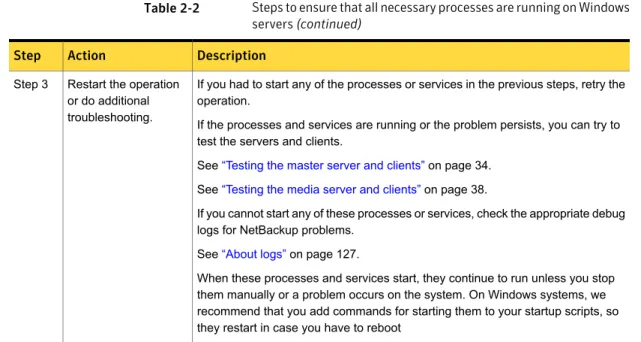
Table 2-2 Steps to ensure that all necessary processes are running on Windows servers (continued)
Description Action
Step
If you had to start any of the processes or services in the previous steps, retry the operation.
If the processes and services are running or the problem persists, you can try to test the servers and clients.
See“Testing the master server and clients”on page 34. See“Testing the media server and clients”on page 38.
If you cannot start any of these processes or services, check the appropriate debug logs for NetBackup problems.
See“About logs”on page 127.
When these processes and services start, they continue to run unless you stop them manually or a problem occurs on the system. On Windows systems, we recommend that you add commands for starting them to your startup scripts, so they restart in case you have to reboot
Restart the operation or do additional troubleshooting. Step 3
Troubleshooting installation problems
Use the following steps to troubleshoot installation problems. Table 2-3 Steps for troubleshooting installation problems.Description Action
Step
Some reasons for failure are as follows:
■ Not logged on as an administrator on a Windows system (you must have permission to install services on the system)
■ Permission denied (ensure that you have permission to use the device and to write the directories and files being installed)
■ Bad media (contact Technical Support)
■ Defective drive (replace the drive or refer to vendor’s hardware documentation) ■ Improperly configured drive (refer to the system and the vendor documentation) Determine if you can
install the software on the master server and the media servers by using the release media.
Step 1
28 Troubleshooting procedures
Table 2-3 Steps for troubleshooting installation problems. (continued) Description
Action Step
Note:Before you install or use NetBackup on a Linux client, verify that theinetd
(orxinetd) service is started on that computer. This service ensures proper communication between the NetBackup master and the Linux client. Note:You cannot install PC client software from a UNIX NetBackup server. Do the following:
■ For an install to a trusting UNIX client, verify the following: ■ The correct client name is in your policy configuration ■ The correct server name is in the client/.rhostsfile
If the installation hangs, check for problems with the shell or the environment variables for the root user on the client. The files that you check depend on the platform, operating system, and shell you use. For example, your.loginon a Sun system runs anstty(such asstty ^erase) before it defines your terminal type. If this action causes the install process to hang, you can modify the.loginfile to define the terminal before you run thestty. Or, move the client.loginto another file until the install is complete.
■ For an installation to a secure UNIX client, check yourftpconfiguration. For example, you must use a user name and password that the client considers valid.
Determine if you can install NetBackup client software on the clients. Step 2
Determine if the problem is related to general network communications. See“Resolving network communication problems with UNIX clients”on page 41. See“Resolving network communication problems with PC clients”on page 46. Resolve network
problems. Step 3
Troubleshooting configuration problems
Use the following steps to check for problems after an initial installation or after changes are made to the configuration.
29 Troubleshooting procedures
Table 2-4 Steps for troubleshooting configuration problems Description
Action Step
Check for the following device configuration problems: ■ Configuration for robotic drive does not specify the robot. ■ Drive is configured as wrong type or density.
■ Incorrect Robotic Drive Number.
■ SCSI ID for the robotic control is specified instead of the logical Robot Number that is assigned to the robot.
■ The same robot number is used for different robots.
■ SCSI ID for the drive is specified instead of a unique Drive Index number. ■ A platform does not support a device or was not configured to recognize it. ■ Robotic device is not configured to use LUN 1, which some robot hardware
requires.
■ On UNIX, drive no-rewind device path is specified as a rewind path.
■ On UNIX, tape devices are not configured with "Berkeley style close." NetBackup requires this feature which is configurable on some platforms. Further explanation is available.
■ On UNIX, tape devices (other than QIC) are not configured as "variable mode." NetBackup requires this feature which is configurable on some platforms. When this condition exists, you can frequently perform backups but not restores. For more information, see theStatus Codes Reference Guide.
■ On UNIX, pass-through paths to the tape drives have not been established. More description is available on device configuration problems:
See theNetBackup Device Configuration Guide. Check for device
configuration problems. Step 1
Check for the following problems with the daemons or services:
■ Daemons or services do not start during restart (configure system so they start). ■ Wrong daemons or services are started (problems with media server startup
scripts).
■ Configuration was changed while daemons or services were running. ■ On Windows, the%SystemRoot%\System32\drivers\etc\servicesfile
does not have an entry forvmd,bprd,bpdbm, andbpcd. Also, ensure that the processes have entries for configured robots. A list of these processes is available.
See theNetBackup Administrator’s Guide, Volume I.
■ On UNIX, the/etc/servicesfile (or NIS or DNS) does not have an entry forvmd,bprd,bpdbm, or robotic daemons.
Check the daemons or services.
Step 2
30 Troubleshooting procedures
Table 2-4 Steps for troubleshooting configuration problems (continued) Description
Action Step
If you found and corrected any configuration problems, retry the operation and check for NetBackup status codes or messages in the following:
■ Check theAll Log Entriesreport for NetBackup errors for the appropriate time period. This report can show the context in which the error occurred. Often it provides specific information, which is useful when the error can result from a variety of problems.
If the problem involved a backup or archive, check theStatus of Backups
report. This report gives you the status code.
If you find a status code or message in either of these reports, perform the recommended corrective actions.
See theStatus Codes Reference Guide.
■ Check the system logs on UNIX or the Event Viewer Application and System log on Windows if the following is true: The problem pertains to media or device management, and NetBackup does not provide a status code, or you cannot correct the problem by following the instructions in the status codes
■ Check the appropriate enabled debug logs. Correct any problems you detect. If these logs are not enabled, enable them before your next try.
See“About logs”on page 127. Retry the operation and
check for status codes and messages. Step 3
If you performed corrective actions, retry the operation. If you did not perform corrective actions or the problem persists, go to one of the following procedures. See“Resolving full disk problems”on page 68.
See“Frozen media troubleshooting considerations”on page 69. See“About conditions that cause media to freeze”on page 70. See“Troubleshooting network interface card performance”on page 90. See“About troubleshooting NetBackup in a SAN environment”on page 92. Retry the operation and
do additional troubleshooting. Step 4
Device configuration problem resolution
An auto-configuration warning message appears in the second panel of the Device Configuration Wizard if the selected device meets any of the following conditions: ■ Not licensed for NetBackup server
■ Exceeds a license restriction
■ Has some inherent qualities that make it difficult to auto-configure
The following messages relate to device configuration, along with their explanations and recommended actions.
31 Troubleshooting procedures
Table 2-5 Recommended actions for device configuration messages Recommended action
Explanation Message
Ask the manufacturer for a newer firmware version that returns serial numbers (if available), or manually configure and operate the drive without a serial number.
The drive does not return its serial number. Note that some manufacturers do not support serial numbers. Although automatic device configuration does not function optimally, the drive can be manually configured and operated without its serial number. Drive does not support
serialization
Ask the manufacturer for a newer firmware version that returns serial numbers (if available). Or manually configure and operate the robot and drives without serial numbers. The robot does not return its serial number or
the serial numbers of the drives that are contained within it. Note that some
manufacturers do not support serial numbers. Although automatic device configuration does not function optimally, the robot and drives can be manually configured and operated without serial numbers.
Robot does not support serialization
Define a different robot. Use only the robotic libraries that NetBackup server supports. NetBackup server does not support the robotic
type that is defined for this robot. No license for this robot
type
Define a different drive. Use only the drives that NetBackup supports
The drive type that is defined for this drive that the NetBackup server does not support. No license for this drive
type
Do the following:
■ Download a new device_mapping file from the Symantec Support website, and try again.
■ Configure the robotic library manually. ■ Use only the robotic libraries that
NetBackup supports. NetBackup does not recognize the robotic
library. The robotic library cannot be auto-configured.
Unable to determine robot type
Ask the manufacturer for a newer firmware version that returns serial numbers (if available), or manually configure and operate the drive robot without serial numbers. Either the drive is standalone, or the drive or
robot does not return a serial number. Note that some manufacturers do not support serial numbers. Although automatic device configuration does not function optimally, the drive or robot can be manually configured and operated without a serial number.
Drive is standalone or in unknown robot
32 Troubleshooting procedures
Table 2-5 Recommended actions for device configuration messages
(continued)
Recommended action Explanation
Message
Ask the manufacturer for a newer firmware version that returns serial numbers (if available). Or manually configure and operate the drive and robot without serial numbers. Either the drive or robot does not return a
serial number. Note that some manufacturers do not support serial numbers. Although automatic device configuration does not function optimally, the drive or robot can be manually configured and operated without a serial number.
Robot drive number is unknown
Configure a drive that does not reside in the unlicensed robot.
The drive is in a robotic library that cannot be licensed for NetBackup server. Since the robot cannot be licensed for NetBackup server, any drives that were configured in that robot are unusable.
Drive is in an unlicensed robot
Change the drive’s adapter or define a pass-through path for the drive. For information about the SCSI adapter pass-through, see theNetBackup Device Configuration Guide.
A drive was found that does not have a SCSI pass-through path configured. The possible causes are:
■ The drive is connected to an adapter that does not support SCSI pass-through. ■ The pass-through path for this drive has
not been defined. Drive’s SCSI adapter
does not support pass-thru (or pass-thru path does not exist)
For directions about how to create device files, see theNetBackup Device Configuration Guide.
A device has been detected without the corresponding device file necessary to configure that device.
No configuration device file exists
Do the following:
■ Download a new device_mapping file from the Symantec Support website, and try again.
■ Configure the drive manually. ■ Use only the drives that NetBackup
supports. The NetBackup server does not recognize the
drive. The drive cannot be auto-configured. Unable to determine
drive type
33 Troubleshooting procedures
Table 2-5 Recommended actions for device configuration messages
(continued)
Recommended action Explanation
Message
If you do not need hardware data compression, no action is necessary. The drive can be operated without hardware data compression. Hardware data compression and tape drive configuration help are available.
For directions about how to create device files, see theNetBackup Device Configuration Guide.
A drive was detected without the expected compression device file that is used to configure that device. Automatic device configuration tries to use a device file that supports hardware data compression. When multiple compression device files exist for a drive, automatic device configuration cannot determine which compression device file is best. It uses a non-compression device file instead.
Unable to determine compression device
Testing the master server and clients
If the NetBackup, installation, and configuration troubleshooting procedures do not reveal the problem, perform the following procedure. Skip those steps that you have already performed.
The procedure assumes that the software was successfully installed, but not necessarily configured correctly. If NetBackup never worked properly, you probably have configuration problems. In particular, look for device configuration problems. You may also want to perform each backup and restore twice. On UNIX, perform them first as a root user and then as a nonroot user. On Windows, perform them first as a user that is a member of the Administrators group. Then perform them as a user that is not a member of the Administrator group. In all cases, ensure that you have read and write permissions on the test files.
The explanations in these procedures assume that you are familiar with the functional overview information.
See“About backup and restore functional overview”on page 278.
Several steps in this procedure mention theAll Log Entriesreport. To access more information on this report and others, refer to the following:
See theNetBackup Administrator’s Guide, Volume I.
34 Troubleshooting procedures
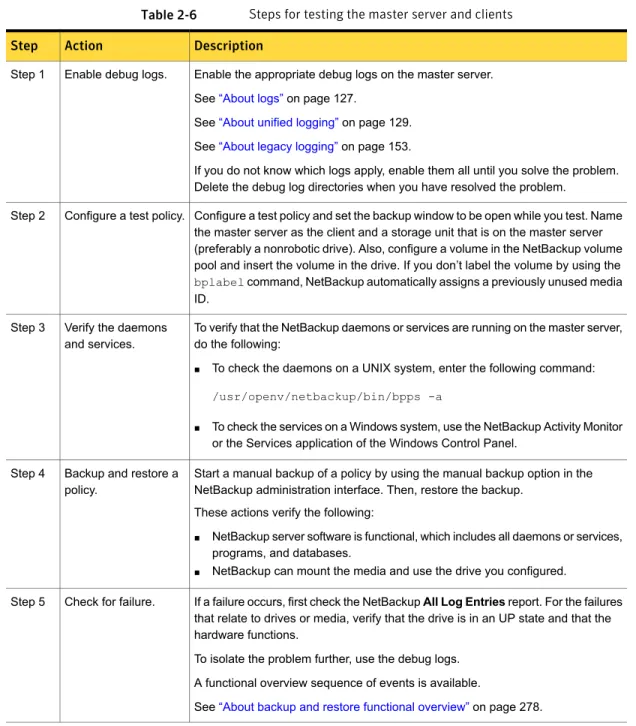
Table 2-6 Steps for testing the master server and clients Description
Action Step
Enable the appropriate debug logs on the master server. See“About logs”on page 127.
See“About unified logging”on page 129. See“About legacy logging”on page 153.
If you do not know which logs apply, enable them all until you solve the problem. Delete the debug log directories when you have resolved the problem.
Enable debug logs. Step 1
Configure a test policy and set the backup window to be open while you test. Name the master server as the client and a storage unit that is on the master server (preferably a nonrobotic drive). Also, configure a volume in the NetBackup volume pool and insert the volume in the drive. If you don’t label the volume by using the
bplabelcommand, NetBackup automatically assigns a previously unused media ID.
Configure a test policy. Step 2
To verify that the NetBackup daemons or services are running on the master server, do the following:
■ To check the daemons on a UNIX system, enter the following command:
/usr/openv/netbackup/bin/bpps -a
■ To check the services on a Windows system, use the NetBackup Activity Monitor or the Services application of the Windows Control Panel.
Verify the daemons and services. Step 3
Start a manual backup of a policy by using the manual backup option in the NetBackup administration interface. Then, restore the backup.
These actions verify the following:
■ NetBackup server software is functional, which includes all daemons or services, programs, and databases.
■ NetBackup can mount the media and use the drive you configured. Backup and restore a
policy. Step 4
If a failure occurs, first check the NetBackupAll Log Entriesreport. For the failures that relate to drives or media, verify that the drive is in an UP state and that the hardware functions.
To isolate the problem further, use the debug logs. A functional overview sequence of events is available.
See“About backup and restore functional overview”on page 278. Check for failure.
Step 5
35 Troubleshooting procedures
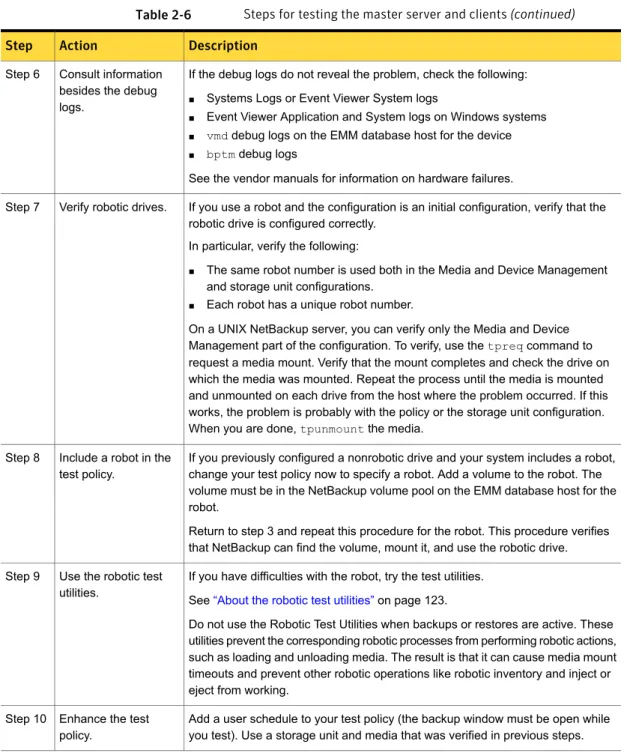
Table 2-6 Steps for testing the master server and clients (continued) Description
Action Step
If the debug logs do not reveal the problem, check the following: ■ Systems Logs or Event Viewer System logs
■ Event Viewer Application and System logs on Windows systems ■ vmddebug logs on the EMM database host for the device ■ bptmdebug logs
See the vendor manuals for information on hardware failures. Consult information
besides the debug logs.
Step 6
If you use a robot and the configuration is an initial configuration, verify that the robotic drive is configured correctly.
In particular, verify the following:
■ The same robot number is used both in the Media and Device Management and storage unit configurations.
■ Each robot has a unique robot number.
On a UNIX NetBackup server, you can verify only the Media and Device Management part of the configuration. To verify, use thetpreqcommand to request a media mount. Verify that the mount completes and check the drive on which the media was mounted. Repeat the process until the media is mounted and unmounted on each drive from the host where the problem occurred. If this works, the problem is probably with the policy or the storage unit configuration. When you are done,tpunmountthe media.
Verify robotic drives. Step 7
If you previously configured a nonrobotic drive and your system includes a robot, change your test policy now to specify a robot. Add a volume to the robot. The volume must be in the NetBackup volume pool on the EMM database host for the robot.
Return to step 3 and repeat this procedure for the robot. This procedure verifies that NetBackup can find the volume, mount it, and use the robotic drive. Include a robot in the
test policy. Step 8
If you have difficulties with the robot, try the test utilities. See“About the robotic test utilities”on page 123.
Do not use the Robotic Test Utilities when backups or restores are active. These utilities prevent the corresponding robotic processes from performing robotic actions, such as loading and unloading media. The result is that it can cause media mount timeouts and prevent other robotic operations like robotic inventory and inject or eject from working.
Use the robotic test utilities.
Step 9
Add a user schedule to your test policy (the backup window must be open while you test). Use a storage unit and media that was verified in previous steps. Enhance the test
policy. Step 10
36 Troubleshooting procedures
Table 2-6 Steps for testing the master server and clients (continued) Description
Action Step
Start a user backup and restore of a file by using the client-user interface on the master server. Monitor the status and the progress log for the operation. If successful, this operation verifies that the client software is functional on the master server.
If a failure occurs, check the NetBackupAll Log Entriesreport. To isolate the problem further, check the appropriate debug logs from the following list. On a UNIX system, the debug logs are in the/usr/openv/netbackup/logs/
directory. On a Windows system, the debug logs are in the install_path\NetBackup\logs\directory.
Debug log directories exist for the following processes: ■ bparchive(UNIX only)
■ bpbackup(UNIX only) ■ bpbkar
■ bpcd ■ bplist ■ bprd ■ bprestore
■ nbwin(Windows only) ■ bpinetd(Windows only)
Explanations about which logs apply to specific client types are available. See“About logs”on page 127.
See“About unified logging”on page 129. See“About legacy logging”on page 153. Backup and restore a
file. Step 11
Reconfigure your test policy to name a client that is located elsewhere in the network. Use a storage unit and media that has been verified in previous steps. If necessary, install the NetBackup client software.
Reconfigure the test policy.
Step 12
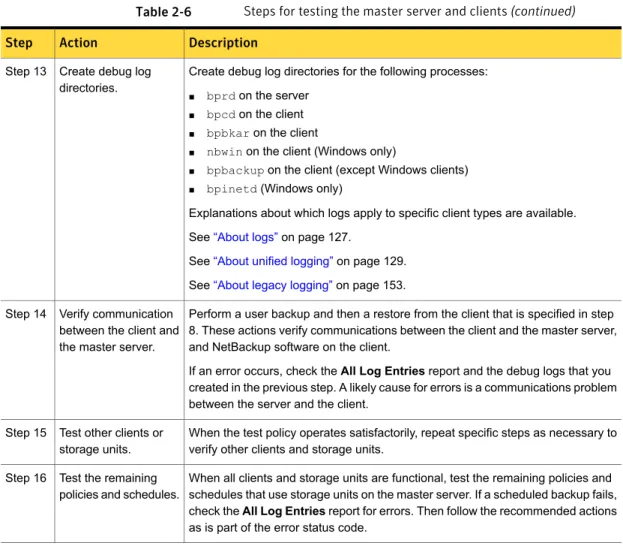
37 Troubleshooting procedures
Table 2-6 Steps for testing the master server and clients (continued) Description
Action Step
Create debug log directories for the following processes: ■ bprdon the server
■ bpcdon the client ■ bpbkaron the client
■ nbwinon the client (Windows only)
■ bpbackupon the client (except Windows clients) ■ bpinetd(Windows only)
Explanations about which logs apply to specific client types are available. See“About logs”on page 127.
See“About unified logging”on page 129. See“About legacy logging”on page 153. Create debug log
directories. Step 13
Perform a user backup and then a restore from the client that is specified in step 8. These actions verify communications between the client and the master server, and NetBackup software on the client.
If an error occurs, check theAll Log Entriesreport and the debug logs that you created in the previous step. A likely cause for errors is a communications problem between the server and the client.
Verify communication between the client and the master server. Step 14
When the test policy operates satisfactorily, repeat specific steps as necessary to verify other clients and storage units.
Test other clients or storage units. Step 15
When all clients and storage units are functional, test the remaining policies and schedules that use storage units on the master server. If a scheduled backup fails, check theAll Log Entriesreport for errors. Then follow the recommended actions as is part of the error status code.
Test the remaining policies and schedules. Step 16
Testing the media server and clients
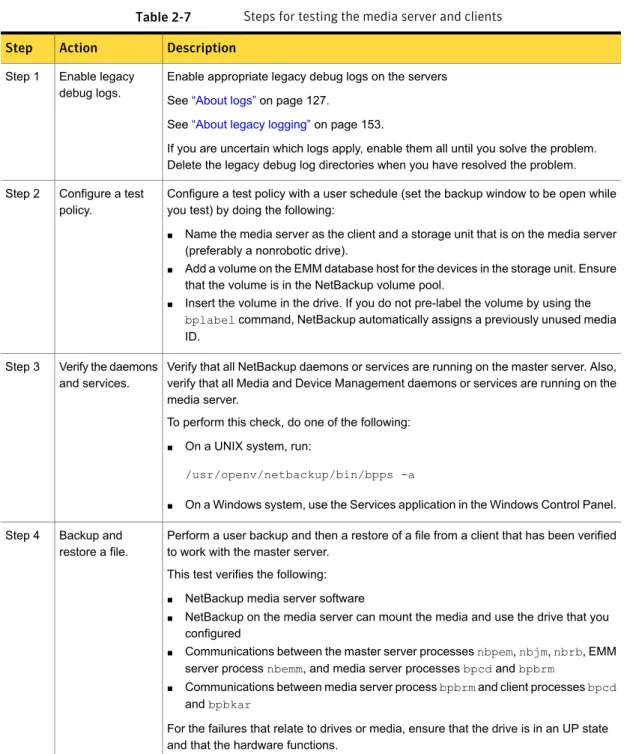
If you use media servers, use the following steps to verify that they are operational. Before testing the media servers, eliminate all problems on the master server. See“Testing the master server and clients”on page 34.
38 Troubleshooting procedures
Table 2-7 Steps for testing the media server and clients Description
Action Step
Enable appropriate legacy debug logs on the servers See“About logs”on page 127.
See“About legacy logging”on page 153.
If you are uncertain which logs apply, enable them all until you solve the problem. Delete the legacy debug log directories when you have resolved the problem. Enable legacy
debug logs. Step 1
Configure a test policy with a user schedule (set the backup window to be open while you test) by doing the following:
■ Name the media server as the client and a storage unit that is on the media server (preferably a nonrobotic drive).
■ Add a volume on the EMM database host for the devices in the storage unit. Ensure that the volume is in the NetBackup volume pool.
■ Insert the volume in the drive. If you do not pre-label the volume by using the
bplabelcommand, NetBackup automatically assigns a previously unused media ID.
Configure a test policy.
Step 2
Verify that all NetBackup daemons or services are running on the master server. Also, verify that all Media and Device Management daemons or services are running on the media server.
To perform this check, do one of the following: ■ On a UNIX system, run:
/usr/openv/netbackup/bin/bpps -a
■ On a Windows system, use the Services application in the Windows Control Panel. Verify the daemons
and services. Step 3
Perform a user backup and then a restore of a file from a client that has been verified to work with the master server.
This test verifies the following: ■ NetBackup media server software
■ NetBackup on the media server can mount the media and use the drive that you configured
■ Communications between the master server processesnbpem,nbjm,nbrb, EMM server processnbemm, and media server processesbpcdandbpbrm
■ Communications between media server processbpbrmand client processesbpcd
andbpbkar
For the failures that relate to drives or media, ensure that the drive is in an UP state and that the hardware functions.
Backup and restore a file. Step 4
39 Troubleshooting procedures
Table 2-7 Steps for testing the media server and clients (continued) Description
Action Step
If you suspect a communications problem between the master server and the media servers, check the debug logs for the pertinent processes.
If the debug logs don’t help you, check the following: ■ On a UNIX server, the System log
■ On a Windows server, theEvent ViewerApplication and System log ■ vmddebug logs
Verify
communication between the master server and the media servers. Step 5
For the failures that relate to drives or media, ensure that the drive is running and that the hardware functions correctly.
See the vendor manuals for information on hardware failures.
If you use a robot in an initial configuration condition, verify that the robotic drive is configured correctly.
In particular, verify the following:
■ The same robot number is used both in the Media and Device Management and storage unit configurations.
■ Each robot has a unique robot number.
On a UNIX server, you can verify only the Media and Device Management part of the configuration. To verify, use thetpreqcommand to request a media mount. Verify that the mount completes and check the drive on which the media was mounted. Repeat the process until the media is mounted and unmounted on each drive from the host where the problem occurred. Perform these steps from the media server. If this works, the problem is probably with the policy or the storage unit configuration on the media server. When you are done, usetpunmountto unmount the media.
Ensure that the hardware runs correctly. Step 6
40 Troubleshooting procedures
Table 2-7 Steps for testing the media server and clients (continued) Description
Action Step
If you previously configured a non-robotic drive and a robot was attached to your media server, change the test policy to name the robot. Also, add a volume for the robot to the EMM server. Verify that the volume is in the NetBackup volume pool and in the robot.
Start with step 3 to repeat this procedure for a robot. This procedure verifies that NetBackup can find the volume, mount it, and use the robotic drive.
If a failure occurs, check the NetBackupAll Log Entriesreport. Look for any errors that relate to devices or media.
See theNetBackup Administrator’s Guide, Volume I. If theAll Log Entriesreport doesn’t help, check the following: ■ On a UNIX server, the system logs on the media server ■ vmddebug logs on the EMM server for the robot
■ On a Windows system, theEvent ViewerApplication and System log
In an initial configuration, verify that the robotic drive is configured correctly. Do not use a robot number that is already configured on another server.
Try the test utilities.
See“About the robotic test utilities”on page 123.
Do not use the Robotic Test Utilities when backups or restores are active. These utilities prevent the corresponding robotic processes from performing robotic actions, such as loading and unloading media. The result is that it can cause media mount timeouts and prevent other robotic operations like robotic inventory and inject or eject from working.
Include a robotic device in the test policy.
Step 7
When the test policy operates satisfactorily, repeat specific steps as necessary to verify other clients and storage units.
Test other clients or storage units. Step 8
When all clients and storage units are in operation, test the remaining policies and schedules that use storage units on the media server. If a scheduled backup fails, check theAll Log Entriesreport for errors. Then follow the suggested actions for the appropriate status code.
Test the remaining policies and schedules. Step 9
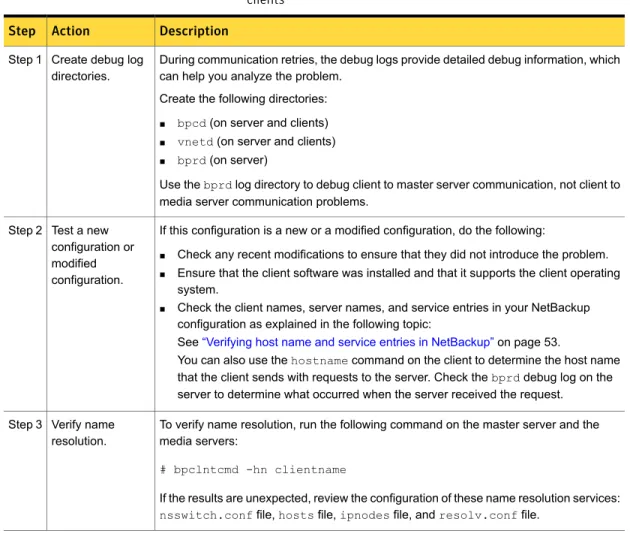
Resolving network communication problems with
UNIX clients
The following procedure is for resolving NetBackup communications problems, such as those associated with NetBackup status codes 25, 54, 57, and 58. This procedure consists of two variations: one for UNIX clients and another for PC clients.
41 Troubleshooting procedures