User Manual
UK DCP 2.2
Measurement of Road Pavement Strength by
Dynamic Cone Penetrometer
by Simon Done and Piouslin Samuel
Unpublished Project Report
PR INT/278/04
PROJECT REPORT PR/INT/278/04
Measurement of Road Pavement Strength by Dynamic Cone Penetrometer
Simon Done and Piouslin Samuel
Sector:
Transport
Theme:
T2: Reduce overall transport cost by cost effective road rehabilitation and maintenanceProject Title:
Improved Measurement of Road Pavement Strength by Dynamic Cone PenetrometerProject Reference:
R8157Approvals
Project Manager
Quality Reviewed
Copyright TRL Limited May 2004
This document has been prepared as part of a project funded by the UK Department for International Development (DFID) for the benefit of developing countries. The views expressed are not necessarily those of DFID.
ACKNOWLEDGEMENTS
The development of UK DCP software has been based upon the responses received to a questionnaire distributed to the members of the International Focus Group (IFG). We are extremely grateful to those who took the time to complete the questionnaire and return it to us. We are also grateful to Dr Stephen Morris and James Painter of Tessella Support Services plc who wrote the software and Yogita Maini of DFID and Phil Page-Green of CSIR, South Africa, who reviewed the project and provided useful feedback. The TRL team responsible for analysing the questionnaires, designing the software, writing the user manual and making UK DCP available were Piouslin Samuel, Colin Jones, Simon Done, Dr John Rolt, Dave Weston and Trevor Bradbury.
Contents
1 Introduction...1 2 Installation...5 2.1 Obtaining UK DCP...5 2.2 Installing UK DCP...5 2.2.1 Installation from CD...52.2.2 Installation from Transport Links website...5
2.3 Uninstalling UK DCP...6
3 Start up...7
3.1 Run UK DCP...7
3.1.1 Start a new project...8
3.1.2 Open an existing project...9
3.1.3 Closing a project and exiting UK DCP...9
3.2 Test Manager...9 4 Data input...11 4.1 Introduction...11 4.2 Site details...12 4.3 Upper layers...13 4.3.1 Layers removed...13
4.3.2 Upper layer details...14
4.4 Penetration data...16
4.4.1 Site details summary...16
4.4.2 Penetration data...16 4.5 Set-Up...20 4.5.1 Analysis...21 4.5.2 Sectioning...21 4.5.3 CBR Calculation...22 4.5.4 Other Options...23 5 Layer analysis...24 5.1 Introduction...24
5.2 Analysing Test layers...24
5.3 Automatic layer analysis...25
5.4 Manual layer analysis...29
5.5 Analysis of drilled and very strong layers...36
5.5.1 Drilled layers...37
5.5.2 Very strong layers...39
6 Structural Number calculation...41
6.2.2 Test layers...44 6.2.3 SN Calculation Buttons...45 6.2.4 Pavement Strength...48 7 Query...50 7.1 Introduction...50 7.2 Making a Query...50 7.2.1 Query Parameter...51 7.2.2 Tests Included...51 7.2.3 Query Type...51 7.2.4 Display Options...51
7.3 Displaying the Query results...51
7.3.1 Structural Number...52
7.3.2 Layer or Pavement Thickness...53
7.3.3 CBR...54 8 Sectioning...56 8.1 Introduction...56 8.2 Sections box...57 8.2.1 Parameters...57 8.2.2 Tests Included...58 8.2.3 Sections Buttons...58 8.3 Sectioning a project...59
8.3.1 Determine Sections by parameter...59
8.3.2 Determine Design Sections for the project...62
9 Reporting...66
9.1 Introduction...66
9.2 Test Reports...67
9.2.1 Penetration Data...67
9.2.2 Layer Strength Analysis...69
9.3 Project Reports...71
9.3.1 Section Summary...71
9.3.2 Design Section Properties...72
9.3.3 Project Summary...73
List of Figures
Figure 1.1 DCP instrument...2
Figure 3.1 Flash screen...7
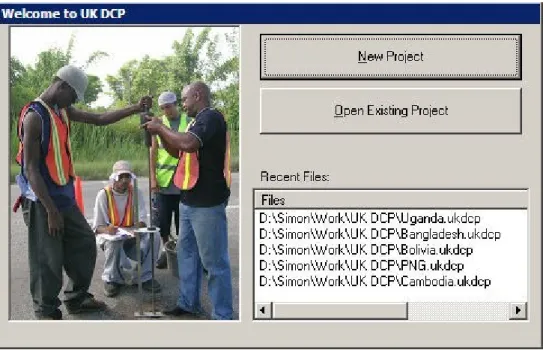
Figure 3.2 Welcome box...8
Figure 3.3 Test Manager (without test data)...8
Figure 3.4 Test Manager (with test data and completed analysis)...9
Figure 4.1 Test Details box...11
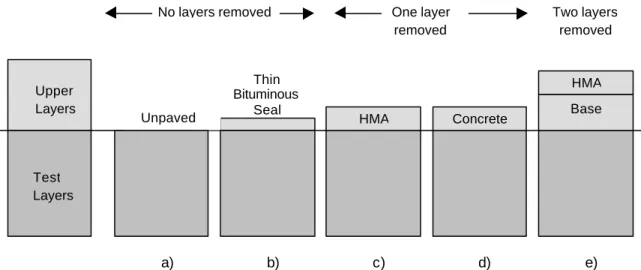
Figure 4.2 Illustration of Upper layers, Test layers and Removed layers...14
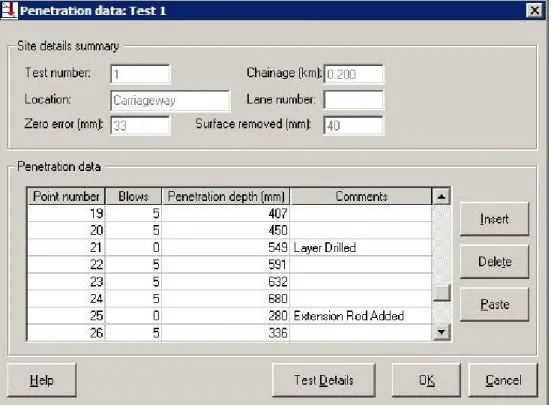
Figure 4.3 Penetration Data box (with test data)...16
Figure 4.4 Penetration Data box (with a drilled layer and an extension rod)...20
Figure 4.5 Set-Up Options box...21
Figure 4.6 Test Manager (showing that test data has been input)...23
Figure 5.1 How Automatic analysis works...26
Figure 5.2 Layer Boundaries box using Automatic layer analysis...26
Figure 5.3 Test Manager (showing that test data has been analysed)...28
Figure 5.4 Layer Boundaries box using Manual layer analysis...30
Figure 5.5 Test Manager (showing that test data has been analysed)...32
Figure 5.6 Double intersections...34
Figure 5.7 Negative gradient...34
Figure 5.8 Line does not intersect the line of test points...35
Figure 5.9 Line drawn parallel to its intended position...35
Figure 5.10 Line moved laterally to its intended position...36
Figure 5.11 Lines overlap but do not intersect...36
Figure 5.12 Automatic analysis of a drilled layer...37
Figure 5.13 Manual analysis of a drilled layer and the use of gaps...38
Figure 5.14 Automatic analysis of a very strong layer...39
Figure 5.15 Manual analysis of a very strong layer and the use of gaps...40
Figure 6.1 SN Calculation box (before calculating SNs)...43
Figure 6.2 Layer Boundaries box...45
Figure 6.3 Adjusted Penetration Data box...46
Figure 6.4 CBR Chart box...46
Figure 6.5 SN Calculation box (after calculations are complete)...48
Figure 6.6 Test Manager (showing that SNs have been calculated)...49
Figure 7.1 Query box...50
Figure 7.2 Structural Number histogram...52
Figure 7.3 Layer Thickness histogram...53
Figure 7.4 CBR histogram (Minimum)...54
Figure 7.5 CBR histogram (Less Than)...55
Figure 8.1 Sections box (before sectioning)...57
Figure 8.2 Uniform Sections box...59
Figure 8.3 Histogram of sectioning data...61
Figure 8.4 Uniform Sections box (with one section boundary added)...61
Figure 8.5 Sections box (after Sectioning)...62
Figure 8.6 Section Summary box...62
Figure 8.7 Design Section Properties box...64
Figure 8.8 Section Summary box (with one Design Section boundary added)...64
Figure 8.9 Test Manager (showing that Design Sections have been defined)...65
Figure 9.1 Export box...66
List of Tables
Table 4.1 Penetration rate – CBR relationships...22
Table 5.1 Example of penetration data and cumulative difference sum analysis...27
Table 6.1 CBR – Strength Coefficient (a) relationships...42
List of Boxes
Box 1.1 Key points to know before starting to use UK DCP... 4Box 4.1 Recording the removal of very thick Upper layers... 15
Box 4.2 Calculating adjusted penetration data... 17
Box 5.1 Should penetration data be analysed automatically or manually?... 25
Box 5.2 Corrected analysis of deep surface texture and disturbed soil... 29
Box 5.3 Analysis of a drilled layer... 38
Box 5.4 Analysis of a very strong but penetrable layer... 40
1
Introduction
When required to assess the strength of a pavement or to design improvement works, the pavement engineer needs to know as much as possible about the thicknesses of the existing pavement layers and their condition. In some cases the quickest and easiest way to do this is to inspect the design to which the pavement was originally built and perhaps also the as-built records made during construction. However, designs indicate only an intended construction and as-built records are often only indicative of the construction work carried out. Furthermore, both designs and as-built records give no information as to what has happened to the pavement since construction and the condition it is currently in. To give useful information, it is therefore necessary to investigate the current pavement condition using some form of destructive or non destructive testing.
The usual method of destructive testing is to dig test pits at suitable intervals along the road. These are very useful as pavement thicknesses can be measured and material removed for testing in a laboratory. However, test pits are expensive to dig and reinstate and are rarely dug at intervals of less than 2-3 kilometres.
The Dynamic Cone Penetrometer (DCP) (Figure 1.1), is an efficient way of testing pavement at more frequent intervals. Tests using the DCP generate data which can be analysed to produce accurate information on in situ pavement layer thicknesses and strengths. Tests can be carried out very rapidly and test sites can be repaired extremely easily. A typical DCP test team of 3 people may be able to carry out 20 tests in a day at a spacing of between 50 and 500 metres. The DCP can therefore give information of sufficient quality and quantity to allow the pavement strength to be estimated and improvement works designed. Results from DCP tests can also be used to locate test pits in the most suitable positions.
The DCP consists of a cone fixed to the bottom of a tall vertical rod. A weight is repeatedly lifted and dropped onto a coupling at the mid-height of the rod to deliver a standard impact, or ‘blow’, to the cone and drive it into the pavement. A vertical scale alongside the rod is used to measure the depth of penetration of the cone. The penetration per blow, the ‘penetration rate’, is recorded as the cone is driven into the pavement and then used to calculate the strength of the material through which it is passing. A change in penetration rate indicates a change in strength between materials, thus allowing layers to be identified and the thickness and strength of each to be determined. These layers are then grouped together into the pavement layers of base, sub-base and subgrade, guided by test pit or as-built records if available. The DCP cannot penetrate some strong surface and base materials such as hot mix asphalt or cement treated bases. These layers must be removed before the test can begin and their strength assessed using different criteria.
The strengths of all layers can then be combined into a Structural Number for each pavement layer and the entire pavement structure. Where tests are repeated along the pavement, a longitudinal picture of the pavement can be developed which allows changes in construction and condition to be identified. This data can then be used to
Figure 1.1 DCP instrument
This manual guides users of this UK DCP software. It has 9 chapters, each describing one stage or function of its installation and operation.
No. Title Description 1 Introduction
2 Installation Obtain and install UK DCP.
3 Start up Run UK DCP and open a new or existing project. The term project refers to a set of related sites, at each of which a penetration test has been carried out and which will be analysed together. In normal use, a project will be a single road or a length of apparently uniform construction. 4 Data input Input site details and penetration data for the tests within a project.
5 Layer
analysis
Analyse the penetration data from a test to identify, and determine the thicknesses of the distinct Test layers within the pavement. Layer identification can be carried out manually or automatically. 6 Structural
Number calculation
Assign the Test layers to specific pavement layers and calculate the Structural Number of each pavement layer.
7 Query Produce histograms of strengths and pavement layer thicknesses along the project. The primary purpose of this function is to identify any errors made during data entry and analysis.
8 Sectioning Divide a project into uniform sections.
UK DCP was written in Visual Basic language and uses a Microsoft Access database to store the data, although it is not necessary for Microsoft Access itself to be installed on the computer. It will run on Windows 98, NT, 2000 and XP operating systems and ideally requires a computer with a minimum specification of 400 MHz, 64 MB of memory and 45 MB of free disk space , although it should still run successfully, albeit slightly more slowly, on a computer of lower specification.
UK DCP is not intended to replace normal engineering judgement. The procedures used are intended for users who already have a thorough understanding of DCP analysis and are capable of deciding which method of analysis is most appropriate for individual situations. The user must be aware of the limitations of this program and, most importantly, that incorrect data input will lead to incorrect output. The user should be capable of assessing the accuracy of any results produced. No warranty can be given on the validity of results and the ultimate responsibility for acceptance and subsequent use of any results lies solely with the user. TRL Limited cannot accept any liability for any error or omission.
Some of the limitations of the use of DCP and this package are:
UK DCP can analyse DCP data collected from existing flexible pavements constructed with unbound materials. Very little difficulty is experienced with the penetration of granular pavement layers or lightly stabilised material. It is, however, often not possible to penetrate coarse granular materials, material stabilised with a high percentage of cement or thick layers of bituminous material. In such cases it is necessary to drill a hole through the impenetrable layer and then continue gathering DCP penetration data in the underlying material. Because penetration data can not be recorded for the drilled layer, it is necessary to estimate and input the strength coefficient for the layer in order to assess its contribution to the Structural Number of the pavement.
Thin bituminous layers, such as a surface dressing, can be penetrated by the DCP, although the data is not used to calculate the strength of such layers, and as such the strength coefficient must be estimated.
UK DCP cannot analyse penetration data which includes two drilled layers below the surface. If it proves necessary to drill twice, it is recommended that a test is repeated or that the test result be analysed manually.
The DCP instrument with an extension rod of 400 mm can be used to a depth of only 1200 mm. Although the instrument can be extended beyond this depth, with additional extension rods or extension road longer than 400 mm, it is not recommended that this is done as friction between the rod and the soil can give unreliable data. However, UK DCP has been designed to accept data up to a maximum depth of 1500 mm.
The output from DCP results is controlled by the user as follows:
• Selecting an appropriate CBR – DCP penetration relationship as explained in 4.5.3. CBR Calculation.
• The user’s identification of the base, sub-base and subgrade layers as explained in 5. Layer Analysis.
UK DCP is available free of charge to all who wish to use it.
Box 1.1 Key points to know before starting to use UK DCP
Context sensitive help is available at all stages. This manual can also be displayed and printed through the Help menu at the top of the main window.
Data and results do not have to be saved manually. Whenever data is entered into a box and the box is closed by clicking an OK button, its contents are automatically saved.
Only one set of penetration tests (a ‘project’) can be opened at any one time, but many of those tests can be examined simultaneously and compared.
When a number of windows and boxes are open, they can be selected for display using the Window menu at the top of the main window.
In this manual all software images have been taken from a single project. Two images at the same chainage represent the same data and later sectioning images are based upon penetration data in earlier images.
2
Installation
2.1 Obtaining UK DCP
UK DCP can be obtained by contacting TRL: TRL Limited
Crowthorne House Nine Mile Ride Wokingham Berkshire RG40 3GA United Kingdom Tel: + 44 (0) 1344 770187 Fax: +44 (0) 1344 770356 Email: [email protected] Web: www.trl.co.uk
Alternatively, UK DCP is available on the Road Engineering for Development CD, distributed by TRL, or as a download from the Transport Links website. The address of this website is www.transport-links.org/ukdcp
2.2 Installing UK DCP
Before installing UK DCP, it is recommended that any earlier versions of the software are uninstalled (2.3) and, if there are any data files from previous analysis to be saved, the UK DCP directory is moved from the Program Files directory to a different location. The total size of the files which must be downloaded for installation is 11.6MB.
2.2.1 Installation from CD
This procedure will install UK DCP, all necessary third party software and help files onto the user’s computer. For computers with Windows 2000 or NT, follow steps 1 to 4 below. For computers with Windows 98 or XP, follow steps 1 to 6.
1. Open the UK DCP folder on the CD.
2. Double-click or run the file named ‘setup.exe’.
3. When prompted, select the directory in which UK DCP will be installed. By default, ‘C:\Program Files\UKDCP’ is selected.
4. When the setup program is complete, a new item, ‘UK DCP’, will be added to the Start/Programs menu.
5. In the UK DCP folder, double-click or run the file named ‘MDAC_TYP.exe’. 6. When this setup program is complete, reboot the computer.
2.2.2 Installation from Transport Links website
The procedure to download all relevant files and install UK DCP, all necessary third party software and help files onto the user’s computer from the Transport Links website is very simple. Click on UK DCP Installer. Downloading and installation will
2.3 Uninstalling UK DCP
This procedure will uninstall UK DCP from the user’s computer. It may vary slightly depending upon which Windows operating system is installed on the computer.
1. Select Settings from the Start menu. 2. Select Control Panel.
3. Double-click Add or Remove Programs.
4. Highlight the version of UK DCP to be removed. 5. Click Change/Remove.
6. This will not completely delete all files. When uninstallation is complete, open Windows Explorer and then navigate to the folder in which UK DCP was installed. Delete the folder and its contents. If the warning “Renaming, moving or deleting ‘ukdcp’ could make some programs not work. Are you sure that you want to do this?” is generated, click Yes and continue with the deletion.
3
Start up
This chapter describes how to run UK DCP and introduces the Test Manager.
3.1 Run UK DCP
UK DCP can be run by either clicking a desktop icon or through the Programs menu on the Start button. After a brief Flash screen (Figure 3.1), the Main window will open with a Welcome box (Figure 3.2). The Welcome box allows a new or existing project to be opened and also contains a list of the most recently used projects. The same options are available in the File menu at the top of the main window.
Figure 3.2 Welcome box
3.1.1 Start a new project
Click New Project in the Welcome box or in the File menu at the top of the main window. This will generate a Save New Project As box. Give a name to the new project, select a folder in which to save it and click Save. The project will be automatically given a .ukdcp file extension and saved in the selected folder. An empty Test Manager box (Figure 3.3) will open for the new project with its name at the top. Since only one project can be open within UK DCP at any time, if a project is currently open and a new project is named and saved, a message will be generated seeking confirmation that the current project should be closed. If Yes is clicked, the current project will be closed and the new project opened.
3.1.2 Open an existing project
Click Open Existing Project in the Welcome box or Open Project in the File menu at the top of the main window. This will generate an Open Existing Project box in which the file of the required project can be found and selected. Highlight the file and click Open. A Test Manager filled with the existing data and analysis will open (Figure 3.4 shows a Test Manager of a project which has been fully analysed). Alternatively, double-click on the required file in the Recent Files list in the Welcome box or in the File menu and the Test Manager will open. Since only one project can be open within UK DCP at any time, if a project is currently open and an existing project is selected, a message will be generated seeking confirmation that the current project should be closed. If Yes is clicked, the current project will be closed and the selected project opened.
Figure 3.4 Test Manager (with test data and completed analysis)
3.1.3 Closing a project and exiting UK DCP.
Only one project can be run by UK DCP at any time. To close a project, click Close in the Test Manager. A box will be generated seeking confirmation. Click Yes to close the project. To exit UK DCP, click Exit in the File menu at the top of the main window. A box will be generated seeking confirmation. Click Yes to exit.
3.2 Test Manager
The Test Manager (empty: Figure 3.3, or complete: Figure 3.4) is used to store all data from the project and manage data entry, layer analysis, strength calculations, queries and project sectioning. Each row of the table in the Test Manager represents one penetration test and shows the progress that has been made in analysing the data from both the individual test and the entire project.
The table in the Test Manager has five columns.
Test number Tests are automatically numbered in chainage order from 1 upwards. If more than one test is carried out at the same chainage, they are ordered according to their location (carriageway; shoulder; verge; lay-by / other – see 4.2 below). If more than one test is carried out at the same chainage in the carriageway, they are ordered according to their lane number and offset (see 4.2 below). If more than one test is carried out at the same chainage off the carriageway, they are ordered according to their offset. There is no limit to the number of tests that can be entered in a single project. If a test is added out of sequence or if a test is deleted, the numbering is automatically corrected.
Chainage (km)
The chainage at which the test was carried out, measured in kilometres.
Analysis The date when the test data was analysed to identify layers. The cell is blank if the data has not yet been analysed.
SN calculation
The date when the Structural Numbers of the pavement layers were calculated. The cell is blank if these have not yet been calculated.
Sectioning The date when Design Sections were determined for the project. The cell is blank if the project has not yet been sectioned.
There are eleven buttons below and to the right of the table. Warning messages are generated in response to Delete, Reset and Close. In each case, click Yes to continue with the operation.
Set-Up Record, review or edit information about how each test is carried out, analysed and displayed. This button is inactive if tests are being reviewed, edited or analysed.
Add Input data from a new test into the Test Manager.
Delete Delete a selected existing test from the Test Manager. This button is inactive if tests are being reviewed, edited or analysed.
Reset Remove the layer analysis, SN calculation and sectioning from all tests in the project.
Close Close a project. UK DCP remains open so that another project can be analysed. Help Open this manual on the screen at the appropriate section.
Data Review or edit the details and data of a selected test. Analyse Identify layers from the test data.
Calculate SN
Calculate the Structural Numbers of the pavement layers. This button is inactive if layers have not yet been identified from the test data.
Query Graphically present the strengths and layer thicknesses along the length of an entire project. This button is inactive if the Structural Numbers have not yet been calculated for all the tests in the project.
Section Divide a project into sections according to a selection of parameters. This button is inactive if the Structural Numbers have not yet been calculated for all the tests in the project.
4
Data input
4.1 Introduction
This chapter describes how to input data for the penetration tests within a project. For each penetration test, the following are required.
• Site details – information about the site where the test was carried out.
• Upper layers – information about the upper layers which cannot be analysed by a DCP.
• Penetration data – data which records the number of blows of the DCP and the depth of penetration
• Set-Up – information about how each test is carried out, analysed and displayed.
To input data from a new test, click Add in the Test Manager. To review or edit data from a test which has already been inputted, highlight the test in the Test Manager and click Data. Both actions will bring up the Test Details box (Figure 4.1) for that test. At any point during data input, Cancel can be clicked to cancel the entered information. This will generate a box asking if the changes that have been made should be saved. Clicking No will cancel any changes that were made.
4.2 Site details
The top panel of the Test Details box is titled Site details and records information about the site where the test was carried out. The panel has a number of fields. These are mandatory (M), optional (O) or filled in automatically (A).
Test number
A This field is filled in automatically according to the chainage and location of the test, as described in 3.2 above.
Chainage (km)
M It is important that all tests within a project use the same chainage datum.
Location M Although penetration tests are normally carried out in the carriageway of a road, it may be necessary to measure the strength of the construction off the carriageway line. When results are analysed, it will be necessary to distinguish between these locations so that, for example, carriageway improvement works are not designed using layer strengths measured in a soft verge. Therefore, using the pull-down menu, select the location of the test from carriageway, shoulder, verge and lay-by / other. Carriageway is the default location.
Lane number
O It may be necessary to record in which lane of a road a test was made. Thus this field may be required if tests are being carried out on a road with more than one lane in each direction. Any normal local convention can be used for numbering lanes.
Offset (m)
O This refers to the offset from a datum line along the road. It is normal to use the carriageway edge as the datum, although the centre line of the road could be used instead.
Direction O This is the traffic direction of the lane where the tests are being carried out. Direction does not need to be recorded on a single lane road. The field is limited to 25 characters.
Zero error (mm)
M The zero error is the reading on the vertical scale of the DCP when the cone is sitting on a flat surface and is a result of the way in which the instrument is manufactured and assembled. The zero error is measured by placing the DCP on a smooth, level, hard surface, lowering the cone to the surface and reading the scale. This should be done whenever the DCP is prepared for use and, ideally, before every new series of tests. The zero error should be entered for every test.
Test date M This defaults to today’s date, but can be changed using the pull down calendar.
Remarks O These can be either typed or copied and pasted as required. The field is limited to 60 characters.
If the details of a test have already been entered, click Edit to be able to make changes, although if the data has already been analysed, a box will be generated warning that editing the data will delete this analysis.
4.3 Upper layers
UK DCP uses penetration data to calculate the strength of most pavement layers. However, some layers are too thin, strong or impenetrable for relationships between penetration rate and strength to be derived. In this case, the strength of the layer is assessed from the type of the layer and its condition. This applies to layer types such as:
Surface
• Thin bituminous seal
• Hot mix asphalt
• Concrete
• Other surface Base
• Cement treated base
• Bituminous base
• Coarse granular base (such as Water Bound Macadam)
Since these layers are always found at the top of a pavement, they are referred to as Upper Layers. Layers whose strength can be calculated from penetration data are referred to as Test Layers.
The calculation of layer and pavement strength for Upper layers and Test layers is explained in detail in 6.1 below.
The bottom panel of the Test Details box (Figure 4.1) is titled Upper layers. A selection must be made and a table must be completed.
4.3.1 Layers removed
Although Upper layers such as a thin bituminous seal can be penetrated by a DCP, some layers, such as hot mix asphalt or a cement treated base cannot be penetrated. It is necessary to remove these layers by drilling or cutting out before the test can be carried out. When inputting data, the number of upper layers which were removed should be entered. UK DCP can accept the removal of 0, 1 or 2 layers. If more than two have been removed, it is necessary to group them into two or fewer removed layers. Figure 4.2 illustrates the differences between Upper layers, Test layers and removed layers for a variety of pavement constructions.
Pavement a) is unpaved. All layers can be analysed using penetration data. In this respect there are no Upper layers, although in subsequent stages, such as the SN Calculation box, described in 6.2 below, and the Penetration Data Report, described in 9.2.1 below, Unpaved will be recorded as an Upper layer so that the user is reminded of the surface type.
Pavement b) has a thin bituminous seal over a granular base. The thin seal cannot be analysed using penetration data and is therefore an Upper layer. Since the material can be penetrated by a DCP cone, it is not necessary to remove the layer. Therefore for this test there is one Upper layer but it is not removed.
Pavement c) has an HMA surface over a granular base. The HMA cannot be analysed using penetration data and is therefore an Upper layer. The material cannot be penetrated by a DCP cone and so must be removed. Therefore for this test, there is one Upper layer and it is removed.
Pavement d) has a concrete surface over a granular base. As for pavement c), the concrete is an impenetrable Upper layer and must be removed. However, rigid pavements are not analysed using Structural Numbers and therefore, although UK DCP calculates the Structural Numbers, only the strengths of the individual Test layers can be used. Pavement e) has an HMA surface over a base such as water bound macadam. Both layers
are impenetrable. Therefore for this test, there are two Upper layers and both are removed.
Figure 4.2 Illustration of Upper layers, Test layers and Removed layers
4.3.2 Upper layer details
For each Upper layer, the following information must be entered into the table.
Layer This will be prompted according to the number of layers which have been removed. If 0 or 1 Upper layers have been removed, only one layer will be prompted and will be defined as Surface. If two Upper layers have been removed, two layers will be prompted. The first will be defined as Surface and the second as Base.
Type Options will be offered from the list in 4.3 according to whether the layer is a surface or a base and whether or not the layer has been removed. If no Upper layers have been removed, Unpaved will also be offered as an option. Gravel and earth surfaces can be analysed using penetration data and so are not technically Upper layers, but will be recorded as such so that the surface type will be listed when reports are generated. If the layer is Unpaved, the final three columns are automatically left grey and inactive since the layer will be analysed using penetration data rather than condition. If the layer is concrete, the final two
Unpaved Upper Layers Test Layers Thin Bituminous Seal HMA One layer removed No layers removed HMA Base Two layers removed a) b) c) d) Concrete e)
columns are automatically left grey and inactive since rigid pavements are not analysed using Structural Numbers.
Thickness (mm)
Thicker layers contribute more strength to the pavement. UK DCP will generate a prompt if the value is too high or low for that type of layer. If the layer is a thin bituminous seal, a default thickness of 20 mm will be automatically entered. Box 4.1 provides guidance on how to record the removal of very thick Upper layers. Condition The observed condition of a surface layer is used to determine its strength
coefficient. If the condition is known, use the pull down menu to select a condition. Then click in the strength coefficient box and the value will be entered automatically. If condition is unknown, or it is already known which strength coefficient to use, enter a condition of ‘Unknown’ and then manually enter the value. If there are two Upper layers, it is often difficult to assess the condition of the base. Therefore a condition of Unknown is automatically generated for the base and the strength coefficient must be entered manually.
Strength coefficient
The strength coefficient is required to calculate the contribution of the layer to the strength or Structural Number of the pavement. It can be entered manually or generated automatically from the condition of the layer. If it is entered manually, UK DCP checks that it is within a realistic range for the layer type selected.
Box 4.1 Recording the removal of very thick Upper layers
UK DCP can be used to analyse granular layers underneath thin or thick bituminous surfacing. The maximum allowable thickness of HMA or bituminous layer is 350 mm since this is a normal upper limit for this material type. However, if a greater thickness of asphalt is removed before the DCP can be used, it is recommended that it is recorded in two layers; a surface layer of HMA with its observed condition and automatically generated strength coefficient followed by a base layer of bituminous material with unknown condition and a strength coefficient manually entered to be equal to that of the surface layer. The maximum total thickness of the removed asphalt is therefore 700 mm which should be sufficient for all roads.
There are five buttons below the Upper Layer panel.
Help Open this manual on the screen at the appropriate section. Penetration
Data
Open a Penetration Data box so that test data can be entered. Clicking this button also checks that all data entered into the Test Details box is valid. Any invalid entries must be corrected before the Penetration Data box can be opened.
Cancel Close the box and return to the Test Manager without saving the changes that have been made since the box was created or opened for editing. A box is generated seeking confirmation that the changes should be saved.
Edit Edit the data in the box. If the current data has already been used to identify layers, a box will be generated warning that editing the data will delete this analysis.
Close
Visible if data has already been entered and
4.4 Penetration data
After completing the Test Details box with Site details and Upper layer information, click Penetration Data to open an empty Penetration Data box. This box has two panels.
Figure 4.3 Penetration Data box (with test data)
4.4.1 Site details summary
This panel provides a summary of the site details which have already been entered. These details cannot be edited.
4.4.2 Penetration data
During a DCP test, the cone is driven into the pavement under repeated blows. The record from a test consists of a number of test points. At each test point the number of blows since the last test point is recorded and the total penetration of the cone is measured.
It is recommended that the penetration of the cone should be measured at increments of about 10 mm. However, it is usually easier to measure penetration after a set number of blows. It is therefore necessary to change the number of blows between measurements according to the strength of the layer being penetrated. For good quality granular bases, measurements every 5 or 10 blows are normally sufficient, but for weaker sub-bases and subgrades, measurements every 1 or 2 blows may be required. There is no disadvantage in taking too many readings but if too few are taken, there is a danger that weak spots will be missed and layer boundaries will be difficult to identify.
This data is entered into the table in this panel. Each row in the table represents one test point. The table has four columns.
Point number
The number of each test point. If a point is inserted or deleted, the numbering is automatically corrected. A maximum of 250 test points can be entered for each DCP test. If more than 250 have been recorded, it is likely that the cone hit an impenetrable object such as a stone, in which case the data is of no use. Blows The number of blows given to the cone to drive it from the previous point to the
current point. The number of blows at the first test point is automatically set at zero. A maximum of 25 blows are permitted between each test point. If more blows are given, changes in depth are likely to be too high for useful results to be calculated.
Penetration depth (mm)
The depth at the current point, as read off the DCP scale. The depth of the first test point, the ‘initial reading’, is recorded before any blows have been given. Since the zero error (see above) is measured when the DCP is placed on a smooth and level surface, it is impossible for the initial reading to be less than the zero error. The initial reading also includes the thickness of all removed layers. It will not be accepted if it is less than the sum of the zero error and the thicknesses of the removed layers as if so, it is likely to be an error. Note that in Figure 4.3 the initial reading (78) is greater than the sum of the zero error (33) and the thickness of the removed layer (40). A maximum penetration depth of 1500 mm is allowed. If the cone has penetrated further than this, it is likely that friction along the rod is significantly reducing the penetration rate of the cone, in which case the data is unreliable and should not be used.
Comments Comments are entered automatically if an impenetrable layer was drilled or if an extension rod was used (see below).
Box 4.2 Calculating adjusted penetration data
In order to analyse a penetration test, two corrections to the recorded depths are necessary.
• The zero error is subtracted from all depths.
• The length of an extension rod (see below), where used, is added to the depths of all test points recorded after the rod was fitted.
UK DCP makes these corrections automatically. The corrected data is referred to as ‘adjusted data’.
To the right of the table are three buttons. These are used when entering or deleting penetration data.
Insert Insert a test point into the data. Highlight the row below which the new test is required and click Insert. Then enter the data from the new test point into the empty row.
Delete Delete a test point. Highlight the test point to be deleted and click Delete. The first test point cannot be deleted.
Paste This button is used to transfer the penetration data of one test from a spreadsheet into the panel, for example if the data was entered on site into a palm top or other device. The data should be entered into the spreadsheet in two columns:
Penetration data can also be entered manually. On the first row type the penetration depth before any blows have been given and then use Tab or Enter on the keyboard to enter data in one cell after another.
There are six buttons below the table.
Help Open this manual on the screen at the appropriate section. Test
Details
Return to the Test Details box.
OK Save the data entered into the Test Details and Penetration Data boxes and return to the Test Manager. If the test was a new test, a further Test Details box will be generated. If the test had been entered earlier and the data was being reviewed or edited, a further box is not generated.
Cancel Close the box and return to the Test Manager without saving the changes that have been made since the box was created or opened for editing. A box is generated seeking confirmation that the changes should be saved.
Edit Edit the penetration data. If the current data has already been used to identify layers, a warning will be generated that editing the data will delete this analysis.
Close Visible if data has already been entered and saved
A comment will be entered automatically if a layer was drilled or an extension rod was used.
Drilled layer
If an impenetrable layer has been drilled, the penetration data will include one point recorded before the DCP was removed and another point recorded after the layer was drilled. There will be a difference in depth between these points, although no blows will have been recorded. If this data is pasted from a spreadsheet, a comment will automatically appear in the Comment column stating ‘Layer Drilled’ (see Figure 4.4). If data is edited or a point is inserted or deleted to give a depth difference with no recorded blows, a prompt will ask if a layer has been drilled. If Yes is clicked, the same comment is entered; if No is clicked, the Blows entry is deleted and should be re-entered. Drilled layers are recorded and presented in later stages of the analysis. Only one drilled layer can be recorded in a test. If two layers were drilled to achieve the desired penetration depth, it is likely that the material was excessively disturbed, in which case the data is unreliable and should not be used.
Extension rod
In normal operation, a DCP can penetrate to 800 mm. It is possible to add an extension rod to allow the DCP to penetrate further. In this case, one point will be recorded before the DCP was removed and another after the extended DCP was reinserted. The second point will have a numerically lower reading than the first, and no blows will have been recorded. If this data is pasted from a spreadsheet, a comment will automatically appear stating ‘Extension Rod Added’ (see Figure 4.4). If data is edited or a point is inserted or deleted to give a point with no blows and an apparent reduction in depth, a prompt will ask if an extension rod has been added. If Yes is clicked, the same comment will appear; if No is clicked, the Blows entry is deleted and should be re-entered. UK DCP will take account of the use of an extension rod, determine the length of the rod from the difference between the two depth readings and adjust the penetration data accordingly. If there is an apparent reduction in depth before 400 mm of penetration has been reached, the prompt will not be generated since it is unlikely that an extension rod was added when depths were small. A reduction in depth before 500 mm is probably due to an error in the data and an error message will be generated. Only one layer can be recorded as being due to the use of an extension rod since if further extension rods are used, it is likely that friction along the rod is significantly reducing the penetration rate of the cone, in which case the data is unreliable and should not be used.
Figure 4.4 Penetration Data box (with a drilled layer and an extension rod)
4.5 Set-Up
Set-Up is used to record information about how each test is carried out, analysed and displayed.
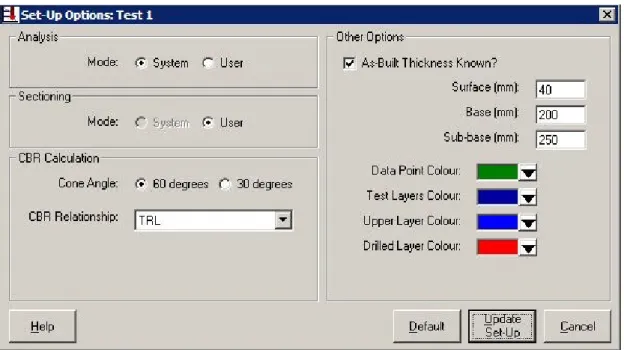
It is recommended that the set-up function is used as follows. After data from the first test of a project has been added to the Test Manager, highlight the test and click Set-Up in the Test Manager or in the Modules menu at the top of the main window. This will display the Set-Up Options box (Figure 4.5) for the first test. The box will contain a number of default settings. Make any changes as required and click Update Set-Up to save these changes and return to the Test Manager. This will assign that set-up information to the first test. As further tests are added, they will be automatically assigned the same set-up information. If at any stage the Set-Up information is changed and updated, this new set-up information will be assigned to all subsequent tests. To revert to the default set-up information, click Default and then Update Set-Up.
Figure 4.5 Set-Up Options box
If a number of tests have been added to the Test Manager, or even if analysis of the data has already begun, it is possible to return to the Test Manager and change the Set-Up information for a single test. This may be done if a chosen method of analysis or display is unsuitable for the data. Highlight the test, click Set-Up, make the required changes and click Update Set-Up. If analysis of that test has already been carried out, a box is generated warning that the analysis will be deleted. It should be noted that if more tests are added, they will retain this updated Set-Up information. There are four buttons in the Set-Up Options box.
Help Open this manual on the screen at the appropriate section. Default Revert to the default set-up information, as defined below. Update Set-Up Save amended set-up information, as described above.
Cancel Close Set-Up and return to the Test Manager without saving any changes.
The Set-Up Options box has four panels.
4.5.1 Analysis
Layers can be identified either automatically by UK DCP or manually by the user. This panel allows the method of identification to be selected. The default is automatic (‘system’) analysis.
4.5.2 Sectioning
A project can be divided into sections either automatically by UK DCP or manually by the user. This panel allows the method of identification to be selected. Automatic sectioning is currently disabled. The default is manual (‘user’) sectioning.
4.5.3 CBR Calculation
The strengths of Test layers are calculated by converting the penetration rate (mm per blow) to a California Bearing Ratio (CBR) value and then from the CBR value to a strength coefficient and finally to a Structural Number. A number of relationships between penetration rate and CBR value have been derived and are given in Table 4.1. Some of these are used when the DCP cone has an angle of 60°, others when the cone has an angle of 30°. The relationship and the cone angle are selected on this panel. The user’s organisation should provide guidance as to which relationship should be used or whether a new relationship for the local conditions should be developed. The default is the TRL relationship for a 60° cone.
The conversion of CBR value to strength coefficient and Structural Number is described in Chapter 6.
Table 4.1 Penetration rate – CBR relationships Cone
angle
Name of relationship Relationship 60°
cone
TRL(1) Log10(CBR) = 2.48 – 1.057 Log10(pen rate)
Kleyn(2) (pen rate > 2 mm/blow)
CBR = 410 (pen rate)-1.27
Kleyn(3) (pen rate = 2 mm/blow)
CBR = 66.66 (pen rate)2 – 330 (pen rate) + 563.33
Expansive Clay Method(4)
Log10(CBR) = 2.315 – 0.858 Log10(pen rate)
100% Planings(5) Log10(CBR) = 1.83 – 0.95 Log10(pen rate)
50% Planings Log10(CBR) = 2.51 – 1.38 Log10(pen rate)
User-Defined Log10(CBR) = [constant] – [coefficient] Log10(pen rate) Constant and Coefficient can be defined by the user 30°
cone
Smith and Pratt(6) Log10(CBR) = 2.555 – 1.145 Log10(pen rate)
User-Defined Log10(CBR) = [constant] – [coefficient] Log10(pen rate) Constant and Coefficient can be defined by the user (pen rate is the penetration rate measured in millimetres per blow)
4.5.4 Other Options
When penetration data is being analysed, a graph of penetration depth against the number of blows given to the DCP is used to identify layers of different materials and the boundaries between them. The items in this panel allow two changes to be made to this graph which may help in identifying layers.
As-Built Thickness
It is sometimes difficult to identify layers from a penetration graph and, even if layers can be seen, it can be difficult to be sure whether the layer is part of the base, sub-base or subgrade. If actual information on materials and layer thicknesses is available, layer identification from penetration data can be much easier. This information can come from records made when the pavement was being constructed or from test pits dug alongside and within the project. Neither source of information will accurately predict the layers at each test site, but they can provide useful guidance. If as-built or test pit information is available, click in the As-Built Thickness Known? box and enter the recorded thicknesses for the Surface, Base and Sub-base. These will be displayed on the penetration graphs, as shown in, for example, Figure 5.2 and Figure 5.4. The default is to not display as-built thicknesses.
Colours
Different colours are used to indicate different elements of the penetration graph. They can be changed if required, for example if a printer does not print a particular colour well. The defaults are Data Point – dark green; Test Layers – dark blue; underside of Upper Layers – bright blue; Drilled Layer – red.
After data from penetration tests has been input, the Test Manager is as shown in Figure 4.6.
5
Layer analysis
5.1 Introduction
A typical graph of penetration depth against the cumulative number of blows given to the DCP shows a line of varying gradient. The gradient is equal to the penetration rate of the cone as it is driven into the pavement.
For Test layers, it is possible to derive relationships (4.5.3) between the penetration rate and the strength of the material through which the cone is passing. The gradient of the line can therefore be used to calculate the material strength. Changes in the gradient of the line indicate boundaries between materials of different strengths and hence the thicknesses of layers of different strengths.
Upper layers are often too thin, strong or impenetrable for their strength to be determined from the penetration rate. Instead, the strength of an Upper layer is estimated from the type of the layer and its condition, and its thickness is taken from as-built records, test pit data or by measuring the thickness of a layer removed during the DCP test.
This chapter describes how the thicknesses of Test layers are determined from penetration graphs; Chapter 6 then describes how the strengths of Upper layers and Test layers are calculated.
The penetration graph can be analysed automatically or manually according to the selection made when defining Set-Up information (4.5.1).
5.2 Analysing Test layers
Begin layer analysis from the Test Manager. Highlight a test which has not yet been analysed and click Analyse in the Test Manager or in the Modules menu at the top of the main window.
This will open a Layer Boundaries box. It contains a graph of adjusted penetration depth (data adjustment is explained in Box 4.2) against the cumulative number of blows given to the DCP. All test points are plotted onto the graph. The gradient of the line of test points is the penetration rate of the cone and hence the strength of the material at that depth. A shallow gradient indicates strong material, a steep gradient indicates weak material and changes in gradient indicate a layer boundary between Test layers of different strengths.
The other information displayed on the graph depends upon whether layer analysis will be carried out automatically or manually. These two alternatives are compared in Box 5.1 and described in detail below.
Box 5.1 Should penetration data be analysed automatically or manually?
UK DCP allows penetration plots to be analysed automatically or manually. Each method has advantages and disadvantages.
Automatic analysis Advantages
Quicker than manual analysis.
Disadvantages
The user has no control over where layer boundaries are located. Assigns a strength coefficient to a drilled layer.
Summary
Automatically identified layer boundaries of a complex plot may be located inappropriately. Automatic analysis is therefore recommended when the penetration plot has a simple shape.
Manual analysis Advantages
User has more control over where layer boundaries are located. The use of gaps can improve the analysis of drilled and strong layers.
Disadvantages
Slower than automatic analysis.
Summary
Manual analysis is recommended when the penetration plot has a complex shape, the analysis of which the user would like to have some control over. It is also recommended if an atypical item such as a large stone slowed down the penetration or had to be drilled.
5.3 Automatic layer analysis
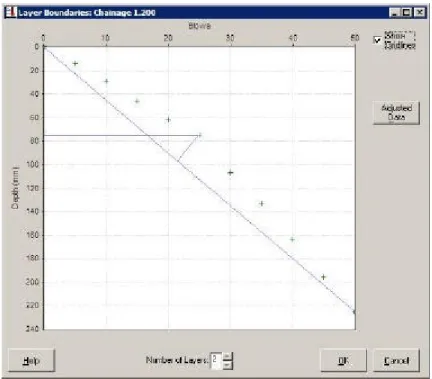
The automatic layer analysis procedure first calculates the penetration rate at each test point and the average penetration rate for the entire test. For each test point it then calculates the value of the average rate minus the rate at that point. These values are then summed in turn starting at the first test to find the cumulative difference sum at each point. By the nature of the calculation, this sum will be zero at the final test point. At one point this sum will reach a maximum absolute value. The depth of the point at which the sum reaches this maximum value is defined as the first Test layer boundary. This procedure has a similar effect to drawing a straight line from the first point to the last point and finding the depth of the intermediate point which is furthest from this straight line (as shown in Figure 5.1).
Figure 5.1 How Automatic analysis works
The procedure is then repeated for the test points above this first boundary and for the points below it. In this way the second and third boundaries can be identified. The procedure is repeated until the points between any two boundaries do not exhibit sufficient fluctuation from a straight line to allow a further boundary to be identified with any degree of confidence. An automatically analysed penetration plot is shown in Figure 5.2.
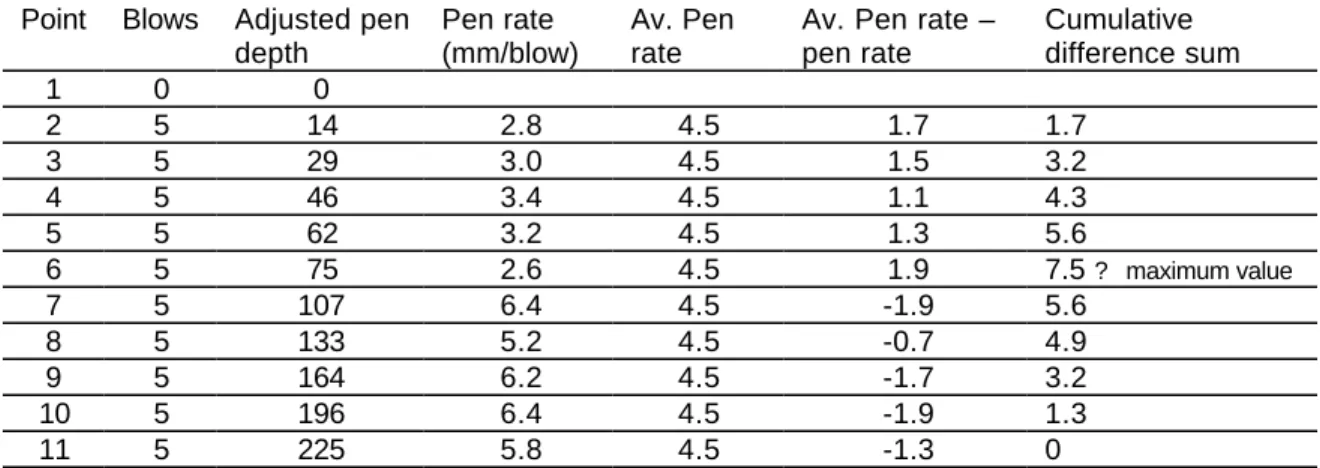
To illustrate automatic layer analysis, Table 5.1 contains penetration data to a depth of 225 mm. The data is analysed in the table to show how a change from strong to weaker material can be identified at a depth of 75 mm. Figure 5.1 contains a graph of the data in this table. It shows how the point with the greatest cumulative difference sum is also the point which lies furthest from a straight line from the first point to the last point. The first Test layer boundary has been automatically generated and is shown on the graph.
Table 5.1 Example of penetration data and cumulative difference sum analysis
Point Blows Adjusted pen depth
Pen rate (mm/blow)
Av. Pen rate
Av. Pen rate – pen rate Cumulative difference sum 1 0 0 2 5 14 2.8 4.5 1.7 1.7 3 5 29 3.0 4.5 1.5 3.2 4 5 46 3.4 4.5 1.1 4.3 5 5 62 3.2 4.5 1.3 5.6 6 5 75 2.6 4.5 1.9 7.5 ? maximum value 7 5 107 6.4 4.5 -1.9 5.6 8 5 133 5.2 4.5 -0.7 4.9 9 5 164 6.2 4.5 -1.7 3.2 10 5 196 6.4 4.5 -1.9 1.3 11 5 225 5.8 4.5 -1.3 0
Five points should be noted when using automatic layer analysis.
• Boundaries can be identified only at depths corresponding to actual test points.
• The strength of a layer is calculated by the gradient of a straight line from the intersection of its upper boundary with the line of test points to the intersection of its lower boundary with the line of test points.
• There are three situations where minor corrections are made to the analysis in order to prevent inaccurate calculation of the thickness of the first Test layer. These are described in Box 5.2.
• Box 5.3 below recommends when automatic layer analysis should be used for penetration data containing drilled layers.
• Box 5.4 below recommends when automatic layer analysis should be used for penetration data containing strong but penetrable layers.
The following items are displayed in the Layer Boundaries box if automatic layer analysis has been selected. The colours of some of the items depend upon selection made when defining Set-Up information.
Maximum layers message
When the box is opened, a message will be generated giving the maximum number of Test layers which can be identified from the data using the above procedure. Click OK to delete this message. If 10 Test layers can be identified (the limit set by UK DCP), a message is not generated.
First layer boundary
The first layer boundary identified using the above procedure is shown with a horizontal line.
message. Unless a drilled layer is present, this number is initially 2. Upper layer
line
A dashed line indicates the underside of the Upper Layers.
Drilled layers
If a layer has been drilled, it will be marked on the graph with two horizontal dotted lines, but the first automatic layer will not be shown. The Number of Layers field will therefore initially show 3, the portion above the drilled layer, the drilled layer itself and the portion below. An automatically analysed drilled layer is shown in Figure 5.12 below.
As-built layers
If as-built or test pit information was entered into the Set-Up of the test (4.5.4), these layers are shown, separated by dotted lines.
Show Gridlines
A check box is provided to allow gridlines to be displayed or removed.
Adjusted Data button
Click this button to generate a box showing the penetration data (Figure 6.3). This data has been adjusted as described in Box 4.2. The box also includes the average penetration rate between successive points. This box is generated to guide the identification of Test layers and cannot be edited. Help button This button opens this manual on the screen at the appropriate section. OK button This is used to accept and save the layer boundaries and return to the Test
Manager. Cancel
button
This is used to cancel the analysis. If changes have been made to the analysis, a box is generated which offers an opportunity to save the changes. Layer
descriptions
When the cursor is placed over the graph, a small box is generated. This box gives the number of the Test layer, its thickness (mm) and the average penetration rate for the layer.
Point descriptions
When the cursor is placed over a test point, a small box is generated. This box gives the cumulative blows and the adjusted depth of the point.
Add or remove layer boundaries from the graph until satisfied that the data has been adequately analysed. In Figure 5.2 five Test layers appear sufficient. Adding further layers does not increase the precision of the analysis. Note that identified Test layers matching previously defined as-built layers is a useful check on the analysis.
Click OK to save the analysis and return to the Test Manager. It will be seen (Figure 5.3) that today’s date will be in the Analysis column for that test.
It is possible to examine the graph and possibly edit the analysis of a test for which layers have already been identified. Highlight the test in the Test Manager and click Analyse. The Layer Boundaries box will be opened and the penetration graph will be shown, but Edit must be clicked before changes can be made to the number of Test layers. When Edit is clicked, if SN Calculations have already been carried out, a warning appears that SN Calculation data, and possibly Sectioning data will be deleted. If it is not necessary to edit the analysis, click Close to return to the Test Manager.
Box 5.2 Corrected analysis of deep surface texture and disturbed soil
There are three situations where automatic layer analysis makes assumptions about the adjusted penetration data (adjusted penetration data is explained in Box 4.2) and makes minor corrections in order to prevent the inaccurate calculation of the thickness of the first Test layer. These three situations are described below. In each case, it is important to understand how a simple automatic routine without these assumptions or a manual interpretation of the penetration graph would produce the inaccuracy.
1. If an earth, gravel or thin bituminous surface has a deep texture or surface voids, the initial position of the DCP cone may be slightly below the actual road surface. UK DCP assumes the road surface to be at an adjusted penetration of zero and calculates the layer strength from the penetration rate after penetration began.
2. If base material sticks to an impenetrable layer as it is removed, as is often the case with HMA and a granular base, the initial position of the DCP cone may be below the actual top surface of the base. UK DCP assumes the top surface of the base layer to be at an adjusted penetration equal to the measured thickness of the removed layer and calculates the layer strength from the penetration rate after penetration began.
3. If base material is loosened by an impenetrable layer as it is removed, the first one or two blows to the DCP will penetrate much more quickly through the loose material than later blows in the unloosened material. UK DCP ignores the penetration rate in the loose material, assumes the top surface of the base layer to be at an adjusted penetration equal to the measured thickness of the removed layer and calculates the layer strength from the penetration rate below the loose material.
As a result of point 3, it is recommended that after a layer has been removed, the first two penetration readings are taken after only one or two blows.
5.4 Manual layer analysis
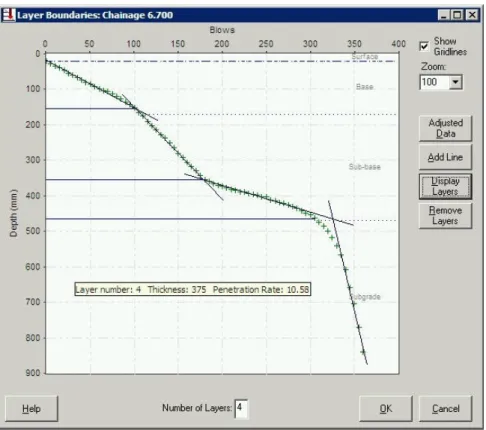
Test layer boundaries are identified as follows. UK DCP allows a number of straight lines to be drawn along approximately straight portions of the graph. Test layer boundaries will be generated at each point where these lines intersect. A manually analysed penetration plot is shown in Figure 5.4.
Figure 5.4 Layer Boundaries box using Manual layer analysis Four points should be noted when using manual layer analysis.
• Boundaries can be identified at any depth at which lines intersect.
• The strength of a layer is calculated by the gradient of the straight line drawn onto the plot. Various techniques allow the user more control over layer thickness than is possible with automatic layer analysis. These are described below.
• Box 5.3 below recommends when manual layer analysis should be used for penetration data containing drilled layers.
• Box 5.4 below recommends when manual layer analysis should be used for penetration data containing strong but penetrable layers.
The following items are displayed in the Layer Boundaries box if manual layer analysis has been selected. The colours of some of the items depend upon selection made when defining Set-Up information.
Number of Layers field
The number in this box is the number of Test layers identified. As a new interesting straight line is drawn, the number in this field increases by one. Upper layer
line
A dashed line indicates the underside of the Upper Layers.
Drilled layers
If a layer has been drilled, it will be marked on the graph with two horizontal dotted lines.
As-built layers
If as-built or test pit information was entered into the Set-Up of the test (4.5.4), these layers are shown, separated by dotted lines.
Show Gridlines
A check box is provided to allow gridlines to be displayed or removed.
Zoom box A pull down menu allows the graph to be magnified so that lines can be more accurately placed.
Adjusted Data button
Click this button to generate a box showing the penetration data (Figure 6.3). This data has been adjusted as described in Box 4.2. The box also includes the average penetration rate between successive points. This box is generated to guide the identification of Test layers and cannot be edited. Add Line
button
Click this button to draw a straight line. Then click and hold at one end of the intended line. Drag the cursor to the end of the intended line and release. Double click on a line to delete it.
Display Layers button
Click this button to generate layer boundaries where the straight lines intersect. After layer boundaries have been generated, an additional straight line can be added, allowing the user to be satisfied with the analysis of a portion of the graph before completing the analysis. As the new line is drawn, the previously generated layer boundaries disappear.
Remove Layers button
Click this button to remove all straight lines and layer boundaries.
Help button This button opens this manual on the screen at the appropriate section. OK button This is used to accept and save the layer boundaries and return to the Test
Manager. Cancel
button
This is used to cancel the analysis. If changes have been made to the analysis, a box is generated which offers an opportunity to save the changes. Layer
descriptions
When the cursor is placed over the graph, a small box is generated. This box gives the number of the Test layer, its thickness (mm) and the average penetration rate for the layer.
Point descriptions
When the cursor is placed over a test point, a small box is generated. This box gives the cumulative blows and the adjusted depth of the point.
Study the graph and model it as a series of straight lines. Click Add Line and draw lines along each reasonably straight portion. These lines should form a series of interconnecting lines, although Gaps may be deliberately left in certain situations. Click Display Layers to generate the Test layer boundaries. In Figure 5.4 five straight lines seem to represent the graph sufficiently accurately, although an important check is described below in Box 6.1. Note the closeness of the Test layers to the previously defined as-built layers and the similarity of the result to that derived using automatic analysis (Figure 5.2).
Click OK to save the analysis and return to the Test Manager. It will be seen (Figure 5.5) that today’s date will be in the Analysis column for that test.
Figure 5.5 Test Manager (showing that test data has been analysed)
To edit the analysis of a test for which layers have already been identified, highlight the test in the Test Manager and click Analyse. The Layer Boundaries box will be opened and the penetration graph will be shown, but Edit must be clicked before changes can be made to the number of Test layers. When Edit is clicked, if SN Calculations have already been carried out, a warning appears that SN Calculation data, and possibly Sectioning data will be deleted. If it is not necessary to edit the analysis, click Close to return to the Test Manager.
In most cases, manual layer identification is straightforward. However, there are a number of hints and techniques which should be noted. They are illustrated in the figures below.
Double intersections
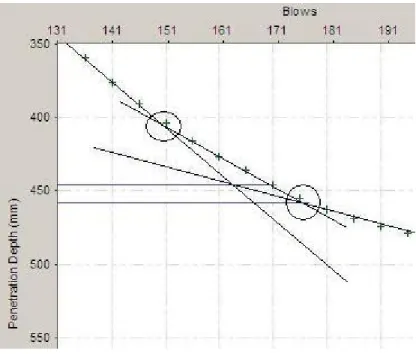
Figure 5.6 If a graph has a sudden change of gradient, the boundary can be identified using only two straight lines. However, if a graph has a gradual change of gradient, three or more short lines may be required. If these lines are drawn too long, it may occur that one line has two or more intersections. In this case, boundaries may be generated at unintended intersections. It is recommended that double intersections are avoided.
Negative gradients
Figure 5.7 Since penetration graphs always have a gradient from top left to bottom right, a line in the opposite direction will not be accepted.
Intersecting the line of
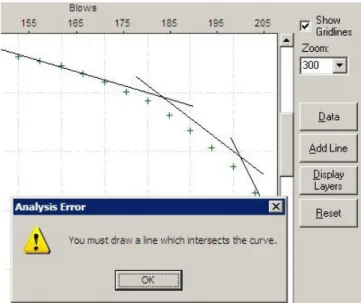
Figure 5.8 A line which does not cross the line of test points will not be accepted.
points Moving a line
Figure 5.9 Figure 5.10
If a line does not exactly match a portion of the graph, it can be moved laterally by clicking, holding and dragging.
Overlapping lines
Figure 5.11 If a line overlaps but does not intersect another line, a warning message is generated and the line is deleted.
Gaps between lines Figure 5.12 Figure 5.13 Figure 5.14 Figure 5.15
The use of non-intersecting lines can assist in the analysis of drilled and very strong layers. Their use is described in detail in 5.5 below.
Figure 5.6 Double intersections
Three straight lines have been drawn and both true intersections have been ringed. The lower intersection has been correctly identified, but the upper intersection has
been missed in favour of a false intersection. The lines should be removed by double-clicking and shorter lines drawn to prevent double intersections.
Figure 5.7 Negative gradient
Lines with negative gradient will not be accepted. After clicking OK, the line will be deleted and should be redrawn.
Figure 5.8 Line does not intersect the line of test points
Straight lines which do not cross the line of test points will not be accepted. After clicking OK, the line will be deleted and should be redrawn.
Figure 5.9 Line drawn parallel to its intended position
Figure 5.10 Line moved laterally to its intended position
The line in Figure 5.9 has been moved and layers boundaries have been generated at the intersections.
Figure 5.11 Lines overlap but do not intersect.
Lines which overlap without intersection will not be accepted. After clicking OK, the line will be deleted and should be redrawn.
5.5 Analysis of drilled and very strong layers
If two manually drawn lines do not intersect, the boundary will be generated at a depth midway between the two end points. Drawing non-intersecting lines can be useful in the analysis of a drilled layer, a very strong but penetrable layer or an obstacle such as a stone.
The following figures and boxes describe how these examples are analysed differently under automatic and manual analysis and how the most appropriate method should be chosen.
5.5.1 Drilled layers
When analysed automatically, the drilled layer is defined as a distinct Test layer. Later, during the calculation of Structural Numbers, a strength coefficient will have to be manually assigned to this layer. In Figure 5.12 four Test layers have been identified, one of them the drilled layer.
Figure 5.13 Manual analysis of a drilled layer and the use of gaps
When analysed manually, the drilled layer is not defined as a distinct Test layer. A boundary can be identified in the middle of the drilled layer. This is done by terminating the drawn lines at the upper and lower surfaces of the drilled layer and so generating a boundary midway between the two end points. The strengths of the two layers are calculated from the gradients of the drawn lines, thus eliminating the influence of the drilled layer on the analysis. In Figure 5.13 only three Test layers have been identified, the thickness of the drilled layer being divided equally between base and sub-base.
Box 5.3 Analysis of a drilled layer
Automatic analysis identifies a drilled layer as distinct and assigns a strength coefficient. Manual analysis with the use of gaps can eliminate the influence of the drilled layer on the subsequent analysis. Therefore automatic analysis should be used when, for example, a strongly stabilised pavement layer had to be drilled, while manual analysis should be used when an isolated and atypical item such as a large stone had to be drilled.
5.5.2 Very strong layers
Figure 5.14 Automatic analysis of a very strong layer
When analysed automatically, the very strong but penetrable layer is likely to be defined as a distinct Test layer. Later, during the calculation of Structural Numbers, a high strength coefficient will be assigned to this layer. In Figure 5.14 four Test layers have been defined, one of them the very strong layer.