C H A P T E R 1
The Internet
Information Server
(IIS) Application
THE RATE AT WHICH COMPUTER SCIENCE IS GROWING ISprobably tiring for computer programmers who must stay on top of cutting-edge technology. Keeping up with changes in this field is more than a full-time job. Usually, you purchase a book on a new programming topic and immediately hear that another new technology has surfaced. This is especially true concerning the Internet. Technologies emerge faster than anyone can truly master.
If you are an Internet programmer or are learning to become one, you have to choose the technology you want to specialize in, but never stop watching for the new ones. When a new technology starts to become the dominant player and the one you are specializing in is in infirmity, you should be ready to climb on the new bandwagon. For example, at one time, Common Gateway Interface (CGI) was the main technology of the Internet. It is still being used, but better tech-nologies have been invented and CGI is no longer everyone’s favorite.
However, while the entire Internet industry becomes more dynamic every day, the basics remain static, so it is not too difficult to adapt to a new technology regardless of how loud the propaganda is. HTTP (currently at version 1.1) is still the protocol used and HTML (at version 4) is still the language used for content presentation on Web pages.
How Does the Internet Work?
When you surf the Internet, you basically ask for certain files located in a particu-lar computer in a given location where those files are stored. In a typical Web site, the computer where the files are stored is expected to be up and running all the time, and its main job is to serve anyone who requests a file. Not surprisingly, this computer is called a server, more precisely: a Web server. The file returned by the Web server is displayed in the user’s Web browser. Note that the term Web server can be used to refer to the computer or to the software package that is used in the Web server computer.
For this whole process of requesting a file and sending a file to happen, both the server and the user (called the client) must have a valid Internet address. The server address is something like http://www.apress.comor another type of Internet address. The client address depends on where the user accesses the Internet. When you connect to the Internet through an Internet Service Provider (ISP), for example, you are given a temporary Internet address, so the server knows where to send the requested file. When you are connected through your corporate LAN, you could have a fixed IP address or you could be given a tempo-rary IP address also.
When you click or type in a URL, the following process happens:
• The browser connects to the server.
• The browser requests a file.
• The server responds by sending the requested page to the browser, and then closes the connection.
Of course, a connection to the server can only be established if the server is run-ning and is not too busy serving other requests.
What happens after the server sends the requested file depends on the user. The user can just close the browser and walk away or request another file from the server. However, when the server is connected for the second time, it cannot tell whether it is the second request from the same user or a first request from some other user.
The fact that the server cannot remember users who have previously request-ed pages has a deep impact on how an Internet application is developrequest-ed. Pro-grammers who are used to the conventional client/server programming might find it confusing at first to figure out how an Internet application works. For now, just keep this information in mind. Further discussion on this issue will be found in Chapter 7.
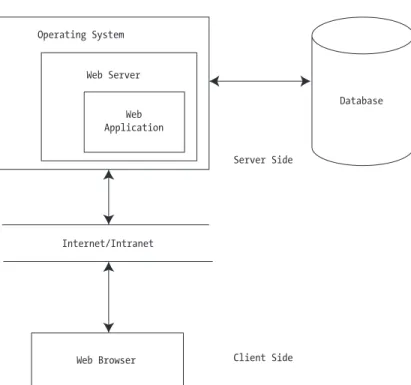
The architecture of an Internet application is shown in Figure 1-1. Also keep in mind that the server does not serve only one user. For an Internet application, anyone connected to the Internet can request a page from the server. At times, in popular Web sites, thousands of requests come in simulta-neously. And, if you are running a corporate intranet application, everyone with access can request a page. Therefore, it is very important for the Web application to be as efficient as possible.
The Available Technologies
In the software industry, including Web technology, Microsoft products seem to be more and more dominant. As far as Web technology is concerned, Microsoft
provides a total solution. You can use Microsoft products exclusively to deliver a scalable Web solution. If you decide to do so, choosing each component in the system is easy because Microsoft products don’t compete with each other. It is almost certain that you will choose Windows NT or Windows 2000 Server for your operating system, IIS as your Web server, SQL Server for your database server, and Component Object Model (COM) technology as your developing framework. The good news is, if you have been using a Microsoft compiler, you won’t need to change the programming language.
On the other hand, if you are more inclined toward other products and ven-dors, your choice is more varied. Getting the right combination of products is often a political issue, not to mention that there is always a risk of incompatibility between products from different manufacturers. A typical Web solution without Microsoft presence could include a Unix or Linux operating system; an Apache (still the most popular today) or a Java Web server; a MySQL, Oracle, Informix, Sybase, or other database; and PERL or PHP or Java as your language of choice.
However, because you have chosen this book from the shelf, chances are you are using Microsoft products. If you are new to Microsoft’s Internet technologies, please read the next section. It describes the existing technologies and the posi-tion of each.
Internet/Intranet
Web Browser Client Side Server Side Database Operating System Web Server Web Application
The Facts about Microsoft Internet Technologies
Before the arrival of the IIS applications technology in Visual Basic, there were and still are three types of Web applications in use that can run using IIS. They are Common Gateway Interface (CGI), Internet Server Application Programming Interface (ISAPI), and Active Server Pages (ASP).CGI is easy to program and is the slowest Web technology available on the Windows platform. In Windows operating systems, the Web server creates a sepa-rate process for each HTTP request and communicates with the process through environment variables and standard input (stdin) and standard output (stdout) streams. If 1,000 clients access a CGI application at the same time, the server cre-ates 1,000 instances of the CGI application to handle the requests. Each instance requires its own memory space and system resources.
Because process creation and interprocess communication are time and re-source consuming operations, it’s not surprising that a CGI application is the slowest compared with other available technologies. CGI applications are usually implemented as a C/C++ executable or with a scripting language like PERL. The output of a CGI application is generated using the basic output functions of the language, for example, printfin C. CGI programs are not as bad in Unix, which is designed to handle multiple processes with very little overhead.
ISAPI is the fastest among the three applications and was developed specifi-cally for IIS as a high-performance Windows alternative to CGI. ISAPI is an API for developing extensions to the IIS server and other HTTP servers that support the ISAPI interface. Compiled as a runtime dynamic link library (DLL) file, the ISAPI model reduces the overhead required by multiple requests because only one DLL is needed for multiple requests.
The first time an ISAPI DLL is requested, the server loads it into memory. Unless the Web server is shut down, the DLL stays in memory waiting for another request. Therefore, there is no overhead for process creation after the first request. Furthermore, ISAPI applications run in the same address space as the Web server and have access to all the same resources. There is no need for interprocess com-munication. However, ISAPI applications development is also the hardest, requir-ing implementation usrequir-ing C++/MFC. This factor alone deters many from select-ing this solution.
There is also a maintenance problem with ISAPI. Even a minor change requires a recompile and relink of the ISAPI application. Also, an ISAPI DLL can cause the Web server to crash if it is not thoroughly tested before being deployed and run in the Web server process. Fortunately, with IIS 4.0 and later, you can select to run ISAPI DLLs in separate processes, with performance being sacrificed of course. Note that ISAPI applications are not the same as ISAPI filters, which are DLLs that allow preprocessing of requests and postprocessing of responses for site-specific handling of HTTP requests and responses.
ASP is certainly the current star. Introduced as part of IIS 3.0, its benefits are in the simplicity of the available scripting languages, and you get performance that is much more superior than that of a CGI application.
When IIS receives a request for a file with an .asp extension, IIS passes it to ASP.DLL, the scripting engine that is an ISAPI application. Because ASP must interpret and compile scripts before executing them, complex scripts can be four times slower than plain HTML and two to three times slower than ISAPI on the first request. Afterward, the compiled version of the page is cached in server mem-ory, making subsequent requests substantially faster.
ASP is not limited to a particular programming language. VBScript and JScript are the two most commonly used languages to create ASP scripts. However, any language for which a third-party ActiveX scripting engine is available can also be used. This includes PerlScript, REXX, and Python. You can even use more than one scripting language on a single ASP page, even though this is not a recom-mended practice because doing so will make processing slower. ASP applications often include custom ActiveX components that are called from ASP pages to enhance scalability.
To get a feel of how each type of application rates as compared with another, Table 1-1 summarizes a test result of the three types of applications in three types of operations: DataGrab, GetObject, and ServerVars.
In the DataGrab operation, the applications pull data from a database using a database-access COM component written in Visual Basic. The component object provides a method that can be used to connect to a small Access database, send an SQL query string, and return the query result. Unfortunately, there is no result for CGI for this category.
The GetObject operation includes instantiating a simple COM component, calling a method provided by that COM component, and sending the result of the call to the client.
In the third operation, the ServerVars, each application accesses 18 server variables and sends the result to the client.
The test was undertaken using the Microsoft Web Capacity Analysis Tool (WCAT) that can be found on the IIS Resource Kit CD. This tool runs simulated workloads on client/server configurations to allow you to test how IIS and your network configuration respond to a variety of different client requests.
The tests whose results are given in Table 1-1 were run with five clients, each running 20 threads for a total of 100 virtual clients. The virtual clients fired requests at the server and recorded how many of the requests were served, in other words, how many pages per second the server was able to serve. The CGI application was PERL scripts run by PERL for Win32. The numbers in the table are relative figures, where higher figures reflect better performance. For example, the ISAPI applica-tion is nearly three times faster than ASP in the ServerVars operaapplica-tion.
Where Does the IIS Application Stand?
The IIS application is the most recent Internet technology from Microsoft that ships with Visual Basic 6 and later. When you create an IIS application with VB, you create classes that resemble classes in other VB projects. These classes in IIS applications are called WebClasses. The technology that the IIS application is based on is also known as the WebClass technology.
An IIS application is a Visual Basic application that resides on a Web server and responds to requests from Web browsers. An IIS application sends plain text to the client-side to present its user interface, therefore you have a great deal of flexibility. You can send standard HTML tags to make your IIS application browser independent, or, if the project requirement says so, you can send output to cater to a specific browser.
To the user, an IIS application appears to be made up of a series of HTML pages. To the developer, an IIS application is made up of a special type of object called a WebClass. This WebClass in turn contains a series of resources called WebItems. The WebClass acts as the central functional unit of the application, processing data from the browser and sending information to the users.
At a glance, an IIS application looks very similar to ASP. However, the IIS ap-plication was conceived after the delivery of ASP. Therefore, it was designed to overcome the disadvantages that are inherent to ASP. Despite its popularity, ASP has the following disadvantages:
1. You use VBScript, JScript, or other scripting languages. All are interpreted languages, and interpreted languages are slower than compiled lan-guages. Scripts are also less likely to scale well to large numbers of users.
2. With ASP, people can see your code once they get access to the server. In most cases this is not a big deal, unless of course you have invented a new algorithm for generating random numbers. Even though code en-cryption is supported in the new version of ASP, version 3, the method used is still very weak and can be easily cracked.
Table 1-1. Relative Performance of Dynamic Pages in Different Technologies*
ISAPI ASP CGI
DataGrab 69.37 57.19 N/A
GetObject 209.14 169.64 1
ServerVars 560.07 195.97 33.16
*From Microsoft Internet Information Server Resource Kit, Microsoft Press, pages 59–61, 1998, Chapter 3. A dozen writers contributed to this work; the contributing writer for Chapter 3 was Jon Singer.
3. For long pages, it’s very hard to differentiate code from HTML tags. Undifferentiated script scatters business logic throughout the applica-tion, making it hard to find bugs and increasing the cost of maintenance.
4. Scripts are not as reusable as classes.
5. Some Windows functionality is beyond ASP’s reach without the help of COM components. This includes accessing the Registry, issuing a shell command, and so on.
ASP developers usually try to overcome these weaknesses by using compo-nents. If you are an expert ASP developer, you must be familiar with the motto: the less script, the better, to create a scalable ASP application. It is therefore understandable that IIS applications, which can be regarded as 100 percent component-based solutions, are considered better ASP. An IIS application over-comes the disadvantages of ASP by possessing the following characteristics:
1. It is a compiled application created using Visual Basic 6 or later. Thus, it is faster.
2. Only you can see the source code, so privacy and copyright are relatively secure.
3. There is a separation between the code and the presentation layer.
4. WebClasses are reusable.
5. An IIS application is a VB application, therefore it enjoys all the benefits that a VB application has.
The only advantage of ASP over IIS applications is the fact that simple ASP applications that consist only of pages can be hosted in an external ISP. ISPs nor-mally do not allow you to install custom components on their server for security and other reasons. They can’t afford to have their server down simply because one of the users’ components crashes, bringing down other people’s innocent applica-tions.
How Fast Is an IIS Application Compared with ASP?
After having stated that IIS applications are better than ASP, let me present further performance results. I tested three types of operations: Server Variables 1, Server Variables 2, and Database Access. For each type, an ASP application and an IISapplication were written, and the code for the ASP page and the WebClass was ba-sically the same.
In all of the ASP pages, no COM component was used. Each category of oper-ation was performed five times for each applicoper-ation, and the results were aver-aged. VB’s Timer function was used to measure performance. The Timer function returns a number representing the number of seconds elapsed since midnight. The precision is to a hundredth of a second.
The function was invoked twice, once at the beginning of the process and once at the end of it. By subtracting the first number from the second one, the result of how long (in hundredths of a second) it takes the Web server to complete the process is obtained. The results are summarized in Tables 1-2a and 1-2b. The code for each application and the complete testing procedure are given in Appendix F.
In Server Variables 1, both applications read 16 server variables and sent them to the browser. Server Variables 2 was similar to Server Variables 1, but the process was repeated 100 times. Server Variables 2 was conducted because Server Variables 1 was too easy for the IIS application. As a result, the two Timer function invocations resulted in the same number, which provides assurance that the pro-cess took less than 10 milliseconds. I then had two options: go to the museum to borrow a much slower machine or give my CPU some extra work doing the same function in a loop. I chose the latter, which was more practical. This was imple-mented as Server Variables 2.
Why didn’t I drop Server Variables 1? At first I was tempted to do so, but then I realized that it might also be useful to compare performance for very simple oper-ations, such as Server Variables 1. This, at least, wiped out the suspicion that ASP applications might be more superior in small applications.
Table 1-2a. Test Results for ASP Applications
TEST 1 TEST 2 TEST 3 TEST 4 TEST 5 AVERAGE Server Variables 1 0.06s 0.06s 0.06s 0.00s 0.05s 0.046s Server Variables 2 5.05s 4.28s 3.85s 4.01s 4.07s 4.252s Database Access 4.33s 4.45s 4.77s 4.72s 4.78s 4.61s
Table 1-2b. Test Results for IIS Applications
TEST 1 TEST 2 TEST 3 TEST 4 TEST 5 AVERAGE Server Variables 1 0.00s 0.00s 0.00s 0.00s 0.00s 0.00s Server Variables 2 0.16s 0.16s 0.16s 0.16s 0.16s 0.16s Database Access 4.01s 3.57s 3.35s 3.39s 3.68s 3.60s
The third test, Database Access, performed three database operations: Insert, Select, and Delete. It first inserted 300 records into an empty Access database table, and then selected all the records and displayed them in an HTML page be-fore deleting all the records.
The results show that for Server Variables 2, on average, it took 4.252 seconds for the ASP application and 0.16 seconds for the IIS application. The IIS applica-tion is about 27 times faster than the ASP applicaapplica-tion in this category. In Database Access, however, the performance difference is not that obvious. This is under-standable because most of its time was spent on opening and establishing the connection, and then waiting for the database engine to perform the database operations.
Please note that the results of this experiment have no relation to the results presented in Table 1-1 because the tools used and the environment were different.
Comparison with Form-based VB Applications
IIS applications are also different from traditional form-based Visual Basic applica-tions. In an IIS application, the user interface consists of a series of HTML pages rather than traditional Visual Basic forms. An HTML page is like a form in that it contains all the visual elements that make up the application’s user interface.
An HTML page referenced in an IIS application is saved to an .htm file, which is analogous to a .frm file in that it is used to render and display the page to the end user. Also, in an IIS application, you don’t use VB to create the HTML pages that makes up the application’s user interface. A Web graphic designer creates the
Table 1-3. A Comparison between IIS Applications and Form-based VB Applications
FORM-BASED
VB APPLICATIONS IIS APPLICATIONS User interface VB forms HTML pages User interface elements Controls HTML elements* File format .frm files .htm or .html files
Creator Developer Developer with artistic skill or Web graphic designer
Run time VB runtime on both Web browser on the client-side and the client- and the IIS, ASP engine and WebClass server-sides runtime on the server-side
* You could embed Java applets or ActiveX controls in your HTML pages, but they are beyond the scope of this book.
pages using an HTML authoring program. Table 1-3 summarizes the difference between form-based applications and IIS applications.
The Structure of IIS Applications
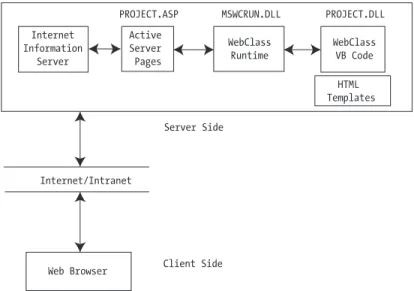
An IIS application consists of the following parts:• One or more WebClasses that are generated automatically when the IIS application project is created.
• Zero or more HTML templates and their events.
• Zero or more custom WebItems and their events.
• An .asp file used to host the WebClass in IIS. This file is generated automati-cally when you compile or run a WebClass project.
• A WebClass runtime component, MSWCRUN.DLL, that helps process requests.
• A project DLL that contains your VB code and is accessed by the runtime component.
The structure is best illustrated by Figure 1-2.
Internet/Intranet
Web Browser Client Side Server Side Internet Information Server Active Server Pages WebClass Runtime WebClass VB Code PROJECT.ASP MSWCRUN.DLL PROJECT.DLL
HTML Templates
Software Requirements for the Development Computer
To create and test an IIS application, you need to have a Web browser and a Web server installed on your development computer. You can use any of the combina-tions in Table 1-4 for development purposes only.IIS 5.0 is installed on Windows 2000 Server by default. The Web servers for Windows NT Server 4.0 and Windows NT Workstation 4.0 can be found in the Option Pack 4.0 CD. If you are using Windows 98, you must install the Virtual Private Network (VPN) to install Personal Web Server.
Web Server Administration
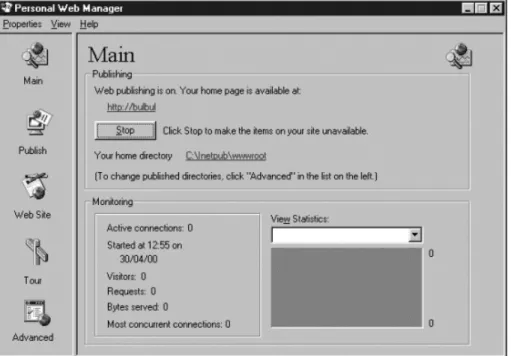
If you are using the Personal Web Server, you use the Personal Web Manager to administer your site. What you can do as an administrator is quite limited com-pared to the functions available when using IIS. To display the Personal Web Manager, select Start ➔ Programs ➔ Internet Explorer ➔ Personal Web Server ➔ Personal Web Manager. Your screen should look like Figure 1-3.
If you are using Window NT 4.0, there are two tools you can use to administer IIS. The first is Internet Service Manager, which is hosted in the Microsoft
Management Console (MMC) and can be administered within a local area net-work (LAN). The second tool, Internet Service Manager (HTML), can be accessed remotely using a Web browser from an intranet or the Internet.
Internet Service Manager uses a Web site listed as Administration Web Site to access IIS properties. When IIS is installed, a port number between 2,000 and 9,999 is randomly selected and assigned to this Web site for security reasons. On another machine, other than the machine that hosts IIS, you can only access this site if you know the port number and append it to the URL.
Configuration options for both tools are the same with exceptions in some logging and security features.
To start Internet Service Manager, select Start ➔ Programs ➔ Windows NT 4.0 Option Pack ➔ Microsoft Internet Information Server ➔ Internet Service
Manager.
Table 1-4. Software Requirements for Developing IIS Applications
OPERATING SYSTEM WEB SERVER
Windows 2000 Server Internet Information Server 3.0 or later with ASP Windows NT Server 4.0 Internet Information Server 3.0 or later with ASP Windows NT Workstation 4.0 Peer Web Services 3.0 or later with ASP
Figure 1-4. Microsoft Management Console in Windows NT 4.0 Figure 1-3. Personal Web Manager
To start Internet Service Manager (HTML), select Start ➔ Programs ➔
Windows NT 4.0 Option Pack ➔ Microsoft Internet Information Server ➔ Internet Service Manager (HTML). To use it remotely, you need to type the domain name and the assigned port number for the Administration Web Site, for example, http://www.apress.com:9869.
When using the Internet Service Manager (non-HTML version), the MMC is invoked and looks similar to Figure 1-4.
In Windows 2000 Server, Internet Service Manager is called Internet Inform-ation Services snap-in. Hosted in the MMC, the IIS snap-in has been integrated with other administrative functions of Windows 2000. Internet Information Server is now called Internet Information Service, and Default SMTP Site has become Default SMTP Virtual Server.
The Internet Service Manager (HTML version) is still available in Windows 2000 Server, however, you can no longer access it from the Start menu.
Where to Go from Here?
HTML is at the basis of every Web application. An understanding of HTML is therefore a mandatory preparation for anyone trying to build a Web application. This book provides a crash course and complete reference on HTML in Appendix A. Those unfamiliar with HTML should take a few minutes to look at Appendix A. Those who have been working with HTML should continue to Chapter 2 and refer to Appendix A when necessary for helpful reference.
C H A P T E R 2
The WebClass and
the WebItem
THIS CHAPTER INTRODUCES YOU TO YOUR FIRSTInternet Information Server (IIS) application and the concept behind WebClasses. Those who claim to be ASP (Active Server Pages) developers will recognize that WebClasses are more than ASP pages plus COM objects. Those familiar with traditional form-based Visual Basic (VB) applications will probably be struck by the similarities between the type of applications they are used to working with and this new genre. Both are heavily event-driven. Developers who are not in these two categories will find that an IIS application is very easy to develop. In fact, I would say that IIS applications are the easiest and fastest Web applications to build.
This chapter starts with a description of how to create an IIS application using the wizard in VB 6. The WebClass will naturally be the subsequent topic. It then digs deeper by discussing WebItems and events. A few sample applications will be created to demonstrate these topics. The chapter concludes with a brief note explaining which Web browsers to use in the development phase.
Creating Your First IIS Application
Visual Basic 6 provides a wizard that helps you create an IIS Application in three easy steps:
1. Double-click the VB icon on your desktop. If not previously disabled, the New Project window is displayed. If the window doesn’t appear, select File ➔ New Project.
2. Scroll down until you see the IIS Application icon and click on it, as shown in the Figure 2-1.
3. Click the Open button.
By clicking the Open button, you actually start a wizard in VB, which tells VB to perform some magic. This wizard creates an IIS application of the simplest form. VB then displays a window similar to Figure 2-2.
Instead of a form, as in the traditional VB application, VB creates a WebClass. In the Project Explorer, which you can display at any time by pressing Ctrl+R, the WebClass is wrapped inside the Designers folder. In most cases, you only need one WebClass for each IIS application. However, there are times when your appli-cation requires more modularity and code reusability, in which case, the use of multiple WebClasses is more than justifiable. With multiple WebClasses in the same application, navigation between WebClasses is the main issue. This topic will be addressed in Chapter 3.
You can now run the new application. However, before you run the applica-tion, it is a good idea to save the project. When you save the project, there are two files you need to save: a .dsr file and a .vbp file. The .dsr file is the designer file that holds your code and other information contained in your WebClass. The .vbp file is the project file. You should save them both in the same directory. This directory will become your project directory, and you should only store files related to your project in this directory.
VB will also automatically create several files in the same directory. The .asp file is the one you should be most interested in. When end users want to access your IIS application, they will use a Web browser to call this .asp file. The Web browser, through the HTTP protocol, will tell the Web server that it wants the .asp file. The Web server then runs the .asp file, which in turn creates an instance of your WebClass.
Virtual Directories
If you are the type of person who is not satisfied with short explanations, you are probably wondering how the Web server finds the .asp file. Read on to find the answer.
When you install a Web server (in this case, IIS or its little brothers Personal Web Server and Peer Web Services), the wwwroot directory under the inetpub directory is the Web server home directory. If, let’s say, the computer that hosts the Web server is called BigMomma and you put an HTML file called
CompanySecrets.html in the wwwroot directory, you can use a Web browser to request the HTML file by typing http://BigMomma/CompanySecrets.htmlin the Web browser URL box.
Or if you are browsing from the same computer, you can just type http:// localhost/CompanySecrets.html(or localhost/CompanySecrets.htmlas a shorter version). Accessed from the Internet, the URL will look something like http:// www.yourdomain.com/CompanySecrets.html.
Like other home directories, a Web server home directory can also have sub-directories. In fact, a Web application (all sorts of Web applications including CGI, PERL, and ASP) will reside in one of the subdirectories, separating the application and all its components from other Web applications.
Therefore, if you have a Web application called DailyNews, you need to store all files that are part of your application in the DailyNews subdirectories under the wwwroot directory. This way, the Web server knows how to find your files when the user types a URL such as http://www.yourdomain.com/DailyNews/ MainPage.htmlto access a file from the Internet, or http://MachineName/ DailyNews/MainPage.htmlto access the file from an intranet.
Does this mean that you must create your IIS application project directory under the wwwroot directory? The answer is no and here’s why. You can store your project files in any directory as long as you let the Web server know where they are. The directory containing your Web application files is often called a virtual directoryor virtual root. A virtual directory, or virtual root, is a directory outside the Web server’s home directory, which browsers identify as a subdirectory of the Web server home directory.
For each Web application, you can either store the application files in a subdi-rectory under the wwwroot disubdi-rectory or in a virtual disubdi-rectory. The latter is what VB chooses to use for an IIS application. With the creation of every IIS application, VB handles the details of creating a virtual directory for that application and reports the location of the new virtual directory to the Web server.
Running the Application
Similar to other VB applications, the quickest way to run an IIS application is by pressing F5. The first time you run the application, VB will prompt you to decide how the application will start (see Figure 2-3). Let the default settings stand and click OK.
If this is the first time the application is run, it will not yet have a virtual root. VB can take the initiative to create one and map it as a virtual directory.
Nevertheless, VB requires that you type in the name of the virtual directory in the Create Virtual Directory dialog box that appears (see Figure 2-4).
Most people use the project name as the name of the virtual directory. However, there is no such rule that states you can’t use another name. Because the virtual directory becomes part of the URL that your users have to type to get to your application, there is a compelling reason to use a name that’s short, easy to remember, and not necessarily the project name.
After typing in an appropriate name for the virtual directory, click OK. An appropriate name means a name that consists of one word and doesn’t contain punctuation marks that may wreak havoc with Web servers, such as “or !.
If you haven’t saved the project, this new virtual root will be associated with the system’s temporary directory, usually the C:\Temp directory. Therefore, you should always save your project before you run it for the first time.
Once you click the OK button, VB will do all the donkey work to bring the ap-plication into existence. It launches the default browser on your computer and displays your starting page (see Figure 2-5).
Take a look at the URL http://localhost/Bulbul/WebClass1.ASP. Because VB is running the application on the same computer where the Web server resides, Figure 2-3. When the IIS Application is first run, you must decide how
the application should start.
Figure 2-4. When first run, an IIS Application requires the name of the virtual directory.
the word localhost is associated with the computer name. Bulbul (named after my brown dog) is the Web application name, and WebClass1.ASP is the .asp file VB automatically created for this new project.
Every time you run your IIS application from the VB IDE the following events occur:
1. VB creates the global.asa and one .asp file for each WebClass in the proj-ect. Information about the global.asa file can be found in subsequent chapters, and the .asp file will be explained in the next section of this chapter.
2. VB compiles the WebClass and registers it to the Registry.
3. VB starts the Web browser and directs the Web browser to the .asp file that hosts the WebClass.
4. The .asp file creates an instance of the WebClass and passes the HTTP request to it.
5. The WebClass processes the request and sends the response back to the Web browser via the Web server.
When you stop your application, VB will also unregister your WebClass from the Registry and delete the global.asa and .asp files. Unless your operating system Figure 2-5. The starting page of a default IIS Application
crashes when the IIS application is running, you probably wouldn’t even realize that one global.asa file and at least one .asp file exists. However, you cansee these files from Windows Explorer when the IIS application is running.
To better understand what happens behind the scenes, let’s take a look at the Personal Web Manager.
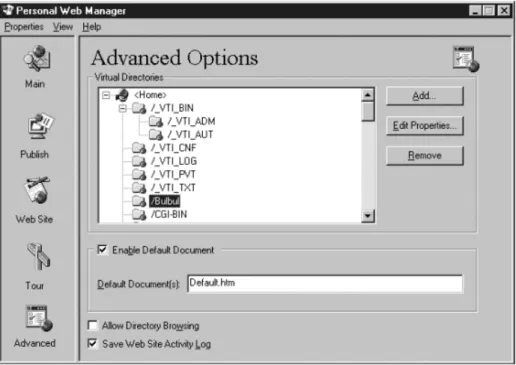
1. Click the Advanced applet on the left side of the screen. Personal Web Server displays all applications inside the home directory (see Figure 2-6). If you cannot see your application, don’t panic. Just scroll the win-dow in the Virtual Directories frame.
2. Click the application directory, and then click Edit Properties.
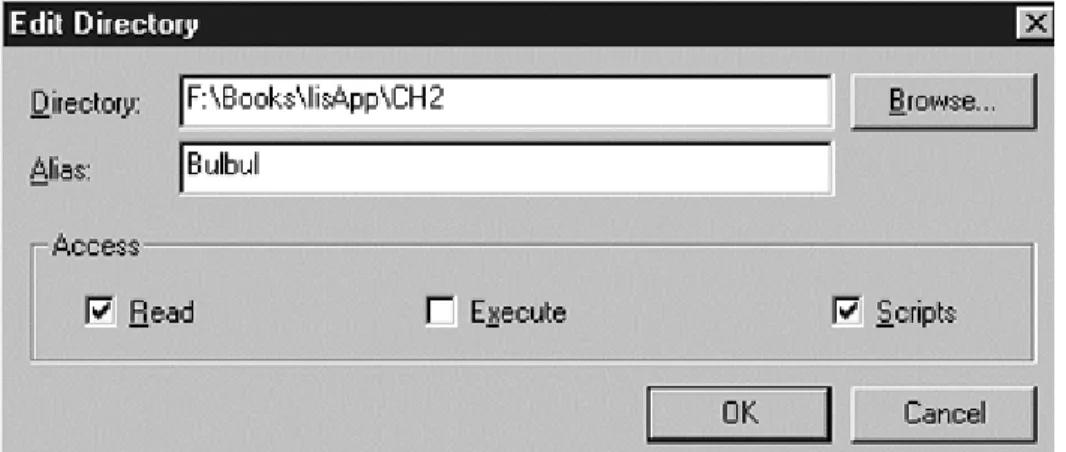
The dialog box that appears shows the association between the physical directory where the project resides and the alias known to the Web server (see Figure 2-7). When the Web server receives a request for a page in a particular application, the Web server always searches for this association to determine the physical location of the file. Note that in this example the project directory is not under the wwwroot directory.
If you are using IIS, open the Internet Services Manager Microsoft Manage-ment Console (MMC), and you should see your virtual directory under Default
Figure 2-7. The Edit Directory dialog in Personal Web Manager
Web Site. Right-click the icon and click Properties. The dialog box similar to Figure 2-8 is displayed.
The physical directory is displayed on the Local Path box.
Looking at the Code
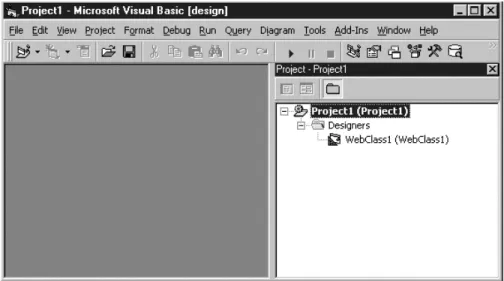
Return to the VB IDE, and press CTRL+Rto display the Project Explorer as shown in Figure 2-9.
In the Project Explorer, right-click the WebClass1 icon, and select View Code to bring up the code window.
You should examine the code in Listing 2-1.
Listing 2-1 Option Explicit Option Compare Text
Private Sub WebClass_Start() 'Write a reply to the user With Response
.Write "<html>" .Write "<body>"
.Write "<h1><font face=""Arial"">WebClass1's Starting Page" & _ "</font></h1>"
.Write "<p>This response was created in the Start event of " & _ "WebClass1.</p>"
.Write "</body>" .Write "</html>" End With
End Sub
Figure 2-9. The WebClass icon in the Project Explorer
It is a bit surprising that an Internet application can run with a snippet as small as this, isn’t it?
At the core of this code is the WebClass_Start()subroutine, which is the event procedure for the Start event of the WebClass object. The code simply uses the Writemethod of the Response object (this object will be explained in detail in Chapter 3) to output the following string in one long line:
<html><body><h1><font face="Arial">WebClass1's Starting Page</font></h1><p>This response was created in the Start event of WebClass1.</p></body></html>
This string is the HTML code for the Web page displayed in the Web browser. Switch to the Web browser to view this source code. To view the source code in Internet Explorer, click Source from the View menu. In Netscape, click Page Source from the View menu, or press Ctrl+U.
It’s as simple as that to create a Web page in IIS Applications. Once you become a serious IIS application developer, you’ll use the Writemethod very frequently. This method is definitely very important.
Even though there is nothing wrong with the code in Listing 2-1, the HTML code produced is an eyesore when viewed from a browser’s source page. This is especially true when the page is more complex. Why do you need to be concerned about this code? At times, the HTML code you generate will not work as intended, and you’ll need to view it from a Web browser. At those times, you’ll realize that more readable HTML code is preferable.
The code in Listing 2-1 can be modified a bit. The modified version is dis-played in Listing 2-2.
Listing 2-2 Option Explicit Option Compare Text
Private Sub WebClass_Start() 'Write a reply to the user With Response
.Write "<html>" & vbCr .Write "<body>" & vbCr
.Write "<h1><font face=""Arial"">WebClass1's Starting Page" & _ "</font></h1>" & vbCr
.Write "<p>This response was created in the Start event of " & _ "WebClass1.</p>" & vbCr
.Write "</body>" & vbCr .Write "</html>"
End With End Sub
The modified version produces the following HTML code, which is appar-ently easier to read and understand.
<html> <body>
<h1><font face="Arial">WebClass1's Starting Page</font></h1> <p>This response was created in the Start event of WebClass1.</p> </body>
</html>
You’ll thank yourself when you have to debug this page.
For those of you who value efficiency, the code in Listing 2-2 can also be rewritten to increase its speed, as given in Listing 2-3.
Listing 2-3 Option Explicit Option Compare Text
Private Sub WebClass_Start() 'Write a reply to the user With Response
.Write "<html>" & vbCr & _ "<body>" & vbCr & _
"<h1><font face=""Arial"">WebClass1's Starting Page</font>" & _ "</h1>" & vbCr & _
"<p>This response was created in the Start event of " & _ "WebClass1.</p>" & vbCr & _
"</body>" & vbCr & _ "</html>"
End With End Sub
Note that the vbCr and not the vbCrLfis used because vbCrtranslates into one character instead of two. Because bandwidth is still expensive, a savings of one byte is definitely an increase in performance. Moreover, this savings comes at no cost.
The use of the vbCrcharacter only affects the appearance of the HTML tags when viewed in the Source window. It does not affect the rendering of the HTML page in the Web browser.
Because the HTML page is generated by sending a string or strings of HTML code, you can also include other files, such as graphics or sound files. For exam-ple, the following code is valid:
Response.Write "<img src=""images/logo.gif""></img>"
It will pass the string <img src="images/logo.gif"></img>to the Web browser. Upon receiving the image tags, the browser will then try to fetch the logo.gif in the images subdirectory under the application virtual root.
Remember, all files included in the HTML code must be placed in the same directory as the project directory or in a subdirectory under it. Directories outside the virtual root are not visible to the Web browser. If you store a file, such as an image file, in a subdirectory under the virtual directory, you must include the sub-directory in your code, as shown in the previous example.
As your IIS application grows, it is imperative to structure your files so differ-ent types of files are organized in their own subdirectory by type. One good approach is to create an images subdirectory for all image files, a sounds sub-directory for all sound files, and so forth.
Renaming Your WebClass
Even though the name WebClass1 provided by VB seems fine and you know ex-actly what it does, to other people the name probably wouldn’t make any sense. Therefore, you should always name your WebClasses and all their items in an indicative way, so they can be easily identified.
Meaningful names make a programmer’s life more convenient. For example, let’s say that two years after successfully deploying your application and making yourself famous in your company (well, two years is a very long time in Internet terms, let’s make it two months), you decide to make a comeback and enhance your application. Wouldn’t it be nice if you could just refresh your memory about the application simply by reciting its objects’ names?
Or, if you are currently working in a team environment, wouldn’t it be easier on your teammates if you used meaningful names rather than the cryptic WebClass1, WebItem23, Template24, and so forth?
Indeed, you can rename your WebClass by following these steps:
1. Right-click the WebClass icon that you want to rename in the Project Explorer.
3. Change the name of the class and the NameInURLproperty. The NameInURL property is how the WebClass will be referenced in an HTML or an .asp page. The Properties window is shown in Figure 2-10. Note also that the .asp file created for the WebClass will be the same as the value in the NameInURLproperty.
To display the Properties window, the Project Explorer must have been previ-ously displayed. If you try to display the Properties window when the Project Explorer is hidden, the Properties window will appear blank.
The ASP File
An IIS application only has one .asp page for each WebClass, and in most cases, an IIS application only has one WebClass. Unlike the ASP files in an ASP applica-tion that you often edit extensively, an .asp file in IIS applicaapplica-tions is born immac-ulate and not meant to be edited. Its function is to create the WebClass it is associ-ated with. However, you can view the contents of a typical .asp file in an IIS application.
Remember that your playing field is the WebClass not the .asp page, so don’t try to change anything on the .asp page. The code in Listing 2-4 shows the con-tents of an .asp file.
Listing 2-4 <% Server.ScriptTimeout=600 Response.Buffer=True Response.Expires=0 If (VarType(Application("~WC~WebClassManager")) = 0) Then Application.Lock If (VarType(Application("~WC~WebClassManager")) = 0) Then Set Application("~WC~WebClassManager") = _ Server.CreateObject("WebClassRuntime.WebClassManager") End If Application.UnLock End If Application("~WC~WebClassManager").ProcessNoStateWebClass _ "Project1.wcCH2", _ Server, _ Application, _ Session, _ Request, _ Response %>
If you are or once were an ASP developer, and have not been hypnotized into forgetting the past, the code in Listing 2-4 should look familiar to you. If you have not done any ASP development, the following explanation will probably not make sense to you. You should return to this section after you finish reading Chapter 3.
To begin, the <% . . . %>pair is used to enclose your code. The code first sets the ScriptTimeoutproperty of the Server object:
Server.ScriptTimeout=600
The ScriptTimeout property specifies the maximum amount of time in seconds a script (an .asp page) can run before it is terminated. By setting this property to 600, the Web server is forced to wait up to 10 minutes for the .asp file to be processed.
It then sets the Bufferproperty of the Response object:
By setting the Bufferproperty to True, response to the Web browser will be buffered and sent at once when the whole page has been processed or when the Response is explicitly flushed from a location inside the WebClass.
It then tells the Web browser not to cache the page:
Response.Expires=0
The following line uses the VarTypefunction to check if the Application object’s variable ~WC~WebClassManagerhas been initialized:
If (VarType(Application("~WC~WebClassManager")) = 0) Then
The VarTypefunction returns a value indicating the subtype of a variable. The Application object is one of ASP’s built-in objects. The VarTypefunction returns zero if the variable is empty or uninitialized.
If the variable has not been initialized, the code then locks the Application object so other users can’t change its internals:
Application.Lock
It then sets the Application("~WC~WebClassManager")variable to
WebClassRuntime.WebClassManager(MSWCRUN.DLL) if the variable is still unini-tialized:
If (VarType(Application("~WC~WebClassManager")) = 0) Then Set Application("~WC~WebClassManager") = _
Server.CreateObject(“WebClassRuntime.WebClassManager”) End If
Remember that because the WebClass runtime is an ISAPI application, it will load into memory at the first call and stay there as long as the IIS is running. Therefore, the CreateObjectmethod of the Server object will only be called once and subsequent requests to your WebClass will be much faster.
After unlocking the Application object, the code concludes by calling the ProcessNoStateWebClassmethod, passing six arguments.
Application("~WC~WebClassManager").ProcessNoStateWebClass _ "Project1.wcCH2", _ Server, _ Application, _ Session, _ Request, _ Response
The first argument is your project DLL, and the last five arguments are the five IIS objects.
If you don’t understand the description of each line, it’s okay; there is no need to suspect your IQ. This briefing is meaningful only to those who understand ASP. Don’t worry, everything will start to make sense once you finish Chapter 3. Now, let’s get back to the easy stuff.
The WebClass Designer
When developing an IIS Application, you’ll continually switch from the Code win-dow to the WebClass Designer and vice versa. The WebClass Designer, also called the Designer window, graphically lists all items in your WebClass. There are two types of items in a WebClass: the HTML Template WebItem and the Custom WebItem. Both are optional and will be explained shortly.
The WebClass Designer is a very useful window that comes equipped with a series of tools in its toolbar. The two rightmost tools are for stopping and restart-ing the Web server. When you are developrestart-ing your application, you sometimes need to stop and restart when updating the global.asa file or when the server goes awry. You can display the WebClass Designer by pressing Shift+F7or by clicking Objects from the View menu. Figure 2-11 shows the WebClass Designer.
The WebClass Designer displays all the elements that are in your WebClass. Before we leave the WebClass and discuss WebClass elements in more detail, let’s discuss another important topic that you need to know: the lifecycle of a WebClass.