Orion
®Video Capture Device
#52178
instruCtiOn Manual
Providing Exceptional Consumer Optical Products Since 1975 OrionTelescopes.com
Customer Support (800) 676-1343 E-mail: [email protected]
Corporate Offices (831) 763-7000 89 Hangar Way, Watsonville, CA 95076 © 2011 Orion Telescopes & Binoculars
The Orion Video Capture Device enables any NTSC or PAL analogue video signal output from CCTV cam-era, DVD, DVR, VCR, Cablebox, Game Console or Camcorder to be dis-played and recorded on any PC or Laptop with XP, Vista or Win7 operat-ing system installed.
Video input can be from any Composite, SVideo or Component video signal using the included adapter cables.
The software CD includes video cap-ture, video editing, DVD burning and movie format conversion software.
The Video Capture Device can be used for many purposes including: • Live Viewing and recording of astronomy subjects via CCTV camera
such as the Orion Starshoot Deep Space Video Camera or the Orion Starshoot Video Eyepiece.
• Live internet broadcasting via NightSkiesNetwork.
• Automated tracking and recording of meteors using HandyAVI or UFO capture software. (software links on CD installer)
• Viewing, editing and recording home movies from tape to DVD. (VCR to DVD software included)
• Capture and convert movies to DVD, MPEG, VCD and AVI formats. (Blaze software included)
Please read this instruction manual before attempting to use the video capture device or install the software.
Parts list
• Orion Video Capture Device (USB) • SVideo/Composite adapter cable • Component adapter cable • Software CD
system requirements
Computer
The Orion Video Capture device, device driver and Orion Capture software requires Windows XP, Vista or 7.
The following hardware is required:
• Processor – Pentium III™ or equivalent, or higher • Recommended minimum memory size is 512 MB.
• Disk Space – 1GB or more recommended for saving Movies.
• Video Display – 800 X 600, 16-bit color or higher. 1024x768 or higher is recommended.
• Mouse (external or built-in)
• Internet connection required to display on-line help and download additional software
• High Speed USB 2.0 port input Devices
• A wide variety of Input devices are supported (Figure 2). Example usage
• Deep Space live viewing and capturing of images. • Lunar & Planetary live viewing and capturing of images.
• Meteor Tracking, Time Lapse, Atmospheric Phenomena, Nature Motion Detection
Figure 1. USB Device, Cables and Software CD.
software and
Driver installation
Before the video capture device can be used the USB device driver and image capture software must be installed onto your computer.
Note: If you have any antivirus soft-ware enabled, please disable it during the installation of the software.
Note: Do not connect the Video Capture Device to your computer yet. Turn on your computer and allow the Windows operating system to load as normal. Insert the included CD-ROM into your computer’s CD-ROM drive, and the Launcher will appear (Figure 3). This allows you to install the included USB Device driver, Orion capture software, VHS to DVD cap-ture and editing software and Blaze video magic conversion software. Video Capture Device Driver installation
1. Click Install Capture Device Driver.
2. The USB-TV Device Driver Software Installation will start. 3. Follow on screen Installation instructions.
4. When installation is complete click the Finish button. 5. Restart computer.
Once the driver is installed, the computer will now recognize the Orion Video Capture Device whenever it is plugged in.
Please connect the Video Capture Device to your computer, you should see a window, select “Yes, this time only”, and then select “Install the software automatically (Recommended)”, select “Continue Anyway”. Wait for a moment until the system displays “Your new hardware is installed and ready to use”.
Verify Device Driver installation You will now need to check that the drivers are installed correctly.
1. Right Click on My Computer 2. Left Click on properties.
3. Click on Hardware tab and then Device Manager.
In the Device Manager click on the “Sound, video and game control-lers”. You should see the “USB 28185 Device” listed. (Figure 4).
If it has a Yellow mark next to it then this means that the driver is not installed correctly. You will need to remove the driver and disconnect the Orion Video Capture device from the computer and reconnect to install the driver again.
Capture software installation & Guide
Now that the Video Capture Device driver software is installed, the
capture software must also be installed.
1. Return to the Launcher and click Install Orion Capture Software.
2. The Orion AmCap Setup Wizard appears. Click Next. 3. Select a destination folder and Click Next.
4. Click Next again to start the installation.
5. When the wizard is complete, click close. This has installed the capture software.
6. Open Orion AmCap from the icon on your desktop. The Live Video Window should appear (Figure 5). The software will recognize many cameras so check that USB 28185 Device is selected from the device menu.
7. Under Options menu select Video Capture Filter and select Video Decoder Tab to modify settings such as PAL/NTSC/SECAM country video standard settings. Select the Video Proc Amp Tab to modify image settings such as Brightness, Contrast, Hue, Saturation and Sharpness (Figure 6).
Figure 5. The live video window.
Figure 6. Video Capture Filter.
Figure 3. The launcher provides an easy menu for software installation.
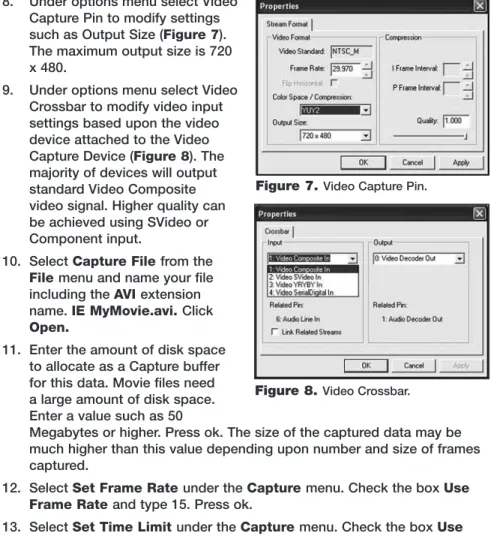
8. Under options menu select Video Capture Pin to modify settings such as Output Size (Figure 7). The maximum output size is 720 x 480.
9. Under options menu select Video Crossbar to modify video input settings based upon the video device attached to the Video Capture Device (Figure 8). The majority of devices will output standard Video Composite video signal. Higher quality can be achieved using SVideo or Component input.
10. Select Capture File from the
File menu and name your file including the AVI extension name. IE MyMovie.avi. Click
Open.
11. Enter the amount of disk space to allocate as a Capture buffer for this data. Movie files need a large amount of disk space. Enter a value such as 50
Megabytes or higher. Press ok. The size of the captured data may be much higher than this value depending upon number and size of frames captured.
12. Select Set Frame Rate under the Capture menu. Check the box Use Frame Rate and type 15. Press ok.
13. Select Set Time Limit under the Capture menu. Check the box Use Time Limit and type 20. Press ok.
14. Select Start Capture under the Capture menu. 15. Press ok when you are ready to capture Images.
An AVI movie sequence of 300 frames (15 frames per second x 20 seconds) will now be recorded.
The total number of captured frames is displayed on the bottom bar. If frames are being dropped this will be displayed also. To remedy this, try increasing the capture buffer size. If this does not resolve dropping frames then the frame rate or resolution should be set to a lower value to prevent dropping of frames.
Honestech VHs to DVD 2.0 sE installation & Guide
1. Return to the Launcher and click Install VHS to DVD SE. 2. The VHD to DVD SE Software
Installation will start.
3. Follow on screen Installation instructions.
4. When installation is complete click the Finish button. 5. the software is installed
correctly, you should see “honestech VHS to DVD 2.0 SE” icon on your desktop.
6. Double click “honestech VHS to DVD 2.0 SE” icon on your desktop, enter your product key in the window (Figure 9). You can find the product key on the CD-ROM bag.
7. Select input device to be “USB 28185 Device” (Figure 10). 8. Click “Video Setting”
button located to the right of the input device. Select the correct input source for your device ( 11).
9. Video Input Selection.Click “Control” button to select video standard under the Video Decoder tab to modify settings such as PAL/NTSC/SECAM country video standard settings. (Figure 12) Select the Video
Proc Amp Tab to modify image settings such as Brightness, Contrast, Hue, Saturation and Sharpness.
10. If you have connected your video output device with the Video Capture device and your computer correctly you can now watch video and record it. Before you begin recording video, select the output file format from drop down menu, recording video type, quality and recording duration time. You can also select output folder for the recorded video file. Figure 8. Video Crossbar.
Figure 9. Product Key Check.
Figure 11. Video Input Selection.
Figure 12. Video Standard Settings.
Figure 10. Input Device Selection.
11. Click the red record button to start recording video. If you select “commercial cutting”, you can cut the part of the video you don’t want to save, when you want to finish, click the white stop icon, you should see the thumbnail image of the recorded file on the top right of the window.
12. If you select “recording and burning” and click red record key, it will start the burning
process right after recording for the designated time.
13. If you want to edit the recorded video file, select “Edit” tab to enter edit mode (Figure 13). Double- click the thumbnail image of the recorded file you want to edit or drag the file into the player panel and the file will play.
14. During the edit phase, you can cut out scenes from your recorded video. You can also cut your movies into multiple scenes and add storybook transition effects between each scene. When you have multiple scenes captured, you can combine them into one continuous clip with transition effects. In order for you trim or cut part of the scene from the captured clips, you will need to create two separate clips, one before the part of the clip to be trimmed and another for the scenes after the part of the clip to be trimmed. You can even combine two separate clips into one scene using the storyboard.
15. Click the “Preview“ button to preview the edited video file before saving it, and click “Merge and Save” button, you can set your video file format to be “MPEG” or “DV-AVI”.
16. Click the “Burn” tab. Now, you can select output video format, and click “Option” button, you can select CD/DVD writing device, and select the disk name, and must select correct input video type, then click “OK” icon. Select your file or click “Add clips” icon to choose the other files, according to your want, you can edit the video files by “Create Menu” function. (Chapter, Select back ground image, Select a navigation button image, Select the number of clip per page, Text.)
Notice: VCD, SVCD, Data CD, Data DVD formats do not support “Create Menu” option.
17. Next, insert a blank CD or DVD into your CD/DVD writing device, and click “Start” icon to publish the video files.
Click the “Help” button on the top right of the software window to read the “honestech VHS to DVD 2.0” help file.
Blaze Video Magic 3.0 Installation & Guide
1. Return to the Launcher and click Install Blaze Video Magic 3.0. 2. The Blaze Video Magic Software
Installation will start.
3. Follow on screen Installation instructions.
4. When installation is complete click the Finish button. 5. If the software is installed
correctly, you should see “Blaze Video Magic” icon on your desktop.
6. Double click “Blaze Video Magic” icon on your desktop, you should see the “Register Blaze Video Magic” window (Figure14), click the “Register” icon, enter user name, E-mail address and serial number, (You can find the serial number on the CD-ROM bag) and click “Register” icon.
7. Click “Add” button to select the source video file you want
to convert, and click the ”Play” button to preview and play the selected video file, click “Delete” you can delete the selected file from source file list.
8. In the “Output Format” menu, you can select output format for your video file, and click “Setting “button, you should set the output video file according to your want.
9. In the “output Path” menu, you can click “Browse” button to change the output path, and click “location” you can quickly open the output folder and access the converted video file.
10. Click “Option” button at the right top of the main window, you can select your desired interface language.
11. Please click “Start” button to begin to convert the added file.
Click the “Help” button on the top right of the software window to read the “Blaze Video Magic 3.0 help” file.
Figure 13. Edit mode.
Figure 14. Registration Window.
Figure 15. Blaze Video Magic Software.
additional
software
Return to the Launcher and click “Astronomy software links” to view additional software compatible with the Orion Video Capture Device (Figure 16). Select desired software to be directed to a website to down-load the latest software.
For detailed information on instal-lation and usage of additional soft-ware consult the websites of each software provider. Tutorials and user groups can be found online also. registax – Free image processing software.
A popular free image processing suite of tools includes features such as alignment, stacking, optimizing and wavelet filters,
Registax can analyze, align, and stack thousands of images in just minutes.
aVistack – Free image processing software.
AviStack is a freeware tool that reg-isters, stacks and processes AVI’s and image sequences of astronomi-cal objects..
AviStack was primarily developed to process lunar images, but, it also works well with solar and planetary images.
MaximDl – trial/Paid CCD imaging and image processing software.
MaxIm DL is the fastest and easiest way to image the night sky.Whether you want to produce stunning por-traits, collect science data, or hunt for new objects, MaxIm DL has the tools you need.
Complete observatory integration. Controls your camera, autoguider, fil-ter wheels, focusers, camera rotator, telescope mount, and dome. ASCOM compliant.
Includes a complete image process-ing toolkit, includprocess-ing a large variety of filters, deblooming, curves, deconvo-lution, color tools, and much more
HandyaVi – trial/Paid suite of tools for aVi files.
Features include time lapse, motion detection, surveillance, planetary imaging, meteor trail imaging and stop motion animation.
HandyAvi automatically captures a specified number of frames (pre-frames) immediately preceding the “trigger event” so that the (possibly) dim beginning of the meteor trail is captured.
HandyAvi continues recording data while additional motion is detected. HandyAvi continues recording an additional number of “post-frames” after the last motion is detected.
The AVI file will contain COMPLETE meteor trails, airplane trails or lightning events.
Automatically email images of detected motion. Automatically FTP upload captured video to a website. Figure 16. Astronomy Software Links
Figure 17. Registax.
Figure 19. MaximDL.
Figure 18. AVIStack.
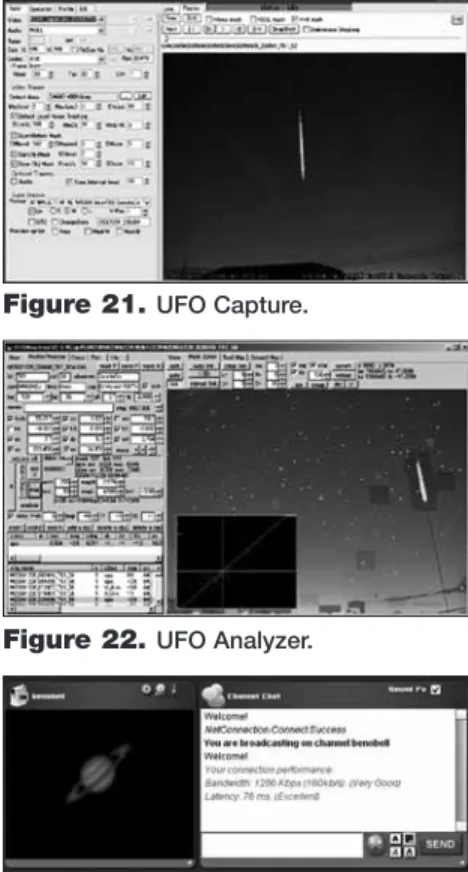
uFO Capture – trial/Paid time shifted motion capture software. Automated detection, recording and analyzer software for Meteors, Atmospheric phenomena and secu-rity.
Automatically email images of detect-ed motion.
Automatically FTP upload captured video to a website.
night skies network – Free astronomy internet Broadcasting service
Share your views of the night sky by broadcasting live over the internet. Includes video, voice and text chat. See members from all parts of the globe broadcasting the night skies from their home built observatories, back yards, and just about any other place where they can set up a tele-scope.
tips
loss of Capture Device Connection
If the computer connection to the Video Capture Device is interrupted, you will need to re-establish connection. This can happen due to several reasons; if a cable becomes unplugged, the computer “freezes”, or the software/hardware otherwise temporarily loses the data coming from the device.
To re-establish device connection, first close all capture software on your com-puter. Then, unplug and re-plug the Video Capture Device into the computer’s USB port. Now, open Orion AmCap, and the Live Video Window should appear indicating re-established connection between device and computer.
recommended reading
(Books available through Orion, check the catalog or
www.OrionTelescopes.com for more information).
specifications
Interface
USB 2.0
TV System
PAL, NTSC
Resolution
NTSC 720 x 480; PAL 720 x 576
Recording Format
DVD, VCD, SVCD, AVI, MPEG
Input
RCA Composite + Audio L/R or RCA Component
+ Audio L/R or S-Video +Audio L/R
Figure 21. UFO Capture.
Figure 22. UFO Analyzer.
Figure 23. The Night Skies network Interface.
One-Year limited Warranty
This Orion Video Capture Device is warranted against defects in materials or workmanship for a period of one year from the date of purchase. This warranty is for the benefit of the original retail purchaser only. During this warranty period Orion Telescopes & Binoculars will repair or replace, at Orion’s option, any warranted instrument that proves to be defective, provided it is returned postage paid to: Orion Warranty Repair, 89 Hangar Way, Watsonville, CA 95076. If the product is not registered, proof of purchase (such as a copy of the original invoice) is required.
This warranty does not apply if, in Orion’s judgment, the instrument has been abused, mis-handled, or modified, nor does it apply to normal wear and tear. This warranty gives you specific legal rights, and you may also have other rights, which vary from state to state. For further warranty service information, contact: Customer Service Department, Orion Telescopes & Binoculars, 89 Hangar Way, Watsonville, CA 95076; (800) 676-1343.
Oriontelescopes.com
89 Hangar Way, Watsonville, CA 95076