IBM Tivoli Assist On-site Remote Support Utility
Version 3.3
User's Guide
IBM Tivoli Assist On-site Remote Support Utility
Version 3.3
User's Guide
Note
Before using this information and the product it supports, read the information in “Notices” on page 41.
This edition applies to version 3, release 3 of IBM Tivoli Assist On-site and to all subsequent releases and modifications until otherwise indicated in new editions.
Contents
Figures . . . v
Chapter 1. IBM Tivoli Assist On-site . . . 1
New in this release . . . 1
Assist On-site components . . . 2
Assist On-site process . . . 2
Support sessions . . . 3
Unattended support sessions . . . 3
Assist On-site tunneling and port forwarding . . 3
Session modes . . . 4
Host sessions . . . 7
Rational Host Access Transformation Services . . 7
Host session architecture . . . 8
Collaboration in sessions . . . 9
Assist On-site launch-in-context . . . 10
IBM Client Diagnostic Data Repository . . . 10
Assist On-site security . . . 11
Authentication . . . 12
Encryption and decryption . . . 13
Logging and auditing . . . 13
Chapter 2. Installing the Remote
Support Utility
. . . 15
Remote Support Utility Prerequisites . . . 15
Running the Assist On-site connectivity test . . . 16
Installing the Utility for external IBM customers . . 18
Installing the Utility for internal IBM customers . . 20
Manually configuring the connection for the proxy server . . . 21
Chapter 3. Using the Remote Support
Utility . . . 23
Consenting to support sessions . . . 23
Stopping support sessions . . . 25
Switching between session modes . . . 25
Remote Support Utility actions . . . 25
Obtaining Remote Support Utility version information . . . 25
Finding out who is connected to your machine 26 Getting your system's information . . . 26
Opening the file transfer directory . . . 26
Chatting with the support engineer . . . 27
Configuring port forwarding in the Utility . . . 28
Starting host sessions . . . 30
Stopping host sessions. . . 32
Chapter 4. Relay Server . . . 35
Chapter 5. Assist On-site Support
Service
. . . 37
Downloading and installing the Support Service . . 37
Configuring the Assist On-site Support Service . . 37
Configuring port forwarding . . . 39
Figures
1. Guidance-mode action symbols . . . 5
2. Guidance-mode mouse button symbols . . . 6
3. Example of the Paint drawing tool . . . 6
4. Example of the Highlighting tool. . . 6
5. Host session architecture . . . 9
6. Connectivity test results . . . 17
7. Online request form. . . 19
8. Session code window . . . 20
9. Remote Support Utility interface . . . 23
10. The Assist On-site window . . . 24
11. Information window with the support engineer's details. . . 26
12. Utility Chat window . . . 27
13. Configure Port Forwarding window . . . . 29
14. Configure Port Forwarding window with examples . . . 30
15. Start Host Session window . . . 31
16. The emulator session running in the Web browser window . . . 32
17. Support Service Config window . . . 38
18. Configure Port Forwarding window . . . . 39
19. Configure Port Forwarding window with examples . . . 40
Chapter 1. IBM Tivoli Assist On-site
IBM®Tivoli®Assist On-site is a lightweight remote support program intended primarily for help desks and support engineers to diagnose and fix problems without the need of any external dependencies. Assist On-site is based on the IBM Tivoli Remote Control technology.
Assist On-site has been developed specifically to meet functionality, security, and privacy requirements of IBM and IBM customers. Support engineers and their customers can run it on various platforms. It currently has a native version for the 32 bit Windows environment and generic Linux compatible operating systems. Assist On-site uses IBM AES MARS encryption, NTLM authentication, and IBM intranet authentication for IBM support engineers. Assist On-site can also support lightweight Rational® Host Access Transformation Services emulator sessions for
computers running z/OS®and Power i.
Assist On-site provides a launch-in-context feature such that support engineers can start Assist On-site from within the session of the third-party support tool. For restricted use only, Assist On-site supports IBM diagnostic tools to function over the Assist On-site connection for the purpose of debugging hardware devices and IBM software.
New in this release
Version 3.3 provides new features and enhancements to Assist On-site Version 3.2. They support tunneling, launch-in-context, and IBM Client Data Diagnostic Repository.
Version 3.3 contains the following new features and enhancements: v Assist On-site launch-in-context
Assist On-site provides a launch-in-context feature such that support engineers can start Assist On-site from within the session of the third-party support tool. v Assist On-site tunneling and port forwarding
For restricted use only, Assist On-site supports IBM diagnostic tools to function over the Assist On-site connection for the purpose of debugging hardware devices and IBM software. During a Assist On-site tunneling session, the set of forwarded ports is saved to a CSV file on the support engineer's machine. Connections to multiple devices from the same port on the support engineer's machine and collaborative sessions are also supported. The Assist On-site administrator can turn on this feature for teams that have specific permission to use it for remote diagnostics.
v Support for the exchange of diagnostic data
Assist On-site provides support for the IBM Client Diagnostic Data Repository (CDDR) strategy in the exchange of data through the propagation of team URLs and file transfer functions.
Assist On-site components
Assist On-site has several primary components: Remote Support Console, Remote Support Utility, Relay Server, Administration Portal, and Assist On-site Support Service.
v Remote Support Console
It is a Java application that is installed on the machine of the support engineer and is used to communicate with the Remote Support Utility. The Remote Support Console has many functions to assist the support engineer in resolving customer issues within a support session.
v Remote Support Utility
It is a lightweight Java application that communicates with the Remote Support Console. The Remote Support Utility has many functions that provides the customer with various privacy functions while the support engineer can take control of the customer's machine when allowed. After support session stops, the Remote Support Utility deletes itself from the customer's machine.
v Relay Server
It is an application server that handles the data transmissions for support sessions between the Remote Support Console and the Remote Support Utility. There is a network of servers across several geographic regions, with support engineers and customers connecting to those servers within their geographic regions where possible.
v Administration Portal
It is a single, secure point of access to information, applications, teams, and users that can be administered and managed to support Assist On-site. v Assist On-site Support Service
It is an applicative service that has features similar to the Remote Support Utility and runs on target machines. It registers itself with the Relay Server and sends HTTPS heartbeats as status updates.Assist On-site Support Service configuration uses customer policies that determine when and how the support engineer can run unattended support sessions.
Assist On-site process
The components of Assist On-site (AOS) interact together to start and maintain a support session between the support engineer and the customer.
The Assist On-site process can be summarized as follows:
1. The customer contacts the support team and opens a PMR with an issue or question.
2. In the Remote Support Console, the support engineer starts a support session to determine the problem.
3. The Relay Server generates a connection code that is displayed in the Remote Support Console. The connection between the Relay Server and the Remote Support Console is established. The one-time-use connection code is seven digits, with a default timeout of 15 minutes.
4. The support engineer refers the customer to an Assist On-site URL and the customer can enter details such as name, PMR number, and customer number.
5. The support engineer can extend the connection code timeout for an additional 10 minutes to accommodate slow network connectivity
6. The Remote Support Utility plug-in downloads automatically through the customer's Web browser and is less than 780 KB. The customer enters the connection code.
7. The Remote Support Utility starts and the initialize support session and session mode window opens.
8. The customer must select the session mode and thereby accept the request from the support engineer to start the support session. The connection between the Relay Server and the Remote Support Utility is established.
9. After the customer accepts, the support engineer is connected to the customer's machine through the Relay Server
10. The support engineer attempts to resolve the problem during the support session and uses the functions of the Remote Support Console.
11. During the session, the customer can retake control of the mouse and keyboard at any time.
12. Either the support engineer or customer can stop the session.
13. After the session ends, the Remote Support Utility is deleted from the customer's machine.
Support sessions
Support engineers can troubleshoot issues with the machine of a customer during a support session. A support session is a lightweight remote-control and interactive exchange between the support engineer's controller machine running the Remote Support Console and the customer's target machine running the Remote Support Utility.
The support engineer establishes an authenticated connection to the Relay Server and creates the support session, requesting a unique connection code from the Relay Server. The support engineer gives this connection code to the customer, who downloads the Remote Support Utility and joins the support session using the connection code.
Support sessions can run in various modes that determine the level of access the support engineer has to the target machine. With the customer's permission, the support engineer can view the target desktop and shares control of the target mouse and keyboard. The customer has overriding control of the mouse and keyboard and can stop the support session at any time.
Unattended support sessions
The support engineer can run lights-out or unattended support sessions, including port forwarding sessions, during which the customer is not in attendance. The support engineer establishes an authenticated connection between the Remote Support Console and the Relay Server. The Remote Support Console displays a list of target machines on which the Assist On-site Support Service runs. Assist On-site Support Service configuration uses customer policies that determine when and how the support engineer can run unattended support sessions and port forwarding sessions.
Assist On-site tunneling and port forwarding
A customer might have issues on a storage device or another IT device that does not have a GUI and want a support engineer to troubleshoot the issues by using debug tools such as Telnet or SSH during a port forwarding session. A port
between the configured local port on the support engineer's machine and the port on the remote host machine. It runs over an existing Assist On-site connection, ensuring secure end-to-end connections.
For restricted use only, Assist On-site supports IBM diagnostic tools to function over the Assist On-site connection for the purpose of debugging hardware devices and IBM software. The Assist On-site administrator can turn on this feature for teams that have specific permission to use it for remote diagnostics.
After the customer explicitly configures permission for port forwarding in the Remote Support Utility, the support engineer can begin the attended, port forwarding session to the authorized ports. During anAssist On-site tunneling session, the set of forwarded ports is saved to a CSV file on the support engineer's machine.
The support engineer and the customer can use the Assist On-site chat function to communicate during this session or change to another session mode. The customer or support engineer can stop the port forwarding session at any time.
The support engineer can set which local ports on the support engineer's machine to forward to which remote host machines and ports. Connections to multiple devices from the same port on the support engineer's machine and collaborative sessions are also supported.
Alternatively, the customer can use Assist On-site Support Service to configure remote host machines for unattended, port forwarding sessions. The support engineer can start and run multiple unattended, port forwarding sessions in the Remote Support Console.
Session modes
Assist On-site can establish remote connections for support sessions in different modes. The customer chooses the session mode after joining the support session or the support engineer can request that the customer changes the mode during the support session. The type of session or the permissions associated with the support engineer also determine the session modes that are available during sessions.
When Assist On-site administrators create a team or a user, they can select the default permissions for that team or user including the set of session modes that are available. For example, a team might have default permissions to run sessions in View Only and Chat Only session modes. Customers can further restrict the session mode when they consent to sessions.
Chat Only mode
This session mode allows the support engineer to chat with the customer in the Chat window, but does not allow the support engineer to view the target system or have any control of the target mouse or keyboard.
Note: The Chat window allows the support engineer to chat to the customer within another session mode and provides an additional form of contact.
The support engineer can also request or the customer can change to the Chat Only mode during a support session.
View Only mode
This session mode the support engineer to view the target system, but does not allow the support engineer to have any control of the target mouse or keyboard.
In the View Only mode, the support engineer can select and mark areas of the target desktop using the Remote Support Console tools.
The support engineer can also request or the customer can change to the View Only mode during a support session.
Guidance mode
This session mode allows the support engineer to view the target system and direct the customer to perform tasks on the target system, but does not allow the support engineer to have any control of the target mouse or keyboard. The support engineer can use the Guidance mode symbols, Remote Support Console tools, and the chat function to direct the customer through any task to perform on the target.
The Guidance mode is often used in training situations and in workplaces of very high sensitivity.
Note: Your administrator might have disabled the Guidance mode and therefore it is disabled in the Session mode window.
The support engineer can request or the customer can change to the Guidance mode during a support session.
Legend for the Guidance mode symbols
There are five action symbols that the support engineer can display on the target desktop as follows:
v Move
Move the target cursor to the position of the symbol. v Single Click
Click the target mouse button once. v Double Click
Click the target mouse button twice. v Drag Start
Click the target mouse button and start to drag the mouse in the direction of the symbol.
v Drag End
Continue to drag the target mouse in the direction of the symbol and then release the target mouse button at the final position of the symbol.
Figure 1 shows examples of the action symbols.
The support engineer can also specify the mouse button with which to perform the action. Figure 2 shows examples of the action symbols for the target mouse
buttons.
Other tools
The support engineer can use the Remote Support Console drawing tools to paint colored lines or highlight areas on the target desktop to direct the customer.
Shared Control mode
This session mode allows the support engineer to view the target system and to have input control of the target mouse and keyboard.
During a support session, the support engineer can turn on local input control to perform actions on the support engineer's machine rather than the target machine.
Figure 2. Guidance-mode mouse button symbols
Figure 3. Example of the Paint drawing tool
The actions of the customer take precedence over the actions performed through the Remote Support Console. When the customer uses the mouse or the keyboard,
the input control icon changes to to indicate that input control in the Remote Support Console is temporarily blocked until the customer stops using the mouse or the keyboard.
The support engineer can use the Remote Support Console tools, such as the drawing tools, to select and mark areas of the target desktop.
The support engineer can request or the customer can change to the Shared Control mode during a support session.
Host sessions
A customer might have issues on a computer running z/OS or Power i and want a support engineer to troubleshoot the issues during a host session. A host session is lightweight IBM Rational Host Access Transformation Services emulator session simultaneously running in the Web browsers on both the customer's target and support engineer's machines. It runs over an existing Assist On-site connection, ensuring secure end-to-end connections.
Either the customer or the support engineer can start the host session. Only the customer logs on to the host machine without the support engineer seeing the host User ID and password. The support engineer can run commands on the host while the customer views these commands and maintains control of the target machine.
The support engineer and the customer can use the Assist On-site chat function to communicate during the host session. Other support engineers can collaborate and join the host session without using Assist On-site if they obtain the host session URL and ID code.
The customer can stop the host session at any time.
Rational Host Access Transformation Services
IBM Rational Host Access Transformation Services (HATS) transforms terminal applications quickly and easily. With Rational Host Access Transformation Services, you can create Web applications, including portlets, and rich client applications that provide an easy-to-use graphical user interface (GUI) for your 3270
applications running on IBM System z® platforms and your 5250 applications running on IBM Power i platforms.
These character-based 3270 and 5250 applications are referred to as host applications.
Assist On-site uses Rational Host Access Transformation Services to manage a host session over an existing and secure Assist On-site connection. Rational Host Access Transformation Services converts the host application data streams to HTML for lightweight emulator host sessions. The emulator host session runs simultaneously in the Web browsers on both the customer's target and support engineer's
machines. The customer can monitor the work that the support engineer performs during the host session and can intercede as required. No additional Rational Host Access Transformation Services software needs to be downloaded to the target
machine and host machine or the support engineer's machine. The customer does not have to open any ports in the firewalls on the customer's network.
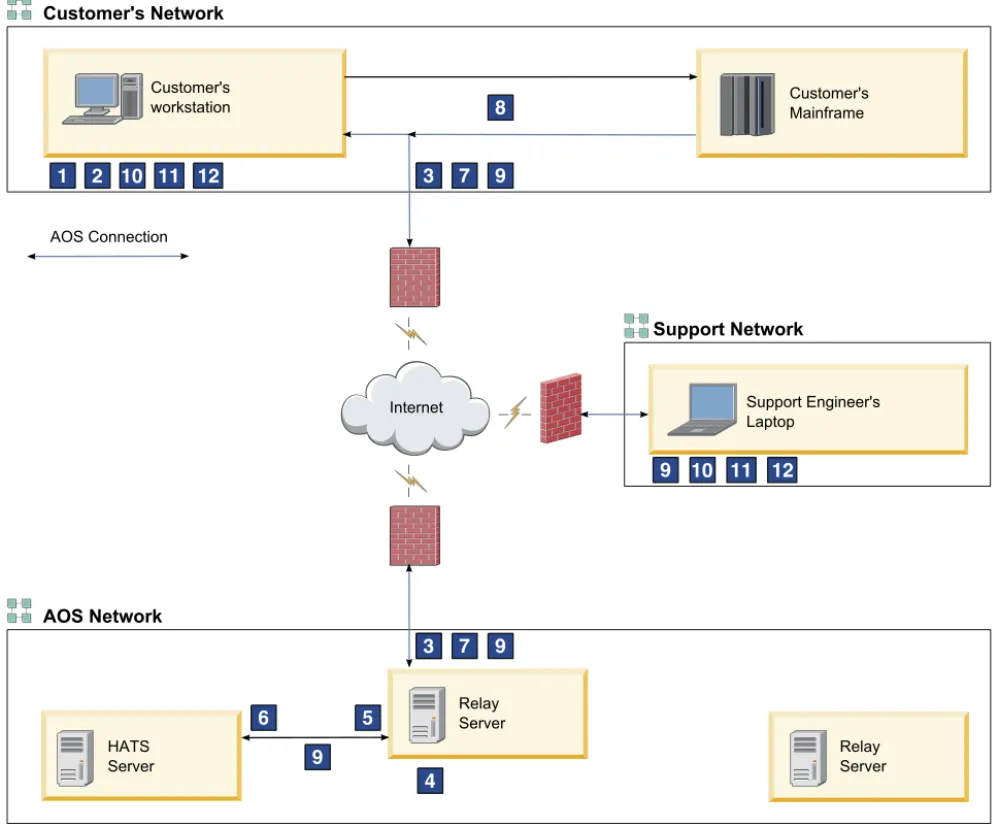
Host session architecture
The components of Assist On-site (AOS) interact together and with the Rational Host Access Transformation Services (HATS) server to start and maintain a host session.
The process to start and maintain the host session is shown in Figure 5 on page 9 and can be summarized as follows:
1. The customer uses the Remote Support Utility Start a Host Sessionfunction to initiate a session with the host computer.
2. Remote Support Utility prepares a packet-forwarding thread and port to establish a host connection.
3. Assist On-site sends the packet over the existing Assist On-site connection to request a new host connection.
4. The Relay Server opens a new port and a bidirectional packet-forwarding thread within the Assist On-site network to be ready to accept a Rational Host Access Transformation Servicesconnection for the new host session.
5. The Relay Server opens a HTTP or HTTPS URL connection to the Rational Host Access Transformation Services server. It passes the newly-opened local port, server, and connection type for the new connection, for example:
https://localhost:9443/hatsproj1/index.jsp?host=aosrelay1&sessionType=1 &port=9101;
6. The Rational Host Access Transformation Services server begins a TN3270 or a TN5250 host session to the requested port.
7. The packet-forwarding thread within the Relay Server forwards the TN3270 data packet to the Remote Support Utility.
8. The Remote Support Utility routes the TN3270 or TN5250 packet to the host computer, and the packet-forwarding thread routes all packets from the host computer across the Assist On-site connection.
9. The Relay Server receives the new session ID from the Rational Host Access Transformation Services server for the Web browser clients. It sends a new packet to both endpoints informing them of this secure session ID to which to connect to the Rational Host Access Transformation Services emulator session.
10. Assist On-site launches the same emulator session in Web browser clients at both endpoints.
11. The emulator session remains active and synchronized, with either the customer or support engineer running commands. This session functions independently of the Assist On-site connection. The customer can select the Chat Only mode and monitor the support engineer without relinquishing control of the customer's target machine.
12. When either the customer or support engineer ends the Assist On-site session, the host session also ends.
Collaboration in sessions
Assist On-site has the Collaboration function to let multiple participants (support engineers and the customer) to connect, view the target desktop, and chat during the same support session. The original or primary support engineer starts the collaboration for the existing support session and provides a collaboration code to the other participating support engineers. The customer must accept each
participating support engineer's request to join the support session.
The secondary support engineer can join an existing support session using the collaboration code or the secure URL if the Remote Support Console is not installed. The primary support engineer provides the secondary support engineer with the secure URL that launches the Remote Support Console from a Relay Server using a Java Web Start Launcher.
The primary support engineer can assign and return control of the support session, disconnect other participating support engineers, and leave the support session while the other participants continue. All participants can send messages in a shared chat session.
Collaboration can also occur during a host session, although the other participating support engineers do not need to use Assist On-site. The primary support engineer can send the host session URL and ID to the other participants, and they can participate using their Web browsers.
Assist On-site launch-in-context
Support engineers might start troubleshooting customers' issues by first using other support tools such as Technical Support Chat. Rather than starting Assist On-site independent of other support tools, Assist On-site provides a
launch-in-context feature such that support engineers can start Assist On-site from within the session of the third-party support tool.
The Assist On-site launch-in-context feature has the following functions:
v Command-line interface to start Assist On-site from the third-party support tool. It opens the Remote Support Console on the support engineer's machine, creates a support session, and obtains the connection code. Assist On-site also creates a connection file that contains the instructions for the customer to download the Remote Support Utility from the specified Assist On-site URL.
Note: The third-party support tool provides the launch mechanism, for example, a menu item in the support tool that executes the command-line interface and runs Assist On-site.
v Command-line launch-in-context parameters to specify details of the customer, support engineer, and PMR, flags to write values to standard output, and paths to use the Assist On-site connection and template URL files.
v Template URL file to contain the launch-in-context parameters and the instructions for the customer to download the Remote Support Utility as specified by Assist On-site URL launch-in-context parameter.
When Assist On-site is started in context, Assist On-site generates the connection file with contents of the template URL file and replaces the launch-in-context parameters by their runtime values.
To use this feature, you must perform the following tasks:
1. Build the launch mechanism in the third-party tool.
2. Add the Assist On-site command with the launch-in-context parameters to the launch mechanism.
3. Create the template URL file with the launch-in-context parameters and the instructions for the customer to download the Remote Support Utility as specified by Assist On-site URL launch-in-context parameter.
4. Display the contents of the connection file to the customer.
IBM Client Diagnostic Data Repository
Often IBM support engineers need to analyze customer data to diagnose customers' issues or they need to provide customers with utilities to debug the issues.Assist On-site provides support for the IBM Client Diagnostic Data Repository (CDDR) strategy in the exchange of data through the propagation of team URLs and file transfer functions. Administrators can add team URLs to the
relevant URLS associated with CDDR and propagate those URLs to subteams. During Assist On-site sessions, support engineers can open these URLs on the customers' machines and transfer diagnostic data.
The CDDR strategy uses the Enhanced Customer Data Repository (ECuRep) as the consolidated back end data repository for exchanging information with IBM Software Technical Support. The strategy also means that customers can exchange data by using the fastest method based on geographic location, for example, by connecting to the Testcase FTP server or by connecting to ECuRep directly. For more information, see the following address:
http://www-01.ibm.com/software/support/exchangeinfo.html
Assist On-site security
Security and privacy are fundamental concerns when granting remote access to corporate IT assets. Assist On-site uses the latest security technology to ensure that the data exchanged between support engineers and customers is completely secure. Identities are verified and protected with industry-standard authentication
technology. Assist On-site support sessions are kept secure and private using randomly generated session keys and advanced encryption.
Assist On-site allows support engineers to remotely access customers' machines to identify and resolve technical issues in real time. Assist On-site has a powerful suite of tools for problem determination and remediation that support engineers can use to quickly complete root cause analysis and take appropriate corrective action.
No permanent installation of software on the customer's machine is required. The Remote Support Utility plug-in downloads automatically through the customer's Web browser and is less than 780 KB. The plug-in is kept secure and virus free on the Relay Server and must be downloaded each time a support session is
established.
Only customers can initiate support sessions unless they are unattended support sessions. During the initiation of an attended support session, the customer can refuse receipt of the Remote Support Utility plug-in, thus refusing the download. When the customer accepts the connection to the support session, the customer can choose a session mode. During the support session, the customer can retake control of the mouse and keyboard at any time.
After a support session starts, the support engineer is connected to the customer's machine through the Relay Server. Large, randomly generated session keys are issued to both participants; thus, only the designated parties are connected. During the support session, all transferred data is encrypted, including screen views, file transfer data, and identities. Encryption and decryption are from end to end; therefore, data cannot be intercepted during transit and can only be viewed through the Remote Support Console.
The support engineer can also troubleshoot problems on the customer's machine running z/OS or Power i by using a host session over an existing Assist On-site connection to ensure secure end-to-end connections. No Rational Host Access Transformation Services emulators must be installed on the customer's target machine, the host machine, or the support engineer's machine. Either the customer or support engineer can start a host session, but only the customer can log on to
the host machine. The support engineer can run commands on the host machine and the customer can monitor this work and maintain control of the customer's target machine.
Either the customer or support engineer can stop the support session or host session. After the support or host session stops, the support engineer can no longer connect to the customer's computer or the host machine. Any future support sessions require new session keys and only the customer can initiate them.
The support engineer can troubleshoot problems on a customer's IT device by using debug tools such as Telnet or SSH during a port forwarding session. A port forwarding session is a tunneled session that routes debugging or diagnostic traffic between the configured local port on the support engineer's machine and the port on the remote host machine. It runs over an existing Assist On-site connection, ensuring secure end-to-end connections. No emulator or diagnostic software needs to be installed on the remote host machine. The Assist On-site administrator can turn on this feature for teams that have specific permission to use it for remote diagnostics. The customer configures the remote host machines and ports for port forwarding sessions whether attended by using the Remote Support Utility or unattended by using the Assist On-site Support Service.
Authentication
Support sessions are protected by strong password authentication. Support
engineers are authenticated using a challenge and response password exchange, or IBM support engineers can be authenticated using their IBM intranet IDs and passwords through IBM Intranet Password eXternal. Customers can select basic or NTLMv2 authentication for Assist On-site connections through their proxy servers. Administrators can view audit reports detailing logon failures associated with incorrect IDs or passwords through the Administration Portal.
NTLMv2
NTLMv2 is a Microsoft challenge-response authentication protocol, that is used with the SMB protocol. It sends two 16-byte responses to an 8-byte server challenge. The protocol hashes the client and server challenges by using
HMAC-MD5 that hashes the proxy password and other data including the proxy user name and domain name.
Assist On-site detects the customer's proxy server through the customer's Web browser settings or registry keys. Proxy settings are evaluated through a JavaScript parser if available. The Remote Support Utility opens a window to allow the customer to select basic or NTLM proxy authentication. If the customer selects NTLM, the customer enters the domain, user ID and password to authenticate using the NTLMv2 protocol.
IBM intranet ID and password authentication
IBM Intranet Password eXternal is an authentication tool that uses leading edge open standards to allow IBM employees on the intranet to securely use the existing intranet password system to log on to third-party vendor Web sites. The open standards include the RSA Public Key Cryptography Standard (PKCS) 7, XML, and SOAP-based Web services.
IBM Intranet Password eXternal utilizes web service technology to adopt the intranet password system regardless of their operating system or server platform and to remotely validate digitally-signed authentication tokens.
Assist On-site adopts IBM Intranet Password eXternal to allow support engineers to log on to the Remote Support Console and Administration Portal using their IBM intranet ID and passwords, withoutAssist On-site compromising the
passwords. Using IBM BlueGroups, IBM Intranet Password eXternal can manage support engineers' membership of support teams and thereby access to Assist On-site. Assist On-site migrates the details from the BlueGroups to the Administration Portal database.
Encryption and decryption
Assist On-site implements outbound connections that are protected by
state-of-the-art 128-bit MARS encryption over an HTTPS browser session. This form of advanced encryption prevent intruder access to the information exchanged during all support sessions. Chat, screen viewing, screen sharing, and file transfer data is encrypted end to end. Packets are never decrypted in transit by the Relay Server.
Logging and auditing
Assist On-site writes to log files on the Relay Server and can also write to log files on the customer's target machine if the customer selects the option when initiating the support session.
Relay Server logs the following support session data: the customer name and number; the support engineer name and number; the customer's and support engineer's IP and MAC addresses; and the connection and disconnection time stamps. Administrators can view reports of these log files through the
Administration Portal.
The customer can choose to audit the support session locally and must explicitly activate it upon accepting the support session. Assist On-site events are written to the target system's application log. Written events include:
v Connection and disconnection
v Initial session mode and subsequent changes to other session modes
v Details about port forwarding session including the user name of the support engineer and a date and time stamp about when the connection was started and stopped
v Names of the files that have been received and transferred
Chapter 2. Installing the Remote Support Utility
You can download and automatically install the Remote Support Utility through the Assist On-site Web site or from a URL that you obtained from your support engineer if an internal IBM customer. It is a small Utility (ibmaos.exe).
The Utility includes the following files: v ibmaos.bat
This batch file calls the main Utility. It deletes the main Utility from your machine and itself after the Utility deletes the auxiliary files.
v forthook.dll
This library places hooks on the mouse and keyboard. These hooks ensure that the Remote Support Utility is aware of the mouse position coordinates and shape, has the ability to inject or reject events in the operating system's event queue, and detect when you pressPauseto stop the support session. The main Utility deletes this file.
v tgrab.sys
This Windows system file stores system settings and variables to support full screen, text mode windows. The main Utility deletes this file.
v egathdrv.sys
This driver is copied to thesystem32directory if the customer is an
administrator and the support engineer requests system information. It is loaded to gather system information such as the serial number of the target machine. It is automatically unloaded and deleted from the machine after this operation finishes.
Remote Support Utility Prerequisites
Assist On-site requires that you can connect to the Americas Relay Server and another server located in your geographical region. Your firewall and proxy server must allow traffic to and from the Relay Server.
Assist On-site provides a connectivity test executable that checks whether you can connect to the Relay Server in each geographical region. For more information about running the test, see “Running the Assist On-site connectivity test” on page 16.
Your firewall might deny the Assist On-site connection. If your firewall logs show that it has blocked Assist On-site traffic, configure your firewall according to the associated firewall documentation to allow traffic to and from the Relay Server in the Americas on the relevant ports and any other Relay Server in your region. For more information about the IP addresses and port numbers for each Relay Server, see Chapter 4, “Relay Server,” on page 35.
The summary of requirements for the Remote Support Utility is as follows: v 28.8Kbps or greater Internet connection (56K recommended)
v One of the following supported platforms:
– Pentium-class computer running Windows starting with Windows 2000 Service Pack 4 and above, including all variants of Windows XP, Windows Vista, and Windows 7
– Red Hat Enterprise and Desktop Linux 4 for Intel 32-bit and 64-bit – Red Hat Enterprise Linux 4.0 for z/Series 31-bit
– Red Hat Enterprise Linux 4.0 for z/Series 64-bit
– Red Hat Enterprise and Desktop Linux 5 and above for Intel 32-bit and 64-bit – Red Hat Enterprise Linux 5.0 and above for z/Series 31-bit
– Red Hat Enterprise Linux 5.0 and above for z/Series 64-bit – SUSE Linux Enterprise Server 9 for Intel
– SUSE Linux Enterprise Server 9 for zSeries®31-bit
– SUSE Linux Enterprise Server 9 for zSeries 64-bit – SUSE Linux Enterprise Server 10 for Intel
– SUSE Linux Enterprise Server 10 for zSeries 64-bit – SUSE Linux Enterprise Server 11 for Intel
– SUSE Linux Enterprise Server 11 for zSeries 64-bit
v Internet Explorer 4.0 or later, Netscape Navigator 4.0 or later, or Mozilla Firefox 1.0 or later
v Access to ports 80, 443, and 8200
v Recommended: Ability to make direct outgoing TCP connections, or availability of a SOCKS server or an HTTP proxy
Running the Assist On-site connectivity test
You can run the Assist On-site connectivity test to check whether you can successfully connect to the Relay Server in each geographical region. The
connectivity test uses an executable that you download to your local machine and run.
Procedure
1. Open the following URL:
http://www-01.ibm.com/support/assistonsite/
2. ClickAssist On-site Connectivity Test.
3. When prompted, clickOpento temporarily save the executable to your local machine.
4. When prompted, clickRun.
5. If prompted by your firewall, allow the executable to connect to the Internet.
Results
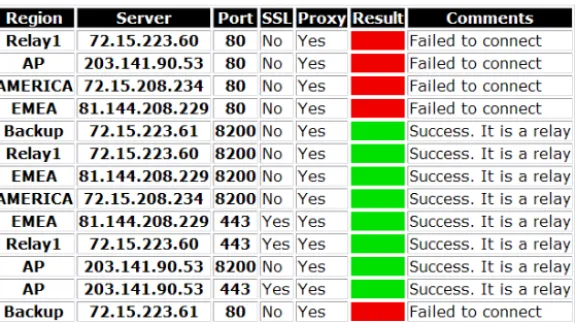
The connectivity test runs and displays the results in your Web browser. You must be able to connect to at least oneRelay Server in the Americas and to realize improved throughput, you should be able to connect to a Relay Server in your geographical region.
Important: If you cannot connect to any Relay Server in the Americas, you might not be able to use Assist On-site. Check that your firewall is configured to allow traffic to and from Relay Server in the Americas.
Example
In Figure 6 on page 17, the customer can connect to the Relay Server on port 8200 in the Americas, Relay Server on ports 8200 and 443 in EMEA, and the Relay Server on ports 8200 and 443 in AP. Thus the customer can download the Remote Support Utility and choose to connect to any Relay Server , though the customer should choose to connect to the server that is located in the same geographic region.
What to do next
If the connectivity test is successful, you can download and install the Remote Support Utility.
Installing the Utility for external IBM customers
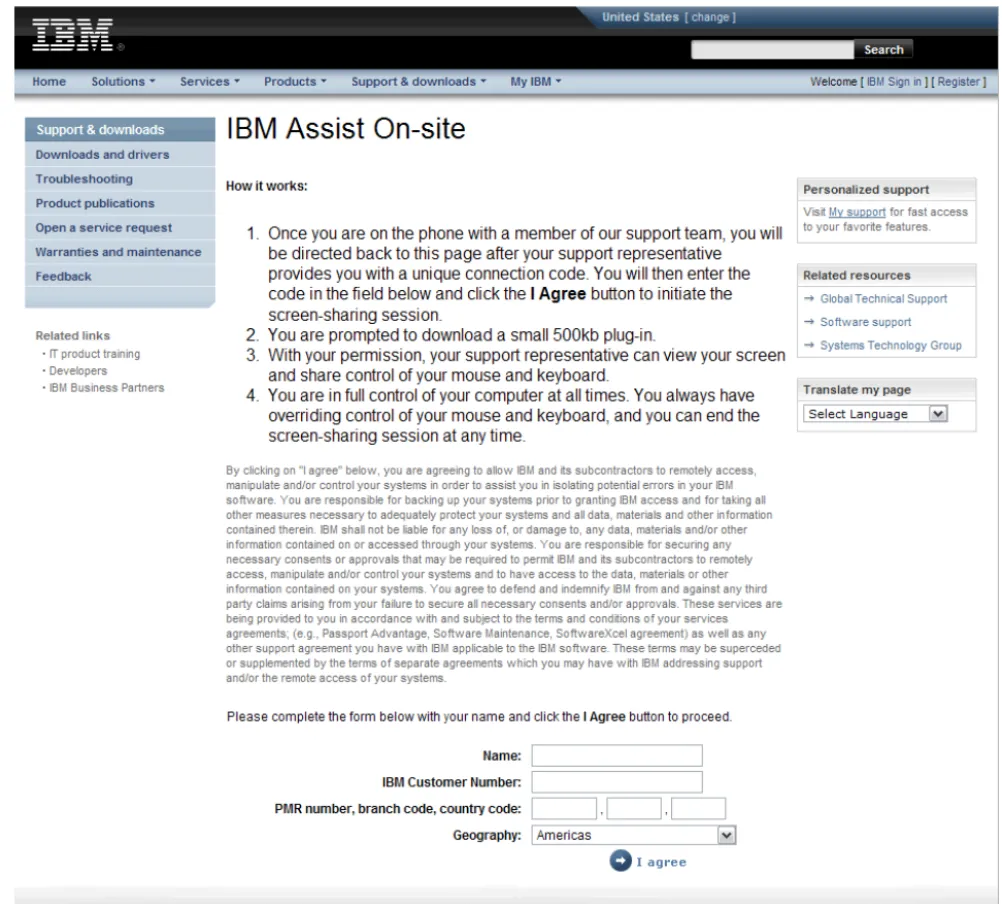
You must complete the online request form on the Assist On-site Support Web site and agree to the terms and conditions for using Remote Support Utility before you can download and install the Utility,ibmaos.exe.
Before you begin
Ensure that you have successfully connected to the Relay Server. The support engineer must also give you a connection code, otherwise you cannot install the Utility after you download it.
Note: If your support engineer started Assist On-site during a session of a third-party support tool such as Technical Support Chat, the URL that is provided might be different to the URL provided in the following procedure. If it is, accept the license agreement and proceed to step 9 on page 19.
About this task
You are prompted to install the Utility that is less than 780 KB.
Procedure
1. Open the following URL:
http://www-01.ibm.com/support/assistonsite/
2. Click IBM Assist On-site request form. The page with online request form opens.
3. In the Namefield, type your name.
4. In the IBM Customer Numberfield, type your customer number. If you do not know it, type all zeros.
5. PMR number, branch code, country codefields, type the PMR number and associated codes for your issue.
6. In the Connection codefield, type the connection code that you obtained from the support engineer if required.
7. From the Geographylist, select your geographical region.
Important: Ensure that you select a geographical region that contains a Relay Server to which you successfully connected when you ran the connectivity test.
8. Click I Agree.
9. When prompted, clickOpenor Runto download the Utility.
Note: You might need to temporarily allow popup windows in your Web browser depending upon your Web browser security settings.
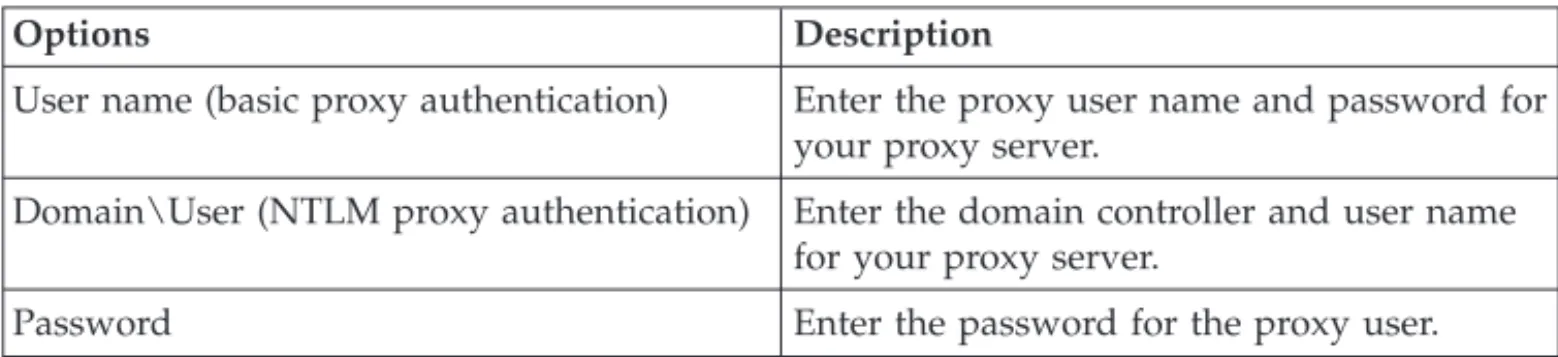
10. The Utility detects any proxy server settings and if necessary, it opens a proxy authentication window to enter the proxy user name and password. Enter some or all of the following details, and clickOK:
Options Description
User name (basic proxy authentication) Enter the proxy user name and password for your proxy server.
Domain\User (NTLM proxy authentication) Enter the domain controller and user name for your proxy server.
Password Enter the password for the proxy user.
11. If prompted by your firewall, allow the Utility to connect to the Internet. The Session code window opens.
12. In the Session codefield, type the connection code that you obtained from the support engineer. ClickOK.
What to do next
After you install the Remote Support Utility, you must consent to running the support session. For more information, see “Consenting to support sessions” on page 23.
Installing the Utility for internal IBM customers
As an internal IBM customer, you can bypass the agreement of terms, and
download and run the install the Utility using the URL that you obtained from the support engineer. This URL is secure and contains the unique connection code for your support session.
Before you begin
Ensure that you have successfully connected to the Relay Server.
About this task
You are prompted to install the Utility that is less than 780 KB.
Procedure
1. Open the URL that you obtained from the support engineer.
2. You are prompted to download and run the Utility. ClickRunorOpen.
Note: You might need to temporarily allow popup windows in your Web browser depending upon your Web browser security settings. Otherwise, you need to click the download link on the page.
3. The Utility detects any proxy server settings and if necessary, it opens a proxy authentication window to enter the proxy user name and password. Enter some or all of the following details, and clickOK:
Option Description
User name (basic proxy authentication) Enter the proxy user name and password for your proxy server.
Domain\User (NTLM proxy authentication) Enter the domain controller and user name for your proxy server.
Password Enter the password for the proxy user.
4. If prompted by your firewall, allow the Utility to connect to the Internet.
What to do next
After you install the Remote Support Utility, you must consent to running the support session. For more information, see “Consenting to support sessions” on page 23.
Manually configuring the connection for the proxy server
Assist On-site detects the customer's proxy server through the customer's Web browser settings including the Proxy Autoconfiguration file (PAC), or registry keys. It evaluates the proxy settings through a JavaScript parser if available; otherwise, Assist On-site supports manual proxy configuration using a configuration file,
proxy_ibm.txt.
Before you begin
Ensure that you obtained the proxy server settings from your administrator before you create the configuration file.
Procedure
1. Create a text file using a text editor.
2. In the text file, enter your proxy server details using the following syntax:
Proxy=myproxy.mycompany.com:myproxy_port
myproxy.mycompany.comis the fully qualified host name or IP address for your proxy server andmyproxy_portis the port number on the proxy server for outbound connections.
3. Save the text file with the nameproxy_ibm.txtin your home directory or at the root level of yourC:\drive.
What to do next
If you cannot establish a connection to a Relay Server, ensure that you configure your proxy server to allow encrypted non-SSL outbound traffic to the Americas Relay Server and to a relevant Relay Server in your geographic region. For more information about the IP addresses and port numbers, see Chapter 4, “Relay Server,” on page 35.
If you still cannot establish a connection, Assist On-site creates a diagnostic report in theconnrpt.htmlfile that you can submit to Assist On-site Support.
Chapter 3. Using the Remote Support Utility
A customer can accept connections from a support engineer's machine, obtain support, and interact with the support engineer using various functions of the Remote Support Utility.
When a session is active, Remote Support Utility opens a small window for the duration of the support session. You can minimize it to the taskbar.
Remote Support Utility functions
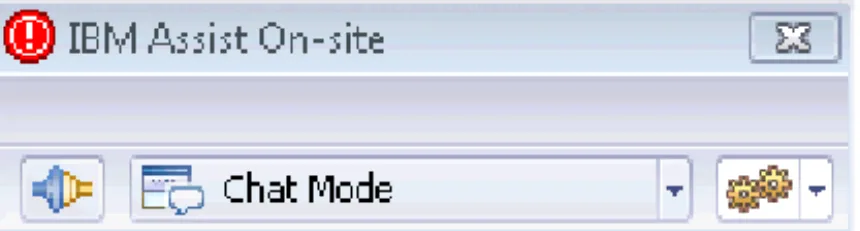
Table 1 describes the main functions of the Remote Support Utility that you can access from the toolbar.
Table 1. Remote Support Utility functions
Function Description
Disconnect from a session Disconnect from a session. For more
information, see “Stopping support sessions” on page 25.
Session modedrop-down list Contains the session mode options to switch to during a session. For more information, see “Switching between session modes” on page 25.
Actions menu Contains menu items to perform common
actions on your host machine. For more information, see “Remote Support Utility actions” on page 25.
Consenting to support sessions
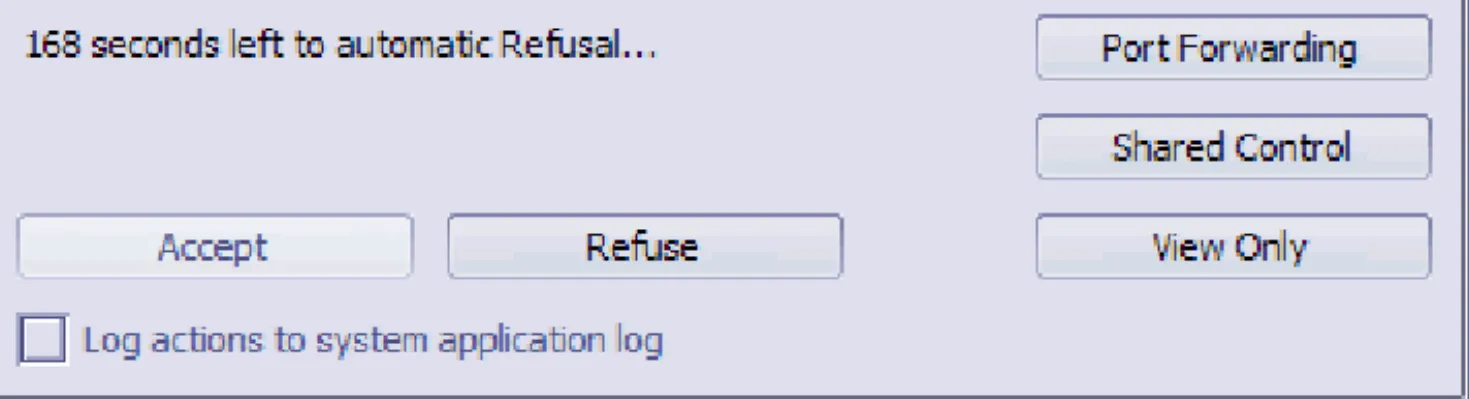
When an support engineer starts a support session and attempts to connect to your target machine, the Remote Support Utility displays a message on your machine. You must accept the connection and choose the session mode before it times out. At no point is the session activated until you accept the connection. If the request times out after the default or extended timeout period, the Remote Support Utility automatically refuses the connection.
About this task
Note: You can stop the support session at any time. For more information, see “Stopping support sessions” on page 25.
Procedure
1. The support engineer starts a support session and attempts to connect to your target machine. The Assist On-site window opens.
2. ClickLog session actions into System Application log check box if the support engineer requests it.
3. Click one of the following buttons:
Table 2. Session modes and options
Option Description
Chat Accept the connection and start the support
session in Chat Only mode.
Guidance Accept the connection and start the support
session in Guidance mode.
Shared View Accept the connection and start the support session in View Only mode.
Shared Control Accept the connection and start the session in Shared Control mode.
Port Forwarding Accept the connection and start the session as a port forwarding connection.
Note: Ensure that you have configured port forwarding. For more information, see “Configuring port forwarding in the Utility” on page 28.
Table 2. Session modes and options (continued)
Option Description
Refuse Refuse the connection and deny access to
your target machine. The Remote Support Console displays a refused access message to the support engineer.
Important: The choice of session modes is dependent on the default
permissions of the team to which the support engineer belongs, the permissions of the support engineer, and the type of session.
Stopping support sessions
You can stop a support session by different methods. There is no confirmation and the support session stops immediately. After the support session stops, a deletion utility within the Remote Support Utility deletes the main utility and flags itself for removal the next time you reboot your machine.
Procedure
Choose one of the following options: v PressPAUSE/BREAK.
v Click .
v ClickEnd Sessionin the Session in Progress window.
Switching between session modes
You might want to change or the support engineer might request that you change session mode during a support session. You can select the new session mode from the Session Mode drop-down list. The current session mode is selected by default.
Procedure
From the Session Modelist, select the new session mode. A message is displayed on the Remote Support Console informing the support engineer that you changed the session mode.
Remote Support Utility actions
The Remote Support Utility provides a set of functions for a support session. These functions include displaying information about your system and who is connected to it, starting a chat or host session, opening your file transfer directory, and exiting the session.
You can access these functions from .
Obtaining Remote Support Utility version information
You can obtain information about the current version of the Remote Support Utility using the Aboutfunction.
Procedure
Click and selectAbout. An information window opens that contains the version information.
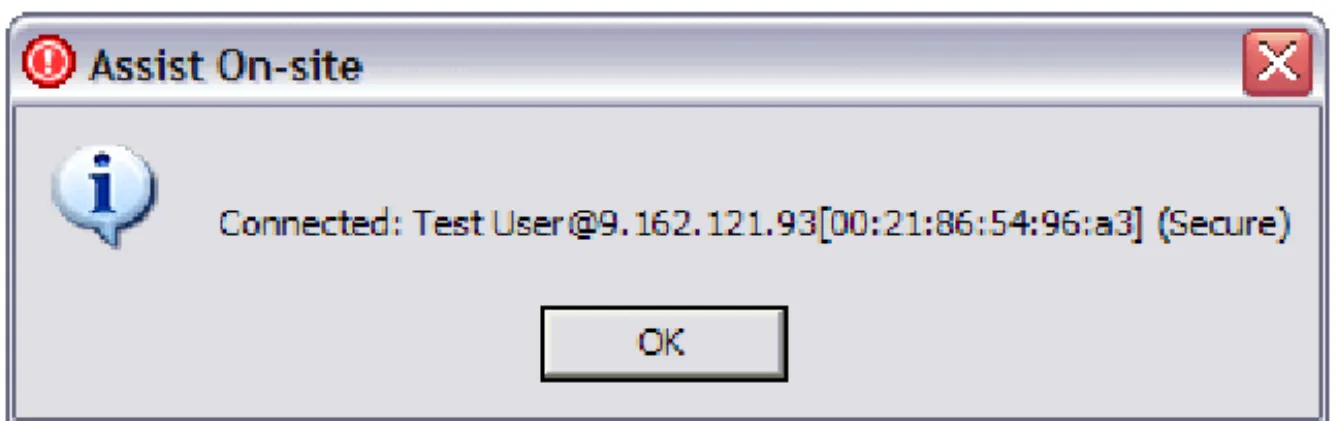
Finding out who is connected to your machine
You can find out details about the support engineer and the support engineer's machine using theWho is connectedfunction. The function displays the user name, IP, and MAC addresses for the support engineer.
Procedure
Click and selectWho is connected. An information window opens with the support engineer's details.
Getting your system's information
During a support session, you can retrieve information about your system using theView System Informationthat uses theIBM System Information Gatherer. This tool gathers information such as the your system's details, network devices and status, and a list of running processes and saves it to a text file in the file transfer directory of the Remote Support Utility.
Procedure
Click and selectView System Information.
What to do next
The system engineer might request to copy this file to the system engineer's machine.
Opening the file transfer directory
You can open the file transfer directory that using the Transfer folderfunction. The Remote Support Utility uses the most appropriate file manager for the operating system on which it is running.
Procedure
Click and selectTransfer folder. A file manager window opens showing the file transfer directory. The default directory is namedIBM_FT.
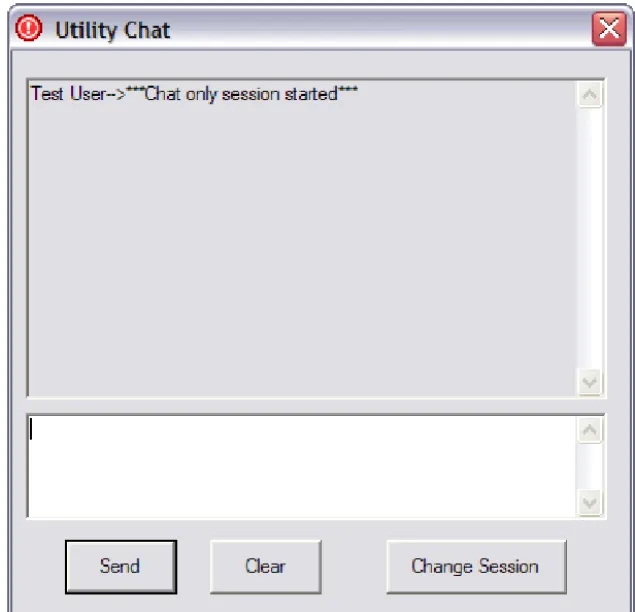
Chatting with the support engineer
During a support session, you can open and use a chat window to chat with a support engineer using the Chatfunction. You can also change the session mode in the Utility Chat window.
About this task
Note: You do not need to be chatting to the support engineer to change the session mode. For more information about changing the session mode, see “Switching between session modes” on page 25.
Procedure
1. Click and selectChat. The Utility Chat window opens.
2. In the text area, type your message, and clickSend. The support engineer's responses are displayed in the Utility Chat window.
3. If the support engineer requests that you change the session mode, do the following steps:
a. ClickChange Session. The Change Session window opens.
Important: The choice of session modes is dependent on the default permissions of the team to which the support engineer belongs, the permissions of the support engineer, and the type of session.
b. Select the radio button associated with the session mode to which you want to change.
c. ClickChange. A message is displayed in the Remote Support Console informing the support engineer of the session mode change.
Configuring port forwarding in the Utility
You can configure port forwarding and reverse port forwarding by using the
Configure Port Forwardingaction in the Remote Support Utility. You can also set the time out value in hours for the port forwarding session. If you set the value to 0, no timeout applies and the port forwarding session continues until you or the support engineer stops it.
Procedure
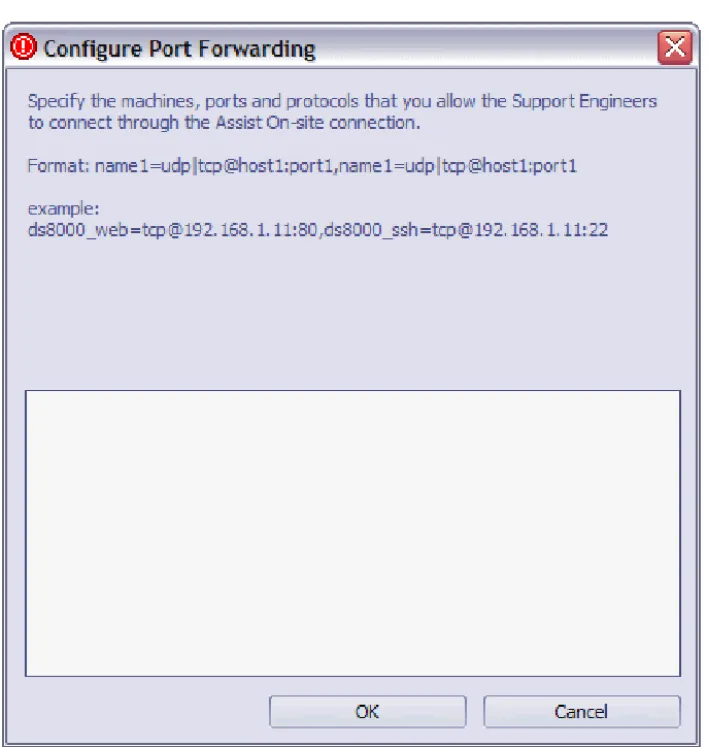
1. ClickConfigure Port Forwarding. The Configure Port Forwarding window opens.
2. In the text box, type a comma-separated list of host machine aliases, host machines, ports, and protocols that the support engineers can connect to during an Assist On-site session. The syntax for each allowed connection in the list is as follows:
<host_alias>=udp|tcp@<host_name>|<IP_addr>:<port_num> Table 3. Variables for the port forwarding syntax
Variable Description
<host_alias>= The alias name for the host machine, for example,ds8000_webords8000_ssh. udp|tcp The protocol for the connection, whether
UDP or TCP, for example,tcp.
<host_name>|<IP_addr> The fully qualified name of the host machine or its IP address, for example:198.162.1.2
Note: If you want to configure a reverse port forwarding option, use0.0.0.0as the IP address.
<port_num> The listening port for the connection, for example,3456or22.
For example:
[email protected]:80,[email protected]:3567
3. ClickOK.
What to do next
After you explicitly configure permission for port forwarding in the Remote Support Utility, the support engineer can begin the attended, port forwarding session to the authorized ports. You must consent to the attended, port forwarding session.
Starting host sessions
You can start a host session on the host machine over an existing Assist On-site connection using theStart host sessionfunction. After you have started it and logged onto the host machine, either you or the support engineer can run commands on the host machine using the emulator session in the Web browser window.
Before you begin
Ensure that you have connected to a support session. For more information, see “Consenting to support sessions” on page 23.
Procedure
1. Click and selectStart host session. The Start Host Session window opens.
2. In the Host Name or IP Addressfield, type the fully qualified host name or IP address of the host machine.
3. In the Host Portfield, type the port on the host machine for outgoing connections.
4. From theHost Typelist, select the type of host machine.
5. Select the type of security for the connection and any associated details for the keystore certificate.
6. ClickStart. A Web browser window opens on your machine and the support engineer's machine, running the same Rational Host Access Transformation Services emulator session.
7. When prompted, enter your user name.
8. When prompted, accept the request from the support engineer to join the host session.
9. Log on to the host machine using your User ID and password.
What to do next
Either you or the support engineer can run commands on the host machine using the emulator session in the Web browser window. You can also stop the host session at any time.
Stopping host sessions
You can stop a host session at any time.
Procedure
1. In the Web browser emulator session window, log off the host system.
2. Choose one of the following options:
v To stop the host session only, close the Web browser emulator session window or click and selectExit.
Chapter 4. Relay Server
The Relay Server is one of the main components of Assist On-site. It is an
application server that handles the data transmissions for support sessions between the Remote Support Console and the Remote Support Utility. There is a network of servers across several geographic regions, with support engineers and customers connecting to those servers within their geographic regions.
Table 4 outlines the connection details for the Relay Server in each geographic region. The Americas Relay Server is also the server that provides the connection codes for support sessions and distributes the Remote Support Utility installer for customers. Support engineers and customers must be able to connect to the Americas Relay Server and should also be able to connect to a Relay Server in their geographic region if not located in the Americas.
Table 4. Relay Server connection details
Region IP Address Port SSL Comments
Americas 72.15.208.234 8200 No The fully qualified name is:
aos.us.ihost.com 72.15.208.234 80 No
72.15.223.61 8200 No The fully qualified name is:
aosback.us.ihost.com 72.15.223.61 80 No
EMEA 81.144.208.229 8200 No The fully qualified name is:
aos.uk.ihost.com 81.144.208.229 443 Yes
81.144.208.229 443 No 81.144.208.229 80 No
Asia Pacific 203.141.90.53 8200 No
203.141.90.53 443 Yes
203.141.90.53 443 No
Chapter 5. Assist On-site Support Service
The Assist On-site Support Service is a component of Assist On-site. It is an applicative service that has features similar to the Remote Support Utility and runs on target machines. It registers itself with the Relay Server and sends HTTPS heartbeats as status updates.Assist On-site Support Service configuration uses customer policies that determine when and how the support engineer can run unattended support sessions.
Downloading and installing the Support Service
You can log on to the Administration Portal and download the installer for Windows operating systems only or binaries for multiple platforms from the Downloads page.
Procedure
1. Log on to the Administration Portal.
2. ClickUser Options >Downloads. The Downloads page opens.
3. (On Windows systems) Clickaos_support_service_setup.exe. When prompted, clickOpen orRunto download.
Note: You might need to temporarily allow popup windows in your Web browser depending upon your Web browser security settings.
4. (On Linux systems) Click ibm-aos-support-service-_ver.rpm. Do the following steps:
a. When prompted, clickSave File.
Note: You might need to temporarily allow popup windows in your Web browser depending upon your Web browser security settings.
b. Run it using a graphical tool or command-line interface.
Configuring the Assist On-site Support Service
Assist On-site Support Service configuration uses customer policies that determine when and how the support engineer can run unattended support sessions.
Procedure
1. Choose one of the following options:
v (On Windows systems) ClickStart >All Programs>IBM>Assist On-site
Support Service Configuration.
v (On Linux systems) Run the executable file,aos_cfg, in the Assist On-site Support Service's installation directory.
2. Enter your customer number and name.
3. In the Server URLfield, type the URL for the listening Relay Server, for example:
https://aos.us.ihost.com/AssistOnSite/callHome
4. In the Access Control List(ACL) box, type a comma-separated list of Assist On-site user IDs (e-mail addresses) an Assist On-site team names.
5. Clear the check boxes to disable session modes, collaboration, or session recording.
Important: If you do not clear Enable Attended Mode, ACL members cannot run unattended support sessions.
6. If you want to turn on tunneling, selectEnable Port Forwarding. You can configure port forwarding. For more information, see “Configuring port forwarding” on page 39.
7. ClickOK.
8. Use your operating system's tools to start the service.
Configuring port forwarding
You can configure port forwarding and reverse port forwarding on the Configure Port Forwarding window. After you explicitly configure permission for port forwarding, the support engineer can begin the unattended port forwarding session to the authorized ports.
Procedure
1. Optional: In the Support Service Config window, selectEnable Port Forwardingif required.
2. ClickConfigure. The Configure Port Forwarding window opens.
3. In the text box, type a comma-separated list of host machine aliases, host machines, ports, and protocols that the support engineers can connect to during an Assist On-site session. The syntax for each allowed connection in the list is as follows:
<host_alias>=udp|tcp@<host_name>|<IP_addr>:<port_num> Table 5. Variables for the port forwarding syntax
Variable Description
<host_alias>= The optional alias name for the host machine, for example,ds8000_webor
ds8000_ssh. Figure 18. Configure Port Forwarding window
Table 5. Variables for the port forwarding syntax (continued)
Variable Description
udp|tcp The protocol for the connection, whether UDP or TCP, for example,tcp.
<host_name>|<IP_addr> The fully qualified name of the host machine
or its IP address, for example:198.162.1.2
Note: If you want to configure a reverse port forwarding option, use0.0.0.0as the IP address.
<port_num> The listening port for the connection, for example,3456or22.
For example:
[email protected]:80,[email protected]:3457
4. ClickOK.
Notices
This information was developed for products and services offered in the U.S.A. IBM may not offer the products, services, or features discussed in this document in other countries. Consult your local IBM representative for information on the products and services currently available in your area. Any reference to an IBM product, program, or service is not intended to state or imply that only that IBM product, program, or service may be used. Any functionally equivalent product, program, or service that does not infringe any IBM intellectual property right may be used instead. However, it is the user's responsibility to evaluate and verify the operation of any non-IBM product, program, or service.
IBM may have patents or pending patent applications covering subject matter described in this document. The furnishing of this document does not give you any license to these patents. You can send license inquiries, in writing, to:
IBM Director of Licensing IBM Corporation
North Castle Drive
Armonk, NY 10504-1785 U.S.A.
For license inquiries regarding double-byte (DBCS) information, contact the IBM Intellectual Property Department in your country or send inquiries, in writing, to:
Intellectual Property Licensing Legal and Intellectual Property Law IBM Japan, Ltd.
3-2-12, Roppongi, Minato-ku, Tokyo 106-8711 Japan
The following paragraph does not apply to the United Kingdom or any other country where such provisions are inconsistent with local law:
INTERNATIONAL BUSINESS MACHINES CORPORATION PROVIDES THIS PUBLICATION "AS IS" WITHOUT WARRANTY OF ANY KIND, EITHER EXPRESS OR IMPLIED, INCLUDING, BUT NOT LIMITED TO, THE IMPLIED WARRANTIES OF NON-INFRINGEMENT, MERCHANTABILITY OR FITNESS FOR A PARTICULAR PURPOSE.
Some states do not allow disclaimer of express or implied warranties in certain transactions, therefore, this statement might not apply to you.
This information could include technical inaccuracies or typographical errors. Changes are periodically made to the information herein; these changes will be incorporated in new editions of the publication. IBM may make improvements and/or changes in the product(s) and/or the program(s) described in this publication at any time without notice.
Any references in this information to non-IBM Web sites are provided for
convenience only and do not in any manner serve as an endorsement of those Web sites. The materials at those Web sites are not part of the materials for this IBM product and use of those Web sites is at your own risk.
IBM may use or distribute any of the information you supply in any way it believes appropriate without incurring any obligation to you.
Licensees of this program who wish to have information about it for the purpose of enabling: (i) the exchange of information between independently created programs and other programs (including this one) and (ii) the mutual use of the information which has been exchanged, should contact:
IBM Corporation 2Z4A/101
11400 Burnet Road
Austin, TX 78758 U.S.A.
Such information may be available, subject to appropriate terms and conditions, including in some cases payment of a fee.
The licensed program described in this document and all licensed material
available for it are provided by IBM under terms of the IBM Customer Agreement, IBM International Program License Agreement or any equivalent agreement between us.
Information concerning non-IBM products was obtained from the suppliers of those products, their published announcements or other publicly available sources. IBM has not tested those products and cannot confirm the accuracy of
performance, compatibility or any other claims related to non-IBM products. Questions on the capabilities of non-IBM products should be addressed to the suppliers of those products.
All statements regarding IBM's future direction or intent are subject to change or withdrawal without notice, and represent goals and objectives only.
This information contains examples of data and reports used in daily business operations. To illustrate them as completely as possible, the examples include the names of individuals, companies, brands, and products. All of these names are fictitious and any similarity to the names and addresses used by an actual business enterprise is entirely coincidental.
COPYRIGHT LICENSE:
This information contains sample application programs in source language, which illustrate programming techniques on various operating platforms. You may copy, modify, and distribute these sample programs in any form without payment to IBM, for the purposes of developing, using, marketing or distributing application programs conforming to the application programming interface for the operating platform for which the sample programs are written. These examples have not been thoroughly tested under all conditions. IBM, therefore, cannot guarantee or imply reliability, serviceability, or function of these programs. You may copy, modify, and distribute these sample programs in any form without payment to IBM for the purposes of developing, using, marketing, or distributing application programs conforming to IBM‘s application programming interfaces.
If you are viewing this information in softcopy form, the photographs and color illustrations might not be displayed.