Americas Headquarters Cisco Systems, Inc. 170 West Tasman Drive San Jose, CA 95134-1706 USA http://www.cisco.com Tel: 408 526-4000 800 553-NETS (6387) Fax: 408 527-0883
First Published: July 2012
OR LIMITED WARRANTY, CONTACT YOUR CISCO REPRESENTATIVE FOR A COPY.
The Cisco implementation of TCP header compression is an adaptation of a program developed by the University of California, Berkeley (UCB) as part of UCBs public domain version of the UNIX operating system. All rights reserved. Copyright 1981, Regents of the University of California.
NOTWITHSTANDING ANY OTHER WARRANTY HEREIN, ALL DOCUMENT FILES AND SOFTWARE OF THESE SUPPLIERS ARE PROVIDED “AS IS” WITH ALL FAULTS. CISCO AND THE ABOVE-NAMED SUPPLIERS DISCLAIM ALL WARRANTIES, EXPRESSED OR IMPLIED, INCLUDING, WITHOUT
LIMITATION, THOSE OF MERCHANTABILITY, FITNESS FOR A PARTICULAR PURPOSE AND NONINFRINGEMENT OR ARISING FROM A COURSE OF DEALING, USAGE, OR TRADE PRACTICE.
IN NO EVENT SHALL CISCO OR ITS SUPPLIERS BE LIABLE FOR ANY INDIRECT, SPECIAL, CONSEQUENTIAL, OR INCIDENTAL DAMAGES, INCLUDING, WITHOUT LIMITATION, LOST PROFITS OR LOSS OR DAMAGE TO DATA ARISING OUT OF THE USE OR INABILITY TO USE THIS MANUAL, EVEN IF CISCO OR ITS SUPPLIERS HAVE BEEN ADVISED OF THE POSSIBILITY OF SUCH DAMAGES.
Cisco and the Cisco logo are trademarks or registered trademarks of Cisco and/or its affiliates in the U.S. and other countries. To view a list of Cisco trademarks, go to
http://www.cisco.com/go/trademarks
CCVP, the Cisco logo, and Welcome to the Human Network are trademarks of Cisco Systems, Inc.; Changing the Way We Work, Live, Play, and Learn is a service mark of Cisco Systems, Inc.; and Access Registrar, Aironet, Catalyst, CCDA, CCDP, CCIE, CCIP, CCNA, CCNP, CCSP, Cisco, the Cisco Certified Internetwork Expert logo, Cisco IOS, Cisco Press, Cisco Systems, Cisco Systems Capital, the Cisco Systems logo, Cisco Unity, Enterprise/Solver, EtherChannel, EtherFast, EtherSwitch, Fast Step, Follow Me Browsing, FormShare, GigaDrive, HomeLink, Internet Quotient, IOS, iPhone, IP/TV, iQ Expertise, the iQ logo, iQ Net Readiness Scorecard, iQuick Study, LightStream, Linksys, MeetingPlace, MGX, Networkers, Networking Academy, Network Registrar, PIX, ProConnect, ScriptShare, SMARTnet, StackWise, The Fastest Way to Increase Your Internet Quotient, and TransPath are registered trademarks of Cisco Systems, Inc. and/or its affiliates in the United States and certain other countries. Any Internet Protocol (IP) addresses used in this document are not intended to be actual addresses. Any examples, command display output, and figures included in the document are shown for illustrative purposes only. Any use of actual IP addresses in illustrative content is unintentional and coincidental.
Third-party trademarks mentioned are the property of their respective owners. The use of the word partner does not imply a partnership relationship between Cisco and any other company. (1110R)
Cisco Agent Desktop User Guide
© 2012 - 2013 Cisco Systems, Inc. All rights reserved. © 2012 - 2013 Calabrio, Inc. All rights reserved.
■ Introduction 7
What’s New In This Release 7
Obtaining Documentation and Submitting a Service Request 7 Documentation Feedback 8
■ Agent Desktop Feature Levels 9 ■ Cisco IP Communicator 10 ■ Automated Updates 11
CAD Desktop Applications 11 Java Runtime Environment 12 ■ Logging In 13
Access Through a Virtual Private Network From Behind a NAT Firewall or Router 15
VPN Tunneling 16 ■ Logging Out 17
Method 1: Logging Out and Then Closing Agent Desktop (Recommended) 17
Method 2: Closing Agent Desktop Without First Logging Out 17 ■ The Agent Desktop Interface 19
Accessibility 19
Toolbar Buttons and Shortcut Keys 20 Team Message 25
Contact Appearance Pane 25 Contact Management Pane 26
Enterprise Data 27 Call Activity 27
Integrated Browser Pane (Premium Edition Only) 28 Status Bar 29
Desktop Preferences 30
Setting the Window Behavior and Window Options Mode 30 Setting the Accessibility Options 31
■ The Dial Pad Window 34 Recent Call List 35 Phone Books 35 Name: Number Field 37
Dial Number as Entered Check Box 38 ■ Handling Calls 39
Single-line vs. Multi-line Configurations 39 Entering Phone Numbers 39
Answering a Call 40 Making a Call 40
Entering Touch Tones During a Call 40
Entering Touch Tones During a Consultative Call 41 Transferring a Call 42
Making a Conference Call 43 Alternating Between Calls 44
Alternating Before Transferring a Call 44
Alternating Before Adding a Call to a Conference 45 ■ Cisco Unified Outbound Dialer 46
Outbound Dialer Toolbar 46 Reclassifying a Contact 48 Customer Callback 48 ■ Supervisor Intervention 51 ■ Agent States 52
■ Using Chat 54
Sending a Chat Message 56 Sending Enterprise Data 57
Predefined High-Priority Chat Messages 57 Calling Someone in Your Chat List 57 ■ Using Agent E-Mail 59
E-Mail States 60 E-Mail Toolbar 61 E-Mail Format 65 Answering an E-Mail 65 Reviewing E-Mail 67
Managing E-Mails and Calls 68 E-Mail Re-queue on Logout 69 ■ Using Unified CCX Web Chat 70
■ Agent Real Time Displays 72 Agent ACD State Log Display 72 Agent Call Log Display 73 Agent Statistics Display 74
Contact Service Queue Statistics Display 75 Agent E-Mail Log Display 76
Agent E-Mail Detail Display 77 ■ Using the Integrated Browser 78
Integrated Browser Notes 78 Browser Toolbar 78
Accessing Work Sites 79 Accessing Other Websites 79
Dialing Hyperlinked Phone Numbers 80 ■ Reason Codes 81
■ Wrap-up Data 82 ■ Service Status 83
Phone Network Failure 83
Introduction
Cisco Agent Desktop for Cisco Unified Contact Center Express (Unified CCX) is a robust computer telephony integration solution that is easy to install, configure, and manage. It provides agents with powerful tools to increase productivity, reduce operational costs, and improve customer satisfaction.
Agent Desktop provides call control capabilities—such as call answer, hold, conference, and transfer, and ACD state control—ready/not ready, wrap-up, etc. Customer information is presented to the agent through an enterprise data window and an optional screen pop. Agents can also answer customer e-mail using the optional Agent E-Mail feature. The optional integrated browser enables agents to access intranet and internet web pages to enhance their ability to assist customers. The optional integration with Cisco Unified Presence makes it possible for agents to send instant messages to non-agent subject matter experts to help them assist customers.
What’s New In This Release
Agent Desktop 9.0 includes the following new features:
■ Support for Cisco AnyConnect Secure Mobility Client Release 3.0 ■ Integrated browser support for Cisco Unified CCX Web Chat ■ Support for Reply-to e-mail addresses in Agent E-Mail
Obtaining Documentation and Submitting a Service
Request
For information on obtaining documentation, submitting a service request, and gathering additional information, see the monthly What’s New in Cisco Product Documentation, which also lists all new and revised Cisco technical
http://www.cisco.com/en/US/docs/general/whatsnew/whatsnew.html
Subscribe to the What’s New in Cisco Product Documentation as a Really Simple Syndication (RSS) feed and set content to be delivered directly to your desktop using a reader application. The RSS feeds are a free service and Cisco currently supports RSS version 2.0.
Documentation Feedback
You can provide comments about this document by sending e-mail to the following address:
[email protected] We appreciate your comments.
Agent Desktop Feature Levels
There are two feature levels of Agent Desktop: Enhanced and Premium.
Table 1 outlines the features available at each feature level. All features not listed here are present in both versions.
Table 1. Agent Desktop feature levels
Feature Enhanced Premium
Task buttons × ×
Enterprise data thresholds × ×
Agent-initiated chat × ×
Automated recording (part of a work flow) × ×
Agent workflow HTTP and IPC actions ×
Integrated browser ×
Agent Events - Time of day ×
Agent E-Mail ×
Wrap-up data × ×
Reason codes × ×
Cisco Unified CCX Preview Outbound Dialer ×
Cisco IP Communicator
Agent Desktop supports the use of the IP Communicator soft phone. This application is not provided with Agent Desktop and must be purchased and installed separately. You must start IP Communicator manually (it does not start automatically when you start Agent Desktop). To conserve system resources, you might want to keep IP Communicator minimized as much as possible and use the Agent Desktop interface for call control.
To ensure that IP Communicator does not maximize when a call is received (the default setting) you must change your preferences as outlined in the following procedure.
To make sure IP Communicator remains minimized when a call is received:
1. Start IP Communicator.
2. Right-click anywhere on the interface to display a popup menu, and then choose Preferences. The Preferences dialog box appears (Figure 1).
3. On the User tab, clear the Bring to front on active call check box (the default setting) and select the Hide on minimize check box.
4. Click OK.
Figure 1. IP Communicator Preferences dialog box
Make sure these preferences are set as illustrated here.
Automated Updates
CAD enables your administrator to update all instances of CAD desktop applications automatically to a newer version.
CAD Desktop Applications
Every time you launch Agent Desktop, the software checks to see if there is an updated version available, or if there was a system configuration change that requires a Windows registry change. If either of these conditions are true, the software automatically runs the update process.
When an update is available, you will see a dialog box notifying you that your copy of Agent Desktop will be updated. Click OK to proceed with the update.
A progress bar is displayed to show you the status of the download.
When the update is finished, you will see a final dialog box that tells you the update is complete, and which applications were updated. If you have other CAD desktop applications (Supervisor Desktop and Desktop Administrator) on your PC, they will all be updated.
NOTE: Because Agent Desktop is automatically installed when Supervisor Desktop is installed, only Supervisor Desktop will be listed as having been updated in the final dialog box. Agent Desktop will be listed only if Supervisor Desktop is not present on your PC.
When you click OK to close the dialog box, any CAD desktop application that had been running on your desktop restarts automatically.
NOTE: To ensure that automated updates function correctly, Internet Explorer must be configured so that it checks for newer versions of stored pages. In Internet Explorer, choose Tools > Internet Options. In the Browsing history section on the General tab, click Settings. Select the option labeled Every time I visit the web page.
NOTE: If your system is configured with two Unified CCX servers, and one server is upgraded while your instance of Agent Desktop is connected to the older Unified CCX, and your system administrator performs a failover to switch all agents to the upgraded server, your instance of Agent Desktop will not automatically upgrade when you log into the new server. You must shut down Agent Desktop and start it again for the automatic upgrade to take place.
Java Runtime Environment
If your contact center uses the Agent E-Mail feature (available only in the CAD Premium bundle) and you are assigned to an Agent E-Mail CSQ, every time Agent Desktop is launched, it checks to see if the correct version of Java Runtime Environment (JRE) is installed.
If the correct version is not detected, Agent Desktop prompts you to install the correct JRE.
Logging In
When you launch Agent Desktop, you are required to log in. If your configuration includes Cisco Unified Presence, you must also log into Unified Presence.
■ If your Unified Presence and Agent Desktop logins are the same, when you log into Agent Desktop you are automatically logged into Unified Presence. ■ If your Unified Presence and Agent Desktop logins are different, you will have
to log into Agent Desktop and Unified Presence separately.
To log into Agent Desktop:
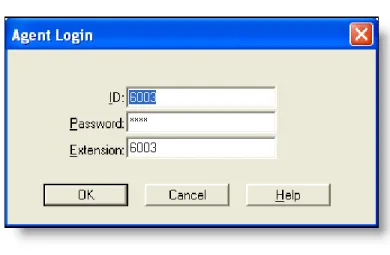
1. Choose Start > Programs > Cisco > Desktop > Agent. The Agent Login dialog box appears (Figure 2).
NOTE: You might receive a security warning that you are about to view pages over a secure connection. This can occur if you are using Windows XP and one of your configured integrated browser work sites is a secure site (https:// prefix). Select the Always trust content from this publisher check box and the message will not reoccur.
2. Enter your ID, password, and extension in the appropriate fields, then click OK or press Enter.
If you attempt to log in and the ID is already in use by another agent, you will be asked if you want to force the login. If you opt to do so, you will be logged in and the other agent using that ID will be logged out.
NOTE: If your team assignment is changed while you are logged in, then you must restart CAD for the change to go into effect.
3. If your configuration includes Cisco Unified Presence and your Unified Presence login is different than your Agent Desktop login, the Cisco Unified Presence Server Login dialog box appears (Figure 3). Type your Unified Presence username and password and click Login.
Agent Desktop starts and by default is immediately minimized on the taskbar at the bottom of your Windows desktop. This behavior can be configured differently by your administrator, and, if permitted, by you in the Preferences menu.
NOTE: Do not attempt to log into Cisco Unified Presence through both Agent Desktop and Cisco Unified Personal Communicator, even if you use different user IDs to do so. If you do, the client applications can behave unpredictably.
NOTE: If Agent Desktop and Cisco Unified Presence are located on two different PCs, and you attempt to log into both concurrently using the same user ID, the logins will fail.
Login Notes
■ When you attempt to log in, you might see an error message, “A licensing error has occurred. Please see your administrator.” This generally appears when all Agent Desktop software licenses are in use. For this reason, it is important that you close Agent Desktop completely when you are done using it, rather than simply logging off. As long as Agent Desktop is running, one license is being used.
■ While logging into Agent Desktop with the Agent E-mail feature enabled, you might receive multiple security and certificate warnings. The Information bar displays warning messages such as the hostname does not match the certificate, the content is blocked due to certificate errors, or the publisher is
not trusted. Click the security warning displayed on the Information bar in the browser, and select an appropriate action depending on the available options in the popup menu to unblock the content or trust the publisher.
If JRE is Missing or the Wrong Version
You are prompted to install JRE while launching Agent Desktop if you are assigned to an e-mail CSQ and:
■ JRE is missing or not available
■ The incorrect version of JRE is installed
NOTE: Only a user with administrative privileges can install JRE. If you do not have administrative privileges on your computer and you want to install JRE, contact your supervisor.
In the prompting dialog box, do one of the following:
■ Click Yes to download the JRE installation file. You must run the installation manually, it will not start automatically. Follow the InstallShield Wizard prompts to complete the installation.
■ Click No to continue launching Agent Desktop without the Agent E-Mail feature.
Access Through a Virtual Private Network From
Behind a NAT Firewall or Router
Agent Desktop is able to connect to the CAD servers through a virtual private network (VPN). This allows an agent to work remotely and still have the benefits of the full functionality of Agent Desktop.
Using a VPN is recommended in order to provide a more secure connection.
When a desktop is using network address translation (NAT) due to a firewall or router, then VPN software must be used on the desktop to ensure full bi-directional network connectivity between the contact center servers and the desktop. Failure to use VPN software will result in connectivity issues and a loss in functionality such as silent monitoring, recording, and incoming chat message and team message failures. The following VPN solutions are verified to work properly and are supported for access with Agent Desktop:
■ Cisco VPN Client
■ Cisco AnyConnect Secure Mobility Client
VPN solutions from other vendors might result in feature loss. Because they have not been formally verified, they are not supported.
NOTE: After installing Cisco AnyConnect Secure Mobility Client, you must restart your computer. If you do not restart, monitoring and recording will not work properly.
VPN Tunneling
There are two types of VPN tunneling mechanism, full tunneling and split tunneling, both of which are supported for connection between Agent Desktop and CAD services.
VPN Full Tunneling
VPN full tunneling virtually replaces the network connection with the local area network defined by the VPN. If VPN full tunneling is used to connect to CAD servers, the VPN connection must be established before starting Agent Desktop. If the VPN connection is lost during a session, you must close Agent Desktop, reestablish the VPN connection, and then restart Agent Desktop.
VPN Split Tunneling
VPN split tunneling allows you to access a public network and a local area network simultaneously, using the same physical network connection.
There are two types of VPN split tunneling scenarios.
■ Scenario 1: The CAD servers are on the public network and a third-party application is used through the VPN. In this scenario, you must launch and log into Agent Desktop before establishing the VPN connection. If the VPN connection is lost during a session, you must restart Agent Desktop and then reestablish the VPN connection.
■ Scenario 2: The CAD servers are on the VPN and a third-party application is used through the public network. In this scenario, you must establish the VPN connection before launching Agent Desktop. If the VPN Connection is lost during a session, you must close Agent Desktop, reestablish the VPN connection, and then restart Agent Desktop.
If Agent Desktop can log into all services except the Chat service, it must be restarted after the Chat service comes back online.
Logging Out
When you start Agent Desktop, you use a software license. When you close Agent Desktop, that software license is released so it is available for another agent to use. For this reason, it is important to close Agent Desktop when you are done using it. If you just log out, the software license remains in use and some features of Agent Desktop, such as Chat, are still available.
There are two methods of logging out and closing Agent Desktop.
Method 1: Logging Out and Then Closing Agent
Desktop (Recommended)
This method ensures that the software license you are using is released and is available for other agents to use.
To log out using Method 1:
1. Click Logout on the toolbar.
■ If your system is configured to require reason codes, before you are logged out the Reason Code dialog box appears. Choose the appropriate reason code and click OK.
■ If you are on a call when you click Logout, you will remain logged in until the call is ended.
2. Click Close (the X in the upper right corner of the Agent Desktop window) to exit Agent Desktop.
Method 2: Closing Agent Desktop Without First
Logging Out
With this method there is a small chance that the logout will not properly release the software license. If this occurs, the software license you are using will not be released. An agent can force the license to be released by using a forced login. See "Logging In" on page 13 for more information on forced logins.
To log out using Method 2:
■ Click Close (the X in the upper right corner of the Agent Desktop window). — If your system is configured to require reason codes, before you are
logged out, the Reason Code dialog box appears. Choose the appropriate reason code and click OK.
— If you are on a call when you click Close, a dialog box appears asking you to confirm that you want to log out.
■ If you click Yes, you will remain logged in until you terminate the call. ■ If you click No, you will remain logged in and Agent Desktop will
The Agent Desktop Interface
The Agent Desktop interface (Figure 4) displays information about active calls and assigned e-mails, and allows you to perform phone and e-mail functions. It also allows you to view agent, call, team message, and e-mail statistics real time displays
(reports), and “chat” with other agents and supervisors using the Chat instant messaging feature.
Accessibility
Agent Desktop has a number of features that aid accessibility for low-vision and vision-impaired users:
■ Follows Windows settings for screen resolution and color/contrast settings NOTE: Enable high contrast before launching Agent Desktop to
ensure that all tables match the high contrast settings. ■ Scrolling or non-scrolling team messages
■ Screen reader-compatible tool tips for all controls
■ Toolbar buttons available in small (16 × 16) and large (32 × 32) sizes ■ Screen reader-compatible shortcut keys for navigating the application and
toolbar
■ Uses Windows settings for font sizes for all windows and popups
Figure 4. Agent Desktop interface
Dashboard Pane Contact Management Pane Integrated Browser Pane Status Bar Team Message Toolbar
■ Audible tones that sound when a nonagent-initiated dialog appears (for example, new chat windows and notices to the agent that a supervisor is barging in, intercepting, recording, or monitoring)
■ Navigation through each pane, browser, and all the elements of the main window using the Tab key
■ The Space bar can act as the Enter key for dialog boxes in focus (for example, in the Dial Pad window, you can press the Space bar to select the focused number and Enter to make the call)
■ Support for JAWS screen reader software
Toolbar Buttons and Shortcut Keys
The dashboard toolbar contains buttons for call control and for functions not related to a specific customer contact, such as logging in and out, changing your agent state, initiating a chat session, viewing real time displays, and configuring the appearance of the Agent Desktop interface.
Call control and agent state buttons on the toolbar are disabled if they control a function that is unavailable in your current situation. For example, if you have placed a call on hold, all other call control buttons are disabled. When you take the call off hold, the other call control buttons are active again.
NOTE: Your toolbar can be configured by your administrator and might use different buttons than those listed below.
You can control the size of the toolbar buttons. See "Desktop Preferences" on page 30 for more information.
The toolbar buttons all have tooltips that describe the function associated with them. To view a button’s tooltip, move your cursor over the button.
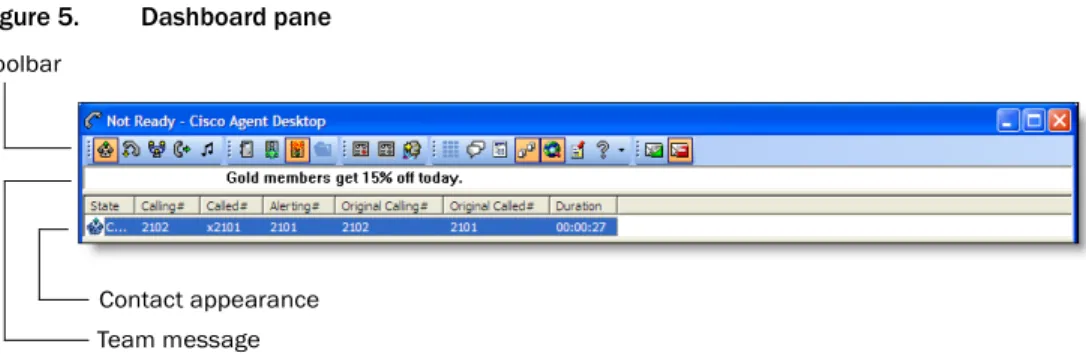
Figure 5. Dashboard pane
Toolbar
Team message Contact appearance
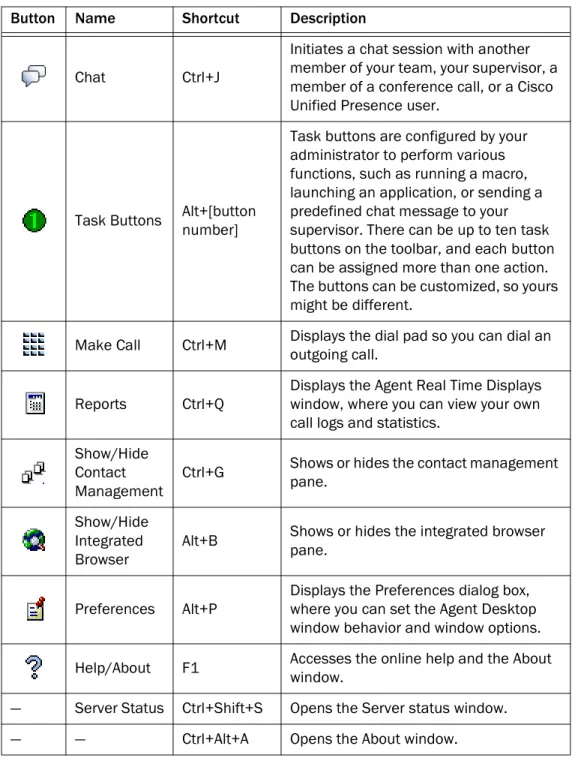
Table 2 lists the toolbar buttons and shortcut keys for handling calls.
Table 3 lists the toolbar buttons and shortcut keys for changing agent state.
Table 2. Call handling toolbar buttons and shortcut keys
Button Name Shortcut Description
Answer/Drop Ctrl+A Answers or drops the selected call. Hold/Unhold Ctrl+H Puts a selected call on hold or takes it off
hold. Conference Ctrl+F
Initiates a conference call. The parties are put on hold when the conferencing call is made.
Transfer Ctrl+T Initiates a transfer call. The parties are put on hold when the transferring call is made.
Touch Tones Ctrl+D Sends touch tones during an active call.
Table 3. Agent state toolbar buttons and shortcut keys
Button Name Shortcut Description
Login Ctrl+L Logs you into the ACD (alternates with Logout). Logout Ctrl+L Logs you out of the ACD (alternates with Login). Ready Ctrl+W Changes your state to Ready, indicating that you are available to receive ACD calls.
Not Ready Ctrl+O
Changes your state to Not Ready, indicating that you are not available to receive ACD calls.
Work Ctrl+Y
Changes your state to Work, indicating that you are in wrap-up work after terminating a call and, when finished, will be available to receive routed calls.
Table 4 lists the toolbar buttons and shortcut keys for managing windows.
Table 4. Window management toolbar buttons and shortcut keys
Button Name Shortcut Description
Chat Ctrl+J
Initiates a chat session with another member of your team, your supervisor, a member of a conference call, or a Cisco Unified Presence user.
Task Buttons Alt+[button number]
Task buttons are configured by your administrator to perform various functions, such as running a macro, launching an application, or sending a predefined chat message to your supervisor. There can be up to ten task buttons on the toolbar, and each button can be assigned more than one action. The buttons can be customized, so yours might be different.
Make Call Ctrl+M Displays the dial pad so you can dial an outgoing call.
Reports Ctrl+Q
Displays the Agent Real Time Displays window, where you can view your own call logs and statistics.
Show/Hide Contact Management
Ctrl+G Shows or hides the contact management pane. Show/Hide
Integrated Browser
Alt+B Shows or hides the integrated browser pane.
Preferences Alt+P
Displays the Preferences dialog box, where you can set the Agent Desktop window behavior and window options. Help/About F1 Accesses the online help and the About window. — Server Status Ctrl+Shift+S Opens the Server status window.
Table 5 lists the toolbar buttons and shortcut keys for e-mail state. The e-mail state buttons and shortcut keys are available only if the e-mail option is enabled.
Table 6 lists the shortcut keys for moving the cursor to various text elements in the Agent Desktop interface so a screen reader can read the text.
Table 5. E-mail state toolbar buttons and shortcut keys
Button Name Shortcut Description
E-mail Ready Ctrl+Shift+W You are available to receive e-mails. E-mail Not
Ready Ctrl+Shift+0 You are not available to receive e-mails.
Table 6. Main window screen reader shortcut keys Shortcut Keys Description
Ctrl+E Selects the first entry in the Enterprise Data pane. Press Enter to open the Edit Enterprise Data dialog box for the selected entry
Ctrl+S Selects a contact in the Contact Appearance pane.
Ctrl+Shift+E Selects a row in the Contact Management Call Activity pane. Ctrl+Shift+M Selects the team message.
Ctrl+Shift+T Shifts focus to the next web page of the integrated browser. JAWSKEY*+
Page Down
*By default, the JAWSKEY is the Insert key. For more information on using this tool, see the JAWS documentation.
Reads the status bar JAWSKEY*+T Reads the title bar
JAWSKEY*+Ctrl+n Reads the column header along with its value, where n is the desired column number
For example, the call contact appearance pane in Agent Desktop can be announced as “State: Connected, Calling Number: 1114, Called Number 1194.” For such an
announcement, you must press JAWSKEY+Ctrl+1 to announce the State column header, JAWSKEY+Ctrl+2 to announce the Calling Number header, and JAWSKEY+Ctrl+3 to announce the Called Number header and their respective values.
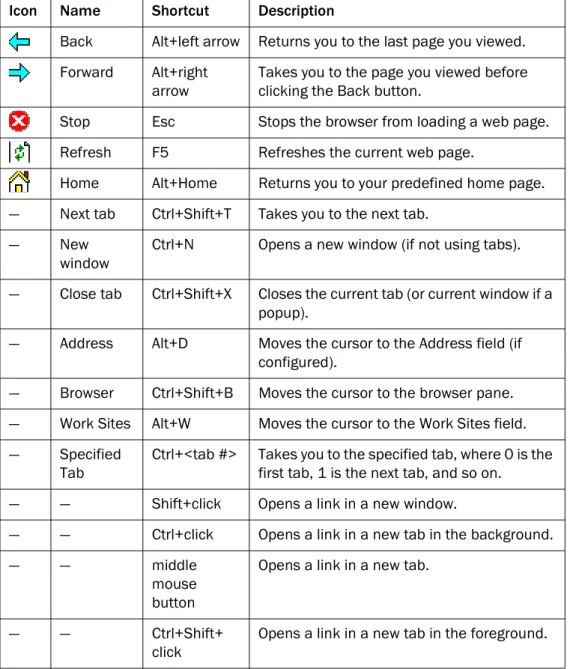
Table 7 lists the toolbar buttons and shortcut keys for the integrated browser window.
Table 8 lists the shortcut keys for the Agent Real Time Display window.
Table 7. Integrated browser toolbar buttons and shortcut keys
Icon Name Shortcut Description
Back Alt+left arrow Returns you to the last page you viewed. Forward Alt+right
arrow
Takes you to the page you viewed before clicking the Back button.
Stop Esc Stops the browser from loading a web page. Refresh F5 Refreshes the current web page.
Home Alt+Home Returns you to your predefined home page. — Next tab Ctrl+Shift+T Takes you to the next tab.
— New
window
Ctrl+N Opens a new window (if not using tabs). — Close tab Ctrl+Shift+X Closes the current tab (or current window if a
popup).
— Address Alt+D Moves the cursor to the Address field (if configured).
— Browser Ctrl+Shift+B Moves the cursor to the browser pane. — Work Sites Alt+W Moves the cursor to the Work Sites field. — Specified
Tab
Ctrl+<tab #> Takes you to the specified tab, where 0 is the first tab, 1 is the next tab, and so on.
— — Shift+click Opens a link in a new window.
— — Ctrl+click Opens a link in a new tab in the background.
— — middle
mouse button
Opens a link in a new tab.
— — Ctrl+Shift+
click Opens a link in a new tab in the foreground.
Table 8. Agent Real Time Display window shortcut keys Shortcut Keys Description
Table 9 lists the shortcut keys for the Dial Pad window.
Team Message
The team message (TM) is a message sent by a supervisor to the team for a selected length of time. A TM can be scrolling or non-scrolling, depending on how you set your desktop preferences. See "Desktop Preferences" on page 30 for more information. When there is no message, the TM section is not visible. As soon as your supervisor sends a TM, the TM section of the dashboard opens and the message appears.
Contact Appearance Pane
The contact appearance pane displays data about the agent’s current call appearance and assigned e-mails. There can be more than one call/e-mail
appearance in the contact appearance section. For example, you might have an e-mail saved as a draft, one call on hold, and one active call—all will be displayed.
The call contact appearance pane can display up to seven fields. Two fields, State and Duration, will always be present; the other five fields are configurable by your
administrator. The available fields are listed in Table 10.
Some fields might display <unavailable> or be blank if the call information is unknown or does not exist.
Alt+Y Opens the Dates drop-down list. Available only when the Agent Call Log Display is selected.
Alt+S Selects the first cell in the grid.
Table 9. Dial Pad window shortcut keys Shortcut Keys Description
Alt+P Selects the first entry in the Employee Phone Book.
Table 8. Agent Real Time Display window shortcut keys — Continued
Shortcut Keys Description
Table 10. Call contact appearance fields
Field Description
State The current state of the contact.
Calling# The number of the phone that made the call. Called# The number of the phone that received the call.
Agent Desktop displays the same information about the call in the call contact appearance pane as the IP phone displays on its screen. Under certain transfer and conference scenarios, there can be some differences between the enterprise data and the contact appearance data because the data sources are different.
The e-mail contact appearance pane can display up to five fields. The available fields are listed in Table 11.
Contact Management Pane
The contact management pane contains enterprise data on the left and call activity information on the right (Figure 6).
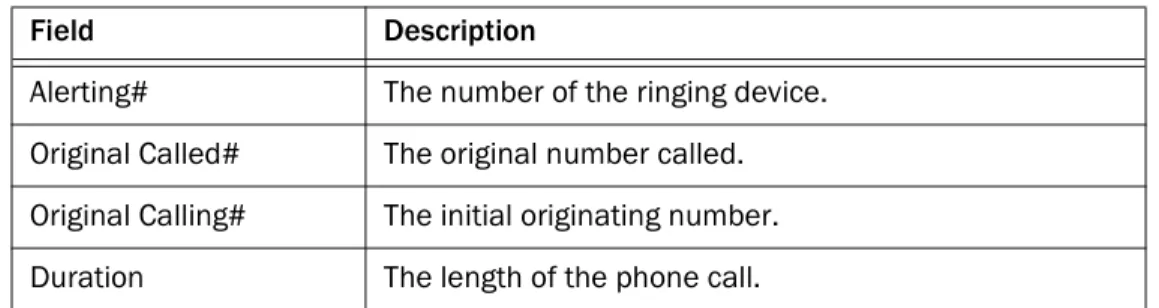
Alerting# The number of the ringing device. Original Called# The original number called. Original Calling# The initial originating number. Duration The length of the phone call.
Table 11. E-mail contact appearance fields
Field Description
State The current state of the e-mail contact. From The name/address of the e-mail sender. To The name/address of the e-mail recipient. Subject The e-mail subject line.
Duration The length of time the e-mail is in process.
Table 10. Call contact appearance fields — Continued
Field Description
Figure 6. Contact Management pane
You can Show/Hide Contact Management on the dashboard toolbar to show or hide this pane of the Agent Desktop interface.
Enterprise Data
The enterprise data section displays data associated with the selected call. The exact data that is displayed is configured by your administrator.
If you are set up by the administrator to be able to edit data fields, you can modify any of the data fields in the enterprise data window while the call is active. The modified data will follow the call. For example, if you transfer it to another agent, that agent will see the modified data, not the original data.
Once the call is dropped, the enterprise data can no longer be modified.
To modify a data field:
1. Double-click the field to modify. The Edit Enterprise Data window appears (Figure 7).
2. Modify the data. 3. Click OK.
Call Activity
The call activity section listed in Table 12 displays the call activity for the selected call.
Figure 7. Edit Enterprise Data window with ANI field selected for editing
Table 12. Call Activity fields
Field Description
NOTE: In some cases, a call can be on multiple devices
simultaneously. For example, if a call is placed in multiple queues or is conferenced to multiple extensions, the call activity section displays the sum of duration of the call on the device and the duration for which the call was in the queue. The total duration is the sum of all durations, some of which might overlap.
NOTE: If a call is RNA (ring no answer) at one agent and then the call is rerouted to and answered by another agent, the total time shown in the second agent's Call Activity pane is incorrect. However, in any reports seen by the agent or supervisor, the total call time is correct.
Thresholds
A threshold is the acceptable amount of time a call can remain at a particular device or contact center. Your system administrator can assign caution and warning
threshold values to each device type, as well as a total threshold value for a call. If a call remains at a device longer than the defined caution and warning thresholds, a caution or warning icon is displayed in the call activity pane next to the device. These icons are:
Integrated Browser Pane (Premium Edition Only)
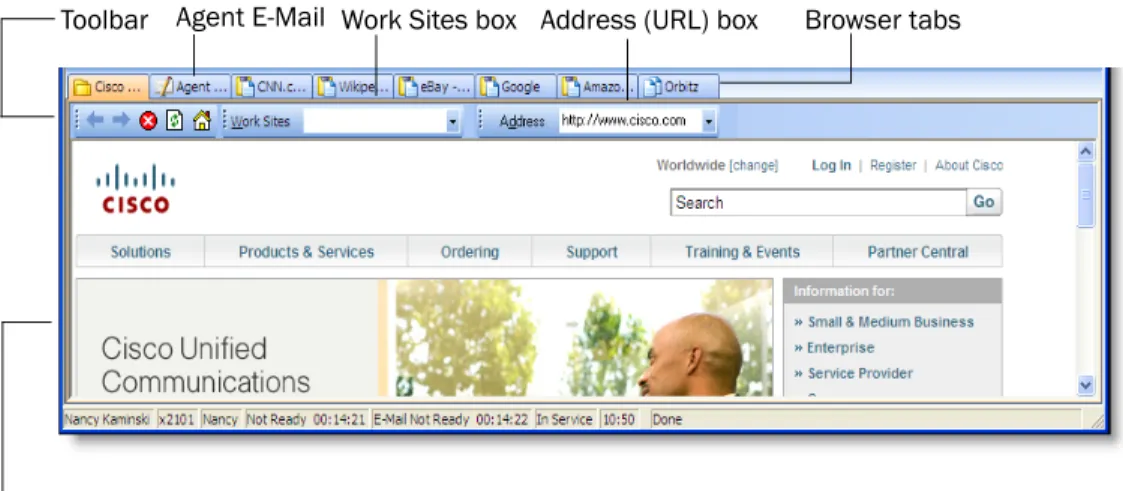
The integrated browser pane(Figure 8) displays internet or intranet web pages to help you assist customers. The administrator can configure a specific website to display as your home page, and add a list of work sites (similar to web browser “favorites”) that allow you to navigate to frequently-used websites quickly.
The integrated browser pane includes the: ■ Integrated browser toolbar ■ Up to 10 browser tabs ■ Work Sites box
Type Type of device the call passed through.
Description Description of the device the call passed through. Total Sum of all the durations listed.
Caution Warning
Table 12. Call Activity fields — Continued
■ Address box (must be configured by the administrator to appear) ■ Browser window
■ Agent E-Mail tab (The e-mail tab is available only if e-mail option is enabled) ■ Unified CCX Web Chat (must be configured by the administrator to appear)
Status Bar
The status bar displays current information about Agent Desktop (Figure 9).
In the event of a service failure, the Current Status section changes from “In Service” to “Partial Service” or “No Service”. To learn what features are affected by the service outage, double-click the Current Status section to view a popup window that displays which features are active or inactive.
For more information on the Current Status popup window and service autorecovery, see "Service Status" on page 83.
Figure 8. Integrated Browser pane
Toolbar Work Sites box Address (URL) box
Browser window
Browser tabs Agent E-Mail
Figure 9. Status bar
Current status of Agent Desktop features Current agent ACD
state and the time spent in that state Agent ID Agent extension Agent name Current system time in 24-hour format Current e-mail state
Desktop Preferences
If your administrator configures your toolbar so that you have access to the Preferences button, you can change your Agent Desktop window behavior and accessibility options.
To set your desktop preferences:
1. Click Preferences on the toolbar. The Desktop Preferences dialog box appears.
2. Select the preferences you desire on each tab, and then click OK.
Setting the Window Behavior and Window Options Mode
By default, Agent Desktop is minimized when it is idle and opens when calls are active (Normal mode). If your administrator has enabled you to choose your window behavior mode, you can change the window behavior and window options modes on the Preferences tab in the Desktop Preferences dialog box (Figure 10).
If your administrator has not enabled you to choose your window behavior mode, this tab is hidden and the window behavior is set to the mode your administrator selects.
Setting the Accessibility Options
Scroll Team Messages
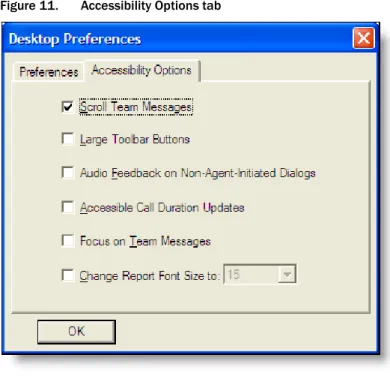
If you use a screen reader with Agent Desktop, scrolling team messages (the default mode) can be difficult to read. You can opt to turn off the scrolling feature and have stationary team messages by clearing the Scroll Team Messages check box on the
Table 13. Window behavior and window options modes
Mode Description
Normal Default. The window appears when calls are present and minimizes when idle.
Keep open The window remains open when idle.
Always on top The window remains open when idle and on top of all other open applications.
NOTE: When you select the Always on top window behavior, you cannot select the Real time displays and dial pad always on top options.
Stealth The window appears as an icon in the system tray (lower right-hand corner of your desktop, next to the system clock) and doesn’t appear unless double-clicked or if you receive a team message or an e-mail.
Real time displays always on top*
* If both real time displays and dial pad options are selected to be always on top, the most recent of the two windows you open will be on top.
The Agent Real Time Displays window remains open when idle and on top of all other open applications. Dial pad always on top* The Dial Pad window remains open when idle and on top
Accessibility Options tab (Figure 11).
NOTE: Your selected team message behavior will persist from session to session, and does not need to be reset each time you start Agent Desktop.
Icon Size
You can change the size of the buttons on the toolbar from the default 16 × 16 pixels to 32 × 32 pixels (Figure 12 for a comparison) by selecting the Large Toolbar Buttons check box. Note that if all of the buttons do not fit on one row, they automatically wrap to another row.
Figure 11. Accessibility Options tab
Audio Feedback
Select the Audio Feedback on Non-Agent-Initiated Dialogs check box to enable the sounding of a tone when a dialog initiated by someone other than you appears on your desktop. Examples of such dialogs are new chat windows and notifications that a supervisor is barging in, intercepting, recording, or monitoring your call.
Call Duration
Select the Accessible Call Duration Updates check box to enable the Duration field to increment during a call. By default this option is enabled. However, a continually changing field can cause difficulties for screen readers, so agents who are visually impaired might want to disable it.
Team Messages
Select the Focus on Team Messages check box to enable Agent Desktop to switch focus to the team message pane whenever a team message appears. This allows visually-impaired agents’ screen readers to read the incoming team message.
Report Font Size
Select the Change Report Font Size To check box and enter a point size in the field to make the fonts bigger or smaller in the real time displays. You can choose a font size between 8 points and 72 points. The default point size is 15 points.
NOTE: If you change your font size using the display settings in Windows Control Panel, you must restart Agent Desktop for those changes to take effect.
The Dial Pad Window
The Dial Pad window enables you to make calls either by entering a phone number or selecting an existing phone number from the recent call list or from a stored phone book (Figure 13).
NOTE: The Dial Pad window is the general name for this window. Depending on what you are doing, the window title can be Make a Call, Transferring Call, or Conferencing.
When you open the Dial Pad window, it stays open and you can switch to other windows. This allows you to use other Agent Desktop features, such as the integrated browser or real time displays, until you need to make a call.
NOTE: When the Dial Pad window is open, all call control buttons in the main Agent Desktop window are disabled.
NOTE: When you want to transfer a call or make a conference call, and the Make a Call dial pad is open, you must close the dial pad first and then click the Transfer or Conference button on the task bar to open the appropriate type of Dial Pad window.
Recent Call List
When you dial a phone number, it is automatically entered into the recent call list. This list stores up to 100 entries. As the number of entries exceeds 100, the number at the bottom of the list drops off.
Agent Desktop checks to prevent duplicate phone numbers from appearing in this list. However, if the same phone number is entered twice using different formats, for instance, 555-1212 and 5551212, both numbers will appear on the list.
Phone Books
Phone books are phone number lists set up by you (your employee phone book) and the system administrator (public phone books). Click the drop-down arrow to choose the phone book you want to use.
NOTE: The system administrator can configure Agent Desktop so that one or both types of phone books are not available.
Employee Phone Book
Your employee phone book is the only one you can edit. All others are controlled by the system administrator.
To edit your employee phone book:
1. In the Dial Pad window, choose Employee Phonebook from the Phone Books drop-down list, and then click Edit. The Phone Book Editor dialog box appears (Figure 14).
2. Make one of the following edits:
■ To add a new entry to the list, complete the First Name, Last Name, and Phone Number fields and click Add. (Only the Phone Number field is required.)
The Phone Number field allows only these characters: 0–9, aA–zZ,‘()+;/:.=? and a space
If you enter any other character you are advised you used a disallowed character. The disallowed character will be replaced by a question mark so you can change it to an allowed character.
■ To edit an existing entry, select it to display it in the edit fields, click Edit, and then make your changes. If you want to edit more than one entry, you can edit the first entry, and then double-click the next entry to save the changes you made to the first entry and move on to the next entry. ■ To delete an entry from the list, select it, and then click Delete. 3. When all your edits are completed, click OK.
Using the Phone Book Filter
You can use the phone book filter to find phone book entries more easily. The filter enables you to limit the entries listed in the phone book window. You can use any of the four phone book fields to filter the entries.
To use the phone book filter:
1. In the Dial Pad window, select the Filter check box (Figure 13 on page 34). 2. From the Filter drop-down lists, select how you want to filter the entries. In the
first two drop-down lists, select your filter criteria: the field to filter by, and the filter method. In the third field, enter the filter string.
For example, if you want to see all phone book entries for persons whose last name begins with “J”, select “Last Name” from the first drop-down list, “Begins with” from the second drop-down list, and enter J in the third field. The filter operates as soon as you enter your filter string in the third field. 3. To stop filtering the phone book, clear the Filter check box or delete the filter
string in the third field. The entire phone book will once again be visible.
Name: Number Field
Use this field to enter the phone number you want to dial. Entering a name is optional, but if one is entered, it must be followed by a colon and a space to separate it from the phone number:
John Doe: 612-555-1212
You can enter phone numbers with or without spaces, parentheses, and dashes. Agent Desktop ignores any non-alphanumeric characters.
You can also select a phone number from the recent call list or a phone book, which is then displayed in the Name: Number field.
Depending on how the system administrator has configured the dial plan, Agent Desktop can automatically add the local access and long distance access codes to numbers you enter. Contact your system administrator for details.
Dial Number as Entered Check Box
Select the Dial Number as Entered check box to circumvent any automatic formatting (local access and long distance access codes) and dial the number exactly as you enter it in the Name: Number field.
Handling Calls
When logged in as an agent, you can use Agent Desktop, a hard IP phone, or IP Communicator to handle phone calls.
NOTE: See your IP phone documentation for explanations of your phone’s functions and features.
The procedures in this section assume you are using the Agent Desktop interface to handle calls.
Single-line vs. Multi-line Configurations
If your system is configured for single-line use, then Agent Desktop controls and displays only ACD calls. You cannot answer non-ACD calls with Agent Desktop; these calls do not appear in the contact appearance pane and must be answered using your hard IP phone or IP Communicator.
If your system is configured for multi-line use, then Agent Desktop controls and displays calls received on both the ACD and non-ACD extensions. To control any call on the Agent Desktop contact appearance pane, select the call in the pane and then perform the desired activity.
For both single-line and multi-line configurations, you must be logged in and be in the Ready state to receive an ACD call. If your system is configured for multi-line use, you can be in any state to receive a non-ACD call.
You can transfer a call from the ACD extension to the non-ACD extension through the phone or the call control buttons in Agent Desktop. However, you cannot transfer a call from the non-ACD extension to the ACD extension using Agent Desktop; the transfer must be initiated through the phone in order to succeed.
If you transfer a call from the ACD extension to the non-ACD extension, you must answer the call on the non-ACD extension using your phone and not the call control buttons in Agent Desktop.
Entering Phone Numbers
When dialing a phone number, you can use three different methods to enter the phone number into the dial pad’s Name: Number field:
■ Type the phone number on your PC keyboard ■ Select the numbers from the Dial Pad window
You can enter a number only, or you can enter a name and number. Use the format name: number. You must include the colon and a space to separate the name from the number.
When you enter the number, it doesn’t matter whether you include dashes,
parentheses, or spaces; only the numbers are read. Depending on how Agent Desktop is configured, you might not have to include the local access or long-distance access codes. Consult your system administrator for information.
In the following sections, whenever you are instructed to enter a number in the Name: Number field, you can do so using any one of these methods.
Answering a Call
To answer a call: ■ Click Answer. To terminate a call: ■ Click Drop.Making a Call
You can make a call from any agent state except Logoff, as long as you are not on a call.
Use the Make Call button to make a call.
To make a call:
1. Click Make Call.
The Make a Call dialog box appears.
2. Enter a number in the Name: Number field. 3. Click Dial.
Entering Touch Tones During a Call
If you need to send touch tones during a call (for instance, if you are prompted to enter an account number) you can do so using the Touch Tones button. This button
To enter touch tones:
1. Click Touch Tone when you are prompted to enter numbers during a call. The number pad appears (Figure 15).
2. Enter the required numbers and/or symbols. When finished, click Done. The number pad closes and you are returned to the Agent Desktop interface.
Entering Touch Tones During a Consultative Call
You can send touch tones during a consultative call (transferring or conferencing).
To enter touch tones during a consultative call:
1. During a call, click Transfer or Conference. The Transferring Call or Conferencing dialog boxes appear.
2. Make the consultative call.
The person you call must answer in order for the Touch Tones check box to become enabled.
3. Select the Touch Tones check box, and then enter the required number and/or symbols on the number pad.
The number pad generates DTMF tones.
4. Clear the Touch Tones check box. The touch tones option is disabled. NOTE: The Touch Tones check box is automatically disabled when you close the Transferring Call window or Conferencing window.
Transferring a Call
There are three types of transfers. These types are as follows.
■ Supervised transfer. This type of transfer is available to every Agent Desktop user, and is triggered by clicking the Transfer button on the toolbar. In this type of transfer, you specify the number to which you want to transfer the active call. You can either hang up before the third party answers, or stay on the line and speak to the third party before actually transferring the call. ■ Blind transfer. This type of transfer is available only if your administrator has
configured a task button with the blind transfer action. In this type of transfer, the active call is transferred directly to a predefined phone number. Once you click the blind transfer task button, the call is transferred to that number and you are no longer connected to the call.
■ Single-step transfer. This type of transfer is available only if your administrator has configured a task button with the single-step transfer action. In this type of transfer, you specify the number to which you want to transfer the call. Once you do that, the call is transferred directly to the third party and you are disconnected from the call.
NOTE: If failover occurs while transferring a call, the Dial Pad window closes. You must end the call to the transfer recipient and initiate the call again in order to transfer the call on hold.
To transfer a call:
1. With a call active, click Transfer. The Transferring Call window appears. 2. Enter the phone number to which you are transferring the call in the
Number field.
3. Click Dial. The party is put on hold, and when the phone rings, the Dial button changes to the Transfer button.
4. Take one of the following actions:
■ Click Transfer when the phone starts ringing. The call is transferred and you are disconnected from the call.
■ Wait for the phone to be answered, then announce the transfer. When you click Transfer, the call is transferred and you are disconnected from the call.
If you opt to announce the transfer, you can click Alternate to switch between the two calls. The party to whom you are not talking is placed on hold.
To transfer a call using the blind transfer action:
■ With a call active, click the task button assigned to the blind transfer action. The call is transferred to the predefined phone number and you are
To transfer a call using the single-step transfer action:
1. With a call active, click the task button assigned to the single-step transfer action. The Transferring Call window appears.
2. Enter the phone number to which you are transferring the call in the Number field.
3. Click Transfer. The party is put on hold, and the Transferring Call window closes, the call is transferred to the phone number, and you are disconnected from the call.
Making a Conference Call
You can add other parties to an active call to make a conference call. There are three types of conference call. These types are as follows.
There are three types of conference calls:
■ Supervised conference. This type of conference is available to every Agent Desktop user, and is triggered by clicking the Conference button on the toolbar. In this type of conference, you specify the number you want to conference in to the active call. You can either add the third party to the call without first speaking to him or her, or speak to the third party before actually completing the conference call.
■ Blind conference. This type of conference is available only if your
administrator has configured a task button with the blind conference action. In this type of conference, a predefined phone number is conferenced directly in to the active call.
■ Single-step conference. This type of conference is available only if your administrator has configured a task button with the single-step conference action. In this type of conference, you specify the number to be conferenced directly in to the active call.
NOTE: If you use a blind conference to add someone to your call, the call might be tagged as a conference call.
NOTE: If you log out while on a conference call and then log in again, enterprise data field names will not be displayed in the Enterprise Data pane. The field names will be displayed for the next call you handle.
NOTE: If failover occurs while conferencing a call, the Dial Pad window closes. You must end the call to the conference recipient and initiate the call again in order to complete the conference.
To make a conference call:
1. With a call active, click Conference. The Conferencing a Call window appears. 2. Enter the phone number of the person you want to add to the call in the
Name: Number field.
3. Click Dial. The party is put on hold, and when the phone rings, the Dial button changes to the Add to Conf. button.
4. Take one of the following actions:
■ Click Add to Conf when the phone starts ringing. The third party is added to the conference.
■ Wait for the phone to be answered, then announce the conference. Click Add to Conf to add the person to the conference.
If you opt to announce the conference, you can click Alternate to switch between the two calls. The party to whom you are not talking is placed on hold.
5. To add one or more people to the conference call, repeat Steps 1 through 4 for each person.
To conference a call using the blind conference action:
■ With a call active, click the task button assigned to the blind conference action. The predefined phone number is conferenced directly into your call.
To conference a call using the single-step conference action:
1. With a call active, click the task button assigned to the single-step conference action. The Conference a Call window appears.
2. Enter the phone number you want to conference into the phone call in the Number field and click Add to Conf. The phone number is conferenced directly into your call.
NOTE: The total number of conference call participants is configured in the Unified Communications Manager. Ask your supervisor for the total number configured for your contact center.
Alternating Between Calls
The Alternate function allows you to switch between two parties before transferring a call or adding a call to a conference.
Alternating Before Transferring a Call
The Alternate function allows you to talk to Party A and Party B separately before completing the transfer of Party A to Party B.
To alternate between calls before transferring:
1. While on a call, click Transfer. The Transferring Call window appears. 2. Enter the phone number to which you are transferring the call in the
Name: Number field, and then click Dial. When the phone rings, the Dial button changes to the Transfer button. Wait for Party B to answer the phone. 3. Click Alternate to speak to Party A, and then click Alternate again to speak to
Party B. You can continue clicking Alternate to switch between Party A and Party B. When you speak to one party, the other party is put on hold.
4. Click Transfer. Party A is transferred to Party B and you are disconnected from the call.
Alternating Before Adding a Call to a Conference
The Alternate function allows you to talk to a conference call and Party B separately before adding Party B to the conference call.
To alternate between a conference call and another party:
1. While on a call, click Conference. The Conferencing window appears and the active call is put on hold.
2. Enter the phone number of the person you want to add to the conference call in the Name: Number field, and then click Dial. When the phone rings, the Dial button changes to the Add to Conf. button. Wait for Party B to answer the phone.
3. Click Alternate to speak to the conference, and then click Alternate again to speak to Party B. You can continue clicking Alternate to switch between the conference call and Party B. When you speak to one party, the other party is on hold.
Cisco Unified Outbound Dialer
If configured by your system administrator, your copy of Agent Desktop might include the Cisco Unified Outbound Dialer toolbar.
Unified Outbound Dialer uses the Direct Preview Dialing Mode. In this mode, you are put into the Reserved state and then presented with a customer call along with customer information in the Enterprise Data window. Based on this information, you can decide to accept, skip, or reject the call. You can also categorize the phone call presented as Voice, Answering Machine, Invalid, Fax/Modem, Busy, or Do Not Call. The personal callback feature enables you to reschedule a customer call at the customer’s request for a more convenient time.
Outbound Dialer Toolbar
Table 14 displays the Outbound Dialer toolbar buttons and shortcut keys describes their function.
Table 14. Outbound Dialer shortcut keys and toolbar buttons Button Action Shortcut Description
Accept Alt+Shift+A The system dials the customer and connects the call to the agent.
Reject Alt+Shift+R The system rejects the current call and releases the agent from the outbound calling reservation. At this point, the system can deliver to the agent another outbound call or a new inbound call.
Reject Close Alt+Shift+U The system rejects the current call and closes the record so the customer will not be called again.
Skip Alt+Shift+S The system skips the current call and presents the agent with another customer call.
Skip Close Alt+Shift+T The system skips the current call and closes the record so the customer will not be called again.
Skip-Next Alt+Shift+K The system skips the call and displays a menu of these options:
• Wrong Number (Alt+Shift+W). The agent is informed that the number called is a wrong number. After the call terminates, the system calls other customer phone numbers.
• Not Home (Alt+Shift+N). The agent is informed that the customer is not home. After the call terminates, the system calls other customer phone numbers.
Callback Alt+Shift+C Displays the Callback Properties dialog box, which the agent uses to set a time and date to call back the customer. This action is enabled only if the agent is in the talking or wrap-up agent state. The agent also uses this dialog box to cancel a
previously-scheduled callback of the current customer. This action works only if the agent is in a talking or wrap-up state during a Unified CCX-generated call. Reclassify Alt+Shift+Q Displays a menu that enables the agent to
reclassify a customer phone number as follows:
• Voice (Alt+Shift+V)
• Answering machine (Alt+Shift+M) • Fax/modem (Alt+Shift+F)
• Invalid number (Alt+Shift+I) • Busy (Alt+Shift+B)
• Do not call (Alt+Shift+X) Cancel
Reservation Alt+Shift+D The system releases the agent from the calling campaign and places the agent in the Not Ready state. To resume
participating in the calling campaign, the agent must change the agent state to Ready.
Table 14. Outbound Dialer shortcut keys and toolbar buttons — Continued
Information about Outbound Dialer calls is displayed in the Enterprise Data pane (Figure 16). Unified Outbound Dialer data field names are prefixed with “BA” (Blended Agent).
Reclassifying a Contact
A contact can be classified as either Voice or one of the other options (Answering Machine, Fax/Modem, Invalid, Busy, Do Not Call).
The first time you click Reclassify, the Voice option on the drop-down menu is disabled, because the contact is classified as Voice by default. All other options are enabled.
The next time you Reclassify, the Voice option is now enabled, and all other options are disabled.
You can reclassify a contact as many times as needed. The reclassification options menu will alternate between showing the Voice option enabled and the other options disabled, and the Voice option disabled and the other options enabled. If you need to reclassify a contact from one non-voice option to another non-voice option, you must first reclassify it as Voice in order to select the correct non-voice option.
For example, if you reclassify a Voice contact as Answering Machine, and then want to reclassify it again as Invalid, you must first reclassify it as Voice, and only then can you reclassify it as Invalid.
Customer Callback
You can schedule a customer callback for a time more convenient to the customer.
To schedule a customer callback:
1. While in Talking or Wrap-up state, click Callback.
The Callback Properties dialog box appears, displaying data about the current customer call (Figure 17).
2. In the Schedule Callback section, enter a time (HH:MM) and date (MM/DD/YYYY) to call back the customer.
Be sure that the time you enter in the Customer’s Time field is the time in the customer’s location, not the time in your location. You can enter the time in 12- or 24-hour format. If using the 12-hour format, you must enter AM or PM as well.
You can also change the customer number if the customer wants to be contacted at a different phone number.
3. Click OK.
The call is now scheduled for callback at the time and date you set. NOTE: Some slight discrepancies might occur in the customer callback time if the clock on the agent’s PC is not synchronized with the clock on the Unified CCX server.
You can cancel a scheduled customer callback as long as you are still on the customer call (in Talking state) or in Wrap-up state after that call.
To cancel a scheduled customer callback:
1. While in Talking or Wrap-up state, click Callback.
The Callback Properties dialog box appears, displaying data about the current customer call.
2. Click Clear Callback.
Supervisor Intervention
Your supervisor is able to intervene in calls you receive. He or she can:
■ “Barge In” on a call—join your call with a customer in a forced conference ■ “Intercept” a call—transfer a customer call to him or herself in a forced
transfer
■ Monitor your calls ■ Record your calls
You might be notified when your supervisor monitors or records your calls, depending on how the system is configured.
If notification is turned on, you will see a popup message telling you that your
supervisor is intervening in one of the ways mentioned above. You will also be notified when the supervisor stops intervening in your call.
Agent States
Agent Desktop allows you to change your agent state through the use of the agent state buttons on the toolbar. Only the agent states that are valid choices from your current agent state will be available at any given time.
Your current ACD agent state is displayed in the title bar (the top of the Agent Desktop window) and the status bar (the bottom of the Agent Desktop window). When Agent Desktop is minimized, your current agent state is readily visible on the button on the task bar.
You can change your agent state while on a call (in the Talking state). Your state will change to the state you clicked after you hang up the call. An exception to this is when you click Logout while on a call, your agent state changes immediately from the Talking state to the Logout state. You will be logged out when the call is terminated.
NOTE: Your agent state is changed to Not Ready automatically if you do not answer your phone. You will not receive any ACD calls until you set your state back to Ready.
Figure 18. Your current agent state is displayed in several places
On the title bar
and the status bar On the task bar
The agent state buttons indicate the state you clicked, not your current state. For instance, if you click the Work state button while on a call, the Work button appears to be pressed. Your current state is displayed on the status bar.
Available agent states are listed in Table 15. Available e-mail states are listed in Table 16 on page 60.
Table 15. Agent states
State Description
Logout You are logged out of the ACD.
Not Ready You are not available to receive routed calls. Ready You are available to receive routed calls.
Reserved You are temporarily set aside to receive a specific call. Your state changes to the Talking state when you answer the call. If you fail to answer the call within a time limit specified by the system administrator, the ACD places you in a Not Ready state. The Reserved state is automatically set for you by the ACD and does not have a corresponding button. You can be in this state without the phone ringing (you are waiting for it to ring).
Talking You are on an ACD call with a customer or another agent. This state is automatically set for you by the ACD and does not have a corresponding button.
Work You are completing work from a previous ACD call, and are unavailable to receive routed calls.
Using Chat
Chat enables you to send instant messages to agents and supervisors on your teams In addition, if your configuration includes Cisco Unified Presence, you can send instant messages to non-agents (called subject matter experts, or SMEs) who are using the Unified Presence Client.
NOTE: If you don’t have the Chat button on your toolbar, then the administrator has configured Agent Desktop so that you cannot initiate a chat session. However, you are still able to receive incoming chat sessions and respond to them.
Figure 19 displays the Contact Selection window.
Your contacts are organized in groupings called drawers. Some drawers, such as the Agents, Supervisors, and Conference drawers are default drawers. Any other drawers that appear are customized by your administrator and appear only if you are logged into Unified Presence.
■ The Agents drawer lists all the agents on your team. The agents’ agent state is indicated both by an icon to the left of the agent name and by text to the right of the agent name. The agent state is updated whenever an agent state changes. Agents do not have to be currently logged into Agent Desktop to be listed here, but they must have Agent Desktop open and they must have logged in at least once.
Figure 19. Contact Selection window
This Contact Selection window displays four contact lists, or drawers: Agents, Supervisors, TAC, and Engineering. The Agents drawers are defaults and are always available. The TAC and Engineering drawers are examples of customizable drawers, which are available only when you are logged into Unified Presence. Note that the Engineering drawer is closed (the members are not visible).