Americas Headquarters
Cisco Systems, Inc. 170 West Tasman Drive San Jose, CA 95134-1706 USA http://www.cisco.com Tel: 408 526-4000 800 553-NETS (6387) Fax: 408 527-0883
Cisco ASA 5580
Getting Started Guide
THE SPECIFICATIONS AND INFORMATION REGARDING THE PRODUCTS IN THIS MANUAL ARE SUBJECT TO CHANGE WITHOUT NOTICE. ALL STATEMENTS, INFORMATION, AND RECOMMENDATIONS IN THIS MANUAL ARE BELIEVED TO BE ACCURATE BUT ARE PRESENTED WITHOUT WARRANTY OF ANY KIND, EXPRESS OR IMPLIED. USERS MUST TAKE FULL RESPONSIBILITY FOR THEIR APPLICATION OF ANY PRODUCTS.
THE SOFTWARE LICENSE AND LIMITED WARRANTY FOR THE ACCOMPANYING PRODUCT ARE SET FORTH IN THE INFORMATION PACKET THAT SHIPPED WITH THE PRODUCT AND ARE INCORPORATED HEREIN BY THIS REFERENCE. IF YOU ARE UNABLE TO LOCATE THE SOFTWARE LICENSE OR LIMITED WARRANTY, CONTACT YOUR CISCO REPRESENTATIVE FOR A COPY.
The Cisco implementation of TCP header compression is an adaptation of a program developed by the University of California, Berkeley (UCB) as part of UCB’s public domain version of the UNIX operating system. All rights reserved. Copyright © 1981, Regents of the University of California. NOTWITHSTANDING ANY OTHER WARRANTY HEREIN, ALL DOCUMENT FILES AND SOFTWARE OF THESE SUPPLIERS ARE PROVIDED “AS IS” WITH ALL FAULTS. CISCO AND THE ABOVE-NAMED SUPPLIERS DISCLAIM ALL WARRANTIES, EXPRESSED OR IMPLIED, INCLUDING, WITHOUT LIMITATION, THOSE OF MERCHANTABILITY, FITNESS FOR A PARTICULAR PURPOSE AND NONINFRINGEMENT OR ARISING FROM A COURSE OF DEALING, USAGE, OR TRADE PRACTICE.
IN NO EVENT SHALL CISCO OR ITS SUPPLIERS BE LIABLE FOR ANY INDIRECT, SPECIAL, CONSEQUENTIAL, OR INCIDENTAL DAMAGES, INCLUDING, WITHOUT LIMITATION, LOST PROFITS OR LOSS OR DAMAGE TO DATA ARISING OUT OF THE USE OR INABILITY TO USE THIS MANUAL, EVEN IF CISCO OR ITS SUPPLIERS HAVE BEEN ADVISED OF THE POSSIBILITY OF SUCH DAMAGES.
CCVP, the Cisco logo, and Welcome to the Human Network are trademarks of Cisco Systems, Inc.; Changing the Way We Work, Live, Play, and Learn is a service mark of Cisco Systems, Inc.; and Access Registrar, Aironet, Catalyst, CCDA, CCDP, CCIE, CCIP, CCNA, CCNP, CCSP, Cisco, the Cisco Certified Internetwork Expert logo, Cisco IOS, Cisco Press, Cisco Systems, Cisco Systems Capital, the Cisco Systems logo, Cisco Unity, Enterprise/Solver, EtherChannel, EtherFast, EtherSwitch, Fast Step, Follow Me Browsing, FormShare, GigaDrive, HomeLink, Internet Quotient, IOS, iPhone, IP/TV, iQ Expertise, the iQ logo, iQ Net Readiness Scorecard, iQuick Study, LightStream, Linksys, MeetingPlace, MGX, Networkers, Networking Academy, Network Registrar, PIX, ProConnect, ScriptShare, SMARTnet, StackWise, The Fastest Way to Increase Your Internet Quotient, and TransPath are registered trademarks of Cisco Systems, Inc. and/or its affiliates in the United States and certain other countries. All other trademarks mentioned in this document or Website are the property of their respective owners. The use of the word partner does not imply a partnership relationship between Cisco and any other company. (0711R)
Cisco ASA 5580 Getting Started Guide
C O N T E N T S
C H A P T E R 1
Before You Begin
1-1
C H A P T E R 2
Maximizing Throughput on the ASA 5580
2-1
Network Interfaces
2-1
Expansion Boards
2-2
Supported PCI Cards
2-5
Optimizing Performance
2-6
What to Do Next
2-8
C H A P T E R 3
Installing the ASA 5580
3-1
Verifying the Package Contents
3-1
Installing the Chassis
3-3
Rack-Mounting the Chassis
3-3
Ports and LEDs
3-13
Front Panel LEDs
3-13
Rear Panel LEDs and Ports
3-16
Connecting Interface Cables
3-20
What to Do Next
3-24
C H A P T E R 4
Configuring the Adaptive Security Appliance
4-1
About the Factory Default Configuration
4-1
Using the CLI for Configuration
4-2
Preparing to Use ASDM
4-3
Gathering Configuration Information for Initial Setup
4-4
Installing the ASDM Launcher
4-5
Starting ASDM with a Web Browser
4-7
Running the ASDM Startup Wizard
4-8
What to Do Next
4-9
C H A P T E R 5
Scenario: Configuring Connections for a Cisco AnyConnect VPN Client
5-1
About SSL VPN Client Connections
5-1
Obtaining the Cisco AnyConnect VPN Client Software
5-2
Example Topology Using AnyConnect SSL VPN Clients
5-3
Implementing the Cisco SSL VPN Scenario
5-3
Information to Have Available
5-4
Starting ASDM
5-5
Configuring the ASA 5580 for the Cisco AnyConnect VPN Client
5-6
Specifying the SSL VPN Interface
5-7
Specifying a User Authentication Method
5-8
Specifying a Group Policy
5-10
Configuring the Cisco AnyConnect VPN Client
5-11
Verifying the Remote-Access VPN Configuration
5-13
What to Do Next
5-14
Configuring the ASA 5580 for Browser-Based SSL VPN Connections
6-7
Specifying the SSL VPN Interface
6-8
Specifying a User Authentication Method
6-10
Specifying a Group Policy
6-11
Creating a Bookmark List for Remote Users
6-12
Verifying the Configuration
6-16
What to Do Next
6-18
C H A P T E R 7
Scenario: Site-to-Site VPN Configuration
7-1
Example Site-to-Site VPN Network Topology
7-1
Implementing the Site-to-Site Scenario
7-2
Information to Have Available
7-3
Configuring the Site-to-Site VPN
7-3
Starting ASDM
7-3
Configuring the Adaptive Security Appliance at the Local Site
7-5
Providing Information About the Remote VPN Peer
7-6
Configuring the IKE Policy
7-8
Configuring IPsec Encryption and Authentication Parameters
7-9
Specifying Hosts and Networks
7-10
Viewing VPN Attributes and Completing the Wizard
7-12
Configuring the Other Side of the VPN Connection
7-13
What to Do Next
7-13
C H A P T E R 8
Scenario: IPsec Remote-Access VPN Configuration
8-1
Example IPsec Remote-Access VPN Network Topology
8-1
Implementing the IPsec Remote-Access VPN Scenario
8-2
Information to Have Available
8-3
Starting ASDM
8-3
Selecting VPN Client Types
8-6
Specifying the VPN Tunnel Group Name and Authentication Method
8-7
Specifying a User Authentication Method
8-9
(Optional) Configuring User Accounts
8-10
Configuring Address Pools
8-11
Configuring Client Attributes
8-13
Configuring the IKE Policy
8-14
Configuring IPsec Encryption and Authentication Parameters
8-15
Specifying Address Translation Exception and Split Tunneling
8-16
Verifying the Remote-Access VPN Configuration
8-18
What to Do Next
8-19
A P P E N D I X A
Obtaining a 3DES/AES License
A-1
C H A P T E R
1
Before You Begin
Use the following table to find the installation and configuration steps that are required for your implementation of the Cisco ASA 5580 adaptive security appliance.
To Do This... See...
Install the chassis Chapter 3, “Installing the ASA 5580” Connect interface cables Chapter 3, “Installing the ASA 5580” Perform initial setup of the adaptive
security appliance
Chapter 4, “Configuring the Adaptive Security Appliance”
Cisco ASDM User Guide
Configure the adaptive security appliance for your implementation
Chapter 5, “Scenario: Configuring Connections for a Cisco AnyConnect VPN Client”
Chapter 6, “Scenario: SSL VPN Clientless Connections”
Chapter 7, “Scenario: Site-to-Site VPN Configuration”
Chapter 8, “Scenario: IPsec
Configure optional and advanced feature Cisco Security Appliance Command Line Configuration Guide
Operate the system on a daily basis Cisco Security Appliance Command Reference
Cisco Security Appliance Logging Configuration and System Log Messages
Cisco ASDM User Guide
C H A P T E R
2
Maximizing Throughput on the ASA
5580
The Cisco ASA 5580 adaptive security appliance is designed to deliver maximum throughput when configured according to the guidelines described in this chapter. This chapter includes the following sections:
• Network Interfaces, page 2-1 • Optimizing Performance, page 2-6 • What to Do Next, page 2-8
Network Interfaces
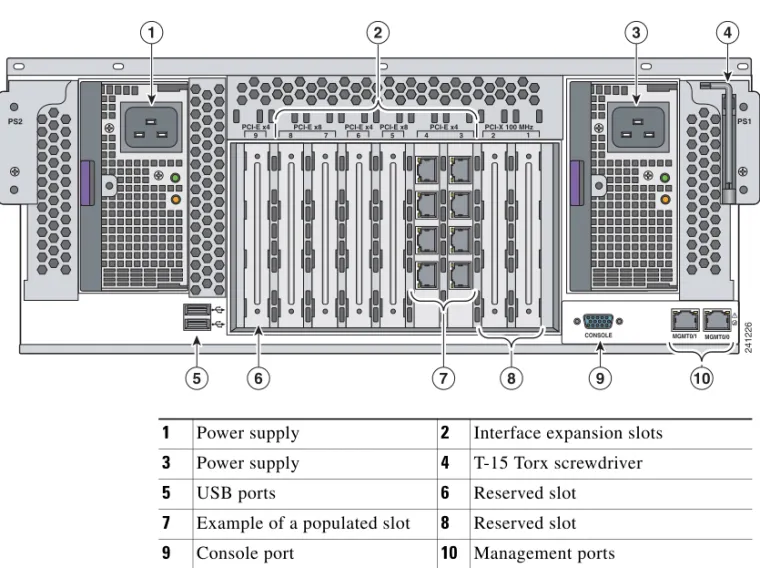
The ASA 5580 has two built-in Gigabit Ethernet network ports and nine expansion slots. The network ports are numbered 0 through 4 from the top to the bottom. The expansion slot numbers increase from right to left.
The two built-in Gigabit Ethernet ports are used for management and are called Management0/0 and Management0/1.
The ASA 5580 has nine interface expansion slots. Slots 1, 2, and 9 are reserved. Slot 1 is populated by the crypto accelerator and is not available for use by network interface cards. Slot 2 is reserved to future use.
The appliance has two I/O bridges and the I/O slots connect to one of the two buses. The management ports and adapters in slot 3, slot 4, slot 5, and slot 6 are on I/O bridge 1 and slot 7 and slot 8 are on I/O bridge 2.
Figure 2-1 shows the embedded ports and slots on the ASA 5580.
Figure 2-1 Embedded Ports and Slots on the ASA 5580
1 Power supply 2 Interface expansion slots
3 Power supply 4 T-15 Torx screwdriver
5 USB ports 6 Reserved slot
7 Example of a populated slot 8 Reserved slot 1 2 3 4 5 6 7 8 9
PCI-E x4 PCI-E x8 PCI-E x4 PCI-E x8 PCI-E x4 PCI-X 100 MHz
PS2 PS1
UID CONSOLE MGMT0/1 MGMT0/0
241226
1 2 3 4
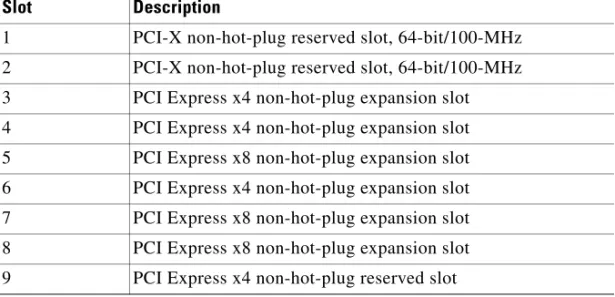
Slots 5, 7, and 8 utilize a high-capacity bus (PCIe x8) and slot 3, slot 4, and slot 6 utilize a PCIe x4 bus for slots.
Figure 2-2 shows the interface expansion slots available on the ASA 5580.
Slot Description
1 PCI-X non-hot-plug reserved slot, 64-bit/100-MHz 2 PCI-X non-hot-plug reserved slot, 64-bit/100-MHz 3 PCI Express x4 non-hot-plug expansion slot 4 PCI Express x4 non-hot-plug expansion slot 5 PCI Express x8 non-hot-plug expansion slot 6 PCI Express x4 non-hot-plug expansion slot 7 PCI Express x8 non-hot-plug expansion slot 8 PCI Express x8 non-hot-plug expansion slot 9 PCI Express x4 non-hot-plug reserved slot
Figure 2-2 Interface Expansion Slots 241974 1 3 5 7 6 4 2
Supported PCI Cards
The ASA 5580 supports the following PCI cards: • 4-Port Gigabit Ethernet Copper PCI card
Provides four 10/100/1000BASE-T interfaces, which allow up to 24 total Gigabit Ethernet interfaces. Figure 2-3 shows the Gigabit Ethernet interface card.
Figure 2-3 4-Port Gigabit Ethernet Copper PCI Card
• 2-Port 10-Gigabit Ethernet Fiber PCI card
Provides two 10000BASE-SX (fiber) interfaces (allowing up to 12 total 10-Gigabit Ethernet fiber interfaces in a fully populated chassis). The card ports require a multi-mode fiber cable with an LC connector to connect to the SX interface of the sensor. Figure 2-4 shows the 2-Port 10-Gigabit Ethernet Fiber PCI card.
Figure 2-4 2-Port 10-Gigabit Ethernet Fiber PCI Card
• 4-Port Gigabit Ethernet Fiber PCI card
Provides four 10000BASE-SX (fiber) interfaces (allowing up to 24 total Gigabit Ethernet fiber interfaces in a fully populated chassis).
The card ports require a multi-mode fiber cable with an LC connector to connect to the SX interface of the sensor.
Optimizing Performance
To maximize traffic throughput, ensure that the traffic flow and the hardware configuration of the adaptive security appliance matches the following guidelines: • Ideal performance is achieved when traffic enters and exits ports on the same
adapter or ports on adapters serviced by the same I/O bridge.
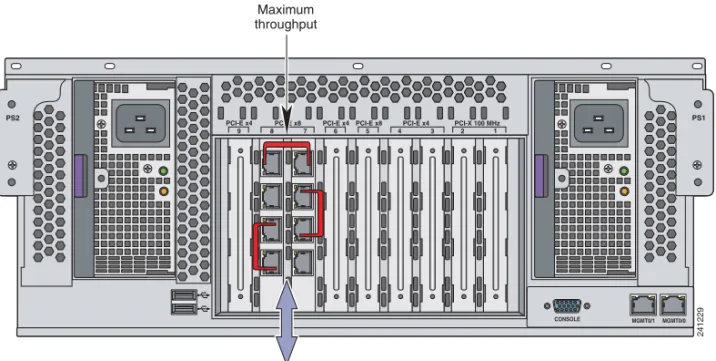
The ASA 5580 has two I/O bridges and the I/O slots connect to one of the two I/O bridges. The adapters in slot 3, slot 4, slot 5, and slot 6 are on one I/O bridge and slot 7 and slot 8 are on the other I/O bridge.
The optimal performance will be achieved if traffic does not traverse both I/O bridges. Specifically, the traffic should flow between ports on adapters on the same bus.
• If using 10-Gigabit Ethernet adapters, which require optimal performance from the adapters, place the adapters in a slot on the high-capacity I/O bridge (PCIe X8)—slot 5, slot 7, and slot 8.
Note A 10-Gigabit Ethernet adapter and port can deliver 10-Gigabit Ethernet full-duplex on one port given the right traffic profile. The bus bandwidth limits the 10-Gigabit Ethernet two-port performance on the same adapter to under 16 Gbps full-duplex.
• Four-port adapters can be placed in any slot, but the bus might be a bottleneck if each port has 1 Gigabit full duplex worth of traffic. The bus bandwidth on the normal speed bus limits the aggregate bandwidth on one adapter to under 8 Gbps.
Note You can use the show io-bridge command to see the traffic throughput over each bus. For more information about using the command, see the Cisco Security Appliance Command Reference. • The management ports are capable of passing through traffic by removing the
management-only command. However, the management only ports have not
been optimized to pass data traffic and will not perform as well as the ports on the adapters.
Figure 2-5 shows an example of traffic configured to traverse ports on slot 7 and slot 8 on the high-capacity I/O bridge (PCIe x8).
Figure 2-5 Example of Traffic Flow for Optimum Performance
What to Do Next
Continue with Chapter 3, “Installing the ASA 5580.”
1 1 2 3 4 5 6 7 8 9
PCI-E x4 PCI-E x8 PCI-E x4PCI-E x8 PCI-E x4 PCI-X 100 MHz
PS2 PS1 UID CONSOLE MGMT0/1 MGMT0/0 Incoming and outgoing traffic Maximum throughput 241229
C H A P T E R
3
Installing the ASA 5580
Caution Read the safety warnings in the Regulatory Compliance and Safety Information
for the Cisco ASA 5580 Adaptive Security Appliance and follow proper safety
procedures when performing these steps.
Warning Only trained and qualified personnel should install, replace, or service this
equipment. Statement 49
This chapter describes the adaptive security appliance and rack-mount and installation procedures for the adaptive security appliance. This chapter includes the following sections:
• Verifying the Package Contents, page 3-1 • Installing the Chassis, page 3-3
• Ports and LEDs, page 3-13
• Connecting Interface Cables, page 3-20 • What to Do Next, page 3-24
Verifying the Package Contents
Verify the contents of the packing box, shown in Figure 3-1, to ensure that you have received all items necessary to install the ASA 5580.
Figure 3-1 Contents of ASA 5580 Package
In addition to the contents shown in Figure 3-1, the contents of ASA 5580 package include the rail system kit. The rail system kit contains the following items:
• Two slide assemblies • Two chassis rails • Four Velcro straps • Six zip ties
Yellow Ethernet cable Cisco ASA 5580 adaptive
security appliance
Blue console cable PC terminal adapter
1
234567 8
Cisco ASA 5580 SERIES Adaptive Security A ppliance UID SYSTEMPWR ST ATUS MG MT 0MGMT 1 2412 3 2 RJ-45 to DB-9 adapter Safety and Compliance Guide Cisco ASA 5580 Ad aptiv e Sec urity Appli ance Prod uct CD
Installing the Chassis
This section describes how to rack-mount and install the adaptive security appliance.
Warning To prevent bodily injury when mounting or servicing this unit in a rack, you must take special precautions to ensure that the system remains stable. The following guidelines are provided to ensure your safety.
The following information can help plan equipment rack installation: • Allow clearance around the rack for maintenance.
• When mounting a device in an enclosed rack ensure adequate ventilation. An enclosed rack should never be overcrowded.Make sure that the rack is not congested, because each unit generates heat.
• When mounting a device in an open rack, make sure that the rack frame does not block the intake or exhaust ports.
• If the rack contains only one unit, mount the unit at the bottom of the rack. • If the rack is partially filled, load the rack from the bottom to the top, with the
heaviest component at the bottom of the rack.
• If the rack contains stabilizing devices, install the stabilizers prior to mounting or servicing the unit in the rack.
Warning Before performing any of the following procedures, ensure that the power source is off. (AC or DC). To ensure that power is removed from the DC circuit, locate the circuit breaker on the panel board that services the DC circuit, switch the circuit breaker to the OFF position, and tape the switch handle of the circuit breaker in the OFF position.
Rack-Mounting the Chassis
Warning To prevent bodily injury when mounting or servicing this unit in a rack, you must take special precautions to ensure that the system remains stable. The following guidelines are provided to ensure your safety:
This unit should be mounted at the bottom of the rack if it is the only unit in the rack.
When mounting this unit in a partially filled rack, load the rack from the bottom to the top with the heaviest component at the bottom of the rack.
If the rack is provided with stabilizing devices, install the stabilizers before mounting or servicing the unit in the rack. Statement 1006
This procedure requires two or more people to position the adaptive security appliance on the slide assemblies before pushing it in to the rack.
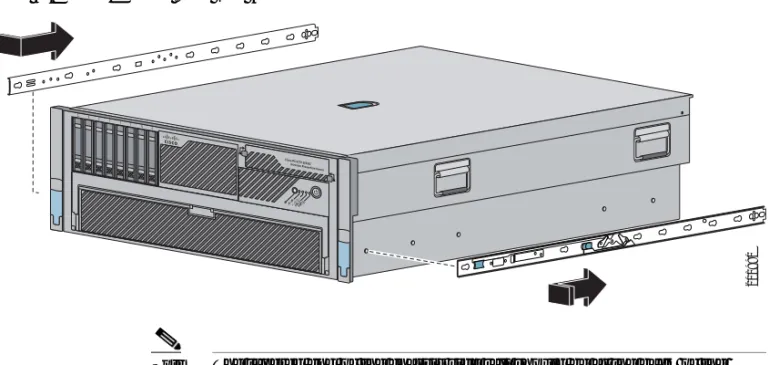
To install the adaptive security appliance in the rack, perform the following steps: Step 1 Attach the chassis side rail to the adaptive security appliance by aligning the
chassis rail to the stud on the adaptive security appliance, pressing the chassis side rail in to the stud, and then sliding the chassis side rail backwards until you hear the latch catch, as shown in Figure 3-2.
Figure 3-2 Chassis Side Rail Attachment
1
2 3
4 5
6 7
8
Cisco IPS 4270 SERIES Intrusion P revention Sensor UIDSYSTEM PWR STATUS MG MT 0 MG MT 1 201990
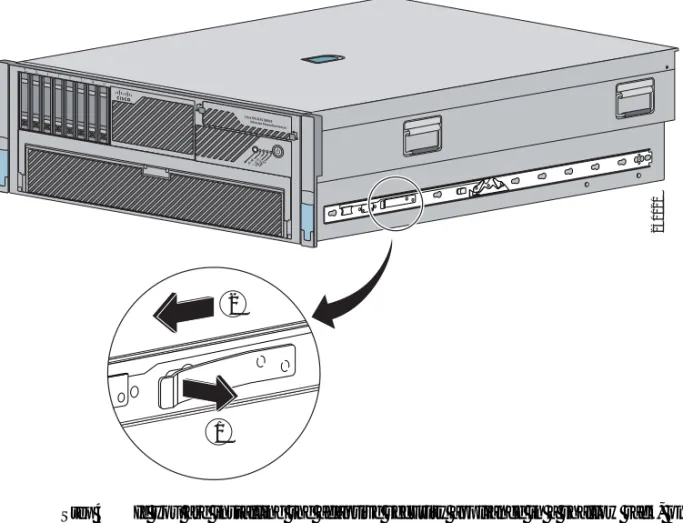
Step 3 To remove the chassis side rail, lift the latch, and slide the rail forward, as shown in Figure 3-3.
Figure 3-3 Removal from the Chassis Side Rail
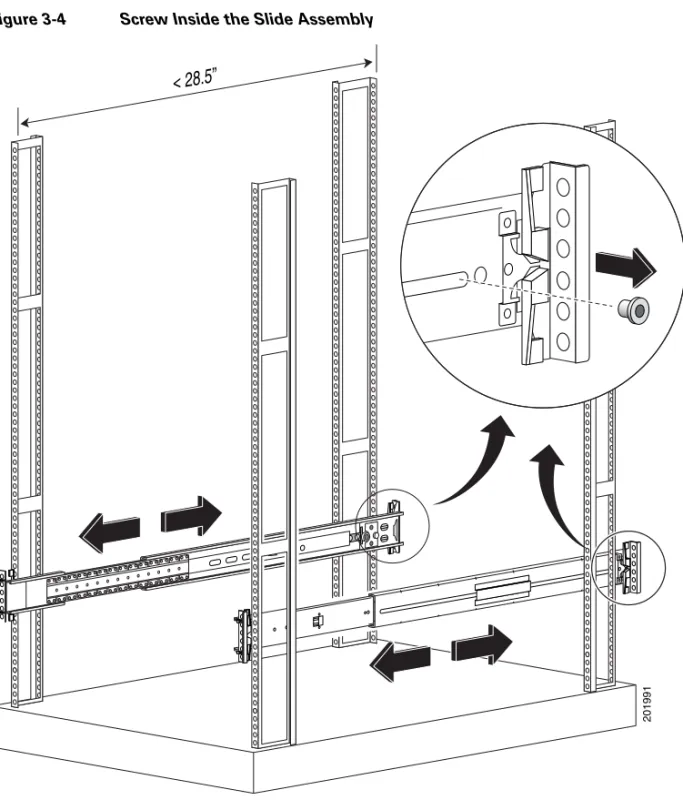
Step 4 If you are installing the adaptive security appliance in a shallow rack, one that is less than 28.5 in. (72.39 cm), remove the screw from the inside of the slide assembly before continuing with Step 5, as shown in Figure 3-4.
1 2 3 4 5 6 7 8
Cisco IPS 4270 SERIES Intrusion Prevention Sensor
UIDSYSTEM PWR STATUS MGMT 0MGMT 1 1 2 250120
Figure 3-4 Screw Inside the Slide Assembly
• For round- and square-hole racks:
a. Line up the studs on the slide assembly with the holes on the inside of the rack and snap into place.
b. Adjust the slide assembly lengthwise to fit the rack. The spring latch locks the slide assembly into position.
Figure 3-5 Slide Assembly Attachment
1
1 2
3
c. Repeat for each slide assembly.
Make sure the slide assemblies line up with each other in the rack.
d. Lift the spring latch to release the slide assembly if you need to reposition it. • For threaded-hole racks:
a. Remove the eight round- or square-hole studs on each slide assembly using a standard screwdriver, as shown in Figure 3-6.
Figure 3-6 Attachment in Threaded Hole Racks
b. Line up the bracket on the slide assembly with the rack holes, install two screws (top and bottom) on each end of the slide assembly, as shown in
Figure 3-7. 1 2 3 201993 2 3
Figure 3-7 Lining up the Bracket
1
Figure 3-8 Slide Assemblies Extended
Step 7 Align the chassis side rails on the adaptive security appliance with the slide assembly on both sides of the rack, release the blue slide tab (by either pulling the tab forward or pushing the tab back), and carefully push the adaptive security appliance in to place, as shown in Figure 3-9.
Warning When installing a adaptive security appliance in an empty rack, you must support the adaptive security appliance from the front until the blue slide tabs are activated and the adaptive security appliance is pushed completely in to the rack, or the rack can tip.
Figure 3-9 Alignment of the Chassis Side Rails
12345678
Cisco IPS 4270 SERIES Intrusion Prevention Sensor
UID SYSTEMPWR STATUS
MGMT 0MGMT 1
Caution Keep the adaptive security appliance parallel to the floor as you slide it into the rails. Tilting the adaptive security appliance up or down can damage the slide rails.
Ports and LEDs
This section describes the front and rear panels. This section includes the following topics:
• Front Panel LEDs, page 3-13
• Rear Panel LEDs and Ports, page 3-16
Front Panel LEDs
Figure 3-10 Front View
Table 3-1 describes the front panel switches and indicators on the ASA 5580.
1 2 3 4 5 6 7 8
241233
Cisco IPS 4270 SERIES Intrusion Prevention Sensor
UIDSYSTEM PWR STATU S MGM T 0 MGMT 1 1 2 4 3 5 6
1 Active LED 2 System LED
3 Power Status LED 4 Management 0/0 LED
Table 3-1 Front Panel Switches and Indicators
Indicator Description
Active Toggles between Active and Standby Failover status of the chassis:
• On—Failover active • Off—Standby Status System indicator Indicates internal system health:
• Green—System on
• Flashing amber—System health degraded • Flashing red—System health critical • Off—System off
Power status indicator
Indicates the power supply status: • Green—Power supply on
• Flashing amber—Power supply health degraded • Flashing red—Power supply health critical • Off—Power supply off
MGMT0/0 indicator Indicates the status of the management port: • Green—Linked to network
• Flashing green—Linked with activity on the network
For more information on the Management Port, see the management-only
commandin the Cisco Security Appliance Command Reference.
Rear Panel LEDs and Ports
Figure 3-11 shows the rear panel LEDs and ports.
MGMT0/1 indicator Indicates the status of the management port: • Green—Linked to network
• Flashing green—Linked with activity on the network
• Off—No network connection Power switch and
indicator
Turns power on and off:
• Amber—System has AC power and is in standby mode
• Green—System has AC power and is turned on • Off—System has no AC power
Table 3-1 Front Panel Switches and Indicators (continued)
Figure 3-11 Back Panel Features
1 Power supply 2 Interface expansion slots
3 Power supply 4 T-15 Torx screwdriver
5 USB ports 6 Reserved slot
7 Example of a populated slot 8 Reserved slot
9 Console port 10 Management ports 1 2 3 4 5 6 7 8 9
PCI-E x4 PCI-E x8 PCI-E x4PCI-E x8 PCI-E x4 PCI-X 100 MHz
PS2 PS1
UID CONSOLE MGMT0/1 MGMT0/0
241226
1 2 3 4
Figure 3-12 shows the activity indicators on the Ethernet ports, which has two indicators per port and the power supply indicators.
Figure 3-12 Rear Panel LEDs
Table 3-2 describes the Ethernet port indicators. The behavior of the port indicators varies based on the type of port—management port, port in a Gigabit Ethernet interface card, port in a 10-Gigabit Ethernet Fiber interface card, or a port in a Gigabit Ethernet Fiber interface card.
1 Power indicator 2 Link indicator
3 Activity indicator 1 2 3 4 5 6 7 8 9
PCI-E x4 PCI-E x8 PCI-E x4 PCI-E x8 PCI-E x4 PCI-X 100 MHz
PS2 PS1 UID MGMT0/1 MGMT0/0 241230 CONSOLE 1 2 3
Table 3-3 describes the power supply indicators.
Table 3-2 Ethernet Port Indicators
Indicator Description
Gigabit Ethernet Green (top): link to network
Flashing Green (top): linked with activity on the network
Amber (bottom): Speed 1000 Green (bottom): Speed 100 Off (bottom): Speed 10 10-Gigabit Ethernet
Fiber (one LED)
Green: link to network
Flashing green: linked with activity on the network Gigabit Ethernet Fiber
(one LED)
Green: link to network
Flashing green: linked with activity on the network Management port Green (right): link to network
Flashing green (left): linked with activity on the network
Note The indicator on the management ports show a green LED regardless of the negotiated speed (10/100/1000); however, the Gigabit Ethernet interface cards show an amber LED when a 1000 Mbps link is negotiated.
Table 3-3 Power Supply Indicators
Fail Indicator 1 Amber
Power Indicator 2 Green
Description
Off Off No AC power to any power supply Flashing Off Power supply failure (over current) On Off No AC power to this power supply
Connecting Interface Cables
This section describes how to connect the appropriate cables to the Console, Management, copper Ethernet, and fiber Ethernet ports.
To connect cables to the network interfaces, perform the following steps:
Step 1 Place the chassis on a flat, stable surface, or in a rack (if you are rack-mounting it). Step 2 Connect to the Management port.
The adaptive security appliance has a dedicated interface for device management that is referred to as the Management0/0 port. The management ports
(Management0/0 port and Management 0/1) are Fast Ethernet interfaces. The management ports are similar to the Console port, but they only accept traffic that is destined to-the-box (versus traffic that is through-the-box). Management0/0 (MGMT0/0) is the command and control port.
Note You can configure any interface to be a management-only interface using
the management-only command. You can also disable management-only
configuration mode on the management interface. For more information Off Flashing • AC power present
• Standby mode
Off On Normal
Table 3-3 Power Supply Indicators (continued)
Fail Indicator 1 Amber
Power Indicator 2 Green
Figure 3-13 Connecting to the Management Port
Caution Management and console ports are privileged administrative ports. Connecting them to an untrusted network can create security concerns.
Step 3 Connect to the Console port. Use the Console port to connect to a computer to enter configuration commands.
a. Before connecting a computer or terminal to any ports, check to determine the baud rate of the serial port. The baud rate of the computer or terminal must match the default baud rate (9600 baud) of the Console port of the adaptive security appliance.
Set up the terminal as follows: 9600 baud (default), 8 data bits, no parity, 1 stop bits, and Flow Control (FC) = Hardware.
b. Connect the RJ-45 to a DB-9 adapter connector to the Console port and connect the other end to the DB-9 connector on your computer, as shown in
Figure 3-14. 1 1 2 3 4 5 6 7 8 9
PCI-E x4 PCI-E x8 PCI-E x4PCI-E x8 PCI-E x4 PCI-X 100 MHz
PS2 PS1 UID CONSOLE MGMT0/0 241231 Reserved Reserved Interface expansion slots
RJ-45 to RJ-45 Ethernet cable
Note You can use a 180/rollover or straight-through patch cable to connect the appliance to a port on a terminal server with RJ-45 or hydra cable assembly connections. Connect the appropriate cable from the Console port on the appliance to a port on the terminal server.
Figure 3-14 Connection of the RJ-45 to a DB-9 Adapter
2500 8 4 1 PS1 Reserved for Future Use CONSOLE MGMT 0/0 RJ-45 to DB-9 serial cable (null-modem) Console port (DB-9) RJ-45 to DB-9 adapter
By default, the ASA 5580 ships with slot 3 through slot 8 available. You can purchase bundles for the I/O adapter options.SeeOptimizing Performance in
Chapter 2, “Maximizing Throughput on the ASA 5580”.
a. Connect one end of an Ethernet cable to an Ethernet port in slots 3 through 8, as shown in Figure 3-15.
Figure 3-15 Copper Ethernet or a Fiber Ethernet Interface
b. Connect the other end of the Ethernet cables to a network device, such as a router or switch.
Step 5 Install the electrical cables at the back of the adaptive security appliance. Attach the power cables and plug them in to a power source (we recommend a UPS), as shown in Figure 3-16. 1 1 2 3 4 5 6 7 8 9
PCI-E x4 PCI-E x8 PCI-E x4 PCI-E x8 PCI-E x4 PCI-X 100 MHz
PS2 PS1
UID CONSOLE MGMT0/0
241234
Reserved Reserved Interface
expansion slots
MGMT0/1
Multi-mode fiber cable with LC connector
RJ-45 to RJ-45 Ethernet cable
Figure 3-16 Electrical Cable Installation
Step 6 Power on the chassis.
1 1 2 3 4 5 6 7 8 9
PCI-E x4 PCI-E x8 PCI-E x4PCI-E x8PCI-E x4 PCI-X 100 MHz
PS2 PS1 UID Reserved for Future Use CONSOLE MGMT 0/0
REAR
201997 1 2 3 4 PCI-E x4 PCI-X 100 MHz Reserved for Future Use CONSOLE MGMT 0/0 PS1C H A P T E R
4
Configuring the Adaptive Security
Appliance
This chapter describes the initial configuration of the adaptive security appliance. You can perform the configuration steps using either the browser-based Cisco Adaptive Security Device Manager (ASDM) or the command-line interface (CLI). The procedures in this chapter describe how to configure the adaptive security appliance using ASDM.
This chapter includes the following sections:
• About the Factory Default Configuration, page 4-1 • Using the CLI for Configuration, page 4-2
• Using the Adaptive Security Device Manager for Configuration, page 4-2 • Running the ASDM Startup Wizard, page 4-8
• What to Do Next, page 4-9
About the Factory Default Configuration
Cisco adaptive security appliances are shipped with a factory-default configuration that enables quick startup. The default factory configuration for the ASA 5580 adaptive security appliance configures the following:
• The management interface, Management 0/0. If you did not set the IP address in the configure factory-default command, then the IP address and mask are 192.168.1.1 and 255.255.255.0.
• The DHCP server is enabled on the adaptive security appliance, so a PC connecting to the interface receives an address between 192.168.1.2 and 192.168.1.254.
• The HTTP server is enabled for ASDM and is accessible to users on the 192.168.1.0 network.
The configuration consists of the following commands:
interface management 0/0
ip address 192.168.1.1 255.255.255.0 nameif management
security-level 100 no shutdown
asdm logging informational 100 asdm history enable
http server enable http 192.168.1.0 255.255.255.0 management dhcpd address 192.168.1.2-192.168.1.254 management dhcpd lease 3600 dhcpd ping_timeout 750 dhcpd enable management
Using the CLI for Configuration
In addition to the ASDM web configuration tool, you can configure the adaptive security appliance by using the command-line interface.
For step-by-step configuration procedures for all functional areas of the adaptive security appliance, see the Cisco Security Appliance Command Line
Configuration Guide.
In addition to complete configuration and management capability, ASDM features intelligent wizards to simplify and accelerate the deployment of the adaptive security appliance.
This section includes the following topics: • Preparing to Use ASDM, page 4-3
• Gathering Configuration Information for Initial Setup, page 4-4 • Installing the ASDM Launcher, page 4-5
• Starting ASDM with a Web Browser, page 4-7
Preparing to Use ASDM
Before you can use ASDM, perform the following steps:
Step 1 If you have not already done so, connect the Management 0/0 interface to a switch or hub by using the Ethernet cable. To this same switch, connect a PC for configuring the adaptive security appliance.
Step 2 Configure your PC to use DHCP (to receive an IP address automatically from the adaptive security appliance), which enables the PC to communicate with the adaptive security appliance and the Internet as well as to run ASDM for configuration and management tasks.
Alternatively, you can assign a static IP address to your PC by selecting an address in the 192.168.1.0 subnet. (Valid addresses are 192.168.1.2 through
192.168.1.254, with a mask of 255.255.255.0 and default route of 192.168.1.1.) When you connect other devices to any of the inside ports, make sure that they do not have the same IP address.
Note The Management 0/0 interface of the adaptive security appliance is assigned 192.168.1.1 by default, so this address is unavailable. Step 3 Check the LINK LED on the Management 0/0 interface.
When a connection is established, the LINK LED interface on the adaptive security appliance and the corresponding LINK LED on the switch or hub turn solid green.
Gathering Configuration Information for Initial Setup
Gather the following information to be used with the ASDM Startup Wizard: • A unique hostname to identify the adaptive security appliance on your
network.
• The domain name.
• Static routes to be configured.
• If you want to create a DMZ, you must create a third VLAN and assign ports to that VLAN. (By default, there are two VLANs configured.)
• Interface configuration information: whether traffic is permitted between interfaces at the same security level, and whether traffic is permitted between hosts on the same interface.
• If you are configuring an Easy VPN hardware client, the IP addresses of primary and secondary Easy VPN servers; whether the client is to run in client or network extension mode; and user and group login credentials to match those configured on the primary and secondary Easy VPN servers.
Installing the ASDM Launcher
You can launch ASDM in either of two ways: by downloading the ASDM Launcher software so that ASDM runs locally on your PC, or by enabling Java and JavaScript in your web browser and accessing ASDM remotely from your PC. This procedure describes how to set up your system to run ASDM locally. To install the ASDM Launcher, perform the following steps:
Step 1 On the PC connected to the switch or hub, launch an Internet browser.
a. In the address field of the browser, enter this URL: https://192.168.1.1/admin
Note The adaptive security appliancee ships with a default IP address of 192.168.1.1. Remember to add the “s” in “https” or the connection fails. HTTPS (HTTP over SSL) provides a secure connection between your browser and the adaptive security appliance.
The Cisco ASDM splash screen appears.
b. Click Install ASDM Launcher and Run ASDM.
c. In the dialog box that requires a username and password, leave both fields empty. Click OK.
d. Click Yes to accept the certificates. Click Yes for all subsequent authentication and certificate dialog boxes.
e. When the File Download dialog box opens, click Open to run the installation program directly. It is not necessary to save the installation software to your hard drive.
f. When the InstallShield Wizard appears, follow the instructions to install the ASDM Launcher software.
Step 2 From your desktop, start the Cisco ASDM Launcher software. A dialog box appears.
Step 3 Enter the IP address or the hostname of your adaptive security appliance.
Step 4 Leave the Username and Password fields blank.
The main ASDM window appears.
Starting ASDM with a Web Browser
To run ASDM in a web browser, enter the factory default IP address in the address field: https://192.168.1.1/admin/.
Note Remember to add the “s” in “https” or the connection fails. HTTPS (HTTP over SSL) provides a secure connection between your browser and the adaptive security appliance.
The Main ASDM window appears.
Running the ASDM Startup Wizard
ASDM includes a Startup Wizard to simplify the initial configuration of your adaptive security appliance. With a few steps, the Startup Wizard enables you to configure the adaptive security appliance so that it allows packets to flow securely between the inside network and the outside network.
To use the Startup Wizard to set up a basic configuration for the adaptive security appliance, perform the following steps:
Step 1 From the Wizards menu at the top of the ASDM window, choose Startup Wizard. Step 2 Follow the instructions in the Startup Wizard to set up your adaptive security
appliance.
For information about any field in the Startup Wizard, click Help at the bottom of the window.
Note If you get an error requesting a DES license or a 3DES-AES license, see
Appendix A, “Obtaining a 3DES/AES License”for information.
Note Based on your network security policy, you should also consider configuring the adaptive security appliance to deny all ICMP traffic through the outside interface or any other interface that is necessary. You can configure this access control policy using ASDM. From the ASDM main page, click Configuration >
What to Do Next
Configure the adaptive security appliance for your deployment using one or more of the following chapters:
To Do This... See...
Configure the adaptive security appliance for SSL VPN connections using software clients
Chapter 5, “Scenario: Configuring Connections for a Cisco AnyConnect VPN Client”
Configure the adaptive security appliance for SSL VPN connections using a web browser
Chapter 6, “Scenario: SSL VPN Clientless Connections”
Configure the adaptive security appliance for site-to-site VPN
Chapter 7, “Scenario: Site-to-Site VPN Configuration”
Configure the adaptive security appliance for remote-access VPN
Chapter 8, “Scenario: IPsec Remote-Access VPN Configuration”
C H A P T E R
5
Scenario: Configuring Connections for
a Cisco AnyConnect VPN Client
This chapter describes how to configure the adaptive security appliance so that remote users can establish SSL connections using a Cisco AnyConnect VPN Client.
This chapter includes the following sections: • About SSL VPN Client Connections, page 5-1
• Obtaining the Cisco AnyConnect VPN Client Software, page 5-2 • Example Topology Using AnyConnect SSL VPN Clients, page 5-3 • Implementing the Cisco SSL VPN Scenario, page 5-3
• What to Do Next, page 5-14
About SSL VPN Client Connections
With an SSL VPN client setup, remote users do not need to install a software client before attempting to establish a connection. Instead, remote users enter the IP address or DNS name of a Cisco SSL VPN interface in their browser. The browser connects to that interface and displays the SSL VPN login screen. If the user successfully authenticates and the adaptive security appliance identifies the user as requiring the client, it pushes the client that matches the operating system of the remote computer.
Note Administrative rights are required the first time the Cisco AnyConnect VPN Client is installed or downloaded.
After downloading, the client installs and configures itself and then establishes a secure SSL connection. When the connection terminates, the client software either remains or uninstalls itself, depending on how you configure the adaptive security appliance.
If a remote user has previously established an SSL VPN connection and the client software is not instructed to uninstall itself, when the user authenticates, the adaptive security appliance examines the client version and upgrades if it necessary.
Obtaining the Cisco AnyConnect VPN Client
Software
The adaptive security appliance obtains the AnyConnect VPN Client software from the Cisco website. This chapter provides instructions for configuring the SSL VPN using a configuration Wizard. You can download the Cisco SSL VPN software during the configuration process.
Users can download the AnyConnect VPN Client from the adaptive security appliance, or it can be installed manually on the remote PC by the system administrator. For more information about installing the client software manually, see the Cisco AnyConnect VPN Client Administrator Guide.
The adaptive security appliance pushes the client software based on the group policy or username attributes of the user establishing the connection. You can configure the adaptive security appliance to automatically push the client each
Example Topology Using AnyConnect SSL VPN
Clients
Figure 5-1 shows an adaptive security appliance configured to accept requests for and establish SSL connections from clients running the AnyConnect SSL VPN software. The adaptive security appliance can support connections to both clients running the AnyConnect VPN software and browser-based clients.
Figure 5-1 Network Layout for SSL VPN Scenario
Implementing the Cisco SSL VPN Scenario
This section describes how to configure the adaptive security appliance to accept Cisco AnyConnect SSL VPN connections. Values for example configuration settings are taken from the SSL VPN scenario illustrated in Figure 5-1. This section includes the following topics:
• Information to Have Available, page 5-4 • Starting ASDM, page 5-5
132209 Inside 10.10.10.0 VPN client (user 1) Hardware client (user 3) Outside Security Appliance DNSServer 10.10.10.163 WINSServer 10.10.10.133 VPN client (user 2) Internet Internal network AnyConnect Client Browser-based client AnyConnect Client
• Configuring the ASA 5580 for the Cisco AnyConnect VPN Client, page 5-6 • Specifying the SSL VPN Interface, page 5-7
• Specifying a User Authentication Method, page 5-8 • Specifying a Group Policy, page 5-10
• Configuring the Cisco AnyConnect VPN Client, page 5-11 • Verifying the Remote-Access VPN Configuration, page 5-13
Information to Have Available
Before you begin configuring the adaptive security appliance to accept AnyConnect SSL VPN connections, make sure that you have the following information available:
• Name of the interface on the adaptive security appliance to which remote users will connect.
• Digital certificate
The ASA 5580 generates a self-signed certificate by default. However, for enhanced security you may want to purchase a publicly trusted SSL VPN certificate before putting the system in a production environment.
• Range of IP addresses to be used in an IP pool. These addresses are assigned to SSL AnyConnect VPN clients as they are successfully connected. • List of users to be used in creating a local authentication database, unless you
are using a AAA server for authentication. • If you are using a AAA server for authentication:
– AAA Server group name
Starting ASDM
This section describes how to start ASDM using the ASDM Launcher software. If you have not installed the ASDM Launcher software, see Installing the ASDM Launcher, page 4-5.
If you prefer to access ASDM directly with a web browser or using Java, see
Starting ASDM with a Web Browser, page 4-7.
To start ASDM using the ASDM Launcher software, perform the following steps: Step 1 From your desktop, start the Cisco ASDM Launcher software.
A dialog box appears.
Step 2 Enter the IP address or the hostname of your adaptive security appliance.
Step 3 Leave the Username and Password fields blank.
Note By default, there is no Username and Password set for the Cisco ASDM Launcher.
Step 4 Click OK.
Step 5 If you receive a security warning containing a request to accept a certificate, click
The ASA 5580 checks to see if there is updated software and if so, downloads it automatically.
The main ASDM window appears.
Step 2 In Step 1 of the SSL VPN Wizard, perform the following steps: a. Check the Cisco SSL VPN Client check box.
b. Click Next to continue.
Specifying the SSL VPN Interface
In Step 2 of the SSL VPN Wizard, perform the following steps: Step 1 Specify a Connection Name to which remote users connect.
Step 2 From the SSL VPN Interface drop-down list, choose the interface to which remote users connect. When users establish a connection to this interface, the SSL VPN portal page is displayed.
Step 3 From the Certificate drop-down list, choose the certificate the ASA 5580 sends to the remote user to authenticate the ASA 5580.
Step 4 Click Next to continue.
b. Specify a AAA Server Group Name.
c. You can either choose an existing AAA server group name from the drop down list, or you can create a new server group by clicking New.
To create a new AAA Server Group, click New. The New Authentication Server Group dialog box appears.
In this dialog box, specify the following:
– A server group name
– The Authentication Protocol to be used (RADIUS, TACACS, SDI, NT, Kerberos, LDAP)
– IP address of the AAA server
– Interface of the adaptive security appliance
– Secret key to be used when communicating with the AAA server Click OK.
Step 2 If you have chosen to authenticate users with the local user database, you can create new user accounts here. You can also add users later using the ASDM configuration interface.
To add a new user, enter a username and password, and then click Add. Step 3 When you have finished adding new users, click Next to continue.
Specifying a Group Policy
In Step 4 of the SSL VPN Wizard, specify a group policy by performing the following steps:
Step 1 Click the Create new group policy radio button and specify a group name. OR
Step 2 Click the Modify an existing group policy radio button and choose a group from the drop-down list.
Step 3 Click Next.
Step 4 Step 5 of the SSL VPN Wizard appears. This step does not apply to AnyConnect VPN client connections, so click Next again.
Configuring the Cisco AnyConnect VPN Client
For remote clients to gain access to your network with a Cisco AnyConnect VPN Client, you must configure a pool of IP addresses that can be assigned to remote VPN clients as they are successfully connected. In this scenario, the pool is configured to use the range of IP addresses 209.165.201.1–209.166.201.20. You must also specify the location of the AnyConnect software so that the adaptive security appliance can push it to users.
Step 1 To use a preconfigured address pool, choose the name of the pool from the IP Address Pool drop-down list.
Step 2 Alternatively, click New to create a new address pool.
Step 3 Specify the location of the AnyConnect VPN Client software image. To obtain the most current version of the software, click Download Latest AnyConnect VPN Client from cisco.com. This downloads the client software to your PC.
Verifying the Remote-Access VPN Configuration
In Step 7 of the SSL VPN Wizard, review the configuration settings to ensure that they are correct. The displayed configuration should be similar to the following:
If you are satisfied with the configuration, click Finish to apply the changes to the adaptive security appliance.
If you want the configuration changes to be saved to the startup configuration so that they are applied the next time the device starts, from the File menu, click
Save. Alternatively, ASDM prompts you to save the configuration changes permanently when you exit ASDM.
If you do not save the configuration changes, the old configuration takes effect the next time the device starts.
What to Do Next
If you are deploying the adaptive security appliance solely to support AnyConnect VPN connections, you have completed the initial configuration. In addition, you may want to consider performing some of the following steps:
You can configure the adaptive security appliance for more than one application. The following sections provide configuration procedures for other common applications of the adaptive security appliance:
To Do This... See...
Refine configuration and configure optional and advanced features
Cisco Security Appliance Command Line Configuration Guide
Learn about daily operations Cisco Security Appliance Command Reference
Cisco Security Appliance Logging Configuration and System Log Messages
To Do This... See...
Configure clientless (browser-based) SSL VPN
Chapter 6, “Scenario: SSL VPN Clientless Connections”
Configure a site-to-site VPN Chapter 7, “Scenario: Site-to-Site VPN Configuration”
Configure a remote-access IPSec VPN Chapter 8, “Scenario: IPsec
C H A P T E R
6
Scenario: SSL VPN Clientless
Connections
This chapter describes how to use the adaptive security appliance to accept remote access SSL VPN connections without a software client (clientless). A clientless SSL VPN allows you to create secure connections, or tunnels, across the Internet using a web browser. This provides secure access to off-site users without a software client or hardware client.
This chapter includes the following sections: • About Clientless SSL VPN, page 6-1
• Example Network with Browser-Based SSL VPN Access, page 6-3 • Implementing the Clientless SSL VPN Scenario, page 6-4
• What to Do Next, page 6-18
About Clientless SSL VPN
Clientless SSL VPN connections enable secure and easy access to a broad range of web resources and web-enabled applications from almost any computer on the Internet. They include the following:
• Internal websites
• Web-enabled applications
• NT/Active Directory and FTP file shares
• MS Outlook Web Access • MAPI
• Application Access (that is, port forwarding for access to other TCP-based applications) and Smart Tunnels
Clientless SSL VPN uses the Secure Sockets Layer Protocol (SSL) and its successor, Transport Layer Security (TLSI), to provide the secure connection between remote users and specific, supported internal resources that you configure at a central site. The adaptive security appliance recognizes connections that need to be proxied, and the HTTP server interacts with the authentication subsystem to authenticate users.
The network administrator provides access to resources by users of Clientless SSL VPN on a group basis.
Security Considerations for Clientless SSL VPN Connections
Clientless SSL VPN connections on the adaptive security appliance differ from remote access IPsec connections, particularly with respect to how they interact with SSL-enabled servers and the validation of certificates.
In a Clientless SSL VPN connection, the adaptive security appliance acts as a proxy between the end user web browser and target web servers. When a user connects to an SSL-enabled web server, the adaptive security appliance
establishes a secure connection and validates the server SSL certificate. The end user browser never receives the presented certificate, so therefore it cannot examine and validate the certificate.
The current implementation of Clientless SSL VPN on the adaptive security appliance does not permit communication with sites that present expired certificates. The adaptive security appliance does not perform trusted CA certificate validation. Therefore, users cannot analyze the certificate an
2. Limit Internet access for Clientless SSL VPN users, for example, by limiting which resources a user can access using a clientless SSL VPN connection. To do this, you could restrict the user from accessing general content on the Internet. Then, you could configure links to specific targets on the internal network that you want users of Clientless SSL VPN to be able to access. 3. Educate users. If an SSL-enabled site is not inside the private network, users
should not visit this site over a Clientless SSL VPN connection. They should open a separate browser window to visit such sites, and use that browser to view the presented certificate.
The adaptive security appliance does not support the following features for Clientless SSL VPN connections:
• NAT, reducing the need for globally unique IP addresses.
• PAT, permitting multiple outbound sessions appear to originate from a single IP address.
Example Network with Browser-Based SSL VPN
Access
Figure 6-1 shows the adaptive security appliance configured to accept SSL VPN connection requests over the Internet using a web browser.
Figure 6-1 Network Layout for SSL VPN Connections
Implementing the Clientless SSL VPN Scenario
This section describes how to configure the adaptive security appliance to accept SSL VPN requests from web browsers. Values for example configuration settings are taken from the remote-access scenario illustrated in Figure 6-1.
This section includes the following topics: • Information to Have Available, page 6-5 • Starting ASDM, page 6-5
• Configuring the ASA 5580 for Browser-Based SSL VPN Connections,
191 8 03 Inside 10.10.10.0 Outside Security Appliance DNSServer 10.10.10.163 WINSServer 10.10.10.133 Internet Internal network Clientless VPN access Cisco AnyConnect VPN Client Cisco AnyConnect VPN Client
Information to Have Available
Before you begin configuring the adaptive security appliance to accept remote access IPsec VPN connections, make sure that you have the following information available:
• Name of the interface on the adaptive security appliance to which remote users will connect. When remote users connect to this interface, the SSL VPN Portal Page is displayed.
• Digital certificate
The ASA 5580 generates a self-signed certificate by default. For improved security and to eliminate browser warning messages, you may want to purchase a publicly trusted SSL VPN certificate before putting the system in a production environment.
• List of users to be used in creating a local authentication database, unless you are using a AAA server for authentication.
• If you are using a AAA server for authentication, the AAA Server Group Name
• The following information about group policies on the AAA server:
– Server group name
– Authentication protocol to be used (TACACS, SDI, NT, Kerberos, LDAP)
– IP address of the AAA server
– Interface of the adaptive security appliance to be used for authentication
– Secret key to authenticate with the AAA server
• List of internal websites or pages you want to appear on the SSL VPN portal page when remote users establish a connection. Because this is the page users see when they first establish a connection, it should contain the most frequently used targets for remote users.
Starting ASDM
This section describes how to start ASDM using the ASDM Launcher software. If you have not installed the ASDM Launcher software, see Installing the ASDM Launcher, page 4-5.
If you prefer to access ASDM directly with a web browser or using Java, see
Starting ASDM with a Web Browser, page 4-7.
To start ASDM using the ASDM Launcher software, perform the following steps: Step 1 From your desktop, start the Cisco ASDM Launcher software.
A dialog box appears.
Step 2 Enter the IP address or the host name of your adaptive security appliance. Step 3 Leave the Username and Password fields blank.
Note By default, there is no Username and Password set for the Cisco ASDM Launcher.
Configuring the ASA 5580 for Browser-Based SSL VPN
Connections
To begin the process for configuring a browser-based SSL VPN, perform the following steps:
Step 1 In the main ASDM window, choose SSL VPN Wizard from the Wizards drop-down menu. The SSL VPN Wizard Step 1 screen appears.
Step 2 In Step 1 of the SSL VPN Wizard, perform the following steps: a. Check the Browser-based SSL VPN (Web VPN) check box. b. Click Next to continue.
Step 2 From the SSL VPN Interface drop-down list, choose the interface to which remote users connect. When users establish a connection to this interface, the SSL VPN portal page is displayed.
Step 3 From the Certificate drop-down list, choose the certificate the ASA 5580 sends to the remote user to authenticate the ASA 5580.
Note The ASA 5580 generates a self-signed certificate by default. For improved security and to eliminate browser warning messages, you may want to purchase a publicly trusted SSL VPN certificate before putting the system in a production environment.
Specifying a User Authentication Method
Users can be authenticated either by a local authentication database or by using external authentication, authorization, and accounting (AAA) servers (RADIUS, TACACS+, SDI, NT, Kerberos, and LDAP).
In Step 3 of the SSL VPN Wizard, perform the following steps:
Step 1 If you are using a AAA server or server group for authentication, perform the following steps:
– A server group name
– The Authentication Protocol to be used (TACACS, SDI, NT, Kerberos, LDAP)
– IP address of the AAA server
– Interface of the adaptive security appliance
– Secret key to be used when communicating with the AAA server Click OK.
Step 2 If you have chosen to authenticate users with the local user database, you can create new user accounts here. You can also add users later using the ASDM configuration interface.
To add a new user, enter a username and password, and then click Add. Step 3 When you have finished adding new users, click Next to continue.
Specifying a Group Policy
In Step 4 of the SSL VPN Wizard, specify a group policy by performing the following steps:
Step 1 Click the Create new group policy radio button and specify a group name. OR
Click the Modify an existing group policy radio button and choose a group from the drop-down list.
Step 2 Click Next.
Creating a Bookmark List for Remote Users
You can create a portal page, a special web page that comes up when browser-based clients establish VPN connections to the adaptive security
To add a new list or edit an existing list, click Manage. The Configure GUI Customization Objects dialog box appears.
Step 2 To create a new bookmark list, click Add.
To edit an existing bookmark list, choose the list and click Edit. The Add Bookmark List dialog box appears.
Step 3 In the URL List Name field, specify a name for the list of bookmarks you are creating. This is used as the title for your VPN portal page.
Step 4 Click Add to add a new URL to the bookmark list. The Add Bookmark Entry dialog box appears.
Step 5 Specify a title for the list in the Bookmark Title field.
Step 6 From the URL Value drop-down list, choose the type of URL you are specifying. For example, choose http, https, ftp, and so on.
Then, specify the complete URL for the page.
Step 8 If you are finished adding bookmark lists, click OK to return to the Configure GUI Customization Objects dialog box.
Step 9 When you are finished adding and editing bookmark lists, click OK to return to Step 5 of the SSL VPN Wizard.
Step 10 Choose the name of the bookmark list for this VPN group from the Bookmark List drop-down list.
Step 11 Click Next to continue.
Verifying the Configuration
In Step 6 of the SSL VPN Wizard, review the configuration settings to ensure that they are correct. The configuration that appears should be similar to the following:
If you are satisfied with the configuration, click Finish to apply the changes to the adaptive security appliance.
If you want the configuration changes to be saved to the startup configuration so that they are applied the next time the device starts, from the File menu, click
Save. Alternatively, ASDM prompts you to save the configuration changes permanently when you exit ASDM.
If you do not save the configuration changes, the old configuration takes effect the next time the device starts.
What to Do Next
If you are deploying the adaptive security appliance solely in a clientless SSL VPN environment, you have completed the initial configuration. In addition, you may want to consider performing some of the following steps:
You can configure the adaptive security appliance for more than one application. The following sections provide configuration procedures for other common applications of the adaptive security appliance:
To Do This... See...
Refine configuration and configure optional and advanced features
Cisco Security Appliance Command Line Configuration Guide
Learn about daily operations Cisco Security Appliance Command Reference
Cisco Security Appliance Logging Configuration and System Log Messages
To Do This... See...
Configure an AnyConnect VPN Chapter 5, “Scenario: Configuring Connections for a Cisco AnyConnect VPN Client”
Configure a site-to-site VPN Chapter 7, “Scenario: Site-to-Site VPN Configuration”
Configure a remote-access VPN Chapter 8, “Scenario: IPsec