Release Notes
Version
186.08
For Windows Vista 32-bit and Windows Vista 64-bitNVIDIA Corporation
June 2, 2009
Published by
NVIDIA Corporation 2701 San Tomas Expressway Santa Clara, CA 95050 Notice
ALL NVIDIA DESIGN SPECIFICATIONS, REFERENCE BOARDS, FILES, DRAWINGS, DIAGNOSTICS, LISTS, AND OTHER DOCUMENTS (TOGETHER AND SEPARATELY, “MATERIALS”) ARE BEING PROVIDED “AS IS.” NVIDIA MAKES NO WARRANTIES,
EXPRESSED, IMPLIED, STATUTORY, OR OTHERWISE WITH RESPECT TO THE MATERIALS, AND EXPRESSLY DISCLAIMS ALL IMPLIED WARRANTIES OF NONINFRINGEMENT, MERCHANTABILITY, AND FITNESS FOR A PARTICULAR PURPOSE.
Information furnished is believed to be accurate and reliable. However, NVIDIA Corporation assumes no responsibility for the consequences of use of such information or for any infringement of patents or other rights of third parties that may result from its use. No license is granted by implication or otherwise under any patent or patent rights of NVIDIA Corporation. Specifications mentioned in this publication are subject to change without notice. This publication supersedes and replaces all information previously supplied. NVIDIA Corporation products are not authorized for use as critical components in life support devices or systems without express written approval of NVIDIA Corporation.
Trademarks
NVIDIA, the NVIDIA logo, 3DFX, 3DFX INTERACTIVE, the 3dfx Logo, STB, STB Systems and Design, the STB Logo, the StarBox Logo, NVIDIA nForce, GeForce, NVIDIA Quadro, NVDVD, NVIDIA Personal Cinema, NVIDIA Soundstorm, Vanta, TNT2, TNT, RIVA, RIVA TNT, VOODOO, VOODOO GRAPHICS, WAVEBAY, Accuview Antialiasing, the Audio & Nth Superscript Design Logo, CineFX, the Communications & Nth Superscript Design Logo, Detonator, Digital Vibrance Control, DualNet, FlowFX, ForceWare, GIGADUDE, Glide, GOFORCE, the Graphics & Nth Superscript Design Logo, Intellisample, M-BUFFER, nfiniteFX, NV, NVChess, nView, NVKeystone, NVOptimizer, NVPinball, NVRotate, NVSensor, NVSync, the Platform & Nth Superscript Design Logo, PowerMizer, Quincunx Antialiasing, Sceneshare, See What You've Been Missing, StreamThru, SuperStability, T-BUFFER, The Way It's Meant to be Played Logo, TwinBank, TwinView and the Video & Nth Superscript Design Logo are registered trademarks or trademarks of NVIDIA Corporation in the United States and/or other countries. Other company and product names may be trademarks or registered trademarks of the respective owners with which they are associated.
Intel, Indeo, and Pentium are registered trademarks of Intel Corporation.Microsoft, Windows, Windows NT, Windows Vista, Direct3D, DirectDraw, and DirectX are trademarks or registered trademarks of Microsoft Corporation. OpenGL is a registered trademark of Silicon Graphics Inc. PCI Express, PCI-SIG, and the PCI-SIG design marks are registered trademarks and/or service marks of PCI-SIG. DisplayPort is a trademark of the Video Electronics Standards Association (VESA).
Other company and product names may be trademarks or registered trademarks of the respective owners with which they are associated.
1. Introduction to Release Notes
Structure of the Document . . . . 1
Changes in this Edition . . . . 1
2. Release 186 Driver Changes
Version 186.08 Highlights . . . . 4What’s New in Release 186 . . . . 4
What’s New in Version 186.08 . . . . 6
Limitations in This Release. . . . 6
Changes in Version 186.08 . . . . 7
Fixed Issues–Windows Vista 32-bit . . . . 7
Windows Vista 64-bit Issues . . . . 7
Changes in Version 185.85 . . . . 8
Changes in Version 185.81 . . . . 9
Fixed Issues–Windows Vista 32-bit . . . . 9
Changes in Version 185.68 . . . 10
Fixed Issues–Windows Vista 32-bit . . . 10
Windows Vista 64-bit Issues . . . 10
Open Issues in Version 186.08 . . . 11
Windows Vista 32-bit Issues . . . 11
Windows Vista 64-bit Issues . . . 12
Not NVIDIA Issues . . . 14
Windows Vista Limitations . . . 14
Unsupported Features . . . 15
OpenGL Application Issues . . . 17
Application Issues . . . 18
Operating System Issues . . . 22
Known Product Limitations . . . 24
GeForce GTX 295 Fan Control and NVIDIA Control Panel Performance Group version 6.03.06.00 . . . 24
1280x1024 @ 60 Hz not Available on BenQ FP241W Monitors . . . 24
Image Sharpening Control not Available with GeForce 8 Series and later GPUs . . . 24
Gigabyte GA-6BX Motherboard . . . 24
3. The Release 186 Driver
Hardware and Software Support . . . 25Supported Operating Systems. . . 25
Supported NVIDIA Products . . . 26
Supported Languages . . . 27
Driver Installation . . . 28
Minimum Hard Disk Space. . . 28
Before You Begin. . . 28
Installation Instructions . . . 28
A. Mode Support for Windows
General Mode Support Information. . . 30Default Modes Supported by GPU . . . 31
Understanding the Mode Format . . . 31
GeForce 200, 100, 9 Series, 8 Series, 7 Series, 6 Series, and nForce 7xx/6xx GPUs. . . . 32
Modes Supported by TV Encoders . . . 35
R e l e a s e 1 8 6 G r a p h i c s D r i v e r s R e l e a s e N o t e s
Table 3.1 Supported NVIDIA Products . . . 26
Table A.1 Modes Supported for High Resolution Displays . . . 30
Table A.2 Non-standard Modes Supported . . . 30
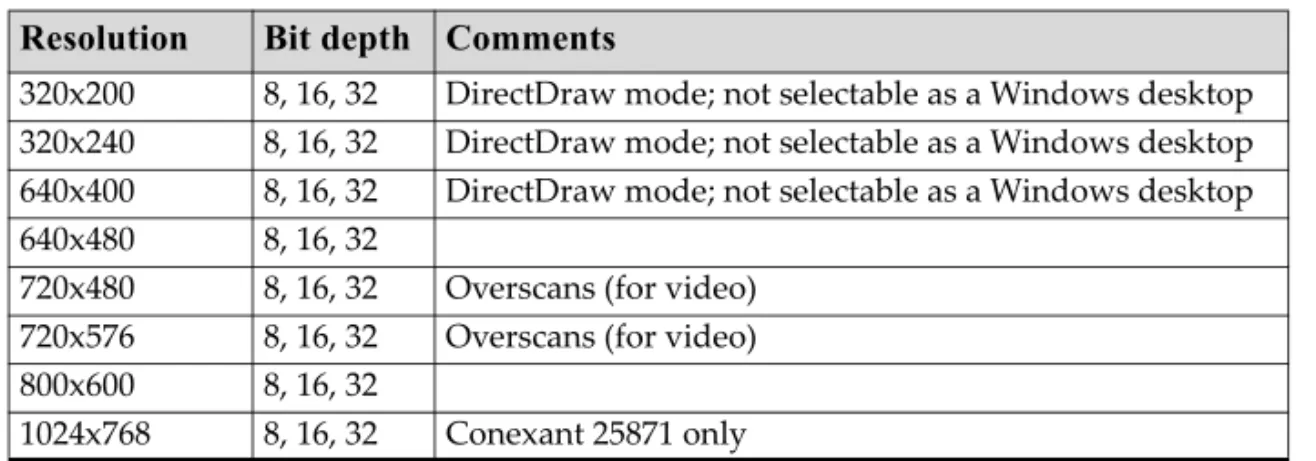
Table A.3 Mode Support for S-Video and Composite Out . . . 35
Table A.4 Mode Support for Component YPrPb Out and DVI Out . . . 35
C
H A P T E R
I
NTRODUCTION
TO
R
ELEASE
N
OTES
This edition of Release Notes describes the Release 186 Graphics Drivers for Microsoft® Windows® Vista. NVIDIA provides these notes to describe performance
improvements and bug fixes in each documented version of the driver.
Structure of the Document
This document is organized in the following sections:
• “Release 186 Driver Changes” on page 3 gives a summary of changes, and fixed and open issues in this version.
• “The Release 186 Driver” on page 25 describes the NVIDIA products and languages supported by this driver, the system requirements, and how to install the driver. • “Mode Support for Windows” on page 29 lists the default resolutions supported by
the driver.
Changes in this Edition
This edition of the Release Notes for Windows Vista includes information about NVIDIA graphics driver version 186.08, and lists changes made to the driver since version 182.50. These changes are discussed beginning with the chapter “Release 186 Driver Changes” on page 3.
C
H A P T E R
R
ELEASE
186 D
RIVER
C
HANGES
This chapter describes open issues for version 186.08, and resolved issues and driver enhancements for versions of the Release 186 driver up to version 186.08. The chapter contains these sections:
•
“Version
186.08
Highlights”
on
page 4
•
“Changes
in
Version
186.08”
on
page 7
•
“Changes
in
Version
185.85”
on
page 8
•
“Changes
in
Version
185.81”
on
page 9
•
“Changes
in
Version
185.68”
on
page 10
•
“Open
Issues
in
Version
186.08”
on
page 11
•
“Not
NVIDIA
Issues”
on
page 14
C h a p t e r 2 : R e l e a s e 1 8 6 D r i v e r I s s u e s V e r s i o n 1 8 6 . 0 8 H i g h l i g h t s
Version 186.08 Highlights
This section provides highlights of version 186.08 of the NVIDIA Release 186 Driver for Windows Vista.
•
What’s
New
in
Release
186
•
What’s
New
in
Version
186.08
•
Limitations
in
This
Release
What’s New in Release 186
•
New
Product
Support
•
NVIDIA
Control
Panel
Updates
•
Display
Driver
Updates
•
Video
Updates
•
CUDA
Updates
•
OpenGL
Updates
New Product Support
Added support for the NVIDIA GeForce GTX 275.
NVIDIA Control Panel Updates
3D
Settings
• Ambient Occlusion setting (new in the Manage 3D Settings page for Windows Vista)
Ambient occlusion enhances depth perception and adds realism to 3D scenes by providing a soft shadow effect to objects based on their placement in the scene. • SLI Antialiasing (new in the Manage 3D Settings page for Windows Vista)
Now available under Windows Vista as well as Windows XP.
Display
• Set up Multiple Displays (revised under Windows Vista)
• Quad SLI: When using GeForce X2, Quadro X2, or the GeForce GTX 295
graphics cards, only GPUs that have two display connectors can be used to drive displays. Typically, display connectors lined up on the same slot position are connected to the same GPU.
• NVIDIA recommends connecting displays to the same GPU to shorten the driver reload time on the initial setup.
• Adjust Desktop Color Settings page (revised under Windows Vista) Applications now have the option of controlling the desktop color settings.
Video
&
Television
• HDCP Status
New page for verifying whether the system is HDCP‐capable • Adjust TV Color Settings page (revised under Windows Vista)
Applications now have the option of controlling the TV color settings.
Display Driver Updates
Device
Support
Added support for EDID‐like devices.
Hotplug
Behavior
When hotplugging or hot‐unplugging a digital display, the driver detects the display and then configures the multi‐display mode and display resolution based on the recent record of the displays connected. If no record exists, then the driver applies default settings. A popup message appears at the system notification tray to alert the user of the change.
The automatic display configuration also occurs upon powering on the computer and booting into Windows Vista if the driver detects a change in display connections since the last Windows session.
Video Updates
• Compute‐based DVD upscaling
• CUDA Video Encoder 1.1: Added support for CUDA‐enabled GPUs with less than 32 cores to the NVIDIA Video Encoding library.
CUDA Updates
• CUDA 2.2
• CUDA Video Encoder V1.1: Added support for CUDA‐enabled GPUs with less than 32 cores to the NVIDIA Video Encoding library.
C h a p t e r 2 : R e l e a s e 1 8 6 D r i v e r I s s u e s V e r s i o n 1 8 6 . 0 8 H i g h l i g h t s
OpenGL Updates
• Support for OpenGL 3.0
• Implemented NVX_shader_buffer_load (OpenGL Shading Language).
What’s New in Version 186.08
• This
driver
version
includes
support
for
NVIDIA
PhysX
acceleration
on
all
GeForce
8
‐
series,
9
‐
series
and
200
‐
series
GPUs
with
a
minimum
of
256MB
dedicated
graphics
memory
(this
driver
package
installs
NVIDIA
PhysX
System
Software
v9.09.0428).
• See
“Changes
in
Version
186.08”
on
page 7
for
a
list
of
resolved
issues.
Limitations in This Release
The following are features that are not currently supported or have limited support in this driver release:
• NVIDIA
Control
Panel
Display
Category
Changes in Version 186.08
The following sections list the changes made and issues resolved since driver version 185.85.
The NVIDIA bug number is provided for reference.
Fixed Issues–Windows Vista 32-bit
Single GPU Resolved Issues
• GeForce 200 Series: Applying 16x anisotropic filtering from the NVIDIA Control Panel does not result in sufficient improvement in 3D games. [549801]
• GeForce 7600GS: There is no audio thru the SPDIF. [406176]
• GeForce 6100/6150: Flat panel settings cannot be changed with Clone mode enabled. [485979]
Multi-GPU Resolved Issues
• [SLI]: The PhysX option is disabled by default after driver installation. [544945] • [SLI], GeForce GTX 280: Empire: Total War–flashing or corruption occurs for a few
seconds after any loading screen. [536648]
Windows Vista 64-bit Issues
Single GPU Resolved Issues
• GeForce 200 Series: Applying 16x anisotropic filtering from the NVIDIA Control Panel does not result in sufficient improvement in 3D games. [549801]
• GeForce 7600GS: There is no audio thru the SPDIF. [406176]
• GeForce 6100/6150: Flat panel settings cannot be changed with Clone mode enabled. [485979]
C h a p t e r 2 : R e l e a s e 1 8 6 D r i v e r I s s u e s C h a n g e s i n V e r s i o n 1 8 5 . 8 5
Changes in Version 185.85
There are no bug fixes to report since driver version 185.81. See “Changes in Version 185.81” on page 9 for the most recent bug fixes.
Changes in Version 185.81
The following sections list the changes made and issues resolved since driver version 182.68.
The NVIDIA bug number is provided for reference.
Fixed Issues–Windows Vista 32-bit
Single GPU Resolved Issues
• GeForce GTX 295: Crysis Warhead Patch 1.1.1.710 (DirectX 10)–the game screen shrinks and shifts to the left corner of display when the resolution is changed to lower value than the native resolution. [528355]
• GeForce 9600 GT: Age of Cannon: Hyborian Adventures–black dots appear on the trees. [533130]
Multi-GPU Resolved Issues
• [3‐way SLI], GeForce 9800 GTX/nForce 750/780a SLI: Portal –there are white lines at the borders of the textures when the game is launched with default settings. [441377]
• [SLI], GeForce 9600 GT: Tomb Raider: Underworld–the game pauses continuously when SLI is enabled. [533193]
• [3xSLI], GeForce 8800 GTX/Ultra: Installing the driver on a 3‐way SLI system takes a minimum of 3–4 minutes, and possibly longer if drivers have been previously installed on the system. [354847]
The installation does complete in time–NVIDIA recommends that you do not interrupt the
installation process, but wait for it to complete.
• nForce 760i SLI, GeForce 8400 GS: PhysX gets disabled after performing an INF install over a previous driver version. [510754]
• [3‐way SLI]: The driver fails to install correctly when installing the driver over a previous version. [459180/470203]
You must first uninstall the previous NVIDIA graphics driver from the Windows control
C h a p t e r 2 : R e l e a s e 1 8 6 D r i v e r I s s u e s C h a n g e s i n V e r s i o n 1 8 5 . 6 8
Changes in Version 185.68
The following sections list the changes made and issues resolved since driver version 182.50.
The NVIDIA bug number is provided for reference.
Fixed Issues–Windows Vista 32-bit
Single GPU Resolved Issues
• Far Cry 2 –Override Antialiasing from the NVIDIA Control Panel is not getting applied to the game. [486104]
• The TV format is not set properly from the NVIDIA Control Panel‐>Change signal or HD format page. [373501]
Multi-GPU Resolved Issues
• [SLI], GeForce GTX 280/260: Mass Effect–antialiasing levels fall back whenever the in‐game resolution is switched to a lower resolution.[477335]
• nForce 760i SLI, GeForce 8400 GS: PhysX gets disabled after performing an INF install over a previous driver version. [510754]
Windows Vista 64-bit Issues
Single GPU Resolved Issues
• The TV format is not set properly from the NVIDIA Control Panel‐>Change signal or HD format page. [373501]
• 3xGeForce 9800 GTX: Saved profile does not load properly. [477263]
• GeForce 9600 GT: There is green/blue corruption when playing an H.264 formatted Blu‐ray disk using Power DVD 8. [524145]
Multi-GPU Issues
• [Hybrid SLI], GeForce GTX 260/280+nForce 760/780a SLI: Fraps does not run if set to run at Windows launch in Hybrid SLI performance or save power modes. [443794]
Open Issues in Version 186.08
As with every released driver, version 186.08 of the Release 186 driver has open issues and enhancement requests associated with it. This section includes lists of issues that are either not fixed or not implemented in this version. Some problems listed may not have been thoroughly investigated and, in fact, may not be NVIDIA issues. Others may have workaround solutions.
• “Windows Vista 32‐bit Issues” on page 11
• “Windows Vista 64‐bit Issues” on page 12
Windows Vista 32-bit Issues
Single GPU Issues
All
GPUs
• Half Life 2: Episode 2–the in‐game brightness is greatly reduced if Enhanced or Override AA is enabled from the NVIDIA Control Panel. [429254]
GeForce
9
Series
• GeForce 9800 GT: With Dualview mode enabled, the GPU runs at the highest performance level even when no video or 3D applications are running. [531538]
GeForce
8
Series
GPUs
• GeForce 8800: Default custom resolutions cannot be created when using the DVI connection. [446476]
• GeForce 8600: HD resolutions higher than 720p are not available.[308627]
Multi-GPU Issues
GeForce
200
Series
GPUs
• [3‐way SLI], GeForce GTX 280/260: 3DMark06–the TV screen (component or S‐ Video) goes blank after launching the benchmark with SLI mode enabled. [491193]
GeForce
9
Series
GPUs
• [SLI], GeForce 9800 GTX: Mass Effect–there is a band of corruption on the edge of the screen when switching from a high resolution to a lower resolution. [433929]
C h a p t e r 2 : R e l e a s e 1 8 6 D r i v e r I s s u e s O p e n I s s u e s i n V e r s i o n 1 8 6 . 0 8
Windows Vista 64-bit Issues
Single GPU Issues
• NVIDIA Control Panel: Adding a custom profile with an open bracket in the name results in an error. [437056]
• Half Life 2: Episode 2–the in‐game brightness is greatly reduced if Enhanced or Override AA is enabled from the NVIDIA Control Panel. [429254]
GeForce
200
Series
• [SLI], GeForce 200 Series: With two displays connected in Dualview mode, changes to the NVIDIA Control Panel‐> Adjust Desktop Color Settings‐>NVIDIA settings are not preserved after enabling or disabling SLI mode. [554097]
• GeForce 200 Series: When entering custom resolution values from the Manage Custom Resolutions page, the values are not validated. [524691]
• GeForce GTX 295: Settings on the ʺAdjust desktop color settingsʺ page are at 0% for the secondary Clone or Dualview mode display. [514218]
GeForce
9
Series
• GeForce 9800 GX2: The system does not resume from Standby mode. [558284] Win7 64, Vista 64
• GeForce 9800 GT: Lineage 2–the game world is extremely dark. [531486]
GeForce
8
Series
• GeForce 8800 GT/GTX: Default custom resolutions cannot be created when using the DVI connection. [446476]
• GeForce 8800 GTX, NVIDIA Control Panel: The user is unable to select Resize my Desktop while playing an HD DVD. [357674]
• GeForce 8400 GS: Screen size changes made from the NVIDIA Control Panel ʺAdjust screen size and position ʺpage are not preserved after resuming from Hibernate/Standby. [544085]
Multi-GPU Issues
GeForce
200
Series
• [3‐way SLI], GeForce GTX 280: Farcry2–there are black patches of corruption with SLI enabled at 2560x1600 resolution. [535524]
This issue does not occur with the DirectX 10 version of the game, which is the
recommended version.
• [SLI], GeForce 9800 GTX: Call of Duty: World at War–there is geometric corruption after applying Ambient Occlusion from the NVIDIA Control Panel. [526733] • [SLI], GeForce 9600 GT, GeForce 8500/8400/8300: Changes made from the Resize
HDTV Settings page are note saved after enabling SLI mode. [529759]
GeForce
8
Series
• [SLI], GeForce 8800 GTX: After resizing the desktop, the change is not preserved when you reboot the system. [529812]
• [SLI], GeForce 8600 GT: Gears of War (DirectX 10)–with SLI mode enabled, there is corruption and flickering with the default settings and in‐game antialiasing enabled. [541836]
GeForce
7
Series
• [SLI], GeForce 7 Series: There is no confirmation popup when some changes are made in the NVIDIA Control Panel. [511417]
GeForce
6
Series
• [SLI], GeForce 6600: The SLI visual indicator does not display with OpenGL applications, such as Chronicles of Riddick, Enemy Territory: QUAKE Wars, and Quake 4. [457633]
C h a p t e r 2 : R e l e a s e 1 8 6 D r i v e r I s s u e s N o t N V I D I A I s s u e s
Not NVIDIA Issues
This section lists issues that are not due to the NVIDIA driver as well as features that are not meant to be supported by the NVIDIA driver for Windows Vista.
• “Windows Vista Limitations” on page 14
• “Unsupported Features” on page 15
• “OpenGL Application Issues” on page 17
• “Application Issues” on page 18
• “Operating System Issues” on page 22
Windows Vista Limitations
These are behaviors that may be different from Windows XP and are related directly to the Windows Vista operating system.
• NVIDIA TurboCache
Windows Vista now controls the allocation of system memory to the GPU for TurboCache functions. The Windows Vista Display Properties pages show the shared system memory (SSM), or how much memory is allocated for NVIDIA GPUs to use for TurboCache.
For more information on graphics memory reporting under Windows Vista, visit
Unsupported Features
The following are features and functionality that were available in driver releases supporting Windows XP, but are not–and will not be–available in driver releases for Windows Vista:
• High resolution scaling desktop (HRSD)
• MultiView Display Mode (for NVIDIA Quadro NVS graphics cards)
• NVKeystone
• Unified back buffer (UBB) controls • OpenGL Video Overlays
This is an operating system limitation.
Vista window manager features will provide new ways of accomplishing overlays, but will require application porting.
• Overclocking
GPU overclocking is no longer supported in the default GPU driver control panel. This feature is available in the NVIDIA System Tools software, which you can download from NVIDIA.com.
• GPU Temperature Monitoring
Temperature monitoring is no longer supported in the default GPU driver control panel. This feature is available in the NVIDIA System Tools software, which you can download from NVIDIA.com.
• AGP Settings Adjustment • Video Zoom
• Pan & Scan ‐ the process of panning across the desktop in order to display a desktop on a monitor with lower resolution
• Per‐display Desktop Color Setting Adjustments
For Clone mode, the desktop color setting adjustments through the NVIDIA Control Panel can only be made across all displays in a system, and not on a per‐ display basis.
• Per‐display Video Color Setting Adjustments
For Dualview mode, the video color setting adjustments through the NVIDIA Control Panel can only be made across all displays in a system, and not on a per‐ display basis.
• Edge Blending
C h a p t e r 2 : R e l e a s e 1 8 6 D r i v e r I s s u e s N o t N V I D I A I s s u e s
• Run television setup wizard
• nView Horizontal and Vertical Span Modes
Due to architectural changes in the new Windows Vista Window Display Driver Model (WDDM), span mode cannot be supported in NVIDIA graphics drivers. NVIDIA recommends using the built‐in Windows Vista multi‐display modes. • Display/Connection Wizard (such as was provided with Windows Media Center
Edition)
• DVD/MPEG Extensions (such as was provided with Windows Media Center Edition)
• Audio Extensions (such as was provided with Windows Media Center Edition) • NVIDIA nView Desktop Manager
OpenGL Application Issues
The following are known compatibility issues for OpenGL applications developed under Windows XP:
• Mixed GDI and OpenGL rendering does not work.
A number of applications use GDI to render UI components and object highlighting. This is not supported in the Windows Vista driver model. NVIDIA recommends converting GDI rendering to OpenGL.
The following are some applications that are known to have this issue:
• Maya 7.01
• OneSpace Designer Modeling
• Applications, Tools, and Benchmarks not Supported Under Windows Vista
• GLperf
• 3ds max 8 (later releases may be supported)
• CATIA V5R15 (V5R16 is supported)
• PTC’s CDRS 2001
• Front buffered rendering may be slow, especially when DWM is enabled. Flushing the rendering queue while rendering to the front buffer may cause the window manager to recomposite. Applications should therefore minimize the frequency with which they flush the rendering queue.
C h a p t e r 2 : R e l e a s e 1 8 6 D r i v e r I s s u e s N o t N V I D I A I s s u e s
Application Issues
• Counter Strike–the application crashes to the desktop if the resolution or bit‐depth is changed from the in‐game video options menu. [416582]
This is an application issue, but the problem does not occur if you change the resolution or
bit‐depth from the game’s main menu and not while in a game.
• Star Wars: Knights Of The Old Republic 2–the game fails to launch, and an “application has stopped working” error message appears. [420115]
This occurs because the application is not able to interpret the driver version correctly.
• Tiger Woods PGA Tour 2007–Fly‐by shot before each hole blacks‐out textures. [274697]
NVIDIA is working with the developer to resolve this issue.
• City of Heroes–The mouse cursor does not display. [259256]
This is an application issue that can be worked around in full‐screen mode by adding
“compatiblecursors 1” to the City of Heroes desktop shortcut.
NVIDIA is pursuing a fix with the application developer.
• Sims 2–“Smooth Edges (AA)” option is not available with Release 100 drivers. [272477]
This occurs because of an incorrect driver version check in the application.
NVIDIA has worked around this issue in the operating system by changing the way the
driver version is reported to this application.
• Warhammer 40k Dawn of War (all versions) does not run with Release 100 drivers. [273154]
This occurs because of an incorrect driver version check in the application.
NVIDIA has worked around this issue in the operating system by changing the way the
driver version is reported to this application.
• Need for Speed Carbon–After upgrading with patch 1.3, the game crashes when launched. [290506]
This is an issue with the application patch under Windows Vista.
• Nascar Simracing–the game crashes when launched. [270792]
This is an issue with the application under Windows Vista.
• Call of Duty 2–Only solid colors render during game play when 4xAA is enabled. [257454]
• Age of Empires III–the game has rendering artifacts, such as textured squares for smoke. [258036]
• Flight Simulator X–pressing Alt+Tab to switch to the desktop does not work. [293729]
• Everquest 2– with NVIDIA driver versions 100.xx, the following error message appears: [273346]
ʺYou currently have a (7.15.11.120) video card installed. We recommend that you download version 7772 drivers before playing Everquest.ʺ
This occurs because the application is not checking the driver version correctly, but this does
not affect game play. Please select ʺContinue Anywayʺ to launch the game. The problem
does not occur with a previous Release 95 driver (xx.xx format).
NVIDIA is pursuing a fix with the application developer.
• Windows Vista 64‐bit, [PhysX]: TheGameCreators PhysX Screen Saver doesnʹt get installed properly. [491613]
This is not an NVIDIA issue, but a bug in Vista 64‐bit OS that affects the installation of
many screen savers. To work around, locate the corresponding .scr file for the screen saver,
then right‐click and select Install.
Note:
PhysXscreensaver.scr is located in \windows\SysWOW64.
• GeForce 9800 GTX: Flight Simulator Acceleration (DirectX 10) ‐ the sky box does not render correctly when zoomed all the way out. [436158]
This is not an NVIDIA bug, but rather an application issue.
• GeForce 9800 GTX: Flight Simulator Acceleration (DirectX 10) ‐ there is no antialiasing preview window. [436156]
• GeForce 9800 GX2: Fury (DirectX 10)–the character names flicker. [384917]
This is not an NVIDIA bug, but rather an application issue.
• GeForce 9600 GT, GeForce 9800 GX2, GeForce 8800 GTX/Ultra/GTS/GT: Assassinʹs Creed: Directors Cut ‐ the shadow flickers. [400541]
This is not an NVIDIA bug, but rather an application issue.
• GeForce 9600 GT: Crysis (DirectX 9) ‐ there is corruption in the game. [399261]
This is not an NVIDIA bug, but rather an issue with the application issue. To avoid this
issue, use the DirectX 10 option of the game.
• GeForce 8800 GTX: Tabula Rasa–there is ghosting on the game character while standing below the drop ship after enabling refraction from the game control panel. [357271]
This is not an NVIDIA bug, but rather an application issue.
• GeForce 8800 GT: Company of Heroes DirectX10 ‐ the application crashes when MSAA is enabled. [346495]
C h a p t e r 2 : R e l e a s e 1 8 6 D r i v e r I s s u e s N o t N V I D I A I s s u e s
This is a Fraps 2.9.2 issue.
• GeForce 8 Series: Quake 4–there are white flashing artifacts. [273476] • GeForce 8800: City of Heroes–there are corrupted textures in certain
missions.[290659]
This has been fixed with the latest patch for the game.
• GeForce 8800: Ghost Recon ‐ Advanced Warfighter–the gadget side bar bleeds through on the right side of the screen during game play. [281304]
• GeForce 8800 GTX: Star Wars Battle front 2–screen corruption occurs at 2560x1600 resolution. [325457]
• GeForce 8800 GTX, GeForce 7900 GTX: Neverwinter Nights 2–the mini map loses its background when the resolution is changed. [273788]
• GeForce 8800 GTX: Civilization 4–setting in‐game 16x antialiasing AA disables all antialiasing.[303283]
• GeForce 8800 GTX: Flight Simulator–the terrain changes to low resolution when switching from Air Traffic‐controlled to player‐controlled airplane.[304840] • GeForce 8800 GTX: Scarface–corruption during the game.[290007]
• GeForce 8800 GTX: Neverwinter Nights 2–only overlays render when switching to 2560x1600 using 8xAA. [302061, 314148]
• GeForce 8800 GTX: Command & Conquer:Tiberium Wars–the game crashes at 2560x1600 resolution, with 8x antialiasing enabled, and when in‐game settings are set to the highest levels. [308248/316633]
• GeForce 8800 GT/GTX: Crysis (DirectX 10) ‐ game performance drops after switching to a higher resolution and then switching back to the lower resolution. [368740]
• GeForce 7900: Flight Simulator X – rendering becomes corrupted after pressing the Windows key. [293727 296232]
• GeForce 7600: Rainbow Six Vegas – antialiasing is not applied when setting antialiasing override mode in the NVIDIA Control Panel. [294215]
Antialiasing is supported in this application only on GeForce 8 series and higher GPUs.
• GeForce 8500/8400/8300: Corruption occurs while running MicroSoft SDK Basic HLSL sample application. [302209]
• GeForce 8500/8400/8300: Dark Messiah of Might and Magic–an application error occurs when quitting the game. [300980]
This is an issue with the application.
• GeForce 7300GS: Rainbow Six Vegas–the display turns black at 1600x1200 resolution.[302319]
• GeForce 7300 GT: Far Cry–geometry is corrupted during rendering of blood.[304348]
• GeForce 7300 GT: Company Of Heroes–the shadows are corrupt at the default game settings with SLI mode enabled. [346746]
This is an issue with the application.
• 322008 GeForce 8600 GT: Battlefield 2–the game crashes to desktop when set to 1900x1440 resolution 8x antialiasing.
This problem occurs only when you have FRAPS 2.6.4 installed. It does not occur with
FRAPS 2.8.2
• 316403 GeForce 8 Series, GeForce 7 Series: NV SDK 9.5
Mandelbrot
set fails to render fractal.This is an issue with the NV SDK and will be fixed in a newer build.
• GeForce 8 Series: Prince of Persia–half the screen turns black and the other half turns white during resolution changes. [299484]
This is an issue with the application.
• GeForce 8800 GTX: Company of Heroes (DirectX 10)–the game crashes when the maximum settings are applied at 2560x1600 with 8xAA enabled. [321631]
This is an issue with the application.
• GeForce 7950 GX2: Flight SimX – water has artifacts. [292168]
• GeForce 6600: Stars Wars Battlefront2–blue‐screen crash occurs when High settings are used.[302213]
• GeForce 6200: Call of Juarez–there is corruption at all resolutions. [356711] • GeForce 6100/6150: Gothic–there is flickering with a white screen when using the
default settings.[303552]
• GeForce 6200: Star Wars Empire at War–the game menu buttons are corrupt. [357713]
Application Issues Under SLI Mode
• [SLI]: NVIDIA SLI scaling on some applications under Windows Vista may not be as much as under Windows XP. Some applications include ʺS.T.A.L.K.E.R., Half‐ Life 2: Lost Coast, Company of Heroes, Battlefield 2142, Call of Duty 2, Hitman: Blood Money, and Far Cry. [302534 290803]
This is an application issue which has been resolved with the latest Steam patch.
C h a p t e r 2 : R e l e a s e 1 8 6 D r i v e r I s s u e s N o t N V I D I A I s s u e s
This is not an NVIDIA bug, but rather an application issue.
• [Quad SLI], GeForce 9800 GX2: Test Driver Unlimited–there is pausing/hitching during the cut scene transitions. [395207]
• [SLI], GeForce 8800 GTX, GeForce 8600, GeForce 6 Series: Company of Heroes–there is corruption in the ground textures. [294118]
This is an application issue, and has been fixed with the latest patch for the game.
• [SLI], GeForce 8800 GTX: Battlefield 2 and Battlefield 2142–the games crash when exiting back to the menu after being played at 2048x1536 using 8xAA or higher. [301985]
This is an issue with the application.
• [SLI], GeForce 7900 GTX: Chess Titans–with Aero‐glass enabled, there is blanking when resizing the game window. [346775]
This is an issue with the application.
• [SLI], GeForce 8800: While uninstalling driver the driver, the error message ʺWindows host process (Rundll32) has stopped workingʺ appears. [294219 280920] • [SLI], GeForce 8800: Splinter Cell Double Agent – the game crashes when
minimized and then invoked again. [294205]
• [SLI], GeForce 8800: Battlefield 2142 – 8xAA cannot be set from the game control panel.[294231]
• [SLI], GeForce 7900:Microsoft Flight simulator X – corruption and flickering occur while flying close to land objects. [293882]
Operating System Issues
• World of Warcraft – there is a 60% drop in performance when running the game in windowed mode with SLI or multi‐GPU mode enabled. [289427]
This is due to a limitation of the Windows Vista operating system and affects all multi‐GPU
systems. NVIDIA is investigating a workaround for this performance problem.
• GeForce 8800 GTS 320MB: The driver reports incorrect video memory (256 MB) in the Windows Vista Display Properties panel. [290811]
However, the NVIDIA Control Panel properly reports the dedicated video memory as 320
MB.
• GeForce 8800 GTX, GeForce 7900 GTX: Company of Heroes crashes when trying to load the Cherbourg level.[284273]
This is an issue with the operating system. A QFE (software patch) from Microsoft is being
This is an issue with the operating system.
• GeForce 6200: Foxbear–there is corruption on the Dualview secondary display.[302709]
This is an issue with the operating system.
• [SLI], GeForce 8800 GTX: While installing the graphics driver, the message ʺIncompatible display adapter has been disabledʺ appears and the display turns blank. [318173]
This is an issue with the operating system.
• When S‐video and DVI displays are set up in Clone mode and rotated 90 degrees, the screen turns black.[304267, 283546]
This is an issue with the operating system.
• GeForce 8800 GTX: DreamScene–running the application results in a “Display driver has stopped responding” error message. [295017]
This is an issue with the OS.
• GeForce 8300 GS: With Aero‐glass enabled, the screen flickers after rotating the display 90 degrees with S‐Video as the primary display. [317347]
C h a p t e r 2 : R e l e a s e 1 8 6 D r i v e r I s s u e s K n o w n P r o d u c t L i m i t a t i o n s
Known Product Limitations
This section describes problems that will not be fixed. Usually, the source of the problem is beyond the control of NVIDIA. Following is the list of problems and where they are discussed in this document:
• “GeForce GTX 295 Fan Control and NVIDIA Control Panel Performance Group
version 6.03.06.00” on page 24
• “1280x1024 @ 60 Hz not Available on BenQ FP241W Monitors” on page 24
•
“Image
Sharpening
Control
not
Available
with
GeForce
8
Series
and
later
GPUs”
on
page 24
•
“Gigabyte
GA
‐
6BX
Motherboard”
on
page 24
GeForce GTX 295 Fan Control and NVIDIA Control Panel
Performance Group version 6.03.06.00
The GeForce GTX 295 fan control does not function properly when using the NVIDIA Control Panel Performance Group version 6.03.06.00. For proper fan control, use version 6.03.12.00 or later.
1280x1024 @ 60 Hz not Available on BenQ FP241W
Monitors
Even though the monitor EDID lists 1280x1024 @ 60 Hz, the screen turns blank when using an HDMI connection. This is an issue with the monitor and not the NVIDIA driver.
Because of this issue with the monitor, the NVIDIA driver blocks the problem mode (1280x1024 @ 60 Hz) and makes it unavailable.
Image Sharpening Control not Available with GeForce 8
Series and later GPUs
With GeForce 8 Series and later graphics cards, the Image sharpening slider on the NVIDIA Control Panel‐> Display‐>Adjust Desktop Color Settings page is grayed out. This control is intentionally disabled because image sharpening is not supported on GeForce 8 series and later GPUs.
Gigabyte GA-6BX Motherboard
This motherboard uses a LinFinity regulator on the 3.3‐V rail that is rated to only 5 A— less than the AGP specification, which requires 6 A. When diagnostics or applications are running, the temperature of the regulator rises, causing the voltage to the NVIDIA chip to drop as low as 2.2 V. Under these circumstances, the regulator cannot supply
C
H A P T E R
T
HE
R
ELEASE
186 D
RIVER
This chapter covers the following main topics:
•
“Hardware
and
Software
Support”
on
page 25
•
“Driver
Installation”
on
page 28
Hardware and Software Support
Supported Operating Systems
The Release 186 driver, version 186.08, has been tested with Microsoft Windows® Vista RTM OS builds version 6000 or higher, and supports both 32‐bit and 64‐bit versions of Windows Vista Editions:
• Windows
Vista
Home
Basic
• Windows
Vista
Home
Premium
• Windows
Vista
Business
• Windows
Vista
Enterprise
Edition
• Windows
Vista
Ultimate
C h a p t e r 3 : R e l e a s e 1 8 6 D r i v e r I s s u e s H a r d w a r e a n d S o f t w a r e S u p p o r t
Supported NVIDIA Products
Table 3.1 lists the NVIDIA products supported by the Release 186 driver, version 186.08
Table 3.1 Supported NVIDIA Products
Consumer Products GeForce GTX 295 GeForce GTX 285 GeForce GTX 280 GeForce GTX 275 GeForce GTX 260 GeForce GTS 250 GeForce GT 140 GeForce GT 130 GeForce GT 120 GeForce 9800 GX2 GeForce 9800 GTX+ GeForce 9800 GTX GeForce 9800 GT GeForce 9600 GT GeForce 9600 GS GeForce 9600 GSO GeForce 9500 GT GeForce 9500 GS GeForce 9400 GT GeForce 9400 GeForce 9300 GS GeForce 9300 GE GeForce 9300 GeForce 9200 GeForce 8800 Ultra GeForce 8800 GTX GeForce 8800 GTS 512 GeForce 8800 GTS GeForce 8800 GT GeForce 8800 GS GeForce 8600 GTS GeForce 8600 GT GeForce 8600 GS GeForce 8500 GT GeForce 8400 GS GeForce 8400 SE GeForce 8400 GeForce 8300 GS
Supported Languages
The Release 186 Graphics Drivers supports the following languages in the main driver Control Panel:
nForce 780a SLI nForce 760i SLI nForce 750a SLI nForce 730a GeForce 7950 GX2
English (USA) German Portuguese (Euro/Iberian)
English (UK) Greek Russian
Arabic Hebrew Slovak
Chinese (Simplified) Hungarian Slovenian Chinese (Traditional) Italian Spanish
Czech Japanese Spanish (Latin America)
Danish Korean Swedish
Dutch Norwegian Thai
Finnish Polish Turkish
French Portuguese (Brazil) Table 3.1 Supported NVIDIA Products
C h a p t e r 3 : R e l e a s e 1 8 6 D r i v e r I s s u e s D r i v e r I n s t a l l a t i o n
Driver Installation
Minimum Hard Disk Space
The hard disk space requirement for 32‐bit is minimum 120 MB for English‐only, and 185 MB for International.
The hard disk space requirement for 64‐bit is minimum 170 MB for English‐only, and 230 MB for International.
Before You Begin
If you have previously installed NVIDIA nTune, NVIDIA recommends that you uninstall nTune before installing this driver. After the driver install is complete, you can reinstall NVIDIA nTune.
Installation Instructions
1 Follow the instructions on the NVIDIA .com Web site driver download page to locate the appropriate driver to download, based on your hardware and operating system.
2 Click the driver download link.
3 The license agreement dialog box appears.
4 Click Accept if you accept the terms of the agreement, then either open the file or save the file to your PC and open it later.
5 Extract the zip files to a temporary folder on your PC.
6 Open the NVIDIA driver installation .EXE file to launch the NVIDIA InstallShield Wizard.
7 Follow the instructions in the NVIDIA InstallShield Wizard to complete the installation.
Note: After the driver installation, Windows may default to 16‐bpp color and disable the Desktop Window Manager (DWM). To work around this issue, set the color to 32‐bpp and then reboot the PC.
A
P P E N D I X
M
ODE
S
UPPORT
FOR
W
INDOWS
This chapter details the Windows modes supported by the Release 186 driver for NVIDIA products. It contains these sections:
•
“General
Mode
Support
Information”
on
page 30
•
“Default
Modes
Supported
by
GPU”
on
page 31
C h a p t e r A : R e l e a s e 1 8 6 D r i v e r I s s u e s G e n e r a l M o d e S u p p o r t I n f o r m a t i o n
General Mode Support Information
The NVIDIA graphics driver includes a standard list of display modes that are supported by default. These modes are listed in the section “Default Modes
Supported by GPU” on page 31.
The actual modes available depend on the capabilities of the display. In addition, the NVIDIA graphics driver has a “dynamic EDID detection” capability and will make available additional modes that are listed in the display EDID, provided the graphics hardware can support it.
The NVIDIA graphics driver also supports the high resolutions available with the displays listed in Table A.1 as well as the non‐standard modes listed in Table A.2.
Table A.1 Modes Supported for High Resolution Displays
Display Maximum Resolution
Apple 30” Cinema HD Display
(Dual link DVI) 2560x1600 @ 60 Hz Dell WFP 3007 (Dual Link DVI) 2560x1600 @ 60 Hz HP LP3065 dual‐link DVI flat panel 2560x1600 @ 60Hz.
Table A.2 Non-standard Modes Supported Resolution
1680 x 1050 1366 x 768
Default Modes Supported by GPU
This section lists the modes that are included by default in the driver INF for the following product families:
•
“GeForce
200,
100,
9
Series,
8
Series,
7
Series,
6
Series,
and
nForce
7xx/6xx
GPUs”
on
page 32
Understanding the Mode Format
Figure A.1 gives an example of how to read the mode information presented in this section.
Figure A.1 Mode Format
Note:
• Horizontal spanning modes of 3840x1080 and above, and vertical spanning modes of 1920x2160 and above generally require at least 32 MB of video memory at 32 bpp.
• An “i” next to the refresh rate indicates an interlaced refresh rate.
Resolution Example entry: 1024 x 768 32 60 70 72 75 85 100 120 140 144 150 170 200 Meaning: Resolution: 1024 x 768 Color depth: 32 bpp Refresh rates: 60 Hz, 70 Hz, 72 Hz, 75 Hz, 85 Hz, 100 Hz, 120 Hz,
140 Hz, 144 Hz, 150 Hz, 170 Hz, and 200 Hz
C h a p t e r A : R e l e a s e 1 8 6 D r i v e r I s s u e s D e f a u l t M o d e s S u p p o r t e d b y G P U
GeForce 200, 100, 9 Series, 8 Series, 7 Series, 6 Series,
and nForce 7xx/6xx GPUs
This sections lists the supported display resolutions, color depths, and refresh rates for the the products listed in Table 3.1 on page 26.
Standard Modes
640 x 480 8 60 70 72 75 85 100 120 140 144 150 170 200 240 800 x 600 8 60 70 72 75 85 100 120 140 144 150 170 200 240 848 x 480 8 60 70 72 75 85 100 120 140 144 150 170 200 240 960 x 600 8 60 70 72 75 85 100 120 140 144 150 170 200 240 1024 x 768 8 60 70 72 75 85 100 120 140 144 150 170 200 240 1088 x 612 8 60 70 72 75 85 100 120 140 144 150 170 200 240 1152 x 864 8 60 70 72 75 85 100 120 140 144 150 170 200 1280 x 720 8 60 1280 x 768 8 60 70 72 75 85 100 120 140 144 150 170 1280 x 800 8 60 70 72 75 85 100 120 140 144 150 170 1280 x 960 8 60 70 72 75 85 100 120 140 144 150 170 1280 x 1024 8 60 70 72 75 85 100 120 140 144 150 170 1360 x 768 8 60 70 72 75 85 100 120 140 144 150 170 1600 x 900 8 60 70 72 75 85 100 120 140 144 150 1600 x 1024 8 60 70 72 75 85 100 120 1600 x 1200 8 60 70 72 75 85 100 120 1680 x 1050 8 60 1920 x 1080 8 60 1920 x 1200 8 60 70 72 75 85 100 1920 x 1440 8 60 70 72 75 85 2048 x 1536 8 60 640 x 480 16 60 70 72 75 85 100 120 140 144 150 170 200 240 800 x 600 16 60 70 72 75 85 100 120 140 144 150 170 200 240 848 x 480 16 60 70 72 75 85 100 120 140 144 150 170 200 240 960 x 600 16 60 70 72 75 85 100 120 140 144 150 170 200 240 1024 x 768 16 60 70 72 75 85 100 120 140 144 150 170 200 240 1088 x 612 16 60 70 72 75 85 100 120 140 144 150 170 200 240 1152 x 864 16 60 70 72 75 85 100 120 140 144 150 170 2001280 x 960 16 60 70 72 75 85 100 120 140 144 150 170 1280 x 1024 16 60 70 72 75 85 100 120 140 144 150 170 1360 x 768 16 60 70 72 75 85 100 120 140 144 150 170 1600 x 900 16 60 70 72 75 85 100 120 140 144 150 1600 x 1024 16 60 70 72 75 85 100 120 1600 x 1200 16 60 70 72 75 85 100 120 1680 x 1050 16 60 1920 x 1080 16 60 1920 x 1200 16 60 70 72 75 85 100 1920 x 1440 16 60 70 72 75 85 2048 x 1536 16 60 640 x 480 32 60 70 72 75 85 100 120 140 144 150 170 200 240 800 x 600 32 60 70 72 75 85 100 120 140 144 150 170 200 240 848 x 480 32 60 70 72 75 85 100 120 140 144 150 170 200 240 960 x 600 32 60 70 72 75 85 100 120 140 144 150 170 200 240 1024 x 768 32 60 70 72 75 85 100 120 140 144 150 170 200 240 1088 x 612 32 60 70 72 75 85 100 120 140 144 150 170 200 240 1152 x 864 32 60 70 72 75 85 100 120 140 144 150 170 200 1280 x 720 32 60 1280 x 768 32 60 70 72 75 85 100 120 140 144 150 170 1280 x 800 32 60 70 72 75 85 100 120 140 144 150 170 1280 x 960 32 60 70 72 75 85 100 120 140 144 150 170 1280 x 1024 32 60 70 72 75 85 100 120 140 144 150 170 1360 x 768 32 60 70 72 75 85 100 120 140 144 150 170 1600 x 900 32 60 70 72 75 85 100 120 140 144 150 1600 x 1024 32 60 70 72 75 85 100 120 1600 x 1200 32 60 70 72 75 85 100 120 1680 x 1050 32 60 1920 x 1080 32 60 1920 x 1200 32 60 70 72 75 85 100 1920 x 1440 32 60 70 72 75 85 2048 x 1536 32 60 640 x 480 64 60 70 72 75 85 100 120 140 144 150 170 200 240 800 x 600 64 60 70 72 75 85 100 120 140 144 150 170 200 240 848 x 480 64 60 70 72 75 85 100 120 140 144 150 170 200 240 960 x 600 64 60 70 72 75 85 100 120 140 144 150 170 200 240
C h a p t e r A : R e l e a s e 1 8 6 D r i v e r I s s u e s D e f a u l t M o d e s S u p p o r t e d b y G P U 1088 x 612 64 60 70 72 75 85 100 120 140 144 150 170 200 240 1152 x 864 64 60 70 72 75 85 100 120 140 144 150 170 200 1280 x 720 64 60 1280 x 768 64 60 70 72 75 85 100 120 140 144 150 170 1280 x 800 64 60 70 72 75 85 100 120 140 144 150 170 1280 x 960 64 60 70 72 75 85 100 120 140 144 150 170 1280 x 1024 64 60 70 72 75 85 100 120 140 144 150 170 1360 x 768 64 60 70 72 75 85 100 120 140 144 150 170 1600 x 900 64 60 70 72 75 85 100 120 140 144 150 1600 x 1024 64 60 70 72 75 85 100 120 1600 x 1200 64 60 70 72 75 85 100 120 1680 x 1050 64 60 1920 x 1080 64 60 1920 x 1200 64 60 70 72 75 85 100 1920 x 1440 64 60 70 72 75 85 2048 x 1536 64 60
Modes Supported by TV Encoders
Table A.3 and Table A.4 list the NTSC, PAL, and HDTV TV‐Out modes supported by the NVIDIA driver.
The driver supports manual overscan correction for component and DVI outputs. See the
ForceWare Graphics Driver User’s Guide
for instructions on how to use the overscan correction features in the control panel.Table A.3 Mode Support for S-Video and Composite Out
Resolution Bit depth Comments
320x200 8, 16, 32 DirectDraw mode; not selectable as a Windows desktop 320x240 8, 16, 32 DirectDraw mode; not selectable as a Windows desktop 640x400 8, 16, 32 DirectDraw mode; not selectable as a Windows desktop 640x480 8, 16, 32
720x480 8, 16, 32 Overscans (for video) 720x576 8, 16, 32 Overscans (for video) 800x600 8, 16, 32
1024x768 8, 16, 32 Conexant 25871 only
Table A.4 Mode Support for Component YPrPb Out and DVI Out
Resolution Comments
480i (SDTV)
Supported on graphics boards with Conexant 875 or Philips 7108 TV encoders and compatible connectors, and compatible GeForce 6 Series and GeForce 7 Series GPUs.
480p (EDTV) 720p (HDTV) 1080i (HDTV) 576i (PAL) 576p (PAL)