Find out how to…
Login to My Class Timetable
View your Class Schedule
Register into classes and make timetable changes
Using the ‘Register’ or ‘Change’ buttons
Student Administration Help Guides
Managing your course via the ‘Current Students’ pageMy Class Timetable:
How to view, plan and edit your timetable
online
Login to My Class Timetable
Once you have enrolled into units on your Study Plan, you will be able to view and edit your timetable online through My Class Timetable.
1. Go to the Current Students page www.swinburne.edu.au/student. Click on the grey box, ‘My Timetable’.
From here select ‘Log in to My Class Timetable’. A log in screen will appear.
2. Enter your Student ID into the Student ID field and your SIMS password into the Password
field. (Note: these are the same login details you use to access Blackboard and online library services.)
View your Class Schedule
Once you have logged into My Class Timetable, you will see a screen similar to the example show below.
Top section (Timetable Search)
Here you can use the Unit for and Week Starting search criteria to filter the timetable information displayed (see image below). Clicking the Refresh button will refresh the Timetable page based on the criteria specified.
Note: This function is useful if you want to jump ahead and view your timetable for a particular week.
Top section
(Timetable Search)
Search fields, plus ‘quick and easy’ registration button(s).
Middle section (Registration Status)
Your unit’s class activities and their registration status.
Bottom section (Timetable Calendar Grid view)
Your timetable in a grid view where you can select and edit classes.
Middle section (Registration Status)
Here you can find Unit, Study Requirements and Registration Status information, including: A list of your currently enrolled units (Unit).
Detailed information about the Study Requirements or ‘class activities’ for each enrolled
unit i.e. Labs, Lectures, Tutorials, Workshops and Practicals. The Registration Status of each unit and activity.
Expand All or Collapse All link*
*Note: The link label will vary depending on whether the Collapse All or Expand All option has been selected.
This link is located to the right of the Registration Status header. It gives you the ability to expand or collapse (minimise) enrolled unit and class activity information. For example, clicking the Expand All link will expand all of the class activities belonging to each unit, including the ‘More Info’ section
for activities if it exists i.e. Stream Class Information (see image below). Similarly, clicking the
Collapse All link will hide all of the class activities belonging to each unit, including the ‘More Info’
section for activities if it exists.
Registration Status
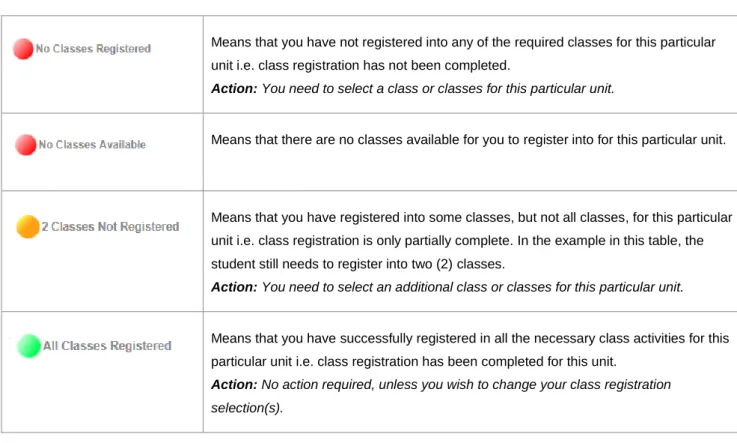
table below lists the potential traffic lights and their meaning, which may appear when viewing and editing your class timetable.
Means that you have not registered into any of the required classes for this particular unit i.e. class registration has not been completed.
Action: You need to select a class or classes for this particular unit.
Means that there are no classes available for you to register into for this particular unit.
Means that you have registered into some classes, but not all classes, for this particular unit i.e. class registration is only partially complete. In the example in this table, the student still needs to register into two (2) classes.
Action: You need to select an additional class or classes for this particular unit.
Means that you have successfully registered in all the necessary class activities for this particular unit i.e. class registration has been completed for this unit.
Action: No action required, unless you wish to change your class registration selection(s).
Bottom section (Timetable Calendar Grid view)
Here you will find a visual representation of your timetable in grid format. This section also allows you to select and edit classes manually.
Register into classes and make timetable changes
There are three ways you can start the class registration process: Click the Register into clash free classes button in the top section (see image below) to generate a clash-free class timetable and be automatically registered into these clash-free classes.
Note: if a single clash occurs within your timetable, the system is unable to perform this function and will not register you into any classes, even if these other classes are clash-free. If this occurs, you will receive an error message and will need to register into classes using the Register into all single class activities button and/or the Register or Change button (see information below).
Click the Register into all single class activities button in the top section (see image below) to automatically register into classes that have only have the one class scheduled i.e. there is only one class being offered/multiple class options are not available.
Note: if you select this option, you may still have class activities with multiple class options remaining that you will need to register into. To do this, use the Register or Change button (see information below).
Click the Register or Change button in the middle section (see image below) to manually register into classes, or change an existing class selection/registration.
Note: clicking this button activates the relevant area(s) in the Timetable Calendar Grid, so that you can ‘pick and choose’ from the available class offerings.
Using the Register or Change button
Use the Register or Change button* to register into classes manually, or change/edit an existing class registration selection.
*Note: The button label will vary depending on the registration status of the unit.
1. Click the Register or Change button next to unit you wish to register into, or make changes to.
2. All of the class activities (i.e. Labs, Lectures, Tutorials, Workshops and Practicals) for that particular unit will automatically display in timeslots or ‘cells’ in the Timetable Calendar Grid view (see image below).
Each class cell will display the following information: Unit Code e.g. PHY10001
Activity Name and Class Number (in brackets) e.g. Practical 1 (5) Location e.g. Hawthorn
Building and Room ID e.g. EN207
3. The status of each class activity is also represented by a symbol, which is displayed in the top-right corner of each class cell.
The table below lists the potential symbols (and their meaning) that may display in the various class cells within your timetable:
Registered Class - indicates that you have been successfully registered into the class.
Swappable Class -indicates that there are still available classes that you can swap into from the currently registered class.
Stream Class - indicates that the class that you have registered into is part of a stream. A stream is a set of classes for a unit.
Register Pending Class - indicates the class that you have nominated to be registered into or to be swapped into. Note: This 'Register Pending Class' indicator is only available when the Timetable Grid is in the Registration mode.
Unregister Pending Class - indicates the class that you have nominated to be unregistered from or to be swapped out of. Note: This 'Unregister Pending Class' indicator is only available when the Timetable Grid is in the Registration mode.
Click the Legend panel on the left side of the Timetable Calendar Grid view to view a dynamic list of the various timetable symbols (see image below).
Note: If Stream Classes exist, a Stream Info panel will also appear on the left side of the Timetable Calendar Grid view that can be overlaid with the Legend panel (see image below).
4. You can now begin to register into classes, swap classes (if more than one class offering is available) or unregister from already selected classes.
For normal classes (i.e. non-stream classes):
o Click on the class cell in the Timetable Calendar Grid view that you wish to register into or edit.
o Hovering over a cell for a class that is available for registration will result in a plus (+) symbol being displayed, indicating that this class will be selected for registration. o Click on the class cell displaying the plus (+) symbol to select the class. If you
perform a swap, then in addition to the selected class displaying a plus (+) symbol, the class that you are swapping out of will display a minus (-) symbol, indicating that this class will be selected for unregistration.
For stream classes:
Note:a stream is a set of classes for a particular unit.
A Stream Info panel will appear on the left side of the Timetable Calendar Grid view,
displaying a list of streams associated with a particular unit. For each stream listed, details of the classes that belong to the stream are shown.
A checkbox will also appear against each listed stream.
o To register into classes that belong to a stream, click on the checkbox against the stream, or click on the stream information listed in the Stream Info panel.
o Hovering over a stream in the Stream Info panel will result in its classes being highlighted. If the stream is available for registration, a plus (+) symbol is displayed against each of the classes associated with the selected stream, indicating that these classes will be selected for registration. Likewise, if you are already registered into the stream, hovering over the stream in the Stream Info panel will result in a minus (
-) symbol being displayed against each of the classes associated with the selected stream, indicating that these classes will be selected for unregistration. In either case, clicking on the checkbox or against the stream information will select the classes to be registered or unregistered accordingly.
o Proceed to step 5.
5. When you are happy with your class selection/s, you can either Save or Cancel by clicking on the respective button (located immediately above the Timetable Calendar Grid view).
6. Upon clicking the Save or the Cancel button, the Timetable Calendar Grid view is refreshed and will automatically display your current timetable. The registration icons or indicators are displayed next to each activity of the selected component, to indicate the status of the registered class
Additional My Timetable Tips:
Use the Show Full Classes or Hide Full Classes button (immediately above the
Timetable Calendar Grid view) to either ‘hide’ or ‘display’ full classes. Note: This button is only displayed when the Timetable Grid is in the Registration mode.
Click the Cancel button (immediately above the Timetable Calendar Grid view) to cancel any registration changes that you have not yet saved. Note: This button is only displayed when the Timetable Grid is in the Registration mode.
Click the Print button (immediately above the Timetable Calendar Grid view) to display a version of your timetable that can be printed.
Need more help?
Visit Ask George to search for FAQs on this topic
Contact studentHQ for further assistance and support