May 2015 202-10684-07
VPNG01L and VPNG05L Version 6.0
User Manual
Support
Thank you for selecting NETGEAR products.
After installing your device, locate the serial number on the label of your product and use it to register your product at https://my.netgear.com. You must register your product before you can use NETGEAR telephone support. NETGEAR recommends registering your product through the NETGEAR website.
For product updates and web support, visit http://support.netgear.com. Phone (US & Canada only): 1-888-NETGEAR.
Phone (Other Countries): Check the list of phone numbers at http://support.netgear.com/general/contact/default.aspx. Trademarks
NETGEAR, Inc., NETGEAR and the NETGEAR logo are trademarks of NETGEAR, Inc. Any non-NETGEAR trademarks are used for reference purposes only.
Compliance
For regulatory compliance information, visit http://www.netgear.com/about/regulatory/. See the regulatory compliance document before connecting the power supply.
Revision History
Publication Part Number Version Publish Date Comments
202-10684-07 6.0 May 2015 Documented VPN Client 6.0 software with new GUI displays. Added the new features, SHA-512, DH groups, and IPv6. The index was removed. 202-10684-06 – May 2013 Color correction and minor nontechnical edits. 202-10684-05 – April 2013 • Rewrote the manual to be task-based.
• Described new features, command references, certificates, and global VPN parameters. 202-10684-04 v1.0 April 2012 Minor new features and improvements such as the
Remote Sharing pane.
202-10684-03 v1.0 May 30, 2011 Major revision to document the new format of the user interface and some new features such as the enhanced capability to change languages. 202-10684-02 v1.1 December 2010 Minor editorial changes and addition of an index. 202-10684-02 v1.0 December 2010 Reorganization and revision of the entire manual. 202-10684-01 v1.0 June 2010 First publication.
Chapter 1
Introduction
VPN Client Features . . . 7
VPN Client Licenses for Lite and Professional . . . 9
Linux Appliance Support. . . 10
References and Useful Websites . . . 10
Chapter 2
Install the Software
Install the VPN Client Software . . . 13Launch the VPN Client . . . 13
Use the VPN Client Lite Evaluation Version . . . 14
View the Remaining Days in the Evaluation Period . . . 15
Buy a License When the Evaluation Period Expires . . . 15
License Number Concepts . . . 16
Activate the VPN Client License . . . 16
Troubleshoot Software Activation . . . 17
Software Upgrade Concepts . . . 17
Uninstall the VPN Client Software . . . 18
Chapter 3
Overview of the User Interface
User Interface Components. . . 21VPN Configuration Panel . . . 21
System Tray Icon and System Tray Menu. . . 22
System Tray Pop-Up Window . . . 23
Connection Panel. . . 23
Keyboard Shortcuts . . . 25
Chapter 4
Configure VPN Tunnels
VPN Tunnel Overview . . . 27Configure IKE Authentication Settings. . . 28
Configure Advanced Authentication Settings . . . 30
Configure XAUTH . . . 32
Configure a Redundant Gateway . . . 34
Configure Mode Config Settings . . . 35
Configure Hybrid Mode . . . 36
Configure IPSec Settings . . . 37
Configure the Parameter Settings . . . 40
Chapter 5
Advanced Settings
Control How VPN Tunnels Are Opened . . . 45
Open a Tunnel Automatically. . . 45
Open a Tunnel Before Windows Logon . . . 46
Open a Tunnel by Double-Clicking on a Desktop Icon . . . 47
Automatically Open a Web Page When a VPN Tunnel Opens . . . 49
Configure Alternate DNS and WINS Servers . . . 50
Configure Scripts. . . 51
Configure Remote Sharing . . . 52
USB Mode . . . 53
Enable a New USB Drive with a VPN Configuration. . . 53
Configure Tunnels to Open Automatically with a USB Drive . . . 56
Manage Certificates . . . 57
Import a PEM Certificate. . . 58
Import a P12 Certificate . . . 59
View and Assign Certificates. . . 61
View Certificate Details . . . 63
Use Certificates from USB Tokens and Smart Cards . . . 64
Open a Tunnel with Certificates from a USB Token or Smart Card . . . 65
Troubleshoot Certificates . . . 65
Manage VPN Configuration Files. . . 66
Import a VPN Configuration . . . 66
Export a VPN Configuration . . . 67
Merge VPN Configurations . . . 69
Access Control Overview . . . 69
Configure Access Control . . . 70
Remove Access Control . . . 71
Hide User Interface Features . . . 72
Hide Links on the System Tray Menu . . . 72
Disable the Systray Pop-Up Screens . . . 74
Hide the Connection Panel . . . 75
Configure VPN Client Startup Mode and Network Interface Detection . . . 76
Change the Language . . . 77
Edit a Software Language . . . 77
Chapter 6
VPN Client Software Setup and Network Deployment
Software Setup and Deployment Concepts . . . 80Software Setup File Example . . . 80
Software Setup Command Requirements . . . 81
Examples of Options That You Can Include in a Software Setup File . . . 81
Software Setup Command Reference . . . 82
Customize VPN Client Display and Access for End Users . . . 87
Display the Configuration Panel After Startup. . . 87
Display the Connection Panel After Startup. . . 88
Display the System Tray Menu Only After Startup . . . 88
Limit Usage to the System Tray Menu and Require a
Password to Access Other Screens . . . 89
Configure Which Items of the System Tray Menu Are Visible . . . 89
VPN Client Silent Software Setup Deployment to End Users . . . 90
Create a Silent VPN Client Software Setup. . . 91
Deploy a VPN Client Software Setup from a CD . . . 91
Deploy a VPN Client Software Setup from a Shortcut . . . 92
Deploy a VPN Client Software Setup Using a Batch Script. . . 93
Deploy a VPN Client Software Setup from a Network Drive . . . 94
Deliver a VPN Configuration to an End User . . . 95
Embed a VPN Configuration in a VPN Client Software Setup Deployment . . . 96
Export and Deploy a VPN Configuration . . . 97
Command-Line Interface Command Reference . . . 98
Customize the VPN Client Using CLI Commands . . . 101
Open or Close a VPN Tunnel . . . 101
Close All Active Tunnels and Close the VPN Client. . . 102
Import, Export, Add, or Replace the VPN Configuration . . . 102
Customize How the VPN Client Handles Readers and Certificates . . . 103
Customize the vpnsetup.ini File . . . 103
Customize the vpnconf.ini File . . . 106
Chapter 7
Troubleshoot the VPN Client
VPN Client Troubleshooting Overview . . . 111Resolve Firewall Interference. . . 111
View and Control VPN Client Log Messages . . . 111
Enable the VPN Console Debugging Mode . . . 112
VPN Console Log Errors . . . 113
No Response to a Phase 1 Request . . . 116
The Console Shows Only SEND and RECV. . . 116
No Response to Phase 2 Requests . . . 116
View VPN Gateway Logs . . . 117
A VPN Tunnel Is Up but You Cannot Ping the Remote Endpoint . . . 118
Appendix A
Configure a NETGEAR VPN Gateway
VPN Gateway Overview . . . 121Use the Router’s VPN Wizard to Configure a VPN Gateway . . . 122
Edit a VPN Policy . . . 124
Edit an IKE Policy . . . 125
Manually Configure a NETGEAR Router as a VPN Gateway . . . 126
Set Up an IKE Policy in the Router . . . 126
Set Up a VPN Policy in the Router . . . 128
1
The VPN Client allows you to establish secure connections over the Internet, for example, between a computer and a remote corporate Intranet. IPSec is the most secure way to connect because it provides strong user authentication and strong tunnel encryption and it works with existing network and firewall settings.Note: To set up a VPN tunnel between a computer and a VPN gateway, first configure the VPN gateway. For information about how to set up a NETGEAR router as a VPN gateway, see Appendix A, Configure a NETGEAR VPN Gateway.
This chapter includes the following sections:
• VPN Client Features
• VPN Client Licenses for Lite and Professional • Linux Appliance Support
• References and Useful Websites
Note: For more information about the topics covered in this manual, visit the support website at http://support.netgear.com.
Note: Firmware updates with new features and bug fixes are made available from time to time on http://downloadcenter.netgear.com. Some products can regularly check the site and download new firmware, or you can check for and download new firmware manually. If the features or behavior of your product do not match what is described in this guide, you might must update your firmware.
VPN Client Features
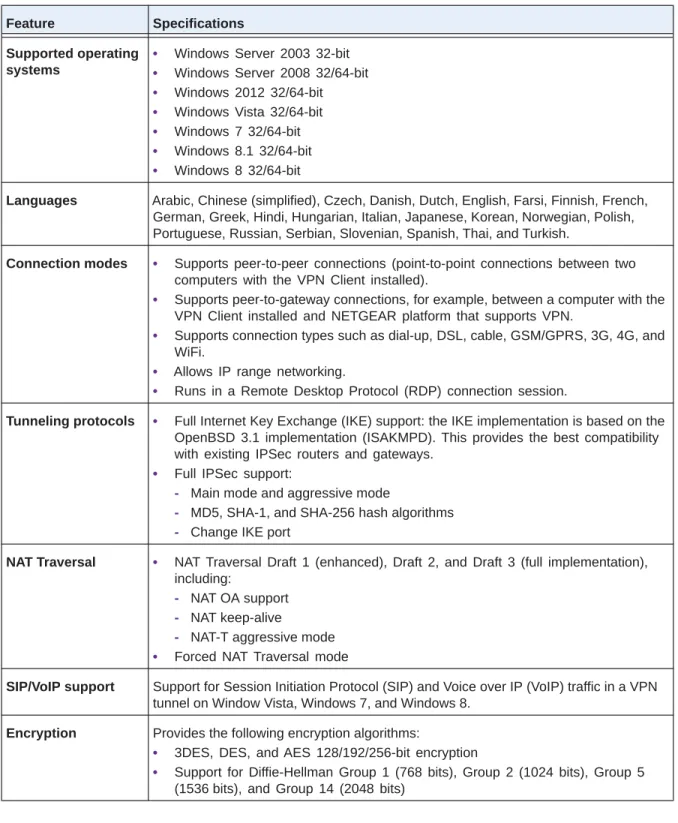
The VPN Client includes the following features.
Table 1. List of features
Feature Specifications Supported operating
systems
• Windows Server 2003 32-bit
• Windows Server 2008 32/64-bit
• Windows 2012 32/64-bit
• Windows Vista 32/64-bit
• Windows 7 32/64-bit
• Windows 8.1 32/64-bit
• Windows 8 32/64-bit
Languages Arabic, Chinese (simplified), Czech, Danish, Dutch, English, Farsi, Finnish, French, German, Greek, Hindi, Hungarian, Italian, Japanese, Korean, Norwegian, Polish, Portuguese, Russian, Serbian, Slovenian, Spanish, Thai, and Turkish.
Connection modes • Supports peer-to-peer connections (point-to-point connections between two computers with the VPN Client installed).
• Supports peer-to-gateway connections, for example, between a computer with the VPN Client installed and NETGEAR platform that supports VPN.
• Supports connection types such as dial-up, DSL, cable, GSM/GPRS, 3G, 4G, and WiFi.
• Allows IP range networking.
• Runs in a Remote Desktop Protocol (RDP) connection session.
Tunneling protocols • Full Internet Key Exchange (IKE) support: the IKE implementation is based on the OpenBSD 3.1 implementation (ISAKMPD). This provides the best compatibility with existing IPSec routers and gateways.
• Full IPSec support:
- Main mode and aggressive mode
- MD5, SHA-1, and SHA-256 hash algorithms
- Change IKE port
NAT Traversal • NAT Traversal Draft 1 (enhanced), Draft 2, and Draft 3 (full implementation), including:
- NAT OA support
- NAT keep-alive
- NAT-T aggressive mode
• Forced NAT Traversal mode
SIP/VoIP support Support for Session Initiation Protocol (SIP) and Voice over IP (VoIP) traffic in a VPN tunnel on Window Vista, Windows 7, and Windows 8.
Encryption Provides the following encryption algorithms:
• 3DES, DES, and AES 128/192/256-bit encryption
• Support for Diffie-Hellman Group 1 (768 bits), Group 2 (1024 bits), Group 5 (1536bits), and Group 14 (2048 bits)
User authentication Supports the following user authentication methods:
• Pre-shared keying and X509 certificate support. Compatible with most of the currently available IPSec gateways.
• Extended authentication (AUTH).
• Flexible certificates: PEM, PKCS#12 certificates can be directly imported from the user interface. Ability to configure one certificate per tunnel.
• Hybrid authentication method. Certificate storage capabilities:
• USB token and smart card support
• Personal Certificate Store support
• VPN configuration file Remote login:
• Gina mode is supported on Windows Vista, Windows 2012, Windows 7, Windows 8, Windows server 2003, and Windows server 2008 to enable Windows logon using a VPN tunnel or enable to log in on a local machine.
• Credential providers are supported on Windows Vista and Windows 7 to enable Windows logon using a VPN tunnel or enabling logging in on a local machine. Dead Peer Detection Dead Peer Detection (DPD) is an IKE extension (RFC3706) for detecting a dead IKE
peer.
Redundant gateway The redundant gateway feature provides a highly reliable secure connection to a corporate network. The redundant gateway feature allows the VPN Client to open an IPSec tunnel with an alternate gateway if the primary gateway is down or not responding.
Mode Config Mode Config is an IKE extension that enables the VPN gateway to provide LAN configuration to the remote user’s machine (that is, the VPN Client). With Mode Config, you can access all servers on the remote network by using their network name (for example, \\myserver\marketing\budget) instead of their IP address.
USB drive You can save VPN configurations and security elements (certificates, pre-shared key, and so on) to a USB drive to remove security information (for example, user
authentication) from the computer. You can automatically open and close tunnels when plugging in or removing the USB drive. You can attach a VPN configuration to a specific computer or to a specific USB drive.
Smart card and USB token
The VPN Client can read certificates from smart cards to make full use of existing corporate ID or employee cards that carry digital credentials.
You can easily import smart card ATR codes to enable new smart card and USB token models that are not yet in the software.
Log console All phase messages are logged for testing or staging purposes. Flexible user
interface
• Silent install and invisible graphical interface allow network administrators to deploy solutions while preventing user misuse of configurations.
• Small Connection Panel and VPN Configuration Panel can be available to end users separately with access control.
• Drag and drop VPN configurations into the VPN Client.
• Keyboard shortcuts to easily navigate the VPN Client.
Table 1. List of features (continued)
VPN Client Licenses for Lite and Professional
You can download a free 30-day trial version of VPN Client Light software, or you can purchase VPN Client Lite or VPN Client Professional, which includes more features.
Note: After the evaluation period expires, the VPN Client is disabled. By purchasing and activating a permanent license, you can transfer the trial version to a permanent version.
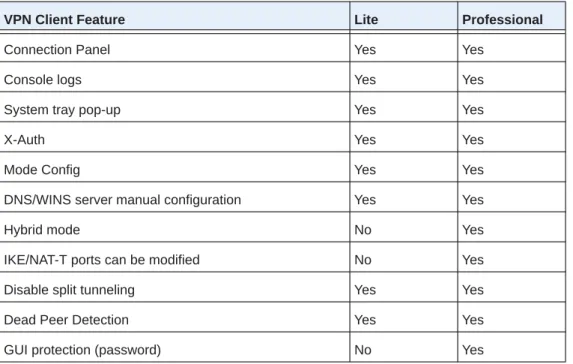
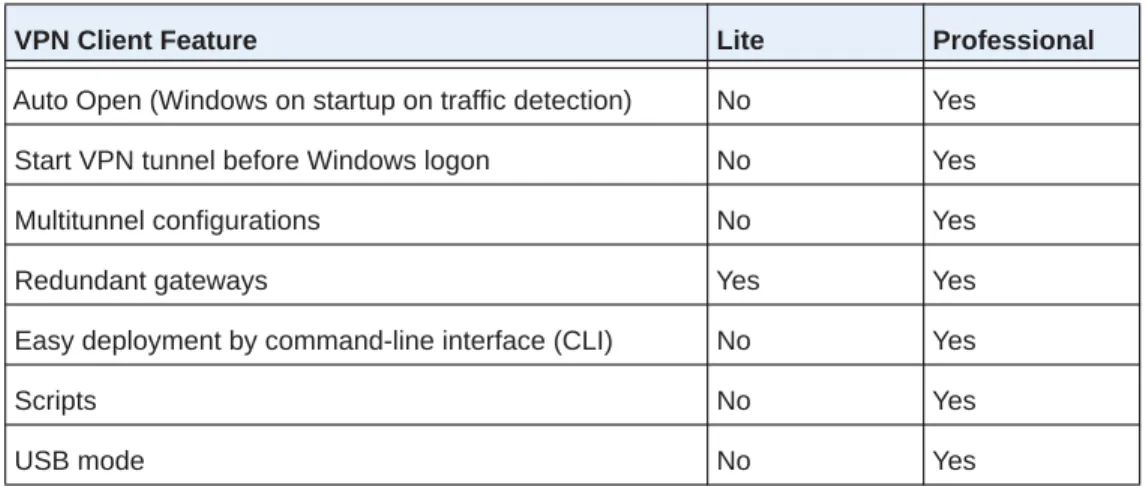
The following table lists the features that are included in the VPN Client Lite and VPN Client Professional versions.
Scripts Scripts or applications can be launched automatically on events (for example, before and after a tunnel opens, or before and after a tunnel is closed).
Configuration management
• User interface and command-line interface (CLI).
• Password-protected VPN configuration file.
• Specific VPN configuration file can be provided within the setup.
• Embedded demo VPN configuration to test and debug with online servers.
• Ability to prevent software upgrade or uninstallation if protected by password. Live update Ability to check for online updates.
Table 2. VPN Client Lite and VPN Client Professional comparison
VPN Client Feature Lite Professional
Connection Panel Yes Yes
Console logs Yes Yes
System tray pop-up Yes Yes
X-Auth Yes Yes
Mode Config Yes Yes
DNS/WINS server manual configuration Yes Yes
Hybrid mode No Yes
IKE/NAT-T ports can be modified No Yes
Disable split tunneling Yes Yes
Dead Peer Detection Yes Yes
GUI protection (password) No Yes
Table 1. List of features (continued)
Linux Appliance Support
The VPN Client supports several versions of Linux IPSec VPN such as StrongS/WAN and FreeS/WAN. The VPN Client is compatible with most of the IPSec routers and appliances that are based on those Linux implementations.
References and Useful Websites
These references and websites are for the ProSAFE VPN Client Lite and ProSAFE VPN Client Professional, both of which are developed by TheGreenBow:
• Access to VPNG01L product information and a 30-day trial software version:
http://support.netgear.com/product/vpng05l
• VPNG01L/VPNG05L FAQs:
http://kb.netgear.com/app/answers/detail/a_id/14903
• TheGreenBow IPSec VPN Client:
http://www.thegreenbow.com/vpn.html
• TheGreenBow VPN documentation and manuals:
http://www.thegreenbow.com/vpn_doc.html
The documents that you can access from this link are based on TheGreenBow VPN Client. The NETGEAR ProSAFE VPN Client Lite and ProSAFE VPN Client Professional are developed by TheGreenBow, so configuration is likely identical or similar.
Auto Open (Windows on startup on traffic detection) No Yes Start VPN tunnel before Windows logon No Yes
Multitunnel configurations No Yes
Redundant gateways Yes Yes
Easy deployment by command-line interface (CLI) No Yes
Scripts No Yes
USB mode No Yes
Table 2. VPN Client Lite and VPN Client Professional comparison (continued)
Note: For documentation about the legacy ProSAFE VPN Client that was developed by SafeNet, see the following NETGEAR sites:
http://support.netgear.com/product/VPN01L http://support.netgear.com/product/VPN05L
2
This chapter describes installation of the VPN Client and related processes. The chapterincludes the following sections:
• Install the VPN Client Software • Launch the VPN Client
• Use the VPN Client Lite Evaluation Version • License Number Concepts
• Activate the VPN Client License • Uninstall the VPN Client Software
Install the VPN Client Software
You can download a free 30-day trial version of VPN Client Lite software, or you can
purchase and download VPN Client Lite or VPN Client Professional software, which includes more features. (See VPN Client Features on page7.)
Note: If you use the 30-day trial version, when the evaluation period expires, the VPN Client is disabled. By purchasing and activating a permanent license, you can transfer the trial version to a permanent version.
To download the VPN client software, visit http://support.netgear.com/product/vpng05l.
To install the VPN client software:
1. To download the VPN client software, visit http://support.netgear.com/product/vpng05l.
2. Unzip the file that you downloaded.
3. Double-click the file.
The Welcome page displays.
4. Follow the onscreen prompts to complete installation.
5. If you are prompted to restart your computer, than do so.
Whether you must restart depends on your operating system. Windows 8, Windows 7, or Windows Vista computers do not need to be restarted.
The VPN Client Activation Wizard page displays.
How you activate VPN client depends on whether you activate a trial license or a permanent license:
• For information about the free trial software version, see Use the VPN Client Lite Evaluation Version on page14.
• For information about software with a permanent license, see Activate the VPN Client License on page16.
Launch the VPN Client
After you install the VPN Client software, there are three methods to launch the VPN Client:
• On your desktop, double-click the VPN Client shortcut .
• In the taskbar, click the VPN Client icon .
• From the Windows Start menu, select the path to the VPN Client, for example, Start > All Programs > NETGEAR > NETGEAR VPN Client Professional.
Note: If your operating system is Windows 8, Windows 7 or Windows Vista, you can select a check box to automatically run the VPN Client after software installation.
The VPN Client creates new rules in the Windows firewall (Vista and later operating systems) so that VPN traffic is enabled: UDP ports 500 and 4500 are authorized both for authentication (phase 1) traffic and for IPSec (phase 2) traffic.
If you use an earlier Windows operating system or another firewall, you might need to create firewall rules to enable the VPN Client. For information, see VPN Console Log Errors on page113.
Use the VPN Client Lite Evaluation Version
To use the VPN Client during the evaluation period:
1. On your desktop, double-click the VPN Client shortcut .
2. Select the I want to Evaluate the software radio button.
You do not need to enter a license number and email address to activate the trial software.
3. Click the Next button.
The VPN Configuration page displays.
During the evaluation period, the Software Activation page displays each time that you start the VPN Client. The remaining days of the evaluation period are displayed. You can also see the remaining days of the evaluation period on the About page (see View the Remaining Days in the Evaluation Period on page15).
When the evaluation period expires, the following occurs:
• The I want to Activate the software radio button is automatically selected.
• The message Evaluation period expired displays.
• The software is disabled.
For you to use the VPN Client, you must purchase and activate a permanent license. You can purchase and activate a permanent license while you are still in the evaluation period or after the evaluation period expires.
View the Remaining Days in the Evaluation Period
To view the remaining days in the evaluation period from VPN Client’s user interface:
1. On your desktop, double-click the VPN Client shortcut . The VPN Configuration page displays.
2. Select ? > About.
The About page displays the number of days that remain in the evaluation period.
Buy a License When the Evaluation Period Expires
When the evaluation period expires, the VPN Client is disabled. By purchasing and activating a permanent license, you can transfer the trial version to a permanent version.
To buy a permanent license:
1. On your desktop, double-click the VPN Client shortcut .
The Software Activation page displays. If the trial period expired, the page displays Evaluation period expired.
The NETGEAR website displays.
3. Follow the instructions onscreen to purchase a permanent license.
4. After you purchase a license, activate the permanent license.
For more information about how to activate a permanent license, see Activate the VPN Client License on page16.
License Number Concepts
A license number is attached to a single computer after activation. However, you can deactivate the license number (see Uninstall the VPN Client Software on page18) and transfer it to another computer.
You can also change the license number at any time, but you first must uninstall the VPN Client before you can reinstall the VPN Client with another license number.
After activation, save the license key number. You might need it again to reactivate your software if a problem occurs. Also, keep the CD label for technical support.
Activate the VPN Client License
When you purchase a license, you must activate it before you can use the VPN Client. You must activate the VPN Client license on your computer. You need the license number or key and an email address.
To activate your VPN Client license:
1. Make sure that your computer is connected to the Internet.
2. On your desktop, double-click the VPN Client shortcut . The VPN Configuration page displays.
4. Select the I want to Activate the software radio button.
5. When prompted, enter your license number.
6. If a field displays to enter an email address, complete the field. Your email address is used to send you the activation confirmation.
Note: If the network administrator set up VPN Client to suppress the email address field, this field does not display. Some network administrators use this method to direct all software activation confirmation email to a single email address.
7. Click the Next button.
The Software Activation Wizard connects to the activation server to activate the VPN Client software. The progress bar shows the activation progress. The page displays a message when activation is complete.
8. If an error occurs, click the More information about this error link.
For troubleshooting information, see Troubleshoot Software Activation on page17.
9. Click the Run button.
The VPN Client relaunches with the new license. The VPN Configuration page displays.
Troubleshoot Software Activation
Errors can occur during the activation process. Each activation error type is displayed on the Software Activation page.
You can resolve most of errors by carefully checking the following:
• Verify that you entered the correct license number. (Error 031 indicates that the license number was not found.)
• Your license number could already be activated (Error 033). Contact NETGEAR support.
• Your license number cannot be used for activation (Error 034). Contact NETGEAR support.
• A firewall might block communication with the activation server (Error 053 or Error 054). Find out if a personal or corporate firewall is blocking communications.
• The activation server might be temporarily unreachable. Wait a few minutes and try again.
To view a list of all activation errors, visit http://.support.netgear.com.
Software Upgrade Concepts
Your VPN configuration is saved during a software upgrade and automatically reenabled within the new release. If you specified a password for access control (see Access Control Overview on page69), you must enter it to be able to upgrade the software.
After each software upgrade, you must reactivate the VPN Client. Depending on your maintenance contract, a software upgrade activation might be rejected. The success of software upgrade activation depends on your maintenance contract:
• During the maintenance period, which starts from your first activation, all software upgrades are allowed.
• If the maintenance period expired or if your license does not include a maintenance contract, only maintenance software upgrades are allowed. Maintenance software upgrades are identified by the last digit of a version.
Example: Your maintenance period expired and your current software release is 4.12. You can upgrade to releases 4.13 through 4.19 but not to release 4.20, 5.00, or 6.00. To subscribe or extend your maintenance period, contact NETGEAR by email at
To check the status of a VPN Client software release:
1. On your desktop, double-click the VPN Client shortcut . The VPN Configuration page displays.
2. Select ? > Check for Update. The NETGEAR website displays.
3. Check to see if the VPN Client is running the latest software release.
4. Download the updates that are supported by your license.
Uninstall the VPN Client Software
To transfer a license to a new computer, you must uninstall the software from the old computer. Deactivation of the license on the old computer occurs automatically if the computer is connected to the Internet. The license can then be used to activate the VPN Client on a new computer.
If your computer is not connected to the Internet and you must deactivate your license, contact NETGEAR support by email at [email protected], or call technical support to deactivate your license.
Several methods are available for uninstalling the VPN Client software. Depending on your Windows operating system, these methods might differ slightly from the following
procedures.
Tip: Save the license key number. You might need it to reactivate your software. Also, keep the CD label for technical support.
To uninstall the VPN Client through the Windows Control Panel:
1. Make sure that your computer is connected to the Internet.
3. Double-click Programs and Features.
IIn some Windows versions, you must double-click Add or Remove Programs.
4. Right-click NETGEAR VPN Client Professional and select Uninstall. In some Windows versions, you must select Remove.
The software is uninstalled from your computer.
To uninstall the VPN Client through the Windows All Programs menu:
1. Make sure that your computer is connected to the Internet.
2. Select Start > All Programs.
3. Select the path to the VPN Client, for example, Start > All Programs > NETGEAR > NETGEAR VPN Client Professional.
4. Select the uninstall option.
3
This chapter describes the user interface for the VPN Client. The chapter includes the following sections:• User Interface Components • VPN Configuration Panel
• System Tray Icon and System Tray Menu • Connection Panel
User Interface Components
The VPN Client configuration is defined in a VPN configuration file. You can create, modify, save, export, or import the VPN configuration together with security elements such as a pre-shared key or certificates. You can also configure the VPN client to start and stop tunnels automatically, depending on traffic to certain destinations.
The user interface consists of the following components:
• VPN Configuration Panel that you use to specify VPN settings
• VPN Connection Panel that lets you open and close tunnels that you configured
• System tray icon and pop-up windows to view and manage the VPN tunnel status For information about how to control the user interface display for end users, see Hide User Interface Features on page71 and Configure Which Items of the System Tray Menu Are Visible on page89.
VPN Configuration Panel
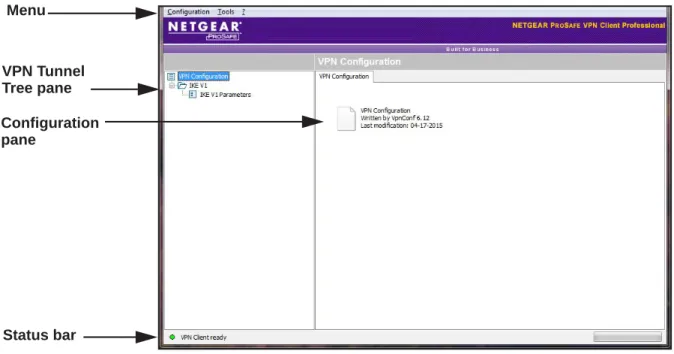
When you launch the VPN Client, the VPN Configuration page displays.
Menu
VPN Tunnel
Status bar Tree pane Configuration pane
Figure 1. VPN Configuration page
You can use this page to configure VPN tunnels to connect the client computer to remote destinations that are configured to accept VPN client connections.
Note: For information about restricting access to the VPN Configuration page, see Access Control Overview on page69.
For information about hiding the VPN Configuration link from the system tray menu, see Hide User Interface Features on page71.
The menu at the top of the window includes the following selections:
• Configuration. Lets you import and export a VPN configuration, select the location of the VPN configuration (locally stored on the computer or on a USB drive), access the
Configuration Wizard, and quit the VPN Client.
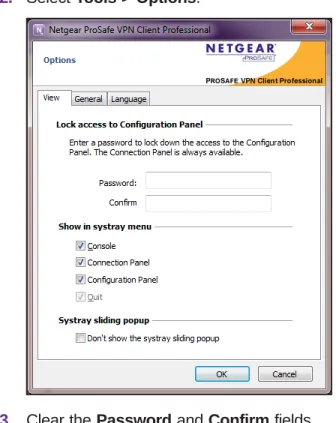
• Tools. Lets you access the Connection Panel, access the Console page, reset the IKE settings, and access the Option page to configure miscellaneous preferences such as the way the VPN Client starts and the language of the VPN Client.
• ?. Lets you access online help, check for software updates, connect to the NETGEAR website to purchase a license online, access the Activation Wizard, and access the About page.
Note: Some selections on the Configuration menu are also available by right-clicking a component of the VPN Tunnel Tree pane.
System Tray Icon and System Tray Menu
After you launch the VPN Client, the VPN Client displays an icon in the system tray that indicates whether a tunnel is open, using a color code.
Purple icon:
no VPN tunnel opened. Green icon:
at least one VPN tunnel opened.
Figure 2. VPN Client icon colors in the system tray
To open the system tray menu:
Some menu items do not display until you configure a working VPN tunnel. The following options are available in the system tray menu:
• Close <gateway name-tunnel name> Close the VPN tunnel that is currently open.
• Open <gateway name-tunnel name> Open an established VPN tunnel that is currently closed.
• Console. Open the VPN Console Active page.
• Connection Panel. Open the Connection Panel, which lets you open and close VPN tunnels and displays information about VPN tunnels.
• Configuration Panel. Open the Configuration Panel, which lets you create and configure VPN tunnels.
• Quit. Close all established VPN tunnels, then close the VPN Client.
System Tray Pop-Up Window
When a VPN tunnel opens or closes, a small window pops up from the system tray icon.
Figure 3. Tunnel opened pop-up window
If the VPN tunnel cannot open, the window might display an error or warning with a link to more information.
Connection Panel
The Connection Panel lets you open and close each tunnel that is configured. If a network administrator configured the VPN tunnels, the end user needs access only to the Connection Panel to open and close tunnels.
Note: For information about hiding the Connection Panel link from the system tray menu, see Hide User Interface Features on page71.
To open the Connection Panel:
1. On your desktop, double-click the VPN Client shortcut . The VPN Configuration page displays.
2. Select Tools > Connection Panel.
Open tunnel Closed tunnel
These examples show the Connection Panel after the VPN tunnel was already established.
The Connection Panel lets you open, close, and receive information about every tunnel that was configured. If a network administrator configured the VPN tunnels, the end user needs access to the Connection Panel only to open and close tunnels.
The Connection Panel consists of the following components:
• For each tunnel, the following components:
- An icon that shows the status of the tunnel: The tunnel is closed.
The tunnel is being opened. The tunnel is open.
An incident occurred during the opening or closure of the tunnel.
- A rectangular traffic gauge ( ) that shows the traffic volume passing through the tunnel.
- The connection name (tunnel name) in the format authentication phase name–IPSec configuration name.
• Three icons in the upper right corner:
- ?. Opens the About page.
- +. Opens the Configuration Panel.
- x. Closes the Connection Panel.
Note: You can switch back and forth between the Connection Panel and the Configuration Panel by pressing Ctrl + Enter.
Keyboard Shortcuts
The user interface supports the following keyboard shortcuts.
Table 3. Keyboard shortcuts
Shortcut Action General shortcuts
Ctrl + Enter Lets you switch back and forth between the Configuration Panel and the Connection Panel. If the Configuration Panel is protected with a password, you are asked for this password when you switch to the Configuration Panel.
Ctrl + D Opens the VPN Console for network debugging. Ctrl + Alt + T Activates the trace mode for the generation of logs. Ctrl + Alt + R Resets the IKE settings.
Shortcuts for the VPN Tunnel Tree pane (see Figure1 on page21) F2 Lets you edit the name of a selected phase.
Del Lets you delete the selected phase or the entire VPN configuration. To delete the entire VPN configuration, first select the VPN configuration. Ctrl + O Opens the VPN tunnel of the selected phase 2.
Ctrl + W Closes the VPN tunnel of the selected phase 2. Ctrl + C Copies the selected phase.
Ctrl + V Pastes the selected phase. Ctrl + N Creates a new phase:
• To create a phase 1, first select the VPN configuration.
• To create a phase 2, first select the phase 1. Ctrl + S Saves and applies a VPN configuration.
4
This chapter describes how to create VPN tunnels. The chapter includes the following sections:• VPN Tunnel Overview
• Configure IKE Authentication Settings • Configure Advanced Authentication Settings • Configure IPSec Settings
• Configure the Parameter Settings • Open and Close VPN Tunnels
VPN Tunnel Overview
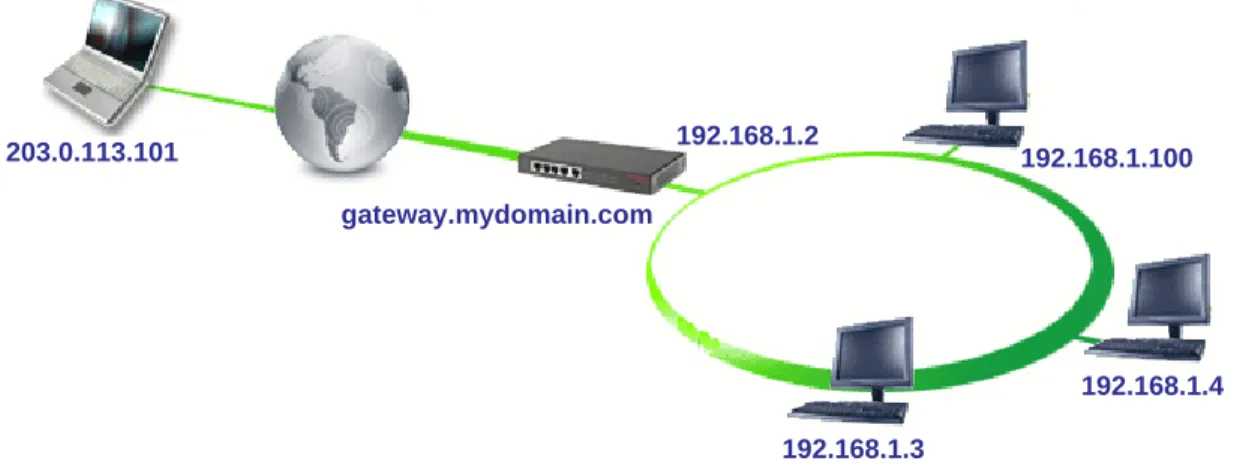
You can configure a computer as a VPN client. The computer can use the VPN tunnel to connect to a remote corporate LAN through a VPN gateway and for peer-to-peer
connections. The remote gateway or peer must be configured to accept VPN clients. The VPN tunnel in the following figure is set up with these characteristics:
• The VPN client computer uses a dynamically provided public IP address.
• The VPN client computer connects to the remote corporate LAN behind a VPN gateway with a DNS address name gateway.mydomain.com.
• The corporate LAN address is 192.168.1.xxx, that is, the VPN client computer can access a server with the IP address 192.168.1.100.
203.0.113.101
gateway.mydomain.com
192.168.1.2
192.168.1.100
192.168.1.4
192.168.1.3
Figure 4. VPN connection between a computer and a remote corporate LAN
To configure the tunne:
1. Set up the gateway for VPN connections.
For information about how to set up a NETGEAR router as a VPN gateway, see Appendix A, Configure a NETGEAR VPN Gateway.
2. Specify the authentication (phase 1) settings.
See Configure IKE Authentication Settings on page28.
3. Specify the advanced authentication settings.
See Configure Advanced Authentication Settings on page30.
4. Specify the IPSec (phase 2) settings. See Configure IPSec Settings on page37.
5. Specify the parameters.
Note: You can use the VPN Wizard to enter some authentication settings (select Configuration > Wizard), but after you complete the wizard, you must also specify the advanced authentication, IPSec, and parameter settings.
Configure IKE Authentication Settings
You can specify the settings for the authentication phase, which is also referred to as phase 1 or as the Internet Key Exchange (IKE) negotiation phase. The purpose of phase 1 is to negotiate IKE policy sets, authenticate the peers, and set up a secure channel between the peers. As part of phase 1, each end system must identify and authenticate itself to the other. You can specify settings for several authentication phases, enabling one computer to establish IPSec VPN connections with several gateways or other computers (peer-to-peer connections).
A pre-shared key is the authentication method that is the easiest to implement but is also the weakest in terms of security. The VPN Client supports the following authentication methods, which are listed in the order of increased security (from weakest to strongest security):
• Pre-shared key
• Static extended authentication
• Dynamic extended authentication
• Certificate stored in the VPN security policy
• Certificate in the Windows Certificate Store
• Certificate on a smart card or token
To configure authentication IKE settings:
2. In the VPN Tunnel Tree pane, right-click the name of the IKE configuration.
3. Select New Phase 1 or select the configuration.
The Ikev1Gateway: Authentication page displays in the Configuration pane on the right. The default name for authentication phase 1 is Ikev1Gateway. This authentication phase is used only for the VPN Client, not during IKE negotiation.This name must be unique.
4. To change the authentication phase 1 name, do the following: a. In the VPN Tunnel Tree pane, right-click the name.
b. Select Rename. c. Type the new name.
d. Click anywhere in the VPN Tunnel Tree pane.
The authentication name changes on the VPN Tunnel Tree pane and also in the Configuration pane on the right.
a. In the Interface menu, leave Any selected if the IP address changes (when it is received dynamically from an ISP or router).
You can enter the IP address of the network interface of the computer through which the VPN connection is established. If you select an IP address that does not exist on the computer, Any is used automatically.
b. In the Remote Gateway field, type the remote IP address or the DNS name of the VPN gateway.
For example, type myrouter.dyn.com or 10.200.13.18.
6. To specify a preshared key, do the following: a. Select the Preshared Key radio button.
b. Enter the preshared key that you already specified in the VPN gateway in the Preshared Key field and in the Confirm field.
7. To specify a X509 certificate, do the following: a. Click the Certificate tab.
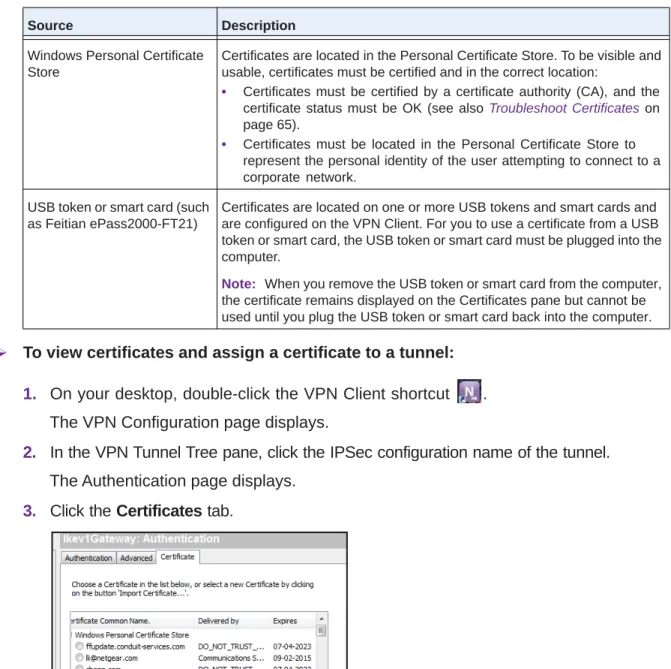
The Certificate page displays the certificate source. You can use a PEM file, PKCS#21 file, smart card, or token, or a certificate from the Personal Certificate Store. Specify only one certificate per tunnel.
b. Select the certificate.
For information about certificates, see Manage Certificates on page57. c. Click the Authentication tab.
8. In the Encryption menu, select the encryption algorithm that is used during the authentication phase.
For a typical NETGEAR VPN gateway, select 3DES.
9. In the Authentication menu, select the authentication algorithm that is used during the authentication phase.
For a typical NETGEAR VPN gateway, select SHA1.
10. In the Key Group field, select the Diffie-Hellman key length that is used during the authentication phase.
For a typical NETGEAR VPN gateway, select DH2 (1024). On NETGEAR routers, this key group is referred to as Diffie-Hellman Group 2 (1024 bit).
11. Select Configuration > Save or press Ctrl + S. Your settings are saved.
Configure Advanced Authentication Settings
For IKE authentication settings, the advanced configuration settings apply to all its associated IPSec policy settings.
Note: IKE authentication settings are sometimes referred to as phase 1 settings. IPsec policy settings are sometimes referred to as phase 2 settings.
To configure advanced authentication settings:
1. On your desktop, double-click the VPN Client shortcut . The VPN Configuration page displays.
2. In the VPN Tunnel Tree pane, right-click the name of the IKE configuration. The Authentication page displays.
3. Click the Advanced tab.
4. In the Advanced Features section, complete the fields:
a. To allow the VPN Client to receive VPN configuration information from the remote VPN gateway, select the Mode Config check box.
b. To allow the VPN Client to use aggressive mode as the negotiation mode, leave the Aggressive Mode check box selected.
c. To enable the VPN Client to open an IPSec tunnel with an alternate gateway when the primary VPN gateway is down or stops responding, enter the IP address or URL of an alternate VPN gateway in the Redund. GW field.
d. In the NAT-T menu, select one of the following NAT Traversal (NAT-T) modes:
• Automatic. The VPN Client and VPN gateway negotiate NAT-T. This is the default setting.
• Forced. The VPN Client forces NAT-T by encapsulating IPSec packets into UDP frames, allowing packet traversal through intermediate NAT routers.
• Disabled. Prevents the VPN Client and VPN gateway from negotiating NAT-T.
Note: For XAUTH, NETGEAR recommends that you do not complete the Login and Password fields on this page. Leave these fields blank so that the VPN Client user enters these credentials. This method is referred to as dynamic extended authentication.
For more information about XAUTH, see Configure XAUTH on page32.
6. To enable this mode, select the Hybrid Mode check box and enter a name in the Login field and a password in the Password field.
7. Select the type of local ID and enter the associated value for the ID in the field to the right. The following selections are available:
• IP Address. Enter a standard IP address (for example, 195.100.205.101).
• DNS. Enter a fully qualified domain name (FQDN) (for example, mydomain.com).
• DER ASN1 DN. Enter a certificate issuer (for more information, see Manage
Certificates on page57). If you do not enter a certificate, the IP address of the VPN Client is used.
• Subject from X509. These fields are automatically set when you import a certificate (see Import a PEM Certificate on page58 and Import a P12 Certificate on page59).
Note: If a VPN tunnel closes because the computer changed its IP address, the VPN tunnel does not reopen automatically when the network becomes available again.
8. Select the type of remote ID and enter the associated value for the ID in the field to the right. The remote ID is the identity that the VPN Client receives from the VPN gateway during the authentication phase. The following selections are available:
• IP Address. Enter a standard IP address (for example, 203.0.113.4).
• DNS. Enter a fully qualified domain name (FQDN) (for example, gateway.mydomain.com).
• DER ASN1 DN. Enter a certificate issuer (for more information, see Manage
Certificates on page57). If you do not enter a certificate, the IP address of the VPN gateway is used.
9. Select Configuration > Save or press Ctrl + S. Your settings are saved.
Configure XAUTH
Extended authentication (XAUTH) is an extension of the IKE protocol. IKE is an important element of the public key infrastructure (PKI) that defines how security credentials are exchanged over the IPSec tunneling protocol. For extended authentication (XAUTH), IPSec negotiation requires the definition of a login name and password on the remote VPN gateway. The VPN Client supports several authentication protocols, including CHAP and one-time password (OTP).
When an end user opens a tunnel, a pop-up window opens and the end user must enter the XAUTH user name (login) and password. In a multiple VPN tunnel configuration, the name of the VPN tunnel displays in the pop-up window. The credentials must match those on the remote VPN gateway. If XAUTH authentication fails, the tunnel establishment fails too. The end user is allowed some time to enter the credentials. If the time expires, a warning displays and the end user must reopen the VPN tunnel. The expiration time depends on the settings of the X-Auth timeout field on the Parameters pane of the Connection Panel (see
Configure the Parameter Settings on page40).
The way that credentials are verified depends on the VPN gateway. When a VPN gateway detects an incorrect login name or password, one of the following actions can occur:
• The XAUTH page displays again.
• A pop-up warning alerts the user to try to open the VPN tunnel again.
To configure XAUTH:
1. On the client computer desktop, double-click the VPN Client shortcut . The VPN Configuration page displays.
2. In the VPN Tunnel Tree pane, right-click the name of the IKE configuration. The Authentication page displays.
3. Click the Advanced tab.
4. Select the X-Auth Popup check box.
Note: NETGEAR recommends that you do not complete the Login and Password fields on this page. Leave these fields blank so that the VPN Client user enters these credentials. This method is referred to as dynamic extended authentication.
If you enter a name in the Login field and a password in the Password field, the pop-up window does not open, and the tunnel is established if the credentials match those on the
gateway. This method is referred to as static extended authentication. However, this defeats the purpose of extended authentication.
5. Select Configuration > Save or press Ctrl + S. Your settings are saved.
Configure a Redundant Gateway
You can configure a redundant gateway. An alternate gateway is used under the following circumstances:
• The VPN Client cannot contact the primary gateway to establish a tunnel. After several attempts (determined by the value in the Retransmission field—the default is
5
attempts—in the Parameters page (see Configure the Parameter Settings on page40), the VPN Client uses the alternate gateway as the new tunnel endpoint. The interval between two attempts is about 10 seconds.
• A tunnel is established with the primary gateway with the Dead Pear Detection (DPD) feature but the primary gateway stops responding to DPD messages.
Note: The same connection rules apply if the alternate gateway goes down or stops responding. This means that the VPN Client could switch between the primary and alternate gateways until you save the configuration or close and exit the VPN Client.
If the primary gateway can be reached but tunnel establishment fails (that is, VPN
configuration errors occur), the VPN Client does not attempt to establish a tunnel with the alternate gateway. In this case, you must first resolve the configuration errors.
To configure a redundant gateway:
1. On the client computer desktop, double-click the VPN Client shortcut . The VPN Configuration page displays.
2. In the VPN Tunnel Tree pane, right-click the name of the IKE configuration. The Authentication page displays.
3. Click the Advanced tab.
4. Complete the Redun. GW field.
5. Enter the IP address of the gateway.
6. Select Configuration > Save or press Ctrl + S. Your settings are saved.
Configure Mode Config Settings
Mode Config allows the VPN Client to receive VPN configuration information from the remote VPN gateway. The remote VPN gateway must support the Mode Config feature. When Mode Config is enabled, the following information is negotiated between the VPN client and the remote VPN gateway during the authentication phase:
• Virtual IP address of the VPN client
• DNS server address (optional)
• WINS server address (optional)
The virtual IP address that is issued by the remote VPN gateway is displayed in the VPN Client Address field on the IPSec pane with the IPSec tab selected.
If the Mode Config feature is not available or not supported on the remote VPN gateway, manually specify the DNS and WINS server addresses on the VPN client. For more information, Control How VPN Tunnels Are Opened on page45.
To set up Mode Config:
1. On the client computer desktop, double-click the VPN Client shortcut . The VPN Configuration page displays.
2. In the VPN Tunnel Tree pane, right-click the name of the IKE configuration. The Authentication page displays.
3. Click the Advanced tab.
4. Select the Mode Config check box.
5. Select Configuration > Save or press Ctrl + S. Your settings are saved.
Configure Hybrid Mode
Note: Hybrid mode is supported in VPN Client Professional, but not in VPN Client Lite.
Hybrid mode requires you to configure a certificate for the authentication phase and to select Extended authentication (XAUTH), that is, the X-Auth Popup check box.
Hybrid mode is an authentication method that is used within the authentication phase. Hybrid mode assumes an asymmetry between the authenticating entities. One entity, typically an edge device (for example, a firewall), authenticates using standard public key techniques (in signature mode), while the other entity, typically a remote user, authenticates using challenge response techniques. At the end of the authentication phase, these authentication methods are used to establish an IKE security association (SA) that is unidirectionally authenticated. To ensure that the IKE is bidirectionally authenticated, the authentication phase is
immediately followed by an extended authentication (XAUTH) to authenticate the remote user. The use of these authentication methods is referred to as hybrid authentication mode. The VPN Client implements the RFC draft-ietf-ipsec-isakmp-hybrid-auth-05.txt.
To configure hybrid mode:
1. On the client computer desktop, double-click the VPN Client shortcut . The VPN Configuration page displays.
2. In the VPN Tunnel Tree pane, right-click the name of the IKE configuration. The Authentication page displays.
3. Click the Advanced tab.
4. Select the X-Auth Popup check box.
For you to configure hybrid mode, you must select this check box.
5. Select the Hybrid Mode check box.
6. Select Configuration > Save or press Ctrl + S. Your settings are saved.
Configure IPSec Settings
The purpose of the IPSec configuration, which is also referred to as phase 2, is to negotiate the IP security settings that are applied to the traffic that goes through the tunnels.
Note: On NETGEAR routers, the IPSec configuration is referred to as VPN settings.
You can create several phase 2 configurations for a single set of phase 1 settings. For information about how to specify scripts, see Configure Scripts on page51.
This example assumes that the client is connecting to a VPN gateway.
To create an IPSec configuration:
1. On the client computer desktop, double-click the VPN Client shortcut . The VPN Configuration page displays.
3. Select New Phase 2.
The Ikev1Tunnel: IPSec page displays in the Configuration pane on the right. The default name for the tunnel is Ikev1Tunnel. This name is used only for the VPN Client, not during IKE negotiation.This name must be unique.
4. To change the tunnel name, do the following:
a. In the VPN Tunnel Tree pane, right-click the name.
b. Select Rename. c. Type the new name.
d. Click anywhere in the VPN Tunnel Tree pane.
The tunnel name changes in the VPN Tunnel Tree pane and also in the Configuration pane on the right.
5. In the VPN Client Address field, enter the virtual IP address that the VPN Client uses in the VPN router’s LAN.
This computer (the client) appears in the LAN with this IP address. You can also enter another LAN IP address or even 0.0.0.0 as the IP address.
Both the local IP address of your computer and the remote LAN address can be part of the same subnet. To enable such a configuration, select the Automatically open this tunnel on traffic detection check box on the Advanced IPSec pane (see Control How VPN Tunnels Are Opened on page45). When the VPN tunnel is opened in this
configuration, all traffic with the remote LAN is allowed but communication with the local network becomes impossible.
Note: If Mode Config is enabled and the remote VPN gateway issued an IP address to the VPN Client, the IP address is displayed in the VPN Client address field.
6. In the Address Type menu, select the remote endpoint’s type of address:
• Single address. The remote endpoint is a single computer. Specify the remote host address and the subnet mask.
• Subnet address. The remote endpoint is a LAN. Specify the remote LAN address and the subnet mask.
• To force all traffic from the computer to pass through the VPN tunnel, select Subnet address, and enter 0.0.0.0 as the subnet mask.
• Range address. The remote endpoint is a LAN that consists of a range of addresses. Specify the start and end addresses.
Depending on your selection, the pane adjusts to display the associated address fields:
Note: When you select Range address and the Automatically open this tunnel on traffic detection check box on the Advanced IPSec pane (see Control How VPN Tunnels Are Opened on page45), the tunnel automatically opens when traffic is detected for a specific range of IP addresses. However, this range of IP addresses must be specified in the configuration of VPN gateway.
7. In the Remote LAN address field, enter the remote IP address, or LAN network address, of the VPN gateway.
8. In the Subnet Mask field, enter the subnet mask of the gateway.
9. In the Encryption menu, select the encryption algorithm. For a NETGEAR router, select 3DES.
10. In the Authentication menu, select an authentication method. For a NETGEAR router, select SHA1.
11. Select the IPSec encapsulation mode:
• Tunnel. The mode that is commonly used when either end of a security association (SA) is a security gateway or when both ends of an SA are security gateways that function as proxies for the hosts behind them. Tunnel mode encrypts both the payload and the entire header (UDP/TCP and IP). This is the default setting.
• Transport. The mode in which traffic is destined for a security gateway that functions as a host. (For example, you could use transport mode for SNMP commands.) Transport mode encrypts only the payload, not the IP header.
12. To use Perfect Forward Secrecy (PFS), do the following: a. Leave the PFS check box selected.
b. Specify the key length to be used during the IPSec configuration phase. c. Select a group.
The default group is DH2 (1024). NETGEAR routers use Diffie-Hellman Group 2 (1024 bit).
13. Select Configuration > Save or press Ctrl + S. Your settings are saved.
Configure the Parameter Settings
The parameters are generic settings that apply to all VPN tunnels that you create. The default parameters work well for most VPN configurations. You can modify the parameters for your specific network. The following table describes the parameter settings.
To specify the parameters:
1. On the client computer desktop, double-click the VPN Client shortcut . The VPN Configuration page displays.
2. In the VPN Tunnel Tree, click the parameters name.
3. Specify the lifetime in seconds for authentication and encryption.
For a typical NETGEAR VPN gateway, specify the following default lifetimes in seconds:
• Authentication (IKE) Default. The default lifetime value is 3600 seconds. Change this setting to 28800 seconds to match the configuration of the VPN router.
• Encryption (IPSec) Default. The default lifetime value is 1200 seconds. Change this setting to 3600 seconds to match the configuration of the VPN router.
4. Select or clear the Dead Peer Detection check box.
Dead Peer Detection (DPD) is an Internet Key Exchange (IKE) extension (RFC3706) for detecting a dead IKE peer. This check box is selected by default. To disable DPD, clear the check box.
The IPSec VPN Client uses DPD under the following circumstances:
• To detect a dead peer and to delete the associated open SA in the VPN Client.
• To restart IKE negotiations with an alternate gateway, if you configured one (see
Control How VPN Tunnels Are Opened on page45).
5. To specify the number of retransmissions, enter a value in the Retransmissions field.
6. To specify the XAUTH time-out, enter a value in the X-Auth Timeout field.
7. To specify the default UDP port that is used in the IKE negotiation during the authentication phase, enter the port in the IKE Port field.
The default port is 500, which is not displayed in the IKE Port field.
Note: Some firewalls do not allow IKE port 500, or outgoing traffic on port 500 might not be allowed. If you change the IKE port number, the remote gateway must be able to reroute the incoming traffic that is associated with a port other than IKE port500.
8. To specify the default NAT port that is used during the IPSec negotiation, enter a value in the NAT Port field.
The default port is 4500, which is not displayed in the NAT Port field.
Note: Some firewalls do not allow NAT port 4500, or outgoing traffic on port 4500 might not be allowed. If you change the NAT port number, the remote gateway must be able to reroute the incoming traffic that is associated with a port other than NAT port4500.
9. Select or clear the Disable Split Tunnelling check box.
Selecting this check box limits traffic to encrypted traffic and forces all traffic to go through the VPN tunnel.
10. Select Configuration > Save or press Ctrl + S. Your settings are saved.
Open and Close VPN Tunnels
You can open a tunnel only after you specify its VPN configuration.
For information about how to open tunnels automatically, see Control How VPN Tunnels Are Opened on page45.
For information about how to open tunnels using CLI commands, see Customize the VPN Client Using CLI Commands on page101.
To open the tunnel from the VPN Configuration panel:
1. On your desktop, double-click the VPN Client shortcut . The VPN Configuration page displays.
2. Select Tools > Connection Panel. The Connection Panel lists the tunnel.
3. Double-click the tunnel. The tunnel opens.
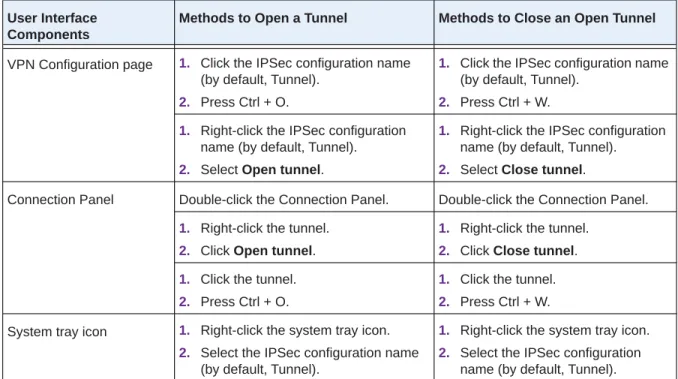
The following table provides an overview of the methods that you can use to open and close VPN tunnels.
Table 4. Methods to open and close VPN tunnels from the user interface
User Interface Components
Methods to Open a Tunnel Methods to Close an Open Tunnel
VPN Configuration page 1. Click the IPSec configuration name (by default, Tunnel).
2. Press Ctrl + O.
1. Click the IPSec configuration name (by default, Tunnel).
2. Press Ctrl + W.
1. Right-click the IPSec configuration name (by default, Tunnel).
2. Select Open tunnel.
1. Right-click the IPSec configuration name (by default, Tunnel).
2. Select Close tunnel.
Connection Panel Double-click the Connection Panel. Double-click the Connection Panel.
1. Right-click the tunnel.
2. Click Open tunnel.
1. Right-click the tunnel.
2. Click Close tunnel.
1. Click the tunnel.
2. Press Ctrl + O.
1. Click the tunnel.
2. Press Ctrl + W. System tray icon 1. Right-click the system tray icon.
2. Select the IPSec configuration name (by default, Tunnel).
1. Right-click the system tray icon.
2. Select the IPSec configuration name (by default, Tunnel). The VPN Configuration page and Connection Panel show an icon to the left of the VPN tunnel that indicates the status of the tunnel:
The tunnel is closed.
The tunnel is configured to open automatically when traffic is detected. The tunnel is being opened.
The tunnel is open.
5
This chapter describes the advanced configuration options. The chapter includes the following sections:• Control How VPN Tunnels Are Opened • Configure Alternate DNS and WINS Servers • Configure Scripts
• Configure Remote Sharing • USB Mode
• Manage Certificates
• Manage VPN Configuration Files • Access Control Overview
• Hide User Interface Features
• Configure VPN Client Startup Mode and Network Interface Detection • Change the Language
Control How VPN Tunnels Are Opened
You can configure a VPN tunnel to open automatically. Automatic tunnel opening is an advanced IPSec setting that applies only to the associated IPSec configuration (phase 2 settings) for a VPN tunnel. That is, automatic tunnel opening is not a global setting for the VPN Client.
Open a Tunnel Automatically
You can configure a tunnel to open automatically.
To configure tunnels to open automatically:
1. On your desktop, double-click the VPN Client shortcut . The VPN Configuration page displays.
2. In the VPN Tunnel Tree pane, click the IPSec configuration name of the tunnel. The IPSec pane displays.
3. In the IPSec pane, click the Automation tab.
Note: When you select an Automatic Open mode check box, the VPN Client automatically opens the tunnel to which these advanced settings apply.
4. Select one of the following check boxes:
• Automatically open this tunnel when the VPN Client starts after login. For more information, see Open a Tunnel by Double-Clicking on a Desktop Icon on page47.
• Automatically open this tunnel when USB stick is inserted. For more information, see USB Mode on page53).
• Automatically open this tunnel on traffic detection. Open the tunnel when the VPN Client detects traffic.
5. Select or clear the Enable before Windows logon check box.
Selecting this check box enables Windows credential providers for Windows Vista or Windows 7.
Credential providers allow a tunnel to be used for the Windows logon process. This can be useful when a corporate employee database is used for logon and the remote computer must connect to the corporate network before processing the Windows logon. For more information, see Open a Tunnel Before Windows Logon on page46.
Note: When the credential providers feature is enabled, the Scripts pane is disabled.
6. Select Configuration > Save or press Ctrl + S. Your settings are saved.
Open a Tunnel Before Windows Logon
You can manually or automatically open one or more VPN tunnels before Windows logon by using a Windows logon technology that is referred to as credential providers in Windows7 and Windows Vista.
Before Windows logon, the following pop-up window opens to allow you to open the required VPN tunnel.
The pop-up window lists all VPN tunnels for which you selected the Enable before Windows logon check box on the Advanced IPSec pane.
The following information applies to these tunnels:
• You cannot hide the pop-up window that opens before Windows logon.
• If two tunnels are configured to automatically open on traffic detection but only one tunnel is configured to be enabled before Windows logon, both tunnels might open automatically before Windows logon when the IKE services are running.
• If you configured scripts, they are disabled.
• The VPN Client cannot function in USB mode (see USB Mode on page53).
• The Mode Config feature is disabled, so you might need to specify DNS or WINS server addresses (see Control How VPN Tunnels Are Opened on page45).
• When extended authentication (XAUTH) is enabled, a pop-up window opens when tunnels open and you are prompted to enter the login name and password.
• When you use a USB token or smart card, a pop-up window opens when tunnels open to enable you to enter the PIN code.
To configure the VPN tunnel to open before Windows logon:
1. On your desktop, double-click the VPN Client shortcut . The VPN Configuration page displays.
2. In the VPN Tunnel Tree pane, click the IPSec configuration name of the tunnel. The IPSec pane displays.
3. In the IPSec pane, click the Automation tab.
4. Select the Enable before Windows logon check box. You are notified that scripts are disabled.
5. Select or clear the Automatically open this tunnel on traffic detection check box. If you clear this check box, you must manually open the tunnel.
Open a Tunnel by Double-Clicking on a Desktop Icon
The following procedure lets you create a desktop icon for easy opening of a VPN tunnel.
To configure a tunnel to open when a desktop icon is double-clicked:
1. On your desktop, double-click the VPN Client shortcut . The VPN Configuration page displays.
2. In the VPN Tunnel Tree pane, click the IPSec configuration name of the tunnel. The IPSec pane displays.
3. In the IPSec pane, click the Automation tab.
4. Select the Automatically open this tunnel when the VPN Client starts after login check box.
5. Select Configuration > Export.
6. Select a radio button:
• Don’t protect the exported VPN Configuration. No password is required.
• Protect the exported VPN Configuration. The VPN configuration file requires a password before it can be opened, do the following:
a. (Optional) Clear the Hide password check box. b. Enter a password in the Password field. c. Enter the same password in the Confirm field.
7. Click the OK button.
8. Navigate to the location to save the VPN configuration file.