Thank you for purchasing Samsung product.
To receive more service, please register your
product at
UHD TV
Figures and illustrations in this User Manual are provided for reference only and may differ from actual product appearance. Product design and specifications may be changed without notice.
Introduction
This TV B2B (Business to Business) model is designed for hotels or the other hospitality businesses, supports a variety of special functions, and lets you limit some user (guest) controls.
Operational Modes
This TV has two modes: Interactive and Stand-alone mode.
y Interactive mode: In this mode, the TV communicates with and is fully or partially controlled by a connected Set Back Box (SBB) or Set Top
Box (STB) provided by a hospitality SI (System Integration) vendor. When the TV is initially plugged in, it sends a command that attempts to identify the SSB or STB connected to it. If the TV identifies the SBB or STB and the SBB or STB identifies the TV, the TV gives full control to the SBB or STB.
y Stand-alone mode: In this mode, this TV works alone without an external SBB or the STB.
The TV has a Hotel (Hospitality) Menu that lets you easily set its various hospitality functions. Please see pages 26 to 30.
The Menu also lets you activate or de-activate some TV and hospitality functions so you can create your optimal hospitality configuration.
Still image warning
Avoid displaying still images (such as jpeg picture files) or still image elements (such as TV channel logos, panorama or 4:3 format images, stock or news bars or crawls) on the screen. Displaying still pictures continually can cause uneven screen wear, which will affect image quality. To reduce the chance that this effect will occur, please follow the recommendations below:
y Avoid displaying the same TV channel for long periods.
y Always try to display a full screen image.
y Reduce brightness and contrast to help prevent the occurrence of after-images.
y Use all TV features designed to reduce image retention and screen burn-in. Refer to the proper user manual section for details.
Ensuring Proper Ventilation
When you install the TV, maintain the distances shown below between the TV and other objects (walls, cabinet sides, etc.) to ensure proper ventilation.
Failing to do so may result in a fire or problems with the TV caused by an increase in its internal temperature.
✎When using a stand or wall-mount, use parts provided by Samsung Electronics only.
– If you use parts provided by another manufacturer, it may cause a problem with the product or cause the product to fall, leading to serious injury.
Installation with a stand. Installation with a wall-mount.
4 inches 4 inches 4 inches 4 inches 4 inches 4 inches 4 inches
Contents
ENGLISH
Symbols Used in this Manual
t
TOOLS Indicates that you can press the
TOOLS button on the remote
control to use this function.
NOTE One-Touch Button
y Accessories ... 4
y Installing the LED TV Stand ... 5
y Using the TV's Controller ... 7
y The Connection Panel ... 8
y The Remote Control ... 10
y Using the Samsung Smart Control ... 12
y Connecting to the Network ... 17
y Connecting the TV to an SBB or STB ... 19
y Connecting the Bathroom Speakers ... 22
y Connecting the RJP (Remote Jack Pack) ... 23
y Setting the Hotel Option Data ... 25
y Installing the Wall Mount ... 47
y Anti-theft Kensington Lock ... 49
y Specifications ... 50
y Display Resolution ... 51
Accessories
✎ Please make sure the following items are included with your LED TV. If any items are missing, contact your dealer.
✎ The items’ color and shape may vary, depending on the model.
✎ The parts for the stand are listed under Stand Components on the following page.
List of Parts
Remote Control
(AA59-00817A) & Batteries (AAA x 2) (BN59-01181N) & Batteries (AA x 2)Samsung Smart Control Power Cord
Safety Guide / Quick Setup Guide
Installing the LED TV Stand
Components
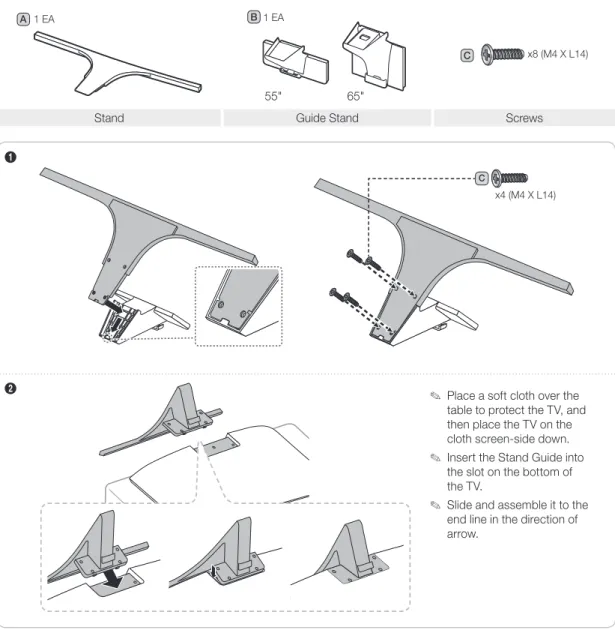
When installing the stand, use the provided components and parts.
1 EA
A B 1 EA
55" 65"
C x8 (M4 X L14)
Stand Guide Stand Screws
1
2
✎ Place a soft cloth over the table to protect the TV, and then place the TV on the cloth screen-side down.
✎ Insert the Stand Guide into the slot on the bottom of the TV.
✎ Slide and assemble it to the end line in the direction of arrow.
x4 (M4 X L14)
✎ Progress the assembly of screw in the manual’s order.
3 4 C x4 (M4 X L14)
!
!
✎ NOTE– Make sure to distinguish between the front and back of each component when assembling them. – Make sure that at least two persons lift and move the TV.
Using the TV's Controller
✎ The color and shape of the TV Controller may vary depending on the model.
✎ The TV's Controller, a small joy stick like button on the bottom right side of the TV, lets you control the TV without the remote control.
m R
P
TV Controller The control stick is located at the lower-left corner on the back of the TV.
Turn off the TV. Open Smart Hub.
Open the menu. Select a source.
Remote control sensor
When you use the Remote control, the standby LED does not respond, except
when you press the P button.
Power on Turn the TV on by pressing the Controller when the TV is in standby mode. Adjusting the volume Adjust the volume by moving the Controller from side to side when the power is on. Selecting a channel Select a channel by moving the Controller backwards and forwards when the power
is on.
Using the Function menu To view and use the Function menu, press and release the Controller when the power is on. To close the Function menu, press and release the Controller again. Selecting the MENU (m) With the Function menu visible, select the MENU (m) by moving the Controller to
the left. The OSD (On Screen Display) Menu appears. Select an option by moving the Controller to the right. Move the Controller to the right or left, or backwards and forwards to make additional selections. To change a parameter, select the it, and then press the Controller.
Selecting SMART HUB (™) With the Function menu visible, select SMART HUB (™) by moving the Controller upwards. The SMART HUB main screen appears. Select an application by moving the Controller, and then pressing the Controller.
Selecting a Source (s) With the Function menu visible, open the Source screen (s) by pushing the Controller to the right. The Source screen appears. To select a source, move the Controller back and forth. When the source you want is highlighted, press the Controller.
Power Off (P) With the Function menu visible, select Power Off (P) by pulling the Controller forwards, and then press the Controller.
✎ To close the Menu, SMART HUB, or Source, press the Controller for more than 1 second.
The Connection Panel
HDMI IN 2 EX-LINK VOL-CTRL LAN HDMI IN 1 (DVI) DVI AUDIO IN AUDIO OUT DIGITAL AUDIO OUT (OPTICAL) HDMI IN 3 (ARC)7
1
6
@
!
0
9
2
4
3
5
6
8
✎ Whenever you connect an external device to your TV, make sure that power on the TV and the device is turned off.
✎ When connecting an external device, match the color of the connection terminal to the cable.
1EX-LINK
Connect this jack to the jack on the optional RJP (Remote Jack Pack). This will allow you to connect external devices (Camcoder, PC, DVD players etc.) easily.
4 DVI AUDIO IN
Connects to the audio out jack of an external DVI device using a 1/8th inch stereo phone jack cable. Some DVI devices may not or should not need this connection audio.
5USB (5V 0.5A), USB 3.0 (HDD/1.0A) / CLONING
– Connector for software upgrades and Media Play, etc. – Service connection.
6HDMI IN 1(DVI), 2, 3(ARC)
Connects to the HDMI jack of a device with an HDMI output.
✎ No separate sound connection is needed for an HDMI to HDMI connection. HDMI connections carry both audio and video.
✎ Use the HDMI IN 1(DVI) jack for a DVI connection to an external device. Use a DVI to HDMI cable or DVI-HDMI adapter (DVI to HDMI) for the video connection and the PC/DVI AUDIO IN jacks for audio. Some DVI or HDMI devices may not or should not need a DVI AUDIO IN connection for audio.
✎ It is recommended that the external device of the HDMI 1.3 or 1.4 version will be used with this TV. If you meet the compatible problem like no sound or the abnormal screen or etc with the device of the HDMI 1.2 version, contact to the Samsung customer care center. Refer to page 57 for the information of the Samsung customer care center.
✎ Use a cable shorter than 10 feet (3m) to get the best UHD viewing quality.
7LAN
Connect to a wired LAN using CAT 7 cable.
8 ANT IN (AIR/CABLE)
– To view television channels correctly, the TV must receive a signal from one of the following sources: – An outdoor antenna / A cable television system / A satellite receiver
9 DATA
– Used to support data communication between the TV and the SBB or STB. – Connects using RJ-12 TV type plugs.
0 COMPONENT / AV IN 1
– Use to connect to Component video / audio devices such as DVD players and AV (Composite) devices such as VCRs.
– Connect audio cables to "R-AUDIO-L" on your TV and the other ends to corresponding audio out jacks on A/V or Component devices.
– The COMPONENT jack is also used as the VIDEOjack.
– Connect component video cables (not supplied) to the component jacks ("PR", "PB", "Y") on the rear of your TV and the other ends to corresponding component video out jacks on a DVD player. Match the colors on the jacks and cables.
– If you want to connect both a Set-Top Box and a DVD player, you should connect the Set-Top Box to the DVD and connect the DVD to the component jacks ("PR", "PB", "Y") on your TV.
– The PR, PB and Y jacks on your component devices (DVD) are sometimes labeled Y, B-Y and R-Y or Y, Cb and Cr. – For AV devices, connect RCA audio cables (not supplied) to "R - AUDIO - L" on the rear of the TV set and the other
ends to corresponding audio out jacks on an external device.
– When your are connecting a composite (AV) device to AV IN 1 [Y/VIDEO], connect the video cable (Yellow) to the
AV IN 1 [Y/VIDEO] jack (Green/Yellow) .
! DIGITAL AUDIO OUT (OPTICAL)
Connects to a Digital Audio component.
@ AUDIO OUT
The Remote Control
✎ This remote control has Braille points on the Power, Channel, and Volume buttons and can be used by visually impaired customers. HOME CONTENT ALARM SLEEP CC
CH
VOL
Turns the TV on and off. Display and select the available video
sources.
Return to the previous channel.
Change channels.
Displays My Contents, Watch TV and
Source icons on the TV screen.
Exit the menu.
Press to display channel and TV information on the TV screen.
SLEEP: Sets the Sleep Timer.
X: Turns the 3D function on or off. (Not available)
CC: Controls the caption decoder.
Cut off the sound temporarily. Press to directly access channels.
Adjust the volume.
Display the channel list on the screen. Display the main on-screen menu.
Switch to the HOME Screen.
Quickly select frequently used functions.
Return to the previous menu.
Use these buttons in the Media Play and
Anynet+ modes.
Select on-screen menu items and change menu values. Press to select additional digital channels being broadcast by the same station. For example, to select channel ‘54-3’, press ‘54’, then press '-' and ‘3’.
Buttons used in Channel list, Media Play menu, etc.
button: Enter the hour your want the TV to turn on.
Installing batteries (Battery size: AAA)
Match the polarity of the batteries to the symbols in the battery compartment.
X
Z Y
After you have installed the batteries, use a screwdriver to screw in the screw that holds the battery cover closed.
✎ NOTE
– Use the remote control within 23 feet of the TV.
– Bright light may affect the performance of the remote control. Avoid using near fluorescent lights or neon signs. – The color and shape of the remote may vary depending on the model.
Using the Samsung Smart Control
Buttons and Functions
SEARCH
P VOICE
RETURN
EXIT SMART HUB CH.LISTGUIDE KEYPAD TV SOURCE MIC MENU TTX REC M.SCREEN
¢: Cuts off the sound
temporarily.
RETURN
EXIT SMART HUB CH.LISTGUIDE
KEYPAD SOURCE VOL VOICE CH CC ALARM 3D SLEEP MENU HOME SEARCH MIC TV
MIC: Use the microphone with the Voice Control and Voice functions.
– The Voice Control function can be affected by unclear
pronunciation, voice level, or surrounding noise.
Turns the TV on and off.
SEARCH: Run search function. (Not available)
KEYPAD: Displays the On-Screen Remote.
SOURCE: Displays and lets you select video sources.
VOICE: Takes your voice commands and lets you enter text using your
voice.
Changes channels. Adjusts the volume. Touch pad
Place a finger on the touch pad and move the Samsung Smart Control. The pointer on the screen moves in the direction you moved the Samsung Smart Control.
Press the touch pad to run the focused item.
Press and hold the touch pad to display the Context-Sensitive Menus.
<>¡£: Moves the cursor, selects the on-screen menu items, and
changes the values seen on the TV's menu.
RETURN: Returns to the previous menu.
SMART HUB: Brings up Smart Hub applications.
– To exit an application quickly, press the ™ button.
GUIDE: Displays the EPG (Electronic Program Guide).
Use these buttons with a specific feature and according to the directions on the TV's screen.
Installing Batteries into the Samsung Smart Control
To use the Samsung Smart Control, insert the batteries into the device referring to the figure below.
Gently pull on the battery cover's notch and then remove the cover completely once it comes loose. Insert 2 AA alkaline batteries, making sure to align the positive and negative polarities correctly.
Using the Samsung Smart Control Motion Function to Operate the TV
The Samsung Smart Control has a motion sensor (gyro sensor) that lets you control the TV easily by moving the Samsung Smart Control and using it much like a cordless mouse.
Place a finger on the Samsung Smart Control's touch pad, and then move the Samsung Smart Control. A pointer appears on the screen. Move the Samsung Smart Control, and pointer moves on the screen in the direction you moved the Samsung Smart Control and the same distance. Highlight an item on the screen with the pointer, and then press the touch pad to select it.
You can also move the Samsung Smart Control in the same fashion to scroll scrollable screens up and down. – If you stop using the Motion Function, even momentarily, put your finger on the touch pad, and then move the
Using the Touch Pad and the Directional Buttons
– In the TV's menu, navigate to Support > Smart Control Tutorial to view a tutorial that shows how to use the touch pad.
– If the touch pad's sensitivity is too high or low, navigate to the System > Smart Control Settings menu, and then select the Touch Sensitivity option to change the touch pad sensitivity.
Moving the Focus or Pointer
Press the directional buttons (up, down, left, and right) to move the focus, pointer, or cursor in the direction you want.
Entering the Menu / Selecting an Item
To enter a menu or select an item, highlight the item or the menu title, or move the pointer over it, and then press the touch pad.
Displaying a Context-sensitive Menus in Smart Hub
In Smart Hub, highlight an item, and then press and hold the touch pad. The context-sensitive menu for the item pops up.
The context-sensitive menu may vary depending on the item you selected.
Changing the Smart Hub Panel
On a Smart Hub panel, drag left or right on the touch pad. The previous or next Smart Hub panel appears.
Scrolling on the Web Browser
When you are using the web browser, drag up or down on the touch pad to scroll the web screen.
Reconnecting the Samsung Smart Control to the TV
If the Samsung Smart Control stops operating or works abnormally, try replacing the batteries. If the problem persists, pair the Samsung Smart Control and TV again.
1. Move to within a foot of the TV, and then aim the Samsung Smart Control at the TV's remote control receiver.
Remote Control Sensor 2. Press the RETURN button and GUIDE button simultaneously for 3 seconds.
3. The connection icon appears on the screen. A few moments later, the connected icon appears. The Samsung Smart Control is paired to the TV.
The Low Battery Alarm Window
If the Samsung Smart Control's batteries become low, the Low Battery Alarm appears on the screen. When the Alarm appears, replace the batteries. We recommend using alkaline batteries for longer operating life.
Displaying and Using the On-Screen Remote
Press the KEYPAD button on the Samsung Smart Control to display the On-Screen Remote on the TV's screen. Use the On-Screen Remote to enter numbers, control content playback, and use the features and functions of the TV, just like a real remote. Use the directional buttons on the Samsung Smart Control to move the cursor on the On-Screen Remote. Press the touch pad on the Samsung Smart Control to select.
– The On-Screen Remote buttons may vary depending on the TV features or functions you are using.
Button Description
Lets you switch channels by entering channel numbers directly. Select Pre-CH to return to the previous channel.
Controls the playback of video, photo, or music files from all sources, and the playback of media content on external devices (for example, a Blu-ray player).
a, b, {, } Use these colored buttons to access additional options specific to the feature in use. TOOLS
Press to display the Tools menu while you are watching TV. The Tools menu gives you easy access to frequently used functions. The functions listed are context-sensitive and vary depending on how you are currently using the TV.
INFO Shows information about the current digital broadcast program or content. MENU Displays the TV's menu on the screen.
3D Lets the 3D source displayed.
PIP Lets you display video from an external device or computer on the main screen and a TV broadcast in a picture-in-picture window. CC Select to turn subtitles on or off.
P.Size Changes the picture size.
SLEEP This function automatically shuts off the TV after a preset period of time. P.Mode Lets you select the Picture Mode.
Web Browser Launches the Web Browser.
ALARM Set the alarm time when TV will automatically be turned on.
Move To The Right / Move To The Left: Moves the Onscreen Remote on the screen. Large Size / Normal Size: Resizes the Onscreen Remote on the screen. Alternatively, navigate to the System > Smart Control Settings menu and select and set the Onscreen Remote Size option.
Touch Sensitivity: Lets you change the touch pad sensitivity.
Alternatively, navigate to the System > Smart Control Settings menu and select and set the Touch Sensitivity option.
Connecting to the Network
You can set up your TV so that it can access the SMART TV applications through your local area network (LAN) using a wired or wireless connection.
✎ After you have “physically” connected your TV to your network, you must configure the network connection to complete the process. You can configure the connection after the Initial Setup process, through the TV’s menu.
Network Connection - Wireless
Connect the TV to the Internet using a standard wireless router or modem.
Wireless IP Router or Modem that has a DHCP Server
LAN Cable (Not Supplied) The LAN Port on the Wall
Network Connection - Wireless
y This Smart TV supports the IEEE 802.11a/b/g /n communication protocols. Samsung recommends using IEEE 802.11n. Otherwise, when you play video over a network connection, the video may not play smoothly.
y To use a wireless network, the TV must be connected to a wireless router or modem. If the wireless router supports DHCP, the TV can use a DHCP or static IP address to connect to the wireless network.
y Select a channel that is not currently in use for the wireless router. If the channel set for the wireless router is currently being used by another device, the result is usually interference and/or a communications failure.
y Most wireless networks have an optional security system. To enable a wireless network's security system, you need to create a security key using characters and numbers, and then enter that key into the router through its menu. You then must enter this security key into any other devices you want to connect to the wireless network.
Network Security Protocols
The TV only supports the following wireless network security protocols:
y Authentication Modes: WEP, WPAPSK, WPA2PSK
y Encryption Types: WEP, TKIP, AES
In compliance with the newest Wi-Fi certification specifications, Samsung TVs do not support WEP or TKIP security encryption in networks running in the 802.11n mode.
If the wireless router supports WPS (Wi-Fi Protected Setup), you can connect the TV to your network using PBC (Push Button Configuration) or a PIN (Personal Identification Number). WPS automatically configures the SSID and WPA key settings.
Network Connection - Wired
There are three main ways to connect your TV to your network using cable, depending on your network setup. They are illustrated below:
The Modem Port on the Wall
Modem Cable (Not Supplied) LAN Cable (Not Supplied)
TV Side Panel External Modem
(ADSL / VDSL / Cable TV)
The Modem Port on the Wall
Modem Cable (Not Supplied) LAN Cable (Not Supplied) LAN Cable (Not Supplied) TV Side Panel External Modem
(ADSL / VDSL / Cable TV) IP Router that has a DHCP Server
The LAN Port on the Wall
LAN Cable (Not Supplied)
TV Side Panel
✎ The TV does not support network speeds less than or equal to 10Mbps.
Connecting the TV to an SBB or STB
ETH MODEM
TV Rear Panel
Data Cable
1. Connect the DATA jack of the TV to the ETH MODEM jack of the STB (SBB) with the Data cable.
¦
List of Hospitality SI Vendors and Compatible Data Cables Supplied with the TV
y Confirm you are using the correct data cable for your SI vendor. Refer to the code label on the data cables.
y Contact your nearest dealer or your SI Vendor to buy the data cable not included in the TV.
SI Vendor Cable code Pin assign Remark
Samsung OCC Enseo Guest-Tek BN39-00865B Provided NXTV nStreams
Sonifi BN39-01011E Provided
Confirm the code on the Code Label
¦
Connecting the Audio Output to an Audio Amplifier
AUDIO OUT AUDIO IN TV Rear Panel Audio Amplifier 1 Stereo cableConnecting the Bathroom Speakers
You can connect the Bathroom Speakers in the following manner.
¦
Connecting through the Variable Output (available without an external amplifier)
EX-LINK VOL-CTRL DVI AUDIO IN EX-LINK DVI AUDIO IN VOL+ VOL-TV Rear Panel
Volume Control Box Speaker
2 1
1. Connect the VARIABLE AUDIO OUT port of the TV to the Bathroom Wall Speakers of the hotel.
Speaker +
Speaker - N/C
✎ The VARIABLE AUDIO OUT port supports MONO sound out only.
✎ Speaker Wire: Use speaker cable no more than 82 feet (25m) in length.
✎ The maximum speaker output is 4W, 8Ω.
2. Connect the VOL-CTRL jack of the TV to the Volume Control Box Switch port on the Bathroom Wall of the hotel.
Volume Control Box
VOL - DOWN (White 1)
VOL - UP
(Black /Red 2) GND(Shield Wire 3)
VOL + VOL
-1 2 3
y Installing the Volume Control
– If you configure the Volume Control Box as shown in the figure above, you can control the volume of the bathroom speakers.
– The jack that connects the Volume Control Box to the TV is a 3.5mm normal Phone jack. – Volume Control Box switch is a Tact switch.
Connecting the RJP (Remote Jack Pack)
Connect the input jacks on the TV to the RJP. The RJP lets guests connect audio and video sources to the TV.
EX-LINK VOL-CTRL LAN DVI AUDIO IN AUDIO OUT DIGITAL AUDIO OUT (OPTICAL) HDMI IN 3 (ARC) HDMI IN 2 HDMI IN 1 (DVI) VOL-CTRL LAN AUDIO OUT DIGITAL AUDIO OUT (OPTICAL)
USB HDMI S-VIDEO RCA AUDIO/PC
RS/232
TV Rear Panel RJP Rear
4 RS-232 Data Cable
1 DVI Audio cable
2 Video / Audio Cable
3 HDMI cable
1. Connect the DVI AUDIO IN port of the TV to the PC/AUDIO port of the RJP.
2. Connect the COMPONENT / AV IN 1 [VIDEO] / [R-AUDIO-L] port of the TV to the RCA port of the RJP. 3. Connect the [HDMI] port of the TV to the HDMI port of the RJP.
4. Connect the EX-LINK port of the TV to the RS/232 port of the RJP.
y RJP (Remote Jack Pack): The RJP is a hardware module that has various Audio and Video inputs (A/V Video, A/V Audio, PC and HDMI) and corresponding outputs. The corresponding outputs are connected from the RJP to the TV. The RJP communicates with the TV via RS232. The RJP communicates with the TV by sending messages regarding Active/Inactive sources.
– A group of hotel menu items let you assign numbered priorities to the jacks of the RJP. (See page 23). 1 is the highest priority and 3 is the lowest. When a guest connects external sources to the RJP jacks, the TV will automatically switch between sources based on the priority you have assigned them in the Menu. For example, lets say AV is set to 1 and HDMI to 2. If a guest has attached a device to the HDMI jack, and then plugs a device into the AV jack, the TV automatically switches to the device plugged into the AV jack (the jack with the higher priority). Note that a guest can also switch between devices manually by pushing a button on the RJP.
y To reset the RJP to its factory default state, press the AV and HDMI buttons simultaneously for 10 seconds. When all button LEDs blink 5 times, the RJP reset is complete.
y The RJP will automatically turn off any LEDs after 5 minutes to avoid unnecessary light pollution in the hotel room. The LEDs that were turned off will turn on again if the guest touches any of the buttons and the 5 minute timer will restart. If the guest then touches another source button, the TV will change to the selected source and the corresponding LED will be lit.
y After an RJP Reset or a TV Power OFF/ON, it takes approximately 10 seconds to establish communications between the TV and the RJP.
y The following table shows the approximate time in seconds it takes to switch from the TV to an input source, based on assigned or default priorities.
✎ Scenario 1: When no inputs are connected. Source To Connect
AV 2 Sec
PC 0.7 Sec
HDMI 3.9 Sec
✎ Scenario 2: When two or more inputs are connected to the RJP and one of the input sources is disconnected and then reconnected.
Source Disconnect To Connect Total
AV 4.5 Sec 2 Sec 6.5 Sec
PC 0.7 Sec 0.7 Sec 1.4 Sec
HDMI 3.9 Sec 3.9 Sec 7.8 Sec
✎ An example: If the RJP has all its live sources (AV, PC, and HDMI) connected, AV has been assigned the highest priority, the RJP is in HDMI mode, and a guest removes and reconnects the AV source, the minimum time required to switch to the AV source is 6.5 seconds.
y To play audio devices (Ipods, MP3 devices, etc.) through the RJP, you must turn Music Mode AV in the menu on. (See page 27)
y Music mode in the TA-7610 RJP is supported by the AV jack only. HDMI Music mode is available for the Guestlink RJP only.
Setting the Hotel Option Data
To let you control how the TV functions when in Hotel mode, the TV has two Hotel mode menus, the Stand-alone mode menu and the Interactive mode menu. The menu items that differ between the modes are listed below.
Menu items in the Stand-alone mode only: – SI Vendor : Smoovie
– REACH Server and its submenus. Menu items in the Interactive mode only:
– SI Vendor: Samsung and other vendors. All other items appear in both modes.
To access the menus, press MUTE→1→1→9→ENTERE on your Samsung remote. After a menu appears, follow these general directions to navigate and change values:
– Use the Up and Down arrow buttons on the Samsung remote to move from menu item to menu item.
– Press the ENTERE or Left or Right arrow buttons to select a menu item. The screen displays that menu item only. – Press the Left or Right arrow button to change a value. The Right arrow button increases numerical values. The
Left arrow button decreases numerical values.
– When the screen is displaying one menu item, you can press the Up or Down arrow button to display the next or previous menu item.
– Press the RETURN or MENU button to exit the current menu item and go to a higher menu level or the Main menu.
– To exit a Hotel mode menu, turn off the TV, and then turn it on again. Any changes you made are saved except changes to SI Vendor. For changes to SI Vendor, you must turn the TV off, wait until the Standby light glows steadily, then unplug the TV, wait for the Standby LED to go off, and then plug the TV in again.
Hospitality Mode Standalone Widget Solution
SI Vendor OFF DRM Power On System Channel Menu OSD Clock Music Mode Remote Jack Pack External Source Bathroom Speaker Eco Solution Logo/Message Cloning REACH Solution Network
Above: The Hotel mode menu
To change menus between the interactive mode and the standalone mode, follow the steps below : 1. Highlight the Hospitality Mode menu item in the top left corner of the menu.
2. Press the left or right arrow button on the Samsung remote. Only the Hospitality Mode menu item is displayed.
3. Press the left or right arrow button to change the Hospitality Mode item from Standalone to Interactive or from Interactive to Standalone.
¦
Menu Items
To Enter this menu: Press the MUTE→1→1→9→ENTERE buttons in order.
To exit from this menu: Power Off (or Power Off and unplug if you have changed SI Vendor), and then turn on again. Any changes you made are saved.
Hotel TV Function
Description
Category Item
Hospitality
Mode Hospitality Mode
Select Hospitality mode.
y Interactive mode: TV works with an SI STB or SBB.
y Standalone mode : TV works alone, without an SI STB or SBB.
SI Vendor SI Vendor
y Interactive mode: Samsung / OCC / MTI / Nstreams / Enseo / Cardinal / Guestek /
SeaChange / MDC / Innvue
y Standalone mode: OFF / Smoovie
Power On
Power On Channel
Set the default values that will be applied when the TV is turned.
y User Defined: Lets you set Power On Channel and Channel Type manually. See Power On
Channel and Channel Type below.
y Last Saved: If you select this item, when the TV is turned on, it displays the channel it was displaying when it was turned off.
Power On Channel Num When the TV is turned on, it switches automatically to this channel.
Power On Channel Type y Select channel band: AIR (analog air band), DTV (digital air band), CATV (analog cable band),
CDTV (digital cable band). Power On Volume
y User Defined: Lets you set the Power On Volume manually. See Power On Volume below.
y Last Saved: When the TV is turned on, it returns to the volume that had been set when the
power had been turned off.
Power On Volume Num The TV turns on with this Volume Level in Stand Alone Hospitality mode.
Min Volume The minimum Volume Level the user can set in Stand Alone Hospitality mode.
Max Volume The maximum Volume Level the user in Stand Alone Hospitality mode.
Power On Source Select the input source the TV displays when turns on.
Power On Option
Determines the TV's state when power returns after a power failure or after you have unplugged the TV and then plugged it in again.
y Last Option: Returns to its last Power state. If it was in Stand-by, it returns to Standby. If it was on, it turns on.
y Power ON: When the power returns, the TV turns on.
y Standby: When the power returns, the TV enters the Standby mode.
Channel
Channel Setup Gives you direct, immediate access to some of the Channel menu functions on the user
Channel menu such as Auto Program, Antenna selection, etc.
Channel Editor
The Channel Editor lets you edit the channels stored in the TV's memory. Using Channel Editor you can:
y Change the channel numbers and names, and sort the channels in your desired channel
number order.
y Apply the video mute to channels you select. The video mute blanks out the video from a
channel and outputs only the sound while displaying a speaker icon on the screen. The Channel Editor also lets you view information about each channel easily, without your having to display each channel directly.
Channel Bank Editor If you set Hospitality Mode to Standalone and SI Vendor to Smoovie, this item is displayed.
Lets you edit the channel bank that works with the Smoovie Remote. Refer to page 41~42. Dynamic SI
y ON: Check the DTV Program channel number. (If Dynamic SI is On, it is not available to edit
DTV channels in Channel Editor.)
y OFF: Does not check the DTV Program channel number. (If Dynamic SI is Off, it is available to
edit DTV channels in Channel Editor,but additional DTV channel program number update is not supported.)
Hotel TV Function Description
Category Item
Menu OSD
Picture Menu Lock Enable or disable the Picture Menu.
Menu Display y ON: The Main Menu is displayed.
y OFF: The Main Menu is not displayed.
Tools Display Hide or show the Tools menu.
Channel Menu Display Hide or show the Channel menu.
Panel Button Lock
Turning the front panel (local key) operations on/off.
y Unlock: Unlocks all panel keys.
y Lock: Locks all panel keys.
y OnlyPower: Locks all panel keys except the Power panel key.
y Menu/Source: Locks the Menu and Source panel keys.
Home Menu Display y OFF:The Home Menu is not displayed.
y ON:The Home Menu is displayed.
Home Menu Editor Edit Home Menu .
Home Menu Auto Start y ON:The Home Menu is Auto Start.
y OFF:The Home Menu is not Auto Start.
Clock
Clock Type
y OFF: The feature of SW Clock becomes not available.
y SW Clock: If this item is selected and a user presses the INFO key of the remote twice
consecutively in the standby mode of TV, the clock information is displayed in the screen of TV and then TV is turned off automatically.
Local Time
Select the way to update the clock data
y Manual: The clock is set automatically from the DTV channel or manually by the user when
the TV is in stand-alone mode.
y Time Channel: The clock is set from the selected channel.
Timer Type
Enable or disable the alarm function.
y WakeUp : Enable the alarm function to turn on the device at the specified time.
y OnOff : Disable the Alarm function.
Time Channel Type Select channel band of the channel to get the time information: AIR (analog air band), DTV (digital air band), CATV (analog cable band), CDTV (digital cable band).
Time Channel Num Select the number of the channel to get the time information.
Music Mode
Music Mode AV
Allows music output from an mp3/audio player connected to an AV Input Source on the TV. When on, you can hear sound from the player through the TV whether there is a video signal or not. Also mutes the video so the TV does not display a picture when a guest is playing music. The TV's backlight, however, remains on.
Music Mode Comp
Allows music output from an mp3/audio player connected to an Component Input Source on the TV. When on, you can hear sound from the player through the TV whether there is a video signal or not. Also mutes the video so the TV does not display a picture when a guest is playing music. The TV's backlight, however, remains on.
Music Mode Backlight When set to Off, the TV's backlight is turned off entirely when a guest uses the Music mode. To save energy, set to Off.
Remote Jack Pack
Priority AV
Lets you set the priority of the 7610 RJP AV jack. You can choose 1, 2, or 3, with 1 being the highest and 3 the lowest. The TV automatically displays the source with the higher priority. For example, lets say AV is set to 1 and HDMI is set to 2. If a guest has attached a device to the HDMI jack, and then plugs a device into the AV jack, the TV will automatically switch to the device plugged into the AV jack (the jack with the higher priority). Note that a guest can also switch devices manually by pushing a button on the 7610 RJP.
Priority HDMI
Lets you set the priority of the 7610 RJP HDMI jack. You can choose 1, 2, or 3, with 1 being the highest and 3 the lowest. The TV automatically displays the source with the higher priority. See above for a more detailed explanation.
AV Option Select which AV source of the TV is connected to the RJP jack.
HDMI Option Select which HDMI source of the TV is connected to the RJP jack. (HDMI1/DVI / HDMI2 /
HDMI3) HDMI Music Mode
Allows music output from an mp3/audio player connected to an HDMI Input Source. When on, you can hear sound from the player through an HDMI input of the RJP whether there is a video signal or not. (This option is only compatible with the Guest link RJP.)
Hotel TV Function Description
Category Item
External Source
USB Pop-up Screen
When USB is connected to the TV :
y Default: a popup window appears.
y Automatic: This enters the USB content menu automatically.
y Disable: Neither the popup window nor the menu appears.
External Source Banner
If set to On, the TV displays the External Source Banner (information) when you change the TV source to another external input, press the Info key, or turn the TV on.
y ON: The External Source information is displayed on the TV screen.
y OFF: The External Source information is not displayed on the TV screen.
Auto Source
y ON: When an external input source is connected to the TV, the TV identifies the input source,
and then automatically switches to that input source.
y OFF: Auto Source function is Off.
Anynet+ Return Source Select the return TV source after stopping an Anynet+(HDMI-CEC) connection. (This fuction is especially useful for the Guestlink RJP.)
Bathroom Speaker
Sub Amp Mode
Determines the Bathroom Speaker sound AMP operation mode.
y 0: Turns the Bathroom Speaker sound AMP function off (PWM off).
y 1: The Bathroom Speaker sound volume follows the TV speaker sound volume identically.
The Bathroom Speaker sound volume is controlled by the TV remote or panel keys.
y 2: The Bathroom Speaker sound volume is controlled by the Bathroom Speaker volume
controller.
Sub Amp Volume The initial Bathroom Speaker sound volume after TV is turned on.
Eco Solution Energy Saving
Adjusts the brightness of the TV to reduce power consumption.
y Off: Turns off the energy saving function.
y Low: Sets the TV to low energy saving mode.
y Medium: Sets the TV to medium energy saving mode.
y High: Sets the TV to high energy saving mode.
Logo/Message
Welcome Message Displays a the Welcome Message for 5 seconds when the TV turns On.
Edit Welcome Message Edits the Welcome Message.
Hospitality Logo
Turns the Hospitality logo feature On or Off, If On, when the TV is turned on, the Logo is displayed, before the signal from the initial source, for the amount of time set in "Logo Display Time".
Hospitality Logo DL
Downloads the Hospitality logo. Hospitality logo file requirements:
y BMP or AVI files only.
y Max file size: BMP - 960 X 540. AVI - 30MB.
y The file can only be named samsung.bmp or samsung.avi.
Logo Display Time Hospitality Logo Display Time (3/5/7 seconds).
Cloning
Clone TV to USB Clone the current TV options to a USB memory device.
Clone USB to TV Clone the saved TV options on a USB memory device to the TV.
Setting Auto Initialize If you set Setting Auto Initialize to On, and the TV's power is turned off and on, TV menu items are restored again to their values cloned initially. See page 37.
REACH Solution
REACH 3.0 y ON: The feature of REACH 3.0 in this TV becomes available.
y OFF: The feature of REACH 3.0 in this TV becomes not available.
REACH Channel Assign a DTV channel number to carry the update REACH data. This channel number must be the same as the number set on the Reach server.
Group ID Select the group ID of the REACH server. (Refer to the REACH server manual for more details)
IPG Room Type Selects the IPG room type of the REACH server. (Refer to the REACH server manual for the more information.)
Ticker y ON: The Ticker content is displayed.
Hotel TV Function Description
Category Item
REACH Solution
REACH Update Time
Lets you set when data such as updated SW, cloning files, and S-LYNC REACH contents is downloaded from the REACH server to the TV :
y 1hour: Every hour
y 2hour: Every 2 hours
y 12:00 am: every 12:00 a.m.
y 2:00 am: every 2:00 a.m.
y 12:00 pm: every 12:00 p.m.
y 2:00 pm: every 2:00 p.m.
REACH Update Immediate
y ON: Whenever the TV enters standby mode (the power cord is plugged in and the power is
off), the REACH data is updated on the TV.
y OFF: The REACH data is only updated on the TV at the REACH server update time.
Room Number Set the room number
REACH Server Version The version of REACH is displayed.
Network
Network Setup If this item is entered into, network setup menu is displayed. The network setup menu is used for setting network like access internet. SmartHub Model Setting Set SmartHub Model.
SmartHub Setting Set up SmartHub.
Widget Solution
Widget Mode
y ON: The TV mode is changed to the Widget mode that TV accesses to the hospitality server
through IP connection and the guest uses various services and features through Widget of TV
y OFF: The TV mode becomes normal the hospitality mode.
Solution Type
Select the type of the solution server installed in your site for the widget service.
y Vendor Server: In the case of that the special SI vendor of the server is installed in your site.
y SINC Server: In the case of that the Samsung SINC server is installed in your site.
Server URL Setting If this item is entered into, URL of the solution server can be inputted.
License Server IP Setting If this item is entered into, URL of the license server can be inputted.
IPTV Mode y ON: The IPTV mode that watches the broadcasting through the IP network is enable.
y OFF: The IPTV mode is not disable
Virtual Standby
TV can supply the main feature in the standby mode if The TV mode is set to the Virtual Standby mode.
y ON: The Virtual Standby mode is enable.
y OFF: The Virtual Standby mode is disable.
When Virtual Standby is On, TV power consumption will be 9.5W to 17.4W (Depending on ithe size of the TV screen).
Instant On The fast TV booting mode On/Off.
Room Num Setting Set the room number
PHY Sleep Mode PHY Sleep Mode On/Off.
DRM
DRM Mode
Configures DRM support. OFF: Turns off DRM support.
LYNK DRM: Select to turn on S-LYNK DRM CAS support only. Pro:idiom: Select to turn on Pro:Idim CAS support only.
LYNK DRM,PI: Select to have the TV support S-LYNK DRM CAS and Pro:Idiom CAS.
PI AES Data Displays the current state of Pro:Idion AES
PI AES Log y ON: Output of Pro:Idiom AES log is enable.
y OFF: Output of Pro:Idiom AES log is disable.
Hotel TV Function Description
Category Item
System
Self Diagnosis for TV
y Enter Self Diagnosis Menu.
Picture Test: Use to check for picture problems. If the problem appears in the test picture, select Yes and follow the directions on the screen.
y Sound Test: Use the built-in melody sound to check for sound problems. If the problem
occurs during the test, select Yes and follow the directions on the screen.
Self Diagnosis for HTV
Lets you check the state of Pro:Idiom and its communication with the SI STB or SBB. If you have any problems with the Pro:idiom encryption channel or the communications with the SI STB or SBB, use this diagnosis function. If Pro:Idiom DTV Channel Key Loss appears to have failed and the Pro:Idim encryption channel has failed to play content, first check the broadcasting systems related to Pro:Idiom encryption. If your broadcasting system does not have a problem, contact Samsung Service. If STB SI Vendor Setting appears to have failed and communication with the SI STB or SBB has failed, first check your SI STB or SBB. If your SI STB or SBB does not have a problem, contact to Samsung Service.
SW Update Lets you upgrade the TV SW with a USB memory stick. See Page 40.
Service Pattern Lets you check the state of the TV picture by displaying picture test patterns. Press the Menu button to turn off the test patterns and exit.
ATV Cable AGC Gain Lets you control the AGC gain of the analog cable channels. Don't change the default value
unless problems occur.
DTV OpenCable AGC Gain Lets you control the AGC gain of the digital cable channels. Don't change the default value
unless problems occur.
Sound Bar Out
If the Samsung Sound Bar device is connected to this TV, this item lets you to select where the TV sound is outputted when the TV is turned on.
y ON: When the TV is turned on, the TV sound is automatically outputted in the Sound Bar
device only.
y OFF: When the TV is turned on, the TV sound is automatically outputted in the TV speaker
device only. See page 40.
Contact Samsung Display the web site of related Samsung service center, software version, and Mac address information.
Standby LED
When the TV is in standby mode, you can configure the settings of external LED.
y ON: The LED is on.
y OFF: The LED is off.
TV Reset Returns all settings on the TV to their factory defaults.
✎ REACH (Remote Enhanced Active Control for Hospitality) is a professional, interactive remote controller that lets you deliver TV firmware updates, cloning data, channel mapping changes, REACH contents, and TICKER contents through RF DTV to several hundred hospitality TVs simultaneously. The REACH functions are available only in standalone mode. The REACH Server is sold separately. Refer to the REACH server manual enclosed with the REACH server product for more operating information.
¦
Welcome Message
The Welcome Message feature displays a custom message on the TV every time it is turned on. – Welcome message settings are in the Hotel Option Menu.
– Set Welcome Message to ON to display the message when the TV is powered on.
Welcome Message OFF
Edit Welcome Message
Hospitality Logo OFF
Hospitality Logo DL ... Logo Display Time ...
– You can make the Welcome Message up to 25 characters long and edit it in the Hotel Service menu. – Welcome Message supports the following characters:
✎ Capital Letters from A to Z.
– You can edit the Welcome Message by using the remote's navigation, color, and Enter buttons in the “Edit Welcome Message” OSD (See the illustration below.)
Move Enter Return
a b { } Move to Left Move to Right Leave Black Done A B C D E F G H I J K L M N O P Q R S T U V W X Y Z W E L C O M E T O O U R H O T E L _
Edit Welcome Message
Below are the general directions for navigating and changing letters on the Edit Welcome Message screen: – Press the a button on the remote to move to the left in the message.
– Press the b button to move to the right.
– After you have selected a position in the message, use the arrow buttons on your remote to select a letter in the alphabet below the message.
– Press Enter to place a letter into the position you selected. – Press the { button to erase a letter in a position or enter a blank. – Press Return or the } button to exit.
¦
Hotel Logo
The Hospitality Logo function displays the Hotel's picture image when the TV is powered on. – Hospitality Logo settings are the Hotel mode menus.
– The Logo Download and Logo Display Menu items are enabled when you turn the Hospitality Logo option on. – If there is a logo image stored in memory and the Hospitality Logo option is on, the Hospitality logo is displayed
when the TV is turned on.
– The Hospitality logo is not displayed when the Hospitality found Logo option is off, even if the logo image has been loaded into the TV.
Hospitality Mode Standalone Widget Solution SI Vendor OFF DRM Power On System Channel MyChannel Menu OSD Clock Music Mode Remote Jack Pack External Source Bathroom Speaker Eco Solution Logo/Message Cloning REACH Solution Network r Welcome Message ON
Edit Welcome Message
Hospitality Logo ON
Hospitality Logo DL ... Logo Display Time ...
y Hospitality Logo
– This option lets you choose whether the Hospitality Logo image is displayed or not. – Initial value is OFF.
– Can be set to OFF or ON.
– When set to ON, the Logo Download and Logo Time Display menu items become accessible.
y Logo Download
– This option lets you download the logo image to the TV’s memory from a USB device. – A wait message appears while the image is being copied to the TV.
– A "completed" message appears when the copy operation finishes successfully. – The word "failed" appears if the copy operation was unsuccessful.
– No USB appears if no USB device is connected.
– No File appears if there is no file to copy on the USB device or the file is in the wrong format (must be a BMP or AVI file). If No File appears and there is a logo file on the USB device, check the file format.
y Logo File Format
– The TV supports only BMP and AVI format.
¦
USB Cloning
The USB Cloning function lets you download user-configured settings (Picture, Sound, Input, Channel, Setup, and Hotel Setup) from one TV to a USB device, and then upload these settings from the USB device to other TV sets. This lets you create a standard file of settings and distribute that standard file to all the TVs in your facility.
y Cloning from TV to USB: Copies stored menu settings from a TV to a USB device. 1. Insert a USB drive into the USB port on the rear of the TV.
2. Enter the hotel option menu by pressing buttons in order.
MUTE→1→1→9→ENTERE
3. Press the ▲ or ▼ button to select Clone TV to USB, and press the
ENTERE button.
4. When the message Clone TV to USB is displayed. Press the ENTERE
button.
5. The TV displays one of the following messages:
y In Progress: Copying data to USB.
y Completed: Copy was successful.
y Failed: Copy was not successful.
y No USB: USB is not connected. The clone folder will be labeled T-MST14AKUCB.
✎ The cloned values include the values on the Guest side menu (brightness, picture size, contrast, etc.) and the Hotel side menu.
Clone TV to USB Clone USB to TV
Setting Auto Initialize OFF
Cloning from USB to TV: Copies menu settings in a USB device to a TV.
✎ Shortcut: Turn the TV off, insert the USB device, turn the TV on, and then press the ENTERE button for 5 seconds.
To clone data to the TV using the Hotel menu, follow these steps: 1. Turn the TV off.
2. Insert the USB drive into the USB port on the rear of the TV. 3. Turn the TV on.
4. Enter the Interactive menu by pressing these buttons in order.
MUTE→1→1→9→ENTERE
5. Press the ▲ or ▼ button to select Clone USB to TV, and then press the
ENTERE button.
6. The message Clone TV to USB is displayed. Press the ENTERE button. 7. The TV displays one of the following messages:
Clone TV to USB
Clone USB to TV
Setting Auto Initialize OFF
y In Progress: Copying data to TV.
y Completed: Copy was successful.
y Failed: Copy was not successful.
y No USB: USB is not connected
y No File: There is no file to copy on the USB device. If you get a No File message, check the folder on your USB device. The folder name should be T-MST14AKUCB.
✎ Tables that list the settings that are cloned in the Interactive and Standalone Hotel Menus begin on the next page.
Settings Cloned in the Hotel Menu
Menu Item Cloning Support
Hospitality Mode Yes
SI Vendor Yes
Power On Channel Yes
Power On Channel Num Yes
Power On Channel Type Yes
Power On Volume Yes
Power On Volume Num Yes
Min Volume Yes
Max Volume Yes
Power On Source Yes
Power On Option Yes
Channel Setup N/A
Channel Editor N/A
Dynamic SI Yes
Picture Menu Lock Yes
Menu Display Yes
Panel Button Lock Yes
Home Menu Display Yes
Home Menu Editor Yes
Home Menu Auto Start Yes
Clock Type Yes
Local Time Yes
Music Mode AV Yes
Music Mode Comp Yes
Music Mode Backlight Yes
Priority AV Yes
Priority HDMI Yes
AV Option Yes
HDMI Option Yes
HDMI Music Mode Yes
USB Pop-up Screen Yes
External Source Banner Yes
Auto source Yes
Anynet+Return Source Yes
Sub Amp Mode Yes
Sub Amp Volume Yes
Menu Item Cloning Support
Setting Auto Initialize Yes
REACH 3.0 Yes
REACH Channel Yes
Group ID No
IPG Room Type No
Ticker Yes
REACH Update Time Yes
REACH Update Immediate Yes
Room Number Yes
REACH Server Version N/A
Network Setup N/A
SmartHub Model Setting Yes
SmartHub Setting N/A
Widget Mode Yes
Solution Type Yes
Server URL Setting Yes
License Server IP Setting Yes
IPTV Mode Yes
Virtual Standby Yes
Instant On Yes
Room Num Setting N/A
DRM Mode Yes
PI AES Data N/A
PI AES Log Yes
View PI AES Log N/A
Self Diagnosis for TV N/A
Self Diagnosis for HTV N/A
SW Update N/A
Service Pattern Yes
ATV Cable AGC Gain Yes
DTV Open Cable AGC Gain Yes
Sound Bar Out Yes
¦
Multi Code Remocon
A Multi Code Remocon is a special remote which is designed to control multiple TVs. This function is useful where there is more than one TV in a location.
You can control up to 10 TVs with a different ID code of each remote with no conflicts between the TVs. ID numbers are displayed on each TV's OSD.
The Initial ID code for each TV is “0”.
– You can set and reset the ID code in Analog TV mode or PC mode. (Not available in DTV mode.) – You can set the ID code to any digit from 0 to 9.
– To set a TV's ID code, follow these steps:
1. Aim the remote at the TV, and then press the MUTE button and the RETURN button simultaneously for more than 7 seconds. When you stop pressing the buttons, the TV displays the current ID in the middle of the screen and the words, "Remote control code is set to x. If you want to change the Remote control code, enter the digit you want to change."
2. Press the number on the remote you want to assign to the TV. The TV displays the following words: "Remote control code is changed to x."
✎ The TV will display the OSD until you press the Exit button. See the example below.
Remote control code is changed to 0. If you want to change Remote control code, enter the digit you want to change.
Example: After you see the message above, if you press 1, the TV and Remote will be set to ID code 1. The TV then displays the following message: “Remote control code is changed to 1”
The TV can then only be controlled by a remote which has the same ID code (1).
– To reset the ID code, press the MUTE button and the EXIT button simultaneously for more than 7 seconds. When you stop pressing the buttons, the ID codes of the TV and Remote are reset to “0”. “Remote control code is set to 0.” appears on the TV
¦
Setting Auto Initialize
When you clone settings from one TV to another, you clone both the guest side menu and hotel side menu settings: Picture, Sound, Input, Channel, Setup, and Hotel Setup. This lets you set nearly all of the menu values on your hospitality TVs to the same, standard settings. If you allow guests access to the guest side menus, for example the Picture menu, they can change the settings in those menus so they are no longer standard. If you set the Setting Auto Initialize function to on the TV automatically restores (initializes) any guest-side menu values to the cloned, standard values when the TV is turned off and then turned on again. Note that Setting Auto Initialize works on cloned guest side menu values only. Settings which have not been cloned are ignored.
The table below lists the settings that are restored to their cloned values when you set the Setting Auto Initialize function to On.
Menu Menu Item
Picture Picture Mode Back light Contrast Brightness Sharpness Color Tint (G/R) Apply Picture Mode Picture Size Picture Size Position PIP Advanced Settings Dynamic Contrast Black Tone Flesh Tone RGB Only Mode Color Space White Balance Gamma Motion Lighting Picture Options Color Tone Digital Clean View MPEG Noise Filter HDMI Black Level HDMI UHD Color Film Mode Auto Motion Plus Picture Off Reset Picture Sound Sound Mode Sound Effect Vitual Surround Dialog Clarity Equalizer Speaker Settings Additional Settings Audio Format Audio Delay Dolby Digital Comp Auto Volume
Menu Menu Item
System Accessibility Voice Guide Video Desciption Caption Menu Transparency High Contrast Enlarge Menu Language Smart Control Settings
Motion Sensitivity Touch Sensitivity Onscreen Remote Size Voice Control Language TV Voice Voice Gender Motion Control Motion Control Animated Motion Guide Pointer Speed
Motion Control Environment Test Device Manager Keyboard Settings Mouse Settings Time Clock Sleep Timer Wake-up Timer Eco Solution Energy Saving Eco Sensor No Signal Power Off Auto Power Off Smart Security Auto Protection Time Change PIN General Game Mode BD Wise Sound Feedback Boot Logo Samsung Instant On
¦
Hotel Plug & Play
The Hotel Plug & Play function, which automatically performs the Hotel mode selection, Country Setup, Clock Setup, and Picture Mode Setup, runs once, when power is first turned ON. Setup also runs automatically after you have executed a Service Reset.
y UI Scenario
Select your Language
Next
Press the udlr
buttons to move the highlight. Press the enter button to select.
Select your language to start the on screen setup.
The Language Setting will be applied to Main Menu and not Plug and Play.
cEnglish Español Français Essential Details Next Previous
Choose a picture mode that best suits your viewing environment.
This is basic setup to use your Smart TV.
Picture Mode Standard
E + P E E E E E E E E E E E
TV will enter the RF mode.
The TV is automatically turned off and on.
If you select Standalone Only
If you don't change the country of the Current Location
Press Power OFF to exit. Interactive
Hospitality Option Menu appears.
After Searching channels.
Select your language Select Picture mode
If you select TV Reset, the TV resets all values to their factory defaults and then displays the Hospital Plug & Play menu. Go to the first Hospital Plug & Play screen below.
If you select Change
If you change the country of the Current Location If you select Interactive Only If you select Standalone Plug&Play If you select Skip
E
E
Press Power OFF to exit.
Select the channel band to use for Auto Program
Standalone Hospitality Option Menu appears.
Local Set
Change Locat Set if Located in North America, Latin America and Europe. In other regions, Please press SKIP button move to the next step.
Current Localset : US
Change Skip
Local Set
Change Local Set if Located in North America, Latin America and Europe. In other regions, Please press SKIP button move to the next step.
Current Localset : US
Change Skip
Self Diagnosis for TV Self Diagnosis for HTV SW Update
Service Pattern OFF
ATV Cable AGC Gain Default
DTV OpenCable AGC Gain Default
Sound Bar Out OFF
Standby LED ON
TV Reset
Local Set
Warning! TV might not function if local set is not correctly configured.
When Local set is changed, TV Will restart automatically to apply it. US Countries List USA Easy Set Up Interactive (Hotel Menu) Standalone Setup (Continue Setup) Standalone Only (End Setup) c Next
If you select this, Easy setup will be started. There are Essential Details, Channel Scan, Clock and Terms in Easy setup.
Auto Program
Next Previous
Auto Program is finding channels for you...
Stop Channel 7 DTV Air 0 Air 0 DTV Cable 0 Cable 0 2% Auto Program Next Previous Select Both to scan for both Air
chennels and Cable channels.
How do you get your broadcast signal?
cBoth
Cable
y Hotel Plug & Play OSD – Initially highlighted: Interactive
– If you select the Standalone Only button, the Standalone hotel mode is set by default and the “Standalone mode is set” OSD appears for 3 seconds.
TV enters RF mode automatically after displaying the “Standalone mode is set” OSD for 3 seconds.
– If you select the Interactive mode, the Interactive Setup Menu is displayed. Press the power off key to exit from the Interactive menu.
– If you select the Standalone Plug & Play mode, the “Select Menu Language” OSD appears.
y LocalSet
– Initially highlighted: US
– If you press the Enter key after selecting Change, you can change the country. – If the country is changed, the TV automatically turns off and on.
– If you select the Interactive mode, the Interactive Setup Menu is displayed. Press the power off key to exit from the Interactive menu.
– If you select the incorrect country, execute TV Reset again after entering the System section of the Hotel Menu.
y Select Menu Language OSD
– If you select Standalone from the “Select Hotel TV Mode” OSD, the “Select Menu Language” OSD appears. – Initially highlighted: English
– Display time: OSD time out and operation are the same as Samsung's consumer TV models. – If you press the Enter key, the “Picture Mode” OSD appears
y Picture Mode OSD
– Initially highlighted: Standard.
– The TV displays the Picture Mode OSD where you can choose the Dynamic or a Standard Picture mode.
y Auto Search Mode OSD
– If you press the Enter key, the TV automatically searches for channels.
– The OSD Display time, which starts when the Auto Store operation is completed and continues until the Auto Sort function starts, is 30 seconds.
y Set Clock Mode, DST(Daylight saving time), and Time Zone OSD – Initially highlighted:
Clock Mode : Auto, DST : Off, Time Zone : Eastern
– If the TV will be tuned to digital broadcast channels, and these channels transmit date and time information, set the Clock Mode to Auto. The TV will set the date and time automatically.
– If the TV will not be tuned to digital broadcast channels, set the Clock Mode to Manual, and then set the date and time on the TV manually.
– Set DST On or Off to apply or not apply daylight saving time to the TV. – Select your time zone on the map that appears.
¦
USB Software Upgrade Method
Samsung may offer upgrades to the TV’s SW in the future. Please contact the Samsung Hospitality Hot line at 1-866-894-0524 to receive information about downloading upgrades and using a USB drive to update the SW by connecting the USB drive containing the upgrade to the USB port located on the TV.
When the software is upgraded, video and audio settings you have made will return to their default (factory) settings. We recommend you clone the hospital settings so that you can easily reset them after the upgrade.
To upgrade the TV's software, follow these steps:
1. Insert a USB drive containing the SW upgrade into the USB port on the side of the TV.
2. Press the MENU button to display the menu.
Press the ▲ or ▼ button to select Support, and then press the ENTERE button. 3. Press the ▲ or ▼ button to select Software Update, and then press the
ENTERE button.
The message "Scanning for USB. This may take more than 1min." is displayed. 4. The message "Upgrade version XXXX to version XXXX? The system will be
reset after upgrade." is displayed.
Press the ◄ or ► to select OK, and then press the ENTERE button.
Please be careful to not disconnect the power or remove the USB drive while upgrades are being applied. The TV will turn off and turn on automatically after completing the SW upgrade. Please check the SW version after the upgrades are complete.
¦
Soundbar(AirTrack)
y
y Samsung Soundbar(AirTrack) and Hospitality TVs in 2015
– Samsung Soundbar(AirTrack) and hospitality TVs support the HDMI ARC feature If you connect a compatible Samsung Soundbar(AirTrack) to a compatible Samsung hospitality TV using a single HDMI cable, guests can listen to the TV's sound through the Soundbar(AirTrack).
– The item of Soundbar(AirTrack) Out in Hospitality Option Menu makes you control to where the TV sound is outputted when the TV is turned on.
If Sound bar Out is On, the TV sound is automatically outputted in the Soundbar(AirTrack) device only whenever TV is turned on.
If Sound bar Out is Off, the TV sound is automatically outputted in the TV speaker only whenever TV is turned on. – Models supporting the ARC function are listed below:
y Sound-Bars: HW-H450/H550/H570/H600/H7500 HW-J450/J470/J550/J6000
y
y Setting the Soundbar(AirTrack) to Hotel Mode.
1. Set the following Hotel menu options:
– Hotel option > External Device > Sound Bar Out = On. – Hotel option > Power On > Power On Volume = User Defined.
– Hotel option > Power On > Power On Volume Num > Set greater than 0. – Hotel option > Power On > Max Volume > Set greater than 0.
2. Connect an HDMI cable from the HDMI OUT jack on the back of the Soundbar(AirTrack) to the HDMI2 port (supporting ARC) on the hospitality TV.
Soundbar(AirTrack) Hotel mode functional characteristics:
y Power On/Off is synchronized with the TVy HDMI_CEC defaults set to On
y Functions through the “HDMI OUT” port only
y Disables the "Input mode" key on the VFD to prevent unexpected audio-source changes.
y Acquires adjustable Power On and Max Volume settings from the TV’s Hotel option menu. Soundbar's Power On Volume and Max Volume values, however, are ½ of Power On Volume and Max Volume settings in the TV's Hotel option menu. Example: If the TV's Power On Volume=20 and Max Volume=90, then Soundbar's Power On Volume=10 and Max Volume=45.
¦
Channel Bank Editor (Smoovie TV Only)
The Channel Bank Editor in conjunction with the SMOOVIE remote lets you control the channels guests have access to. The Channel Bank Editor provides three Banks of channels and lets you select which channels will be available from each bank. SMOOVIE remotes have installable Bank Cards which correspond to the channel banks in the Channel Bank Editor. The remotes only allow access to channels in the channel bank that correspond to the installed card. Consequently, the channels a guest can access depend on the Bank Card installed in their SMOOVIE remote.
Setting the Channel Bank Editor under Stand-alone Mode
1. Press MUTE→1→1→9→ENTERE on the remote to enter the Hotel Standalone menu. 2. Go to SI vendor, and then select : “Smoovie”
3. Find the new menu option, "Channel" → "Channel Bank Editor". 4. Enter the “Channel Bank Editor”.
Hospitality Mode Standalone Widget Solution
SI Vendor OFF DRM d SI Vendor Smoovie d Channel d
Channel Bank Editor