Citation:
Soobhany, AR and Sheikh Akbari, A and Schreuders, ZC (2018) Image Linkage Application: User Guide. Manual. CSI Centre Leeds Beckett University. (Unpublished)
Link to Leeds Beckett Repository record:
http://eprints.leedsbeckett.ac.uk/5079/
Document Version: Monograph
The aim of the Leeds Beckett Repository is to provide open access to our research, as required by funder policies and permitted by publishers and copyright law.
The Leeds Beckett repository holds a wide range of publications, each of which has been checked for copyright and the relevant embargo period has been applied by the Research Services team.
We operate on a standard take-down policy. If you are the author or publisher of an output and you would like it removed from the repository, please contact us and we will investigate on a case-by-case basis.
Ima e Linka e Appli ation: User Guide
A. R ad Soo han , Ak a Sheikh Ak a i, and Z. Cli e S h eude s
The C e ime and Se u it Inno ation CSI Cent e
Leeds Be kett Uni e sit
This so t are is urrently a aila le or poli e use. Conta t
si@leeds e kett.a .uk
o
details on o tainin the Ima e Linka e Appli ation.
The CARI Proje t
The CARI P oje t is a la e-s ale olla o ation et een West Yo kshi e Poli e and the C e ime and Se u it Inno ation Cent e CSI Cent e at Leeds Be kett Uni e sit . The CARI P oje t aims to imp o e and in o po ate an e iden e- ased app oa h into the poli in o di ital o ensi s and e ime in esti ations. An e tensi e needs assessment o UK poli in and e ime and di ital e iden e as ondu ted to unde stand the u ent situation, and to identi needs a oss the o e. The CARI P oje t also in ol ed implementin a t ainin and esea h p o amme that has impa ted the apa ilit o the di ital o ensi s and e units ithin West Yo kshi e Poli e to en a e in esea h. This needs assessment and esea h t ainin led to the de elopment o a set o esea h p oposals, hi h e e s o ed and sele ted. Su se uentl , a ademi s and poli e sta o-p odu ed esea h and de elopment o kst eams: a ame o k o seizu e, p ese ation and p ese ation o loud e iden e; automated o ensi anal sis; ima e linka e o i tim identi i ation and ame o k o ima e in e p int mana ement; automated oomin dete tion; ontline o i e a a eness de elopment and de ision suppo t mo ile app; assessment o methods o e t ainin ; an e aluation o the ole o the Di ital Media In esti ato ithin WYP; and ha a te isti s o i tims o e ime. Ea h o these p oje ts e e desi ned to add ess needs ithin la en o ement and outputs in lude e iden e- ased p o edu es, ne apa ilities su h as so t a e/al o ithms, and a tiona le intelli en e.
This o k as suppo ted a Poli e Kno led e Fund ant, administe ed the Home O i e, Colle e o Poli in , and the Hi he Edu ation Fundin Coun il o En land HEFCE .
2
Table of Contents
User Manual for Image Linkage Application ... 3
Manage Camera Fingerprints ... 4
Match Pictures ... 5
Settings ... 7
3
User Manual for Image Linkage Application
The Image Linkage application is a product from the partnership between Leeds Beckett University
and West Yorkshire Police. The app enables users to extract the sensor fingerprints of imaging devices (e.g. digital cameras or mobile phones with cameras) using test reference pictures that were captured from the imaging device. These camera fingerprints are automatically stored in the default location. Users can load pictures to match against the stored camera fingerprints and obtain results that can be exported as a spreadsheet and stored in the default location. Note that the results obtained from the application can be used for intelligence purposes to aid investigations.
The following subsections describe how to operate the Image Linkage App by creating, selecting SPN (Sensor Pattern Noise) camera fingerprints and matching pictures to the camera fingerprints. The
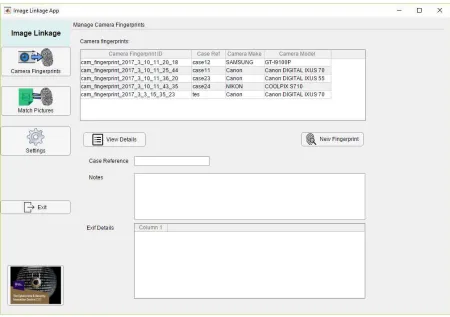
process flow is shown in Appendix A, where the steps for adding a new camera fingerprint and matching pictures to the camera fingerprint are displayed. The output of the matching process is a table in the app and a spreadsheet report can be generated to export the results. Figure 1 shows the Image Linkage application when it is launched.
The menu for the app is on the left and allows the user to select the following features of the app:
x Manage camera fingerprints
x Match pictures to camera fingerprints
x View settings page
[image:4.595.72.522.308.625.2]x Exit the app
4
Manage Camera Fingerprints
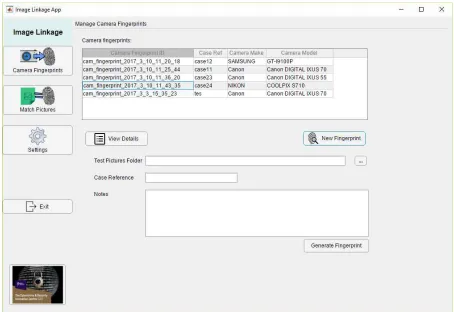
The management of the camera sensor fingerprints, shown in Figure 2, is performed by adding new fingerprints or viewing the details of the camera fingerprints. The camera fingerprints table displays
the list of camera fingerprints ID along with the case reference, camera make and model.
The user can view the details associated with a particular camera fingerprint by either clicking on the
Zs] Á š ]o•[ button or selecting a cell in the camera fingerprints table. The case reference and any notes added when creating the camera fingerprint are displayed as well as the EXIF details (metadata) associated with the test pictures.
o] l]vP }v šZ [New Fingerprint[ µšš}vU•Z}Áv ]v&]PµŒ ïUÁ]oo ]•‰o Ç šZ (] o • š} oo}Á šZ µ• Œ š} generate a new SPN camera fingerprint. The user can select the test pictures folder, where the test reference pictures for the camera are stored. The reference ID related to the case can be inserted in the Z • Z ( Œ v [ text box. Any notes that the user wants to collate to the camera fingerprint can ]v šZ ZNotes[š xt box. Examples of notes can be Exhibit number or details related to the • v u Œ X o] l }v šZ ZGenerate Fingerprint[ µšš}v š} Œ š šZ u Œ (]vP Œ‰Œ]všX Z camera fingerprint is given a unique ID by using the time stamp when they were created. When the camera fingerprint is created, it will be saved in the default folder and added to the camera fingerprints table in the user interface. Note that all the test pictures are cropped to 512 x 512 pixels
[image:5.595.72.523.137.457.2]in this prototype version of the application.
5
Match Pictures
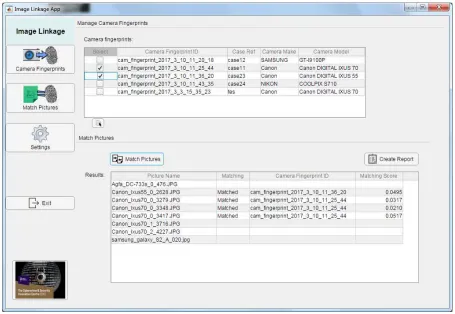
The user can match digital pictures against the camera fingerprints listed in the table, which has an added column on the left, displayed in Figure 4, for selecting the required camera fingerprints for the matching process. All the rows of the table are selected as default and there is a (de)select all button
µv Œ šZ ZSelect[ }oµuv ]v šZ u Œ (]vP Œ‰Œ]vš• š o X dZ µ• Œ v o•} ~ •• o š ]v ]À] µ o
camera fingerprints by checking }Œ µv Z l]vP šZ Œ}Á ]v šZ ZSelect[ }oµuvX
After selecting the camera (]vP Œ‰Œ]vš•U o] l }v šZ ZMatch Pictures[ button to open the load pictures dialog for the source identification process. A progress bar box is displayed while the matching is
performed between the pictures loaded and all the camera fingerprints selected and the results are displayed in the results table.
[image:6.595.70.524.70.382.2]The results table displays the filename of the picture loaded in the first column and the outcome of the matching process in the second column. If a match is found between a picture and a camera fingerprint, the word Matched is displayed on that corresponding row. If no match is found, then the cell in left empty. The matching camera fingerprint ID is displayed in the third column, with the matching correlation score shown in the fourth column of the results table.
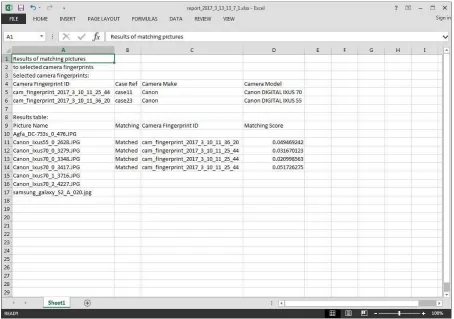
6 The user can generate a report f}Œ šZ u š Z]vP ‰Œ} •• Œ •µoš• Ç o] l]vP šZ ZCreate Report[ button. A spreadsheet is created, shown in Figure 5, with the details of the selected camera fingerprints for the matching process and the contents of the results table.
7
Settings
The settings view can be used to change the default folders for the location of the SPN camera fingerprints and the reports.
[image:8.595.71.525.71.390.2]The notes section indicates that the results produced by the matching process of Sensor Pattern Noise (SPN) of pictures against the selected SPN camera fingerprints are to be used for intelligence purposes to aid investigations.