Microsoft Office Inside Out:
2013 Edition
1005 Gravenstein Highway North Sebastopol, California 95472
Copyright © 2013 by Ed Bott and Carl Siechert
All rights reserved. No part of the contents of this book may be reproduced or transmitted in any form or by any means without the written permission of the publisher.
ISBN: 978-0-7356-6906-2
1 2 3 4 5 6 7 8 9 LSI 8 7 6 5 4 3
Printed and bound in the United States of America.
Microsoft Press books are available through booksellers and distributors worldwide. If you need support related to this book, email Microsoft Press Book Support at [email protected]. Please tell us what you think of this book at http://www.microsoft.com/learning/booksurvey.
Microsoft and the trademarks listed at http://www.microsoft.com/about/legal/en/us/IntellectualProperty/ Trademarks/EN-US.aspx are trademarks of the Microsoft group of companies. All other marks are property of their respective owners.
The example companies, organizations, products, domain names, email addresses, logos, people, places, and events depicted herein are fictitious. No association with any real company, organization, product, domain name, email address, logo, person, place, or event is intended or should be inferred.
This book expresses the authors’ views and opinions. The information contained in this book is provided without any express, statutory, or implied warranties. Neither the authors, O’Reilly Media, Inc., Microsoft Corporation, nor its resellers or distributors will be held liable for any damages caused or alleged to be caused either directly or indirectly by this book.
Acquisitions and Developmental Editor: Kenyon Brown Production Editor: Kristen Borg
Editorial Production: Curtis Philips
Technical Reviewer and Copyeditor: John Pierce Indexer: Lucie Haskins
v
Part 1:
Office fundamentals
Chapter 1
Inside Office 2013 . . . . 3 Chapter 2
Installing and updating Office 2013 . . . . 21 Chapter 3
Using and customizing the
Office interface . . . . 45 Chapter 4
Entering, editing, and formatting text . . . . 77 Chapter 5
Working with graphics and pictures . . . . 115
Part 2:
Office on the desktop
and in the cloud
Chapter 6
Managing Office files . . . . 155 Chapter 7
Connecting Office 2013 to SkyDrive
and other online services . . . . 183 Chapter 8
Using Office 2013 with an Office 365
subscription . . . . 197
Part 3:
Word
Chapter 9Inside Word 2013 . . . . 211 Chapter 10
Working with complex documents . . . . 265 Chapter 11
Word 2013 inside out . . . . 317
Part 4:
Excel
Chapter 12Inside Excel 2013 . . . . 353 Chapter 13
Analyzing data with tables and charts . . . . 407 Chapter 14
Excel 2013 inside out . . . . 457
Part 5:
Outlook
Chapter 15Inside Outlook 2013 . . . . 497 Chapter 16
Organizing Outlook information . . . . 531 Chapter 17
Outlook 2013 inside out . . . . 569
Part 6:
PowerPoint
Chapter 18Inside PowerPoint 2013 . . . . 601 Chapter 19
Polishing and delivering a presentation . . . . 639 Chapter 20
PowerPoint 2013 inside out . . . . 669
Part 7:
OneNote
Chapter 21Inside OneNote 2013 . . . . 701 Chapter 22
Tagging, organizing, and
finding information . . . . 733 Chapter 23
Part 8:
Other Office programs
Chapter 24Inside Publisher 2013 . . . . 787 Chapter 25
Inside Lync 2013 . . . . 807 Chapter 26
vii
Table of contents
Introduction . . . xix
Who this book is for . . . xix
How this book is organized. . . .xx
Acknowledgments . . . xxi
Support and feedback . . . .xxii
Part 1: Office fundamentals
Chapter 1
Inside Office 2013 . . . . 3
What’s new? What’s changed? . . . .4
Using Office Web Apps. . . .8
A field guide to Office 2013 editions . . . .9
Subscription editions . . . .9
Retail editions . . . 10
Volume-license editions. . . 11
Word 2013. . . 13
Excel 2013 . . . 14
Outlook 2013 . . . 15
PowerPoint 2013 . . . 18
OneNote 2013 . . . 19
Other Office 2013 programs . . . 20
Chapter 2
Installing and updating Office 2013 . . . . 21
Choosing an Office edition . . . 21
Subscription editions . . . 22
Retail perpetual license editions. . . 24
Volume license editions . . . 26
Setting up Office . . . 26
Using the Click-to-Run Office installer . . . 29
Installing from physical media or an installer file . . . 32
What do you think of this book? We want to hear from you!
Microsoft is interested in hearing your feedback so we can continually improve our books and learning resources for you. To participate in a brief online survey, please visit:
Activating a trial edition of Office . . . 36
Activating your Office installation . . . 36
Keeping Office up to date . . . 38
Customizing Office with add-ins and apps . . . 40
Uninstalling Office . . . 43
Chapter 3
Using and customizing the Office interface . . . . 45
Mastering Office Backstage view . . . 46
Viewing document properties in the Info pane . . . 48
Creating, editing, and saving files in Backstage view . . . 49
Printing from Backstage view . . . 51
Sharing and exporting documents and other Office items. . . 52
Managing account settings and program options . . . 54
Using and customizing the ribbon . . . 57
Using the ribbon . . . 57
Galleries and live previews . . . 61
Personalizing the ribbon . . . 63
Customizing the Quick Access Toolbar . . . 68
Using and customizing the status bar . . . 71
Using keyboard shortcuts. . . 73
Arranging and switching between document windows . . . .74
Chapter 4
Entering, editing, and formatting text . . . . 77
Entering, selecting, and deleting text . . . 77
Entering symbols and other special characters . . . 80
Expert text-editing techniques . . . 84
Using Undo, Redo, and Repeat. . . 84
Entering boilerplate and other oft-used text. . . 85
Entering hyperlinks. . . 87
Entering mathematical equations . . . 89
Applying text formatting . . . 92
Applying character formatting. . . 93
Applying paragraph formatting. . . 94
Using and managing fonts . . . 95
Copying formatting . . . 96
Using the Clipboard with Office programs . . . 97
Using Paste Options . . . 99
Managing multiple clippings with the Office Clipboard . . . 101
Finding and replacing text and formatting. . . 103
Checking spelling. . . 106
Correcting a single word . . . 106
Correcting spelling throughout a document. . . 107
Setting options for spelling correction . . . 108
Using custom dictionaries . . . 109
Using the thesaurus. . . 111
Setting language and regional options . . . 112
Chapter 5
Working with graphics and pictures . . . . 115
Working with drawing layers in Office documents . . . 116
Selecting graphics and pictures . . . 117
Positioning objects . . . 119
Resizing and rotating graphics and pictures . . . 124
Grouping objects . . . 127
Inserting pictures into Office documents . . . 128
Making your pictures look great. . . 129
Cropping pictures . . . 130
Adjusting colors and applying artistic effects . . . 133
Applying picture styles . . . 134
Removing the picture background . . . 135
Undoing picture edits . . . 136
Finding and using online pictures. . . 137
Adding shapes and text boxes. . . 139
Adding SmartArt to documents . . . 142
Displaying data graphically with charts . . . 144
Capturing and inserting screenshots . . . 146
Applying text effects with WordArt . . . 148
Using Office themes . . . 149
Part 2: Office on the desktop and in the cloud
Chapter 6
Managing Office files . . . . 155
Where (and how) Office stores files . . . 156
Custom options in the Save As dialog box. . . 160
Custom options in the Open dialog box. . . 161
Which file formats does Office 2013 support? . . . 162
Understanding the Office 2013 default formats: Office Open XML . . . 163
Setting a default file format . . . 164
Checking for compatibility with an earlier Office version . . . 166
Exporting files and data to alternative formats . . . 167
Using templates to streamline document creation . . . 170
Working with (and around) Office security features . . . 171
What you can and can’t do in Protected View . . . 172
Inspecting and removing personal and confidential information . . . 174
Fine-tuning security settings. . . 175
Organizing and finding Office files. . . 177
Backup and recovery options . . . 180
Chapter 7
Connecting Office 2013 to SkyDrive and other online services . . . . 183
What happens when you sign in with an Office account? . . . 183
Saving, sharing, and syncing Office documents with SkyDrive . . . 189
Using SkyDrive in a web browser. . . 189
Using SkyDrive from an Office program. . . 190
Synchronizing SkyDrive files with Windows. . . 190
Using Office Web Apps. . . 191
Chapter 8
Using Office 2013 with an Office 365 subscription . . . . 197
How Office 365 and Office 2013 work together . . . 197
Managing your Office 365 account . . . 199
Working with Office 365 Home Premium . . . 199
Working with Office 365 business plans. . . 202
Using Office on Demand . . . 205
Working with SkyDrive Pro . . . 207
Part 3: Word
Chapter 9
Inside Word 2013 . . . . 211
What’s in a Word document? . . . 211
Working in an appropriate document view . . . 216
Read Mode. . . 217
Web Layout view. . . 218
Outline view . . . 219
Draft view . . . 219
Switching views and zooming. . . 220
Creating and editing documents . . . 221
Using tabs. . . 221
Inserting special characters. . . 223
Changing case . . . 224
Controlling line breaks and hyphenation . . . 224
Inserting the date, time, and document properties . . . 225
Navigating in Word documents . . . 226
Navigating within a document . . . 226
Working with multiple document windows . . . 230
Searching within a document . . . 232
Searching for nonstandard characters . . . 232
Including formatting in your search criteria. . . 235
Repeating a search . . . 235
Searching and replacing . . . 236
Making your documents look good. . . 236
Formatting text . . . 238
Formatting paragraphs . . . 241
Setting page layout options . . . 243
Adding headers, footers, and page numbers . . . 243
Giving your documents a consistent appearance . . . 245
Applying styles . . . 246
Making global changes to your document . . . 250
Tools for working with styles . . . 252
Creating a new style . . . 254
Applying a template to an existing document . . . 256
Saving and modifying templates . . . 256
Adding pictures and graphics . . . 257
Working with bulleted and numbered lists. . . 261
Chapter 10
Working with complex documents . . . . 265
Using outlines to plan, organize, and edit documents . . . 266
Navigating in long documents . . . 268
Formatting columns and sections. . . 270
Creating a multicolumn layout . . . 272
Working with tables . . . 274
Creating a table. . . 274
Working with table data . . . 279
Formatting a table . . . 283
Changing the table layout. . . 285
Deleting a table. . . 289
Inserting references to other parts of a document . . . 289
Defining reference targets . . . 290
Inserting a reference . . . 292
Creating tables of contents and indexes . . . 294
Inserting a table of contents. . . 294
Preparing and inserting an index. . . 296
Using review comments in a document. . . 298
Inserting a comment . . . 299
Reviewing comments . . . 300
Printing comments . . . 302
Tracking and highlighting changes made to a document . . . 304
Changing view options . . . 306
Reviewing tracked changes. . . 307
Setting options for tracking changes . . . 310
Preparing a document for distribution . . . 312
Checking a document . . . 313
Protecting a document . . . 314
Chapter 11
Word 2013 inside out . . . . 317
Applying advanced text-formatting capabilities . . . 317
Applying shadows, reflections, and other text effects . . . 317
Using ligatures and other fine typography effects . . . 320
Beginning a paragraph with a drop cap . . . 323
Understanding linked styles . . . 324
Using Word to create and edit blog posts . . . 325
Managing blog accounts. . . 326
Working with blog posts . . . 327
Inserting video . . . 329
Combining documents and data with mail merge . . . 331
Using the mail merge wizard . . . 332
Working with data files . . . 334
Inserting data fields in a document. . . 336
Previewing the merged output . . . 338
Completing the merge. . . 338
Using building blocks . . . 339
Using AutoText . . . 340
Using fields to automate documents . . . 342
Working with field codes. . . 343
Inserting a field . . . 343
Our favorite Word tweaks and tips. . . 344
Applying styles from the Quick Access Toolbar . . . 345
Customizing the Quick Access Toolbar and the status bar . . . 345
Installing and using apps for Word . . . 346
Reading document text aloud . . . 346
Creating a cover page . . . 347
Printing booklets. . . 348
Generating “greek” text . . . 349
Part 4: Excel
Chapter 12
Inside Excel 2013 . . . . 353
What’s in an Excel workbook? . . . 353
Navigating in worksheets and workbooks . . . 360
Using cell addresses and range names . . . 362
Using keyboard shortcuts . . . 363
Entering and filling in data and series . . . 365
Using formulas and functions . . . 370
Creating and editing formulas . . . 371
Adding functions to a formula . . . 377
Mastering Excel’s built-in functions. . . 379
Formatting cells and ranges. . . 389
Number formats . . . 392
Currency and Accounting formats. . . 393
Date and Time formats . . . 393
Percentage formats . . . 394
Fraction formats . . . 395
Scientific formats. . . 395
Text formats . . . 396
Special formats . . . 396
Finding, editing, moving, and copying data . . . 396
Using the Clipboard to transform data . . . 397
Pasting text and formats into multiple worksheets . . . 398
Customizing the worksheet view . . . 399
Hiding rows and columns . . . 401
Arranging worksheet windows. . . 402
Splitting, freezing, and locking panes . . . 403
Chapter 13
Analyzing data with tables and charts . . . . 407
Sorting out your data analysis options . . . 408
Using tables to organize and analyze data . . . 411
Formatting tables with table styles . . . 414
Expanding (or shrinking) a table . . . 418
Sorting and filtering data . . . 421
Sorting a range, region, or table . . . 421
Filtering data in a table . . . 423
Using conditional formatting to highlight cells based on their content . . . 428
Using sparklines to visualize trends within a range . . . 435
Turning data into charts . . . 436
Choosing the right chart type. . . 439
Changing a chart’s layout or design . . . 447
Linking worksheet data to chart elements . . . 453
Chapter 14
Excel 2013 inside out . . . . 457
Customizing the default new workbook . . . 457
Using PivotTables . . . 459
Creating a PivotTable . . . 459
Customizing a PivotTable layout . . . 462
Filtering a PivotTable . . . 467
Changing the format of a PivotTable. . . 467
Manipulating text with functions . . . 469
Advanced worksheet formatting . . . 470
Creating custom cell formats . . . 472
Creating custom cell styles . . . 476
Printing a worksheet . . . 478
Adjusting print settings . . . 478
Defining a print area. . . 481
Adjusting page breaks . . . 482
Our favorite Excel tweaks and tips . . . 485
Navigating with the Go To dialog box . . . 485
Entering and sorting data with custom series . . . 486
Using online forms to collect survey data . . . 488
Generating random numbers . . . 489
Using data validation to control data entry . . . 490
Part 5: Outlook
Chapter 15
Inside Outlook 2013 . . . . 497
What you can (and can’t) do with Outlook . . . 497
Email messages . . . 502
Appointments and meetings . . . 503
Contacts . . . 504
Tasks . . . 505
Notes and Journal entries . . . 506
Configuring an Outlook profile. . . 506
Connecting accounts to Outlook . . . 509
Using Internet-standard mail servers . . . 511
Configuring Office 365 and Exchange accounts . . . 514
Setting up an Outlook.com (Hotmail) account . . . 515
Getting Gmail and Google Apps to play nicely with Outlook. . . 516
Managing Outlook data files and folders . . . 518
Managing data files . . . 518
Using and managing folders. . . 520
Creating, sending, and receiving messages . . . 523
Choosing the right message format . . . 525
Receiving and synchronizing messages. . . 526
Chapter 16
Organizing Outlook information . . . . 531
Managing your calendar . . . 531
Creating and editing appointments and meetings. . . 535
Setting up recurring appointments and events. . . 537
Arranging multiple calendars . . . 538
Organizing your contacts. . . 541
Viewing and editing contacts in Business Card view . . . 544
Searching for contacts . . . 546
Using the Outlook address books . . . 546
Filtering and filing email messages automatically . . . 550
Configuring Quick Steps . . . 550
Using rules to manage messages automatically . . . 555
Mastering Outlook search . . . 561
Changing the scope of a search . . . 562
Adding criteria to a search . . . 563
Building search queries with keywords. . . 565
Creating and using search folders . . . 567
Chapter 17
Outlook 2013 inside out . . . . 569
Personalizing the Outlook interface. . . 569
Docking your calendar, contacts, or tasks in the To-Do Bar . . . 569
Customizing the Folder pane . . . 571
Using the Reading pane. . . 572
Creating and saving custom views. . . 573
Viewing email conversations. . . 575
Setting follow-up flags and reminders. . . 577
Importing, exporting, and archiving Outlook data . . . 580
Importing and exporting Outlook items . . . 582
Cleaning up your mailbox . . . 585
Archiving Outlook data . . . 587
Our favorite Outlook tweaks and tips . . . 590
Dealing with duplicate contacts. . . 590
Adding and editing email signatures . . . 592
Juggling multiple time zones . . . 593
Managing Auto-Complete lists . . . 595
Changing default fonts for new email messages . . . 596
Part 6: PowerPoint
Chapter 18
Inside PowerPoint 2013 . . . . 601
What’s in a PowerPoint presentation? . . . 601
Working in an appropriate view . . . 603
Normal view. . . 603
Outline view . . . 604
Slide Sorter view . . . 605
Reading view . . . 606
Notes Page view . . . 607
Slide Show view. . . 610
Creating and editing a presentation . . . 610
Using slide layouts . . . 611
Creating a presentation from an outline . . . 613
Editing presentation text . . . 615
Using slide sections. . . 618
Setting page orientation and size . . . 619
Saving and sharing a presentation . . . 621
Adding graphics, video, and audio. . . 623
Working with objects . . . 624
Working with video . . . 626
Working with audio . . . 631
Working with tables . . . 632
Customizing your presentation’s design . . . 634
Formatting text . . . 635
Adding footers. . . 635
Applying themes. . . 636
Adding backgrounds . . . 637
Chapter 19
Polishing and delivering a presentation . . . . 639
Enlivening a presentation with animations . . . 639
Adding animation . . . 640
Layering animation effects . . . 642
Setting animation order and timing . . . 645
Duplicating animations with Animation Painter . . . 647
Triggering an animation effect. . . 647
Setting additional effect options . . . 648
Using transitions between slides. . . 650
Planning and rehearsing a presentation . . . 652
Recording narration . . . 653
Setting presentation options . . . 654
Delivering a live presentation . . . 656
Navigating in Slide Show view . . . 656
Adding annotations during a slide show . . . 659
Turning your mouse into a laser pointer. . . 660
Zooming in for a closer view. . . 660
Creating notes and handouts . . . 663
Printing notes. . . 664
Printing handouts . . . 664
Setting color options . . . 665
Editing the handout header and footer . . . 667
Editing handouts in Word . . . 667
Chapter 20
PowerPoint 2013 inside out . . . . 669
Sharing a presentation with others. . . 669
Delivering a live presentation online. . . 670
Turning your presentation into a video . . . 674
Creating a CD presentation package. . . 675
Working collaboratively on a presentation. . . 677
Using comments . . . 677
Merging and comparing presentations . . . 679
Saving and reusing slides and themes . . . 681
Reusing slides. . . 681
Saving themes . . . 682
Creating custom slide shows . . . 683
Hiding slides to create dynamic presentations . . . 683
Defining a custom show . . . 684
Laying the groundwork for an expert presentation . . . 686
Customizing the slide master . . . 686
Creating a custom layout. . . 688
Customizing other masters . . . 689
Our favorite PowerPoint tweaks and tips . . . 690
Creating a photo album with PowerPoint . . . 690
Inserting hyperlinks . . . 692
Inserting action buttons . . . 692
Embedding fonts in a presentation file. . . 696
Playing music behind your slides . . . 697
Creating custom bullets. . . 698
Part 7: OneNote
Chapter 21
Inside OneNote 2013 . . . . 701
What’s in a OneNote notebook?. . . 701
Creating and opening OneNote files. . . 703
Filling a notebook with text, pictures, clippings, and more . . . 706
Formatting text . . . 717
Navigating in OneNote. . . 719
Opening and moving between notebooks . . . 720
Working with sections and section groups . . . 720
Working with pages . . . 722
Using the Notebook Recycle Bin . . . 724
Customizing the look and feel of a notebook page . . . 725
Chapter 22
Tagging, organizing, and finding information . . . . 733
Using tags to highlight important notes . . . 733
Applying and removing tags . . . 734
Customizing tags. . . 736
Copying custom tags to another copy of OneNote . . . 738
Using links for quick connections . . . 740
Creating links to webpages or files . . . 740
Editing and removing links . . . 742
Smart search strategies. . . 743
Searching on a page. . . 744
Searching by section or notebook. . . 744
Reviewing recently modified pages. . . 748
Finding tagged notes . . . 749
Expert organizational techniques . . . 751
Backing up and recovering notebooks . . . 753
Chapter 23
OneNote 2013 inside out . . . . 757
Using OneNote with Outlook . . . 758
Sending email messages to OneNote . . . 758
Linking Outlook contacts to OneNote pages . . . 759
Connecting appointments and meetings to OneNote. . . 761
Using Outlook tasks with OneNote . . . 762
Sending a OneNote page via email. . . 765
Linking notes to documents and webpages . . . 765
Sharing and synchronizing notebooks. . . 769
Printing, publishing, and sharing notes . . . 773
Recording audio and video . . . 776
Our favorite OneNote tweaks and tips . . . 779
Managing page versions . . . 779
Customizing the OneNote taskbar icon . . . 780
Using quick notes . . . 781
Converting printouts and pictures to text . . . 782
Saving and using custom page templates . . . 782
Using the immersive Windows Store app. . . 783
Part 8: Other Office programs
Chapter 24
Inside Publisher 2013 . . . . 787
Publisher vs. Word . . . 788
Creating a publication. . . 790
Inserting text . . . 790
Inserting graphics . . . 794
Inserting building blocks . . . 795
Working with pages . . . 796
Adding or deleting a page . . . 796
Formatting a page . . . 797
Applying themes . . . 801
Merging data . . . 802
Catalog pages . . . 802
Mailings. . . 804
Printing a publication . . . 804
Chapter 25
Inside Lync 2013 . . . . 807
What is Lync? . . . 808
Configuring Lync options . . . 810
Instant messaging and presence. . . 812
Telephony and videoconferencing . . . 816
Screen sharing and whiteboarding. . . 817
Chapter 26
Inside Access 2013 . . . . 823
Uses of a database management system . . . 823
Using Access web apps . . . 828
Creating an app. . . 829
Adding tables. . . 830
Creating and customizing views. . . 831
Adding data . . . 831
Using desktop databases . . . 832
Adding a table . . . 833
Adding data . . . 834
Using queries . . . 835
Working with forms . . . 836
Creating reports . . . 838
Automating with macros and modules. . . 839
Index of troubleshooting topics . . . . 841
Index . . . . 843
What do you think of this book? We want to hear from you!
Microsoft is interested in hearing your feedback so we can continually improve our books and learning resources for you. To participate in a brief online survey, please visit:
xix
M
icrosoft office is the most popular collection of application software ever, and for good reason. The programs in the Office family allow you to perform just about any task that involves words, numbers, charts and graphs, slide decks, email, and more.With Office 2013, Microsoft has polished the entire collection and introduced tight connec-tions to cloud-based services, which allow you to sync settings between multiple devices just by signing in with an Office account and using the SkyDrive and SkyDrive Pro services from Microsoft.
Office 2013 introduces one new wrinkle that might confuse some longtime Office veter-ans. In addition to the conventional one-copy-per-PC license, Office 2013 is available as a subscription product, which includes the rights to install and use the full suite of Office soft-ware on multiple devices. We encourage you to read Chapter 1 carefully for a full overview of what’s new and changed in this version.
Who this book is for
We wrote this book with a broad audience in mind: students, small business owners, pro-fessionals, information workers, and anyone else who’s interested in maximizing their productivity at home or at work. Our goal is to help you become productive with the core applications in Office 2013—Word, Excel, Outlook, PowerPoint, and OneNote. In addition, we provide thorough introductions to three additional Office programs—Access, Publisher, and Lync.
Assumptions about you
We assume that most of our readers have already used at least one previous version of Office and are proficient (or at least comfortable) in one or two Office programs. For each program, we provide a quick overview that helps you understand its core concepts, and we concentrate on explaining the similarities between the products so that you can transfer skills you learn in one Office program to another.
How this book is organized
This book gives you a comprehensive look at features that are common to all the Office programs and then moves through each of the individual programs for a more detailed examination.
Part 1, “Office fundamentals,” describes the various Office editions and explains how to install the program. After that, we explain features and procedures that are common to all Office programs: the ribbon and other user interface components, working with text, and working with pictures and other graphics.
Part 2, “Office on the desktop and in the cloud,” shows you how to manage your Office files, whether you store them on a local hard drive, on a network drive, or in the cloud. We then show how Office integrates with SkyDrive and other online services, and how to get the most out of an Office 365 subscription.
Part 3, “Word,” begins our detailed looks at individual Office programs. In this part, we cover essential Word information and then dive deeper into topics such as working with long documents, using templates and themes, using tables, tracking changes and review comments, creating blog posts, and combining documents and data with mail merge.
Part 4, “Excel,” shows how to navigate around a worksheet and how to perform calculations. But it’s not just numbers on a grid: we explain how to create compelling charts and how to use tables, PivotTables, slicers, and the new Quick Analysis tool to view numeric data in new and useful ways.
Part 5, “Outlook,” describes the program that some people spend most of their day using. Outlook sends and receives email, manages your contacts database, maintains a calendar of meetings and other activities, and keeps track of your tasks and other to-do list items. We explain how to use each of these features to the fullest.
Part 6, “PowerPoint,” explains how to create captivating slide presentations. We describe the various views in PowerPoint and explain how to use slides to show pictures, videos, anima-tions, transianima-tions, and other objects as well as tried-and-true bulleted lists. We show how to present a slide show on a single computer, with a second monitor or projector, or over the Internet.
Outlook for managing messages, contacts, meetings, and tasks. We also show how to use shared notebooks stored in the cloud, an incredibly useful capability whether you’re sharing with others or with your various devices.
Part 8, “Other Office programs,” introduces three other programs included with Office 2013. First up is Publisher, a desktop publishing program for creating brochures, catalogs, and other printed materials. Then we take a look at Lync, a unified communications program with which you can connect to others via instant messages, audio and video messaging, and shared desktops. We wrap up with an overview of Access, the databaseprogram that now creates Access web apps.
Acknowledgments
Producing a book of this size requires teamwork and coordination, and meeting our quality standards takes time and concentration. For this edition, we were fortunate to work with a familiar team made up of total pros.
We were delighted when the publishers told us we could work with our longtime collabora-tor Curtis Philips of Publishing.com, who performed the production and layout tasks for this book. He and his team of experts, including technical reviewer and copy editor John Pierce and proofreader Andrea Fox, made invaluable improvements to the manuscript.
Our good friend and literary agent Claudette Moore did her usual magic with contracts and bookkeeping. Thanks to her efforts, we were able to concentrate on the content with-out being distracted by business details.
Carl’s colleagues at LittleMachineShop.com endured his extended absences and grouchier-than-usual demeanor. Their support, along with that of our long-suffering wives, made it possible to bring you this book and keep a bit of our sanity.
A big thank you to the Microsoft Office team for producing a new version that was solid enough for us to use in writing this book. And we tip our hat to the team responsible for SkyDrive, which we used to share files and notes throughout the production process.
Most importantly, thanks to you for buying this book. We’re grateful for your support.
Support and feedback
The following sections provide information on errata, book support, feedback, and contact information.
Errata & support
We’ve made every effort to ensure the accuracy of this book and its companion con-tent. Any errors that have been reported since this book was published are listed on our Microsoft Press site at oreilly.com:
http://aka.ms/Office2013InsideOut/errata
If you find an error that is not already listed, you can report it to us through the same page.
If you need additional support, email Microsoft Press Book Support at
Please note that product support for Microsoft software is not offered through the addresses above.
We want to hear from you
At Microsoft Press, your satisfaction is our top priority and your feedback our most valuable asset. Please tell us what you think of this book at
http://www.aka.ms/tellpress
The survey is short, and we read every one of your comments and ideas. Thanks in advance for your input!
Stay in touch
1 1
Office fundamentals
CHAPTER 1
Inside Office 2013 . . . .3
CHAPTER 2
Installing and updating Office 2013 . . . .21
CHAPTER 3
Using and customizing the Office
interface . . . .45
CHAPTER 4
Entering, editing, and formatting text . . . .77
CHAPTER 5
3
3
3
Inside Office 2013
M
icrosoft office is, without question, the single most widely used piece of produc tivity software in the world today. More than 1 billion (that’s billion with a b) people actively use one of the many versions of Office that Microsoft has released in the past two decades.If you’re one of those longtime Office users, you’ll find that Office 2013 feels new and greatly improved but without feeling dramatically different. That’s both reassuring and somewhat puzzling.
At first glance, Office 2013 looks slightly different, with a flatter user interface than in previous editions. Also, most actions in individual programs are accompanied by subtle animations. Beyond that, you’ll find little that’s obviously new. There are no new desktop programs or web apps—Word, Excel, PowerPoint, Outlook, OneNote, and the rest of the Office family are still around. File formats have changed in only minor ways between Office 2010 and 2013. A few rarely used utilities have been retired and will not be missed.
The most important new feature, which seamlessly connects you to online file stor-age, builds on the familiar SkyDrive and SharePoint products. The utility that syncs local and cloud-based files is a retooled version of the venerable Groove utility, rebranded as SkyDrive Pro. Microsoft’s well-established App-V and Click-to-Run technologies power the web-based installer that is at the heart of the new subscription-based Office.
And yet…
With Office 2013, Microsoft has taken its cloud services, desktop programs, and browser-based apps and fused them into a product that feels unified and natural. Small but signifi-cant improvements are scattered through the individual Office programs. Collectively, they add up to a greatly improved experience, all without altering the fundamental character of Office.
What’s new? What’s changed? . . . .4
Using Office Web Apps . . . .8
A field guide to Office 2013 editions . . . .9
Word 2013 . . . .13
Excel 2013 . . . .14
Outlook 2013 . . . .15
PowerPoint 2013 . . . . 18
OneNote 2013 . . . . 19
Chap
ter
1
The basic challenge of Office 2013 remains, however. Depending on which edition you pur-chase, you have at your fingertips as many as eight full-featured programs with a sweeping range of capabilities. You have to use both sides of your brain (the analytical and the artis-tic), sometimes in the same program at the same time. And you’re expected to remember the ins and outs of a program you might use only once every few weeks or months.
It’s little wonder that most of us are comfortable with one or two Office programs and flail around in frustration when we need to use one of the others. When you’re using a pro-gram that’s less familiar to you, you’re so busy trying to figure out how to accomplish basic tasks that you don’t even think about time-saving strategies and advanced features and capabilities.
That’s where we come in. Our goal in this book is to deliver exactly what you need to become productive with the core applications in Office 2013—Word, Excel, Outlook, Power Point, and OneNote. We provide a cram course in each program, covering the essential features and technologies and suggesting productivity-enhancing expert tips to help you work smarter. We cover three additional Office programs—Publisher, Lync, and Access—in fewer pages, but with enough detail, we hope, to propel you firmly ahead on the road to productivity.
We’re confident that most of our readers have at least a passing familiarity with Office, so we won’t waste your time with trivial details. In this introductory chapter, we offer a whirl-wind tour of what’s new and what’s changed from your previous Office edition, along with a basic road map to this book.
What’s new? What’s changed?
The single biggest change in Office 2013 involves the decision you must make when you upgrade: will you opt for a traditional perpetual license, which allows you to pay a single price and install the software on a single device? Or will you choose a more flexible Office 365 annual subscription, which allows you to use the same Office 2013 programs on up to five devices and includes additional cloud-based services?
The economics and logistics of that decision are not obvious, which is why we break the deci-sion down in as much detail as possible in “Choosing an Office edition” in Chapter 2, “Install-ing and updat“Install-ing Office 2013.”
Chap
ter
1
In this release, the Office ribbon continues its evolution. This interface element was intro-duced in Office 2007 (for every program except Outlook). It was refined (and added to Outlook) in Office 2010 and is now a part of every program in the Office family, with the exception of the difficult-to-categorize Lync communications suite.
The ribbon replaces the drop-down menus and icon-laden toolbars in earlier Office edi-tions with tabs that stretch horizontally across the top of the program window. Each tab contains commands that are organized into groups. Figure 1-1, for example, shows the Home tab in Word 2013.
Figure 1-1 The ribbon interface combines menus and toolbars into a single horizontal arrangement.
Two other elements in Figure 1-1 are worth calling out. The Quick Access Toolbar, above the ribbon at the left, is a row of shortcuts that you can customize easily. At the right of the tab headings is the name of the currently signed-in user, which lets you know at a glance which SkyDrive accounts and other Office-connected services you’ll see when you click File to open or save a document.
Other additions to the Office interface allow you to choose formatting options from a gal-lery and preview their effect on your live data before committing to a change.
Chap
ter
1
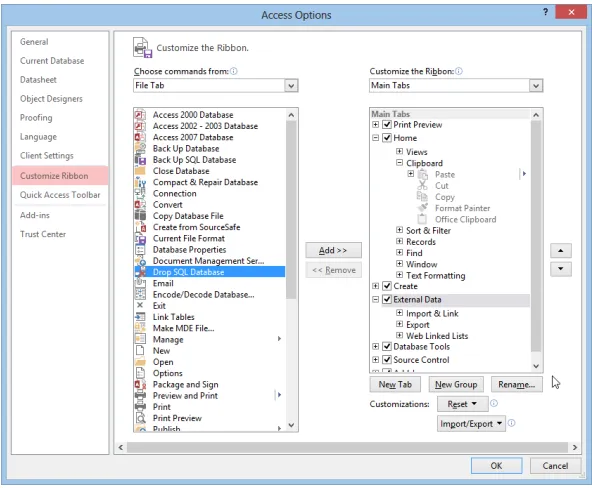
[image:30.531.111.407.139.383.2]If you skipped Office 2010, you’ll notice significant improvements in the ribbon. For start-ers, it’s customizable. Using the dialog box shown in Figure 1-2, you can remove command groups from the ribbon, create your own custom command groups and tabs, rename exist-ing groups and tabs, and export your custom settexist-ings for reuse on a different Office 2013 installation.
Figure 1-2 If you don’t like the default ribbon in an Office program, change it by adding, removing, and rearranging tabs and individual commands.
With one exception, clicking a heading on the ribbon displays the tab of the same name, a horizontal strip of commands and options related to that task. The exception is File, which always appears in the first position on the left side and is distinguished by a color back-ground that matches the color of the program’s icon.
In Office 2013, clicking File opens the Office Backstage view, which occupies the entire pro-gram window and consolidates multiple tasks into a single location without forcing you to open multiple dialog boxes. This feature was introduced in Office 2010 and is significantly enhanced in Office 2013.
Chap
ter
1
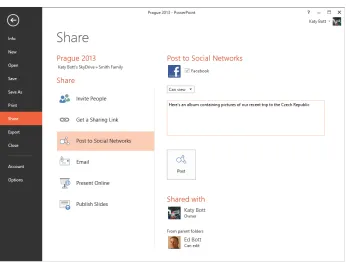
[image:31.531.121.467.109.371.2]in PowerPoint 2013, with options to share a slide show by attaching it to an email message, by creating a link to a SkyDrive folder, or by posting it to a social network that you’ve con-nected to your Office account (Facebook, in this example).
Figure 1-3 Clicking the File heading opens Backstage view, which consolidates common options and previews in a single location using the entire Office window.
For a detailed look at the Office 2013 ribbon, Backstage view, Live Preview, and other inter-face elements, see Chapter 3, “Using and customizing the Office interinter-face.”
Chap
ter
[image:32.531.110.472.64.304.2]1
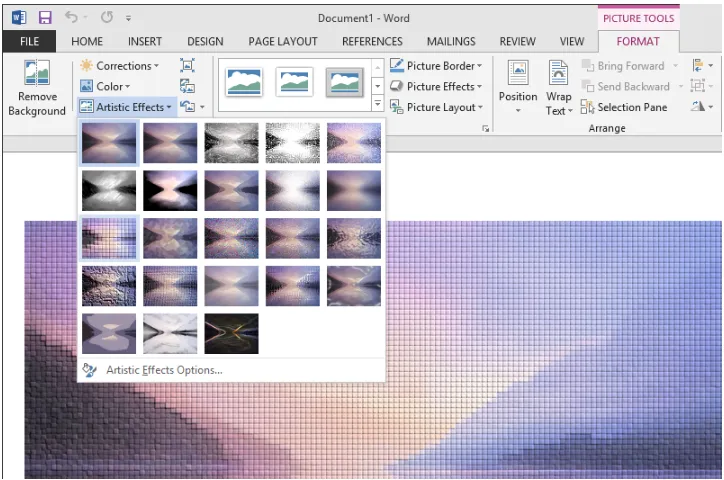
Figure 1-4 Image-editing tools available throughout Office 2013 allow you to crop and transform pictures without leaving the document window.
You’ll find comprehensive instructions on how to insert and edit photos, screen shots, Smart-Art graphics, and other visual elements in Chapter 5, “Working with graphics and pictures.”
Using Office Web Apps
Some (but not all) of the programs in Office 2013 have corresponding online versions that allow you to create, save, view, share, and collaborate on documents, workbooks, presenta-tions, and notebooks.
Chap
ter
[image:33.531.116.466.64.269.2]1
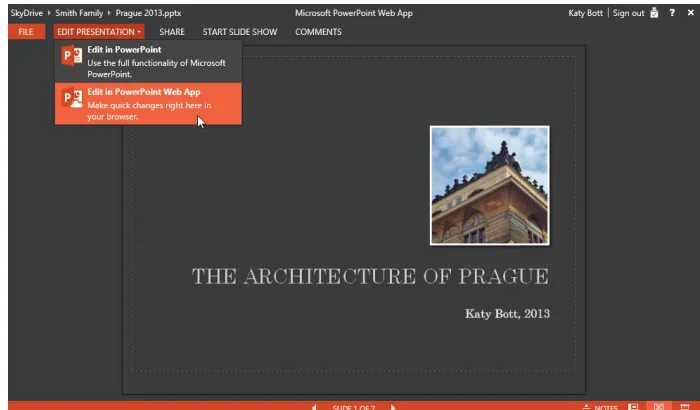
Figure 1-5 Documents stored in a SkyDrive folder can be opened for editing directly in the browser or in the associated Office program, if it’s installed.
Two or more users can edit documents simultaneously when those files are stored on Sky-Drive or a SharePoint server; this capability is also available with SkySky-Drive Pro when used with an Office 365 Small Business Premium subscription.
You’ll find more details about these tools and techniques in Chapters 7 and 8, which docu-ment the SkyDrive and SkyDrive Pro/SharePoint options, respectively.
A field guide to Office 2013 editions
If you want to install Office on a new PC or upgrade an earlier Office version on an existing PC, you have an impressive—and potentially confusing—array of options. The prices, licens-ing terms, and features for each edition vary significantly. Maklicens-ing the right choice is more complicated than simply selecting a retail box.
Subscription editions
Chap
ter
1
The biggest difference between Office 365 and the traditional installer-based versions of Office 2013 is that the subscription-based Office programs are licensed on a per-user basis rather than on a per-device basis. That’s an important distinction in a world where you are likely to use multiple computing devices: a desktop PC, a notebook, a tablet, and a smartphone.
Office 365 is available in two new editions intended for consumers and small businesses:
●
● Office 365 Home Premium is intended for use by families. A single annual subscrip-tion payment covers all family members. The primary user manages the subscripsubscrip-tion and can assign Office 2013 rights to up to five devices (Windows PCs or Macs). Those devices can then be used by any family member who signs in with his or her indi-vidual Microsoft account to install and run Office 2013 programs. The primary user also gets an additional 20 GB of SkyDrive storage and 60 minutes of worldwide Skype calling.
●
● Office 365 Small Business Premium is intended for use by businesses with up to 10 employees (although it actually supports up to 25 users). The annual subscription payment covers a single user, who in turn is allowed to install and run Office 2013 programs on up to five PCs or Macs. The subscription also includes a 25 GB mailbox (on a Microsoft-hosted server running Microsoft Exchange), shared file storage of 10 GB (plus 500 MB per user), and online communications using Lync.
Businesses with more than 10 employees can acquire Office 2013 Professional Plus as part of enterprise-class Office 365 subscriptions. Students, faculty, and staff at universities can get Office 365 University, which is identical to Home Premium but allows installation on only two devices.
For a full list of features and pricing for all available Office 365 plans, see http://bit.ly/ Office365plans .
Retail editions
Through traditional retail distribution channels (in brick-and-mortar stores or online), you can choose from three editions:
●
Chap
ter
1
specifically prohibits using this edition “for commercial, nonprofit or revenue- generating activities.”
●
● Office Home and Business 2013 includes all the programs from the Home and Student edition and adds Outlook. Here, too, licensing options allow installation on a single PC.
●
● Office Professional 2013 is the top-of-the-line retail Office edition, intended for consumers and small businesses. It includes the programs in the Home and Business edition and adds Publisher and Access.
For instructions on how to install and activate a retail copy of Office 2013, see Chapter 2.
Any of the preceding editions may also be sold by a PC manufacturer and preinstalled on a new computer.
What’s happened to Office Starter Edition?
With Office 2010, Microsoft experimented with a free Starter Edition, available only with new PCs. This edition was considerably more limited than any retail Office edi-tion and included only two ad-supported, limited-feature programs, Word Starter and Excel Starter. This edition was unceremoniously dumped with the introduction of Office 2013.
Volume-license editions
Businesses that have volume-license agreements with Microsoft can choose from two avail-able Office editions:
●
● Office Standard includes Word, Excel, OneNote, PowerPoint, Outlook, and Publisher.
●
Chap
ter
1
INSIDE OUT
How to check which Office edition is installed on a Windows PCIf you’re not certain which Office edition is installed on your PC, here’s how to check. Open any Office program (this example uses Microsoft Word, but the steps are identi-cal for other programs). Click File, and then click Account. At the right side of the win-dow you’ll see a block of information like the one shown here.
In addition to information about your edition and the programs in it, this display also allows you to see whether your installation has been activated. Click the About
Program Name button to see more detailed information about the program you’re cur-rently using, including the full version number and whether you’re running a 32-bit or 64-bit copy. This dialog box also includes links to support resources and allows you to read the license agreement associated with your edition.
Note
Chap
ter
1
Word 2013
Word is arguably misnamed. Yes, after all these years it still processes words with alacrity, allowing you to enter and edit blocks of text and check your spelling and grammar as you go. But modern versions of Word include design and page-layout tools that make it suit-able for medium-strength desktop publishing and web design jobs. We cover the full range of Word features in the three chapters devoted to Word in this book.
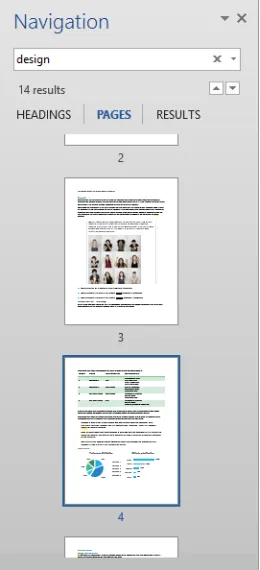
[image:37.531.120.250.264.549.2]The Navigation pane, an optional interface element that appears at the left side of the Word editing window when enabled, continues to evolve. As in previous versions, you can use headings in your document to quickly move between sections. The search box at the top of the Navigation pane allows you to find words and phrases easily, especially in long documents. Figure 1-6 shows search results using the page browser; an alternate view allows you to see the same results organized as snippets of text so that you can see them in context.
Chap
ter
1
The most significant change in Word 2013 is the new Design tab on the ribbon, which con-solidates colors, fonts, and document formatting options in a single location. The most wel-come addition, shown in Figure 1-7, is the Set As Default button, which allows you to save a group of options for use with all new documents you create.
Figure 1-7 The Design tab, new in Word 2013, consolidates an assortment of document formatting options and allows to save them for reuse.
Like its Office-mates, Word also includes an assortment of document recovery features that allow you to roll back to one of five previous AutoSaved versions or recover from an unex-pected crash.
You can also restore a draft version of a document even if you close Word without saving it.
Excel 2013
Chap
ter
1
[image:39.531.120.369.148.389.2]The most obvious improvement in Excel 2013 is a Quick Analysis tool that allows you to quickly choose data analysis and presentation options for a selection. You can apply condi-tional formatting, create charts, or use visualizations to add a graphic dimension to an oth-erwise impenetrable mass of raw numbers. Figure 1-8 shows this tool in action.
Figure 1-8 Clicking the Quick Analysis icon in the lower-right corner of a selection allows you to instantly preview and apply any of these analytical options.
For cutting large data sets into manageable workloads, Excel 2013 offers several useful tools: use PivotTables, for example, to quickly and easily create crosstabs and summaries of even very large data sets with just a few clicks. In traditional lists or PivotTables, you can create search filters to help find relevant items.
Outlook 2013
Chap
ter
1
is significantly less cluttered than its predecessors. The comparison is especially striking if you’ve skipped over Outlook 2010.
First and foremost, Outlook is an email client program that helps you compose, send, receive, and manage messages using most standard email protocols. You can combine mul-tiple accounts into a single set of folders. As with its predecessor, Outlook 2013 supports up to 15 Microsoft Exchange accounts in a profile; in Outlook 2007 and earlier, each Exchange account required a separate profile.
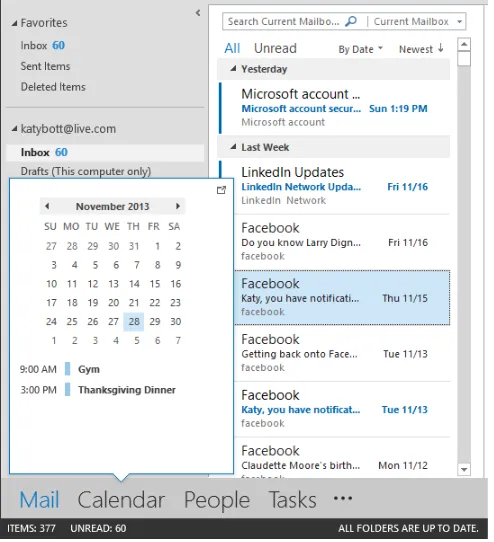
Beneath the typographically refreshed navigation pane on the left are four large labels rep-resenting the most common Outlook views: Mail, Calendar, People, Tasks. Clicking any of those targets changes the view to display the selected type of information.
[image:40.531.111.358.269.540.2]But those targets also have a second function. Allow the mouse pointer to hover over Cal-endar, for example, to display what Microsoft’s designers call a “peek” at your upcoming appointments. Figure 1-9 shows an example.
Chap
ter
1
You can scroll through the calendar, looking at events for individual days, and open any event for editing without leaving your email window. The People peek lets you pin favorite contacts to the peek list, so you can look up an address or compose an email with a click or two. The peek goes away shortly after you move the mouse away, although you can dock any or all of the three panes to the right of the Outlook window.
Outlook 2013 includes some refinement on the conversation view that debuted in Outlook 2010, most notably the animations that create a sliding effect when threaded conversations open and close. Use the Ignore button to automatically delete conversations (including future responses) in which you’re an uninterested bystander trapped on the Cc line.
To manage the deluge of email, you can create rules that fire automatically when a new incoming message meets certain conditions. We’ll also explain how to create Quick Steps, which automate repetitive message-handling tasks. These “macros” appear by default as buttons on the Message tab and can also be assigned to keyboard shortcuts, as shown in Figure 1-10.
Figure 1-10 Quick Steps are an effective way of taking the drudgery out of routine message-management tasks.
Chap
ter
1
PowerPoint 2013
Most audiences groan when they realize you’re about to launch into a PowerPoint presen-tation. But slide shows don’t have to be deadly or dull—in fact, as we demonstrate, they don’t even have to be slide shows, in the traditional sense. Using PowerPoint 2013, you can create photo albums and web-based presentations that don’t include a single bullet point.
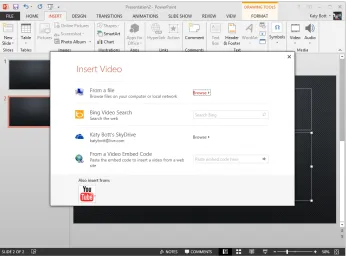
PowerPoint 2013 contains a new set of tools that allow you to find video clips online or in your SkyDrive account and embed them into a slide. Figure 1-11 shows these tools in action.
Figure 1-11 New video-editing tools in PowerPoint 2013 allow you to embed clips from online storage, including your SkyDrive account.
[image:42.531.112.458.198.456.2]Chap
ter
1
OneNote 2013
Although OneNote has been a part of Office since the 2003 release, many experienced Office users are unlikely to have spent even a minute with it. That’s because for its first seven years, OneNote was included only with the Home and Student and Ultimate editions of Office. Beginning with Office 2010, OneNote was reassigned as one of the core programs installed with every retail and enterprise Office edition.
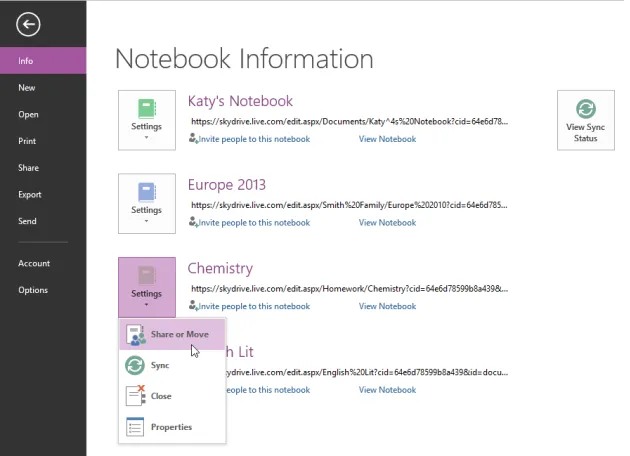
[image:43.531.120.435.271.499.2]If you’ve never seen OneNote, we strongly recommend that you spend some time with this incredibly useful and versatile free-form note-taking program. If you’re already familiar with OneNote, you’ll want to pay special attention to its connections with SkyDrive. When you open a notebook from SkyDrive, OneNote syncs its contents automatically to your PC so that changes you make on one device are available on every other device you use.
Figure 1-12 shows a group of notebooks open from SkyDrive with the option to share a notebook readily available.
Figure 1-12 Storing a notebook on SkyDrive gives you fail-safe backups as well as the ability to share a notebook with others.
Chap
ter
1
Your familiarity with Word pays off in OneNote as well: you can apply formatting for head-ings and body text in OneNote by using the same keyboard shortcuts that work in Word. OneNote also offers excellent tools for searching and organizing information in your note-books. That capability is invaluable when your collection of notebooks becomes too big for you to find random bits of information simply by flipping through pages.
In this book, we devote three chapters to OneNote. If you’re new to the program, we rec-ommend that you start at the beginning and read all the way through to learn some of the subtleties of this unusual but powerful program.
Other Office 2013 programs
Planning this book involves some trade-offs. Our emphasis is on the four core applications that are common to all Office editions, as well as Outlook, which is in all of the business editions.
That leaves three “lesser” applications fighting for attention. Our solution is to devote a chapter to each of these three programs, with enough information to help you get started with each one:
●
● Publisher 2013 is a design tool that’s specialized for creating things that don’t fit neatly into Word’s page-based model: invitations, brochures, flyers, cards, and so on.
●
● Lync 2013 allows you to communicate with coworkers using voice, video, and mes-saging, with the option to share screens and collaborate on projects in real time.
●
21
Installing and updating Office 2013
i
nstalling Office 2013 is practically painless. There are few options to choose from, and if you use one of the subscription-based Office 365 options, you can actually begin work-ing within minutes after you begin setup. The most difficult part, in fact, is decidwork-ing which Office edition is right for you. In this chapter, we guide you through that decision-making process and help you install and configure Office for problem-free performance.Choosing an Office edition
It used to be so simple: you figured out which Office programs you needed, matched that list against the contents of Microsoft’s many Office editions, picked the best match, ran a setup program, and got to work.
With Office 2013, the buying decision is more complicated, primarily as a result of the addi-tion of new subscripaddi-tion opaddi-tions to the tradiaddi-tional mix of licenses.
Instead of poring over the fine print on the back of software boxes, you need to first ask a series of questions to narrow down your options:
Are you a student, teacher, or faculty member at an accredited college or university? As a member of the academic community, you have access to subscription offerings that include just about every program in the Office family, at a price that is a tiny fraction of retail alter-natives. If you skip these options, give yourself a failing grade.
Do you plan to use Office for commercial or revenue-generating activities or in a non-profit organization? Two of the most economical Office options contain license terms that specifically prohibit commercial use. There’s no technical restriction to prevent you from using these products for occasional work-related activities, but a business of any size that tries to game the system by using one of these editions risks a potentially expensive audit, with expensive consequences.
Which apps do you need? A core of Office programs are in every edition of Office, but you still have to check the roster for each one to ensure that it has the capabilities you Choosing an Office edition . . . .21
Setting up Office . . . .26
Keeping Office up to date . . . .38
Customizing Office with add-ins and apps . . . .40
Chap
ter
2
need. If you demand Outlook, for example, the retail version of Office Home & Student 2013 is a nonstarter for you.
Do you want a perpetual license or are you willing to pay a monthly/annual subscrip-tion? This is the single biggest change in Office 2013. In our experience, longtime Office users have a knee-jerk reaction against the idea of paying a monthly or annual fee for software; they prefer a so-called perpetual license, which allows you to “Pay once, use indefinitely.” But if you can get past that prejudice and do the math (using Excel can help you break down the costs quickly), you might find that a subscription will cost less in the long run.
How many devices (PCs, Macs, tablets) do you plan to install Office on? The answer to this question is directly related to the previous question about subscriptions versus per-petual licenses.
Does your organization have a volume license for Office 2013? Many large corporations buy Office licenses in bulk. If so, you might be entitled to a benefit that allows you to use Office at home for a pittance. You’ll find the details later in this section.
If you’ve answered all those questions, then follow along as we break down each type of Office offering by category.
Subscription editions
Historically, Microsoft Office has been the very embodiment of traditional software, sold in shrink-wrapped boxes and delivered on shiny discs.
With the addition of subscription-based pricing for Office 2013, Microsoft is aggressively breaking free of that traditional software business. Instead of you paying a single flat price for the right to install Office on a single PC, the new subscription-based offerings ask you to pay a monthly or annual subscription fee.
Chap
ter
2
The single most important (and potentially confusing) difference between subscription-based Office plans involves the licensing terms for consumer and business plans.
●
● Consumer plans are licensed on a per-device basis, with a limited number of concur-rent installations. As the account holder, you may install Office on as many devices as the plan permits, and any member of your household may use any of those devices, simply by signing in with a Microsoft account.
●
● Business plans are licensed on a per-user basis, with a limited number of concurrent installations. As the account owner, you assign a license to an individual (typically yourself or an employee), who may then install Office on as many devices as the plan permits, but only for his or her own use.
INSIDE OUT
Say goodbye to product keysThe single biggest advantage of subscription-based plans is that they don’t require you to enter a product key and go through the activation process when you install Office on a new device. As the account owner, you visit your administrative dashboard, sign in with your Microsoft account, and begin setup from the web, without having to down-load a bulky installer. If you’ve reached the maximum number of installations for your account, you can deauthorize a device to make room for the new one. We discuss the details of this Click-to-Run setup process later in this chapter.
Here’s what you’ll find in each of the subscription-based Office plans:
●
● Office 365 Home Premium This plan, intended for use in a single household, includes the core Office programs (Word, Excel, PowerPoint, and OneNote), plus Outlook, Publisher, and Access. It includes the right to install the most recent version of Office on up to five PCs or Macs. It also includes an additional 20 GB of SkyDrive storage for the primary account holder and 60 Skype world minutes per month. Note that this plan specifically prohibits using the software for commercial use.
●
Chap
ter
2
●
● Office 365 Small Business Premium This is the most basic of the business-oriented Office 365 subscriptions, designed for businesses with up to 10 employees and available for purchase in quantities as low as a single license. It includes the same Office programs as Office 365 Home Premium and adds Lync and InfoPath. Each subscription is assigned to a single user, who in turn may install the software on up to five PCs or Macs. Small Business Premium customers get a hosted Exchange account through Office 365, with a 25-GB mailbox for each licensed user and shared calen-dars, and a total of 10 GB of SharePoint storage for the organization, plus an addi-tional 500 MB of SharePoint storage per user. The Lync software also allows free HD video conferencing and screen sharing.
●
● Office 365 Midsize Business This offering is similar to the Small Business Premium package, except that it includes the full-featured management dashboard of the Enterprise edition and is suitable for businesses with as many as 250 employees.
●
● Office 365 ProPlus Think of this plan as the online equivalent of the stand-alone Professional Plus edition of Office 2013, which is available only to Volume Licensing customers. It includes all of the programs in that package (which we describe in detail at the end of this section). Unlike the other business-oriented subscriptions, a sub-scription does not include Exchange, SharePoint, Lync, or other online services.
●
● Office 365 Enterprise Features in this edition are specifically designed for large businesses with substantial existing investments in Exchange and SharePoint deploy-ments. It includes the same features as Office 365 Midsize Business with additional capabilities suited for large businesses that are subject to government regulation, including archiving and legal hold features. Its SharePoint Online and Lync Online features allow meetings and extended collaboration scenarios.
Retail perpetual license editions
Chap
ter
2
CAUTION
!
Microsoft does not offer an easy or inexpensive upgrade path that would, for example, let you purchase Office Home and Business and then later upgrade to Office Profes-sional for the difference in price. (You can purchase Office programs individually, but that turns out to be an expensive way to upgrade.) Therefore, you should evaluate your requirements carefully and decide exactly which programs you need before you select an Office edition.
If you read the license agreement for a perpetual-license edition, you might notice language that specifically prohibits transferring the software to another computer after it is installed and activated. That restriction was part of the initial release of Office 2013, but Microsoft changed those terms shortly afterward. You may indeed reassign a license to a different device after removing it from the original device. For details, see
http://w7io.com/20265 .
Each edition in this group includes what Microsoft calls the “core Office applications”: Word, Excel, PowerPoint, and OneNote.
●
● Office Home & Student 2013 includes only the core Office applications (note that this edition does not include Outlook). Its license agreement specifically prohibits “commercial, non-profit, or revenue-generating activity.”
●
● Office Home & Business 2013 includes the core Office programs plus Outlook. Its license agreement does not include any restrictions on commercial use.
●
● Office Professional 2013 includes the core Office programs plus Outlook, Access, and Publisher. It too is licensed for commercial use by businesses and nonprofit organizations.
The one-PC-per-installation restriction is new in Office 2013. Some (but not all) previous editions of Office allowed multiple installations of a single purchased copy. For example, the Home and Student edition previously included the rights to install on up to three PCs in a single household. That product is no longer available. Likewise, the license agreement for some business editions included the right to install on a primary PC and on a secondary portable PC. That option too is no longer available.
Chap
ter
2
Volume license editions
Office 2013 is available to corporations, government agencies, and educational institutions through Volume Licensing (VL) programs. Volume licensing requires a minimum purchase of five or more licenses and offers a handful of benefits that are not available in retail or subscription editions.
For example, an organization that purchases a volume-licensed copy of Office 2013 Professional Plus can purchase Software Assurance as well. That add-on includes home-use rights for employees, who can then visit a Microsoft-run website, download a fully licensed copy of the latest Office version for Windows or OS X for a nominal fee (approximately $10 in the United States), and install it on a single device for business and personal use. (For details, see http://microsofthup.com.)
Two VL editions of Office 2013 are available for purchase. Both of them contain a full selec-tion of Office apps that are useful in enterprise settings, as well as a selecselec-tion of features intended for use with enterprise networks:
●
● Office Standard 2013 includes Word, Excel, PowerPoint, OneNote, Outlook with Business Contact Manager, Publisher, Access, and the Office Web Apps. It also sup-ports Group Policy, volume activation, access via Terminal service, and a feature called App Telemetry, which allows administrators to monitor the status of Office deploy-ments. Some additional enterprise features, including Information Rights Manage-ment and voice features, are supported in a limited fashion.
●
● Office Professional Plus 2013 includes all of the applications in Office Standard, plus Access, InfoPath, and Lync. It also includes a lengthy list of fully supported enter-prise features.
For a full comparison of the two VL editions, see w7io.com/10282. For more information about the intricacies of Volume Licensing programs, visit the Microsoft Volume Licensing home page at w7io.com/10202. (Be prepared to spend some serious time there—it’s a com-plicated topic.)
Setting up Office
As with any software installation, you should check system requirements before you get started.
For Office 2013, the full list of system requirements is here: w7io.com/10283. The list is long, primarily because it has to cover legal disclosures, but most of the salient details can be summarized in this abbreviated list:
●