RSL10 Smart Shot Camera
Getting Started Guide
Overview
The RSL10 Smart Shot Camera (SECO-RSL10-CAM-GEVB) is a complete node-to-cloud platform that enables smart image
capture for portable, low duty cycle IoT applications including asset monitoring and security. Based on the RSL10 SIP and
the ARX3A0 CMOS image sensor, the platform features multiple trigger modes including time, motion detection, and
environmental sensor triggers (e.g., changes in temperature and humidity).
The RSL10 SIP serves as the processing hub of the camera, enabling Bluetooth® Low Energy connectivity of captured
image and sensor data to the provided mobile app (available on GooglePlay™, iOS®).
This guide provides initial instructions for using the RSL10 Smart Shot Camera and accompanying mobile application. For
further information about the platform, refer to the platform’s User Manual (EVBUM2782).
Hardware Set-up
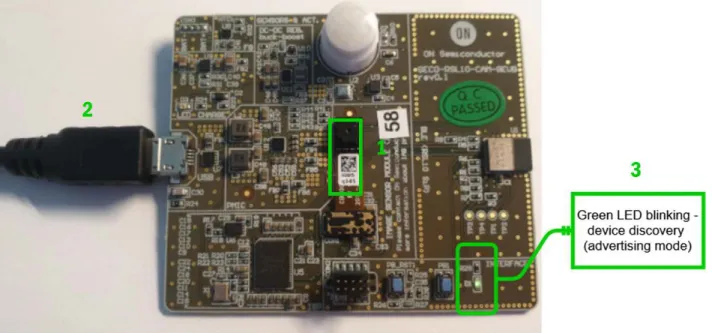
To get started with the platform, remove the protective layer from the camera module (1) and connect the provided USB cable
to your PC’s USB port (2). A green LED, shown in Figure 1 below, will begin blinking to confirm that the device is ready
and in Advertising Mode.
Figure 1. Unboxing the RSL10 Smart Shot Camera
Installing the RSL10 Smart Shot Mobile App
In order to operate the board, download
RSL10 Smart Shot
mobile app from GooglePlay™ or iOS®. After installing the app,
ensure that Bluetooth and GPS are enabled on your phone. Select the icon to launch the application. The following sections
detail how to send images from the Camera to the app over Bluetooth Low Energy, as well as other functions of the app
including sending wireless firmware updates (FOTA).
Figure 2. RSL10 Smart Shot Mobile App
Connect to the Camera
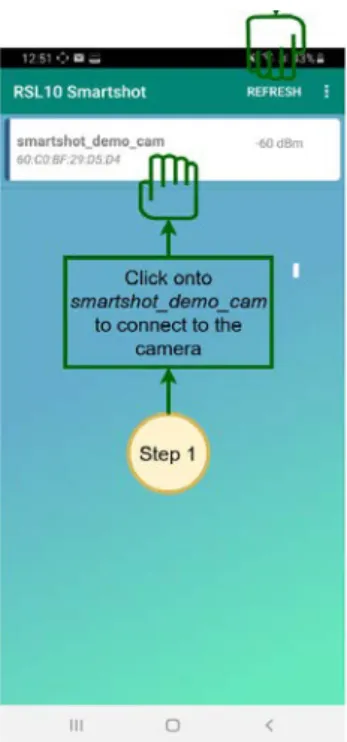
After launching the app, the home screen displays the RSL10 Smart Shot Camera as a discovered device. Select the device
to connect the camera to the mobile app. If you don’t see the camera on the screen, select
Refresh
.
Figure 2. Connecting the RSL10 Smart Shot Camera to the Mobile App
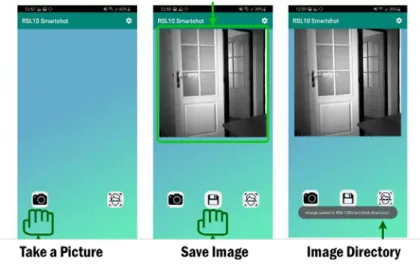
After the camera is connected, the app will switch to the image capture page in Figure 3. Select the Camera icon to instruct
the camera to take a picture. The image from the camera is transferred over Bluetooth Low Energy and is displayed on the
screen. To save the image on your mobile phone, select the middle Save icon. On an Android phone, the image is stored in
RSL10Smartshot
directory. On a iPhone, the image is stored in your
Photos
directory.
Figure 3. Using the RSL10 Smart Shot App to Capture and Save a Picture
Capture Stream of Images
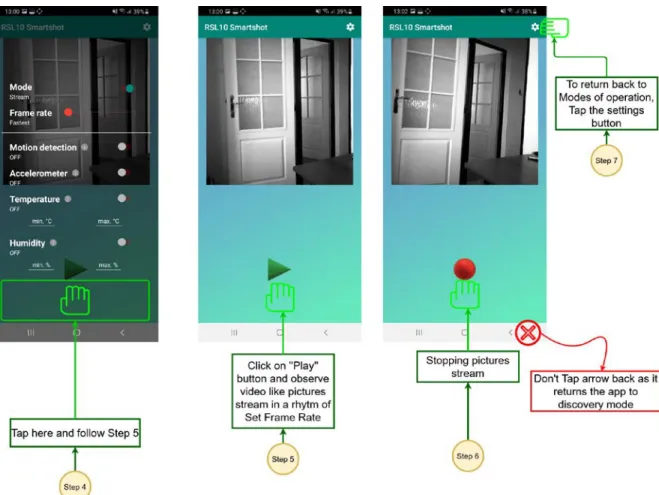
The camera also can capture stream of images with different frame rates. Select the
Settings
icon to switch from
Single Image Mode
to
Stream Mode
. You can also adjust the Frame Rate from <1 frame/second to 1 frame/minute.
Exit the
Settings
menu by tapping the bottom of the screen. Click the Play button to start streaming images, and click
the Stop button to stop.
Setting Event Triggers
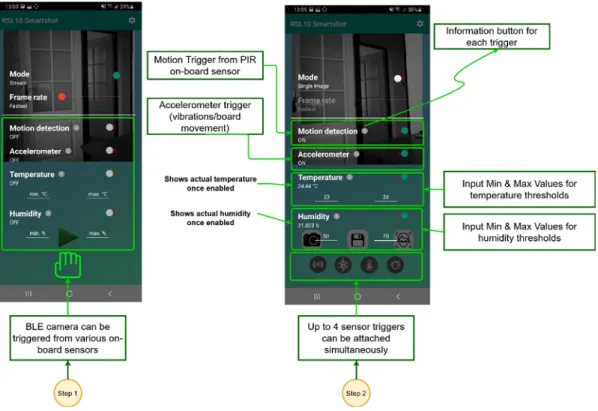
The RSL10 Smart Shot Camera supports four environmental sensors, which are used to trigger image capture when a
change in value is detected.
To set or change the triggers, select the Settings icon. You can turn the triggers ON or OFF, and set the minimum and
maximum thresholds of temperature and humidity sensors. You can enable either individual sensor or a combination
of sensors to set your trigger condition for image capture.
Figure 6. Environmental Trigger Settings
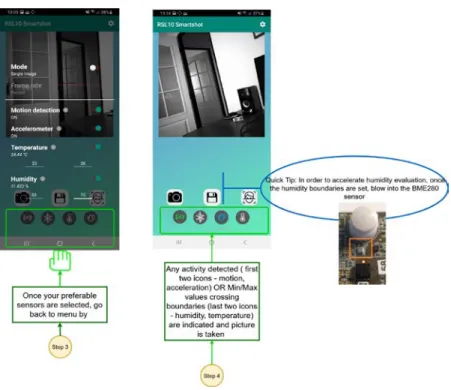
Exit the
Settings
menu by tapping the bottom of the screen. The RSL10 Smart Shot Camera will be armed and
capture an image each time event conditions are triggered. The captured image along with the triggered
event condition will be displayed on the screen.
Object recognition using Amazon Rekognition
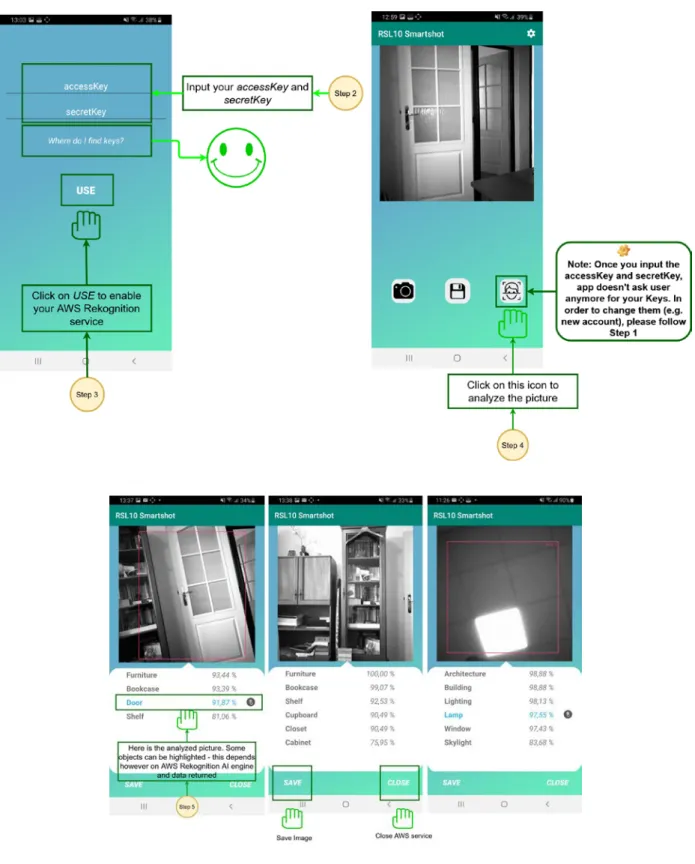
The mobile app uses Amazon Rekognition cloud engine to analyze the image and identify objects within it. The image
for analysis is uploaded to the cloud engine, and results are displayed on the app. More information about the Amazon
Rekognition setup is available in the
RSL10 Smart Shot Camera User Manual (EVBUM2782)
.
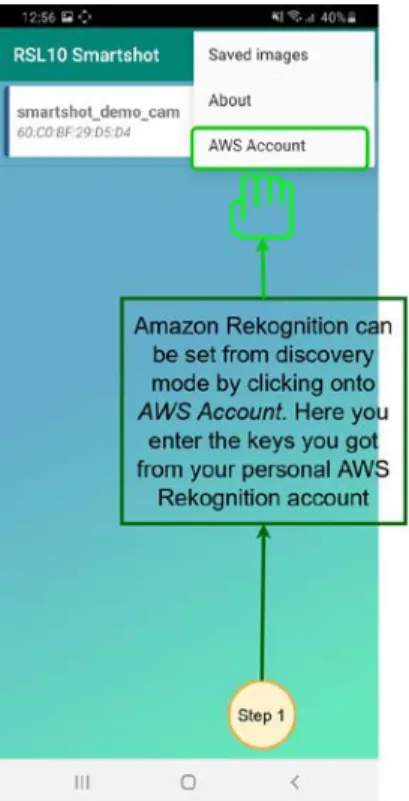
You should specify your AWS account credentials to use this feature. Select the
Settings icon -> AWS Account
on the
Home Screen.
Enter the accessKey and secretKey associated with your AWS account and click
Use
. After logging in, you
can use the Face icon shown below to analyze pictures captured with the RSL10 Smart Shot Camera.
Firmware over the Air (FOTA) Updates
The RSL10 Smart Shot Camera supports wireless firmware updates using the RSL10 Bluetooth 5 radio.
To begin, you will need the following:
•
Install the
RSL10 FOTA
mobile app
(available on GooglePlay™, iOS®).
•
Download the smartshot_demo_cam.fota
image file
Note: FOTA only updates the RSL10 image. To update the Image Sensor Processor firmware (SPCV1100A) refer RSL10
Smart Shot Camera User Manual (EVBUM2782).
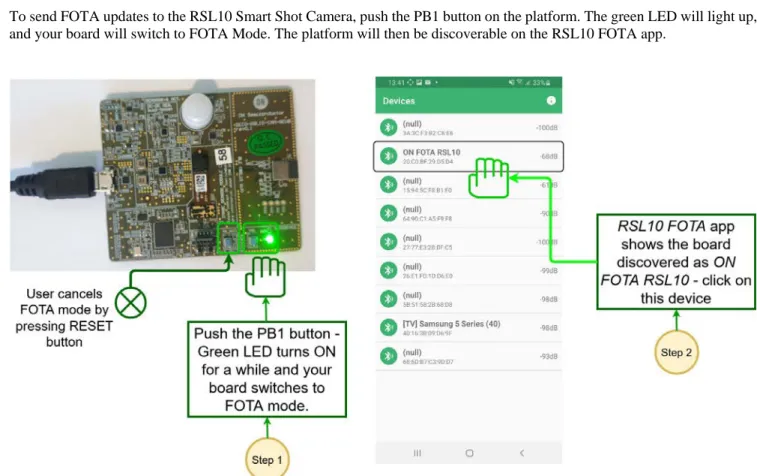
To send FOTA updates to the RSL10 Smart Shot Camera, push the PB1 button on the platform. The green LED will light up,
and your board will switch to FOTA Mode. The platform will then be discoverable on the RSL10 FOTA app.
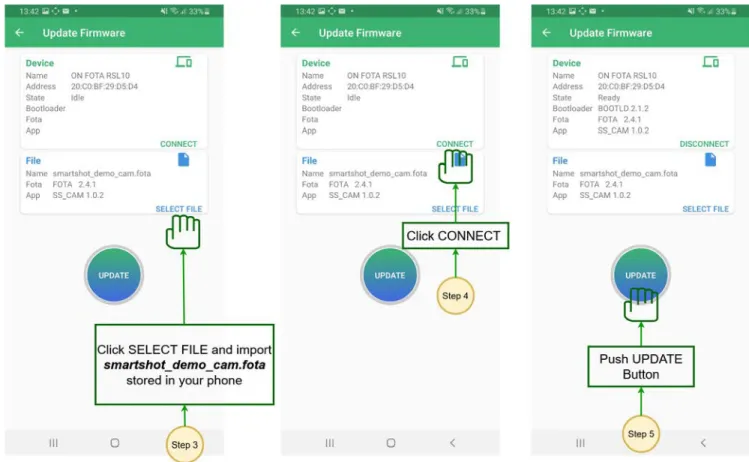
After selecting the device on the mobile app, you can update the firmware by clicking
Select File
to import the new
firmware. Click
Connect
and
Update
to send the firmware to the device.
Figure 12. Firmware Update Process
Power Down Mode
In Power Down Mode, all systems are put into low power modes to consume the lowest possible amount
of power. Low Power Mode can be entered by keeping the on-board button PB1 pressed after releasing
the reset button (PB_RST1). To return to normal operation, press the RESET button.
ON Semiconductor and are trademarks of Semiconductor Components Industries, LLC dba ON Semiconductor or its subsidiaries in the United States and/or other countries. ON Semiconductor owns the rights to a number of patents, trademarks, copyrights, trade secrets, and other intellectual property. A listing of ON Semiconductor’s product/patent coverage may be accessed at www.onsemi.com/site/pdf/Patent−Marking.pdf. ON Semiconductor reserves the right to make changes without further notice to any products herein. ON Semiconductor makes no warranty, representation or guarantee regarding the suitability of its products for any particular purpose, nor does ON Semiconductor assume any liability arising out of the application or use of any product or circuit, and specifically disclaims any and all liability, including without limitation special, consequential or incidental damages. Buyer is responsible for its products and applications using ON Semiconductor products, including compliance with all laws, regulations and safety requirements or standards, regardless of any support or applications information provided by ON Semiconductor. “Typical” parameters which may be provided in ON Semiconductor data sheets and/or specifications can and do vary in different applications and actual performance may vary over time. All operating parameters, including “Typicals” must be validated for each customer application by customer’s technical experts. ON Semiconductor does not convey any license under its patent rights nor the rights of others. ON Semiconductor products are not designed, intended, or authorized for use as a critical component in life support systems or any FDA Class 3 medical devices or medical devices with a same or similar classification in a foreign jurisdiction or any devices intended for implantation in the human body. Should Buyer purchase or use ON Semiconductor products for any such unintended or unauthorized application, Buyer shall indemnify and hold ON Semiconductor and its officers, employees, subsidiaries, affiliates, and distributors harmless against all claims, costs, damages, and expenses, and reasonable attorney fees arising out of, directly or indirectly, any claim of personal injury or death associated with such unintended or unauthorized use, even if such claim alleges that ON Semiconductor was negligent regarding the design or manufacture of the part. ON Semiconductor is an Equal Opportunity/Affirmative Action Employer. This literature is subject to all applicable copyright laws and is not for resale in any manner.