Android-based Control Interface Solution for
Windows Applications
Iliyan Nachev, Stoyan Maleshkov
Faculty of German Engineering and Industrial Management Education Technical University of Sofia
Sofia, Bulgaria
[email protected], [email protected] Abstract—The purpose of this paper is to present an approach for
controlling remotely a desktop application under Windows operating system through a Wi-Fi or Bluetooth connection with a device running Android OS (smart phone or tablet). In comparison to similar techniques our solution has the advantage to be more user-friendly, provide a stable Bluetooth implementation and has minimal delay while performing the control actions.
Keywords-smart device interface; Android; application control
I. INTRODUCTION
Remote control of a desktop computer is a convenient feature that could be performed by handheld devices. The solution provided in this paper relies on a smart device running Android OS (smart phone or tablet) and a Windows-based PC and offers a virtual touchpad and virtual keyboard that send commands to the desktop OS in real time. Such application bundle could ease the use of many application giving the user the ability to control them from any place in the room without having to bring a keyboard and a mouse with himself. It is suitable for virtual reality laboratories where a wireless mouse is not enough to implement advanced interaction techniques. Furthermore the touch screen is comfortable to use as a mouse substitution when a person is standing in front of the audience giving a presentation. Java is the programming language used on both the desktop and the mobile devices, thus giving the opportunity for easier porting to other desktop operating systems like Linux and MacOS.
II. REVIEW AND ANALYSIS OF TECHNOLOGIES FOR INTERACTIVE COMMUNICATION BETWEEN ANDROID-BASED
SMART DEVICES AND WINDOWS APPLICATIONS A. RemoteDroid
RemoteDroid offers simple and convenient remote control over Wi-Fi. It's open-source [6] and offered for free on Google Play. There's no delay while performing move and click operations, it uses the built-in Android virtual keyboard. As most significant downside could be noted the absence of keys like Alt, Ctrl, arrows and lack of multi-touch support.
B. Remote Trackpad
The Remote Trackpad1is another free application that communicates through Wi-Fi. A convenient feature that it offers is the automatic server discovery. When comparing with RemoteDroid the controls are not so intuitive and in some cases - a bit awkward. The custom-made keyboard is also not as user-friendly as the built-in one, does not offer additional buttons like Alt and Ctrl and there is a small delay (lag) in some situations.
C. gPad remote touchpad/keyboard
gPad2, a paid package with a free trial version, has a very similar to RemoteDroid touchpad user experience. The big plus here is the custom-made full desktop-like keyboard (Ctrl, Alt, arrows, F-keys etc.) and the Bluetooth and USB connection support. The customizable controls for different applications also increases the value of this software.
D. Touchpad
Touchpad3 offers minimalistic design and is very similar to the RemoteDroid as set of features and control. As addition to the default Android virtual keyboard it offers also Shift, Ctrl and Alt keys, as well as shortcuts for presentation software. The main downside is the choppy movement on small distance. Could be found for free on the Play Store.
E. Unified Remote
Unified Remote4 looks like the most-solid products in this area - connects over Wi-Fi and Bluetooth, has similar to Remote Droid touchpad, different controller types (customization for different kind of applications), has file explorer and task manager. A downside may be considered that the server module is locked only to Windows-based host systems (it's written in .NET).
III. SOFTWARE ARHITECTURE
The software solution proposed in this work consists of two main parts - client (on the Android side) and server (on the
1 https://play.google.com/store/apps/details?id=com.djpsoft.remote
2 https://play.google.com/store/apps/details?id=com.mobisters.android.remote.client 3 https://play.google.com/store/apps/details?id=com.thingsstuff.touchpad 4 https://play.google.com/store/apps/details?id=com.Relmtech.Remote
desktop side). They communicate with a simplistic text-based protocol via Wi-Fi or Bluetooth.
A. Server
The server software resides on the desktop PC (Windows). When started it awaits connection through Wi-Fi and/or Bluetooth. The remote control is provided by a Java SE API. The architecture follows the standard practices - main modules, used by a business logic layer, which is presented to the user with GUI.
Figure 1. Server arhitecture
B. Client
The client software is launched by the user on the Android device. It searches for a server instance trough Wi-Fi and/or Bluetooth and offers the ability to remotely control the desired PC. In terms of architecture it follows the same basic ideas present in the PC software - user interface that interacts with the business logic which covers a small set of different modules.
Figure 2. Client architecture
C. Interaction
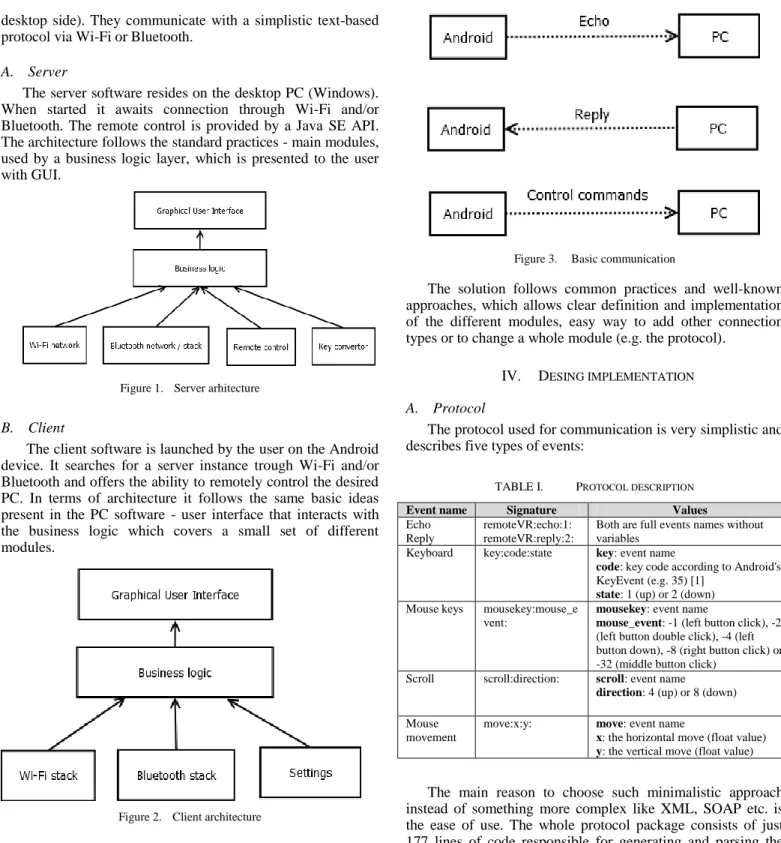
By the wireless communication the Android device sends Echo requests when trying to discover a remote controllable computer and control commands when sending different mouse and keyboard events.
Figure 3. Basic communication
The solution follows common practices and well-known approaches, which allows clear definition and implementation of the different modules, easy way to add other connection types or to change a whole module (e.g. the protocol).
IV. DESING IMPLEMENTATION A. Protocol
The protocol used for communication is very simplistic and describes five types of events:
TABLE I. PROTOCOL DESCRIPTION
Event name Signature Values
Echo Reply
remoteVR:echo:1: remoteVR:reply:2:
Both are full events names without variables
Keyboard key:code:state key: event name
code: key code according to Android's KeyEvent (e.g. 35) [1]
state: 1 (up) or 2 (down) Mouse keys mousekey:mouse_e
vent:
mousekey: event name
mouse_event: -1 (left button click), -2 (left button double click), -4 (left button down), -8 (right button click) or -32 (middle button click)
Scroll scroll:direction: scroll: event name
direction: 4 (up) or 8 (down) Mouse
movement
move:x:y: move: event name
x: the horizontal move (float value)
y: the vertical move (float value)
The main reason to choose such minimalistic approach instead of something more complex like XML, SOAP etc. is the ease of use. The whole protocol package consists of just 177 lines of code responsible for generating and parsing the messages. At first sight an obvious downside may be the lack of message validation, but in this case that's not a problem, because the messages are very short and should end with a termination sign. In case that the message is not delivered fully - it will be simply rejected. Of course minimal size of the messages results in faster parsing, a benefit which having in mind the current CPU speeds becomes less important..
The application design would allow the protocol to be easily swapped with another one if needed - it is organized in a single Java package.
B. Server
The server application is distributed as executable JAR file and is intended for silently running in the background. Implementation details of the main modules are given below.
1) Wi-Fi connection
For network operations the application uses the classes provided by java.net API package [4] and the UDP network transport protocol. In order to provide automatic discovery, the socket joins a multicast group and listens on a predefined port. According to RFC 1112 IP multicasting is defined as "the transmission of an IP datagram to a "host group", a set of zero or more hosts identified by a single IP destination address." All members of the destination host group receive the multicast datagram as a regular unicast IP datagram [3]. Once a packet is received on the given port, it is read, parsed and handled appropriately.
2) Bluetooth stack
Java SE doesn't provide an API for controlling a Bluetooth device, so in order to implement such kind of connection a third party open-source library (Bluecove [2]) is used (bundled as a library jar file). It's an implementation of Java Specification Request 82 (JSR-82) and provides high-level control over WIDCOMM (MacOS), BlueSoleil and Microsoft Bluetooth stack. It has also an additional module for supporting Linux BlueZ.
The implementation on top of the library is the following: first the Bluetooth device is made discoverable. Then a new connection notifier is opened for the unique application URL and finally the application starts waiting for a new connection. For Bluetooth connections the echo part of the protocol is obsolete, because the pairing of the devices takes care for this.
3) Key convertor
The key codes defined by the Android platform are unique for Android OS and do not correspond to the key codes found in the Java SE platform. There is also no algorithm available for converting between the two sets of key codes. That's why in order to operate correctly, the application needs a key translation module. The implementation uses a hash table with pre-populated pairs - the keys are the Android key codes and the values - the Java SE key code equivalent.
4) Remote control
The remote control in Java SE is straight-forward to implement using the Robot API [5] - it offers methods for simulating press and release of keyboard keys, full mouse control (keys, wheel, movement) and function to delay sending of events (which is needed for proper emulation of mouse click).
5) Business logic
The Message Parser is responsible for reading and understanding the protocol message received from the communication module. If the message has any faults (does not end with termination sign, does not contain a supported event
or the event has wrong parameters) an appropriate exception is thrown. If the message is correct, the appropriate method of the events listener is called.
Discoverable Thread is an abstract class that extends Thread and gets extended from both the Bluetooth and Wi-Fi modules. The class holds a message parser (for handling of incoming messages) and a remote events listener (for the actual control over the PC). The child classes should rely on the parent implementation to handle the protocol message when receiving one and implement callbacks for "echo" request and for release of network-related resources (called when the thread should free up all its resources).
The class where the server application starts is called Remote server. It holds the application screen and provides the binding between the discoverable threads and the UI. The main method creates the screen and starts the Wi-Fi and Bluetooth threads. The action listener is called by the GUI components (buttons and context menu) and performs the restart of the connectivity threads and implements the exit functionality. The Wi-Fi and Bluetooth listeners are called on successful initialization or when an error happens. That way the user could see the current status of both connections.
6) User interface
When started, the server begins to listen for Wi-Fi and Bluetooth connections automatically. As a consequence the user interface needs to provide only a user-friendly interaction for manually restarting the Wi-Fi and Bluetooth modules as well as information about the local IP address, Bluetooth status and error messages. The GUI consists of a single screen with buttons and labels and a system tray icon with a context menu. C. Client
The client application is distributed through a standard Android application package file (APK). The user interface provides an superb user experience, making the Android device (no matter if a smart phone with small screen or a large tablet) an excellent touchpad with keyboard input ability. The multi-touch capabilities of the devices are also utilized to full extent. The minimal Android version required is 2.2. (API level 8). Android devices which don't have a touch screen (e.g. smart TVs) are not supported.
1) Connecting through Wi-Fi
The mobile application uses the same communication package as the desktop one - java.net [4]. So the automatic discovery logic mirrors the server-side. A socket is created which listens on a predefined client port. Then it sends echo request to the predefined multicast IP address and waits for response. When automatic discovery is not available for some reason (e.g. prohibited by the system administrator of the wireless network), the user could manually enter the IP of the server and connect to it.
2) Connecting through Bluetooth
Bluetooth as connection type is available since Android 2.0. The SDK offers a high-level API which gives information about the availability of the hardware, the list of paired devices, discovery-related methods and interface for radio frequency communication (RFCOMM). Important to note is that a
perquisite for successful communication is the pairing of the devices prior to usage in the application. Because the server is found by the client through the Bluetooth discovery process and pairing, the echo/reply part of the protocol are obsolete. Therefore the client application sends only events (messages) through Bluetooth. An error handling mechanism notifies the user interface when the connection is lost.
3) Business objects
The business logic of the application is implemented in different classes with well-defined functions as described shortly below. They are then used in the GUI (Activities) where the handling of the user input occurs.
The Remote Device class is a business object which represents a remote network adapter (Wi-Fi or Bluetooth). Its purpose is to help handling both type of possible connections in a unified manner on the user interface layer. It contains information about the type of the connection, the device address and the device name.
The Message Builder generates protocol messages, while an implementation of the Message Sender interface sends the messages to the remote device. The Wi-Fi and Bluetooth message senders implement methods for initialization and release of the network objects. The actual sending is realized through a datagram socket (Wi-Fi) or Bluetooth socket.
The Server Searcher Thread implements the Wi-Fi auto-discovery mechanism: After sending the echo request, the thread waits for response. On valid reply message the UI layer shows the new server(s) to the user.
4) User interface and corresponding business logic The application has three screens - login screen, a screen which offers the actual remote control and settings screen.
The login screen is the initial screen of the application. Its purpose is to give the user the ability to connect to the desired PC (server). The user interface offers a brief introductory message, a list which contains the names of Bluetooth devices and the Wi-Fi hosts found at the moment that have replied to the echo request, two buttons for manual search (through Wi-Fi or Bluetooth) and an input field to manually enter the server IP address.
The remote control screen exposes the essential functionality of the application. It's the place where the end user will spend most of hers/his time. In this activity reside the following user interface components: the virtual touchpad, trigger for the virtual keyboard (and the keyboard itself), three "special" buttons - Ctrl, Shift and Alt (shown/hidden from the action bar/menu) and four "presentation" buttons - shortcuts for presentation software products - F5 (full screen), left arrow (previous slide), right arrow (next slide) and escape (exit full screen). This activity runs in full screen and prevents the device from sleeping (keeping the screen always on for smooth user experience).
In order to consume all key events, the activity overrides the dispatchKeyEvent() method - that's the place where all key events from the hardware and virtual keyboard are handled. Some of the keys (e.g. back, camera, menu buttons) are meaningless for sending to a remote PC, so they are ignored
and passed to be handled by the default implementation (the super method). Based on the button state (action up or down) a different message with the given key code is constructed and sent to the remote device. In the case of action up, all special keys are released, because that way the user experience is more intuitive.
The most important and complex part of the activity logic is the one connected to the touch events (mouse/touchpad). The desired functionality from user's perspective looks the following way:
• Left mouse click is performed by making a tap. • Double left click is made by tapping fast two times. • Right click is done by tapping with two fingers. • The middle button of the mouse is clicked when
tapping with three fingers.
• Moving a finger around is interpreted as mouse move. • Moving two fingers up and down is used for scrolling. • Tap and hold results in down state of the left button
and ability to move afterwards - selector.
From implementation perspective - first of all the onTouchEvent() method gets overridden. That way all touch events are dispatched from a custom logic inside the activity. Based on the pointer count (how many fingers are involved in the touch gesture) a different method is called. The last pointer count is saved for further use in the business logic. By holding information about the current and previous states (e.g. last position of the touch event, timestamp for start of one-, two- and three-finger touch) the aforementioned user experience is implemented in a consistent manner. When the user executes faster move gestures, the mouse also moves faster (by doubling the values of the horizontal and vertical move).
The application settings screen offers adjustment of the touchpad sensitivity and an invert scrolling option.
5) Required permissions
In order to operate, the application uses permissions for Internet (required for the Wi-Fi connection), access network and Wi-Fi states (Wi-Fi availability check) and Bluetooth/Bluetooth admin for Bluetooth connection handling.
V. A PRACTICAL EXAMPLE - TESTING AND VERIFYING THE COMPLETE SOFTWARE SOLUTION
The proposed application bundle is suitable for generic remote control of a PC. A standard navigation on the desktop is as easy as with a touchpad (even easier if the Android device is with larger screen).
The different application types require a different type of input. For example the text editors require mainly a keyboard, a few key shortcuts and a mouse for easier selection and navigation through menus. All this is possible and easy to do - it depends mainly on how accustomed the user is to work fast and efficient with a virtual keyboard. For control of presentation software programs there are dedicated buttons (full screen, exit full screen, next, previous), so the application
is really handy. The solution is suitable also for more specific software products like the ones used in virtual reality labs (e.g. 3dvia, SceniX etc.). Since the touchpad offers all mouse clicks, drag and scroll, the rotation, zooming and movement of objects is as easy as with a real mouse. In the future the application could also offer additional buttons (similar to the ones for the presentation - single keys or key combinations) with convenient functions for each software bundle that needs to be controlled from distance.
An implementation area where the proposed solution won't be so practical are applications that require a fast coordination between mouse and keyboard (mainly entertainment software). That's almost the same subset of apps where control with touchpad and keyboard instead of mouse and keyboard results in a cumbersome user experience.
The testing of the application was performed on a PC with Windows 7 operating system (using both connection types), smart phone with Android 2.3, and tablet with Android 4.1 and included work with many common applications like music and media players (Windows Media Player, KMPlayer, Winamp), browsers (Firefox, Chrome), text editors (Word, Notepad++), presentation software (Power Point, 3dvia, SceniX), mail clients (Outlook, Thunderbird), image editor (GIMP2), 3D modeling software (Solid Works, 3ds Max) and others.
That way the solution has been verified to accomplish its objective to provide a convenient way of human-computer interaction from a small distance via wireless communication and to be an equivalent substitute for mouse (touchpad) and keyboard for a large set of application types.
As a conclusion the developed application bundle provides a useful ability to control a PC with an Android smart device via touch screen. Every common user action could be executed without hesitation, the actions are seen on the remote PC with minimal (non-perceivable) delay and many applications could benefit from this kind of input device. The main advantage of the proposed solution compared to the other offerings on the market is the user-friendly control and intuitive experience. Furthermore it offers two types of wireless communication and auto-discovery mechanism; the Bluetooth implementation is stable and compatible with all major Bluetooth stacks; the delay between the user actions is minimal.
VI. FUTURE DEVELOPMENT
The current application bundle incorporates all planned functions and is helpful for many applications, but of course it could be improved in future versions.
A. Security over Wi-Fi
Currently the Bluetooth connection is secured by default and cannot be easily sniffed or decoded. But this statement does not apply for the proposed Wi-Fi solution. The UDP packets are sent in clear text and could easily be sniffed, analyzed and compromised. Although this shouldn't be a
concern in environments with home router, in university labs etc., an encrypted connection (e.g. TLS) may be a valuable aid. B. Authentication
Currently the presented solution offers easy access to a desired PC. The problem that may arise is unauthorized control over the PC from another user running the Android application and residing on the same Wi-Fi network or being paired to the PC's Bluetooth. Although the majority of similar solutions do not offer any kind of authentication, it looks like a meaningful feature.
C. More shortcuts and key combinations
The current keys and gestures are convenient for many Windows applications, but some special software products or user used to work with shortcuts may require more from the remote control application in terms of keyboard keys and mouse gestures. The keyboard keys that are currently missing are the F1-F12, the arrow keys, the numpad, etc. With them some applications are a lot easier to navigate and work with. Adding also key combinations as single keys may be also beneficial - e.g. text editing with direct shortcuts for copy, cut paste. The mouse enhancements that may be added are drag with middle button down and similar not very common, but typical for some software families gestures.
D. More configurable settings
Currently the settings screen offers two generic settings, but there are a lot more fine tunes that could be made on demand - tap gesture timeout, screen orientation lock, scroll speed (just to name a few). Every user should be able to make the most of the software bundle, so extensive settings options would be helpful in this undertaking.
ACKNOWLEDGMENT
The authors wish to thank for the support of the National Science Found at the Bulgarian Ministry of Education, Youth and Science received through a research grant.
REFERENCES
[1] Google Inc. (n.d.). Android documentation - KeyEvent. Retrieved
September 16, 2012, from
http://developer.android.com/reference/android/view/KeyEvent.html [2] Intel Research. (n.d.). Bluecove - Java library for Bluetooth. Retrieved
September 17, 2012, from https://code.google.com/p/bluecove/; http://bluecove.org/
[3] Network Working Group. (n.d.). RFC 1112: Host Extensions for IP Multicasting. Retrieved September 12, 2012, from IETF: http://www.ietf.org/rfc/rfc1112.txt
[4] Oracle (Sun Microsystems). (n.d.). JavaDoc - java.net package overview. Retrieved September 15, 2012, from http://docs.oracle.com/javase/6/docs/api/java/net/package-summary.html [5] Oracle (Sun Microsystems). (n.d.). JavaDoc - Robot. Retrieved
September 12, 2012, from
http://docs.oracle.com/javase/6/docs/api/java/awt/Robot.html
[6] Sera, J. (n.d.). remotedroid. Retrieved September 16, 2012, from http://code.google.com/p/remotedroid/