Using WMI Scripting
for System Administration
Windows
Management Instrumentation (WMI), which offers administrators a rich
management scripting tool set, is an integral part of the Microsoft
Windows family
of operating systems—which includes Microsoft Windows 2000, Windows XP, and
Windows Server
™
2003. This article introduces WMI, explains basic scripting
techniques, and provides examples for automating systems management processes
using Dell
™
OpenManage
™
tools.
W
indows®Management Instrumentation (WMI) is theunderlying management technology for Microsoft®
Windows operating systems. Based on industry standards, WMI helps enable consistent, uniform management con-trol and monitoring of systems throughout an enterprise. WMI allows system administrators to query, change, and monitor configuration settings on desktop and server sys-tems, applications, networks, and other components of the IT infrastructure. System administrators can create a wide range of systems management and monitoring scripts that work with WMI using the WMI scripting library.
Overview of WMI architecture
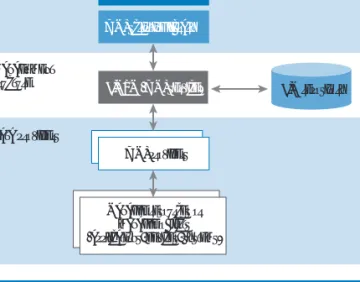
Figure 1 shows the three primary layers of the WMI archi-tecture: WMI data providers, WMI management infra-structure, and WMI consumers.
WMI data providers
The data providers retrieve information from managed resources. A managed resource is a logical or physical component that can be accessed and managed using
WMI. Examples of standard Windows resources that can be managed using WMI include computer systems, disks, peripheral devices, event logs, files, folders, file sys-tems, networking components, operating system sub-systems, performance counters, printers, processes, registry settings, security, services, Microsoft Active Directory® directory service, Windows Installer, and
Windows Driver Model device drivers. WMI data providers access the managed resources using the appropriate application programming interfaces (APIs) and expose the data to the WMI infrastructure using a standards-based, object-oriented data model.
The operating system is bundled with standard providers for accessing standard operating-system resources such as processes, registry settings, and so forth. In addition, WMI enables software developers to add and integrate additional providers that expose data and management functionality unique to their products. For example, Dell provides a Common Infor-mation Model (CIM) provider, which exposes addi-tional asset information through WMI. The Dell™ BY SUDHIR SHETTY
OpenManage™ Server Administrator CIM Reference Guide contains additional information on the data model supported by this provider. The documentation is available online at http://docs.us.dell.com/docs/software/svradmin.
WMI management infrastructure
The WMI infrastructure consists of the Common Information Model Object Manager (CIMOM), which manages the interaction between consumers and data providers. All WMI requests and data flow through the CIMOM. The WMI service acts as the CIMOM and is similar to other operating system services. For example, it can be stopped and started using the following commands:
net stop winmgmt net start winmgmt
Management applications, administrative tools, and scripts make requests to the CIMOM to retrieve data, subscribe to events, or perform management-related tasks. The CIMOM retrieves the provider and class information to service the request from the CIM repository. The CIMOM uses the information obtained from the CIM repository to pass the consumer request to the appropriate WMI provider.
The CIM repository holds the schema, or object repository, that models the managed environment. CIM uses a rich object-oriented data model and the notion of classes to represent information about man-aged resources. For example, a Win32_LogicalDisk class represents logical disk information on a com-puter. Instances of this class, such as information
about the C: drive, D: drive, and so on, can be retrieved by query-ing the CIMOM. Attributes, or properties, of this class, such as FreeSpace, Name, and Size, can be queried remotely. Because the operational state of most resources changes frequently, infor-mation is typically read on demand to ensure that up-to-date information is retrieved.
CIM classes are organized into namespaces. Each namespace contains a logical group of related classes representing a specific area of management.
WMI consumers
WMI consumers are management applications or scripts that access and control management information available through the WMI infrastructure.
Introduction to scripting
Windows scripting provides a rich environment in which adminis-trators can develop scripts. Scripts can access Component Object Model (COM) objects that support automation or standard access methodologies. This capability enables scripts to access COM-based technologies, such as WMI or Active Directory Service Interfaces (ADSI), to manage Windows subsystems.
The examples in this article use VBScript as the scripting lan-guage because of its widespread usage. Other scripting tech-nologies (for example, Microsoft JScript®development software)
that support COM automation can also be used to access WMI objects. Available on Windows XP and Windows Server™2003 is
a command-line tool for accessing WMI information, called WMIC (Windows Management Instrumentation Command-line).
Figure 2 provides a simple example of a WMI script, which lists the logical disk information for the local computer. To invoke Figure 1. Three primary layers of the WMI architecture
WMI consumers
WMI management infrastructure
WMI data providers
WMI script
WMI scripting library
CIMOM (WMI service)
WMI providers
Managed resources or managed objects (applications, devices, systems)
CIM repository
strComputer = "."
Set objWMIService = GetObject("winmgmts:" _
& "{impersonationLevel=impersonate}!\\" & strComputer & _ "\root\cimv2")
Set colDisks = objWMIService.ExecQuery _ ("SELECT * FROM Win32_LogicalDisk") Const CONVERT_TO_MB = 1048576
For each objDisk in colDisks
WScript.Echo "Name:" & objDisk.Name
WScript.Echo "Size(MB):" & Int(objDisk.Size / CONVERT_TO_MB) WScript.Echo "Free Space (MB):" & _
Int(objDisk.FreeSpace /CONVERT_TO_MB) Next
the script, save the listing into a file called disk.vbs and run the following command:
C:> cscript disk.vbs
Cscript.exe is a console-based scripting host that is packaged with the Windows Script Host (WSH) and is used for running scripts.
Note that the script in Figure 2 can be adapted to access a variety of information about managed resources. Information about managed resources can be viewed by downloading WMI administrative tools from http://www.microsoft.com/downloads/details.aspx? FamilyId=6430F853-1120-48DB-8CC5-F2ABDC3ED314&display-lang=en. CIM Studio, which is bundled in the WMI administrative tool set, lets administrators view class information in the CIM repos-itory. For other sample scripts that perform a variety of useful system administration tasks, visit Dell Power Solutions online at http://www.dell.com/magazines_extras.
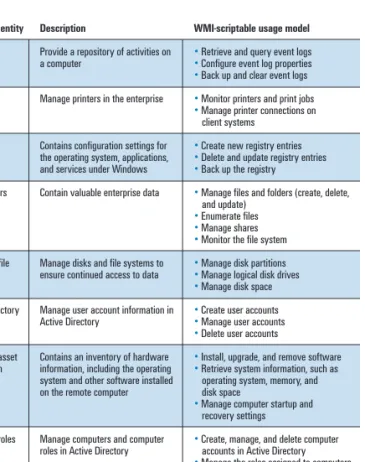
Figure 3 lists additional useful tasks that system administrators can script.
Scripting to execute processes on remote Dell systems
Administrators can write scripts to execute processes on remote systems, a technique that can be used in many ways to manage a
network of Dell systems in the enterprise. Examples in this sec-tion illustrate the remote execu-tion of Dell OpenManage Server Administrator command-line inter-face (CLI) commands on a Dell PowerEdge™server. To remotely
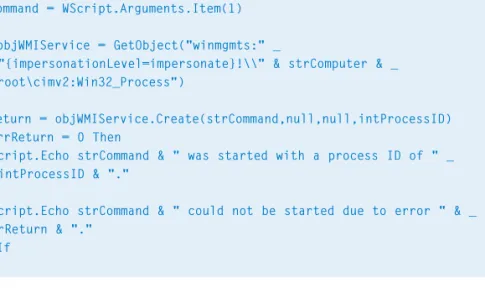
execute other processes on target nodes, administrators can cus-tomize these examples. A complete command reference can be found in the Dell OpenManage Server Administrator Command-Line Interface User’s Guide, which is avail-able on the documentation CD that ships with every PowerEdge server or online at http://docs.us.dell.com/docs/software/svradmin. Figure 4 shows an example script that executes a process on a remote system. To invoke the script on a remote server, called MachineA in this example, save the preceding listing into a file called remote.vbs and run the following command:
C:> cscript remote.vbs MachineA "omreport system esmlog –outa c:\%COMPUTERNAME%_ESMLOG.TXT"
The script in Figure 4 initiates the remote execution of the process and does not wait for the process to complete. Executing the script exports the Embedded Server Management (ESM) log into a text file on the remote target. This capability offers a rich set of possibilities for the remote scripting of PowerEdge Servers using Server Administrator CLI commands, including:
•
omconfig:Configures values using the CLI. Administrators can use specific values for warning thresholds on components or prescribe what action a system should take when a certain warning or failure event occurs. Administrators can also use the omconfigcommand to assign specific values to a system’s asset information parameters, such as the purchase price of the system, the system’s asset tag, or the system’s location.•
omdiag:Runs diagnostic tests against system hardware to iso-late problems.•
omhelp: Displays short help text for CLI commands.•
omreport:Produces reports of a system’s management information.•
omupdate:Installs the latest update packages for the system’s BIOS, firmware, and drivers.Administrators can run sequences of these commands using a batch file on a remote managed node. For a sample script that exe-cutes a batch file on a remote node, visit Dell Power Solutionsonline at http://www.dell.com/magazines_extras.
Windows entity Description WMI-scriptable usage model
Event logs Provide a repository of activities on
•
Retrieve and query event logs a computer•
Configure event log properties•
Back up and clear event logs Printers Manage printers in the enterprise•
Monitor printers and print jobs•
Manage printer connections on client systemsRegistry Contains configuration settings for
•
Create new registry entries the operating system, applications,•
Delete and update registry entries and services under Windows•
Back up the registryFiles/folders Contain valuable enterprise data
•
Manage files and folders (create, delete, and update)•
Enumerate files•
Manage shares•
Monitor the file system Disks and file Manage disks and file systems to•
Manage disk partitions system ensure continued access to data•
Manage logical disk drives•
Manage disk space Active Directory Manage user account information in•
Create user accounts users Active Directory•
Manage user accounts•
Delete user accountsComputer asset Contains an inventory of hardware
•
Install, upgrade, and remove software information information, including the operating•
Retrieve system information, such assystem and other software installed operating system, memory, and on the remote computer disk space
•
Manage computer startup and recovery settingsComputer roles Manage computers and computer
•
Create, manage, and delete computer roles in Active Directory accounts in Active Directory•
Manage the roles assigned to computers Processes Manage running instances of an•
Monitor processesapplication or an executable file
•
Create and terminate processes•
Enumerate additional process properties Figure 3. Examples of scriptable administrative tasksBased on industry
standards, WMI helps
enable consistent, uniform
management control and
monitoring of systems
throughout an enterprise.
Performing a remote software update under Dell OpenManage
Administrators can perform a remote software update for BIOS, firmware, and drivers by using the omupdatecommand or by using a Dell Update Package.
omupdateCLI command.To execute the omupdatecommand, an administrator would invoke the following:
omupdate biosupdate path="\\network_share\file_name "
This sample command refers to the network share where the update file resides. In the absence of a network share, admin-istrators can copy the file to a temporary directory on the local system before per-forming the update.
Dell Update Package. Another option is to copy the Dell Update Package, which is a self-contained .exe file, onto the remote system. The .exe file can be directly executed on the remote node by passing its command-line arguments for a silent installation of the package and rebooting the system, if necessary. The WMI script listed in Figure 5 illustrates a remote soft-ware update that passes in the computer name and the name of the Dell Update Package. In the script, note that the Dell Update Package is invoked with the /s /r option to perform a silent update and reboot of the system, if necessary.
For a scheduled update, administrators can use the Windows Scheduled Task
Wizard on the management station to per-form the update during off-peak hours.
Security considerations
WMI scripts run in the security context of the administrator running the script. To run scripts on a remote computer, a user needs administrative access on the remote system, thus helping to prevent malicious individ-uals from running destructive scripts on a remote server. Remote WMI scripting lever-ages Distributed COM (DCOM) for inter-acting with the WMI service running on the remote system.
The scripts in this article set the imper-sonation level to “impersonate.” This setting implies that the WMI service uses the administrator’s security context to perform the requested operation. If the administrator’s security credentials are not adequate, errors such as “Access Denied” will occur when running the script.
WMI provides a rich security infrastructure that can be config-ured on a per-namespace basis. By default, the administrator’s group has full control of WMI on both local and remote computers, and users in other groups do not have remote access to the computers. To view a computer’s security settings, invoke wmimgmt.msc from the command prompt, view the properties of the root node, and look
strComputer = WScript.Arguments.Item(0) strCommand = WScript.Arguments.Item(1) Set objWMIService = GetObject("winmgmts:" _
& "{impersonationLevel=impersonate}!\\" & strComputer & _ "\root\cimv2:Win32_Process")
errReturn = objWMIService.Create(strCommand,null,null,intProcessID) if errReturn = 0 Then
Wscript.Echo strCommand & " was started with a process ID of " _ & intProcessID & "."
Else
Wscript.Echo strCommand & " could not be started due to error " & _ errReturn & "."
End If
Figure 4. Sample WMI script for executing a remote process
strComputer = WScript.Arguments.Item(0) strDupFile = WScript.Arguments.Item(1)
'* First copy the Dell Update Package to the remote system Set objFSO=CreateObject("Scripting.FileSystemObject")
ObjFSO.CopyFile strDupFile, "\\" & strComputer & "\C$\tmp\" & _ strDupFile
'* Launch the process on the remote system Set objWMIService = GetObject("winmgmts:" _
& "{impersonationLevel=impersonate}!\\" & strComputer & _ "\root\cimv2:Win32_Process")
strCommand = "C:\tmp\" & strDupFile & " /s /r"
errReturn = objWMIService.Create(strCommand,null,null,intProcessID) if errReturn = 0 Then
Wscript.Echo strCommand & " was started with a process ID of " _ & intProcessID & "."
Else
Wscript.Echo strCommand & " could not be started due to error " & _ errReturn & "."
End If
at the security tab of the dialog box. Administrators can alter secu-rity settings at the namespace level and grant different permissions (remote access, method execution, or write) to different sets of users (domain or local).
A powerful tool for performing administrative tasks
WMI scripting is designed to provide a powerful mechanism that helps system administrators to perform remote adminis-tration tasks. The techniques presented in this article help provide an introduction to the power of WMI scripting. The Microsoft Web page “Scripting Access to WMI” (http://msdn.microsoft.com/library/default.asp?url=/library/en-us/
wmisdk/wmi/scripting_access_to_wmi.asp) and the book Microsoft Windows 2000 Scripting Guideby the Microsoft Windows Resource Kit Scripting Team provide additional valuable information about WMI and scripting.
Sudhir Shetty([email protected]) is a member of the Enablement Technologies team at Dell, working on systems management console solutions. He has more than 10 years of experience in designing and developing software components for user interfaces; database access; and networking in application areas such as systems management, systems proto-typing and simulation, and tiered, distributed computing. Sudhir has an M.S. in Computer Sci-ence from The University of Texas at Austin.
Several scripts in this article involve passing arguments through the command line. An alternative is to pass arguments as a text file. For example, to
per-form a software update on a set of PowerEdge 2650 servers, administrators can export an external database to list several servers in a text file, such as
Server1, Server2, and Server3.
This text file can then be passed as a command-line argument to the example script listed in Figure A.
Set objArgs = Wscript.Arguments Const ForReading = 1
Set objDictionary = CreateObject("Scripting.Dictionary") Set objFSO = CreateObject("Scripting.FileSystemObject") Set objTextFile = objFSO.OpenTextFile(objArgs(0), ForReading) '* Read the file which contains a list of machines, one per line I = 0
Do While objTextFile.AtEndOfStream <> True StrNextLine = objTextFile.ReadLine objDictionary.Add I, strNextLine I = I + 1
Loop
'* For each machine, retrieve the number of services running on that machine For Each objItem in objDictionary
strComputer = objDictionary.Item(objItem)
Wscript.Echo "Accessing remote machine" & strComputer Set objWMIService = GetObject("winmgmts:" _
& "{impersonationLevel=impersonate}!\\" & strComputer & _ "\root\cimv2")
Set colServices = objWMIService.ExecQuery _ ("SELECT * FROM Win32_Service")
Wscript.Echo strComputer, colServices.count Next
Figure A. Sample WMI script for reading arguments from a text file