Installation and
Upgrade Guide
Altair PBS Professional 12 Installation & Upgrade Guide, updated 1/2/13, edited by Anne Urban
Copyright © 2003-2012 Altair Engineering, Inc. All rights reserved.
PBS™, PBS Works™, PBS GridWorks®, PBS Professional®, PBS Analytics™, PBS Catalyst™, e-Compute™, and e-Render™ are trademarks of Altair Engineering, Inc. and are protected under U.S. and international laws and treaties. All other marks are the property of their respective own-ers.
ALTAIR ENGINEERING INC. Proprietary and Confidential. Contains Trade Secret Information. Not for use or disclosure outside ALTAIR and its licensed clients. Information contained herein shall not be decompiled, disassembled, duplicated or disclosed in whole or in part for any pur-pose. Usage of the software is only as explicitly permitted in the end user software license agree-ment.
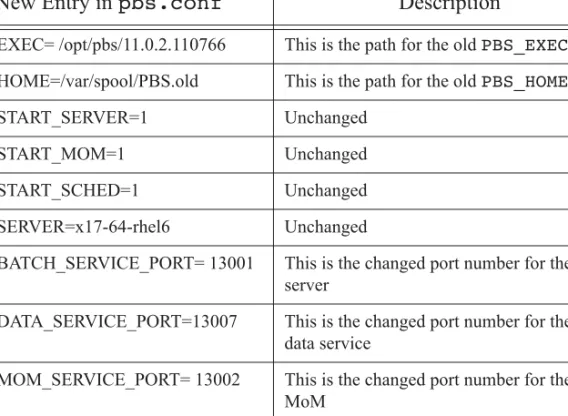
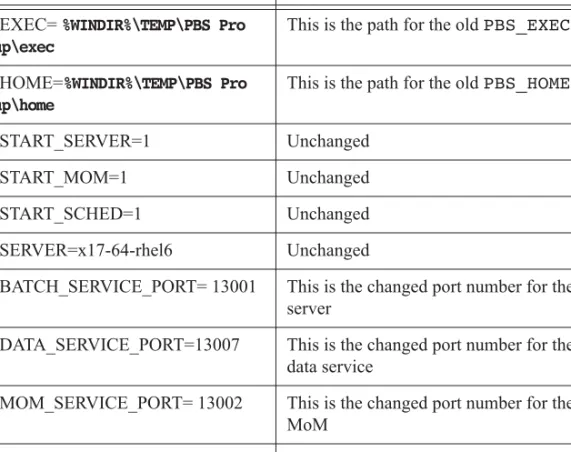
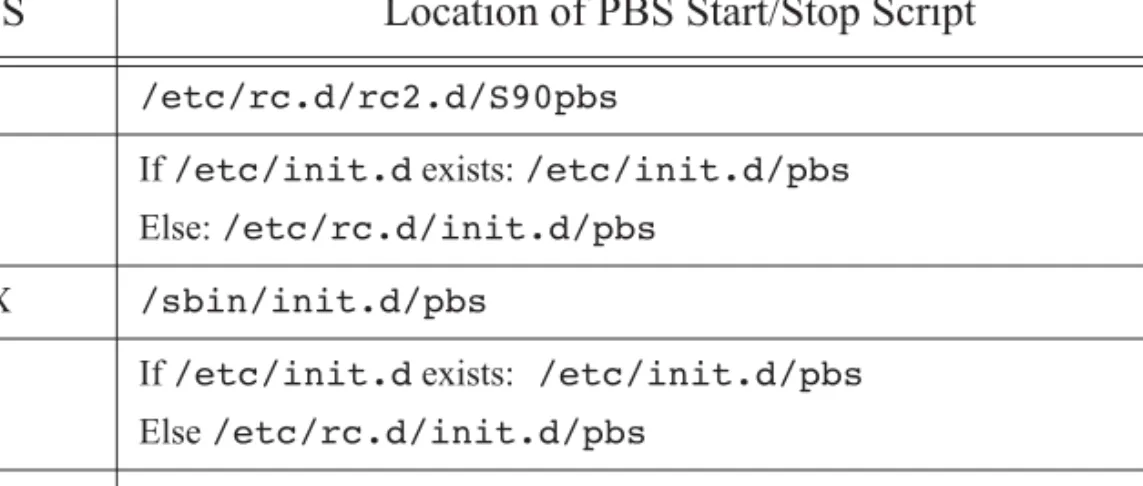
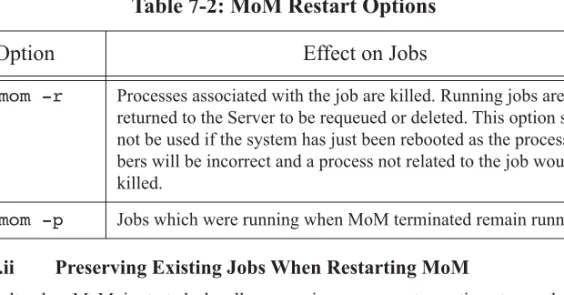
Copyright notice does not imply publication.
For documentation and the PBS Works forums, go to: Web: www.pbsworks.com
For more information, contact Altair at: Email: [email protected]
T
echnical Support
This document is proprietary information of Altair Engineering, Inc.
Location
T
elephone
North America +1 248 614 2425 [email protected] China +86 (0)21 6117 1666 [email protected] France +33 (0)1 4133 0992 [email protected] Germany +49 (0)7031 6208 22 [email protected] India +91 80 66 29 4500 [email protected] Italy +39 0832 315573 +39 800 905595 [email protected] Japan +81 3 5396 2881 [email protected] Korea +82 31 728 8600 [email protected] Scandinavia +46 (0)46 286 2050 [email protected] UK +44 (0)1926 468 600 [email protected]
Table of Contents
About PBS Documentation
v
1 Concepts and Components
1
1.1 PBS Components. . . .1
2
Pre-Installation Steps
5
2.1 Prerequisites for Running PBS . . . .52.2 Single Execution System. . . .12
2.3 Multiple Execution Systems . . . .14
2.4 User Requirements on UNIX/Linux . . . .15
2.5 Recommended PBS Configurations for Windows . . . .16
2.6 Windows User Authorization . . . .24
2.7 Caveats and Advice. . . .27
2.8 Windows Caveats . . . .27
3
Installation
29
3.1 Overview of Installation . . . .293.2 Major Steps for Installing PBS Professional. . . .29
3.3 All Installations. . . .33
3.4 Installation on UNIX/Linux Systems . . . .41
3.5 Installation on Windows Systems. . . .76
4
Initial Configuration
85
4.1 Overview. . . .85Table of Contents
5
Licensing
89
5.1 Overview of Licensing for PBS Jobs . . . .89
5.2 Definitions. . . .92
5.3 Configuring PBS for Licensing. . . .93
5.4 Redundant License Servers. . . .100
5.5 Displaying Licensing Information. . . .101
5.6 PBS Jobs and Licensing . . . .103
5.7 Upgrading . . . .108
5.8 Troubleshooting Licensing Errors. . . .108
5.9 Licensing Restrictions. . . .110
5.10 Licensing Advice. . . .110
6
Upgrading PBS Professional
111
6.1 Types of Upgrades. . . .1116.2 Differences from Previous Versions. . . .112
6.3 Caveats and Advice. . . .114
6.4 Before Upgrading from 10.x or Older to 11.x or Later. . . .116
6.5 After Upgrading . . . .117
6.6 Introduction to Upgrading Under UNIX/Linux . . . .117
6.7 Overlay Upgrade Under UNIX/Linux. . . .119
6.8 Overlay Upgrade on an Altix, a UV, or a Complex Containing One or More Al -tixes or UVs125 6.9 Migration Upgrade Under UNIX and Linux. . . .133
6.10 Upgrade Installation Instructions . . . .151
6.11 Upgrading Under Windows. . . .155
7
Starting and Stopping PBS
177
7.1 Starting and Stopping PBS: UNIX and Linux. . . .1777.2 Starting and Stopping PBS: Windows. . . .187
7.3 When to Restart PBS. . . 191
7.4 Caveats and Recommendations. . . 191
Appendix A: License Agreement
193
About PBS Documentation
Where to Keep the Documentation
To make cross-references work, put all of the PBS guides in the same directory.
What is PBS Professional?
PBS is a workload management system that provides a unified batch queuing and job man-agement interface to a set of computing resources.
The PBS Professional Documentation
The documentation for PBS Professional includes the following: PBS Professional Administrator’s Guide:
Provides the PBS administrator with the information required to configure and manage PBS Professional (PBS).
PBS Professional Quick Start Guide:
Provides a quick overview of PBS Professional installation and license file generation. PBS Professional Installation & Upgrade Guide:
Contains information on installing and upgrading PBS Professional. PBS Professional User’s Guide:
Covers user commands and how to submit, monitor, track, delete, and manipulate jobs. PBS Professional Programmer’s Guide:
PBS Manual Pages:
Describe PBS commands, resources, attributes, APIs
Ordering Software and Publications
To order additional copies of this manual and other PBS publications, or to purchase addi-tional software licenses, contact your Altair sales representative. Contact information is included on the copyright page of this book.
Document Conventions
PBS documentation uses the following typographic conventions: abbreviation
The shortest acceptable abbreviation of a command or subcommand is underlined. command
Commands such as qmgr and scp
input
Command-line instructions manpage(x)
File and path names. Manual page references include the section number in parentheses appended to the manual page name.
formats
Formats
Attributes
Attributes, parameters, objects, variable names, resources, types Values
Keywords, instances, states, values, labels Definitions
Concepts and Components
PBS is a distributed workload management system which manages and monitors the compu-tational workload on a set of one or more computers.
1.1
PBS Components
PBS consist of two major component types: system processes and user-level commands. A brief description of each is given here.
1.1.1
Server
The Server process is the central focus for PBS. Within this document, it is generally referred to as the Server or by the execution name pbs_server. All commands and communication with the Server are via an Internet Protocol (IP) network. The Server’s main function is to provide the basic batch services such as receiving/creating a batch job, modifying the job, protecting the job against system crashes, and running the job. Typically there is one Server managing a given set of resources.
The server contains a licensing client which communicates with the licensing server for licensing PBS jobs.
Scheduler
MoM
Server
Jobs
PBS
Commands
Kernel
Batch
Job
1.1.2
Job Executor (MoM)
The Job Executor is the component that actually places the job into execution. This process,
pbs_mom, is informally called MoM as it is the mother of all executing jobs. MoM places a job into execution when it receives a copy of the job from a Server. MoM creates a new ses-sion that is as identical to a user login sesses-sion as is possible. For example, if the user’s login shell is csh, then MoM creates a session in which .login is run as well as .cshrc. MoM
also has the responsibility for returning the job’s output to the user when directed to do so by the Server. One MoM runs on each computer which will execute PBS jobs.
1.1.3
Scheduler
The Scheduler, pbs_sched, implements the site’s policy controlling when each job is run and on which resources. The Scheduler communicates with the various MoMs to query the state of system resources and with the Server to learn about the availability of jobs to execute. The interface to the Server is through the same API as used by the client commands. Note that the Scheduler communicates with the Server with the same privilege as the PBS Manager.
1.1.4
The pbs_rshd Windows Service
The Windows version of PBS contains a service called pbs_rshd for supporting remote file copy requests for delivering job output and error files to destination hosts.
The pbs_rshd service supports rcp, but does not allow normal rsh activities. This service is used only by PBS; it is not intended to be used by administrators or users.
pbs_rshd reads either the %WINDIR%\system32\drivers\etc\hosts.equiv file or the user's .rhosts file to determine the list of accounts that are allowed access to the local host during remote file copying.
PBS uses this same mechanism for determining whether a remote user is allowed to submit jobs to the local server.
pbs_rshd is started automatically during installation; you can also start it manually. To start pbs_rshd as a service:
net start pbs_rshd
To start pbs_rshd in debug mode, so that it prints logging output on the command line: pbs_rshd -d
If user1 on hostA causes a file to be copied to hostB (running pbs_rshd) so that the source is file1 and the destination is hostB:file2, pbs_rshd authenticates user1 as fol-lows:
• If user1 is a non-administrator account (e.g. not belonging to the Administrators group), then the copy will succeed in one of 2 ways:
- user1@hostA is authenticated via hostB’shosts.equiv file; or
- user1@hostA is authenticated via user's [PROFILE_PATH]/.rhosts on hostB. See also section 2.6.2, “Windows User's HOMEDIR”, on page 25.
One of the following must be configured:
- The system-wide hosts.equiv file on hostB includes as one of its entries:
hostA
- or, [PROFILE_PATH]\.rhosts on userA's account on hostB includes:
hostA userA
• If userA is an administrator account, or the source is file1 and the target is userB@hostB:file2
then use of the account’s [PROFILE_PATH]\.rhosts file is the only way to authen-ticate, and it needs to have the entry:
hostA userA
1.1.5
Commands
PBS supplies both command line programs that are POSIX 1003.2d conforming and a graph-ical interface. These are used to submit, monitor, modify, and delete jobs. These client com-mands can be installed on any system type supported by PBS and do not require the local presence of any of the other components of PBS.
There are three classifications of commands: user commands (which any authorized user can use), operator commands, and manager (or administrator) commands. Operator and Manager commands require specific access privileges.
Pre-Installation Steps
This chapter describes the steps to take before installing PBS. Make sure that your setup meets the requirements described here, and that you take the required steps to prepare for installing PBS.
2.1
Prerequisites for Running PBS
2.1.1
Run Same Version Within Complex
Do not mix different versions of PBS within a PBS complex or across complexes. This includes both major and minor versions. All daemons and commands must be the same ver-sion of PBS Profesver-sional.
2.1.2
Resources Required by PBS
The amount of memory required by the PBS server and scheduler depends on the number of hosts and the number of jobs to be queued or running. Each host will need less than 512 bytes. The number of jobs is the important factor, since each job needs about 5 KB. The number of processors in the complex is not a factor.
2.1.2.1
Memory Required By Server Running Hooks
A PBS server executing hook scripts can consume a larger amount of memory than one not executing hook scripts. For example, a system consisting of a server and a MoM on a Linux machine or on a Windows XP machine handling 10,000 short-running jobs being submitted, modified, and moved causing execution of qsub, qalter, and movejob hooks will use around 40 MB of memory in a span of 24 hours.
2.1.2.2
Memory Required for Job History
Enabling job history requires additional memory for the server. When the server is keeping job history, it needs 8k-12k of memory per job, instead of the 5k it needs without job history. Make sure you have enough memory: multiply the number of jobs being tracked by this much memory. For example, if you are starting 100 jobs per day, and tracking history for two weeks, you’re tracking 1400 jobs at a time. On average, this will require 14.3M of memory. If the server is shut down abruptly, there is no loss of job information. However, the server will require longer to start up when keeping job history, because it must read in more informa-tion.
2.1.2.3
Amount of Memory in Complex
If the sum of all memory on all vnodes in a PBS complex is greater than 2 terabytes, then the Server (pbs_server) and Scheduler (pbs_sched) must be run on a 64-bit architecture host, using a 64-bit binary.
2.1.2.4
Adequate Space for Logfiles
PBS logging can fill up a filesystem. For customers running a large number of array jobs, we recommend that the filesystem where $PBS_HOME is located has at least 2 GB of free space for log files. It may also be necessary to rotate and archive log files frequently to ensure that adequate space remains available. (A typical PBS Professional complex will generate about 2 GB of log files for every 1,000,000 subjobs and/or jobs.)
2.1.2.5
Installation Disk Space
Make sure you have adequate disk space to install PBS. It is recommended to have at least 305 MB available, for installation alone.
2.1.3
Name Resolution and Network Configuration
Do NOT skip this section. PBS cannot function if your hostname resolution or network is configured incorrectly.2.1.3.1
Firewalls
PBS needs to be able to use any port for outgoing connections, but only specific ports for incoming connections. If you have firewalls running on the server or execution hosts, be sure to allow incoming connections on the appropriate ports for each host. By default, the PBS server and MoM daemons use ports 15001 through 15004 for incoming connections, and any port below 1024 for outgoing connections. See section 3.3.4, “Network Addresses and Ports”, on page 36 for a list of ports.
Firewall-based issues are often associated with server-MoM communication failures and mes-sages such as 'premature end of message' in the log files.
2.1.3.2
Network Tuning
Depending on your network, you may need to tune kernel settings or other configuration parameters. Make sure that your kernel settings support PBS. For example, check your IP tuning parameters, including UDP and TCP, and check your ARP, routing, and name resolu-tion settings.
2.1.3.3
Planning for Number of Machines Connected to
Complex
Configure your server host with sufficient ARP cache entries in order to allow at least one connection per ethernet address that will connect to the server or to which the server will con-nect. This includes execution hosts, client hosts, peered servers, storage machines, or machines where the scheduler may execute scripts. Check your ARP table tuning settings.
2.1.3.4
Required Name Resolution
Make sure that the following are true:
• Use only one canonical name per host. The canonical name must be unambiguous. • On the server/scheduler host, the short name must resolve to the correct IP address. • On the server/scheduler host, the IP address must reverse resolve to the canonical name.
whether you are using /etc/hosts, DNS, LDAP, NIS, or something else.
• Every MoM must resolve each MoM to the same IP address that the server recognizes for that MoM. So if the server recognizes MoM A at IP address w.x.y.z, all other MoMs must resolve MoM A to w.x.y.z.
• Make sure that the IP address of each machine in the complex resolves to the fully quali-fied domain name for that machine, and vice versa. Forward and reverse hostname reso-lution must work consistently between all machines.
• The server must be able to look up the IP addresses for any execution host, any client host, and itself.
• Make sure that forward and reverse name lookup operate according to the IETF standard. The network on which you will be deploying PBS must be configured according to IETF standards.
2.1.3.5
Required Network Configuration
• PBS can use a static address mapping only.• Communications between daemons must be robust and must have sufficient capacity. Make sure that your network does not present any limitations to PBS. For example, the ARP table size limit must not interfere when you have a large number of MoMs. Config-ure your server with sufficient ARP cache entries to allow at least one connection per eth-ernet address that will connect to the server or to which the server will connect. This includes execution hosts, client hosts, peered servers, storage machines, or machines where the scheduler may execute scripts. See section 2.1.3.1, “Firewalls”, on page 7.
2.1.3.6
Recommendations for Name Resolution and Network
Configuration
• Test name resolution using the ping command.
• Test the connections between server and MoM daemons on every physical network. You should test TCP and UDP, and make sure that the connection can handle large packets.
You can use a tool such as ttcp, with packets of size16k, for testing.
• For multihomed MoMs, keep all PBS traffic on the same control network or subnet. • Keep different types of traffic on separate interfaces to reduce jitter.
• When configuring /etc/hosts, do the following:
- Use the server’s FQDN as the first item on the first line on the PBS-to-PBS interface - Use different FQDNs as the first item on other lines
- Use a name on only one line
• If you want redundancy in your network interface, consider using bonding. Aside from presenting a transparent interface, this can allow you to load-balance network traffic across different networks.
• If name resolution is a problem in a network that should be working, tell nscd not to cache the host name of the machine with the problem.
• If you are using nscd and you change an IP address or hostname, restart nscd on all hosts.
2.1.3.6.i Recommendations for Name Resolution and Network Configuration on Windows
• On Windows, make sure the first nameserver resolves all the needed hostnames, includ-ing the server hostname and the domain controller host for active directory queries. • On Windows, put explicit IP-to-hostname addresses in the
C:\win-dows\system32\drivers\etc\hosts file. Otherwise your site will experience extreme slowdowns. If you make these changes to a running PBS complex, you must then restart all the PBS daemons (services).
2.1.3.7
Order of Operations for Name Resolution and Network
Configuration
You can take care of some of the name resolution testing before you install PBS. However, you must do some testing using the pbs_hostn command, after you install PBS. The "Ini-tial Configuration" chapter follows the "Installation" chapter, and includes steps to test name resolution. We include an overview of the whole process here for clarity:
1. Set up firewall 2. Set up name resolution
3. Test name resolution by using ping command; if necessary, fix & re-test 4. Install PBS
5. Test name resolution by using pbs_hostn command. 6. If name resolution does not work correctly:
a. Uninstall PBS b. Fix name resolution c. Install PBS
d. Test using pbs_hostn
2.1.3.8
Server Hostname
The PBS_SERVER entry in pbs.conf cannot be longer than 64 characters. If the short name of the server host resolves to the correct IP address, you can use the short name for the value of the PBS_SERVER entry in pbs.conf. If only the FQDN of the server host resolves to the correct IP address, you must use the FQDN for the value of PBS_SERVER.
2.1.3.9
Sockets
Some PBS processes cause network sockets to be opened between submission and execution hosts. For more information about these processes, see section 10.3.8, "Advice and Caveats", on page 725 of the PBS Professional Administrator’s Guide. Make sure your network and firewalls are set up to handle sockets correctly.
2.1.3.10
Planning for File Access
parameters are selected for tuning PBS. For details, see the usecp MoM configuration
param-eter in the pbs_mom(8B) man page and section 13.9, "Setting File Transfer Mechanism" on page 870 in the PBS Professional Administrator’s Guide. The impact of file location and delivery are discussed further in section 8.5 “Delivery of Output Files” on page 198 in the PBS Professional User’s Guide.
Asynchronous writes to an NFS server can cause reliability problems. If using an NFS file system, mount the NFS file system synchronously (without caching.)
2.1.4
SGI Altix and UV Cpuset Feature Requires ProPack
Library or Performance Suite
Customers who intend to run PBS Professional on SGI Altix or UV systems using cpusets should note that there are strict requirements for SGI ProPack or Performance Suite (contain-ing the cpuset API). A supported version of ProPack or Performance Suite is required. The library is required on MoM vnodes where cpuset functionality is desired. To test whether the library is currently installed, execute the following command:
ls /usr/lib/libcpuset.so*
The PBS Professional MoM binary that supports cpusets is pbs_mom.cpuset.
2.1.5
Using Comprehensive System Accounting on SGI
Altix
PBS support for CSA on SGI systems is no longer available. The CSA functionality for SGI systems has been removed from PBS.
2.1.6
Requirement on Cray
PBS requires CLE 3.0 and higher on the Cray.
2.1.7
Port Requirement
The ports used by the PBS daemons must be available during the installation. See section 3.3.4, “Network Addresses and Ports”, on page 36.
2.1.9
Windows Caveats
The PBS installer installs vc++ redistributable binaries into the system root (C:\Windows) directory. See section 9.12, "Windows Caveats", on page 675 of the PBS Professional Administrator’s Guide.
2.2
Single Execution System
If PBS is to manage a single system, all three components are installed on that same system. During installation (as discussed in the next chapter) be sure to select option 1 (all compo-nents) from the PBS Installation tool.
All PBS components on a single host.
Scheduler MoM Server Jobs PBS Commands Kernel PBS Job
2.2.1
Single Execution System with Front-end
If you wish, the PBS Server and Scheduler (pbs_server and pbs_sched) can run on
one system and jobs can execute on another.
Scheduler
MoM Server
Jobs
Kernel
Single execution host.
Jobs Commands
2.3
Multiple Execution Systems
If PBS is to be installed on a collection (or complex) of systems, normally the Server (pbs_server) and the Scheduler (pbs_sched) are installed on a “front end” system (option 1 from the PBS Installation tool), and a MoM (pbs_mom) is installed (option 2 from the Installation tool) and run on each execution host (i.e. each system where jobs are to be executed). The following diagram illustrates this for an eight host complex.
Scheduler MoM Server Jobs PBS Commands
Execution Host
MoMExecution Host
MoMExecution Host
MoMExecution Host
MoMExecution Host
MoMExecution Host
MoMExecution Host
MoMExecution Host
MoMExecution Host
2.4
User Requirements on UNIX/Linux
2.4.1
User Accounts
Users who will submit jobs must have accounts at the server and at each execution host.
2.4.2
UNIX User Authorization
When the user submits a job from a system other than the one on which the PBS Server is run-ning, system-level user authorization is required. This authorization is needed for submitting the job and for PBS to return output files (see also section 8.5 “Delivery of Output Files” on page 198 in the PBS Professional User’s Guide and section 8.6 “Input/Output File Staging” on page 198 in the PBS Professional User’s Guide).
The username under which the job is to be executed is selected according to the rules listed under the “-u” option to qsub. The user submitting the job must be authorized to run the job under the execution user name (whether explicitly specified or not).
Such authorization is provided by any of the following methods:
1. The host on which qsub is run (i.e. the submission host) is trusted by the server. This permission may be granted at the system level by having the submission host as one of the entries in the server’shost.equivfile naming the submission host. For file deliv-ery and file staging, the host representing the source of the file must be in the receiving host’s host.equivfile. Such entries require system administrator access.
2. The host on which qsub is run (i.e. the submission host) is explicitly trusted by the server via the user’s .rhosts file in his/her home directory. The .rhosts must con-tain an entry for the system from which the job is submitted, with the user name portion set to the name under which the job will run. For file delivery and file staging, the host representing the source of the file must be in the user’s .rhosts file on the receiving host. It is recommended to have two lines per host, one with just the “base” host name and one with the full hostname, e.g.: host.domain.name.
3. PBS may be configured to use the Secure Copy (scp) for file transfers. The adminis-trator sets up SSH keys as described in section 13.8, "Enabling Passwordless Authentica-tion" on page 870 in the PBS Professional Administrator’s Guide. See also section 8.5 “Delivery of Output Files” on page 198 in the PBS Professional User’s Guide.
4. User authentication may also be enabled by setting the server’s flatuid attribute to True. See the pbs_server_attributes(7B) man page and section 9.3.13, "Fla-tuid and Access", on page 661 of the PBS Professional Administrator’s Guide. Note that
flatuid may open a security hole in the case where a vnode has been logged into by
some-one impersonating a genuine user.
2.5
Recommended PBS Configurations for
Windows
This section presents the recommended configuration for running PBS Professional under Windows.
2.5.1
Definitions
Active DirectoryActive Directory is an implementation of LDAP directory services by Microsoft to use in Windows environments. It is a directory service used to store information about the network resources (e.g. user accounts and groups) across a domain. It was released first with Windows 2000 Server, and extended/improved under Windows Server 2003. Active Directory is fully integrated with DNS and TCP/IP; DNS is required. To be fully func-tional, the DNS server must support SRV resource records or service records.
Admin (Windows)
As referred to in various parts of this document, it is a user logged in from an account who is a member of any group that has full control over the local computer, domain controller, or is allowed to make domain and schema changes to the Active directory.
Administrators
A group that has built-in capabilities that give its members full control over the local system, or the domain controller host itself.
Delegation
A capability provided by Active Directory that allows granular assignment of privileges to a domain account or group. So for instance, instead of add-ing an account to the “Account Operators” group which might give too much access, then delegation allows giving the account read access only to all domain users and groups information. This is done via the Delegation wizard.
Domain Admin Account
It is a domain account on Windows that is a member of the “Domain Admins” group.
Domain Admins
A global group whose members are authorized to administer the domain. By default, the Domain Admins group is a member of the Administrators group on all computers that have joined a domain, including the domain controllers.
Domain User Account
It is a domain account on Windows that is a member of the “Domain Users” group.
Domain Users
A global group that, by default, includes all user accounts in a domain. When you create a user account in a domain, it is added to this group auto-matically.
Enterprise Admins
A group that exists only in the root domain of an Active Directory forest of domains. The group is authorized to make forest-wide changes in Active Directory, such as adding child domains.
Install Account, Installation Account
The account used by the person who installs PBS. Schema Admins
A group that exists only in the root domain of an Active Directory forest of domains. The group is authorized to make schema changes in Active Directory.
PBS service account
The account that is used to execute the PBS daemons pbs_server, pbs_mom, pbs_sched, and pbs_rshd via the Service Control Man-ager on Windows. This account can have any name. The default name is pbsadmin.
2.5.2
Permission Requirement
On Windows 7 and later with UAC enabled, if you will use the cmd prompt to operate on hooks, or for any privileged command such as qmgr, you must run the cmd prompt with option Run as Administrator.
2.5.3
Windows Configuration in a Domained
Environment
2.5.3.1
Machines
• The PBS clients, server, MoMs, scheduler, and rshds must run on a set of Windows machines networked in a single domain.
• The machines must be members of this one domain, and they must be dependent on a centralized database located on the primary/secondary domain controllers.
• All user accounts must be in the same domain as the machines.
• The domain controllers must be running on a Server type of Windows host, using Active Directory configured in "native" mode.
• The choice of DNS must be compatible with Active Directory.
• The PBS server and scheduler must be run on a Server type of Windows machine that is not the domain controller and is running Active Directory.
• PBS must not be installed or run on a Windows machine that is serving as the domain controller (running Active Directory) to the PBS hosts.
2.5.3.2
Installation Account
• The installation account is the account from which PBS is installed. The installation account must be the only account that will be used for all steps of PBS installation includ-ing modifyinclud-ing configuration files, settinclud-ing up failover, and so on. If any of the PBS con-figuration files are modified by an account that is not the installation account,
permissions/ownerships of the files could be reset, rendering them inaccessible to PBS. For domained environments, the installation account must be a local account that is a member of the local Administrators group on the local computer.
2.5.3.3
The PBS Service Account
pbs_mom, pbs_sched, pbs_rshd) will run. • This account can have any name.
• The name of the account defaults to pbsadmin.
• This account must exist while any PBS services are running.
• The password for this account should not be changed while PBS is running. • Create the PBS service account before installing PBS.
• For domained environments, the PBS service account must: a. be a domain account
b. be a member of the "Domain Users" group, and only this group c. have "domain read" privilege to all users and groups.
• For a domained environment, delegate “read access to all users and groups information” to the PBS service account. See section 2.5.3.4, “Delegating Read Access”, on page 19. • If the PBS service account is set up with no explicit domain read privilege, MoM may
hang. This happens when XP users submit jobs from a network mapped drive without the -o/-e option for redirecting files. When this happens, bring up Task manager, look for a "cmd" process by the user who owned the job, and kill it. After the first cmd process is killed, you may have to look for a second one (the first one copies the output file, the second one does the error file). This should un-hang the MoM.
2.5.3.4
Delegating Read Access
• To delegate “read access to users and groups information” to the PBS service account: a. On the domain controller host, bring up Active Directory Users and Computers. b. Select <domain name>, right mouse click, and choose "Delegate Control". This will
bring up the "Delegation of Control Wizard".
c. When it asks for a user or group to which to delegate control, select the name of the PBS service account.
d. When it asks for a task to delegate, specify "Create a custom task to delegate". e. For active directory object type, select the "this folder, existing objects in this folder,
and creation of objects in this folder" button.
f. For permissions, select “Read” and “Read All Properties”. g. Exit out of Active Directory.
2.5.3.5
User Accounts
• Each user must explicitly be assigned a HomeDirectory sitting on some network path. PBS does not support a HomeDirectory that is not network-mounted. PBS currently sup-ports network-mounted directories that are using the Windows network share facility. • If a user was not assigned a HomeDirectory, then PBS uses PROFILE_PATH\My
Doc-uments\PBS Pro, where PROFILE_PATH could be, for example, “\Documents and Settings\username”.
2.5.3.6
User Jobs
• All users must submit and run PBS jobs using only their domain accounts (no local accounts), and domain groups. If a user has both a domain account and local account, then PBS will ensure that the job runs under the domain account.
• Each user must always supply an initial password in order to submit jobs. This is done by running the pbs_password command at least once to supply the password that PBS will use to run the user’s jobs.
• Access by jobs to network resources, such as a network drive, requires a password. • All job scripts, as well as input, output, error, and intermediate files of a PBS job must
reside in an NTFS directory.
2.5.3.7
Adding to Local Administrators Group
• Add the PBS service account to the local Administrators group:net localgroup Administrators <domain name>\<service account name> /add
2.5.3.8
Installation Path
• The destination/installation path of PBS must be NTFS. All PBS configuration files must reside on an NTFS filesystem.
2.5.3.9
Installation
• The same PBS service account must be used in all future invocations of the install pro-gram when setting up a complex of PBS hosts.
• The install program requires the installer to supply the password for the PBS service account. This same password must be supplied to future invocations of the install pro-gram on other servers/hosts.
of the Operating System".
• The install program will enable Full Control permission to local "Administrators" group on the install host for all PBS-related files.
• The install program will give you a specific error if it fails to make the PBS service account be a member of the local Administrators group on the local computer. It will quit at this point, and you must go back and make the PBS service account be a member of the local Administrators group on the local computer. See section 2.5.3.7, “Adding to Local Administrators Group”, on page 20. Then re-run the install program.
2.5.4
Windows Configuration in a Standalone
Environment
2.5.4.1
Machines
• PBS must be run on a set of machines that are not members of any domain (workgroup setup); no domain controllers/ Active Directory are involved.
2.5.4.2
Installation Account
• The installation account is the account from which PBS is installed. The installation account must be the only account that will be used in all aspects of PBS installation including modifying configuration files, setting up failover, and so on. If any of the PBS configuration files are modified by an account that is not the installation account, permis-sions/ownerships of the files could be reset, rendering them inaccessible to PBS.
• For standalone environments, the installation account must be a local account that is a member of the local Administrators group on the local computer.
2.5.4.3
The PBS service account for Standalone Environments
• The PBS service account is the account under which PBS services (pbs_server,pbs_mom, pbs_sched, pbs_rshd) will run. • This account can have any name.
• The name of this account defaults to pbsadmin.
This account must exist while any PBS services are running.
• The password for this account should not be changed while PBS is running. • Create the PBS service account before installing PBS.
“Adding to Local Administrators Group”, on page 22. • User Accounts
• Each user should be assigned a local NTFS HomeDirectory.
• If a user was not assigned a HomeDirectory, then PBS uses PROFILE_PATH\My Doc-uments\PBS Pro, where PROFILE_PATH could be, for example, “\Documents and Settings\username”.
• A local account/group having the same name must exist for the user on all the execution hosts.
2.5.4.4
User Jobs
• Users must submit and run PBS jobs using their local accounts and local groups. • Users should supply a password when submitting jobs. That password must be the same
on all the execution hosts. See also section 9.10, "User Passwords", on page 671 of the PBS Professional Administrator’s Guide.
• Job intermediate, input, output, and error files must reside on an NTFS filesystem. • For a password-ed job, users can access (within the job script) folders in a network share. • Each user must always supply an initial password to submit jobs. This is done by
run-ning the pbs_password command at least once to supply the password that PBS will use to run the user’s jobs.
• Access by jobs to network resources (such as a network drive), requires a password.
2.5.4.5
Adding to Local Administrators Group
• Add the PBS service account to the local Administrators group:
net localgroup Administrators <name of PBS service account> /add
2.5.4.6
Installation Path
• The destination/installation path of PBS must be NTFS. All PBS configuration files must reside on an NTFS filesystem.
2.5.4.7
Installation
• The same PBS service account must be used in all future invocations of the install pro-gram when setting up a complex of PBS hosts.
on other Servers/hosts.
• The install program will enable the following rights to the PBS service account: “Create Token Object”, “Replace Process Level Token”, “Log On As a Service”, and “Act As Part of the Operating System”.
• The install program will enable Full Control permission to local "Administrators" group on the install host for all PBS-related files.
2.5.5
Caveats
• If you change the name of the PBS service account, you must restart the daemons on that host.
2.5.6
PBS Service Account
The PBS service account must be the same on the primary and secondary server hosts. The PBS service account can be different on each execution host.
2.5.7
Unsupported Windows Configurations
The following Windows configurations are currently unsupported:• PBS running on a set of Windows XP hosts that are involved in several “domains” via any trust mechanism.
• Using NIS/NIS+ for authentication on non-domain accounts.
• Using RSA SecurID module with Windows logons as a means of authenticating non-domain accounts.
2.5.8
Sample Windows Deployment Scenario
For planning and illustrative purposes, this section describes deploying PBS Professional on a complex of 20 machines networked in a single domain, with host 1 as the server host, and hosts 2 through 20 as the execution hosts.
For this configuration, the installation program is run 20 times, invoked once per host. “All” mode (server, scheduler, MoM, and rshd) installation is selected only on host 1, and “Execu-tion” mode (MoM and rshd) installs are selected on the other 19 hosts. The PBS service account must exist in advance. This account is used for running the PBS services.
The user who runs the install program will supply the password for the PBS service account. The installation program will then propagate the password to the local Services Con-trol Manager database.
A reboot of each machine is necessary at the end of each install.
2.6
Windows User Authorization
When the user submits a job from a system other than the one on which the PBS Server is run-ning, system-level user authorization is required. This authorization is needed for submitting the job and for PBS to return output files. See section 8.5 “Delivery of Output Files” on page 198 in the PBS Professional User’s Guide and section 8.6 “Input/Output File Staging” on page 198 in the PBS Professional User’s Guide.
If running in a domained environment, then a password is also required for user authorization. See the discussion of single-signon in section 9.10, "User Passwords", on page 671 of the PBS Professional Administrator’s Guide.
The user name under which the job is to be executed is selected according to the rules listed under the “-u” option to qsub. See “qsub” on page 210 of the PBS Professional Reference Guide. The user submitting the job must be authorized to run the job under the execution user name (whether explicitly specified or not).
Such authorization is provided by either of the following methods:
1. The host on which qsub is run (i.e. the submission host) is trusted by the execution
host. This permission may be granted at the system level by having the submission host as one of the entries in the execution host’shost.equivfile naming the submission host. For file delivery and file staging, the host representing the source of the file must be in the receiving host’s host.equivfile. Such entries require system administrator access.
2. The host on which qsub is run (i.e. the submission host) is explicitly trusted by each
execution host via the user’s .rhosts file in his/her home directory. The .rhosts must contain an entry for the system on which the job will execute, with the user name portion set to the name under which the job will run. For file delivery and file staging, the host representing the source of the file must be in the user’s .rhosts file on the receiv-ing host. It is recommended to have two lines per host, one with just the “base” host name and one with the full hostname, e.g.: host.domain.name.
2.6.1
Windows
hosts.equiv
File
The Windows hosts.equiv file determines the list of non-Administrator accounts that are allowed access to the local host, that is, the host containing this file. This file also determines whether a remote user is allowed to submit jobs to the local PBS Server, with the user on the local host being a non-Administrator account.
This file is usually: %WINDIR%\system32\drivers\etc\hosts.equiv. The format of the hosts.equiv file is as follows:
[+|-] hostname username
'+' means enable access, whereas '-' means to disable access. If '+' or '-' is not specified, then
this implies enabling of access. If only hostname is given, then users logged into that host are allowed access to like-named accounts on the local host. If only username is given, then that user has access to all accounts (except Administrator-type users) on the local host. Finally, if both hostname and username are given, then user at that host has access to like-named account on local host.
2.6.1.1
Ownership Requirements
The hosts.equiv file must be owned by an admin-type user or group, with write access granted to an admin-type user or group.
2.6.2
Windows User's
HOMEDIR
Each Windows user is assumed to have a home directory (HOMEDIR) where his/her PBS job will initially be started. For jobs that do not have their staging and execution directories cre-ated by PBS, the home directory is also the starting location of file transfers when users spec-ify relative path arguments to qsub/qalter -W stagein/stageout options.
2.6.2.1
Configuring User’s
HOMEDIR
The home directory can be configured by an Administrator by setting the user's HomeDirec-tory field in the user database, via the User Management Tool. It is important to include the drive letter when specifying the home directory path. The directory specified for the home folder must be accessible to the user. If the directory has incorrect permissions, PBS will be unable to run jobs for the user.
2.6.2.2
Directory Must Exist Already
You must specify an already existing directory for home folder. If you don't, the system will create it for you, but set the permissions to that which will make it inaccessible to the user.
2.6.2.3
Default Directory
If a user has not been explicitly assigned a home directory, then PBS will use this Windows-assigned default, local home directory as base location for its default home directory. More specifically, the actual home path will be:
[PROFILE_PATH]\My Documents\PBS Pro
For instance, if a userA has not been assigned a home directory, it will default to a local home directory of:
\Documents and Settings\userA\My Documents\PBS Pro
UserA’s job will use the above path as working directory, and for jobs that do not have their staging and execution directories created by PBS, any relative pathnames in stagein, stageout, output, error file delivery will resolve to the above path.
Note that Windows can return as PROFILE_PATH one of the following forms:
\Documents and Settings\username
\Documents and Settings\username.local-hostname
\Documents and Settings\username.local-hostname.00N where N is a number
\Documents and Settings\username.domain-name
2.6.2.4
Network Mounted Home Directory
A user can be assigned a HomeDirectory that is network mounted. For instance, a user's direc-tory can be: "\\fileserver_host\sharename". This would cause PBS to map this network path to a local drive, say G:, and allow the working directory of user's job to be on
this drive. It is important that the network location (file server) for the home directory be on a Server-type of Windows machine. Workstation-type machines like Windows XP Professional have an inherent limit on the maximum number of outgoing network connections (10) which can cause PBS to fail to map or even access the user's network HomeDirectory. The net effect is the job's working directory ends up in the user's default directory:
PROFILE_PATH\My Documents\PBS Pro
PBS Professional Reference Guide and section 9.10, "User Passwords", on page 671 of the PBS Professional Administrator’s Guide. When PBS runs the job, it will change directory to the user's home directory using his/her credential which must be unique (and passworded) when network resources are involved.
To avoid having to require passworded jobs, users must be set up to have a local home direc-tory. Do this by accessing Start Menu->Control Panel->Performance and Maintenance->Administrative Tools->Computer Management (Windows XP), and selecting System Tools->Local Users and Groups, double clicking Users on the right pane, double clicking on the username which brings up the user properties dialog from which you can select Pro-file, and specify an input for Local path (Home path). Be sure to include the drive informa-tion.
2.7
Caveats and Advice
• Do not start or stop the data service using anything except the pbs_dataservice command. Start or stop the data service using only the pbs_dataservice command. • Do not change the IP address or hostname of a machine in the complex while PBS is
run-ning.
• Do not change a hostname without updating the corresponding Version 2 configuration file.
• Do not change a PBS host’s IP address while PBS is running. Stop PBS (server, sched-uler, and MoMs), change the IP address, and restart PBS.
2.8
Windows Caveats
2.8.1
Installation of Microsoft Redistributable Pack
The PBS installer installs the Microsoft 2005 redistributable pack. Please refer to the Microsoft documentation for further details on this package.2.8.2
Make Sure ComSpec Environment Variable Is Set
Check that in the pbs_environment file, the environment variable ComSpec is set to C:\WINDOWS\system32\cmd.exe. If it is not, set it to that value:1. Change directory:
cmd.admin> cd \Program Files\PBS Pro\home 2. Edit the pbs_environment file:
cmd.admin> edit pbs_environment
3. Add the following entry to the pbs_environment file:
ComSpec=C:\WINDOWS\system32\cmd.exe
4. Restart the MoM and the server: net stop pbs_mom
net start pbs_mom net stop pbs_server net start pbs_server
Simply setting this variable inside a job script doesn't work. The ComSpec variable must be set before PBS executes cmd. cmd invokes the user's submission script.
Installation
3.1
Overview of Installation
PBS uses two kinds of licenses: socket licenses, which are tied to hosts, and floating licenses, which are per-job. Socket licenses are managed via a file you obtain from Altair or a manu-facturer. Floating licenses are managed through the Altair license server. In order for a job to run, it must either be running on a socket-licensed host, or be using floating licenses. Floating licenses fill in where socket licenses are unavailable.
Hosts are socket licensed as a unit; you can license sockets on a host only when you can license all sockets on that host. If all hosts have socket licenses, you do not need the license server. If you do need the license server, PBS starts working sooner if the Altair license server is installed and configured before installing PBS.
This chapter shows how to install PBS Professional. You should read the Release Notes and
Chapter 2, "Pre-Installation Steps", on page 5 before installing the software. If you are install-ing on a system where PBS is already runninstall-ing, you probably want to preserve your configura-tion and your jobs during the upgrade. See Chapter 6, "Upgrading PBS Professional", on page 111.
3.2
Major Steps for Installing PBS
Professional
The major steps for installing PBS depend on whether you are using socket licenses for some or all of your hosts:
Socket Licenses”, on page 30.
• If you are using socket licenses for all hosts, follow the steps in section 3.2.2, “All Hosts Use Socket Licenses”, on page 31.
• If you are using socket licenses for some but not all hosts, follow the steps in section 3.2.3, “Some Hosts Use Socket Licenses”, on page 31.
3.2.1
No Hosts Use Socket Licenses
1. Download, install, and configure the Altair license server package. If you use the Altair license server, PBS starts working sooner if the license server package is installed on the license server host(s) and configured before installing the PBS Professional pack-age. See the Altair License Management System Installation and Operations Guide, available at www.altair.com.
2. If you want to use redundant Altair license servers, follow the instructions in section 5.4, “Redundant License Servers”, on page 100.
3. Create accounts used by PBS. See section 3.4.1, “Create Required Accounts”, on page 41 and section 3.5.5, “Pre-installation Configuration”, on page 77.
4. Download the correct PBS Professional package for each host. The PBS Profes-sional package is available on the PBS download page at https://
secure.altair.com/UserArea/.
5. Please read section 3.3, “All Installations”, on page 33. Then install PBS Profes-sional on the server host and all execution hosts, without starting any daemons. For instructions, see Section 3.4, "Installation on UNIX/Linux Systems" or Section 3.5, "Installation on Windows Systems".
6. Install PBS commands on any client hosts.
7. Start PBS on each execution host using the PBS start/stop script. See section 7.1, “Starting and Stopping PBS: UNIX and Linux”, on page 177.
8. Start PBS on the server host using the PBS start/stop script. See section 7.1, “Start-ing and Stopp“Start-ing PBS: UNIX and Linux”, on page 177.
9. Set the server’s pbs_license_info attribute to point to the socket license file and the Altair license server(s). See section 5.3, “Configuring PBS for Licensing”, on page 93. 10. Using the qmgr command, define the vnodes that the server will manage. See sec-tion 3.1.5, "Creating Vnodes" on page 35 in the PBS Professional Administrator’s Guide. 11. Perform post-installation tasks such as validation. See Chapter 4, "Initial
Configura-3.2.2
All Hosts Use Socket Licenses
1. Obtain enough socket licenses for all sockets managed by PBS; see the Altair License Management System Installation and Operations Guide.
2. Create accounts used by PBS. See section 3.4.1, “Create Required Accounts”, on page 41 and section 3.5.5, “Pre-installation Configuration”, on page 77.
3. Download the correct PBS Professional package for each host. The PBS Profes-sional package is available on the PBS download page at https://
secure.altair.com/UserArea/.
4. Please read section 3.3, “All Installations”, on page 33. Then install PBS Profes-sional on the server host and all execution hosts, without starting any daemons. For instructions, see Section 3.4, "Installation on UNIX/Linux Systems" or Section 3.5, "Installation on Windows Systems".
5. Install the socket license file where the PBS server can reach it. If you are using failover, install the socket license file, so that it is available to both primary and second-ary server. You can use PBS_HOME.
6. Install PBS commands on any client hosts.
7. Start PBS on each execution host using the PBS start/stop script. See section 7.1, “Starting and Stopping PBS: UNIX and Linux”, on page 177.
8. Start PBS on the server host using the PBS start/stop script. See section 7.1, “Start-ing and Stopp“Start-ing PBS: UNIX and Linux”, on page 177.
9. Set the server’s pbs_license_info attribute to point to the socket license file and the Altair license server(s). See section 5.3, “Configuring PBS for Licensing”, on page 93. 10. Using the qmgr command, define the vnodes that the server will manage. See sec-tion 3.1.5, "Creating Vnodes" on page 35 in the PBS Professional Administrator’s Guide. 11. Perform post-installation tasks such as validation. See Chapter 4, "Initial
Configura-tion", on page 85.
3.2.3
Some Hosts Use Socket Licenses
1. If you will have non-socket-licensed hosts, download, install, and configure the Altair license server package. If you use the Altair license server, PBS starts working sooner if the license server package is installed on the license server host(s) and
config-ured before installing the PBS Professional package. See the Altair License Management System Installation and Operations Guide, available at www.altair.com.
2. If you want to use redundant Altair license servers, follow the instructions in section 5.4, “Redundant License Servers”, on page 100.
3. Obtain socket licenses; see the Altair License Management System Installation and Operations Guide.
4. Create accounts used by PBS. See section 3.4.1, “Create Required Accounts”, on page 41 and section 3.5.5, “Pre-installation Configuration”, on page 77.
5. Download the correct PBS Professional package for each host. The PBS Profes-sional package is available on the PBS download page at https://
secure.altair.com/UserArea/.
6. Please read section 3.3, “All Installations”, on page 33. Then install PBS Profes-sional on the server host and all execution hosts, without starting any daemons. For instructions, see Section 3.4, "Installation on UNIX/Linux Systems" or Section 3.5, "Installation on Windows Systems".
7. Install the socket license file where the PBS server can reach it. If you are using failover, install the socket license file, so that it is available to both primary and second-ary server. You can use PBS_HOME.
8. Start the PBS server only, according to the following rules:
- If you will not run a MoM on the server host, use the PBS start/stop script. - If you will run a MoM on the server host, use the pbs_server command. See section 7.1, “Starting and Stopping PBS: UNIX and Linux”, on page 177.
9. Using the qmgr command, define the vnodes that the server will manage. See sec-tion 3.1.5, "Creating Vnodes" on page 35 in the PBS Professional Administrator’s Guide. 10. Start PBS MoMs in the order in which they should be socket licensed. Socket
licenses are assigned to each host in the order in which the MoMs are started, until there are not enough licenses for any remaining unlicensed host. See section 5.1.1.1,
“Choos-ing Hosts for Socket Licenses”, on page 90. Start each MoM according to the following rules:
- If you will not run this MoM on the server host, use the PBS start/stop script. - If you will run this MoM on the server host, use the pbs_mom command. See section 7.1, “Starting and Stopping PBS: UNIX and Linux”, on page 177.
11. If you are running a MoM on the server host, restart PBS on the server host using the PBS start/stop script. See section 7.1, “Starting and Stopping PBS: UNIX and Linux”, on page 177.
12. Install PBS commands on any client hosts.
13. Set the server’s pbs_license_info attribute to point to the socket license file and the Altair license server(s). See section 5.3, “Configuring PBS for Licensing”, on page 93. 14. Perform post-installation tasks such as validation. See Chapter 4, "Initial
Configura-tion", on page 85.
3.3
All Installations
3.3.1
Supported Platforms for PBS Server
The PBS server contains a licensing client. This licensing client, and therefore the PBS server, is supported on the platforms listed in the release notes.
When you run the PBS install program on platforms that don't support the licensing client, you will not be prompted for a "server type" installation option; only for "commands-only" or "execution type". The server/scheduler component in the PBS Professional package will not be included in platforms that don't support the licensing client. A list of these platforms is provided in the Release Notes.
3.3.2
Setting PBS License Server Location
During installation of the server, you will be prompted for the location of the Altair license server. You must use an Altair server; you cannot use a FLEX server. See section 5.3.2, “Server Licensing Attributes”, on page 94. The installer will display the following:
PBS Professional version 9.0 and later is licensed via the Altair License Manager.
The Altair License Manager can be downloaded from: http://www.pbspro.com/UserArea/Software/
For more information, please refer to the PBS Professional Administrator's Guide, or contact [email protected].
Continue with the installation? (y or n)
The PBS install program will prompt you for the location of the license server:
Please enter the list of Altair License file location(s), in a space-separated list of entries of the form:
<port>@<host> @<host>
<license-file-path>
The install program then lists some examples:
Examples: @fest 27100@aspasia @perikles 27000@aspasia @127.3.4.5 /usr/local/altair/security/altair_lic.dat Enter License File Location(s): <>
NOTE: The “Enter License File Location(s):” is the actual prompt; the lines above it are informational.
The install program will take care of setting the pbs_license_info attribute to the location
3.3.2.1
Caveats
If you do not input any entry for the "Enter License File Location(s)" prompt, then the install program will not initialize the pbs_license_info attribute. This means the
pbs_license_info attribute value is left as is, which could be set to some previous value or
unset. It is usually set to some previous value when doing an overlay or migration upgrade. If the license server location is incorrectly initialized (e.g. the host name or port number is incorrect), PBS may not be able to pinpoint the misconfiguration as the cause of the failure to reach a license server. The PBS server's first attempt to contact the license server will result in the following message on the server’s log file:
“unable to connect to license server at host <H>, port <P>”
If the license server location is set to a FLEX server, PBS may encounter a problem requiring you to reboot the server’s host. See section 14.2, "Server Host Bogs Down After Startup", on page 881 of the PBS Professional Administrator’s Guide.
3.3.3
Choosing Installation Type
You can choose the tasks for each machine in a PBS complex. These tasks are: • Host on which server and scheduler run. This uses the server/scheduler package
described below.
• Host which runs MoM, i.e. run users’ tasks. This uses the execution package described in
section 3.3.3.2, “Execution Package”, on page 36.
• Host from which users submit jobs. This uses the client commands package described in
section 3.3.3.3, “Client Commands”, on page 36.
You can choose to run all PBS components, and submit jobs, and run jobs, on a single machine, or you can divide up the tasks.
A typical cluster of computers has a front-end system which usually manages the whole clus-ter. Most sites install the PBS Server and Scheduler on this front-end system, but not the MoM, as most sites tend not to want to run batch jobs on the front-end host. The MoM is then installed on each execution host within the cluster.
You need to decide what kind of PBS installation you want for each machine in your complex. During installation, there are three options:
1. Server/scheduler package, execution package, and client commands 2. Execution package and client commands
3.3.3.1
Server/Scheduler Package
Install this package on the machine(s) which will run the PBS server. If you are going to use failover, install this package (option 1) on both server hosts. This package includes the server, the scheduler, a MoM, and the commands.
If you are going to run all the PBS components on a single host, install the Server package (option 1).
3.3.3.2
Execution Package
If you are going to have a complex of machines, you need to install the execution package (option 2) on all the execution hosts in the complex. This package includes the MoM and the client commands.
3.3.3.3
Client Commands
The client package (option 3) is for hosts which will not be used for execution but need to have access to PBS. It contains the commands, the GUIs, and the man pages. This allows users to submit jobs, and to check the status of jobs, queues, and any PBS Servers.
3.3.4
Network Addresses and Ports
PBS daemons listen for inbound connections at specific network ports. These ports have defaults, but can be configured if necessary. PBS daemons use any ports numbered less than 1024 for outbound communication. For PBS daemon-to-daemon communication over TCP, the originating daemon will request a privileged port for its end of the communication. PBS makes use of fully qualified host names for identifying the jobs and their location. A PBS installation is known by the host name on which the Server is running. The canonical host name is used to authenticate messages, and is taken from the primary name field, h_name, in
the structure returned by the library call gethostbyaddr(). According to the IETF RFCs, this name must be fully qualified and consistent for any IP address assigned to that host. Port numbers can be set via /etc/services, the command line, or in pbs.conf. If not set by any of these means, they will be set to the default values. The PBS components and the commands will attempt to use the system services file to identify the standard port num-bers to use for communication. If the port number for a PBS service can’t be found in the sys-tem file, a default value for that service will be used. Each daemon has startup options for setting port numbers. In the PBS Professional Reference Guide, see "pbs_mom” on page 58,
The table below lists the default port numbers for PBS services:
The scheduler uses any privileged port (less than 1024) as the outgoing port to talk to the Server.
Table 3-1: Ports Used by PBS Services
Daemon Listening
at Port
Port
Number
Protocol
Type of Communication
pbs_server 15001 TCP All TCP communication to server pbs_server 15001 UDP Server to MoM via RPP
pbs_mom 15002 TCP MoM to/from Server pbs_resmon 15003 TCP MoM resource requests pbs_resmon 15003 UDP MoM resource requests pbs_sched 15004 TCP PBS Scheduler
pbs_mom_globus 15005 TCP Globus can still send jobs to PBS, but PBS no longer supports send-ing jobs to Globus.
MoM Globus
pbs_mom_globus 15006 TCP Globus can still send jobs to PBS, but PBS no longer supports send-ing jobs to Globus.
MoM Globus resource requests pbs_mom_globus 15006 UDP Globus can still send jobs to PBS,
but PBS no longer supports send-ing jobs to Globus.
MoM Globus resource requests pbs_datastore 15007 proprietary PBS information storage and
retrieval License server 6200