Contributing Authors
Brad ‘RenderMan’ Haines is one of the more visible and vocal members of the wardriving community, appearing in various media outlets and speak-ing at conferences several times a year. Render is usually near by on any wardriving and wireless security news, often causing it himself. His skills have been learned in the trenches working for various IT companies as well as his involvement through the years with the hacking community, sometimes to the attention of carious Canadian and American intelligence agencies. A firm believer in the hacker ethos and promoting responsible hacking and sharing of ideas, he wrote the ‘Stumbler ethic’ for beginning wardrivers and greatly enjoys speaking at corporate conferences to dissuade the negative image of hackers and wardrivers.
His work frequently borders on the absurd as his approach is usually one of ignoring conventional logic and just doing it. He can be found in Edmonton, Alberta, Canada, probably taking something apart.
Michael J. Schearer is an active-duty Naval Flight Officer and Electronic Countermeasures Officer with the U.S. Navy. He flew combat missions during Operations Enduring Freedom, Southern Watch, and Iraqi Freedom. He later took his electronic warfare specialty to Iraq, where he embedded on the ground with Army units to lead the counter-IED fight. He currently serves as an instructor of Naval Science at the Pennsylvania State University Naval Reserve Officer Training Corps Unit, University Park, PA.
Michael is an active member of the Church of WiFi and has spoken at Shmoocon, DEFCON, and Penn State’s Security Day, as well as other forums. His work has been cited in Forbes, InfoWorld and Wired.
i
Chapter 1
Introduction to Wireless
Networking,
Wardriving, and Kismet
Solutions in this chapter
Exploring Past Discoveries That Led to Wireless
Exploring Present Applications for Wireless
Introduction to Wardriving
Introduction to Wardriving with Linux
Wardriving with Linux and Kismet
■
■
■
■
■
Exploring Past
Discoveries That Led to Wireless
Wireless technology is the method of delivering data from one point to another without using physical wires, and includes radio, cellular, infrared, and satellite. A historic perspective will provide you with a general understanding of the substantial evolution that has taken place in this area. The common wireless networks of today originated from many evolutionary stages of wireless communications and telegraph and radio applications. Although some discoveries occurred in the early 1800s, much of the evolution of wireless communication began with the emergence of the electrical age and was affected by modern economics as much as by discoveries in physics.
Because the current demand of wireless technology is a direct outgrowth of traditional wired 10-Base-T Ethernet networks, we will also briefly cover the advent of the computer and the evolution of computer networks. Physical networks, and their limitations, significantly impacted wireless technology. This section presents some of the aspects of traditional computer networks and how they relate to wireless networks. Another significant impact to wireless is the invention of the cell phone. This section will briefly explain significant strides in the area of cellular
communication.
Discovering Electromagnetism
Early writings show that people were aware of magnetism for several centuries before the middle 1600s; however, people did not become aware of the correlation between magnetism and electricity until the 1800s. In 1820, Hans Christian Oersted, a Danish physicist and philosopher working at that time as a professor at the University of Copenhagen, attached a wire to a battery during a lecture; coincidentally, he just happened to do this near a compass and he noticed that the compass needle swung around. This is how he discovered that there was a relationship between electricity and magnetism. Oersted continued to explore this relationship, influencing the works of contemporaries Michael Faraday and Joseph Henry.
moved, the galvanometer needle moved, indicating that a current was induced in the coil. This proved that you must have a moving magnetic field for electromagnetic induction to occur. During this experiment, Faraday had not only discovered induc-tion but also had created the world’s first electric generator. Faraday’s initial findings still serve as the basis of modern electromagnetic technology.
Around the same time that Faraday worked with electromagnetism, an American professor named Joseph Henry became the first person to transmit a practical electri-cal signal. As a watchmaker, he constructed batteries and experimented with magnets. Henry was the first to wind insulated wires around an iron core to make electromag-nets. Henry worked on a theory known as self-inductance, the inertial characteristic of an electric current. If a current is flowing, it is kept flowing by the property of self-inductance. Henry found that the property of self-inductance is affected by how the circuit is configured, especially by the coiling of wire. Part of his experimentation involved simple signaling.
It turns out that Henry had also derived many of the same conclusions that Faraday had. Though Faraday won the race to publish those findings, Henry still is remembered for actually finding a way to communicate with electromagnetic waves. Although Henry never developed his work on electrical signaling on his own, he did help a man by the name of Samuel Morse. In 1832, Morse read about Faraday’s findings regarding inductance, which inspired him to develop his ideas about an emerging technology called the telegraph. Henry actually helped Morse construct a repeater that allowed telegraphy to span long distances, eventually making his Morse Code a worldwide language in which to communicate. Morse introduced the repeater technology with his 1838 patent for a Morse Code telegraph. Like so many great inventions, the telegraph revolutionized the communications world by replacing nearly every other means of communication—including services such as the Pony Express.
Exploring Conduction
halted—sailors on a ship between the islands, unseen to the spectators, raised their ship’s anchor and accidentally pulled up the cable, and not knowing what it was for, proceeded to cut it. Morse faced considerable heckling from the spectators and immediately began modification to the experiment. He successfully retested his idea by transmitting a wireless signal between copper plates he placed in the Susquehanna River, spanning a distance of approximately one mile. In doing so, he became the first person to demon-strate wireless by conduction. Conduction is the flow of electricity charges through a substance (in this case, the water in the river) resulting from a difference in electric potential based on the substance.
Inventing the Radio
After the significant discoveries of induction and conduction, scientists began to test conduction with different mediums and apply electricity to machinery. The scholars and scientists of the day worked to apply these discoveries and explore the parameters of the properties. After the theory of conduction in water was proven, new theories were derived about conduction in the air. In 1887, a German named Heinrich Hertz became the first person to prove electricity travels in waves through the atmosphere. Hertz went on to show that electrical conductors reflect waves, whereas nonconduc-tors simply let the waves pass through the medium. In addition, Hertz also proved that the velocity of light and radio waves are equal, as well as the fact that it is
possible to detach electrical and magnetic waves from wires and radiate. Hertz served as inspiration to other researchers who scrambled to duplicate his results and further develop his findings. Inventors from all across the world easily validated Hertz’s experiments, and the world prepared for a new era in radio, the wireless transmission of electromagnetic waves.
An Italian inventor called Guglielmo Marconi was particularly intrigued by Hertz’s published results. Marconi was able to send wireless messages over a distance of ten miles with his patented radio equipment, and eventually across the English Channel. In late 1901, Marconi and his assistants built a wireless receiver in Newfoundland and intercepted the faint Morse code signaling of the letter “S” that had been sent across the Atlantic Ocean from a colleague in England. It was astounding proof that the wireless signal literally curved around the earth, past the horizon line—even Marconi could not explain how it happened, but he had successfully completed the world’s first truly long-distance communication, and the communication world would never be the same.
reflects radio waves back to the earth’s surface, and the waves subsequently bounce back up to the ionosphere again. This process continues until the energy of the waves dissipates.
Another researcher by the name of Reginald Fessenden proceeded to further develop Marconi’s achievements, and he became the first person to create a radio band wave of human speech. The importance of his results was felt worldwide, as radio was no longer limited to telegraph codes.
Mounting Radio-Telephones in Cars
In 1921, mobile radios began operating in the 2 MHz range, which is just above the Amplitude Modulation (AM) frequency range of current radios. These mobile radios were generally used for law enforcement activities only. They were not integrated with the existing wireline phone systems that were much more common at that time—since the technology was still so new, the equipment was considered experi-mental and not practical for mass distribution. In fact, people originally did not consider mobile radio as a technology for the public sector. Instead, the technology was developed for police and emergency services personnel, who really served as the pioneers in mobile radio.
It was not until 1924 that the voice-based wireless telephone had the ability to be bi-directional, or two-way. Bell Laboratories invented this breakthrough telephone. Not only could people now receive messages wirelessly, they could also respond to the message immediately, greatly increasing convenience and efficiency. This
improved system was still not connected to landline telephone systems, but the evolution of wireless communication had taken one more major step. One issue that still plagued this early mobile radio system was the sheer size of the radio; it took up an entire trunk. Add to the size restriction, the cost of the radio system that was almost as expensive as the vehicle.
Inventing Computers and Networks
Though the beginning of the computer age is widely discussed, computer discoveries can be attributed to a long line of inventors throughout the 1800s, beginning with the Englishman Charles Babbage, who in 1822 created the first calculator called the “Difference Engine.” Then came Herman Hollerith, who in 1887 produced a punch card reader to tabulate the American census for 1890. Later developments led to the creation of different punch card technologies, binary representation, and the use of vacuum tubes.
The war effort in the 1940s produced the first decoding machine, the Colossus, used in England to break German codes. This machine was slow, taking about 3 to 5 seconds per calculation. The next significant breakthrough was the creation of the Electronic Numerical Integrator and Computer (ENIAC) by Americans John Presper Eckert and John W. Mauchley. The ENIAC was the first general-purpose computer that computed at speeds 1000 times greater than the Colossus. However, this machine was a behemoth, consuming over 160 Kilowatts of power–when it ran; it dimmed lights in an entire section of Philadelphia. The main reason these machines were so huge was the vacuum tube technology. The invention of the transistor in 1948
changed the computer’s development and began shrinking the machinery. In the next thirty years, the computers got significantly faster and smaller.
In 1981, IBM introduced the personal computer for the home, school, and business. The number of PCs more than doubled from 2 million in 1981 to 5.5 million in 1982; more than 65 million PCs were being used ten years later. With the surge of computer use in the workplace, more emphasis was being placed on how to harness their power and make them work together. As smaller computers became more powerful, it became necessary to find a way to link them together to share memory, software, and informa-tion, and to find a way for them to communicate together. Network technology to this point consisted of a mainframe that stored the information and performed the processes hooked to several “dumb terminals” that provided the input.
Ethernet was developed in the early 1970s and was used to link multiple PCs within a physical area to form what is known as a Local Area Network (LAN).
Token Ring for connectivity. There are typically two basic components to the LAN configuration: a client and a server. The client is the node that makes a request, and the server is the node that fulfills that request. The client computer contains the client software that allows for access to shared resources on the server. Without the client software, the computer will not actively participate in either of the two network models.
Wide Area Networks (WANs) span a much wider physical distance. Usually a WAN is a widely dispersed collection of LANs. The WAN uses a router to connect the LANs physically. For example, a company may have LANs in New York, Los Angeles, Tokyo, and Sydney; this company would then implement a WAN to span the LANs and to enable communication throughout the company. WANs use differ-ent connectivity technology than LANs—typically, T1 or T3 lines, Asynchronous Transfer Mode (ATM) or Frame Relay circuits, microwave links, or higher speed Synchronous Optical Network (SONET) connections.
The largest WAN is the Internet. The Internet is basically a WAN that spans the entire globe. Home networks often implement LANs and WANs through cable modems and digital subscriber line (DSL) service. In these systems, a cable or DSL router links the home network to the provider’s WAN and the provider’s central gateway to reach the Internet.
A wireless local area network transmits over the air by means of base stations, or access points, that transmit a radio frequency; the base stations are connected to an Ethernet hub or server. Mobile end-users can be handed off between access points, as in the cellular phone system, though their range generally is limited to a couple hundred feet.
Inventing Cell Phones
Wireless technology is based on the car-mounted police radios of the 1920s. Mobile telephone service became available to private customers in the 1940s. In 1947,
precious frequencies allotted to them, AT&T developed an idea to replace the single high-powered transmitter approach with several smaller and lower-powered transmit-ters strategically placed throughout the metropolitan area; calls would switch between transmitters as they needed a stronger signal. Although this method of handling calls certainly eased some of the problems, it did not eliminate the problem altogether. In fact, the problem of too few voice channels plagued the wireless phone industry for several years.
The problem was that demand always seemed to exceed supply. Since the FCC refused to allocate more frequencies for mobile wireless use, waiting lists became AT&T’s temporary solution as the company strove for the technological advances necessary to accommodate everyone. For example, in 1976, there were less than 600 mobile phone customers in New York City, but there were over 3500 people on waiting lists. Across the United States at that time, there were nearly 45,000 subscribers, but there were still another 20,000 people on waiting lists as much as ten years long. Compare this situation to today’s, in which providers give away free phones and thousands of minutes just to gain a subscriber.
Cellular technology has come a long way. The term cellular describes how each geographic region of coverage is broken up into cells. Within each of these cells is a radio transmitter and control equipment. Early cellular transmission operated at 800 MHz on analog signals, which are sent on a continuous wave. When a customer makes a call, the first signal sent identifies the caller as a customer, verifies that he or she is a customer of the service, and finds a free channel for the call. The mobile phone user has a wireless phone that in connection with the cellular tower and base station, handles the calls, their connection and handoff, and the control functions of the wireless phone.
Exploring Present
Applications for Wireless
Many corporations and industries are jumping into the wireless arena. Two of the industries most committed to deploying wireless technologies are airports and hotels, for business travelers’ communications needs. If they are traveling in a car, they use their wireless phones. When they are at work or home, they are able to use their computers and resources to again be productive. But when staying in a hotel for the night or even a week, there are few choices—a business traveler can look for the RJ-11 jack and connect to the Internet via 56-kilobit modem, not connect at all, or connect wirelessly. When a hotel provides the correct configuration information based on the provider, and a software configuration, a business traveler with wireless capabilities can connect to their network without worrying about connection speed or out-of-date modems.
Airports offer such services to increase travelers’ productivity at a time when they would otherwise be isolated from business resources. The same configuration applies: set the configuration in the wireless client software and voilà, you are connected. This wireless technology allows users to get access to the Internet, e-mail, and even the corporate intranet sites utilizing a virtual private network (VPN) solution. Now, the work (or in some cases, gaming) can be done during what used to be known as idle time. This increase in productivity is very attractive to corporations who need their increasingly mobile workforce to stay connected. This scenario is accomplished using the following scheme:
A wireless Internet service provider contracts with the airport or hotel to set up wireless access servers and access points.
Access points are located in specific locations to provide wireless coverage throughout the hotel or airport.
Using this scenario, anyone with an account to that service provider can get access to the Internet by walking into the location where the service is offered with their laptop, Personal Digital Assistant (PDA), or other wireless device, such as a mobile phone with 802.11 capability. This access includes such applications as e-mail, Intranet connection via VPN solution, push content such as stock updates or email, and Web browsing. Not that this is not all work and no play–you can also set up online gaming and video-on-demand sessions. In fact, non-work scenarios open up the possible user base to children and families, multiplying the use and demand of this technology.
■
Applying Wireless
Technology to Vertical Markets
There are several vertical markets in addition to airports and hotels that are realizing the benefits of utilizing wireless networks. Many of these markets, including delivery services, public safety, finance, retail, and monitoring applications, are still at the begin-ning of incorporating wireless networks, but as time passes and the demand and popu-larity grows, they will integrate wireless networking more deeply.
Using Wireless in Delivery Services
Delivery and courier services, which depend on mobility and speed, employ a wireless technology called Enhanced Specialized Mobile Radio (ESMR) for voice communica-tion between the delivery vehicle and the office. This technology consists of a dispatcher in an office plotting out the day’s events for a driver. When the driver arrives at his location, he radios the dispatcher and lets them know his location. The benefit of ESMR is its ability to act like a CB radio, allowing all users on one channel to listen, while still allowing two users to personally communicate. This arrangement allows the dispatcher to coordinate schedules for both pick-ups and deliveries and track the drivers’ progress. Drivers with empty loads can be routed to assist backlogged drivers. Drivers that are on the road can be radioed if a customer cancels a delivery. This type of communication benefits delivery services in two major areas, saving time and increasing efficiency.
United Parcel Service (UPS) utilizes a similar wireless system for their business needs. Each driver carries a device that looks like a clipboard with a digital readout and an attached penlike instrument. The driver uses this instrument to record each delivery digitally. The driver also uses it to record digitally the signature of the person who accepts the package. This information is transmitted wirelessly back to a central location so that someone awaiting a delivery can log into the Web site and get accurate information regarding the status of a package.
Using Wireless for Public Safety
naval vessels. In many cases, a captain can use the 24 satellites circling the globe in conjunction with his ship’s navigational system to determine his exact location and plot his course. GPS is also used for military applications, aviation, or for personal use when tracking or pinpointing the user’s location could save his or her life.
Today, there are medical applications that use wireless technology such as ambulance and hospital monitoring links. Remote ambulatory units remain in contact with the hospital to improve medical care in the critical early moments. An emergency medical technician can provide care under a doctor’s instruction during transport prior to arriving in the hospital’s emergency room. Standard monitoring of critical statistics are transmitted wirelessly to the hospital.
Using Wireless in the Financial World
Wireless applications can keep an investor informed real-time of the ticker in the stock market, allowing trades and updates to be made on the go. No longer is the investor tied to his desk, forced to call into his broker to buy and sell. Now, an online investor has the opportunity to get real-time stock quotes from the Internet pushed to his wireless device. He can then make the needed transactions online and make decisions instantaneously in response to the market.
There are also services that allow you to sign up and get critical information about earmarked stocks. In this scenario, you can set an alarm threshold on a particular stock you are following. When the threshold is met, the service sends a page to you instantly. Again, this improves the efficiency of the investor.
Using Wireless in the Retail World
Wireless point-of-sale (POS) applications are extremely useful for both merchant and customer, and will revolutionize the way retail business transactions occur. Registers and printers are no longer fixed in place and can be used at remote locations. Wireless scanners can further assist checkout systems. Wireless technology is used for connecting multiple cash registers through an access point to a host computer that is connected to the WAN. This WAN link is used to send real-time data back to a corporate headquar-ters for accounting information.
Using Wireless in Monitoring Applications
We have been using wireless technologies for monitoring for years. There are typically two types of monitoring: passive and active. Active monitoring is conducted by use of radio signals being transmitted, and any of a number of expected signals received. An example of this implementation is the use of radar guns in traffic control. In this case, the patrolman points the gun and pulls the trigger, and a specific reading of a specific target is displayed on the radar unit. Passive monitoring is a long-term implementation whereby a device listens to a transmitter and records the data. An example of this is when an animal is tagged with a transmitter and the signal is collected and data is gathered over a period of time to be interpreted at a later date.
Monitoring applications in use today include NASA listening to space for radio signals, and receiving pictures and data relayed from probes; weather satellites
monitoring the weather patterns; geologists using radio waves to gather information on earthquakes.
Applying Wireless
Technology to Horizontal Applications
Along with the many vertical markets and applications, you can apply wireless tech-nologies to horizontal applications, meaning that delivery services, public safety, finance, retail, and monitoring can all use and benefit from them. The next section gives an overview of some of the more popular horizontal trends in wireless technology.
Using Wireless in Messaging
The new wave of messaging is the culmination of wireless phones and the Wireless Application Protocol (WAP) and Short Message Service (SMS). This service is similar to the America Online Instant Messaging service. The ability for two-way messaging, multiservice calling, and Web browsing in one device creates a powerful tool for consumers, while providing the vendors the ability to generate higher revenues. Look for wireless messaging services to be introduced in local applications, particularly within restaurants, to replace conventional wait lists.
Using Wireless for Mapping
prevent drivers from becoming lost. It will also display a map of the surrounding area. The signal from the GPS satellites is fed into an onboard computer, which contains an application with software that contains a topographical map. The more current the software is, the more accurate the map will be. The coordinates of the receiver are placed on the topographical map in the program, usually in the form of a dot, and a display screen provides a visible picture of where in relation to the map someone is at that moment. This is updated live as the receiver moves.
Using Wireless for Web Surfing
In addition to the standard laptop computer connected to a wireless LAN with Internet connectivity, there has been an explosion of other wireless units that offer multiple voice and data applications integrated in one piece of equipment. Typically, personal organizer functionality and other standard calculation-type services are offered, but now, these devices are used with appropriate software to get access to the Internet. This brings the power of the Internet and the vast repository of information to the palm of the hand.
PDAs, Palm, Inc.’s handheld devices, and wireless phones with the appropriate hardware and software are now being used for Internet access at speeds of up to 56 Kbps. With new technologies such as Evolution Data Only (EVDO), some wireless phones now even offer speeds up 400-700 Kbps with maximum speeds of 2.4 Mbps. This is moving wireless into the realm of not only browsing the Internet, which is a big accomplishment in and of itself, but Internet gaming. As the interface of the wireless devices gets better and better, the gaming community will be able to offer high quality online games played on your PDA.
Using Bluetooth Wireless Devices
In recent years Bluetooth devices that also transmit in the 2.4 GHz frequency range have become increasingly popular. With the convenience of Bluetooth, it is now possible to wirelessly sync devices such as PDAs or smartphones with laptop computers. Bluetooth headsets that allow hands free, wireless communication with wireless phones can be seen almost everywhere. In fact, many new cars now come with Bluetooth capability so that wireless phones can be paired with the car stereo allowing hands free calls to be made and received without even requiring a headset.
allow tethering via Bluetooth. Tethering allows you to connect your phone to the Internet through your wireless phone and access the Internet through your laptop computer.
Introduction to Wardriving
In this section, we’ll briefly introduce you to wardriving and Kismet. Before you begin wardriving, it is important to understand what it is and, more importantly, what it is not. It is also important to understand some of the terminology associated with wardriving. In order to successfully wardrive, you need certain hardware and software tools. Since there are hundreds of possible configurations that can be used for wardriving, some of the most popular are presented to help you decide what to buy for your own initial wardriving setup.
Many of the tools that a wardriver uses are the same tools that an attacker uses to gain unauthorized access to a wireless network. These are also the tools that you will use during your wireless penetration tests.
Wardriving has the potential to make a difference in the overall security posture of wireless networking. By understanding wardriving, obtaining the proper tools, and then using them ethically, you can make a difference in your overall security. First, let’s look at where wardriving comes from and what it means. (See Mike Schearer’s Chapter 9 for much more on wardriving.
The Origins of Wardriving
Wardriving is misunderstood by many people; both the general public and the news media. Because the name “Wardriving” sounds ominous, many people associate wardriving with criminal activity. Before discussing how to wardrive, you need to understand the history of wardriving and the origin of the name. The facts necessary to comprehend the truth about wardriving are also provided.
Definition
referred to as warwalking; flying, which is often referred to as warflying; bicycling, and so forth. Wardriving does not utilize the resources of any wireless access point or network that is discovered, without prior authorization of the owner.
The Terminology History of Wardriving
The term wardriving comes from “War dialing,” a term that was introduced to the general public by Matthew Broderick’s character, David Lightman, in the 1983 movie,
WarGames. War dialing is the practice of using a modem attached to a computer to dial an entire exchange of telephone numbers sequentially (e.g., 555-1111, 555-1112, and so forth) to locate any computers with modems attached to them.
Essentially, Wardriving employs the same concept, although it is updated to a more current technology: wireless networks. A wardriver drives around an area, often after mapping out a route first, to determine all of the wireless access points in that area. Once these access points are discovered, a wardriver uses a software program or Web site to map the results of his or her efforts. Based on these results, a statistical analysis is performed. This statistical analysis can be of one drive, one area, or a general overview of all wireless networks.
The concept of driving around discovering wireless networks probably began the day after the first wireless access point was deployed. However, wardriving became more well-known when the process was automated by Peter Shipley, a computer security consultant in Berkeley, California. During the fall of 2000, Shipley conducted an 18-month survey of wireless networks in Berkeley, California and reported his results at the annual DefCon hacker conference in July 2001. This presentation, designed to raise awareness of the insecurity of wireless networks that were deployed at that time, laid the groundwork for the “true” wardriver.
Wardriving Misconceptions
In an effort to generate ratings and increase viewership, the news media, has sensationalized wardriving. Almost every local television news outlet has done a story on “wireless hackers armed with laptops” or “drive-by hackers” that are reading your e-mail or using your wireless network to surf the Web. These stories are geared to propagate fear, uncertainty, and doubt (FUD). FUD stories are usually small risk, and attempt to elevate the seriousness of a situation in the minds of their audience. Stories that prey on fear are good for ratings, but they don’t always depict an activity accurately.
An unfortunate side effect of these stories is that reporters invariably ask ward-rivers to gather information that is being transmitted across a wireless network so that the “victim” can see all of the information that was collected. Again, this has nothing to do with wardriving, and while this activity (known as sniffing) in and of itself is not illegal, at a minimum it is unethical and is not a practice that wardrivers engage in.
These stories also tend to focus on gimmicky aspects of Wardriving such as the directional antenna that can be made using a Pringles can. While a functional antenna can be made from Pringles cans, coffee cans, soup cans, or pretty much anything cylindrical and hollow, the reality is that very few (if any) Wardrivers actually use these for Wardriving. Many of them make these antennas in an attempt to verify the original concept and improve upon it in some instances.
The Truth about Wardriving
The reality of wardriving is simple. Computer security professionals, hobbyists, and others are generally interested in providing information to the public about the security vulnerabilities that are present with “out-of-the-box” configurations of wireless access points. Wireless access points purchased at a local electronics or computer store are not geared toward security; they are designed so that a person with little or no understanding of networking can purchase a wireless access point, set it up, and use it.
The Legality of Wardriving
According to the Federal Bureau of Investigation (FBI), it is not illegal to scan access points; however, once a theft of service, a denial of service (DoS), or a theft of infor-mation occurs, it becomes a federal violation through 18USC 1030 (www.usdoj.gov/ criminal/cybercrime/1030_new.html ). While this is good, general information, any questions about the legality of a specific act in the U.S. should be posed directly to either the local FBI field office, a cyber-crime attorney, or the U.S. Attorney’s office. This information only applies to the U.S. Wardrivers are encouraged to investigate the local laws where they live to ensure that they aren’t inadvertently violating them. Understanding the distinction between “scanning” and identifying wireless access points, and actually using the access point, is the same as understanding the difference between Wardriving (a legal activity) and theft, (an illegal activity).
Introduction to
Wardriving with Linux
Linux is the most robust operating system for wardriving. Unlike Windows, Linux offers the ability to place your wireless card in monitor (rfmon) mode, which allows you to perform passive scanning to detect access points that are not broadcasting the Service Set Identifier (SSID) beacon. These are commonly referred to as cloaked, or hidden access points. This capability, along with the large amount of open source and freeware wireless programs that have been developed for Linux, has helped make Linux one of the most popular operating systems used by both wardrivers and penetration testers.
Preparing Your System to Wardrive
Before you can wardrive using Linux, you need to ensure that your operating system is properly configured to utilize the tools that are available. Specifically, you need a kernel that supports monitor mode and your specific Wireless Local Area Network (WLAN) card. After kernel configuration is complete, you need to install the proper wardriving tools and tailor their configurations to your preferences.
Preparing the Kernel
2.6.16 kernel revision, it is possible to build a Linux kernel with all of the support you need compiled into it. Depending on your personal preference, this can be done by either compiling support directly into the kernel or by building the appropriate kernel modules.
Preparing the Kernel for Monitor Mode
There are several ways to generate a new kernel configuration, the easiest of which is probably using the menuconfig option.
# cd /usr/src/linux # make menuconfig
Once the menu configuration opens, enable Generic IEEE 802.11 Networking Stack, IEEE 802.11 Wireless Encryption Protocol (WEP) encryption (802.1x), IEEE 802.11i Counter-Mode/CBC-Mac Protocol (CCMP) support, and IEEE 802.11i Temporal Key Integrity Protocol (TKIP) encryption:
Networking --->
--- Networking support
Networking options --->
<*> Generic IEEE 802.11 Networking Stack <*> IEEE 802.11 WEP encryption (802.1x) <*> IEEE 802.11i CCMP support
<*> IEEE 802.11i TKIP encryption
The 802.11i CCMP and TKIP support are not necessary for monitor mode; however, they are required for penetration testing of WiFi Protected Access (WPA)-encrypted networks.
Next, you need to configure your kernel to support your Wireless Fidelity (WiFi) card. Regardless of your type of card, you need the following options:
Device Drivers --->
Network device support ---> [*] Network device support
Wireless LAN (non-hamradio) --->
[*] Wireless LAN drivers (non-hamradio) & Wireless Extensions
modules. In many cases, this is a personal choice. For the purpose of this book, we’ll compile the drivers as modules. Two of the most popular cards for Wardriving are the Hermes chipset-based Orinoco Gold Classic card and the Prism 2.5-based Senao NL 2511 EXT 2.
Adding support for these cards is simply a matter of telling the kernel to compile the module:
Device Drivers --->
Network device support ---> Wireless LAN (non-hamradio) --->
<M> Hermes chipset 802.11b support (Orinoco/Prism2/Symbol) …
<M> IEEE 802.11 for Host AP (Prism2/2.5.3 and WEP/TKIP/CCMP) [ ] Support downloading firmware images with Host AP driver <M> Host AP driver for Prism2/2.5/3 in PLX9052 PCI adaptors <M> Host AP driver for Prism2.5 PCI adaptors
<M> Host AP driver for Prism2/2.5/3 PC Cards
Compiling modules for all three of these gives you the ability to use both Personal Computer Memory Card International Association (PCMCIA)-based Prism2 cards and Mini-PCI cards. This can be useful when performing penetration testing tasks that require two cards.
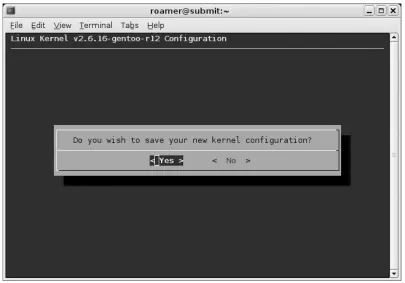
Once you have selected all of the modules you need to compile, you are ready to make your kernel. Exit out of the menuconfig and choose <Yes> when prompted to save your new kernel configuration (see Figure 1.1).
N
oteNext, compile the new kernel and the selected modules: # make && make modules_install
Now copy the bzImage to vmlinuz in your boot partition: # cp arch/i386/boot/bzImage /boot/linux/vmlinuz
If you use Grub for your bootloader, you do not need to make any configuration changes. If you use LILO, you need to rerun /sbin/lilo to update the bootloader configuration.
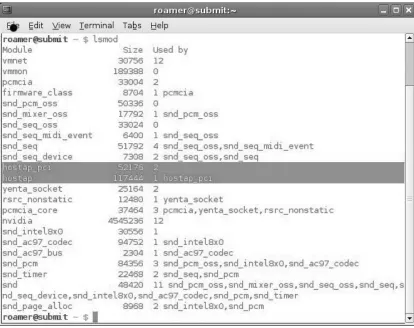
[image:23.540.59.464.66.349.2]Issuing the lsmod command allows you to verify that the proper drivers were loaded at boot (see Figure 1.2).
At this point, all of the drivers and kernel options you need are installed to run a WLAN scanning program in monitor mode.
Preparing the Kernel for a Global Positioning System
Discovering WLANs is a lot of fun if you can generate maps of your drives. In order to do that, you need to prepare your kernel to work with a Global Positioning System (GPS). Most GPS units come with a serial data cable; however, you can now purchase a unit that has a Universal Serial Bus (USB) cable. If you need to use a USB serial converter, you have to have support for your converter in the kernel.
Go to the /usr/src/linux directory and issue the make menuconfig command. Then select the appropriate driver for your USB serial converter:
Device Drivers ---> USB support --->
[image:24.540.71.485.67.395.2]USB Serial Converter support ---> <*> USB Serial Converter support [*] USB Generic Serial Driver
<*> USB Prolific 2303 Single Port Serial Driver
The Prolific 2303 driver is a very common USB serial converter driver. You will need to ensure that you have compiled in support for your specific converter.
Next, exit out of the menuconfig, save your kernel configuration, compile your new kernel, move or copy the bzImage to your boot partition, and, if necessary, update your bootloader. After rebooting, insert your USB serial adapter. The system dmesg will show if the kernel correctly recognized your converter (see Figure 1.3).
Figure 1. The Prolific USB Serial Converter
N
oteNow you have all of the kernel support you need to both wardrive and perform wireless penetration tests.
Installing the Proper Tools
Once you have generated a kernel to support monitor mode and have compiled the proper drivers, you are ready to install the necessary tools to perform a wardrive. There are two tools that you need to install in order to accomplish this: Kismet and GPSD (www.pygps.org/gspd/downloads).
Installing Kismet
In this section, we’ll provide a brief introduction to installing Kismet. See Chapter 2 for complete installation instructions. Kismet installation is a very straightforward process. Simply download the latest release of Kismet from www.kismetwireless.net/ download.shtml and save it in a directory of your choice. (Older versions of Kismet can be retrieved from www.kismetwireless.net/code.) Uncompress and untar the file and then change to the directory it created and issue the following commands: # ./configure
# make
# make install
This installs Kismet in the default directory (/usr/local/bin/kismet) and the Kismet configuration files in (/usr/local/etc/kismet).
N
oteInstalling GPSD
GPSD is a program that interfaces with your GPS unit, which in turn passes data to Kismet to provide GPS coordinates of your location when an access point is discov-ered. The installation of GPSD is slightly different from the normal Linux installation procedure, because there is not a “make install” option. Issue the ./configure and make
commands, and then run either gpsd from the location where you compiled it, or copy the gps and gpsd files to a directory in your path such as /usr/bin or /usr/local/bin.
Configuring Your System to Wardrive
Once you have compiled and installed Kismet and GPSD, you need to edit the Kismet configuration files so that Kismet will function properly on your system. Unless you
Compiling from Source or Packages
The compilation examples in this chapter show how to compile programs from source by first obtaining the source from the developer’s Web site and then manually compiling the program. This is only one way to compile and install programs. Most distributions have some sort of package management system that can be used to either install programs, or obtain and install them. Red Hat and Fedora use the Red Hat Package Manager (RPM) package management system, Gentoo uses emerge, and Slackware packages are in .tgz format. Sometimes it is beneficial to use your distribution’s package management sys-tem to install programs; however, it should be noted that when you use a package manager to compile and install a program, it may place the binaries and configuration files in non-standard directories. This chapter assumes that you have compiled from source or that your package manager has placed the binaries and configuration files in the standard locations. If your package manager did not do this, you can search for the configuration files or binaries by using the find command:
# find / -name kismet.conf –print
(or your package manager) have changed the location, the configuration files are put in
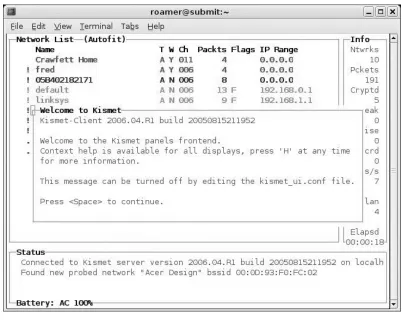
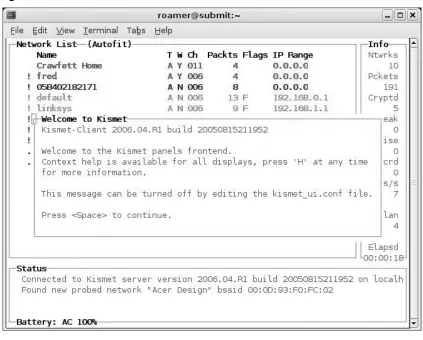
/usr/local/etc. There are two files you need to edit: kismet.conf and kismet_ui.conf. The kismet_ui.conf file controls the user interface options of Kismet. For the most part, you can leave these options at their default, unless you want to tweak the appearance of the interface. Kismet does have a Welcome window that displays every time you start Kismet (see Figure 1.4).
To get rid of the Welcome window when Kismet starts, change the showintro
option to false:
# Do we show the intro window? showintro=false
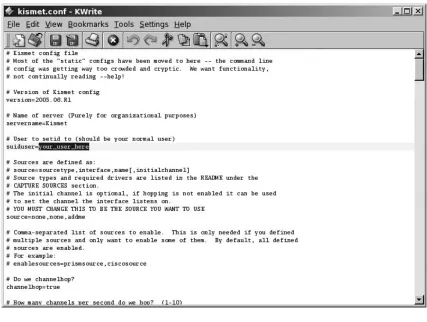
The kismet.conf file is where the important Kismet options are set. In order for Kismet to function properly, this file must be edited to reflect your environment and hardware. First, you need to edit the suiduser variable:
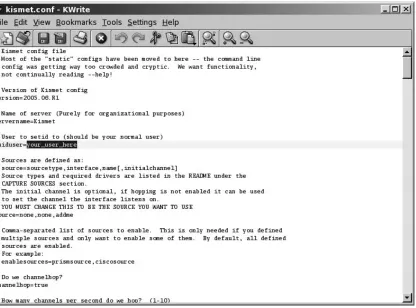
[image:28.540.77.479.166.486.2]# User to setid to (should be your normal user) suiduser=roamer
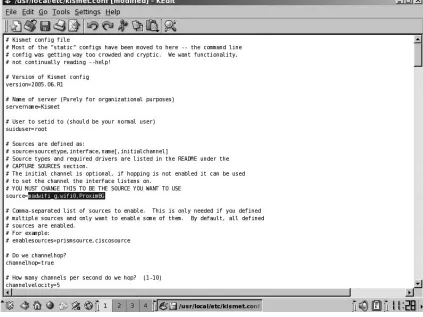
Next you need to set your source variable. This is the option that tells Kismet what type of driver and card you are using, as well as what interface your card is configured on. The following example tells Kismet to use the Host access point driver and that your card is configured as wlan0. The third option, wlan, can be set to any value. source=hostap,wlan0,wlan
Here are some of the more common source options for different cards and drivers:
# Source line for Intel Pro Wireless 2100 source=ipw2100,eth0,ipw2100source
# Source line for wlan-ng Prism2 driver source=prism2,wlan0,prism
# Source line for Cisco (dependent on Cisco driver used) source=cisco,eth0,cisco
# Alternate Source line for Cisco (dependent on Cisco driver used) source=cisco_cvs,eth1:wifi0,ciscocvs
# Source line for Hermes based cards (Orinoco) source=orinoco,eth0,orinocosource
Unless you plan to enable multiple sources, you don’t need to change the enable-sources variable, which is commented out unless it is changed.
By default, Kismet hops channels. This is what allows Kismet to detect access points that are operating on the different channels in the 2.4 GHz range. Unless you only want to detect access points on a specific channel, this should be left as is: # Do we channelhop
channelhop=true
If you want to identify access points on a specific channel, disable channel hopping and set the initial channel in your source variable. For instance, to identify access points on channel 8 only:
source=hostap,wlan0,wlan,8 channelhop=false
# How many channels per second do we hop? (1-10)
# The following option scans each channel for 1/5 of a second channelvelocity=5
# The following option scans each channel for ½ of a second channelvelocity=2
The options between channel hopping and the GPS configuration are set correctly by default and do not usually need to be edited. The GPS configuration options should be set if you are using a GPS unit to capture report coordinates. Unless you change the port, GPSD listens on port 2947; therefore, the kismet.conf options for GPS should be set to reflect this:
# Do we have a GPS? gps=true
# Host:port that GPSD is running on. This can be localhost OR remote! gpshost=localhost:2947
The next option you need to look at is the interval that the log files are written. The default setting is to write the logs every 5 minutes. For a casual wardrive, this is probably acceptable; however, for professionals, it is a good idea to write the logs regularly in case of a system or program crash (every minute is a safe option): # How often (in seconds) do we write all our data files (0 to disable) writeinterval=60
Kismet produces a very comprehensive set of log files as shown in Table 1.1.
Table 1.1 The Kismet Log Filetypes
Dump A raw packet dump that can be opened in Ethereal of other packet analyzers.
Network A text file listing the networks that have been detected. CSV A comma-separated listing of networks detected
XML An eXtensible Markup Language (XML) formatted log of net-works detected. This is useful for importing into other
applications.
Weak The weak Initialization Vector (IV) packets detected in AirSnort format.
Cisco A log of Cisco Discovery Protocol (CDP) broadcasts produced by Cisco equipment.
The logtypes variable tells Kismet which types of log files you want it to generate. The default options are acceptable (dump, network, csv, xml, weak, cisco, and gps); however, you may not need all of these. The bare minimum that you should ensure are generated are the dump, network and gps logs:
logtypes=dump,network,gps
The logdefault variable specifies what text should be prepended to the log file name. Kismet writes the files in the format [logdefault]-[date]-[sequence-number].[filetype].
For instance, if the logdefault is set to Roamer, then the gps log of the third wardriving session of the day would be named Roamer-Oct-14-2006-3.gps. This option can be helpful for sorting results if you are wardriving multiple areas in the same day:
# Default log title logdefault=MyCustomer
The final option that you may want to change in the kismet.conf file is the logtem-plate. This option controls both the location that the logs are created and stored in and the format of the log files. If no changes are made to this variable, the logs will be created in the default format, with the default title, in the directory that Kismet is launched from. However, it can be beneficial to store all of your logs in one location, or to store the different types of logs in different directories. There are seven variables that can be set in relation to the logtemplate:
%n is the title set in logdefault
%d is the current date in the format Month-Day-Year (Mon-DD-YYYY)
%D is the current date in the format YYYYMMDD
%t is the time that the log started
%i is the increment number of the log (i.e., 1 for first log of the day, 2 for second, and so forth)
%l is the log type
%h is the home directory ■
■
■
■ ■
■
For example, if you wanted to have your logs generated in different directories by filetype, and created in the wardrives directory, you would have the following
logtemplate:
logtemplate=WarDrives/%l/%n-%d-%i
Assuming you set the logtypes variable to dump, network, and gps, you would need to create the wardrives directory with three sub-directories: dump, network, and gps.
After you have made any changes, save the file and you are ready to wardrive with Kismet.
Wardriving with Linux and Kismet
There are a lot of reasons to use Kismet to wardrive. The exceptional range of log files you can generate make it very attractive. Unlike some other wardriving software, Kismet doesn’t just detect the access points, but also saves a complete log of all of the packets it sees. These dumps can be opened with other packet analyzers and can be fed into penetration test programs. Monitor mode allows you to identify access points that are cloaked (not broadcast via the SSID). Additionally, since the SSID is sent in cleartext when a client authenticates to the network, Kismet can often determine the SSID of these cloaked networks.
Now that we have tweaked the Kismet configuration files to our liking, we are ready to start wardriving with Kismet. In this section, you will learn how to start Kismet and how to use the Kismet interface once you have it running. We look at the different options that Kismet provides and, how to use a graphical front end for Kismet.
Starting Kismet
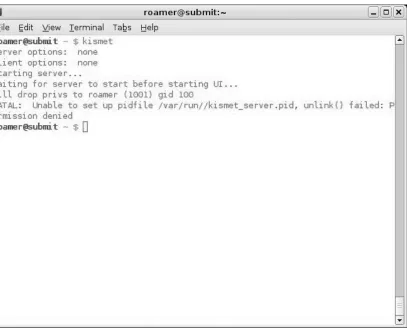
The process ID file (pidfile) could not be set. This is because you don’t have permission to write to /var/run. There are two ways to fix this. You can change the location where the pidfile is written in the kismet.conf:
# Where do we store the pid file of the server? piddir=/home/roamer
Changing the location of the pidfile is one option, but because you have already set a suiduser in your kismet.conf, it is probably easier to su to root and then run kismet. Root has permission to write the pidfile, but after it has performed that action, Kismet drops the privilege down to the suiduser, avoiding the potential security risks of running as root.
[image:33.540.63.470.65.393.2]Using the Kismet Interface
In this section, we’ll provide you with an introduction to the Kismet interface. See Chapter 4 for a complete discussion of the Kismet menus and functionality. In addition to its ability to identify access points, Kismet has a very powerful user interface. You can find a large amount of information about each access point you have identified by examining the Kismet options in the user interface. Obvious information (e.g., the SSID) is available to you immediately, whether or not an access point is encrypted. For a casual wardrive, this may be all of the information that you need. However, if you want to understand more about the networks you have discovered, you need to be familiar with the different options available to you.
[image:34.540.73.485.66.386.2]Understanding the Kismet Options
When using the different options with Kismet, you will need to change your sort
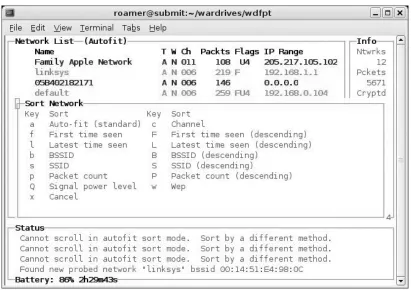
option first. By default, Kismet is in autofit sort mode. Unfortunately, in this mode you can’t obtain a lot of information about the different access points beyond the infor-mation displayed in the default view. To change the sort mode, press the s key to bring up a menu of the sort options (see Figure 1.7).
At this point, you have 14 different sort options to choose from. Choose the option that best suits your needs. For instance, if you are only interested in access points with a specific SSID, you would choose s to have the access points sorted by SSID and then scroll down to the desired SSID.
[image:35.540.56.467.185.475.2]Once you have chosen your sort method, you can start to find out additional information about each network. Using the arrow keys, highlight the access point you are interested in and press Enter to get the Network Details (see Figure 1.8).
You now know the MAC address (Basic Service Set Identifier [BSSID]) of the access point. Because the access point has a max rate of 54.0, you know that it is an 802.11 g access point operating in infrastructure mode. Although the main screen said that the network was using encryption, you can now identify WPA as the encryption mechanism in place. Once you are satisfied with the information, press the q key to close the details and return to the main view.
You may want to know what clients are connected to a network. By highlighting the access point and pressing the c key, you are presented with a list of any clients associated with the network (see Figure 1.9).
In client view, you can determine the MAC address of any clients associated with the access point. Additionally, in some cases, you can determine what type of card it is. The number of data packets that Kismet has seen and the number of those packets that are encrypted are identified. Once Kismet determines the Internet Protocol (IP) address of a specific client it is noted as well as the strength of the signal. Again, when you are finished looking at the client list, press q to return to the Network List.
There will be times where you are only interested in collecting information about access points on a specific channel. To disable channel hopping and collect data only on one channel, highlight an access point on that channel and press the
Shift+L key to lock on that channel.
To resume channel hopping, press Shift+H.
Kismet also has a robust help panel. If you are unsure of an option, press h to display the Help menu (see Figure 1.10).
Using a Graphical Front End
In addition to the standard Kismet interface, you can also use a graphical front end with Kismet. Gkismet (http://gkismet.sourceforge.net) is a front-end interface that works with Kismet. Once you have downloaded, compiled, and installed gkismet, you need to start the Kismet server:
# /usr/bin/kismet_server Next, start gkismet: # /usr/bin/gkismet
This opens the gkismet interface and prompts for the kismet_server information (see Figure 1.11). In most cases, you will be connecting to localhost (127.0.0.1) on default port 2501.
Once you have entered your server information, gkismet connects to the Kismet server and you receive a display of the access points Kismet has discovered
(see Figure 1.12).
Figure 1.11 Connecting to the Kismet Server
There are several advantages to using a graphical front end. For instance, the card power is displayed on the main screen. This can be very beneficial for direction finding and walking down rogue access points. Additionally, you can easily examine the information on each access point by double-clicking on the access point you want information on.
Summary
In this chapter we have explored some of the history of how wireless technology evolved into what it is today. Wireless technology has been around a long time, consid-ering the decades of development in radio and cellular telephone technology. These technologies have been quietly developing in the background while PDAs, Palm Pilots, and other handheld wireless devices have been gaining notoriety. Other uses such as GPS and satellite communications to the home have also been developing for main-stream applications. These applications offer consumers many advantages over wireline counterparts, including flexibility, mobility, and increased efficiency and timeliness.
Kismet is a very powerful tool for both wardriving and penetration testing. One of the biggest advantages of using Kismet is the ability to use monitor or rfmon mode. This allows you to identify wireless networks that are not broadcasting the SSID in the beacon frame and sets Kismet apart from it’s Windows counterpart NetStumbler.
It is important to understand the many features of Kismet in order to maximize its effectiveness. You can edit the kismet.conf file to customize Kismet to your specific needs. The Kismet panel interface provides many different user options for sorting and viewing information about the networks you discover. Additionally, graphical front end programs like gkismet can make viewing data a bit easier on the eyes.
Kismet is also a great tool for a penetration tester that needs to perform WLAN discovery to identify a target network. Although not always 100% accurate, Kismet can be used to identify the type of encryption used on a network. For complete accuracy you can open your Kismet.dump file, which is a pcap formatted packet capture with a packet analyzer like Ethereal or Wireshark to get an accurate reading of the encryption level. Once you have identified your target and the encryption level there are several open source tools available to continue the penetration test. Tools like SirMacsAlot can spoof the MAC address and bypass MAC Address filtering. The Aircrack suite provides a rich set of tools for collecting packets, injecting packets and cracking WEP. CoWPAtty is a great tool for breaking WPA-PSK when used with a good dictionary file.
39
Chapter 2
Basic Installation
Solutions in this chapter:
Introduction
Kismet Perquisites
Kismet installation
Compiling and installing Kismet on a Linux laptop
Choosing a wireless card driver
Wireless card driver compiling and installation
Editing the Kismet configuration file for a basic Kismet installation
Run Kismet ■
■
■
■
■
■
■
Wireless Card Driver Compiling and Installation
Just like building and installing Kismet itself, the Madwifi driver has to be down-loaded as source code, then compiled and installed. So the first thing we have to do is download the source files from madwifi.org. (See Figure 2.8.)
By following the download link, you will receive the latest version of the MadWifi driver in a compressed tar.gz file. Again, we change to the source code directory and decompress the source code.
cd /usr/src
tar –zxvf madwifi-0.9.4.tar.gz
Following that, we will change to the newly created sub-directory, and then run the commands configure,make, and make install.
Introduction
This chapter will introduce you to the basic installation of Kismet. A basic installation is one in which the server and the client portions of Kismet are on the same laptop. This is the installation that most people will be interested in, at least initially. Advanced installations for separate servers and clients, as well as remote and drone machines, will be covered in Chapters 7 and 8.
Here we’ll be focusing on a “typical Kismet install” on a “typical Linux system.” For those who don’t know, Linux (formally known “GNU/Linux”) is a UNIX-like operat-ing system (OS), created in 1991 by Linus Tourvolds. Kismet can be installed on most “Unix-like” OS, including Linux, Debain, Berkeley Software Distribution (BSD), Apple OSX/Darwin, and Linux virtual machines running under Microsoft Windows. However, since Linux is the “native” operating system for Kismet, and is what most users will be using for running Kismet, it’s going to be the basis for our initial “typical Kismet install.”
While Kismet will run on almost any personal computer in which Linux is installed, it is assumed here that most people who are using a basic Kismet setup will be doing so on a wireless networking-enabled laptop. Therefore, throughout this chapter the terms “computer,” “personal computer,” “PC,” and “laptop” are used interchangeably.
Also, as Linux systems tend to be almost as individualistic as their owners, the word “typical” is used here with a grain of salt. The installation covered here will be as generic as possible, but please understand that variations in how Linux has been installed on your laptop may render some of the following information useless. It will be impossible to cover all possible departures from the norm, although we will try to cover some common variations.
To keep the beginning as simple as possible, we’ll discuss the basic installation of Kismet and its use with a common wireless card, but we aren’t going to discuss things like antennas or using Kismet with a Global Positioning System (GPS) receiver until the next chapter. We will be installing Kismet as the user “root” for this initial installation. In Unix-type systems such as Linus, “root” is the administrator-level user.
Kismet Prerequisites
Depending on how you installed Linux on your machine, you may need some addi-tional software before you install Kismet. Kismet is written in the C++ computer
Notes from the Underground
Live Distros
If you are brand new to Linux and the idea of learning a new OS seems over-whelming, you can still try Kismet and Linux without a huge investment of time, effort, or money. Many variations of complete Linux distributions, known as “Live Distros,” are available on bootable read-only Compact Disks (CD-ROMs). To try a live distro, you simply download the CD-ROM image (called an International Organization for Standardization [ISO] file) from a creator’s Web site, and burn it to a blank CD-ROM. When the computer is then booted off the new CD-ROM, it will start up in Linux. Most Live distros are based on standard distros such as Slackware.
To return to your original operating system, simply remove the CD-ROM and boot off the hard disk as you would normally.
One of the most popular live distros is Knoppix, available from www.knop-pix.de and www.knopper.net. Knoppix runs with a Graphic User Interface (GUI) to make it easier for the novice Linux user to navigate. It has Kismet pre-installed along with a number of drivers for many popular cards.
Another popular live distro is Backtrack (www.remote–exploit.org). Backtrack is designed to be used by Information Security (InfoSec) profession-als for system and network security audits, and as such has a plethora of secu-rity tools in addition to Kismet. It also has a number of popular wireless card drivers pre-installed. As of this writing, Backtrack 2 has been out for well over a year, and Backtrack 3 is in Beta Release.
programming language. At a minimum, you will need the development package that contains a C++ language complier. Since Kismet is a wireless network program, the Linux networking package will also be required. If you haven’t installed the develop-ment or networking packages on your Linux machine, it is recommended that you get them working on your PC before you go any further. It will be difficult, if not downright impossible, to get Kismet working on your laptop without these packages being installed ahead of time.
A package called SOMElib is also needed for Kismet to properly compile. SOMElib is used in conjunction with the C++ language. However, some Linux distributions split their SOMElib library packages into two, named the “SOMElib” and “SOMElib-devel” packages. If you have a distribution where the SOMElib is split, you will need to have both of these packages installed in order for Kismet to compile.
The LibPcap package is a Packet Capture library, and is required for the packet capturing portions of Kismet to compile properly. It provides the common capturing systems that Kismet uses to capture data packets on the wireless card interfaces. LibPcap 0.9.8 is the current version, and any version over 0.9 is preferred.
Tools & Traps
Application Installations in Linux
Kismet is installed from “source code,” as is most software under Unix-like operating systems. Source code is simply a list of instructions of how a program should run, and what it should do as it runs, although this code will not func-tion or execute as a program itself. In order to do that, you need to construct or “compile” the source code into an instruction set that the PC can under-stand. The resulting machine-capable instruction set can be executed by the laptop directly.
If you are familiar with the standard cycle of compiling and installing software on Linux, then installing Kismet shouldn’t pose any great obstacle. However, if you’re only accustomed to Windows, in which 99.999 percent of software is distributed as pre-compiled binary executable “EXE” programs, then the first time that you build your own software under Linux can be daunting, if not downright confusing and intimidating. Some Linux distros
Kismet Installation
Kismet is installed from “source code.” Source code is text files that tell the compiler program how to build the actual Kismet program itself. To get started on the installa-tion, you need to log into your laptop as the root user. Then, download the latest source code from www.kismetwireless.net. Follow the links to the download page, and get the latest “Stable Source Release.” (See Figure 2.1.)
such as Red Hat’s Fedora also make their software available in pre-compiled binary formats. Since they were originally made for use with the Red Hat Package Manager, these packages are called RPM files. Users of such distribu-tions may also be unfamiliar with how to compile and install under a “stan-dard” distro. For those of you who are new to the compiling and installation cycle, here is a brief overview of installing Linux programs from source code and cover the needed commands.
The standard way to compile source code into an executable program is done via a series of three main commands: configure, make, and make install. Briefly, these commands tell the compiler, a program that constructs other programs, how to go about building the desired software package.
Configure This command, usually run as ./configure due to the way Linux is normally set up, tells the compiler what options are needed for the next step, and where to find the various sources of informa-tion that are needed to build the desired program. It is not uncom-mon to add your own options to the configure command.
Make The make command is the step where the various options are used to actually create the executable binary program. Typically,
make is the longest part of the creation cycle.
Make Install The make install command is used to install all the vari-ous parts of the software into the appropriate directory locations on the laptop.
Some other steps such as make dep in which dependant programs are created, may be required for installation of some software packages. Such steps may be intermediary to the configure, make, and make install commands.
If you are having trouble getting a program to install and run under any Unix-like OS, the first place you should look is within the uncompressed source code directory. Most programmers will include what is known as a “README” file, usually named “README.TXT” or something very similar. Most README’s will tell you what needs to be done to install a program, including some of the more common procedures that need to be completed prior to installation.
■
■
As of this writing, the latest stable release is kismet-2007-10-R1. It was issued on Monday, October 8, 2007. Kismet’s release version follows a naming convention of: kismet-yyyy-mm-Rn.tar.gz
where: Yyyy = year Mm = month
Rn is the revision number.
You should make sure that you download the latest stable release, as it will have the most up-to-date code and bug fixes.
For those new to Linux, the file extension of tar.gz indicates that the file is a type known as a “tar” or Tape ARchive (from an old name convention, when tapes were commonplace for storing archives), and that it is compressed using the GNU Zip compression utility.
We recommend that you place the downloaded file into the directory /usr/src, which is the normal folder to place Linux source code files. To get to the /usr/src
folder, enter this command at the CLI: