A guide to finding information in Roberts-LaForge Library
Guide to Using PsycINFO
What is PsycINFO?
PsycINFO
is a database for finding journal articles, books, book chapters, technical reports and dissertations in the field of psychology and psychological aspects of other fields.What’s in PsycINFO?
PsycINFO, from the American Psychological Association (APA), contains nearly 2.3 million citations and summaries of scholarly journal articles, book chapters, books, and dissertations, all in psychology and related disciplines, dating as far back as the 1800s. 97 percent of the covered material is peer-reviewed. The database also includes information about the psychological aspects of related fields such as medicine, psychiatry, nursing, sociology, education, pharmacology, physiology, linguistics, anthropology, business, law and others. Journal coverage, which spans 1887 to present, includes international material selected from more than 1,500 periodicals in more than 25 languages. Examples of titles offered in PsycINFO include: Academic Medicine, Academic Psychiatry, Behavior Genetics, Behavioral Disorders, Journal of Abnormal Child Psychology, Journal of Applied Social Psychology, Journal of Behavioral Medicine, Journal of Psychiatry & Neuroscience, Journal of Psychology, Psychoanalytic Psychology, Psychological Assessment, Psychological Medicine, etc. PsycINFO is indexed with controlled vocabulary from APA’s Thesaurus of Psychological Index Terms.How do you access PsycINFO
?
PsycINFO is one of the databases in the EBSCOhost system. On the left hand side of the library homepage, look for “Databases by Subject” link under the “Articles and More” section. Next go to the “Quick Jump to a Database” dropdown menu and scroll down to select PsycINFO. If you would like to search this database from off-campus, please pick up the “DSU Virtual Library Guide” that is available in Roberts-LaForge Library and online athttp://www.deltastate.edu/docs/library/VirtualLibraryonline.pdf .
Figure 1 – Database Selection Screen
To utilize all features of PsycINFO, like the Thesaurus Search (See Figure 8), you must be using only PsycINFO.
How do you search in PsycINFO?
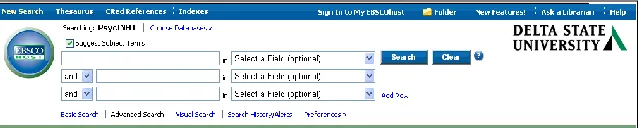
There are two ways to search EBSCOhost: Basic and Advanced. The system defaults to the Advanced Search. To perform a basic search, click on the “Basic Search” tab at the top of the screen.The Advanced Search offers all the methods of limiting your search to create a focused query. When performing a keyword search, it offers multiple text boxes to enable you to search by field (i.e. subject, title, author, etc.).
Figure 3 – Special Limiters for PsycINFO
In addition to the normal limiters in EBSCOhost,
PyscINFO offers special limiters such as population group, age group, form/content type, special feature, document type, language, intended audience, or year of publication.
DELTA STATE UNIV – will limit your results to only sources (i.e. journals, magazines, etc.) that are held in Roberts-LaForge Library.
Linked Full Text – will either direct you to another citation from an EBSCOhost database where you will be able to print the PDF full text or HTML full text OR you will be directed to an external site where you will see a sign in screen and be prompted to pay for the article. Tip: Look for a PDF or full text link on every screen!
The Basic Search offers one search box so you will need to phrase your search as one word, a simple phrase in quotes, or a word/phrase connected by Boolean operators (AND, OR, NOT).
EXAMPLE: DEPRESSION AND ELDERLY will retrieve articles that have the keywords depression and elderly somewhere in the record.
How do you interpret the Result List screen?
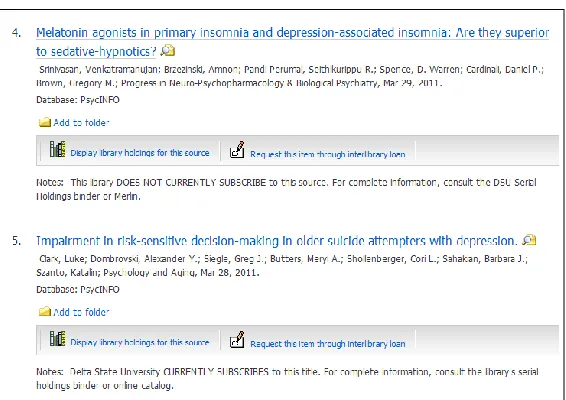
By nature, PsycINFO is not a full-text database. [See Figure 4] If the result does not have a full text link and contains the message, “This library currently subscribes to this source,” the article may be found on the second floor of Roberts-LaForge Library by the source’s name and other citation information. To obtain journal articles that contain the message, “This library does not currently subscribe to this source,” you may order the article through interlibrary loan.Figure 4 – Result List
Article 5 canbe found on the second floor of Roberts-LaForge Library in Psychology and Aging, Mar 28, 2011.
Search Tips
What if you have too many search results?
o Add more search terms. Try to think about other aspects of the subject you want the articles to reflect. Then use the Boolean operator AND to combine your search terms.
o Search within a field. Since a keyword search looks throughout an entire record, you may want to limit your search to a specific field (i.e. subject, title, source, etc.) in order to make your search more focused. You may use any of the fields provided in the Advanced Search.
o Use the limiters in the Advanced Search. Under the three search boxes in the Advanced Search are several special ways you can limit your search.
What if you have too few search results?
o Try looking for more versions of your keyword, like plurals or variations of the word. To look for variations of a stem of a word, type the stem followed by an asterisk (*). Example: DEPRESS* will retrieve depression or depressed,
o Try to think of other words to describe your topic. Instead of just typing ADOLESCENT, try “ADOLESCENT OR
TEENAGER”
What if you have no results at all?
o Check your search for spelling mistakes or typos.
o Check your phrasing when doing a Keyword or Advanced Search. Do not type in long phrases or full sentences.
o Use the Thesaurus. Click on the Thesaurus button located at the top of the screen to browse or search for terms used in
PsycINFO. The thesaurus contains subject headings from the Thesaurus of Psychological Index Terms. Once you find the subject you are looking for, check the corresponding box(es). Then click the Search button located at the top in order to retrieve articles. If you need assistance with using the thesaurus, click on Search Tips.
How do you print, e-mail or save the search results?
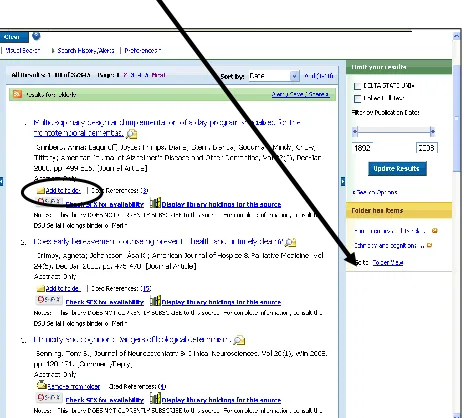
o To print, e-mail, or save an individual record, use the appropriate link at the top of the record as shown in Figure 5. Once you have done that, you will be directed to a Print, Email, or Save Manager (see Figures 6-8).
o To print, email, or save several records, use the Add to Folder link. Once you have added all the necessary records, click on the Folder View link on the right.
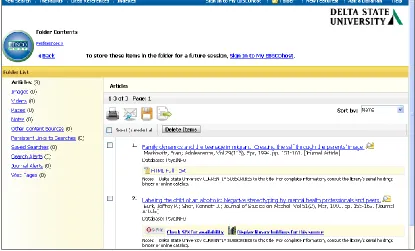
Figure 6 – Folder View
Select the articles you wish to print, save or email by checking the box. Then click on the icon of the appropriate delivery option and you will be directed to a Print, Email or Save Manager (see Figures 7-9)
Print Manager
In the Print Manager folder, select what you would like to include when printing (i.e. HTML full text, detailed citation and abstract, brief citation and abstract, brief citation, or a customized citation by field). Then click on the blue Print button. Your selected items will appear on the screen. Next, use the browser’s print function to print.
Figure 7 – Print Manager
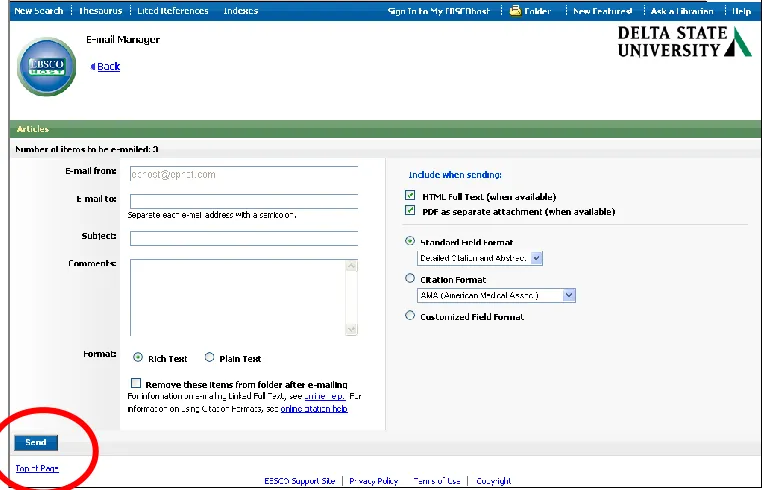
Email Manager
In the Folder View screen, select the articles you wish to email by checking the box. Then click on the email icon (envelope) to bring up the Email Manager screen (see Figure 8)
Figure 8 – Email Manager
To email your articles and/or citations, type in your email address, give it a subject (optional), and type comments (optional). Select what you would like to email (i.e. HTML full text, PDF as an attachment, detailed citation and abstract, brief citation and abstract, brief citation, or a customized citation by field). Then, click on Send.
Save Manager
In the Folder View screen, select the articles you wish to save by checking the box. Then click on the Save icon (Floppy Disk) to bring up the Save Manager screen (see Figure 9)
Figure 9 – Save Manager
Once you have clicked on the blue Save
button, your items will appear on the screen. To save to a disk, click on File and choose
Save as from your browser’s toolbar. Be sure to save as a plain text file (.txt) or an HTML file (.html).