User Manual
Table of Contents
Chapter 1 System Overview
New Generation Voicemail ……….
System Features …..……….………
Auto Attendant Features ……….………
Voice Messaging Features ……….………
1-2 1-2 1-3 1-3
Chapter 2 Installing IM1200
Unpacking IM1200 ….……….……….
Environmental Requirements .………….………….………..
Telephone System ……….………
Network Environment ……….………
UMS E-Mail Server .……….…….……….
Installing IM1200 ……….………..…………
2-2 2-2 2-2 2-3 2-3 2-3
Chapter 3 Using VMS
Connecting VMS to IM1200 ………….…….……….………..…………..
Installing VMS ….……….………..…
Turning on IM1200 ………..………..
Logging on IM1200 ………..……….……..……..
Using Setup Wizard ……….………….……...………..……….
Programming IM1200 ……….……….……..……….
System Backup & Restore ….……….…….….………..………... 3-2 3-2 3-2 3-2 3-3 3-3 3-4
Chapter 4 Integration with PBX
Selecting Your PBX ……….……….….
Call Transfer …..……….………...
Setting Up IM1200 in Non-Supervised Mode ....………….……….
In-Band DTMF String ……….………
Busy Time Lag ...………….………
Setting Up IM1200 in Supervised Mode ..………….………
Call Progress Tone ……….
Automatic Call Progress Learning ……….. DTMF Signal ……….……….……… Setting Up IM1200 in Semi-Supervised Mode ….…….……..……….
Busy Recall, Ring Release ……….………..
Call Pickup ……….………..
4-2 4-2 4-5 4-5 4-8 4-8 4-8 4-10 4-11 4-12 4-12 4-12
Chapter 5 Auto Attendant
Designing Your Auto-Attendant ………...
Creating Extension Blocks …..……….……… Creating Operator/Extension Groups ……..………….……… Setting Up Voice Channel Parameters ……….………
Designing an AA-Menu ……….………...
Recording AA-Menu Greetings …..……….……… Transfer Options ...……….………
Defining Holiday Calendar ……….……….. 5-11
Chapter 6 Voice Messaging
Defining Voice Massaging Parameters ……….………
Setting Up Message Notifications ..………….………
Internal Notifications ……….……….
External Notifications ……….………
Mailbox Management ……….………..
6-2 6-3 6-3 6-4 6-4
Chapter 7 Unified Messaging System
Connecting to E-mail Server ..……….………
Setting Up E-mail Account in IM1200 ………..……….………
When Are E-mails Sent ……….………..
7-2 7-2 7-2
Chapter 8 User Operations
Access Your Personal Mailbox ………...………….………
Retrieving Your Messages …….……….…….
Sending a Message ………... Editing Your Personal Mailbox Options ……….……….
8-2 8-2 8-3 8-3
Chapter 9 DTMF Programming
DTMF Programming Mode ……….……….………
Entering and Exiting the DTMF Programming Mode ..……….……….….…….
DTMF Programming Procedure ……….……….
9-2 9-2 9-2
Appendix A - System Parameters ……....…..………….……… Appendix B - System Prompts …….….……..……….... Appendix C - Hardware Specifications ……….……….
Chapter 1 System Overview
CHAPTER 1
System Overview
This chapter introduces the main features of IM1200.
⋄ New Generation Voice Mail
⋄ System Features
⋄ Auto Attendant Features
Chapter 1 System Overview
New Generation Voice Mail
InterMail IM1200 is a new generation voice mail system that combines the Internet with voice processing technologies to provide a robust, dynamic, and user friendly voice messaging system that meets your office communication needs today. Designed with small-and-medium size business customers in mind, its features and functionality nonetheless rival those used by Fortune 500’s.
System Features
∎ Easy PBX Integration Integrating with PBX has never been easier. Simply pick the PBX from the PBX list and then select the call transfer method. The call transfer methods include Supervised, Non-Supervised, Semi-Supervised, and Call Pickup. ∎ Built in VoIP Gateway Saves money by routing calls over the Internet through the
built in VoIP gateway. A user definable dialing plan can link remote offices with virtual extensions.
∎ Network Based Voicemail Management Software (VMS) Gives you an easy graphical user interface to maintain the system via local and wide area network. With the ubiquity of Internet, you can have full control of the system from wherever the network is available.
∎ System Report Offers the system administrator easy overview of call statistics, mailbox usage, system status and performance.
∎ Incoherent Configuration Report Keeps track of all system configurations that are incoherent to other settings. This is very useful when the administrator is trouble shooting the system configuration.
∎ Live System Monitoring All system activities can be monitored through the network using the VMS utility program. The DTMF inputs and outputs at each voice channel can be captured by a built-in line monitor (digit grabber).
∎ Voice-Guided System Configuration IM1200 allows you to do the system setup and configuration changes using a simple touch-tone phone instead of running a PC. It makes the process easy by providing comprehensive voice prompts that guide you through every step of the way.
∎ System Configuration Backup The system parameters and mailbox configurations can be backed up to the system administrator’s local hard drive. This enables you to keep records of various installations and expedite disaster recovery process. ∎ Dedicated Hardware and Software IM1200’s integrated, all-in-one, non-PC based
architecture makes it a stable, secure, and reliable product.
∎ Multilingual System Announcement Users and callers can select the language they prefer to hear in the system greetings and announcements.
∎ Name Directory Gives the caller a quick and easy way to locate the person they are trying to reach by entering their first or last name.
Chapter 1 System Overview
Auto-Attendant Features
∎ Custom Automated Attendant Menu Up to 300 different Auto Attendant Menus (AA Menus) can be designed and used to handle calls differently per different time of day, day of week, and line of the system.
∎ Operator & Extension Groups Extensions can be grouped together to form a team of operators, a department, or for other purposes. Different operator teams can be selected for Business Hours, Break Hours, After Hours, and Closed Days.
∎ Call Distribution Calls can be distributed among group members in linear, circular, or ACD fashion.
∎ Automatic Call Forward & Do-Not-Disturb These are convenient call answering options that can be individually set for each extension.
∎ Conference Call If supported by your PBX, IM1200 can transfer calls to an external phone number when the called party is not at his/her extension.
Voice Messaging Features
∎ Unified Messaging System Your voice message can be delivered to your e-mail address as a Wave file attachment. The messages can be categorized as new or old message after its delivery.
∎ Virtual and Multi-Tenant Mailboxes Aside from Real mailboxes, IM1200 provides Virtual and Multi-Tenant mailboxes for messaging-only or extension sharing applications.
∎ Personal Distribution Lists Each mailbox can define up to 9 personal message distribution lists. Messages can be sent to multiple recipients with a simple selection of a list.
∎ Automatic Message Forward Lets you forward all messages to a co-worker’s mailbox or a distribution list when you are away. Messages can be easily shared this way without any of them being overlooked.
∎ Versatile Message Notification You can receive notification of incoming messages via extension, message lamp, pager, regular phone, mobile phone, and E-mail. You can also schedule the time you want the notification to be in effect, retry interval, and retry count.
∎ Urgent and Private Message Tags Messages can be marked with different tags to indicate the nature of the messages. The playback of the messages can also be prioritized based on the tag.
Chapter 2 Installing IM1200
CHAPTER 2
Installing IM1200
This chapter explains the environmental requirements and the
installation steps of IM1200.
⋄ Unpacking IM1200
⋄ Environmental Requirements Telephone System
Network Environment
Chapter 2 Installing IM1200
Unpacking IM1200
The package you received for IM1200 should be a standard IM1200 package; however, the content may vary depending on the location and the dealer you have purchased the unit from. Report any damage or missing items in the package to your dealer right away.
Items in your package include:
∎ IM1200 Unit
∎ Power Supply (12V DC) ∎ Installation Manual (CD) ∎ Battery Charger Cable ∎ Telephone Cords ∎ Line Boxes
∎ RJ-45 Network Cable
Note: The RS-232 Null Modem Serial Cable can be acquired from your local dealer. Please note the 2nd, 3rd, 4th and 6th, 7th, 8th pins has been switched. Please use only the cable provided by your dealer.
Environmental Requirements
The IM1200 should be located in a dust-free environment that is near the trunk lines from your existing telephone system. The IM1200 must have access to your network wiring if you plan to access IM1200 through your LAN (Local Area Network) or WAN (Wide Area Network), or if you plan to use the Internet telephony features of IM1200.
It is highly recommended that you use an Uninterruptible Power Supply (UPS) in conjunction with the IM1200 to protect against power surges and failures.
Telephone System
IM1200 is compatible with most major brands of Telephone Systems/PBX, including:
Manufacturer Model (examples)
Alcatel 4200/4400, OmniPCX Office Avaya Partner, Merlin/Definity
NEC ICS7400/EDK, NDK, M80, M100, MCI140
Nortel Mercator, Norstar, Option 11 Panasonic KXTD-1232/500, KXTA-308/824
Philips D120, SOPHO FVM 805/810/300, DS-1000 Siemens Hicom 300, Hipath 4000
Figure 2-1
Chapter 2 Installing IM1200
Network Environment
It is highly recommended that you provide a permanent Internet connection for IM1200, such as that from a Leased Line, xDSL (excluding PPPoE) or Cable Modem, and assign a Static IP address (Real IP address if applicable) to IM1200.
Your LAN can be in the DHCP network environment. If you assign a pseudo (private) IP address to IM1200, either static or dynamic IP address, you need to open the TCP and UDP ports for the IP address assigned to IM1200 and the network equipment connected to WAN. ∎ For 4-channel IM1200, open TCP port 1100 and UDP ports 1101-1104.
∎ For 8-channel IM1200, open TCP port 1100 and UDP ports 1101-1108.
UMS E-Mail Server
IM1200 can automatically send an e-mail with the voice message attachment to a designated e-mail address whenever a mailbox receives a new voice message. In order for this to work, a standard SMTP e-mail server with a valid e-mail address is required.
Installing IM1200
The following is a schematic for the line configuration of IM1200 with other hardware.
Figure 2-1
The following is a schematic for the front panel of IM1200:
Chapter 2 Installing IM1200
∎ Mode Button The Mode Button switches the Operation Mode of the IM1200. The Operation Mode will switch from Business Hours Æ Break Hours Æ After Hours Æ Closed Day Æ Business HoursÆ…, with each push of the button. The Operation Mode will automatically switch according to the Business Schedule, if it is set to Auto mode. (For Business Schedule, see page 5-10)
∎ Security Button When the button is pressed down, all access to the system
programming, including DTMF and VMS programming, will be blocked. Note: this is the only button that has a locking mechanism. Be sure to toggle it back to normal position to allow system programming.
∎ FUNC1 Button Holding down the FUNC1 Button while turning on the power of IM1200 until it finishes the system booting cycle will restore the system IP address and administration password to the factory default. (For IP Settings, see page 3-2) ∎ FUNC2 Button Holding down the FUNC2 Button while turning on the power of
IM1200 until it finishes the system booting cycle will restore the system IP address and administration password and other system parameters to the factory default.
∎ Power Indicator The Power Indicator will be lit when the IM1200 has power connected and is turned on.
∎ Mode Indicator The Mode Indicator will indicate which Operation Mode the system is in at the moment.
∎ Link Indicator The Link Indicator will be lit when there is a live Ethernet connection to the system.
∎ L1-L8 Line Indicators The Line Indicator will be on when the indicated channel is being used.
Follow these steps to install IM1200:
1. Use the 2- or 4-wire phone cords to connect your phone system’s station ports to the jacks labeled L1 to L4 on the IM1200 front panel. If your IM1200 is an 8-port system, use the RJ14-to-RJ11 line splitters and have the joined ends connected to the jacks labeled L1/L5 to L4/L8 on the IM1200 front panel, and the split ends to your phone system’s station ports.
2. Connect your Ethernet network with IM1200 using a standard Ethernet (UTP CAT-5e) cable to the RJ45 jack labeled ETHERNET on the IM1200 front panel.
3. Connect your power adaptor to the socket labeled PWR on the back panel of IM1200.
4. Connect the Battery cable to a 12-volt battery if you wish to use a battery for emergency power.
Chapter 3 Using VMS
CHAPTER 3
Using VMS
This chapter describes the installation and usage of the Voicemail
Management Software to set up and manage IM1200.
⋄ Connecting VMS to IM1200
Installing VMS
Turning on IM1200
Chapter 3 Using VMS
Connecting VMS to IM1200
The Voicemail Management Software (VMS) is a network based program that is your best tool to set up, maintain and restore IM1200 parameters and settings. Before you use the VMS, you need to have a computer operating on the Microsoft Windows operating system that is connected to the Ethernet network. If the IP address assigned to IM1200 is a private IP, then the computer running VMS needs to be in the same private network (with the same first 3 bytes of the IP address) as the IM1200. (For the Network Environment, see page 2-3)
Installing VMS
You should find the latest VMS version from the Installation CD that came with your package.
Once you have located the program installation file, you can double click on it to start the installation.
Follow the instruction to finish the installation.
Turning on IM1200
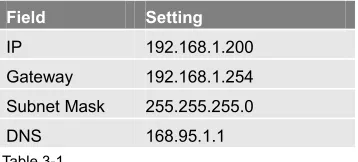
To turn on the IM1200 for the first time, make sure you have all the proper lines connected to the system. (For the Environment Requirements, see page 2-2) IM1200 has a factory default IP setting of:
Factory Default IP Setting
Field Setting
IP 192.168.1.200
Gateway 192.168.1.254 Subnet Mask 255.255.255.0
DNS 168.95.1.1
Table 3-1
You may start logging on to the IM1200 if the factory default IP is available for the system in your network. You can change the IP setting later using VMS if you prefer. If the factory default IP is not available in your network, you can change the IP setting via DTMF Programming to one that is available in your network, so you can logon to IM1200 using VMS. (For DTMF Programming, see Chapter 9)
Note: The IP address MUST be available for the IM1200 in order for the VMS to logon to the system.
Logging On IM1200
Chapter 3 Using VMS
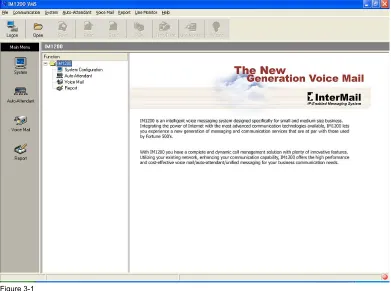
Figure 3-1
To log on a system, you will need to know:
∎ IP Address for IM1200 (Default: 192.168.1.200)
∎ Password (Default: 1234)
Logging on IM1200:
1. Click the Logon icon. A Logon dialog box opens.
2. Enter the IP Address and the Password for the IM1200 and click OK.
3. A new dialog box saying “Logon OK” will appear if you enter the correct IP address and password. Click OK to close the box. You are now successfully logged on to IM1200. You can now select and run any operations that are available from the menu.
You will stay connected for as long as there are actions on the VMS. If the VMS stays idle for 5 minutes, you will be automatically logged off from IM1200.
Using Setup Wizard
It is strongly advised to use the VMS Setup Wizard for first time configuration of the system. The Setup Wizard will guide the Administrator through all the steps of how to configure the system in detail. Click the Wizard icon and follow the steps to configure the system.
Programming IM1200
VMS provides user-friendly ways to program the IM1200, which include:
Chapter 3 Using VMS
∎ System Configuration
∎ Auto-Attendant Menus
∎ Voice Mail Parameters
These data can be manipulated between the administrator’s computer and the IM1200 system.
∎ Read The Programming Data will be downloaded from the IM1200 to the VMS, including the Current Time and Date.
∎ Send The Programming Data displayed in the VMS will be uploaded to the connected IM1200 and replacing all the Programming Data on the IM1200
∎ Save The Programming Data will be saved in the local computer, available for future references.
∎ Open The saved Programming Data will be retrieved from the computer and made available for modifications and can be sent back to the IM1200.
System Backup & Restore
You can backup and restore system data including:
∎ PBX Setup
∎ System Configuration
∎ Auto-Attendant Menus
∎ Voice Mail Parameters
∎ Individual Mailbox Settings
∎ AA-Menu Greetings
To Backup the System Data:
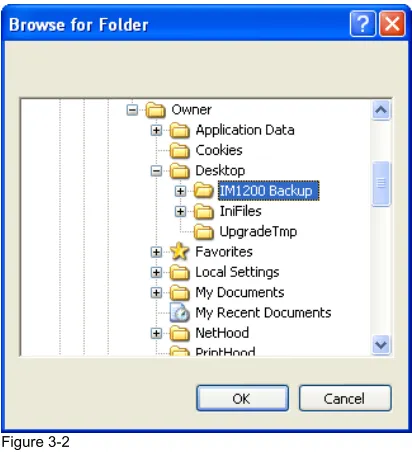
1. Choose Communication > Backup. A dialog box appears.
Figure 3-2
2. Select the folder you want to back up your data to, then click OK.
Chapter 3 Using VMS
To Restore the System Data:
1. Choose Communication > Restore. A new dialog box appears.
2. Select the folder you want to restore your data from, then click OK.
3. A new dialog box will appear. Press the Start button to start the restore.
Chapter 4 Integration with PBX
CHAPTER 4
Integration with PBX
This chapter includes the details of the integration of IM1200 and
PBX.
⋄ Selecting Your PBX
⋄ Call Transfer
⋄ Setting Up IM1200 in Non-Supervised Mode In-Band DTMF String
Busy Time Lag
⋄ Setting Up IM1200 in Supervised Mode Call Progress Tone
Automatic Call Progress Learning DTMF Signal
⋄ Setting Up IM1200 in Semi-Supervised Mode Busy Recall, Ring Release
Chapter 4 Integration with PBX
Selecting Your PBX
IM1200 provides a PBX list for you to select to integrate your IM1200 with your PBX the fastest and easiest way possible. The IM1200 will be updated with the latest models of PBX periodically. Please contact your dealer for the latest PBX information. The default data and parameters are suitable for general conditions, and might be different from the specific and regional settings of your PBX. Check with the PBX dealer for the most accurate settings.
To Select a PBX
1. ClickPBX tab. A PBX list is displayed after VMS finishes reading data from IM1200.
Figure 4-1
2. Choose one PBX model by clicking on the name of the PBX. And click OK.
To Add a PBX Selection
1. ClickPBX tab. A PBX list is displayed.
2. Click Add button. A dialog box opens with folders for you to choose.
3. Choose the folder and the PBX file that you want to add, then click Open.
Call Transfer
Chapter 4 Integration with PBX
∎ Non-Supervised The line is released when IM1200 transfers a call under Non-Supervised Mode. The PBX should be configured to forward the call back to the VM port when the extension is not available. This mode allows IM1200 to untie its resource and provides the best performance. This is the recommended call transfer mode. There are two ways Non-Supervised call transfer can be achieved:
∎ In-Band DTMF String IM1200 will check the In-Band DTMF String sent by the PBX for the reason (Busy or Ring/No-Answer) the call is sent back. This method requires the PBX be capable of sending In-Band DTMF Strings with condition codes when forwarding calls back to IM1200.
∎ Busy Time Lag Some PBXes send the same In-Band DTMF strings for both Busy and No-Answer Call Forward. This method uses the time lag between receiving the Busy and No-Answer Call Forward when the call is bounced back from the PBX to determine the extension is Busy or No-Answer. This method is only recommended for certain PBX models.
∎ Supervised In contrast to Non-Supervised Mode, Supervised Mode does not release the line when transferring the call. It instead holds and monitors the line for the extension’s response. It then retrieves the call if the extension is not available, or releases the line if the call has been picked up by the extension. This mode will take up the most resource of IM1200’s, but will be the only mode possible if the PBX does not provide any extension status information when calls are transferred. There are two things IM1200 can use to monitor the call transfer:
∎ Call Progress Tone IM1200 monitors the Call Progress Tones (CPT) when transferring a call, and retrieves the call when the defined number of Busy or Ringback tones are received, then proceeds to take the call to the corresponding call flow.
∎ DTMF Instead of Call Progress Tone, IM1200 looks for the DTMF Signal sent by the PBX when transferring the call. It will retrieve the call and process it according to the DTMF Signal it receives. Not all PBXes provide DTMF Signals for extension status.
∎ Semi-Supervised In the case the PBX provides an incomplete set of In-Band DTMF Strings, Semi-Supervised Mode can be used instead of Supervised Mode to free up some system resource.
∎ Busy Recall, Ring Release IM1200 will first operate under Supervised Mode to determine and retrieve the call if the extension is Busy. If the extension is not Busy, the line will be released in the Non-Supervised Mode. This mode requires the Busy CPT parameters in the Supervised mode and the In-Band DTMF String for the No-Answer condition in the Non-Supervised mode be set properly first.
∎ Call Pickup. Similar to Busy Recall, Ring Release method, the call is retrieved if it is Busy and released otherwise. IM1200 will then use the Call Pickup function of the PBX to retrieve the call in a definite amount of time, assuming the call is not answered.
To configure the Transfer Mode:
Chapter 4 Integration with PBX
Figure 4-2
2. Different Transfer Modes can be selected for Business Hours and Non-Business Hours. Non-Business Hours includes Break Hours, After Hours and Closed Days defined in Business Schedule. (For Business Schedule, see page 5-10) Further, the operator extension can select a different Transfer Mode than the rest of the extensions for the Business and Non-Business Hours. Note: The Operator & Extension Group function can only be supported in the Supervised Mode. (For Operator & Extension Group function, see page 5-3) Select the Transfer Mode you wan to use for your operator extension, the rest of the extensions, for your business hours and non-business hours, accordingly then.
3. Define the call transfer sequences using the codes in Table 4-1:
DTMF and Action Codes
Code Action
0~9, *,#,A~D DTMF Signal & First Hook Flash h Second Hook Flash , Pause for 1 second ; Pause for 0.5 second x Extension Number Table 4-1
Transfer Sequence Transfer Sequence transfers the call to the targeted extension. An example would be: [&,x].
Chapter 4 Integration with PBX
Busy Recall Sequence Busy Recall Sequence retrieves a call when the extension status is Busy. An example would be: [&].
Hang Up Sequence Hang Up Sequence is used to disconnect the call. An example would be: [h].
CO Line Access Sequence CO Line Access Sequence hunts for an available CO line to make an external call.
Conference Hold Sequence Conference Hold Sequence puts the caller on hold while connecting the third party for a conference call.
Conference Sequence Conference Sequence connects the caller who was put on hold by Conference Hold Sequence to the third party that is reached through the External Conference Call Number defined in the mailbox.
First Hook Flash [&] IM1200 provides two Hook Flash times for PBX programming. First Hook Flash is usually used for transferring calls. “&” is the symbol used to represent First Hook Flash time.
Second Hook Flash [h] Most PBXes only uses one Hook Flash time for all
operations, while some PBXes require an alternative Hook Flash time to retrieve a call on hold. Second Hook Flash is usually longer than First Hook Flash. “h” is the symbol used to represent Second Hook Flash time.
Extension’s Size This is the length (number of digits) of your PBX’s extension.
Disconnect Signal In cases when the PBX wishes to notify IM1200 that the call should be disconnected, the PBX will send a Disconnect Signal to IM1200. One such case is when the caller hangs up the phone during the call transfer. IM1200 will disconnect the call upon receiving this signal. The first digit of the Disconnect Signal should be one of DTMF tones A, B, C, or D.
4. Click OK or Apply once you are done with the editing.
Setting Up IM1200 in Non-Supervised Mode
Some PBXes have the capability of sending call status information when the call is being transferred. IM1200 can make use of this information and determine what action should follow. In Non-Supervised mode, calls are released immediately after the transfer is initiated and the PBX has to enable the Busy/No-Answer Forward to the voice mail port.
In-Band DTMF Strings
Examples of PBXes supporting Non-Supervised Call Transfer with In-Band DTMF Strings
Manufacturer Model
Alcatel 4200, 4400, OmniPCX Office
Samsung DCS
Fujitsu 9600 Series
Avaya Partner
Mitel SX Series
NEC MCI
Nortel Norstar
Nortel Option 11
OKI SR
Siemens Hi-Com 300, Hi-Path 4000 Panasonic KX-TA/KXTD
Chapter 4 Integration with PBX
To Set Up Non-Supervised Mode Using In-Band DTMF Strings
1. Choose System Parameters > PBX Parameters.
2. Click Edit tab, a PBX Parameters dialog page appears.
3. Choose the Non-Supervised tab.
Figure 4-3
4. Define the following parameters:
Maximum Digits in In-Band DTMF Strings The number of digits in the In-Band DTMF Strings will be different depending on the PBX models. This parameter will limit the maximum number of digits that can be received by IM1200. Digits exceeding this number will be ignored.
Maximum Time to Wait For First Digit This parameter sets the maximum time to wait for the first digit of the In-Band DTMF String sent by the PBX to arrive when a call is answered. If no digit is received at the end of this time, the call will be taken to the channel’s main AA menu greeting.
Maximum Time Between Digits This parameter defines the timeout between digits in the In-Band DTMF String sent by the PBX. If no further digit is received after this timeout, IM1200 will stop the waiting and use the string received thus far to determine the status of the extension.
To Define the In-Band DTMF Protocol
5. Choose System Parameters > In-Band DTMF Protocol.
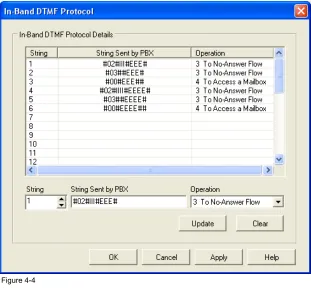
6. Click Edit tab, an In-Band Protocol Details dialog box appears.
Chapter 4 Integration with PBX
Figure 4-4
8. Fill in the following fields:
String Sent by PBX In-Band DTMF String sent by the PBX should be entered in this field for the IM1200 to determine the status of the call transfer. The EXACT number of digits should be entered. IM1200 will compare the actual string received from the PBX against the defined string here. The following codes should be used to compose the String Sent by PBX.
In-Band DTMF Codes
Code Definition
0~9, *,#,A~D Represents one digit of DTMF.
E Represents one digit of the extension number. I Represents this digit should be ignored. Table 4-3
Operation Select one of the following operations you want IM1200 to execute when the actual DTMF string from the PBX matches the one defined in String Sent by PBX: ∎ To Main AA-Menu. IM1200 will take the call to the prevailing AA-Menu and
play that AA-Menu’s greeting defined for the channel. (For AA-Menu, see page 5-6) This operation will be activated in the case when no strings in the String Sent by PBX fields can be found matching the actual string from the PBX. ∎ To Busy Flow The caller will be taken to the call path that handles the Busy
Chapter 4 Integration with PBX
∎ To No-Answer Flow The caller will be taken to the call path that handles the No-Answer situation for the extension, i.e., playing a personal not-available greeting and asking the caller to leave a message.
∎ To Access a Mailbox. The caller will be taken to the mailbox whose number is encoded in the string. This is usually used when the mailbox owner wishes to retrieve his/her messages and calls the voicemail from the extension directly.
9. Click Update for every String defined or modified.
10. Click OK or Apply when done with all the modifications.
Busy Time Lag
Busy Time Lag is most useful when the PBX does not send No-Answer In-Band DTMF String or sends the same string for No-Answer and Busy situations. In such case, a countdown parameter is used to determine if the extension status is Busy or No-Answer. After the call is released, the countdown will start. If the call is bounced back during the countdown, the extension status will be identified as Busy. If the call is bounced back after the countdown, the extension status will be identified as No-Answer.
To set up Non-Supervised Mode using Busy Time Lag
1. Choose System Parameter > PBX Parameters.
2. Click Edit tab, a PBX Parameters dialog page appears.
3. Choose the Non-Supervised tab.
4. Define the following parameters:
Enable Busy Time Lag Checking this box tells IM1200 to start the timeout counter for every transferred call.
Busy Time Lag This parameter sets the timeout value for the count down.
5. Click OK or Apply when done with all the modifications.
Setting Up IM1200 in Supervised Mode
The Supervised Mode will be the only transfer mode available for some PBXes. In Supervised mode, the line is not released while the call is being transferred. IM1200 will monitor and decipher the signals sent back by the PBX and perform proper operation accordingly. If the call is picked up by the extension, the line will be released. This transfer mode will take up the most resource of IM1200. There are two types of signals IM1200 can monitor: Call Progress Tone (CPT), and DTMF Signal.
Call Progress Tone
Most PBXes send Call Progress Tones while transferring calls to indicate the status of the transfer.
To set up Supervise Mode using Call Progress Tone Signal
1. Choose System Parameters > PBX Parameters.
2. Click Edit tab, a PBX Parameters dialog page appears.
Chapter 4 Integration with PBX
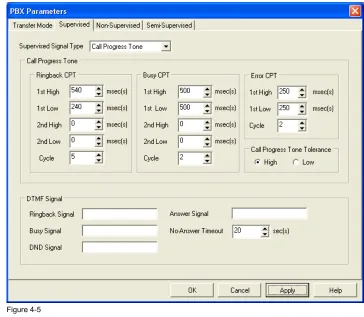
Figure 4-5
4. Select Call Progress Tone as the Supervised Signal Type.
5. Define the following parameters:
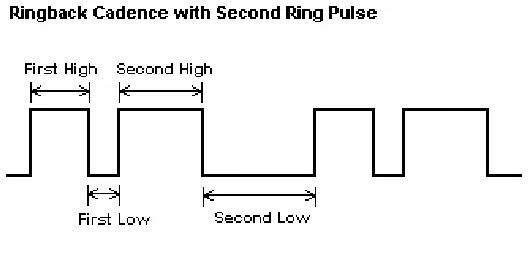
Ringback CPT Ringback CPT may vary depending on the PBX model. Ringback CPT is usually composed of 1 ringing pulse, and 1 silence pulse.
Chapter 4 Integration with PBX
Some PBX sends Ringback CPT with 2 ringing pulses and 2 silence pulses.
.
Figure 4-7
Define Ringback First High and Ringback First Low in milliseconds. If the PBX sends Ringback CPT with 2 ringing pulses, define the Ringback Second High and Ringback Second Low, or else set the two parameters to 0 milliseconds.
Ringback CPT Cycle This parameter defines how many times the Ringback Call Progress Tones from an extension should be received before the extension status is identified as No-Answer. IM1200 will retrieve the call when the status has been confirmed.
Busy/Error CPT Similar to Ringback CPT, Busy and Error Call Progress Tones are composed of First High, First Low, Second High and Second Low parameters. Busy CPT is sent by the PBX to indicate the extension status is Busy, and Error CPT usually indicates the extension is not legal. Define these parameters, and leave Second Low and Second High as 0 if not needed.
Busy/Error CPT Cycle Similar to Ringback CPT Cycle, Busy and Error CPT Cycles define how many times the call progress tones should be received before the extension status is identified as busy or error. IM1200 will retrieve the call when the status has been confirmed.
Call Progress Tone Tolerance This parameter tells how much deviation the actual call progress tones sent from the PBX can be from the set values. Select High or Low for the setting.
6. Click OK or Apply when done with all the modifications.
Automatic Call Progress Learning
Instead of manually entering the call progress tone parameters, IM1200 provides an alternative way of capturing and learning and assigning those parameters to itself, called Automatic Call Progress Learning (ACPL) method. This method requires DTMF System Programming (For DTMF System Programming, see Chapter 9).
Once you are in DTMF System Programming Mode, follow these steps:
1. Enter Function Code [242] and set up the extension you want to use for ACPL.
Chapter 4 Integration with PBX
3. Enter Function Code [214] (Ringback CPT 1st High). Press [1#] when it prompts
you to “Press 1 to edit, 2 to save, 3 to replay”. This will force IM1200 to call the ACPL extension.
4. After ringing the ACPL extension a few times, it will reconnect to you and announce the value it has calculated and set for Ringback CPT 1st High based on
the ringback pattern it just heard.
Note: It also has calculated and set other Ringback CPT parameters such as Ringback CPT 1st Low, Ringback CPT 2nd High/Low (when available), and Ringback CPT Cycle.
5. Press 2 to save the parameter.
6. Take the phone of the ACPL extension off-hook, to create the Busy condition.
7. Enter Function Code [219] (Busy 1st High). Press [1#] when it prompts you to
“Press 1 to edit, 2 to save, 3 to replay”. This will force IM1200 to call the ACPL extension.
8. It will analyze the Busy Call Progress Tone coming from the ACPL extension and announce the value it has determined and set for the Busy 1st High parameter
Note: It also has determined and set other Busy CPT parameters such Busy CPT 1st Low, Busy CPT 2nd High/Low (when available), and Busy CPT Cycle.
9. Press 2 to save the parameter.
10. You have completed the Automatic Call Progress Learning process and assigned all the right values for the Ringback and Busy Call Progress Tone parameters to IM1200.
DTMF Signal
Some PBX sends DTMF Signals as well as Call Progress Tones to indicate call transfer status. Similar to the CPT, the DTMF Signal will convey the current extension status.
To set up Supervised Mode using DTMF Signal
1. Choose System Parameters > PBX Parameters.
2. Click Edit tab, a PBX Parameters dialog page appears.
3. Choose the Supervised tab.
4. Select DTMF Signal as the Supervised Signal Type.
5. Define the following parameters using the codes in the DTMF and Action Code Table (Table 4-1):
Ringback Signal Ringback Signal indicates the extension is ringing back.
Busy Signal Busy Signal indicates the extension status is busy.
Chapter 4 Integration with PBX
Answer Signal Some PBX provides the Answer Signal when the call is picked up by the extension. When this signal is received, the call will be released.
No-Answer Timeout Some PBX does not send Ringback Signal when transferring the call. In such case IM1200 will hold the call for the No-Answer Timeout period and retrieve the call after the timeout.
6. Click OK or Apply when done with all the modifications.
Setting Up IM1200 in Semi-Supervised Mode
This mode is the most commonly used when the PBX does not send a complete set of In-Band DTMF Strings. In order for Semi-Supervised Transfer to function properly, certain parameters from the Supervised Transfer and Non-Supervised Transfer Modes need to be set correctly first. The best way to set up Semi-Supervised Mode is to select the PBX in question from the PBX list first (For Select PBX, see page 4-2), then proceed to select and modify the Semi-Supervised Mode parameters as needed.
Busy Recall, Ring Release
Calls will initially be handled in the Supervised Mode when transferred, and IM1200 will monitor for the Busy CPT or the Busy DTMF Signal. If the Busy CPT or the Busy DTMF Signal is not detected right away, the transfer is changed to Non-Supervised mode and the line released. It then relies on the In-Band DTMF String from the PBX to tell if the call has been No-Answered.
It is essential then, the Busy CPT or the Busy DTMF Signal in Supervised mode, and the In-Band DTMF parameters in Non-Supervised mode, as well as the In-In-Band DTMF String for the No-Answer situation, need to be well defined before this operation can work.
Call Pickup
Similar to Busy Recall, Ring Release operation, the call is retrieved if it is detected Busy right away and released if not. But instead of relying on the In-Band DTMF String from the PBX to tell the call is not answered, IM1200 will automatically use the Call Pickup function of the PBX to retrieve the call if the call is not answered by the extension after a pre-defined amount of time.
To set up Semi-Supervised Mode using Call Pickup:
1. Choose System Parameters > PBX Parameters.
2. Click Edit tab, a PBX Parameters dialog page appears.
3. Choose the Semi-Supervised tab.
4. Define the following parameters:
Enable Call Pickup Check this box to enable the Call Pickup operation.
Call Pickup Sequence The sequence to pick up the call that is ringing the extension which is not answering to announce the No-Answer status to the caller.
Call Pickup No-Answer Timeout IM1200 will attempt to pick up the call after this timeout, and announce to the caller the extension is not available.
Call Pickup Channels IM1200 will use the selected channels to do Call Pickup operation.
Chapter 4 Integration with PBX
Chapter 5 Auto Attendant
CHAPTER 5
Auto Attendant
This chapter explains how to set up the Automated Attendant for IM1200.
⋄ Designing Your Auto-Attendant ⋄ Creating Extension Blocks
⋄ Creating Operator/Extension Groups ⋄ Setting Up Voice Channel Parameters ⋄ Designing an AA-Menu
Recording AA-Menu Greetings Transfer Options
Chapter 5 Auto Attendant
Designing Your Auto-Attendant
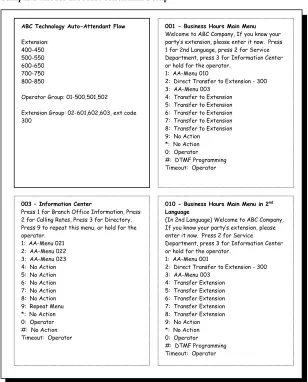
The Auto-Attendant in IM1200 is very flexible and easy to configure. It is highly recommended that you prepare a draft for the Auto-Attendant flow that you want to use VMS to set up before hand.
Sample Draft for the Auto-Attendant Setup
Figure 5-1
Creating Extension Blocks
To create the Extension Blocks is the first step of the Auto Attendant setup. IM1200 will transfer calls to an extension that falls in a Extension Block. Total of 99 sets of Extension Blocks can be created.
001 - Business Hours Main Menu Welcome to ABC Company, If you know your party’s extension, please enter it now. Press 1 for 2nd Language, press 2 for Service Department, press 3 for Information Center or hold for the operator.
1: AA-Menu 010
2: Direct Transfer to Extension - 300 3: AA-Menu 003
4: Transfer to Extension 5: Transfer to Extension 6: Transfer to Extension 7: Transfer to Extension 8: Transfer to Extension 9: No Action *: No Action 0: Operator #: DTMF Programming Timeout: Operator
010 - Business Hours Main Menu in 2nd Language
(In 2nd Language) Welcome to ABC Company, If you know your party’s extension, please enter it now. Press 2 for Service Department, press 3 for Information Center or hold for the operator.
1: AA-Menu 001
2: Direct Transfer to Extension - 300 3: AA-Menu 003
4: Transfer Extension 5: Transfer Extension 6: Transfer Extension 7: Transfer Extension 8: Transfer Extension 9: No Action *: No Action 0: Operator #: DTMF Programming Timeout: Operator 003 – Information Center
Press 1 for Branch Office Information, Press 2 for Calling Rates, Press 3 for Directory, Press 9 to repeat this menu, or hold for the operator.
1: AA-Menu 021 2: AA-Menu 022 3: AA-Menu 023 4: No Action 5: No Action 6: No Action 7: No Action 8: No Action 9: Repeat Menu *: No Action 0: Operator #: No Action Timeout: Operator
ABC Technology Auto-Attendant Flow
Extension: 400-450 500-550 600-650 700-750 800-850
Operator Group: 01-500,501,502
Chapter 5 Auto Attendant
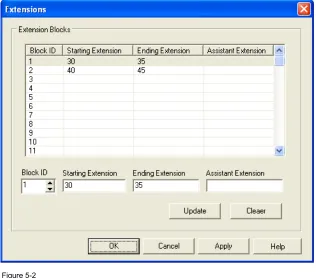
Figure 5-2
To Create/Edit Extension Blocks
1. Choose Auto Attendant > Extensions.
2. Click the Edit tab. An Extension Block dialog box opens. 3. Specify the following information for the block:
Starting Extension The starting extension number of the block. All extensions between the Starting and Ending Extension will be available for call transfer. The Starting Extension number must be smaller than the Ending Extension number and have the same number of digits as the Ending Extension number.
Ending Extension The Ending Extension number specifies where the extension block ends.
Assistant Extension When an extension in is not answering or busy, the call will be redirected to the Assistant Extension of that block. This is an optional attribute for each Extension Block, and is only supported in the Supervised Transfer Mode. (For Supervised Transfer Mode, see page 4-8)
4. Click Update after setting up one block, then continue to define the next block. 5. Click OK or Apply once you are done with all the Extension Blocks setup you want.
Creating Operator/Extension Groups
Chapter 5 Auto Attendant
Note: Operator/Extension Groups are public. IM1200 also provides a Personal Distribution List
for personal applications. (For Distribution List, see page 6-8)
Figure 5-3
To Create Operator/Extension Groups
1. Choose Auto Attendant > Operator/Extension Groups.
2. Click the Edit tab. An Operator/Extension Group dialog box opens. 3. Specify the following information for the group:
Extension Code Assign an Extension Code that the callers can dial to reach the Operator/Extension Group. When no Extension Code is entered, the group cannot be reached by the AA-Menus or other commands. Treat this code as a real extension number for the group.
Note: Do not use an Extension Code that is the same as one already used for an “ordinary” extension. In that case, the group will have higher call transfer priority over the “ordinary” extension.
Chapter 5 Auto Attendant
Hunting Method You can determine how calls should be distributed among the group with the following Hunting Methods:
∎ Linear IM1200 will always transfer the call to the first member of the group. If the extension is not available, IM1200 will transfer the call to the next member in the group.
∎ Circular IM1200 will transfer the first call to the first member of the group and the second call to the next member down the list. IM1200 will keep track of which member should be the target for the next incoming call.
∎ ACD IM1200 will track the number of calls successfully transferred to each member of the group. The member with least number of calls answered will be the target for the next incoming call transfer.
4. Use mouse to select and highlight the extensions in the Available Extensions box and click the Select tab to move them to the Members box. Reverse the process and click the Remove tab if you want to remove some extensions from the group. Click and hold and move an extension within the Members box to alter the order of the
members in the member list. The order in which the members appear in the Members box will be used by the Hunting Method to decide the call transfer order among the members.
5. Click Update for every group created or edited.
6. Click OK or Apply once you are done with all the modification of all groups.
To Define Operators for Individual Channels
1. Select the channel you want to specify Operators for in the Channel ID box.
2. Enter the extension number or the Extension Code of the Extension Group you want to use as the Operator(s) for Business Hours, Break Hours, After Hours, Closed Days, and Holidays.
3. Click Update for every group created or edited.
4. Click OK or Apply once you are done with all the modification of all channels.
Setting Up Voice Channel Parameters
Chapter 5 Auto Attendant
Figure 5-4
To set up Channel Parameters
1. Choose Auto Attendant > Channel Parameters. 2. Click the Edit tab. A Channel Parameters dialog box opens. 3. Specify the following information for the channel:
Pickup After The channel will pick up incoming calls after the set number of rings. Default Language IM1200 supports up to 4 languages in one system. (The languages vary depending on your location and installation. Check with your dealer for the languages installed in your system.) If you set your default language to English, for example, all of your call transfer announcements will be in English.
Holiday Each channel can enable or disable the Holiday Mode. If the Holiday Mode is disabled, this channel will ignore the Holiday Calendar. (For Holiday Calendar, see…)
AA Menu for Business Hours/Break Hours/After Hours/Closed Days Different AA menus can be assigned to accommodate different call handling at different hours of the day and different days of the week. The assigned AA-menu’s greeting will be the one heard by the callers when it’s in effect.
4. Click Update for every channel edited.
5. Use the Synchronize option when you finish editing one channel and wish to configure all other channels with the same parameters.
Chapter 5 Auto Attendant
Designing an AA-Menu
IM1200’s Auto Attendant is constructed with independent scripts called AA-Menus. Each AA-Menu has its own greeting and customized action keys. From the menu, the caller can be guided to the extensions, service groups, operators, information bulletin, etc..
Figure 5-5
To Set up an AA-Menu
1. Choose Auto-Attendant > AA-Menu Management.
2. Click the Edit tab. An AA-Menu Management dialog box opens. 3. Customize the following parameters:
Description Description is an optional field for the administrators own reference. Fill in helpful information about the menu, for example, “Business Hours Main Menu” Assign each DTMF tone (0-9,*,#) with one specific AA-Menu Action. Possible actions are:
∎ No Action IM1200 will play an error announcement then repeat the Menu.
∎ Repeat Menu The Menu will be repeated without the error announcement.
Chapter 5 Auto Attendant
∎ AA-Menu in 1st/2nd/3rd/4th Language The call will be transfer to the target
AA-Menu in language specified.
∎ Lead to Extension Number The call will be transferred to the desired extension by pressing the assigned DTMF digit followed by the desired extension number. For example, if digit “5” is set for such action, and the caller wishes to reach extension "31", he/she should press "531" to reach that extension. This is useful in the case when the first digit of the desired extension has been used for other AA menu action.
∎ Transfer to Extension The assigned DTMF digit is the first digit of an extension. For example, if the action is set on "1", and the caller wishes to reach extension "100", he/she should press "100" to reach that extension.
∎ Direct Transfer to Extension The call will be transferred to the target extension directly. For example, if the action is set on "6" with the target set to "100", the caller can press "1" to reach extension 100 right away.
∎ Transfer to Mailbox The assigned DTMF digit is the first digit of the mailbox the call will be transferred to. For example, if the action is set on "2", the caller can dial "200" to leave a message directly at mailbox 200.
∎ Direct Transfer to Mailbox The caller can leave a message directly at the target mailbox. For example, if the action is set on "7" with the target set to "200", the caller will be taken directly to mailbox 200 by pressing "7".
∎ Operator The caller will be transferred to the Operator.
∎ Name Directory IM1200 will ask the caller to enter the first few letters of the last/first name of the person they want to reach.
∎ Hang Up The call will be disconnected.
∎ Hang Up with Announcement The call will be disconnected after a disconnect announcement is made.
∎ Access Mailboxes IM1200 will ask the caller for the mailbox number and the password.
∎ System Programming Mode This allows the caller to enter System Programming Mode where touch tone programming and announcement recording can be done.
4. Click Update or Update & Copy for every AA-Menu created or edited. If you click Update & Copy you will be asked to enter the destination AA Menu number you want to copy the current AA Menu to. Select the destination AA Menu number and then click OK.
5. Click OK or Apply once you are done with all the modification of all the AA-Menus.
Recording AA-Menu Greetings
Each AA-Menu has an associated greeting that should be recorded to announce the greeting and options it wants the callers to hear. If an AA-Menu does not have a greeting recorded, a system default greeting will be played instead.
To Record a Greeting for an AA-Menu:
1. Call into IM1200 and enter the System Programming Mode. (For System Programming Mode, see Chapter 9)
Chapter 5 Auto Attendant
person other than the administrator, this will prevent blunder operations by either party.
3. Enter Function Code [330] for AA-Menu Management. 4. Enter the AA-Menu ID.
5. Follow the voice guide and record the greeting.
Transfer Options
IM1200 provides multiple choices for the caller to continue the call when the extension it tried to transfer for the caller is not available.
Figure 5-6
To set up Transfer Options:
1. Choose Auto Attendant > Transfer Options.
Chapter 5 Auto Attendant
Announce Call Transfer If enabled, IM1200 will announce the call transfer prompt, “Please hold, while I transfer you to..” When this option is disabled, IM1200 will transfer the call without this announcement.
Announce Name If enabled, IM1200 will announce the extension number or the name recorded in the personal mailbox for the extension it tries to transfer the call to. Multi-Tenant If enabled, IM1200 will allow you to design different Transfer Options per individual channel. nnounce the extension number or the name recorded in the personal mailbox for the extension it tries to transfer the call to.
Leave Message Directly If enabled, IM1200 will take the call directly to the mailbox of the extension it tried to transfer and ask the caller to leave a message, without offering the caller the transfer options.
Channel ID If Multi-Tenant is enabled, this field allows you to select the channel you want to design the Transfer Options for.
Set the Transfer Options with the desired keys. The available options are as follows:
∎ Leave a Message The caller will be taken to the mailbox of the extension and asked to leave a message.
∎ Hold for Busy This option is applicable only when the extension status is busy. IM1200 will put the caller on hold and attempt to transfer the caller to the extension again.
∎ Conference The caller will be connected with the predefined external phone number. This function is applicable if your PBX supports external call
conference, and the Conference Hold Sequence and the Conference Sequence in the PBX Parameters setup, and the External Conference Call Number in the mailbox setup are done correctly.
∎ AA-Menu Actions Some of the AA-Menu actions are also available as transfer options. They include: Repeat Menu, AA-Menu, Lead to Extension Number, Transfer to Extension, Operator, Hang Up, etc. (For AA-Menu Actions, see page 5-7)
4. Click Update or Update & Copy once you are done with defining the Transfer Options. If you click Update & Copy, you will be asked to enter the destination channel number where you want to copy the current Transfer Options to. Enter it and click OK.
5. Click OK or Apply once you are done with the modifications for all the options.
Defining Work Schedule
Chapter 5 Auto Attendant
Figure 5-7
To Set up a Business Schedule:
1. Choose System Configuration > Business Schedule. 2. Click the Edit tab. A Business Schedule dialog box opens. 3. Define the following parameters for IM1200:
Operation Mode Select one of the following Operation Modes you prefer:
∎ Business Hours This tells IM1200 to use the Business Hours AA-Menu to handle the incoming calls, no matter what the time of day is.
∎ After Hours This tells IM1200 to use the After Hours AA-Menu to handle the incoming calls, no matter what the time of day is.
∎ Break Hours This tells IM1200 to use the Break Hours AA-Menu to handle the incoming calls, no matter what the time of day is.
∎ Closed This tells IM1200 to use the Closed Day AA-Menu to handle the incoming calls, no matter what the time of day or the day of the week is.
∎ Auto This tells IM1200 to use the respective Business Hours/Break Hours/After Hours/Close Day AA-Menus according to the time of day and day of the week to handle the incoming calls. This is the normal mode of operation.
Business Starts Enter the start of the business hours of the work day.
Business Ends Enter the end of the business hours of the work day. It should be later than the Business Start hour.
Break Starts Enter the start of the break hours during the work day.
Chapter 5 Auto Attendant
Business When this box is checked, the day is designated as a work day, in opposite to a Closed day.
4. Click OK or Apply once you are done with the modifications for all the options.
Defining Holiday Calendar
In addition to the work week schedule, IM1200 also offers a Holiday Calendar. The administrator can assign up to 100 sets of Holidays and corresponding Holiday AA-Menus per system.
Figure 5-8
To Set up Holiday Calendar:
1. Choose System Configuration > Holiday Calendar. 2. Click the Edit tab. A Holiday Calendar dialog box opens. 3. Define the following parameters for IM1200:
Starting Date Starting Date specifies the start of the holiday.
Ending Date Ending Date specifies what date the holiday ends. To set a holiday to only one day, set the Starting Date and the Ending Date to be the same date. The Ending Date must be later than the Starting Date.
AA-Menu No. Each holiday can have its own Menu and greeting. Select the AA-Menu that was predefined for the specific holiday. (For AA-Menu, see page 5-6)
Note: You can set all the holidays to the same AA-Menu, and record a general holiday greeting for them.
Chapter 6 Voice Messaging
CHAPTER 6
Voice Messaging
This chapter describes the details of the Voice Messaging of IM1200.
⋄ Defining Voice Massaging Parameters
⋄ Setting Up Message Notifications Internal Notifications
External Notifications
Chapter 6 Voice Messaging
Defining Voice Messaging Parameters
The voice messaging features provided by IM1200 is comprehensive and dynamic and can be tailored to your specific needs.
To Set Up Voice Mail Parameters
1. ChooseVoice Mail > Voice Mail Parameters.
2. Click the Edit tab. A Voice Mail Parameters dialog opens.
Figure 6-1
3. Define the following parameters:
Maximum Number of Messages This defines the maximum number of new and old
messages combined each mailbox can hold. When a mailbox reaches this limit, the caller will be offered the transfer options without the voice mail option.
Maximum Message Length This defines the maximum message recording length
allowed. When this limit is reached, the caller will be prompted to review the message, re-record the message or save the message.
Minimum Message Length This defines the minimum recording length required for the message to be considered legitimate and saved by IM1200 if the caller hangs up at the end of the message recording without hitting any key. This limit will not apply in the case the caller ends his/her recording and saves the message manually.
Auto-Purge New Messages After There is a New Folder and an Old Folder that store messages for each mailbox. The messages in the New Folder will be purged after they have been there for the number of days defined here. To disable Auto-Purge of new messages, select “0” for this parameter.
Note: Purged New or Old Messages will be permanently deleted and cannot be recovered.
Chapter 6 Voice Messaging
Silence Timeout to Stop Recording When IM1200 detects continued silence for the defined length of time, IM1200 will stop the recording and disconnect the call. Note: If the recording is stopped by this function, and the recording time is less than the
Minimum Message Length, the message will not be saved.
Setting Up Message Notifications
IM1200 has the ability to notify the mailbox owner when a new voice message is received.
To Set Up Internal Notification Parameters
1. ChooseVoice Mail > Notification.
2. Click the Edit tab. A new Notification dialog box opens.
Figure 6-2
3. Define the following parameters:
Message Lamp On/Off There are 2 sets of Message Lamp On/Off Sequences. Most PBXes will only use one set of Message Lamp On/Off Sequences, while some other PBXes provide two sets of sequences. When both sets are entered, IM1200 will initiate the first sequence, then the second sequence consecutively.
Chapter 6 Voice Messaging
Notify for To conserve the resource of IM1200, the Internal Notification can be selected to operate in two different modes:
∎ First New Message Only IM1200 will only send notification for the first new message when more than one message is received by a mailbox. IM1200 will start to notify again after the mailbox owner has checked his/her voice mail and a new message is received.
∎ Every New Message IM1200 will notify for every new messages received. This will take up more resource of IM1200.
Ring Notification Interval Ring Notification Interval defines the interval between attempts to call the extension for notification.
Ring Notification Retry Ring Notification Retry defines the number of attemps M-1200 will make until the notification is successful. The attempts will stop if the owner checks his/her voice mail.
Ring Count The Ring Count defines the maximum number of rings IM1200 should try for the notification. If the call is not answered at the end of the ring count, the attempt will be deemed unsuccessful.
To Set Up External Notification Parameters:
1. ChooseVoice Mail > Notification.
2. Click the Edit tab. A new Notification dialog opens.
3. Define the following parameters:
Pager Customization These parameters are designed to meet specific requirements for pager operations in certain regions of the world. Consult your local dealers regarding the setup of these parameters.
Delay for Mobile Phone Some mobile phone network needs extra time to connect a call. The IM1200 will wait for a certain time defined here after the number has been dialed to avoid misjudgment of the call status.
Enabled Notification Channel Multiple channels can be designated for external notification. IM1200 will use enabled channels that are not occupied to do external notification.
Mailbox Management
IM1200 provides personal, customizable mailbox features such as personal distribution lists, message playback options, Do-Not-Disturb mode, etc. These features are administrated through the Mailbox Management.
To Create a Mailbox:
1. ChooseVoice Mail > Mailbox Management.
Chapter 6 Voice Messaging
Figure 6-3
3. Click Create and a new MailBox dialog opens, with default values in the fields.
Figure 6-4
Chapter 6 Voice Messaging
5. Click OK to finish creating the mailbox.
To Copy a Mailbox (and To Create a Range of Mailboxes):
1. ChooseVoice Mail > Mailbox Management.
2. Click the Edit tab. A new Mailbox Management dialog page opens.
3. Click Copy and a new Copy Mailbox dialog opens.
Figure 6-5
4. Enter the range of mailboxes you want to create. For example, From 100 To 130. Select the mailbox you want to Copy From. You should have some predefined mailboxes for this operation.
5. Click OK to finish copying/creating the mailboxes.
To Delete a Mailbox:
1. ChooseVoice Mail > Mailbox Management.
2. Click the Edit tab. A new Mailbox Management dialog page opens.
3. Highlight the mailbox you wish to delete.
4. Click Delete. A confirmation box will open. Click Yes to finish deleting the mailboxes.
To Edit a Mailbox:
1. ChooseVoice Mail > Mailbox Management.
2. Click the Edit tab. A new Mailbox Management dialog page opens.
3. Highlight the mailbox you wish to edit.
Chapter 6 Voice Messaging
Figure 6-6
5. Edit the following Mailbox Settings:
Mailbox Password The Mailbox Password is the single keyword needed for the box owner to retrieve and manage his/her voice mail over the phone. It can be made up of numbers up to 8 digits. When the Mailbox Password is forgotten, other than viewing and editing it from VMS, the administrator can reset it to “1234” by pressing the FCN button while powering up the system—however, such process will also reset other system parameters to default.
Mailbox Type There are three different Mailboxes Types:
∎ Real Real Mailboxes are regular mailboxes with extensions. If the extension is not available to answer the call, with the right setting, the call will be directed to the mailbox for the caller to leave a message.
∎ Virtual A Virtual Mailbox does not have a real extension associated with it and cannot answer the calls. However, the Virtual Mailbox number still needs to be within an existing Extension Block to be valid. Virtual mailboxes are usually created for people who need voice messaging only.
Chapter 6 Voice Messaging
mailbox is only supported in Supervised Transfer Mode. (For Supervised Transfer Mode, see page 4-8)
Multi-Tenant Extension When the mailbox type is Multi-Tenant, a Multi-Tenant Extension must be defined. The extension number needs to fall in an available Extension Block.
Mailbox Language This is the language of the prompts the box owner hears when they access their mailbox. The available languages for your IM1200 will be different depending on your location and installation. Please check with your dealer for the available mailbox languages.
Message Play Priority The mailbox owner can specify the preferred Message Play Priority when retrieving messages. The options are:
∎ Least Recent Messages will be played in chronological order. Voice mail received least recently will be played first.
∎ Most Recent Messages will be played in counter chronological order. Voice mail received most recently will be played first.
Note: Messages marked Urgent will always be played ahead of regular messages, in the order selected. For example: In Least Recent mode, the least recent Urgent message will be played first, then after the most Urgent message is played, the least recent regular message is played, and so on, until the most recent regular message is played.
Play Time Stamp When Play Time Stamp function is enabled, the time the message was recorded will be announced before each message.
Message Forward To IM1200 can automatically copy a new message received in one mailbox to another mailbox. When this function is enabled, the targeted mailbox must be defined.
Distribution List The Mailbox owner can forward and broadcast messages to members in his/her personal Distribution List. Each mailbox can define up to 9 Distribution Lists and each list can hold up to 5 members. Highlight the mailboxes in the Available Mailboxes area and click Select to add them to the Members area of a list. Click Update after finish editing a list.
Chapter 6 Voice Messaging
Figure 6-7
7. Edit personal mailbox notification functions:
Internal Notification Method Each mailbox can select its own method of Internal Notification. The methods include the following:
∎ MsgLamp1 The Internal Notification will be done via the Message Lamp on the phone set. The Message Lamp On/Off Sequences must be properly defined for the Message Lamp Notification to function correctly. (For Message Lamp On/Off Sequence, see page 6-3)
∎ MsgLamp2 Some PBX has more than 1 set of Message Lamp On/Off
Sequences. This allows you to use the second Message Lamp On/Off Sequences for the Message Lamp Notification to work.
∎ Extension IM1200 will call the extension and inform the mailbox owner of the new messages and guide him/her to retrieve new messages. (For Ring Notification Parameters, see page 6-4)
∎ Disabled The Internal Notification can be disabled.
Internal Notification Extension Number A real extension must be defined for the internal notification. This extension is usually the same as the mailbox number.
Chapter 6 Voice Messaging
Notify Urgent Message Only To conserve the system resource, IM1200 can do External Notifications only for messages marked as urgent. When this function is enabled, regular massages will not be notified externally.
External Notification Schedule The External Notification can be selected to be in effect during the following hours:
∎ Notify During Business Hours The External Notification will be
performed only during the Business Hours defined by the Business Schedule. (For Business Schedule, see page 5-10)
∎ Notify During Personal Hours The External Notification will be performed only during the hours specified in the From and To fields.
Phone Notification Enter the phone number you want the system to dial for
external notification. It can be your mobile phone, home phone, another office phone, etc. Be sure to enter the necessary area and country codes.
Pager Not