WEKA Manual
for Version 3-7-8
Remco R. Bouckaert
Eibe Frank
Mark Hall
Richard Kirkby
Peter Reutemann
Alex Seewald
David Scuse
January 21, 2013
University of Waikato, Hamilton, New Zealand Alex Seewald (original Commnd-line primer) David Scuse (original Experimenter tutorial)
This manual is licensed under the GNU General Public License version 3. More information about this license can be found at http://www.gnu.org/licenses/gpl-3.0-standalone.html
Contents
I
The Command-line
11
1 A command-line primer 13 1.1 Introduction . . . 13 1.2 Basic concepts . . . 14 1.2.1 Dataset . . . 14 1.2.2 Classifier . . . 16 1.2.3 weka.filters . . . 17 1.2.4 weka.classifiers . . . 19 1.3 Examples . . . 231.4 Additional packages and the package manager . . . 24
1.4.1 Package management . . . 25
1.4.2 Running installed learning algorithms . . . 26
II
The Graphical User Interface
29
2 Launching WEKA 31 3 Package Manager 35 3.1 Main window . . . 353.2 Installing and removing packages . . . 36
3.2.1 Unoffical packages . . . 37
3.3 Using a http proxy . . . 37
3.4 Using an alternative central package meta data repository . . . . 37
3.5 Package manager property file . . . 38
4 Simple CLI 39 4.1 Commands . . . 39 4.2 Invocation . . . 40 4.3 Command redirection . . . 40 4.4 Command completion . . . 41 5 Explorer 43 5.1 The user interface . . . 43
5.1.1 Section Tabs . . . 43
5.1.2 Status Box . . . 43
5.1.3 Log Button . . . 44
5.1.4 WEKA Status Icon . . . 44 3
5.1.5 Graphical output . . . 44
5.2 Preprocessing . . . 45
5.2.1 Loading Data . . . 45
5.2.2 The Current Relation . . . 45
5.2.3 Working With Attributes . . . 46
5.2.4 Working With Filters . . . 47
5.3 Classification . . . 49
5.3.1 Selecting a Classifier . . . 49
5.3.2 Test Options . . . 49
5.3.3 The Class Attribute . . . 50
5.3.4 Training a Classifier . . . 51
5.3.5 The Classifier Output Text . . . 51
5.3.6 The Result List . . . 51
5.4 Clustering . . . 53
5.4.1 Selecting a Clusterer . . . 53
5.4.2 Cluster Modes . . . 53
5.4.3 Ignoring Attributes . . . 53
5.4.4 Working with Filters . . . 54
5.4.5 Learning Clusters . . . 54
5.5 Associating . . . 55
5.5.1 Setting Up . . . 55
5.5.2 Learning Associations . . . 55
5.6 Selecting Attributes . . . 56
5.6.1 Searching and Evaluating . . . 56
5.6.2 Options . . . 56
5.6.3 Performing Selection . . . 56
5.7 Visualizing . . . 58
5.7.1 The scatter plot matrix . . . 58
5.7.2 Selecting an individual 2D scatter plot . . . 58
5.7.3 Selecting Instances . . . 59 6 Experimenter 61 6.1 Introduction . . . 61 6.2 Standard Experiments . . . 62 6.2.1 Simple . . . 62 6.2.1.1 New experiment . . . 62 6.2.1.2 Results destination . . . 62 6.2.1.3 Experiment type . . . 64 6.2.1.4 Datasets . . . 66 6.2.1.5 Iteration control . . . 67 6.2.1.6 Algorithms . . . 67
6.2.1.7 Saving the setup . . . 69
6.2.1.8 Running an Experiment . . . 70
6.2.2 Advanced . . . 71
6.2.2.1 Defining an Experiment . . . 71
6.2.2.2 Running an Experiment . . . 74
6.2.2.3 Changing the Experiment Parameters . . . 76
6.2.2.4 Other Result Producers . . . 83
6.3 Cluster Experiments . . . 89
CONTENTS 5
6.4.1 Preparation . . . 92
6.4.2 Database Server Setup . . . 92
6.4.3 Remote Engine Setup . . . 93
6.4.4 Configuring the Experimenter . . . 94
6.4.5 Multi-core support . . . 95
6.4.6 Troubleshooting . . . 95
6.5 Analysing Results . . . 97
6.5.1 Setup . . . 97
6.5.2 Saving the Results . . . 100
6.5.3 Changing the Baseline Scheme . . . 100
6.5.4 Statistical Significance . . . 101 6.5.5 Summary Test . . . 101 6.5.6 Ranking Test . . . 102 7 KnowledgeFlow 103 7.1 Introduction . . . 103 7.2 Features . . . 105 7.3 Components . . . 106 7.3.1 DataSources . . . 106 7.3.2 DataSinks . . . 106 7.3.3 Filters . . . 106 7.3.4 Classifiers . . . 106 7.3.5 Clusterers . . . 106 7.3.6 Evaluation . . . 106 7.3.7 Visualization . . . 108 7.4 Examples . . . 109 7.4.1 Cross-validated J48 . . . 109
7.4.2 Plotting multiple ROC curves . . . 111
7.4.3 Processing data incrementally . . . 114
7.5 Plugins . . . 116 7.5.1 Flow components . . . 116 7.5.2 Perspectives . . . 116 8 ArffViewer 119 8.1 Menus . . . 120 8.2 Editing . . . 122
9 Bayesian Network Classifiers 125 9.1 Introduction . . . 125
9.2 Local score based structure learning . . . 129
9.2.1 Local score metrics . . . 129
9.2.2 Search algorithms . . . 130
9.3 Conditional independence test based structure learning . . . 133
9.4 Global score metric based structure learning . . . 135
9.5 Fixed structure ’learning’ . . . 136
9.6 Distribution learning . . . 136
9.7 Running from the command line . . . 138
9.8 Inspecting Bayesian networks . . . 148
9.9 Bayes Network GUI . . . 151
9.11 Adding your own Bayesian network learners . . . 163 9.12 FAQ . . . 165 9.13 Future development . . . 166
III
Data
169
10 ARFF 171 10.1 Overview . . . 171 10.2 Examples . . . 17210.2.1 The ARFF Header Section . . . 172
10.2.2 The ARFF Data Section . . . 174
10.3 Sparse ARFF files . . . 175
10.4 Instance weights in ARFF files . . . 176
11 XRFF 177 11.1 File extensions . . . 177 11.2 Comparison . . . 177 11.2.1 ARFF . . . 177 11.2.2 XRFF . . . 178 11.3 Sparse format . . . 179 11.4 Compression . . . 180 11.5 Useful features . . . 180
11.5.1 Class attribute specification . . . 180
11.5.2 Attribute weights . . . 180 11.5.3 Instance weights . . . 181 12 Converters 183 12.1 Introduction . . . 183 12.2 Usage . . . 184 12.2.1 File converters . . . 184 12.2.2 Database converters . . . 184 13 Stemmers 187 13.1 Introduction . . . 187 13.2 Snowball stemmers . . . 187 13.3 Using stemmers . . . 188 13.3.1 Commandline . . . 188 13.3.2 StringToWordVector . . . 188
13.4 Adding new stemmers . . . 188
14 Databases 189 14.1 Configuration files . . . 189 14.2 Setup . . . 190 14.3 Missing Datatypes . . . 191 14.4 Stored Procedures . . . 192 14.5 Troubleshooting . . . 193 15 Windows databases 195
CONTENTS 7
IV
Appendix
199
16 Research 201
16.1 Citing Weka . . . 201
16.2 Paper references . . . 201
17 Using the API 205 17.1 Option handling . . . 206
17.2 Loading data . . . 208
17.2.1 Loading data from files . . . 208
17.2.2 Loading data from databases . . . 209
17.3 Creating datasets in memory . . . 212
17.3.1 Defining the format . . . 212
17.3.2 Adding data . . . 213 17.4 Randomizing data . . . 215 17.5 Filtering . . . 216 17.5.1 Batch filtering . . . 217 17.5.2 Filtering on-the-fly . . . 218 17.6 Classification . . . 219 17.6.1 Building a classifier . . . 219 17.6.2 Evaluating a classifier . . . 221 17.6.3 Classifying instances . . . 224 17.7 Clustering . . . 226 17.7.1 Building a clusterer . . . 226 17.7.2 Evaluating a clusterer . . . 228 17.7.3 Clustering instances . . . 230 17.8 Selecting attributes . . . 231
17.8.1 Using the meta-classifier . . . 232
17.8.2 Using the filter . . . 233
17.8.3 Using the API directly . . . 234
17.9 Saving data . . . 235
17.9.1 Saving data to files . . . 235
17.9.2 Saving data to databases . . . 235
17.10Visualization . . . 237 17.10.1 ROC curves . . . 237 17.10.2 Graphs . . . 238 17.10.2.1 Tree . . . 238 17.10.2.2 BayesNet . . . 239 17.11Serialization . . . 240 18 Extending WEKA 243 18.1 Writing a new Classifier . . . 244
18.1.1 Choosing the base class . . . 244
18.1.2 Additional interfaces . . . 245
18.1.3 Packages . . . 245
18.1.4 Implementation . . . 246
18.1.4.1 Methods . . . 246
18.1.4.2 Guidelines . . . 250
18.2 Writing a new Filter . . . 256
18.2.1.1 Implementation . . . 256 18.2.1.2 Examples . . . 259 18.2.2 Simple approach . . . 263 18.2.2.1 SimpleBatchFilter . . . 263 18.2.2.2 SimpleStreamFilter . . . 265 18.2.2.3 Internals . . . 267 18.2.3 Capabilities . . . 267 18.2.4 Packages . . . 267 18.2.5 Revisions . . . 267 18.2.6 Testing . . . 268 18.2.6.1 Option handling . . . 268 18.2.6.2 GenericObjectEditor . . . 268 18.2.6.3 Source code . . . 268 18.2.6.4 Unit tests . . . 268
18.3 Writing other algorithms . . . 269
18.3.1 Clusterers . . . 269
18.3.2 Attribute selection . . . 271
18.3.3 Associators . . . 273
18.4 Extending the Explorer . . . 275
18.4.1 Adding tabs . . . 275
18.4.1.1 Requirements . . . 275
18.4.1.2 Examples . . . 275
18.4.2 Adding visualization plugins . . . 283
18.4.2.1 Introduction . . . 283 18.4.2.2 Predictions . . . 283 18.4.2.3 Errors . . . 286 18.4.2.4 Graphs . . . 288 18.4.2.5 Trees . . . 289 19 Weka Packages 291 19.1 Where does Weka store packages and other configuration stuff? . 291 19.2 Anatomy of a package . . . 292
19.2.1 The description file . . . 292
19.2.2 Additional configuration files . . . 296
19.3 Contributing a package . . . 297
19.4 Creating a mirror of the package meta data repository . . . 297
20 Technical documentation 301 20.1 ANT . . . 301
20.1.1 Basics . . . 301
20.1.2 Weka and ANT . . . 301
20.2 CLASSPATH . . . 302
20.2.1 Setting the CLASSPATH . . . 302
20.2.2 RunWeka.bat . . . 303 20.2.3 java -jar . . . 304 20.3 Subversion . . . 304 20.3.1 General . . . 304 20.3.2 Source code . . . 304 20.3.3 JUnit . . . 305 20.3.4 Specific version . . . 305
CONTENTS 9 20.3.5 Clients . . . 305 20.4 GenericObjectEditor . . . 306 20.4.1 Introduction . . . 306 20.4.2 File Structure . . . 307 20.4.3 Exclusion . . . 308 20.4.4 Class Discovery . . . 308
20.4.5 Multiple Class Hierarchies . . . 309
20.4.6 Capabilities . . . 310 20.5 Properties . . . 311 20.5.1 Precedence . . . 311 20.5.2 Examples . . . 311 20.6 XML . . . 312 20.6.1 Command Line . . . 312 20.6.2 Serialization of Experiments . . . 315 20.6.3 Serialization of Classifiers . . . 316 20.6.4 Bayesian Networks . . . 317 20.6.5 XRFF files . . . 317 21 Other resources 319 21.1 Mailing list . . . 319 21.2 Troubleshooting . . . 319
21.2.1 Weka download problems . . . 319
21.2.2 OutOfMemoryException . . . 319
21.2.2.1 Windows . . . 320
21.2.3 Mac OSX . . . 320
21.2.4 StackOverflowError . . . 320
21.2.5 just-in-time (JIT) compiler . . . 321
21.2.6 CSV file conversion . . . 321
21.2.7 ARFF file doesn’t load . . . 321
21.2.8 Spaces in labels of ARFF files . . . 321
21.2.9 CLASSPATH problems . . . 321
21.2.10 Instance ID . . . 322
21.2.10.1 Adding the ID . . . 322
21.2.10.2 Removing the ID . . . 322
21.2.11 Visualization . . . 323
21.2.12 Memory consumption and Garbage collector . . . 323
21.2.13 GUIChooser starts but not Experimenter or Explorer . . 323
21.2.14 KnowledgeFlow toolbars are empty . . . 324
21.2.15 Links . . . 324
Part I
The Command-line
Chapter 1
A command-line primer
1.1
Introduction
While for initial experiments the included graphical user interface is quite suf-ficient, for in-depth usage the command line interface is recommended, because it offers some functionality which is not available via the GUI - and uses far less memory. Should you get Out of Memory errors, increase the maximum heap size for your java engine, usually via Xmx1024M or Xmx1024m for 1GB -the default setting of 16 to 64MB is usually too small. If you get errors that classes are not found, check your CLASSPATH: does it include weka.jar? You can explicitly set CLASSPATH via the -cp command line option as well.
We will begin by describing basic concepts and ideas. Then, we will describe the weka.filters package, which is used to transform input data, e.g. for preprocessing, transformation, feature generation and so on.
Then we will focus on the machine learning algorithms themselves. These are called Classifiers in WEKA. We will restrict ourselves to common settings for all classifiers and shortly note representatives for all main approaches in machine learning.
Afterwards, practical examples are given.
Finally, in the doc directory of WEKA you find a documentation of all java classes within WEKA. Prepare to use it since this overview is not intended to be complete. If you want to know exactly what is going on, take a look at the mostly well-documented source code, which can be found in weka-src.jar and can be extracted via the jar utility from the Java Development Kit (or any archive program that can handle ZIP files).
1.2
Basic concepts
1.2.1
Dataset
A set of data items, the dataset, is a very basic concept of machine learning. A dataset is roughly equivalent to a two-dimensional spreadsheet or database table. In WEKA, it is implemented by the weka.core.Instances class. A dataset is a collection of examples, each one of class weka.core.Instance. Each Instance consists of a number of attributes, any of which can be nominal (= one of a predefined list of values), numeric (= a real or integer number) or a string (= an arbitrary long list of characters, enclosed in ”double quotes”). Additional types are date and relational, which are not covered here but in the ARFF chapter. The external representation of an Instances class is an ARFF file, which consists of a header describing the attribute types and the data as comma-separated list. Here is a short, commented example. A complete description of the ARFF file format can be found here.
% This is a toy example, the UCI weather dataset. % Any relation to real weather is purely coincidental.
Comment lines at the beginning of the dataset should give an in-dication of its source, context and meaning.
@relation golfWeatherMichigan_1988/02/10_14days
Here we state the internal name of the dataset. Try to be as com-prehensive as possible.
@attribute outlook {sunny, overcast, rainy} @attribute windy {TRUE, FALSE}
Here we define two nominal at-tributes, outlook and windy. The former has three values: sunny, overcast and rainy; the latter two: TRUE and FALSE. Nom-inal values with special charac-ters, commas or spaces are en-closed in ’single quotes’.
@attribute temperature real @attribute humidity real
These lines define two numeric attributes. Instead of real, inte-ger or numeric can also be used. While double floating point val-ues are stored internally, only seven decimal digits are usually processed.
@attribute play {yes, no}
The last attribute is the default target or class variable used for prediction. In our case it is a nominal attribute with two val-ues, making this a binary classi-fication problem.
1.2. BASIC CONCEPTS 15 @data sunny,FALSE,85,85,no sunny,TRUE,80,90,no overcast,FALSE,83,86,yes rainy,FALSE,70,96,yes rainy,FALSE,68,80,yes
The rest of the dataset consists of the token @data, followed by comma-separated values for the attributes – one line per exam-ple. In our case there are five ex-amples.
In our example, we have not mentioned the attribute type string, which defines ”double quoted” string attributes for text mining. In recent WEKA versions, date/time attribute types are also supported.
By default, the last attribute is considered the class/target variable, i.e. the attribute which should be predicted as a function of all other attributes. If this is not the case, specify the target variable via -c. The attribute numbers are one-based indices, i.e. -c 1 specifies the first attribute.
Some basic statistics and validation of given ARFF files can be obtained via the main() routine of weka.core.Instances:
java weka.core.Instances data/soybean.arff
weka.coreoffers some other useful routines, e.g. converters.C45Loader and converters.CSVLoader, which can be used to import C45 datasets and comma/tab-separated datasets respectively, e.g.:
java weka.core.converters.CSVLoader data.csv > data.arff java weka.core.converters.C45Loader c45_filestem > data.arff
1.2.2
Classifier
Any learning algorithm in WEKA is derived from the abstract weka.classifiers.AbstractClassifier class. This, in turn, implements weka.classifiers.Classifier. Surprisingly
little is needed for a basic classifier: a routine which generates a classifier model from a training dataset (= buildClassifier) and another routine which eval-uates the generated model on an unseen test dataset (= classifyInstance), or generates a probability distribution for all classes (= distributionForInstance).
A classifier model is an arbitrary complex mapping from all-but-one dataset attributes to the class attribute. The specific form and creation of this map-ping, or model, differs from classifier to classifier. For example, ZeroR’s (= weka.classifiers.rules.ZeroR) model just consists of a single value: the most common class, or the median of all numeric values in case of predicting a numeric value (= regression learning). ZeroR is a trivial classifier, but it gives a lower bound on the performance of a given dataset which should be significantly improved by more complex classifiers. As such it is a reasonable test on how well the class can be predicted without considering the other attributes.
Later, we will explain how to interpret the output from classifiers in detail – for now just focus on the Correctly Classified Instances in the section Stratified cross-validation and notice how it improves from ZeroR to J48:
java weka.classifiers.rules.ZeroR -t weather.arff java weka.classifiers.trees.J48 -t weather.arff
There are various approaches to determine the performance of classifiers. The performance can most simply be measured by counting the proportion of cor-rectly predicted examples in an unseen test dataset. This value is the accuracy, which is also 1-ErrorRate. Both terms are used in literature.
The simplest case is using a training set and a test set which are mutually independent. This is referred to as hold-out estimate. To estimate variance in these performance estimates, hold-out estimates may be computed by repeatedly resampling the same dataset – i.e. randomly reordering it and then splitting it into training and test sets with a specific proportion of the examples, collecting all estimates on test data and computing average and standard deviation of accuracy.
A more elaborate method is cross-validation. Here, a number of folds n is specified. The dataset is randomly reordered and then split into n folds of equal size. In each iteration, one fold is used for testing and the other n-1 folds are used for training the classifier. The test results are collected and averaged over all folds. This gives the cross-validation estimate of the accuracy. The folds can be purely random or slightly modified to create the same class distributions in each fold as in the complete dataset. In the latter case the cross-validation is called stratified. Leave-one-out (= loo) cross-validation signifies that n is equal to the number of examples. Out of necessity, loo cv has to be non-stratified, i.e. the class distributions in the test set are not related to those in the training data. Therefore loo cv tends to give less reliable results. However it is still quite useful in dealing with small datasets since it utilizes the greatest amount of training data from the dataset.
1.2. BASIC CONCEPTS 17
1.2.3
weka.filters
The weka.filters package is concerned with classes that transform datasets – by removing or adding attributes, resampling the dataset, removing examples and so on. This package offers useful support for data preprocessing, which is an important step in machine learning.
All filters offer the options -i for specifying the input dataset, and -o for specifying the output dataset. If any of these parameters is not given, standard input and/or standard output will be read from/written to. Other parameters are specific to each filter and can be found out via -h, as with any other class. The weka.filters package is organized into supervised and unsupervised filtering, both of which are again subdivided into instance and attribute filtering. We will discuss each of the four subsections separately.
weka.filters.supervised
Classes below weka.filters.supervised in the class hierarchy are for super-vised filtering, i.e., taking advantage of the class information. A class must be assigned via -c, for WEKA default behaviour use -c last.
weka.filters.supervised.attribute
Discretizeis used to discretize numeric attributes into nominal ones, based on the class information, via Fayyad & Irani’s MDL method, or optionally with Kononeko’s MDL method. At least some learning schemes or classifiers can only process nominal data, e.g. weka.classifiers.rules.Prism; in some cases discretization may also reduce learning time.
java weka.filters.supervised.attribute.Discretize -i data/iris.arff \ -o iris-nom.arff -c last
java weka.filters.supervised.attribute.Discretize -i data/cpu.arff \ -o cpu-classvendor-nom.arff -c first
NominalToBinaryencodes all nominal attributes into binary (two-valued) at-tributes, which can be used to transform the dataset into a purely numeric representation, e.g. for visualization via multi-dimensional scaling.
java weka.filters.supervised.attribute.NominalToBinary \ -i data/contact-lenses.arff -o contact-lenses-bin.arff -c last
Keep in mind that most classifiers in WEKA utilize transformation filters in-ternally, e.g. Logistic and SMO, so you will usually not have to use these filters explicity. However, if you plan to run a lot of experiments, pre-applying the filters yourself may improve runtime performance.
weka.filters.supervised.instance
Resamplecreates a stratified subsample of the given dataset. This means that overall class distributions are approximately retained within the sample. A bias towards uniform class distribution can be specified via -B.
java weka.filters.supervised.instance.Resample -i data/soybean.arff \ -o soybean-5%.arff -c last -Z 5
java weka.filters.supervised.instance.Resample -i data/soybean.arff \ -o soybean-uniform-5%.arff -c last -Z 5 -B 1
StratifiedRemoveFolds creates stratified cross-validation folds of the given dataset. This means that by default the class distributions are approximately retained within each fold. The following example splits soybean.arff into strat-ified training and test datasets, the latter consisting of 25% (= 1/4) of the data. java weka.filters.supervised.instance.StratifiedRemoveFolds \ -i data/soybean.arff -o soybean-train.arff \ -c last -N 4 -F 1 -V java weka.filters.supervised.instance.StratifiedRemoveFolds \ -i data/soybean.arff -o soybean-test.arff \ -c last -N 4 -F 1 weka.filters.unsupervised
Classes below weka.filters.unsupervised in the class hierarchy are for unsu-pervised filtering, e.g. the non-stratified version of Resample. A class attribute should not be assigned here.
weka.filters.unsupervised.attribute
StringToWordVectortransforms string attributes into word vectors, i.e. creat-ing one attribute for each word which either encodes presence or word count (= -C) within the string. -W can be used to set an approximate limit on the number of words. When a class is assigned, the limit applies to each class separately. This filter is useful for text mining.
Obfuscaterenames the dataset name, all attribute names and nominal attribute values. This is intended for exchanging sensitive datasets without giving away restricted information.
Remove is intended for explicit deletion of attributes from a dataset, e.g. for removing attributes of the iris dataset:
java weka.filters.unsupervised.attribute.Remove -R 1-2 \ -i data/iris.arff -o iris-simplified.arff
java weka.filters.unsupervised.attribute.Remove -V -R 3-last \ -i data/iris.arff -o iris-simplified.arff
weka.filters.unsupervised.instance
Resamplecreates a non-stratified subsample of the given dataset, i.e. random sampling without regard to the class information. Otherwise it is equivalent to its supervised variant.
java weka.filters.unsupervised.instance.Resample -i data/soybean.arff \ -o soybean-5%.arff -Z 5
RemoveFoldscreates cross-validation folds of the given dataset. The class distri-butions are not retained. The following example splits soybean.arff into training and test datasets, the latter consisting of 25% (= 1/4) of the data.
java weka.filters.unsupervised.instance.RemoveFolds -i data/soybean.arff \ -o soybean-train.arff -c last -N 4 -F 1 -V
java weka.filters.unsupervised.instance.RemoveFolds -i data/soybean.arff \ -o soybean-test.arff -c last -N 4 -F 1
RemoveWithValuesfilters instances according to the value of an attribute.
java weka.filters.unsupervised.instance.RemoveWithValues -i data/soybean.arff \ -o soybean-without_herbicide_injury.arff -V -C last -L 19
1.2. BASIC CONCEPTS 19
1.2.4
weka.classifiers
Classifiers are at the core of WEKA. There are a lot of common options for classifiers, most of which are related to evaluation purposes. We will focus on the most important ones. All others including classifier-specific parameters can be found via -h, as usual.
-t specifies the training file (ARFF format)
-T specifies the test file in (ARFF format). If this parameter is miss-ing, a crossvalidation will be performed (default: ten-fold cv)
-x This parameter determines the number of folds for the cross-validation. A cv will only be performed if -T is missing.
-c As we already know from the weka.filters section, this parameter sets the class variable with a one-based index.
-d
The model after training can be saved via this parameter. Each classifier has a different binary format for the model, so it can only be read back by the exact same classifier on a compatible dataset. Only the model on the training set is saved, not the multiple models generated via cross-validation.
-l
Loads a previously saved model, usually for testing on new, pre-viously unseen data. In that case, a compatible test file should be specified, i.e. the same attributes in the same order.
-p # If a test file is specified, this parameter shows you the predictions and one attribute (0 for none) for all test instances.
-i
A more detailed performance description via precision, recall, true- and false positive rate is additionally output with this pa-rameter. All these values can also be computed from the confusion matrix.
-o
This parameter switches the human-readable output of the model description off. In case of support vector machines or NaiveBayes, this makes some sense unless you want to parse and visualize a lot of information.
We now give a short list of selected classifiers in WEKA. Other classifiers below weka.classifiers may also be used. This is more easy to see in the Explorer GUI.
• trees.J48 A clone of the C4.5 decision tree learner
• bayes.NaiveBayes A Naive Bayesian learner. -K switches on kernel den-sity estimation for numerical attributes which often improves performance. • meta.ClassificationViaRegression -W functions.LinearRegression
Multi-response linear regression.
• functions.SMO Support Vector Machine (linear, polynomial and RBF ker-nel) with Sequential Minimal Optimization Algorithm due to [4]. Defaults to SVM with linear kernel, -E 5 -C 10 gives an SVM with polynomial kernel of degree 5 and lambda of 10.
• lazy.KStar Instance-Based learner. -E sets the blend entropy automati-cally, which is usually preferable.
• lazy.IBk Instance-Based learner with fixed neighborhood. -K sets the number of neighbors to use. IB1 is equivalent to IBk -K 1
• rules.JRip A clone of the RIPPER rule learner.
Based on a simple example, we will now explain the output of a typical classifier, weka.classifiers.trees.J48. Consider the following call from the command line, or start the WEKA explorer and train J48 on weather.arff :
java weka.classifiers.trees.J48 -t data/weather.arff -i
J48 pruned tree ---outlook = sunny
| humidity <= 75: yes (2.0) | humidity > 75: no (3.0) outlook = overcast: yes (4.0) outlook = rainy
| windy = TRUE: no (2.0) | windy = FALSE: yes (3.0) Number of Leaves : 5 Size of the tree : 8
The first part, unless you specify -o, is a human-readable form of the training set model. In this case, it is a decision tree. out-look is at the root of the tree and determines the first decision. In case it is overcast, we’ll al-ways play golf. The numbers in (parentheses) at the end of each leaf tell us the number of exam-ples in this leaf. If one or more leaves were not pure (= all of the same class), the number of mis-classified examples would also be given, after a /slash/
Time taken to build model: 0.05 seconds
Time taken to test model on training data: 0 seconds
As you can see, a decision tree learns quite fast and is evalu-ated even faster. E.g. for a lazy learner, testing would take far longer than training.
1.2. BASIC CONCEPTS 21
== Error on training data ===
Correctly Classified Instance 14 100 % Incorrectly Classified Instances 0 0 % Kappa statistic 1 Mean absolute error 0 Root mean squared error 0 Relative absolute error 0 % Root relative squared error 0 % Total Number of Instances 14 === Detailed Accuracy By Class ===
TP Rate FP Rate Precision Recall F-Measure Class 1 0 1 1 1 yes 1 0 1 1 1 no === Confusion Matrix === a b <-- classified as 9 0 | a = yes 0 5 | b = no
This is quite boring: our clas-sifier is perfect, at least on the training data – all instances were classified correctly and all errors are zero. As is usually the case, the training set accuracy is too optimistic. The detailed accu-racy by class, which is output via -i, and the confusion matrix is similarily trivial.
=== Stratified cross-validation ===
Correctly Classified Instances 9 64.2857 % Incorrectly Classified Instances 5 35.7143 % Kappa statistic 0.186
Mean absolute error 0.2857 Root mean squared error 0.4818 Relative absolute error 60 % Root relative squared error 97.6586 % Total Number of Instances 14 === Detailed Accuracy By Class ===
TP Rate FP Rate Precision Recall F-Measure Class 0.778 0.6 0.7 0.778 0.737 yes 0.4 0.222 0.5 0.4 0.444 no === Confusion Matrix === a b <-- classified as 7 2 | a = yes 3 2 | b = no
The stratified cv paints a more realistic picture. The accuracy is around 64%. The kappa statis-tic measures the agreement of prediction with the true class – 1.0 signifies complete agreement. The following error values are not very meaningful for classifi-cation tasks, however for regres-sion tasks e.g. the root of the mean squared error per exam-ple would be a reasonable cri-terion. We will discuss the re-lation between confusion matrix and other measures in the text.
The confusion matrix is more commonly named contingency table. In our case we have two classes, and therefore a 2x2 confusion matrix, the matrix could be arbitrarily large. The number of correctly classified instances is the sum of diagonals in the matrix; all others are incorrectly classified (class ”a” gets misclassified as ”b” exactly twice, and class ”b” gets misclassified as ”a” three times).
The True Positive (TP) rate is the proportion of examples which were clas-sified as class x, among all examples which truly have class x, i.e. how much part of the class was captured. It is equivalent to Recall. In the confusion ma-trix, this is the diagonal element divided by the sum over the relevant row, i.e. 7/(7+2)=0.778 for class yes and 2/(3+2)=0.4 for class no in our example.
The False Positive (FP) rate is the proportion of examples which were classi-fied as class x, but belong to a different class, among all examples which are not of class x. In the matrix, this is the column sum of class x minus the diagonal element, divided by the rows sums of all other classes; i.e. 3/5=0.6 for class yes and 2/9=0.222 for class no.
among all those which were classified as class x. In the matrix, this is the diagonal element divided by the sum over the relevant column, i.e. 7/(7+3)=0.7 for class yes and 2/(2+2)=0.5 for class no.
The F-Measure is simply 2*Precision*Recall/(Precision+Recall), a combined measure for precision and recall.
These measures are useful for comparing classifiers. However, if more de-tailed information about the classifier’s predictions are necessary, -p # out-puts just the predictions for each test instance, along with a range of one-based attribute ids (0 for none). Let’s look at the following example. We shall assume soybean-train.arff and soybean-test.arff have been constructed via weka.filters.supervised.instance.StratifiedRemoveFolds as in a previous example.
java weka.classifiers.bayes.NaiveBayes -K -t soybean-train.arff \ -T soybean-test.arff -p 0 0 diaporthe-stem-canker 0.9999672587892333 diaporthe-stem-canker 1 diaporthe-stem-canker 0.9999992614503429 diaporthe-stem-canker 2 diaporthe-stem-canker 0.999998948559035 diaporthe-stem-canker 3 diaporthe-stem-canker 0.9999998441238833 diaporthe-stem-canker 4 diaporthe-stem-canker 0.9999989997681132 diaporthe-stem-canker 5 rhizoctonia-root-rot 0.9999999395928124 rhizoctonia-root-rot 6 rhizoctonia-root-rot 0.999998912860593 rhizoctonia-root-rot 7 rhizoctonia-root-rot 0.9999994386283236 rhizoctonia-root-rot ...
The values in each line are sep-arated by a single space. The fields are the zero-based test in-stance id, followed by the pre-dicted class value, the confi-dence for the prediction (esti-mated probability of predicted class), and the true class. All these are correctly classified, so let’s look at a few erroneous ones.
32 phyllosticta-leaf-spot 0.7789710144361445 brown-spot ... 39 alternarialeaf-spot 0.6403333824349896 brown-spot ... 44 phyllosticta-leaf-spot 0.893568420641914 brown-spot ... 46 alternarialeaf-spot 0.5788190397739439 brown-spot ... 73 brown-spot 0.4943768155314637 alternarialeaf-spot ...
In each of these cases, a misclas-sification occurred, mostly be-tween classes alternarialeaf-spot and brown-spot. The confidences seem to be lower than for correct classification, so for a real-life ap-plication it may make sense to output don’t know below a cer-tain threshold. WEKA also out-puts a trailing newline.
If we had chosen a range of attributes via -p, e.g. -p first-last, the mentioned attributes would have been output afterwards as comma-separated values, in (parentheses). However, the zero-based instance id in the first column offers a safer way to determine the test instances.
If we had saved the output of -p in soybean-test.preds, the following call would compute the number of correctly classified instances:
cat soybean-test.preds | awk ’$2==$4&&$0!=""’ | wc -l
Dividing by the number of instances in the test set, i.e. wc -l < soybean-test.preds minus one (= trailing newline), we get the training set accuracy.
1.3. EXAMPLES 23
1.3
Examples
Usually, if you evaluate a classifier for a longer experiment, you will do something like this (for csh):
java -Xmx1024m weka.classifiers.trees.J48 -t data.arff -i -k \ -d J48-data.model >&! J48-data.out &
The -Xmx1024m parameter for maximum heap size ensures your task will get enough memory. There is no overhead involved, it just leaves more room for the heap to grow. -i and -k gives you some additional information, which may be useful, e.g. precision and recall for all classes. In case your model performs well, it makes sense to save it via -d - you can always delete it later! The implicit cross-validation gives a more reasonable estimate of the expected accuracy on unseen data than the training set accuracy. The output both of standard error and output should be redirected, so you get both errors and the normal output of your classifier. The last & starts the task in the background. Keep an eye on your task via top and if you notice the hard disk works hard all the time (for linux), this probably means your task needs too much memory and will not finish in time for the exam. In that case, switch to a faster classifier or use filters, e.g. for Resample to reduce the size of your dataset or StratifiedRemoveFolds to create training and test sets - for most classifiers, training takes more time than testing.
So, now you have run a lot of experiments – which classifier is best? Try
cat *.out | grep -A 3 "Stratified" | grep "^Correctly"
...this should give you all cross-validated accuracies. If the cross-validated ac-curacy is roughly the same as the training set acac-curacy, this indicates that your classifiers is presumably not overfitting the training set.
Now you have found the best classifier. To apply it on a new dataset, use e.g.
java weka.classifiers.trees.J48 -l J48-data.model -T new-data.arff
You will have to use the same classifier to load the model, but you need not set any options. Just add the new test file via -T. If you want, -p first-last will output all test instances with classifications and confidence, followed by all attribute values, so you can look at each error separately.
The following more complex csh script creates datasets for learning curves, i.e. creating a 75% training set and 25% test set from a given dataset, then successively reducing the test set by factor 1.2 (83%), until it is also 25% in size. All this is repeated thirty times, with different random reorderings (-S) and the results are written to different directories. The Experimenter GUI in WEKA can be used to design and run similar experiments.
#!/bin/csh foreach f ($*)
set run=1
while ( $run <= 30 ) mkdir $run >&! /dev/null
java weka.filters.supervised.instance.StratifiedRemoveFolds -N 4 -F 1 -S $run -c last -i ../$f -o $run/t_$f java weka.filters.supervised.instance.StratifiedRemoveFolds -N 4 -F 1 -S $run -V -c last -i ../$f -o $run/t0$f foreach nr (0 1 2 3 4 5)
set nrp1=$nr @ nrp1++
java weka.filters.supervised.instance.Resample -S 0 -Z 83 -c last -i $run/t$nr$f -o $run/t$nrp1$f end
echo Run $run of $f done. @ run++
end end
If meta classifiers are used, i.e. classifiers whose options include classi-fier specifications - for example, StackingC or ClassificationViaRegression, care must be taken not to mix the parameters. E.g.:
java weka.classifiers.meta.ClassificationViaRegression \ -W weka.classifiers.functions.LinearRegression -S 1 \ -t data/iris.arff -x 2
gives us an illegal options exception for -S 1. This parameter is meant for LinearRegression, not for ClassificationViaRegression, but WEKA does not know this by itself. One way to clarify this situation is to enclose the classifier specification, including all parameters, in ”double” quotes, like this:
java weka.classifiers.meta.ClassificationViaRegression \ -W "weka.classifiers.functions.LinearRegression -S 1" \ -t data/iris.arff -x 2
However this does not always work, depending on how the option handling was implemented in the top-level classifier. While for Stacking this approach would work quite well, for ClassificationViaRegression it does not. We get the dubious error message that the class weka.classifiers.functions.LinearRegression -S 1 cannot be found. Fortunately, there is another approach: All parameters given after -- are processed by the first sub-classifier; another -- lets us specify parameters for the second sub-classifier and so on.
java weka.classifiers.meta.ClassificationViaRegression \ -W weka.classifiers.functions.LinearRegression \ -t data/iris.arff -x 2 -- -S 1
In some cases, both approaches have to be mixed, for example:
java weka.classifiers.meta.Stacking -B "weka.classifiers.lazy.IBk -K 10" \
-M "weka.classifiers.meta.ClassificationViaRegression -W weka.classifiers.functions.LinearRegression -- -S 1" \ -t data/iris.arff -x 2
Notice that while ClassificationViaRegression honors the -- parameter, Stacking itself does not. Sadly the option handling for sub-classifier specifi-cations is not yet completely unified within WEKA, but hopefully one or the other approach mentioned here will work.
1.4
Additional packages and the package
man-ager
Up until now we’ve used the term package to refer to a Java’s concept of orga-nizing classes. In addition, Weka has the concept of a package as a bundle of additional functionality, separate from that supplied in the main weka.jar file. A package consists of various jar files, documentation, meta data, and possibly source code (see “Weka Packages” in the Appendix for more information on the structure of packages for Weka). There are a number of packages available for
1.4. ADDITIONAL PACKAGES AND THE PACKAGE MANAGER 25
Weka that add learning schemes or extend the functionality of the core system in some fashion. Many are provided by the Weka team and others are from third parties.
Weka includes a facility for the management of packages and a mechanism to load them dynamically at runtime. There is both a command-line and GUI package manager; we describe the command-line version here and the GUI ver-sion in the next Chapter.
1.4.1
Package management
Assuming that the weka.jar file is in the classpath, the package manager can be accessed by typing:
java weka.core.WekaPackageManager
Supplying no options will print the usage information:
Usage: weka.core.PackageManager [option] Options:
-list-packages <all | installed | available>
-package-info <repository | installed | archive> packageName -install-package <packageName | packageZip | URL> [version] -uninstall-package <packageName>
-refresh-cache
Information (meta data) about packages is stored on a web server hosted on Sourceforge. The first time the package manager is run, for a new installation of Weka, there will be a short delay while the system downloads and stores a cache of the meta data from the server. Maintaining a cache speeds up the process of browsing the package information. From time to time you should update the local cache of package meta data in order to get the latest information on pack-ages from the server. This can be achieved by supplying the -refresh-cache option.
The -list-packages option will, as the name suggests, print information (version numbers and short descritions) about various packages. The option must be followed by one of three keywords:
• all will print information on all packages that the system knows about • installed will print information on all packages that are installed locally • available will print information on all packages that are not installed The following shows an example of listing all packages installed locally:
java weka.core.PackageManager -list-packages installed Installed Repository Package
========= ========== =======
1.0.0 1.0.0 DTNB: Class for building and using a decision table/naive bayes hybrid classifier. 1.0.0 1.0.0 massiveOnlineAnalysis: MOA (Massive On-line Analysis).
1.0.0 1.0.0 multiInstanceFilters: A collection of filters for manipulating multi-instance data.
1.0.0 1.0.0 naiveBayesTree: Class for generating a decision tree with naive Bayes classifiers at the leaves. 1.0.0 1.0.0 scatterPlot3D: A visualization component for displaying a 3D scatter plot of the data using Java 3D.
The -package-info command lists information about a package given its name. The command is followed by one of three keywords and then the name of a package:
• repository will print info from the repository for the named package • installed will print info on the installed version of the named package • archive will print info for a package stored in a zip archive. In this case,
the “archive” keyword must be followed by the path to an package zip archive file rather than just the name of a package
The following shows an example of listing information for the “isotonicRe-gression” package from the server:
java weka.core.WekaPackageManager -package-info repository isotonicRegression Description:Learns an isotonic regression model. Picks the attribute that results in the lowest squared error. Missing values are not allowed. Can only deal with numeric attributes. Considers the monotonically increasing case as well as the monotonically decreasing case.
Version:1.0.0
PackageURL:http://60.234.159.233/~mhall/wekaLite/isotonicRegression/isotonicRegression1.0.0.zip Author:Eibe Frank
PackageName:isotonicRegression
Title:Learns an isotonic regression model. Date:2009-09-10
URL:http://weka.sourceforge.net/doc.dev/weka/classifiers/IsotonicRegression.html Category:Regression
Depends:weka (>=3.7.1) License:GPL 2.0
Maintainer:Weka team <[email protected]>
The -install-package command allows a package to be installed from one of three locations:
• specifying a name of a package will install the package using the infor-mation in the package description meta data stored on the server. If no version number is given, then the latest available version of the package is installed.
• providing a path to a zip file will attempt to unpack and install the archive as a Weka package
• providing a URL (beginning with http://) to a package zip file on the web will download and attempt to install the zip file as a Weka package The uninstall-package command will uninstall the named package. Of course, the named package has to be installed for this command to have any effect!
1.4.2
Running installed learning algorithms
Running learning algorithms that come with the main weka distribution (i.e. are contained in the weka.jar file) was covered earlier in this chapter. But what about algorithms from packages that you’ve installed using the package manager? We don’t want to have to add a ton of jar files to our classpath every time we wan’t to run a particular algorithm. Fortunately, we don’t have to. Weka has a mechanism to load installed packages dynamically at run time. We can run a named algorithm by using the Run command:
java weka.Run
If no arguments are supplied, then Run outputs the following usage informa-tion:
1.4. ADDITIONAL PACKAGES AND THE PACKAGE MANAGER 27
Usage:
weka.Run [-no-scan] [-no-load] <scheme name [scheme options]>
The Run command supports sub-string matching, so you can run a classifier (such as J48) like so:
java weka.Run J48
When there are multiple matches on a supplied scheme name you will be presented with a list. For example:
java weka.Run NaiveBayes
Select a scheme to run, or <return> to exit: 1) weka.classifiers.bayes.ComplementNaiveBayes 2) weka.classifiers.bayes.NaiveBayes 3) weka.classifiers.bayes.NaiveBayesMultinomial 4) weka.classifiers.bayes.NaiveBayesMultinomialUpdateable 5) weka.classifiers.bayes.NaiveBayesSimple 6) weka.classifiers.bayes.NaiveBayesUpdateable Enter a number >
You can turn off the scanning of packages and sub-string matching by pro-viding the -no-scan option. This is useful when using the Run command in a script. In this case, you need to specify the fully qualified name of the algorithm to use. E.g.
java weka.Run -no-scan weka.classifiers.bayes.NaiveBayes
To reduce startup time you can also turn off the dynamic loading of installed packages by specifying the -no-load option. In this case, you will need to explicitly include any packaged algorithms in your classpath if you plan to use them. E.g.
Part II
The Graphical User
Interface
Chapter 2
Launching WEKA
The Weka GUI Chooser (class weka.gui.GUIChooser) provides a starting point for launching Weka’s main GUI applications and supporting tools. If one prefers a MDI (“multiple document interface”) appearance, then this is provided by an alternative launcher called “Main” (class weka.gui.Main).
The GUI Chooser consists of four buttons—one for each of the four major Weka applications—and four menus.
The buttons can be used to start the following applications:
• Explorer An environment for exploring data with WEKA (the rest of this documentation deals with this application in more detail).
• Experimenter An environment for performing experiments and conduct-ing statistical tests between learnconduct-ing schemes.
• KnowledgeFlow This environment supports essentially the same func-tions as the Explorer but with a drag-and-drop interface. One advantage is that it supports incremental learning.
• SimpleCLI Provides a simple command-line interface that allows direct execution of WEKA commands for operating systems that do not provide their own command line interface.
The menu consists of four sections: 1. Program
• LogWindow Opens a log window that captures all that is printed to stdout or stderr. Useful for environments like MS Windows, where WEKA is normally not started from a terminal.
• Exit Closes WEKA. 2. Tools Other useful applications.
• Package manager A graphical interface to Weka’s package man-agement system.
• ArffViewer An MDI application for viewing ARFF files in spread-sheet format.
• SqlViewer Represents an SQL worksheet, for querying databases via JDBC.
• Bayes net editor An application for editing, visualizing and learn-ing Bayes nets.
3. Visualization Ways of visualizing data with WEKA.
• Plot For plotting a 2D plot of a dataset. • ROC Displays a previously saved ROC curve.
• TreeVisualizer For displaying directed graphs, e.g., a decision tree. • GraphVisualizer Visualizes XML BIF or DOT format graphs, e.g.,
for Bayesian networks.
• BoundaryVisualizer Allows the visualization of classifier decision boundaries in two dimensions.
4. Help Online resources for WEKA can be found here.
• Weka homepage Opens a browser window with WEKA’s home-page.
• HOWTOs, code snippets, etc. The general WekaWiki [2], con-taining lots of examples and HOWTOs around the development and use of WEKA.
• Weka on Sourceforge WEKA’s project homepage on Sourceforge.net. • SystemInfo Lists some internals about the Java/WEKA
33
To make it easy for the user to add new functionality to the menu with-out having to modify the code of WEKA itself, the GUI now offers a plugin mechanism for such add-ons. Due to the inherent dynamic class discovery, plu-gins only need to implement the weka.gui.MainMenuExtension interface and WEKA notified of the package they reside in to be displayed in the menu un-der “Extensions” (this extra menu appears automatically as soon as extensions are discovered). More details can be found in the Wiki article “Extensions for Weka’s main GUI” [6].
If you launch WEKA from a terminal window, some text begins scrolling in the terminal. Ignore this text unless something goes wrong, in which case it can help in tracking down the cause (the LogWindow from the Program menu displays that information as well).
This User Manual focuses on using the Explorer but does not explain the individual data preprocessing tools and learning algorithms in WEKA. For more information on the various filters and learning methods in WEKA, see the book Data Mining [1].
Chapter 3
Package Manager
The Package Manager provides a graphical interface to Weka’s package manage-ment system. All the functionality available in the command line client to the package management system covered in the previous Chapter is available in the GUI version, along with the ability to install and uninstall multiple packages in one hit.
3.1
Main window
The package manager’s window is split horizontally into two parts: at the top is a list of packages and at the bottom is a mini browser that can be used to display information on the currently selected package.
The package list shows the name of a package, its category, the currently installed version (if installed), the latest version available via the repository and whether the package has been loaded or not. This list may be sorted by either package name or category by clicking on the appropriate column header. A second click on the same header reverses the sort order. Three radio buttons in the upper left of the window can be used to filter what is displayed in the
list. All packages (default), all available packages (i.e. those not yet installed) or only installed packages can be displayed.
If multiple versions of a package are available, they can be accessed by click-ing on an entry in the “Repository version” column:
3.2
Installing and removing packages
At the very top of the window are three buttons. On the left-hand side is a button that can be used to refresh the cached copy of the package repository meta data. The first time that the package manager (GUI or command line) is used there will be a short delay as the initial cache is established. Each time the package manager is used it will check with the central repository to see if new packages or updates to existing packages are available. If there are updates available, the user will see a yellow triangular warning icon appear beside the “home” icon under the list of packages. Mousing over this icon will popup a tooltip showing what updates are available. In order to access those updates the user must manually refresh the repository cache by pressing the “Refresh repository cache” button. Following this, the new/updated packages can be installed as normal.
The two buttons at the top right are used to install and remove packages repspectively. Multiple packages may be installed/removed by using a shift-left-click combination to select a range and/or by using a command-shift-left-click combination to add to the selection. Underneath the install and uninstall but-tons is a checkbox that can be enabled to ignore any dependencies required by selected packages and any conflicts that may occur. Installing packages while this checkbox is selected will not install required dependencies.
Some packages may have additional information on how to complete the installation or special instructions that gets displayed when the package is in-stalled:
3.3. USING A HTTP PROXY 37
Usually it is not necessary to restart Weka after packages have been installed— the changes should be available immediately. An exception is when upgrading a package that is already installed. If in doubt, restart Weka.
3.2.1
Unoffical packages
The package list shows those packages that have their meta data stored in Weka’s central meta data repository. These packages are “official” Weka packages and the Weka team as verified that they appear to provide what is advertised (and do not contain malicious code or malware).
It is also possible to install an “unofficial” package that has not gone through the process of become official. Unofficial packages might be provided, for exam-ple, by researchers who want to make experimental algorithms quickly available to the community for feedback. Unofficial packages can be installed by clicking the “File/url” button on the top-right of the package manager window. This will bring up an “Unnoficial package install” dialog where the user can browse their file system for a package zip file or directly enter an URL to the package zip file. Note that no dependency checking is done for unofficial packages.
3.3
Using a http proxy
Both the GUI and command line package managers can operate via a http proxy. To do so, start Weka from the command line and supply property values for the proxy host and port:
java -Dhttp.proxyHost=some.proxy.somewhere.net -Dhttp.proxyPort=port weka.gui.GUIChooser
If your proxy requires authentication, then two more (non-standard) prop-erties can be supplied:
-Dhttp.proxyUser=some_user_name -Dhttp.proxyPassword=some_password
3.4
Using an alternative central package meta
data repository
By default, both the command-line and GUI package managers use the central package meta data repository hosted on Sourceforge. In the unlikely event that this site is unavailable for one reason or another, it is possible to point the package management system at an alternative repository. This mechanism allows a temporary backup of the official repostory to be accessed, local mirrors to be established and alternative repositories to be set up for use etc.
An alternative repository can be specified by setting a Java property:
weka.core.wekaPackageRepositoryURL=http://some.mirror.somewhere
This can either be set when starting Weka from the command line with the -D flag, or it can be placed into a file called “PackageRepository.props” in $WEKA_HOME/props. The default value of WEKA_HOME is user.home/wekafiles, where user.home is the user’s home directory. More information on how and where Weka stores configuration information is given in the Appendix (Chapter 19).
3.5
Package manager property file
As mentioned in the previous section, an alternative package meta data reposi-tory can be specified by placing an entry in the PackageReposireposi-tory.props file in $WEKA_HOME/props. From Weka 3.7.8 (and snapshot builds after 24 September
2012), the package manager also looks for properties placed in $WEKA_HOME/props/PackageManager.props. The current set of properties that can be set are:
weka.core.wekaPackageRepositoryURL=http://some.mirror.somewhere weka.packageManager.offline=[true | false]
weka.packageManager.loadPackages=[true | false]
weka.pluginManager.disable=com.funky.FunkyExplorerPluginTab
The default for offline mode (if unspecified) is “false” and for loadPackages is “true”. The weka.pluginManager.disable property can be used to specify a comma-separated list of fully qualified class names to “disable” in the GUI. This can be used to make problematic components unavailable in the GUI without having to prevent the entire package that contains them from being loaded. E.g. “funkyPackage” might provide several classifiers and a special Explorer plugin tab for visualization. Suppose, for example, that the plugin Explorer tab has issues with certain data sets and causes annoying exceptions to be generated (or perhaps in the worst cases crashes the Explorer!). In this case we might want to use the classifiers provided by the package and just disable the Explorer plugin. Listing the fully qualified name of the Explorer plugin as a member of the comma-separated list associated with the weka.pluginManager.disable property will achieve this.
Chapter 4
Simple CLI
The Simple CLI provides full access to all Weka classes, i.e., classifiers, filters, clusterers, etc., but without the hassle of the CLASSPATH (it facilitates the one, with which Weka was started).
It offers a simple Weka shell with separated commandline and output.
4.1
Commands
The following commands are available in the Simple CLI: • java <classname> [<args>]
invokes a java class with the given arguments (if any) • break
stops the current thread, e.g., a running classifier, in a friendly manner 39
• kill
stops the current thread in an unfriendly fashion • cls
clears the output area
• capabilities <classname> [<args>]
lists the capabilities of the specified class, e.g., for a classifier with its options:
capabilities weka.classifiers.meta.Bagging -W weka.classifiers.trees.Id3
• exit
exits the Simple CLI • help [<command>]
provides an overview of the available commands if without a command name as argument, otherwise more help on the specified command
4.2
Invocation
In order to invoke a Weka class, one has only to prefix the class with ”java”. This command tells the Simple CLI to load a class and execute it with any given parameters. E.g., the J48 classifier can be invoked on the iris dataset with the following command:
java weka.classifiers.trees.J48 -t c:/temp/iris.arff This results in the following output:
4.3
Command redirection
Starting with this version of Weka one can perform a basic redirection: java weka.classifiers.trees.J48 -t test.arff > j48.txt
Note: the > must be preceded and followed by a space, otherwise it is not recognized as redirection, but part of another parameter.
4.4. COMMAND COMPLETION 41
4.4
Command completion
Commands starting with java support completion for classnames and filenames via Tab (Alt+BackSpace deletes parts of the command again). In case that there are several matches, Weka lists all possible matches.
• package name completion java weka.cl<Tab>
results in the following output of possible matches of package names: Possible matches:
weka.classifiers weka.clusterers • classname completion
java weka.classifiers.meta.A<Tab> lists the following classes
Possible matches:
weka.classifiers.meta.AdaBoostM1
weka.classifiers.meta.AdditiveRegression
weka.classifiers.meta.AttributeSelectedClassifier • filename completion
In order for Weka to determine whether a the string under the cursor is a classname or a filename, filenames need to be absolute (Unix/Linx: /some/path/file; Windows: C:\Some\Path\file) or relative and starting
Chapter 5
Explorer
5.1
The user interface
5.1.1
Section Tabs
At the very top of the window, just below the title bar, is a row of tabs. When the Explorer is first started only the first tab is active; the others are greyed out. This is because it is necessary to open (and potentially pre-process) a data set before starting to explore the data.
The tabs are as follows:
1. Preprocess. Choose and modify the data being acted on.
2. Classify. Train and test learning schemes that classify or perform regres-sion.
3. Cluster. Learn clusters for the data.
4. Associate. Learn association rules for the data.
5. Select attributes. Select the most relevant attributes in the data. 6. Visualize. View an interactive 2D plot of the data.
Once the tabs are active, clicking on them flicks between different screens, on which the respective actions can be performed. The bottom area of the window (including the status box, the log button, and the Weka bird) stays visible regardless of which section you are in.
The Explorer can be easily extended with custom tabs. The Wiki article “Adding tabs in the Explorer” [7] explains this in detail.
5.1.2
Status Box
The status box appears at the very bottom of the window. It displays messages that keep you informed about what’s going on. For example, if the Explorer is busy loading a file, the status box will say that.
TIP—right-clicking the mouse anywhere inside the status box brings up a little menu. The menu gives two options:
1. Memory information. Display in the log box the amount of memory available to WEKA.
2. Run garbage collector. Force the Java garbage collector to search for memory that is no longer needed and free it up, allowing more memory for new tasks. Note that the garbage collector is constantly running as a background task anyway.
5.1.3
Log Button
Clicking on this button brings up a separate window containing a scrollable text field. Each line of text is stamped with the time it was entered into the log. As you perform actions in WEKA, the log keeps a record of what has happened. For people using the command line or the SimpleCLI, the log now also contains the full setup strings for classification, clustering, attribute selection, etc., so that it is possible to copy/paste them elsewhere. Options for dataset(s) and, if applicable, the class attribute still have to be provided by the user (e.g., -t for classifiers or -i and -o for filters).
5.1.4
WEKA Status Icon
To the right of the status box is the WEKA status icon. When no processes are running, the bird sits down and takes a nap. The number beside the × symbol gives the number of concurrent processes running. When the system is idle it is zero, but it increases as the number of processes increases. When any process is started, the bird gets up and starts moving around. If it’s standing but stops moving for a long time, it’s sick: something has gone wrong! In that case you should restart the WEKA Explorer.
5.1.5
Graphical output
Most graphical displays in WEKA, e.g., the GraphVisualizer or the TreeVisu-alizer, support saving the output to a file. A dialog for saving the output can be brought up with Alt+Shift+left-click. Supported formats are currently Win-dows Bitmap, JPEG, PNG and EPS (encapsulated Postscript). The dialog also allows you to specify the dimensions of the generated image.
5.2. PREPROCESSING 45
5.2
Preprocessing
5.2.1
Loading Data
The first four buttons at the top of the preprocess section enable you to load data into WEKA:
1. Open file.... Brings up a dialog box allowing you to browse for the data file on the local file system.
2. Open URL.... Asks for a Uniform Resource Locator address for where the data is stored.
3. Open DB.... Reads data from a database. (Note that to make this work you might have to edit the file in weka/experiment/DatabaseUtils.props.) 4. Generate.... Enables you to generate artificial data from a variety of
DataGenerators.
Using the Open file... button you can read files in a variety of formats: WEKA’s ARFF format, CSV format, C4.5 format, or serialized Instances for-mat. ARFF files typically have a .arff extension, CSV files a .csv extension, C4.5 files a .data and .names extension, and serialized Instances objects a .bsi extension.
NB: This list of formats can be extended by adding custom file converters to the weka.core.converters package.
5.2.2
The Current Relation
Once some data has been loaded, the Preprocess panel shows a variety of in-formation. The Current relation box (the “current relation” is the currently loaded data, which can be interpreted as a single relational table in database terminology) has three entries:
1. Relation. The name of the relation, as given in the file it was loaded from. Filters (described below) modify the name of a relation.
2. Instances. The number of instances (data points/records) in the data. 3. Attributes. The number of attributes (features) in the data.
5.2.3
Working With Attributes
Below the Current relation box is a box titled Attributes. There are four buttons, and beneath them is a list of the attributes in the current relation. The list has three columns:
1. No.. A number that identifies the attribute in the order they are specified in the data file.
2. Selection tick boxes. These allow you select which attributes are present in the relation.
3. Name. The name of the attribute, as it was declared in the data file. When you click on different rows in the list of attributes, the fields change in the box to the right titled Selected attribute. This box displays the char-acteristics of the currently highlighted attribute in the list:
1. Name. The name of the attribute, the same as that given in the attribute list.
2. Type. The type of attribute, most commonly Nominal or Numeric. 3. Missing. The number (and percentage) of instances in the data for which
this attribute is missing (unspecified).
4. Distinct. The number of different values that the data contains for this attribute.
5. Unique. The number (and percentage) of instances in the data having a value for this attribute that no other instances have.
Below these statistics is a list showing more information about the values stored in this attribute, which differ depending on its type. If the attribute is nominal, the list consists of each possible value for the attribute along with the number of instances that have that value. If the attribute is numeric, the list gives four statistics describing the distribution of values in the data—the minimum, maximum, mean and standard deviation. And below these statistics there is a coloured histogram, colour-coded according to the attribute chosen as the Class using the box above the histogram. (This box will bring up a drop-down list of available selections when clicked.) Note that only nominal Class attributes will result in a colour-coding. Finally, after pressing the Visualize All button, histograms for all the attributes in the data are shown in a separate window.
Returning to the attribute list, to begin with all the tick boxes are unticked. They can be toggled on/off by clicking on them individually. The four buttons above can also be used to change the selection:
5.2. PREPROCESSING 47
1. All. All boxes are ticked.
2. None. All boxes are cleared (unticked).
3. Invert. Boxes that are ticked become unticked and vice versa.
4. Pattern. Enables the user to select attributes based on a Perl 5 Regular Expression. E.g., .* id selects all attributes which name ends with id. Once the desired attributes have been selected, they can be removed by clicking the Remove button below the list of attributes. Note that this can be undone by clicking the Undo button, which is located next to the Edit button in the top-right corner of the Preprocess panel.
5.2.4
Working With Filters
The preprocess section allows filters to be defined that transform the data in various ways. The Filter box is used to set up the filters that are required. At the left of the Filter box is a Choose button. By clicking this button it is possible to select one of the filters in WEKA. Once a filter has been selected, its name and options are shown in the field next to the Choose button. Clicking on this box with the left mouse button brings up a GenericObjectEditor dialog box. A click with the right mouse button (or Alt+Shift+left click ) brings up a menu where you can choose, either to display the properties in a GenericObjectEditor dialog box, or to copy the current setup string to the clipboard.
The GenericObjectEditor Dialog Box
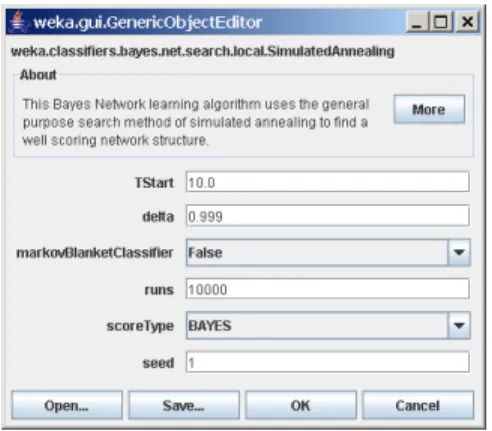
The GenericObjectEditor dialog box lets you configure a filter. The same kind of dialog box is used to configure other objects, such as classifiers and clusterers (see below). The fields in the window reflect the available options.
Right-clicking (or Alt+Shift+Left-Click ) on such a field will bring up a popup menu, listing the following options: