SQT1119
Operating Instructions
Thank you for purchasing this product.
Please read these instructions carefully before using this product, and save this manual for future use.
Model number suffix “EB” denotes UK model.
Blu-ray Disc™ Recorder
Model No.
DMR-BWT850
Software (Firmware) Update
To support the latest features, it’s very important you install the latest updates to maintain proper operation of your unit.
For details, refer to “Software (Firmware) Update” (>81) or http://panasonic.jp/support/global/cs/ (This site is in English only.)
Small object
• Keep the Memory Card out of reach of children to prevent swallowing.
Unit
• Do not place sources of naked flames, such as lighted candles, on this unit.
• This unit may receive radio interference caused by mobile telephones during use. If such interference occurs, please increase separation between this unit and the mobile telephone. • This unit is intended for use in moderate climates.
Safety precautions
WARNING Unit
• To reduce the risk of fire, electric shock or product damage,
- Do not expose this unit to rain, moisture, dripping or splashing.
- Do not place objects filled with liquids, such as vases, on this unit.
- Use only the recommended accessories. - Do not remove covers.
- Do not repair this unit by yourself. Refer servicing to qualified service personnel. - Do not let metal objects fall inside this unit. - Do not place heavy items on this unit.
AC mains lead
• To reduce the risk of fire, electric shock or product damage,
- Ensure that the power supply voltage corresponds to the voltage printed on this unit. - Insert the mains plug fully into the socket
outlet.
- Do not pull, bend, or place heavy items on the lead.
- Do not handle the plug with wet hands. - Hold onto the mains plug body when
disconnecting the plug.
- Do not use a damaged mains plug or socket outlet.
• The mains plug is the disconnecting device. Install this unit so that the mains plug can be unplugged from the socket outlet immediately.
CAUTION
• This unit utilizes a laser. Use of controls or adjustments or performance of procedures other than those specified herein may result in hazardous radiation exposure.
Placement
• Place this unit on an even surface. • To reduce the risk of fire, electric shock or
product damage,
- Do not install or place this unit in a bookcase, built-in cabinet or in another confined space. Ensure this unit is well ventilated.
- Do not obstruct this unit’s ventilation openings with newspapers, tablecloths, curtains, and similar items. - Do not expose this unit to direct sunlight, high
temperatures, high humidity, and excessive vibration.
Batteries
• Danger of explosion if battery is incorrectly replaced. Replace only with the type recommended by the manufacturer.
• Mishandling of batteries can cause electrolyte leakage and may cause a fire.
- Do not mix old and new batteries or different types at the same time.
- Do not heat or expose to flame.
- Do not leave the battery(ies) in a car exposed to direct sunlight for a long period of time with doors and windows closed.
- Do not take apart or short circuit. - Do not recharge alkaline or manganese batteries. - Do not use batteries if the covering has been
peeled off.
- Remove batteries if you do not intend to use the remote control for a long period of time. Store in a cool, dark place.
• When disposing of the batteries, please contact your local authorities or dealer and ask for the correct method of disposal.
(For the AC mains plug of three pins)
For your safety, please read the following text carefully.
This appliance is supplied with a moulded three pin mains plug for your safety and convenience. A 5-ampere fuse is fitted in this plug.
Should the fuse need to be replaced please ensure that the replacement fuse has a rating of 5-ampere and that it is approved by ASTA or BSI to BS1362.
Check for the ASTA mark Ï or the BSI mark Ì on the body of the fuse.
If the plug contains a removable fuse cover you must ensure that it is refitted when the fuse is replaced.
If you lose the fuse cover the plug must not be used until a replacement cover is obtained. A replacement fuse cover can be purchased from your local dealer.
Before use
Remove the connector cover.
How to replace the fuse
The location of the fuse differ according to the type of AC mains plug (figures A and B). Confirm the AC mains plug fitted and follow the
instructions below.
Illustrations may differ from actual AC mains plug. 1. Open the fuse cover with a screwdriver.
2. Replace the fuse and close or attach the fuse cover.
Please check and identify the supplied accessories.
(Product numbers are correct as of August 2015. These may be subject to change.)
• Do not use AC mains lead with other equipment.
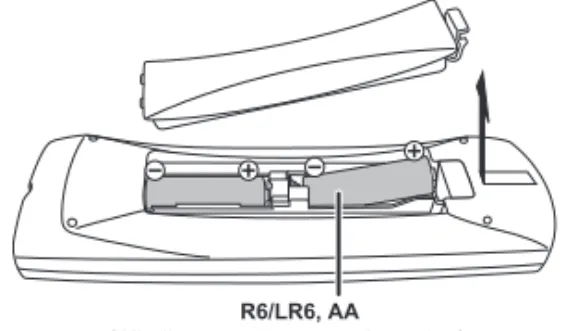
Insert batteries
Insert so the poles (i and j) match those in the remote control.
Caution for AC Mains
Lead
Fuse cover
Figure A Figure B
Figure A Fuse Figure B Fuse(5 ampere) (5 ampere)
Supplied accessories
Remote control (N2QAYB001058): 1 pc.
Batteries for remote control: 2 pcs.
AC mains lead (K2CT2YY00098): 1 pc.
RF coaxial cable (K2KYYYY00247): 1 pc.
HDMI cable (K1HY19YY0011): 1 pc.
About descriptions in these operating instructions
• Pages to be referred to are indicated as “>±±”. • Images are for illustration purpose, contents may change
without notice.
R6/LR6, AA (Alkaline or manganese batteries)
Table of contents
Safety precautions
. . . 2Caution for AC Mains Lead
. . . 3Supplied accessories
. . . 3Getting started
HDD and media information
. . . 6Unit care
. . . 11Control reference guide
. . . 12Connection
. . . 14Settings
. . . 17FUNCTION MENU screen
. . . 21Watching broadcasts
Watching broadcasts
. . . 22Freeview Play
. . . 25Recording
Recording TV programmes
. . . 27Timer recording
. . . 29Playing back video
Playing titles on the HDD
. . . 34Playing titles on the media
. . . 37Operation during play
. . . 39Editing video
Deleting/Editing titles
. . . 42Copying video
Copying titles
. . . 46Photo and Music
Playing photos
. . . 54Editing photos
. . . 56Copying photos
. . . 57Playing music
. . . 58Copying/Deleting music
. . . 59Network
Smart Home Networking (DLNA)
. . . 60TV Anywhere
. . . 64Enjoying Network Service
. . . 64With Other Equipment
Copying the HD Video (AVCHD)
. . . 65Registering
the external HDD (USB HDD)
. . . 65Convenient functions
VIERA Link functions
. . . 67Playback menu
. . . 68Basic Settings
. . . 704K Networking
. . . 81Software (Firmware) Update
. . . 81Other operations
. . . 82Troubleshooting
Troubleshooting guide
. . . 86Reference
Specifications
. . . 92Reference
. . . 94Licenses
. . . 96Index
. . . 98Getting started
Watching broadcasts
Recording
Playing back video
Editing video
Copying video
Photo and Music
Network
With Other Equipment
Convenient functions
Troubleshooting
Reference
Getting started
HDD and media information
Getting startedFor more details, refer also to the specifications. (>92)
(–: Impossible)
Recordable/playable contents
Media type Standard symbol Recordable contents Playable contents
Built-in hard disk drive
(HDD) [HDD] • Video • AVCHD/AVCHD 3D • MKV • MP4 • MPEG2 • Xvid • JPEG • MPO (3D photo) • AAC • ALAC • DSD • FLAC • MP3 • WAV • WMA
External hard disk drive (USB HDD) (>9) [USB_HDD] • Video§1 – • AVCHD/AVCHD 3D§2, 3 • MKV • MP4 • MPEG2 • Xvid • JPEG • MPO (3D photo) • AAC • ALAC • DSD • FLAC • MP3 • WAV • WMA BD-Video [BD-V] – • Video BD-RE BD-RE DL [BD-RE] • Video • AVCHD/AVCHD 3D • JPEG • MPO (3D photo) BD-R BD-R DL [BD-R] • Video • AVCHD/AVCHD 3D§2 – • MKV • Xvid DVD-Video§4 [DVD-V] – • Video DVD-RAM [RAM] • Video • JPEG • MPO (3D photo) – • AVCHD§2 DVD-R DVD-R DL [DVD-R] • Video • AVCHD§2 – • MKV • Xvid • JPEG • MPO (3D photo) • AAC • ALAC • DSD • FLAC • MP3 • WAV • WMA
Getting started
(–: Impossible)
•[+RW] This unit cannot record to 8X Speed +RW disc.
• With certain recording states and folder structures, the play order may differ or playback may not be possible.
• It may not be possible to play the above media in some cases due to the type of media, the condition of the recording, the recording method, and how the files were created.
Media type Standard symbol Recordable contents Playable contents
DVD-RW [DVD-RW] • Video – • AVCHD§2 +R/+R DL [+R] • Video – • AVCHD§2 • MKV • Xvid • JPEG • MPO (3D photo) • AAC • ALAC • DSD • FLAC • MP3 • WAV • WMA +RW [+RW] • Video – • AVCHD§2 Audio CD (CD-DA) [CD] – • Music CD (including CD-R/RW) – • MKV • Xvid • JPEG • MPO (3D photo) • AAC • ALAC • FLAC • MP3 • WAV • WMA
USB memory [USB] –
• AVCHD/AVCHD 3D§2, 3 • MKV • MP4 • MPEG2 • Xvid • JPEG • MPO (3D photo) • AAC • ALAC • DSD • FLAC • MP3 • WAV • WMA SD Cards [SD] • MP4 • MPEG2 • JPEG • MPO (3D photo) – • AVCHD/AVCHD 3D §2
§1 It cannot be recorded directly. (Only compatible with copying from the built-in HDD)
§2 Recorded with AVCHD format compatible devices (Panasonic video camera, etc.). It may not be able to play back, add, or edit depending on the device.
§3 It cannot be played back directly from the USB HDD or USB memory. Playback is possible by copying to the built-in HDD. (>65)
Getting started
HDD and media information
∫ Broadcast Recordings
Numbers of titles that can be recorded:
• Maximum numbers of titles are including recordings of HD CAMCORDER.
∫ HD CAMCORDER Recordings
MPEG-4 AVC/H.264 (based on AVCHD) Numbers of titles that can be recorded:
• Maximum numbers of titles are including recordings of Broadcast.
∫ Photo files
Compatible pixels:
Between 34k34 and 8192k8192 pixels
Sub sampling: 4:2:2, 4:2:0
(Motion JPEG is not supported.) Maximum numbers of contents:
∫ Video files/Audio files
Numbers of contents that can be copied to internal HDD:
USB device:
• Each folder can store up to 1000 files. • We recommend that you limit the depth of
folder trees to about five levels. • Bit rate up to 100 Mbps/resolution up to
3840k2160 25p/30p, 4096k2160 24p. (MP4 only)
• The video file and subtitle text files are inside the same folder, and the file names are the same except for the file extensions. • Some files may not be played back even if they have these extensions.
Information about contents
Media Maximum titles HDD 3000 BD-RE, BD-R 200 DVD-RAM, DVD-R, DVD-RW 99 +R, +RW 49 Media Maximum titles HDD 3000 BD-RE, BD-R 200
Media Folders Files
HDD – 20000 BD-RE, DVD-RAM, DVD-R, +R, CD-R, CD-RW, USB device, SD 500 10000
Contents Maximum numbers of folders and files
Video 20000
Audio 20000
About extension of files
MKV: “.mkv”
Subtitle text files: “.srt” “.sub” “.txt”
MP4: “.mp4” “.mov”
MPEG2: “.mpg” “.mpeg” “.m2ts” “.mts” “.ts”
Xvid: “.avi”
Subtitle text files: “.srt” “.sub” “.txt”
JPEG: “.jpg” MPO: “.mpo” AAC: “.m4a” ALAC: “.m4a” DSD: “.dsf” “.dff” FLAC: “.flac” MP3: “.mp3” WAV: “.wav” WMA: “.wma”
Getting started
§1 FR (Flexible Recording Mode):
The unit automatically selects the best possible recording rate between XP mode and EP mode.
§2 The SD quality programme cannot be converted to HD quality.
§3 You cannot select during play whether it activates or deactivates.
§4 You cannot select during play whether it appears or disappears.
Approximate recording times
Refer to “Recording modes and approximate recording times”. (>92)
You can use an external HDD (USB HDD) in the following two ways (A single HDD cannot handle those two ways simultaneously), and a USB memory for data files.
• For recorded titles
Moving titles in the built-in HDD to a USB HDD to save the capacity of the built-in HDD. • The USB HDD must first be registered on this
unit. (>65)
• The USB HDD over 3 TB is not usable.
• For data files
Playing back MP4, JPEG, MP3, etc. in a USB device with this unit.
• The USB device must be formatted in FAT12, FAT16, FAT32 or NTFS file system.
• The USB device over 2 TB is not usable.
• This unit supports USB 2.0 High Speed.
• Although this unit can use USB 3.0 devices as USB 2.0 devices.
• This unit does not recognise USB HDDs other than those in which the size of one sector is 512-bytes or 4096-bytes. (For details, consult the dealer of your USB HDD.) • This unit supports USB mass storage device class. • This unit does not guarantee connection with all USB
devices.
Recording mode
Recording Mode DR HG/HX/HE/HL/HM XP/SP/LP/EP/FR§1
Feature Programmes can be
recorded in a nearly perfect broadcasted state.
Recording can be done with reduced recording volume in High definition (HD) quality§2.
Recording can be done with reduced recording volume in Standard definition (SD) quality.
Recordable media
Multiple audio Record all multiple audio Record only one audio§3
Audio Description
Can be recorded Can be recorded§3
Subtitles Can be recorded Can be recorded (only one subtitle)§4
Surround audio Surround audio as the
broadcast
Stereo audio
Notes
Getting started
HDD and media information
• Region management information
The unit can play back BD-Video/DVD-Video discs of the following regions codes, including “ALL”:
• Disc recorded on another device
• It may be necessary to finalise the disc, create Top Menu or close the session on the equipment used for recording to play on this unit.
•[DVD-RW] Recorded in DVD Video Recording
(DVD-VR) format
- This unit can play back and copy to HDD. - This unit does not support editing or
recording.
- It is possible to record and edit with DVD-Video (DVD-V) format by formatting discs with this unit.
• Recording may not be possible to discs which were used for recording on other equipment.
• Play on other players
•[BD-RE][BD-R] When these discs cannot be
played back on other Blu-ray Disc players, etc. (e.g., title recorded with HE-AAC audio format), convert the recording mode to play them back. (>44, File Conversion)
•[DVD-R][DVD-RW][+R] Finalisation is needed.
(>83)
•[+RW] If the disc failed to play on other
equipment, we recommend you create a Top Menu (>83).
•[DVD-R] The disc created in AVCHD format can
only be played back on AVCHD compatible equipment.
• Regarding 8 cm Disc
This unit cannot record or edit the 8 cm disc. Only playback or copy to the HDD is possible.
• Discs that cannot be played
- DVD-RAM in a cartridge - 2.6 and 5.2 GB DVD-RAM, 12 cm - DVD-Audio
- Super Video CD, Super Audio CD, Video CD
• Operation and sound quality of CDs that do not conform to CD-DA specifications (copy control CDs, etc.) cannot be guaranteed.
• If the SD card is formatted on other equipment, the time necessary for recording may be longer or the card may not be able to be used on this unit. In these cases, format the card on this unit.
• Do not touch the recorded surface of the discs or the terminal surface of the SD cards. • Wipe with a damp cloth and then wipe dry.
Notes for the disc
e.g., BD-Video DVD-Video
Notes for the SD cards • Compatible SD card
- SD Memory Card
(from 8 MB to 2 GB, FAT12 and FAT16 formats)
- SDHC Memory Card
(from 4 GB to 32 GB, FAT32 format) - SDXC Memory Card
(48 GB, 64 GB, exFAT format)
• Using miniSD card or microSD card
Mini-type and micro-type cards can also be used, but must be used with adaptor cards (optional).
Media handling
• Do not attach labels or stickers to discs. • Do not use disc cleaning sprays, benzine,
thinner, static electricity prevention liquids or any other solvent.
• Do not use the following discs:
- Discs with exposed adhesive from removed stickers or labels (rental discs, etc.). - Discs that are badly warped or cracked. - Irregularly shaped discs, such as heart
shapes.
• Do not expose the terminals of the SD card to water, garbage or other strange things.
Getting started
Unit care
• If the HDD or USB HDD is damaged, the recorded content cannot be recovered.
• The unit may breakdown if cigarette smoke or bug spray/vapour, etc. gets inside the unit.
Before moving the unit, ensure the disc tray is empty.
1 Switch the unit to standby mode. (Wait until “BYE” disappears from the display.)
2 Remove the AC mains lead from the household mains socket.
3 Move only after the unit has come to a complete stop (approx. 3 minutes) in order to avoid subjecting to vibration and shock. (Even after the unit is switched to standby mode, the HDD continues operating for a short time.)
The registration of the USB HDD may be cancelled in the process of repairing this unit. You can use the USB HDD again by
re-registering, but all recorded content already on the USB HDD will be lost. In such cases, the recorded content (data) cannot be recovered.
This unit may contain private information. Before disposing of or transferring this unit, perform the following to delete the data, including personal or secret information:
- Format HDD (>73)
- Perform “Shipping Condition” (>80)
HDD/USB HDD handling care
• The HDD is a high precision recording instrument and is easily susceptible to damage. Therefore, be careful of the following points while the unit is turned on, especially during operation, otherwise the HDD and the recorded content may be damaged:
- Do not subject the unit to any vibration and shock.
- Do not remove the AC mains lead from the household mains socket.
• The HDD is a temporary storage device
- It is recommended to save the recorded content on a disc or to keep the original data or CDs that they were copied from.
- If you notice a problem with the HDD such as repetitive strange sounds, immediately save (backup) all content and request service. If you continue using the HDD with a problem, the unit or the recorded content will be damaged.
Setup precautions
• Do not place on anything that generates heat like a Set Top Box, etc.
• Place in an area where condensation does not occur. Conditions where condensation may occur
- When there is an extreme change in temperature.
In the above situation, without turning the unit on, let the unit adjust to the room temperature and wait 2–3 hours until condensation is gone.
When moving the unit
Cleaning
• Wipe with a soft, dry cloth.
• Never use alcohol, paint thinner or benzine to clean this unit.
• Before using chemically treated cloth, carefully read the instructions that came with the cloth. • Use the lens cleaner (not supplied) to clean the
unit’s lens.
When requesting this unit for repair
Getting started
Control reference guide
Instructions for operations are generally described using the remote control.
1 Transmit the remote control signal
• Point it at remote control signal sensor on this unit. (>13)
2 Switch the unit from on to standby mode or vice versa
3 Select drive (HDD, Disc, SD or USB)
4 Select channels and title numbers, etc./Enter numbers or characters
5 Switch to the previously watched channel (>22)
6 Basic operations for recording and play, REWIND LIVE TV/PAUSE LIVE TV (>24)
7 Show Information (>22, 35, 39)
8 Selection/OK, Frame-by-frame (>39)
9 Show Video Menu (>34), Top Menu, Pop-up Menu
: Show OPTION menu (>42, 56, 68)
; Colour buttons (red, green, yellow, blue) (Use in accordance with instruction on the screen.)
< Start recording (>27)
= Select a recording mode/conversion mode (>27)
> Show the Timer Recording screen (>31)
? Create chapter (>40)
@ Listen to Audio Description (>23, 40)
A Skip the specified time (>40)
B TV operation buttons (>17)
CChannel select (>22)/Change pages in the Video Menu screen etc.
DShow the Freeview Play Catch Up Service screen (>26)
EShow NETFLIX screen (>64)
FShow the Network Service screen (>64)
GExit the menu screen
HShow the TV Guide screen (>25)
IShow the FUNCTION MENU screen (>21)
JReturn to previous screen
KShow subtitles (>22, 40)
LShow Digital Teletext (>23)
MSwitching to the radio channel list (>22)
NTo delete unwanted recorded titles, timer programmes, video, photo or music (>42)
OSkip approx. 1 minute forward (>39)
PSkip approx. 10 seconds backward (>39)
Remote control STATUS FUN CTION M EN U GUIDE PLAY/x1.3 PAUSE PAUSE LIVE TV STOP SLOW/SEARCH SKIP CH PAGE NET CH AV INPUT TV DRIVE SELECT
EXIT OK OPTION VOL0
2
abc5
jkl8
tuv1
4
ghi7
qrsp3
def6
mno9
xyzw DELETE PROG/CHECK TIME SLIP RADIO/TV -10s +60s REC MODE AD REC TEXT STTL CHAPTER MANUAL SKIP REWIND LIVE TV LAST VIEW BACK/ RETURN SLOW/SEARCH REWIND LIVE TV LAST VIEWGetting started
• While writing to/reading from the media, do not switch the unit to standby mode or remove the media. Such action may result in loss of the media contents.
• When inserting the media, ensure that it is facing the right way up.
Main unit
1Remote control signal sensor
• Angle: Approx. 20° up and down, 30° left and right
• Distance: Within approx. 7 m in front of the unit
2Open/close disc tray
3Standby/on switch (Í/I)
Press to switch the unit from on to standby mode or vice versa. In standby mode, the unit is still consuming a small amount of power.
4Disc tray
5USB port
6SD card slot
• When removing the SD card, press on the centre of the card and pull it straight out.
Display
Pull to flip down the front panel. SD card USB memory Disc Display 1 Drive (HDD, BD or SD) indicator 2 Disc indicator 3 Copying indicator 4 USB port indicator 5 SD card slot indicator
6 Remote control signal indicator 7 Timer recording indicator
• This indicator lights up when the timer recording standby is activated. 8 Main display section indicator
• Messages and other information are displayed. (>91)
9 Playback indicator 10 Recording indicator
• The indicator will light up while recording. • The indicator will blink while recording is
paused and before recording starts.
PLAY
COPY USB SDHDD
SD
BD
1 2 3 4 5 6 7 8 9 10Getting started
Connection
3D programmes or 4K images can be played back when this unit is connected to 3D or 4K compatible terminal of a 3D or 4K compatible TV.
• Keep the RF coaxial cables as far away as possible from other cables.
• Before connection, turn off all equipment and read the appropriate operating instructions.
• If you use an optional HDMI cable, use the High Speed HDMI cables. Non-HDMI-compliant cables cannot be utilized.
It is recommended that you use Panasonic’s HDMI cable.
When outputting 1080p or 24p (4K) signal, please use HDMI cables 5.0 meters or less. The HDMI-compliant cable is supplied with this unit.
• When the unit is not to be used for a long time
To save power, unplug it from the household mains socket. This unit consumes a small amount of power, even when the unit is in standby mode. (>92)
Basic connections
HDMI
VHF/UHF RF IN
This unit’s rear panel
Household mains socket (AC 220 to 240 V, 50 Hz)
AC mains lead (supplied)
• Connect only after all other connections are complete.
HDMI cable (supplied) To the aerial Aerial cable RF coaxial cable (supplied) Cooling fan
Getting started
Amplifier/receiver connections
HDMI terminal
• You will not be able to view 3D programmes or 4K images with this connection if your amplifier/receiver is not 3D or 4K compatible.
HDMI cable
HDMI cable (supplied)
Amplifier/ receiver
∫ Amplifier/receiver not compatible with 3D
or 4K
3D programmes or 4K images can be played back when this unit is connected to a 3D or 4K compatible TV.
• This connection only supports up to 5.1ch.
• When using a TV or an amplifier/receiver that does not display “ARC” on the HDMI terminal, it is necessary to connect the TV and the amplifier/receiver with a digital audio cable to enjoy the TV audio on the
amplifier/receiver. HDMI cable HDMI cable (supplied) Amplifier/ receiver
Getting started
Connection
• When you do not want the audio to be output from the TV, set “HDMI Audio Output” to “Off” (>76).
When this unit is connected to the network, you can enjoy network functions (DLNA function, Network Service, TV Anywhere, etc.).
For details about connection method, refer to the instructions supplied with the connected equipment.
After you make the LAN cable/Wireless LAN connection, the network setting is needed. (>19, Easy Network Setting)
• Use category 5 or above straight LAN cables (STP) when connecting to peripheral devices.
About wireless LAN connection (>19, Easy Network Setting)
• For up-to-date compatibility information on your Wireless router, refer to
http://panasonic.jp/support/global/cs/ (This site is in English only.)
• The unit is not compatible with public wireless LAN services.
DIGITAL AUDIO OUT terminal
Amplifier/receiver
Coaxial cable
Network connection
LAN cable connection
Wireless LAN connection
Broadband router, etc.
Internet
Getting started
Settings
The TV can be operated from the TV operation buttons of the remote control.
• Perform the setting if you cannot operate the TV with the TV operation buttons.
While pressing [TVÍ], enter the code with
the number buttons. Manufacturer and Code No.
• If your TV brand has more than one code listed, select the one that allows correct operation.
• If the brand of your TV is not listed or the code number is invalid for your TV, this remote control is not compatible with your TV.
1
Turn on the TV, then select the appropriate AV input to suit the connections to this unit.2
Press [Í] on the remote control or [Í/I] on this unit.• The Easy Setting will start at the initial power on.
Auto Setup starts.
(This operation may take some time.) e.g.,
• If the region selection screen appears, select repeatedly until you reach the available region.
4
Enter the PIN.This PIN will be used only for the Owner ID-Data Entry screen.
1 Press the number buttons to enter 4-digit PIN.
2 Repeat step 1 to confirm.
• Make a note of PIN in case you forget it. The PIN number cannot be reset. • Steps 4 – 6 will be skipped in the Easy
Setting after “Shipping Condition” (>80) is performed. (>go to step 7 on page 18)
TV operation buttons
Manufacturer Code Manufacturer Code
AIWA 35 BENQ 58/59 BRANDT 10/15 CENTREX 66 CURTIS 05 DESMET 05 ELEMIS 05 FINLUX 61 Panasonic 01/02/03/04 AKAI 27/30 BEKO 05/71/72/73/74 BUSH 05 DAEWOO 64/65 DUAL 05 FERGUSON 10/34 FISHER 21 MITSUBISHI 05/19/20/47 METZ 05/28/79 MIVAR 24 NEC 36 NOKIA 25/26/27/60/61 OLEVIA 45 ORION 05 PHILCO 41/48/64 PHONOLA 05 PROVIEW 52 RADIOLA 05 NOBLEX 33 NORDMENDE 10 ONWA 30/39/70 PEONY 49/69 PHILIPS 05/06/46 PIONEER 37/38 PYE 05 SABA 10 FUJITSU 53 ITT LG GOLDSTAR 05/50/51 GRADIENTE 36 25 JVC 17/30/39/70 KOLIN 45 05/50/51 MAG 52 FUNAI 63/67 GOODMANS 05 GRUNDIG 09 IRRADIO 30 KDS 52 KONKA 62 HITACHI 05/22/23/40/41 SALORA 26 SANSUI 05 32/42/43/65/68 SAMSUNG SCHNEIDER 05/29/30 SELECO 05/25 SIEMENS 09 SONY 08 TELEFUNKEN 10/11/12/13/14 TOSHIBA 16/57 YAMAHA 18/41 05 WHITE WESTINGHOUSE SANYO 21/54/55/56 05/69/75/76/77/78 SEG SINUDYNE 05 31/33/66/67/69 TCL TEVION 52 THOMSON 10/15/44 SHARP 18
Easy Setting
3
Clock will be set automatically.If the clock setting screen appears, set the time manually (>80, Clock).
Progress DVB Auto Setup
CH 21 60
CH
Free TV: 2 Pay TV: 0 Radio: 0 Data: 0
Searching
Actual number of channels may differ due to channel duplication. Quality Type Channel Name
RETURN
This will take about 3 minutes.
35 10 10 35 Free TV Free TV Owner ID Please enter new PIN PIN
0 9PIN entry You now have the opportunity to enter your
details and help the police to crack crime. See Instruction Book.
* * * *
Getting started
Settings
5
Set the Owner ID-Data Entry (“NAME”, “HOUSE NO” and “POSTCODE”). e.g.,1 Select the item, then press [OK]. 2 Select the character, then press [OK].
Repeat this step.
3 Press [BACK/RETURN ]. 4 Repeat steps 1-3 to enter all data. 5 Press [BACK/RETURN ] to exit from
the Owner ID-Data Entry screen.
6
Enter the new PIN for parental control.• The default PIN is “0000”.
1 Enter the new 4-digit PIN with the number buttons.
• Make a note of the PIN you have decided on in case you forget it.
2 Press [OK].
7
Set “Quick Start” to “On”, “Off” or “Timer Setting for Quick Start”, then press [OK]. For details, refer to “Quick Start”. (>79) When “Easy Setting has been completed.” appears, Easy Setting is complete. - Select “Yes” to set network settings. - Select “No” to finish the Easy Setting.To stop partway
Press [BACK/RETURN ].
To restart setup (>70, Auto Setup)
To display the Owner ID information on TV
1 While the unit is on, press and hold [OK], the yellow button and the blue button on the remote control at the same time for more than 5 seconds.
- “00 RET” is displayed on the front panel display.
2 Repeatedly press [1] (right) on the remote control until “01 OID” is displayed on the front panel display.
3 Press [OK] on the remote control. The PIN is not displayed.
To change PIN for parental control
Refer to “PIN Entry”. (>80)
To change the region for Channel Sorting
Refer to “Channel Sorting by Region”. (>71)
• If tuning is cancelled partway through, it may not be possible to receive the channels. Restart setup again.
Owner ID-Data Entry
NAME HOUSE NO POSTCODE
PIN 0000
RETURN Change PINSelect
0
Number 9
-PIN Entry Enter a new 4-digit PIN, then press OK. This PIN will be used for controlling viewing and playback. PIN will be set to “0000” by pressing “RETURN” when there is no number input.
- -
Getting started
After completing “Easy Setting”, you can continue with “Easy Network Setting”.
Select “Wired” or “Wireless”, then press [OK].
“Wired” connection
Follow the on-screen instructions to apply your connection settings.
“Wireless” connection
Before beginning wireless connection setup • Obtain your network name (SSID§1).
• If your wireless connection is encrypted, please be sure that you know your encryption key. Select “Search for wireless network” or “WPS (PUSH button)” and press [OK], then follow the on-screen instructions and apply the settings.
• If your wireless network is encrypted, Encryption Key Input Screen will be displayed.
Input the encryption key of your network.
§1 SSID:
An SSID (Service Set IDentification) is a name used by wireless LAN to identify a particular network. Transmission is possible if the SSID matches for both devices.
§2 The wireless router compatible with Wi-Fi Protected SetupTM may have the mark.
Easy Network Setting
OK RETURN Easy Network Setting
Settings and tests for connection required for home network and the Internet will be conducted.
First, please select a connection mode.
LAN cable connection:
Connect a LAN cable to the unit and select “Wired”. Wireless LAN connection:
Select “Wireless”. Current setting : Wired
Wired Wireless
Search for wireless network:
The available wireless networks will be displayed. Select your network name and press [OK]. - If your Network name is not displayed, search
again by pressing the red button on the remote control.
- Stealth SSID will not be displayed. Enter manually by using “Wireless Settings”. (>76)
WPS (PUSH button):
If your Wireless router supports WPS (PUSH button), you can easily perform the settings by pressing WPS button on it.
WPS (Wi-Fi Protected Setup™) is a standard that facilitates settings relating to the connection and security of wireless LAN devices.
1 Press WPS button or corresponding button of Wireless router until the lamp starts flashing. • For details, refer to the operating instructions
of Wireless router.
2 Press [OK].
※2
Getting started
Settings
To restart Easy Network Setting
1 Press [FUNCTION MENU]. (>21)
2 Select “Basic Settings” in “Setup”, then press [OK].
3 Select “Easy Network Setting” in “Network”, then press [OK].
To redo settings individually
If “Easy Network Setting” did not work properly or when you change the settings individually, perform the following steps:
1 Press [FUNCTION MENU]. (>21)
2 Select “Basic Settings” in “Setup”, then press [OK].
3 Select “Network Settings” in “Network”, then press [OK].
4 Refer to “Network Settings”. (>76)
Check security before using Home Network function
If you set “Home Network function” to “On”, all connected devices on the same network can access this unit. Ensure that the router for your home network has adequate security system to prevent unauthorised access.
• Refer to the operating instructions of the hub or router. • If you set “Home Network function” or “TV Anywhere” to
“On”, the setting for “Quick Start” is fixed to “On”. • Do not use this unit to connect to any wireless network for
which you do not have usage rights.
During automatic searches in a wireless network environment, wireless networks (SSID) for which you do not have usage rights may be displayed; however, using these networks may be regarded as illegal access. • After performing network settings on this unit, the settings
(encryption level, etc.) of the Wireless router might change. When you have trouble getting online on your PC, perform the network settings on your PC in accordance with the settings of Wireless router.
• Please be aware that connecting to a network without encryption may result in the content of the communication being illegitimately viewed by a third party, or the leaking of data such as personal or secret information.
Getting started
FUNCTION MENU screen
You can easily access the desired functions, such as playback, timer recording, the unit’s settings etc. via the FUNCTION MENU.1
Press [FUNCTION MENU].2
Select the item, then press [OK].• Freeview Play Catch Up (>26)
• TV Guide (>25) • Timer Recording (>31) • Network Service (>64) • Contents on HDD - Recorded Programmes (>34) - Video ( AVCHD ) (>34) - Video ( MP4 / Xvid / MKV ) (>36) - Photo (>54) - Music (>58) • Home Network - Miracast (>63) - DLNA Client (>61) - Media Renderer (>62) - Wi-Fi Direct (>63) • Setup - Basic Settings (>70)
• You can change the unit’s settings of Tuning, Sound, Display, Connection, Network etc. - TV Anywhere (>64)
- Wallpaper
Personalize a background of the FUNCTION MENU.
• To select from among “Photo”, register photo in advance. (>55)
- BD-Video Data Management (>38)
• Media - Disc - SD Card - USB device - USB HDD • Copy Video - Copy Menu (>48)
- Copy Video (AVCHD) to DVD-R (>53) RETURN FUNCTION MENU OK Media TV Guide Freeview Play Catch Up Home Network Setup Timer Recording Contents on HDD Network Service Copy Video
Watching broadcasts
Watching broadcasts
Watchingbroadcasts
To switch to the channel you have previously watched
Press [LAST VIEW ].
• This function will work only for the channels you have watched for more than 10 seconds.
To switch to the radio channels or to the all channels
Press [RADIO/TV].
If you have locked channels (>71, Child Lock List), you may be asked to enter the PIN. In that case, enter the 4-digit PIN with the number buttons by following the on-screen instructions. • PIN can be changed via “PIN Entry”. (>80)
While watching a programme Press [STATUS ].
Channel information appears.
1Set timer (>32) 2Current Category
3Guidance information for parental control (>72, Child Lock) 4HD simulcast programmes 5Audio Description 6Subtitle 7Digital teletext 8Multiple audio
To show detailed information
Press [STATUS ] again.
To hide the information screen
Press [EXIT ].
To switch between the current programme and the next programme
Press [2,1].
To switch to another channel
Press [3,4], then press [OK].
When “STTL” appears in channel information (>left)
Press [STTL ].
• Press again to hide subtitle.
When “Multi Audio” appears in channel information (>left)
1 Press [OPTION].
2 Select “Multi Audio” in “Digital TV Menu”, then press [OK].
3 Select the desired audio.
• Press [EXIT ] to exit from the screen.
Press [CHW X] to select the channel.
• You can also select the channel by the following operations.
- Using number buttons - Using “TV Guide” (>25)
- Using channel information (>below)
If this unit requests a PIN
Using channel information
10:30
1
Now AD MPEG Change category All DVB Channels 9:00 - 11:00 Set timer
SD>HD
STTL TEXT Multi Audio G
e.g.,
To change Category
Press the blue button.
• To register your favourite channels
1 Press [OPTION].
2 Select “Digital TV Menu”, then press [OK]. 3 Select “Favourites Edit”, then press [OK]. 4 Refer to “Favourites Edit”. (>70)
To show subtitle
Watching broadcasts
To use Hybrid Broadcast Broadband TV application, perform network connection and settings. (>16, 19)
• Set “HbbTV Setting” to “On”. (>71)
• Operations may vary depending on the broadcaster. • On-screen instructions may not correspond to the remote
control buttons.
• It may take some time to show the data service. • Some functions of the data service may be deactivated
during recording.
Audio Description adds an additional soundtrack to describe events on screen (narration) and aids understanding and enjoyment, particularly for visually-impaired viewers.
When “AD” appears in channel information (>22)
1 Press [AD].
2 Select “Audio Description” and set to “Automatic”.
3 Select “Volume”, then adjust the volume with [2,1].
• Audio Description may not be available depending on the type of audio format.
• When “Dolby D / Dolby D + / Dolby True HD”,
“DTS/ DTS-HD”, “MPEG” or “HE-AAC” is set to “Bitstream”, the Audio Description may not work. Set them to “PCM” (>74, Digital Audio Output).
• You can also set “Audio Description” active in the Setup menu. (>71)
When “TEXT” appears in channel information (>22)
1 Press [TEXT ].
2 Use [3,4,2,1], number buttons or colour buttons, etc. according to on-screen instructions.
• Some functions of Digital teletext are deactivated during recording.
• “Player PIN Control” applies access control for some MHEG services. If you have locked viewing of Digital teletext (MHEG) (>71, Player PIN Control), PIN is required to start viewing.
You can switch the aspect ratio of the screen. (>85)
To use data service (Hybrid Broadcast Broadband TV)
To listen to the Audio Description
To show Digital teletext (MHEG)
Watching broadcasts
Watching broadcasts
This unit temporarily saves a live TV programme you are watching with this unit’s tuner on HDD.
REWIND LIVE TV
You can rewind live TV programme to the point where temporary save has started (up to 1.5 hours).
PAUSE LIVE TV
You can pause live TV programme and restart watching from the paused position.
While pausing or rewinding a broadcast: Press [STATUS ].
• Press [STATUS ] again.
1The time that you can rewind the live programme.
2The amount of time temporarily saved on HDD.
3The time of the current playback position.
To stop REWIND LIVE TV or PAUSE LIVE TV
1 Press [STOP∫].
2 Select “Yes”, then press [OK].
To hide the display information
Press [EXIT ].
• Temporary save stops in the following cases: - When switching to other channels or other screen - When two programmes simultaneous recording is started - When performing PAUSE LIVE TV or REWIND LIVE TV for more than 8 hours (This may vary depending on the HDD free space.)
• These functions do not work in the following cases: - When the clock is not set
- When two programmes simultaneous recording is started - While copying
- While watching a programme being recorded - When a radio programme is selected
REWIND LIVE TV/PAUSE LIVE TV
1
While watching TVREWIND LIVE TV:
Press [SLOW/SEARCH6] to rewind.
PAUSE LIVE TV:
Press [PAUSE;] to pause.
• The maximum amount of the temporary save is 1.5 hours.
2
When you want to resume: Press [PLAY/a1.31].• You can perform search or Quick View, etc. • If temporary save stops (>right), playback
will be performed by that point.
Display information Pause 8:05 9:35 8:50 8:50:55 06/01/2015 Play 8:50.50
Watching broadcasts
Freeview Play
When this unit is connected to a network, it enables you to scroll back through the TV Guide for programmes from the last seven days on catch up (7 days back function), or display the list of services provided by broadcasters, such as BBC, ITV, and Channel 4 (Freeview Play Catch Up function).
Freeview Play will launch in October 2015. The following functions will be available for this unit:
• Freeview Play Side Bar (>below)
• TV Guide (>right)
• 7 days back function (>26)
• Freeview Play Catch Up(>26)
You can use the Freeview Play Side Bar to select items.
2
Select the item, then press [OK].TV Guide (>right)
Catch Up (Freeview Play Catch Up) (>26)
To exit
Press [BACK/RETURN].
4
To watch the programmeSelect “Watch Now”, then press [OK]. • To set a timer recording, edit timer
recording settings or etc., select the desired item with [2,1] and press [OK].
• Selection of channel is made easy by creating a Favourite of the channels you watch often. (>70, Favourites Edit)
About the 7 days back function and Freeview Play Catch Up function
• These functions will be made available through a firmware update. (As of October 2015) For details, please check the following website. http://panasonic.jp/support/global/cs/
(This site is in English only.)
• A network connection and related access settings are required. (>16, 19)
• Minimum broadband speed of 2 Mbps required for catch up and on demand services.
Freeview Play Side Bar
1
While watching a programmePress [OK].
TV Guide
Catch Up
Freeview Play Side Bar
TV Guide
1
While watching a programmePress [OK] to display the Freeview Play Side Bar.
2
Select the “TV Guide”, then press [OK]. • You can directly access the TV Guide bypressing [GUIDE]. e.g.,
Page up/down
Press and hold [CHW X] or [3,4].
To view a programme list for another day
Press the red button, then select the item.
To set a timer recording using the TV
Guide (>29)
3
Select the programme, then press [OK].ScheduleJump Now Timer Rec. OK Channel Back
OK
TV Guide Tue 22th Dec 2015 20:42
ADSHD 1 XXXXXXXXXXX XXXXXXXXXXX XXXXXXXXXXX XX XX XX XXXX XXXX-XXXX XXXXXXXXXXX 1 XXXXXXXXXX 8:00 Today 8:30 9:00 9:30 TV Guide Back RecordSeries Info
Tue 22th Dec 2015 20:42 Watch Now 1 XXXXX XXXXXXXXXXX XX XX XX XXXX XXXX-XXXX XXXXXXXXXX XXXXXXXXXXX ADSHD TV Guide
Watching broadcasts
Freeview Play
1
While watching a programmePress [OK] to display the Freeview Play Side Bar.
2
Select the “TV Guide”, then press [OK]. • You can directly access the TV Guide bypressing [GUIDE].
3
Press [2] to display the 7 days back function screen.4
Select the programme, then press [OK]. • You can select a broadcaster by pressing[CHW X].
• You can select a date by pressing [2,1].
5
To watch the programmeSelect “Watch Now”, then press [OK].
To return to the TV Guide screen for the current time
Press the green button.
To exit
Press [BACK/RETURN].
§1 The icon turns grey when the timer is cancelled.
§2 This function can be used when this unit is connected to a network, and it will be made available through a firmware update.
7 days back function
ScheduleJump Now OK Channel Back
OK
TV Guide Tue 22th Dec 2015 20:42
Monday 21th Sunday 20th 19th AD 1 XXXXXXXXXXX XXXXXXXXXXX XXXXXXXXXXX XX XX XX XXXX XXXX-XXXX XXXXXXXXXXX 1 XXXXXXXXXX e.g.,
Freeview Play Catch Up
1
While watching a programmePress [OK] to display the Freeview Play Side Bar.
2
Select the “Catch Up”, then press [OK]. • You can directly access Freeview PlayCatch Up by pressing [
].
e.g.,3
Select the item, then press [OK].Follow the on-screen instructions and make the subsequent settings.
Screen icons
AD Audio Description S Programmes with subtitles SL Programmes with sign language HD High definition programmes SD Standard definition programmes SD>HD HD simulcast programmes Pay Pay-per-view programmes Guidance Programmes with guidance
information Series programmes
F
§1 Programmes set for single timer recording§1 Programmes set for series timer recording §2 Catch Up Programmes Back Tue 22th Dec 2015 20:42 XXXXXXXXXXX XXXXXXXXXXXXXXXXXXXXXXXXXXXXXXXXXXXXXXXXXX
Recording
Recording TV programmes
RecordingTo convert the recording mode after recording in DR mode
Refer to “File Conversion”. (>44)
To confirm whether the conversion is completed
Refer to “To confirm whether the conversion is completed”. (>44)
To cancel a conversion
Refer to “To cancel a “During standby” conversion”. (>44)
• If a timer recording reaches its start time when all tuners are being used for recording, the recording (OTR) of one of the programmes terminates.
• Digital teletext will not be recorded.
• Following contents or media cannot be played back while recording.
- video file - photo
- USB HDD (For data files,>9) and USB memory • Copying cannot be performed while recording.
• When “Automatic Standby after OTR” is set to “On” (>79), this unit is turned to standby mode if this unit is not operated for approximately 5 minutes after completing “Automatic Stop” or “Recording Time”.
• This unit can record two programmes being broadcasted at the same time.
1
Select the channel to record.2
Press [REC MODE] and select theconversion mode, then press [OK].
• This unit will record the programmes in DR mode once, and then automatically convert to the selected recording mode while this unit is in standby.
• Recording mode (>9)
• The conversion mode set here is used as an initial value for the next recording.
3
Press [REC¥].Recording will start.
4
Select “Automatic Stop”, then press[OK].
• One touch recording (OTR)
Recording stops automatically when the programme ends. HG HX HE HL HM XP SP LP EP Off (DR) Conversion Mode Setting
OK RETURN HDD Remain h m(DR) High Definition Data Size Large Small Large Small Standard Definition
Automatic Stop (Guide Link) at 8:45 REC1/OTR
Recording Time Continuous recording
30 min 8:00 - 8:45
To set the recording time
1 Select “Recording Time” or “Continuous recording” in step 4 (>left).
Recording Time:
You can set the length of recording time from 30 minutes to 4 hours.
• You can select the recording time with [2,1].
Recording
Recording TV programmes
Press [STATUS ].
Press [STOP∫].
When recording one programme:
If the following screen appears
Select “Yes”, then press [OK].
After displaying the recording programme, press [PAUSE;].
• Press again to restart recording. (A title is not split into separate titles.)
• Timer recording programme cannot be paused.
You can play the recording title from the beginning or the titles previously recorded to the HDD.
• The title before conversion (the title recorded in DR mode) will be deleted once the conversion is completed.
• Conversion will take about the same time as the recorded duration.
• When the HDD does not have enough remaining space, conversion will not start. • Conversion is stopped when this unit is turned
on. Conversion will start from the beginning again once the unit is switched to standby mode.
• When converted, audio content and subtitle will be converted with the same settings as at the start of recording.
Operation during Recording
To check the recording programme
e.g., While recording two programmes simultaneously
To stop recording
When recording two programmes:
Following screen appears
1 Select the programme, then press [OK]. 2 Select “Yes”, then press [OK].
To pause recording REC2 HDD REC1/OTR AUTO 5 Recording programme displayed on the TV
Recording programme not displayed on the TV
Stop Recording
Yes No
Recording of this programme is in progress. Stop this recording ?
OK RETURN
1
Stop Recording
2 recordings are in progress. Which recording would you like to stop ?
OK RETURN
1 2
To record two programmes simultaneously
While recording, perform steps 1–4 on page 27.
• Channel can only be switched between the recording programmes.
Simultaneous rec and play
1 Press [VIDEO MENU].
“[” (red) is displayed on the recording programme.
2 Select the title, then press [OK].
Notes for Conversion
Page Select Start Time Prog.Type: Rec Time Play RETURNChannel Date Title Name
Delete Drama 9:00 0h10min(DR 04/10 04/10 29/10 29/10 Channel Date Title Name
Recording
Timer recording
• This unit has several functions that enable timer recordings to be controlled by the signal sent from the broadcaster. (>30) If the signal is not sent correctly, the recording may lack the beginning or the ending part of the programmes. • Some broadcasters may not send programme information.
When programme information is not displayed correctly, use manual timer recording. (>31)
• If the unit cannot record the selected programme, the unit will record the repeat programme if it is available. However, this unit will not record the repeat programme, if any part of the selected programme is recorded.
To use TV Guide (>25)
Operation during Recording (>28)
1 Select the programme to edit, then press the [OK] or [STATUS ].
2 Select “Edit Recording”, then press [OK]. 3 Go to step 3 on page 31, “Manually
programming timer recording”.
• Some options cannot be changed when “Guide Link” is effective. (>30, 32)
Select the programme to cancel, then press the [REC¥].
Select “Single Timer Recording” or “Series Timer Recording” (>30), then press [OK].
• You can enter up to 32 programmes within a month in advance. (Each daily or weekly programme is counted as one programme.) • This unit can record two programmes being
broadcasted at the same time.
Preparation
If you want to change the recording mode: Press [REC MODE] and select the recording mode, then press [OK].
1
Press [GUIDE].TV Guide screen appears.
2
Select the programme, then press the[REC¥].
The timer icon “F” (red) is displayed. • If on-screen instructions are displayed,
follow them.
To edit the timer recording on the TV Guide screen
To cancel a timer recording on the TV Guide screen
If the screen for selecting single or series timer recording appears
Recording
Timer recording
Guide Link
The recording’s start and stop times can be controlled by the broadcaster, e.g. delayed start. • This is indicated by “Guide Link” in the Timer
Recording screen (>32).
• The “Guide Link” function may not work if you manually change the start time or the stop time over 10 minutes.
Series Timer Recording
You can record all the episodes of a series by setting just one timer recording.
• Titles recorded using “Series Timer Recording” are bundled and displayed as a “group” in the Video Menu screen (>34).
• The series recording will be cancelled if there has been no episode of the series for 13 weeks.
If “Overlapped Timer Recording” screen appears
You can eliminate the overlapping or may change with repeat event for the duplicated programme. 1 Select “Change”, then press [OK].
2 Follow the on-screen instructions.
Red: Delete
Green: Record repeat programme Yellow: Exit (Overlapping is not resolved)
Timer programme overlaps with others.
Some part or all of programmes may not be recorded completely.
OK RETURN
Overlapped Timer Recording
Keep Change
Please delete unnecessary programme to resolve.
OK RETURN
Overlapped Timer Recording
New Programme
Confirm Delete Repeat
THU 11/1023:15 - 23:45TWO Wales Existing Programmes
THU 11/1023:00 - 23:30Holiday THU 11/1023:00 - 23:30Animals
Episode 01/ 02 R
Various functions with Freeview
F Programme for which you set the timer recording
Series Timer Recording programme Repeat programme
High definition programme
Series Information WED 07/01/2015 19:40
TUE 06/01 23:00 - 0:00
2/6 Comedy-drama series about housemates who are actually awere... HD
Channel Schedule Contents
WED 07/01 23:00 - 0:00 THU 08/01 23:00 - 0:00
3/6 Comedy-drama series about housemates who are actually awere... 3/6 Comedy-drama series about housemates who are actually awere... HD
HD
RETURN
R HD
Recording
You can record a programme that the broadcaster recommends.
1 On the TV Guide screen:
Select “Recommended”, then press [OK].
2 Select the programme, then press [OK]. • If the screen for selecting single or series
timer recording, or “Programme Selection” screen appears, refer to page 29.
3 Press [OK].
The timer icon (red) is displayed on the Recommendation List.
• To exit from the screen Press [EXIT ].
To cancel the timer recording on the Recommendation List
1 Select the programme with the timer icon (red), then press [OK].
2 Select “Yes”, then press [OK]. (The timer icon disappears.)
• “Recommended” cannot be selected if there is no recommended programme.
1
Press [PROG/CHECK].2
Select “New Timer Programme”, then press [OK].To confirm and edit the timer programme
Refer to “To confirm and edit a timer programme”. (>33)
Operation during Recording
Refer to “Operation during Recording”. (>28)
Recording recommended programme
SAT 14/03 19:45 - 20:00
Recommendation List
Manually programming timer
recording
3
Select the items and change the items. (>32, Timer recording options)4
Press [OK].The timer programme is stored. Channel Name Schedule Mode Space Timer Recording HDD 30:30 DR TUE 06/01/2015 8:05
New Timer Programme
Channel Name Schedule Mode Space
Timer Recording HDD30:30 DR TUE 06/01/2015 8:05
New Timer Programme
OK Programme Name WED 07/018:00 - 9:00 DR
Recording
Timer recording
Select the items and change the settings.
Channel
• You can select Category with the red button.
Start/Stop
• Press and hold [3,4] to alter in 15-minute increments.
Mode/Conv.
Refer to step 2. (>27)
Subtitles
You can choose whether or not to record the subtitle at conversion.
(Only when item other than “OFF” is selected in “Conv.”)
Title Name
1 Select “Title Name”, then press [OK]. 2 Refer to “Entering text”. (>84)
You can make timer recording of the current or next programme.
1
While watching a programme Press [STATUS ].3
Press the yellow button.4
Go to step 3 on page 31, “Manually programming timer recording”. • Some options cannot be changed when“Guide Link” is effective. (>30, Guide Link)
Timer recording options
Day/Date
• You can select “Date” or “Weekly” by pressing the green button.
Auto Renewal Recording
• (Only daily/weekly/series timer recording) The unit will record the new programme over the old one.
Press the yellow button. “Renew : ON” is displayed.
Timer Recording 30:24 DR TUE 06/01/2015 8:05 Channel 1 WED 07/01 Day/Date Stop 8:00 9:00 Start Title Name DR OFF Mode OFF Conv. Subtitles HDD RETURN OK
Category Date or Weekly? e.g.,
Timer recording from channel
information
2
Display the channel information of a programme to record.• Switch the programme with [2,1]. • Switch the channel with [3,4].
Notes on timer recording
• When the programme recorded in DR mode is converted, the audio content and subtitle language will be selected according to the following settings: - “Multi Audio” and “Audio Description” of
“Preferred Multi Audio” (>71)
- “Subtitles” of “Preferred Subtitles” (>71) • When you programme successive timer
recordings to start, about last 1 minute of earlier programme will not be recorded.
• Timer recording will not start while: - copying a title in high speed mode [with
finalising or creating Top Menu ([+RW])] - copying a title in normal speed mode - converting a title in “File Conversion” (Only
when “Now” is selected)
- copying HD Video (AVCHD) from USB device or SD card
- copying video/photos/music files - formatting
- finalising/creating Top Menu
• When “Pure Sound mode” is activated, timer recording does not start during playback of BD-Video, DVD-Video or music CD. (>72)
e.g., 10:30 1 Now MPEG Change category All DVB Channels 9:00 - 11:00 Set timer STTL TEXT
Recording
1
Press [PROG/CHECK].2
Select the programme, then perform the operations.To exit the timer recording list
Press [EXIT ].
• “No Data” is displayed on a series recording item if there will be no episode of the series for the next 8 days. We recommend you delete the “No Data” item after you confirm the last episode of the series is recorded.
To confirm and edit a timer
programme
To deactivate a timer programme
Press the red button.
• The timer icon “F” will change from red to grey.
• Press the red button again to activate timer recording standby. (The timer icon “F” will change to red.)
To delete a timer programme
Press [DELETE].
To resolve an overlap timer programme
Press the green button.
• The overlapped timer recording list will appear. (>30)
To edit a timer programme
1 Press [OK].
2 Change the timer recording options. • Refer to “Timer recording options”.
(>32) 3 Press [OK].
To show programme information
Press [STATUS ].
Channel Name Schedule Mode Space
OK RETURN Page Up Page Down Turn Timer Off Total 3/32
Timer Recording HDD30:30 DR TUE 06/01/2015 8:05
Delete Info Resolve overlap
New Timer Programme
MON 13/01 MON 13/01 10:00 - 11:50 11:00 - 11:45 11:30 - 1:00 8:00 - 10:45 MON 13/01 TUE 07/01 DR HG DR DR OK OK Guide Guide e.g., Screen icons
F
Red: Timer recording standby is activated. Grey: Timer recording standby is deactivated.[
(Red) Currently recording programme
A part or all of the programme will not be recorded since the programme is overlapping.
The HDD is full.
Copy-protected programme It was not recorded.
The recording of the programme was not completed because of some reason. Auto Renewal Recording is set (>32). Guide Link (>30)
Split Programme
Series Timer Recording (>30)
OK
Displayed if the recording can fit in the remaining space(Date)
Daily or weekly timer programme is set. • The timer remains active until the date
indicated below .
!
It may not be possible to record because: - there is not enough space left. - the number of possible titles hasreached its maximum. (>8) - programmes are deactivated, etc. Guide
Playing back video
Playing titles on the HDD
Playingback video
AVCHD tab
•[USB_HDD] When connecting registered
USB HDD, “USB HDD” tab and registration number appears.
Select “USB HDD” tab.
§ “For recorded titles (>9)” only
1
Press [FUNCTION MENU].2
Select “Contents on HDD”, then press[OK].
e.g.,
3
To play recorded titles:Select “Recorded Programmes”, then press [OK].
The Video Menu screen appears (>right).
To play HD Video (AVCHD):
Select “Video ( AVCHD )”, then press [OK].
The AVCHD tab appears on the Video Menu screen (>right).
To play video files:
Select “Video ( MP4 / Xvid / MKV )”, then press [OK].
The video list screen appears (>36).
4
Select the title, then press [OK].§
Contents on HDD
Recorded programmes can be played.
OK RETURN Video ( AVCHD ) Recorded Programmes Video ( MP4 / Xvid / MKV ) Photo Music
Video Menu screen
e.g., 1Tab (>35) 2Programme type 3AVCHD tab e.g., Time Remaining 45h54m (DR) HDD Page Select Copy Grouped Titles Start Time Prog.Type: Rec time Play RETURN Sport AVCHD Movie Not Viewed Video Menu
Channel Date Title Name Titles
All Delete Page Up Page Down Movie 9:00 0h01m(DR) Drama
Time Remaining 45h54m (DR) Registration number 1
USB HDD
Grouped Titles
Drama Sport AVCHD Movie
Not Viewed
Video Menu All USB HDD
Playing back video
You can quickly find the recorded titles by selecting the tab.
To select the tab
Press [2,1].
To change the displayed programme type tab
1 Select the programme type, then press the green button.
2 Select the item, then press [OK].
Select the title, then press [STATUS ].
Screen icons
[
(Red) Currently recording programme Protected title
Title was not recorded due to recording protection
t Title cannot be played (When data is damaged etc.) Grouped titles
[
(Blue) Title has not yet been played Title is recorded using a different encoding system from that of the unit.
Change the “TV System” (>75). Radio programme
3D contents
Recorded in 1080/50p contents Recorded in 1080/60p contents This icon is displayed with the following titles when “Child Lock” is set to “On”. (>72)
- Title with Guidance information - Title restricted by Child Lock List
(>71)
• PIN is required to play. Title has been recorded in Series timer recording.
Title has been recorded in Series timer recording and has not yet been played.
Titles cannot be copied to the disc in high definition quality mode (DR, HG, HX, HE, HL, HM) any more. Titles can be copied to the disc in high definition quality mode (DR, HG, HX, HE, HL, HM) once.
Recording did not complete as the timer recording has started. Title cannot be played from DLNA client not compatible with DTCP-IP (>60) & 0 1 Tab Showing Information
Showing grouped titles 1 Press [OPTION].
2 Select “Grouped Titles” or “All Titles”, then press [OK].
Grouped Titles:
• Two or more titles recorded in the
daily/weekly/series timer recording mode are bundled and displayed as one item.
All Titles
Playing back grouped titles 1 On the Grouped Titles screen:
Select the item marked with .
2 When playing all titles:
Press [PLAY/a1.31].
When playing the individual title:
Press [OK] and select the title, then press [OK].