SQL*Plus®
User’s Guide and Reference
Release 10.2
B14357-01
SQL*Plus User’s Guide and Reference, Release 10.2 B14357-01
Copyright © 1996, 2005 Oracle. All rights reserved. Primary Author: Simon Watt
Contributor: Alison Goggin, Alison Holloway, Anil Samuel, Christopher Jones, Luan Nim, Richard Rendell, Andrei Souleimanian.
The Programs (which include both the software and documentation) contain proprietary information; they are provided under a license agreement containing restrictions on use and disclosure and are also protected by copyright, patent, and other intellectual and industrial property laws. Reverse engineering, disassembly, or decompilation of the Programs, except to the extent required to obtain interoperability with other independently created software or as specified by law, is prohibited.
The information contained in this document is subject to change without notice. If you find any problems in the documentation, please report them to us in writing. This document is not warranted to be error-free. Except as may be expressly permitted in your license agreement for these Programs, no part of these Programs may be reproduced or transmitted in any form or by any means, electronic or mechanical, for any purpose.
If the Programs are delivered to the United States Government or anyone licensing or using the Programs on behalf of the United States Government, the following notice is applicable:
U.S. GOVERNMENT RIGHTS Programs, software, databases, and related documentation and technical data delivered to U.S. Government customers are "commercial computer software" or "commercial technical data" pursuant to the applicable Federal Acquisition Regulation and agency-specific supplemental regulations. As such, use, duplication, disclosure, modification, and adaptation of the Programs, including documentation and technical data, shall be subject to the licensing restrictions set forth in the applicable Oracle license agreement, and, to the extent applicable, the additional rights set forth in FAR 52.227-19, Commercial Computer Software—Restricted Rights (June 1987). Oracle Corporation, 500 Oracle Parkway, Redwood City, CA 94065
The Programs are not intended for use in any nuclear, aviation, mass transit, medical, or other inherently dangerous applications. It shall be the licensee's responsibility to take all appropriate fail-safe, backup, redundancy and other measures to ensure the safe use of such applications if the Programs are used for such purposes, and we disclaim liability for any damages caused by such use of the Programs.
Oracle, JD Edwards, PeopleSoft, and Retek are registered trademarks of Oracle Corporation and/or its affiliates. Other names may be trademarks of their respective owners.
The Programs may provide links to Web sites and access to content, products, and services from third parties. Oracle is not responsible for the availability of, or any content provided on, third-party Web sites. You bear all risks associated with the use of such content. If you choose to purchase any products or services from a third party, the relationship is directly between you and the third party. Oracle is not responsible for: (a) the quality of third-party products or services; or (b) fulfilling any of the terms of the agreement with the third party, including delivery of products or services and warranty obligations related to purchased products or services. Oracle is not responsible for any loss or damage of any sort that you may incur from dealing with any third party.
Contents
Preface
... xiiiAudience... xiii
Documentation Accessibility ... xiii
Related Documents ... xiv
Conventions ... xv
What’s New in SQL*Plus?
... xviiNew Features in SQL*Plus Release 10.2... xvii
SQL*Plus Quick Start
... xixSQL*Plus Resources ... xix
SQL*Plus Overview ... xix
SQL*Plus Prerequisites ... xxii
Starting SQL*Plus Command-line ... xxii
Starting SQL*Plus Windows GUI ... xxiv
Starting iSQL*Plus... xxiv
Starting SQL*Plus Instant Client ... xxv
Connecting to a Different Database... xxv
Sample Schemas and SQL*Plus... xxv
Running your first Query... xxvi
Exiting SQL*Plus ... xxvii
Part I
SQL*Plus Getting Started
1
SQL*Plus User Interface
SQL*Plus Command-line User Interface... 1-1 The Command-line Screen... 1-1 Changing the Command-line Font and Font Size ... 1-1 Windows Graphical User Interface... 1-2 Using the Mouse to Copy Text to the Command Prompt ... 1-3 Using Command Keys... 1-3 Using the Windows GUI Menus... 1-3 Changing the Windows GUI Font and Font Size ... 1-6
iSQL*Plus Navigation... 1-7
iSQL*Plus Login Screen... 1-8
iSQL*Plus DBA Login Screen ... 1-9
iSQL*Plus Workspace... 1-11
iSQL*Plus DBA Workspace ... 1-13
iSQL*Plus History Screen... 1-13
iSQL*Plus Input Required Screen... 1-14
iSQL*Plus Preferences Screen... 1-15 Preferences and Equivalent SET Commands... 1-18
2
Configuring SQL*Plus
SQL*Plus and iSQL*Plus Environment Variables... 2-1 SQL*Plus and iSQL*Plus Configuration... 2-4 Site Profile ... 2-5 User Profile... 2-5 Storing and Restoring SQL*Plus System Variables... 2-6 Installing Command-line Help ... 2-7 Configuring Oracle Net Services ... 2-9
iSQL*Plus Application Server Configuration... 2-9 Changing the iSQL*Plus Application Server Port in Use... 2-9 Testing if the iSQL*Plus Application Server is Running ... 2-10 Setting the Level of iSQL*Plus Logging... 2-11 Setting the Session Time Out... 2-11 Enabling Restricted Database Access ... 2-12 Enabling iSQL*Plus DBA Access ... 2-13 Enabling SSL with iSQL*Plus ... 2-15 Enabling iSQL*Plus or iSQL*Plus Help ... 2-18 Enabling Unauthorised Access Banner... 2-18 Enabling URL Access... 2-19 Enabling User Defined HTML Markup ... 2-19
iSQL*Plus Web Browser Configuration... 2-20 Session Integrity ... 2-20 Retained Session Settings... 2-20 Windows Graphical User Interface Configuration... 2-20 Setting Options and Values Using the Environment Dialog ... 2-21 Customizing Registry Entries that affect SQL*Plus on Windows ... 2-22
3
Starting SQL*Plus
Login Username and Password... 3-1 Secure External Password Store... 3-2 Expired Password ... 3-2 Expired Password Screen in iSQL*Plus ... 3-2 Changing your Password ... 3-3 Changing Your Password in iSQL*Plus... 3-3 Connecting to a Database... 3-4 Net Service Name... 3-4
Easy Connection Identifier ... 3-5 Connectionless Session with /NOLOG ... 3-6 Starting SQL*Plus... 3-6 Starting Command-line SQL*Plus ... 3-6 Getting Command-line Help ... 3-7 Starting the Windows Graphical User Interface... 3-7 Starting the iSQL*Plus Application Server... 3-8 To Check the HTTP Port used by the iSQL*Plus Application Server ... 3-9 Stopping the iSQL*Plus Application Server... 3-10 Starting iSQL*Plus... 3-10 Starting iSQL*Plus as a DBA ... 3-10 Starting iSQL*Plus from a URL... 3-11 Getting Help in iSQL*Plus ... 3-12 Exiting SQL*Plus... 3-12 Exiting the Command-line User Interface ... 3-13 Exiting the Windows Graphical User Interface ... 3-13 Exiting the iSQL*Plus User Interface... 3-13 SQLPLUS Program Syntax... 3-13 Options ... 3-14 Logon ... 3-18 Start ... 3-19
Part II
Using SQL*Plus
4
SQL*Plus Basics
Entering and Executing Commands... 4-1 The SQL Buffer ... 4-2 Executing Commands ... 4-2 Listing a Table Definition... 4-3 Listing PL/SQL Definitions... 4-3 Running SQL Commands... 4-4 Understanding SQL Command Syntax ... 4-5 Running PL/SQL Blocks... 4-6 Creating Stored Procedures ... 4-6 Running SQL*Plus Commands... 4-7 Understanding SQL*Plus Command Syntax ... 4-8 System Variables that Affect How Commands Run... 4-8 Stopping a Command while it is Running... 4-9 Running Operating System Commands... 4-9 Pausing the Display... 4-10 Saving Changes to the Database Automatically... 4-10 Interpreting Error Messages... 4-11
5
Using Scripts in SQL*Plus
Editing Scripts... 5-1 Writing Scripts with a System Editor... 5-1
Editing Scripts in SQL*Plus Command-Line... 5-2 Listing the Buffer Contents ... 5-3 Editing the Current Line ... 5-4 Appending Text to a Line ... 5-5 Adding a New Line... 5-6 Deleting Lines ... 5-7 Placing Comments in Scripts... 5-7 Using the REMARK Command ... 5-7 Using /*...*/ ... 5-7 Using -- ... 5-8 Notes on Placing Comments ... 5-8 Running Scripts... 5-10 Running a Script as You Start SQL*Plus... 5-10 Nesting Scripts... 5-11 Exiting from a Script with a Return Code... 5-11 Defining Substitution Variables... 5-11 Using Predefined Variables... 5-12 Using Substitution Variables... 5-12 Where and How to Use Substitution Variables ... 5-12 Avoiding Unnecessary Prompts for Values ... 5-14 Restrictions ... 5-17 System Variables and iSQL*Plus Preferences ... 5-17 Substitution Variables in iSQL*Plus... 5-17
iSQL*Plus Input Required Screen... 5-18 Passing Parameters through the START Command... 5-19 Communicating with the User... 5-20 Receiving a Substitution Variable Value ... 5-20 Customizing Prompts for Substitution Variable ... 5-21 Sending a Message and Accepting Return as Input ... 5-22 Clearing the Screen ... 5-22 Using Bind Variables... 5-23 Creating Bind Variables ... 5-23 Referencing Bind Variables... 5-23 Displaying Bind Variables ... 5-23 Using REFCURSOR Bind Variables... 5-24
6
Formatting SQL*Plus Reports
Formatting Columns... 6-1 Changing Column Headings... 6-1 Formatting NUMBER Columns ... 6-3 Formatting Datatypes ... 6-4 Copying Column Display Attributes ... 6-6 Listing and Resetting Column Display Attributes ... 6-7 Suppressing and Restoring Column Display Attributes... 6-7 Printing a Line of Characters after Wrapped Column Values ... 6-8 Clarifying Your Report with Spacing and Summary Lines... 6-9
Inserting Space when a Break Column's Value Changes... 6-10 Inserting Space after Every Row... 6-11 Using Multiple Spacing Techniques... 6-11 Listing and Removing Break Definitions ... 6-12 Computing Summary Lines when a Break Column's Value Changes... 6-12 Computing Summary Lines at the End of the Report ... 6-15 Computing Multiple Summary Values and Lines ... 6-16 Listing and Removing COMPUTE Definitions ... 6-17 Defining Page and Report Titles and Dimensions... 6-17 Setting the Top and Bottom Titles and Headers and Footers... 6-18 Displaying System-Maintained Values in Titles ... 6-21 Listing, Suppressing, and Restoring Page Title Definitions ... 6-22 Displaying Column Values in Titles ... 6-23 Displaying the Current Date in Titles ... 6-24 Setting Page Dimensions... 6-24 Storing and Printing Query Results... 6-26 Creating a Flat File ... 6-26 Sending Results to a File ... 6-27 Sending Results to a Printer... 6-27
7
Generating HTML Reports from SQL*Plus
Creating Reports using Command-line SQL*Plus... 7-1 Creating Reports... 7-1 Suppressing the Display of SQL*Plus Commands in Reports ... 7-5 HTML Entities ... 7-5 Creating Reports using iSQL*Plus... 7-5
8
Tuning SQL*Plus
Tracing Statements... 8-1 Controlling the Autotrace Report ... 8-1 Execution Plan ... 8-2 Statistics ... 8-3 Collecting Timing Statistics... 8-5 Tracing Parallel and Distributed Queries... 8-6 Execution Plan Output in Earlier Databases... 8-7 SQL*Plus Script Tuning... 8-8 COLUMN NOPRINT ... 8-8 SET APPINFO OFF ... 8-8 SET ARRAYSIZE ... 8-8 SET DEFINE OFF ... 8-9 SET FLUSH OFF ... 8-9 SET LINESIZE... 8-9 SET LONGCHUNKSIZE... 8-9 SET PAGESIZE ... 8-9 SET SERVEROUTPUT... 8-9 SET SQLPROMPT ... 8-9
SET TAB... 8-10 SET TERMOUT... 8-10 SET TRIMOUT ON SET TRIMSPOOL ON 8-10 UNDEFINE ... 8-10
9
SQL*Plus Security
PRODUCT_USER_PROFILE Table... 9-1 Creating the PUP Table ... 9-1 PUP Table Structure... 9-2 Description and Use of PUP Columns ... 9-2 PUP Table Administration... 9-3 Disabling SQL*Plus, SQL, and PL/SQL Commands... 9-3 Creating and Controlling Roles... 9-5 Disabling SET ROLE ... 9-5 Disabling User Roles... 9-5 Disabling Commands with SQLPLUS -RESTRICT... 9-6 Program Argument Security... 9-7iSQL*Plus Security... 9-7 Enabling SSL with iSQL*Plus ... 9-8 Administration Privileges ... 9-8 Enabling DBA Access ... 9-8 Enabling or Disabling Restricted Database Access ... 9-8 Security Usage Notes... 9-8
10
Database Administration with SQL*Plus
Overview... 10-1 Introduction to Database Startup and Shutdown... 10-1 Database Startup ... 10-1 Database Shutdown ... 10-2 Redo Log Files... 10-3 ARCHIVELOG Mode ... 10-3 Database Recovery... 10-3
11
SQL*Plus Globalization Support
Configuring Globalization Support in Command-line SQL*Plus... 11-1 SQL*Plus Client ... 11-1 Oracle Database ... 11-1 Configuring Multiple Language Support in iSQL*Plus... 11-1 Web Browser... 11-2 Application Server ... 11-2 NLS_LANG Environment Variable... 11-3 Viewing NLS_LANG Settings ... 11-3 Setting NLS_LANG... 11-4
12
SQL*Plus Command Reference
SQL*Plus Command Summary... 12-2 @ ("at" sign)... 12-5 @@ (double "at" sign)... 12-7 / (slash)... 12-9 ACCEPT... 12-10 APPEND... 12-12 ARCHIVE LOG... 12-13 ATTRIBUTE... 12-16 BREAK... 12-18 BTITLE... 12-22 CHANGE... 12-24 CLEAR... 12-26 COLUMN... 12-28 COMPUTE... 12-36 CONNECT... 12-41 COPY... 12-43 DEFINE... 12-44 Predefined Variables... 12-46 DEL... 12-49 DESCRIBE... 12-51 DISCONNECT... 12-57 EDIT... 12-58 EXECUTE... 12-60 EXIT... 12-61 GET... 12-63 HELP... 12-64 HOST... 12-65 INPUT... 12-66 LIST... 12-68 PASSWORD... 12-70 PAUSE... 12-71 PRINT... 12-72 PROMPT... 12-73 RECOVER ... 12-74 REMARK... 12-81 REPFOOTER... 12-82 REPHEADER... 12-84 RUN... 12-87 SAVE... 12-88 SET... 12-89 SET System Variable Summary... 12-90 SET APPI[NFO]{ON | OFF | text} ... 12-93 SET ARRAY[SIZE] {15 | n} ... 12-94 SET AUTO[COMMIT]{ON | OFF | IMM[EDIATE] | n} ... 12-95 SET AUTOP[RINT] {ON | OFF}... 12-96 SET AUTORECOVERY [ON | OFF] ... 12-97
SET AUTOT[RACE] {ON | OFF | TRACE[ONLY]} [EXP[LAIN]] [STAT[ISTICS]]... 12-98 SET BLO[CKTERMINATOR] {. | c | ON | OFF} ... 12-99 SET CMDS[EP] {; | c | ON | OFF}... 12-100 SET COLSEP { | text} ... 12-101 SET CON[CAT] {. | c | ON | OFF}... 12-102 SET COPYC[OMMIT] {0 | n} ... 12-103 SET COPYTYPECHECK {ON | OFF} ... 12-104 SET DEF[INE] {& | c | ON | OFF} ... 12-105 SET DESCRIBE [DEPTH {1 | n | ALL}] [LINENUM {ON | OFF}] [INDENT {ON | OFF}]...
12-106
SET ECHO {ON | OFF}... 12-107 SET EDITF[ILE] file_name[.ext] ... 12-108 SET EMB[EDDED] {ON | OFF} ... 12-109 SET ESC[APE] {\ | c | ON | OFF}... 12-110 SET FEED[BACK] {6 | n | ON | OFF} ... 12-111 SET FLAGGER {OFF | ENTRY | INTERMED[IATE] | FULL}... 12-112 SET FLU[SH] {ON | OFF}... 12-113 SET HEA[DING] {ON | OFF} ... 12-114 SET HEADS[EP] { | | c | ON | OFF} ... 12-115 SET INSTANCE [instance_path | LOCAL] ... 12-116 SET LIN[ESIZE] {80 | n}
SET LIN[ESIZE] {150 | n} in iSQL*Plus 12-117
SET LOBOF[FSET] {1 | n} ... 12-118 SET LOGSOURCE [pathname] ... 12-119 SET LONG {80 | n} ... 12-120 SET LONGC[HUNKSIZE] {80 | n}... 12-121 SET MARK[UP] HTML [ON | OFF] [HEAD text] [BODY text] [TABLE text] [ENTMAP {ON |
OFF}] [SPOOL {ON | OFF}] [PRE[FORMAT] {ON | OFF}] 12-122
SET NEWP[AGE] {1 | n | NONE} ... 12-124 SET NULL text... 12-125 SET NUMF[ORMAT] format... 12-126 SET NUM[WIDTH] {10 | n} ... 12-127 SET PAGES[IZE] {14 | n} ... 12-128 SET PAU[SE] {ON | OFF | text} ... 12-129 SET RECSEP {WR[APPED] | EA[CH] | OFF} ... 12-130 SET RECSEPCHAR { | c} ... 12-131 SET SERVEROUT[PUT] {ON | OFF} [SIZE {n | UNL[IMITED]}] [FOR[MAT] {WRA[PPED]
| WOR[D_WRAPPED] | TRU[NCATED]}] 12-132
SET SHIFT[INOUT] {VIS[IBLE] | INV[ISIBLE]} ... 12-134 SET SHOW[MODE] {ON | OFF} ... 12-135 SET SQLBL[ANKLINES] {ON | OFF} ... 12-136 SET SQLC[ASE] {MIX[ED] | LO[WER] | UP[PER]} ... 12-137 SET SQLCO[NTINUE] {> | text}... 12-138 SET SQLN[UMBER] {ON | OFF} ... 12-139 SET SQLPLUSCOMPAT[IBILITY] {x.y[.z]} ... 12-140 SET SQLPRE[FIX] {# | c} ... 12-142 SET SQLP[ROMPT] {SQL> | text} ... 12-143
SET SUF[FIX] {SQL | text} ... 12-145 SET TAB {ON | OFF}... 12-146 SET TERM[OUT] {ON | OFF} ... 12-147 SET TI[ME] {ON | OFF}... 12-148 SET TIMI[NG] {ON | OFF}... 12-149 SET TRIM[OUT] {ON | OFF} ... 12-150 SET TRIMS[POOL] {ON | OFF} ... 12-151 SET UND[ERLINE] {- | c | ON | OFF}... 12-152 SET VER[IFY] {ON | OFF}... 12-153 SET WRA[P] {ON | OFF}... 12-154 SET XQUERY BASEURI {text} ... 12-155 SET XQUERY ORDERING {UNORDERED | ORDERED | DEFAULT} ... 12-156 SET XQUERY NODE {BYVALUE | BYREFERENCE | DEFAULT} ... 12-157 SET XQUERY CONTEXT {text}... 12-158 SHOW... 12-159 SHUTDOWN ... 12-163 SPOOL... 12-165 START... 12-167 STARTUP ... 12-169 STORE... 12-172 TIMING... 12-173 TTITLE... 12-174 UNDEFINE... 12-177 VARIABLE... 12-178 WHENEVER OSERROR... 12-185 WHENEVER SQLERROR... 12-187 XQUERY... 12-189
13
SQL*Plus Error Messages
SQL*Plus Error Messages... 13-1
iSQL*Plus Error Messages... 13-32 COPY Command Messages... 13-39
Part IV
SQL*Plus Appendixes
A
SQL*Plus Limits
B
SQL*Plus COPY Command
COPY Command Syntax... B-1 Terms ... B-1 Usage... B-3 Examples ... B-3 Copying Data from One Database to Another... B-3 Understanding COPY Command Syntax... B-4 Controlling Treatment of the Destination Table... B-5 Interpreting the Messages that COPY Displays ... B-6
Specifying Another User's Table... B-6 Copying Data between Tables on One Database... B-7
C
Obsolete SQL*Plus Commands
SQL*Plus Obsolete Command Alternatives... C-1 BTI[TLE] text (obsolete old form)... C-2 COL[UMN] {column|expr} DEF[AULT] (obsolete)... C-2 DOC[UMENT] (obsolete)... C-2 NEWPAGE [1|n] (obsolete)... C-2 SET BUF[FER] {buffer|SQL} (obsolete)... C-2 SET COM[PATIBILITY]{V7 | V8 | NATIVE} (obsolete)... C-3 SET CLOSECUR[SOR] {ON|OFF} (obsolete)... C-3 SET DOC[UMENT] {ON|OFF} (obsolete)... C-3 SET MAXD[ATA] n (obsolete)... C-3 SET SCAN {ON|OFF} (obsolete)... C-4 SET SPACE {1|n} (obsolete)... C-4 SET TRU[NCATE] {ON|OFF} (obsolete)... C-4 TTI[TLE] text (obsolete old form)... C-4
D
Commands Not Supported in iSQL*Plus
E
SQL*Plus Instant Client
Choosing the SQL*Plus Instant Client to Install... E-1 Basic Instant Client... E-1 Lightweight Instant Client ... E-1 Installing SQL*Plus Instant Client by Downloading from OTN... E-2 Installing SQL*Plus Instant Client from Linux RPM Packages ... E-2 Installing SQL*Plus Instant Client from the UNIX or Windows Zip Files ... E-2 List of Files Required for SQL*Plus Instant Client ... E-3 Installing SQL*Plus Instant Client from the 10g Client Release Media... E-3 Installing SQL*Plus Instant Client on UNIX or Linux... E-3 Installing SQL*Plus Instant Client on Windows ... E-4 Configuring SQL*Plus Instant Client... E-4 Configuring SQL*Plus Instant Client on Linux (from RPMs) ... E-4 Configuring SQL*Plus Instant Client on Linux (from Client Media or Zip File) and UNIX . E-5 Configuring SQL*Plus Instant Client on Windows ... E-6 Connecting to a Database with SQL*Plus Instant Client... E-6 AS SYSDBA or AS SYSOPER Connections with SQL*Plus Instant Client... E-7 Uninstalling Instant Client... E-7 Uninstalling SQL*Plus Instant Client... E-7 Uninstalling the Complete Instant Client ... E-8
Preface
The SQL*Plus (pronounced "sequel plus") User's Guide and Reference introduces SQL*Plus and its uses, and provides a description of each SQL*Plus command. Unless explicitly stated otherwise, SQL*Plus refers to SQL*Plus behavior available through all its user interfaces: command-line, Windows Graphical User Interface and the iSQL*Plus web-based user interface.This preface contains these topics:
Q Audience
Q Documentation Accessibility Q Related Documents
Q Conventions
Audience
The SQL*Plus User’s Guide and Reference is intended for business and technical users and system administrators who perform the following tasks:
Q Develop and run batch scripts
Q Format, calculate on, store, print and create web output from query results Q Examine table and object definitions
Q Perform database administration
This document assumes a basic understanding of the SQL language. If you do not have familiarity with SQL, see the Oracle Database SQL Reference. If you plan to use PL/SQL in conjunction with SQL*Plus, see the Oracle Database PL/SQL User's Guide and Reference.
Documentation Accessibility
Our goal is to make Oracle products, services, and supporting documentation accessible, with good usability, to the disabled community. To that end, our
documentation includes features that make information available to users of assistive technology. This documentation is available in HTML format, and contains markup to facilitate access by the disabled community. Accessibility standards will continue to evolve over time, and Oracle is actively engaged with other market-leading
technology vendors to address technical obstacles so that our documentation can be accessible to all of our customers. For more information, visit the Oracle Accessibility Program Web site at
http://www.oracle.com/accessibility/
Accessibility of Code Examples in Documentation
Screen readers may not always correctly read the code examples in this document. The conventions for writing code require that closing braces should appear on an
otherwise empty line; however, some screen readers may not always read a line of text that consists solely of a bracket or brace.
Accessibility of Links to External Web Sites in Documentation
This documentation may contain links to Web sites of other companies or
organizations that Oracle does not own or control. Oracle neither evaluates nor makes any representations regarding the accessibility of these Web sites.
TTY Access to Oracle Support Services
Oracle provides dedicated Text Telephone (TTY) access to Oracle Support Services within the United States of America 24 hours a day, seven days a week. For TTY support, call 800.446.2398.
Related Documents
For more information, see these Oracle resources:
Q SQL*Plus Quick Reference
Q Oracle Database PL/SQL User's Guide and Reference Q Oracle Database SQL Reference
Q Oracle Call Interface Programmer's Guide Q Oracle Database Concepts
Q Oracle Database Administrator's Guide Q Oracle Database Backup and Recovery Basics
Q Oracle Database Application Developer's Guide - Fundamentals Q Oracle XML DB Developer's Guide
Q Oracle Database Globalization Support Guide
Q Oracle Database Heterogeneous Connectivity Administrator's Guide Q Oracle Database Error Messages
Q Oracle Database Upgrade Guide Q Oracle Database Reference
Q Oracle Database Performance Tuning Guide
Q Oracle Database Net Services Administrator's Guide Q Pro*COBOL Programmer's Guide
Q Pro*C/C++ Programmer's Guide
Q Oracle Database installation and user's manuals for your operating system
Many of the examples in this book use the sample schemas, which are installed by default when you select the Basic Installation option with an Oracle Database
SQL*Plus error message documentation is available in Chapter 13, "SQL*Plus Error Messages". Oracle Database error message documentation is only available in HTML. If you only have access to the Oracle Database Documentation media, you can browse the Oracle Database error messages by range. Once you find the specific range, use your browser's "find in page" feature to locate the specific message. When connected to the Internet, you can search for a specific error message using the error message search feature of the Oracle Database online documentation.
Conventions
The following text conventions are used in this document:
Convention Meaning
boldface Boldface type indicates graphical user interface elements associated with an action, or terms defined in text or the glossary.
italic Italic type indicates book titles, emphasis, or placeholder variables for which you supply particular values.
monospace Monospace type indicates commands within a paragraph, URLs, code
What’s New in SQL*Plus?
This section describes new features of the SQL*Plus Release 10.2 and provides pointers to additional information.New Features in SQL*Plus Release 10.2
SQL*Plus Release 10.2 is a superset of SQL*Plus 10.1. This section describes new features introduced in SQL*Plus Release 10.2.
Q SQL*Plus Supports Lightweight Instant Client
The SQL*Plus Instant Client now supports Lightweight Instant client and documentation is included in the SQL*Plus User's Guide and Reference.
Q AUTOTRACE PLAN Output
Autotrace Plan output now includes additional information and uses the DBMS_ XPLAN package format.
Q SET SERVEROUTPUT Changes
SET SERVEROUTPUT supports an UNLIMITED size which is the new default. DBMS_OUTPUT line length limit is increased to 32767 bytes from 255.
You can SET ARRAYSIZE to tune the performance of SET SERVEROUTPUT.
Q XQUERY Command
XQUERY is a new SQL*Plus command that enables you to run XQueries against your database in SQL*Plus or iSQL*Plus. There are four new SETXQUERY options associated with this command, SET XQUERY BASEURI, ORDERING, NODE, and CONTEXT.
See Also:
Starting SQL*Plus Instant Client on page xxv
Appendix E, "SQL*Plus Instant Client" on page E-1
See Also: Execution Plan on page 8-2
See Also: SET SERVEROUT[PUT] {ON | OFF} [SIZE {n |
UNL[IMITED]}] [FOR[MAT] {WRA[PPED] | WOR[D_WRAPPED] | TRU[NCATED]}] on page 12-132
See Also:
XQUERY on page 12-189
SET XQUERY BASEURI {text} on page 12-155
SET XQUERY ORDERING {UNORDERED | ORDERED | DEFAULT} on page 12-156
SET XQUERY NODE {BYVALUE | BYREFERENCE | DEFAULT}
on page 12-157
SQL*Plus Quick Start
These instructions are to enable you to login and connect to a database after you have installed SQL*Plus. You can connect to the default database you created during installation, or to another existing Oracle database.Q SQL*Plus Resources Q SQL*Plus Overview Q SQL*Plus Prerequisites
Q Starting SQL*Plus Command-line Q Starting SQL*Plus Windows GUI Q Starting iSQL*Plus
Q Starting SQL*Plus Instant Client Q Connecting to a Different Database Q Sample Schemas and SQL*Plus Q Running your first Query Q Exiting SQL*Plus
SQL*Plus Resources
Q SQL*Plus on the Oracle Technology Network at
http://www.oracle.com/technology/tech/sql_plus/.
Q SQL*Plus Discussion Forum at http://www.oracle.com/forums/. Q Oracle Documentation Library at
http://www.oracle.com/technology/documentation.
Q SQL*Plus Product and Documentation feedback by emailing [email protected].
SQL*Plus Overview
SQL*Plus is an interactive and batch query tool that is installed with every Oracle Database installation. It has a command-line user interface, a Windows Graphical User Interface (GUI) and the iSQL*Plus web-based user interface.
There is also the SQL*Plus Instant Client which is a stand-alone command-line interface available on platforms that support the OCI Instant Client. SQL*Plus Instant Client connects to any available Oracle database, but does not require its own Oracle
database installation. See the Oracle Call Interface Programmer's Guide for more information on the OCI Instant Client.
SQL*Plus has its own commands and environment, and it provides access to the Oracle Database. It enables you to enter and execute SQL, PL/SQL, SQL*Plus and operating system commands to perform the following:
Q Format, perform calculations on, store, and print from query results Q Examine table and object definitions
Q Develop and run batch scripts Q Perform database administration
You can use SQL*Plus to generate reports interactively, to generate reports as batch processes, and to output the results to text file, to screen, or to HTML file for browsing on the Internet. You can generate reports dynamically using the HTML output facility of SQL*Plus, or using the dynamic reporting capability of iSQL*Plus to run a script from a web page.
Connections to an Oracle7 database from SQL*Plus 10.2 are not supported.
Who Can Use SQL*Plus
The SQL*Plus, SQL, and PL/SQL command languages are powerful enough to serve the needs of users with some database experience, yet straightforward enough for new users who are just learning to work with the Oracle Database.
The SQL*Plus language is easy to use. For example, to rename a column labelled LAST_NAME with the heading "Family Name", enter the command:
COLUMN LAST_NAME HEADING 'Family Name'
Similarly, to list column definitions for the EMPLOYEES table, enter the command:
DESCRIBE EMPLOYEES
How Can I Learn SQL*Plus
There are several sources available to assist you to learn SQL*Plus:
Q Part II of this Guide, Using SQL*Plus
Q Help for SQL*Plus, Command-line and iSQL*Plus online help Q Oracle Database 10g: SQL Fundamentals
An instructor-led course run by Oracle. This is a comprehensive hands-on course taking the student through all aspects of using SQL*Plus and iSQL*Plus to access Oracle Database.
Q More Oracle Database 10g Training
To find more useful Oracle courses, go to
http://www.oracle.com/education.
How to Use the SQL*Plus Guide
This guide provides information about SQL*Plus that applies to all operating systems. It also includes some Windows and UNIX specific information, for example, the Windows Graphical User Interface. Some aspects of SQL*Plus differ on each operating system. Such operating system specific details are covered in the Oracle Database Installation Guide provided for your system. Use these operating system specific
Throughout this guide, examples showing how to enter commands use a common command syntax and a common set of sample tables. The tables are described in
"Sample Schemas and SQL*Plus" on page xxv.
SQL*Plus Command-line and Windows GUI Architecture
SQL*Plus command-line and the Windows GUI use a two-tier model comprising:
Q Client (command-line user interface). Q Database (Oracle Database).
The two tiers may be on the same machine.
SQL*Plus Client
The command-line user interface is the character based terminal implementation. The Windows GUI is an alternate user interface available in Windows installations.
Oracle Database
Oracle Database Net components provide communication between the SQL*Plus Client and Oracle Database.
iSQL*Plus Architecture
iSQL*Plus is a browser-based interface which uses the SQL*Plus processing engine in a three-tier model comprising:
Q Client (Web browser).
Q Middle tier (Application Server). Q Database (Oracle Database).
The iSQL*Plus Server is installed on the same machine as the Application Server. The client may or may not also be on this machine. The middle tier coordinates interactions and resources between the client tier and the database tier. The database is Oracle8i, Oracle9i or Oracle Database 10g accessed through Oracle Net.
Web Browser
The iSQL*Plus user interface comprises web pages served to your web browser through the Internet or your intranet. There is no installation or configuration required for the iSQL*Plus user interface. You only need to know the URL of the Application Server to access an available Oracle database.
Application Server
The middle tier contains a Java2 Enterprise Edition (J2EE) compliant application server. It uses Oracle Containers for Java (OC4J) as the server engine. The Application Server enables communication and authentication between the iSQL*Plus user interface and Oracle Database.
Oracle Database
Oracle Net components provide communication between the iSQL*Plus Application Server and Oracle Database in the same way as for a client server installation of Oracle Database.
SQL*Plus Prerequisites
SQL*Plus is a component of Oracle Database. SQL*Plus, and its command-line user interface, Windows GUI, and iSQL*Plus web-based user interface are installed by default when you install the Oracle Database.
Some aspects of Oracle Database and SQL*Plus differ from one computer and operating system to another. These topics are discussed in the Oracle Database Installation Guide for each operating system that SQL*Plus supports.
What is necessary before you can run SQL*Plus or iSQL*Plus?
Q Install Oracle Database (or Oracle Client for the command-line SQL*Plus or
Windows GUI interfaces only). See the Oracle Database Installation Guide for your operating system available at
http://www.oracle.com/technology/documentation/.
Q Obtain an Oracle Database login username and password during installation or
from your Database Administrator. See Login Username and Password.
Q Ensure a sample database is installed and that you have a login username and
password for it during Oracle Database installation. See Sample Schemas and SQL*Plus.
Q Create a default database during installation or obtain the connection identifier for
the Oracle Database you want to connect to from your Database Administrator. See Connecting to a Database.
Q Ensure the database you want to connect to is started. See the STARTUP
command.
Q If using iSQL*Plus, ensure that you have the URL for the Application Server you
want to connect to, and that the Application Server is available and running. See
Starting the iSQL*Plus Application Server, and Testing if the iSQL*Plus Application Server is Running.
SQL*Plus Date Format
The default date format in SQL*Plus is determined by the database
NLS_DATE_FORMAT parameter and may use a date format displaying two digit years. You can use the SQL TO_CHAR function, or the SQL*Plus COLUMN FORMAT command in your SELECT statements to control the way dates are displayed in your report.
Starting SQL*Plus Command-line
The SQL*Plus executable is usually installed in $ORACLE_HOME/bin, which is usually included in your operating system PATH environment variable. You may need
In the following examples, you are prompted to enter the database account password. An example using an Easy Connection identifier to connect to the HR schema in the MYDB database running on mymachine is:
sqlplus hr@//mymachine.mydomain:port/MYDB
An example using a Net Service Name is:
sqlplus hr@MYDB
Net Service Names can be stored in a number of places, including Oracle Names. See the Net Services Reference Guide for more information.
If you want to use Net Service Names configured in a local Oracle Net tnsnames.ora file, then set the environment variable TNS_ADMIN to the directory containing the tnsnames.ora file. For example, on UNIX, if your tnsnames.ora file is in /home/user1 and it defines the Net Service Name MYDB2:
TNS_ADMIN=/home/user1 export TNS_ADMIN sqlplus hr@MYDB2
This example assumes the ORACLE_HOME environment variable is set, and the $ORACLE_HOME/network/admin/tnsnames.ora or
%ORACLE_HOME%\network\admin\tnsnames.ora file defines the Net Service Name MYDB3:
sqlplus hr@MYDB3
The TWO_TASK (on UNIX) or LOCAL (on Windows) environment variable can be set to a connection identifier. This removes the need to explicitly enter the connection identifier whenever a connection is made in SQL*Plus or SQL*Plus Instant Client. This UNIX example connects to the database known as MYDB4:
TNS_ADMIN=/home/user1 export TNS_ADMIN TWO_TASK=MYDB4 export TWO_TASK sqlplus hr
To start SQL*Plus and connect to the default database
1. Open a UNIX or a Windows terminal and enter the SQL*Plus command:
sqlplus
2. When prompted, enter your Oracle Database username and password. If you do not know your Oracle Database username and password, ask your Database Administrator.
3. Alternatively, enter the SQL*Plus command in the form:
sqlplus username
You are prompted to enter your password.
4. SQL*Plus starts and connects to the default database.
Now you can start entering and executing SQL, PL/SQL and SQL*Plus statements and commands at the SQL> prompt.
To start SQL*Plus and connect to a database other than the default Open a UNIX or a Windows terminal and enter the SQL*Plus command:
sqlplus username@connect_identifier
You are prompted to enter your password.
Starting SQL*Plus Windows GUI
To start the SQL*Plus Windows GUI and connect to a database
1. Click Start > Programs > Oracle-OraHomeName > Application Development > SQL Plus.
2. Alternatively, open a Windows terminal and enter the SQL*Plus command:
sqlplusw
3. The SQL*Plus Windows GUI opens and the Log On dialog is displayed.
Enter your Oracle Database username and password in the Log On dialog. If you do not know your Oracle Database username and password, ask your Database Administrator.
Leave the Host String field blank to connect to the default database. Enter a connection identifier for the database you want to connect to in the Host String field. You can connect to Oracle8i, Oracle9i and Oracle Database 10g databases. 4. Click OK. SQL*Plus starts and connects to the database.
Now you can start entering and executing SQL, PL/SQL and SQL*Plus statements and commands at the SQL> prompt.
Starting iSQL*Plus
To start an iSQL*Plus session
1. Enter the iSQL*Plus URL in your web browser's Location or Address field. The
iSQL*Plus URL looks like:
http://machine_name.domain:port/isqlplus
If you do not know the iSQL*Plus URL, ask your System Administrator, or try one of the following on the machine running the iSQL*Plus Application Server.
http://127.0.0.1:5560/isqlplus/ http://localhost:5560/isqlplus/
iSQL*Plus uses HTTP port 5560 by default. If iSQL*Plus is not available on port 5560, read the $ORACLE_HOME/install/portlist.ini file on the computer running the iSQL*Plus Application Server to find the port on which iSQL*Plus is running. 2. Press Enter to go to the URL. The iSQL*Plus Login screen is displayed in your web
browser.
3. Enter your Oracle Database username and password in the Username and Password fields. If you do not know your Oracle Database username and password, ask your Database Administrator.
Enter an Oracle Database connection identifier in the Connection Identifier field to connect to a database other than the default. You can connect to Oracle8i, Oracle9i
and Oracle Database 10g databases.
If restricted database access has been configured, the Connection Identifier field is a dropdown list of available databases to select.
5. Click Login to connect to the database. The iSQL*Plus Workspace is displayed in your web browser.
Now you can start entering and executing SQL, PL/SQL and SQL*Plus statements and commands in the Workspace.
Starting and Stopping the iSQL*Plus Application Server
The iSQL*Plus Application Server is started during Oracle Database installation. It must be running to enable web-based iSQL*Plus sessions. See Starting the iSQL*Plus Application Server on page 3-8.
Starting SQL*Plus Instant Client
SQL*Plus Instant Client is the SQL*Plus command-line without the need to install Oracle Database. For information about using it, see Starting SQL*Plus Command-line
on page xxii.
Because SQL*Plus Instant Client does not include a database, it is always 'remote' from any database server. To connect to a database you must specify the database using an Oracle Net connection identifier.
If TNS_ADMIN is not set, then an operating system dependent set of directories is examined to find tnsnames.ora. This search path includes looking in the directory specified by the ORACLE_HOME environment variable for
network/admin/tnsnames.ora. This is the only reason to set the ORACLE_HOME environment variable for SQL*Plus Instant Client. If ORACLE_HOME is set when running Instant Client applications, it must be set to a directory that exists.
Connecting to a Different Database
To connect to a different database from a current command-line session From an existing Windows GUI or command-line session, enter a CONNECT command in the form:
SQL> connect username@connect_identifier
You are prompted to enter your password.
To connect to a different database from a current iSQL*Plus session From an existing iSQL*Plus session, enter a CONNECT command in the form:
SQL> connect username@connect_identifier
You are prompted to enter your password.
Sample Schemas and SQL*Plus
Sample schemas are included with the Oracle Database. Examples in this guide use the EMP_DETAILS_VIEW view of the Human Resources (HR) sample schema. This
schema contains personnel records for a fictitious company. To view column details for the view, EMP_DETAILS_VIEW, enter
DESCRIBE EMP_DETAILS_VIEW
For more information about the sample schemas, see the Oracle Database Sample Schemas guide.
Unlocking the Sample Tables
The Human Resources (HR) Sample Schema is installed as part of the default Oracle Database installation. The HR account is locked by default.
You need to unlock the HR account before you can use the HR sample schema. To unlock the HR account, log in as the SYSTEM user and enter the following command, where your_password is the password you want to define for the user HR:
ALTER USER HR IDENTIFIED BY your_password ACCOUNT UNLOCK;
For further information about unlocking the HR account, see the Oracle Database Sample Schemas guide. The HR user is primarily to enable you to access the HR sample schema and is necessary to enable you to run the examples in this guide.
Each table in the database is "owned" by a particular user. You may wish to have your own copies of the sample tables to use as you try the examples in this guide. To get your own copies of the HR tables, see your DBA or see the Oracle Database Sample Schemas guide, or you can create the HR tables with the script HR_MAIN.SQL which is located in the following directory on UNIX:
$ORACLE_HOME/demo/schema/human_resources/hr_main.sql
And on the following directory on Windows:
%ORACLE_HOME%\DEMO\SCHEMA\HUMAN_RESOURCES\HR_MAIN.SQL
To create the HR tables from command-line SQL*Plus, do the following: 1. Ask your DBA for your Oracle Database account username and password. 2. Login to SQL*Plus.
3. On UNIX, enter the following command at the SQL*Plus prompt:
SQL> @?/DEMO/SCHEMA/HUMAN_RESOURCES/HR_MAIN.SQL
On Windows, enter the following command at the SQL*Plus prompt:
SQL> @?\DEMO\SCHEMA\HUMAN_RESOURCES\HR_MAIN.SQL
To remove the sample tables, perform the same steps but substitute HR_DROP.SQL for HR_MAIN.SQL.
Running your first Query
To describe a database object using iSQL*Plus, for example, column details for EMP_DETAILS_VIEW, enter a DESCRIBE command like:
DESCRIBE EMP_DETAILS_VIEW
To rename the column headings, and to select data from the HR sample schema view, EMP_DETAILS_VIEW, enter
COLUMN FIRST_NAME HEADING "First Name" COLUMN LAST_NAME HEADING "Family Name" SELECT FIRST_NAME, LAST_NAME
FROM EMP_DETAILS_VIEW WHERE LAST_NAME LIKE 'K%';
which produces the following output:
Exiting SQL*Plus
It is recommended that you always use the Logout icon to exit iSQL*Plus to free up system and server resources.
To exit SQL*Plus command-line, enter EXIT.
To exit the Windows GUI, enter EXIT or select Exit from the File menu.
In iSQL*Plus, the EXIT or QUIT command halts the script currently running, it does not terminate your session.
Part I
SQL*Plus Getting Started
Part 1 provides the information you need to get started with SQL*Plus. It describes the command-line and iSQL*Plus user interfaces, provides configuration information and information you need to log in and run SQL*Plus.Part 1 contains the following chapters:
Q SQL*Plus User Interface Q Configuring SQL*Plus Q Starting SQL*Plus
1
SQL*Plus User Interface
This chapter describes the SQL*Plus command-line user interface, the Windows Graphical User Interface (GUI), and the iSQL*Plus web-based user interface. It contains the following topics:Q SQL*Plus Command-line User Interface Q Windows Graphical User Interface Q iSQL*Plus User Interface
Q Preferences and Equivalent SET Commands
SQL*Plus Command-line User Interface
The SQL*Plus command-line interface is standard on all operating systems.
The Command-line Screen
The following image shows the SQL*Plus command-line interface running in an X terminal.
When SQL*Plus starts, it displays the date and time, the SQL*Plus version and copyright information before the SQL*Plus prompt appears. The default prompt for SQL*Plus command-line is:
SQL>
Changing the Command-line Font and Font Size
In Windows, from a Command Prompt, open the Command Prompt Properties dialog to set the font and font size used in the SQL*Plus command-line interface.
Windows Graphical User Interface
To Change the Command-line Interface Font and Font Size
1. Right click in the command-line interface title bar.2. Click Properties. The Window Preview box displays the current window's relative size on your monitor based on your font and font size selections. The Selected Font: box displays a sample of the current font.
3. Click the Font tab.
4. Select the font size to use from the Size box. Raster font sizes are shown as width by height in pixels. TrueType font sizes are shown as height in pixels.
5. Select the font to use from the Font box.
6. Select the Bold Fonts check box if you want to use a bold version of the font. For more information about changing Command Prompt properties, see Windows Help or click Help in the Command Prompt Properties dialog.
Using a Special Character in Windows
To check if a font contains a particular character, for example, the Euro sign, enter the character's decimal number equivalent in the SQL*Plus command-line interface. For example, the decimal number equivalent for the Euro sign is 128, so you would enter Alt+0128 (hold Alt while pressing 0, 1, 2 and 8 in the numeric keypad) to display it. If it appears correctly, the font contains the Euro sign, otherwise you need to try another font.
You can use the Windows Character Map utility to view the characters available in a font. Character Map also shows the decimal number equivalent for extended ASCII characters. You access the Character Map utility by selecting Start, Programs, Accessories and then clicking Character Map.
Windows Graphical User Interface
The graphical user interface is a feature of SQL*Plus only available in Windows. The Windows Graphical User Interface will be obsoleted in favor of the iSQL*Plus browser-based user interface in a future release of SQL*Plus.
The graphical user interface does not support non-blocking database calls to the Oracle Database server. Therefore there is no cancel dialog while statements are executing.
The following image shows the SQL*Plus Windows Graphical User Interface (GUI) running in Windows.
When the Windows GUI starts, it displays the same information as the command-line user interface, and has the same default prompt:
Windows Graphical User Interface
Using the Mouse to Copy Text to the Command Prompt
You can use the mouse to copy text from anywhere in the Windows GUI to the SQL*Plus prompt.
Left click and drag to select the text you want to copy. While still holding down the left button, right click to copy the selected text to the SQL*Plus prompt.
You can also use Ctrl-C and Ctrl-V to cut and copy text.
Using Command Keys
The following command keys have special functions in the Windows GUI:
Using the Windows GUI Menus
There are menus in the SQL*Plus Windows GUI menu bar. In the Option column, entries in parentheses show keyboard shortcuts. The Command-line column shows equivalent command-line commands.
File Menu
The File menu has the following options:
Key Function
Home Top of screen buffer
End Bottom of screen buffer
Page Up Previous screen page Page Down Next screen page
Ctrl+Page Up Show page on left of current screen page Ctrl+Page Down Show page on right of current screen page
Alt+F3 Find
F3 Find next
Ctrl+C Cancels the data fetch operation following command execution. Ctrl+C Copies text - when no operations are running.
Ctrl+V Paste text
Shift+Del Clear the screen and the screen buffer
Option Description of File Menu Option Command-line Open The Open option retrieves a previously stored script
If you supply no file extension, SQL*Plus looks for scripts with the SQL extension The script should contain a single SQL or PL/SQL statement such as SELECT It should not contain multiple statements, and it should not contain SQL*Plus commands such as SET.
GET filename
Save The Save option has three alternatives: Save Create, Save Replace, and Save
Append SAVE
Q Save Create saves the contents of the SQL*Plus buffer in a script By
default, SQL*Plus assigns the SQL extension to scripts You can specify a different extension in the File name text box.
Q Save Replace replaces the contents of an existing file with the contents
of the SQL*Plus buffer SQL*Plus creates the file if it does not exist.
Q Save Append adds the contents of the SQL*Plus buffer to the end of the
file you specify.
SAVE filename CREATE SAVE filename REPLACE SAVE filename APPEND
Windows Graphical User Interface
Edit Menu
The Edit menu has the following options: After you save a script, you can:
Q Retrieve the file using the Open option on the File menu. Q Edit the file using the Editor option on the Edit menu.
Q Run the file using the START or RUN commands from the SQL*Plus
command prompt.
Save As The Save As option saves the contents of the SQL*Plus buffer in a script. By default, SQL*Plus assigns the SQL extension to scripts.You can specify a different extension in the File name text box.
SAVE filename
REPLACE
Spool The Spool option has two alternatives:Spool File and Spool Off The Spool File option is the same as the SPOOL command with the REPLACE option SQL*Plus for Windows does not support the SPOOL OUT option.
Q Spool File stores query results in a file By default, SQL*Plus assigns the
LST extension to spool files You can specify a different extension in the File name text box You can edit the results with the Editor option on the Edit menu, and print the file from a Windows text editor.
Q Spool Off turns off spooling.
SPOOL
filename
REP:ACE
SPOOL OFF Run The Run option lists and executes the SQL command or PL/SQL block
currently stored in the SQL buffer. Typically this will be the last statement that was executed.
RUN
Cancel (Ctrl+C))
The Cancel option cancels an in-progress operation.
The Cancel keyboard shortcut is only available when a SQL operation is running in the SQL*Plus session. When no SQL*Plus operation is running, Ctrl+C copies selected text.
Ctrl+C
Exit The Exit option commits all pending database changes and closes the SQL*Plus application window.
EXIT
Option Description of Edit Menu Option Command-line
Copy (Ctrl+C)
The Copy option copies selected text to the Clipboard
After you copy text to the Clipboard, you can paste the text into other Windows applications, such as Microsoft Excel and Microsoft Word.
The Copy keyboard shortcut is only available when no SQL operations are running in the SQL*Plus session When a SQL operation is running, Ctrl+C cancels the running operation.
not applicable
Paste (Ctrl+V)
The Paste option pastes the contents of the Clipboard to the SQL*Plus command-line.
Note: A maximum of 3625 characters can be pasted from the Clipboard to the SQL*Plus command-line during a single paste operation.
not applicable
Clear (Shift+Del)
The Clear option clears the screen buffer and the screen of the SQL*Plus application window.
CLEAR SCREEN Editor The Editor option has two alternatives: Invoke Editor and DefineEditor.
Q InvokeEditor loads the contents of the SQL*Plus buffer into an editor. By default, SQL*Plus saves the file to AFIEDT.BUF
Q Define Editor defines the editor that is invoked
EDIT
DEFINE _EDITOR =editor_name
Windows Graphical User Interface
Search Menu
The Search menu has the following options:
Options Menu
The Options menu has the following options:
Option Description of Search Menu Option Command-line Find
(Alt+F3)
The Find option searches for a character, a word, or a group of characters or words in the SQL*Plus application window. Find begins the search at the top of the displayed screen.
Note: When Find reaches the end of the displayed screen, it does not wrap and continue searching from the top of the screen buffer.
not applicable
Find Next
(F3) The
Find Next option finds the next occurrence of the search text. not applicable
Option Description of Options Menu Option Command-line Environment The Environment option enables you to set system variables to alter the
SQL*Plus environment for your current session. This dialog has three areas: Set Options,Value, and Screen Buffer.
Note: See Setting Options and Values Using the Environment Dialog on page 2-21 for examples of how these controls interact.
Set Options
This area has a list of variables you can select to establish aspects of the SQL*Plus environment for your current session, such as:
Q Setting the display width for NUMBER data. Q Setting the display width for LONG data.
Q Enabling or disabling the printing of column headings. Q Setting the number of lines in each page.
See the SET command on page 12-89 for descriptions of each system variable.
SET variablevalue
Value
The Value area has four options: Default, Custom, On, and Off.
Note: When Custom is selected, the On and Off buttons and the text field may or may not be enabled for user selection. The availability of these fields depends on the item selected in the Set Option.
SET variable value
Screen Buffer
This area has two text boxes: Buffer Width and Buffer Length.
not applicable
Q Use the Buffer Width text box to set the number of characters available
to display on one line. The Buffer Width value must be at least as big as the LINESIZE value. Buffer Width has a default value of 100, a
minimum value of 80, and a maximum value of 32,767 characters.
Q In the Buffer Length text box, you set the number of lines that SQL*Plus
displays on the screen. The default value of the Buffer Length parameter is 1000 lines. You can specify from 100 to 2000 lines on one screen. Notes: When you change the Screen Buffer option, SQL*Plus displays a dialog to alert you that if you shorten the size of your screen buffer, some data may not be displayed on your screen Click OK to proceed.
If you use SET MARKUP to send output to an HTML table, the number of lines specified in the Buffer Length variable specifies the number of HTML table rows Each HTML table row may contain more than one text line.
Windows Graphical User Interface
Help Menu
The Help menu has the following option:
Changing the Windows GUI Font and Font Size
There are two registry entries that set the font and font size used in the SQL*Plus Windows GUI. SQLPLUS_FONT sets the font face, and SQLPLUS_FONT_SIZE sets the font size in pixels.
You use the Windows Registry Editor to create these two registry entries and define values for them. Ensure that you create the correct entries in uppercase, and that the values (font names, sizes) you enter are correct.
You can choose any fixed-pitch TrueType font available in your Windows system such as Courier New or Lucida Console. If you choose a proportional pitch font such as Arial or Times New Roman, or if you enter an unavailable font, the registry entry is ignored and the default font and size, Fixedsys 16, are used. If you choose an unavailable font size, the default font size, 16, is used.
If you do not create the SQLPLUS_FONT registry entry, or if you do not specify a value for SQLPLUS_FONT, the default font and size, Fixedsys 16, are used.
If you want to use particular characters, such as the Euro sign, you should make sure that the fixed pitch font you choose contains those characters.
To Change the Windows GUI Font and Font Size
1. Select Run from the Start menu and then enter regedit in the Open field. 2. Click OK to start the Registry Editor. The Registry Editor is displayed. 3. Navigate to HKEY_LOCAL_MACHINE\SOFTWARE\ORACLE\HOME0. Option Description of Help Menu Option Command-line About
SQL*Plus
Displays the SQL*Plus version number and copyright information. You access SQL*Plus help from the SQL*Plus prompt. See Getting
Command-line Help on page 3-7.
not applicable
Warning: Microsoft does not recommend modifying the registry. Editing the registry may affect your operating system and software installation. Only advanced users should edit the registry. Oracle takes no responsibility for problems arising from editing the Windows registry.
Note: If you have more than one Oracle Database installation, you must select the HOME entry associated with the Windows GUI you want to change. HOME0 is the registry entry for an Oracle Database installation. A subsequent Oracle Database installation will have the registry entry HOME1 and the next HOME2 and so on.
Changes only affect a SQL*Plus Windows GUI started from the associated Oracle Database installation, so you can use different settings for each Oracle Database installation.
iSQL*Plus User Interface
4. Click New String Value in the Edit menu. A new string value, with the default name, NewValue #1 is created at the bottom of the right pane of the Registry Editor. The default name of the new string value is selected ready for you to replace with the name you want.
5. Enter SQLPLUS_FONT as the name of the new font face string value. If you misskey the name or inadvertently enter it in mixed or lower case, you can edit the name by selecting Rename from the Edit menu.
or
Enter SQLPLUS_FONT_SIZE as the name of the new font size string value. If you misskey the name or inadvertently enter it in mixed or lower case, you can edit the name by selecting Rename from the Edit menu.
6. Click Modify from the Edit menu or press Enter again to display the Edit String dialog.
7. Enter the font name you want to use, such as Courier New, in the Value Data: field. SQL*Plus will use the new font the next time you start the SQL*Plus
Windows GUI. The font must be a True Type fixed pitch font such as Courier New or Lucida Console.
or
Enter the font size you want to use in pixels, such as 14, in the Value Data: field. SQL*Plus will use the new font size the next time you start the SQL*Plus Windows GUI. The size must be a size that exists on the client machine for the specified font.
Using a Special Character
To check if a font contains a particular character such as the Euro sign, enter the character's decimal number equivalent in the SQL*Plus Windows GUI. For example, the decimal number equivalent for the Euro sign is 128, so you would enter Alt+0128 (hold Alt while pressing 0, 1, 2 and 8 on the numeric keypad) to display it. If it appears correctly, the font contains the Euro sign, otherwise you need to try another font. You can also use the Windows Character Map accessory to view the characters available in a font. Character Map also shows the decimal number equivalent for extended ASCII characters. You access the Character Map accessory by selecting Start->Programs->Accessories->System Tools->Character Map.
i
SQL*Plus User Interface
iSQL*Plus is a web-based user interface to an Oracle Database.
iSQL*Plus Navigation
There are a number of ways to navigate in iSQL*Plus:
Icons
Global navigation icons are displayed on each screen. Icons have two states: Note: You should not change the font face, font size or font subset while any SQL*Plus Windows GUI is active. You should exit all SQL*Plus Windows GUI sessions, make font face, font size and font subset changes in the registry, exit the Registry Editor and then restart the SQL*Plus Windows GUI to see the changes.
iSQL*Plus User Interface
Q A white background when that functionality is available
Q A blue background when active (when you have navigated to that screen)
Three navigation icons are always available after you have logged into iSQL*Plus:
Logout
Deletes your history list, ends your iSQL*Plus session, and displays the Login screen with a message confirming that you have logged out.
Preferences
Opens the Preferences screen where you can configure interface settings, system settings or change your password.
Help
Opens iSQL*Plus Help in a separate web browser window. Help is also available from the Login screen.
Tabs
Tabs appear on the top right of the current screen. Click a tab to go to that screen.
Menus
There are side menus to provide navigation to sections in screens such as Preferences. Click the link to go to that screen.
Footer Links
Footer links are navigation links to available screens shown at the bottom of each page. Click a link to go to that screen.
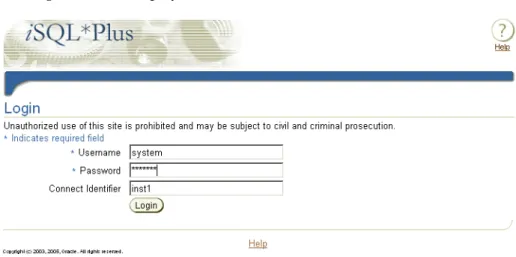
iSQL*Plus Login Screen
You connect to the Login screen from your web browser with a URL like:
http://machine_name.domain:port/isqlplus
iSQL*Plus User Interface
Username:
Enter a valid username to connect to the Oracle Database (mandatory).
Password:
Enter a valid password for the username (mandatory).
Connection Identifier:
Leave this field blank to use the default Oracle database, otherwise enter a connection identifier for the database you want to connect to.
[//]host[:port][/service_name]
The SERVICE_NAME is the global database name entered during database creation. It combines a database name with a domain name. For example, the SERVICE_NAME sales.us.acme.com has a database name of sales and a domain of
us.acme.com.
An INSTANCE_NAME is the name you give to the database instance during creation. It defaults to the SID you entered during database creation.
An Oracle System Identifier (SID) identifies a specific Oracle release 8.0 or earlier database instance.
You can optionally use an INSTANCE_NAME in place of the SERVICE_NAME. Use a SID in place of SERVICE_NAME when connecting to an Oracle release 8.0 database.
Alternatively you can use an Oracle Net alias. If you use an Oracle Net alias, it must be specified on the machine running the iSQL*Plus Server, which may not be the same machine from which you run your web browser.
iSQL*Plus can be configured to restrict connections to specific databases. If restricted database access has been enabled, a dropdown list of available databases is displayed in place of the Connection Identifier text field. This enables greater security for
iSQL*Plus Servers in hosted environments. This is configured using the
iSQLPlusConnectIdList parameter in the configuration file. See Enabling Restricted Database Access on page 2-12 for more information.
See the Oracle Database Net Services Administrator's Guide for more information about defining connection identifiers.
Login
Click the Login button to log in to iSQL*Plus. If you enter an invalid username or password, the Login screen is re-displayed with an error message.
iSQL*Plus DBA Login Screen
You can log in to iSQL*Plus with SYSDBA or SYSOPER privileges to perform database administration and run DBA commands through iSQL*Plus. You must authenticate with the Application Server, and have Oracle SYSDBA or SYSOPER privileges.
To connect with either SYSDBA or SYSOPER privileges, users must be created through the OC4J user manager. To add users for DBA Login, see Enabling iSQL*Plus DBA Access on page 2-13.
Because of possible HTTP network timeouts, it is recommended that you use command-line SQL*Plus for long running DBA operations.
iSQL*Plus User Interface
To log in with SYSDBA or SYSOPER privileges, you must enter the iSQL*Plus DBA URL in the Location/Address field of your web browser. The iSQL*Plus DBA URL is in the form:
http://machine_name.domain:port/isqlplus/dba
The Enter Network Dialog dialog is displayed. The name of the dialog may differ on different operating systems.
User Name
Enter a valid Application Server authentication username. This may not be the same as your Oracle Database username.
Password
Enter a valid Application Server authentication password for the username. This may not be the same as your Oracle Database password.
After you have successfully authenticated, the iSQL*Plus DBA Login screen is displayed:
Username:
Enter a valid username or / to connect to Oracle Database (mandatory).
Password:
iSQL*Plus User Interface
Connection Identifier:
Leave this field blank to use the default Oracle database, otherwise enter a connection identifier for the database you want to connect to.
[//]host[:port][/service_name]
You can optionally use INSTANCE_NAME in place of SERVICE_NAME. When connecting to an Oracle release 8.0 or earlier database, you use a SID. Alternatively you can use an Oracle Net alias. If you use an Oracle Net alias, it must be specified on the machine running the iSQL*Plus Server, which may not be the same machine from which you run your web browser.
iSQL*Plus can be configured to restrict connections to specific databases. If restricted database access has been enabled, a dropdown list of available databases is displayed in place of the Connection Identifier text field. This enables greater security for
iSQL*Plus Servers in hosted environments. This is configured using the
iSQLPlusConnectIdList parameter in the configuration file. See Enabling Restricted Database Access on page 2-12 for more information.
Privilege:
The Privilege dropdown list has two options:
Q SYSDBA—connects to the specified database with SYSDBA privileges. Q SYSOPER—connects to the specified database with SYSOPER privileges.
Login
Click the Login button to log in to iSQL*Plus with the supplied username, password, connection identifier and DBA privilege. If you enter an invalid username or
password, you are returned to the Login screen and a message is displayed.
iSQL*Plus Workspace
The Workspace consists of the Workspace, History and Load Script screens. After successfully logging in, the Workspace is displayed. From the Workspace you can:
Q Enter, Execute and Cancel scripts Q Load and Save scripts
Q View, Save and Print output Q Access Preferences screens Q Get help and Log out
iSQL*Plus User Interface
The Workspace and History screens display the user's connection information in the top right. The connection information is displayed in the form:
Connected as [username]@[connection_identifier] [AS SYSDBA| AS SYSOPER]
or
Not connected
Clear
Clears all statements in the Input area, and all displayed output. Cancels any script that may be running.
It does not clear the SQL buffer, nor does it clear any variable values altered by changing preferences or changing options of the SET command.
Execute
Executes the contents of the Input area. Depending on your preference settings, the results are displayed in the Output area, in a new web browser window, or saved to a file.