AIMMS Tutorial for Professionals - Data Management
This file contains only one chapter of the book. For a free download of the complete book in pdf format, please visitwww.aimms.com
Schipholweg 1 2034 LS Haarlem The Netherlands Tel.: +31 23 5511512 Fax: +31 23 5511517 500 108th Avenue NE Ste. # 1085 Bellevue, WA 98004 USA Tel.: +1 425 458 4024 Fax: +1 425 458 4025
Paragon Decision Technology Pte. Ltd. 55 Market Street #10-00
Singapore 048941 Tel.: +65 6521 2827 Fax: +65 6521 3001
Paragon Decision Technology Shanghai Representative Office Middle Huaihai Road 333 Shuion Plaza, Room 1206 Shanghai China Tel.: +86 21 51160733 Fax: +86 21 5116 0555 Email: [email protected] WWW:www.aimms.com
Aimmsis a registered trademark of Paragon Decision Technology B.V.IBM ILOG CPLEXandCPLEXis a registered trademark of IBM Corporation.GUROBIis a registered trademark of Gurobi Optimization, Inc. KNITROis a registered trademark of Ziena Optimization, Inc. XPRESS-MPis a registered trademark of FICO Fair Isaac Corporation. Mosekis a registered trademark of Mosek ApS.WindowsandExcelare registered trademarks of Microsoft Corporation. TEX, LATEX, andAMS-LATEX are trademarks of the American Mathematical Society.Lucidais a registered trademark of Bigelow & Holmes Inc.Acrobatis a registered trademark of Adobe Systems Inc. Other brands and their products are trademarks of their respective holders.
Information in this document is subject to change without notice and does not represent a commitment on the part of Paragon Decision Technology B.V. The software described in this document is furnished under a license agreement and may only be used and copied in accordance with the terms of the agreement. The documentation may not, in whole or in part, be copied, photocopied, reproduced, translated, or reduced to any electronic medium or machine-readable form without prior consent, in writing, from Paragon Decision Technology B.V.
Paragon Decision Technology B.V. makes no representation or warranty with respect to the adequacy of this documentation or the programs which it describes for any particular purpose or with respect to its adequacy to produce any particular result. In no event shall Paragon Decision Technology B.V., its employees, its contractors or the authors of this documentation be liable for special, direct, indirect or consequential damages, losses, costs, charges, claims, demands, or claims for lost profits, fees or expenses of any nature or kind.
In addition to the foregoing, users should recognize that all complex software systems and their doc-umentation contain errors and omissions. The authors, Paragon Decision Technology B.V. and its em-ployees, and its contractors shall not be responsible under any circumstances for providing information or corrections to errors and omissions discovered at any time in this book or the software it describes, whether or not they are aware of the errors or omissions. The authors, Paragon Decision Technology B.V. and its employees, and its contractors do not recommend the use of the software described in this book for applications in which errors or omissions could threaten life, injury or significant loss. This documentation was typeset by Paragon Decision Technology B.V. using LATEX and theLucidafont family.
Chapter
14
Data Management
This chapter
In this chapter, you will learn how to manage your model data using cases
and/or datasets. Such management is typically based on using menu com-mands. You will also write a procedure to generate cases automatically during anAimms session. These cases are then viewed and compared in a multiple case overview.
14.1
Storing the solution in a case
What is a case?
Acaseis a set of data values at an instant in time and contains the values of a subset of all model identifiers. Such a subset is referred to as acase type. The default case type is the set of all identifiers. Cases enable you to save intermediate data values for inspection at a later moment. You can also use a case to continue your work during a laterAimmssession.
Creating a case
Following an iteration of the rolling horizon process, initiated by pressing the
Run Next button, you can save both your input and the solution values in a new case by executing the following steps:
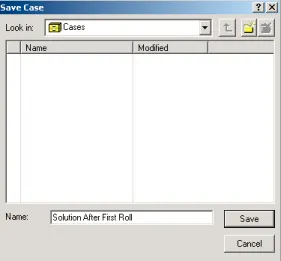
◮ select theSave Case as. . .command from theDatamenu,
◮ specify ‘Solution After First Roll’ (without the quotes) in the ‘Name’ edit
field, and
Figure 14.1: Creating your first case
Loading a case
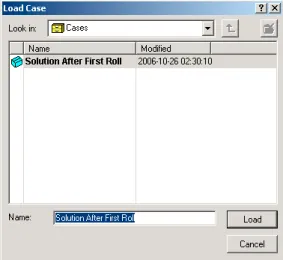
The following commands close and re-open yourAimmsproject. Then, by load-ing the case you have just saved, you will have incorporated all your current data values. Please follow these instructions:
◮ change to the default page menubar by setting the current page toEdit
mode,
◮ select theClose Projectcommand from theFilemenu,
◮ open the project again,
◮ select theLoad Casesubmenu from theDatamenu, ◮ select theas Active. . .command,
◮ select the ‘Solution After First Roll’ entry from the list box, and
Chapter 14. Data Management 201
Figure 14.2: Loading your first case
The active case
InAimms, all the data that you are currently working with are referred to as theactive case. The name of the currently active case is displayed in the status bar at the bottom of theAimmswindow as shown in Figure14.3.
Figure 14.3: Part of theAimmsstatus bar
14.2
Saving holidays and vacations in a dataset
What is a dataset?
A dataset contains the data values of a subset of all model identifiers at a particular instance. Such a subset is referred to as adata categoryand typically contains model identifiers associated with a particular functional aspect of your application.
Cases versus datasets
Note that datasets and data categories are similar to cases and case types. The major difference is that a case type can include one or more data categories and, as a consequence, cases can be built up from multiple datasets. Such advanced use of case types and data categories is not illustrated in this tutorial but can be found in Chapter 17 ofThe User’s Guide.
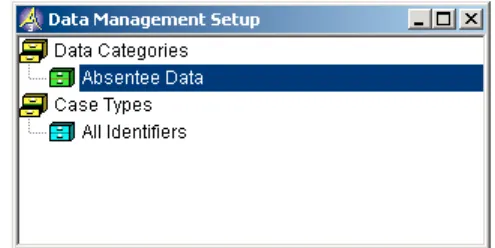
Creating a data category. . .
Data categories are managed using theData Management Setuptool. To create a data category describing the vacation weeks and official holidays, you should perform the following actions:
◮ press theData Management Setuptool button on the toolbar,
◮ select the ‘Data categories’ node in the data management setup tree,
◮ press theNew Data Categorybutton on the toolbar,
◮ specify ‘Absentee Data’ as the name for the data category, and
◮ press theEnterkey to register this name.
Figure 14.4: The data management setup tree
. . .and
specifying its contents
To specify which model identifiers are to be stored in the new dataset you need to take the following actions:
◮ select the ‘Absentee Data’ node if necessary,
◮ press thePropertiesbutton on the toolbar,
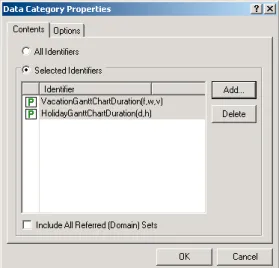
◮ press theAddbutton on theContentstab of theData Category
Proper-tiesdialog box,
◮ select HolidayGanttChartDuration and VacationGanttChartDuration using the Ctrlkey (both located inside theAbsentee OverviewofThe User In-terface),
◮ press theOKbutton (you can compare your screen to the dialog box in
Figure14.5), and
Chapter 14. Data Management 203
Figure 14.5: TheContentstab of theDataset Propertiesdialog box
Specifying a dataset. . .
Next, you should open theAbsentee Overviewpage inUsermode, and specify the vacation weeks and official holidays as listed in Table14.1by clicking on the two Gantt charts.
Vacation Weeks Official Eindhoven Haarlem Zwolle Holidays week 27, 2000 week 30, 2000 week 29, 2000 Dec 25, 2000 week 28, 2000 week 31, 2000 week 30, 2000 Dec 26, 2000 week 29, 2000 week 32, 2000 week 31, 2000 Jan 1, 2001 week 30, 2000 week 33, 2000 week 32, 2000 Apr 15, 2001 week 31, 2000 week 34, 2000 week 33, 2000 Apr 16, 2001 week 32, 2000 week 35, 2000 week 34, 2000 Apr 30, 2001 week 33, 2000 week 36, 2000 week 35, 2000 May 5, 2001 week 34, 2000 week 37, 2000 week 36, 2000 May 24, 2001 week 50, 2000 week 50, 2000 week 50, 2000 Jun 3, 2001 week 51, 2000 week 51, 2000 week 51, 2000 Jun 4, 2001 week 52, 2000 week 52, 2000 week 52, 2000
week 7, 2001 week 9, 2001 week 8, 2001 week 8, 2001 week 10, 2001 week 9, 2001 week 9, 2001 week 11, 2001 week 10, 2001 week 10, 2001 week 12, 2001 week 11, 2001
. . .and saving it
To save the holiday and vacation data you have just specified, perform the following actions:
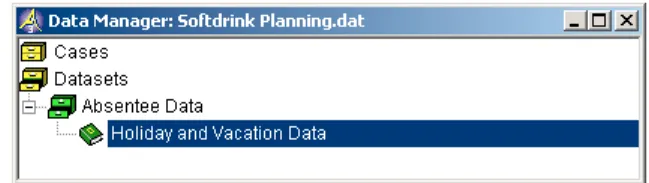
◮ press theData Managerbutton on the toolbar, ◮ select the ‘Datasets’ entry from the data tree,
◮ select the ‘Absentee Data’ data category,
◮ open this data category by double clicking on the icon,
◮ press theNew Datasetbutton on the toolbar,
◮ specify ‘Holiday and Vacation Data’ as the name of the new dataset,
◮ press theEnterkey, and
◮ select the Save into Selected Nodecommand from the Data menu on your page.
Figure 14.6: The data management tree
Alternatively, you could have saved the dataset using theSave DatasetorSave Dataset as. . .menu commands from theDatamenu.
Writing a loading procedure. . .
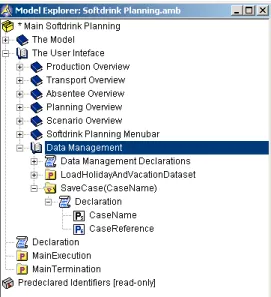
To load the above dataset automatically during project startup, you first need to specify a procedure that loads the dataset. Please create a model sec-tion named Data Management directly underneath the section Softdrink Plan-ning Menubar. In this section, declare a procedure named LoadHolidayAndVaca-tionDataset. Local to this procedure you should create an element parameter
DatasetReferencewithRangeattributeAllDatasets(see Figure14.7). Next, you should specify the following execution statements as itsBodyattribute:
if ( not DatasetFind(’Absentee Data’, "Holiday and Vacation Data", DatasetReference) ) then DialogMessage( "Error loading holiday and vacation data." );
return; endif;
DatasetLoadCurrent( ’Absentee Data’, DatasetReference, 0 );
To obtain an explanation of the above predefined Aimms functions, you can openThe Function Referencefrom withinAimmsby first placing the text cursor on a particular function name and then selecting theHelp Oncommand from the right-mouse pop-up menu.
Chapter 14. Data Management 205
Figure 14.7: The procedureLoadHolidayAndVacationDatasetin the model tree
. . .to become
the startup procedure
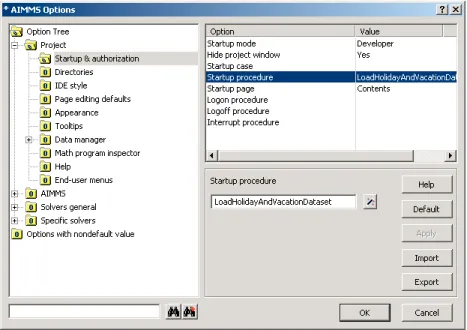
To make the procedureLoadHolidayAndVacationDataset the startup procedure, you should follow the same steps used when you specified a startup page at the end of Chapter ??. The corresponding Options dialog box is shown in Figure14.8.
14.3
Automatic case generation
This section
In this section, you will first build your own procedure that automatically gen-erates cases. After this, you will develop an experiment in which you will study the effect of the length of the planning horizon on the total cost of running the company. Finally, you will create a multiple case object to view and compare the results of this investigation.
‘What If’ experiments
In a typical ‘What If’ experiment, you want to study the output of your model as a result of changes in data input. You can perform such an experiment through an interactive session. If the experiment is extensive and/or requires a great deal of CPU time, an alternative approach is to write a procedure to execute the entire experiment. It is then important to save the results in cases that are generated as the experiment evolves. The following paragraphs will show you how to construct an extensive experiment using an automatic case saving procedure.
Declaring required identifiers
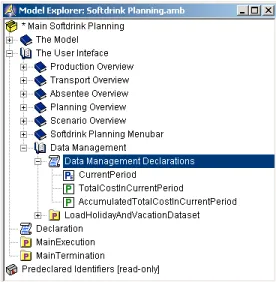
The total cost of running the company will be the output of an experiment in which the length of the planning horizon is changed from 4 to 10 weeks. Please create a Data Management Declarations declaration section underneath theData Managementsection in the model tree (see Figure14.9) and declare the following identifiers in this declaration section:
ELEMENT PARAMETER: identifier : CurrentPeriod range : Periods PARAMETER: identifier : TotalCostInCurrentPeriod unit : $ definition : sum[ s, ScenarioProbability(s) * ( sum[ (f,p), FixedCostDueToLevelChange * ProductionLineLevelChange(f,p,CurrentPeriod) ] + sum[ f, UnitProductionCost(f) * Production(f,CurrentPeriod) ] + sum[ l, UnitStockCost(l) * Stock(l,CurrentPeriod,s) ] +
sum[ (f,c), UnitTransportCost(f,c) * Transport(f,c,CurrentPeriod,s) ] ) ] PARAMETER:
identifier : AccumulatedTotalCostInCurrentPeriod
Chapter 14. Data Management 207
Figure 14.9: TheData Management Declarationssection
Creating a new case type. . .
To create a case that contains only a single identifier, namely AccumulatedTo-talCost, you have to perform the following actions:
◮ press theData Management Setuptool button on the toolbar,
◮ select the ‘Case Types’ node,
◮ select the ‘All Identifiers’ case type (see Figure14.10), ◮ press theNew Case Typebutton on the toolbar,
◮ specify ‘Accumulated Total Cost’ as the name for the case type, and
◮ press theEnterkey to register this name.
Figure 14.10: TheData Management Setuptree
. . .and
specifying its contents
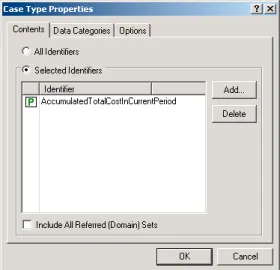
To specify that only a single identifier is to be stored in ‘Accumulated Total Cost’ case types, please execute the following steps:
◮ select the ‘Accumulated Total Cost’ case type if necessary,
◮ press thePropertiesbutton to open theCase Type Propertiesdialog
◮ select theContentstab,
◮ press theAddbutton,
◮ select the parameterAccumulatedTotalCostInCurrentPeriod (see also Fig-ure14.11), and
◮ press theOKbutton twice.
Figure 14.11: TheContentstab in theCase Type Propertiesdialog box
Building a SaveCase procedure. . .
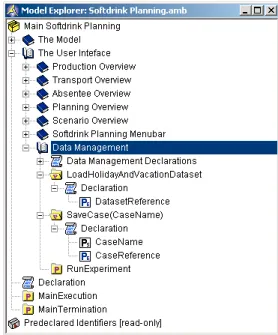
Next you need to create a procedure calledSaveCase(CaseName)as shown in Fig-ure14.12. Use theArgumentwizard to declareCaseNameas a string parameter with property ‘Input’. In addition, declare a local element parameter CaseRef-erencewithRangeattributeAllCases. TheBodyattribute of the new procedure should be entered as follows:
if ( not CaseFind( CaseName, CaseReference ) ) then if ( not CaseCreate( CaseName, CaseReference ) ) then
DialogMessage( "Error creating case." ); return;
endif; endif;
CaseSetCurrent( CaseReference ); CaseSave( 0 );
As noted previously, you can find explanations of predefinedAimmsfunctions inThe Function Reference.
Chapter 14. Data Management 209
Figure 14.12: TheSaveCaseprocedure in the model tree
. . .and
specifying the experiment
Finally, you are now ready to specify the procedureRunExperimentin theData Management section as shown in Figure14.13. The contents of this procedure are extensive, but should be mostly self-explanatory. Note the use of the pre-viously specifiedSaveCaseprocedure inside the followingBodyattribute:
CurrentDefaultCaseType := ’Accumulated Total Cost’; NumberOfPeriodsInPlanningInterval := 4;
repeat "outer-loop"
MovePlanningIntervalToStartOfCalendar; AccumulatedTotalCostInCurrentPeriod := 0; CurrentPeriod := FirstPeriodInPlanningInterval;
while ( LastWeekInPlanningInterval < LastWeekInCalendar ) do "inner-loop" RollHorizonOnce;
AccumulatedTotalCostInCurrentPeriod += TotalCostInCurrentPeriod; PageRefreshAll;
break "inner-loop" when ( LeastCostPlan.ProgramStatus <> ’Optimal’ ); endwhile;
if ( LeastCostPlan.ProgramStatus <> ’Optimal’ ) then AccumulatedTotalCostInCurrentPeriod := 0; else for (t | t > FirstPeriodInPlanningInterval) do CurrentPeriod := t; AccumulatedTotalCostInCurrentPeriod += TotalCostInCurrentPeriod; endfor; endif;
break "outer-loop" when ( NumberOfPeriodsInPlanningInterval = 10 ); NumberOfPeriodsInPlanningInterval += 1;
endrepeat;
CurrentDefaultCaseType := ’’;
The completedData Managementsection of the model tree should be as shown in Figure14.13.
Figure 14.13: The finalData Managementsection
Preparing to run the experiment
Execution of the above experiment may take a while, depending on the speed of your computer. However, before executing the experiment, you should first comment out thehalt withpart of thesolvestatement in the procedure Solve-LeastCostPlan. This line is useful to give an appropriate error message when solving the model for one particular period, but we don’t want the experiment to stop running upon finding a non-optimal solution for a certain period. The
break "inner-loop" statement takes care of such situations in the RunExperi-mentprocedure. To comment out this block, please do the following:
◮ locate the SolveLeastCostPlan procedure, by using theFindfunction of Aimms,
◮ select the 3 lines of thehaltclause of thesolvestatement, as illustrated in Figure14.14,
◮ open the right-mouse pop-up menu and selectComment Block, and ◮ add a semicolon after theSolveLeastCostPlanstatement.
Chapter 14. Data Management 211
Figure 14.14: Commenting out thehaltclause
Running the experiment
To initiate the actual experiment, you should perform the following actions:
◮ select theRunExperimentprocedure node in the model tree, and
◮ select theRun Procedurecommand from the right-mouse pop-up menu. The run could produce a number of warnings about the model being infeasible or unbounded. This is caused by some subproblems in the inner loop of the experiment having become insolvable. You can ignore these warnings for this tutorial.
After the experiment is complete, several cases should have been created in the case tree as shown in Figure14.15. If you did not run the experiment, you can import the cases from the ‘Cases and Datasets’ directory in your project directory.
Creating a table
. . .
You are now in a position to create a table that displays the value of the pa-rameterAccumulatedTotalCost for every case that has been generated during the experiment by executing the following steps:
◮ create a new page at the bottom of the page tree,
◮ enter ‘Multiple Case Overview’ as its name,
◮ press theEnterkey to register the name,
◮ open the new page in edit mode,
◮ press theNew Tablebutton on the toolbar,
◮ draw a rectangle on the page, and
◮ select the parameterAccumulatedTotalCostInCurrentPeriod.
. . .into a
multiple case table
To transform this table into amultiple case object, you should do the following:
◮ open theTable Propertiesdialog box of the table object,
◮ select theTabletab if necessary,
◮ check the ‘Multiple Case Object’ checkbox (see Figure14.16), and
◮ press theOKbutton.
Figure 14.16: Creating a multiple case table
Specifying the case selection
The table should have been extended with an empty column. To specify the multiple case selection, you should perform the following steps:
◮ press thePage User Modebutton on the toolbar,
◮ select theMultiple Cases. . .command from theDatamenu,
◮ select the cases ‘Length 4’ through ‘Length 10’ from the left listbox in the
Chapter 14. Data Management 213
◮ press theMove Rightbutton to transfer the selected cases to the right listbox (see Figure14.17), and
◮ press theOKbutton.
Figure 14.17: TheSelect Multiple Casesdialog box
Viewing the result
Having specified the multiple case selection,Aimmswill automatically load the required data from the cases and complete the table as in Figure14.18.
Figure 14.18: A table displaying data for multiple cases
It is interesting to note that some entries in the table are left blank reflecting the fact that one of the subproblems in the ”inner loop” of the experiment became insolvable. It is also interesting to note that the overall total cost does not decrease monotonically as the number of periods in the planning horizon increases. The experiment would seem to indicate that the number of periods should be greater than 10.