QuickStart Guide………page 2
I.
Proposing New Courses………page 5
II.
Editing Existing Courses………page 10
III.
Deleting/Deactivating (Sunset) a Course…….page 12
IV.
Approving Courses………page 13
V.
Frequently Asked Questions……….…page 15
Technical Questions
Dean Ngo [email protected]
Course Approval Process
Peggy Siebrandt [email protected]
Scheduling
Joani Harrington [email protected]
Catalogue Editor
Aliya Hassan [email protected]
QUICKSTART GUIDE
Click the help icon
for instructions and policy.
1. Click Propose New Course to create a new course. 2. Quick Searches drop-down:
Select an option from the drop-down menu.
Select a course, click Edit Course to make changes or Deactivate a course. Click Delete to delete a course.
3. Search using Department: Search for a department.
Select a course, click Edit Course to make changes or Deactivate a course. Click Delete to delete a course.
4. Search using Department and Course Number:
Enter a department abbreviation and course number; click Search. Use an exact course number to return a specific course.
Use an asterisk (*) for a subset of all possible courses containing a specific number.
5. Deactivating Courses (formerly known as Sunset)
Search for a course and select the course to be deactivated. Click Edit Course. A new window will open.
Select the first term the course will not be active: "First Effective Term". Select 'No' at "Course is Active".
Scroll to the bottom; enter a Justification. Click "Save & Submit".
6. Deleting Courses
Search for a course and select the course to be deleted. Click DELETE. A new window will open.
Select the first effective term for deletion and enter a justification. Click Confirm.
7. Approving Courses
Once a course has been submitted and needs approval, you will receive an email. Click the link in the email. Review changes and click EDIT, ROLLBACK, or APPROVE.
I. PROPOSING NEW COURSES:
From the main Course Inventory page, click the "Propose New Course" button (Figure. 1). A new window will pop-up with a blank New Course Proposal form.
Figure. 1 Click "Propose New Course" to begin.
A. Course Identification
1. First Effective Term: select the starting term for the course. Be sure to allow sufficient time for the approval process.
2. School: select the school; the department menu will populate with the selected school's departments. 3. Department: select a department.
4. Course Number: enter a course number that is not already in use. Click the help
icon for course numbering guidelines. Numbers must consist of no more than 7 characters (ex. 14A, H190, M118L, XI134AW).
For courses fulfilling Upper-Division Writing, course numbers must include the W designation (ex. 134W). If the course will be offered without fulfilling Upper-Division Writing, a second entry must be made in the course approval database for a course numbered without the W designation, and without General Education (ex. ECON 134 and ECON 134W).
5. Units: enter the number of units (ex. 1, 4, 1-4). B. Course Details
1. Course Title: enter the course title. If it is 19 characters or fewer, this title will be used for both the long and abbreviated titles. If it is more than 19 characters, the Abbreviated Title box will appear below the Course Title box (Figure 2). Note that only the abbreviated title will appear on the SOC and Transcripts.
Figure 2The Abbreviated Title box will appear if the Course Title is longer than 19 characters.
For courses with variable topics, the Abbreviated Title must be TOPICS VARY. The various titles associated with these class types are entered into eSOC by each department scheduler and will be reviewed by the Registrar before being added to the course database.
2. Catalogue Description: written in paragraph format. All department abbreviations should be capitalized. List any courses using correct department abbreviations.
See a list of official course abbreviations here: http://catalogue.uci.edu/allcourses/ Click the help icon for course description guidelines.
3. Corequisite*: enter course(s) using correct abbreviations for the department and course number. Use the words "and" and "or" to separate restrictions. Parentheses are used to group requirements (Figure 3). End each formula with a period. List the course department and number for every prerequisite.
Requirement: Student must take one of these three courses: D103, D104, or D105. Enter: BIO SCI D103 or BIO SCI D104 or BIO SCI D105.
Requirement: Student must take BIO SCI D103 or D104. They must also take BIO SCI D105. Enter: (BIO SCI D103 or BIO SCI D104) and BIO SCI D105.
Figure 3Use "and" and "or" along with parentheses to separate requirements. Student must take BIO SCI D103 or D104, and BIO SCI D105.
*Corequisite courses require simultaneous enrollment during the same term. For example, BIO SCI D103 must be taken in the same term as BIO SCI D111L.
4. Prerequisite: enter course(s) using correct abbreviations for the departments and course number. Use "and" and "or" to separate restrictions (Figure 4). Parentheses are used to group requirements. List the course department and number for every prerequisite. End the prerequisite formula with a period. Add statements after the prerequisite list; for example, "BIO SCI 1 with a grade of C or better."
Requirement: Students must take three classes. They must take PSY BEH 139W and 42, but they only need to take one from PSY BEH 8 or 192B.
Enter: PSY BEH 139W and PSY BEH 42 and (PSY BEH 8 or PSY BEH 192B).
Requirement: Student must take two classes. They can take either group one or group two. Enter: (ECON 100C and ECON 105A) or (ECON 100A and ECON 100B).
Requirement: Student must take three classes. They must take Bio Sci 1 or 2. They must take two more classes from either group: Bio Sci 3 and 4, or Bio Sci 5 and 6.
Enter: (BIO SCI 1 or BIO SCI 2) and ((BIO SCI 3 and BIO SCI 4) or (BIO SCI 5 and BIO SCI 6)). Figure 4Use only "and" and "or" combined with parentheses.
5. Concurrent: enter the concurrent course using the correct department abbreviation
For example, LPS 145 is concurrent with LPS 245. When editing LPS 145, enter "LPS 245." as a concurrent course (Figure 5). End the statement with a period.
Figure 5Enter the Concurrent course using correct department abbreviations.
6. Restriction*: enter restrictions (Figure 6), one restriction per line, ending each restriction with a period. Click the help icon for all available restrictions. If course is restricted to juniors or seniors only, use "Upper-division students only" instead.
Figure 6Enter restrictions separated by AND or OR, using parenthesis where appropriate.
*Note that eSOC enrollment code restrictions differ from Course Approval restrictions. For example, B and X codes are not noted in restrictions for Course Approvals.
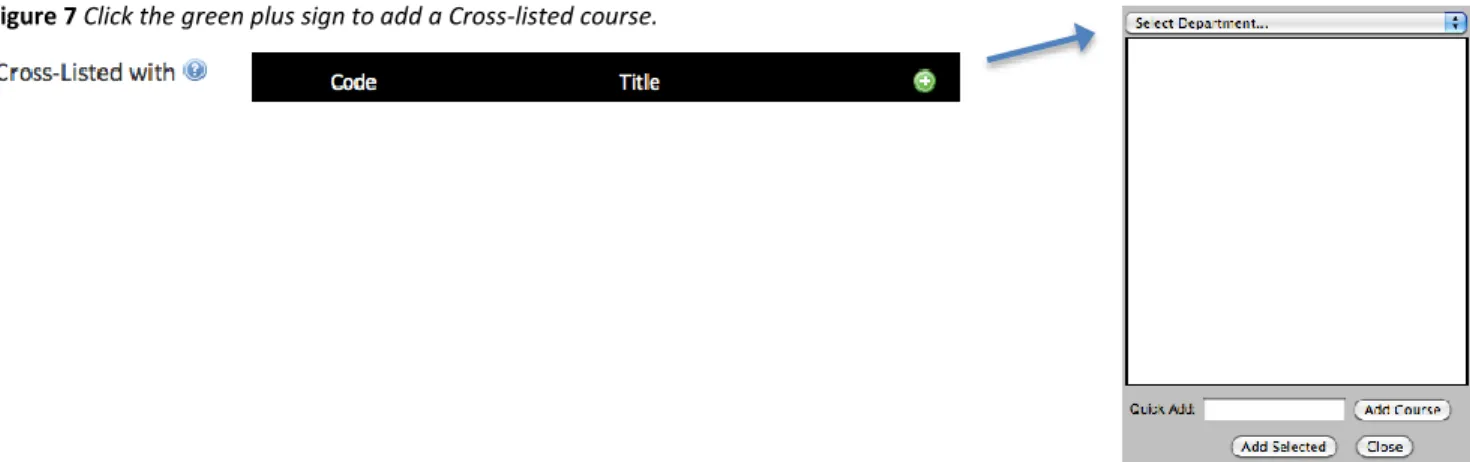
7. Cross-Listed with: add cross-listed courses by clicking the plus sign (Figure7). A secondary window will pop-up prompting you to select a department (Figure 8). Select the cross-listed course from the list, then click "Add Selected". Click to remove a Cross-List. Click the help icon for cross-list guidelines.
Cross-listed courses are initiated by the department of the faculty who will be teaching the course. For example, PSYCH 78A is cross-listed with SOCIOL 31. Since the faculty is associated with the Sociology department, Sociology will initiate any changes to these cross-listed courses. Both departments will be included in the approval process. Likewise, new courses will be initiated by the department of the faculty who will be teaching the class.
Courses can be cross-listed up to four times, including the primary course. For example, Psych 78A could be cross-listed with 3 other classes.
Figure 7 Click the green plus sign to add a Cross-listed course.
8. Overlaps with: add overlap courses by clicking the plus sign. A secondary window will pop-up prompting you to select a department. Follow the same instructions from #7 above. Click the help icon for
overlapping course guidelines.
C. Course Options
1. Class Type: place a checkmark in selected class types. Click for a description of class types. The Online course type require additional information. A form will appear if "Online" is selected.
2. Grading Option: select only one grading option.
Note: Satisfactory/Unsatisfactory can only be used with Graduate level courses. Pass/Not Pass can only be used with Undergraduate level courses.
3. Repeatability: select how many times a course may be taken. Note that if the selected option requires more information, i.e., repeatable units or multiple times, secondary boxes will appear (Figure 9). Either enter the number or select it from the dropdown.
Figure 9Enter additional information if secondary boxes appear.
4. Courses to be offered: select which terms the course will be offered.
5. Course Materials Fee: Click for information on documentation requirements. Approved fees are entered by the University Registrar. Once an amount is entered, the course will be listed as having a "Materials fee," but the specific amount will not be shown in the general course description.
6. Fulfills General Education Category: place a checkmark to indicate which categories will be fulfilled. The General Education questionnaire will appear and must be filled out. If the Course Number includes the W designation (ex. 134W), Category I with Upper-Division Writing must be selected and completely filled out.
D. Course Documents
1. Syllabus: attach a syllabus by clicking the "Attach Syllabus" button. A syllabus is required for all new courses.
2. Supporting Documents: additional documents can be added with the "Attach Documents" button, if needed.
3. Justification for new course: a statement of justification must be included. Any other comments which will assist SCOC/Grad Council in its review should be included here as well. Attach additional documents using the Supporting Documents upload option, if necessary.
E. Finishing
At any point, you may click the "Save Changes" button so that you can return later to review the course or apply changes. Once you're ready to submit the course for approval, click the "Save and Submit" button.
Once the course has been saved and submitted, you may not make changes to the course though you may view the course and see where it is in the approval process. If a change is necessary, check the Workflow (Figure 10) to see where the course is at in the approval process and request to have the course rolled back to you by clicking the yellow role.
II. EDITING A PREVIOUSLY EXISTING COURSE:
1. Search: Begin by searching for the course to be edited.Searching by only the department abbreviation will display all courses for that department. Add the course number to the search box and the search results will be narrowed down to that particular course only (Figure 11).
Note that searching for ARTS 1 will not result with ARTS 1A. To find ARTS 1A, be sure to enter the full course department and number (including any letters in the course number) in the search box, or use an asterisk (as in Figure 12 below), for example, ARTS 1*.
Figure 11Search by the department abbreviation alone or add in course number for an exact match.
Add an asterisk (*) to your search to obtain a subset of courses including that number (Figure 12). Figure 12Use an asterisk.
2. Select course: click the course you would like to edit. This course will load in the browser below the search box for your review. Click the "Edit Course" button and a new window will pop-up allowing changes to be made. For detailed information, click the help icon next to each field title. For step-by-step instructions, see section I. Proposing New Courses in this document.
3. Save versus Submit:
At any point, you may click the "Save Changes" button so that you can return later to review the course or apply changes. Once you're ready to submit the course for approval, click the "Save and Submit" button. Once the course has been saved and submitted, you may not make changes to the course though you may view the course and see where it is in the approval process. If a change is necessary, check the Workflow (Figure 13) to see who is currently reviewing the course and send them an email requesting to have the course rolled back to you.
Figure 13Check the Workflow to see where the course is at in the approval process.
Important Notes:
Supporting documents may be attached, if necessary.
A new course syllabus is not required for changes to existing courses but it may be attached, if desired.
III. DELETING AND DEACTIVATING COURSES:
1. Deactivate: Deactivated courses may be reactivated at a later date. (Formerly known as "Sunset.")
Search for a course and select the course to be deactivated. Click Edit Course. A new window will open.
Select the term that the course will not be active at "First Effective Term". Select 'No' at "Course is Active" (Figure 14).
Scroll to the bottom; enter a Justification. Click "Save & Submit".
Figure 14Select 'No' to Deactivate the course.
2. Delete: Deleted courses may not be reactivated.
Once a course has been deleted, the number may not be reused for 6 or 2 years, depending on level: Undergraduate courses – 6 years
Graduate courses – 2 years
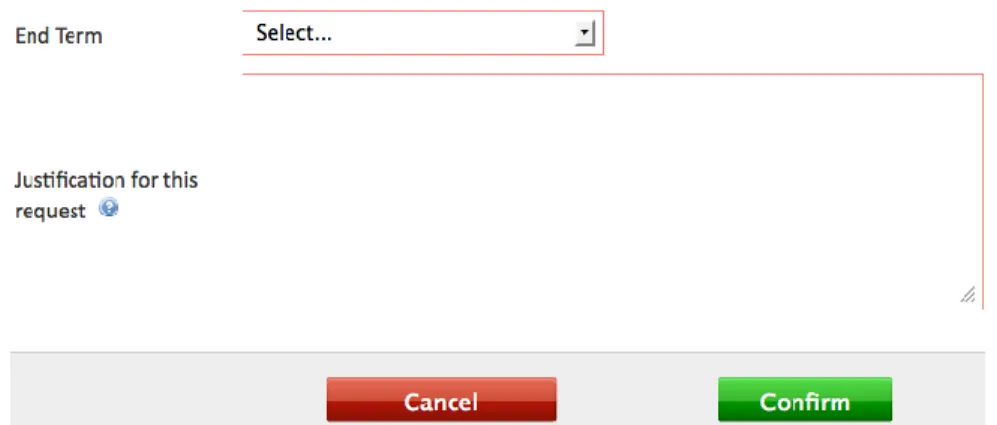
Search for the course to be deleted. Select the course in the list and click the red DELETE button below the search results box. A new window will popup (Figure 15). Select the end term and fill out the justification. Click CONFIRM once completed.
IV. Approving Proposed or Edited Courses:
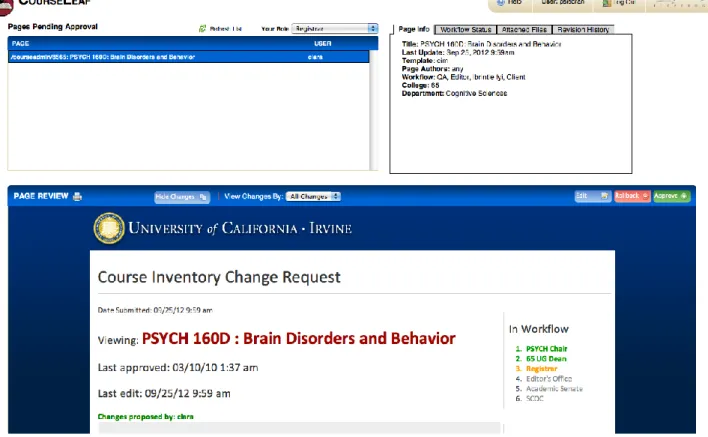
When a course has been submitted for approval, you will receive an email notification. Click the link in the email to go directly to the approval page (Figure 16).
You can track changes made by previous approvers in the Workflow (red and green text along with strikeouts), or you can hide changes to see the course without tracked changes (Figure 17).
You can View Changes made by specific approvers using the dropdown menu (Figure 17).
Select your Role when approving the course (Figure 18). Some users have multiple roles within their department.
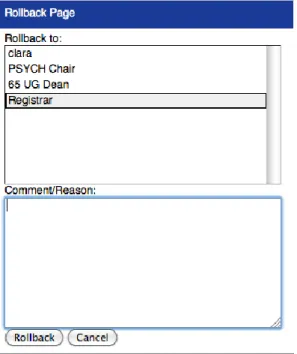
Click Approve to send the course along to the next approver in the Workflow (Figure 19). To edit the course, click Edit, make your changes (including a comment in Justification), and click Save Changes and then Approve when ready to send the course along in the WorkFlow. To rollback a course to a previous approver for changes/corrections, click Rollback. Select which approver to send the course to, add Comment/Reason, and click Rollback (Figure 20).
Figure 17 Track changes made to the course by specific approvers, or Hide Changes.
Figure 18Select your Role when approving or editing a course.
Figure 19Edit a course before Approving it, or Rollback the course to a previous approver.
V. Frequently Asked Questions:
Asterisk: Use an asterisk (*) to narrow/expand search results. Course History:
Start with the current course and work backwards.
Click on the approval dates to see previous incarnations (Figure 21). Figure 21Click the approval dates for history.
Course Numbers:
Make sure that the course number is available for use.
o Undergraduate courses must wait 6 years to reuse a course number.
o Graduate courses must wait 2 years to reuse a course number.
Numbers must consist of no more than 7 characters (ex. 14A, H190, M118L, XI134AW).
o A course with a W designation (ex. 134W) indicates that it fulfills GE Category I, Upper-Division Writing, and may not be used for any other purpose.
Cross-list:
Courses may be cross-listed up to four times, including the primary course.
Courses are initiated by the department of the faculty who will be teaching the course. Cross-list versus Concurrent:
Cross-listed courses are offered under more than one department name, at the same time and place, with the same instructor. They must be the same level but they can have different numbers (ie, 134, 125).
Concurrent courses are offered at the same time and place, with the same instructor, but credit is given at two levels--graduate and undergraduate. Course numbers often match but this is not required (ie 135, 235).
Grading Options:
Undergraduate courses may offer grading with Pass/Not Pass.
Graduate courses may offer grading with Satisfactory/Unsatisfactory. Searching:
Enter correct department abbreviations.
The course number may be included but is not necessary.
To obtain courses containing a certain number, the asterisk (*) may be used. For example, Arts 1* will return a list of all classes containing a 1 at the start of the course number.