Cisco Expressway
Administrator Guide
Software version: X8.1
D15058.01
December 2013
Contents
Introduction
9
About the Cisco Expressway 10
Expressway base applications 11
Standard features 11
Optional features 12
Installation and initial configuration 13
About this guide 14
Related documentation 14
Training 14
Glossary 14
Accessibility notice 14
Using the web interface 15
Using the command line interface (CLI) 16
Web page features and layout 17
Network and system settings
19
Network settings 20
Configuring IP settings 20
Configuring Ethernet settings 22
Configuring DNS settings 22
Configuring Quality of Service settings 24
Intrusion protection 25
Configuring firewall rules 25
Current active firewall rules 27
Configuring automated intrusion protection 27
Network services 31
Configuring system name and access settings 31
Configuring SNMP settings 34
Configuring time settings 36
Configuring the Login page 38
Configuring external manager settings 39
Firewall traversal
40
About firewall traversal 41
The Expressway solution 41
How does it work? 41
H.323 firewall traversal protocols 41
SIP firewall traversal protocols 42
Media demultiplexing 42
Firewall traversal configuration overview 43
Configuring a traversal client and server 44
Configuring ports for firewall traversal 45
Configuring the firewall 45
Configuring traversal server ports 45
Configuring ports for connections from traversal clients 46
Firewall traversal and authentication 48
Authentication and NTP 48
About ICE and TURN services 49
About TURN 49
Configuring TURN services 50
Unified Communications
51
Mobile and remote access (feature preview) 52
Jabber client connectivity without VPN 53
Configuring mobile and remote access on Expressway 54
Setting up the Expressway-C 54
Setting up the Expressway-E 57
Setting up Expressway security certificates 57
Setting up secure Expressway traversal zones 58
Checking the status of Unified Communications services 60
Additional configuration 60
Jabber Guest services (feature preview) 62
Configuring Jabber Guest services on Expressway (technical preview) 63
Protocols
64
Configuring H.323 65
Configuring SIP 66
SIP functionality and SIP-specific transport modes and ports 66
Certificate revocation checking modes 66
Configuring domains 68
Configuring the supported services for Unified Communications 68
Configuring SIP and H.323 interworking 69
Device authentication
70
About device authentication 71
Controlling system behavior for authenticated and non-authenticated devices 71
Authentication policy configuration options 72
SIP authentication trust 73
Configuring authentication to use the local database 74
Authenticating with external systems 74
Zones and neighbors
75
About zones 76
Configuring media encryption policy 77
Configuring the B2BUA for media encryption 77
Configuring ICE messaging support 78
The Default Zone 79
Configuring the Default Zone 79
Configuring Default Zone access rules 80
Configuring zones 81
Configuring neighbor zones 81
Configuring traversal client zones 84
Configuring traversal server zones 86
Configuring ENUM zones 89
Configuring DNS zones 89
Zone configuration: advanced settings 90
Zone configuration: pre-configured profile settings 94
TLS certificate verification of neighbor systems 95
About clusters 97
License usage within a cluster 98
Managing clusters and peers 99
Setting up a cluster 99
Maintaining a cluster 100
Specifying peer-specific items in clustered systems 101
Sharing bandwidth across peers 102
Cluster upgrades, backup and restore 102
Neighboring the local Expressway to another Expressway cluster 103
Troubleshooting cluster replication problems 105
Dial plan and call processing
106
Call routing process 107
Configuring hop counts 108
Configuring dial plan settings 109
About the fallback alias 109
About transforms and search rules 110
About pre-search transforms 110
Configuring pre-search transforms 111
Search and zone transform process 112
Configuring search rules 113
Example searches and transforms 116
Filter queries to a zone without transforming 116
Always query a zone with original alias (no transforms) 117
Query a zone for a transformed alias 117
Query a zone for original and transformed alias 118
Query a zone for two or more transformed aliases 119
Allowing calls to IP addresses only if they come from known zones 120
Configuring search rules to use an external service 122
About Call Policy 125
Configuring Call Policy 125
Configuring Call Policy rules using the web interface 126
Configuring Call Policy using a CPL script 126
Configuring Call Policy to use an external service 127
Supported address formats 129
Dialing by IP address 129
Dialing by H.323 ID or E.164 alias 129
Dialing by H.323 or SIP URI 129
Dialing by ENUM 129
Dialing by IP address 131
About ENUM dialing 132
ENUM dialing process 132
Enabling ENUM dialing 132
ENUM dialing for outgoing calls 133
Configuring zones and search rules for ENUM dialing 134
ENUM dialing for incoming calls 136
Configuring DNS servers for ENUM and URI dialing 138
Configuring call routing and signaling 139
Identifying calls 140
Disconnecting calls 141
About bandwidth control 143
Configuring bandwidth controls 143
About subzones 145
About the Traversal Subzone 145
Applying bandwidth limitations to the Traversal Subzone 146
Links and pipes 147
Configuring links 147
Default links 147
Configuring pipes 148
Applying pipes to links 148
Applications
149
B2BUA (back-to-back user agent) overview 150
Configuring B2BUA TURN servers 150
Microsoft Lync B2BUA 151
User accounts
157
About user accounts 158
Account authentication 158
Account types 158
Configuring password security 160
Configuring administrator accounts 161
Viewing active administrator sessions 162
Configuring remote account authentication using LDAP 163
Checking the LDAP server connection status 165
Configuring administrator groups 166
Resetting forgotten passwords 168
Resetting your root or admin password via a serial connection 168
Using the root account 169
Changing the root account password 169
Accessing the root account over SSH 169
Maintenance
170
Enabling maintenance mode 171
About upgrading software components 172
Upgrading Expressway software 173
Upgrading using secure copy (SCP/PSCP) 174
Configuring logging 175
Event Log levels 175
Remote logging of events 175
Managing option keys 177
About security certificates 178
Managing the trusted CA certificate list 178
Managing the Expressway's server certificate 179
Managing certificate revocation lists (CRLs) 181
Configuring certificate-based authentication 183
Testing client certificates 184
Configuring language settings 187
Changing the language 187
Installing language packs 187
When to create a backup 189
Content of the backup file 189
Limitations 189
Creating a system backup 189
Restoring a previous backup 190
Diagnostics tools 191
Configuring diagnostic logging 191
Creating a system snapshot 192
Configuring Network Log levels 193
Configuring Support Log levels 193
Incident reporting 194
Incident reporting caution: privacy-protected personal data 194
Enabling automatic incident reporting 194
Sending incident reports manually 195
Viewing incident reports 195
Incident report details 196
Checking the effect of a pattern 197
Locating an alias 198
Port usage 199
Local inbound ports 199
Local outbound ports 199
Remote listening ports 200
Network utilities 201
Ping 201
Traceroute 201
Tracepath 202
DNS lookup 202
Restarting, rebooting and shutting down 205
Developer resources 207
Debugging and system administration tools 207
Experimental menu 207
Overview and status information
208
Status overview 209
System information 210
Ethernet status 211
IP status 212
Resource usage 213
Call status 214
Disconnecting calls 215
B2BUA calls 216
Viewing B2BUA call media details 216
Search history 217
Search details 218
Local Zone status 219
Zone status 220
Bandwidth 221
Link status 221
Pipe status 221
Policy server status and resiliency 222
Viewing policy server status via the Expressway 222
Unified Communications status 224
Lync B2BUA 225
Lync B2BUA status 225
Managing alarms 226
Logs 227
Event Log 227
Configuration Log 228
Network Log 229
Hardware status 231
Reference material
232
Performance capabilities 233
About Event Log levels 234
Event Log format 234
Administrator events 235
Message details field 235
Events and levels 237
CPL reference 243
CPL address-switch node 243
otherwise 245
not-present 245
location 245
rule-switch 246
proxy 247
reject 247
Unsupported CPL elements 247
Changing the default SSH key 249
Restoring default configuration (factory reset) 250
Prerequisite files 250
Performing a reset to default configuration 250
Password encryption 251
Pattern matching variables 252
Port reference 254
Local Expressway inbound/outbound ports 254
Remote listening ports 256
Unified Communications port reference 258
Microsoft Lync B2BUA port reference 260
Regular expressions 262
Supported characters 264
Call types and licensing 265
Call types 265
What are traversal calls? 265
Alarms 267
Command reference — xConfiguration 284
Command reference — xCommand 319
Command reference — xStatus 332
External policy overview 334
Using an external policy server 334
External policy request parameters 334
Related documentation 340
Legal notices 342
Intellectual property rights 342
Copyright notice 342
Introduction
This section provides an overview of the Cisco TelePresence Video Communication Server.
About the Cisco Expressway 10
About the Cisco Expressway
Cisco Expressway is designed specifically for comprehensive collaboration services provided through Cisco Unified Communications Manager. It features established firewall-traversal technology and helps redefine traditional enterprise collaboration boundaries, supporting our vision of any-to-any collaboration.
As its primary features and benefits, Cisco Expressway:
n Offers proven and highly secure firewall-traversal technology to extend your organizational reach. n Helps enable business-to-business, business-to-consumer, and business-to-cloud-service-provider
connections.
n Provides session-based access to comprehensive collaboration for remote workers, without the need for a
separate VPN client.
n Supports a wide range of devices with Cisco Jabber for smartphones, tablets, and desktops.
n Complements bring-your-own-device (BYOD) strategies and policies for remote and mobile workers.
The Expressway is deployed as a pair: an Expressway-C with a trunk and line-side connection to Unified CM, and an Expressway-E deployed in the DMZ and configured with a traversal zone to an Expressway-C.
The Expressway runs on VMware on a range of Cisco UCS servers. See Expressway on Virtual Machine Installation Guide for more information.
Introduction
Expressway base applications
The Expressway is available with alternative base applications as described below.
Expressway-C
Expressway-C delivers any-to-any enterprise wide conference and session management and interworking capabilities. It extends the reach of telepresence conferences by enabling interworking between Session Initiation Protocol (SIP)- and H.323-compliant endpoints, interworking with third-party endpoints; it integrates with Unified CM and supports third-party IP private branch exchange (IP PBX) solutions. Expressway-C implements the tools required for creative session management, including definition of aspects such as routing, dial plans, and bandwidth usage, while allowing organizations to define call-management applications, customized to their requirements.
Expressway-E
The Expressway-E deployed with the Expressway-C enables smooth video communications easily and securely outside the enterprise. It enables business-to-business video collaboration, improves the productivity of remote and home-based workers, and enables service providers to provide video communications to customers. The application performs securely through standards-based and secure firewall traversal for all SIP and H.323 devices. As a result, organizations benefit from increased employee productivity and enhanced communication with partners and customers.
It uses an intelligent framework that allows endpoints behind firewalls to discover paths through which they can pass media, verify peer-to-peer connectivity through each of these paths, and then select the optimum media connection path, eliminating the need to reconfigure enterprise firewalls.
The Expressway-E is built for high reliability and scalability, supporting multivendor firewalls, and it can traverse any number of firewalls regardless of SIP or H.323 protocol.
Standard features
The primary purpose of the Expressway is to provides secure firewall traversal and session-based access to Cisco Unified Communications Manager for remote workers, without the need for a separate VPN client.
Rich media session features
The following features are available when rich media session licenses are installed on the Expressway:
n SIP Proxy
n SIP / H.323 interworking
n IPv4 and IPv6 support, including IPv4 / IPv6 interworking n QoS tagging
n Bandwidth management on both a per-call and a total usage basis
n Automatic downspeeding option for calls that exceed the available bandwidth n URI and ENUM dialing via DNS, enabling global connectivity
n Up to 100 rich media sessions on Small/Medium VM server deployments and 500 rich media sessions on
Large VM server deployments
n 1000 external zones with up to 2000 matches
Introduction
n Flexible zone configuration with prefix, suffix and regex support
n Can be neighbored with other systems such as a Cisco VCS or other gatekeepers and SIP proxies n n+1 redundancy, can be part of a cluster of up to 6 Expressways for increased capacity and redundancy n Intelligent Route Director for single number dialing and network failover facilities
n Call Policy (also known as Administrator Policy) including support for CPL n Support for external policy servers
n AD authentication for administrators of the Expressway
n Embedded setup wizard using a serial port for initial configuration
n System administration using a web interface or RS-232, SSH, and HTTPS n Intrusion protection
Note that endpoints or other devices cannot register to the Expressway.
Optional features
Some Expressway features are available by the purchase and installation of the appropriate option key:
SIP to Microsoft Lync 2010 / 2013 gatewaying
The Microsoft Lync back-to-back user agent (Lync B2BUA) on the Expressway can be used to route SIP calls between the Expressway and a Microsoft Lync Server. It provides interworking between Microsoft ICE (used by Lync clients) and media for communications with standard video endpoints.
The Microsoft Interoperability option key is required for all types of communication with Lync 2013.
Advanced Networking
The Advanced Networking option enables the LAN 2 Ethernet port on the Expressway-E, allowing you to have a secondary IP address for your Expressway. This option also includes support for deployments where the Expressway-E is located behind a static NAT device, allowing it to have separate public and private IP addresses.
This configuration is intended for deployments where the Expressway-E is located in a DMZ between two separate firewalls on separate network segments.
Introduction
Installation and initial configuration
Full installation and initial configuration instructions for the Expressway are contained in Expressway Getting Started Guide.
Introduction
About this guide
This guide has been divided into several sections, providing conceptual, configuration and reference information about the various features and capabilities of the Expressway. It describes a fully equipped version of the Expressway. Your version may not have all the described extensions installed.
Most configuration tasks on the Expressway can be performed by using either the web interface or a
command line interface (CLI). This guide mainly describes how to use the web interface. Some Expressway features are only available through the CLI and these are described as appropriate, including the relevant CLI command.
In this guide, instructions for performing a task using the web interface are shown in the format Menu > Submenu followed by the Name of the page that you will be taken to.
Where command line interface (CLI) commands are included, they are shown in the format: xConfiguration <Element> <SubElement>
xCommand <Command>
Related documentation
See Related documentation [p.340] for a full list of documents and web sites referenced in this guide.
Training
Training is available online and at our training locations. For more information on all the training we provide and where our training offices are located, visit www.cisco.com/go/telepresencetraining.
Glossary
A glossary of TelePresence terms is available at: https://tp-tools-web01.cisco.com/start/glossary/.
Accessibility notice
Cisco is committed to designing and delivering accessible products and technologies.
The Voluntary Product Accessibility Template (VPAT) for Cisco Expressway is available here:
http://www.cisco.com/web/about/responsibility/accessibility/legal_regulatory/vpats.html#telepresence
You can find more information about accessibility here:
http://www.cisco.com/web/about/responsibility/accessibility/index.html
Introduction
Using the web interface
System configuration is normally carried out through the web interface. To use the web interface:
1. Open a browser window and in the address bar type either:
l the IP address of the system l the FQDN of the system
2. Enter a valid administrator Username and Password and click Login (see the user accounts section for details on setting up administrator accounts). You are presented with the Overview page.
Note that when logging in using the Expressway web interface, you may receive a warning message regarding the Expressway's security certificate. This can safely be ignored.
A command line interface is also available.
Required fields
All mandatory fields on web pages are indicated by a red star .
Supported browsers
The Expressway web interface is designed for use with Internet Explorer 8 or 9 (not in compatibility mode), Firefox 3 or later, or Chrome. Later versions of Internet Explorer may also work, but are not officially supported. It may work with Opera and Safari, but you could encounter unexpected behavior. JavaScript and cookies must be enabled to use the Expressway web interface.
Introduction
Using the command line interface (CLI)
The Expressway can be configured through a web interface or via a command line interface (CLI). The CLI is available by default over SSH and through the serial port. These settings are controlled on the
System administration page. To use the CLI:
1. Start an SSH session.
2. Enter the IP address or FQDN of the Expressway.
3. Log in with a username of admin and your system password.
4. You can now start using the CLI by typing the appropriate commands.
Command types
Commands are divided into the following groups:
n xStatus: these commands return information about the current status of the system. Information such as
current calls is available through this command group. See Command reference — xStatus [p.332] for a full list of xStatus commands.
n xConfiguration: these commands allow you to add and edit single items of data such as IP address
and zones. See Command reference — xConfiguration [p.284] for a full list of xConfiguration commands.
n xCommand: these commands allow you to add and configure items and obtain information. See Command
reference — xCommand [p.319] for a full list of xCommand commands.
n xHistory: these commands provide historical information about calls.
n xFeedback: these commands provide information about events as they happen, such as calls.
Note that:
n Typing an xConfiguration path into the CLI returns a list of values currently configured for that element (and sub-elements where applicable).
n Typing an xConfiguration path into the CLI followed by a ? returns information about the usage for that
element and sub-elements.
n Typing an xCommand command into the CLI with or without a ? returns information about the usage of that
command. Introduction
Web page features and layout
This section describes the features that can be found on the Expressway web interface pages. Figure 1: Example list page
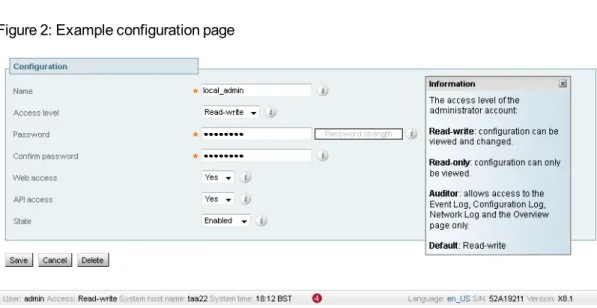
Figure 2: Example configuration page
The elements included in the example web pages shown here are described in the table below. Page
element
Description
Page name and location
Every page shows the page name and the menu path to that page. Each part of the menu path is a link; clicking on any of the higher level menu items takes you to that page. System
alarm
This icon appears on the top right corner of every page when there is a system alarm in place. Click on this icon to go to the Alarms page which gives information about the alarm and its suggested resolution.
Help This icon appears on the top right corner of every page. Clicking on this icon opens a new browser window with help specific to the page you are viewing. It gives an overview of the purpose of the page, and introduces any concepts configured from the page.
Log out This icon appears on the top right corner of every page. Clicking on this icon ends your administrator session.
Introduction
Page element
Description
Field level information
An information box appears on the configuration pages whenever you either click on the Information icon or click inside a field. This box gives you information about the particular field, including where applicable the valid ranges and default value. To close the information box, click on the X at its top right corner.
Information bar
The Expressway provides you with feedback in certain situations, for example when settings have been saved or when you need to take further action. This feedback is given in a yellow information bar at the top of the page.
Sorting columns
Click on column headings to sort the information in ascending and descending order.
Select All and Unselect All
Use these buttons to select and unselect all items in the list.
Mandatory field
Indicates an input field that must be completed.
Peer-specific configuration item
† When an Expressway is part of a cluster, most items of configuration are applied to all peers in a cluster. However, items indicated with a † must be specified separately on each cluster peer.
System Information
The name of the user currently logged in and their access privileges, the system name (or LAN 1 IPv4 address if no system name is configured), local system time, currently selected language, serial number and Expressway software version are shown at the bottom of the page.
Note that you cannot change configuration settings if your administrator account has read-only privileges. Introduction
Network and system settings
This section describes network services and settings related options that appear under the System menu of the web interface. These options enable you to configure the Expressway in relation to the network in which it is located, for example its IP settings, firewall rules, intrusion protection and the external services used by the Expressway (for example DNS, NTP and SNMP).
Network settings 20
Intrusion protection 25
Network services 31
Network settings
Configuring IP settings
The IP page (System > IP) is used to configure the IP protocols and network interface settings of the Expressway.
IP protocol configuration
You can configure whether the Expressway uses IPv4, IPv6 or Both protocols. The default is Both.
n IPv4: it only takes calls between two endpoints communicating via IPv4. It communicates with other
systems via IPv4 only.
n IPv6: it only takes calls between two endpoints communicating via IPv6. It communicates with other
systems via IPv6 only.
n Both: it takes calls using either protocol. If a call is between an IPv4-only and an IPv6-only endpoint, the
Expressway acts as an IPv4 to IPv6 gateway. It communicates with other systems via either protocol. All IPv6 addresses configured on the Expressway are treated as having a /64 network prefix length.
IPv4 to IPv6 gatewaying (interworking)
The Expressway can act as a gateway for calls between IPv4 and IPv6 devices. To enable this feature, select an IP protocol of Both.
IP gateways and IP routes (static routes)
You can set the default IPv4 gateway and IPv6 gateway used by the Expressway. These are the gateways to which IP requests are sent for IP addresses that do not fall within the Expressway’s local subnet.
n The default IPv4 gateway is 127.0.0.1, which should be changed during the commissioning process. n The IPv6 gateway, if entered, must be a static global IPv6 address. It cannot be a link-local or a stateless
auto-configuration (SLAAC) IPv6 address.
You can also configure additional IP routing information (static routes) on the Expressway. This is
sometimes required when using the Advanced Networking option and deploying the Expressway in a DMZ. They may also be required occasionally in other complex network deployments.
n IP routes can be configured using the CLI only: routes can be added by using the xCommand RouteAdd
command and can be modified by using the xConfiguration IP Route commands.
n You can configure routes for up to 50 network and host combinations.
n Do not configure IP routes by logging into the system as root and using "ip route" statements.
LAN configuration
LAN 1 is the primary network port on the Expressway. You can configure the IPv4 address and subnet mask, and IPv6 address for this port.
n The Expressway is shipped with a default IP address of 192.168.0.100 (for both LAN ports). This lets you
connect the Expressway to your network and access it via the default address so that you can configure it Network and system settings
remotely.
n The IPv6 address, if entered, must be a static global IPv6 address. It cannot be a link-local or a stateless
auto-configuration (SLAAC) IPv6 address.
n If you have Advanced Networking installed, you can also configure these options for the LAN 2 port.
About Advanced Networking
The Advanced Networking option key enables the LAN 2 port on the Expressway-E for both management and call signaling. This allows you to have a second IP address for your Expressway. The option key also enables static NAT functionality.
Configuring dual network interfaces
Dual network interfaces are intended for deployments where the Expressway-E is located in a DMZ between two separate firewalls on separate network segments. In such deployments, routers prevent devices on the internal network from being able to route IP traffic to the public internet, and instead the traffic must pass through an application proxy such as the Expressway-E.
To enable the use of dual network interfaces:
1. Ensure that the Advanced Networking option key is installed on the Expressway-E. 2. Set Use dual network interfaces to Yes.
3. Set External LAN interface to LAN2.
LAN 2 should be used as the public interface of the Expressway-E (if the Expressway-E is ever
clustered, LAN 1 must be used for clustering, and the clustering interface must not be mapped through a NAT).
This setting also determines the port from which TURN server relay allocations are made. Note that:
n You should configure the LAN 1 port and restart the Expressway before configuring the LAN 2 port. n The LAN 1 and LAN 2 interfaces must be on different, non-overlapping subnets.
n If you have Advanced Networking enabled but only want to configure one of the Ethernet ports, you must
use LAN 1.
n If the Expressway-E is in the DMZ, the outside IP address of the Expressway-E must be a public IP
address, or if static NAT mode is enabled, the static NAT address must be publicly accessible.
n The Expressway-E may also be used to traverse internal firewalls within an enterprise. In this case the
"public" IP address may not be publicly accessible, but is an IP address accessible to other parts of the enterprise.
Configuring static NAT
You can deploy the Expressway-E behind a static NAT device, allowing it to have separate public and private IP addresses. This feature is intended for use in deployments where the Expressway-E is located in a DMZ, and has the Advanced Networking feature enabled.
In these deployments, the externally-facing LAN port has static NAT enabled in order to use both a private and public IPv4 address; the internally facing LAN port does not have static NAT enabled and uses a single IPv4 (or IPv6) address.
In such a deployment, traversal clients should be configured to use the internally-facing IP address of the Expressway-E.
Network and system settings
To enable the use of a static NAT:
1. Ensure that the Advanced Networking option key is installed. 2. For the externally-facing LAN port:
a. In the IPv4 address field, enter the Expressway-E's private IP address. b. Set IPv4 static NAT mode to On.
c. In the IPv4 static NAT address field, enter the Expressway-E's public IP address - this is the IP address of the outside of the NAT.
Configuring Ethernet settings
The Ethernet page (System > Ethernet) is used to configure the speed of the connection between the Expressway and the Ethernet switch to which it is connected. The speed must be set to the same value on both systems. If you have the Advanced Networking option enabled, you can configure the Ethernet speed separately for each LAN port.
The default is Auto, which means that the two systems will auto-negotiate the appropriate speed.
Note: we recommend that you use the default value of Auto unless the switch to which you are connecting is unable to auto-negotiate. A mismatch in Ethernet speed settings between the Expressway and Ethernet switch will at best result in packet loss; at worst it will make the system inaccessible for endpoints and system administrators.
Configuring DNS settings
The DNS page (System > DNS) is used to configure the Expressway's DNS servers and DNS settings.
Configuring the system host and domain name
The System host name defines the DNS host name that this Expressway is known by.
n It must be unique for each peer in a cluster.
n It is used to identify the Expressway on a remote log server (a default name of "TANDBERG" is used if the
System host name is not specified).
The Domain name is used when attempting to resolve unqualified server addresses (for example
ldapserver). It is appended to the unqualified server address before the query is sent to the DNS server. If the server address is fully qualified (for example ldapserver.mydomain.com) or is in the form of an IP address, the domain name is not appended to the server address before querying the DNS server.
It applies to the following configuration settings in the Expressway:
n LDAP server n NTP server
n External Manager server n Remote logging server
You are recommended to use an IP address or FQDN (Fully Qualified Domain Name) for all server addresses.
Note that the FQDN of the Expressway is the System host name plus the Domain name. Network and system settings
Impact on SIP messaging
The System host name and Domain name are also used to identify references to this Expressway in SIP messaging, where an endpoint has configured the Expressway as its SIP proxy in the form of an FQDN (as opposed to an IP address, which is not recommended).
In this case the Expressway may, for example, reject an INVITE request if the FQDN configured on the endpoint does not match the System host name and Domain name configured on the Expressway. (Note that this check occurs because the SIP proxy FQDN is included in the route header of the SIP request sent by the endpoint to the Expressway.)
DNS requests
By default, DNS requests use a random port from within the system's ephemeral port range.
If required, you can specify a custom port range instead by setting DNS requests port range to Use a custom port range and then defining the DNS requests port range start and DNS requests port range end fields. Note that setting a small source port range will increase your vulnerability to DNS spoofing attacks.
Configuring DNS server addresses
You must specify at least one DNS server to be queried for address resolution if you want to:
n Use FQDNs (Fully Qualified Domain Names) instead of IP addresses when specifying external addresses
(for example for LDAP and NTP servers, neighbor zones and peers).
n Use features such as URI dialing or ENUM dialing.
Default DNS servers
You can specify up to 5 default DNS servers.
n The Expressway only queries one server at a time; if that server is not available the Expressway will try
another server from the list.
n The order that the servers are specified is not significant; the Expressway attempts to favor servers that
were last known to be available.
Per-domain DNS servers
In addition to the 5 default DNS servers, you can specify 5 additional explicit DNS servers for specified domains. This can be useful in deployments where specific domain hierarchies need to be routed to their explicit authorities.
For each additional per-domain DNS server address you can specify up to 2 Domain names. Any DNS queries under those domains are forwarded to the specified DNS server instead of the default DNS servers. You can specify redundant per-domain servers by adding an additional per-domain DNS server address and associating it with the same Domain names. In this scenario, DNS requests for those domains will be sent in parallel to both DNS servers.
Tip: you can also use the DNS lookup tool (Maintenance > Tools > Network utilities > DNS lookup) to check which domain name server (DNS server) is responding to a request for a particular hostname. Network and system settings
Caching DNS records
To improve performance, DNS lookups may be cached. This cache is flushed automatically whenever the DNS configuration is changed.
You can also force the cache to be flushed by clicking Flush DNS cache.
Configuring Quality of Service settings
The Quality of Service (QoS) page (System > Quality of Service) is used to configure QoS options for outbound traffic from the Expressway.
This allows the network administrator to tag all signaling and media packets flowing through the Expressway with one specific QoS tag and hence provide the ability to prioritize video traffic over normal data traffic. Management traffic, for example SNMP messages, is not tagged.
Supported mechanisms
The Expressway supports the DiffServ (Differentiated Services) mechanism which puts the specified Tag value in the TOS (Type Of Service) field of the IPv4 header or TC (Traffic Class) field of the IPv6 header. Network and system settings
Intrusion protection
Configuring firewall rules
Firewall rules provide the ability to configure IP table rules to control access to the Expressway at the IP level. On the Expressway, these rules have been classified into groups and are applied in the following order:
n Dynamic system rules: these rules ensure that all established connections/sessions are maintained. They
also include any rules that have been inserted by the automated detection feature as it blocks specific addresses. Finally, it includes a rule to allow access from the loopback interface.
n Non-configurable application rules: this incorporates all necessary application-specific rules, for example to
allow SNMP traffic and H.323 gatekeeper discovery.
n User-configurable rules: this incorporates all of the manually configured firewall rules (as described in this
section) that refine — and typically restrict — what can access the Expressway. There is a final rule in this group that allows all traffic destined for the Expressway LAN1 interface (and the LAN 2 interface if the Advanced Networking option key is installed).
There is also a final, non-configurable rule that drops any broadcast or multicast traffic that has not already been specifically allowed or denied by the previous rules.
By default any traffic that is destined for the specific IP address of the Expressway is allowed access, but that traffic will be dropped if the Expressway is not explicitly listening for it. You have to actively configure extra rules to lock down the system to your specifications.
Note that return traffic from outbound connections is always accepted.
User-configured rules
The user-configured rules are typically used to restrict what can access the Expressway. You can:
n Specify the source IP address subnet from which to allow or deny traffic. n Choose whether to drop or reject denied traffic.
n Configure well known services such as SSH, HTTP/HTTPS or specify customized rules based on
transport protocols and port ranges.
n Configure different rules for the LAN 1 and LAN 2 interfaces (if the Advanced Networking option key is
installed), although note that you cannot configure specific destination addresses such as a multicast address.
n Specify the priority order in which the rules are applied.
Setting up and activating firewall rules
The Firewall rules configuration page is used to set up and activate a new set of firewall rules.
The set of rules shown will initially be a copy of the current active rules. (On a system where no firewall rules have previously been defined, the list will be empty.) If you have a lot of rules you can use the Filter options to limit the set of rules displayed. Note that the built-in rules are not shown in this list.
You can then change the set of firewall rules by adding new rules, or by modifying or deleting any existing rules. Any changes made at this stage to the current active rules are held in a pending state. When you have completed making all the necessary changes you can activate the new rules, replacing the previous set. Network and system settings
To set up and activate new rules:
1. Go to System > Protection > Firewall rules > Configuration.
2. Make your changes by adding new rules, or by modifying or deleting any existing rules as required. You can change the order of the rules by using the up/down arrows and to swap the priorities of adjacent rules.
l New or modified rules are shown as Pending (in the State column). l Deleted rules are shown as Pending delete.
3. When you have finished configuring the new set of firewall rules, click Activate firewall rules.
4. Confirm that you want to activate the new rules. This will replace the existing set of active rules with the set you have just configured.
After confirming that you want to activate the new rules, they are validated and any errors reported. 5. If there are no errors, the new rules are temporarily activated and you are taken to the Firewall rules
confirmation page.
You now have 15 seconds to confirm that you want to keep the new rules:
l Click Accept changes to permanently apply the rules.
l If the 15 seconds time limit expires or you click Rollback changes, the previous rules are reinstated
and you are taken back to the configuration page.
The automatic rollback mechanism provided by the 15 seconds time limit ensures that the client system that activated the changes is still able to access the system after the new rules have been applied. If the client system is unable to confirm the changes (because it can no longer access the web interface) then the rollback will ensure that its ability to access the system is reinstated.
When configuring firewall rules, you also have the option to Revert all changes. This discards all pending changes and resets the working copy of the rules to match the current active rules.
Rule settings
The configurable options for each rule are:
Field Description Usage tips
Priority The order in which the firewall rules are applied.
The rules with the highest priority (1, then 2, then 3 and so on) are applied first.
Firewall rules must have unique priorities. Rule activation will fail if there are multiple rules with the same priority.
Interface The LAN interface on which you want to control access.
This only applies if the Advanced Networking option key is installed.
IP address and Prefix length
These two fields together determine the range of IP addresses to which the rule applies.
The Address range field shows the range of IP addresses to which the rule applies, based on the combination of the IP address and Prefix length.
The prefix length range is 0-32 for an IPv4 address, and 0-128 for an IPv6 address.
Service Choose the service to which the rule applies, or choose Custom to specify your own transport type and port ranges.
Note that if the destination port of a service is subsequently reconfigured on the Expressway, for example from 80 to 8080, any firewall rules containing the old port number will not be automatically updated.
Transport The transport protocol to which the rule applies.
Only applies if specifying a Custom service.
Network and system settings
Field Description Usage tips Start and
end port
The port range to which the rule applies.
Only applies if specifying a UDP or TCP Custom service.
Action The action to take against any IP traffic that matches the rule.
Allow: Accept the traffic. Drop: Drop the traffic without any response to the sender.
Reject: Reject the traffic with an 'unreachable' response.
Dropping the traffic means that potential attackers are not provided with information as to which device is filtering the packets or why. For deployments in a secure environment, you may want to configure a set of low priority rules (for example, priority 50000) that deny access to all services and then configure higher priority rules (for example, priority 20) that selectively allow access for specific IP addresses.
Description An optional free-form description of the firewall rule.
If you have a lot of rules you can use the Filter by description options to find related sets of rules.
Current active firewall rules
The Current active firewall rules page (System > Protection > Firewall rules > Current active rules) shows the user-configured firewall rules that are currently in place on the system. Note that there is also a set of built-in rules that are not shown in this list.
If you want to change the rules you must go to the Firewall rules configuration page from where you can set up and activate a new set of rules.
Configuring automated intrusion protection
The automated protection service can be used to detect and block malicious traffic and to help protect the Expressway from dictionary-based attempts to breach login security.
It works by parsing the system log files to detect repeated failures to access specific service categories, such as SIP, SSH and web/HTTPS access. When the number of failures within a specified time window reaches the configured threshold, the source host address (the intruder) and destination port are blocked for a specified period of time. The host address is automatically unblocked after that time period so as not to lock out any genuine hosts that may have been temporarily misconfigured.
You can configure ranges of addresses that are exempted from one or more categories (see Configuring exemptions [p.29] below).
Automated protection should be used in combination with the firewall rules feature - use automated protection to dynamically detect and temporarily block specific threats, and use firewall rules to permanently block a range of known host addresses.
About protection categories
The set of available protection categories on your Expressway are pre-configured according to the software version that is running. You can enable, disable or configure each category, but you cannot add additional categories.
Network and system settings
The rules by which specific log file messages are associated with each category are also pre-configured and cannot be altered. You can view example log file entries that would be treated as an access failure/intrusion within a particular category by going to System > Protection > Automated detection > Configuration and clicking on the name of the category. The examples are displayed above the Status section at the bottom of the page.
Enabling automated protection
To enable intrusion protection on your Expressway: 1. Go to System > Administration.
2. Set Automated protection service to On. 3. Click Save.
4. You must then ensure that the required protection categories are enabled and configured, and that any required exemptions are specified, as described below.
All protection categories are disabled by default.
Configuring protection categories
The Automated detection overview page (System > Protection > Automated detection >
Configuration) is used to enable and configure the Expressway's protection categories, and to view current activity.
The page displays a summary of all available categories, showing:
n Status: this indicates if the category is configured to be On or Off. When On, it additionally indicates the
state of the category: this is normally Active, but may temporarily display Initializing or Shutting down when a category has just been enabled or disabled. Check the alarms if it displays Failed.)
n Currently blocked: the number of addresses currently being blocked for this category.
n Total failures: the total number of failed attempts to access the services associated with this category. n Total blocks: the total number of times that a block has been triggered. Note that:
l The Total blocks will typically be less than the Total failures (unless the Trigger level is set to 1). l The same address can be blocked and released several times per category, with each occurrence
counting as a separate block.
n Exemptions: the number of addresses that are configured as exempt from this category.
From this page, you can also view any currently blocked addresses or any exemptions that apply to a particular category.
Enabling and disabling categories
To enable or disable one or more protection categories:
1. Go to System > Protection > Automated detection > Configuration. 2. Select the check box alongside the categories you want to enable or disable. 3. Click Enable or Disable as appropriate.
Network and system settings
Configuring a category's blocking rules
To configure a category's specific blocking rules:
1. Go to System > Protection > Automated detection > Configuration. 2. Click on the name of the category you want to configure.
You are taken to the configuration page for that category. 3. Configure the category as required:
l State: whether protection for that category is enabled or disabled. l Description: a free-form description of the category.
l Trigger level and Detection window: these settings combine to define the blocking threshold for the
category. They specify the number of failed access attempts that must occur before the block is triggered, and the time window in which those failures must occur.
l Block duration: the period of time for which the block will remain in place.
4. Click Save.
Configuring exemptions
The Automated detection exemptions page (System > Protection > Automated detection > Exemptions) is used to configure any IP addresses that are to be exempted always from one or more protection categories.
To configure exempted addresses:
1. Go to System > Protection > Automated detection > Exemptions.
2. Click on the Address you want to configure, or click New to specify a new address.
3. Enter the Address and Prefix length to define the range of IPv4 addresses you want to exempt. 4. Select the categories from which the address is to be exempted.
5. Click Add address.
Note that if you exempt an address that is currently blocked, it will remain blocked until its block duration expires (unless you unblock it manually via the Blocked addresses page).
Managing blocked addresses
The Blocked addresses page (System > Protection > Automated detection > Blocked addresses) is used to manage the addresses that are currently blocked by the automated protection service:
n It shows all currently blocked addresses and from which categories those addresses have been blocked. n You can unblock an address, or unblock an address and at the same time add it to the exemption list. Note
that if you want to permanently block an address, you must add it to the set of configured firewall rules. If you access this page via the links on the Automated detection overview page it is filtered according to your chosen category. It also shows the amount of time left before an address is unblocked from that category.
Investigating access failures and intrusions
If you need to investigate specific access failures or intrusion attempts, you can review all the relevant triggering log messages associated with each category. To do this:
Network and system settings
1. Go to System > Protection > Automated detection > Configuration. 2. Click on the name of the category you want to investigate.
3. Click View all matching intrusion protection triggers for this category.
The system will display all the relevant events for that category. You can then search through the list of triggering events for the relevant event details such as a user name, address or alias.
Automated protection service and clustered systems
When the automated protection service is enabled in a clustered system:
n Each peer maintains its own count of connection failures and the trigger threshold must be reached on each
peer for the intruder's address to be blocked by that peer.
n Addresses are blocked against only the peer on which the access failures occurred. This means that if an
address is blocked against one peer it may still be able to attempt to access another peer (from which it may too become blocked).
n A blocked address can only be unblocked for the current peer. If an address is blocked by another peer, you
must log in to that peer and then unblock it.
n Category settings and the exemption list are applied across the cluster.
n The statistics displayed on the Automated detection overview page are for the current peer only.
Additional information
n When a host address is blocked and tries to access the system, the request is dropped (the host receives
no response).
n A host address can be blocked simultaneously for multiple categories, but may not necessarily be blocked
by all categories. Those blocks may also expire at different times.
n When an address is unblocked (either manually or after its block duration expires), it has to fail again for the
full number of times as specified by the category's trigger level before it will be blocked for a second time by that category.
n IPv6 host addresses are not supported (the automated protection service currently detects IPv4 host
address failures only).
n A category is reset whenever it is enabled. All categories are reset if the system is restarted or if the
automated protection service is enabled at the system level. When a category is reset:
l Any currently blocked addresses are unblocked. l Its running totals of failures and blocks are reset to zero.
n You can view all Event Log entries associated with the automated protection service by clicking View all
intrusion protection events on the Automated detection overview page. Network and system settings
Network services
Configuring system name and access settings
The System administration page (System > Administration) is used to configure the name of the Expressway and the means by which it is accessed by administrators.
System settings
System name
The System name is used to identify the Expressway. It appears in various places in the web interface, and in the display on the front panel of the unit (so that you can identify it when it is in a rack with other systems). The System name is also used by Cisco TMS.
We recommend that you give the Expressway a name that allows you to easily and uniquely identify it.
Ephemeral ports range
You can specify the Ephemeral port range start and end values. This defines the port range to use for ephemeral outbound connections not otherwise constrained by Expressway call processing.
The default range is 30000 to 35999.
Administration access settings
While you can administer the Expressway via a PC connected directly to the unit via a serial cable, you may want to access the system remotely over IP. You can do this using either the web interface (via HTTPS) or through a command line interface (via SSH).
The configurable options are:
Field Description Usage tips
Services Serial port / console
Determines whether the system can be accessed locally via the VMware console. Default is On.
Serial port / console access is always enabled for one minute following a restart, even if it is normally disabled.
SSH service Determines whether the Expressway can be accessed via SSH and SCP. Default is On.
Web interface (over HTTPS)
Determines whether the Expressway can be accessed via the web interface. Default is On.
Cisco TMS accesses the Expressway via the web server. If HTTPS mode is turned off, Cisco TMS will not be able to access it.
Session limits Session time out
The number of minutes that an administration session (serial port, HTTPS or SSH) may be inactive before the session is timed out. Default is 30 minutes.
A value of 0 means that session time outs are disabled.
Network and system settings
Field Description Usage tips Per-account
session limit
The number of concurrent sessions that each individual administrator account is allowed on each Expressway.
This includes web, SSH and serial sessions. Session limits are not enforced on the root account.
A value of 0 turns session limits off. System
session limit
The maximum number of concurrent administrator sessions allowed on each Expressway.
This includes web, SSH and serial sessions. Session limits are not enforced on the root account; however active root account sessions do count towards the total number of current administrator sessions.
A value of 0 turns session limits off.
System protection Automated protection service
Determines whether the automated protection service is active. Default is Off.
After enabling the service you must go and configure the specific protection categories.
Web server configuration Redirect HTTP
requests to HTTPS
Determines whether HTTP requests are redirected to the HTTPS port. Default is On.
HTTPS must also be enabled for access via HTTP to function.
HTTP Strict Transport Security (HSTS)
Determines whether web browsers are instructed to only ever use a secure connection to access this server. Enabling this feature gives added protection against man-in-the-middle (MITM) attacks.
On: the Strict-Transport-Security header is sent with all responses from the web server, with a 1 year expiry time.
Off: the Strict-Transport-Security header is not sent, and browsers work as normal.
Default is On.
See below for more information about HSTS.
Network and system settings
Field Description Usage tips Client
certificate-based security
Controls the level of security required to allow client systems (typically web browsers) to communicate with the Expressway over HTTPS.
Not required: the client system does not have to present any form of certificate.
Certificate validation: the client system must present a valid
certificate that has been signed by a trusted certificate authority (CA). Note that a restart is required if you are changing from Not required to Certificate validation.
Certificate-based authentication: the client system must present a valid certificate that has been signed by a trusted CA and contains the client's authentication credentials.
Default: Not required
Important:
Enabling Certificate validation means that your browser (the client system) can use the Expressway web interface only if it has a valid (in date and not revoked by a CRL) client certificate that is signed by a CA in the Expressway's trusted CA certificate list. Ensure your browser has a valid client certificate before enabling this feature. The procedure for uploading a certificate to your browser may vary depending on the browser type and you may need to restart your browser for the certificate to take effect. You can upload CA certificates on the Managing the trusted CA certificate list [p.178] page, and test client certificates on the Testing client certificates [p.184]
page.
Enabling Certificate-based authentication means that the standard login mechanism is no longer available. You can log in only if your browser certificate is valid and the credentials it provides have the appropriate authorization levels. You can configure how the Expressway extracts credentials from the browser certificate on the Certificate-based authentication configuration page.
This setting does not affect client verification of the Expressway's server certificate.
Certificate revocation list (CRL)
checking
Specifies whether HTTPS client certificates are checked against certificate revocation lists (CRLs). None: no CRL checking is performed. Peer: only the CRL associated with the CA that issued the client's certificate is checked.
All: all CRLs in the trusted certificate chain of the CA that issued the client's certificate are checked. Default: All
Only applies if Client certificate-based security is enabled.
CRL
inaccessibility fallback behavior
Controls the revocation checking behavior if the revocation status cannot be established, for example if the revocation source cannot be contacted.
Treat as revoked: treat the certificate as revoked (and thus do not allow the TLS connection).
Treat as not revoked: treat the certificate as not revoked. Default: Treat as not revoked
Only applies if Client certificate-based security is enabled.
Network and system settings
By default, access via HTTPS and SSH is enabled. For optimum security, disable HTTPS and SSH and use the serial port to manage the system. Because access to the serial port allows the password to be reset, we recommend that you install the Expressway in a physically secure environment.
HTTP Strict Transport Security (HSTS)
HTTP Strict Transport Security (HSTS) provides a mechanism where a web server forces a web browser to communicate with it using secure connections only.
As of October 2012, this mechanism is supported by the following browsers:
n Chrome, versions 4.0.211.0 and later n Firefox, versions 4 and later
When HSTS is enabled, a browser that supports HSTS will:
n Automatically turn any insecure links to the website into secure links (for example,
http://example.com/page/ is modified to https://example.com/page/ before accessing the server).
n Only allow access to the server if the connection is secure (for example, the server's TLS certificate is
valid, trusted and not expired).
Browsers that do not support HSTS will ignore the Strict-Transport-Security header and work as before. They will still be able to access the server.
Note that compliant browsers only respect Strict-Transport-Security headers if they access the server through its fully qualified name (rather than its IP address).
Expressway unit front panel
The LCD panel on the front of the Expressway hardware unit has a rotating display of the Expressway's system name, IP addresses, alarms, and the number of current calls.
To control the display of status items:
n ENTER stops the display from automatically rotating through the status items. This is useful if you need to
review all of the alarms or read a long IPv6 address. Press ENTER again to resume the rotating display.
n UP/DOWN displays the previous or next status item.
You can configure the front panel to hide this identifying information, if required for security reasons for example, by using the CLI command xConfiguration Administration LCDPanel Mode. If the mode is set to Off the front panel only displays "Cisco".
Configuring SNMP settings
The SNMP page (System > SNMP) is used to configure the Expressway's SNMP settings.
Tools such as Cisco TMS or HP OpenView may act as SNMP Network Management Systems (NMS). They allow you to monitor your network devices, including the Expressway, for conditions that might require administrative attention.
The Expressway supports the most basic MIB-II tree (.1.3.6.1.2.1) as defined in RFC 1213. The information made available by the Expressway includes the following:
Network and system settings
n system uptime n system name n location n contact n interfaces
n disk space, memory, and other machine-specific statistics
By default, SNMP is Disabled, therefore to allow the Expressway to be monitored by an SNMP NMS (including Cisco TMS), you must select an alternative SNMP mode. The configurable options are:
Field Description Usage tips
SNMP mode Controls the level of SNMP support. Disabled: no SNMP support.
SNMPv3 (secure SNMP): supports authentication and encryption.
SNMPv3 plus TMS support: secure SNMPv3 plus non-secure access to OID 1.3.6.1.2.1.1.2.0 only.
SNMPv2c: non-secure community-based SNMP.
If you want to use secure SNMPv3 but you also use Cisco TMS as your external manager, you must select SNMPv3 plus TMS support.
Community name
The Expressway's SNMP community name. The default is public.
Only applies to SNMPv2c and SNMPv3 plus TMS support. System
contact
The name of the person who can be contacted regarding issues with the Expressway.
The System contact and Location are used for reference purposes by administrators when following up on queries.
Location Specifies the physical location of the Expressway. Username The Expressway's SNMP username, used to identify
this SNMP agent to the SNMP manager.
Only applies when using secure SNMPv3.
v3 Authentication settings (only applicable to SNMPv3) Authentication
mode
Enables or disables SNMPv3 authentication.
Type The algorithm used to encrypt authentication credentials.
SHA: Secure Hash Algorithm. MD5: Message-Digest algorithm 5.
Password The password used to encrypt authentication credentials.
Must be at least 8 characters.
v3 Privacy settings (only applicable to SNMPv3)
Privacy mode Enables or disables SNMPv3 encryption. Type The security model used to encrypt messages.
DES: Data Encryption Standard 56-bit encryption. AES: Advanced Encryption Standard 128-bit encryption.
Password The password used to encrypt messages. Must be at least 8 characters.
Network and system settings
Note: SNMP is disabled by default, because of the potentially sensitive nature of the information involved. Do not enable SNMP on an Expressway on the public internet or in any other environment where you do not want to expose internal system information.
Configuring time settings
The Time page (System > Time) is used to configure the Expressway's NTP servers and to specify the local time zone.
An NTP server is a remote server with which the Expressway synchronizes in order to ensure its time is accurate. The NTP server provides the Expressway with UTC time.
Accurate time is necessary for correct system operation.
Configuring the NTP servers
To configure the Expressway with one or more NTP servers to be used when synchronizing system time, enter the Address of up to five servers in one of the following formats, depending on the system's DNS settings (you can check these settings on the DNS page, System > DNS):
n if there are no DNS servers configured, you must use an IP address for the NTP server
n if there are one or more DNS servers configured, you can use an FQDN or IP address for the NTP server n if there is a DNS Domain name configured in addition to one or more DNS servers, you can use the
server name, FQDN or IP address for the NTP server
Three of the Address fields default to NTP servers provided by Cisco.
You can configure the Authentication method used by the Expressway when connecting to an NTP server. Use one of the following options for each NTP server connection:
Authentication method
Description
Disabled No authentication is used.
Symmetric key Symmetric key authentication. When using this method a Key ID, Hash method and Pass phrase must be specified. The values entered here must match exactly the equivalent settings on the NTP server. You can use the same symmetric key settings across multiple NTP servers. However, if you want to configure each server with a different pass phrase, you must also ensure that each server has a unique key ID.
Private key Private key authentication. This method uses an automatically generated private key with which to authenticate messages sent to the NTP server.
Displaying NTP status information
The synchronization status between the NTP server and the Expressway is shown in the Status area as follows:
n Starting: the NTP service is starting.
n Synchronized: the Expressway has successfully obtained accurate system time from an NTP server. n Unsynchronized: the Expressway is unable to obtain accurate system time from an NTP server.
Network and system settings