Symbol LS4208
Symbol LS4208
Product Reference Guide
72E-69413-07 Revision A November 2012© 2009-2012 Motorola Solutions, Inc. All rights reserved.
No part of this publication may be reproduced or used in any form, or by any electrical or mechanical means, without permission in writing from Motorola. This includes electronic or mechanical means, such as
photocopying, recording, or information storage and retrieval systems. The material in this manual is subject to change without notice.
The software is provided strictly on an “as is” basis. All software, including firmware, furnished to the user is on a licensed basis. Motorola grants to the user a non-transferable and non-exclusive license to use each software or firmware program delivered hereunder (licensed program). Except as noted below, such license may not be assigned, sublicensed, or otherwise transferred by the user without prior written consent of Motorola. No right to copy a licensed program in whole or in part is granted, except as permitted under copyright law. The user shall not modify, merge, or incorporate any form or portion of a licensed program with other program material, create a derivative work from a licensed program, or use a licensed program in a network without written permission from Motorola. The user agrees to maintain Motorola’s copyright notice on the licensed programs delivered hereunder, and to include the same on any authorized copies it makes, in whole or in part. The user agrees not to decompile, disassemble, decode, or reverse engineer any licensed program delivered to the user or any portion thereof.
Motorola reserves the right to make changes to any software or product to improve reliability, function, or design.
Motorola does not assume any product liability arising out of, or in connection with, the application or use of any product, circuit, or application described herein.
No license is granted, either expressly or by implication, estoppel, or otherwise under any Motorola, Inc., intellectual property rights. An implied license only exists for equipment, circuits, and subsystems contained in Motorola products.
MOTOROLA, MOTO, MOTOROLA SOLUTIONS and the Stylized M Logo are trademarks or registered trademarks of Motorola Trademark Holdings, LLC and are used under license. All other trademarks are the property of their respective owners.
Motorola Solutions, Inc. One Motorola Plaza
Holtsville, New York 11742-1300 http://www.motorolasolutions.com
Warranty
For the complete Motorola hardware product warranty statement, go to: http://www.motorola.com/enterprisemobility/warranty.
iii
Revision History
Changes to the original manual are listed below:
Change Date Description
-01 Rev A 5/2005 Initial release.
-02 Rev A 6/2005 Update RSS description.
-03 Rev A 1/2007 Update service section, add special IBM command bar codes, add parameter bar codes for Bookland ISBN format and new UPC supplemental decode options, add bar codes for report version, report MIMIC version, and report Synapse cable, add ADF section.
-04 Rev A 6/2007 Add information for LS4208PR version, which supports PDF417.
-05 Rev A 7/2007 Add note to end of Wand Emulation chapter regarding error beep emitted when scanner attempts to send composite data.
-06 Rev A 4/2009 Add Parameter Scanning option, add Simple COM Port Emulation to USB device type parameter, add new ADF options.
-07 Rev A 11/2012 Removed patents, and Regulatory specs; updated URLs, ambient light tolerance, and 123Scan2 chapter.
Table of Contents
Warranty ... ii
Revision History ... iii
About This Guide
Introduction ... xiii
Notational Conventions... xiv
Related Documents ... xiv
Service Information ... xv
Chapter 1: Getting Started
Introduction ... 1-1
Unpacking ... 1-2
Setting Up the Scanner ... 1-3
Installing the Interface Cable ... 1-3
Removing the Interface Cable ... 1-4
Connecting a Synapse Cable Interface ... 1-4
Connecting Power (if required) ... 1-4
Configuring the Scanner ... 1-5
Chapter 2: Scanning
Introduction ... 2-1
Beeper Definitions ... 2-2
LED Definitions ... 2-3
Scan Patterns ... 2-4
Single-Line Only ... 2-4
Multi-Line Smart Raster ... 2-4
Multi-line Always Raster ... 2-4
Scanning Modes ... 2-5
Scanning in Hand-Held Mode ... 2-5
Scanning in Hands-Free Mode ... 2-9
Symbol LS4208 Decode Zone ... 2-11
Chapter 3: Maintenance, Troubleshooting & Technical Specifications
Introduction ... 3-1
Maintenance ... 3-1
Troubleshooting ... 3-2
Technical Specifications ... 3-5
Scanner Signal Descriptions ... 3-7
Chapter 4: User Preferences
Introduction ... 4-1
Scanning Sequence Examples ... 4-1
Errors While Scanning ... 4-1
User Preferences Parameter Defaults ... 4-2
User Preferences ... 4-3
Default Parameters ... 4-3
Parameter Bar Code Scanning ... 4-4
Beeper Tone ... 4-4
Beeper Volume ... 4-5
Power Mode ... 4-5
Scan Pattern ... 4-6
Scan Line Width ... 4-7
Raster Height ... 4-8
Laser On Time ... 4-9
Beep After Good Decode ... 4-9
PDF Decode Feedback ... 4-10
Chapter 5: Keyboard Wedge Interface
Introduction ... 5-1
Connecting a Keyboard Wedge Interface ... 5-2
Keyboard Wedge Parameter Defaults ... 5-3
Keyboard Wedge Host Parameters ... 5-4
Keyboard Wedge Host Types ... 5-4
Keyboard Wedge Country Types (Country Codes) ... 5-5
Ignore Unknown Characters ... 5-6
Keystroke Delay ... 5-7
Intra-Keystroke Delay ... 5-7
Alternate Numeric Keypad Emulation ... 5-8
Caps Lock On ... 5-8
Caps Lock Override ... 5-9
Convert Wedge Data ... 5-10
Function Key Mapping ... 5-10
FN1 Substitution ... 5-11
Send Make and Break ... 5-11
Keyboard Maps ... 5-12
ASCII Character Set for Keyboard Wedge ... 5-13
Table of Contents
vii
Chapter 6: RS-232 Interface
Introduction ... 6-1
Connecting an RS-232 Interface ... 6-2
RS-232 Parameter Defaults ... 6-3
RS-232 Host Parameters ... 6-4
RS-232 Host Types ... 6-6
Baud Rate ... 6-7
Parity ... 6-8
Stop Bit Select ... 6-9
Data Bits (ASCII Format) ... 6-9
Check Receive Errors ... 6-10
Hardware Handshaking ... 6-10
Software Handshaking ... 6-12
Host Serial Response Time-out ... 6-14
RTS Line State ... 6-15
Beep on <BEL> ... 6-15
Intercharacter Delay ... 6-16
Nixdorf Beep/LED Options ... 6-17
Ignore Unknown Characters ... 6-17
ASCII Character Set for RS-232 ... 6-18
Chapter 7: USB Interface
Introduction ... 7-1
Connecting a USB Interface ... 7-2
USB Parameter Defaults ... 7-4
USB Host Parameters ... 7-5
USB Device Type ... 7-5
USB Country Keyboard Types (Country Codes) ... 7-6
USB Keystroke Delay ... 7-8
USB CAPS Lock Override ... 7-8
USB Ignore Unknown Characters ... 7-9
Emulate Keypad ... 7-9
USB Keyboard FN 1 Substitution ... 7-10
Function Key Mapping ... 7-10
Simulated Caps Lock ... 7-11
Convert Case ... 7-11
ASCII Character Set for USB ... 7-12
Chapter 8: IBM Interface
Introduction ... 8-1
Connecting to an IBM 468X/469X Host ... 8-2
IBM Parameter Defaults ... 8-3
IBM 468X/469X Host Parameters ... 8-4
Port Address ... 8-4
Convert Unknown to Code 39 ... 8-5
Optional IBM Parameters ... 8-6
Ignore Beep ... 8-6
Ignore Bar Code Configuration ... 8-6
Chapter 9: Wand Emulation Interface
Introduction ... 9-1
Connecting Using Wand Emulation ... 9-2
Wand Emulation Parameter Defaults ... 9-3
Wand Emulation Host Parameters ... 9-4
Wand Emulation Host Types ... 9-4
Leading Margin (Quiet Zone) ... 9-5
Polarity ... 9-6
Ignore Unknown Characters ... 9-6
Convert All Bar Codes to Code 39 ... 9-7
Convert Code 39 to Full ASCII ... 9-8
Chapter 10: Scanner Emulation Interface
Introduction ... 10-1
Connecting Using Scanner Emulation ... 10-2
Scanner Emulation Parameter Defaults ... 10-3
Scanner Emulation Host ... 10-4
Scanner Emulation Host Parameters ... 10-4
Beep Style ... 10-4
Parameter Pass-Through ... 10-5
Convert Newer Code Types ... 10-6
Module Width ... 10-7
Convert All Bar Codes to Code 39 ... 10-7
Code 39 Full ASCII Conversion ... 10-8
Transmission Timeout ... 10-9
Ignore Unknown Characters ... 10-10
Leading Margin ... 10-10
Check For Decode LED ... 10-11
Chapter 11: 123Scan
Introduction ... 11-1
Communication with 123Scan2 ... 11-1
123Scan2 Requirements ... 11-2
Chapter 12: Symbologies
Introduction ... 12-1
Scanning Sequence Examples ... 12-1
Errors While Scanning ... 12-2
Symbology Parameter Defaults ... 12-2
UPC/EAN ... 12-6
Enable/Disable UPC-A/UPC-E ... 12-6
Enable/Disable UPC-E1 ... 12-7
Enable/Disable EAN-13/EAN-8 ... 12-8
Enable/Disable Bookland EAN ... 12-9
Decode UPC/EAN/JAN Supplementals ... 12-9
UPC/EAN/JAN Supplemental Redundancy ... 12-14
Transmit UPC-A Check Digit ... 12-14
Table of Contents
ix
Transmit UPC-E Check Digit ... 12-15
Transmit UPC-E1 Check Digit ... 12-15
UPC-A Preamble ... 12-16
UPC-E Preamble ... 12-17
UPC-E1 Preamble ... 12-18
Convert UPC-E to UPC-A ... 12-19
Convert UPC-E1 to UPC-A ... 12-19
EAN-8/JAN-8 Extend ... 12-20
Bookland ISBN Format ... 12-21
UCC Coupon Extended Code ... 12-22
Code 128 ... 12-23
Enable/Disable Code 128 ... 12-23
Enable/Disable GS1-128 (formerly UCC/EAN-128) ... 12-23
Enable/Disable ISBT 128 ... 12-24
Code 39 ... 12-25
Enable/Disable Code 39 ... 12-25
Enable/Disable Trioptic Code 39 ... 12-25
Convert Code 39 to Code 32 ... 12-26
Code 32 Prefix ... 12-26
Set Lengths for Code 39 ... 12-27
Code 39 Check Digit Verification ... 12-28
Transmit Code 39 Check Digit ... 12-29
Code 39 Full ASCII Conversion ... 12-30
Code 39 Buffering (Scan & Store) ... 12-31
Code 93 ... 12-34
Enable/Disable Code 93 ... 12-34
Set Lengths for Code 93 ... 12-34
Code 11 ... 12-36
Code 11 ... 12-36
Set Lengths for Code 11 ... 12-36
Code 11 Check Digit Verification ... 12-38
Transmit Code 11 Check Digits ... 12-39
Interleaved 2 of 5 (ITF) ... 12-40
Enable/Disable Interleaved 2 of 5 ... 12-40
Set Lengths for Interleaved 2 of 5 ... 12-40
I 2 of 5 Check Digit Verification ... 12-42
Transmit I 2 of 5 Check Digit ... 12-43
Convert I 2 of 5 to EAN-13 ... 12-43
Discrete 2 of 5 (DTF) ... 12-44
Enable/Disable Discrete 2 of 5 ... 12-44
Set Lengths for Discrete 2 of 5 ... 12-44
Chinese 2 of 5 ... 12-46
Enable/Disable Chinese 2 of 5 ... 12-46
Codabar (NW - 7) ... 12-47
Enable/Disable Codabar ... 12-47
Set Lengths for Codabar ... 12-47
CLSI Editing ... 12-49
NOTIS Editing ... 12-49
MSI ... 12-50
Enable/Disable MSI ... 12-50
Set Lengths for MSI ... 12-50
MSI Check Digits ... 12-51
Transmit MSI Check Digit(s) ... 12-52
MSI Check Digit Algorithm ... 12-52
GS1 DataBar (formerly RSS - Reduced Space Symbology) ... 12-53
Convert GS1 DataBar to UPC/EAN ... 12-54
PDF417/MicroPDF417 ... 12-55
Enable/Disable PDF417 ... 12-55
Enable/Disable MicroPDF417 ... 12-55
MicroPDF Performance ... 12-56
Transmit Symbols in Codeword Format ... 12-57
Transmit Unknown Codewords ... 12-58
Escape Characters ... 12-58
Delete Character Set ECIs ... 12-59
Composite Codes ... 12-60
Composite CC-C ... 12-60
Composite CC-A/B ... 12-60
UPC Composite Mode ... 12-61
Composite Beep Mode ... 12-62
Symbology - Specific Security Levels ... 12-63
Redundancy Level ... 12-63
Security Level ... 12-65
Bi-directional Redunda\ncy ... 12-66
Intercharacter Gap ... 12-66
Chapter 13: Miscellaneous Scanner Options
Introduction ... 13-1
Scanning Sequence Examples ... 13-1
Errors While Scanning ... 13-1
Miscellaneous Parameter Defaults ... 13-2
Miscellaneous Scanner Parameters ... 13-3
Transmit Code ID Character ... 13-3
Prefix/Suffix Values ... 13-3
Scan Data Transmission Format ... 13-4
FN1 Substitution Values ... 13-6
Transmit “No Read” Message ... 13-6
Synapse Interface ... 13-7
Report Version ... 13-8
Report Synapse Cable ... 13-8
Chapter 14: Advanced Data Formatting
Introduction ... 14-1
Rules: Criteria Linked to Actions ... 14-1
Using ADF Bar Codes ... 14-2
ADF Bar Code Menu Example ... 14-2
Rule 1: The Code 128 Scanning Rule ... 14-3
Rule 2: The UPC Scanning Rule ... 14-3
Alternate Rule Sets ... 14-3
Table of Contents
xi
Rules Hierarchy (in Bar Codes) ... 14-4
Default Rules ... 14-5
ADF Bar Codes ... 14-5
Special Commands ... 14-8
Pause Duration ... 14-8
Begin New Rule ... 14-8
Save Rule ... 14-8
Erase ... 14-9
Quit Entering Rules ... 14-9
Disable Rule Set ... 14-10
Criteria ... 14-11
Code Types ... 14-11
Code Lengths ... 14-15
Message Containing A Specific Data String ... 14-19
Actions ... 14-23
Send Data ... 14-23
Setup Field(s) ... 14-26
Modify Data ... 14-33
Pad Data with Spaces ... 14-34
Pad Data with Zeros ... 14-38
Beeps ... 14-42
Send Keystroke (Control Characters and Keyboard Characters) ... 14-43
Send Right Control Key ... 14-75
Send Graphic User Interface (GUI) Characters ... 14-76
Turn On/Off Rule Sets ... 14-82
Alphanumeric Keyboard ... 14-83
Appendix A: Standard Default Parameters
Default Parameters ... A-1
Appendix B: Programming References
Symbol Code Identifiers ... B-1
AIM Code Identifiers ... B-2
Appendix C: Sample Bar Codes
Code 39 ... C-1
UPC/EAN ... C-1
UPC-A, 100% ... C-1
EAN-13, 100% ... C-2
Code 128 ... C-2
Interleaved 2 of 5 ... C-2
GS1 DataBar ... C-3
GS1 DataBar ... C-3
GS1 DataBar-14 ... C-4
Appendix D: Numeric Bar Codes
Numeric Bar Codes ... D-1
Cancel ... D-3
Appendix E: ASCII Character Sets
Index
About This Guide
Introduction
The Symbol LS4208 Product Reference Guide provides general instructions for setting up, operating, maintaining, and troubleshooting the Symbol LS4208 scanner. The scanner includes the following variations of the scanner:
•
Symbol LS4208-SR: Standard version•
Symbol LS4208-PR: PDF417 versionChapter Descriptions
•
Chapter 1, Getting Started provides a product overview, unpacking instructions, and cable connection information.•
Chapter 2, Scanning describes parts of the scanner, beeper and LED definitions, and how to use the scanner in hand-held and hands-free modes.•
Chapter 3, Maintenance, Troubleshooting & Technical Specifications provides information on how to care for the scanner, troubleshooting, and technical specifications.•
Chapter 4, User Preferences provides programming bar codes for selecting user preference features for the scanner.•
Chapter 5, Keyboard Wedge Interface provides information for setting up the scanner for Keyboard Wedge operation.•
Chapter 6, RS-232 Interface provides information for setting up the scanner for RS-232 operation.•
Chapter 7, USB Interface provides information for setting up the scanner for USB operation.•
Chapter 8, IBM Interface provides all information for setting up the scanner with IBM 468X/469X POS systems.•
Chapter 9, Wand Emulation Interface provides all information for setting up the scanner for Wand Emulation operation.•
Chapter 10, Scanner Emulation Interface provides information for setting up the scanner for Scanner Emulation operation.•
Chapter 11, 123Scan (PC based scanner configuration tool) provides the bar code that must be scanned to communicate with the 123Scan program.•
Chapter 12, Symbologies describes all symbology features and provides the programming bar codes necessary for selecting these features for the scanner.•
Chapter 13, Miscellaneous Scanner Options includes commonly used bar codes to customize how the data is transmitted to the host device.•
Chapter 14, Advanced Data Formatting details Advanced Data Formatting (ADF), a means of customizing data before transmission to a host device.•
Appendix A, Standard Default Parameters provides a table of all host devices and miscellaneous scanner defaults.•
Appendix B, Programming References provides a table of AIM code identifiers, ASCII character conversions, and keyboard maps.•
Appendix C, Sample Bar Codes includes sample bar codes.•
Appendix D, Numeric Bar Codes includes the numeric bar codes to scan for parameters requiring specific numeric values.•
Appendix E, ASCII Character Sets provides ASCII character value tables.Notational Conventions
The followingconventions are used in this document:
•
Bullets indicate:• action items • lists of alternatives
• lists of required steps that are not necessarily sequential
•
Sequential lists (e.g., those that describe step-by-step procedures) appear as numbered lists.•
Throughout the programming bar code menus, asterisks (*) are used to denote default parameter settings.Related Documents
The following documents provide more information for the Symbol LS4208 scanner:
•
The Symbol LS4208 Quick Reference Guide (p/n 72-69411-xx) provides general information to help the user get started with the scanner. It includes basic operation instructions and start up bar codes.For the latest version of this guide and all Symbol guides, go to: http://www.motorolasolutions.com/support.
*
Baud Rate 9600 Feature/OptionAbout This Guide
xv
Service Information
If you have a problem using the equipment, contact your facility's technical or systems support. If there is a problem with the equipment, they will contact the Motorola Solutions Global Customer Support Center at: http://www.motorolasolutions.com/support.
When contacting Motorola Solutions support, please have the following information available:
•
Serial number of the unit•
Model number or product name•
Software type and version numberMotorola responds to calls by e-mail, telephone or fax within the time limits set forth in service agreements. If your problem cannot be solved by Motorola Solutions support, you may need to return your equipment for servicing and will be given specific directions. Motorola is not responsible for any damages incurred during shipment if the approved shipping container is not used. Shipping the units improperly can possibly void the warranty.
If you purchased your business product from a Motorola business partner, please contact that business partner for support.
Chapter 1 Getting Started
Introduction
The scanner combines excellent scanning performance and advanced ergonomics to provide the best value in a lightweight laser scanner. Whether used as a hand-held scanner or in hands-free mode in a stand, the scanner ensures comfort and ease of use for extended periods of time.
In addition to single-line laser scanning, the scanner supports multi-line rastering. Multi-line rastering allows the scanner to capture stacked GS1 DataBar codes (formerly Reduced Space Symbology/RSS) and increases angular tolerances, minimizing product orientation and hand movements. Multi-line rastering also allows the scanner to read poor quality bar codes. For more information about scanning modes and stacked GS1 DataBar codes, see
Scan Pattern on page 4-6 and GS1 DataBar on page C-3.
Figure 1-1 Symbol LS4208 Scanner
This scanner supports the following interfaces:
•
Keyboard Wedge connection to a host. The host interprets scanned data as keystrokes. This interface supports the following international keyboards (for Windows® environment): North America, German, French, French Canadian, Spanish, Italian, Swedish, UK English, Portuguese-Brazilian, and Japanese.•
Standard RS-232 connection to a host. Scan bar code menus to set up proper communication of the scannerwith the host.
•
USB connection to a host. The scanner autodetects a USB host and defaults to the HID keyboard interface type. Select other USB interface types by scanning programming bar code menus.This interface supports the following international keyboards (for Windows® environment): North America, German, French, French Canadian, Spanish, Italian, Swedish, UK English, Portuguese-Brazilian, and Japanese.•
Connection to IBM® 468X/469X hosts. Scan bar code menus to set up communication of the scanner with the IBM terminal.•
Wand Emulation connection to a host. The scanner is connected to a portable data terminal, a controller, or host which collects the data as wand data and decodes it.•
Scanner Emulation connection to a host. The scanner is connected to a portable data terminal, a controller which collects the data and interprets it for the host.•
Synapse capability which allows connection to a wide variety of host systems using a Synapse and Synapse adapter cable. The scanner autodetects the host.•
Configuration via 123Scan.Unpacking
Remove the scanner from its packing and inspect it for damage. If the scanner was damaged in transit, contact Motorola Enterprise Mobility Support. See page xv for contact information. KEEP THE PACKING. It is the approved shipping container and should be used if the equipment ever needs to be return for servicing.
Getting Started
1 - 3
Setting Up the Scanner
Installing the Interface Cable
To connect the interface cable:
1. Insert the interface cable’s modular connector clip into the cable interface port on the bottom of the scanner handle. (See Figure 1-2.).
2. Gently tug the cable to ensure the connector is properly secured.
3. Connect the other end of the interface cable to the host. (See the specific host chapter for information on host connections.)
Figure 1-2 Installing the Cable
Interface cable modular connector
To host Cable interface
port
Interface cable modular connector clip
NOTE Different hosts require different cables. The connectors illustrated in each host chapter are examples only. Actual connectors may be different than those illustrated, but the steps to connect the scanner are the same.
Removing the Interface Cable
To remove the interface cable:
1. Unplug the installed cable’s modular connector by depressing the connector clip with the tip of a screwdriver. 2. Carefully slide out the cable.
3. Follow the steps for Installing the Interface Cable on page 1-3 to connect a new cable.
Connecting a Synapse Cable Interface
Symbol’s Synapse Smart Cables enable interfacing to a variety of hosts. The appropriate Synapse cable has the built-in intelligence to detect the host to which it is connected.
Figure 1-3 Synapse Cable Connection
1. Plug the Synapse adapter cable (p/n 25-32463-xx) into the bottom of the scanner, as described in Installing the Interface Cable on page 1-3.
2. Align the ‘S’ on the Synapse adapter cable with the ‘S’ on the Synapse Smart Cable and plug the cable in. 3. Connect the other end of the Synapse Smart Cable to the host.
Connecting Power (if required)
If the host does not provide power to the scanner, an external power connection to the scanner is required. To connect power:
1. Connect the interface cable to the bottom of the scanner, as described in Installing the Interface Cable on page 1-3.
2. Connect the other end of the interface cable to the host (refer to the host manual to locate the correct port). 3. Plug the power supply into the power jack on the interface cable. Plug the other end of the power supply into
an AC outlet.
NOTE Refer to the Synapse Interface Guide provided with the Synapse cable for detailed setup instructions.
Synapse Adapter Cable
To Scanner Synapse Smart Cable
Getting Started
1 - 5
Configuring the Scanner
To configure the scanner, use the bar codes included in this manual, or the 123Scanconfiguration program. See Chapter 4, User Preferences, Chapter 12, Symbologies and Chapter 13, Miscellaneous Scanner Options for information about programming the scanner using bar code menus. Also see each host-specific chapter to set up a connection to a specific host type.
See Chapter 11, 123Scan to configure the scanner using this configuration program. A help file is available in the program.
Chapter 2 Scanning
Introduction
This chapter provides beeper and LED definitions, techniques involved in scanning bar codes, general instructions and tips about scanning, and decode zone diagram.
Figure 2-1 Parts Beeper LED Trigger Scan Window
Beeper Definitions
The scanner issues different beep sequences and patterns to indicate status. Table 2-1 defines beep sequences that occur during both normal scanning and while programming the scanner.
Table 2-1 Beeper Definitions
Beeper Sequence Indication
Standard Use
Low/medium/high beeps Power up.
Short high beeps A bar code symbol was decoded (if decode beeper is enabled).
Clicking Occurs during PDF417 decoding to indicate proper alignment, motion, and distance.
4 long low beeps A transmission error was detected in a scanned symbol. The data is ignored. This occurs if a unit is not properly configured. Check option setting.
5 low beeps Conversion or format error.
Low/high/low beeps Advanced Data Formatting (ADF) transmit error. See
Chapter 14, Advanced Data Formatting. High/high/high/low beeps RS-232 receive error.
Parameter Menu Scanning
Short high beeps Correct entry scanned or correct menu sequence performed.
Low/high beeps Input error, incorrect bar code or “Cancel” scanned, wrong entry, incorrect bar code programming sequence; remain in program mode.
High/low beeps Keyboard parameter selected. Enter value using bar code keypad.
High/low/high/low beeps Successful program exit with change in the parameter setting.
Low/high/low/high beeps Out of host parameter storage space. Scan Default Parameters on page 4-3.
Code 39 Buffering
High/low beeps New Code 39 data was entered into the buffer. 3 Beeps - long high beeps Code 39 buffer is full.
Low/high/low beeps The Code 39 buffer was erased or there was an attempt to clear or transmit an empty buffer.
Scanning
2 - 3
LED Definitions
In addition to beeper sequences, the scanner communicates with the user using a two-color LED display. Table 2-2
defines LED colors that display during scanning. Host Specific
USB only
4 short high beeps Scanner has not completed initialization. Wait several seconds and scan again.
Scanner gives a power-up beep after scanning a USB Device Type.
Communication with the bus must be established before the scanner can operate at the highest power level.
This power-up beep occurs more than once. The USB bus may put the scanner in a state where power to the scanner is cycled on and off more than once. This is normal and usually happens when the host cold boots. RS-232 only
1 short high beep A <BEL> character is received and Beep on <BEL> is enabled.
Table 2-1 Beeper Definitions (Continued)
Beeper Sequence Indication
Table 2-2 Standard LED Definitions
LED Indication
Off No power is applied to the scanner, or the scanner is on and ready to scan. Green A bar code was successfully decoded.
Scan Patterns
The scanner emits several scanning patterns, described as follows. To select a pattern, see Scan Pattern on page 4-6.
Single-Line Only
The laser has no up and down scan line movement (no raster).
Figure 2-2 Single-Line Only Scan Pattern
Multi-Line Smart Raster
The scan line begins as a single line and moves up and down (rasters) when a partial scan of a bar code is detected, or no bar code is decoded 500 ms after the trigger is pulled. If the scanner detects a PDF417
(Symbol LS4208-PR only), GS1 DataBar, or Composite Code, it immediately rasters, opening to a full, optimized raster pattern as soon as the scanner is properly aligned over the bar code.
Figure 2-3 Multi-Line Smart Raster Scan Pattern
Multi-line Always Raster
Rastering (up and down scan line movement) begins immediately to decode 1D, PDF417 (Symbol LS4208-PR only), GS1 DataBar, and Composite Codes.
Figure 2-4 Multi-Line Always Raster Scan Pattern
Single Scan Line Pattern Open Raster Pattern
Y-A x is Y-A x is
Scanning
2 - 5
Scanning Modes
The Symbol LS4208 accommodates both hand-held and hands-free modes. In hand-held use, you pull the trigger to activate the scan pattern and decode the bar code. In hands-free mode, the scanner sits in the Intellistand and automatically decodes a bar code presented in its field of view.
Scanning in Hand-Held Mode
Install and program the scanner (see Setting Up the Scanner on page 1-3). For assistance, contact Motorola Enterprise Mobility Support. See page xv for contact information.
To scan in hand-held mode:
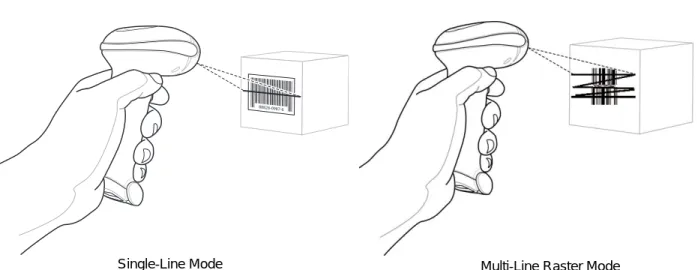
1. Ensure all connections are secure. (See the host chapter for the scanner.) 2. Aim the scanner at the bar code.
3. Press the trigger.
Figure 2-5 Scanning in Hand-Held Mode
Upon successful decode, the scanner beeps and the LED turns green. For more information about beeper and LED definitions, see Table 2-1 and Table 2-2.
Single-Line Mode Multi-Line Raster Mode
NOTE Scan line lengths vary depending on the scan line width selected (see Scan Line Width on page 4-7). A full scan line width is the default. Medium and short scan line widths are useful for scanning menus or pick-lists.
Aiming
On a typical UPC 100% hold the scanner between contact and 19 inches from the symbol (see Symbol LS4208 Decode Zone on page 2-11). When scanning using a single-line scan mode, ensure the scan line crosses every bar and space of the symbol.
Figure 2-6 Acceptable and Incorrect Single-Line Aiming
When scanning using a multi-line raster mode, at least one scan line must cross every bar and space of the symbol.
Figure 2-7 Acceptable and Incorrect Multi-Line Aiming
Regardless of the scan mode, the scan line is smaller when the scanner is closer to the symbol and larger when it is farther from the symbol. Scan symbols with smaller bars or elements (mil size) closer to the scanner, and those with larger bars or elements (mil size) farther from the scanner.
Do not hold the scanner directly over the bar code. Laser light reflecting directly back into the scanner from the bar code is known as specular reflection. This specular reflection can make decoding difficult.
012345 012345
012345 012345
NOTE Scan line lengths vary depending on the scan line width selected (see Scan Line Width on page 4-7). A full scan line width is the default. Medium and short scan line widths are useful for scanning menus or pick-lists.
Scanning
2 - 7
The scanner can be tilted up to 65° forward or back and achieve a successful decode (Figure 2-8). Simple practice quickly shows what tolerances to work within.
Figure 2-8 Maximum Tilt Angles and Dead Zone
Scanning PDF Symbols
For optimal scanning performance, use rastering mode to scan PDF417 symbols. Adjust the raster to cover the entire PDF symbol. For large PDF symbols, you may need to manually raster the scanner in order to cover the entire symbol.
If the pattern does not cover the top and bottom of a PDF symbol, pull the scanner back until it does. Make sure the scan pattern extends beyond the edges of the bar code.
Figure 2-9 Raster Pattern Expanded Over PDF417 Symbol
If the vertical scan pattern is not high enough to cover a “tall” PDF417 symbol, move the scanner slowly down toward the bottom of the symbol, keeping the beam horizontal to the rows, and then slowly back upward to the top. Alternatively, move the scanner further away from the bar code until the scan pattern covers a larger portion of the bar code in the vertical direction.
65
oFigure 2-10 Moving Scan Pattern Upward and Downward on “Tall” PDF Symbol
Keep the scan pattern parallel to the symbol rows. Upon successful decode, the scanner beeps and the LED turns green. (For more information about beeper and LED definitions, see Table 2-1 and Table 2-2.)
Scanning Composite Bar Codes
Composite Code is a combination of a 1D symbol (GS1 DataBar, UPC/EAN or GS1-128) and a 2D symbol (CC-A, CC-B or CC-C). When scanning a Composite Code:
•
Keep the scan pattern parallel to the symbol’s rows.•
Hold the scanner as still as possible.•
Hold the scanner at an angle which does not cause specular reflection.•
Hold the scanner close for small symbols, and farther away for large symbols. Practice shows what works.•
Aim the scan line at the middle of the 2D portion. The scan pattern rasters and decodes both the 2D and 1Dportion of the Composite Code.
Figure 2-11 Scanning Composite Codes
NOTE Raster height varies depending on the option selected (see Raster Height on page 4-8).
Aim at the center of the 2D portion Raster pattern expands to decode
Scanning
2 - 9
Scanning in Hands-Free Mode
The optional Intellistand adds greater flexibility to scanning operation. When the scanner is seated in the stand’s “cup,” the scanner’s built-in sensor places the scanner in hands-free mode. When the scanner is removed from the stand, it automatically switches modes to operate in its normal hand-held triggered mode.
Assemble the Stand
Scanning with Intellistand
When the scanner is placed in the Intellistand, the scan pattern selected in hand-held triggered mode continues (see Scan Pattern on page 4-6).
To operate the scanner in Intellistand:
1. Ensure the scanner is properly connected to the host (see the appropriate host chapter for information on host connections).
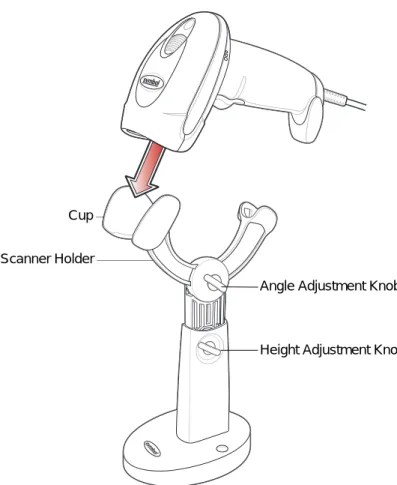
2. Insert the scanner in Intellistand by placing the front of the scanner into the stand’s “cup.”
Figure 2-13 Inserting the Scanner in the Intellistand
3. Use the Intellistand’s adjustment knobs to adjust the height and angle of the scanner. 4. Present the bar code.
5. Upon successful decode, the scanner beeps and the LED turns green. For more information about beeper and LED definitions, see Table 2-1 and Table 2-2.
Scanner Holder
Height Adjustment Knob Angle Adjustment Knob Cup
NOTE When the bar code is in view, the scanner emits a full scan line. After 3 minutes, the scanner automatically switches to a reduced scan line. After 1 hour, the scanner automatically switches to blink mode.
Scanning 2 - 11
Symbol LS4208 Decode Zone
Figure 2-14 Symbol LS4208 Decode Zone Note: Typical performance at 73° F (23° C) on high quality symbols in normal room light.
LS4208
* Minimum distance determined by symbol length and scan angle ** LS4208-PR (PDF417) version only Depth of Field
*
5 mil 5.5 10 mil 29 20 mil 1.5 13 mil 19 14.5 in. cm 0 0 5 12.7 10 25.4 15 38.1 20 50.8 25 63.5 30 76.2 W i d t h o f F i e l d 0 0 12.7 25.4 5 10 in. cm 12.7 5 25.4 10 ** 6.6 mil PDF417 (3:1) 7 1.5 ** 10 mil PDF417 (3:1) 11.75 0.75Chapter 3 Maintenance, Troubleshooting &
Technical Specifications
Introduction
This chapter provides suggested scanner maintenance, troubleshooting, technical specifications, and signal descriptions (pinouts).
Maintenance
Cleaning the exit window is the only maintenance required. A dirty window may affect scanning accuracy.
•
Do not allow any abrasive material to touch the window•
Remove any dirt particles with a damp cloth•
Wipe the window using a tissue moistened with ammonia/water•
Do not spray water or other cleaning liquids directly into the window.Troubleshooting
Table 3-1 Troubleshooting
Problem Possible Causes Possible Solutions
Beeper Indications
The scanner emits frequent beeps.
No power to the scanner. Check the system power. If the configuration requires a power supply, re-connect the power supply.
Incorrect host interface cable is used. Verify that the correct host interface cable is used. If not, connect the correct host interface cable.
Interface/power cables are loose. Check for loose cable connections and re-connect cables.
Scanner emits low/high/low beeps.
ADF transmit error. See Chapter 14, Advanced Data Formatting.
Invalid ADF rule is detected. See Chapter 14, Advanced Data Formatting.
The Code 39 buffer was erased or there was an attempt to clear or transmit an empty buffer.
Normal when scanning the Code 39 Buffering Clear Buffer bar code or upon attempt to transmit an empty Code 39 buffer.
Scanner emits low/high beeps.
Input error, incorrect bar code or Cancel bar code was scanned.
Scan the correct numeric bar codes within range for the parameter programmed. Scanner emits
low/high/low/high beeps.
Out of host parameter storage space. Scan Default Parameters on page 4-3. Out of memory for ADF rules. Reduce the number of ADF rules or the
number of steps in the ADF rules. During programming, indicates out of
ADF parameter storage space.
Erase all rules and re-program with shorter rules.
Scanner emits high/low beeps.
The scanner is buffering Code 39 data.
Normal.
Scanner emits
high/high/high/low beeps.
RS-232 receive error. Normal during host reset. Otherwise, set the scanner's RS-232 parity to match the host setting.
Scanner emits four long low beeps.
A transmission error was detected in a scanned symbol. The data is ignored.
This occurs if a unit is not properly configured. Check option setting.
Scanner emits four short high beeps (USB only).
Scanner has not completed initialization.
Maintenance, Troubleshooting & Technical Specifications
3 - 3
Decoding Bar Codes Scanner emits the laser, but does not decode the bar code.
Scanner is not programmed for the correct bar code type.
Program the scanner to read that type of bar code. See Chapter 12, Symbologies. Bar code symbol is unreadable. Scan test symbols of the same bar code
type to determine if the bar code is defaced. Distance between scanner and bar
code is incorrect.
Move the scanner closer to or further from the bar code. See Symbol LS4208 Decode Zone on page 2-11.
The scan line is not crossing every bar and space of the symbol.
Move the symbol until the scan line is within the acceptable aiming pattern. See Figure 2-6 on page 2-6.
Scanner decodes bar code, but does not transmit the data to the host.
Scanner is not programmed for the correct host type.
Scan the appropriate host type
programming bar code. See the chapter corresponding to the host type.
Interface cable is loose. Check for loose cable connection and re-connect cable.
Scanner emits five long low beeps after a bar code is decoded.
Conversion or format error was detected.
The scanner’s conversion parameters are not properly configured.
Ensure the scanner’s conversion parameters are properly configured.
Conversion or format error was detected.
An ADF rule was set up with characters that can't be sent for the host selected.
Change the ADF rule, or change to a host that can support the ADF rule.
Conversion or format error was detected.
A bar code was scanned with characters that can't be sent for that host.
Change the bar code, or change to a host that can support the bar code.
Table 3-1 Troubleshooting (Continued)
Host Displays
Host displays scanned data incorrectly.
Scanner is not programmed to work with the host.
Ensure the proper host is selected. Scan the appropriate host type programming bar code.
For RS-232, set the scanner's
communication parameters to match the host's settings.
For a USB HID keyboard or Keyboard Wedge configuration, program the system for the correct keyboard type and language, and turn off the CAPS LOCK key.
Program the proper editing options (e.g., ADF, UPC-E to UPC-A Conversion). Check the scanner’s host type parameters or editing options.
Trigger
Nothing happens when the trigger is pulled.
No power to the scanner. Check the system power. If the configuration requires a power supply, re-connect the power supply.
Interface/power cables are loose. Check for loose cable connections and re-connect cables.
The laser does not appear when the trigger is pulled.
No power to the scanner. Check the system power. If the configuration requires a power supply, re-connect the power supply.
Incorrect host interface cable is used. Verify that the correct host interface cable is used. If not, connect the correct host interface cable.
Interface/power cables are loose. Check for loose cable connections and re-connect cables.
Table 3-1 Troubleshooting (Continued)
Problem Possible Causes Possible Solutions
NOTE If after performing these checks the symbol still does not scan, contact the distributor or Motorola Enterprise Mobility Support. See page xv for contact information.
Maintenance, Troubleshooting & Technical Specifications
3 - 5
Technical Specifications
Table 3-2 Technical Specifications
Item Description
Physical Characteristics
Dimensions: 6.7 in. H x 3.7 in. L x 2.7 in. W (17 cm H x 9.3 cm L x 6.8 cm W) Weight (without cable) Approximately 6.4 oz. (181 g) Voltage & Current
Symbol LS4208-SR Symbol LS4208-PR
5 +/-10%VDC @ 140 mA (Stand by: <35 mA) 5 +/-10%VDC @ 155 mA (Stand by: <60 mA) Color Cash Register White or Twilight Black
Performance Characteristics
Light Source (Laser) 650nm laser diode
Motor Frequency 50Hz
Decode Rate 200 decodes per second
Roll Tolerance ± 35°
Pitch Tolerance ± 60°
Yaw Tolerance ± 60°
Nominal Working Distance See Symbol LS4208 Decode Zone on page 2-11
Minimum Resolution 5 mil (linear bar codes)
5 mil (uPDF & PDF, 3:1, Y:X aspect ratio) Print Contrast Minimum 25% minimum reflectance
Multi-Line Aiming Coverage At 5 in. reading distance: ~ 0.5 in. (1.3 cm) At 10 in. reading distance: ~ 1 in. (2.5 cm) Motion Tolerances Horizontal Velocity: 200 in. (508 cm) / sec
Vertical Velocity: 200 in. (508 cm) / sec Angular Velocity: 200 in. (508 cm) / sec
Decode Capability UPC/EAN and with supplementals, Bookland EAN, Code 39, Code 39 Full ASCII, Trioptic Code 39, GS1DataBar Variants, GS1-128, Code 128, Code 128 Full ASCII, Code 93, Codabar (NW1), Code 11, Interleaved 2 of 5, Discrete 2 of 5, Chinese 2 of 5, MSI, IATA, Code 32, PDF417, MicroPDF417, Composite Codes
Interfaces Supported RS-232C (Standard, Nixdorf, ICL, & Fujitsu); IBM 468x/469x; Keyboard Wedge; USB (Standard, IBM SurePOS, Macintosh); Laser/Wand Emulation.
Synapse Adaptive Connectivity allows for connectivity to interfaces above and many non-standard interfaces.
User Environment
Operating Temperature 32° to 122° F (0° to 50° C) Storage Temperature -40° to 158° F (-40° to 70° C)
Humidity 5% to 95%, non-condensing
Drop Specifications Withstands multiple 6 ft./1.825 m drops to concrete
Ambient Light Tolerance Tolerant to typical artificial indoor and natural outdoor (direct sunlight) lighting conditions. Fluorescent, Incandescent, Mercury Vapor, Sodium Vapor, LED: 450 Ft Candles (4,844 Lux) Sunlight: 8000 Ft Candles (86,111 Lux)
Note: LED lighting with high AC ripple content can impact scanning performance.
EAS Support Optional Checkpoint Electronic Article Surveillance (EAS) Beeper Volume User-selectable: three levels
Beeper Tone User-selectable: three tones
ESD 15 kV air discharge
8 kV indirect discharge Table 3-2 Technical Specifications (Continued)
Maintenance, Troubleshooting & Technical Specifications
3 - 7
Scanner Signal Descriptions
Figure 3-1 Scanner Cable Pin-outs
Cable interface port
Interface cable modular connector Bottom of scanner PIN 1 PIN 10
The signal descriptions in Table 3-3 apply to the connector on the scanner and are for reference only. Table 3-3 Scanner Signal Pin-outs
Pin IBM Synapse RS-232 Keyboard
Wedge Wand USB
1 Reserved SynClock Reserved Reserved Reserved Jump to Pin 6
2 Power Power Power Power Power Power
3 Ground Ground Ground Ground Ground Ground
4 IBM_A(+) Reserved TxD KeyClock DBP Reserved
5 Reserved Reserved RxD TermData CTS D +
6 IBM_B(-) SynData RTS KeyData RTS Jump to Pin 1
7 Reserved Reserved CTS TermClock Reserved D
-8 Reserved Reserved Reserved Reserved Reserved Reserved
9 EAS EAS EAS EAS EAS EAS
Chapter 4 User Preferences
Introduction
If desired, program the scanner to perform various functions, or activate different features. This chapter describes each user preference feature and provides the programming bar codes necessary for selecting these features. The scanner ships with the settings shown in the User Preferences Default Table on page 4-2 (also see Appendix A, Standard Default Parameters for all host device and miscellaneous defaults). If the default values suit
requirements, programming may not be necessary.
To set feature values, scan a single bar code or a short bar code sequence. The settings are stored in non-volatile memory and are preserved even when the scanner is powered down.
If not using a Synapse or USB cable, select a host type (see each host chapter for specific host information) after the power-up beeps sound. This is only necessary upon the first power-up when connected to a new host.
To return all features to their default values, see Default Parameters on page 4-3. Throughout the programming bar code menus, default values are indicated with asterisks (
*
).Scanning Sequence Examples
In most cases, scanning one bar code sets the parameter value. For example, to set the beeper tone to high, scan the High Frequency (beeper tone) bar code listed under Beeper Tone on page 4-4. The scanner issues a fast warble beep and the LED turns green, signifying a successful parameter entry.
Other parameters, such as Serial Response Time-Out or Data Transmission Formats, require scanning several bar codes. See these parameter descriptions for this procedure.
Errors While Scanning
Unless otherwise specified, when an error is made during a scanning sequence, just re-scan the correct parameter.
*
High Frequency Feature/OptionUser Preferences Parameter Defaults
Table 4-1 lists the defaults for user preferences parameters. To change any option, scan the appropriate bar code(s) provided in the User Preferences section beginning on page 4-3.
NOTE See Appendix A, Standard Default Parameters for all user preferences, hosts, symbologies, and
miscellaneous default parameters.
Table 4-1 User Preferences Default Table
Parameter Default Page
Number
User Preferences
Set Default Parameter Restore Defaults 4-3
Parameter Bar Code Scanning Enable 4-4
Beeper Tone Medium 4-4
Beeper Volume High 4-5
Power Mode Continuous On 4-5
Scan Pattern Multi-line Always Raster 4-6
Scan Line Width Full Width 4-7
Raster Height Adjustable Raster 4-8
Laser On Time 3.0 Sec 4-9
Beep After Good Decode Enable 4-9
User Preferences
4 - 3
User Preferences
Default Parameters
The scanner can be reset to two types of defaults: factory defaults or custom defaults. Scan the appropriate bar code below to reset the scanner to its default settings and/or set the scanner’s current settings as the custom default.
•
Restore Defaults - Resets all default parameters as follows:• If custom default values were configured (see Write to Custom Defaults), the custom default values are set for all parameters each time the Restore Defaults bar code below is scanned.
• If no custom default values were configured, the factory default values are set for all parameters each time the Restore Defaults bar code below is scanned. (For factory default values, see Table A-1 on page A-1.)
•
Set Factory Defaults - Scan the Set Factory Defaults bar code below to eliminate all custom default valuesand set the scanner to factory default values. (For factory default values, see Table A-1 on page A-1.)
•
Write to Custom Defaults - Custom default parameters can be configured to set unique default values for allparameters. After changing all parameters to the desired default values, scan the Write to Custom Defaults bar code below to configure custom defaults.
*
Restore DefaultsSet Factory Defaults
Parameter Bar Code Scanning
To disable the decoding of parameter bar codes, including the Set Defaults parameter bar codes, scan the Disable Parameter Scanning bar code below. To enable decoding of parameter bar codes, scan Enable Parameter Scanning.
Beeper Tone
To select a decode beep frequency (tone), scan the LowFrequency,MediumFrequency, or HighFrequency bar code.
*
Enable Parameter Bar Code Scanning (01h)Disable Parameter Bar Code Scanning (00h)
Low Frequency
*
Medium Frequency (Optimum Settings)User Preferences
4 - 5
Beeper Volume
To select a beeper volume, scan the LowVolume,MediumVolume, or HighVolume bar code.
Power Mode
This parameter determines whether or not power remains on after a decode attempt. When in reduced power mode, the scanner enters into a low power consumption mode to preserve battery life after each decode attempt. When in continuous power mode, power remains on after each decode attempt.
Low Volume
Medium Volume
*
High Volume*
Continuous OnScan Pattern
This parameter determines the pattern (mode) of scanning. Scan the appropriate bar code below to set the scanning mode.
•
Single-line Only - Scan Single-line Only for a single-line scan mode. The laser has no up and down scan line movement (no raster). (For an example of a single-line scan, see Figure 2-6 on page 2-6.)•
Multi-line SmartRaster - The scan line begins as a single line, and immediately rasters upon seeing a stacked GS1 DataBar code or a 2D variant. (For an example of a multi-line scan, see Figure 2-7 on page 2-6.)•
Multi-lineAlways Raster (default) - Scan Multi-lineAlways Raster for rastering (up and down scan line movement) to begin immediately.Single-line Only (No Raster)
Multi-line Smart Raster
User Preferences
4 - 7
Scan Line Width
Scan a bar code below to set the scan line width.
*
Full WidthMedium Width
Raster Height
This parameter determines the scanner’s raster height when scanning PDF symbols only.
•
Short Raster - Scan Short Raster to use the standard 1D raster height of approximately 4o. This option provides the best performance on MicroPDF and short PDF symbols.•
Tall Raster - Scan TallRaster for a raster of approximately 50% taller than the short raster, opening to about 6o and slowing to capture bar code data more efficiently. This provides the best performance on tall PDF symbols.•
Adjustable Raster (default) - This option starts as a short raster, then opens to a tall raster and slows half a second later. Use this option when scanning a variety of symbol heights.Short Raster
Tall Raster
User Preferences
4 - 9
Laser On Time
This parameter sets the maximum time that decode processing continues during a scan attempt. It is programmable in 0.1 second increments from 0.5 to 9.9 seconds. The default Laser On Time is 3.0 seconds. To set a Laser On Time, scan the bar code below. Next, scan two numeric bar codes beginning on page D-1 in
Appendix D, Numeric Bar Codes that correspond to the desired on time. Single digit numbers must have a leading zero. For example, to set an On Time of 0.5 seconds, scan the bar code below, then scan the “0” and “5” bar codes. If an error is made, or the selection needs to be changed, scan Cancel on page D-3.
Beep After Good Decode
Scan a bar code below to select whether or not the scanner beeps after a good decode. If Do Not Beep After Good Decode is selected, the beeper still operates during parameter menu scanning and indicates error conditions.
Laser On Time
*
Beep After Good Decode (Enable)Do Not Beep After Good Decode (Disable)
PDF Decode Feedback
Scan a bar code below to select whether or not the scanner emits a clicking sound during PDF417 decoding. This clicking helps the user ensure proper alignment, motion, and distance during decoding. The scanner issues a standard decode beep upon successfully decoding the bar code.
Enable PDF Decode Feedback
Chapter 5 Keyboard Wedge Interface
Introduction
This chapter describes how to set up a Keyboard Wedge interface with the scanner. With this interface, the scanner is connected between the keyboard and host computer, and translates bar code data into keystrokes. The host computer accepts the keystrokes as if they originated from the keyboard. This mode adds bar code reading functionality to a system designed for manual keyboard input. Keyboard keystrokes are simply passed through. Throughout the programming bar code menus, default values are indicated with asterisks (
*
).*
North American Feature/Option * Indicates DefaultConnecting a Keyboard Wedge Interface
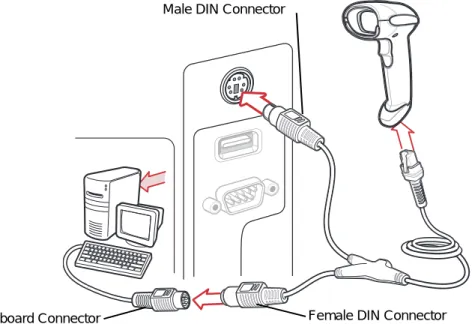
Figure 5-1 Keyboard Wedge Connection with Y-cable To connect the Keyboard Wedge interface Y-cable:
1. Turn off the host and unplug the keyboard connector.
2. Attach the modular connector of the Y-cable to the cable interface port on the scanner. (See Installing the Interface Cable on page 1-3.)
3. Connect the round male DIN host connector of the Y-cable to the keyboard port on the host device. 4. Connect the round female DIN keyboard connector of the Y-cable to the keyboard connector. 5. If needed, attach the optional power supply to the connector in the middle of the Y-cable. 6. Ensure that all connections are secure.
7. Turn on the host system.
8. Select the Keyboard Wedge host type by scanning the appropriate bar code from Keyboard Wedge Host Parameters on page 5-4.
9. To modify any other parameter options, scan the appropriate bar codes in this chapter.
Male DIN Connector
Female DIN Connector Keyboard Connector
NOTE Interface cables vary depending on configuration. The connectors illustrated in Figure 5-1 are examples only. The connectors may be different than those illustrated, but the steps to connect the scanner are the same.
Keyboard Wedge Interface
5 - 3
Keyboard Wedge Parameter Defaults
Table 5-1 lists the defaults for Keyboard Wedge host parameters. To change any option, scan the appropriate bar code(s) in the Keyboard Wedge Host Parameters section beginning on page 5-4.
NOTE See Appendix A, Standard Default Parameters for all user preferences, hosts, symbologies, and
miscellaneous default parameters.
Table 5-1 Keyboard Wedge Host Default Table
Parameter Default Page
Number
Keyboard Wedge Host Parameters
Keyboard Wedge Host Type IBM PC/AT& IBM PC Compatibles1 5-4
Country Types (Country Codes) North American 5-5
Ignore Unknown Characters Send 5-6
Keystroke Delay No Delay 5-7
Intra-Keystroke Delay Disable 5-7
Alternate Numeric Keypad Emulation Disable 5-8
Caps Lock On Disable 5-8
Caps Lock Override Disable 5-9
Convert Wedge Data No Convert 5-10
Function Key Mapping Disable 5-10
FN1 Substitution Disable 5-11
Send and Make Break Send 5-11
1User selection is required to configure this interface and this is the most common
Keyboard Wedge Host Parameters
Keyboard Wedge Host Types
Select the Keyboard Wedge host by scanning one of the bar codes below.
IBM PC/AT & IBM PC Compatibles1
IBM AT Notebook
NCR 7052
Keyboard Wedge Interface
5 - 5
Keyboard Wedge Country Types (Country Codes)
Scan the bar code corresponding to the keyboard type. If the keyboard type is not listed, see Alternate Numeric Keypad Emulation on page 5-8.
*
North AmericanGerman Windows
French Windows
French Canadian Windows 95/98
French Canadian Windows XP/2000
Spanish Windows
Ignore Unknown Characters
Unknown characters are characters the host does not recognize. When Send Bar Codes With Unknown
Characters is selected, all bar code data is sent except for unknown characters, and no error beeps sound on the scanner. When Do Not Send Bar Codes With Unknown Characters is selected, bar code data is sent up to the first unknown character, then the scanner issues an error beep.
Keyboard Wedge Country Types (continued)
Swedish Windows
UK English Windows
Japanese Windows
Portuguese-Brazilian Windows
*
Send Bar Codes with Unknown CharactersKeyboard Wedge Interface
5 - 7
Keystroke Delay
This is the delay in milliseconds between emulated keystrokes. Scan a bar code below to increase the delay when hosts require a slower transmission of data.
Intra-Keystroke Delay
When enabled, an additional delay is inserted between each emulated key depression and release. This sets the Keystroke Delay parameter to a minimum of 5 msec as well.
*
No DelayMedium Delay (20 msec)
Long Delay (40 msec)
Enable Intra-Keystroke Delay
Alternate Numeric Keypad Emulation
This allows emulation of most other country keyboard types not listed in Keyboard Wedge Country Types (Country Codes) on page 5-5 in a Microsoft® operating system environment.
Caps Lock On
When enabled, the scanner emulates keystrokes as if the Caps Lock key is always pressed. Note that if both Caps Lock On and Caps Lock Override are enabled, Caps Lock Override takes precedence.
Enable Alternate Numeric Keypad
*
Disable Alternate Numeric KeypadEnable Caps Lock On
Keyboard Wedge Interface
5 - 9
Caps Lock Override
When enabled, on AT or AT Notebook hosts, the keyboard ignores the state of the Caps Lock key. Therefore, an ‘A’ in the bar code is sent as an ‘A’ no matter what the state of the keyboard’s Caps Lock key.
Note that if both Caps Lock On and Caps Lock Override are enabled, Caps Lock Override takes precedence.
Enable Caps Lock Override
Convert Wedge Data
When enabled, the scanner will convert all bar code data to the selected case.
Function Key Mapping
ASCII values under 32 are normally sent as control key sequences (see Table 5-2 on page 5-13). When this parameter is enabled, the keys in bold are sent in place of the standard key mapping. Table entries that do not have a bold entry remain the same whether or not this parameter is enabled.
Convert to Upper Case
Convert to Lower Case
*
No ConvertEnable Function Key Mapping
Keyboard Wedge Interface 5 - 11
FN1 Substitution
When enabled, the scanner replaces FN1 characters in a GS1-128 bar code with a keystroke chosen by the user (see FN1 Substitution Values on page 13-6).
Send Make and Break
When enabled, the scan codes for releasing a key are not sent. Enable FN1 Substitution
*Disable FN1 Substitution
*Send Make and Break Scan Codes
Keyboard Maps
The following keyboard maps are provided for prefix/suffix keystroke parameters. To program the prefix/suffix values, see the bar codes on page 13-3.
Figure 5-2 IBM PC/AT
Figure 5-3 NCR 7052 32-KEY Figure 5-4 NCR 7052 58-KEY 5001 5002 5003 5004 5005 5006 5007 5008 5009 5010 7009 7008 7013 7012 7004 7011 7003 7002 7014 5007 5008 5010 5002 5003 5004 5005 5006 1046 1045 5014 1043 5013 5015 5016 5018 5019 5001 5017 7013 5011 (7013 if double key) (1048 if double key) 1048 5012 5009 5007 5008 5010 5002 5003 5004 5005 5006 1046 1045 5014 1043 5013 5015 5016 5018 5019 1086 1087 1088 1089 1090 5001 1066 1072 1073 1079 1080 1065 1070 1076 1077 1083 1084 1071 1078 1085 1069 5017 7013 5011 1082 1075 1068 1067 (1043 if double key) (1048 if double key) 1048 5012 5009 1074 1081
Keyboard Wedge Interface 5 - 13
ASCII Character Set for Keyboard Wedge
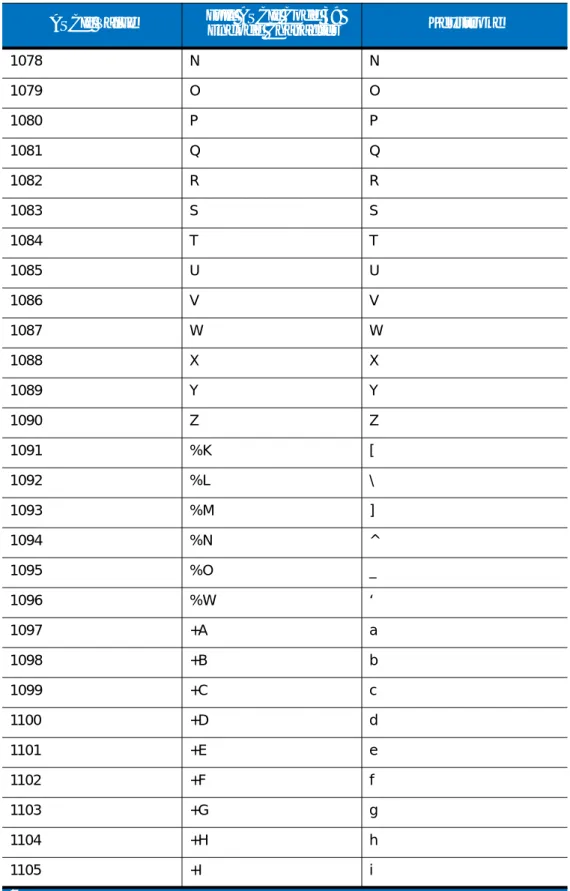
NOTE Code 39 Full ASCII interprets the bar code special character ($ + % /) preceding a Code 39 character and assigns an ASCII character value to the pair. For example, when Code 39 Full ASCII is enabled and a +B is scanned, it is interpreted as b, %J as ?, and %V as @. Scanning ABC%I outputs the keystroke equivalent of ABC >.
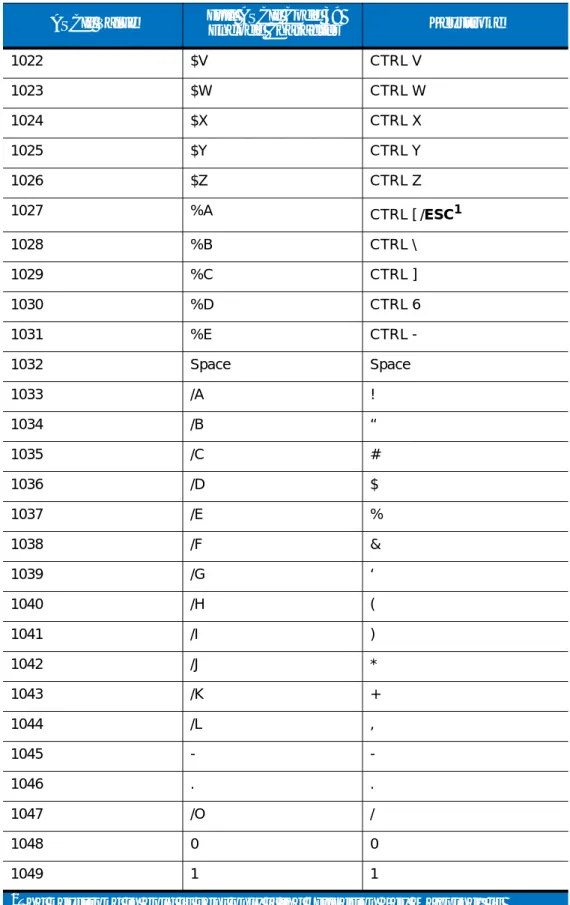
Table 5-2 Keyboard Wedge ASCII Character Set
ASCII Value Full ASCII Code 39
Encode Character Keystroke
1001 $A CTRL A 1002 $B CTRL B 1003 $C CTRL C 1004 $D CTRL D 1005 $E CTRL E 1006 $F CTRL F 1007 $G CTRL G 1008 $H CTRL H/BACKSPACE1 1009 $I CTRL I/HORIZONTAL TAB1 1010 $J CTRL J 1011 $K CTRL K 1012 $L CTRL L 1013 $M CTRL M/ENTER1 1014 $N CTRL N 1015 $O CTRL O 1016 $P CTRL P 1017 $Q CTRL Q 1018 $R CTRL R 1019 $S CTRL S 1020 $T CTRL T 1021 $U CTRL U
1The keystroke in bold is sent only if the “Function Key Mapping” is
1022 $V CTRL V 1023 $W CTRL W 1024 $X CTRL X 1025 $Y CTRL Y 1026 $Z CTRL Z 1027 %A CTRL [ /ESC1 1028 %B CTRL \ 1029 %C CTRL ] 1030 %D CTRL 6 1031 %E CTRL -1032 Space Space 1033 /A ! 1034 /B “ 1035 /C # 1036 /D $ 1037 /E % 1038 /F & 1039 /G ‘ 1040 /H ( 1041 /I ) 1042 /J * 1043 /K + 1044 /L , 1045 - -1046 . . 1047 /O / 1048 0 0 1049 1 1
Table 5-2 Keyboard Wedge ASCII Character Set (Continued)
ASCII Value Full ASCII Code 39
Encode Character Keystroke
1The keystroke in bold is sent only if the “Function Key Mapping” is
Keyboard Wedge Interface 5 - 15
1050 2 2 1051 3 3 1052 4 4 1053 5 5 1054 6 6 1055 7 7 1056 8 8 1057 9 9 1058 /Z : 1059 %F ; 1060 %G < 1061 %H = 1062 %I > 1063 %J ? 1064 %V @ 1065 A A 1066 B B 1067 C C 1068 D D 1069 E E 1070 F F 1071 G G 1072 H H 1073 I I 1074 J J 1075 K K 1076 L L 1077 M MTable 5-2 Keyboard Wedge ASCII Character Set (Continued)
ASCII Value Full ASCII Code 39
Encode Character Keystroke
1The keystroke in bold is sent only if the “Function Key Mapping” is