Perceived Performance
Test Toolkit for Citrix Servers
TMurgent Technologies
Perceived Performance Test Toolkit
Table of Contents
Table of Contents... 2
Introduction... 3
Contents ... 3
Requirements ... 3
Setup ... 4
Installing on the server... 4
Installing and Using IcaLauncher on the Client ... 6
Installing and Using RemoteLauncher on the Client ... 7
Testing with IcaLauncher or RemoteLauncher... 9
Organizing the Results... 9
Introduction
This document describes the toolkit for testing perceived performance in the Citrix Environment. Perceived Performance testing aims to capture the performance level of a server as perceived by users of that server. This version of the toolkit is designed to measure the perceived performance of a Citrix server (formerly called Metaframe).
Although this toolkit is available (upon request) without charge for evaluation of the toolkit itself, you must pay for a license if you decide to use it to produce a tangible result, such as a performance report of some kind. Cost is low, but negotiable depending upon use.
Perceived Performance is described in one of several white papers that you can find on our website, www.tmurgent.com . This document will not go into describing Perceived Performance itself; those documents describe a test to measure the Perceived
Performance of a given server that is in a given state. The measurements made may be displayed as an average, graph, or better as the “Perceived Performance Profile” that was introduced in the 2005 paper (Perceived Performance/Virtual Servers).
Using this toolkit, you can produce your very own Perceived Performance Profile graphs, such as the in Figure 6 at the end of the document.
Contents
The toolkit consists of the following:
• This document
• ServerTestApp.exe (test application to be placed on the Citrix Server) • IcaLauncher.exe (Launchpad for ICA testing from a Client PC)
• RemoteLauncher.exe and ini (Launchpad for RDP/ICA testing from a Client PC) • Results.xls (Template file to help produce the graphs)
Requirements
Here is what you need:
• 1 Citrix Server. Metaframe XP, 3.0, or 4.0. It might work with other versions.
Must be running a Microsoft OS.
• 1 (or more) Client Devices. This must be a windows based device on which you
add a Ctrix PN or PNA client (or Microsoft Remote Desktop Client). Windows 95 or above, I recommend Windows 2000 or above (including servers). The Citrix Client recommended is 9.0, although 8.0 or even some 7.* versions probably work.
• The ability to generate/simulate load on your server. Examples include: o CPUStres.exe (from the Windows 2000 Server Toolkit)
o Calc.exe (from the OS, turn on scientific mode and calculate a large
factorial, like “99999!”
o Any program automated using a tool like AutoIT
Setup
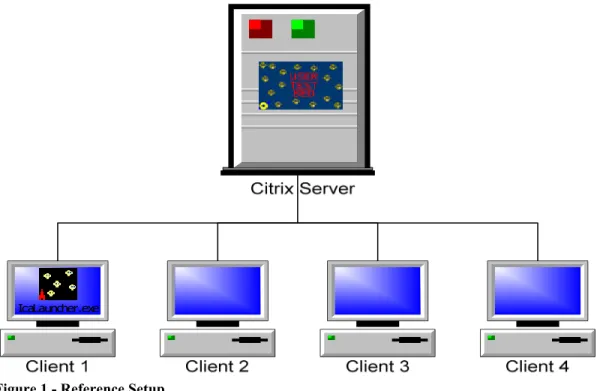
The basic setup is shown below in Figure 1:
IcaLauncher.exe
Figure 1 - Reference Setup
None of the executables in this package use an installer. Just copy the exe onto the appropriate system and run.
• ServerTestApp does not touch the registry or use any configuration files. It does
have some command line parameters that can modify it’s behavior (described later).
• IcaLauncher uses the HKEY_CURRENT_USER hive to store parameters that
you set in the GUI when you run a test. This helps you be consistent in your test settings. All parameters, except for the user password, are stored and retrieved.
• RemoteLauncher uses an ini file (RemoteLauncher.ini) which must be in the same
folder as the exe. It does not touch the registry.
Installing on the server
Start by adding ServerTestApp to your Terminal Server. The exe file should be copied onto the server and if this is a Citrix server it should be published as a published
application.
ServerTestApp is a self running program that simulates user activity and is sensitive to the kinds of performance delays that reduce end user productivity on your servers.
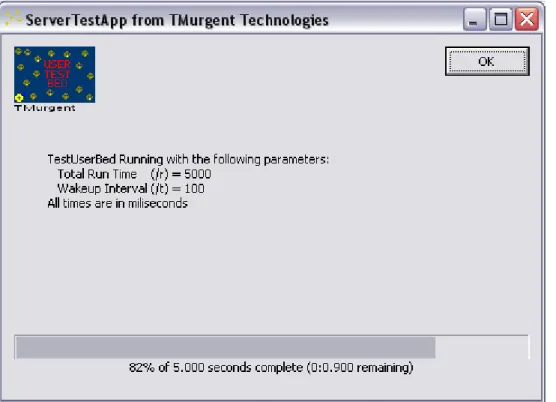
ServerTestApp is designed as a light weight app (it does not consume much CPU or memory). When it launches, it displays some graphics, waits on a series of timers, then shuts itself down. All the window messaging and timer waits provide opportunities for competing processes on the server to take control of the CPU and delay ServerTestApp. Figure 2 shows a screenshot of the application in process.
Figure 2 - ServerTestApp
The default parameters should be fine for most testing. By default ServerTestApp will nominally run for a total of 5000ms (5 seconds). Obviously that will be longer when other server processes slow it down. To this is added the login/logoff times from the server which should amount to about a 8-13 second remote test (longer if roaming profiles are used). The total run time can be modified with a command line parameter (for example “ServerTestApp.exe /r 10000”).
By default ServerTestApp will set a series of 100ms timers. When the timer expires, the thread is placed in the ready queue (along with anything else running on the server). When the application finally gains control it updates the graphics and sets another timer. This will happen r/t times, after which the application will shut itself down. The interval can be modified with the /t command line parameter (for example “ServerTestApp.exe /t 500”).
There is another parameter supported by ServerTestApp. “ServerTestApp /a” will run a total run time using a random number. While not useful for Perceived Performance testing, it is useful to stress out per session or per process components, such as monitoring applications that need lots of random data.
You can replace ServerTestApp with your own self-running program if you like. The key to success in this testing is that it must be self-running (not require keyboard or mouse input to terminate). Most applications can be automated using automation tools such as AutoIT (package up the exe and automation into a new exe and publish that as the application).
Installing and Using IcaLauncher on the Client
Once ServerTestApp is installed on your Citrix Server and you have tested it remotely from the standard Citrix Client, you are ready for the IcaLauncher. Copy this file onto the client PC.
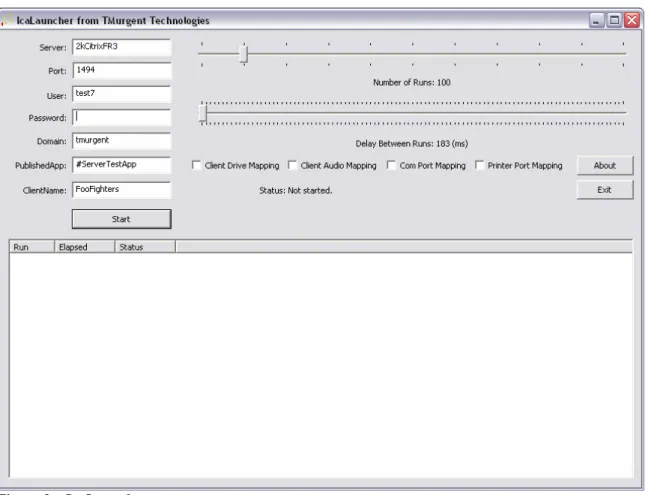
If you are testing a Terminal Server without Citrix, you will want to use RemoteLauncher, which is described at the end of this document. When you start the launcher, it looks something like Figure 3.
Figure 3 – IcaLauncher
If IcaLauncher does not appear (i.e. it quits without showing graphics), the problem is likely in your Citrix Client installation. It expects to find a registry key
“{238F6F83-B8B4-11CF-8771-00A024541EE3}”. If this is not present, uninstall and reinstall your Citrix client.
Enter data into the following fields:
• Server: Enter the Citrix server name or IP address. Generally you work with a
particular server rather than a load balanced farm.
• Port: Default 1494 is normal.
• User: Enter the user name to log onto the Citrix Server. • Password: Password for that user to logon to the Citrix Server. • Domain: Enter the user’s domain for logon to the Citrix Server.
• PublishedApp: Enter the name of the published application. This is as it appears
in the CMC (with the addition of a # character in front).
• ClientName: This defaults to the client computername, but you can change it.
You might do this, for example, if you are using a third party tool to monitor the Citrix server and want to isolate these sessions.
• Mapping check boxes: Check tells the client to ask to map these items. The
request may be overridden by server policies and capabilities (eg: Windows 2000 does not support client drive mapping).
• NumberOfRuns: Slide the slider to one more than the number of runs (application
sessions) you want to capture in your profile. When we save results, we always throw out the first run as it tends to be different due to server caching. 501 is a good value. The runs are serial and do not overlap.
• DelayBetweenRuns: Once a run is complete (i.e. the remote session has
completed) the launcher will delay this long before starting the next run. Adding time reduces the effect of caching, but increases the time it takes to complete a test pass. Since we eliminate the first run from the saved results, you can set this to zero.
When you click start, all parameters (except for password) will be saved. This will aid in running multiple passes with the same parameters. Run a pass with a handful of runs to verify operation (click start). The seamless application will appear within the
IcaLauncher Dialog box (covering the list results box). When the pass is complete the status will indicate this (a popup dialog box showing min/max/average time also appears), and the list results will show the results of each run (including the first one). If you click on the save button that appears you will be able to output the results (minus the first one) to a CSV formatted file. Note that to ease processing later on the samples written to the file are sorted by delay, not the order of the tests.
Installing and Using RemoteLauncher on the Client
While RemoteLauncher may be used with Citrix, it is primarily used for Terminal Servers. Copy the exe and ini file into a folder on the client PC.
RemoteLauncher controls the launching of external Client commands. Typically you will be running the Microsoft Remote Desktop client (mstsc.exe), but you can run any
commands you like.
The RemoteLauncher GUI looks like this:
The applications to be run must be added to the RemoteLauncher.ini file before starting the GUI. The ini file contains examples of the syntaxes you can use. You can specify up to 1024 session commands. Typically you put in just one and copy it a bunch of times. If you want to run 500 sessions, you need 500 entries in the ini file.
Unlike IcaLauncher, RemoteLauncher can run multiple sessions simultaneously or serially (IcaLauncher only runs serially). The default is to run simultaneously (where the launch of each is delayed as set in the slider bar). Checking the “wait for termination” box will make the launches serial, with the slider bar designating a wait time after completion of one command before the next is launched.
Note that to obtain measurements, simultaneous launching is typically defeated by the Citrix ICA client. If a second Citrix client exe is launched it detects the first copy, passes on the request to it and terminates itself.
The imbedded ICA client window on the right should probably be ignored. Clicking on it will launch a fixed ICA seemless app to a fixed server name once.
If you click on the save button that appears you will be able to output the results to a CSV formatted file. CSV files written by RemoteLauncher are not as easy to work with as IcaLauncher and the template Excell file. Basically, the results are by row instead of column and you will need to manually transfer results over.
Testing with IcaLauncher or RemoteLauncher
While you have many options in your testing, this section describes the general procedure.
To produce a Perceived Performance Profile for a given server, you will want to run about 5 passes:
• Pass1: Server with no (other) users • Pass2: Server with 25% load • Pass3: Server with 50% load • Pass4: Server with 75% load • Pass5: Server with 100% load
I usually run 7 passes (0, 20, 40, 60, 80, 100, more), but this template file is set up for these 5.
Typically you use the console or a remote session that stays active (i.e. disable the session disconnect timer for that session), and add load, using something like CpuStres. (NOTE: you can add load by adding in multiple simultaneous user sessions. You can run this test on a production server, or you can use multiple PCs with multiple IicaLaunchers. It is recommended that the PC from which you record your results only have a single instance of IcaLauncher running). Then you start a pass, save the results, then modify the load and start the next pass. Name each saved CSV file with the name of the series and pass.
With a 5 second app you typically get 8-12 seconds per run on the unloaded system, up to 60 seconds per run on the loaded system. Thus a 500 run pass takes 1.5 hours to 9 hours. You can probably complete all five passes in a full day if you run the final pass
overnight. Fortunately the launcher allows you to click the start button and return after the pass is complete.
Organizing the Results
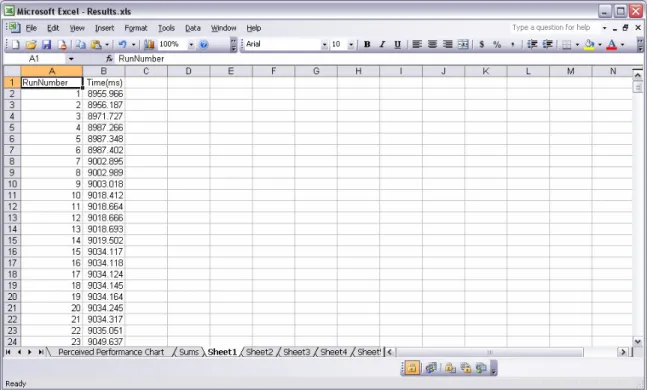
Using the template excel file (Results.xls), copy the contents of your saved results from each csv into worksheets named Sheet1, Sheet2, etc… Pass1 (the pass with the least load) goes in Sheet1, etc. You would copy the data (including the header) into cells starting at A1 of the worksheet. See Figure 4. The template is built to handle 5 passes of 500 runs each. Changing the number of passes, names of the sheets, or number of sheets would require you to modify some of the formulas in the spreadsheet.
Figure 4 - Example of copied results in Sheet1
The worksheet “Sums” produces counts of instances of runs in a given delay range. There are two cells (colored in green) at the top of the page that you can modify. See Figure 5. Except for the two green cells, this worksheet is normally in “protected mode”, to prevent from inadvertent changes. To unlock, follow the directions on line 6 and 7 of the worksheet.
The first, in cell B1 is a number of milliseconds slightly below the lowest sample. For example, with a 5 second ServerTestApp with local profiles you might use 8000 (8 seconds) for this value.
The second, in cell B2, is the interval range in milliseconds. The template is set up to use 50 ranges. You should set these values once you have all the results in. Ideally the first and last calculated count below should always be zero for each pass.
The worksheet “Sums” produces the Perceived Performance Profile for the data on worksheet “Perceived Performance Graph”. Figure 6 shows an example of such a test.
Figure 6 - Perceived Performance Graph
Obviously, if you know Excel you can modify the formulas and graph to add or remove ranges and/or passes, otherwise stick with the 5 passes and 500 (501) runs.
More Testing
Of course, if you have read the white papers, the purpose of generating these results is usually to make a modification to the Citrix Server and retest to see how the results affected performance. Make sure the additional testing uses the same setup parameters. ServerTestApp measures delay based upon little CPU consumption but many context switches. Another approach is to used a fixed amount of CPU intensive cycles. For
example, to compute 29999 factorial takes maybe 8 seconds. I have another program called “Factorial” that I sometimes replace ServerTestApp with for certain tests.
RemoteLauncher can also be used on the server with other natively installed applications to generate load patterns. Those applications should also be self-terminating. You can use an automation tool like AutoIT to turn standard apps into self-terminating apps by recording mouse/kbd input.