Security Administration Guide
Release 8.98 Update 4
E14717-05
Copyright © 2011, 2013, Oracle and/or its affiliates. All rights reserved.
This software and related documentation are provided under a license agreement containing restrictions on use and disclosure and are protected by intellectual property laws. Except as expressly permitted in your license agreement or allowed by law, you may not use, copy, reproduce, translate, broadcast, modify, license, transmit, distribute, exhibit, perform, publish, or display any part, in any form, or by any means. Reverse engineering, disassembly, or decompilation of this software, unless required by law for interoperability, is prohibited.
The information contained herein is subject to change without notice and is not warranted to be error-free. If you find any errors, please report them to us in writing.
If this is software or related documentation that is delivered to the U.S. Government or anyone licensing it on behalf of the U.S. Government, the following notice is applicable:
U.S. GOVERNMENT END USERS: Oracle programs, including any operating system, integrated software, any programs installed on the hardware, and/or documentation, delivered to U.S. Government end users are "commercial computer software" pursuant to the applicable Federal Acquisition Regulation and agency-specific supplemental regulations. As such, use, duplication, disclosure, modification, and
adaptation of the programs, including any operating system, integrated software, any programs installed on the hardware, and/or documentation, shall be subject to license terms and license restrictions applicable to the programs. No other rights are granted to the U.S. Government.
This software or hardware is developed for general use in a variety of information management applications. It is not developed or intended for use in any inherently dangerous applications, including applications that may create a risk of personal injury. If you use this software or hardware in dangerous applications, then you shall be responsible to take all appropriate fail-safe, backup, redundancy, and other measures to ensure its safe use. Oracle Corporation and its affiliates disclaim any liability for any damages caused by use of this software or hardware in dangerous applications.
Oracle and Java are registered trademarks of Oracle and/or its affiliates. Other names may be trademarks of their respective owners.
Intel and Intel Xeon are trademarks or registered trademarks of Intel Corporation. All SPARC trademarks are used under license and are trademarks or registered trademarks of SPARC International, Inc. AMD, Opteron, the AMD logo, and the AMD Opteron logo are trademarks or registered trademarks of Advanced Micro Devices. UNIX is a registered trademark of The Open Group.
This software or hardware and documentation may provide access to or information on content, products, and services from third parties. Oracle Corporation and its affiliates are not responsible for and expressly disclaim all warranties of any kind with respect to third-party content, products, and services. Oracle Corporation and its affiliates will not be responsible for any loss, costs, or damages incurred due to your access to or use of third-party content, products, or services.
Preface
... xvAudience... xv
Documentation Accessibility ... xv
Related Documents ... xv
Conventions ... xvi
1
Introduction to JD Edwards EnterpriseOne Tools Security Administration
1.1 Security Administration Overview ... 1-1 1.2 Security Administration Implementation ... 1-1
2
Understanding JD Edwards EnterpriseOne Security
2.1 JD Edwards EnterpriseOne Security Overview ... 2-1 2.2 Object-Level Security... 2-1 2.2.1 Object Level Security Types ... 2-2 2.3 Users, Roles, and *PUBLIC ... 2-3 2.4 How JD Edwards EnterpriseOne Checks Security ... 2-3 2.5 Cached Security Information ... 2-4 2.5.1 Clearing the Cache on a Workstation Client ... 2-4 2.5.2 Clearing the Cache on a Web Client Using Server Manager... 2-4 2.5.3 Clearing the Cache on a Web Client ... 2-4 2.5.3.1 Method One... 2-4 2.5.3.2 Method Two ... 2-4 2.5.3.3 Method 3 ... 2-5
3
Working with User and Role Profiles
3.1 Understanding User and Role Profiles ... 3-1 3.1.1 How to Assign and Delete Environments for User and Role Profiles ... 3-1 3.1.2 How to Assign Business Preferences to User and Role Profiles ... 3-1 3.1.3 User and Role Profile Copying ... 3-2 3.2 Understanding How Role Profiles Make Profiling Easier ... 3-2 3.3 Tables Used by the User Profile Revisions Application... 3-2 3.4 Setting Up User Profiles... 3-3 3.4.1 Understanding User Profile Setup ... 3-3 3.4.1.1 User Profile Creation and Modification ... 3-3
3.4.2.1 How to Add an Individual User ... 3-4 3.4.2.2 How to Add Multiple Users ... 3-5 3.4.3 Prerequisites ... 3-6 3.4.4 Forms Used to Set Up User Profiles... 3-6 3.4.5 Setting Processing Options for User Profile Revisions (P0092) ... 3-7 3.4.6 Creating and Modifying User Profiles... 3-7 3.4.7 Copying User Profiles ... 3-8 3.4.8 Assigning Business Preferences to User Profiles ... 3-8 3.4.9 Creating Profiles by Using a Batch Process ... 3-9 3.4.10 Reviewing User and Profile Definitions... 3-10 3.5 Setting Up Roles ... 3-10 3.5.1 Understanding User Roles ... 3-10 3.5.2 Understanding Role-to-Role Relationships ... 3-12 3.5.3 Understanding the Sign-In Role Chooser ... 3-12 3.5.4 Understanding the Menu Filtering Role Chooser... 3-13 3.5.5 Understanding Workstation Initialization File Parameters ... 3-14 3.5.6 Forms Used to Set Up Roles ... 3-14 3.5.7 Creating and Modifying Roles... 3-15 3.5.8 Migrating Roles... 3-16 3.5.8.1 Run the TC R89959211 ... 3-16 3.5.8.2 Run the TC R8995921 ... 3-16 3.5.8.3 Sequence the Roles ... 3-17 3.5.8.4 Add Environments ... 3-17 3.5.8.5 Set up the JDE.INI/JAS.INI file ... 3-17 3.5.8.6 Server Executables... 3-18 3.5.8.7 Set Up Security... 3-18 3.5.8.8 Run the UBE R98OWPU... 3-18 3.5.8.9 Run the UBE R98OWUP (Optional) ... 3-18 3.5.9 Sequencing Roles ... 3-19 3.5.10 Adding an Environment to a Role ... 3-20 3.5.11 Assigning Business Preferences to a Role ... 3-21 3.5.12 Setting Up a Role Relationship ... 3-21 3.5.13 Enabling the Role Chooser ... 3-21 3.5.14 Creating Role-to-Role Relationships... 3-22 3.5.15 Delegating Roles ... 3-22 3.5.16 Adding Roles to a User ... 3-23 3.5.17 Adding Users to a Role ... 3-23 3.5.18 Copying User Roles ... 3-24 3.5.19 Adding a Language Translation to a Role ... 3-24
4
Employing Sign-in Security
4.1 Understanding Sign-in Security ... 4-1 4.1.1 Sign-In Security Overview ... 4-1 4.1.2 Security Table Access ... 4-2 4.1.3 Password Encryption ... 4-2
4.1.5.1 ShowUnifiedLogon Setting ... 4-7 4.1.6 Sign-in Security for Web Users ... 4-8 4.1.7 Setting Processing Options for P98OWSEC... 4-10 4.1.7.1 Default... 4-11 4.1.7.2 Password... 4-11
5
Setting Up User Security
5.1 Understanding User Security... 5-1 5.2 Creating and Revising User Security ... 5-1 5.2.1 Understanding How to Create and Revise User Security ... 5-2 5.2.2 Prerequisites ... 5-2 5.2.3 Forms Used to Create and Revise User Security... 5-3 5.2.4 Creating User Security ... 5-3 5.2.5 Copying User Security ... 5-5 5.2.6 Revising User and Role Security ... 5-5 5.2.7 Revising All User Security... 5-6 5.2.8 Changing a Sign-in Password... 5-6 5.2.9 Requiring Sign-in Security ... 5-6 5.3 Reviewing Security History... 5-7 5.3.1 Prerequisite ... 5-7 5.3.2 Forms Used to Review Security History ... 5-7 5.4 Managing Data Sources for User Security ... 5-7 5.4.1 Understanding Data Source Management for User Security... 5-8 5.4.2 Forms Used to Manage Data Sources for User Security ... 5-8 5.4.3 Adding a Data Source to a User, a Role, or All Users ... 5-8 5.4.4 Revising a Data Source for a User, Role, or All Users ... 5-9 5.4.5 Removing a Data Source for a User, Role, or All Users ... 5-9 5.4.6 Changing the System User Password... 5-10 5.5 Enabling and Synchronizing Security Settings... 5-10 5.5.1 Understanding Security Setting Synchronization... 5-10 5.5.2 Changing the Workstation jde.ini File for User Security ... 5-10 5.5.3 Setting Auxiliary Security Servers in the Workstation jde.ini... 5-11 5.5.4 Changing the Timeout Value Due to Security Server Communication Error ... 5-11 5.5.5 Changing the Enterprise Server jde.ini File for Security... 5-11 5.5.6 Setting Auxiliary Security Servers in the Server jde.ini ... 5-13 5.5.7 Verifying Security Processes in the Server jde.ini... 5-13 5.6 Running a Security Analyzer Report ... 5-13 5.6.1 Understanding the Security Analyzer Report ... 5-13 5.6.2 Form Used to Run a Security Analyzer Report... 5-14 5.6.3 Running the Security Analyzer by Data Source Report (R98OWSECA)... 5-14 5.6.4 Running the Security Analyzer by User or Group Report (R98OWSECB) ... 5-15 5.7 Managing Unified Logon... 5-16 5.7.1 Understanding Unified Logon... 5-16 5.7.2 Modifying the jde.ini Setting to Enable or Disable Unified Logon ... 5-16
6
Setting Up JD Edwards Solution Explorer Security
6.1 Understanding JD Edwards Solution Explorer Security... 6-1 6.1.1 Fast Path Security Settings ... 6-3 6.1.2 Solution Explorer Security Presets ... 6-4 6.1.3 Prerequisite ... 6-5 6.2 Configuring JD Edwards Solution Explorer Security... 6-5
7
Using Security Workbench
7.1 Understanding Security Workbench... 7-1 7.2 Understanding Exclusive/Inclusive Row Security... 7-2 7.2.1 Exclusive Row Security... 7-2 7.2.2 Inclusive Row Security... 7-3 7.2.2.1 Activating Inclusive Row Security... 7-4 7.3 Creating Security Overrides ... 7-4 7.3.1 Understanding Security Overrides ... 7-4 7.3.2 Prerequisite ... 7-5 7.3.3 Adding Security Overrides ... 7-6 7.4 Managing Application Security ... 7-6 7.4.1 Understanding Application Security ... 7-6 7.4.2 Reviewing the Current Application Security Settings for a User or Role ... 7-7 7.4.3 Adding Security to an Application ... 7-7 7.4.4 Securing a User or Role from All JD Edwards EnterpriseOne Objects... 7-8 7.4.5 Removing Security from an Application... 7-9 7.5 Managing Action Security ... 7-9 7.5.1 Understanding Action Security ... 7-9 7.5.2 Reviewing the Current Action Security Settings ... 7-10 7.5.3 Adding Action Security ... 7-10 7.5.4 Removing Action Security... 7-11 7.6 Managing Row Security... 7-12 7.6.1 Understanding Row Security... 7-12 7.6.2 Prerequisite ... 7-13 7.6.3 Setting Up Data Dictionary Spec Files... 7-13 7.6.4 Adding Row Security... 7-13 7.6.5 Removing Row Security ... 7-14 7.7 Managing Column Security ... 7-14 7.7.1 Understanding Column Security ... 7-15 7.7.1.1 Column Security Options ... 7-15 7.7.1.2 Column Security on a Table... 7-15 7.7.1.3 Column Security on an Application ... 7-16 7.7.1.4 Column Security on an Application Version... 7-16 7.7.1.5 Column Security on a Form ... 7-16 7.7.2 Adding Column Security... 7-16 7.7.3 Removing Column Security ... 7-17 7.8 Managing Processing Option and Data Selection Security ... 7-17 7.8.1 Understanding Processing Option Security ... 7-17
7.8.2.2 Data Selection Security Options ... 7-18 7.8.2.3 Security Hierarchy... 7-19 7.8.2.4 Data Selection Security Scenarios... 7-19 7.8.3 Reviewing the Current Processing Option and Data Selection Security Settings... 7-20 7.8.4 Adding Security to Processing Options and Data Selection ... 7-20 7.8.5 Removing Security from Processing Options and Data Selection... 7-22 7.8.6 Using R009505 to Update Data Selection Security... 7-22 7.9 Managing Tab Security ... 7-23 7.9.1 Understanding Tab Security ... 7-23 7.9.2 Adding Tab Security ... 7-24 7.9.3 Removing Tab Security... 7-25 7.10 Managing Hyper Exit Security... 7-25 7.10.1 Adding Hyper Exit Security... 7-26 7.10.2 Removing Hyper Exit Security ... 7-27 7.11 Managing Exclusive Application Security ... 7-27 7.11.1 Understanding Exclusive Application Security ... 7-27 7.11.2 Adding Exclusive Application Security ... 7-27 7.11.3 Removing Exclusive Application Access ... 7-28 7.12 Managing External Calls Security ... 7-28 7.12.1 Understanding External Call Security ... 7-28 7.12.2 Adding External Call Security ... 7-28 7.12.3 Removing External Call Security... 7-29 7.13 Managing Miscellaneous Security... 7-30 7.13.1 Understanding Miscellaneous Security... 7-30 7.13.1.1 Read/Write Reports Security ... 7-30 7.13.1.2 Workflow Status Monitoring Security... 7-30 7.13.2 Managing Miscellaneous Security Features ... 7-30 7.14 Managing Push Button, Link, and Image Security ... 7-31 7.14.1 Understanding Push Button, Link, and Image Security ... 7-31 7.14.1.1 Push Button, Link, and Image Security on Subforms ... 7-32 7.14.2 Adding Push Button, Link, and Image Security ... 7-33 7.14.3 Removing Push Button, Link, and Image Security... 7-34 7.15 Managing Text Block Control and Chart Control Security ... 7-34 7.15.1 Understanding Text Block Control and Chart Control Security ... 7-35 7.15.2 Reviewing Current Text Block Control and Chart Control Security Settings ... 7-35 7.15.3 Adding Text Block Control and Chart Control Security... 7-35 7.15.4 Removing Text Block Control and Chart Control Security ... 7-36 7.16 Managing Media Object Security ... 7-37 7.16.1 Understanding Media Object Security ... 7-37 7.16.2 Reviewing the Media Object Security Settings... 7-38 7.16.3 Adding Media Object Security ... 7-38 7.16.4 Removing Media Object Security ... 7-39 7.17 Managing Application Query Security... 7-40 7.17.1 Understanding Application Query Security... 7-40 7.17.2 Setting Up Application Query Security for Applications... 7-40
7.17.5 Finding Existing Query Security Records ... 7-42 7.17.6 Editing Existing Query Security Records... 7-43 7.17.7 Deleting Query Security Records ... 7-44 7.17.8 Enable or Disable Query Security Records ... 7-44 7.17.9 Excluding Users ... 7-45 7.17.10 Configuring Error Messages Using Data Dictionary Items... 7-45 7.17.11 Configuring Fields... 7-46 7.18 Managing Data Browser Security... 7-46 7.18.1 Understanding Data Browser Security... 7-46 7.18.2 Adding Data Browser Security ... 7-46 7.18.3 Removing Data Browser Security ... 7-47 7.19 Managing Published Business Services Security ... 7-47 7.19.1 Understanding Published Business Services Security ... 7-47 7.19.1.1 Inherited Security ... 7-48 7.19.1.2 How JD Edwards EnterpriseOne Checks Published Business
Services Security ... 7-48 7.19.1.3 Published Business Services Security Log Information ... 7-50 7.19.2 Reviewing the Current Published Business Services Security Records... 7-50 7.19.3 Authorizing Access to Published Business Services ... 7-50 7.19.4 Adding Multiple Published Business Services Security Records at a Time... 7-52 7.19.5 Deleting Published Business Services Security ... 7-52 7.20 Copying Security for a User or a Role... 7-53 7.20.1 Understanding How to Copy Security for a User or a Role... 7-53 7.20.2 Copying All Security Records for a User or a Role... 7-53 7.20.3 Copying a Single Security Record for a User or a Role... 7-53 7.21 Reviewing and Deleting Security Records on the Work With User/Role
Security Form ... 7-54 7.21.1 Understanding How to Review Security Records ... 7-54 7.21.2 Reviewing Security on the Work With User/Role Security Form ... 7-54 7.21.3 Deleting Security on the Work With User/Role Security Form ... 7-54 7.22 Running Security Workbench Records Reports ... 7-55 7.22.1 Understanding the Security Workbench Records Reports... 7-55 7.22.1.1 Example of Security by Object Report (R009501) ... 7-56 7.22.1.2 Example of Security Audit Report by User (R009502, XJDE0001) ... 7-56 7.22.1.3 Example of Security Audit Report by Role (R009502, XJDE0002)... 7-57 7.22.2 Run the Security Audit Report by Object Version (R009501, XJDE0001) ... 7-58 7.22.3 Run the Security Audit Report by User Version (R009502, XJDE0001) ... 7-58 7.22.4 Run the Security Audit Report by Role Version (R009502, XJDE0002) ... 7-59 7.22.5 Running a Report that Lists Published Business Service Security Records ... 7-60
8
Setting Up Address Book Data Security
8.1 Understanding Address Book Data Security... 8-1 8.1.1 Additional Level of Private Data Security with Release 8.98 Update 4... 8-2 8.2 Prerequisites ... 8-3 8.3 Setting Up Permission List Definitions... 8-3
8.3.3 Creating Permission List Definitions ... 8-3 8.4 Setting Up Permission List Relationships ... 8-4 8.4.1 Understanding Permission List Relationships ... 8-4 8.4.2 Forms Used to Create Permission List Relationships... 8-4 8.4.3 Creating Permission List Relationships... 8-4 8.5 Enabling or Disabling Secured Private Data from Displaying
in Other Applications and Output (Release 8.98.4.10) ... 8-4
9
Setting Up Business Unit Security
9.1 Understanding Business Unit Security... 9-1 9.1.1 UDC Sharing ... 9-1 9.1.2 Transaction Security ... 9-1 9.2 Working with UDC Sharing... 9-2 9.2.1 Understanding the UDC Sharing Setup ... 9-2 9.2.2 Understanding Business Unit Security for UDC Sharing... 9-2 9.2.3 Setting Up UDC Sharing... 9-3 9.2.4 Setting Up Business Unit Security for UDC Sharing... 9-4 9.2.5 Revising UDC Groups ... 9-4 9.2.6 Deleting a UDC Group ... 9-5 9.3 Working with Transaction Security ... 9-5 9.3.1 Understanding How to Set Up Transaction Security ... 9-5 9.3.1.1 Generating Transaction Security Records... 9-6 9.3.2 Setting Up Transaction Security ... 9-6 9.3.3 Setting Processing Options for Maintain Business Unit
Transaction Security (R95301)... 9-7 9.3.3.1 Transaction Security... 9-7 9.3.4 Setting Processing Options for Business Unit Security Maintenance
Application (P95300) ... 9-8 9.3.4.1 Mode... 9-8 9.3.4.2 Transaction Security... 9-8 9.3.5 Revising Transaction Security... 9-8
10
Setting Up Application Failure Recovery
10.1 Understanding Application Failure Recovery... 10-1 10.1.1 Prerequisites ... 10-1 10.2 Enabling/Disabling Application Failure Recovery ... 10-2 10.3 Saving Application Data ... 10-2
11
Enabling LDAP Support in JD Edwards EnterpriseOne
11.1 Understanding LDAP Support in JD Edwards EnterpriseOne... 11-1 11.1.1 LDAP Support Overview ... 11-1 11.1.2 User Profile Management in LDAP-Enabled JD Edwards EnterpriseOne ... 11-2 11.1.3 LDAP and JD Edwards EnterpriseOne Relationships ... 11-2
11.1.3.4 Data Managed by LDAP and JD Edwards EnterpriseOne... 11-4 11.1.3.5 User Data Synchronization in LDAP-Enabled JD Edwards EnterpriseOne... 11-5 11.1.4 Application Changes in LDAP-Enabled JD Edwards EnterpriseOne ... 11-6 11.1.4.1 User Password Changes ... 11-6 11.1.4.2 User Profile Revisions Application (P0092) Changes... 11-7 11.1.4.3 EnterpriseOne Security Application (P98OWSEC) Changes ... 11-7 11.1.4.4 Role Relationships Application (P95921) Changes... 11-7 11.1.4.5 Schedule Jobs Application Changes ... 11-8 11.1.5 LDAP Server-Side Administration... 11-8 11.1.6 JD Edwards EnterpriseOne Server-Side Administration... 11-9 11.2 Configuring LDAP Support in JD Edwards EnterpriseOne... 11-9 11.2.1 Overview of Steps to Enable LDAP Support in JD Edwards EnterpriseOne ... 11-10 11.2.2 How JD Edwards EnterpriseOne Uses LDAP Server Settings ... 11-10 11.2.3 Prerequisites ... 11-12 11.2.4 Forms Used to Configure LDAP Support in JD Edwards EnterpriseOne ... 11-13 11.2.5 Creating an LDAP Configuration ... 11-13 11.2.6 Configuring the LDAP Server Settings ... 11-14 11.2.7 Configuring LDAP to JD Edwards EnterpriseOne Enterprise Server Mappings . 11-16 11.2.8 Changing the LDAP Configuration Status ... 11-17 11.2.9 Enabling LDAP Authentication Mode ... 11-18 11.3 Modifying the LDAP Default User Profile Settings... 11-18 11.3.1 Understanding LDAP Default User Profile Settings ... 11-18 11.3.2 Forms Used to Modify the LDAP Default User Profile Settings ... 11-19 11.3.3 Reviewing the Current LDAP Default Settings ... 11-19 11.3.4 Modifying the Default User Profile Settings for LDAP ... 11-20 11.3.5 Modifying the Default Role Relationships for LDAP... 11-20 11.3.6 Modifying the Default User Security Settings for LDAP... 11-20 11.4 Using LDAP Bulk Synchronization (R9200040) ... 11-21 11.4.1 Understanding LDAP Batch Synchronization ... 11-21 11.4.1.1 Example: LDAP Bulk Synchronization (R9200040)... 11-22 11.4.2 Running the LDAP Bulk Synchronization Batch Process (R9200040)... 11-22 11.5 Using LDAP Over SSL ... 11-22 11.5.1 Understanding LDAP with SSL... 11-23 11.5.1.1 LDAP Authentication Over SSL for Windows and UNIX ... 11-23 11.5.1.2 LDAP Authentication Over SSL for iSeries ... 11-23 11.5.2 Enabling LDAP Authentication Over SSL for Windows and UNIX... 11-23 11.5.3 Enabling LDAP Authentication Over SSL for iSeries... 11-23 11.6 Exporting User Data to the LDAP Server... 11-24 11.6.1 Understanding the data4ldap Utility... 11-24 11.6.2 Prerequisites ... 11-25 11.6.3 Granting Access to the data4ldap Utility ... 11-26 11.6.4 Configuring Parameters Required to Run the data4ldap Utility... 11-26 11.6.5 Running the data4ldap Utility on Windows ... 11-27 11.6.6 Running the data4ldap Utility on Unix or Linux... 11-27 11.6.7 Running the data4ldap utility on iSeries... 11-27
11.6.8.2 data4ldap JDE DV812 *ALL *YES *YES ... 11-28 11.6.8.3 data4ldap JDE DV812 *ALL *YES *NO ... 11-28 11.6.8.4 data4ldap JDE DV812 *ALL *NO *NO... 11-28 11.6.9 LDAP Server Behavior ... 11-28 11.6.9.1 Tree Delete Control ... 11-28 11.6.9.2 Microsoft Active Directory... 11-29
12
Understanding JD Edwards EnterpriseOne Single Sign-On
12.1 JD Edwards EnterpriseOne Single Sign-On Overview ... 12-1 12.2 Authenticate Tokens... 12-1 12.3 Nodes... 12-2 12.4 How a Node Validates an Authenticate Token... 12-3 12.5 Single Sign-On Scenarios ... 12-4 12.5.1 Launching a JD Edwards EnterpriseOne Application from
PeopleSoft Enterprise Portal ... 12-5 12.5.2 Launching a JD Edwards EnterpriseOne Application
from JD Edwards Collaborative Portal... 12-6
13
Setting Up JD Edwards EnterpriseOne Single Sign-On
13.1 Understanding the Default Settings for the Single Sign-On Node Configuration... 13-1 13.2 Setting Up a Node Configuration... 13-2 13.2.1 Understanding Single Sign-On Configurations and Their Relationships... 13-2 13.2.2 Adding a Node Configuration... 13-3 13.2.3 Revising a Node Configuration ... 13-4 13.2.4 Changing the Status of a Node ... 13-4 13.2.5 Deleting a Node Configuration ... 13-4 13.3 Setting Up a Token Lifetime Configuration Record ... 13-4 13.3.1 Adding a Token Lifetime Configuration Record ... 13-4 13.3.2 Deleting a Token Lifetime Configuration Record... 13-5 13.4 Setting Up a Trusted Node Configuration... 13-5 13.4.1 Adding a Trusted Node Configuration... 13-5 13.4.2 Deleting a Trusted Node Configuration ... 13-6 13.5 Configuring Single Sign-On for a Pre-EnterpriseOne 8.11 Release... 13-6 13.5.1 Modifying jde.ini file Node Settings for Single Sign-On ... 13-6 13.5.2 Working with Sample jde.ini Node Settings for Single Sign-On... 13-6 13.5.2.1 Example 1:... 13-6 13.5.2.2 Example 2:... 13-7 13.6 Configuring Single Sign-On Without a Security Server... 13-7 13.7 Configuring Single Sign-On for JD Edwards Collaborative Portal ... 13-8 13.8 Configuring Single Sign-On for Portlets... 13-9 13.8.1 Modifying TokenGen.ini File Settings... 13-9 13.8.2 EnterpriseOne Portlet (JSR168) ... 13-9 13.8.3 Collaborative Portal EnterpriseOne Menu ... 13-9 13.8.4 Hosted EnterpriseOne Portlet... 13-10
13.8.7 CRM ... 13-10 13.9 Configuring Single Sign-On Between PeopleSoft Enterprise Portal
and JD Edwards EnterpriseOne... 13-10 13.9.1 Understanding Single Sign-On Between PeopleSoft Enterprise Portal
and JD Edwards EnterpriseOne ... 13-10 13.9.1.1 Time Zone Adjustment for PeopleSoft Enterprise Portal ... 13-11 13.9.1.2 User ID Mapping for Single Sign-On ... 13-11 13.9.2 Managing User ID Mapping in JD Edwards EnterpriseOne... 13-11 13.9.3 Managing User ID Mapping when Using LDAP... 13-12 13.9.4 Synchronizing User Mappings Between LDAP and JD Edwards
EnterpriseOne While Using LDAP Authentication... 13-12 13.9.5 Viewing User ID Mapping When Using LDAP ... 13-13
14
Understanding Single Sign-On Between JD Edwards EnterpriseOne and
Oracle
14.1 Single Sign-On Between JD Edwards EnterpriseOne and Oracle ... 14-1 14.1.1 Prerequisites ... 14-1 14.2 Oracle Single Sign-On Components... 14-2 14.2.1 Single Sign-On Server ... 14-2 14.2.2 Partner Applications ... 14-2 14.2.3 mod_osso ... 14-2 14.2.4 Oracle Internet Directory... 14-2 14.2.5 Oracle Identity Management Infrastructure... 14-3 14.3 Supported JD Edwards EnterpriseOne and Oracle Single Sign-On Configurations ... 14-3 14.4 Single Sign-On when Running JD Edwards EnterpriseOne
on Oracle Application Server ... 14-4 14.4.1 Single Sign-Off ... 14-5 14.4.2 JD Edwards EnterpriseOne Single Sign-On Settings
when Running on Oracle Application Server ... 14-5 14.4.2.1 JD Edwards EnterpriseOne jas.ini Settings for Single Sign-On ... 14-5 14.4.2.2 JD Edwards EnterpriseOne TokenGen.ini Settings... 14-6 14.4.3 Settings for Configuring JD Edwards EnterpriseOne Virtual Hosts
with Oracle Single Sign-On ... 14-6 14.5 Single Sign-On When Running JD Edwards EnterpriseOne on IBM WebSphere ... 14-7 14.5.1 Time Zone Setting Adjustment... 14-9 14.6 Non-Web Client Sign-On in the Oracle Single Sign-On Configuration... 14-9
15
Setting Up JD Edwards EnterpriseOne Single Sign-On Through Oracle
Access Manager 10g
15.1 Understanding JD Edwards EnterpriseOne Single Sign-On
Through Oracle Access Manager... 15-1 15.1.1 JD Edwards EnterpriseOne Integration Architecture ... 15-3 15.1.1.1 Single Sign-On Architecture ... 15-3 15.1.2 Supported Versions and Platforms ... 15-5 15.2 Setting Up Oracle Access Manager Single Sign-On for JD Edwards EnterpriseOne... 15-5
15.2.3 Creating a Policy Domain and Policies to Restrict Access
to JD Edwards EnterpriseOne URLs... 15-6 15.2.4 Defining a Resource That Controls the Highest-Level URL Prefix to Protect ... 15-7 15.2.5 Defining Two Authorization Rules... 15-7 15.2.6 Defining an Authorization Action ... 15-8 15.2.7 Defining an Authentication Rule... 15-9 15.2.8 Defining an Access Policy and Adding the JD Edwards EnterpriseOne
URL Pattern to It ... 15-10 15.2.9 Defining an Authentication Rule for the JD Edwards EnterpriseOne Resources . 15-10 15.2.10 Defining an Authentication Action That Sets a Custom HTTP Header
Variable Upon Successful Authentication ... 15-11 15.2.11 Defining an Authorization Expression for the JD Edwards
EnterpriseOne Resources... 15-12 15.3 Setting Up JD Edwards EnterpriseOne for Single Sign-On Integration
with Oracle Access Manager ... 15-12 15.4 Configuring Single Sign-Off... 15-13
16
Setting Up JD Edwards EnterpriseOne Single Sign-On Through Oracle
Access Manager 11g
16.1 Understanding JD Edwards EnterpriseOne Single Sign-On Through Oracle Access Manager 16-1
16.1.1 JD Edwards EnterpriseOne Integration Architecture ... 16-3 16.1.2 Single Sign-On Architecture... 16-3 16.1.3 Supported Versions and Platforms ... 16-5 16.2 Setting Up Oracle Access Manager Single Sign-On for JD Edwards EnterpriseOne... 16-5 16.2.1 Prerequisites ... 16-5 16.2.2 Registering the WebGate Agent for JD Edwards EnterpriseOne HTML Server... 16-6 16.2.3 Configuring Oracle HTTP Server for JD Edwards EnterpriseOne HTML Server 16-11 16.3 Setting Up JD Edwards EnterpriseOne for Single Sign-On Integration
with Oracle Access Manager ... 16-12 16.4 Setting Up JD Edwards EnterpriseOne for Single Sign-Off Integration
with Oracle Access Manager ... 16-13 16.5 Testing the Single Sign-On Configuration ... 16-14
17
Setting Up Single Sign-On Between JD Edwards EnterpriseOne and Crystal
Enterprise
17.1 Understanding Single Sign-On between JD Edwards EnterpriseOne and Crystal Enterprise 17-1
17.1.1 Prerequisite ... 17-1 17.2 Configuring Single Sign-On Between JD Edwards EnterpriseOne
and Crystal Enterprise... 17-2 17.2.1 Verifying the UDC for the Crystal Enterprise Task Type... 17-2 17.2.2 Add the Crystal Enterprise Task to the JD Edwards EnterpriseOne Menu... 17-2 17.2.3 Setting Up the Default Domain in Crystal Management Console ... 17-3
18
Configuring SSL for JDENET (Release 8.98 Update 4.11)
18.1 Understanding SSL for JDENET... 18-1 18.2 Installing SSL Programs on IBM System i... 18-1 18.3 Generating an SSL Certificate and Key File ... 18-2 18.4 Configuring the Enterprise Server JDE.INI File ... 18-3
A
Creating a JD Edwards EnterpriseOne LDAP Configuration for OID
A.1 Understanding JD Edwards EnterpriseOne LDAP Configuration for OID... A-1 A.2 Adding OID to the List of LDAP Server Types ... A-2 A.3 Creating an LDAP Configuration for OID ... A-2 A.4 Configuring the LDAP Server Settings for OID ... A-2 A.5 Configuring LDAP to JD Edwards EnterpriseOne Enterprise Server
Mappings for OID... A-3
B
JD Edwards EnterpriseOne Cookies
B.1 Web Runtime Cookies... B-1
Glossary
Welcome to the JD Edwards EnterpriseOne Tools Security Administration Guide.
Audience
This guide is intended for system administrators and technical consultants who are responsible for setting up user, role, and application security, as well as LDAP and single-signon configurations for JD Edwards EnterpriseOne.
Documentation Accessibility
For information about Oracle's commitment to accessibility, visit the Oracle Accessibility Program website at
http://www.oracle.com/pls/topic/lookup?ctx=acc&id=docacc.
Access to Oracle Support
Oracle customers have access to electronic support through My Oracle Support. For information, visit
http://www.oracle.com/pls/topic/lookup?ctx=acc&id=info or visit http://www.oracle.com/pls/topic/lookup?ctx=acc&id=trs if you are hearing impaired.
Related Documents
You can access related documents from the JD Edwards EnterpriseOne Release Documentation Overview pages on My Oracle Support. Access the main
documentation overview page by searching for the document ID, which is 876932.1, or by using this link:
https://support.oracle.com/CSP/main/article?cmd=show&type=NOT&id =876932.1
To navigate to this page from the My Oracle Support home page, click the Knowledge tab, and then click the Tools and Training menu, JD Edwards EnterpriseOne, Welcome Center, Release Information Overview.
This guide contains references to server configuration settings that JD Edwards EnterpriseOne stores in configuration files (such as jde.ini, jas.ini, jdbj.ini,
jdelog.properties, and so on). Beginning with the JD Edwards EnterpriseOne Tools Release 8.97, it is highly recommended that you only access and manage these settings for the supported server types using the Server Manager program. See the Server
The following text conventions are used in this document:
Convention Meaning
Bold Indicates field values.
Italics Indicates emphasis and JD Edwards EnterpriseOne or other book-length publication titles.
Monospace Indicates a JD Edwards EnterpriseOne program, other code example, or URL.
1
1
Introduction to JD Edwards EnterpriseOne
Tools Security Administration
This chapter contains the following topics:■ Section 1.1, "Security Administration Overview" ■ Section 1.2, "Security Administration Implementation"
1.1 Security Administration Overview
Oracle's JD Edwards EnterpriseOne Tools provides security features, including components and JD Edwards EnterpriseOne security applications, to ensure that your company's sensitive application data is protected.
1.2 Security Administration Implementation
In the planning phase of your implementation, take advantage of all Oracle sources of information for JD Edwards EnterpriseOne, including the installation guides and troubleshooting information.
2
2
Understanding JD Edwards EnterpriseOne
Security
This chapter contains the following topics:■ Section 2.1, "JD Edwards EnterpriseOne Security Overview" ■ Section 2.2, "Object-Level Security"
■ Section 2.3, "Users, Roles, and *PUBLIC"
■ Section 2.4, "How JD Edwards EnterpriseOne Checks Security" ■ Section 2.5, "Cached Security Information"
2.1 JD Edwards EnterpriseOne Security Overview
JD Edwards EnterpriseOne security enables a security administrator to control security for individual users and for groups of users. Setting up security correctly ensures that users in the system have permission to perform only those actions that are essential to the completion of their jobs. The User Security application (P98OWSEC) uses the F98OWSEC table to manage the JD Edwards EnterpriseOne user IDs and system (database) user IDs. Use P98OWSEC to create, test, and change user security for JD Edwards EnterpriseOne and the logically attached database management systems.
See Setting Up User Security.
The Security Workbench application (P00950) enables you to secure JD Edwards EnterpriseOne objects, such as applications, forms, rows, tabs, and so on. It stores all objects security records in the F00950 table.
See Using Security Workbench.
2.2 Object-Level Security
JD Edwards EnterpriseOne security is at the object level. This level means that you can secure specific objects within JD Edwards EnterpriseOne, which provides flexibility and integrity for your security. For example, you can secure a user from a specific form and then, no matter how the user tries to access the form (using a menu or any application that calls that form), the software prevents access to the form. The software simplifies the process of setting up security by enabling you to set security for
hundreds of objects at one time by securing all objects on a specific menu or by securing all objects under a specific system code.
2.2.1 Object Level Security Types
At specific object levels, you can set these levels of security, alone or in any combination, for users and groups:
Note: Only the objects are secured; the software does not support menu or system code security. Object security provides a higher level of integrity.
For example, if you secured a specific menu to prevent users from accessing the applications on that menu, the users might still be able to access those applications through another menu or another application that accesses the applications that you wanted to secure.
Level of Security Description
Application security Secures users from running or installing, or both, a particular application, an application version, or a form within an application or application version. You cannot define Application security at the subform level.
Action security Secures users from performing a particular action, such as adding, deleting, revising, inquiring, or copying a record. You define Action security at the application, version, and form level. You cannot define Action security at the subform level.
Row security Secures users from accessing a particular range or list of records in any table.
For example, if you secure a user from accessing data about business units 1 through 10, the user cannot view the records that pertain to those business units.
Column security Secures users from viewing a particular field or changing a value for a particular field in an application or application version. This item can be a database or non-database field that is defined in the data dictionary, such as the work/calculated fields. For example, if you secure a user from viewing the Salary field on the Employee Master application, the Salary field does not appear on the form when the user accesses that application. Processing option security Secures users from viewing or changing the values of processing
options, or from prompting for versions and prompting for values for specific applications or application versions.
For example, if you secure a user from changing the processing options for Address Book Revisions, the user could still view the processing options (if you did not secure the user from
prompting for values), but would not be able to change any of the values.
If you secure a user from prompting for versions, the user would not be able to see the versions for a specific application, so the user would not be able to select a different version of an application from the version that the administrator assigned. Tab security Secures users from viewing or changing fields in a tab or tabs on
a given form. You define Tab security at the application, version, and form level. You cannot define Tab security at the subform level.
Exit security Secures users from menu bar exits on JD Edwards EnterpriseOne forms. These exits call applications and allow users to
manipulate data. Exit security also restricts use of the same menu options.
2.3 Users, Roles, and *PUBLIC
The JD Edwards EnterpriseOne security administrator can set up security for:
■ A particular user
This option controls security by specific JD Edwards EnterpriseOne user ID.
■ A user role
This option controls security by role, which enables you to group users based on similar job requirements. An example is putting all of the accounts payable clerks in one role, such as Accounts Payable (AP).
■ All users
This option controls security for all users who are designated by ID type *PUBLIC in the User or Role field. The designation *PUBLIC is a special ID within JD Edwards EnterpriseOne that automatically includes all of the users within it. You can use this ID to apply security even if you do not have a specific record set up for it in user profiles.
2.4 How JD Edwards EnterpriseOne Checks Security
When a user attempts to access an application or perform an action, JD Edwards EnterpriseOne checks security for that particular user ID. If security exists for that user ID, the software displays a message indicating that the user cannot proceed.
If the user ID has no security, the software checks role profiles (if that user is part of a specific role), and then *PUBLIC for security. If no security is established at any of these levels, the software allows the user to continue.
JD Edwards EnterpriseOne also provides software license security through protection codes, and it requires user validation at sign-in and when accessing new data sources. Exclusive application
security
Overrides row security that is set for an application. When you set exclusive application security for a user, the system overrides row security for every table that is accessed by the application that is specified. All other security still applies.
External calls security Secures users from accessing standalone executables that exist external to JD Edwards EnterpriseOne. These external
executables, which might include design tools, system monitors, and debugging tools, are specific to JD Edwards EnterpriseOne. Data Browser security Controls access to the Data Browser program.
Published business service security
Controls access to published business services. For published business services, JD Edwards EnterpriseOne uses a "secure by default" security model which means that users cannot access a published business service unless a security record exists that authorizes access. For all other objects in JD Edwards EnterpriseOne, access is granted unless otherwise secured or restricted.
Push button, image, and link security
Controls whether users can user or view push button, link, and image controls.
Media object security Controls whether users can add, change, delete, or view media objects within interactive applications, forms, or application versions.
2.5 Cached Security Information
When changes to security are made using the Security Workbench application
(P00950), the changes are not immediately recognized in any environment because the records in the system data source are cached. For security changes to be enabled, the cache must be cleared.
2.5.1 Clearing the Cache on a Workstation Client
If system administrators make changes to the P00950 table, the changes are not immediately realized on workstations that are logged on to the system while security revisions are being made. To enable security changes, you clear the workstation’s memory cache by signing off and signing back on to the workstation.
2.5.2 Clearing the Cache on a Web Client Using Server Manager
To clear the cache on a web client for JD Edwards EnterpriseOne Tools Release 8.97 and later releases, you use Server Manager. Use these steps to clear the cache using Server Manager:
1. Access the Server Manager Management Console: http://server_name:port/manage
2. Select the JAS Server instance for which you want to clear the cache from the Instance drop-down list box.
3. Select JDBj database caches from the Runtime Metrics section in the left pane.
4. Select the check boxes for the caches to be cleared.
5. Click Clear Cache.
The following caches are available to be cleared:
■ Data Dictionary Glossary Text ■ Data Dictionary Alpha Cache ■ Row Column Cache
■ JDBJ Security Cache ■ JDBJ Service Cache ■ Serialized Objects ■ Menu Cache
2.5.3 Clearing the Cache on a Web Client
To clear the cache on a web client for JD Edwards EnterpriseOne Tools Release 8.96 and earlier releases, you can use any of the these three methods:
2.5.3.1 Method One
Stop and then start the JD Edwards EnterpriseOne instance on the JAS Server.
2.5.3.2 Method Two
For JD Edwards EnterpriseOne releases 8.9 and later, open the Web Server
Administration Workbench (SAW) and clear the JAS cache. To access SAW for JAS, you add /saw to the end of the URL, for example:
http://<web server>:<port>/jde/saw
Use these steps to clear the security cache on the selected JAS server:
1. Sign on to the SAW JAS tool.
2. Select Work with JDBJ from the header section under the Views option.
3. Select Security Cache from the Data Refreshing field in the upper right-hand corner of the pane.
4. Click the Click Here to Continue button that is in the bottom pane. The security cache on the selected JAS server is cleared.
2.5.3.3 Method 3
You can set the security cache to clear itself without stopping and starting the server or using SAW to manually clear the cache. To automatically clear the security cache at specified intervals, you configure the securityCachePurge setting in the JDBj.ini file, as illustrated here:
[JDBj-RUNTIME PROPERTIES]
3
3
Working with User and Role Profiles
This chapter contains the following topics:
■ Section 3.1, "Understanding User and Role Profiles"
■ Section 3.2, "Understanding How Role Profiles Make Profiling Easier" ■ Section 3.3, "Tables Used by the User Profile Revisions (P0092)" ■ Section 3.4, "Setting Up User Profiles"
■ Section 3.5, "Setting Up Roles"
3.1 Understanding User and Role Profiles
You use the User Profile Revisions application (P0092) to add users and to set up user profiles. For every user, you must create a user profile, which defines such information as a list of environments that a user can select when signing in to JD Edwards
EnterpriseOne and the language preference of the user. You can also assign roles to users. A role defines the tasks that an end user sees in JD Edwards EnterpriseOne. You can use P0092 to define specific users or roles. This definition includes:
■ The role to which a user belongs.
For example, an accounts payable clerk would be part of the AP role. Roles are an important aspect of JD Edwards EnterpriseOne. By assigning users to roles, system administrators can set user preferences and securities that are based on the roles rather than the individual user.
■ The environments that the user can select when signing in to JD Edwards
EnterpriseOne. Environments are assigned to roles.
■ The language preference and country code for the text that appears on JD
Edwards EnterpriseOne menus, forms, and country-specific applications.
3.1.1 How to Assign and Delete Environments for User and Role Profiles
You assign environments so that a user can select a role and environment combination when starting JD Edwards EnterpriseOne. You can assign more than one environment to a role. You can delete environments that are no longer relevant to a role.
3.1.2 How to Assign Business Preferences to User and Role Profiles
When setting up profiles, you can assign business preference codes. These codes can be used by a customized workflow process to send messages, update a database, or
business partner, or customer. Then you can create a JD Edwards EnterpriseOne workflow process that is based on whether a specific code resides in the user profile. For example, you assign the code CUS for a customer business preference, and then create a workflow process that begins whenever a user or role profile with the CUS business preference enters a sales order.
3.1.3 User and Role Profile Copying
You can copy all or part of a user or role profile. When you copy an entire user or role profile (display and environment preferences), you are creating a new user or role profile with the information from another profile. When you copy part of a user profile, you are copying the environment preferences from another profile to an already existing user profile.
3.2 Understanding How Role Profiles Make Profiling Easier
Roles eliminate the need to set up preferences for each individual user profile. By assigning individual users to a role, you can assign preferences to the role and have those settings available to all of the individual users who have that role. We
recommend creating all role profiles that are needed for the enterprise first. This method makes creating user profiles easier; instead of defining specific environments, packages, and machine configurations for each user, administrators can define them for the role. If an individual in a role needs a different setup, you can assign different setups at the user profile level, which overrides the role settings.
JD Edwards EnterpriseOne uses roles for these purposes:
■ Environments. ■ User overrides. ■ Application security.
■ Creation of sign-in security records.
3.3 Tables Used by the User Profile Revisions (P0092)
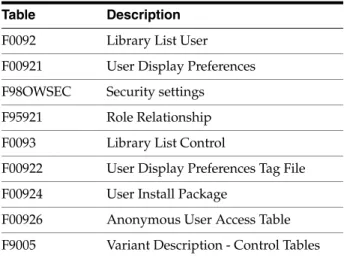
The P0092 application uses these tables:■ Library Lists - User (F0092) ■ User Display Preferences (F00921)
■ User Display Preferences Tag File (F00922) ■ User Access Definition (F00925)
■ Library List Control (F0093) ■ Library List Master File (F0094)
3.4 Setting Up User Profiles
This section contains the following topics:
■ Section 3.4.1, "Understanding User Profile Setup" ■ Section 3.4.2, "Understanding How to Add Users" ■ Section 3.4.3, "Prerequisites"
■ Section 3.4.4, "Forms Used to Set Up User Profiles"
■ Section 3.4.5, "Setting Processing Options for User Profile Revisions (P0092)" ■ Section 3.4.6, "Creating and Modifying User Profiles"
■ Section 3.4.7, "Copying User Profiles"
■ Section 3.4.8, "Assigning Business Preferences to User Profiles" ■ Section 3.4.9, "Creating Profiles by Using a Batch Process" ■ Section 3.4.10, "Reviewing User and Profile Definitions"
3.4.1 Understanding User Profile Setup
As a system administrator, you use User Profile Revisions (P0092) to create user profiles for each user in the system. You also determine the environments that are available for each user, and set up display preferences, such as language.
These steps outline the high-level process for setting up user profiles.
1. Create all of the role profiles for the enterprise. See Setting Up Roles.
2. Create a user profile for every user.
3. Assign to each role or user these preferences:
– Environments, to determine the environments that you want to be available to each role or user. Environments are assigned at the role level only.
– Display preferences, to determine JD Edwards EnterpriseOne display characteristics such as language, date format, and country code.
The Display preferences are controlled on the User Profile Revisions form.
See Also:
■ "Defining Machines" in the JD Edwards EnterpriseOne Tools Package
Management Guide.
■ Setting Up User Profiles.
■ Creating and Modifying User Profiles. ■ Creating Profiles by Using a Batch Process.
Note: If you are setting up user profiles during the installation process, you must sign in to the deployment server using the
deployment environment. After you have completed the installation process, you can add or modify user profiles from any machine except the deployment server.
3.4.1.1 User Profile Creation and Modification
The user profile defines certain setup and display features, such as access to Fast Path, language, date format, or country code. If you select a country code for a user, the menu filtering process displays for that user any special menu selections unique to that country code. For example, if you enter CA (Canada), that user would see the Canadian Tax Information application on the appropriate menu, which users without that country code would not see.
3.4.1.2 Batch Process for Creating User Profiles
If address book records already exist for employees, you can run a batch process to automatically create user profiles from those address book records. This process can save time, ensure accuracy between the Address Book and user profile records, and ease the transition of taking JD Edwards EnterpriseOne to production.
You can create user profiles through the Populate User Profiles batch application (R0092). With this process, you can assign display and environment preferences to users. This process enables you to create hundreds of new user profiles at a time.
3.4.1.3 Report Used for Reviewing User Profiles
The Summary of Environments, Packages and Profiles report (R00921) enables you to review a list of user and role profile definitions. This report summarizes the
environment or environments assigned to a role and lists the users in the role. JD Edwards EnterpriseOne provides two default versions that enables you to summarize either all roles or only specific roles.
3.4.2 Understanding How to Add Users
You can create user profiles one at a time by using the User Profile Revisions application, or you can simultaneously create multiple profiles by using batch processes.
3.4.2.1 How to Add an Individual User
If you need to add only a few users, use the User Profile Revisions program. The following list details the steps for adding user profiles one at a time.
1. If you plan to create a new role for the user, add an address book record with a valid search type code (for example, E for employee).
2. If the existing role profiles are not acceptable for the new user, add a role profile.
3. Add an address book record for the new user.
4. Add a user profile.
5. Add sign-in security records for the user.
6. Use Security Workbench (P00950) to add any security overrides for the user if the user needs different security than the roles to which the user belongs.
7. Populate the machine table for the user's machine.
8. Use User Overrides Revision (P98950) to add any new user overrides for the user if the user needs different user overrides than the role to which the user belongs.
Note: This section is a checklist for all the steps needed to add a new user. These steps do not address third-party setup issues such as assigning network user IDs.
3.4.2.2 How to Add Multiple Users
When you are ready to create user profiles for the first time, you might need to create hundreds of profiles simultaneously. In this case, JD Edwards EnterpriseOne provides batch processes to create the profiles. These batch processes automate the process of user profile creation.
When you decide which role to assign to a user, consider application security as the most important role because:
■ Application security has the most extensive setup.
■ Managing overrides to the role security is more difficult than, for example,
managing overrides to deployment preferences.
The following list details the steps that you need to perform when you add multiple user profiles simultaneously.
1. Using the Address Book application (P01012), create address book records for roles that you will use in user profiles.
2. Using the User Profile Revisions application, add the role profiles.
3. Populate the various Address Book tables.
If you are migrating data from a non-JD Edwards EnterpriseOne system, you can populate the data tables with a table conversion. Otherwise, you can manually add data to the Address Book tables.
4. Run the Populate User Profiles (R0092) batch process to create user profile records from existing Address Book records.
Normally, this report is based on address book records with a search type for employees (E).
5. Adjust each user's role assignments.
Determine the role in which you want to place an individual and manually assign each user to a role.
These settings are dictated by role: – Environments
– User Overrides – Application Security
6. Run the Summary of Environments, Packages and Profiles batch process (R00921) to view the new user profiles.
7. Use Security Workbench (P00950) to apply application, action, and processing option security for roles and any individual overrides to those roles.
8. Create sign-in security records using the EnterpriseOne Security application (P98OWSEC).
You can create sign-in security records for all individuals within a role by entering
Note: Sign-in security is not based on roles because individuals must have their own passwords. A program exists with sign-in security to quickly create individual security records by role; however, after the records are created, security is assigned by an individual.
9. Manually populate the F00960 table.
This table is automatically populated each time a machine signs in to JD Edwards EnterpriseOne. However, if you intend to use schedule packages, you must manually populate this table.
10. Create user overrides for roles.
Normally, you will not create any overrides for individuals because they can easily create their own as they use the software.
3.4.3 Prerequisites
Before you complete the tasks in this section:
■ Create all of the role profile information by using the User Profile Revisions
application.
■ Define:
– Role profiles.
– Environments that each role can access.
3.4.4 Forms Used to Set Up User Profiles
3.4.5 Setting Processing Options for User Profile Revisions (P0092)
Access the Processing Options form. Select the A/B Validation tab.1. Enter 1 to enable Address Book validation.
Form Name FormID Navigation Usage
Work With User / Role Profiles W0092D System Administration Tools (GH9011), User Management, User Profiles (P0092).
Locate and review existing roles and profiles records and access additional forms.
User Profile Revisions W0092A On the Work With User/Role Profiles form, click Add or select a record and then click Select.
Create, modify, or copy a user profile.
User Environment Revisions
W0092C On the Work With User/Role Profiles form, select Copy Environment from the Row menu.
Copy environment preferences from one user profile to another. Assign or delete environments from user profiles. Business Preferences W0092E On User Profile
Revisions, select Bus Preferences from the Form menu.
Assign business preferences to user and role profiles. Work With Batch
Versions - Available Versions
W98305A Report Management (GH9111), Batch Versions (P98305)
Run the Populate User Profiles batch application (R0092) and the Summary of Environments, Packages and Profiles report (R00921).
When enabled, this processing option validates each new user ID against the Address Book Master (F0101) table upon the creation of a user profiles. Upon creation of a user profile, each new user ID is validated against the F0101 table. As a result, you cannot create a user profile for a user who is not already defined in the F0101 table. We recommend that you enable this setting to ensure that Work Center operates correctly. That application requires valid address book numbers.
2. Enter 0 (or leave blank) to disable Address Book validation.
When disabled, this processing option allows you to create user profiles for Address Book entries that do not yet exist in the F0101 table.
3.4.6 Creating and Modifying User Profiles
Access the User Profiles Revision form.User ID
The code that identifies a user profile.
WhosWhoLineID
A number that identifies an entry in the Address Book system, such as employee, applicant, participant, customer, supplier, tenant, or location.
Batch Job Queue
The computer waiting line that a particular job passes through. If blank, it defaults to the job queue specified in the user's job description.
Language
A user defined code (01/LP) that specifies the language to use on forms and printed reports. Before you specify a language, a code for that language must exist at either the system level or in the user preferences.
Justification
An option that determines how text is to be read, left to right or right to left. This option is enabled only when Arabic is selected as the language. For all other languages, the system automatically selects the left to right option.
Set Accessibility Mode
An option that enables the JD Edwards EnterpriseOne web client to be accessible through the JAWS screen reader software for visually impaired users. The option is deselected by default when a user profile is created.
Date Format
The format of a date as it is stored in the database.
These date formats are valid: YMD, MDY, DMY, EMD. If you leave this field blank, the system displays dates based on the settings of the operating system on the workstation. With NT, the Regional Settings in the Control Panel control the settings for the operating system of the workstation.
Date Separator Character
The character to use when separating the month, day, and year of a given date. If you enter an asterisk, the system uses a blank for the date separator. If you leave the field blank, the system uses the system value for the date separator.
Decimal Format Character
Localization Country Code
A code that identifies a localization country. It is possible to attach specific county functionality that is triggered baed on this code using the country server methodology in the base product.
Universal Time
A code that you use to associate a time zone with a user's profile. This code represent the user's preferred time zone, and it must be a value from the UDC table (H91/TZ).
Time Format
A value that determines the user's preferred format for time-of-day. The user can choose from a 12- or 24-hour clock.
Daylight Savings Rule
The rule name that specifies the daylight savings rule for a region or country. See "Creating Daylight Savings Rules" in the JD Edwards EnterpriseOne Tools System Administration Guide.
3.4.7 Copying User Profiles
Access the Work With User/Role Profiles form.
1. To copy an entire profile (the display and deployment preferences), select a user ID in the grid area, and then click Copy.
The User Profile Revisions form appears. Because this action creates a new profile, the user profile that you create cannot already exist in JD Edwards EnterpriseOne.
2. In the User/Role field, enter a user ID to copy the profile into and change any other information.
3. Click OK.
3.4.8 Assigning Business Preferences to User Profiles
Access the Work With User/Role Profiles form.1. Click Find.
2. Select a user profile, and then click Select.
3. On the User Profile Revisions form, from the Form menu, select Bus Preferences.
4. On the Business Preferences form, complete any of these fields and click OK: – Industry Code
This field associates the user profile with a specific industry, such as manufacturing.
– Business Partner Code
This field associates the user profile with a specific business partner. – Customer Code
This field associates the user profile with a specific customer.
Note: Environments are assigned at the role level. See Add Environments.
3.4.9 Creating Profiles by Using a Batch Process
Access the Work With Batch Versions - Available Versions form.
1. Enter R0092 in the Batch Application field and click Find.
2. Select the JD Edwards EnterpriseOne default version (XJDE0001) or the equivalent for the installation, and then click Select.
3. On the Versions Prompting form, click Data Selection, and then click Submit.
4. On the Data Selection form, create a logic statement that describes the set of users for which you want to create profiles.
This form already has a search type of E (employees) populated, which assumes that the users are all employees. You might want to narrow this selection by submitting it for only a range of employees.
After you complete the Data Selection form, the Processing Options form appears.
5. On the Processing Options form, enter: – One of these values for option 1:
Enter 1 to run this report in proof mode, which provides an example of what would happen if you were to run the report in final mode.
Leave blank to run this report in final mode, which creates the user profiles that you specified and creates a report showing the profiles created.
– One of these values for option 2 to define the user profile record being created for each user:
Enter 1 to populate the User ID field with the users' address book numbers plus their initials. Typically, user profiles are created with the users' initials preceding their Address Book number.
Leave this field blank to use just the address book number. Complete these user profile fields for option 2:
Fast Path Language Date Format
Data Separator Character Data Format Character Country
3.4.10 Reviewing User and Profile Definitions
Access the Work With Batch Versions - Available Versions form.
Note: Click Cancel on the Business Preferences form to cancel the addition of the current business preference.
Note: If you need to add just a few users, you should use the User Profile Revisions application.
1. Select a version and click Select.
Default version XJDE0001 creates a report for all role profiles in the enterprise. Default version XJDE0002 creates a report about a specific role profile that you specify.
2. On the Versions Prompting form, click Data Selection and click Submit.
3. On the Data Selection form, create a logic statement that describes the role profiles that you want to summarize.
4. Click OK.
3.5 Setting Up Roles
This section provides overviews of user roles, role-to-role relationships, the sign-in Role Chooser, the menu filtering Role Chooser, workstation initialization file parameters, and discusses how to:
■ Create and modify roles. ■ Migrate roles.
■ Sequence roles.
■ Add an environment to a role. ■ Assign business preferences to a role. ■ Set up a role relationship.
■ Enable the Role Chooser. ■ Create role-to-role relationships. ■ Revise role relationships. ■ Delegate roles.
■ Add roles to a user. ■ Add users to a role. ■ Copy user roles.
■ Add a language translation to a role.
3.5.1 Understanding User Roles
As part of the system setup, you must define the roles for users in the organization. Roles define the tasks that users see when they work in the JD Edwards EnterpriseOne Menu and determine what authority the users have in JD Edwards EnterpriseOne. After you have defined a role, you can associate users with it and apply security to it to provide the appropriate level of access to JD Edwards EnterpriseOne functions. You can assign more than one user to a role, or you can assign more than one role to a user. To establish a role relationship, you use the Role Relationships application (P95921), which enables you to add, remove, or revise a role relationship for a user. Role relationships are revised by removing an assigned role or by changing the expiration date for an assigned role.
Assigning roles accomplishes these purposes:
■ Users see only those tasks and perform only those activities that relate to their
For example, a user acting in the role of accounts payable clerk might not need to see all of the tasks that an accounts payable manager would need to see. You can create both of these roles and define a different set of tasks for each one.
■ Users can have multiple roles.
Within an organization, a user might have many responsibilities, none of which are defined by a single role. A user who is assigned multiple roles can switch roles according to the work required.
■ Administrators can set up security based on user roles.
A user's access to applications, forms, table columns, data sources, and so on is based on one or more roles to which the user is assigned.
This table summarizes the steps an administrator must perform to set up roles for users:
Note: Security for a user is not affected when a user changes a role after signing on to JD Edwards EnterpriseOne; only menu filtering and the display of menu information is affected for that user. The security applied to a user is based on how a user signs-on to the system.
Note: JD Edwards EnterpriseOne stores the role descriptions in the F00926 table. If you previously defined roles using the UDC table H95/RL, you can run the Populate Role Descriptions From F0092 report (R89959211) to populate the Anonymous User Access Table with those older role descriptions.
Administrative Step Applications Used Forms Used Tables Used
Populate the User Profile table with roles that are stored in UDC H95/RL during Roles Phase I.
R89959211, R89959212 Not applicable (NA). F00926, F0092
Run a program to populate the Role Relationships table.
R8995921 NA. F0092,
F95921 Create roles. P0092 (User Profile
Revisions)
W0092A (User Profile Revisions); Form exit from the Work With User Profiles form (W0092D).
F0092
Sequence the roles. P0092 W0092L (Work With Role Sequences); Form exit from the Work With User Profiles form.
F00926
Create role relationships that associate users with roles.
P95921 (Role Relationships)
W95921A (Work With Role Relationships).
F95921 Add security to roles. P00950 (Security
Workbench)
Various, depending on type of security to be applied to each role.
The Portal, JD Edwards Solution Explorer, and client workstations use the role
relationships data in the F95921 table (Role Relationships) and various APIs to retrieve data and allow users to have assigned roles.
You use JD Edwards EnterpriseOne to administer defined roles for which you have created role relationship records. You can add large numbers of roles to a single user, and you can add large numbers of users to a single role relationship record. You can also use JD Edwards EnterpriseOne to specify the language that is used for the description of a new role.
After you have created one or more role relationships for a user, you can revise the relationships. Role relationships are revised by removing an assigned role or by changing the expiration date for an assigned role. You can also exclude an assigned role from *ALL or add a role to *ALL that was previously excluded.
In addition, you might want to delegate one or more of the roles to another user if a particular user will be unavailable. When you delegate the role relationship records, you can copy existing records to another user. You cannot add role relationships to another user unless those roles are already assigned to you.
3.5.2 Understanding Role-to-Role Relationships
You create lists of roles that are subsets of another role. For example, you might create an ADMIN role that includes users with the greatest number of administrative responsibilities and the broadest access to applications in JD Edwards EnterpriseOne. You might also create other roles that include individuals with limited administrative responsibilities and access to fewer applications in JD Edwards EnterpriseOne. If you create a distribution list based on roles, you might want to include on the list all roles with some level of administrative responsibility. Anyone in a role that is part of the distribution list would receive messages sent to the ADMIN role.
You use the Work With Distribution Lists form to add or remove roles from the distribution list as needed. Work With Distribution Lists does not influence how security is applied. It only helps to define workflow e-mail distribution lists.
3.5.3 Understanding the Sign-In Role Chooser
When signing into JD Edwards EnterpriseOne, if enabled, users can use the Role Chooser to select a particular role from a list of valid roles. In the Role Chooser, users can either select a particular role or *ALL. You can limit the freedom that a user has to select roles by disabling the Role Chooser. With the Role Chooser disabled, the user must enter JD Edwards EnterpriseOne with *ALL.
At the JD Edwards EnterpriseOne sign-in form, the user enters a user ID and password. The user must then enter a valid environment and role before entering JD Edwards EnterpriseOne. User roles and assigned environments are dependent on each other. The user can select an environment, which then determines what roles appear in the Role Chooser; or the user can select a role, which determines the environments that appear in the Environment Chooser.
The option for enabling the Role Chooser is a global setting. When enabled, it applies to all users in the system.
See Also:
■ "Applying Roles to a Task" in the JD Edwards EnterpriseOne Tools
Solution Explorer Guide.