August 2015
Android™ Driver’s App
Update Version 1.89
Samsung Galaxy Tab® 4
COPYRIGHT NOTICE
This is an unpublished work protected by the United States copyright laws and is proprietary to Teletrac, Inc. and its affiliates. Disclosure, copying, reproduction, merger, translation, modification, enhancement or use by anyone other than authorized employees or licensees of Teletrac, Inc. and its affiliates without the prior written consent of Teletrac, Inc. and its affiliates is prohibited. This copyright notice should not be construed as evidence of publication.
DISCLAIMER
Teletrac, Inc. and its affiliates make a genuine effort to ensure the accuracy and quality of these materials. However, Teletrac, Inc. and its affiliates make no warranty whatsoever, express or implied, with respect to the completeness or accuracy of the contents herein and accepts no liability of any kind including (but not limited to) performance, merchantability, fitness for any particular purpose, or any losses or damages of any kind caused or alleged to be caused directly or indirectly from this document.
TRADEMARK NOTICES
Fleet Director® is a registered trademark of Teletrac, Inc.
Samsung and Galaxy Tab are trademarks of Samsung Electronics Co., Ltd. Copyright © 2015 Teletrac, Inc.
All Rights Reserved Teletrac, Inc. 7391 Lincoln Way Garden Grove, CA 92841
www.teletrac.com 1.800.TELETRAC
Table of Contents
Android™ Driver App Update V1.89 ... 3
Android™ Driver’s App Map Update ... 11
Updating Maps via Disconnect Screen (Tablet Not Paired) ... 12
3
Android™ Driver App Update V1.89
This document describes the process for updating the Teletrac Driver’s Application for the Samsung Galaxy Tab® 4.Follow the steps below to update the Teletrac Driver’s Application.
1. Turn the device off.
2. Press and hold the Power/Lock key until device turns on.
3. When the Samsung logo displays press and hold the Volume Down key until the lock screen displays.
When the lock screen displays, Safe mode is shown in the lower left corner of the screen (If this does not show, repeat steps 1-4).
Figure 1- Safe mode
4. Bring the Settings option by doing a swipe down motion from the top of the screen.
Figure 2- Swipe Down Motion
5. Click on the Settings Icon.
Figure 3- Settings Icon
4
7. Select the Application Manager Icon.
Figure 4- Application Manager
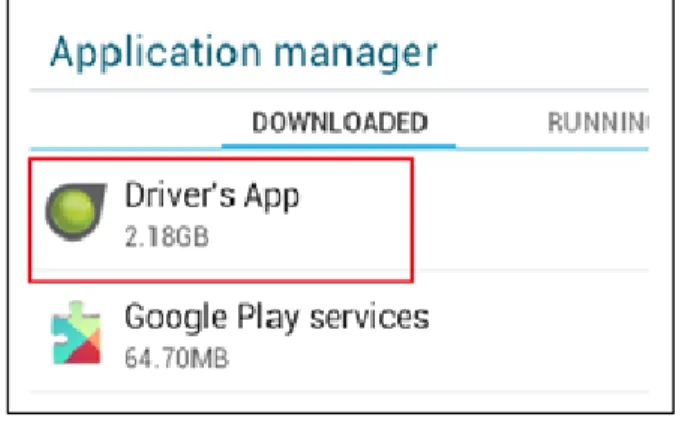
8. Select Downloaded from the Application Manager. 9. From the list, select Driver’s App.
Figure 5- Application Manager, Downloaded 10. Select Uninstall.
Figure 6- Driver's App Uninstall Confirmation Pop-Up 11. Confirm by selecting Uninstall.
Figure 7- Uninstall app Pop-Up 12. Press the Home button.
5
13. Remove the Micro SD card from the Micro SD Apacer Adapter.
Figure 9- Micro SD Card with Apacer Adapter
14. Insert Micro SD card into the Micro SD slot that is located on the bottom right side of the Samsung Tablet.
15. From the home page, select the Apps Icon.
Figure 10- Apps Icon
16. From Apps select the My Files Icon.
Figure 11- My Files Icon
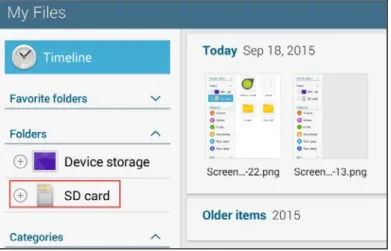
17. From My Files, select SD card.
6 18. Select the teletracDriversApp.apk file.
Figure 13- TeletracDriversApp.apk
19. The Install blocked pop-up displays, select Settings. This will take you to the Samsung OS Setting menu.
Figure 14- Install blocked Pop-Up
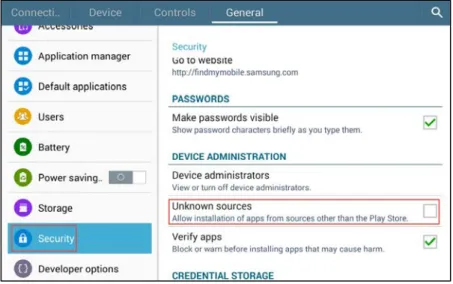
20. Scroll down the right menu until you see Unknown sources in the Device administration section.
21. Select Unknown sources.
7
22. The Unknown sources pop-up will display, select OK.
Figure 16- Unknown Sources Pop-Up
Leave Allow this installation only button checked.
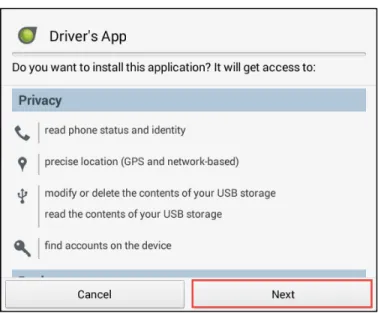
23. The Driver’s App pop-up will display, click Next to go through the
Privacy and Device access information.
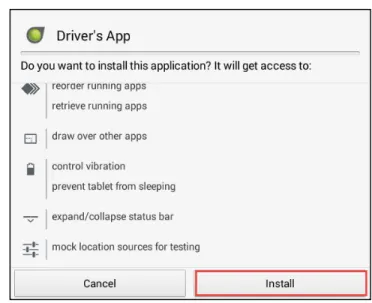
8 24. Select Install.
The application will install in approximately 30 seconds.
Figure 18- Driver's App, Install Pop-Up
25. The Driver’s App pop-up displays, select Done.
9
26. To restart the Samsung device press and hold the power button on the upper right side of the tablet, the Device options pop-up displays, select Restart.
Figure 20- Device options pop-up, Restart Button
27. The Restart pop-up will appear, click OK.
Figure 21- Restart Pop-Up
28. Swipe the screen to unlock the tablet
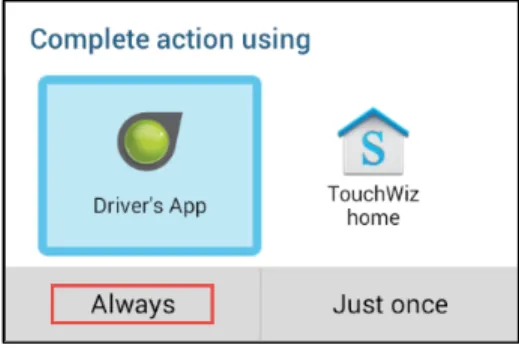
29. Then Select the Driver’s App then select Always.
Figure 22- Home Default Pop-up, Driver's App
30. The Clear defaults pop-up appears, click OK
10
The Drivers Application will begin loading.
11
Android™ Driver’s App Map Update
Once the application has been installed, the map needs to be updated.
Depending on whether or not the tablet is paired to the Bluetooth device,
you will use one of the following methods to update the map:
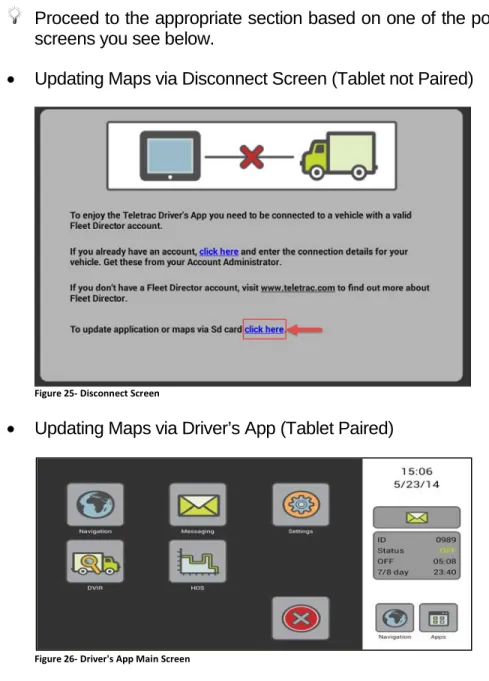
Proceed to the appropriate section based on one of the possible
screens you see below.
•
Updating Maps via Disconnect Screen (Tablet not Paired)
Figure 25- Disconnect Screen
•
Updating Maps via Driver’s App (Tablet Paired)
12
Updating Maps via Disconnect Screen (Tablet Not Paired)
Use the following instructions if you are not paired to the Bluetooth device.
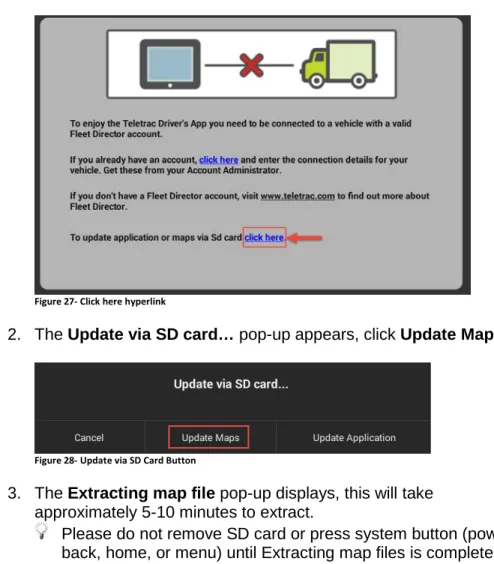
1. Select the click here hyperlink found in the last sentence asdisplayed in the image below.
Figure 27- Click here hyperlink
2. The Update via SD card… pop-up appears, click Update Maps
Figure 28- Update via SD Card Button
3. The Extracting map file pop-up displays, this will take approximately 5-10 minutes to extract.
Please do not remove SD card or press system button (power, back, home, or menu) until Extracting map files is complete.
13
4. Once update is complete, the File Transfer Complete pop-up displays, select Ok.
Figure 30- File Transfer Complete Pop-Up 5. Remove the SD card.
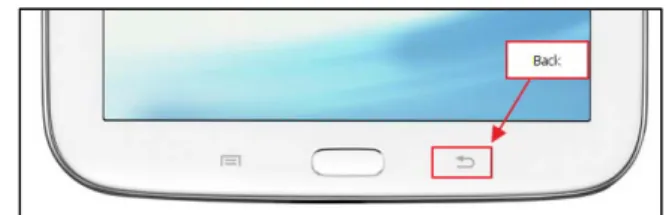
6. Select the Back button on the device to enter the TeletracDriver’s App.
14
Updating Maps via Driver’s App (Tablet Paired)
Use the following instructions if you are paired to the Bluetooth device.
1. Once loading is complete, select AppsFigure 32- Apps Icon 2. Select Settings
Figure 33- Settings Icon
3. Select Administrator
Figure 34- Administration Icon
4. A pop-up notification “Please Enter Admin Password” will be received, enter password, teletrac7391
5. Select Ok
Figure 35- Enter Admin Password Pop-Up 6. Select Update Maps
15
7. A pop-up notification “Maps may be updated in two ways” will be received, select Update via SD Card.
Figure 37- Update via SD Card Button
8. A pop-up notification “Extracting map file” will be received, this will take approximately 5-10 minutes to extract.
Please do not remove SD card or press system button (power, back, home, or menu) unit complete.
Figure 38- Extracting Map Files
9. Once update is complete, a pop-up notification “File Transfer Complete” will be received, select Ok.
Figure 39- File Transfer Complete Pop-Up 10. Remove the SD card.
11. Select the Back button on the device to enter the TeletracDriver’s App.