M0008487C
Setup Software
R ADVANCED MODEL-SETUP
Preface
Thank you for selecting our AC Servo Amplifier R ADVANCED MODEL. This User’s Manual is a
support tool explaining the use and specifications of the Setup Software in order to completely
utilize all the functions of the servo amplifier.
■ Keep this manual close when you start or adjust the Servo Amplifier so that it can be referred to at any time.
■ Refer to the Instruction Manual for the AC Servo Amplifier R ADVANCED MODELl together with the Setup Software manual.
Note: Images of the message windows shown in this user’s manual are for reference only and may
not match actual windows of the set-up software on the screen.
Contents
1. System Overview ... 1-1
1.1 Functions Overview ... 1-1 1.2 Corresponding devices ... 1-2 1.3 System Environment ... 1-2 1.4 Program Installation ... 1-3 1.5 Uninstall Program... 1-9
2. Connect to Servo Amplifier... 2-1
2.1 Connection for Single Device... 2-1 2.2 Connection (Multiple Devices) ... 2-2
3. Basic Operation ... 3-1
3.1 Running Setup Software ... 3-1 1) Running from Start Menu... 3-1 2) Running from Shortcut... 3-1 3.2 Communication with Servo Amplifier... 3-2 1) Communication Setting ... 3-2 2) Communication Confirmation ... 3-3 3) End Communication ... 3-4 3.3 Basic Operation for Screen(s)/Window(s) ... 3-4 1) Main window... 3-4 2) Start Methods for Function Window. ... 3-5 3) Window Display Method ... 3-5 3.4 Project... 3-7 1) Project creation ... 3-7 2) Project Window ... 3-7 3) Project Setting ... 3-8 4) Data Files ... 3-9 5) Saving the Project ... 3-10 3.5 Operation Level... 3-10 1) Operation Level Selection ... 3-10 3.6 Password Function ... 3-11 1) Password Setting Procedure ... 3-11 2) Password Verification Procedure... 3-12 3.7 Software Version Information ... 3-12
4. Parameters ... 4-1
4.1 Parameter Editing, Function Overview... 4-1 1) Function List ... 4-1 2) Types of Parameters ... 4-1 4.2 Parameter Setting ... 4-2 1) Starting Parameter Setting ... 4-2 2) Setting General and System Parameters ... 4-3 3) Setting Motor Parameters... 4-4 4.3 Parameter Transmission from Servo Amp to File... 4-8 1) Operating Procedure ... 4-8 4.4 Parameter Transmission from File to Servo Amp... 4-9 1) Operating Procedure ... 4-9 4.5 Parameter Verification... 4-11 1) Parameter Verification window ... 4-11 2) Operating Procedure for Parameter Verification... 4-11 3) Parameter Copy ... 4-12 4.6 Saving to Backup Memory ... 4-13 1) Operating Procedure ... 4-13
6. Alarm ... 6-1
6.1 Alarm History ... 6-1 1) Alarm Histor display... 6-1 2) Alarm History Clear ... 6-2 6.2 Alarm Reset ... 6-3
7. Test Operations ... 7-1
7.1 JOG Operation... 7-1 1) Operating Procedure ... 7-1 7.2 Positioning Operation... 7-3 1) Operating Procedure ... 7-3 2) Notice ... 7-5 7.3 Magnetic Pole Position Presumption ... 7-5 1) Operating Procedure ... 7-5 7.4 Serial Encoder Clear ... 7-7 1) Operating Procedure ... 7-7
8. Automatic Tuning ... 8-1
8.1 Automatic Notch Filter Tuning ... 8-1 1) Operating Procedure ... 8-1 8.2 Automatic FF Vibration Suppression Frequency Tuning ... 8-3 1) Operating Procedure ... 8-3 8.3 Save Result of Automatic Tuning ... 8-5 1) Operating Procedure ... 8-5
9. Adjustment... 9-1
9.1 Automatic Offset Adjustment of V-REF Terminal ... 9-1 1) Operating Procedure ... 9-1 9.2 Automatic Offset Adjustment of T-COMP Terminal... 9-2 9.3 Manual Offset Adjustment of V-REF Terminal ... 9-2 1) Operating Procedure ... 9-2 9.4 Manual Offset Adjustment of T-COMP Terminal ... 9-3
10. Measurement ... 10-1
10.1 Operation Trace... 10-1 1) Operating Procedure ... 10-1 10.2 Operation Scrolling ... 10-7 1) Operating Procedure ... 10-7 10.3 System analysis ... 10-9 1) Operating Procedure ... 10-9
11. Troubleshooting ... 11-1
11.1 Upon Installation... 11-1 11.2 Wiring, Connection and Communication Status check ... 11-2 11.3 Parameter Setting ... 11-3 1) Parameter Verification ... 11-3 2) Parameter Transmission (To Amplifier)... 11-3 11.4 Support Functions ... 11-3 1) Monitor ... 11-3 2) Alarm ... 11-3 3) Test Operation ... 11-4 4) Automatic Tuning... 11-4 5) Adjustments... 11-5 6) Measurement ... 11-5
12. Appendix ... 12-1
12.1 Wiring ... 12-1 1) Servo Amplifier Connectors ... 12-1 2) Connecting Cable A... 12-2 3) Connecting Cable B... 12-3 4) Network terminator ... 12-3 5) Communication Converter... 12-4
Reference Material
1. System Overview Functions Overview
1. System
Overview
1.1 Functions
Overview
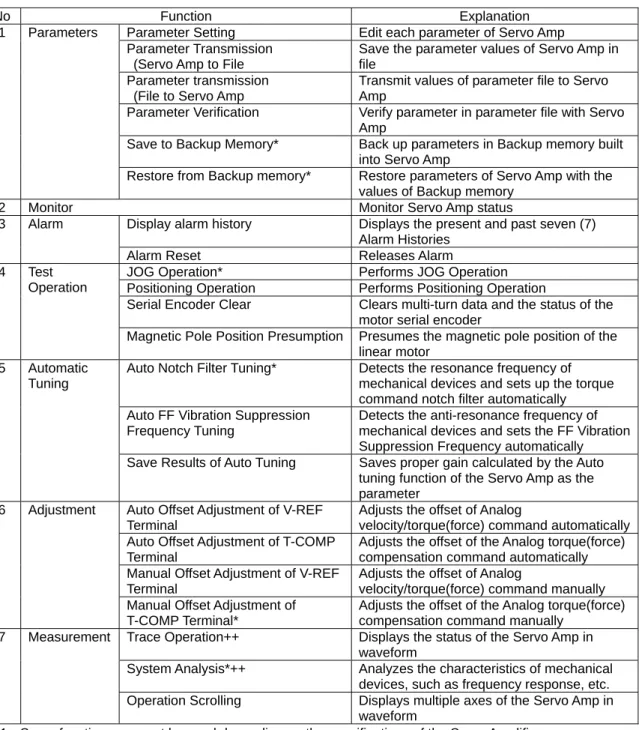
R ADVANCED MODEL Setup Software (Setup Software hereafter) performs the following functions
when connecting with the R ADVANCED MODEL Servo Amplifier (Servo Amp hereafter).
Table 1-1 Function List
No Function Explanation
Parameter Setting Edit each parameter of Servo Amp Parameter Transmission
(Servo Amp to File
Save the parameter values of Servo Amp in file
Parameter transmission (File to Servo Amp
Transmit values of parameter file to Servo Amp
Parameter Verification Verify parameter in parameter file with Servo Amp
Save to Backup Memory* Back up parameters in Backup memory built into Servo Amp
1 Parameters
Restore from Backup memory* Restore parameters of Servo Amp with the values of Backup memory
2 Monitor Monitor Servo Amp status
Display alarm history Displays the present and past seven (7) Alarm Histories
3 Alarm
Alarm Reset Releases Alarm
JOG Operation* Performs JOG Operation Positioning Operation Performs Positioning Operation
Serial Encoder Clear Clears multi-turn data and the status of the motor serial encoder
4 Test Operation
Magnetic Pole Position Presumption Presumes the magnetic pole position of the linear motor
Auto Notch Filter Tuning* Detects the resonance frequency of mechanical devices and sets up the torque command notch filter automatically Auto FF Vibration Suppression
Frequency Tuning
Detects the anti-resonance frequency of mechanical devices and sets the FF Vibration Suppression Frequency automatically 5 Automatic
Tuning
Save Results of Auto Tuning Saves proper gain calculated by the Auto tuning function of the Servo Amp as the parameter
Auto Offset Adjustment of V-REF Terminal
Adjusts the offset of Analog
velocity/torque(force) command automatically Auto Offset Adjustment of T-COMP
Terminal
Adjusts the offset of the Analog torque(force) compensation command automatically Manual Offset Adjustment of V-REF
Terminal
Adjusts the offset of Analog
velocity/torque(force) command manually 6 Adjustment
Manual Offset Adjustment of T-COMP Terminal*
Adjusts the offset of the Analog torque(force) compensation command manually
Trace Operation++ Displays the status of the Servo Amp in waveform
System Analysis*++ Analyzes the characteristics of mechanical devices, such as frequency response, etc. 7 Measurement
Operation Scrolling Displays multiple axes of the Servo Amp in waveform
✔ Some functions may not be used depending on the specifications of the Servo Amplifier.
✔ Functions with the * mark cannot be used together (simultaneously).
1.System Overview Corresponding Devices
1.2 Corresponding
devices
This Setup Software corresponds to the following Servo Amp:
■ RS2_____*
✔ Some functions may be unable to be used depending on the Servo Amp model and/or the combined Servo motor and Encoder. You will not be able to select a menu and/or icon for the non-functioning items.
1.3 System
Environment
The following system is required to utilize this Software Setup:
PC IBM PC/AT Compatible machineCPU Minimum:Equivalent to Intel Pentium 600MHz or greater. Recommended:Equivalent to Intel Pentium 800MHz or greater.
When executing Operation scrolling, a selection with additional reserve space is necessary.
Memory 128MB(More than 256MB is recommended) Hard disk free space 400MB or greater
(including Microsoft .NET Framework 2.0)
Display Greater than 800x600, Colors: 256 colors or greater Corresponding OS Windows® 98/SE, Windows Me,
Windows® 2000 Service Pack4 Windows® XP Service Pack2 or newer Windows® Vista
Windows® 7 32bit/64bit
Necessary Software Microsoft Internet Explorer 6.0 Service Pack 1 Other A RS-232C connection(COM) port or more
1.System Overview Program Installation
1.4 Program
Installation
Installation procedure of Setup Software is as follows:
(1) Exit all active applications.(2) Insert the installation CD into the CD-ROM drive of the PC (name it E: drive)
(3) From the Start menu on the task bar, select [Specify file name and Run(R)].
Click “Reference (B)”and select [E:Setup.exe]. Click “Open(O)”.
After completing the specifying of the file name, click “OK”.
The next window will appear and installation will begin.
1-1 Installation Preparation window
An alternate way to start the installation is to double-click [Setup] in the [E:¥] folder after Explorer is run.
(4) Select the language for installation and click “OK”.
1.System Overview Program Installation
(5) The installer will detect the following modules and perform installation. Click “Install”.
These required modules will be installed prior to the installation of the application. If these items are
installed, then bypass this step.
◆ Crystal Reports For .NET Framework 2.0(X86)
◆ Microsoft .NET Framework 2.0
1-3 Crystal Report Installation window
1.System Overview Program Installation
(6) To start installing Setup Software, Click “Next”.
1-5 Setup Software installation start window
(7) This License Agreement window will be displayed. Please read the contents carefully and click “Next”
if the terms and conditions are acceptable.
1.System Overview Program Installation
(8) Select user for installation. Either select All Users or Administrator only and click “Next”.
1-7 User Installation selection window
(9) Specify the destination folder.
If you want to change the installing folder, click “Change” and specify the folder you want.
After completing this option, click “Next”.
1.System Overview Program Installation
(10) If you use custom motor, input a keyword. If you use a standard product, click “Next” without inputting
any keyword.
1-9 Keyword input window
(11) Click “Install” to begin the installation.
1.System Overview Program Installation
(12) This window will appear during installation. Please wait.
1-11 Installation Progress window
(13) Installation has completed. Click “Finish”.
1.System Overview Uninstall Program
1.5 Uninstall
Program
Uninstall Setup Software as follows:
(1) Exit all running applications before proceeding.
(2) From Start Menu of windows, select the icon [Add/Remove Programs] and the next window
appears.
1-13 Uninstall Window
(3) Select ”R ADVANCED MODEL Setup Software”and click ”Remove”.
✔ When uninstalling this Setup Software, the following applications will not be uninstalled automatically:
✔
z Microsoft .Net Framework 2.0
1.System Overview
2. Connect to Servo Amplifier Connection for Single Device
2. Connect
to
Servo
Amplifier
2.1
Connection for Single Device
Connect the Servo Amplifier and computer using an exclusive cable. (Optional product: Model #
AL-00689703-01)
■ Connection to Servo Amp: Use the CN2 connector port on the front of the amplifier.
■ Connection to PC: Use the RS232C connection port (Dsub9 pin).
For connector model and wiring, refer to [Chapter 12 Appendix].
Connect to COM port on PC side.
Connect to CN2 port on Servo Amplifier side. Do not connect to CN3.
2. Connect to Servo Amplifier Connection (Multiple Devices)
2.2
Connection (Multiple Devices)
Connect PC and Servo Amplifier using the communication cables listed below, communication
converter and final connector (All optional products).
A maximum of 15 Servo Amplifiers can be connected at the same time.
■ Communication Converter: SAU-024-01
■ Communication Cable A: General RS-232C cable (both straight and cross cable are available)
* CN3 of communication convertor (SAU-024-01) is a D-Sub 9pin male connector. ■ Communication Cable B: AL-00695974-01 (0.2m)
AL-00695974-02 (3m)
■ Network Terminator: AL-00695977-01
Follow the illustration above for CN2 and CN3 connection of Servo Amplifiers.
If you connect them in reverse order, communication will fail.
Communication convertor (SAU-024-01)
Communication cable B
Communication cable A
Communication cable B
<First axis>
Communication cable B
<Second axis> <Third axis> <’n th axis>
Communication cable B (COM) (CN3) (CN2) (CN3) (CN2) (CN3) (CN2) (CN3) (CN2) (CN3) (CN1) Network terminator (AL-00695977-01)
3. Basic Operation Running Setup Software
3. Basic
Operation
3.1
Running Setup Software
There are two methods to run the Setup Software.
■ Run from Start Menu.
■ Run from Shortcut.
After the following image appears, the main window will appear regardless of running method.
3-1 Running window
1) Running from Start Menu
(1) Click “Start” on the Windows task bar.
(2) Select [All Programs] to open the programs folder.
(3) Select [SANYO DENKI] to open the SANYODENKI folder.
(4) Click “R ADVANCED MODEL-Setup Software”.
2) Running from Shortcut
(1) Double click the “R ADVANCED MODEL-Setup Software” Shortcut on the desktop.
Chapter 3 Basic Operation Communication with Servo Amplifier
3.2 Communication
with
Servo
Amplifier
1) Communication
Setting
Set up the necessary settings from this Communcation Setting window to communicate with the
Servo Amplifier. The Communication Setting window appears upon running of the Setup Software.
This window can also be opened from “Communication” >>> “Communication Setting” on the menu
bar of the main window or from the Communication Setting Icon
on the toolbar.
3-3 Communication Setting window
(A) Axis selection:
Check the correct axis selection box for communicating axis number.
(B) COM port selection:
Select COM port of computer to communicate with. COM port can be set up for each axis
respectively.
(C) Baud Rate selection:
Select Baud rate from Baud rate selection list. Baud rate can be selected for each COM port
respectively.
(D) Complete Communication Setting:
Communication setting is completed by clicking “Close”. (A)
(B) (C)
Chapter 3 Basic Operation Communication with Servo Amplifier
2) Communication
Confirmation
Following are the methods of establishing communication with the Servo Amplifier.
(1) From the Communication Setting window:◆ Communication begins with a selected axis by clicking “Connect” at the right side of each axis selected.
◆ Communication starts with all axes (checked axes in axis selection boxes) by clicking “On-Line” at the lower left of the window.
3-4 Communication Conformation window
✔ When communication starts normally, a green light appears and amplifier models are displayed.
(2) From Main Window
◆ Communication starts with all selected axes (axes checked in axis selection boxes on the
Commincation Setting window) by selecting “Communication” >>> “On-Line” on the menu bar or by clicking the “On-Line” icon on the toolbar.
3-5 Project window at the time of Communication Confirmation
✔ The Axis lamp on the Project window lights green when communication starts normally. When communication begins
normally, the Axis lamp is green.
Change to “Connect” when communication is established.
3. Basic Operation Communication with Servo Amplifier
3) End
Communication
The following methods are used to terminate communication with the Servo Amplifier.
(1) From Communication Setting window◆ Communication with Servo Amplifier on selected axes/axis terminates by clicking “Disconnect” on the right side of each selected axis.
✔ When communication terminates, the light goes off.
(2) From Main Window
◆ Commincation terminates with all Servo Amp axes by selecting "Communication” >>> “Off-Line” on the menu bar or by clicking the “Off-Line” Icon on the toolbar.
✔ When communication is terminated, the Axis light on the Project windiw goes off.
3.3
Basic Operation for Screen(s)/Window(s)
Setup screens consist of Main window, Project window and Individual Function screens/windows.
1) Main
window
Can perform individual Function windows from the displayed function name in the menu (A) and/or
the Project window (C) of the Main window.
3-6 Main Window (At the time of Communication On-Line)
(A) Menu: Select function and perform.
(B) Toolbar: Select function and perform.
(C) Project window: Refer to [3.4 Project]. (C)
(B)
3. Basic Operation Basic Operation for Window
2) Start Methods for Function Window.
Can select from one of two methods to perform individual functions.
(1) From Menu and Toolbar of Main window◆ Select the function you need from the Menu or Toolbar of the Main window.
◆ Select an axis from the axis selection list. The function window starts after clicking “OK”.
3-7 Execute Function window
(2) From Project window
◆ Execute the Function window of the selected axis by double clicking the Function name in the tree of the Project window.
3) Window Display Method
Switches the display method of individual function window(s) between MDI (Multi Document
Interface) and SDI (Single Document Interface).
(1) MDI display
When you want function window to show the MDI display, select “Window” >>> “Window To MDI(M)”
on the menu of the main window.
3. Basic Operation Basic Operation for Window
(2) SDI Display
When you want function window to show the SDI display, select “Window” >>> “Window To SDI(S)” on
the menu of the main window.
3. Basic Operation Project
3.4 Project
You can manage and save connecting axes values and/or individual data files as a Project.
1) Project
creation
(1) Create a new project.
To create a new project, select “Project” >>> “New(N)” or click the “New” icon on the toolbar.
Then, select the connecting axis of the amplifier on the “Communication Setting” window. Refer to
[3.2.1 Communication Setting] for details.
(2) Use an existing project.
If you use an existing project, select “Project” >>> “Open(O)” on the menu of the Main window or click
the “Open” icon on the toolbar.
2) Project
Window
Once the project is created and communication has been established with the Servo Amplifier,
axis/axes values, available functions and registered data files will be displayed as a tree.
3-10 Project Window
Project name
Current operation level
Available functions listed by respective axis Axis 1 name
Axis 2 name
Operation scrolling
3. Basic Operation Project
3) Project
Setting
(1) Project property
Set Project name, Author and Project Contents.
To open the Project Property setting window, select the project name on the Project window and click
right button, then select “Property” from the pop-up menu.
3-11 Project Property Window
(2) Axis Property
Set up the axis name. You can check software version for Servo Amplifier etc.
Toopen the Axis Property window, select the axis name on the Project window and click right button, then
select “Property” on the pop-up menu.
3. Basic Operation Project
4) Data
Files
You can register data file(s) for Operation Trace, System Analysis and Operation Scrolling to the
project.
(1) Registering data to project:
To register data file(s) to the project, select “File” >>> “Addition To a Project” in the menu of each
individual function.
3-13 Menu for “Add to a Project” in Operation Trace Window
✔ Registered data file is automatically saved under the following name format “date + consecutive number” and is displayed in the data file on the Project window.
3-14 Data file registered to project
Registered data file to project is saved to a sub folder containing the project file.
✔ Each data file can be saved without registering it to a project.
✔ The name of the data file can be changed later. (2) Retrieve data file(s)
3. Basic Operation Project
5) Saving
the
Project
Select “Project” >>> “Save” (or icon on toolbar)
or “Save As”. Set up project information and
registered data file(s) are saved.
3.5 Operation
Level
You Can limit/restrict editing parameters by setting the operation level. There are two operation
levels: Basic and Advanced.
■ Basic : You can only edit Basic parameters of the Servo Amplifier.
■ Advanced : You can edit all parameters of the Servo Amplifier.
✔ Refer to the Instruction Manual for the Servo Amplifier in use for each parameter level.
1) Operation Level Selection
Select “Project” >>> “Operation Level”, or click “Operation Level” icon
.
Operation level selection window will be displayed.
Select the appropriate operation level and click “OK”. If you need to stop the selection, click
“Cancel”.
3-15 Operation Level Selection Window
✔ Regarding Authority, make certain to select “Authority A”. “Authority B” and “Authority C” are for our company maintenance staff only.
3. Basic Operation Password Function
3.6 Password
Function
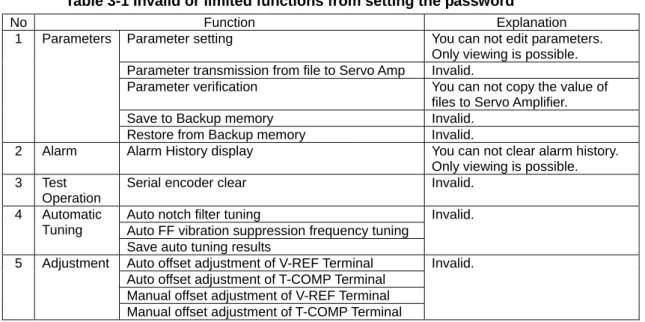
Partially limiting functions of the Servo Amplifier is possible by setting a Servo amplifier password
function. With the Servo Amplifier password set, you cannot edit parameters as well as some
functions unless the password is released.
Table 3-1 Invalid or limited functions from setting the password
No Function Explanation
Parameter setting You can not edit parameters. Only viewing is possible. Parameter transmission from file to Servo Amp Invalid.
Parameter verification You can not copy the value of files to Servo Amplifier. Save to Backup memory Invalid.
1 Parameters
Restore from Backup memory Invalid.
2 Alarm Alarm History display You can not clear alarm history. Only viewing is possible. 3 Test
Operation
Serial encoder clear Invalid.
Auto notch filter tuning
Auto FF vibration suppression frequency tuning 4 Automatic
Tuning
Save auto tuning results
Invalid.
Auto offset adjustment of V-REF Terminal Auto offset adjustment of T-COMP Terminal Manual offset adjustment of V-REF Terminal 5 Adjustment
Manual offset adjustment of T-COMP Terminal
Invalid.
1) Password
Setting
Procedure
Password setting procedure is as follows:
(1) Select “Password Setting” on the menu of the Parameter setting window. Password window will be
displayed.
(2) Input the password into each text box at “New Password” and “New Password (for a check)” and click
“OK”.
(3) Make sure to use 4-digit hexadecimal alphanumeric characters.
(4) Set “0000” to release the password.
(5) You cannot use “FFFF”.
(6) Re-input power supply for Servo Amplifier to validate the new password.
3. Basic Operation Password Function
2) Password
Verification
Procedure
While the Password to Servo Amplifier condition is already set, you wanto to execute the function ,
shown in figure 3-1, the Password Verification window appears.
If the entered password does not match the current password, the individual functions cannot be
used.
(1) Enter the correct password into the box and click “OK”.
(2) When you have entered the correct password for the Servo Amplifier, the function window will appear.
3-17 Password Enter Window
3.7
Software Version Information
When “Help” >>> “Version Information” is selected from the menu of the main window, the Software
version of Setup Software, Database and Motor Parameters can be checked.
4. Parameters Parameter Editing, Function Overview
4. Parameters
4.1
Parameter Editing, Function Overview
You can perform, edit, transmit, verify and backup Servo Amplifier parameters using this Setup
Software.
1) Function
List
The following parameter functions can be performed using the Setup Software:
No Parameter Function Explanation1 Parameter Setting Edit individual parameters of the Servo Amplifier.
2 Parameter Transmission Servo Amp to file
Save parameters of the Servo Amp in the file.
3 Parameter Transmission file to Servo Amp
Transmit the value of the parameter file to the Servo Amplifier.
4 Parameter Verification Transmit the value of the parameter Servo Amp to the file.
5 Save to Backup memory Backup parameters to the built in Backup memory of the Servo Amplifier.
6 Restore from Backup memory Restore parameters of the Servo Amp with values from Backup memory.
2) Types of Parameters
There are three (3) groups of parameters. All of these parameters can be modified from the
Parameter Setting window:
(1) General parameters:
Parameters to set each servo gain and I/O function arrangement according to use. These parameters
outline the group 0 - F.
(2) System parameters:
Basic system parameters such as those for classified power source, combining encoder, etc. These
parameters outline the group “System Parameters”.
(3) Motor parameters:
Combining motor parameters.
2)
Types of
4. Parameters Parameter Setting
4.2 Parameter
Setting
The parameters of the Servo Amplifier can be changed using the Parameter Setting function.
1) Starting Parameter Setting
The Parameter Setting window can be executeted by any of the three (3) following procedures:
(1) Select “Parameter” >>> “Parameter Setting” on the menu of the main window and select theappropriate axis number from the axis selection window.
(2) Click the “Parameter Setting” icon on the toolbar of the main window and select the appropriate
axis number from the axis selection window.
(3) Double click “Parameter” >>> “Parameter Setting” >>> Parameter “Group Name” of the setting axis
on the Project window.
4-1 Parameter Setting window
(A) Menu : Select and perform each function.
(B) Toolbar : Select and perform each function.
(C) Model : Displays combined model of Servo Amplifier, Servo motor.
(D) Combining motor : Displays currently combined motor model.
(E) System information : Displays Servo Amplifier system information.
(F) Group tab : Displays Parameter name and group number.
(C) (E)
(D)
(F)
(G)
(H)
(I) (J)
(A)
4. Parameters Parameter Setting
2) Setting General and System Parameters
Procedure for setting General and System Parameters is as follows:
(1) Click the group tab where the parameter to be changed is displayed and click the specific parameter
to be changed.
4-2 Parameters List Display Window
(2) Open the Parameter Edit window by double clicking the selected parameter or by clicking “Edit”.
Inputs the setting values in the box provided (or select the setting value from the list box) and click
“OK” or press the “Enter” key. The Edit window will close after the value is established and the new
value will be displayed in the Input Value column of the parameter list.
4-3 Parameter Edit Window
(3) Repeat the same procedures (1)-(2) for the other parameters to be changed. Input the value to be changed
Estabish the value
② Edit window is opened by selecting parameter to be changed and double clicking.
4. Parameters Parameter Setting
(4) Select “Amplifier” >>> “Write in amplifier” from the menu or click the “Write in Amplifier” icon to
begin writing to the amplifier. When the parameters have been completely written correctly, the
parameter values, both before and after the change will be displayed on the Parameter Change
History window.
4-4 Icon for Write in Amplifier
4-5 Parameter Change History display
3) Setting Motor Parameters
Follwoing windows show how to set up motor parameters. If the motor with the absolute encoder
type is used, parameters for that can be set automatically based on the information from its encoder.
There are two options available to set up parameters for the motor - “Motor Automatic setting”
and ”Motor Manual setting” – as below.
(A)
Choosing “Motor Automatic setting”
(1) On the Parameters List Display Window, Click “Motor Automatic Setup”. Perform “Write in Amplifier”.
Motor model number before change. Motor model number after change.
4. Parameters Parameter Setting
(2) Then the dialog box appears as shown in the figure 4-7 and click “OK” button. Choosing “Cancel”
button will stop its execution.
4-7 Motor Automatic Setting Confirmation Window
(3) The dialog will pop up displaying the message for a few seconds during execution as shown in the
figure 4-8.
4-8 Motor Automatic Setting Execution Window
(4) When the setting is completed successfully, the appearing window will show the message as shown in
the figure 4-9. Click “OK” to complete the setting, and then re-input control power supply of the servo
amplifier.
4. Parameters Parameter Setting
(5) If an alarm is activated because the setting did not complete correctly for some reasons, “Motor
Automatic Setting unsuccessful“ window will appears. Resolve the problem of unsuccessful
completion, and then restart execution.
4-10 Motor Automatic Setting Unsuccessful Window
Failure reasons for Motor Automatic Setting:
・ The status of servo amplifier is “Servo-ON” or “Alarm”.
・ The servo motor is not supported by the servo amplifier or set-up software.(It is not listed in the “Motor selection window” (Figure 4-11))
・ The motor is not supported by “Automatic setting” .
・ Combination of the amplifier and the motor is not matched.
・ ”Encoder clear” has already been executed.
4. Parameters Parameter Setting
(B)
Choosing “Motor Manual setting”
(1) Open Motor Selection window by clicking “Select from the List” from the Parameter Setting window.
(2) Select the motor to be combined and click “OK” or press the “Enter” key. The selected motor model
number to be combined will be displayed in the Input Value column on the Parameter setting window.
4-11 Motor Selection window
(3) Perform the writing of the selected motor parameter into the Servo Amp by clicking the “Write in
Amplifier” icon on the toolbar.
4-12 Combining Motor display
(4) When writing the value into the Servo Amplifier is complete, the motor model numbers, both before
and after change, will be displayed on the Parameter Change History window. Refer to [4-5 Parameter
Change History display].
✔ Re-input the power supply for the Servo Amplifier to validate the motor change parameter. Select motor
Establish
Perform the writing of the selected motor parameter into the Servo Amplifier.
4. Parameters Parameter Transmission from Servo Amp to File
4.3
Parameter Transmission from Servo Amp to File
Parameters of Servo Amplifier can be saved in parameter file. This enables batch setting of
parameters into the other Servo Amplifier(s) from the saved parameter file.
1) Operating
Procedure
(1) Perform any of the following three (3) methods to transmit parameters from Servo Amplifier to file:
(A) Select “Parameter” >>> “Parameter Transmission (To File)” from the menu or click the “Parameter
Transmission (To File)” icon on the toolbar on the main window. Then, after the Axis Selection
window appears, select the axis number where the parameter transmission is located.
(B) Select “Disk” >>> “Parameter Transmission (To File)” from the menu or click the “Parameter
Transmission (To File)” icon on the toolbar of the Parameter Setting window.
(C) Double click “Parameter” on the transmitting axis >>>“Parameter Transmission (To File)” on the
project window.
4-13 Parameter Transmission (To File) Window
(2) When “Transmission” is clicked on the Parameter Transmission (To File) window, “Save As” is
displayed. Specify the file name to be saved. The extension automatically becomes *ap1. Click “Save”
4. Parameters Parameter Transmission from Servo Amp to File
(3) Wait for a few seconds until the transmission is complete.
4-15 Transmitting Window
(4) The file will be created in the designated folder.
4.4
Parameter Transmission from File to Servo Amp
You can transmit saved parameter file to Servo Amplifier. Necessary parameters can be transmitted
only to Servo Amplifier by selecting the type of parameters to be transmitted.
1) Operating
Procedure
(1) Perform any of the following three (3) methods to transmit parameters from the file to the Servo
Amplifier.
(A) Select “Parameter” >>> “Parameter Transmission (To Amplifier)” from the menu or click the
“Parameter Transmission (To Amplifier) icon on the toolbar of the main window. Then, after the
Axis Selection window appears, select the axis number where the parameter transmission is
located.
(B) Select “Disk” >>> “Parameter Transmission (To Amplifier)” from the menu or click the “Parameter
Transmission (To Amplifier)” icon on the toolbar of the Parameter Setting window.
(C) Double click “Parameter” on the transmitting axis >>>“Parameter Transmission (To Amplifier)” on
the project window.
4. Parameters Parameter Transmission from File to Servo Amp
(2) Check the boxes of the types of parameters to be transmitted on the Parameter Transmission (To
Amplifier) window and click “Transmission”.
(3) Select the file to be transmitted from the “Open File” dialog window and click “Open”.
4-17 Open File Dialog Window
(4) Wait for a few seconds until the transmission is complete.
4-18 Transmitting Window
4. Parameters Parameter Verification
4.5 Parameter
Verification
You can verify the parameter value of the Servo Amp with that of the parameter file because it likely
could be different. Copy the different parameters (if necessary) to the amplifier and/or the file.
1) Parameter
Verification
window
Open the Parameter Verification window using any of the following three (3) methods:
(1) Select “Parameter” >>> “Parameter Verification” from the menu of the main window or click the
“Parameter Verification” icon on the toolbar of the main window.
The Axis number selection window will appear.
Select the Axis number to be verified.
(2) Select “Disk” >>> “Parameter Verification” from the menu of the Parameter Setting window or click the
“Parameter Verification” icon on the toolbar of the Parameter Setting window.
(3) Double click “Parameter” >>> “Parameter Verification” on the axis to be verified on the project window.
4-19 Parameter Verification window
(A) Menu : Select and perform each function.
(B) Toolbar : Select and perform each function.
(C) Servo Amp Information : Display the connecting amplifier/motor model.
(D) File Information : Display the amplifier/motor model of the file.
(E) Verification Result : Display the parameters that differed after verification.
2) Operating Procedure for Parameter Verification
(1) Select “File” >>> “Open” from the menu or click the “Open” icon on the toolbar of the Parameter
Verification window. (A)
(B)
(C)
(D)
4. Parameters Parameter Verification
(2) Select the file to be verified from the dialog window of “Open File” and click “Open”. Verification will
begin. The following window will be displayed during verification.
4-20 Parameter Verification Window (Processing)
(3) Displays the differing parameters from the Verification Results window after the verification has been
completed.
4-21 Parameter Verification Results Window
3) Parameter
Copy
Differing parameters can be copied to Servo Amp or file. The following are the types of copies:
(1) Copy the value of the Servo Amplifier to file all parameters.Select “Copy” >>> “Copy the value of amplifier to file (All)“ or click the icon on the toolbar.
(2) Copy the value of the Servo Amplifier to the file for selected parameters only.
Select parameters to be copied from the Parameter Verification Results window.
Select “Copy” >>> “Copy the value of amplifier to file (only in case of selection)“ from the menu or click
the icon on the toolbar.
(3) Copy the value of the file to the Servo Amp for all parameters.
Select “Copy” >>> “Copy the value of amplifier to file (All)“ or click the icon on the toolbar.
(4) Copy the value of the file to the Servo Amp for selected parameters only.
Select the parameters to be copied from the Parameter Verification Results window.
Select “Copy” >>> “Copy the value of amplifier to file (only in case of selection)“ from the menu or click
the icon on the toolbar.
✔ When the value of the file changes as a result of a copy, save the file before closing the application.
4. Parameters Saving to Backup Memory
4.6
Saving to Backup Memory
You can save the current parameter values of the Servo Amplifier into the backup memory domain
of the Servo Amplifier. Parameters can be restored at any time by saving the setup values of the
parameters in the backup domain.
1) Operating
Procedure
(1) Perform Save to Backup memory using one of the following methods:
(A) Select "parameter” >>> “Save to the Backup Memory” from the menu of the main window or click
the "Save to Backup Memory” icon on the toolbar of the main window.
The Axis selection window will appear. Select the axis number to be performed.
(B) Double click “Parameter” >>> “Save to Backup Memory” on the Project window for the axis to be
performed.
(2) Saving to Backup Memory will begin processing by clicking “OK” on the Save to Backup Memory
window.
4-22 Confirmation Window (Save to the Backup Memory)
(3) The following window will be displayed while executing the backup. It displays the remaining data
number.
4-23 Processing Window (Save to the Backup Memory)
(4) The following window is displayed when the backup process has been completed successfully. Click
“OK”.
4-24 Completed Window (Save to the Backup Memory)
✔ The standard value is saved in the backup memory domain at the time of shipment from our factory. The standard value cannot be restored after you perform this Save to Backup Memory operation once. Saving the parameters into a separate file prior to execution is strongly recommended.
✔ Refer to [4.3 Parameter Transmission from Servo Amp to File] for the save procedure.
✔ Do not power off until processing has been completed. Perform the program again in case of stoppage of the processing.
4. Parameters Restoring from Backup Memory
4.7
Restoring from Backup Memory
You can restore the parameters of the Servo Amplifier with the values stored in the Backup
Memory.
1) Operating
Procedure
(1) Restore parameters from the Backup Memory using one of the following methods:
(A) Select “Parameter” >>> “Restoration from the Backup Memory” from the menu on the main window
or click the “Restoration from the Backup Memory” icon on the toolbar of the main window. The
Axis number selection window will appear. Select the axis number to be performed.
(B) Double click “Parameter” >>> “Restoration from the Backup Memory” on the axis to be performed
from the project window.
(2) Parameter restoration with the value stored in the Backup Memory will begin after clicking “OK” on the
Restoration window.
4-25 Confirmation Window (Restoration from the Backup Memory)
(3) The following window appears while executing the restoration and displays the remaining data
numbers.
4-26 Processing Window (Restoration from the Backup Memory)
(4) The following window appears upon successful completion of the Restoration. Click “OK”.
4-27 Completed Window (Restoration from the Backup Memory)
✔ Do not power off until processing has been completed. Perform the program again in case of stoppage of the processing.
5 Monitor Monitor Overview
5. Monitor
5.1 Monitor
Overview
You can check Data of each Servo Amplifier in real time. It is also possible to select specific
parameters to be monitored from the list.
1) Operating
Procedure
(1) Select “Monitor” from the menu or from the toolbar, then select the axis to be monitored.
5-1 Monitor Menu Window
5.2 Start
Monitoring
Check the data of the Servo Amp in real time.
1) Operating
Procedure
(1) After clicking “Monitor Start” on the upper right of the window, a monitor data update will begin.
5-2 Monitor Window
✔ Displays “Monitor Stop” as in the above image.
(2) To stop the monitor update,click“Monitor Stop”
Selection availability is Decimal <<< >>> Hexadecimal by right clicking Present Value. “Monitor Start” will be displayed when monitor is not in use.
5. Monitor Selecting Parameter(s) to Monitor
5.3
Selecting Parameter(s) to Monitor
Parameters to be monitored can be selected when monitor is stopped.
1) Operating
Procedure
(1) Click “Parameter Selection” when monitor is stopped.
The following Parameter Selection window will be displayed.
5-3 Parameter Selection Window
(2) Check the box (es) of the parameter(s) you want to monitor and click “OK”. Check Parameter
6 Alarm Alarm History
6. Alarm
6.1 Alarm
History
Alarm History display, Alarm History clear, and Alarm Reset can be performed from this window. It
displays the last seven (7) alarms generated by the Servo Amplifier. It also indicates the state of the
amplifier at the time the alarm is generated along with alarm generating time and alarm code name.
6-1 Alarm Menu Window
1) Alarm Histor display
(1) Select “Alarm” >>> “Alarm History” from the menu or click the “Alarm History” icon on the toolbar
of the main window. The Axis Number selection window will appear. Select the axis to display the
alarm history for and click “OK”. Click “Cancel” to exit.
(2) Alarm History is displayed.
6-2 Alarm History Window
(3) Alarm History can be printed. Select “File” >>> “Print” from the menu or click the “Print” icon .
6. Alarm Alarm History
2) Alarm History Clear
Alarm history generated in the past can be cleared from the Alarm History window.
(1) Select “Amplifier” >>> “Alarm History Clear” from the menu.6-3 Alarm History Clear Window
(2) The confirmation window to perform the Alarm History Clear will be displayed. Click “OK” to perform
and click “Cancel” to exit.
6-4 Alarm History Clear Confirmation Window
(3) When Alarm History Clear has been completed successfully, click “OK”.
6. Alarm Alarm Reset
6.2 Alarm
Reset
(1) Select “Alarm” >>> “Alarm Reset” from the menu or click the “Alarm Reset” icon on the toolbar of
the main window. The axis number selection window will appear.
Select the axis you want to display the alarm history and click “OK”. Click “Cancel” to quit.
(2) Displays confirmation window to perform Alarm Reset.
6-6 Alarm Reset Confirmation Window
(3) Click “OK” to perform. Click “Cancel” to quit.
(4) Alarm factors have all been removed and Alarm Reset was performed successfully. If not, a window
will appear with the following: “Alarm Reset was not able to be performed”.
6-7 Alarm Reset Completed Successfully Window
6. Alarm
7 Test Operations JOG Operation
7. Test
Operations
You can perform JOG Operation, Positioning Operation, Magnetic Pole Position Presumption and
Serial Encoder Clear as test operations.
7.1 JOG
Operation
In the JOG Operation, Servo motor’s test run under constant velocity command can be performed
easily by setting the rotation speed of the Servo motor. Secure the safety of the surroundings
completely because the Servomotor runs during the JOG Operation. When the amplifier alarm
occurs during the JOG Operation, motor excitation turns OFF. Prepare the control devices as ready
to be used before execution of the JOG Operation.
7-1 Test Operation Menu Window
1) Operating
Procedure
(1) Select “Test Operation” >>> “JOG Operation” from the menu or click the “JOG Operation icon on
the toolbar of the main window. The Axis number selection window will appear. Select the axis on
which to perform the velocity JOG Operation and click “OK”. Click “Cancel” to quit.
7-2 Axis Selection Window
(2) Confirmation window for performing the JOG Operation will appear.
Click “OK” to perform the JOG Operation.
Click “Cancel” to quit the operation.
7 Test Operations JOG Operation
(3) Click “OK” for JOG Operation display.
7-4 JOG Operation Window
(A) Selection of alarm function at the time of the JOG Operation is ended. Choose either “is selected” or
“is not selected” at the time of end.
(B) Selection of stoppping method:
Choose either “It will stop if a button is pushed” or “It will stop, if the execution button
(Positive/Negative direction) is detached.
(C) Monitoring the current state of the Servo Amplifier including torque (force), velocity and actual
position.
(D) Setting the operation conditions. JOG acceleration/deceleration time constant and torque (force)
command limit can be set as well as the JOG velocity command.
(E) Editing operating conditions. Click “Edit” to edit the conditions. Click “Decision” when editing is
complete. Click “Cancel” to cancel the editing.
(F) ON/OFF operation of motor excitation: Servomotor does not run if this is not ON.
(A) (B)
(C)
(D)
(E)
(F)
7 Test Operations JOG Operation
(4) To end the JOG operation, click quit button of the Windows. When the following window appears, click
“OK”. To continue the JOG operation, click “Cancel”.
7-5 End JOG Operation confirmation Window
(5) When other factors prevent JOG operation from being performed during operation or at the start of
operations (for example Communication errors, Amplifier alarm detection, etc.) the following window
will be displayed and operation will stop.
7-6 Preparation incomplete for JOG Operation Window
(6) Click “OK”. You will return to main window.
7.2 Positioning
Operation
In the Positioning Test Operation, by setting the feed velocity and the pulse number to be moved for
the Servomotor moving the axis for a set number of the pulse can be performed easily.
Secure the safety of the surroundings completely because the Servomotor runs during the
Positioning Operation. When the amplifier alarm occurs during the positioning operation, the
motor excitation switches to OFF. Prepare the control devices as “Ready to use” before execution.
1) Operating
Procedure
(1) Select “Test Operation” >>> “Positioning Operation” from the main menu or click the “Positioning
Operation icon on the toolbar of the main window. The Axis number selection window will appear.
Select the axis to be operated and click “OK”. Click “Cancel” to stop the operation.
(2) The Positioning Operation performing confirmation window will appear. Click “OK”.
7 Test Operations Positioning Operation
(3) The Following Positioning Operation window appears.
7-8 Positioning Operation Window
(A) Selection of alarm function at the time of the Positioning Operation is ended. Choose either “is
selected” or “is not selected” at the time of end.
(B) Selecting operation mode. Single position operation or continuous round-trip positioning operation
can be selected for a specified number of times.
(C) Monitors the current state of the Servo Amplifier, including torque (force), velocity, actual position
and the number of times of continuous repeating operation.
(D) Setting the operating conditions. Acceleration/Deceleration time constant, torque (force) command
limit, dwell time and the number of continuous repeating operations can be set to a value other than
that of the number of the positioning pulse and feed velocity.
(E) Edit the operating conditions. Click “Edit” to edit the conditions. Click “decision” when editing is
complete. Click “Cancel” to stop the editing.
(F) ON/OFF operation for motor excitation: The Servo motor will not run if the condition is OFF.
(A) (B)
(C)
(D)
(E)
7 Test Operations Positioning Operation
(4) To quit the Positioning operation, click “quit”button of the Windows. When the following window
appears, click “OK”. To continue the Positioning Operation click “Cancel”.
7-9 Positioning Operation End confirmation Window
(5) When other factors prevent the Positioning Operation from being performed during operation or at the
start of operations (for example Communication errors, Amplifier alarm detection, etc.) the following
window will be displayed and operation will stop.
7-10 Preparation incomplete for JOG Operation Window
Click “OK” to return to the main window.
2) Notice
(1) Pause time has a maximum 0.5 seconds margin of error.
7.3
Magnetic Pole Position Presumption
When you perform the Magnetic pole position presumption, the pole position is presumed without
moving the motor at all. This function is performed for a linear motor.
1) Operating
Procedure
(1) Select “Test Operation” >>> “Magnetic Pole Position Presumption” from the menu or by clicking the
“Magnetic Pole Position Presumption” icon on the toolbar of the main window. The Axis number
selection window will appear. Select the axis to presume the magnetic pole position and click “OK”.
Click “Cancel” to stop the operation.
7-11 Axis selection Window for Magnetic Pole Position Presumption
(2) Confirmation window for execution will appear. Click “OK”.
7. Test Operations Magnetic Pole Position Presumption
(3) Click “Cancel” to quit Magnetic Pole Position Presumption.
7-12 Magnetic Pole Position Presumption Execution Confirmation Window
(4) Magnetic Pole Position Presumption is in progress.
7-13 Magnetic Pole Position Presumption Execution Window
(5) When Magnetic Pole Position Presumption is complete, motor excitation will complete automatically.
7-14 Magnetic Pole Position Presumption Successful Completion Window
(6) When the Magnetic Pole Position Presumption is not presumed successfully, the following window will
appear. Check the status.
(A) Factors for incompletion/malfunction:
◆ Linear sensor feedback error.
◆ Motor is sticking and cannot move.
7. Test Operations Serial Encoder Clear
7.4
Serial Encoder Clear
When the motor encoder is a serial encoder connected to the Servo Amplifier, a zero-clear of the
multiple revolution data in the encoder as well as encoder status clear can be performed using this
function.
1) Operating
Procedure
(1) Select “Test Operation” >>> “Serial Encoder Clear” from the menu or click the “Serial Encoder Clear”
icon on the toolbar of the main window. The Axis number selection window will appear. Select the
axis to perform the Serial Encoder Clear function on and click “OK”. Click “Cancel” to stop the
operation.
(2) The confirmation window for execution of the Serial Encoder Clear will be displayed. Click “OK”.
7-16 Serial Encoder Clear Execution Confirmation Window
(3) Serial Encoder Clear execution window will appear. Click “Cancel” to quit.
7-17 Serial Encoder Clear Processing Window
(4) After several seconds, the following window will be displayed after successful completion of the Serial
Encoder Clear operation. Click “OK”.
7-18 Serial Encoder Clear Successful Completion Window
(5) When Serial Encoder Clear cannot be performed, the following window appears. Click “OK” and quit
the operation.
7. Test Operations Serial Encoder Clear
(6) Alarm (ALM_DF) will occur at the same time as step (5).
(A) Factors for incompletion/malfunction
◆ Motor is operated externally.
◆ Cannot perform zero-clear.
◆ Alarm factors cannot be cleared.
✔ A case could occur where only the encoder status is cleared and the multiple revolution data is not cleared, which will depend on the parameter settings of the Servo Amplifier.
✔ There is a possibility that the encoder clear has already been performed when the operation was stopped by clicking “Cancel” and the window displayed “Serial Encoder Clear cannot be performed (Preparation un-completing)”. Make certain to confirm Serial Encoder PS Data of Monitor window.
8. Automatic Tuning Automatic Notch Filter Tuning
8. Automatic
Tuning
Automatic tuning functions consist of Automatic Notch Filter Tuning, Automatic FF Vibration
Suppression Frequency Tuning and Save Results of Automatic Tuning.
8.1
Automatic Notch Filter Tuning
8-1 Automatic Tuning Menu Window
1) Operating
Procedure
(1) Select “Auto Tuning” >>> “Auto Notch Filter Tuning” from the menu or click the “Auto Notch Filter
Tuning” icon on the toolbar of the main window. The Axis number selection window will appear.
Select the axis to perform the “Auto Notch Filter Tuning” and click “OK”. Click “Cancel” to stop.
(2) Confirmation window will appear. Click “OK”.
8-2 Auto Notch Filter Tuning Execution Confirmation Window
(3) Click “Servo ON” after checking the conditions shown in the window.
8. Automatic Tuning Automatic Notch Filter Tuning
(4) Click “Execute” to perform tuning.
Click “Servo OFF” to stop the motor exitation.
(5) The following window will appear when executing the operation.
8-4 Auto Notch Filter Tuning Execution in Progress Window
(6) When the tuning is completed successfully, the following window will appear. Check the frequency to
be set. Also, secure the safety of the surroundings because Servo ON status continues until “OK” is
clicked.
(7) Auto Notch Filter Tuning window (3) will be displayed by clicking “OK”.
8-5 Results of Auto Notch Filter Tuning Window
(8) When you click “quit” button of the upper right of the Auto Notch Filter Tuning Windows (3), the
following window will appear. Click “OK” to close. Click “Cancel” to return (3) window.
8-6 Close Auto Notch Filter Tuning Confirmation Window
(9) When tuning cannot be performed or some irregularity occurs during tuning, the following window
will appear and tuning will be closed involuntarily.
8. Automatic Tuning Auto FF Vibration Suppression Frequency Tuning
8.2
Automatic FF Vibration Suppression Frequency Tuning
This function set the vibration suppression frequency automatically.
1) Operating
Procedure
(1) Select “Auto Tuning” >>> “Automatic FF Vibration Suppression Frequency Tuning” from the menu or
click the Automatic FF Vibration Suppression Frequency Tuning icon on the toolbar of the main
window. The Axis number selection window will appear. Select the axis to be tuned and click “OK”.
Click “Cancel” to stop operation.
(2) Execution confirmation window will be displayed. Click “OK”.
8-8 Automatic FF Vibration Suppression Frequency Tuning confirmation Window
(3) Click “Servo ON” after checking the conditions displayed in the following window:
8-9 Automatic FF Vibration Suppression Frequency Tuning Window
(4) Click “Execute” to perform tuning.
8. Automatic Tuning Auto FF Vibration Suppression Frequency Tuning
(5) When tuning is performed, the following window will appear:
Click “Cancel” to stop.
8-10 Automatic FF Vibration Suppression Frequency Tuning in Progress Window
(6) Results of the operation execution will appear in the following window:
To confirm the results of the tuning, click “OK”.
8. Automatic Tuning Save Results of Automatic Tuning
8.3
Save Result of Automatic Tuning
Saving the parameters adjusted by automatic tuning: Parameters can be saved five (5) different
ways.
1) Operating
Procedure
(1) Select “Auto Tuning” >>> “Save Result of Auto Tuning” from the menu or click the “Save Result of
Auto Tuning” icon on the toolbar of the main window. The Axis number selection window will
appear. Click “OK”. Click “Cancel” to stop the operation.
(2) Execution confirmation window will be displayed. Click “OK”.
8-12 Save Result of Auto Tuning Execution Confirmation Window
(3) After checking the conditions and selecting the parameter combination to be saved in the following
window, Click “Save the Monitor Value”.
8-13 Save Result of Auto Tuning Execution Window
Specify the parameter combination to be saved.
8. Automatic Tuning Save Results of Automatic Tuning
(4) Monitoring values from the auto tuning parameter monitor values are applied to the values for the
selected parameters.
8-14 Save Result of Auto Tuning Parameter Selection Window
(5) Click “Close” on the upper right of the window to close the application. The confirmation window for
ending the operation will appear. Click “OK”.
8-15 Save Result of Auto Tuning Ended Confirmation Window
Combination of parameters can be chosen from the following 5 options
9. Adjustment Automatic Offset Adjustment of V-REF Terminal.
9. Adjustment
With this function, Automatic offset adjustment of V-REF Terminal, Automatic Offset of T-COMP
Terminal, and Manual offset adjustment of V-REF Terminal and Manual Offset of T-COMP Terminal
can be performed.
9-1 Adjustment Menu Window
9.1
Automatic Offset Adjustment of V-REF Terminal
This is the function to operate the Automatic Offset Adjustment of analog velocity/torque(force)
command input terminal.
1) Operating
Procedure
(1) Select “Adjustment” >>> “Automatic Offset Adjustment of V-REF Terminal” from the menu or click the
“Automatic Offset Adjustment of V-REF Terminal” icon on the toolbar of the main window. The
Axis number selection window will appear. Select the axis to be adjusted and click “OK”. Click “cancel”
to stop.
(2) Confirmation window will appear. Click “OK”.
9-2 Automatic Offset Adjustment of V-REF Terminal Execution Confirmation Window
(3) The following window will be displayed when operation is completed normally:
9-3 Automatic Offset Adjustment of V-REF Terminal Successfully Completed Window
✔ Automatic offset cannot be completed normally when extremely high command voltage has been input. (Higher than 5v standard)
9. Adjustment Automatic Offset Adjustment of T-COMP Terminal.
9.2
Automatic Offset Adjustment of T-COMP Terminal
This is the function to operate automatic offset adjustment for analog torque (force) compensation
command input terminal. Refer to [9.1 Automatic Offset Adjustment of V-REF Terminal] for actual
operation.
9.3
Manual Offset Adjustment of V-REF Terminal
This is the function for manual offset adjustment of analog velocity/torque command input terminal.
1) Operating
Procedure
(1) Select “Adjustment” >>> “Manual Offset Adjustment of V-REF Terminal” from the menu or click the
“Manual Offset Adjustment of V-REF Terminal” icon on the toolbar of the main window. The Axis
number selection window will appear. Select the axis to be adjusted and click “OK”. Click “Cancel” to
stop.
(2) Confirmation window will appear. Click “OK”.
9-4 Manual Offset Adjustment of V-REF Terminal Execution Confirmation Window
(3) Set the offset value in the following window manually:
9-5 Manual Offset Adjustment of V-REF Terminal Execution Window
(4) Click “End” to finish the offset adjustment. The following window will appear. Click “OK”. Click “Edit” to Edit/Setup offset value directly. In
this case, the offset value will be set for Servo Amp when “Decision” is clicked.
Can set the offset value for Servo Amp continuously with the Up/Down control on the right side of the offset value.